
R21CF-31 - Security access control system ACTi - Free user manual and instructions
Find the device manual for free R21CF-31 ACTi in PDF.


| Product Type | Face Recognition Access Control Reader |
| Brand | ACTi |
| Model | R21CF-31 |
| Power Supply | 12 VDC, 2 A |
| Display | Built-in Touch Screen |
| Communication Interfaces | Ethernet (LAN), Wiegand Input/Output |
| User Capacity (1:1 Verification) | Up to 3,000 users |
| User Capacity (1:N Identification) | Up to 600 users (from the 3,000) |
| Recognition Modes | 1:N Identification and 1:1 Verification |
| Face Recognition Threshold | Adjustable (default 85, max 90) |
| Mask Detection | Anti-3D mask function (configurable) |
| Wiegand Support | Standard 26-bit, 34-bit, and custom format (up to 64 bits) |
| I/O Control | 2 relays, door sensor, exit switch, tamper alarm |
| Operating Temperature | Indoor use only (exact range not specified, typical 0°C to 40°C) |
| Housing Material | Plastic (typical for indoor readers) |
| Dimensions (Approximate) | 160 mm x 80 mm x 30 mm (estimated from typical form factor) |
| Weight (Approximate) | 0.3 kg (estimated) |
| Care and Cleaning | Use a damp, soft, lint-free cloth; avoid moisture in openings |
| Safety Notices | Indoor use only; do not open housing; use specified power adapter |
| Firmware Update | Via web interface (*.fmr file) |
Frequently Asked Questions - R21CF-31 ACTi
User questions about R21CF-31 ACTi
0 question about this device. Answer the ones you know or ask your own.
Ask a new question about this device
Download the instructions for your Security access control system in PDF format for free! Find your manual R21CF-31 - ACTi and take your electronic device back in hand. On this page are published all the documents necessary for the use of your device. R21CF-31 by ACTi.
USER MANUAL R21CF-31 ACTi
natural_image
Abstract geometric design with a red square and a gray star-like shape (no text or symbols)Face Recognition Reader User Manual
R21CF-30, R21CF-31, R21CF-32, R21CF-33
2018/05/18
TABLE OF CONTENTS
Operating Interfaces 4
Touch Screen Interface 4
Web Interface 6
Functional Overview....7
1 Basic Features....9
1.1 Status 9
1.2 Log at Web Interface 10
1.3 Log on the Touch Screen Interface.... 10
1.4 User Management at Web Interface.... 12
1.5 User Management at Touch Screen Interface 19
2 Advanced Features 22
2.1 Facial Recognition.... 22
2.2 Network 23
2.3 I/O Control 23
2.4 Wiegand 25
2.5 Display.... 28
2.6 Log Configuration 29
2.7 Sound 30
2.8 Time 30
2.9 Password 31
2.10 System.... 32
2.11 Firmware 32
3 Facial Enrollment and Recognition...... 33
3.1 Enrollment.... 33
3.2 Recognition.... 35
4 Safety Notice....37
4.1 Safety in Using and Handling The Device 37
4.2 FCC Regulatory Compliance Information 38
Operating Interfaces
The Device is streamlined for both easy operaon and a complete network experience. There are two interfaces that you can operate the machine: Touch Screen interface and Web interface.
Touch Screen Interface
With the built-in touch screen, you can initiate "Standalone Mode" to operate The DEVICE without the need of network connection.
- Once powered up, The Device shows below screen.

- Press the Standalone Mode buon, and enter Root Passcode (default: 1234, followed by Enter Key).
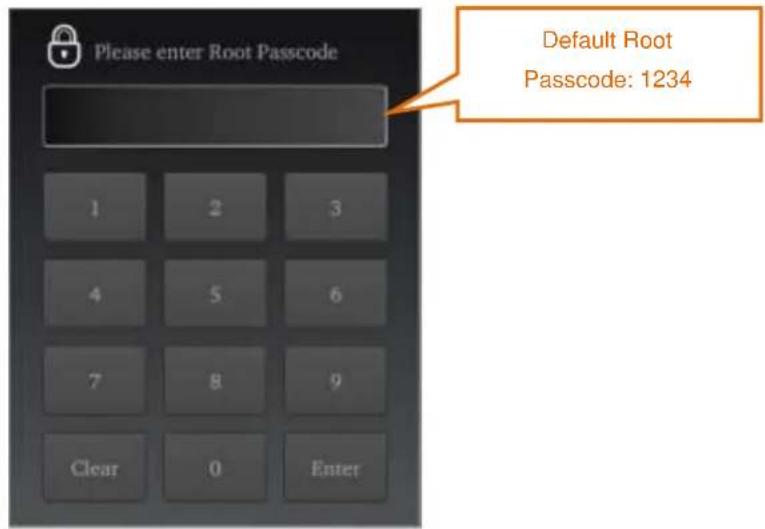
- Aer authencaon, you will see the "Status" page. Beside it, there are "Log", "User", and "Sengs" pages. If network is connected well, the IP Address will be shown in the "Status" page.

After operation is done, press the button at upper-right corner to leave Standalone Mode.
Web Interface
The Device provides a Web interface that allows you to manage it remotely with a standard Web browser (e.g. Internet Explorer, Chrome, or Safari).
- In the same LAN environment, open web browser on PC (or smart device) and point it to The Device's IP Address (192.168.1.164 in this example).
- Then it should prompt you to enter your username and password. Default username is "admin", and default password is "123456". Read Chapter 3.9 for more about user account sengs.

Once authencaon is successful, below screen will show.

flowchart
graph TD
    A["ACTi Connecting Vision"] --> B["Status"]
    A --> C["Log"]
    A --> D["User Management"]
    A --> E["Advanced Settings"]
    B --> F["SYSTEM State"]
    C --> F
    D --> F
    E --> G["Press "Home" to log out"]
    F --> H["HOME"]
    F --> I["ACTi"]
    F --> J["CONTACT US"]
    K["BASIC"] --> B
    L["Status"] --> B
    M["Log"] --> B
    N["User Management"] --> B
    O["Firmware Version: 1.3.15.032618\nMCU Version: 0.5.0.0"] --> P["CF-30"]
    Q["ADVANCED SUPPORT"] --> R["Operating Mode: 1 to N Identification"]
    Q --> S["No. of Registered User: 10/300 (1 to 1 Verification)\n8/300 (1 to N Identification)"]
    Q --> T["CPU Temperature: 63 °C"]
Functional Overview
In general, Web interface provides full functionalities to operate The Device in central management perspective, while Touch Screen interface provides a subset of them for single-machine standalone use.
For example, you can find the system status at the first page after entering Touch Screen interface. Similarly, you can see identical information at Web interface after logging in.
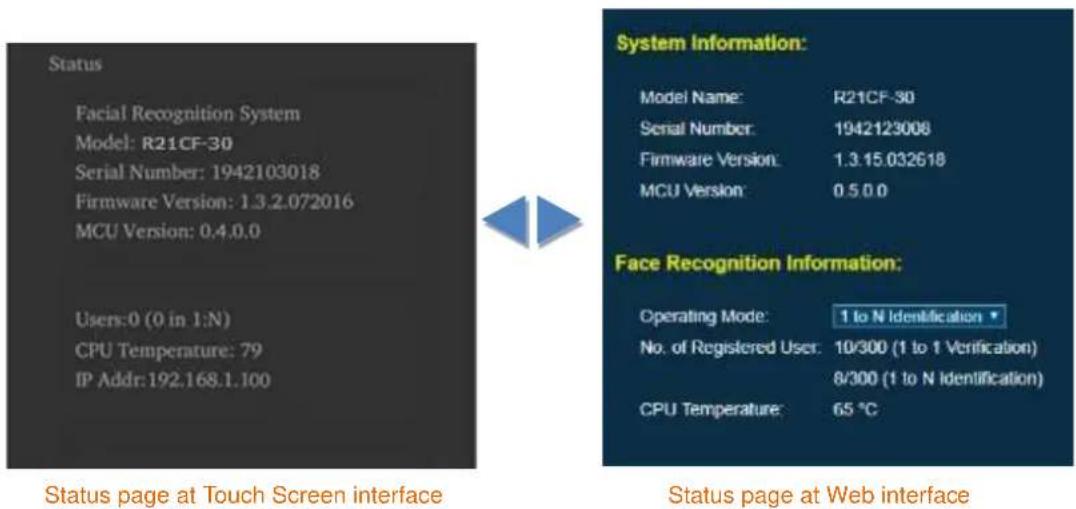
Please see below table to learn about the differences between two interfaces in terms of naming and functions.
| Menu | Web interface | Touch Screen interface | Funconal Dierences |
| Basic | Status | Status | |
| Log | Log | Touch Screen interface supports log Iter | |
| User Management | User | Network based funcons, including upload & download user, uploading Self Enroll List, and etc., are available at Web interface only. Touch Screen interface supports user type Iter | |
| Advanced | Facial Recognition | Facial Recognition | |
| Network | Network | DNS address seng is supported at Web interface only | |
| I/O Control | I/O | ||
| Wiegand | Wiegand | Weigand Custom Format is supported at Web interface only | |
| Display | Display and Sound | ||
| Sound | |||
| Log Conguraon | n/a | Only available at Web interface | |
| Time | Time | Touch screen supports manual input me only | |
| Password | n/a | Only available at Web interface | |
| System | System | ||
| Firmware | n/a | Only available at Web interface |
1 Basic Features
This chapter describes the basic menus of The Device, which contains the following three functional groups: Status, Log, and User Management.
1.1 Status
- Model Name
The model name of The Device.
- Serial Number
The serial number of The Device, which is unique on each device.
- Firmware Version
This shows basic rmware version. More informaon can be found at Advanced->Firmware page. See Chapter 3.11 for details.
- MCU Version
This displays the MCU version, which is mostly related to access controller funconalies.
- Users (No. of Registered User)
Depending on the model type, The Device may have dierent capacity numbers for 1:N and 1:1 mode.
Take R21CF-31 as an example, it can accommodate 3000 users for 1:1 vericaon use, and up to 600 out of 3000 users are supported in 1:N mode. So if there are 900 users registered (enrolled or uploaded) and 550 of them are assigned to support 1:N mode, the system will show
■ Touch Screen interface: Users: 900 (550 in 1:N)
■ Web interface: No. of Registered User: 900/3000 (1 to 1 Vericaon)
550/600 (1 to N Idencaon)
For more about 1:N and 1:1 modes, please refer to Chapter 3.1.
1.2 Log at Web Interface
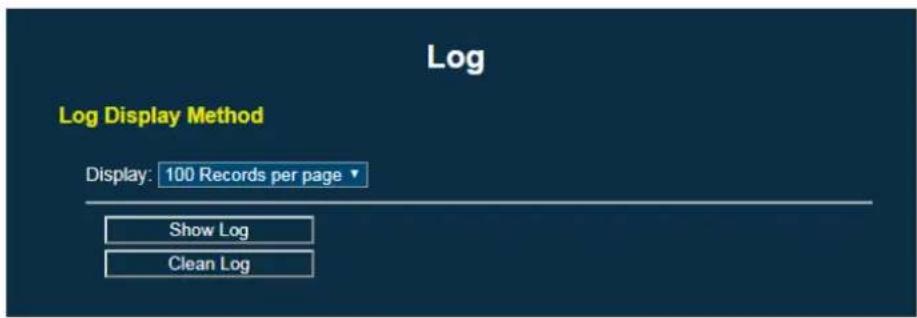
To view log events at Web interface, choose Basic -> Log. It will show a simple menu, which allows you to show log, or to clean log. Click “Show Log” buon to start a new web page with events ordered from new to old, 100 records per page.
Click "Clean Log" buon will permanently remove all log records.
1.3 Log on the Touch Screen Interface
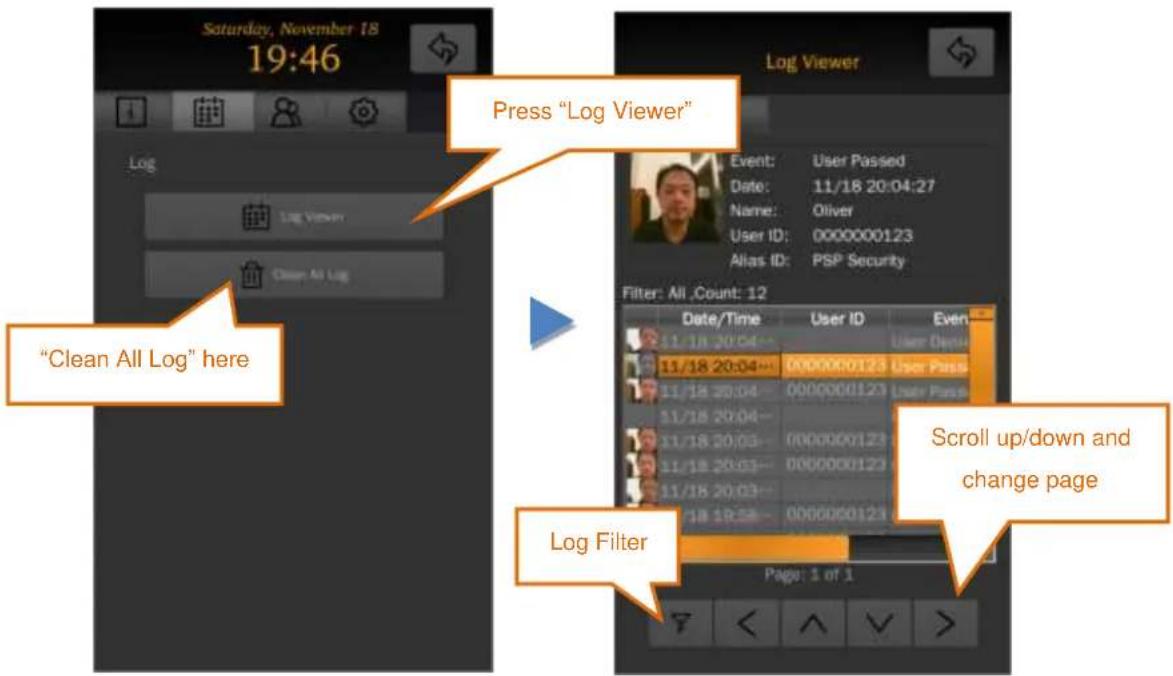
To view log events at Touch Screen interface, select the "Log" page and press "Log Viewer" buon. You will see all records events ordered from new to old, 100 records per page as well.
- Log Browsing
Press "<" or "> " to change to previous or next page. To scroll events in a page, you can adjust the scrollbar, press up or down arrow buon, or simply "touch and drag" up or down in the center of log display area.
- Log Filter
Press the Log Filter icon and you can search "Crical Log", "Today's Log", or apply "User ID" to iter the events you are interested in.

"Crical Log" includes Tamper Alarm, User Denied events, which may cause system security concerns.
- Exit Log Viewer
Click the buon at upper-right corner to exit log viewer.
1.4 User Management at Web Interface
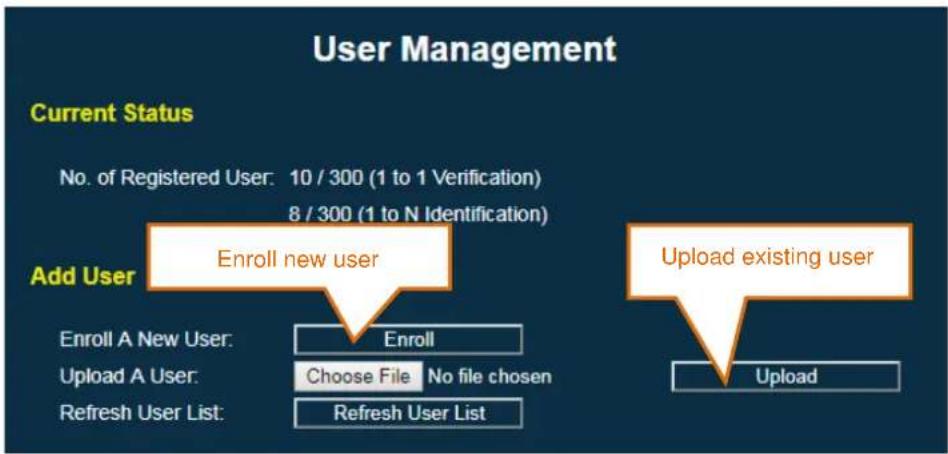
To manage users at Web interface, choose Basic -> User Management. The User Management page has the following opons:
Current Status
Display the number of registered users, which is identical to Status page described in Chapter 2.1
flowchart
graph TD
    A["Current Status"] --> B["Add User"]
    B --> C["Enroll new user"]
    C --> D["Upload existing user"]
    D --> E["Upload"]
    B --> F["Enroll A New User: Choose File No file chosen"]
    B --> G["Refresh User List: Refresh User List"]
Enroll A New User
Click “Enroll” button to enroll a new user. Once clicked, it will show Facial Enrollment page as below:
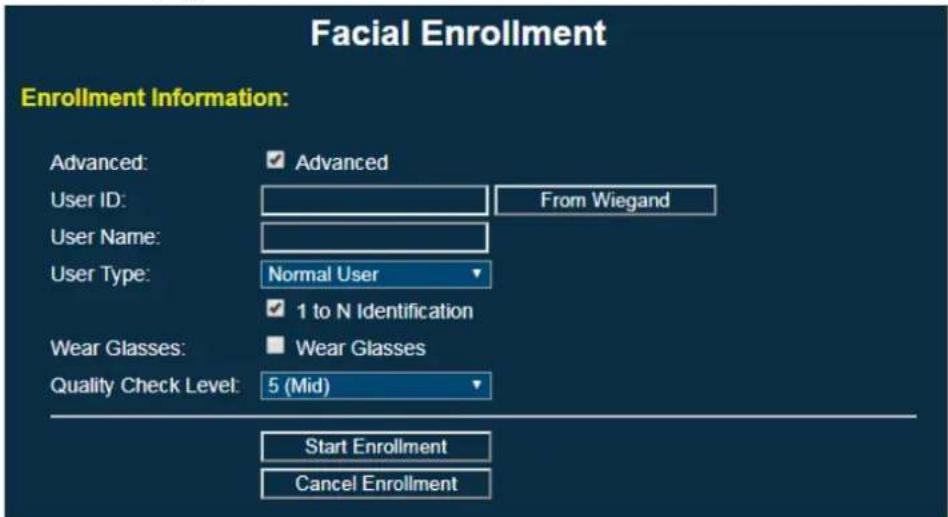
- Advanced: Check “Advanced” to see more opons like enabling “1 to N Idencaon” and altering “Quality Check Level.”
- User ID: each user must have a unique ID number. For 1:1 vericaon mode, the User ID is used to specify user identity before undergoing facial vericaon. The range of User ID is from 1 to 4294967295 (i.e., 32-bit long). You can also read the ID number from a card scan and then click “From Wiegand” buon to fetch it.
■ User Name: the maximum number of characters is 32.
User Type: please refer to below table regarding the supported user types and their authentication methods.
| User Type | Authentication Method |
| Normal User | Default user type; user needs to pass facial recognition to be granted a pass. |
| Root User | Administrator users with special privileges to access to Standalone Mode. A system can have up to 3 root users. |
| Card Only | A special user type which only needs card scan (or entering User ID) to grant a pass. No facial enrollment is required.It can be used as a backup PIN/card to open a door. But special care needs to taken as it will generate security issue for access control application. |
| Card+Photo | A special user type similar to Card Only, but the user not only needs the card scanned (or entering User ID), but also a photo snapshot taken to grant a pass. No facial enrollment is required.It is useful to apply for visitors or VIP, as facial enrollment may not be convenient or required. |
| Self Enrollment | A special user type to create Normal User in two phases. When being created, user information (like User ID, User Name, and etc.) is pre-registered in the user list. But no facial enrollment is required until the User ID is entered (via card scan or touch keypad).It is helpful especially in a larger scale of deployment where enrollment i time-consuming and the administrator's involvement is not always available. |
- Wear Glasses: if the user wears glasses, check the “Wear Glasses” checkbox. Half way through the facial enrollment, the LCD display and voice instrucon will remind the user to remove glasses to complete the facial capture.
- Quality Check Level: select the quality level required for accepting a face capture during enrollment. The higher the level, the more accurate the faceprint at the cost of a longer enrollment process. 5 (Mid) is the default and recommended seng.
Start Enrollment: once the buon is clicked, the enrollment process will begin. Users should posion their face in front of The Device to complete the facial capture. See Chapter 4 for a detailed descripon and suggestions on enrollment process.
- Cancel Enrollment: Click this buon to exit enrollment page. You may choose to exit anymore during the enrollment process.
- Upload A User
A user's faceprint can be uploaded (from PC to The Device) and downloaded (from The Device to PC). These two features are useful when you need to backup the enrolled users, or to synchronize users to other The Device systems.
Click "Choose File" buon and select a faceprint le to upload. By default, a faceprint le should be named by 10-digit User ID with le extension *.face2. For example, user with ID 123 will have a faceprint le named 0000000123.face2.
- Refresh User List
If user upload/download or eding is not successfully completed, the user list shown in the page might not be up-to-date. In such rare cases, press “Refresh User List” buon to refresh it.
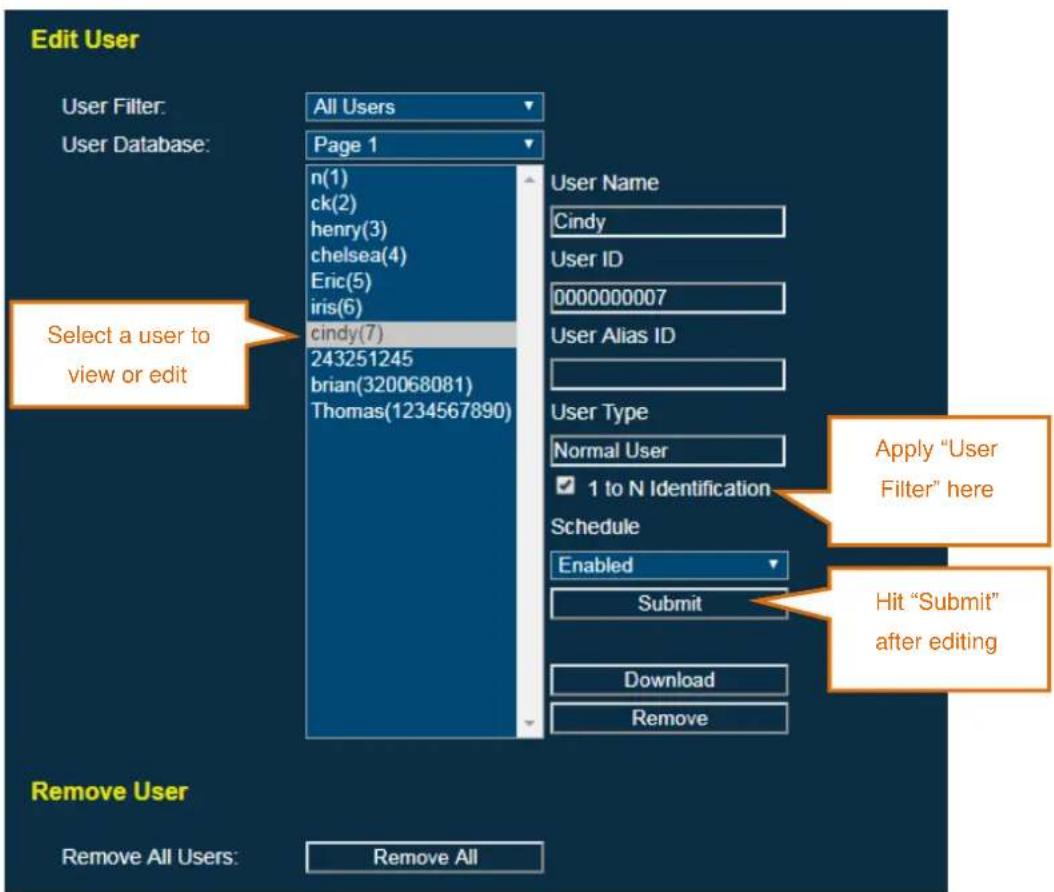
- Browse User List
You can view the user list. Initially it will show All Users. You can apply User Filter to nd certain type of users you are interested in. Listed users can be Itered by using following categories:
All Users
■ Root Users
■ Users support 1 to N Idencaon
- Card+Photo Users
- Card Only Users
- User Search: to search for a specific user, simply input a part of a user's ID or name in the text box next to "User Filter" and it will show the search result in the list
- Edit User
Aer click to select single user, the corresponding user informaon will be shown on the right side. Then you can view or edit:
■ User Name: maximum length is 32 leers.
- User ID: maximum length is 10-digit, or 32-bit (0 \~ 4294967295) to be more exact, as 0 is not an acceptable User ID.
■ User Alias ID: oponal, maximum length is 32 leers.
■ User Type: display only. not editable.
■ 1 to N Idencaon: enable/disable the support of 1 to N Idencaon.
- Schedule: to edit the weekly schedule the user belongs to. By default it supports two schedules: Enabled (always acve) and Disabled (always inacve).
- Download: click "Download" buon to download the selected faceprint from The Device to PC.
■ Remove: to permanently remove the selected user.
- Remove All Users
Click on the "Remove All" buon to completely and permanently clear all users from the machine. Be sure to back up users before you do so.
- List File Upload
"Self Enrollment" users can be created individually as described previously, or by uploading a "Self Enroll List" le to generate mulple "Self Enrollment" users in single step.

By clicking the 'Ex.' buon, you can see an example script le as below:
###
<h1 id="sample-script-self-enroll">Sample Script - Self Enroll</h1>
###
<h1 id="to-register-self-enroll-user-list">To register Self Enroll user list</h1>
<h1 id="syntax-id-user_type-glassesquality-user_name">Syntax: ID, USER_TYPE, GLASSES:QUALITY, USER_NAME</h1>
#
<h1 id="id-user-id-number-to-be-registered-up-to-10-digits">ID: User ID number to be registered, up to 10 digits</h1>
<h1 id="user_type-registered-user-type-selfenroll-cardonly-or-cardphoto-case-sensitive">USER_TYPE: registered user type. "SelfEnroll", "CardOnly", or "CardPhoto" (case sensitive)</h1>
<h1 id="glasses-whether-the-user-wear-glasses-1-for-yes-0-for-no">GLASSES: whether the user wear glasses. "1" for Yes; "0" for No</h1>
<h1 id="quality-the-quality-of-selfenroll-user-at-enrollment">QUALITY: The quality of SelfEnroll user at enrollment</h1>
<h1 id="user_name-registered-user-name-up-to-10-letters">USER_NAME: registered user name, up to 10 letters</h1>

0000000011, SelfEnroll, 0:q9, Kevin
0000000012, CardOnly, 0, Mandy
0000000013, CardPhoto, 0, Doug
0000000014, SelfEnroll, 1:q1, K. Sato
0000000015, SelfEnroll, 1, Gordon
0000000016, SelfEnroll, 1, Ricky
0000000017, SelfEnroll, 1, Roy
The syntax is: "USER ID", "USER TYPE", "GLASSES"[:"QUALITY"], "USER NAME", separated with comma (,) signs. Please follow the syntax explained in the example script to edit the le, and save it as a pure text le. If you use non-English user name that requires special font, please save the le in UTF-8 format.
Note that “QUALITY” (Quality Check Level) parameter is oponal. If you need to specify it for a user, it needs to be between “q1” (lowest) and “q9” (highest) right aer “GLASSES” with a colon (:) sign in between. If not specied, it will use default level (5) to enroll.
As shown in the example script, it also accepts Card Only and Card+Photo user types, which also do not need facial enrollment upon creation.
Once the Self Enroll List le is prepared, you can click the 'Choose File' buon to select it, and hit 'Update' buon to upload. Then you should see the updated user list as below when it is successfully loaded.
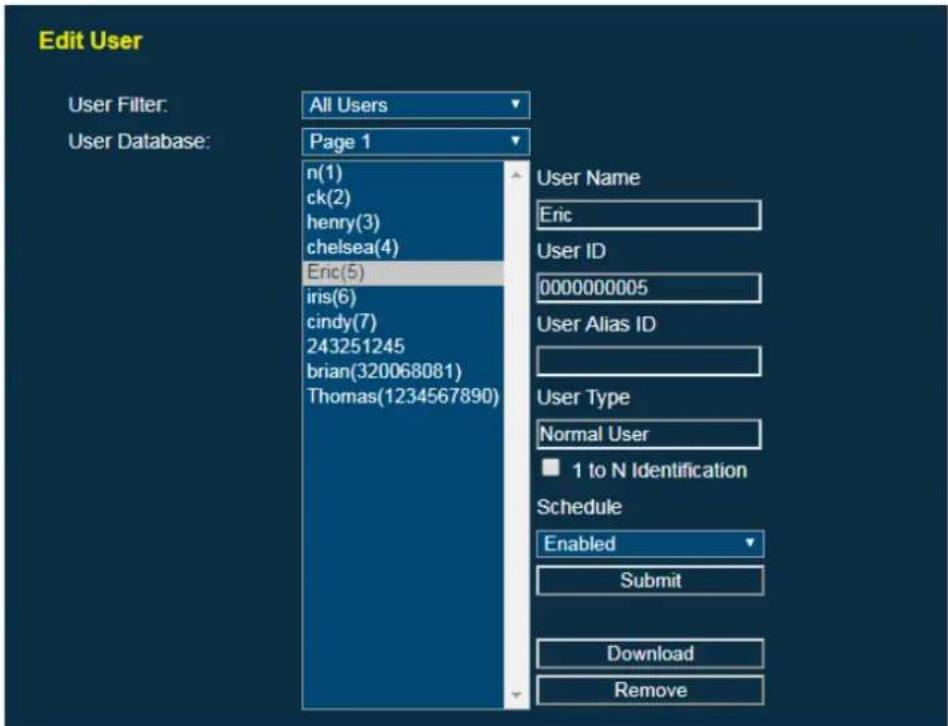
To check its funconality, please scan a card of a pre-registered user, and you should see the user enrollment conrmaon dialog initiated on screen.
1.5 User Management at Touch Screen Interface
To manage users at Touch Screen interface, choose "User" page at Standalone Mode, and start User Manager. Once opened, you will see the user list.

- User List Browsing
Press "<" or "> " to change to previous or next page. To scroll the users in a page, you can adjust the scrollbar, press up or down arrow buons, or simply "touch and drag" up or down in the center of user list area.
- User Filter
Press User Filter icon and you can iter the list by following categories:
■ All: all users
■ Root: root users
■ Normal (1:N): users support 1 to N Idencaon
■ Card Only: Card Only users
■ Card+Photo: Card +Photo users
■ User ID: to search for a specific user by entering the complete User ID
- Edit User
Select a user in the user list and press "Edit User" buon to edit user informaon.
- Remove User
Select a user in the user list and press "Remove User" buon to permanently remove the user.
- Exit User Manager
Click the buon at upper-right corner to exit user manager
- User Enrollment
To enroll a new user, select "Enrollment" page as below:
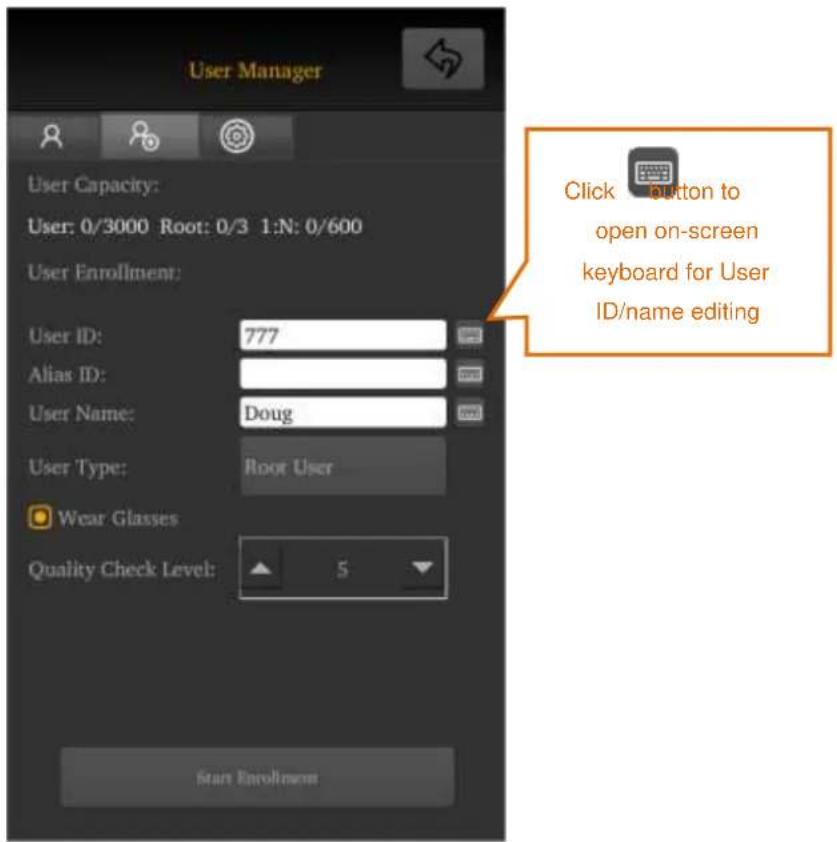
- Enter User ID from on-screen keypad or badge a card to read card ID
- User Name and Alias ID are optional
- For security purpose, it is suggested to enroll at least one Root User
- For user who wears glasses, check "Wear Glasses"
- Click "Start Enrollment" to start
The system now goes into Enrollment mode and start a 3-second countdown. User is required to stand in front of The Device and position the face properly. See Chapter 4 for a detailed description and suggestions on enrollment process.
2 Advanced Features
2.1 Facial Recognition
- Operang Mode
In default 1:N idencaon mode, The Device idenes a face from all registered faces in the user database. In 1:1 vericaon mode, The Device receives a User ID from card reader, touch screen keypad, or an external Wiegand device and varies a user's face.
Note that when a registered User ID is received (say a card read) in 1:N idencaon mode, The Device will switch to 1:1 facial vericaon temporarily.
Once authencaon is completed, it will resume back to 1:N mode.
To know the current operang mode, see the icon at upper-right corner of the recognition screen.

natural_image
Icon of three stylized human figures inside a teal circle (no text or symbols)1:N Mode Icon

natural_image
Icon of an ID card with a user silhouette, set against a blue circular background (no text or symbols)1:1 Mode Icon
- Recognition Threshold
The Device compares a user's face with enrolled facial template (faceprint) and outputs a "score". A higher score means a beer match. The recognition threshold opon allows user to set a minimum score required to grant a pass. A lower threshold increases recognition speed but increases the chances of false acceptance (FAR). A higher threshold, in contrast, reduces FAR but increases False Rejecon Rate (FRR) – the likelihood of denying a registered user.
The default recognition threshold of 85 is recommended for opmal FAR and FRR. The maximum threshold should not exceed 90 to avoid high FRR.
- Mask Detecon
Whether to turn on advanced an-3D Mask funcon. Default is disabled.
2.2 Network
- DHCP Funcon
When DHCP is enabled, the system will ignore the stac IP address and fetch a dynamic IP Address from the DHCP server.
- Stac IP Address
When DHCP is diabled, you can congregate a stac IP address. Precauon should be taken to avoid IP address conicts with other network devices.
- Stac IP Netmask
When DHCP is diabled, you can congregate a stac IP Netmask. It is 255.255.255.0 in a regular class C LAN environment.
- Stac IP Gateway
When DHCP is diabled, you can congregate a stac IP gateway here.
- DNS Address
You can congregate the DNS (Domain Name Server) address here.
2.3 I/O Control
You have control over the following I/O funcons:
- Door Sensor Alarm
This opon should be enabled only if you have an electronic door lock with a door sensor output connected to The Device.
- Door Sensor Alarm Time
The Device can be programmed to trigger an alarm and log an event if the door is open for longer than a pre-dened me limit. Enter the alarm me limit in seconds. Default me is 30 seconds.
- Exit Switch
Enable this opon if you have an exit switch connected to The Device that allows you to open Relay #1 and/or Relay#2 when the switch is acvated.
- Relay #1
You can enable or disable Relay #1 control signals (N.C and N.O.) here. When enabled, Relay #1 will engage when a user is granted a “Passed” status.
- Relay #1 Open Time
You can set the Relay #1's duraon of engagement aer a user is passed. Default value is 5 seconds.
- Relay #2
Except being enabled or disabled like Relay #1, Relay #2 has advanced opons including
■ Denied: to trigger Relay #2 aer a user is denied.
- Alarm: to trigger Relay #2 when Tamper Alarm (when The Device is detached from the mounng bracket) or Door Sensor Alarm (when the door is open for over a pre-dened me limit) is triggered.
- Door Bell: if enabled, The Device will display a touchable Door Bell buon at screen.

Door Bell Button
When this buon is touched, the system will play a bell music and trigger Relay #2, which can be wired to an external door bell hardware.
■ Relay #2 Open Time
You can set the duraon of the engagement for Relay #2. Default value is 5 seconds.
2.4 Wiegand
The Device can interface with other peripherals using standard Wiegand protocols to perform mul-factor authencaon. Furthermore, The Device can also act as a standard Wiegand Output device to interface with other controllers. You can adjust various Wiegand protocol parameters in the Wiegand page.

- Wiegand Input
To enable or disable the Wiegand input funcon.
- Wiegand Input Format
Opons are Standard 26-bit, Standard 34-bit, and Custom Format. To program The Device to support a proprietary Wiegand format, please select "Custom Format", and then input your own string of custom format in the edit box below.
- How to Dene Wiegand Input Custom Format
In order to support those special formats, The Device supports an interface where you can easily denote your proprietary Wiegand input format, of up to 64 bits.
By default, the edit box is empty; you can enter your own string of custom format based on below rules. Once completed, click the Submit buon and changes will take eect instantly.
| Letter | Definition | Remark |
| U | MSB (Most Significant Bit) of User ID | A upper-case U |
| U | A bit of User ID | A lower-case u |
| 0 | A bit must be 0 | |
| 1 | A bit must be 1 | |
| X | A don't care bit | Lower-case x works the same |
Rules and Limitaons
■ Max length of Wiegand bits: 64 bits
■ Min length of Wiegand bits: 4 bits
Max length of User ID: 32 bits (Including A "U" and a number of "u")
- No undened leer should be included in the string
- A User ID string should either start with a "U" or end with a "U". A User ID string without "U" is not able to work
- Parity bits are not checked in current design of custom format string. The user should always mark them as "X" (don't care) bits.
Example 1
For scanning a card with a xed Facility ID of 74 (01001010b) in 26-bit code, the Wiegand format is
Where P are the Parity bits
F are the 8-bit Facility ID bits
U is the MSB of 16-bit User ID
u are the later 15 bits of 16-bit User ID
So the string of custom format should be:
X01001010UuuuuuuuuuuuuuuuuX
Example 2
For scanning a card with 34-bit Wiegand code with User ID from bit 2 to bit 17 in reversed bit order, the Wiegand format is
1-uuuu-uuuu-uuuu-uuuU-FFFF-FFFF-FFFF-FFFF-0
Where 1 is the leading bit, always 1
U is the MSB of 16-bit User ID
u are the later 15 bits of 16-bit User ID
F are the 16-bit Facility ID, which are don't care in this applicaon
0 is the ending bit and is always 0
So the string of custom format should:
1uuuuuuuuuuuuuuuuUXXXXXXXXXXXXXX0
Error Formats
If the string of custom format is not well dened according the rules menoned above, the Wiegand input will be ignored without noce. Below are some examples of wrong formats.
| String of Custom Format | Reason of Error |
| X01001010uuuuuuuuuuuuuuuuuX | No MSB “U” is assigned |
| X01001010UuuuuuuuuuuuuuuuuUX | More than 1 “U” is assigned |
| XpXXXXXXXXUuuuuuuuuuuuuuuuuuX | An undefined letter “p” is included |
| X01001010 UuuuuuuuuuuuuuuuuuX | A space is in between |
- Wiegand Output
To enable or disable the Wiegand output funcon.
• Wiegand Output Format
You can choose Standard 26-bit, Standard 34-bit, or Echo Custom Format for the Wiegand output protocol format.
2.5 Display
- Display Unknown User ID
Opons are “Disabled”, “Enabled with ID”, and “Enable without ID”, which will decide if an unknown User ID (from card reader or keypad) is entered, whether the screen will show the number or not. If the funcon is disabled, no error message will appear when an unknown ID is entered.
- Display Random Keypad
This opon decides whether to display number keys in random order on the keypad, like below, to enhance system security.

Random Keypad
- When Passed, Display ...
You can choose to enable or disable the display of Score (of facial matching), Alias ID, and Username, when facial authencaon is passed.
2.6 Log Conguraon
Here you can choose to enable or disable each type of log events. Supported event types are:
Facial Recognition:
- User enrolled (can log message and image snapshot)
○ Authencaon passed (can log message and image snapshot)
○ Authencaon denied (can log message and image snapshot) - User uploaded
- User removed
- Unknown card/User ID
I/O Control:
- Door sensor triggered
- Exit switch triggered
o Tamper alarm
Network:
○ Login passed
○ Login denied
○ Conguraon changed
- Firmware updated
○ API connected
System:
- System bootup
○ Exing sleep mode
All event types can be enabled or disabled via a drop-down menu. Some event types further allow you to log the captured image associated with the event.
Click the "Submit" buon, and the changes take eect immediately.
2.7 Sound
Here you can congregate the sound outputs.
- Buzzer
Turn on or o the buzzer. Note that for security purpose, the Tamper Alarm will sll go o even you turn o the buzzer here.
- Speaker Volume
Adjust the speaker volume from 1 (low) to 9 (Loud), or to Mute the speaker here.
- Hello at Wakeup
Select whether to say "Hello" when the system wakes up from sleep.
2.8 Time
- Manual Input Time
Here you can edit and synchronize the me manually.
- Synchronize with PC
When this is selected at Web interface, it will display real-me date and me of your PC. Simply click Submit to complete the me synchronizaon.
- NTP Server
Network Time Protocol (NTP) is a protocol for synchronizing the clocks of systems over network. Input the NTP Server IP address and me zone then click Submit to initiate the communicaon to NTP server immediately. Before the me is returned from the NTP server, the System Date/Time display in this page will show “Synchronizing”, meaning the communicaon is sll in progress.
Otherwise, it will display a newly synchronized me.
2.9 Password
Here you can set the passwords for both Web and Standalone Mode interfaces.
- Username/Password
The Device supports one Administrator account with highest privilege, and three (3) User accounts with congorable privilege. By default the Administrator's username is "admin" (xed), and password is "123456".
The default names for three users are “user1”, “user2”, and “user3” and their passwords are all empty. These 3 users will not be acvated unless appropriate passwords are assigned here.
- Privilege
Here you can grant or deny the permissions for "user1", "user2", and "user3" to access the Log page, User (User Management) page, and Advanced (Conguraon) respectively. The available combinaons of privilege are:
■ Log+User+Advanced: full access to 3 parts
- Log+User: access to Log and User pages, but not to Advanced part for conguraons
■ Log: access to Log page only
Administrator has full access to three parts, which is unchangeable.
- Standalone Mode
You can enable or disable Standalone Mode here. When disabled, Standalone Mode buon at the recognition screen will disappear.
- Passcode
Passcode is a 4-digit numeric code used for iniang Standalone Mode. The default Passcode is '1234'. To further enhance the security, please do change passcode and assign a root user.
2.10 System
- Moon Detector Sensitivity
In 1:N idencaon mode, The Device will turn o screen and power down aer 10 seconds without nding any user faces. Then it will detect user moon of certain scale to resume back from power-down status. Here you can adjust the sensitivity of moon detector from 1 (least sensitive) to 9 (most sensitive).
- Factory Default
You can choose to reset the system to factory default sengs by clicking the "Reset to Factory Default". Note that this process is irreversible.
- Reboot System
Click the buon to shut down and reboot the system.
2.11 Firmware
- Current Status
Here, you can check the current rmware and font (language) versions of The Device. The "Supported Fonts" shows the language(s) being supported.
- New Firmware
To update a new rmware, click "Choose File" buon to select the path of desired rmware le (*.fmr le) to be uploaded. Next click "Update" buon to initiate the rmware update procedure. You need to wait for a few minutes for the system to reboot to complete the rmware update process.
To update a new font is similar. Click “Choose File” button to select the path of font file (*.font or patch file), and click “Update” button to initiate it. The system will then reboot as well.
3 Facial Enrollment and Recognition
3.1 Enrollment
Here we introduce how users should enroll facial templates and generate faceprints on The Device. Regarding how to acvate enrollment from Web and Touch Screen interfaces, please refer to Chapter 2.4 and 2.5
- Once enrollment is acvated, the system now goes into Enrollment mode and start a 3-second countdown. User is required to stand in front of The Device and posion the face properly.
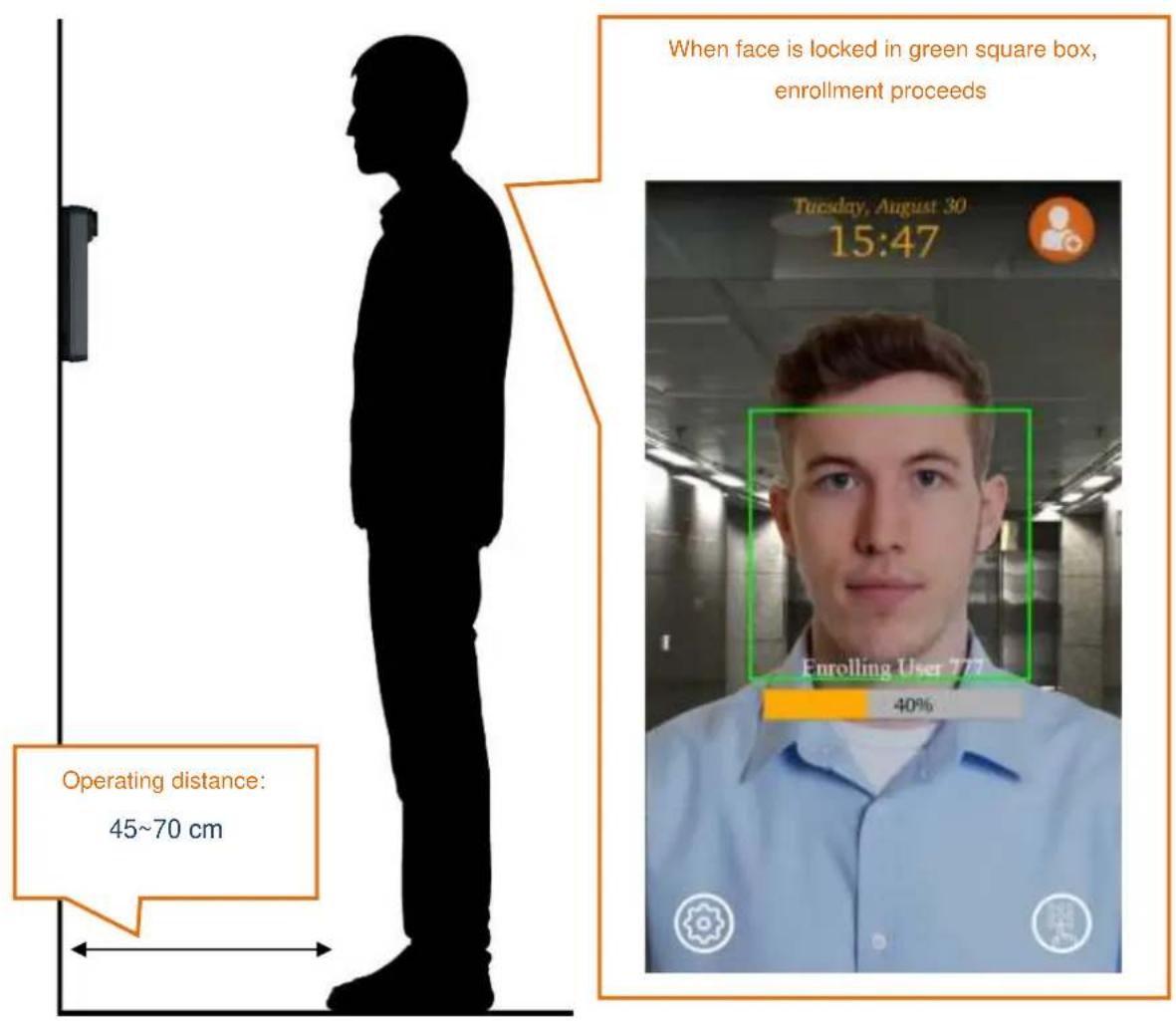
- During the enrollment, gently le the face up and down, then gently move closer and farther. If you wear glasses, you will be asked to remove the glasses half way through the enrollment.
- Follow the screen message and voice instrucons to complete the enrollment.
-
Some guidelines to achieve the good enrollment:
-
Maintain your head within the central area of display during enrollment
- Move your head closer and further away from the The Device and repeat this acon 2-3 mes.
- Slightly nod your head up (no more than 15 degree) and move your head closer and then away from the terminal. Repeat this acon 2 to 3 mes.
- Slightly nod your head down (no more than 15 degree) and move your head closer and then away from the terminal. Repeat this acon 2 to 3 mes.
- If the enrollment process is not complete, slightly turn your head le/right (no more than 15 degrees) and move your head closer and further away from the terminal. Repeat this acon 2 to 3 mes.
- If The Device is unable to capture all the required face templates within certain me, enrollment will end and escape. Upon compleon of the enrollment, the screen will show a “Enrollment Done” message and voice instrucon.
3.2 Recognition
The Device facial authencaon can operate under 1:N idencaon or 1:1 vericaon mode. See Chapter 3 for further details.
In 1:N idencaon mode, your simply stand in front of the The Device at a proper distance to start recognition.
In 1:1 vericaon mode, The Device requests you to present User ID rst before allowing your face to be scanned. The User ID is received from a card reader, touch screen keypad, or from Wiegand input interface.
There is even an EFR-API command to send User ID and initiate 1:1 vericaon over network.
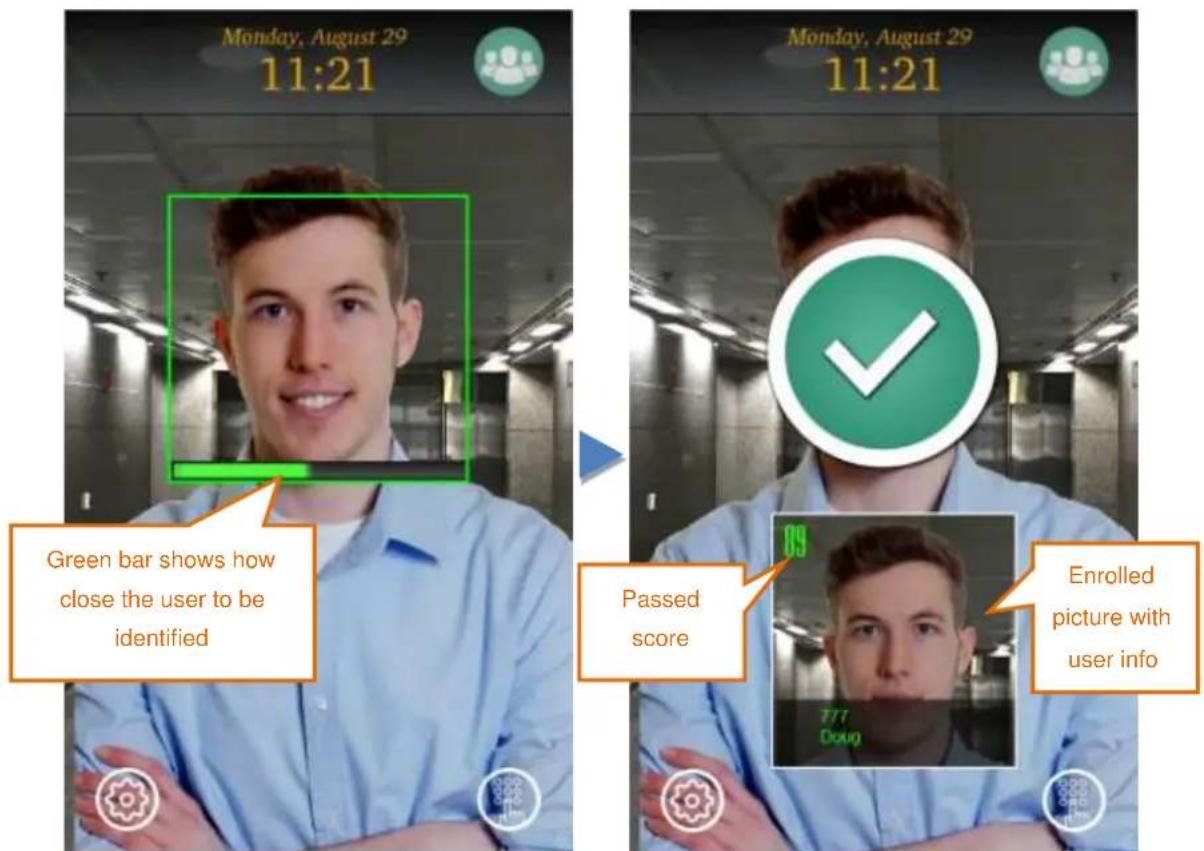
- Only enrolled user can be recognized. If no user has not been enrolled, please refer to Chapter 2.4 or 2.5 to perform enrollment.
- If The Device is set to 1:N mode, simply approach to the machine to start authencaon. Like enrollment, recognition will occur only when the face is locked at Green square box. User who is idened will be granted with a green check and a voice welcome.
- If The Device is set to 1:1 mode, user must scan a card or enter User ID from the touch screen rst before The Device could perform facial recognition.
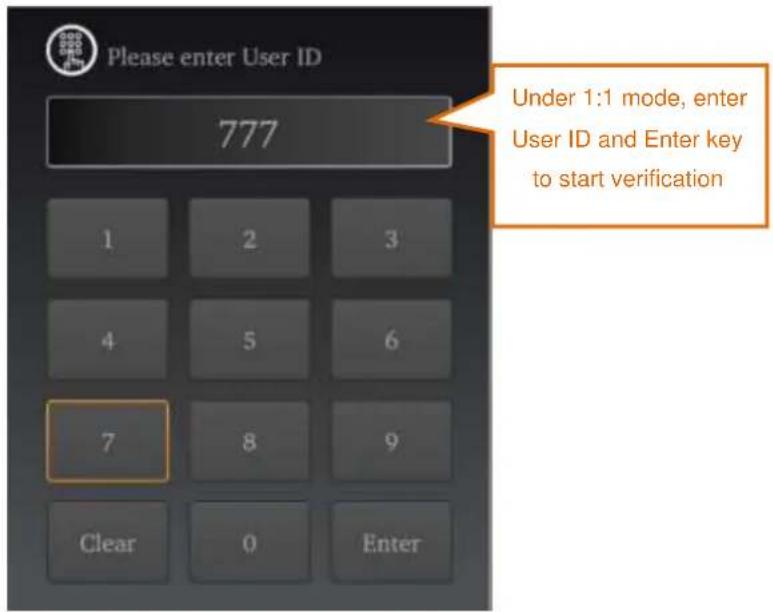
- If face is not locked at green square box, please move a lile closer or farther from The Device and gently nod head up and down. Recognition should occur.
4 Safety Noce
For your personal safety and that of the equipment, please follow the instrucons outlined in this chapter when handling and cleaning your The Device.
Important Notes:
Failure to follow the safety instrucon could result in re, electric shock, and other injury or damage.
4.1 Safety in Using and Handling The Device
Please follow these guidelines when using The Device.
- Do not aempt to open the machine housing for any reason and under any condition as it does not contain any user-serviceable or replaceable parts. Furthermore, you run the risk of electric shock and voiding the limited warranty.
- Set up The Device in a stable work environment that allows for adequate air circulaon around the device. Do not operate The Device on a so surface as this can block venlaon openings. Never insert objects into venlaon openings.
- The Device is an indoor equipment. Always keep it away from moisture.
- Make sure the connector matches the port with the right orientaon. Never force a connector into the port. If the connector and port do not join with reasonable ease, they probably do not match.
- Only use a power adaptor that outputs 12 VDC and up to 2 Amp in current. As the power adaptor may become warm during normal use, always put the adaptor in a well-venlated area. Disconnect the power adaptor and other cables if any of the following conditions exist:
■ You wish to clean the machine exterior.
■ The power adaptor becomes frayed or damaged.
- The Device or its power adaptor is exposed to excessive moisture.
■ The Device has a damaged case, or you suspect physical damage.
- Use a damp, so, lint-free cloth to clean the The Device exterior. Avoid geng moisture into any openings. Do not use sprays, solvents, or abrasives that may damage the surface nish.
4.2 FCC Regulatory Compliance Informaon
This equipment has been tested and found to comply with the limits for a Class A digital device, pursuant to part 15 of the FCC Rules. These limits are designed to provide reasonable protecon against harmful interference when the equipment is operated in a commercial environment. This equipment generates, uses, and can radiate radio frequency energy and, if not installed and used in accordance with the instrucon manual, may cause harmful interference to radio communicaons. Operaon of this equipment in a residential area is likely to cause harmful interference in which case the user will be required to correct the interference at their own expense.
Modifications not expressly approved by the manufacturer could void the user's authority to operate the equipment under FCC rules.

ACTi
Connecting Vision
Copyright © 2018, ACTi Corporation All Rights Reserved
7F, No. 1, Alley 20, Lane 407, Sec. 2, Ti-Ding Blvd., Neihu District, Taipei, Taiwan 114, R.O.C.
TEL: +886-2-2656-2588 FAX: +886-2-2656-2599
Email: sales@acti.com
- Face Recognition Reader User Manual
- TABLE OF CONTENTS
- Operating Interfaces 4
- Basic Features....9
- Advanced Features 22
- Facial Enrollment and Recognition...... 33
- Safety Notice....37
- Operating Interfaces
- Touch Screen Interface
- Web Interface
- Functional Overview
- Basic Features
- Status
- Log at Web Interface
- Log on the Touch Screen Interface
- User Management at Web Interface
- - Browse User List
- - Edit User
- - Remove All Users
- - List File Upload
- User Management at Touch Screen Interface
- Advanced Features
- Facial Recognition
- - Operang Mode
- - Recognition Threshold
- Network
- I/O Control
- Wiegand
- Rules and Limitaons
- Example 1
- Example 2
- 1-uuuu-uuuu-uuuu-uuuU-FFFF-FFFF-FFFF-FFFF-0
- 1uuuuuuuuuuuuuuuuUXXXXXXXXXXXXXX0
- Error Formats
- Display
- Log Conguraon
- Facial Recognition:
- I/O Control:
- Network:
- System:
- Sound
- Time
- Password
- System
- Firmware
- Facial Enrollment and Recognition
- Enrollment
- Recognition
- Safety Noce
- Important Notes:
- Safety in Using and Handling The Device
- FCC Regulatory Compliance Informaon
- ACTi
- Connecting Vision
Brand : ACTi
Model : R21CF-31
Category : Security access control system