
Venus VSP355s - Smartphone VESTEL - Free user manual and instructions
Find the device manual for free Venus VSP355s VESTEL in PDF.


| Product Type | Smartphone |
| Brand | Vestel |
| Model | Venus VSP355s |
| Dimensions | 152.5 x 77.5 x 9.65 mm |
| Weight | 180 g |
| Display | 5.5-inch qHD (1280 x 720 pixels) |
| Processor | Qualcomm MSM8926 Quad-core 1.2 GHz |
| RAM | 1 GB |
| Internal Storage | 16 GB |
| Expandable Storage | microSD up to 32 GB |
| Rear Camera | 13 MP with flash |
| Front Camera | 2 MP |
| Battery Capacity | 2000 mAh (removable) |
| Operating System | Android (version not specified) |
| Network Support | 2G/3G/4G LTE |
| Wi-Fi | 802.11 a/b/g/n |
| Bluetooth | Yes (version not specified) |
| NFC | Yes |
| Ports | Micro-USB 2.0, 3.5 mm headphone jack |
| Sensors | Proximity, Light, Accelerometer (likely) |
| SAR Value | 0.366 W/kg (head) |
| Manufacturer | Vestel |
| Warranty | 5 years (parts availability) |
| Cleaning | Use soft dry cloth; avoid liquids |
| Repair | Authorized service only |
Frequently Asked Questions - Venus VSP355s VESTEL
User questions about Venus VSP355s VESTEL
0 question about this device. Answer the ones you know or ask your own.
Ask a new question about this device
Download the instructions for your Smartphone in PDF format for free! Find your manual Venus VSP355s - VESTEL and take your electronic device back in hand. On this page are published all the documents necessary for the use of your device. Venus VSP355s by VESTEL.
USER MANUAL Venus VSP355s VESTEL
You have purchased a quality VESTEL product by preferring our telephone device.
Your device will serve you for long years as long as you display the necessary care and maintenance. The manual contains instructions and pictures for the telephone.
We hope you enjoy using your device.
Important Safety-Related Information,
Please read the instructions below carefully to know your device quickly and make use of all the functions of your device.
CAUTION: Important instructions must be followed to prevent damage to data and components or harming users. This user manual includes important information regarding first use, safety, cleaning and maintenance of your device. Always keep this manual with your device.
Table of Contents
Safety Information 3
Important Information Regarding User Manual 8
Issues to be Considered About Carrying and Transportation ...... 9
Liability Limitation 9
General Duties of Buttons 10
General Appearance 11
Telephone Use 12
Cleaning and Maintenance 35
Troubleshooting 36
Technical Specifications 42
Safety Information
- Do not use damaged power cables or plugs.
- Do not touch the power cable or the device with wet hands, this could cause damages to you or your device.
- Do not recharge with any other device not approved by battery manufacturer.
- Do not place any objects on your device as its screen might get scratched.
- Do not use your device under rain.
- Do not use other styluses or variations not approved by the manufacturer.
- Do not try to disassemble your telephone.
- Turn off the product and remove the
power cable while cleaning it.
- Do not get your device near heaters and high pressure containers.
- Do not scratch the paint, logo etc. found on your device.
- Do not use your device if the screen breaks or cracks.
- Be careful during plugging and unplugging operations while using the device with accessories.
- Use accessory cables like power cables, earphones perpendicularly, without horizontal movement.
- Never use your device in the following conditions:
-If the device body is damaged and
electrical parts are exposed,
-If the device came into contact with water or other liquids.
- If one of the situations mentioned is observed, power off the device immediately and contact authorized service.
- A damaged appliance or damaged parts of the appliance can cause serious injuries and fire.
- Device does not contain parts that the user can interfere with.
- If any malfunction occurs, do not attempt to repair your device by yourself otherwise, the device will be out of warranty.
• Using accessories that are not recommended by the manufacturer can
cause damage to the device or injuries.
- If a problem occurs regarding product or battery; the necessary repair and battery change operation must only be performed by the authorized service.
- Do not use the device in extremely cold or hot, dusty, humid or dry environments.
- The radio frequency emitted by your device can interfere with some sensory aid devices.
- Please contact the company manufacturing the sensory aids before you use your device and make sure the radio frequencies emitted by your device do not affect the sensory aid.
• Pacemaker manufacturers recommend
that at least 15cm distance is placed between a device and the pacemaker to prevent a possible interference.
- Do not use your device near devices or instruments like radio towers or sound systems which emit radio frequencies.
- Do not unplug the charger by pulling on the cable. Adhere the rules specified by hospitals, health institutions, planes and airports. Do not use your device if its use is prohibited.
- Do not download software to your phone from unknown websites. It might be a malicious software and damage your phone. Manufacturer is not responsible of such damages.
- Your phone might get hot during normal use and charging.
- Close the open applications if your phone overheats.
- Do not expose your phone or accessories to open flame or burning tobacco products.
- Unplug the charger from the power socket and device when not in use.
- Use the AC power source defined in the charger specifications. Using inappropriate voltage may cause a fire or damage the charger.
- Do not place your device in places where the battery and charger can be damaged due to impact. Otherwise it may cause battery leak, device malfunction,
overheating, fire or explosion.
- Do not place sharp objects like needles next to the earplugs.
- Earplugs can attract these objects and injure you while you use the device.
- Do not leave your phone's accessories in places that small children can reach; your phone contains sharp edges that can cause injuries and small parts that can detach and cause choking hazard.
- Uses that will block the air flow of the device or cause overheating should be avoided.
- Do not use your phone outdoors in rainy and stormy weather.
- Do not use the handset while driving. Use
the earphones and never text while driving.
- Do not use the device in gas stations.
- Keep the device 15mm away from your body or ear while making a call.
- Keep the device away from magnetic fields.
- Do not use the device when its back cover is not installed.
- Do not use the camera flash of the device close to the eyes of humans or pets.
- Do not use the device for an operation other than its intended use, otherwise the device warranty will be void.
- Do not plug foreign objects to the inputs and outputs of the device and the charger.
- Otherwise it may cause explosion or fire.
- Before use, make sure you read and understand the user manual.
- Connection may not be established in any condition during an emergency call.
Only the device should not be relied on for basic communication.
WARNING: COMPLIES
WITH ETSI TS 123.038 V8.0.0
AND ETSI TS 123.040 V8.1.0
TECHNICAL SPECIFICATIONS
WHICH CONTAIN ALL
TURKISH CHARACTERS.
Environmental Conditions;
- The operating environment of the product must be 0 - 40° C ambient temperature and 20 80% relative humidity.
WARNING: To prevent possible hearing damage, do not listen for long periods on high volume settings.
Adapter Information
Brand : Jiangsu Chenyang
Electron Co., Ltd
Model : C-P08
Input : 100-240V 50/60 Hz 0.3A
Output : 5V 1500 mA

Instruction Symbol
Wi-Fi (WLAN): This device can be used in all European countries. 5150 - 5350 MHz band is limited for only indoor use
Important Information Regarding User Manual
- Some words or phrases are highlighted with special format in this manual.
- Important instructions must be followed to prevent damage to data and components or harming users.
-
The information contained in this user manual is protected by copyrights.
-
Copying or duplication by any means of any text, figure etc. information contained in the manual is forbidden without written consent of the copyright holders.
- It is forbidden to apply reverse engineering on or destroy the product supplied with the manual.
- All visuals in the manual are for reference only, they might not reflect the facts.
Issues to be Considered About Carrying and Transportation
- Do not drop the device during transportation and protect it against impacts.
- The malfunctions and damages that occur during transportation after the product is
delivered to the customer are not covered under the warranty.
Liability Limitation
All the technical information, instructions of use, the devices operation and maintenance in this manual includes the latest information regarding your product.
Manufacturing company does not assume any responsibility for damages and injuries that might be caused due to not observing the instructions in this user manual, using the device outside its intended use, unauthorized repairs, unauthorized modifications on the device and using spare parts not approved by the manufacturer.
General Duties of Buttons
| Key Title One-Click Touch and Hold | ||
| Last Applications Button | Lists the last used applications. | |
| Home Screen Button | Opens the the home screen. Google | browser opens when home screen button is pressed and dragged. |
| Back Button Opens the | screen you viewed previously. If the screen keyboard is open, it closes the screen keyboard. | |
| Power Button Screen is | turned off (darkened) or on with this operation. When adjusted from Settings>Accessibility menu, the same function (turn off/on function) can be used while making a search. | Opens a menu where you can change the phone profile (sound, silent, vibration), you can turn off the phone, restart the phone or activate the plane mode. |
| Volume buttons Used to | increase and decrease the volume. | Sets the volume to the highest or lowest mode fast. Also, it serves as zoom +/- in camera application. |
| Camera Button | Opens the camera and enables shooting. | Used to enter camera application quickly. |
General Appearance
WARNING: The specifications in this user manual and visuals and the content of the box can vary depending on model.
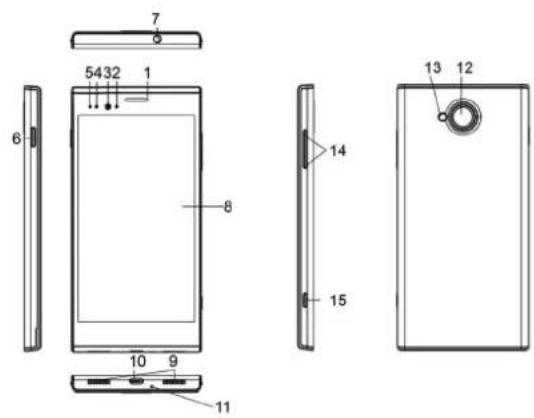
-
Earphone Speaker
-
Notification Light
-
Front Camera
-
Light sensor
-
Proximity Sensor
-
Power Button
-
Headphones Jack
-
Touch screen
-
Loudspeaker
-
Micro-USB input
-
Microphone
-
Rear Camera
-
Flash
-
Increase/decrease volume
-
Camera Button
Telephone Use Opening the Back Cover of the Phone
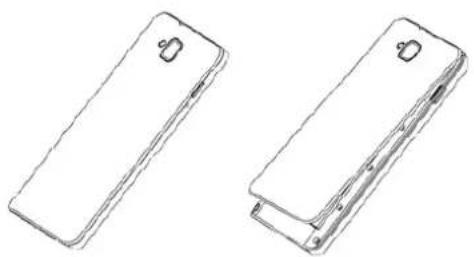
pull the card downwards.
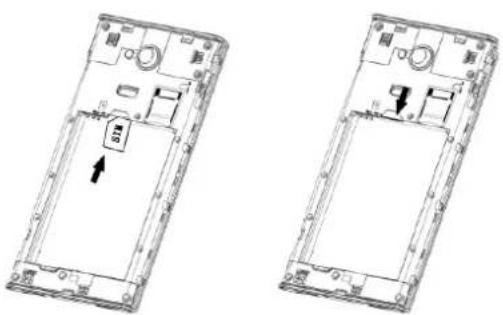
UIM/SIM Card Inserting and Removing
UIM/SIM Card must be inserted before making a call. Please turn off your phone and remove the battery before inserting UIM/SIM card. Make sure that the metal part of the chip on the card faces down as you insert the UIM/SIM Card. To remove the UIM/SIM card inserted in the phone,
Inserting and Removing SD Card
First, remove the back cover of the phone to insert SD card. Slide the metal on the SD card slot towards the camera. Lift the free slot and insert the SD card into the slot with the yellow pins facing down. Slide the slot back in place and lock. Repeat the first steps to remove the SD card.
WARNING: SD card inserted/removed notification and recognition information requires the smartphone to be turned off and on.
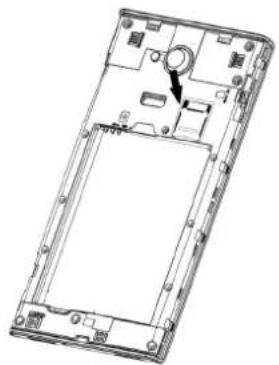
Inserting and Removing the Battery
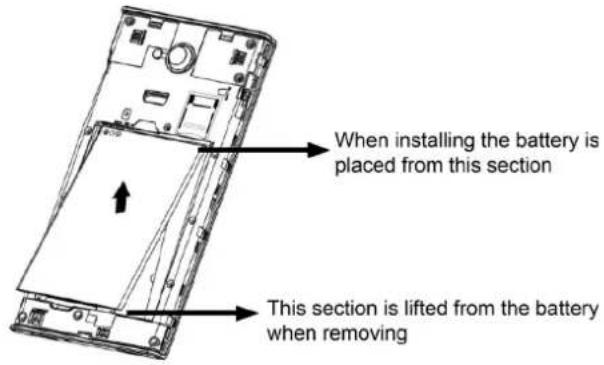
Recharging the Battery
It is advised to fully charge the battery before first use of the phone.
WARNING: When plugging the Micro-USB socket into the phone, the USB symbol must be up. Phone will be damaged if it is inserted upside down and forced.
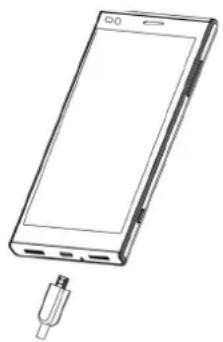
WARNING: It is risky to make a call when the battery is being charged.
Using the Touchscreen
You can directly interfere the screen keyboard, symbols and buttons displayed on the screen by touching them with fingers.
Light Touch/Short Press/Click
Applications can generally be opened with a light touch.

Touch and Hold
A symbol on the screen can be lightly pressed without sliding and its options can be opened.

Dragging
Touch a symbol without lifting your finger off it, and release when you arrive the desired destination on the screen. Thus, you will carry the application shortcut, file etc.

Scrolling
To easily test photographs, web pages and similar applications, move your finger on the screen surface without stopping in first touch (and thus avoid dragging).

Fast Dragging
It resembles dragging but in addition, you have to slide your finger back and forth with swift movements.

Resizing & Zooming with Fingers
You can perform the zooming in function by bringing two fingers (generally thumb
and index finger) together, and zoom out function by sliding your fingers apart.
NOTE: Generally works in Maps, browsers and pictures.

Screen Rotation
The function of screen rotating to match the phone orientation when you turn the device left or right. Please follow the Settings> Screen> Auto-rotate screen to activate screen rotation.
Proximity Sensor
Turns off and locks the screen during a call for the screen not to be affected.
Turning VSP355s On and Off
Please make sure battery and UIM/SIM card is inserted before you turn on VSP355s.
If you turn VSP355s on without inserting UIM/SIM card, the “No Sim Card - Just Emergency Calls” message is displayed. But you can make emergency calls and use some functions even if no UIM/SIM card is inserted in your phone.
Turning VSP355s On
- Keep the power button pressed until the screen turns on.
- If you appointed a pin number to your UIM/SIM card, please enter this pin code.
Info : It might take some time of the phone to turn on. Please wait.
Turning VSP355s off
- Keep the power button pressed until the phone menu is displayed.
- To turn VSP355s off, select Turn Off and touch ok.
Home Screen
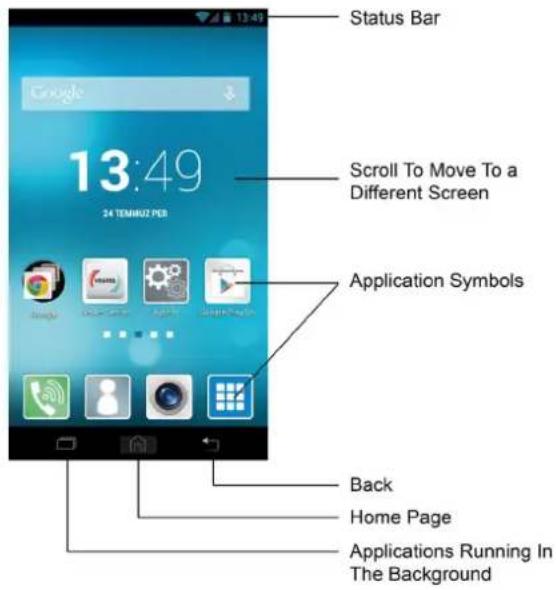
symbols which display your phone's status; Network signal strength, Battery status, current time, USB connection status and data service information.
Notification Indicator
To be able to turn notification indicator on, pull the status bar down by lightly touching it. Thus you can access notifications and wireless network options. When touched lightly, 'Back Button' closes the notification indicator.
Status Bar
From the status bar, you can obtain the following information by looking at the
Application Symbols (Screen Shortcuts)
When the desired Symbol is touched, the related application opens.
Application Menu
Please enter the main Menu list interface to access the applications.
Arranging the Home Screen
Wallpaper (changing) Setting
At the Home Screen, keep your finger pressed at a space where no application or present or on the menu button and select a wallpaper, for example you can select a favourite picture as wallpaper.
Relocating
Touch the symbol you want to relocate and keep it pressed, then drag it to the direction (right or left) you want to move it and carry the Symbol to its new location/a new page and release.
Removing the Symbol
Touch the Symbol you want to remove and keep it pressed, and drag it to the remove icon that appears on the screen. Thus you will remove the shortcut of the related application.
Locking/Unlocking the Screen Locking the Screen
In the factory settings as default, the screen turns off and locks itself after a period of non-use.
When the screen is on, it can be locked
with a single push of the power button.
You can continue listening to music or answering calls while the screen is locked.
Unlocking the Screen
Screen locks automatically when it is not used for a duration. To unlock the screen, keep the lock symbol in the centre pressed and slide it right.
Please adjust the delay time appropriate for your use by clicking the "Settings>Screen>Sleep" options from the menu.
Writing With The Keyboard Using the On-Screen Keyboard
When you need to input text or a Number, the on-screen keyboard appears automatically.
Determining On-Screen Keyboard Orientation
Rotate the screen and use the on-screen keyboard in horizontal or vertical orientation as you desire.
Call Notification Making a Call
You can easily make a call by clicking on thecall expression
You can open the numpad by clicking on
the ‘Call’ Symbol on the application menu or the home screen.
Dial the number you want to call or select a number/contact from the call log and press the Call symbol.
Fast Dial
Make the fast dial you assigned previously by keeping the related number pressed. If that is not possible, keep a selected button pressed and activate this feature by selecting a person/Number from the opening menu.
International Call
To make an International Call, keep the '0' button pressed and dial (+). Enter the international code of the country you want to call (Ex: +90 for Turkey) and dial the rest of the number without zero at the beginning.
Emergency Call
If a SIM card is inserted into your phone and is working, you can make a call by dialling the emergency number (Fire Brigade, Ambulance etc.) If your phone isn't inserted any UIM/SIM card or if you couldn't open the phone with the pin code, you can make an emergency call as well.
Rejecting/Answering Call
When another person calls you with the screen locked, touch the answer symbol, Answer and touch the reject symbol Reject to reject the call.
Leaving a Voice Message
With the voice message supported by the network, you can avoid missing calls. Voice Message works just like an answering machine and can be controlled.
Call Log
When in Home Screen or in application menu, press the call button and click on call log, and display the recorded call history.
All Calls
Incoming Calls
Outgoing Calls
Missed Calls
You can press the call button to the right of call history to call the number you desire. You can check the details by clicking on call history.
Contacts
Click on the contacts list symbol on home screen or application menu interface or display the contacts list from the Contact List settings in call symbol.
Call Details
Touch the contact on call history menu and then click on the contact profile picture, you can assign a special ringtone to the contact from the settings menu on upper right.
NOTE: Contacts recorded in sim card cannot be assigned special ringtones.
Contact Settings
Press on a contact and keep pressed to display the settings menu and select the desired option.
Messages
In the Home Screen or application menu interface, click on the message icon to see the message list. You can use your phone to receive, arrange, write and sent SMS & MMS (Picture message).
Writing A Message
In the message list interface, click on the Message button. Also, touching the three dots on the phone makes message settings visible.
Sending Text Message
First, enter a number to the recipient part
of the message/Add a number from the last calls list or select one of the contacts. Then click on the empty message page and write your message. When your message is completed, send your message by pressing the send button (paper plane symbol).
Sending MMS (Picture Message)
MMS allows you to send/ transmit photographs, (short) videos, PPT files, email supporting messages, contact cards and music/sound files. When you add a multimedia content (photograph, video, sound and PPT file) or a webpage link, email address to a normal message, it automatically becomes an MMS message. Before sending the MMS message, enter a number to the recipient area and write your message by clicking on the text area.
Open the settings menu by clicking on the menu icon, select add subject, click on the paperclip symbol and add a photograph, video, sound and PPT file. When you are done, send your message by clicking on the send button (paper plane symbol).
Messaging
When you receive a new message, the new message symbol is shown on the status bar. Pull the status bar down lightly to open the
notification panel and view your message by selecting the incoming message notification. You can perform the same action by clicking on the message symbol on the home screen/application interface. Messages are ordered according to their time of sending. If you wish to return to the Messages list while you write a message, press the back button or the Menu icon and select All Messages tab. Inside a message, when you are in the interface where you see the Messages written to a person, enter your message to the content/text bar and send your message by pressing the send button (paper plane symbol). You can open the menu options by keeping any conversation pressed in the Active Messaging list.
- Copy Text
- Forward
- Lock
- Select the text to copy, copy the message to SIM card
- Message Details
- Delete
Delete All
To delete multiple conversations at once; delete all messages is selected from the settings symbol on the lower right of the
Menu - messaging, incoming message screen.
Search (Magnifier)
Press the search symbol on the lower right of the message list, write the word information you want to search to the search bar, the messages that contain the text you wrote will be listed.
Settings
The settings under all main title regarding messages in Message Settings View mode are; Storage, Short Messages, SMS Signature, Multimedia Messages and Notification Settings.
E-mail accounts and e-mail exchanges to be able to log on to the first mobile data is turned on or WIFI connection is required. When using your phone for the first time, when you perform the setup, you can select an existing email account or create a new email account. You can setup a POP3, IMAP or MS Exchange Mail account on your phone. If you want to use this feature, touch the application menu at the home screen and click on the email symbol. Email startup assistant will guide you step by step
as you create/register your account. Please enter the email address you want to create/use and its password. If your GSM service provider does not support email account service, the phone will recommend you to make the email setup manually through the email account interface. Aside from this, you can enter the send receive settings information for the email account you want to create by selecting manual setting option. When you register, if you enter an account name (Ex: your name) the name you entered will be displayed on sent emails. Finally, click on OK and end the process.
Writing and Sending Emails
- Select menu and then email symbol to access the mail index interface.
- Enter the recipient's email address to the To field.
- Enter the mail subject and content in the Subject field.
- To attach a file to the email, touch the menu and select add file.
- Finally, touch the plane picture and sent the mail.
- If you don’t want to send the mail right away and prefer it to wait as a draft; touch the menu, select save draft or press back.
New Event (Add)
You can always add a new event to the calendar regardless of the view mode selected.
- When the calendar is open, select menu and add new event. You can perform the same action by pressing on the day you want to add an event to.
- Fill in all the information as you add the new event. If the new event will continue throughout the day, select all day. Click on the approve sign on the screen and finalize the operation.
Deleting and Editing an Event
Deleting and Editing an Event To see Event details, select an event and press the Menu button, select the pencil symbol and edit or delete the event.
Event Notification
If you set up a notification, this symbol appears in the notification bar and informs you that you have a notification. Pull down the notification panel and touch the calendar notification list to check the event.

Clock
Select menu and then clock in the home
screen. Select time zone and time settings as automatic. To setup an alarm, click on alarm and complete the setup as desired.
Calculator
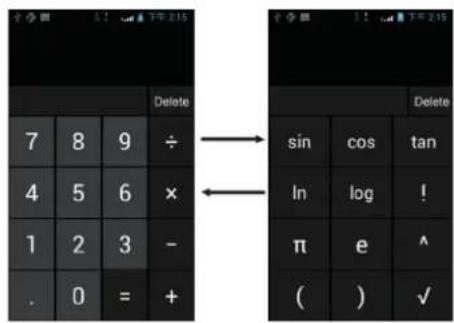
You can use the calculator on the phone for simple and complex mathematical calculations. To use, click on the 'Calculator' icon on the application interface. Calculator has two interfaces Main Panel for simple calculations and Advanced Panel for advanced calculations.
There are two methods to switch between the two panels:
- Hold the Main Panel and slide it left.
- Press the Menu button on the Main Panel (on upper right, 3 vertical dots) and select Advanced Panel from theoptions.
• Copy: Copies the selected numbers. - Cut: Cuts the selected numbers.
- Paste: Pastes the selected numbers. This
option is not displayed if text is not selected and copier or cut. Perform the calculation you want to make and press the “=” symbol to finalize it. You can delete the mistyped numbers and operation symbols with delete button.
When you type a number and operation symbol, the following options appear as you keep the result part pressed.
Internet(Google)
Enter the website you want to visit to the address bar and click on go. When you are in search engine (Google, Yandex etc.) enter the information you want to search and press the magnifier icon.
Camera / Digital Video
Your phone is equipped with a camera to enable you to shoot digital videos and photos.
Camera
Before using the camera, make sure your phone has sufficient memory so that the photographs and videos can be recorded. Go to the application menu from the home screen and touch the camera icon. Camera interface will open and views will come to the screen. Interface will open in photograph mode. You can switch to the
camera mode by touching the camera symbol at the mode selection on lower right.
WARNING: It is recommended to turn off autofocus function to get better performance in moving photograph shoots.
- Touch the camera symbol to switch between photograph and video.
- Photo is taken when photograph symbol is pressed.
Digital Video
Video can be recorded easily when video mode is activated from photograph mode. Video Recording: Switch to digital video mode and press the red recording button to start recording.
- Touch the camera symbol to return to photograph mode.
Videos
To see the recorded videos; you can click on the window appearing on lower left while in video mode. You can also access your videos from the gallery.
Photos
To see the recorded photos; you can click on the window appearing on lower left while
in photo interface. You can also access your photos from the gallery.
Music
Some features of Google Play Music application is as below:
- Artist: Sorts the songs according to artist name.
- Album: Sorts the songs according to album name.
- Songs: Sorts all songs alphabetically.
- Play List: The last added music lists and the lists that contain voice recordings.
-
My Library
1-Playing music: -
First, upload some music to telephone memory or SD card.
- Enter the music player application and select the music you want to play and then select play.
- You can adjust volume by using the phone's volume buttons.
- When you click the menu in the music player interface, you have the following options:
- Google music play: Where all music loaded in your phone are located.
- Shuffle Play: Plays the songs in random order.
-
Add to Playlist: Adds a song to playlists.
-
Delete
- Sound Effect
WARNING: To avoid hearing loss, please do not listen to music with high volumes for prolonged times. It is appropriate to listen with a medium level of volume so that the Music Player does not damage you.
AMR, AAC+, OGG, etc.
ES File Manager
With ES File Manager/Assistant/ Browser, you can arrange all the files on your SD card and your phone memory.
You can access the sub menu by pressing the MENU button: Multiple Selection (you can select more than one), Settings, Refresh, Rotate, About and Exit.
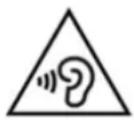
Figure 1-Warning Symbol (IEC 60417-6044)
Music player supports the following music file formats: WAV, MP3, MIDI, AAC,
Connect to Computer via USB
You can use USB data cable for file transfer between computer, phone and your phone's memory card.
Connecting and Disconnecting Phone and Computer
Connecting the Phone to Computer
- You can connect the phone to computer with the date cable that comes out of its box.
- When computer connection is established, both devices receive a notification of connection.
- Touch the warning notification and confirm that USB connection is made.
- From the options, select Media Device (MTP) and allow data transfer.
Disconnect from Computer
You just have to unplug the cable to disconnect.
Downloads
Qualifies the received/downloaded files by connecting to internet or another device.
Wi-Fi
You can see the Wi-Fi connection from the notifications screen or the Wi-Fi tab on the settings menu. To activate the Wi-Fi connection, slide the button to its right and turn Wi-Fi feature on or off. Click on
the network you wish to connect from current accessible networks list. Also, you can update the list by touching the “scan” option from the three dots ☐ menu.
Bluetooth
It is a type of wireless connection. It allows data transfer. It is activated from the notification screen, and from settings menu in more detail. The scanned devices can be seen from the settings menu.
Mobile data
You can see the mobile data connection from the notifications screen or the mobile data tab on the settings menu. To activate mobile data connection, slide the button to its right. You can use internet with the GSM network when mobile data is activated.
Cleaning and Maintenance
- To clean your phone, remove all plugged cables and keep the power button pressed for a few seconds. Shut down your phone by approving the notification window. To clean the dirt and stains, use a cleaning cloth (not provided with the product).
- WARNING: Do not pour liquids on the screen.
- WARNING: Do not use screen cleaner,
home cleaning materials, aerosol sprays, solutions, alcohol, ammonia or abrasive materials to clean your phone.
Storage
- If you will not use your phone for a prolonged duration, remove your micro SD card, SIM card and battery from the phone, and then place your phone in a protective case and store in an adequately ventilated dry place without sunlight.
Troubleshooting
If you detect an abnormal situation with your phone, you can try to solve the problem following the explanations in the table.
If your device still does not work normally, contact Vestel Contact Centre (+90 44 44 123).
| PROBLEM CAUSE REMEDY | ||
| Unable to start the phone | You may not have pressed the power button long enough, the battery might be incorrectly placed or you may have run out of battery. | 1. Ensure that you keep the power button pressed for at least 2 seconds.2. Ensure that the battery is placed correctly. Remove the battery and reinstall it correctly and then press the power button again.3. Battery might have run out of energy. Please recharge. |
| Starting the Phone and Displaying Password Screen | 1. Entering the password for phone lock: If the phone lock is active, you must enter this password to use the phone.2. Enter PIN code: Enter this password if an active pin code is assigned.3. Enter PUK Code: GSM card locks up when you enter PIN code incorrectly 3 times. To unlock, enter the PUK code which is provided when you purchased the GSM card from the operator. | |
| UIM/SIM card error | 1.The golden coloured part of UIM/SIM card might be dirty.2.UIM/SIM card might be inserted incorrectly.3.UIM/SIM damaged. | 1.Thoroughly clean this metal contact part with a cloth.2.Insert in correct orientation as specified in UIM/SIM card user manual.3.Contact your GSM service provider. |
| Not Connecting to Network | 1.Weak Signal.2.No Network Service3.UIM/SIM card invalid. | 1.Proceed to a location where you can pick up a stronger signal.2.Go to a point where the service provider provides this service.3.Contact your GSM service provider. |
| Unable to make calls. | 1.Press the call button.2.May be out of charge.3.UIM/SIM card invalid or malfunctioning. | 1.Make sure you pressed the call button.2.Make sure your phone is charged enough to make a call.3.Make sure your UIM/SIM card is valid/operational. |
| Low Call/Voice Quality | 1.Phone is muted.2.You are in a location with weak network signal. | 1.Make sure the phone volume is up.2.You might be using the phone in locations with weak network signal like ground floor, tunnel, places with intense radio signals or high buildings. |
| Unable to Receive Calls | 1.Your phone is turned off or not connected to GSM network.2.Your charge is not enough.3.Your UIM/SIM card does not work. | 1.Make sure your phone is turned on and connected to GSM network.2.Make sure your phone is charged enough to receive a call.3.Make sure your UIM/SIM card is valid/operational. |
| Other Side Unable To Hear You | 1.Microphone exit blocked or closed.2.Keep the microphone hole close to your mouth. | 1.Make sure your microphone exit is not blocked/closed.2.Make sure the microphone hole at the lower part of your phone is close to your mouth. |
| Phone Not Connecting To Internet | 1.You are not connected to the network.2.Network connection is faulty.3.You don’t have internet service.4.Phone can’t receive signal. | 1.Make sure you are connected to the network.2.Check the Network connection settings of your device.3.Make sure you have UIM/ SIM card GSM network internet service.4.Try to reconnect later in another place. |
| Short Stand-By Time | 1.You have low signal.2.Your battery is damaged. | 1.The Stand-By time of the phone depends on network system settings. In low signal areas, your phone spends more energy to reach the network signal. Please move to an area with better signal or turn off the phone temporarily to conserve the battery energy.2.If battery requires a replacement, install a new battery. |
| Not Charging 1. Check your connection.2.There might be dirt in battery contact or the charger slot.3.Socket might be faulty.4.Battery or charger might be malfunctioning. | 1.Your phone may not be receiving power due to incorrect/poor connection.2.Dirt accumulating at inlets. Clean the battery contacts or charger input.3.Charge the phone in horizontal position. Try charging from a different power socket.4.Please replace with a new one. |
You can access the detailed user manual of the device from the website
www.vestel.com.tr.
Technical Specifications
| Model name | VSP355s | Carrier | 2G | GSMFrequency Band | 850/900/1800/1900 |
| Dimension | (L)152.5mm*(W) 77.5mm*(T)9.65mm | GPRS Yes | |||
| Weight | 180 g | EDGE Yes | |||
| Processor | MSM8926 1.2 GHzQuadcore | 3G | UMTSFrequency Band | 900/2100 | |
| Internal Memory | 16 GB | HSDPA 42 Mbps | |||
| RAM | 1 GB | HSUPA 5.76 Mbps | |||
| RemovableMemory | Up to 32 GB | WiFi WLANRevision | 802.11 a/b/g/n | ||
| Display | 5.5" qHD (1280x720) | LTE | LTEFrequency Band | 1800/2600 | |
| NFC | NFC | Yes | |||
| Safe Element | No | ||||
| Front | Front | 2MP | |||
| Rear | 13MP | ||||
| Battery | Kapacity | 2000mAh | |||
- Specifications and this manual may be modified without prior notification.
• Complies with AEEE Regulation.
CE This appliance complies with the respective EU Directives.
Specific Absorption Rate (SAR) Certificate Information
Your device complies with the European Union (EU) standards that limits people's exposure to the amount of radio frequency (RF) energy emitted by radio and telecommunication equipment. These standards prevents the sale of mobile devices with maximum exposure limit (named Specific Absorption Rate or SAR) of 2,0 W/kg. After the tests, the recorded SAR value for this model is 0,366 W/kg. Since the device is designed to emit RF energy enough to transmit a signal to the nearest base station, it is possible that the real SAR value will be much less than this value during normal use. Since your device automatically decreases energy emission whenever possible, the total amount of RF energy you are exposed to also decreases. The Declaration of Conformity at the back of this manual shows that your device complies with European Radio and
Terminal Telecommunication Equipment (R&TTE) directive.
This Device Can Be Used In The Following Countries
ATBECECZDK
EEFIFRDEGR
HUIEITLVLT
LUMTNLPLPT
SKSIES SEGB
ISLINO CH BG
ROTR
Disposing of your appliance in an environment-friendly way
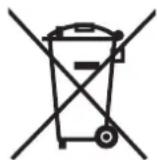
(Waste Electrical and Electronic Devices) (For countries with separate collection systems)
This sign on the product, its accessories and related documents show that the product)its accessories (ex:charger, USB cable) must not be disposed of with other domestic waste. Please separate this from other waste types to prevent the harmful effect of waste not being disposed of properly has on environment and human health, and ensure it is recycled so that it can be re-used sustainably. Home users
should contact the dealer they purchased the product from or the legal authority for detailed information on where and how they will send the product for an environmentally safe disposal. Business users should contact their supplier and check the provisions and conditions of the purchasing contract. This product and its electronic accessories should not be mixed with other commercial wastes for disposal.
Disposing of Batteries in Correct Way
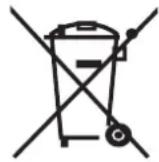
(For countries with separate collection systems) Sign on the battery, manual and its packaging and its accessories must not be disposed of with other domestic waste. Chemical symbols like Hg, Cd or Pb show that the battery includes mercury, cadmium or lead over the reference value stated in EC Directive 2006/66. The battery that comes with this product cannot be replaced by the user. Please contact your service provider for detailed information regarding replacing. Do not try to remove the battery or throw it into a fire. To not remove, crush
or pierce the battery.
If you intend to dispose of the product, the necessary measures will be taken in the waste collection area for he reprocessing and repair of the product, including the battery.
Recommendations for Energy
Saving
- Turning bluetooth, wifi and 3G off whenever your are not using them conserves energy.
- Your mobile phone's screen consumes the largest amount of battery. Use screen brightness at a low setting for energy
efficiency.
- Never place your phone under a heater or direct sunlight. Because extreme heat both decreases the life of your battery and causes other problems.
Packaging Information
Product package is made from recyclable materials. Do not dispose of the packaging waste with domestic or other waste, dispose of it in packaging collection points specified by administration.
44 44 123
www.vestel.com.tr

The lifetime of your device stated and declared by the Consumer Protection and Market Surveillance General Directorate under T.R. Ministry of Customs and Commerce (the period for retaining parts required for the proper functioning of the device) is 5 years.
- Important safety-related information
- Table of contents
- Safety information
- Environmental conditions
- Adapter information
- Instruction symbol
- Important information regarding user manual
- Issues to be considered about carrying and transportation
- Liability limitation
- General appearance
- Telephone use opening the back cover of the phone
- Uim/sim card inserting and removing
- Inserting and removing sd card
- Inserting and removing the battery
- Recharging the battery
- Using the touchscreen
- Light touch/short press/click
- Touch and hold
- Dragging
- Scrolling
- Fast dragging
- Resizing & zooming with fingers
- Screen rotation
- Proximity sensor
- Turning VSP355s on and off
- Turning VSP355s on
- Turning VSP355s off
- Notification indicator
- Status bar
- Application symbols (screen shortcuts)
- Application menu
- Arranging the home screen
- Wallpaper (changing) setting
- Relocating
- Removing the symbol
- Locking/unlocking the screen locking the screen
- Unlocking the screen
- Writing with the keyboard using the on-screen keyboard
- Determining on-screen keyboard orientation
- Call notification making a call
- Fast dial
- International call
- Emergency call
- Rejecting/answering call
- Leaving a voice message
- Call log
- Contacts
- Call details
- Contact settings
- Messages
- Writing a message
- Sending text message
- Sending mms (picture message)
- Messaging
- Delete all
- Search (magnifier)
- Settings
- Writing and sending emails
- New event (add)
- Deleting and editing an event
- Event notification
- Clock
- Calculator
- Internet(google)
- Camera / digital video
- Camera
- Digital video
- Videos
- Photos
- Music
- Es file manager
- Figure 1-Warning symbol (iec 60417-6044)
- Connect to computer via usb
- Connecting and disconnecting phone and computer
- Connecting the phone to computer
- Disconnect from computer
- Downloads
- Wi-fi
- Bluetooth
- Mobile data
- Cleaning and maintenance
- Storage
- Troubleshooting
- Specific absorption rate (sar) certificate information
- This device can be used in the following countries
- Disposing of your appliance in an environment-friendly way
- Disposing of batteries in correct way
- Recommendations for energy
- Saving
- Packaging information
- 44 44 123
- Www.Vestel.com.tr
Brand : VESTEL
Model : Venus VSP355s
Category : Smartphone