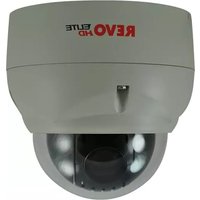
REHVDPTZ22-1 - Security Camera REVO - Free user manual and instructions
Find the device manual for free REHVDPTZ22-1 REVO in PDF.


| Product Type | PTZ Dome Security Camera |
| Image Sensor | 1/4" Type Exview HAD CCD |
| Optical Zoom | 22x |
| Digital Zoom | 16x |
| Max Resolution | D1 (704x480 NTSC, 704x576 PAL) |
| Focal Length | 3.9 mm ~ 85.8 mm |
| Angle of View | 49.5° (Wide) ~ 2.4° (Tele) |
| Minimum Illumination | 0.5 Lux (Normal), 0.001 Lux (ICR on & Slow Shutter) |
| Day/Night | Yes (ICR) |
| Wide Dynamic Range | Yes |
| Pan Range | 360° continuous |
| Tilt Range | 0° ~ 180° (Digital Flip) |
| Pan/Tilt Speed | Up to 380°/sec |
| Presets | 120 |
| Patterns | 4 (up to 200 sec each) |
| Tours | 4 (up to 42 functions per tour) |
| Privacy Zones | 4 |
| Alarm Input/Output | 1 Input, 1 Output |
| Audio | Two-way (line in/out via RCA jacks) |
| Video Compression | H.264, MPEG-4, Motion JPEG |
| Network Protocols | TCP/IP, UDP, IPv4/v6, HTTP, HTTPS, QoS, FTP, SNMP, uPnP, RTP, RTSP, RTCP, DHCP, ARP |
| Power Supply | 12V DC, 1.0A (Class 2) |
| Power Consumption | 12W |
| Weight | Approx. 1.6 kg (3.5 lb) |
| Operating Temperature | 0°C to 45°C (32°F to 113°F) |
| Storage Temperature | -20°C to 60°C (-4°F to 140°F) |
| Humidity | 0% ~ 90% RH (non-condensing) |
| Ingress Protection | IP66 |
| Mounting | Surface or Pendant |
| Control Interface | RS-485 half-duplex |
| Cleaning Instructions | Clean with dry cloth only |
| Safety Compliance | FCC Class A, CE, do not expose to rain or moisture |
Frequently Asked Questions - REHVDPTZ22-1 REVO
User questions about REHVDPTZ22-1 REVO
0 question about this device. Answer the ones you know or ask your own.
Ask a new question about this device
Download the instructions for your Security Camera in PDF format for free! Find your manual REHVDPTZ22-1 - REVO and take your electronic device back in hand. On this page are published all the documents necessary for the use of your device. REHVDPTZ22-1 by REVO.
USER MANUAL REHVDPTZ22-1 REVO

Model No.: REHVDPTZ22-1
(DC 12V 1.0A)
REVO AMERICA
700 FREEPORT PARKWAY SUITE 100 COPPELL,
TX 75019 U.S.A TEL.: 1-866-625-REVO(7386)
Please read this manual thoroughly before use and keep it handy for future reference.
WARNING
TO REDUCE THE RISK OF FIRE OR ELECTRIC SHOCK, DO NOT EXPOSE THIS PRODUCT TO RAIN OR MOISTURE. DO NOT INSERT ANY METALLIC OBJECTS THROUGH THE VENTILATION GRILLS OR OTHER OPENINGS ON THE EQUIPMENT.
CAUTION

EXPLANATION OF GRAPHICAL SYMBOLS
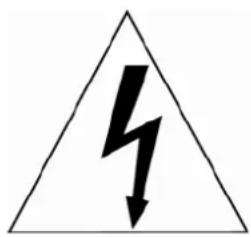
The lightning flash with arrowhead symbol, within an equilateral triangle, is intended to alert the user to the presence of uninsulated “dangerous voltage” within the product’s enclosure that may be of sufficient magnitude to constitute a risk of electric shock to persons.

The exclamation point within an equilateral triangle is intended to alert the user to the presence of important operating and maintenance (servicing) instructions in the literature accompanying the appliance.
FCC COMPLIANCE STATEMENT
FCC INFORMATION: This equipment has been tested and found to comply with the limits for a Class A digital device, pursuant to Part 15 of the FCC Rules. These limits are designed to provide reasonable protection against harmful interference when the equipment is operated in a commercial environment. This equipment generates, uses, and can radiate radio frequency energy and, if not installed and used in accordance with the instruction manual, may cause harmful interference to radio communications. Operation of this equipment in a residential area is likely to cause harmful interference in which case the user will be required to correct the interference at his own expense.
CAUTION: Changes or modifications not expressly approved by the party responsible for compliance could void the user's authority to operate the equipment.
This Class A digital apparatus complies with Canadian ICES-003.
This is a Class A product. In a domestic environment this product may cause radio interference in which case the user may be required to take adequate measures.
- Read these instructions.
- Keep these instructions.
- Heed all warnings.
- Follow all instructions.
- Do not use this apparatus near water.
- Clean only with dry cloth.
- Do not block any ventilation openings. Install in accordance with the manufacturer's instructions.
- Do not install near any heat sources such as radiators, heat registers, stoves, or other apparatus (including amplifiers) that produce heat.
- Do not defeat the safety purpose of the polarized or grounding-type plug. A polarized plug has two blades with one wider than the other. A grounding type plug has two blades and a third grounding prong. The wide blade or the third prong are provided for your safety. If the provided plug does not fit into your outlet, consult an electrician for replacement of the obsolete outlet.
- Protect the power cord from being walked on or pinched particularly at plugs, convenience receptacles, and the point where they exit from the apparatus.
- Only use attachments/accessories specified by the manufacturer.
- Use only with the cart, stand, tripod, bracket, or table specified by the manufacturer, or sold with the apparatus. When a cart is used, use caution when moving the cart/apparatus combination to avoid injury from tip-over.
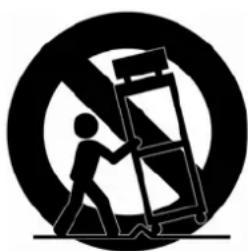
- Unplug this apparatus during lightning storms or when unused for long periods of time.
- Refer all servicing to qualified service personnel. Servicing is required when the apparatus has been damaged in any way, such as power-supply cord or plug is damaged, liquid has been spilled or objects have fallen into the apparatus, the apparatus has been exposed to rain or moisture, does not operate normally, or has been dropped.
- CAUTION – THESE SERVICING INSTRUCTIONS ARE FOR USE BY QUALIFIED SERVICE PERSONNEL ONLY. TO REDUCE THE RISK OF ELECTRIC SHOCK DO NOT PERFORM ANY SERVICING OTHER THAN THAT CONTAINED IN THE OPERATING INSTRUCTIONS UNLESS YOU ARE QUALIFIED TO DO SO.
- Use a power source that satisfies clause 2.5 of IEC60950-1/UL60950-1 or a Certified/Listed Class 2 power source only.
Chapter 1 — Introduction ....1
1.1 Features ....1
Chapter 2 — Installation and Configuration....2
2.1 Package Contents....2 2.2 Installation....3 2.3 Basic Configuration of Dome Camera System....5 2.4 Setting Dome Camera Address (ID)....6 2.5 Connections....6 2.6 IP Assignment ....7 2.7 Getting Started ....8
Chapter 3 — Program and Operation....9
3.1 Dome Camera Selection ....9 3.2 Accessing the On-Screen Menu Utility 9 3.3 How to control the On-Screen Menu Utility....9 3.4 Auto Scan (Shortcut: SCAN)....10 3.5 Preset (Shortcut: PRST) 12 3.6 Shortcut of Preset Program....13 3.7 Tour (Shortcut: TOUR) 14 3.8 Pattern (Shortcut: PTRN)....16 3.9 Area Title....17 3.10 Privacy Zone....18 3.11 Camera Menu....19 3.12 Dome Setup ...... 22 3.13 Dome Communication ....28 3.14 Function Run....29 3.15 Factory Setup....29
Chapter 4 — Operation by Web Browser ....30
4.1 Access from a browser....30 4.2 Access from the internet 31 4.3 Setting the admin password over a secure connection....31 4.4 Live View Page 31 4.5 Network Camera Setup ....33
4.5.1 Basic Configuration....34
1) Users 34 2) Network.... 35 3) Video & Image 36
4) Audio 38 5) Date & Time 39
4.5.2 Video & Image 40
1) Basic 40 2) Webcasting – Channel1.... 40
4.5.3 Audio 41
4.5.4 Event....41
1) Event-In.... 41 2) Event-Out 45 3) Event Map 52
4.5.5 System ....53
1) Information 54 2) Security 54 3) Date & Time 57 4) Network....58 5) Language 65 6) Maintenance 65 7) Support 66
4.5.6 About 67
4.6 PTZ Control 67
4.7 Help 69
4.8 Resetting to the factory default settings....69
4.9 System Requirement for Web Browser ....70
Appendix A — Specifications....71
Appendix B — Troubleshooting ....74
Appendix C — Glossary....74
Appendix D — Short Cut Key ....77
Chapter 1 — Introduction
1.1 Features
The dome camera and the keyboard controller, PC software makes up the building blocks for any surveillance/security system. Using multiple keyboard controllers and multiple dome cameras, no place is too large for monitoring. Extensible and flexible architecture facilitates remote control functions for a variety of external switching devices such as multiplexers and DVRs.
• Built-in optical power zoom camera with True Night Shot function - Dual video streams simultaneously at full frame rate in all resolutions up to D1 (720X480 in NTSC, 720X576 in PAL) using Motion JPEG and H.264 (or MPEG-4) - Intelligent capabilities such as enhanced video motion detection The encoder's external inputs and outputs can be connected to devices such as sensors and relays, enabling the system to react to alarms and activate lights or open/close doors.
• Supports two-way audio - Logs all user access, and lists currently connected users. Also, full frame rate video can be provided over HTTPS. - Interface Protocol: TCP/IP, UDP, IPv4/v6, HTTP, HTTPS, QoS, FTP, SNMP, uPnP, RTP, RTSP, RTCP, DHCP, ARP
- 120 Preset positions with the individual Camera AE setup
- 4 Tours consist of Presets, Patterns, Auto Scans and other Tours can be programmed with over 150 functions and Preset locations. While moving, each Preset scan can be watched in smooth Vector Scan mode.
- 4 Auto Scans with the normal, the vector, and the random mode and the Endless Auto-Pan with 13 speed steps
- 4 Patterns (up to 200 second) and 4 Privacy Zones
- 8 Area Titles
• 1 Alarm input / 1 Alarm output
- Variable speed from 0.1° / sec to 380° / sec Three Variable speed (SLOW, NORMAL, TURBO)
Turbo speed is 380°/sec with Ctrl key pressed.
- Pan / Tilt speed is inversely proportional to the zoom ratio with the option.
• Maximum speed is 380°/sec when Preset command.
- Auto Calibration from 0.1° to 6° (Tilt range is 0° to 180° )
- Programmable user preferences (alarm, preset, title, etc.)
- 180° Digital Flip
- Up to 255 selectable camera addresses
- Multi-language menu display, password confirmation
- Function run menu using DVR without function key (Pattern, Scan, ...)
- Built-in RS-485 receiver driver
- 12VDC for dome
- Use only a power source that satisfies clause 2.5 of IEC60950-1/UL60950-1 or a Certified/Listed Class 2 power source.
Chapter 2 — Installation and Configuration
2.1 Package Contents
The dome camera is designed as a compact, small-sized, hard dome camera housing.
The housing is constructed of aluminum, steel, and plastic. It is designed to be mounted on both wall and ceiling types.
The housing meets the Protection Classification IP66 standards for dust and moisture resistance.
- Dome Camera 1 - Installation Guide/CD 1 - Template Sheet 1 - Mounting Bracket 1 - Safety Lanyard 1 - Accessory Kit 1
1) Mounting screws (PH6 x 35.0) (4) 2) Plastic anchors (4) 3) O-Rings (4) 4) Torx wrench (1)
- Accessory Connector 1
1) 2-Pin Terminal Block (1) 2) 3-Pin Terminal Block (1) 3) 6-Pin Terminal Block (1)
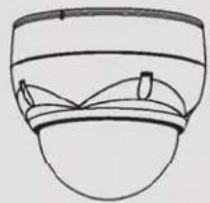
Dome Camera

Installation Guide/CD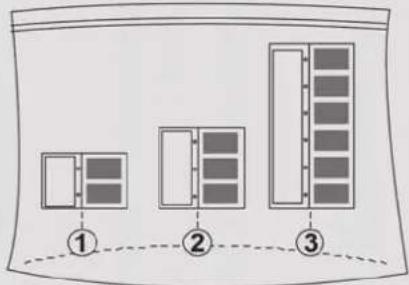
Accessory connector
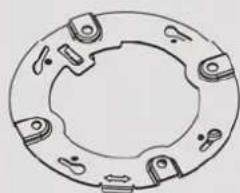
Mounting Bracket
Safety Lanyard
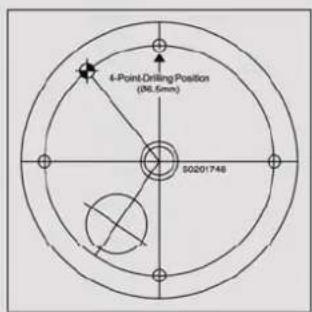
Template sheet
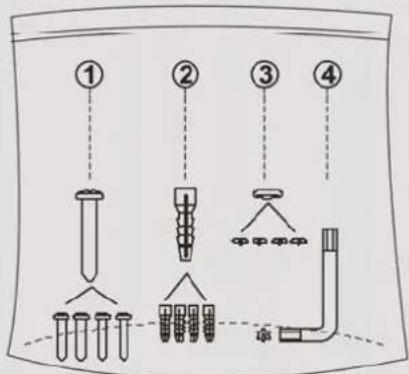
Accessory kit
2.2 Installation
The dome camera is for use in surface or pendent mounting applications and the mounting member must be capable of supporting loads of up to 3.5lb (1.6kg). (Pendent mounting must use pendent mount accessory.)
The dome camera's mounting bracket should be attached to a structural object, such as hard wood, wall stud or ceiling rafter that supports the weight of the dome camera.
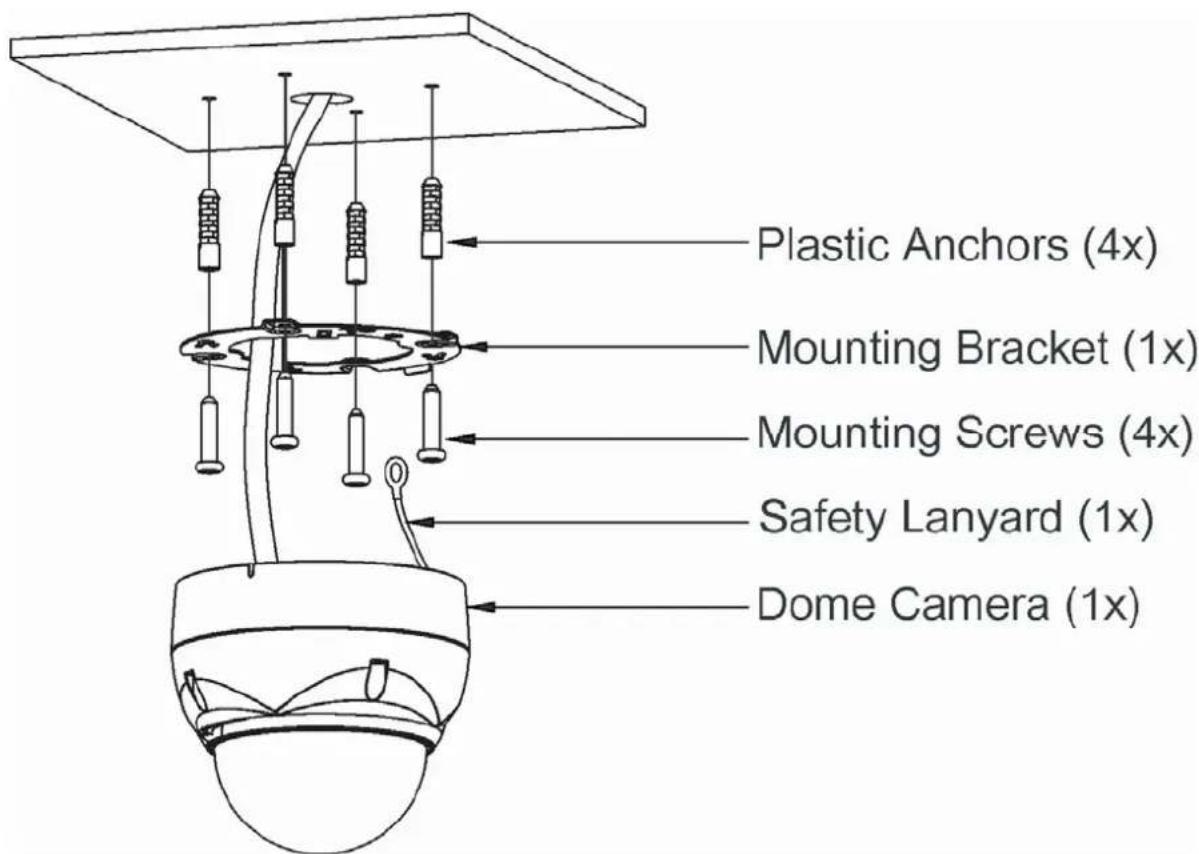
CAUTION: A silicone rubber sealant must be applied to seal the housing to secure waterproofing.
2.2.1 Locking Dome Camera
A. Make screw holes on the ceiling using the supplied mounting Template Sheet (Figure A). B. Fix the Mounting Bracket using Anchors(4x) and Mounting Screws(4x) to the ceiling (Figure B). C. Hook up the Safety Lanyard to the Safety Lanyard Hook of the Mounting Bracket (Figure C). D. Align the locking tap on the bracket and the locking slot on the base of the dome (Figure D). E. Turn the dome to the counterclockwise about 10 degree to the locked position (Figure E).
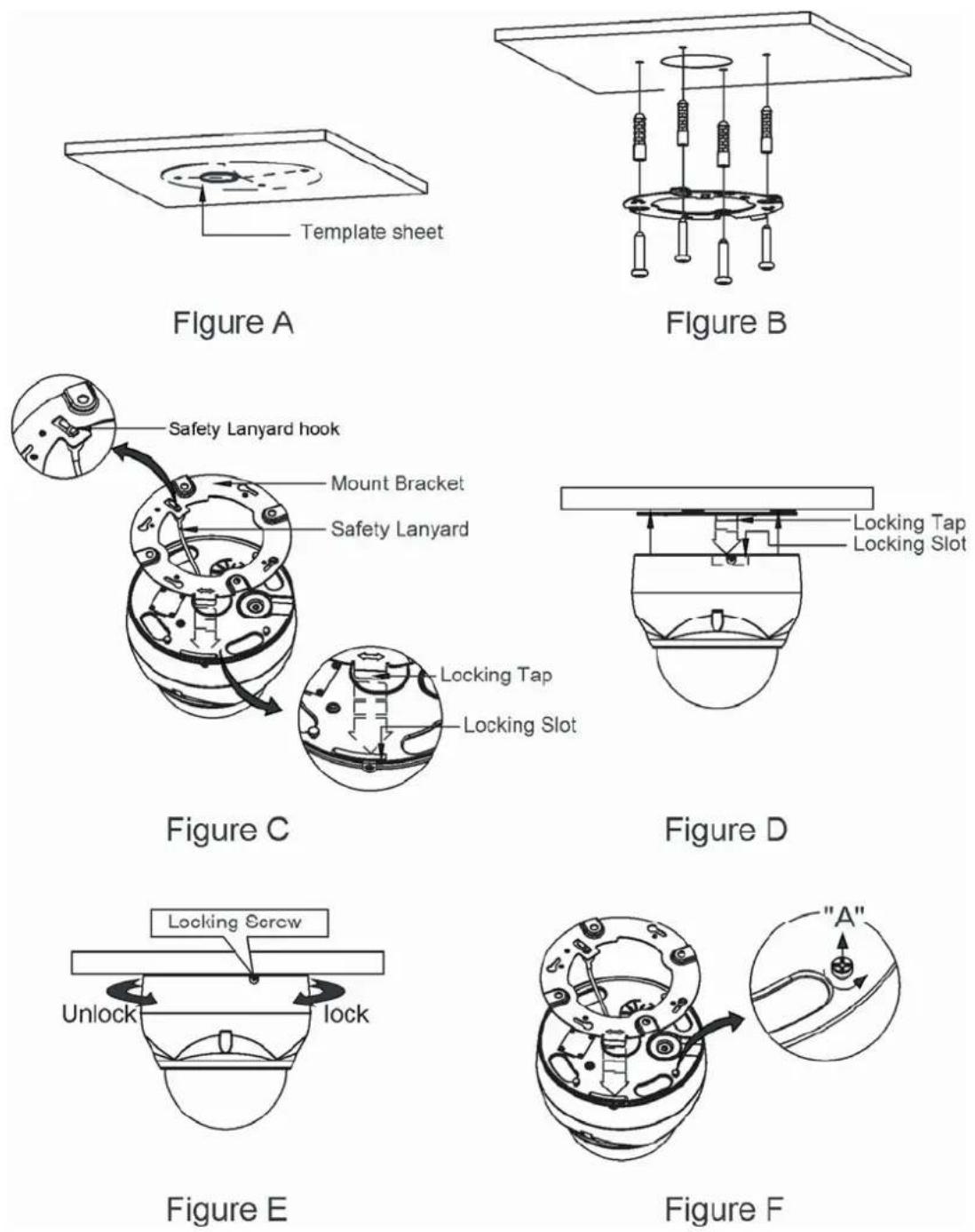
CAUTION: Before installing mounting bracket to surface pre-adjust the four mounting screws "A" on the base of the dome camera to best match the mounting bracket locked position. Unscrew the locking screw on the side of the dome's base and fit the tab of the mounting bracket into the locking slot. Screws "A" should not be too tight or too loose when the dome is in the locked position. After setting the proper positions of screws "A" remove the mounting bracket and install it to the proper surface. If it is too difficult to lock the dome in position after the mounting bracket has been installed readjust the screws "A" by unscrewing them a small amount and try to install dome camera again.
2.3 Basic Configuration of Dome Camera System
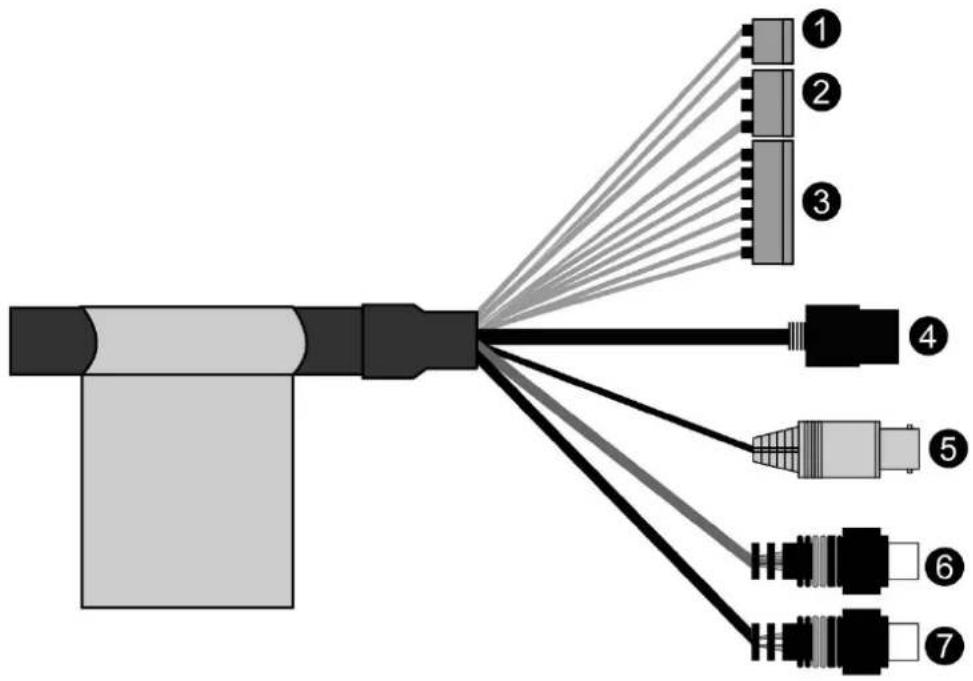
| No. | Wire Color Description | |
| 1 | Red: 12VDC+White: 12VDC- | Main Power: 2pin terminal |
| 2 | Pink, Brown Heater Power(Option): 3pin terminal | |
| 3 | Black: GNDGray: Alarm InputYellow: GNDBlack&White: Alarm OutputGreen: RS485+Blue: RS485- | Alarm Input/Output, RS485: 6pin terminal |
| 4 | Black Ethernet: RJ45 Modular Jack | |
| 5 | Yellow Video Composite Output: BNC Jack | |
| 6 | Red Audio line output: RCA Jack | |
| 7 | White Audio line input: RCA Jack | |
The dome camera must be installed by qualified service personnel in accordance with all local and federal electrical and building codes.
2.4 Setting Dome Camera Address (ID)
To prevent damage, each dome camera must have a unique address (ID).
When installing multiple dome cameras using a multiplexer, it is suggested that the dome camera address match the multiplexer port number.
The factory default setting is 1.
Refer to '3.13 Dome Communication' section for detailed information.
2.5 Connections
- Connecting to the RJ-45
Connect a standard RJ-45 cable to the network port of the dome camera. Generally a cross-over cable is used for direct connection to a PC, while a direct cable is used for connection to a hub.
- Connecting Alarms
AI (Alarm Input)
You can use external devices to signal the dome camera to react on events. Mechanical or electrical switches can be wired to the AI (Alarm Input) and G (Ground) connectors.
Please see "4.5.4 Event > 1) Event-In > ② Alarm In" for configuring alarm input.
G (Ground)
NOTE: All the connectors marked G or GND are common.
Connect the ground side of the alarm input and/or alarm output to the G (Ground) connector.
AO (Alarm Output)
The dome camera can activate external devices such as buzzers or lights. Connect the device to the AO (Alarm Output) and G (Ground) connectors.
Please see "4.5.4 Event > 2) Event-Out > ④ Alarm Out" for configuring alarm output.
- Connecting to the RS485
The dome camera can be controlled remotely by an external device or control system, such as a control keyboard, using RS485 half-duplex serial communications signals.
- Connecting Video out connector
Connect the video out (BNC) connector to the monitor or video input.
- Connecting the Power
Connect the power of 12VDC 1.0A for the dome camera.
When using a 12VDC adapter, connect the positive(+) pole to the '+' position and the negative(-) pole to the '-' position.
Use satisfy clause 2.5 of IEC60950-1/UL60950-1 or Certified/Listed Class 2 power source only.
2.6 IP Assignment
When the dome camera, encoder or decoder is first connected to the network it has no IP address. So, it is necessary to allocate an IP address to the device with the "SmartManager" utility on the CD.
- Connect the dome camera / device to the network and power up.
- Start SmartManager utility (Start>All programs>SmartManager>SmartManager), the main window will be displayed, after a short while any network devices connected to the network will be displayed in the list.
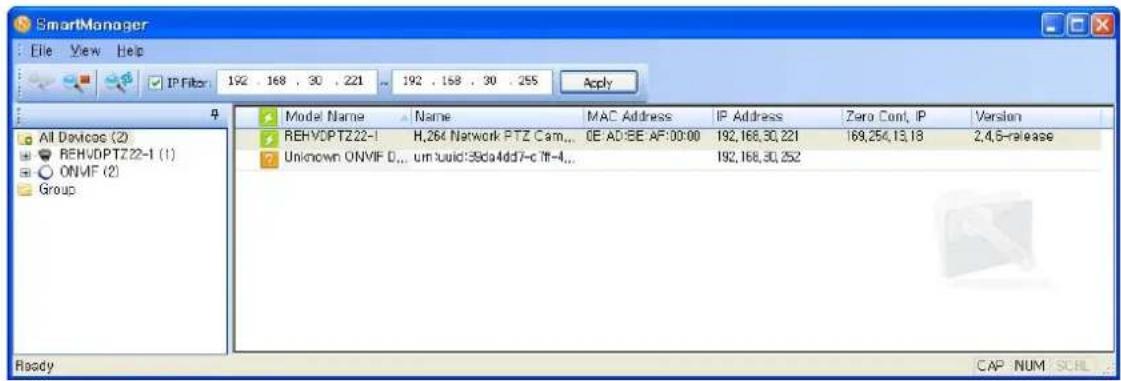
- Select the dome camera on the list and click right button of the mouse.
You can see the pop-up menu as below.
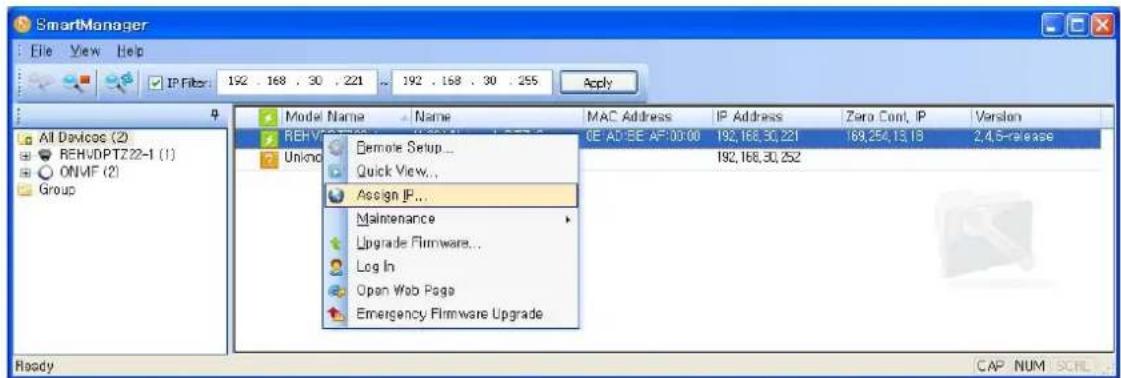
- Select Assign IP Address. You can see Assign IP window. Enter the required IP address.
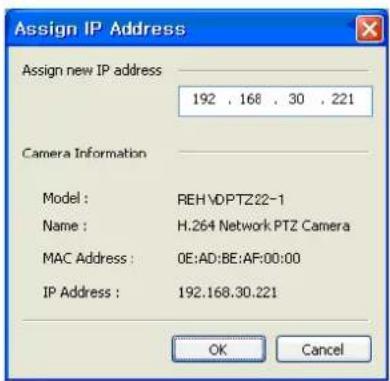
Note: For more information, refer to the SmartManager User's Manual.
2.7 Getting Started
Once installed apply power to the dome camera. The dome camera will start a configuration sequence.
![graph TD A["001"] --> B["PRESENT TITLE AREA TITLE FUNCTION UNDER RUNNING"] B --> C["INFORMATION DISPLAY"] C --> D["EMPTY DATA"] D --> E["AF AE"] E --> F["STATUS of FOCUS and AE"] D --> G["CAMERA ID"] D --> H["CAMERA TITLE"] D --> I["DOMEID:001 w→360.0 090.0"] I --> J["PAN & TILT ANGLE"] I --> K["VIE…](/content/2026/06/1165427/images/a644e178c23bfd43d37f259fb2814238ea3f8d2ce30a1ca61a3870de50b0cc40.jpg)
The dome can move the OSD position in the OSD position setup.
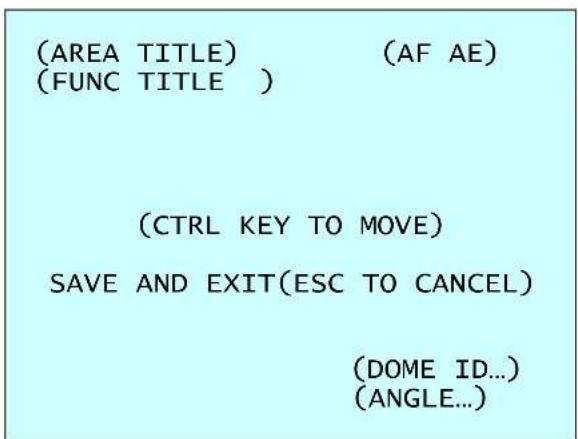
OSD Position Setup
Chapter 3 — Program and Operation
3.1 Dome Camera Selection
Before you program or operate a dome camera, you must select the dome camera by pressing No. + CAM keys.
Example: Pressing 1, 0 + CAM keys sequentially will select dome camera 10. The selected dome camera ID will be displayed on the LCD monitor of the keyboard controller.
3.2 Accessing the On-Screen Menu Utility
You can call up the On-screen menu utility on your monitor by pressing the MENU key on the keyboard controller. The following On-screen menu utility will appear:
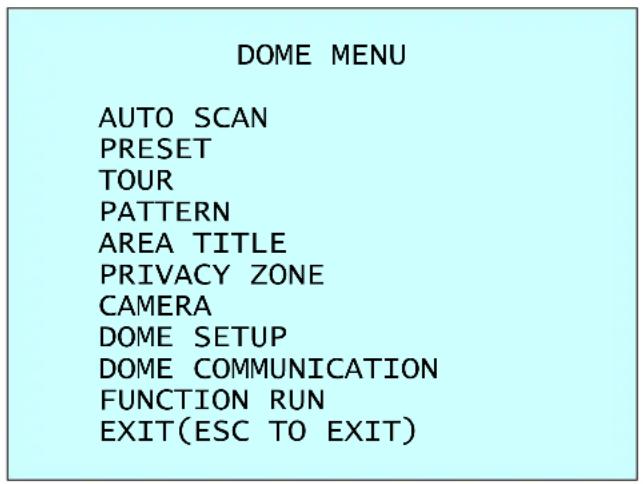
3.3 How to Control the On-Screen Menu Utility
| Function Button | |
| Call the On-screen menu utility. | MENU |
| Navigate through the menu items. | Joystick up or down |
| Go into the sub-menu items. | Joystick left or right or IRIS Open |
| Change value.Enter the editing title mode. | Joystick left or right or Zoom handle twist or Tele, Wide |
| Change value of angle. | CTRL + Joystick |
| Enter the changing angle mode. | IRIS Open |
| Exit the changing angle mode. | IRIS Close |
| Escape (EXIT) | ESC |
3.4 Auto Scan (Shortcut: SCAN)
The Auto Scan supports up to 5 programmed angles at user-programmable speeds. Follow these steps to program Auto Scan:
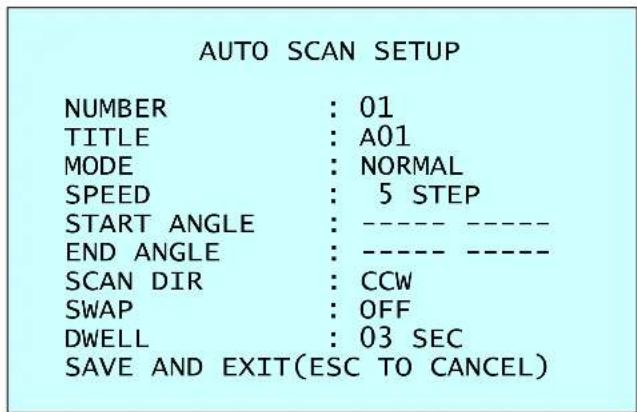
NUMBER: 01 \~ 04, 09: AUTO PAN mode.
TITLE: up to 12 characters.
MODE: NORMAL, VECTOR, RANDOM (AUTO PAN mode: NORMAL, RANDOM only).
NORMAL: Move from start point to end point in panning only.
VECTOR: Move from start point to end point including tilt and zoom simultaneously and linearly.
RANDOM: Move randomly between the start point and the end point.
SPEED: 01 \~ 13 step, the lower number means the slower speed.
SCAN DIR: Set the Scan direction, CCW (Counter Clock Wise), CW (Clock Wise).
SWAP: Swap the start point for the end point.
DWELL: Set the dwell time at both ends, 01 \~ 99 seconds.
- Press the SCAN key to enter the Auto Scan menu directly. Or press the MENU key to display the main menu on the monitor. Scroll to Auto Scan and push the Joystick to the right.
- Select "NUMBER" and set the desired number by pushing the Joystick to the left or right.
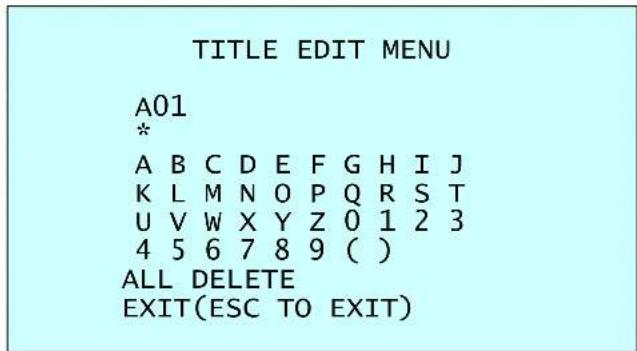
- Select "TITLE" and twist the Joystick to enter the title edit mode.
- Twist the Joystick to change the alphanumeric characters and move to the next position. Or move down to the character table and press the CTRL or IRIS Open key at the desired character, then the cursor position moves to the next position automatically. Push the Joystick to the left or right at the "ALL DELETE" field to delete all characters. Push the Joystick to the left or right at the "EXIT" field to finish the title edit menu.
- Select "MODE" and "SPEED".
- Select "START ANGLE". Hold down the CTRL key while selecting the start position using the Joystick. The current panning position will be displayed. Release the CTRL key to complete the selection of the start position. Or press the IRIS Open key, then "CTRL" displays. Move to the desired position and zoom position. Press the IRIS Close key, then "CTRL" disappears. To adjust at 0.1 degree intervals, twist the Joystick at the pan field and the tilt field. To adjust at one zoom interval, twist the Joystick at the zoom field.
- Select "END ANGLE". Hold down the CTRL key while moving the Joystick to select the end position. The end position angle should be larger than start position. Release the CTRL key to complete the selection of the end position. Or press the IRIS Open key then the "CTRL" displays. Move the desired position and the zoom position. Press the IRIS Close key then the "CTRL" disappears. To adjust at the 0.1 degree interval, twist the Joystick at the pan field and the tilt field. To adjust at the one zoom interval, twist the Joystick at the zoom field.
- Set "SCAN DIR" to CCW or CW.
- Select "SWAP", Set to ON, to exchange the start angle and the end angle.
- Set "DWELL TIME".
- Select "SAVE AND EXIT" and push the Joystick to the right or press the IRIS Open key. Press the ESC or IRIS Close key to exit the program without saving.
NOTE: Pressing the HOME key delete stored data at the angle field.
To set the position using the Preset position:
a. Before entering the Auto Scan menu, select a Preset position as a starting point for Auto Scan.
Example: 2 + PRST keys and do step 1 to 5. In step 6, just press the Ctrl key at the start angle position, the current position will be displayed as a start position.
b. Save and exit from the menu.
c. In normal mode, call a Preset to be the end point of Scan. Press 3 + PRST keys then press the SCAN key to enter the Auto Scan menu. Move the cursor position to END ANGLE. Just press the CTRL key at the end angle position. Save and exit from the menu.
Press the SCAN key on the angle field to display with the small OSD. Then the screen will show as below.
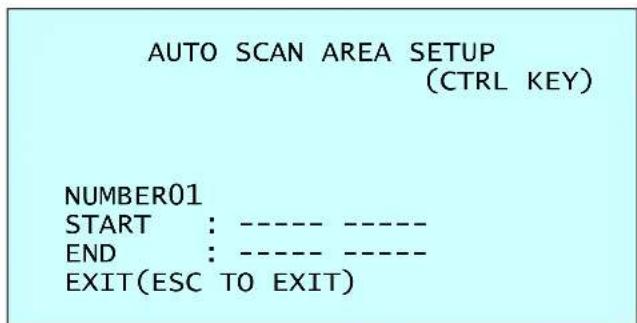
The setting procedure is the same as above.
NOTE: 09: AUTO-PAN mode (Endless panning)
3.5 Preset (Shortcut: PRST)
If you need to view specific places routinely, you should program Presets. A Preset is a programmed video scene with automatic pan, tilt, zoom, focus and AE settings. Once programmed, placing the number position and pressing the PRST key on your controller calls up that Preset automatically. In addition, Presets may be assigned to alarm action or as the "home" position for the dome camera. As many as 120 Presets, whose positions are saved in the dome's firmware, may be programmed.
There are two pages of Preset menu. Each page has 60 Presets. Pages can be scrolled by pushing the Joystick to the left or right on the first or last No. of Preset.
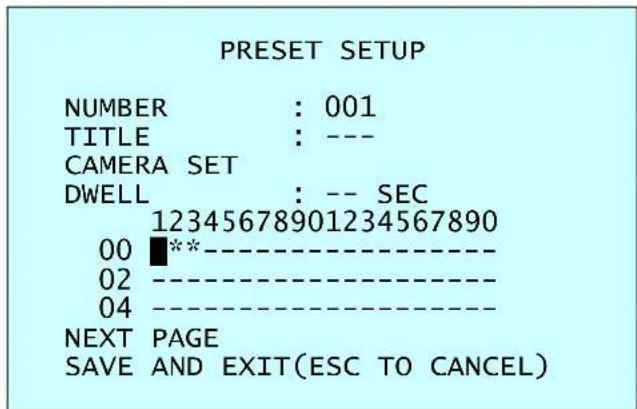
- : blank Preset position * : position has the Preset ■ : current cursor position
Follow steps below to store the Preset positions:
- Press the PRST key to enter the Preset menu directly. Or press the MENU key to display the main menu on the monitor. Scroll to Preset and push the Joystick to the right.
- Select the blank Preset position to be stored by pushing the Joystick up, down, right, or left.
- After selecting a blank position, press and hold the CTRL key. Use the Joystick to control the direction of the camera and lens.
- After aiming the camera (view direction and lens control), release the CTRL key. The cursor will be on the "TITLE" after saving data then twist the Joystick or press the Tele or Wide key to edit the Preset title. Follow the procedure of the Auto Scan above to edit titles.
- Select "CAMERA SET" and pushing the Joystick to the left or right. Then the Preset camera setup displays.
PRESET CAMERA SETUP
FOCUS: AUTO AE SETUP SAVE AND EXIT (ESC TO CANCEL)
Set FOCUS: AUTO, MANUAL, ONE PUSH
Select "AE SETUP" and push the Joystick to the left or right. Then the AE setup displays. Refer to the AE SETUP in the camera setup.
- Set "DWELL TIME". (03 ~ 99 seconds)
- To select the next page of Presets, scroll the page by pushing the Joystick to the left on the first and last columns of the menu.
- Repeat steps 2 through 7 for each additional Preset position.
- Select "SAVE AND EXIT" and push the Joystick to the right or press the IRIS Open key. Press the ESC or IRIS Close key to exit the program without saving.
NOTE: Press the HOME key at a programmed Preset position (*) to delete a programmed Preset view.
The position, which is marked with the *, already has the Preset view assigned. To review the stored Preset, press the PRST key on the *. The camera will show the stored Preset scene.
PRESET AREA SETUP
(CTRL KEY)
NUMBER 001
PAN TILT
000.0 000.0
EXIT (ESC TO EXIT)
Hold down the CTRL key while selecting the desired scene using the Joystick. The current position will be displayed. Release the CTRL key to complete. Alternatively, press the IRIS Open key, then the "CTRL" displays. Move to the desired position and zoom position. Press the IRIS Close key, then the "CTRL" disappears. Select "EXIT" and push the Joystick to the right.
3.6 Shortcut of Preset Program
After selecting the desired scene, press No. (1 to 120), and press the CTRL and PRST keys subsequently. The current view will be stored to the selected Preset number if the Preset number is empty. If the selected Preset number is not empty, an "OVER WRITE" message will be displayed on the monitor. Select "OK" and push the Joystick to the right to overwrite.
Example: 1, 0, 1 + CTRL + PRST keys will store the current view as Preset no. 101. In this case, focus will be programmed as Auto, dwell time will be set to 3 seconds, and the current AE mode will be programmed.
3.7 Tour (Shortcut: TOUR)
There are 4 programmable Tours. Each Tour consists of up to 42 Preset positions, Patterns, Scans, or other Tours (second-level). Using second-level Tours, it can be expanded to over 150 functions in a single Tour.
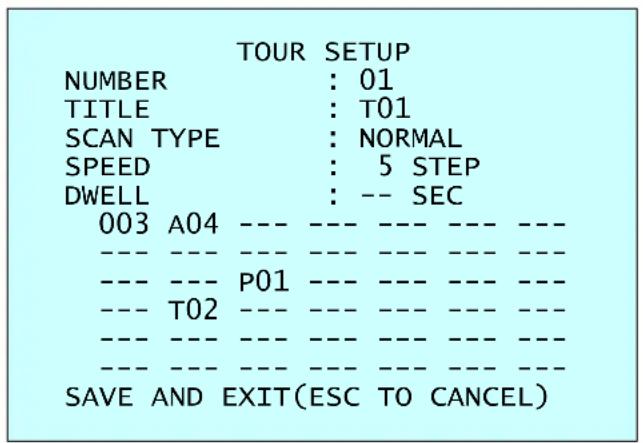
--- : blank position
SCAN TYPE : NORMAL, VECTOR
DWELL : 03 \~ 99 SEC
003 : Preset (1 \~ 120)
A04 : Auto Scan (1 \~ 4)
P01 : Pattern (1 \~ 4)
T02 : Tour (1 \~ 4)
Follow the steps below to program the Tours:
- Press the MENU key to display the main menu on the monitor. Scroll to Tour and push the Joystick to the right to enter the Tour menu. Or just press the TOUR key on the keyboard.
- Select "NUMBER" and set the desired number by pushing the Joystick to the left or right.
- Choose a blank position to be programmed by pushing the Joystick up, down, right, or left.
- To add a stored Preset, twist the Joystick then the stored Preset number displays.
- To place functions other than Preset, press the TOUR, PTRN, or SCAN keys for Tour, Pattern or Auto Scan respectively.
- You can also overwrite the programmed number and to remove a stored number from the Tour, press the HOME key on the stored number, a blank position mark (---) will be displayed.
- Repeat step 2 through 6 for each desired position. Each title will be displayed on top of the line.
- To edit the "TITLE", follow the procedure of the Auto Scan above to edit titles.
- Select "SAVE AND EXIT" and push the Joystick to the right or press the IRIS Open key. Press the ESC or IRIS Close key to exit the program without saving.
You can expand the Tour sequence by calling other programmed Tours.
NOTE: The speed applies in the vector mode only.
NOTE: In the Tour mode, in conjunction with Preset and Auto Scan, you can make the camera travel from a Preset position to another Preset position at a specific speed.
Example: Preset 001>002>003>004>005>006, Auto Scan 01 starts at Preset 002, ends at Preset 003, Auto Scan 02 starts at Preset 005, ends at Preset 006; Tour 001, 002, A01, 004, A02.
1 → 2 2\~3 → 4 → 5\~6, repeat
where → : Quick move, \~ : Programmed speed
To change the dwell time of the Preset in the Tour:
Use the Joystick to move the cursor to a stored Preset position.
By pressing the PRST key, the camera will move to the stored Preset view and the cursor moves to the dwell time field.
After changing the dwell time, press the PRST key and the cursor moves to the Preset number.
To assign functions other than Preset in the Tour when the function key is not present:
Use the Joystick to move the cursor to a stored Preset position.
Pressing the CTRL or IRIS Open key will change the Preset number to another function (Auto Scan, Pattern, Tour, Preset) with the first programmed number.
To change the number, twist the Joystick or press the Tele or Wide key.
3.8 Pattern (Shortcut: PTRN)
The Pattern feature records user control of the selected dome camera. Up to 4 Patterns can be stored and played back by pressing No. + PTRN keys subsequently.
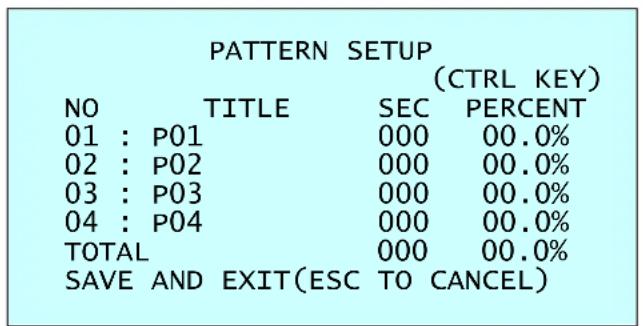
Follow the steps below to program the Pattern:
- Press the MENU key to display the main menu on the monitor. Scroll to Pattern and push the Joystick to the right to enter the Pattern menu. Or just press the PTRN key on the keyboard.
- Select the desired Pattern to be programmed by pushing the Joystick up or down. If the Pattern is not 000, a Pattern has already been recorded. Patterns can be overwritten.
- Press and hold down the CTRL key while controlling the camera direction and zoom with the Joystick. The dome will be automatically recorded until you release the CTRL key. Or press the IRIS Open key then the "CTRL" displays. Move the position and the zoom position. Press the IRIS Close key then the "CTRL" disappears.
- To edit the "TITLE", follow the procedure of the Auto Scan above to edit titles.
- Select "SAVE AND EXIT" and push the Joystick to the right or press the IRIS Open key. Press the ESC or IRIS Close key to exit the program without saving.
NOTE: Press the HOME key at any programmed position to delete the Pattern.
NOTE: If Pattern recording time reaches 200 seconds, it will automatically stop for a moment.
Press the PTRN key on the title field to display with the small OSD. Then the screen will show as below.
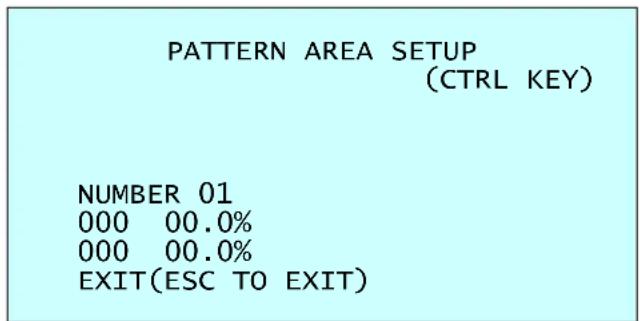
The setting procedure is the same as above.
3.9 Area Title
Enter a specific name on programmed angle between START and END. For the screen below, when the camera points at an angle between 124.3° (PAN), 30.7° (TILT) to 359.5° (PAN), 45.4° (TILT), ABC will be displayed on the screen.
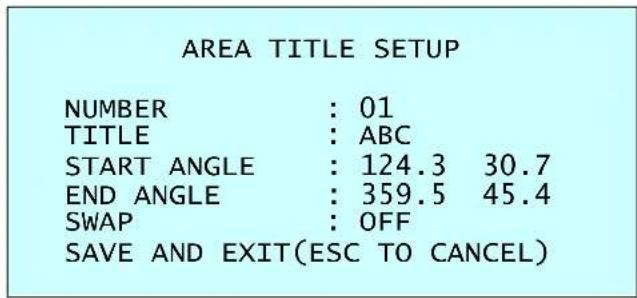
NUMBER : 01 \~ 08
TITLE : up to 12 characters.
SWAP : Swap the start point for the end point.
- Select "NUMBER" and set the desired number by pushing the Joystick to the left or right.
- To edit the "TITLE", follow the procedure of the Auto Scan above to edit titles.
- Select "START ANGLE". Hold down the CTRL key while selecting the start position using the Joystick. Current panning position will be displayed. Release the CTRL key to complete the selection of the start position. Or press the IRIS Open key then the "CTRL" displays. Move the desired position. Press the IRIS Close key then the "CTRL" disappears. To adjust at the 0.1 degree interval, twist the Joystick at the pan field and the tilt field.
- Select "END ANGLE". Hold down the CTRL key while moving the Joystick to select the end position. Release the CTRL key to complete the selection of the end position. Or press the IRIS Open key then the "CTRL" displays. Move the desired position. Press the IRIS Close key then the "CTRL" disappears. To adjust at the 0.1 degree interval, twist the Joystick at the pan field and the tilt field.
- Select "SWAP". Set to ON, to exchange the start angle and the end angle.
- Select "SAVE AND EXIT" and push the Joystick to the right or press the IRIS Open key. Press the ESC or IRIS Close key to exit the program without saving.
3.10 Privacy Zone
Hide up to 4 unwanted scenes in a camera.
| PRIVACY ZONE SETUP | ||
| (CTRL KEY) | ||
| NO | TITLE | METHOD |
| 01 | ABC | ON BLOCK |
| 02 | DEF | ON V.OFF |
| 03 | OFF ---- | |
| 04 | OFF ---- | |
| SAVE AND EXIT(ESC TO CANCEL) | ||
- Place the cursor at the title field.
- Hold down the CTRL key displays the privacy area menu while selecting the position using the Joystick. Current position will be displayed. Release the CTRL key to complete the selection of the position.
Or press the IRIS Open key then the privacy area menu displays. Move the desired position. Press the IRIS Close key then the "CTRL" disappears and returns to the previous menu.
PRIVACY AREA MENU
(CTRL KEY)
CONTROL
NUMBER 001
354.8 344.8
- Place the cursor at the "TITLE" field. Twist the Joystick to enter the title edit mode. Follow the procedure of the Auto Scan above to edit titles.
- To turn the stored zone On or Off, twist the Joystick or press the Tele or Wide key.
- Set the "METHOD", "BLOCK" or "V.OFF(video off)".
- Select "SAVE AND EXIT" and push the Joystick to the right or press the IRIS Open key. Press the ESC or IRIS Close key to exit the program without saving.
NOTE: Press the HOME key to delete programmed Privacy Zone at the title field.
3.11 Camera Menu
CAMERA SETUP
FOCUS CONTROL
WB CONTROL
AE CONTROL
DNR CONTROL
SHARPNESS : 07
RESOLUTION : MID
DIGITAL ZOOM : OFF
IMAGE FLIP : OFF
PRESET FREEZE : OFF
SAVE AND EXIT (ESC TO CANCEL)
SHARPNESS: The higher the value, the more edges in the picture will be enhanced. (0 ~ 15)
RESOLUTION: Select high resolution mode. (LOW / MID / HIGH)
DIGITAL ZOOM OFF: Zoom range is limited to the optical.
2X: Zoom is extendable up to 2X of digital range.
4X: Zoom is extendable up to 4X of digital range.
8X: Zoom is extendable up to 8X of digital range.
MAX: Zoom is extendable to the maximum digital zoom range.
IMAGE FLIP: This function turns the video output from the camera upside down and reverses it horizontally.
This option is helpful when installing on the opposite side.
PRESET FREEZE: ON: the image is frozen during preset recall.
- FOCUS CONTROL
FOCUS SETUP
MODE: AUTO
FOCUS LIMIT: 1.0M
SAVE AND EXIT (ESC TO CANCEL)
MODE: AUTO / MANUAL / ONE PUSH / CONSTANT MANUAL
Use manual mode in normal use.
FOCUS LIMIT This distance is approximate value and the focus operate from the setting value.
CAUTION: Avoid continuous, 24-hour use of the auto focus. This will shorten the lifespan of the lens.
• WB (White Balance) CONTROL
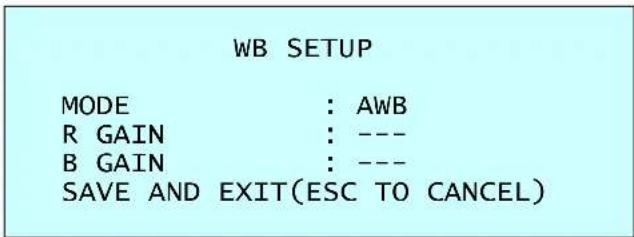
MODE AWB / WAWB / INDOOR / OUTDOOR / MANUAL
AWB Computes the white balance value output using color information from the entire screen automatically. (2500 to 9500 °K)
WAWB Wide range auto white balance mode (1800 to 10500 °K)
INDOOR Indoor white balance mode
OUTDOOR Outdoor white balance mode
MANUAL Manual mode, you can change R and B Gain manually.
RGAIN 0 \~ 255
BGAIN 0 \~ 255
RGAIN / BGAIN modes are controllable only in MANUAL Mode.
- AE CONTROL
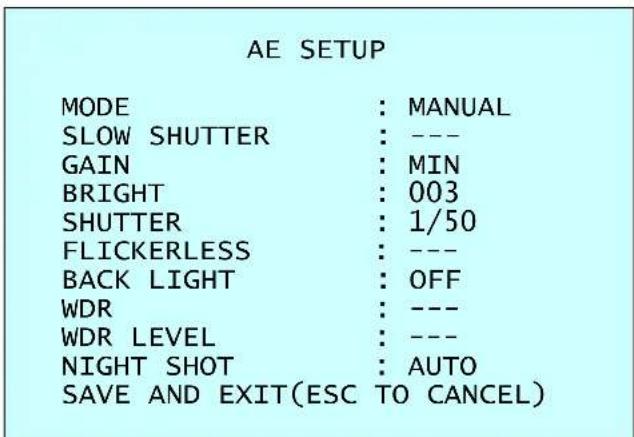
MODE AE1 / AE2 / SHUTTER PRIO / MANUAL
AE1 Auto exposure mode1 (Use to normal surroundings: indoor)
AE2 Auto exposure mode2 (Use for high brightness surroundings: outdoor)
SHUTTER PRIO Variable Shutter speed, Auto Gain
MANUAL Variable Shutter speed, Gain
SLOW SHUTTER ON / OFF
GAIN MIN / LOW / MID / HIGH
BRIGHT 1 \~ 15
SHUTTER 1/50(60), 1/120(100), ..., 1/2000, 1/10000, 1/100000
FLICKERLESS ON / OFF
BACK LIGHT ON / OFF (NOTE: When ON, WDR will be disabled.)
WDR ON / OFF (NOTE: When ON, BACKLIGHT will be disabled.)
WDR LEVEL 10 \~ 50
NOTE: Values in ( ) are for NTSC Camera. The WDR operates in AE1 mode only.
NOTE: When BACKLIGHT set ON, focus issues may occur in certain lighting conditions.
The NIGHT SHOT option removes the IR cutoff filter of the camera and makes the camera sensitive to near infrared.
AUTO Camera goes into B&W mode at low light.
GLOBAL Controlled by the keyboard
(NOTE: GLOBAL function operates F2E protocol only)
The operator can enable NIGHT SHOT for all dome cameras at the same time.
If the NIGHT SHOT mode is set to GLOBAL, "999" + ENTER will turn Off the NIGHT
SHOT mode and "888" + ENTER will turn On the NIGHT SHOT mode.
ON B/W mode
OFF Color mode
NOTE: AUTO in NIGHT SHOT function is not applied in "MANUAL" mode of AE Control.
• DNR CONTROL
DNR SETUP
2DNR(1), 2DNR(2) Select 2D noise reduction level (OFF / 1 \~ 7)
3DNR(1), 3DNR(2) Select 3D noise reduction level (OFF / 1 \~ 31)
NOTE: DNR(1) applied when motor stopped. DNR(2) applied when motor moving.
3.12 Dome Setup
CONFIGURATION MENU
LANGUAGE : ENGLISH
HOME FUNCTION SETUP
OSD DISPLAY
VIEW ANGLE SETUP
INITIALIZE DATA
ORIGIN OFFSET
DOME RESET
SYSTEM MENU
SYSTEM INFORMATION
SAVE AND EXIT(ESC TO CANCEL)
- LANGUAGE SETUP
LANGUAGE: Select the language you want.
• HOME FUNCTION SETUP
HOME FUNCTION SETUP
HOME FUNCTION : NONE
FUNCTION NUMBER : ---
WAITING TIME : 120 SEC
FUNCTION ENABLE : OFF
SAVE AND EXIT(ESC TO CANCEL)
HOME FUNCTION: None / Tour / Pattern / Auto Scan / Preset
FUNCTION NUMBER: ---
WAITING TIME: 10 ~ 240 seconds
FUNCTION ENABLE: ON / OFF
The Home function can be set so that the camera automatically goes to Tour, Pattern, Auto Scan or Preset after the keyboard controller has been idle for a certain amount of time. For example, if the controller is idle for 120 seconds, the camera goes to Preset 1.
Follow these steps to program the Home position:
- Select "HOME FUNCTION" by pushing the Joystick to the left or right to scroll through the None, Tour, Pattern, Auto Scan or Preset functions.
- Select "FUNCTION NUMBER" and push the Joystick to the left or right. The recorded function number will scroll.
- Select "WAITING TIME" and push the Joystick to the left or right to select from 10 to 240 seconds.
- Select "FUNCTION ENABLE" and turn to ON or OFF by pushing the Joystick to the left or right.
- OSD DISPLAY
OSD DISPLAY SETUP
| CAMERA TITLE | : DOMEID |
| VIEW DIRECTION | : OFF |
| DOME OSD | : ON |
| AREA TITLE | : OFF |
| PRESET TITLE | : CONSTANT |
| FOCUS EXPOSURE | : ON |
| OSD POSITION SETUP |
SAVE AND EXIT (ESC TO CANCEL)
CAMERA TITLE: up to 6 characters.
VIEW DIRECTION: ON / OFF
"ON" sets current direction as N (North) and the coordinate angle to 000. "OFF" hides the directional title. Every 90 degrees of clockwise rotation will change the title to E (East), S (South), W (West). If using the ON/OFF option frequently, it is recommended that you set "North" as a Preset. Recall the "North" Preset before enabling the directional title.
DOME OSD: ON / OFF
All display or title will disappear when DOME OSD DISPLAY sets OFF.
AREA TITLE: ON / OFF
If this option is enabled, the area title displays when the camera moves.
NOTE: The DOME OSD DISPLAY must be enabled.
PRESET TITLE: CONSTANT / OFF / 3, 30, 60, 120, 180 seconds Set the Preset title display time.
FOCUS EXPOSURE: ON / OFF
ON: FOCUS and EXPOSURE displays. (AF AE)
OSD POSITION SETUP
Select the OSD option with the Joystick up and down, press the CTRL key and adjust the position by the Joystick.
(AREA TITLE) (AF AE) (FUNC TITLE)
(CTRL KEY TO MOVE)
SAVE AND EXIT (ESC TO CANCEL)
DOME ID: XXX XXX.X XXX.X
• VIEW ANGLE SETUP
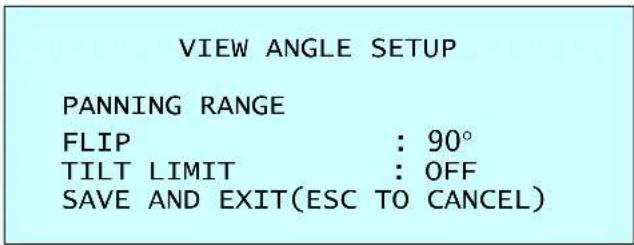
FLIP: OFF, AUTO, 90°, 100°, 110°, 120°,
OFF: The dome camera moves until 90° vertically.
AUTO: When the camera reaches the floor directly above the moving object, it will stop. At that time, release the joystick instantly and pull it down again to run the auto-flip function. When using the panning range, we recommend setting the flip mode to AUTO.
90°, 100°, 110°, 120°: Allows the image to flip digitally when the camera moves over the setting angle vertically.
TILT LIMIT:
This option has been designed to limit the view angle as there is some obstruction in zooming out on a specific area of the tilt angle.
ON: When this option is enabled, the range of the tilt angle will be limited to 10 degrees.
This can prevent obstruction or bad focus problems caused by the horizontal line of the semi-sphere in the bubble.
OFF: When this option is disabled, the range of the tilt angle will not be limited.
When you zoom out within the range of the tilt angle, you will see the horizontal line of the semi-sphere in the bubble. Focus issues may occur in certain lighting conditions.
PANNING RANGE
When the dome camera is installed near a wall, the panning range can be limited by the user.
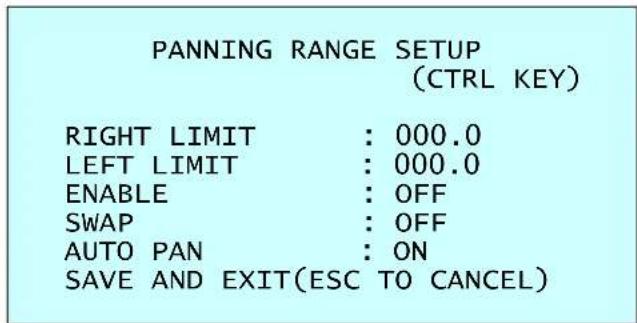
- Place the dome camera vertically at 90 degrees.
- Set "RIGHT LIMIT" by pushing the Joystick to the right.
- Set "LEFT LIMIT" by pushing the Joystick to the left.
- Set "ENABLE" to ON to use.
To exchange the right and left limits, set "SWAP" to ON.
To apply limits on the auto pan (endless panning), set "AUTO PAN" to ON.
NOTE: When the flip mode is 90°, 100°, 110°, or 120° and you move over 90° vertically, the panning range operates on the opposite side.
- INITIALIZE DATA
INITIALIZE DATA
FACTORY DEFAULT
ERASE PROGRAMMED DATA
PRESET FOCUS DEFAULT
EXIT (ESC TO EXIT)
FACTORY DEFAULT
Select "FACTORY DEFAULT" to initialize the Data.
FACTORY DEFAULT
ARE YOU SURE?
CANCEL OK
ERASE PROGRAMMED DATA
Erase all stored data from the Flash-ROM of the selected dome camera. You will be asked to enter ON or OFF. If you desire to erase all data then select "ERASE" run, otherwise press the ESC key to exit without erasing. The erased data includes all stored data (Auto Scan, Preset, and Tour...) except origin offset.
The offset value is still valid after all data is erased. The offset value can be zero with default set of Offset origin menu.
ERASE PROGRAMMED DATA
| AUTO SCAN | : ON |
| PRESET | : ON |
| TOUR | : ON |
| PATTERN | : ON |
| AREA TITLE | : ON |
| PRIVACY ZONE | : ON |
| CAMERA | : ON |
| DOME SETUP | : ON |
| ERASE | |
| SAVE AND EXIT(ESC TO | |
PRESET FOCUS DEFAULT
This menu sets the default mode of the focus when you save the Preset.
PRESET FOCUS DEFAULT
FOCUS : AUTO
SAVE AND EXIT (ESC TO CANCEL)
FOCUS : AUTO / MANUAL / ONE PUSH
- ORIGIN OFFSET
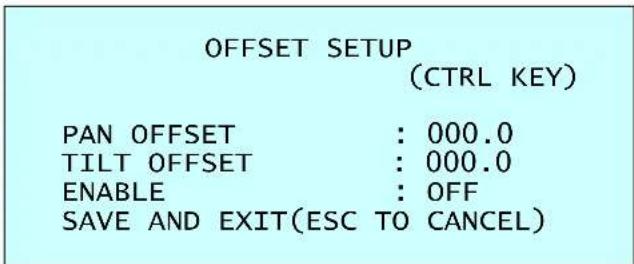
This feature is useful to align a new dome camera exactly the same as the previously installed dome camera.
Dome camera's origin set and all data initialize option do not override offset values. Only the default set option in this menu will set the offset value to zero. This can be used to avoid ceiling obstructions.
• DOME RESET
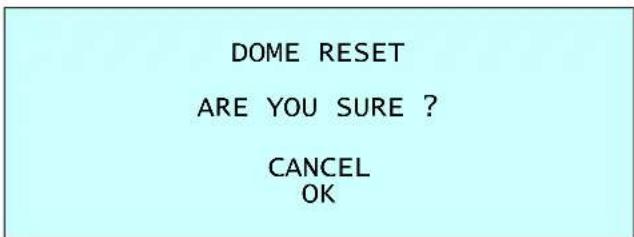
This feature is used to re-calibrate the orientation of a selected dome camera. Origin offset value is not affected by this function. (Offset is still valid after origin set.)
- SYSTEM MENU
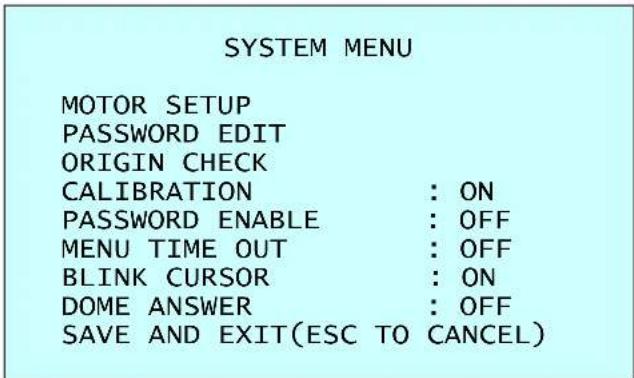
CALIBRATION : ON(Auto origin check) / OFF PASSWORD ENABLE : ON(requires the password to enter menu) / OFF MENU TIME OUT : ON(5mintues) / OFF(always menu display) BLINK CURSOR : ON / OFF(no blinking cursor) DOME ANSWER : ON / OFF(no acknowledge command from the dome) This option is helpful to escape the collision of the command using some DVR.
MOTOR SETUP
Motor Setup menu provides the pan and tilt speed of a camera. User can set the desired speed with pushing the Joystick to the left or right. During operation, pressing 153 + ON keys will change the speed to the SLOW mode and pressing 153 + OFF keys will change the speed to the Normal mode.
Press and hold the CTRL key and moving the Joystick will operate with the TURBO speed mode.
MOTOR SETUP
PROPOTIONAL P/T : ON P/T MODE : NORMAL
SAVE AND EXIT(ESC TO CANCEL)
PROPOTIONAL P/T : ON / OFF
P/T MODE : SLOW / NORMAL / TURBO
SLOW MAXIMUM SPEED : 40° /second
NORMAL MAXIMUM SPEED : 90° /second
TURBO MAXIMUM SPEED : 380° /second
PASSWORD EDIT
PASSWORD EDIT SETUP
(CTRL KEY)
INPUT PASSWORD
PASSWORD :
A B C D E F G H I J K L M N O P Q R S T U V W X Y Z 0 1 2 3 4 5 6 7 8 9 ( )
SAVE AND EXIT (ESC TO CANCEL)
You can change the password with a 6-digit character in this menu.
The default password is 555555.
When the password enable is on, the input password window displays to enter the menu. At this time, move the cursor to the desired character by the Joystick and press the CTRL or IRIS Open key.
ORIGIN CHECK
When you find the wrong position of the dome during operation, execute this origin check and the dome camera will arrange the right position after the origin check operation.
ORIGIN CHECK
ARE YOU SURE ?
CANCEL
OK
Pressing 151 + ON keys will execute the origin check.
• SYSTEM INFORMATION
SYSTEM INFORMATION
CAMERA TYPE : xxxxx-Vx.xxxx
H/W VERSION : Vx.xx-xxxx
ROM VERSION : Vx.xxxxx
PROTOCOL : xxxx
BAUDRATE : 9600
EXIT(ESC TO EXIT)
The system information provides essential information about the dome camera if service is required. When you view this screen, you can determine the camera type, ROM version. The information on this screen cannot be modified.
3.13 Dome Communication
DOME COMMUNICATION SETUP
DOME ID : 001
PROTOCOL : AUTO
BAUDRATE : 9600
SAVE AND EXIT(ESC TO CANCEL)
To prevent damage, each dome camera must have a unique address (ID).
When installing multiple dome cameras using a multiplexer, it is suggested that the dome camera address match the multiplexer port number.
The factory default setting is 1.
Example: Port 1 = Dome 1, Port 2 = Dome 2 ... Port 16 = Dome 16. If more than 16 dome cameras are installed using two or more multiplexers, ID of the dome camera should be ID of MUX x No. of camera IN. (e.g. multiplexer ID= n, Camera IN= m then ID of Dome =16x(n-1)+m )
3.14 Function Run
This Function Run menu allows you to execute the function when you use a keyboard or a DVR without the function keys (Preset, Pattern, Tour and Scan).
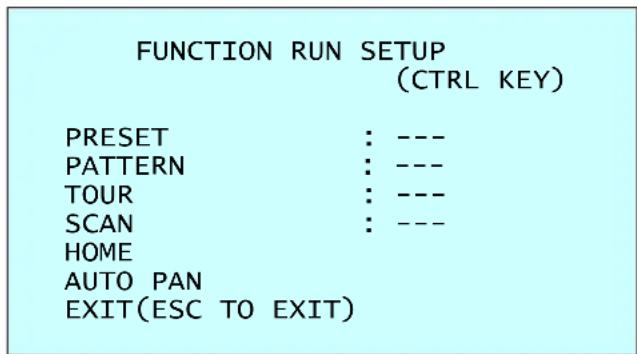
- Select the desired Function by pushing the Joystick up or down.
- Select the number by twisting the Joystick in PRESET, PATTERN, TOUR, and SCAN.
- Press the CTRL or IRIS Open key to execute.
NOTE: To execute the function, you should save the function (PRESET, PATTERN, TOUR, and SCAN) first.
- HOME
Select "HOME" and press the CTRL key. Then the dome camera goes to the default position to which the dome camera returns after an assigned period of inactivity passes. The default position may be a Preset, Tour, Pattern or no action.
- AUTO PAN
You can execute the endless auto pan which is to turn one direction continuously by selecting the Auto Pan.
3.15 Factory Setup
FACTORY SETUP
TOUR DWELL TIME : 03 SEC
TOUR DWELL TIME means the dwell time between Tours.
ANSWER DELAY means the response time of the dome and you don't need to change in normal condition.
Chapter 4 — Operation by Web Browser
The network camera can be used with Windows operating system and browsers.
The recommended browsers are Internet Explorer, Safari, Firefox, Opera and Google Chrome with Windows.
Note: To view streaming video in Microsoft Internet Explorer, set your browser to allow ActiveX controls.
4.1 Access from a browser
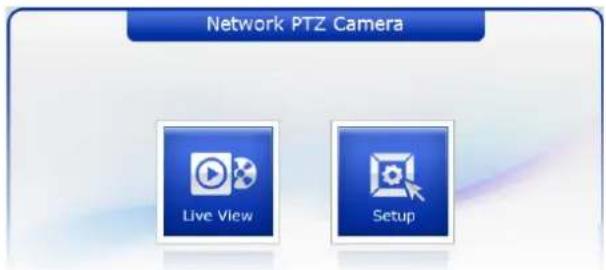
1) Start a browser (Internet Explorer). 2) Enter the IP address or host name of the network camera in the Location/Address field of your browser. 3) You can see a starting page. Click Live View or Setup to enter web page.
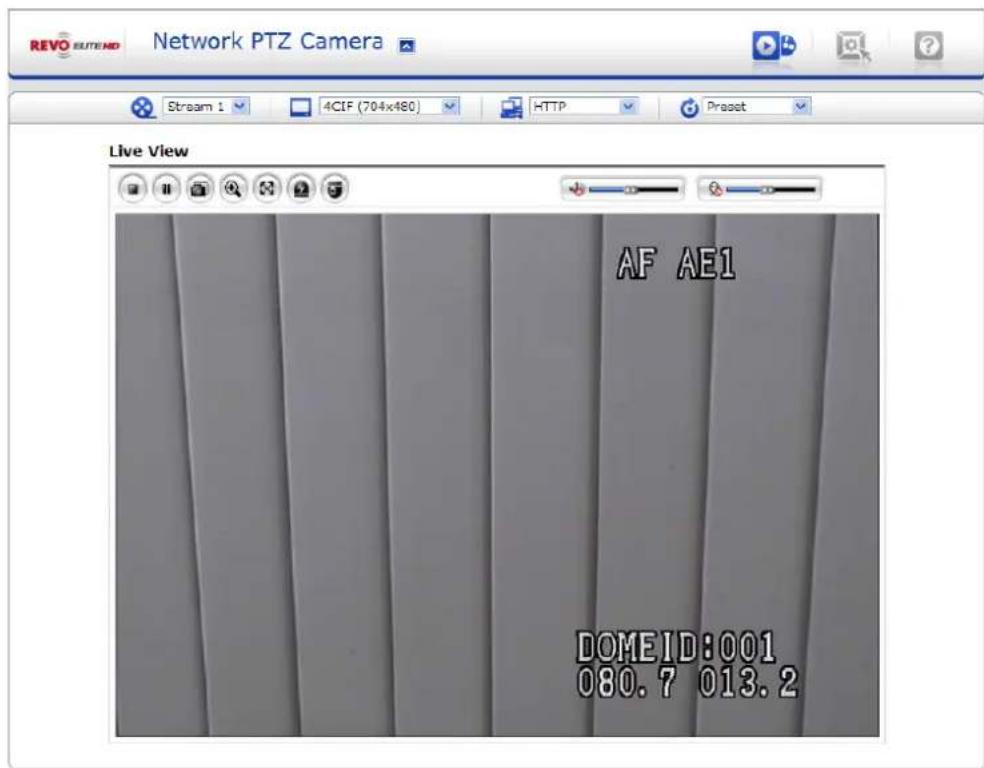
4) The encoder's Live View page appears in your browser.
4.2 Access from the internet
Access from the internet once connected, the network camera is accessible on your local network (LAN). To access the video encoder from the Internet you must configure your broadband router to allow incoming data traffic to the video encoder. To do this, enable the NAT traversal feature, which will attempt to automatically configure the router to allow access to the video encoder. This is enabled from Setup > System > Network > NAT Traversal.
For more information, please see NAT traversal (port mapping) for IPv4, on "4.5.5 System > 4) Network > ⑥ NAT Traversal".
4.3 Setting the admin password over a secure connection
To gain access to the product, the password for the default administrator user must be set. This is done in the "Admin Password" dialog, which is displayed when the network camera is accessed for the setup at the first time. Enter your admin name and password, set by the administrator.
Note: The default administrator username and password is "admin". If the password is lost, the network camera must be reset to the factory default settings. Please see "4.8 Resetting to the factory default settings" for more details.
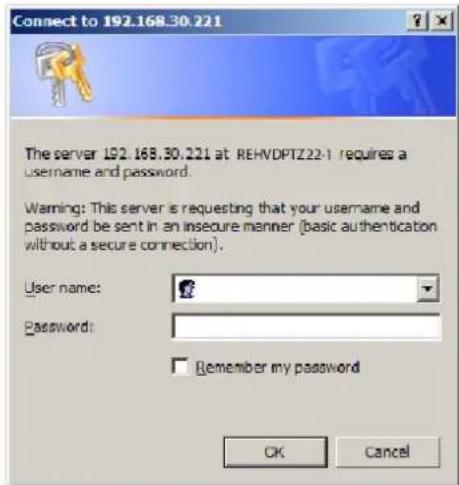
To prevent network eavesdropping when setting the admin password, this can be done via an encrypted HTTPS connection, which requires an HTTPS certificate (see note below).
To set the password via a standard HTTP connection, enter it directly in the first dialog shown below. To set the password via an encrypted HTTPS connection, please see Setup > System > Security > HTTPS, on "4.5.5 System > 2) Security > ② HTTPS".
Note: HTTPS (Hypertext Transfer Protocol over SSL) is a protocol used to encrypt the traffic between web browsers and servers. The HTTPS certificate controls the encrypted exchange of information.
4.4 Live View Page
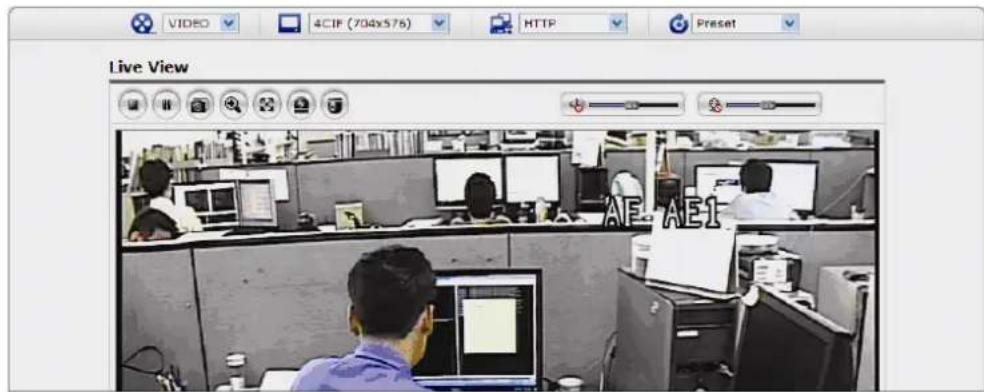
The live view page comes in seven screen modes: 704x576(480), 704x288(240), 352x288(240), 176x144(120), 640x480, 320x240, and 160x120. Users can select the most suitable mode from these options. Please adjust the mode according to your PC specifications and monitoring purposes.
1) General controls
The video drop-down list allows you to select a customized or pre-programmed video stream on the live view page. Stream profiles are configured under Setup > Basic Configuration > Video & Image. See "4.5.1 Basic Configuration" for more information.

The resolution drop-down list allows you to select the most suitable video resolution to be displayed on the live view page.
The protocol drop-down list allows you to select which combination of protocols and methods to use, depending on your viewing requirements and the properties of your network.
The preset drop-down list allows you to select the preset number for the PTZ camera being used. This icon is inactive if the PTZ settings are not set.
2) Control toolbar
The live viewer toolbar is available only on the web browser page. It displays the following buttons:

The Stop button stops the video stream being played. Pressing the key again toggles between start and stop. The Start button connects to the network camera or starts playing a video stream.

The Pause button pauses the video stream being played.

The Snapshot button takes a snapshot of the current image. The location where the image is saved can be specified.

The digital zoom activates a zoom-in or zoom-out function for the video image on the live screen.

The Full Screen button causes the video image to fill the entire screen area. No other windows will be visible. Press the 'Esc' button on the computer keyboard to cancel full screen view.

The Manual Trigger button activates a pop-up window to manually start or stop the event.

The Camera Menu button activates a pop-up window for camera menu control.

The PTZ button activates a pop-up window for Pan, Tilt and Zoom control.

Use this scale to control the volume of the speakers.

Use this scale to control the volume of the microphone.

Use this scale to control the volume of the speakers and microphones.
3) Camera Menu controls
If the network camera has been appropriately configured, the Live View page displays the controls available for the OSD menu.
For more information, please see "Chapter 3 — Program and Operation".
4) Pan/Tilt/Zoom controls
If the network camera has been appropriately configured, the Live View page displays the controls available for the PTZ (Pan Tilt Zoom) or PT device installed. The administrator can enable/disable the controls for specified users.
Please see "4.6 PTZ Control" for more information.
5) Video and Audio Streams
The network camera provides several images and video stream formats. Your requirements and the properties of your network will determine the type you use.
The Live View page in the network camera provides access to H.264, MPEG-4 and Motion JPEG video streams, and to the list of available video streams. Other applications and clients can also access these video streams/images directly, without going via the Live View page.
4.5 Network Camera Setup
This section describes how to configure the network camera, and is intended for product Administrators, who have unrestricted access to all the Setup tools; and Operators, who have access to the settings for Basic, Live View, Video & Image, Audio, Event, and System Configuration.
You can configure the network camera by clicking Setup in the top right-hand corner of the Live View page. Click on this page to access the online help that explains the setup tools.
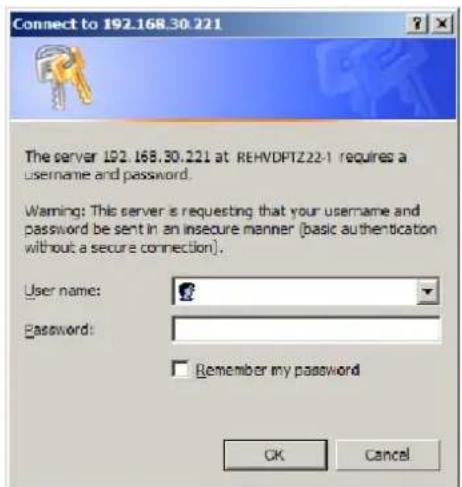
When accessing the network camera for the first time, the "Admin Password" dialog appears. Enter your admin name and password, set by the administrator.
Note: If the password is lost, the network camera must be reset to the factory default settings. Please see "4.8 Resetting to the Factory Default Settings".
4.5.1 Basic Configuration
1) Users
User access control is enabled by default. An administrator can set up other users, by giving these user names and passwords. It is also possible to allow anonymous viewer login, which means that anybody may access the Live View page, as described below:
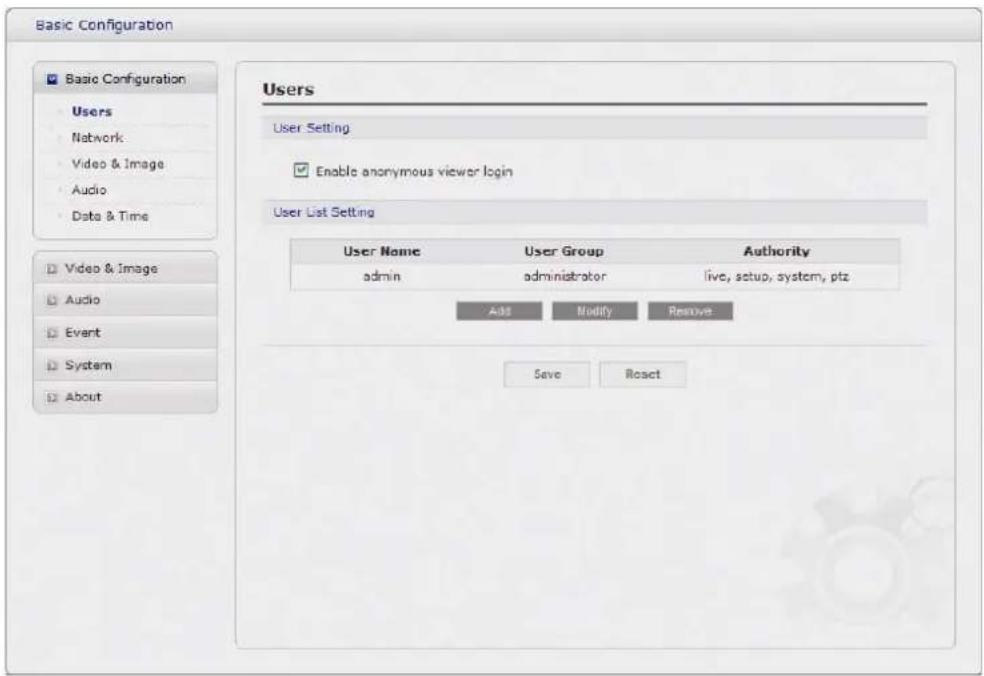
The user list displays the authorized users and user groups (levels):
| User Group Authority | |
| Guest | Provides the lowest level of access, which only allows access to the Live View page. |
| Operator | An operator can view the Live View page, create and modify events, and adjust certain other settings. Operators have no access to System Options. |
| Administrator | An administrator has unrestricted access to the Setup tools and can determine the registration of all other users. |
- Enable anonymous viewer login: Check the box to use the webcasting features. Refer to "4.5.2 Video & Image" for more details.
2) Network
The network camera supports both IP version 4 and IP version 6. Both versions may be enabled simultaneously, and at least one version must always be enabled. When using IPv4, the IP address for the video encoder can be set automatically via DHCP, or a static IP address can be set manually. If IPv6 is enabled, the video encoders receive an IP address according to the configuration in the network router. There is also the option of using the Internet Dynamic DNS Service. For more information on setting the network, please see Setup > System > Network, on "4.5.5 System > 4) Network".
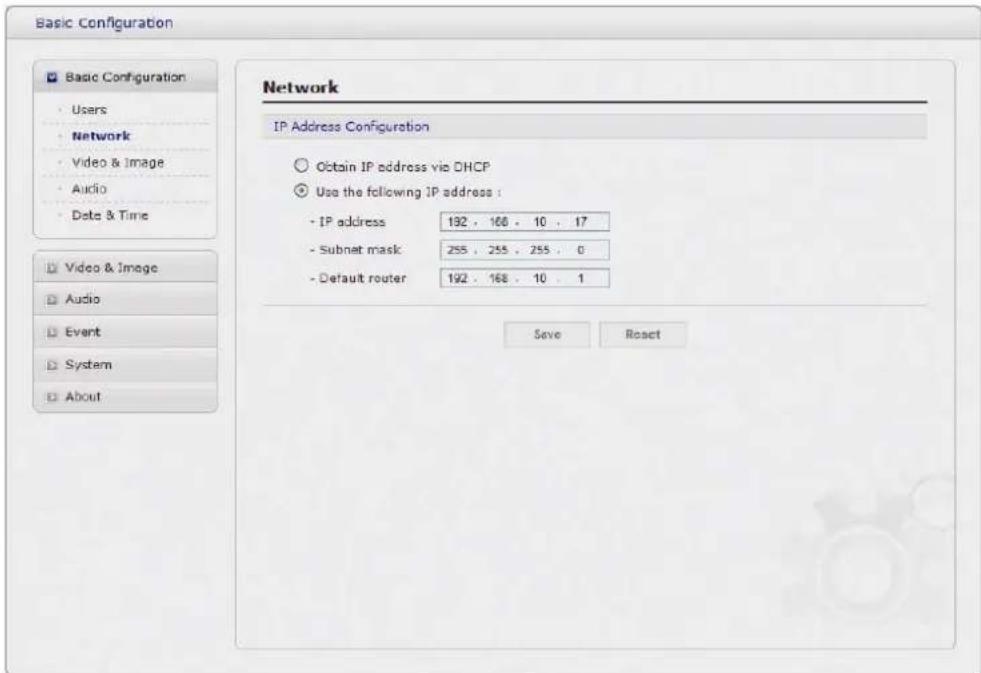
- Obtain IP address via DHCP: Dynamic Host Configuration Protocol (DHCP) is a protocol that lets network administrators centrally manage and automate the assignment of IP addresses on a network. DHCP is enabled by default. Although a DHCP server is mostly used to set an IP address dynamically, it is also possible to use it to set a static, known IP address for a particular MAC address.
- Use the following IP address: To use a static IP address for the network camera, check the radio button and then make the following settings:
- IP address - Specify a unique IP address for your network camera.
- Subnet mask - Specify the mask for the subnet the network camera is located on.
- Default router - Specify the IP address of the default router (gateway) used for connecting devices attached to different networks and network segments.
Notes:
- DHCP should only be enabled if using dynamic IP address notification, or if your DHCP server can update a DNS server, which then allows you to access the network camera by name (host name). If DHCP is enabled and you cannot access the unit, you may have to reset it to the factory default settings and then perform the installation again.
- The ARP/Ping service is automatically disabled two minutes after the unit is started, or as soon as an IP address is set.
- Pinging the unit is still possible when this service is disabled.
3) Video & Image
![Basic Configuration Basic Configuration Users Network Video & Image Audio Data & Time Video & Image Audio Event System About Video & Image Video Setting Codec H.264 Main Profile Resolution 4CIF (704x576) Bitrate control CBR Bitrate 4000 [Kbps] Fromerate 25 GOP size 25 [1 ...50] Image Setting JPEG re…](/content/2026/06/1165427/images/be6eb236dd7be4d87b7c04616dc1ff9ccc2d89f8a2b4094d383fd86b005879e1.jpg)
- Video Setting:
- Codec: The codec settings are separated into MPEG4 and H.264.
H.264 is also known as MPEG-4 Part 10. This is the new generation compression standard for digital video.
This function offers higher video resolution than Motion JPEG or MPEG-4 at the same bit rate and bandwidth, or the same quality video at a lower bit rate.
- Profile: There are 4 pre-programmed stream profiles available for quick set-up. Choose the form of video encoding you wish to use from the drop-down list:
* H.264 MP(Main Profile): Primarily for low-cost applications that requires additional error robustness, this profile is used rarely in videoconferencing and mobile applications, it does add additional error resilience tools to the Constrained Baseline Profile. The importance of this profile is fading after the Constrained Baseline Profile has been defined.
* H.264 BP(Base Profile): Originally intended as the mainstream consumer profile for broadcast and storage applications, the importance of this profile faded when the High profile was developed for those applications.
* MPEG4 SP (Simple Profile): Mostly aimed for use in situations where low bit rate and low resolution are mandated by other conditions of the applications, like network bandwidth, device size, etc.
* MPEG4 ASP (Advanced Simple Profile): Its notable technical features relative to the Simple Profile, which is roughly similar to H.263, include "MPEG"-style quantization, interlaced video, B pictures (also known as B Frames), Quarter Pixel motion compensation (Qpel), and Global motion compensation (GMC).
- Resolution: It enables users to determine a basic screen size when having access through the Web Browser or PC program. The screen size control comes in seven modes: 4CIF (704x576(480)), 2CIF (704x288(240)), CIF (352x288(240)), QCIF (176x144(120)), VGA (640x480), QVGA (320x240), and QQVGA (160x120). Users can reset the selected screen size anytime while monitoring the screen on a real-time basis.
- Bitrate control: Limiting the maximum bit rate helps control the bandwidth used by the H.264 or MPEG-4 video stream. Leaving the maximum bit rate as unlimited maintains consistently good image quality but increases bandwidth usage when there is more activity in the image. Limiting the bit rate to a defined value prevents excessive bandwidth usage, but images are lost when the limit is exceeded.
Note that the maximum bit rate can be used for both variable and constant bit rates.
The bit rate can be set as Variable Bit Rate (VBR) or Constant Bit Rate (CBR). VBR adjusts the bit rate according to the image complexity, using up bandwidth for increased activity in the image, and less for lower activity in the monitored area.
CBR allows you to set a fixed target bitrate that consumes a predictable amount of bandwidth. As the bit rate would usually need to increase for increased image activity, but in this case cannot, the frame rate and image quality are affected negatively. To partly compensate for this, it is possible to prioritize either the frame rate or the image quality whenever the bit rate needs to be increased. Not setting a priority means the frame rate and image quality are equally affected.
- Compression: When it is necessary to adjust a smooth transmission status according to network situations, users can increase the compressibility to carry out the network transmission stably. On the other hand, when it is necessary to maintain a detailed monitoring screen by enhancing the image quality, users can do so by decreasing the compressibility. In each case, please adjust this function according to the network status and monitoring purposes. The default is 2000 (Kbps).
- Frame rate: Upon real-time play, users should select a frame refresh rate per second. If the rate is high, the image will become smooth. On the other hand, if the rate is low, the image will not be natural but it can reduce network load.
- GOP size: Select the GOP (Group of Pictures) size. If users want to have a high quality of fast image one by one, please decrease the value. For the purpose of general monitoring, please do not change a basic value. Such act may cause a problem to the system performance. For the details of GOP setting, please contact the service center.
- Image Setting: Sometimes the image size is large due to low light or complex scenery. Adjusting the frame rate and quality helps to control the bandwidth and storage used by the Motion JPEG video stream in these situations. Limiting the frame rate and quality optimizes bandwidth and storage usage, but may give poor image quality. To prevent increased bandwidth and storage usage, the Resolution, Frame rate, and Frame Quality should be set to an optimal value.
- JPEG resolution: Same as the video settings.
- JPEG frame rate: Same as the video settings.
- JPEG quality: Select the picture quality. If users want to have a high quality of fast image one by one, please decrease the value. For the purpose of general monitoring, please do not change a basic value. Such act may cause a problem to the system performance.
When satisfied with the settings, click Save, or click Reset to revert to previously saved settings.
4) Audio
![Basic Configuration Basic Configuration Users Network Video & Image Audio Date & Time Video & Image Audio Event System About Audio Audio Setting Enable audio - Compression type: 0.716 - Sample rate: 8kHz - Sound bitrate: 30kbps Audio Input Input External Amp Input volume 0 [dB] Muts Audio Output Ena…](/content/2026/06/1165427/images/c3ed1670f13d466455e7093d683bd1e5d0cb208e0b56f9bc15baf85b708777fe.jpg)
The network camera can transmit audio to other clients using an external microphone and can play audio received from other clients by attaching a speaker. The Setup page has an additional menu item called Audio, which allows different audio configurations, such as, full duplex, and simplex.
- Audio Setting:
- Enable audio: Check the box to enable audio in the video stream.
- Compression type: Select the desired audio Compression format, G.711.
- Sample rate: Select the required Sample rate (number of times per second the sound is sampled). The higher the sample rate, the better the audio quality and the greater the bandwidth required.
- Sound bitrate: Depending on the selected encoding, set the desired audio quality (bitrate). The settings affect the available bandwidth and the required audio quality.
- Audio Input:
Audio from an external line source can be connected to the RCA Jack I/O of the network camera.
- Input volume: If there are problems with the sound input being too low or high, it is possible to adjust the input gain for the microphone attached to the network camera.
- Audio Output:
- Enable full duplex: Check the box to enable Full Duplex mode. It means that you can transmit and receive audio (talk and listen) at the same time, without having to use any of the controls. This is just like having a telephone conversation.
This mode requires that the client PC has a sound card with support for full-duplex audio.
Uncheck the box to enable Simplex mode. The simplex mode only transmits audio from the network camera to any web client. It does not receive audio from other web clients.
- Output volume: If the sound from the speaker is too low or high, it is possible to adjust the output gain for the active speaker attached to the network camera.
When satisfied with the settings, click Save, or click Reset to revert to previously saved settings.
5) Date & Time
- Current Server Time:
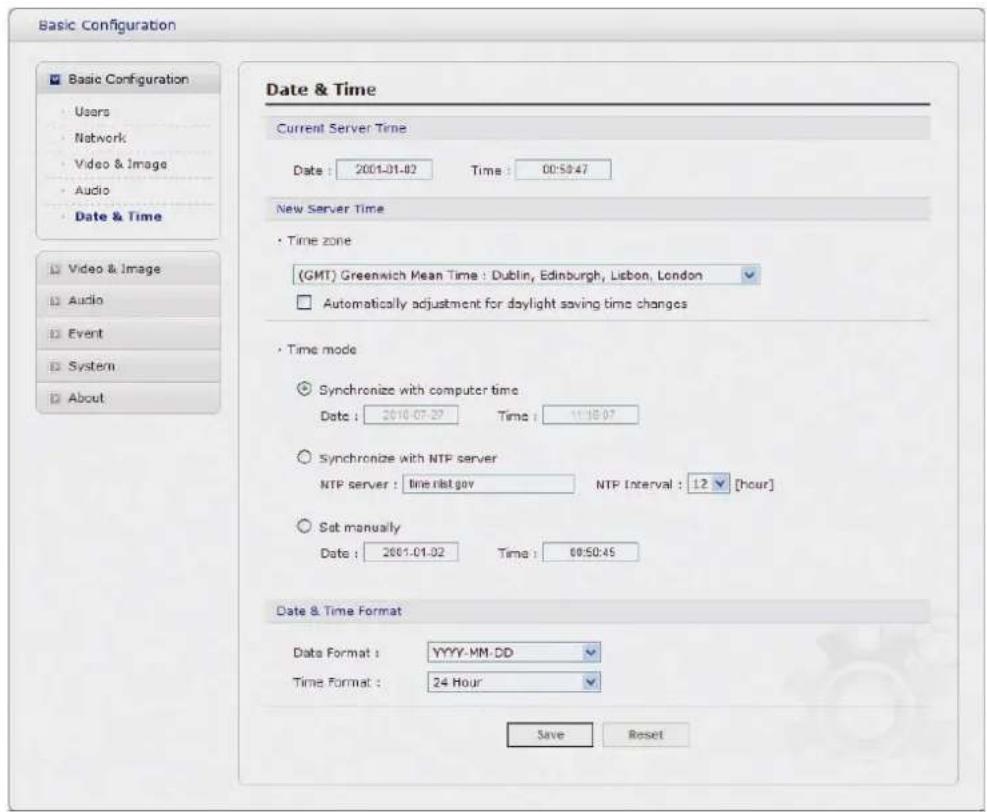
It displays the current date and time (24h clock). The time can be displayed in 12h clock format in the overlay (see below).
- New Server Time:
Select your time zone from the drop-down list. If you want the server clock to automatically adjust for daylight savings time, select the "Automatically adjustment for daylight saving time changes".
From the Time Mode section, select the preferred method to use for setting the time:
- Synchronize with computer time: sets the time from the clock on your computer.
- Synchronize with NTP Server: the video encoder will obtain the time from an NTP server every 60 minutes.
- Set manually: this option allows you to manually set the time and date.
4.5.2 Video & Image
1) Basic
![Video & Image Basic Configuration Video & Image Basic Webcasting Audio Event System About Video & Image - Basic Video Setting Codec: H.264 Main Profile Resolution: 4CIF (704x480) Bitrate control: CBR Bitrate: 2000 [Xbps] Framerate: 30 GOP size: 30 [1...60] Image Setting JPEG resolution: VGA (540x430…](/content/2026/06/1165427/images/9ace75489ea03a1d35ee959763ec6997e5863c3e198b5cf958ef89799bc00a38.jpg)
Refer to "4.5.1 Basic Configuration > 3) Video & Image" for more details.
2) Webcasting – Channel1
The network camera can stream live video to a website. Copy the HTML code generated on the screen and paste it in the page code of the website where you want to display live video.
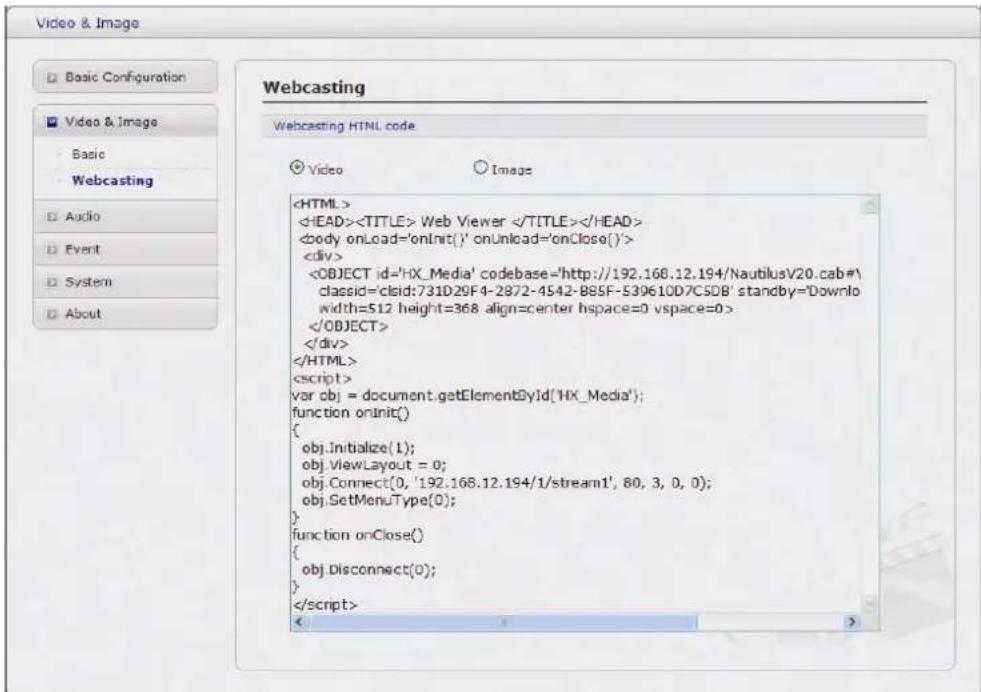
Refer to "4.5.1 Basic Configuration > 4) Audio" for more details.
4.5.4 Event
1) Event-In
① On Boot
![Event Basic Configuration Video & Image Audio Event Event In - On Boot - Alarm In - Manual Trigger - Motion Event Out - Event Map System About Event In - On Boot On Boot Setting Enable on boot - Dwell time 3 [1... 180] sec Save Reset](/content/2026/06/1165427/images/c5f0a7487f56a8902f49e0c8460e75af8f64ae6675c587674a6ac09c89d689a7.jpg)
This is used to trigger the event every time the Network Transmitter is started. Select "Enable" to activate the motion event.
② Alarm In
![Event Basic Configuration Video & Image Audio Event Event In - On Boot - Alarm In - Manual Trigger - Motion Event Out - Event Map System About Event In - Alarm In Alarm In Port 1 Setting Enable alarm in port 1 - Type NO - Dwell time 3 [1... 180] sec Save Reset](/content/2026/06/1165427/images/445d833b1021dadacbe2529c262faf15d587f9def61ee427cb2f8414c4bd0637.jpg)
Select "Enable" to activate the alarm event. The network camera supports 1 alarm input port.
- Type: Choose the type of alarm you wish to use from the drop-down list.
- Dwell Time: Set the dwell time an event lasts for the specified dwell time from the point of detection of an alarm input.
③ Manual Trigger
![Event Basic Configuration Video & Image Audio Event Event In - On Boot - Alarm In - Manual Trigger - Motion Event Out - Event Map System About Event In - Manual Trigger Manual Trigger 1 Setting Enable manual trigger 1 - Dwell time 3 [1... 180] sec Manual Trigger 2 Setting Enable manual trigger 2 - D…](/content/2026/06/1165427/images/e293d860c9b4cc5fd92db44c3c3b57ea548c13dcd7d88822690e915c9c887c76.jpg)
This option makes use of the manual trigger button provided on the live view page, which are used to start or stop the event type manually. Alternatively the event can be triggered via the product's API (Application Programming Interface).
④ Motion
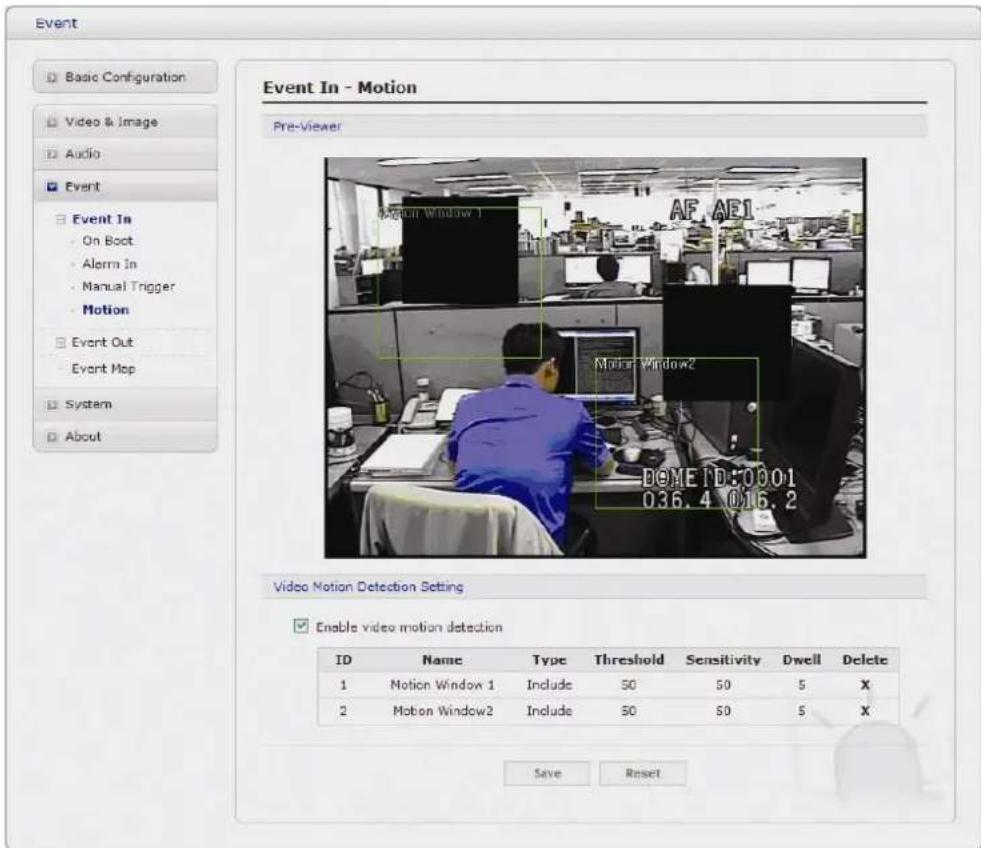
Motion detection is used to generate an alarm whenever movement occurs (or stops) in the video image. A total of 8 Motion and/or Mask windows can be created and configured.
Motion is detected in defined Motion windows, which are placed in the video image to target specific areas. Movement in the areas outside the motion windows will be ignored. If part of a motion window needs to be masked, this can be configured in a Mask window.
- Pre-Viewer:
Motion detection windows are configured by Motion or Mask windows. Each window can be selected by clicking with the mouse. It is also possible to resize or delete, or move the window, by selecting the appropriate window at the mouse menu on the video screen.
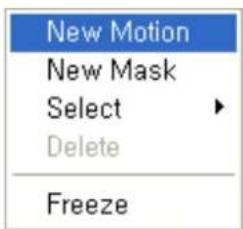
To create a motion or mask window, follow steps:
- Click the right button of mouse to see the mouse menu.
- Select New Motion (or Mask) Window in the mouse menu.
- Click and drag mouse to designate a motion area.
- Motion Detection Setting:
The behavior for each window is defined by adjusting the Threshold and Sensitivity, as described below.
A motion index is a set of parameters describing Window Name, Type, Threshold, Sensitivity, and Dwell Time. Window Types is one of Motion and Mask windows.
- Threshold: Sets up the sensitivity for the motion detection.
- Sensitivity: Sets up the sensitivity for the motion detection.
- Dwell Time: Set the hold time an event lasts for the specified hold time from the point of detection of a motion.
You can also modify or delete a motion index. Select an index and then, click the Modify or Delete button.
Select "Enable" to activate the motion window.
Note: Motion event could be occurred by the movement of manual control & function operation.
⑤ Network Loss
![Event Basic Configuration Video & Image Audio Event Event In On Boot Alarm In Manual Trigger Motion Network Loss Event Out Event Map System About Event In - Network Loss Network Loss Setting Enable network loss - Dwell time 3 [1... 100] sec Save Reset](/content/2026/06/1165427/images/603466e603a1a56e2aa30976acf34b3f33c6cd5c97b8890f2d3cf469b21c64db.jpg)
This is used to trigger the event every time the network connection is failed. Select "Enable" to activate the Network Loss event.
2) Event-Out
① SMTP(E-Mail)
![Event Basic Configuration Video & Image Audio Event Event In Event Out - SMTP(E-Mail) - FTP & JPEG - HTTP Server - Alarm Out - Audio Alert - PTZ Preset - Event Map System About Event Out - SMTP(E-Mail) SMTP(E-Mail) Setting Enable SMTP - Sender - Interval 60 [1... 86400] sec - Aggregate events 50 [1.…](/content/2026/06/1165427/images/d55ef8009279ee404103bebe362a810974481fb4d5af377a3775a7a9735b1402.jpg)
The network camera can be configured to send event and error email messages via SMTP (Simple Mail Transfer Protocol).
- SMTP (E-Mail) Setting:
Select "Enable" to activate the SMTP operation.
- Mail Server / Port: Enter the host names (or IP addresses) and port numbers for your mail server in the fields provided, to enable the sending of notifications and image email messages from the camera to predefined addresses via SMTP.
- Sender: Enter the email address to be used as the sender for all messages sent by the Network Transmitter.
- Interval: Represents the frequency of the email notification when an event occurs.
- Aggregate events: Shows the maximum number of emails sent within each interval. If your mail server requires authentication, check the box for Use authentication to log in to this server and enter the necessary information.
- User Name / Password: Enter the User Name and Password as provided by your network administrator or ISP (Internet Service Provider).
To ensure that the login procedure is performed as securely as possible when using SMTP authentication, you must define the weakest authentication method allowed.
- Login Method: Set the Weakest method allowed to the highest/safest method supported by the mail server. The most secure method is listed in the drop-down list:
Login / Plain
- SMTP (E-Mail) Receiver:
- Receiver: Enter an email address. You can also register the e-mail address of recipients up to 8.
- SMTP (E-Mail) Test:
- Receiver: Enter an email address and click the Test button to test that the mail servers are functioning and that the email address is valid.
② FTP & JPEG

When the network camera detects an event, it can record and save images to an FTP server. Images can be sent as e-mail attachments. Check the box to enable the service.
- FTP Setting
- Server: Enter the server's IP address or host name. Note that a DNS server must be specified in the TCP/IP network settings if using a host name.
- Port: Enter the port number used by the FTP server. The default is 21.
- Use passive mode: Under normal circumstances the network camera simply requests the target FTP server to open the data connection. Checking this box issues a PASV command to the FTP server and establishes a passive FTP connection; whereby the network camera actively initiates both the FTP control and data connections to the target server. This is normally desirable if there is a firewall between the camera and the target FTP server.
- Remote directory: Specify the path to the directory where the uploaded images will be stored. If this directory does not already exist on the FTP server, there will be an error message when uploading.
- User name / Password: Provide your log-in information.
- JPEG Setting:
- Pre-event: A pre-event buffer contains images from the time immediately preceding the event trigger. These are stored internally in the server. This buffer can be very useful when checking to see what happened to cause the event trigger.
Check the box to enable the pre-trigger buffer, enter the desired total length in seconds, minutes or hours, and specify the required image frequency.
- Post-event: This function is the counterpart to the pre-trigger buffer described above and contains images from the time immediately after the trigger. Configure as for pre-event.
- Prefix file name: This name will be used for all the image files saved. If suffixes are also used, the file name will take the form , , .
- Additional suffix: Add either a date/time suffix or, a sequence number - with or without a maximum value.
③ HTTP Server
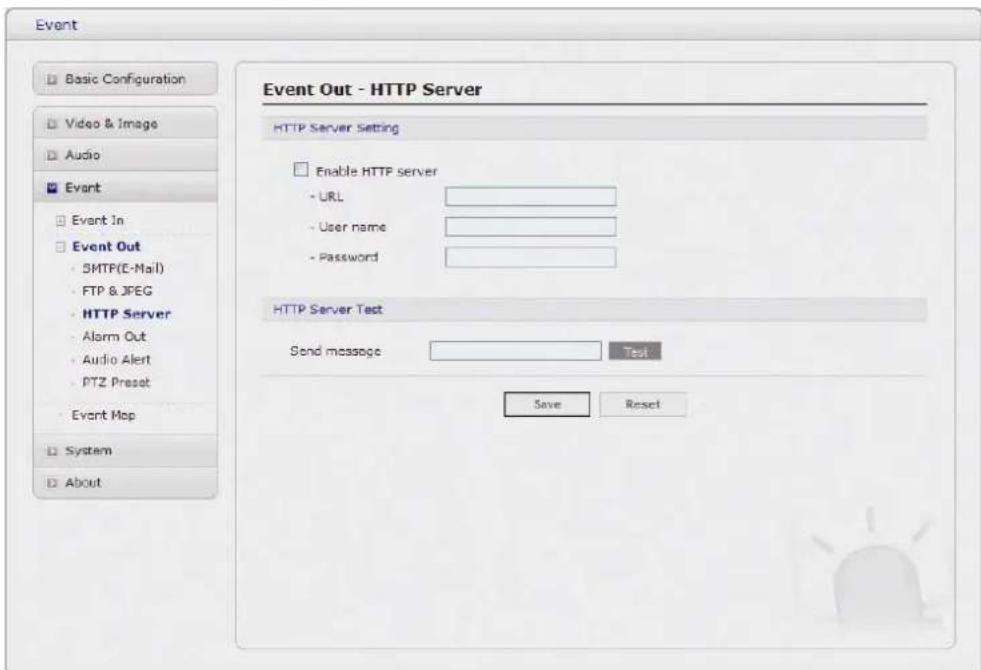
When the network camera detects an event, HTTP Server is used to receive uploaded image files and/or notification messages. Check the box to enable the service.
- HTTP Server Setting:
- Name: The name of the HTTP event server. Use a descriptive name.
- URL: The network address to the server and the script that will handle the request.
For example: http://192.168.12.244/cgi-bin/upload.cgi
- User name/Password: Provide your log-in information.
- HTTP Server Test:
When the setup is complete, the connection can be tested by clicking the Test button.
④ Alarm Out
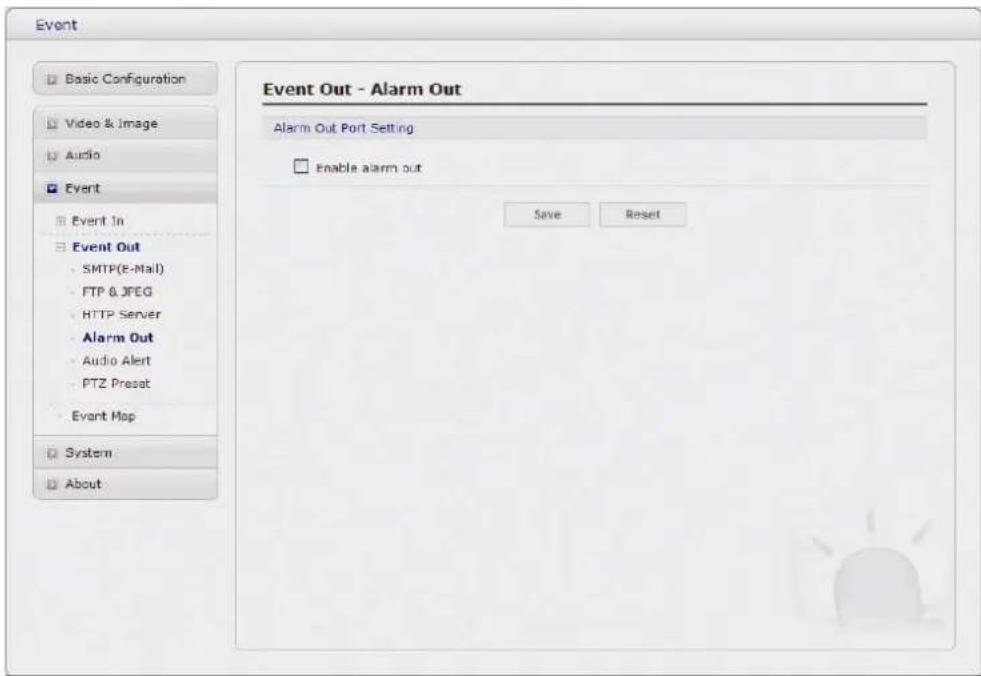
When the network camera detects an event, it can control external equipment connected to its alarm output port. Check the box to enable and then select either:
- Enable: When you select "Enable alarm out", the output will be activated for as long as the event is active.
⑤ Audio Alert
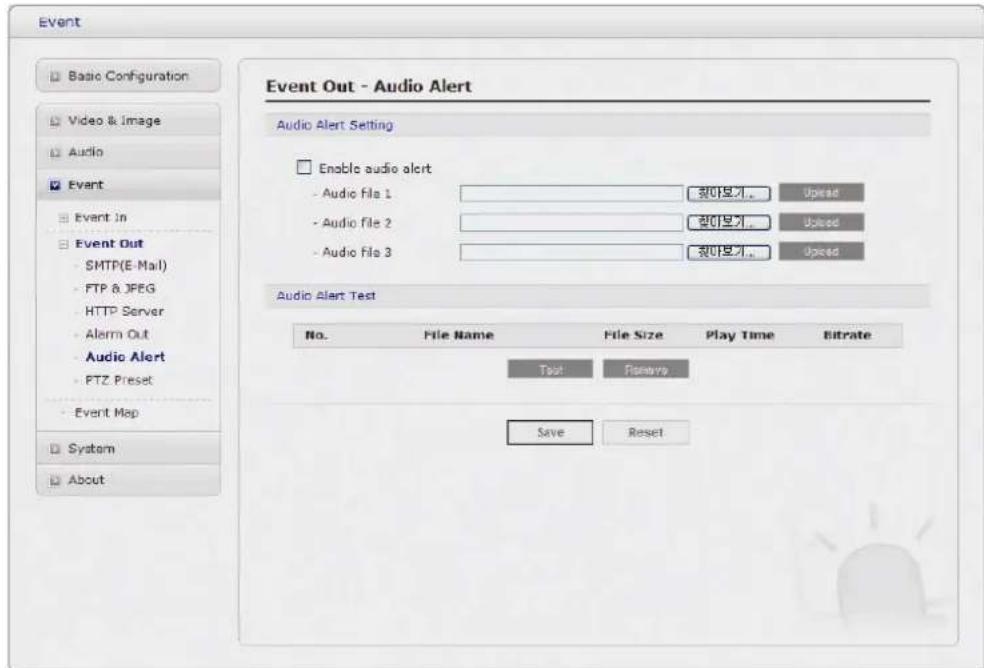
When the network camera detects an event, it can output a predefined audio data to external speaker. Check the box to enable the service.
• Audio Alert Setting:
To use the audio alert with the Network Camera, an audio data file made by user must be uploaded from your PC. Provide the path to the file directly, or use the Browse button to locate it. Then click the Upload button.
An audio file for Audio Alert can be made by Audio Recorder tool in the Revo Remote Pro HD software.
- Audio Alert Test:
When the setup is complete, the audio output can be tested by clicking the Test button.
To remove an audio file, select the index and click the Remove button.
Note: For proper operation of Audio Alert, you must enable "full duplex" in the Audio settings page.
⑥ Audio Recorder
To use the Audio Recorder tool to make an audio file for the Audio Alert function, you must first install the Revo Remote Pro HD from the installation CD.
The Revo Remote Pro HD program (Start > All Programs > Revo Remote Pro HD > Tools > ARecorder) on your PC will display the ARecorder window as shown below.
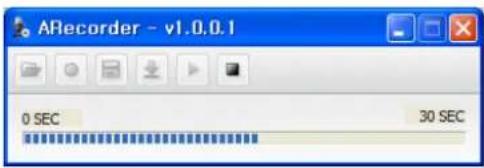
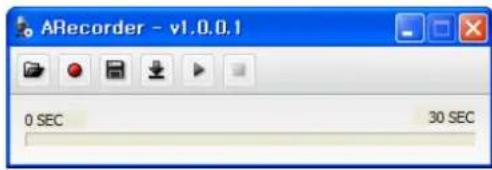
The description of each button in the ARecorder window follows.
Open: Open an audio file. Capture: Capture audio from the microphone on your PC. Save: Save a captured file to your PC (PCM format). Encode: Encode a current capture file or opened PCM file to G.711 format for Audio Alert. Play: Play the current audio file. Stop: Stop playing audio.
Procedures to make an audio file in G.711 format for Audio Alert.
- Connect the microphone to your PC.
- Click the Capture button and speak into the microphone to record the audio or voice. You can record up to 30 seconds. Click the Stop button to stop capturing.
- Click the Save button and then set the file name to save the current capture file in PCM format. If you don't need to make a PCM file, skip this step and go directly to step 5.
- Click the Open button and then select the file name to open an audio file in PCM format.
- Click the Encode button to encode the current audio file to G.711 format for Audio Alert. Set the file name and encode parameters.

Caution: All parameters must be synchronized with those in the audio setting page of network devices for proper operation.
⑦ PTZ Preset
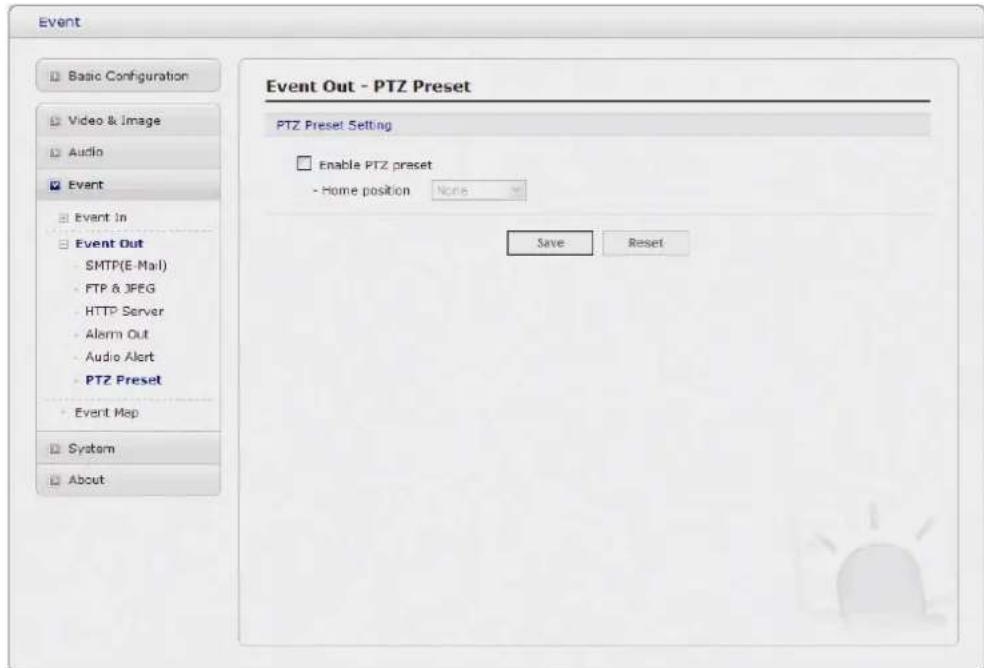
When the Network Transmitter detects an event, you can make a PTZ camera connected to its RS485 port move to a predefined preset position. Check the box to enable the service and return to the Home position once the event has ended.
3) Event Map
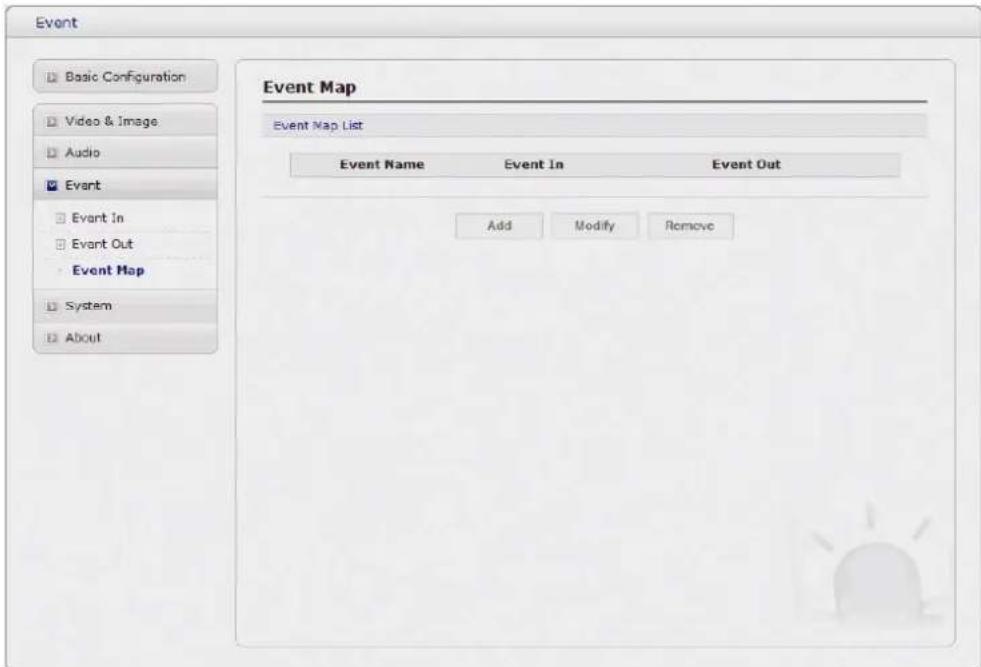
The event map allows you to change the settings and establish a schedule for each event trigger from the network camera. You can register up to max. 15 event maps.
Click the Add button to make a new event map and you will see a popup window as below.
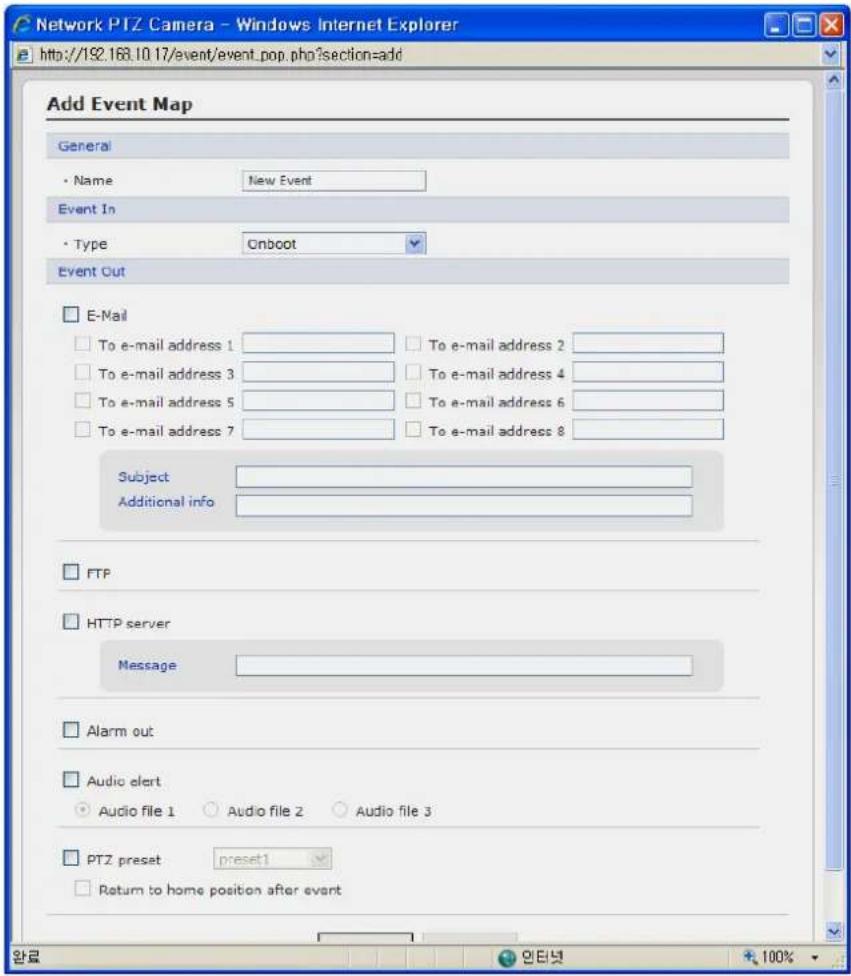
- General: Enter the name for a new event map.
- Event In: Select an event type in the drop-down list.
- Event Out:
- E-mail: Select email addresses to send via email that an event has occurred.
- FTP: Select the checkbox beside FTP to record and save images to an FTP server when an event has occurred.
- HTTP Server: It sends notification messages to an HTTP server that listens for these. The destination server must first be configured on the Event In page. Enter a message you want to send.
- Audio Alert: Select an audio alert file that the Network Transmitter outputs when an audio alert event is triggered. The audio alert file must first be configured on the Event In page.
4.5.5 System
1) Information
You can enter the system information. This page is very useful when you refer to device information after installation.
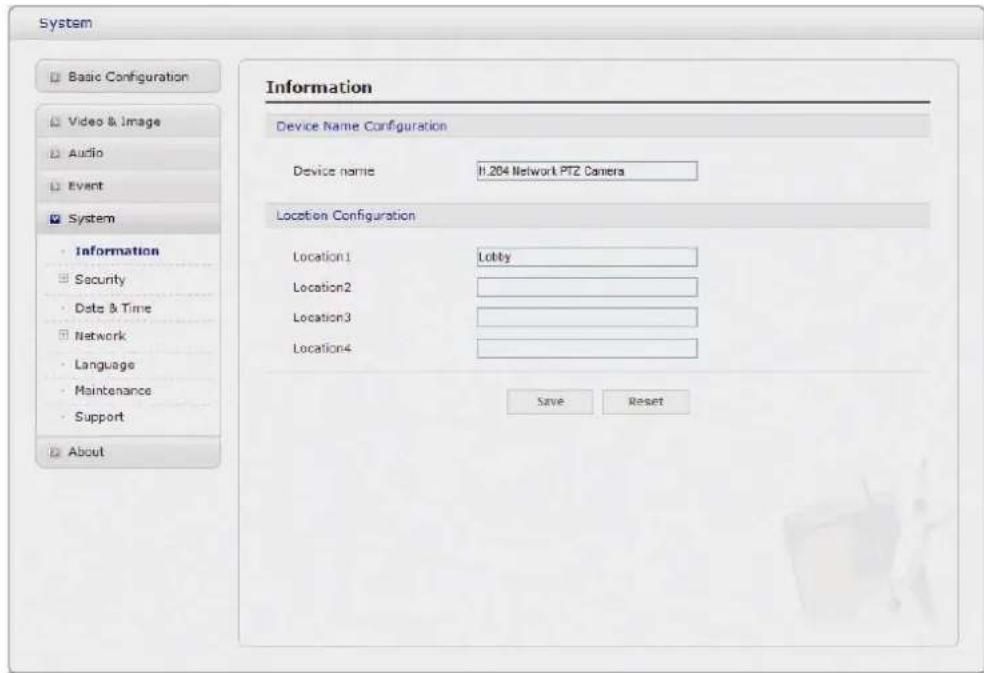
- Device Name Configuration: Enter the device name.
- Location Configuration: Enter the location information. You can enter that by four.
2) Security
① Users
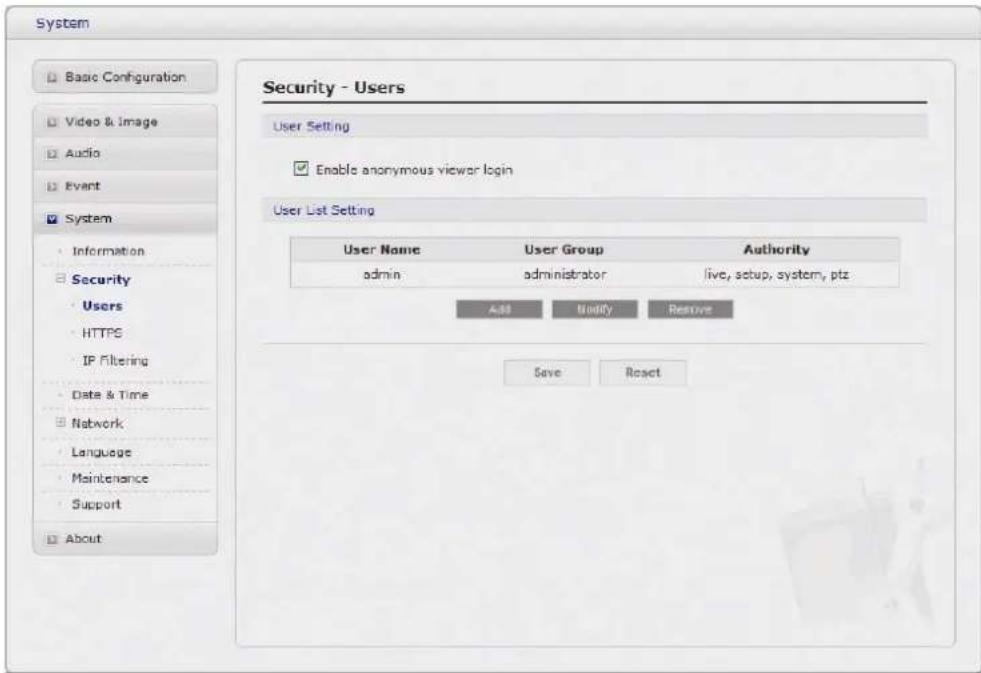
User access control is enabled by default, when the administrator sets the root password on first access. New users are authorized with user names and passwords, or the administrator can choose to allow anonymous viewer login to the Live View page, as described below:
- User Setting:
Check the box to enable anonymous viewer login to the network camera without the user account. When using the user account, users have to try logging in at every access.
- User List Setting:
This section shows a registered user account. Enter a user name and password to be added, and register them by pressing the Add button. You can see the pop-up window as below.
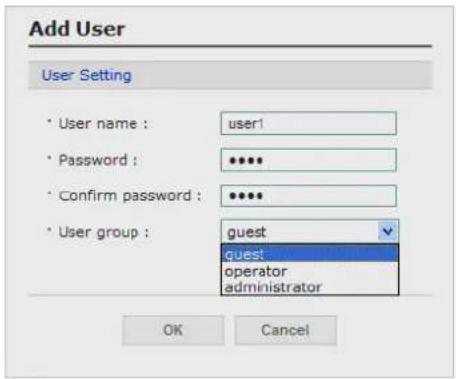
② HTTPS
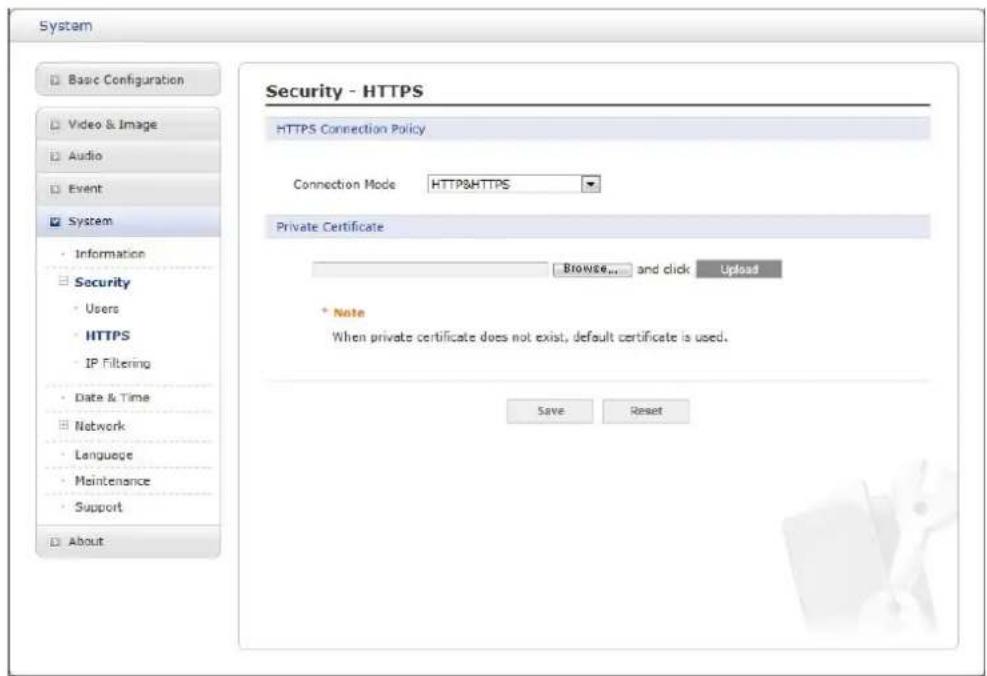
For greater security, the network camera can be configured to use HTTPS (Hypertext Transfer Protocol over SSL (Secure Socket Layer)). That is, all communication that would otherwise go via HTTP will instead go via an encrypted HTTPS connection.
• HTTPS Connection Policy:
Choose the form of connection you wish to use from the drop-down list for the administrator, Operator and Viewer to enable HTTPS connection (set to HTTP by default).
- HTTP
- HTTPS
- HTTP & HTTPS
- Upload Certificate:
To use HTTPS for communication with the network camera, an official certificate issued by a CA (Certificate Authority) must be uploaded from your PC. Provide the path to the certificate directly, or use the Browse button to locate it. Then click the Upload button.
Please refer to the home page of your preferred CA for information on where to send the request. For more information, please see the online help.
③ IP Filtering
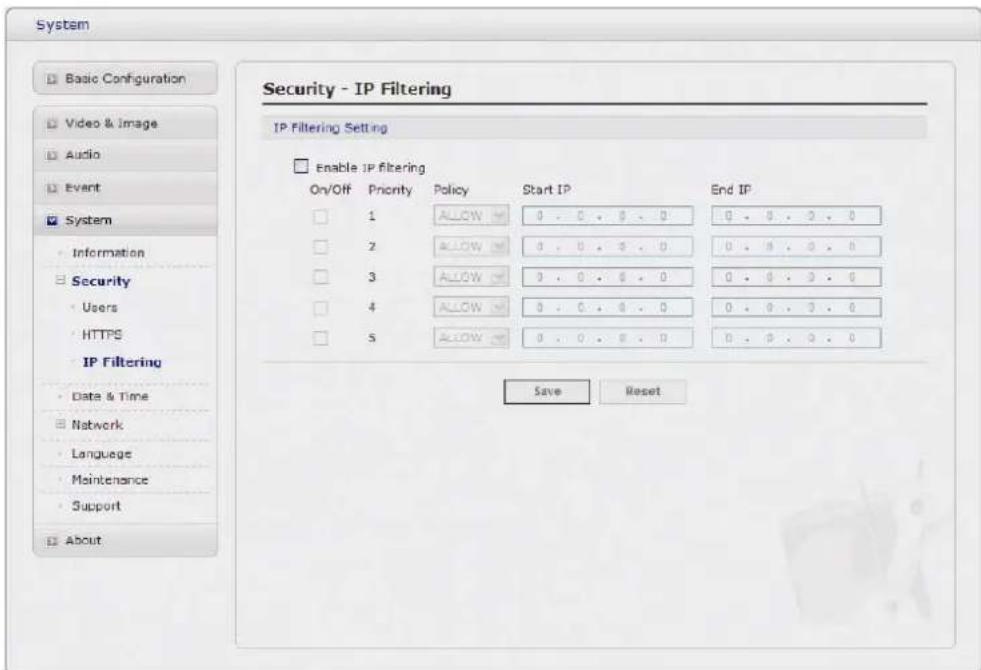
Checking the Enable IP address filtering box enables the IP address filtering function. Up to 256 IP address entries may be specified (a single entry can contain multiple IP addresses). Click the Add button to add new filtered addresses.
When the IP address filter is enabled, addresses added to the list are set as allowed or denied addresses. All other IP addresses not in this list will then be allowed or denied access accordingly, that is, if the addresses in the list are allowed, then all others are denied access, and vice versa. Please see also the online help for more information.
Note that users from IP addresses that will be allowed must also be registered with the appropriate access rights (Guest, Operator or Administrator). This is done from Setup > System > Security > Users, on “4.5.5 System > 2) Security > ① Users”.
3) Date & Time
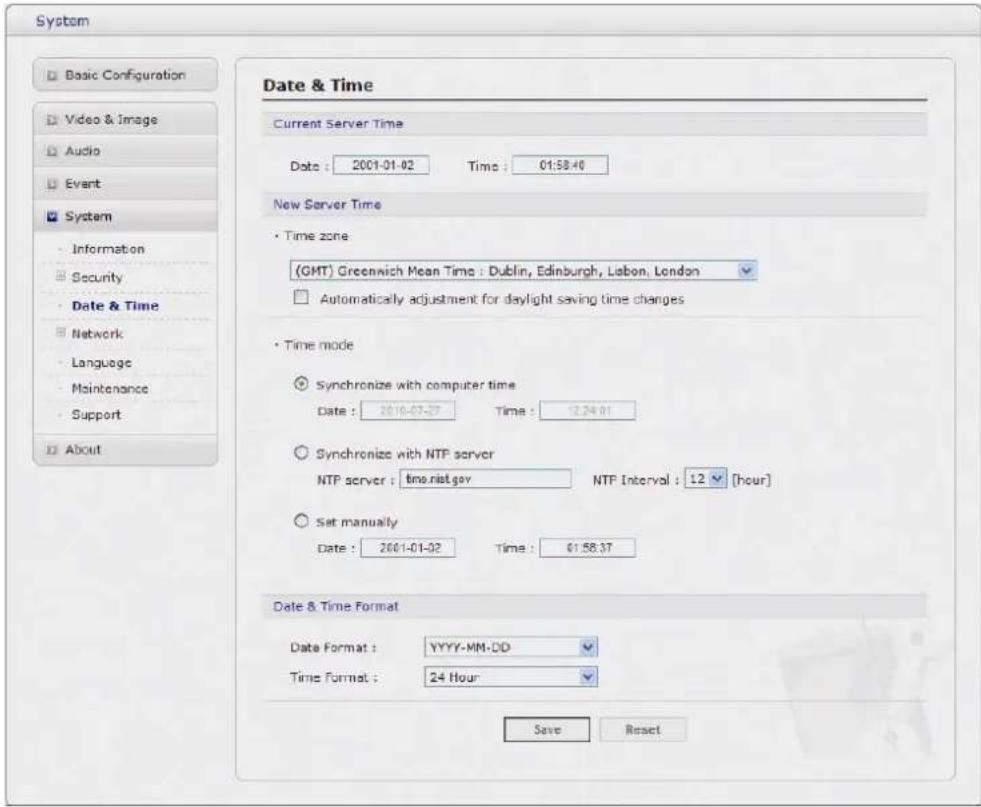
- Current Server Time:
It displays the current date and time (24h clock). The time can be displayed in 12h clock format in the overlay (see below).
- New Server Time:
Select your time zone from the drop-down list. If you want the server clock to automatically adjust for daylight saving time, select "Automatically adjust for daylight saving time changes".
From the Time Mode section, select the preferred method to use for setting the time:
- Synchronize with computer time: sets the time from the clock on your computer.
- Synchronize with NTP Server: the video encoder will obtain the time from an NTP server every 60 minutes.
- Set manually: this option allows you to manually set the time and date.
Note: If using a host name for the NTP server, a DNS server must be configured under TCP/IP settings.
4) Network
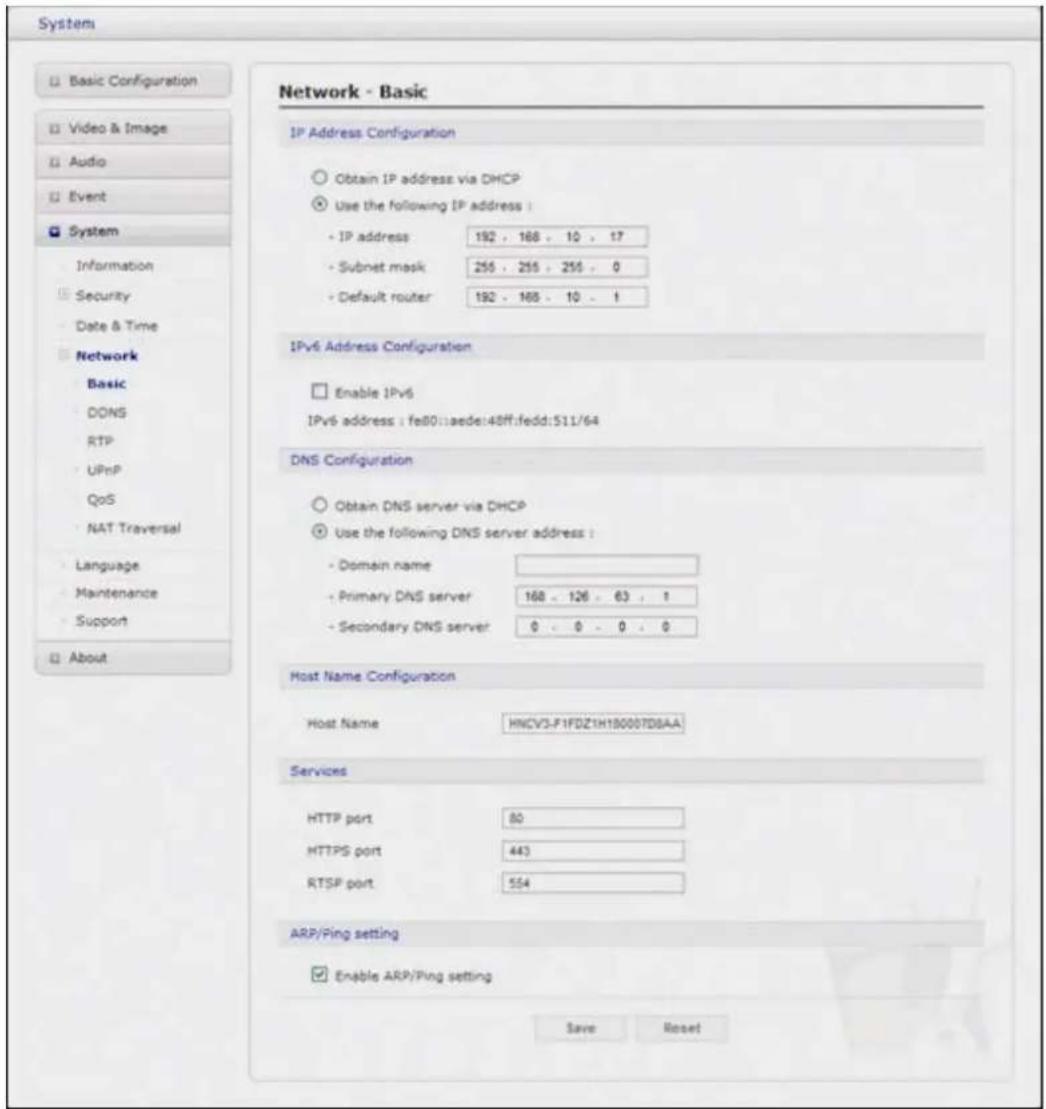
Settings regarding network can be executed. Settings for IP, DNS, Host Name, Port, and ARP/Ping can be established, along with settings for DDNS, uPnP, QoS, and SNMP.
① Basic
• IP Address Configuration:
- Obtain IP address via DHCP: Dynamic Host Configuration Protocol (DHCP) is a protocol that lets network administrators centrally manage and automate the assignment of IP addresses on a network. DHCP is enabled by default. Although a DHCP server is mostly used to set an IP address dynamically, it is also possible to use it to set a static, known IP address for a particular MAC address.
- Use the following IP address: To use a static IP address for the network camera, check the radio button and then make the following settings:
* IP address: Specify a unique IP address for your network camera. * Subnet mask: Specify the mask for the subnet the network camera is located on. * Default router: Specify the IP address of the default router (gateway) used for connecting devices attached to different networks and network segments.
• IPv6 Address Configuration:
Check this box to enable IPv6. Other settings for IPv6 are configured in the network router.
- DNS Configuration:
DNS (Domain Name Service) provides the translation of host names to IP addresses on your network.
- Obtain DNS Server via DHCP: Automatically use the DNS server settings provided by the DHCP server. Click the View button to see the current settings.
- Use the following DNS server address to enter the desired DNS server by specifying the following:
* Domain name: enter the domain(s) to search for the host name used by the network camera. Multiple domains can be separated by semicolons (;). The host name is always the first part of a Fully Qualified Domain Name, for example, myserver is the host name in the Fully Qualified Domain Name myserver.mycompany.com where mycompany.com is the Domain name.
* DNS servers: enter the IP addresses of the primary and secondary DNS servers.
- Host Name Configuration:
- Host Name: enter the host name to be used as device information in the client software or SmartManager.
• Services:
- HTTP port:
Enter a port to receive a service through the HTTP. Default Port Number is '80'.
- RTSP port:
Enter a port to receive a service through the RTSP. Default Port Number is '7070'.
- PTZ port:
Enter a port to control the Pan/Tilt/Zoom. Default Port Number is '7000'.
- ARP/Ping Setting:
- Enable ARP/Ping setting of IP address: The IP address can be set using the ARP/Ping method, which associates the unit's MAC address with an IP address. Check this box to enable the service. Leave disabled to prevent unintentional resetting of the IP address.
② DDNS
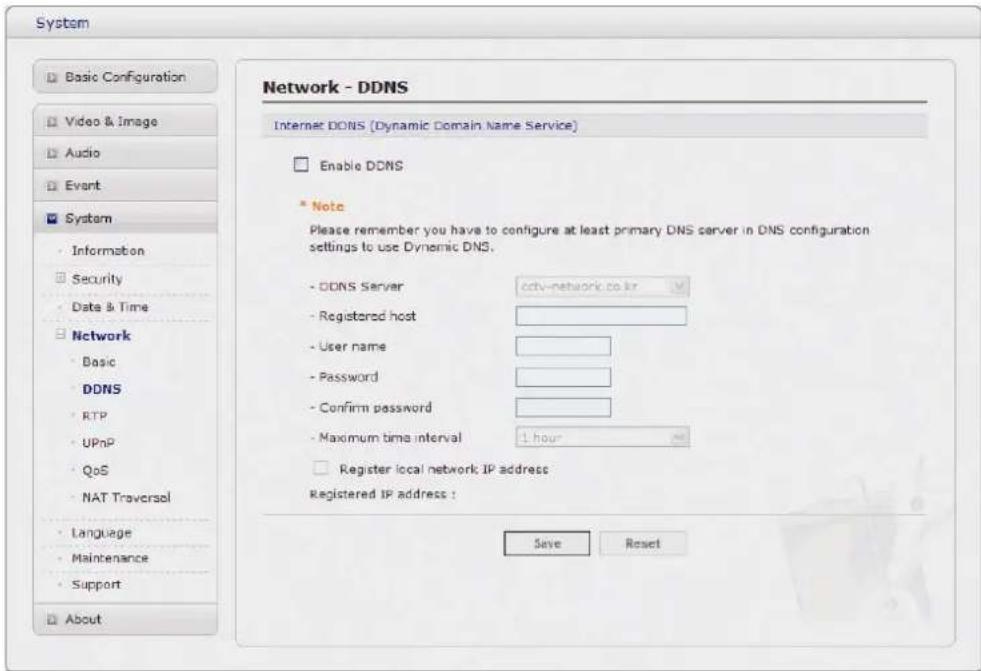
- Internet DDNS (Dynamic Domain Name Service):
When using the high-speed Internet with the telephone or cable network, users can operate the network camera even on the floating IP environment in which IPs are changed at every access.
Users should receive an account and password by visiting a DDNS service like http://www.dyndns.com/ or http://www.cctv-network.co.kr/.
- Enable DDNS: Check to get DDNS service to be available.
* DDNS Server: Select the DDNS server. * Registered host: Enter an address of the DDNS server. * Username: Enter an ID to access to the DDNS server.
* Password: Enter a password to be used for accessing the DDNS server.
* Confirm: Enter a password again to confirm it.
* Maximum time interval: Set a time interval to synchronize with the DDNS server. Select an item in the interval drop-down list.
* Register local network IP address: Register a Network Video Server IP address to the DDNS server.
③ RTP
![System Basic Configuration Video & Image Audio Event System Information Security Data & Time Network Basic DDNS RTP UPnP QoS NAT Traversal Language Maintenance Support About Network - RTP Port Range Start port 30000 [30000... 39960; only even values are available] End port 30040 Multicast Enable mul…](/content/2026/06/1165427/images/0d2f3891fd932b04ea7c0d03039fc9cf7e4eb9d2ae85c9d41f7dd30368e30a23.jpg)
Have a setting for sending and receiving an audio or video on a real-time basis. These settings are the IP address, port number, and Time-To-Live value to use for the media stream(s) in multicast H.264 format. Only certain IP addresses and port numbers should be used for multicast streams. For more information, please see the online help.
- Port Range:
- Start port: Enter a value between 1024 and 65532.
- Multicast:
This function is for sending Video and Audio to Multicast group.
- Enable Multicast: Check the box to enable multicast operation.
- Multicast destination IP: Enter an IP between 224.0.0.0 and 239.255.255.255. Although it is empty, an IP will be entered automatically.
- RTP port: Enter a value between 1024 and 65532.
- RTP TTL: Enter a value between 1 and 255. If a network status is smooth, enter a lower value. On the other hand, if a network status is poor, enter a higher value. When there are many network cameras or users, a higher value may cause a heavy load to the network. For a detailed setting, please consult with a network manager.
④ UPnP
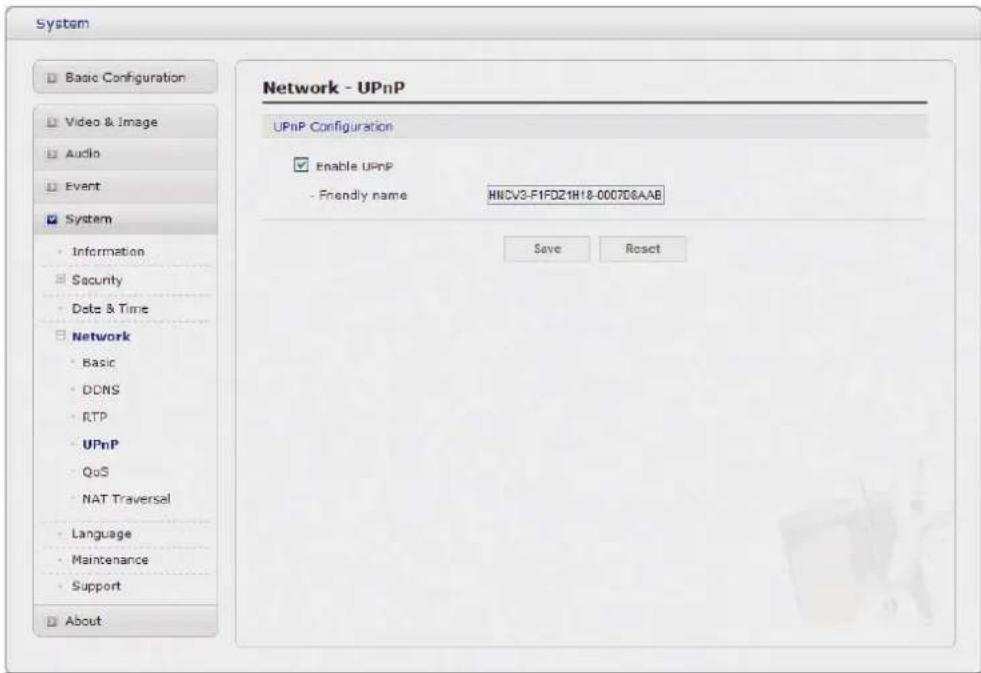
The network camera includes support for UPnP™. UPnP™ is enabled by default, and the network camera then is automatically detected by operating systems and clients that support this protocol.
Note: UPnP™ must be installed on your workstation if running Windows XP. To do this, open the Control Panel from the Start Menu and select Add/Remove Programs. Select Add/Remove Windows Components and open the Networking Services section. Click Details and then select UPnP™ as the service to add.
⑤ QoS
Quality of Service (QoS) provides the means to guarantee a certain level of a specified resource to selected traffic on a network. Quality can be defined as a maintained level of bandwidth, low latency, and no packet losses.
The main benefits of a QoS-aware network are:
- The ability to prioritize traffic and thus allow critical flows to be served before flows with lesser priority.
- Greater reliability in the network, thanks to the control of the amount of bandwidth an application may use, and thus control over bandwidth races between applications.
![System Basic Configuration Video & Image Audio Event System Information Security Date & Time Network Basic DCNS RTP UPnP QoS NAT Traversal Language Maintenance Support About Network - QoS DSCP Setting Live stream DSCP 0 [0... 63] Event/Alarm DSCP 0 [0... 63] Management DSCP 0 [0... 63] Automatic Tra…](/content/2026/06/1165427/images/b439e8ddc562b4bf2b431235a022be1f57d56f0ddb864479d4ac7eb714588ef0.jpg)
- DSCP Settings:
For each type of network traffic supported by your network video product, enter a DSCP (Differentiated Services Code Point) value. This value is used to mark the traffic's IP header. When the marked traffic reaches a network router or switch, the DSCP value in the IP header tells the router or switch which type of treatment to apply to this type of traffic, for example, how much bandwidth to reserve for it. Note that DSCP values can be entered in decimal or hex form, but saved values are always shown in decimal.
The following types of traffic are marked:
- Live Stream DSCP:
- Event/Alarm DSCP:
- Management DSCP:
• Auto Traffic Control:
Set a limitation on user network resources by designating the maximum bandwidth.
- Maximum bandwidth: In case of sharing other network programs or equipment, it is possible to set a limitation on the maximum bandwidth in the unit of Mbit/s or kbit/s.
- Auto frame rate: Selected if not influenced by a network-related program or equipment without a limitation on the network bandwidth.
⑥ NAT Traversal
A broadband router allows devices on a private network (LAN) to share a single connection to the Internet. This is done by forwarding network traffic from the private network to the “outside”, that is, the Internet. Security on the private network (LAN) is increased since most broadband routers are pre-configured to stop attempts to access the private network (LAN) from the public network/Internet.
Use NAT Traversal when your network cameras are located on an intranet (LAN) and you wish to make it available from the other (WAN) side of a NAT router. With NAT traversal properly configured, all HTTP traffic to an external HTTP port in the NAT router is forwarded to the network camera.
![graph LR subgraph WAN(Internet) A["Computer"] -->|WAN| B["WAN"] C["User"] -->|WAN| B B --> D["Server"] D --> E["LAN(Intranet)"] E --> F["Computer"] G["User"] --> H["Computer"] end I["Broadband (NAT) Router (Port Forwarding Device)"]](/content/2026/06/1165427/images/c4a61fa7ec47ef465c21e7b4b3426bbb887d8c5a2c9f7cce0d7ff14965910ce6.jpg)
Notes:
- For NAT traversal to work, this must be supported by the broadband router.
- The broadband router has many different names:
"NAT router", "Network router", "Internet Gateway", "Broadband sharing device" or "Home firewall" but the essential purpose of the device is the same.
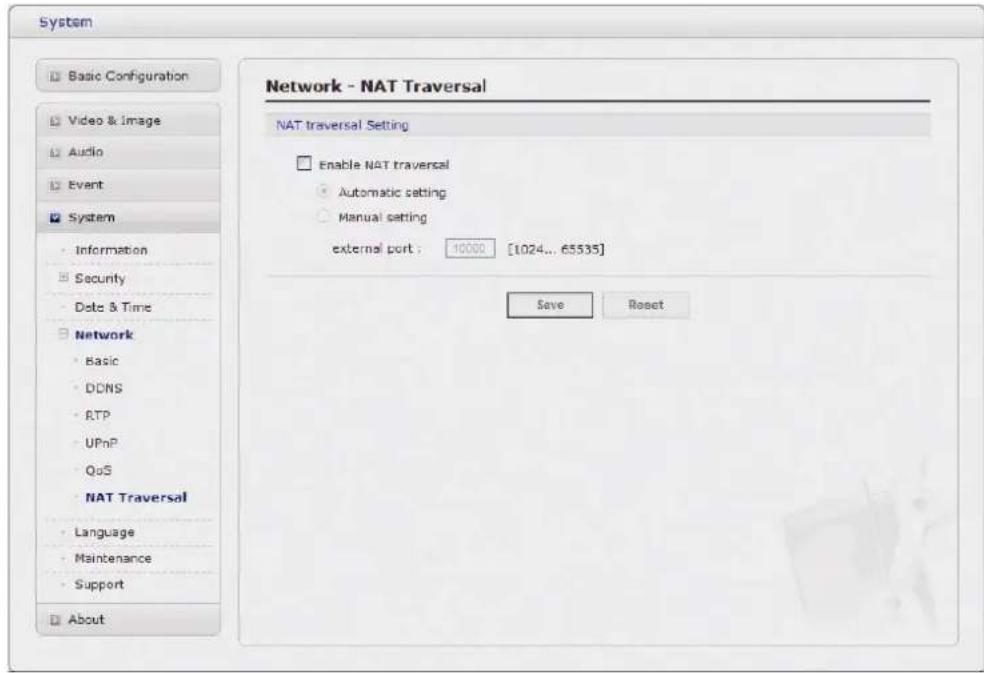
• NAT traversal Settings:
- Enable: when enabled, the Network Transmitters attempt to configure port mapping in a NAT router on your network, using UPnP™. Note that UPnP™ must be enabled in the network camera. (Please see Setup > System > Network > UPnP, on "4.5.5 System > 4) Network > ④ UPnP".
* automatic setting: The network camera automatically searches for NAT routers on your network. * manual setting: Select this option to manually select a NAT router and enter the external port number for the router in the field provided.
Notes:
- If you attempt to manually enter a port that is already in use, an alert message will be displayed.
- When the port is selected automatically it is displayed in this field. To change this enter a new port number and click Save.
5) Language
It will be able to select a user language. The type of language it will be able to select is the English, the French, the German, the Spanish and the Italian.
6) Maintenance
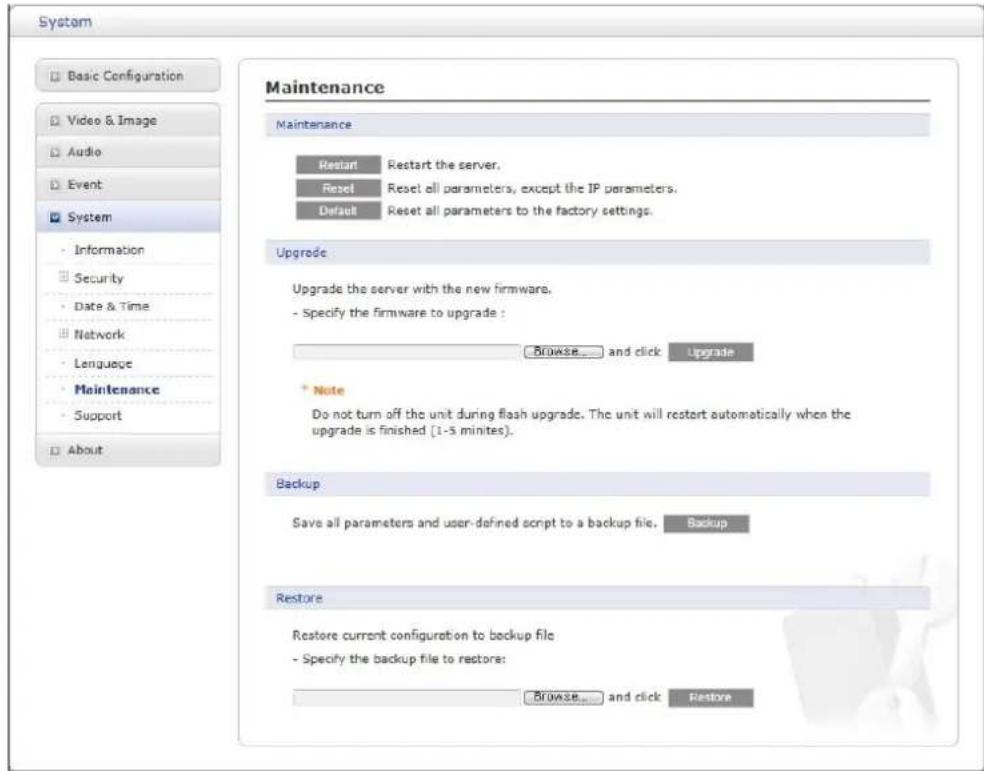
- Maintenance Server:
- Restart: The unit is restarted without changing any of the settings. Use this method if the unit is not behaving as expected.
- Restore: The unit is restarted and most current settings are reset to factory default values. The settings that are not affected are:
- the boot protocol (DHCP or static)
- the static IP address
- the default router
- the subnet mask
- the system time
- Default: The default button should be used with caution. Pressing this will return all of the network camera's settings to the factory default values (including the IP address).
- Update Server: Carry out the upgrade by importing an upgrade file and pressing the Upgrade button. During the upgrade, do not turn off the power of the network camera. And try an access again after waiting five minutes or longer.
- Backup: Save a setting value that users enter to the network camera, to a user PC.
- Restore: Import and apply a setting value saved to a user PC.
Note: Backup and Restore can only be used on the same unit running the same firmware. This feature is not intended for multi-configurations or for firmware upgrades.
7) Support
The support page provides valuable information on troubleshooting and contact information, should you require technical assistance.
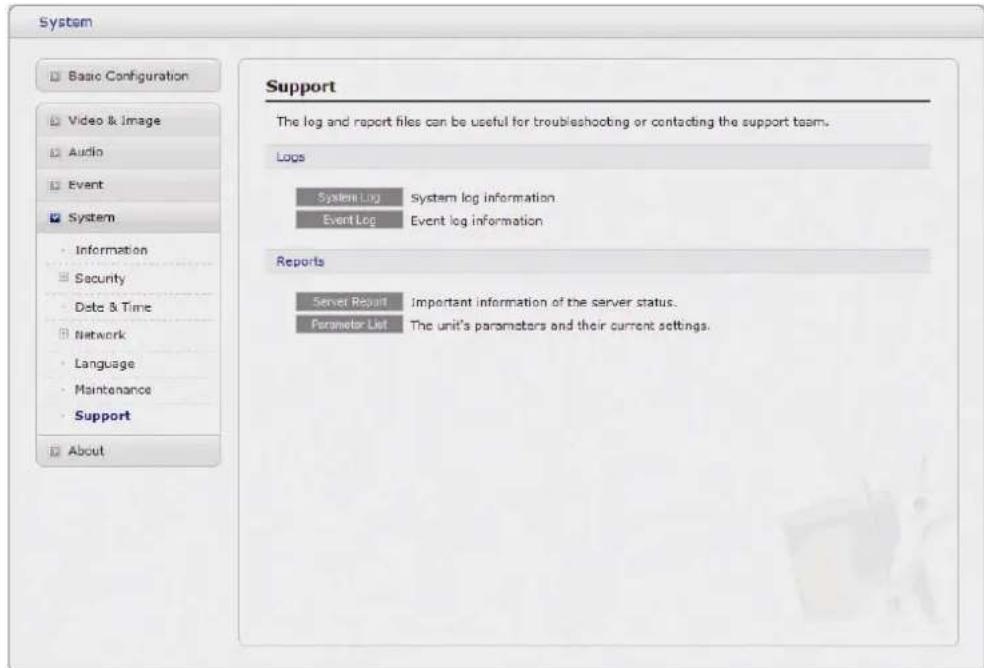
- Logs: The network camera support system log information. Click the System Log button to get the log data.
- Update Server:
- Server Report: Click the Server Report button to get the important information about the server's status and should always be included when requesting support.
- Parameter List: Click the Parameter List button to see the unit's parameters and their current settings.
4.5.6 About
The following website will provide support information for the network camera information and operation.
4.6 PTZ Control
You can control a PTZ in the live screen. Press the 📋 button on the left top in the live screen to activate the PTZ control panel.
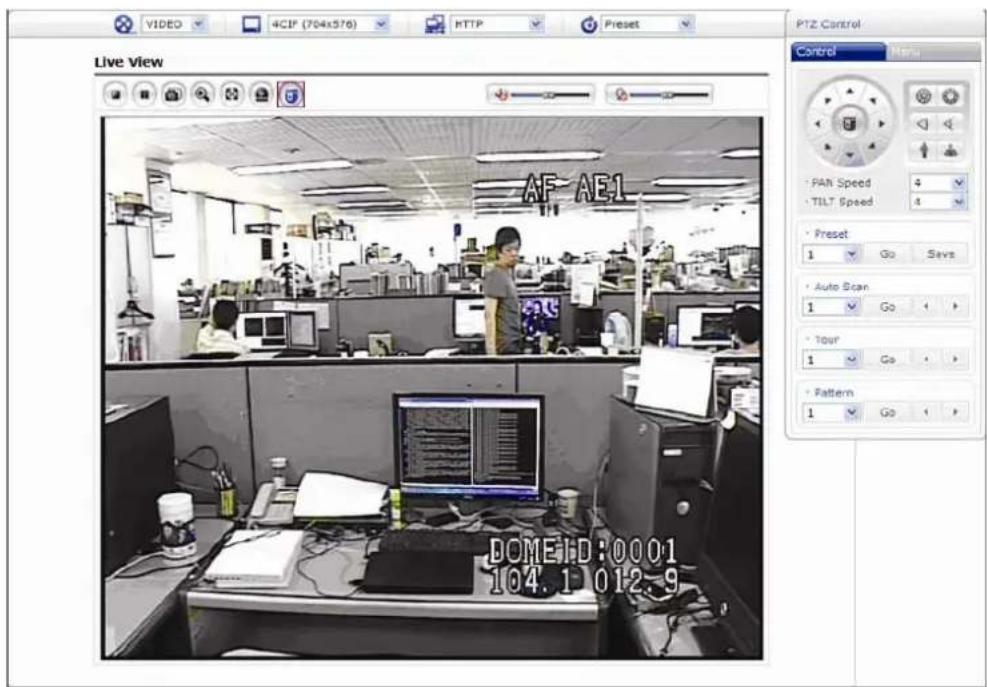
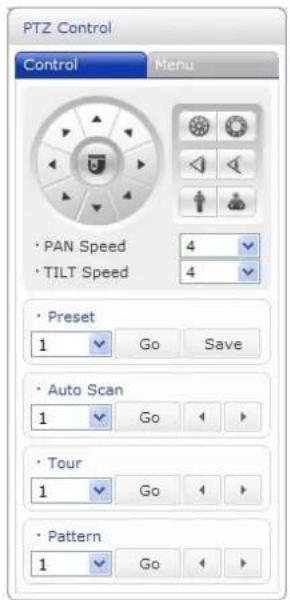
PTZ Control Panel
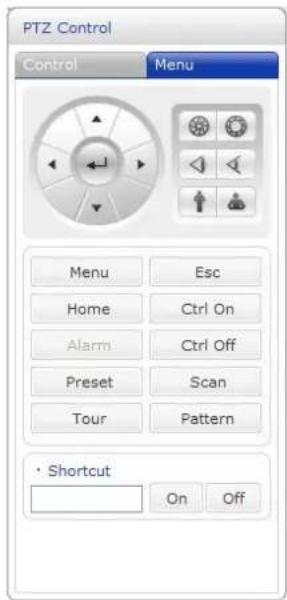
PTZ Menu Panel
Direction Buttons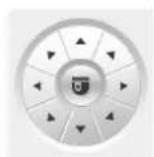
Iris/Focus/Zoom Buttons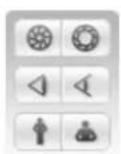
- Control Panel:
- Left/Right button: Go into the sub-menu items. Execute the command (exit). Change value. Navigate through the menu items.
- Up/Down button: Navigate through the menu items.
- PAN/TILT Speed: It sets a speed when adjusting the PTZ Camera. The higher the value, the faster the speed.
- Focus: Overrides auto focus. Moving the Zoom handle reactivates Auto Focus mode.
- Iris: Overrides auto iris. Moving the joystick reactivates Auto Iris mode.
- Zoom: Zoom control.
- Menu Panel:
- Menu: Enters programming menu.
- Esc: Cancels current inputs. Exits from currently running functions or menu, error status, etc.
- Home: Immediately calls Home function. Deletes selected value or function in programming mode.
- Ctrl Off: Control function.
ex) CTRL + Up, Down, Right, Left Button > Operated turbo mode.
- Preset: Pressing the Preset will bring up the preset programming menu.
- Auto Scan: Pressing the Scan will bring up the Auto Scan programming menu.
- Tour: Pressing the Tour button will bring up the tour programming menu directly.
- Pattern: Pressing the Pattern button will bring up the pattern programming menu directly.
4.7 Help
The Help information window will be provided as a popup window so that users can open and read it without a need for log-in. It will offer a description on setting and Help page by which users can manipulate the network camera without a reference to the manual.
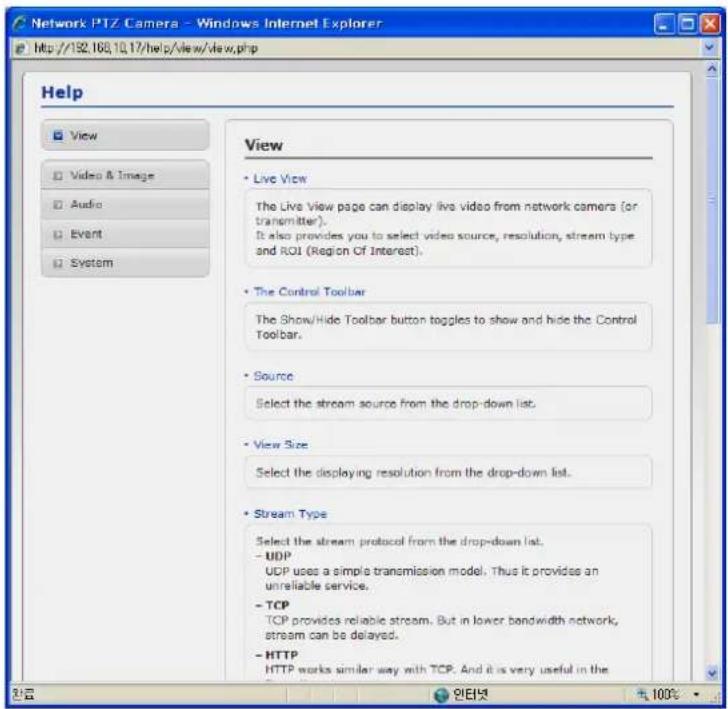
4.8 Resetting to the factory default settings
To reset the network camera to the original factory settings, go to the Setup > System > Maintenance web page or use the control button on the network camera, as described below:
• Using the Reset Button
Follow the instructions below to reset the network camera to the factory default settings using the Reset Button.
- Switch off the network camera by disconnecting the power adapter.
- Open the lens cover.
- Press and hold the Control Button (SW1) on the board with your finger while reconnecting the power.
- Keep the Control button (SW1) pressed during about 2 seconds.
- Release the Control Button (SW1).
- The network camera resets to factory defaults and restarts after completing the factory reset.
- Close the lens cover.
CAUTION: When performing a Factory Reset, you will lose any settings you have saved.
4.9 System Requirement for Web Browser
Operating System: Microsoft Windows 98, Microsoft Windows ME, Microsoft Windows 2000, Microsoft Windows XP, or Microsoft Windows Vista
CPU: Pentium IV 2.4GHz or higher, 512MB RAM, 10GB free disk space or higher
VGA: AGP, Video RAM 32MB or higher (1024x768, 24bpp or higher)
Appendix A — Specifications
22X REVO TRAX Dome Camera
| MODEL 22X | |
| MODULE | |
| CCD Type | 1/4" Type EXview HAD CCD |
| Optical / Digital Zoom 22X / 16X | |
| Resolution | D1 |
| Focal length | f = 3.9mm ~ 85.8mm |
| Angle of view | 3.9mm - 49.5° (H)85.8mm - 2.4° (H) |
| F-Number | F1.6 ~ F3.7 |
| Min. Illumination | |
| - Normal | 0.5 Lux |
| - ICR on & Slow Shutter | 0.001 Lux |
| ICR on (Day & Night) | YES |
| WDR | YES |
| Motion Detection (in PRESET) | YES |
| DOME | |
| Tilt angle | 0° ~ 180° (Digital Flip) |
| Image Flip | YES |
| Auto Calibration | 0.1° ~ 6° |
| Panning angle | 360 continuous rotation |
| Auto Scan | 1 auto pan & 4 auto scan capability |
| Preset | 120 presets with individual camera AE setup |
| Pattern | 4 patterns (recording up to 200 sec.) |
| Tour | 4 tours (consist of 42 functions / 1 tour) |
| Max Speed | 380° /sec. |
| Area Title | it can be divided 8 areas with 12 characters of title |
| Privacy Zone | 4 privacy zone masking (2 methods selectable : Block / video off) |
| Electrical | |
| Power Source | 12VDC ± 10% |
| Power Consumption | 12W (1.0A) |
| Control | RS-485, baud rate: 2400~19.2k bps (default: 9600 bps) |
| ID (Camera Address) | 1 ~ 255 |
* Specifications are subject to change without notice *
| NETWORK | |
| Video Compression | Motion JPEGMPEG-4 Part2H.264 (MPEG-4 Part 10)Profiles: H.264 MP and BP, MPEG-4 ASP and SP |
| Video Resolutions | 160X120 ~ 704X480 : NTSC160X120 ~ 704X576 : PAL |
| Frame Rate | Up to 30/25fps[NTSC/PAL] @ all resolutions |
| Video Streaming | Simultaneously H.264(or MPEG-4) and MJPEGControllable Frame Rate and Bandwidth VBR/CBR H.264 and MPEG-4 |
| Audio Compression | G.711 ADPCM 40kbps~16kbps |
| Audio Streaming | 2 Way |
| Protocol | TCP/IP, UDP, IPv4/v6, HTTP, HTTPS, QoS, FTP, SNMP, uPnP,RTP, RTSP, RTCP, DHCP, ARP |
| Security | Multi-user authority, HTTPS, IP Filtering, Privacy Zone |
| Max. Connection | 10 |
| API Programming Interface | API Supported,Open Platform Compatible: Milestone, ONVIF |
| Alarm Triggers | Motion Detection, External Input, Manual Trigger |
| Alarm Events | File upload via FTP and HTTPNotification via E-mail, HTTP and TCPPternal Output activationAudio Alert activation |
| Video Buffering | Pre and Post Alarm |
| Motion Detection | Yes, max. 8 programmable zone |
| Network Time Synchronization | Yes |
| Software Reset | Yes |
| Factory Reset | Yes, Button/Web browser |
| Auto Recovery | Yes |
| Installation Tool | Yes, SmartManager |
| Upgrade | Yes, Web browser/SmartManager |
| Alarm Input/Output | 1 input , 1 output |
| Mechanical | |
| Dimension | See dimension |
| Weight | Approx. 1.6 kg for dome |
| Environment | |
| Operating temperature | 0°C to 45°C (32°F to 113°F) |
| Operating humidity | 0 to 90%RH (non-condensing) |
| Storage temperature | -20°C to 60°C (-4°F to 140°F) |
* Specifications are subject to change without notice *
UNIT: mm
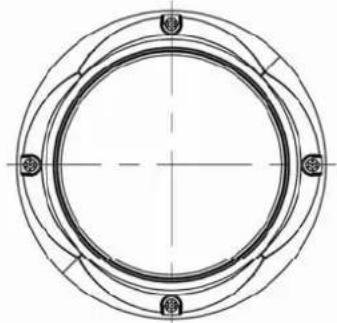
Top View
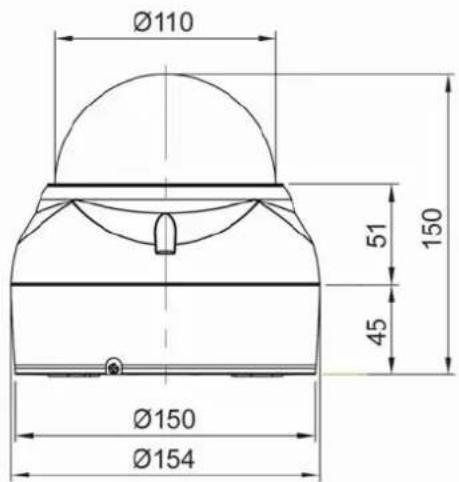
Front View
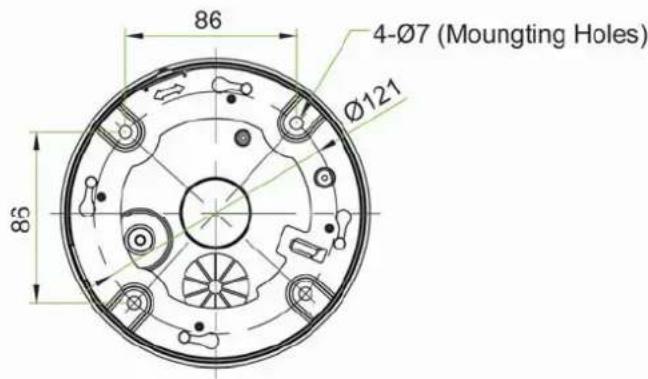
Bottom View Figure – Dimension
Appendix B — Troubleshooting
If problems occur, verify the installation of the camera with the instructions in this manual and with other operating equipment. Isolate the problem to the specific piece of equipment in the system and refer to the equipment manual for further information.
| Problem Possible Solution | |
| No video. | Verify that power is connected to all pieces of equipment in the system.Verify that the power switches are in the ON position.Check the video connections. |
| Poor video quality. | Check that the BNC connectors are inserted properly.Check the voltage level of the dome camera.Cable for video is shielded. |
| Dome cameras lose their positions. | Reset the cameras using the Dome configuration menus.Check that the dome cameras are inserted properly in the base.Check the voltage level of the dome camera. |
| Camera number does not match the multiplexer number. | Check the camera ID and insert the BNC cable into the proper input of the multiplexer. |
| Frame rate decrease. | Change current value more lower resolution, compression rate and frame rate. |
| A connection is cut-off at short intervals. | Check network traffic and contact with network administrator. |
Appendix C — Glossary
Alarm Action
The assigned responses for the dome camera when input changes from normal to abnormal states. The dome may run a Preset, Pattern, or have no assigned action for 1 dome input. The dome may also send alarm state to the host controller for processing. See also Input Alarm and Normal Input State.
Area
Programmed start and end points of the dome's field of view around its pan axis. Each area is a part of a circular viewing area that extends around the dome. The areas can be different sizes. Up to 8 areas can be programmed for the dome.
Automatic Gain Control (AGC)
Allows for the amplification of the video signal in scenes with minimal ambient light. Many low-light scenes result in picture noise. As gain is increased, the picture noise is also amplified. When AGC is enabled, the value of the gain setting is based on feedback from the camera. When AGC is disabled, the camera uses the value set for the manual gain setting. The trade-off between picture level and noise may be adjusted when AGC is disabled.
On-screen Menu
The text overlay menu system used for setting dome features. The utility is accessed using a keystroke combination. The utility provides settings for camera functions, zoom, alarm, text display, and password protection.
Flip
Allows the dome to automatically turn 180 degrees when the camera tilts to its lower limit and stays in that position for a brief delay. When the dome flips (rotates), the camera starts moving upward as long as the tilt control is kept in the down position. Once the control is released, the tilt control returns to its normal operational mode. The flip feature is useful when you need to track someone who walks directly beneath the dome and continues on the other side.
Home Position
The default position to which the dome camera returns after an assigned period of inactivity passes. The default position may be a Preset, Tour, Pattern, or No Action.
Input Alarm
A connection point on the dome camera that enables the system to monitor Input Devices. There is 1 input available for the dome camera.
Input Device
External devices that provide information about the condition of system components that connect to the input on the dome camera. Typical input devices include door contacts, motion detectors and smoke detectors.
IR Mode
A feature of the camera that permits manual or automatic switching between color and IR (black-and-white) operation. When IR mode is active, clearer images may be obtained under low-light conditions.
Name Information
Relates to the display of the dome name, the area where the dome is pointing, the name of the Preset or Pattern that is running, and alarm name. The display of each type of name setting can be enabled or disabled. When the display of camera or area title (name) is enabled, the information appears on the screen continuously. Preset, Tour, and Pattern titles (names) appear only while they are active.
Normal Input State
Describes the expected state of a device connected to the dome camera's input. The normal state may be open or closed. When a device is not in its normal input state, an alarm is issued.
North Position
User-definable setting that may correspond to magnetic north or some well-known landmark. Used to approximate the camera dome's pointing direction when Direction Indicators are enabled.
Slow Shutter
Setting used to improve the quality of video obtained in extreme low-light situations. When the Slow Shutter setting is enabled, low-light information is collected over multiple fields based on the Shutter Limit setting. As a result, video may appear blurred or choppy in extreme low-light situations. This setting does not affect camera operation in normal lighting situations.
Pattern
A series of pan, tilt, zoom, and focus movements from a single programmable dome. Up to 4 Patterns may be programmed for the dome camera.
Preset
Programmed video scene, based on specific pan, tilt, zoom, and focus settings. Up to 120 Presets may be programmed for the dome camera.
Privacy Zone
Masked areas of the dome camera's viewing area. These masks prevent operators of the surveillance system from viewing these designated zones. The Privacy Zones move in relation to the dome camera's pan/tilt position. In addition, the apparent size of the Privacy Zone adjusts automatically as the lens zooms in or out. Up to 4 Privacy Zones may be established for a dome camera.
Vector Scan
Move from start point to end point including tilt and zoom simultaneously and linearly.
White balance
Adjustments in the color hue (red and blue) gains for a camera so that true white appears white in the image. It is normally compensated for by the automatic gain control. In some lighting conditions, you may need to manually adjust the red and blue settings for optimal viewing. When Automatic White Balance is enabled, the camera measures the image and automatically adjusts the red and blue settings to balance white. When Automatic White Balance is disabled, the camera uses the values set for the red and blue settings to balance white.
Appendix D — Short Cut Key
| Short Cut Key Function | |||
| PRST | Pop up Preset setup menu | ||
| TOUR | Pop up Tour setup menu | ||
| PTRN | Pop up Pattern setup menu | ||
| SCAN | Pop up Auto Scan setup menu | ||
| No.+ CTRL+ PRST | Store the current view at the selected number | ||
| Short Cut Key | Function | Short Cut Key | Function |
| 7+ ON | Change FOCUS to AUTO | 7+ OFF | Change FOCUS to manual |
| 8+ ON | Change AE to AE1 | 8+ OFF | Change AE to manual |
| 9+ ON | Change Night Shot to AUTO | ||
| 10+ ON | Night Shot on | 10+ OFF | Night Shot off |
| 11+ ON | BLC on | 11+ OFF | BLC off |
| 12+ ON | Digital Zoom on (According to digital zoom setting) | 12+ OFF | Digital Zoom off |
| 13+ ON | Dome OSD on | 13+ OFF | Dome OSD off |
| 14+ ON | Dome Area Title Display on | 14+ OFF | Dome Area Title Display off |
| 15+ ON | View Direction on | 15+ OFF | View Direction off |
| 104+ ON | WDR ON (AE auto1 mode) | 104+ OFF | WDR off (AE auto1 mode) |
| 150+ ON | Image Flip ON | 150+ OFF | Image Flip off |
| 151+ ON | Origin Check | ||
| 152+ ON | Place the camera in the 0° area horizontally. | ||
| 153+ ON | Go to the slow speed mode | 153+ OFF | Go to the normal speed mode |
| 154+ ON | Display System Information | ||
| 155+ ON | Flip the camera in the 180° area horizontally. | ||
| 250+ PRST | Factory setup menu (Tour dwell time, Answer delay) | ||
| 888+ ENTER | Night Shot on (in the global mode only) | ||
| 999+ ENTER | Night Shot off (in the global mode only) | ||
22X REVO TRAX DOME CAMERA
- MODEL NO.: REHVDPTZ22-1
- WARNING
- CAUTION
- EXPLANATION OF GRAPHICAL SYMBOLS
- FCC COMPLIANCE STATEMENT
- CHAPTER 1 — INTRODUCTION ....1
- CHAPTER 2 — INSTALLATION AND CONFIGURATION....2
- CHAPTER 3 — PROGRAM AND OPERATION....9
- CHAPTER 4 — OPERATION BY WEB BROWSER ....30
- 4.5.2 VIDEO & IMAGE 40
- 4.5.3 AUDIO 41
- 4.5.4 EVENT....41
- 4.5.5 SYSTEM ....53
- 4.5.6 ABOUT 67
- 4.6 PTZ CONTROL 67
- 4.7 HELP 69
- 4.8 RESETTING TO THE FACTORY DEFAULT SETTINGS....69
- 4.9 SYSTEM REQUIREMENT FOR WEB BROWSER ....70
- APPENDIX A — SPECIFICATIONS....71
- APPENDIX B — TROUBLESHOOTING ....74
- APPENDIX C — GLOSSARY....74
- APPENDIX D — SHORT CUT KEY ....77
- CHAPTER 1 — INTRODUCTION
- 1.1 FEATURES
- CHAPTER 2 — INSTALLATION AND CONFIGURATION
- 2.1 PACKAGE CONTENTS
- 2.2 INSTALLATION
- 2.2.1 LOCKING DOME CAMERA
- 2.3 BASIC CONFIGURATION OF DOME CAMERA SYSTEM
- 2.4 SETTING DOME CAMERA ADDRESS (ID)
- 2.5 CONNECTIONS
- CONNECTING TO THE RJ-45
- CONNECTING ALARMS
- AI (ALARM INPUT)
- G (GROUND)
- NOTE: ALL THE CONNECTORS MARKED G OR GND ARE COMMON
- AO (ALARM OUTPUT)
- CONNECTING TO THE RS485
- CONNECTING VIDEO OUT CONNECTOR
- CONNECTING THE POWER
- 2.6 IP ASSIGNMENT
- 2.7 GETTING STARTED
- CHAPTER 3 — PROGRAM AND OPERATION
- 3.1 DOME CAMERA SELECTION
- 3.2 ACCESSING THE ON-SCREEN MENU UTILITY
- 3.3 HOW TO CONTROL THE ON-SCREEN MENU UTILITY
- 3.4 AUTO SCAN (SHORTCUT: SCAN)
- 3.5 PRESET (SHORTCUT: PRST)
- 3.6 SHORTCUT OF PRESET PROGRAM
- 3.7 TOUR (SHORTCUT: TOUR)
- TO CHANGE THE DWELL TIME OF THE PRESET IN THE TOUR
- TO ASSIGN FUNCTIONS OTHER THAN PRESET IN THE TOUR WHEN THE FUNCTION KEY IS NOT PRESENT
- 3.8 PATTERN (SHORTCUT: PTRN)
- 3.9 AREA TITLE
- 3.10 PRIVACY ZONE
- 3.11 CAMERA MENU
- CAMERA SETUP
- FOCUS CONTROL
- FOCUS SETUP
- 3.12 DOME SETUP
- CONFIGURATION MENU
- LANGUAGE SETUP
- HOME FUNCTION SETUP
- OSD DISPLAY
- OSD DISPLAY SETUP
- VIEW DIRECTION: ON / OFF
- DOME OSD: ON / OFF
- AREA TITLE: ON / OFF
- FOCUS EXPOSURE: ON / OFF
- OSD POSITION SETUP
- VIEW ANGLE SETUP
- TILT LIMIT
- PANNING RANGE
- INITIALIZE DATA
- FACTORY DEFAULT
- ERASE PROGRAMMED DATA
- PRESET FOCUS DEFAULT
- ORIGIN OFFSET
- DOME RESET
- SYSTEM MENU
- MOTOR SETUP
- PASSWORD EDIT
- ORIGIN CHECK
- SYSTEM INFORMATION
- 3.13 DOME COMMUNICATION
- 3.14 FUNCTION RUN
- HOME
- AUTO PAN
- 3.15 FACTORY SETUP
- CHAPTER 4 — OPERATION BY WEB BROWSER
- 4.1 ACCESS FROM A BROWSER
- 4.2 ACCESS FROM THE INTERNET
- 4.3 SETTING THE ADMIN PASSWORD OVER A SECURE CONNECTION
- 4.4 LIVE VIEW PAGE
- GENERAL CONTROLS
- CONTROL TOOLBAR
- CAMERA MENU CONTROLS
- PAN/TILT/ZOOM CONTROLS
- VIDEO AND AUDIO STREAMS
- 4.5 NETWORK CAMERA SETUP
- 4.5.1 BASIC CONFIGURATION
- USERS
- NETWORK
- NOTES
- VIDEO & IMAGE
- VIDEO SETTING
- AUDIO
- AUDIO SETTING
- AUDIO INPUT
- AUDIO OUTPUT
- DATE & TIME
- CURRENT SERVER TIME
- NEW SERVER TIME
- 4.5.2 VIDEO & IMAGE
- BASIC
- WEBCASTING – CHANNEL1
- 4.5.3 AUDIO
- 4.5.4 EVENT
- EVENT-IN
- ① ON BOOT
- ② ALARM IN
- ③ MANUAL TRIGGER
- ④ MOTION
- PRE-VIEWER
- MOTION DETECTION SETTING
- ⑤ NETWORK LOSS
- EVENT-OUT
- ① SMTP(E-MAIL)
- SMTP (E-MAIL) SETTING
- ② FTP & JPEG
- JPEG SETTING
- ③ HTTP SERVER
- HTTP SERVER TEST
- ④ ALARM OUT
- ⑤ AUDIO ALERT
- AUDIO ALERT SETTING
- AUDIO ALERT TEST
- ⑥ AUDIO RECORDER
- EVENT MAP
- 4.5.5 SYSTEM
- INFORMATION
- SECURITY
- ① USERS
- USER SETTING
- USER LIST SETTING
- ② HTTPS
- HTTPS CONNECTION POLICY
- UPLOAD CERTIFICATE
- ③ IP FILTERING
- ① BASIC
- IP ADDRESS CONFIGURATION
- IPV6 ADDRESS CONFIGURATION
- DNS CONFIGURATION
- HOST NAME CONFIGURATION
- SERVICES
- HTTP PORT
- RTSP PORT
- PTZ PORT
- ARP/PING SETTING
- ② DDNS
- INTERNET DDNS (DYNAMIC DOMAIN NAME SERVICE)
- ③ RTP
- ④ UPNP
- ⑤ QOS
- DSCP SETTINGS
- AUTO TRAFFIC CONTROL
- ⑥ NAT TRAVERSAL
- NAT TRAVERSAL SETTINGS
- LANGUAGE
- MAINTENANCE
- SUPPORT
- 4.5.6 ABOUT
- 4.6 PTZ CONTROL
- CONTROL PANEL
- MENU PANEL
- 4.7 HELP
- 4.8 RESETTING TO THE FACTORY DEFAULT SETTINGS
- USING THE RESET BUTTON
- 4.9 SYSTEM REQUIREMENT FOR WEB BROWSER
- APPENDIX A — SPECIFICATIONS
- APPENDIX B — TROUBLESHOOTING
- APPENDIX C — GLOSSARY
- ALARM ACTION
- AREA
- AUTOMATIC GAIN CONTROL (AGC)
- ON-SCREEN MENU
- FLIP
- HOME POSITION
- INPUT ALARM
- INPUT DEVICE
- IR MODE
- NAME INFORMATION
- NORMAL INPUT STATE
- NORTH POSITION
- SLOW SHUTTER
- PATTERN
- PRESET
- PRIVACY ZONE
- VECTOR SCAN
- WHITE BALANCE
- APPENDIX D — SHORT CUT KEY
- 22X REVO TRAX DOME CAMERA
Brand : REVO
Model : REHVDPTZ22-1
Category : Security Camera