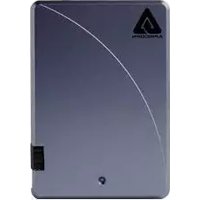
Aegis Vault 160GB - External hard drive Apricorn - Free user manual and instructions
Find the device manual for free Aegis Vault 160GB Apricorn in PDF.


| Product Type | External Hard Drive |
| Brand | Apricorn |
| Model | Aegis Vault 160GB |
| Storage Capacity | 160 GB |
| Interface | USB 3.0 (compatible with USB 2.0) |
| Drive Form Factor | 2.5-inch |
| Dimensions (L x W x H) | Approx. 130 x 80 x 18 mm |
| Weight | Approx. 200 g |
| Power Supply | USB bus powered (no external power adapter required) |
| Encryption | Hardware AES 256-bit encryption |
| Security Access | Physical PIN pad, 7-16 digit PIN |
| Compatible Operating Systems | Windows, macOS, Linux, Chrome OS, Android, iOS (via OTG) |
| Data Transfer Rate | Up to 5 Gbps (USB 3.0) |
| Maintenance | Clean with a soft, dry cloth; avoid solvents |
| Spare Parts / Repairability | No user-serviceable parts; sealed unit |
| Warranty | 3-year limited warranty |
| Included Accessories | USB 3.0 cable, quick start guide |
| Special Features | Hardware encryption, no software required, OS independent |
Frequently Asked Questions - Aegis Vault 160GB Apricorn
User questions about Aegis Vault 160GB Apricorn
0 question about this device. Answer the ones you know or ask your own.
Ask a new question about this device
Download the instructions for your External hard drive in PDF format for free! Find your manual Aegis Vault 160GB - Apricorn and take your electronic device back in hand. On this page are published all the documents necessary for the use of your device. Aegis Vault 160GB by Apricorn.
USER MANUAL Aegis Vault 160GB Apricorn
Copyright © Apricorn, Inc. 2007. All rights reserved.
Windows and MS-DOS are registered trademarks of Microsoft Corporation.
All other trademarks and copyrights referred to are the property of their respective owners.
Distribution of substantively modified versions of this document is prohibited without the explicit permission of the copyright holder.
Distribution of the work or derivative work in any standard (paper) book form for commercial purposes is prohibited unless prior permission is obtained from the copyright holder.
DOCUMENTATION IS PROVIDED AS IS AND ALL EXPRESS OR IMPLIED CONDITIONS, REPRESENTATIONS AND WARRANTIES, INCLUDING ANY IMPLIED WARRANTY OF MERCHANTABILITY, FITNESS FOR A PARTICULAR PURPOSE OR NON-INFRINGEMENT, ARE DISCLAIMED, EXCEPT TO THE EXTENT THAT SUCH DISCLAIMERS ARE HELD TO BE LEGALLY INVALID.
TABLE OF CONTENTS
- INTRODUCTION 4
B. SOFTWARE INCLUDED 4
- GETTING TO KNOW YOUR AEGIS VAULT 5
SYSTEM REQUIREMENTS 5
PACKAGE CONTENTS 5
-
SPECIFICATIONS 6
-
AEGIS VAULT SOFTWARE 7
TO START THE VAULT TRAY PROGRAM 7
Lock/ UNLOCK 7
FORMAT 8
To Format the Encrypted Partition 8
ADD USER PASSWORD 9
CHANGE PASSWORD 9
RESET VAULT 10
-
VAULT CONSOLE PROGRAM 10
-
VAULT RESIZE PROGRAM 11
PARTITION & FORMAT THE PUBLIC PARTITION 12
INITIALIZING NONENCRYPTED PARTITION 14
- ADMINISTRATOR TOOLS & PROCEDURES 19
ADDING VAULT CONSOLE PROGRAM TO PUBLIC PARTITION 19
USING VAULT RESET CONSOLE 20
- CONTACTING TECHNICAL SUPPORT 21
RMA POLICY 21
WARRANTY CONDITIONS 22
- FAQs 23
1. INTRODUCTION
Thank you for purchasing the Aegis Vault.
Please take the time to read this manual first to familiarize yourself with the Aegis Vault and the included software.
The Aegis Vault is the ultimate portable hard drive and secure storage system. Password protected and featuring AES-128 bit hardware encryption, the Aegis Vault provides seamless real-time encryption and keeps your data safe even if the hard drive is removed from its enclosure.
Bus powered and easy to use, the Vault's encrypted partition is accessed by entering an authenticated password. The Vault can be configured to support unencrypted public partitions for data sharing and encrypted private partitions controlled only by the drive administrator. No software installation is required on the host computer to access the encrypted partition, enabling you to access your data on any computer system.
Utilizing the advanced design of the Aegis product line, the Vault also includes a robust 16-point omni-directional shock mounting, and USB integrated cable. The Aegis Vault is the ideal hard drive to add additional capacity to your system. Perfect for storing photos, music and video files in addition to work documents.
Compatible with Windows PCs, the Aegis Vault's sleek, slim, self-powered design makes it the perfect traveling companion. Providing the ultimate in flexibility and security, the Vault gives you the option of storing your sensitive files in the encrypted partition of the drive and keeping your public files open for access.

The Leader in Personal Storage4
2. GETTING TO KNOW YOUR AEGIS VAULT
Minimum System Requirements
Hardware: Pentium CPU II
32MBs RAM
USB Port
CD ROM or CD-RW drive
Operating systems:
Microsoft: Windows XP and Vista
Package Contents
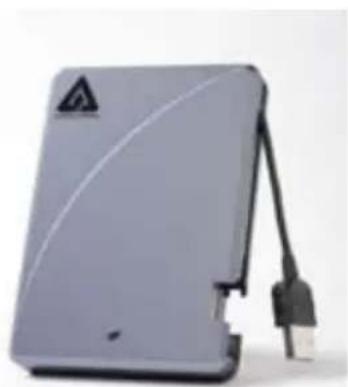
Aegis Vault Quick StaPaGolde travel pouch
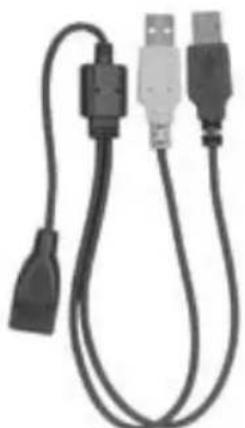
USB Y-cable
Aegis Vault Software CD

USB Y-cable: In the rare case that the Aegis Vault does not power up on a single USB connection, the included USB Y-cable may be required (Pictured above). Simply plug the two Y-cable USB connectors (black and grey connectors) into the two USB ports on your notebook, connect the Aegis Vault, and the Aegis Vault will power.
3. SPECIFICATIONS
| Encryption Benefits | |
| Real-time AES 128-Bit hard drive encryption | Encrypts your data real-time and keeps your data safe even if the hard drive is removed from the enclosure |
| Create unencrypted and encrypted partitions | Resize tool allows user to create public partitions for sharing data and resize public and private partitions as needed |
| Resets encrypted data fast Reset V | vault tool allows administrator to quickly reset the drive encryption for Aegis Vault redeployment |
| No software required to access encrypted data | Software not required to be installed on host to access encrypted partition |
| Features Benefits | |
| LED for visual indicator of locked & unlocked state | Red LED indicates Locked state Green LED indicates unlocked state |
| Ultra-portable design | Ideal to take between home and the office or on trips |
| Integrated cable Integrated USB 2.0 cable | |
| Bus Powered Bus powered from standard USB port | |
| Extensive Shock Mounting | Protects the drive with a 16-point omnidirectional shock mounting system |
| Specifications | |
| Data Transfer Rates USB 2.0 - Up to 480Mbps | |
| Power Supply | 100% bus powered |
| Interface Hi-Speed USB 2.0 | |
| Buffer Size 8MB | |
| RPM 5400 | |
| Average seek time 12 ms | |
| Shock - non operating 1000G 1ms | |
| Shock - operating 300G 2ms | |
4. AEGIS VAULT SOFTWARE
The Aegis Vault software installs two programs into the All Programs|Apricorn| Aegis Vault Software menu, the VaultTray and VaultResize. The VaultTray program allows the drive administrator to complete the initial setup and format of the hard drive, as well as create and manage additional user passwords. The VaultResize program allows the drive administrator to resize the private partition, as well as reset the encryption on the drive. A third program, the VaultConsole, can be used to gain access to the drive on a system that does not have the Aegis Vault software installed.
To start the VaultTray program:
Go to Start| All Programs| Apricorn| Aegis Vault Software and click on VaultTray. If the program is already running, click on the Aegis Vault icon in the system tray. During the installation process, VaultTray is configured to automatically start when Windows boots up. The VaultTray program has 5 buttons; Lock/Unlock, Format, Add User Password, Change Password and Reset Vault. These buttons may be active or inactive depending on the user level.
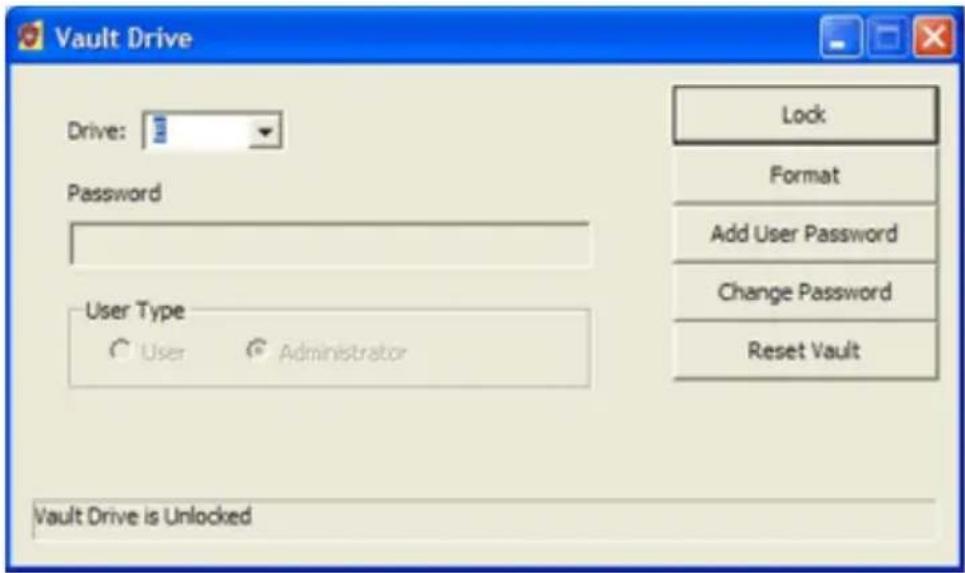
Lock/ Unlock: This button locks and unlocks the drive. The button title changes depending on drive state
When the Aegis Vault is in the locked state the button reads Unlock. The user or drive administrator need to check the appropriate radio button (User or Administrator) and enter a password to unlock the drive. In this state the message field at the bottom of the window will read: Vault Drive is Unlocked. Once the Aegis Vault is unlocked the encrypted data on the drive may be accessed.
When the Aegis Vault is in the unlocked state the button reads Lock. Pressing the button when it reads Lock will render the drive's encrypted contents inaccessible. In this state the message at the bottom of the main window will read: Vault Drive is Locked.
Format: The Aegis formatter utility is used to format the encrypted volume of an Aegis encrypted USB drive.
Caution: The Aegis Formatter will format the first Aegis encrypted USB drive it finds. Remove any other Aegis encrypted USB drive attached to the host system (Aegis Vault or Aegis Vault) before running the Aegis Formatter. Do not use this feature unless you intend to erase all the data on the encrypted drive.
To format the encrypted partition:
Click the Format button and the Aegis Formatter window pops up. The volume label is set to ENCRYPTED by default and may be changed to make the drive name more user friendly. Click Format button and a WARNING: Formatting will erase ALL data on this drive... message will appear. To format, click OK. To quit, click Cancel. This feature is only active when the drive is unlocked using the administrator password.
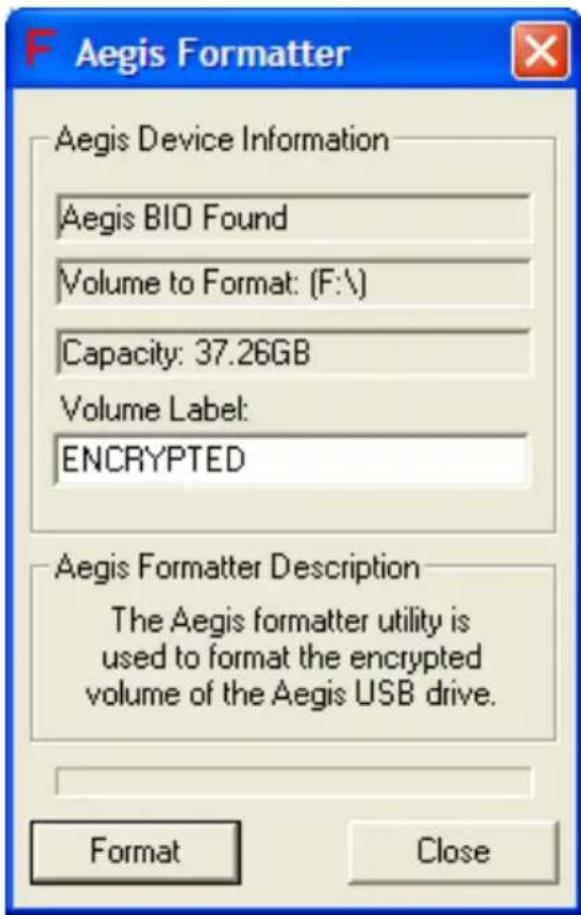
Note: Aegis Formatter by default will create a single encrypted FAT32 partition using all the available space. FAT32 is the only recommended formatting method for the encrypted partition.
Add User Password: This feature allows the drive administrator to create passwords for up to 3 additional users.
To add a new user password:
Click on the “Add New Password” button and a dialog box will appear. There are two fields; “New Password” and “Retype New Password.” Both fields must be completed to add a user password. This feature is only active when the drive is unlocked using the administrator password.
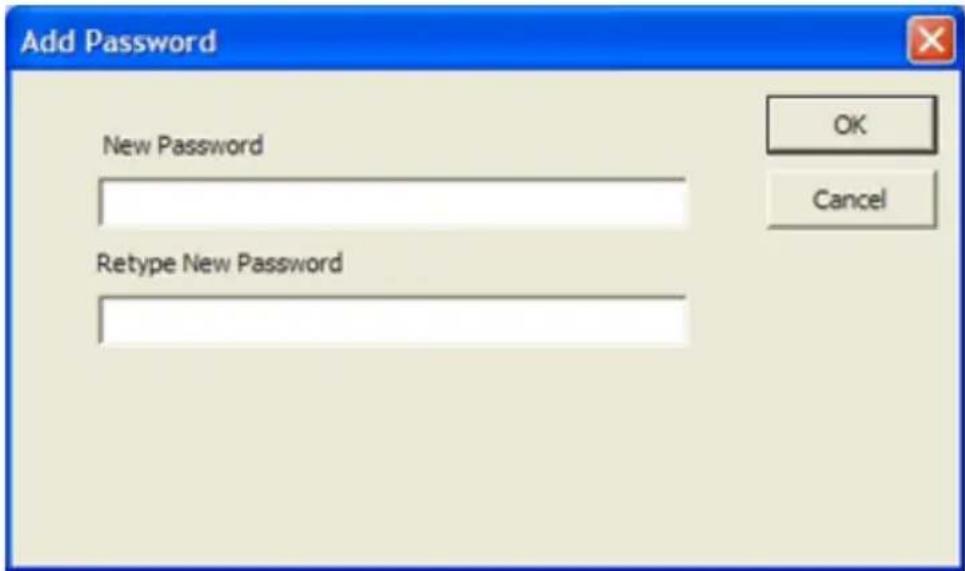
Note: There is only one drive administrator and a second drive administrator password cannot be added.
Change Password: This feature allows a user or the drive administrator to change the password they logged in with.
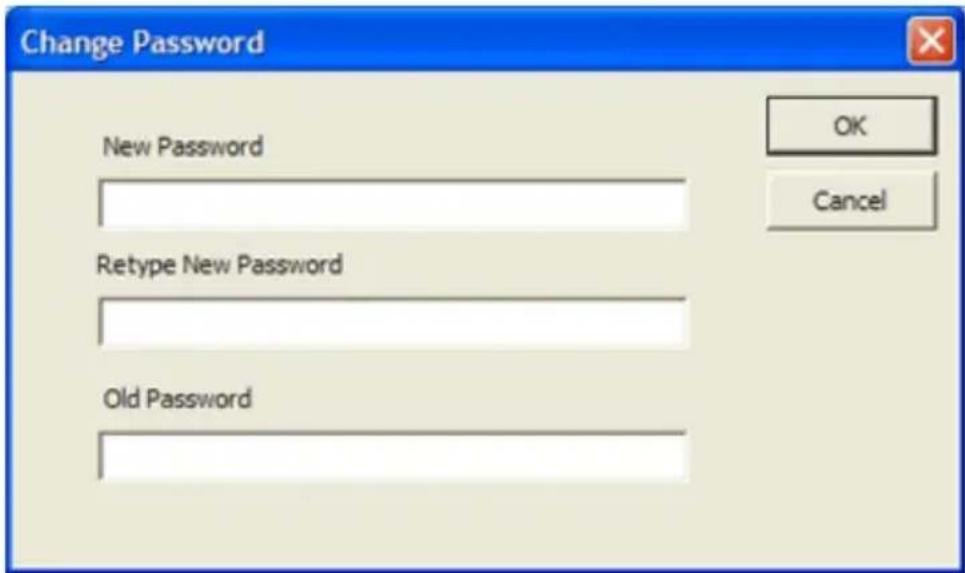
To change the password:
Click on the “Change Password” button and a dialog box will appear. There are three fields “New Password”, “Retype New Password” and “Old Password”. All three fields must be completed to change the password.
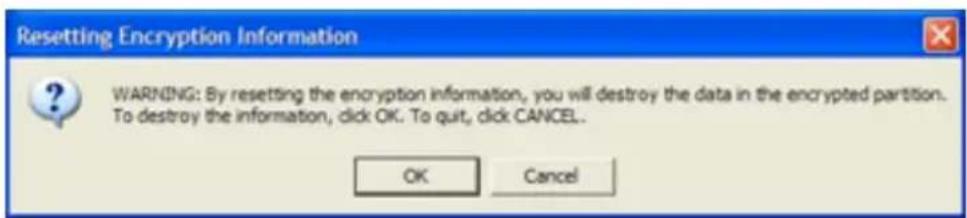
Reset Vault: This feature resets the Aegis Vault's encrypted partition. All the data and passwords associated with the encrypted partition will be irrevocably lost. This feature is only active when the drive is unlocked using the administrator password.
To reset the Vault:
Click on the Reset Vault button and a warning window will appear. Click OK to continue or Cancel to Quit and exit the program. Click Add Admin Password to add a new administrator password. Follow the Aegis Formatter instructions to format the drive.
5. VAULT CONSOLE PROGRAM
The VaultConsole is a stand alone program (located in the C:\Program Files\Apricorn\VaultDrive folder) that allows users and the drive administrator to unlock and lock the Aegis Vault on a system that does not have the Aegis Vault software installed. Simply run VaultConsole.exe on any PC to access your Aegis Vault.
The VaultConsole program has 2 buttons; Lock/Unlock and Rescan.
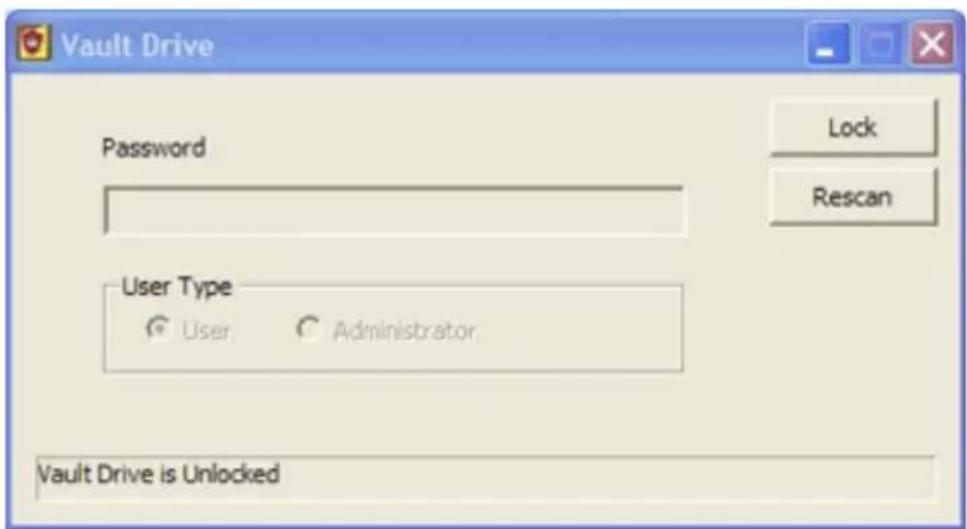
Lock/ Unlock: This button locks and unlocks the drive. The button title
The Leader in Personal Storage10
changes depending on drive state
When the Aegis Vault is in the locked state the button reads Unlock. The user or drive administrator needs to check the appropriate radio button (User or Administrator) and enter a password to unlock the drive. In this state the message field at the bottom of the window will read: Vault Drive is Unlocked. Once the Aegis Vault is unlocked the encrypted data on the drive may be accessed.
When the Aegis Vault is in the unlocked state the button reads Lock. Pressing the button when it reads Lock will render the drive's encrypted contents inaccessible. In this state the message at the bottom of the main window will read: Vault Drive is Locked.
Note: Closing the Vault Program or Exiting the Vault Tray DOES NOT LOCK THE DRIVE. Removing the drive or using the Lock button are the only two ways to lock the drive.
Rescan: Will scan your computer to detect the presence of an Aegis Vault.
If you start the VaultConsole program without the drive attached click the "Rescan" button to locate the Aegis Vault and then choose user or administrator and enter the password to unlock the Aegis Vault.
6. VAULTRESIZE PROGRAM
To start the VaultResize program, go to:
Start| All Programs| Apricorn| Aegis Vault Software and click on VaultResize.

Note: If you try to run the VaultResize program when VaultTray is running, you will receive the following error: Another instance of Vault Software is running. Program will now exit. The VaultTray icon in the system tray indicates the program is running. To exit the VaultTray program right click on the VaultTray icon and select Exit.
First, use the VaultResize program to scan for the Aegis Vault by clicking on the “Scan Bus” button. During the scan, the Aegis Vault is ejected and reinitialized as the program tries to get exclusive access to the drive.
Note: It may be necessary to remove other USB hard drives before running Scan Bus, to prevent them from interfering with the scan.
When the Scan Bus is successfully completed, it shows Drive Detected in the upper left-hand portion of the screen. Use the slide bar, to choose the percentage of the Aegis Vault's encrypted partition. Click on the Resize button to repartition the Aegis Vault. The balance of the hard drive can be used to create a second partition that is not encrypted.
Warning: Performing this operation will render any data on the drive inaccessible. Make sure you backup any important data before resizing the private partition.
Once completed, use Windows Disk Management to partition and format the public partition on the drive. To complete formatting of the Aegis Vault's encrypted partition, use the Format button in the VaultTray program as described above.
Partition and format the public partition.
Using Disk Management to prepare the public partition:
- Go to Start| Settings| Control Panel.
- From the Classic View in the Control Panel window, double-click Administrative Tools.

The Leader in Personal Storage12
- Once in Administrative Tools, double-click on Computer Management.
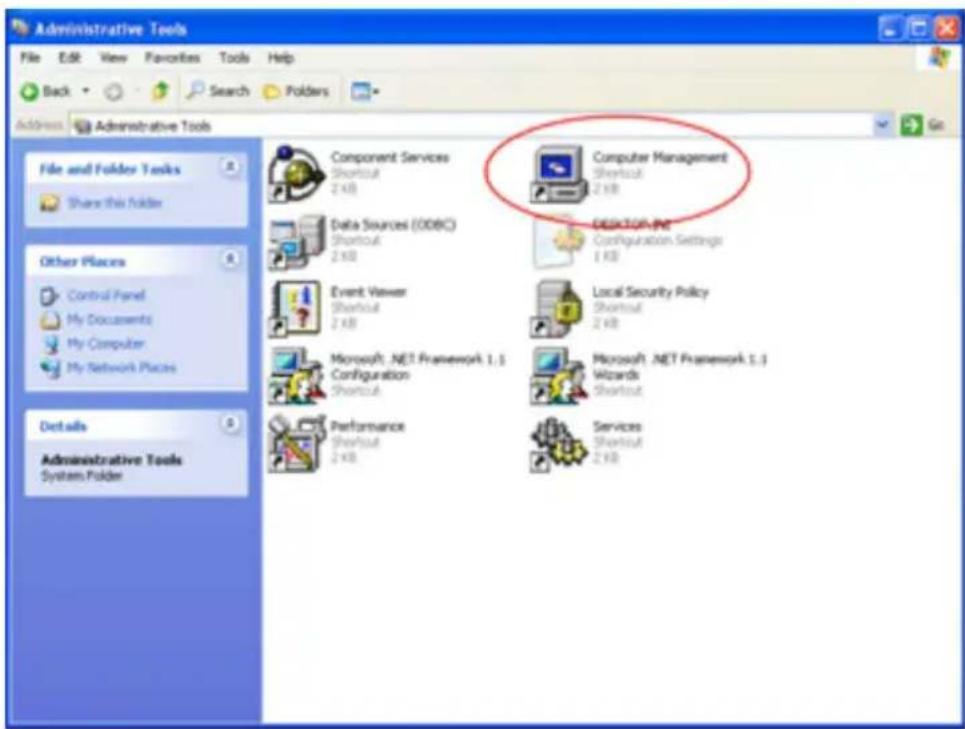
- In Computer Management, find Disk Management under the Storage section. Double-click on Disk Management. If the disk is not initialized, follow the instructions on Windows XP "Initialize and Convert disk wizard" to initialize the new non-encrypted partition. If the wizard does not appear, follow the remaining instructions. If the drive is already initialized skip to Partitioning and Formatting the Non-encrypted Partition.

Initializing the Non-encrypted partition using Disk Management
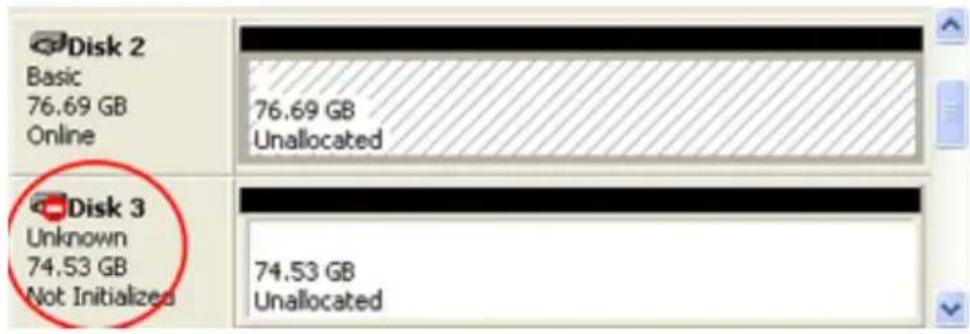
- Identify the new drive in Disk Management, the drive will show up as Unknown and Unallocated with a Red No Entry Sign/Not Initialized on the disk number.
-
Right click on the section to the left where the drive number and red no entry sign are located. Select Initialize Disk.
-
Select Basic Storage as the type of disk storage.
Partitioning and Formatting the Non-encrypted partition
- Right-click the unallocated region of the basic disk and select New Partition.
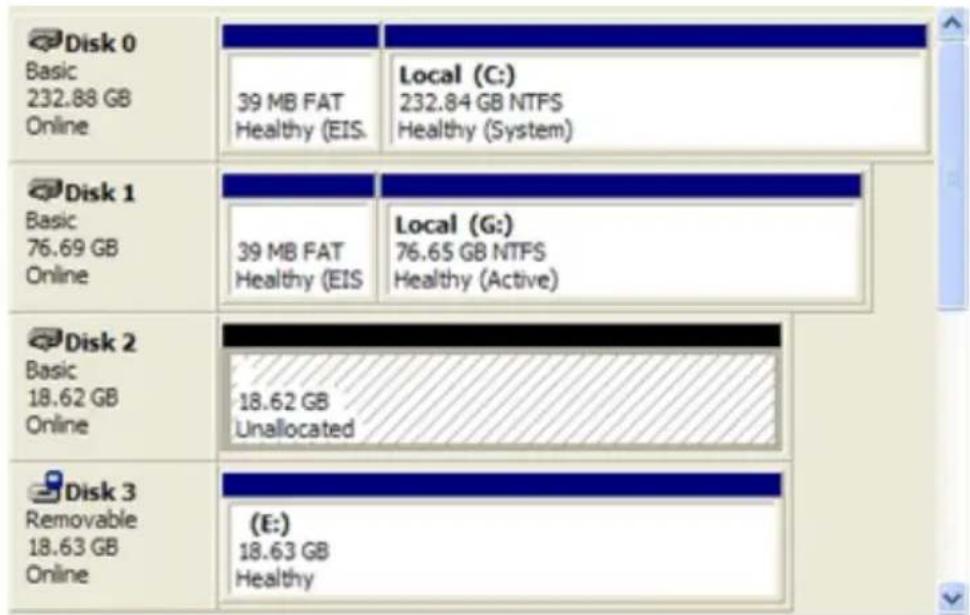
- A Partition Wizard will initiate. Click Next.

- Select Primary partition and click Next.

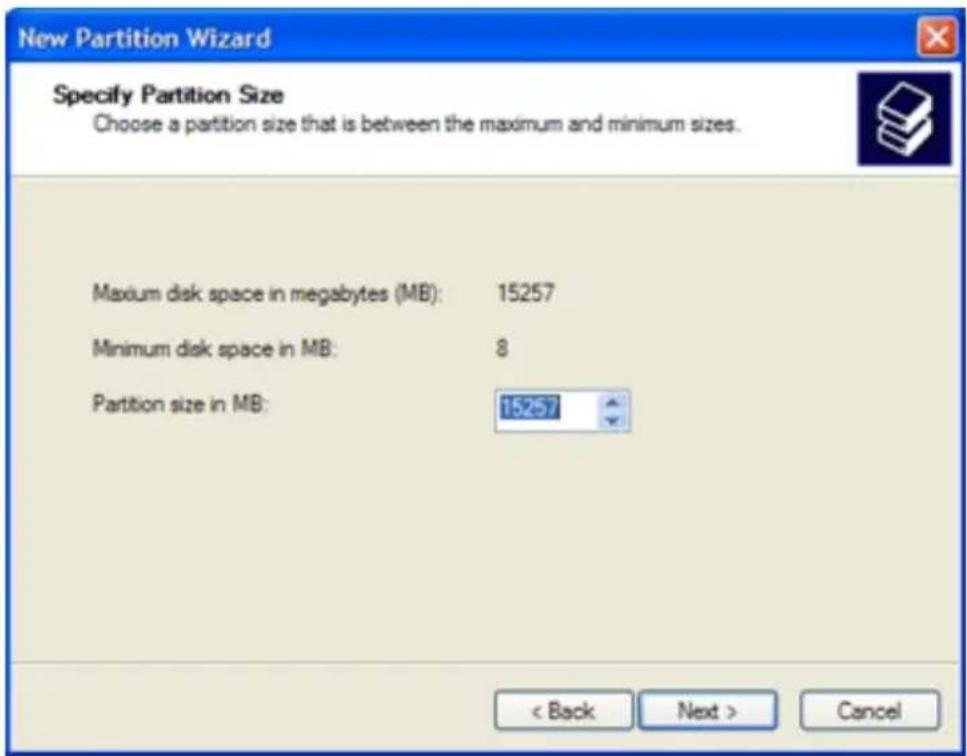
- You will then need to decide on a partition size. Enter a partition size in the box provided. Click Next.
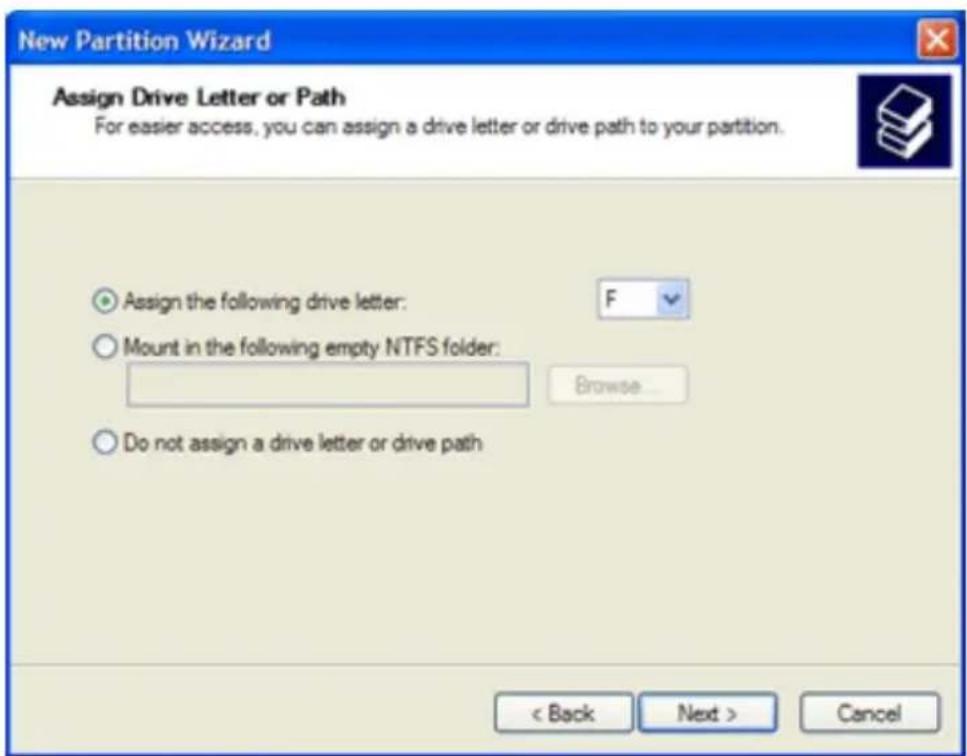
- Select Assign the following drive letter. Fill in the drive letter. Be sure to select a drive letter that is not in use. Click Next.
- "Format this partition with the following settings" is selected by default.

File System: Choose NTFS or FAT32.
Allocation unit size: Accept the default size
Volume Label: Choose a name that is meaningful to you.
Perform a Quick Format: Recommended Enabling Perform a Quick Format reduces the format time significantly.
Enable file and folder compression: Optional
Selecting this feature gives you the option to use file and folder compression feature available to the NTFS files system.
- Click Next.

- Verify the settings you have chosen and click "Finish" to start the formatting. Formatting time may vary depending on the size of the partition and the file system.
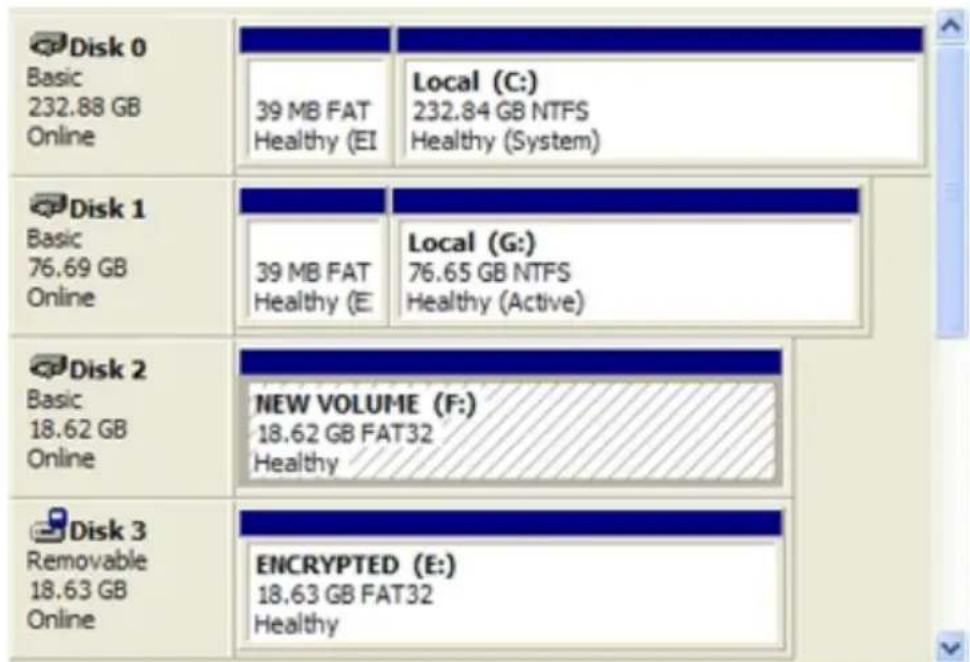
When completed, the new volume will show "Healthy" and have a solid blue bar at the top of the drive properties box.
6. ADMINISTRATOR TOOLS & PROCEDURES
Adding VaultConsole Program to a Public Partition
The VaultConsole is a stand alone program that allows users and the drive administrator to unlock and lock the Aegis Vault on a system that does not have the Aegis Vault software installed. The VaulConsole is available from the menu on the Aegis Vault software CD. Alternately, you may want to add the VaultConsole program to a public partition on the Aegis Vault. Public partitions are not encrypted and will be accessible on most computers with a USB port. With the VaultConsole program on a public partition, you will always have access to the Aegis Vault without having to carry the Aegis Vault Software CD.
The first step is to create a public partition and an encrypted partition with the VaultResize program. You will find detailed instructions to resize and format the partitions in section 6. VaultResize Program on page 11. Once the public partition is created on the Aegis Vault go to: C:\Program Files\ Apricorn\ VaultDrive folder and copy VaultConsole.exe to the new public partition on the Aegis Vault. To access the encrypted data on a computer that does not have the Aegis Vault software installed, simply connect the Aegis Vault to any computer and open the public partition then click on the VaultConsole.exe file, enter your password to access the encrypted portion of the drive.
Using the VaultResetConsole.exe
The AegisResetConsole.exe program does not show up on any menus and is only available as an executable program from the CD. The VaultResetConsole.exe program will completely destroy all of the data from the Aegis Vault with no possibility of recovery. Extreme caution should be used when running this program.
To use the VaultResetConsole.exe, go to the Vault drive folder on the Aegis Vault software CD and double click it. You will see the following WARNINGS:
WARNING: By resetting the encryption information you will destroy the data in the encrypted partition. Press 'Y' to reset Drive E: or any other key to Exit
Are you sure?
Again, resetting the encryption information will destroy the data in the encrypted partition. Press 'Y' to reset Drive E: or any other key to Exit
The Vault Drive was reset successfully Press any key to exit program
7. CONTACTING TECHNICAL SUPPORT
Apricorn provides the following helpful resources for you:
- Hardware Installation Section of the User's Guide.
- Apricorn's Website (http://www.apricorn.com) This gives you the ability to check for up-to-date information.
- Email us at support@apricorn.com.
- Or call the Technical Support Department at 1-800-458-5448.
Apricorn's Technical Support Specialists are available from 8:00 a.m. to 5:00 p.m., Pacific Time from Monday through Friday.
8. RMA POLICY
An RMA (Return Merchandise Authorization) tracking number must be issued by Apricorn. If you need to return or replace your Apricorn product, Apricorn requires that you perform the following steps:
- Simply call Apricorn's technical support department with your Apricorn product part number and a description of the problem(s) you are experiencing.
- If the Apricorn representative finds cause for a return, they will issue an RMA number. Please write this number down.
- Fill out an RMA authorization form with your package. The RMA form is available on-line at http://www.apricorn.com/support/rma.php.
- Please send the prepaid package to the following address, make sure the RMA# is written on the exterior of the package:
Apricorn
RMA#:
12191 Kirkham Road
Poway, CA 92064
The purchaser shall be responsible for any loss or damage to the returned product until it is received by Apricorn. Purchaser should consider obtaining insurance with respect to shipping the product.
WARRANTY CONDITONS
Three-Year Warranty:
Apricorn offers a 3-year warranty on the Aegis Vault against defects in materials and workmanship under normal use. The warranty period is effective from the date of purchase either directly from Apricorn or an authorized reseller.
Disclaimer and terms of the warranties:
THE WARRANTY BECOMES EFFECTIVE ON THE DATE OF PURCHASE AND MUST BE VERIFIED WITH YOUR SALES RECEIPT OR INVOICE DISPLAYING THE DATE OF PRODUCT PURCHASE.
APRICORN WILL, AT NO ADDITIONAL CHARGE, REPAIR OR REPLACE DEFECTIVE PARTS WITH NEW PARTS OR SERVICEABLE USED PARTS THAT ARE EQUIVALENT TO NEW IN PERFORMANCE. ALL EXCHANGED PARTS AND PRODUCTS REPLACED UNDER THIS WARRANTY WILL BECOME THE PROPERTY OF APRICORN.
THIS WARRANTY DOES NOT EXTEND TO ANY PRODUCT NOT PURCHASED DIRECTLY FROM APRICORN OR TO ANY PRODUCT THAT HAS BEEN DAMAGED OR RENDERED DEFECTIVE: 1. AS A RESULT OF ACCIDENT, MISUSE, NEGLECT, ABUSE OR FAILURE AND/OR INABILITY TO FOLLOW THE WRITTEN INSTRUCTIONS PROVIDED IN THIS INSTRUCTION GUIDE: 2. BY THE USE OF PARTS NOT MANUFACTURED OR SOLD BY APRICORN; 3. BY MODIFICATION OF THE PRODUCT; OR 4. AS A RESULT OF SERVICE, ALTERATION OR REPAIR BY ANYONE OTHER THAN APRICORN AND SHALL BE VOID. THIS WARRANTY DOES NOT COVER NORMAL WEAR AND TEAR.
NO OTHER WARRANTY, EITHER EXPRESS OR IMPLIED, INCLUDING ANY WARRANTY OR MERCHANTABILITY AND FITNESS FOR A PARTICULAR PURPOSE, HAS BEEN OR WILL BE MADE BY OR ON BEHALF OF APRICORN OR BY OPERATION OF LAW WITH RESPECT TO THE PRODUCT OR ITS INSTALLATION, USE, OPERATION, REPLACEMENT OR REPAIR.
APRICORN SHALL NOT BE LIABLE BY VIRTUE OF THIS WARRANTY, OR OTHERWISE, FOR ANY INCIDENTAL, SPECIAL OR CONSEQUENTIAL DAMAGE INCLUDING ANY LOSS OF DATA RESULTING FROM THE USE OR OPERATION OF THE PRODUCT, WHETHER OR NOT APRICORN WAS APPRISED OF THE POSSIBILITY OF SUCH DAMAGES.
FAQ's
Why am I getting an Error Code with passwords?
The password error codes can be confusing because the same code is used for two completely different reasons.
You will receive the following error if you enter the wrong password (or enter a correct password but with the wrong radio button chosen.) "The Vault Drive returned an error “Bad Data” please ensure you enter your password correctly." Once you choose the correct password or radio button and click on the Unlock button again, the drive will unlock.
You will receive the same error if you exceed 3 user passwords. When you add the 4th password you will receive the same error message.
What does the LED light indicate?
The LED light acts as a visual indicator to show when the Aegis Vault is locked or unlocked.
When the red LED light is glowing, it indicates the Aegis Vault is locked. When the Green LED light is glowing it indicates the Aegis Vault is unlocked.

APRICORN
12191 KIRKHAM ROAD POWAY, CA, U.S.A. 92064 1-858-513-2000
- TABLE OF CONTENTS
- INTRODUCTION
- GETTING TO KNOW YOUR AEGIS VAULT
- MINIMUM SYSTEM REQUIREMENTS
- PACKAGE CONTENTS
- SPECIFICATIONS
- AEGIS VAULT SOFTWARE
- TO START THE VAULTTRAY PROGRAM
- TO FORMAT THE ENCRYPTED PARTITION
- TO ADD A NEW USER PASSWORD
- TO CHANGE THE PASSWORD
- TO RESET THE VAULT
- VAULT CONSOLE PROGRAM
- VAULTRESIZE PROGRAM
- WARNING: PERFORMING THIS OPERATION WILL RENDER ANY DATA ON THE DRIVE INACCESSIBLE. MAKE SURE YOU BACKUP ANY IMPORTANT DATA BEFORE RESIZING THE PRIVATE PARTITION
- PARTITION AND FORMAT THE PUBLIC PARTITION
- INITIALIZING THE NON-ENCRYPTED PARTITION USING DISK MANAGEMENT
- PARTITIONING AND FORMATTING THE NON-ENCRYPTED PARTITION
- ADMINISTRATOR TOOLS & PROCEDURES
- ADDING VAULTCONSOLE PROGRAM TO A PUBLIC PARTITION
- USING THE VAULTRESETCONSOLE.EXE
- CONTACTING TECHNICAL SUPPORT
- RMA POLICY
- WARRANTY CONDITONS
- THREE-YEAR WARRANTY
- DISCLAIMER AND TERMS OF THE WARRANTIES
- FAQ'S
- WHY AM I GETTING AN ERROR CODE WITH PASSWORDS
- WHAT DOES THE LED LIGHT INDICATE
Brand : Apricorn
Model : Aegis Vault 160GB
Category : External hard drive