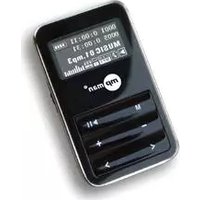
MPF405 - Mp3 player MPMAN - Free user manual and instructions
Find the device manual for free MPF405 MPMAN in PDF.


| Brand | Mpman |
| Model | MPF405 |
| Product Type | MP3 Player |
| Supported Audio Formats | MP3, WMA, WAV |
| Signal-to-Noise Ratio (SNR) | >95 dB |
| Output Power | 5mW + 5mW (32Ω) |
| Frequency Response | 20Hz – 20kHz |
| Supported Bit Rates | 65 – 320 kbps |
| USB Connector | USB 2.0 |
| Recording Format | WAV |
| Playback Modes | Normal, Repeat One, Repeat All, Random, Intro, Folder, Repeat Folder |
| Equalizer Presets | Natural, DBB, Jazz, Rock, Pop, Classic, Mop |
| Power Supply | Rechargeable battery (first charge 12h, subsequent ~4h) |
| Charging Method | Via included adapter or USB (not recommended for long periods) |
| Recording Function | Built-in microphone, saves as WAV |
| Text Support | TXT format |
| Telebook Function | Import/export contacts via PC tool |
| Display | Screen with icons and text (backlight adjustable) |
| System Languages | English, German, French, Italian, Spanish, Dutch |
| Accessories Included | USB cable, adapter, CD with software (MPMANAGER) |
| Maintenance | Keep away from water and high temperature; do not disassemble |
| Safety Notes | Charge with supplied adapter only; avoid forced disconnection during data transfer |
Frequently Asked Questions - MPF405 MPMAN
User questions about MPF405 MPMAN
0 question about this device. Answer the ones you know or ask your own.
Ask a new question about this device
Download the instructions for your Mp3 player in PDF format for free! Find your manual MPF405 - MPMAN and take your electronic device back in hand. On this page are published all the documents necessary for the use of your device. MPF405 by MPMAN.
USER MANUAL MPF405 MPMAN
Charge for the player----5
Format player----5
Connect to PC----6
Key sketch map----7
Screen display----8
Music mode----9
Music mode----10
Record mode----11
Voice mode----12
Setup----13
Setup----14
Tele book----15
Text----16
Conversion----17
Character and parameter
SNR: >95dB
Output power: 5mW +5mW(32OHM)
Frequency response: 20Hz\~20KHz
Support compacted rate:65Kbps\~320Kbps
USB connector: 2.0
Recording format: WAV
Music format: MP3, WAV
Precaution
Please check for missing accessories.
The player is without waterproof function, so please don't place player
near water source environment. or in the condition of high temperature
place, And don't put liquid bottles on the player or put the player on a heat object.
Unexpected disconnection during formatting, downloading or uploading
process may cause data loss or damage the player.(Our company don't
have an duty on you data of player. we suggest you have a copy on other
memory machine if there is important file.)
If there is any matter with the player, please send to our service center
to repair. Don't disassemble by yourself, avoid damaging by human.
Charge for the player
Please charge player with the adapter which comes with this player. The charger with not standard voltage is forbidden to use with the player.
For the quality of the battery, when charging for the first time, please charge it after battery has been exhausted.(12 hours for the first charge time will be better) After the first charge, it will only take 4 hours to charge it full.
When the player is connected to computer through USB cable, it will be charged automatically. But we don't suggest charge in that way for long time.
Format the player
Please select "FAT" to format the player.
When the player is under formalization or transmitting files, removed directly is prohibitive.
Connect to PC
Use USB cable to connect to computer. After connected correctly, the screen will display connecting icon. At this time, you could download or upload data files and music from the computer
Don't take off the USB cable when your player connecting with computer
and transmitting data. When removing the player from the computer, please click the "Safety Remove
Hardware" sign. When the menu appears and the player show “remove safely”, then you could remove it.
Key sketch map
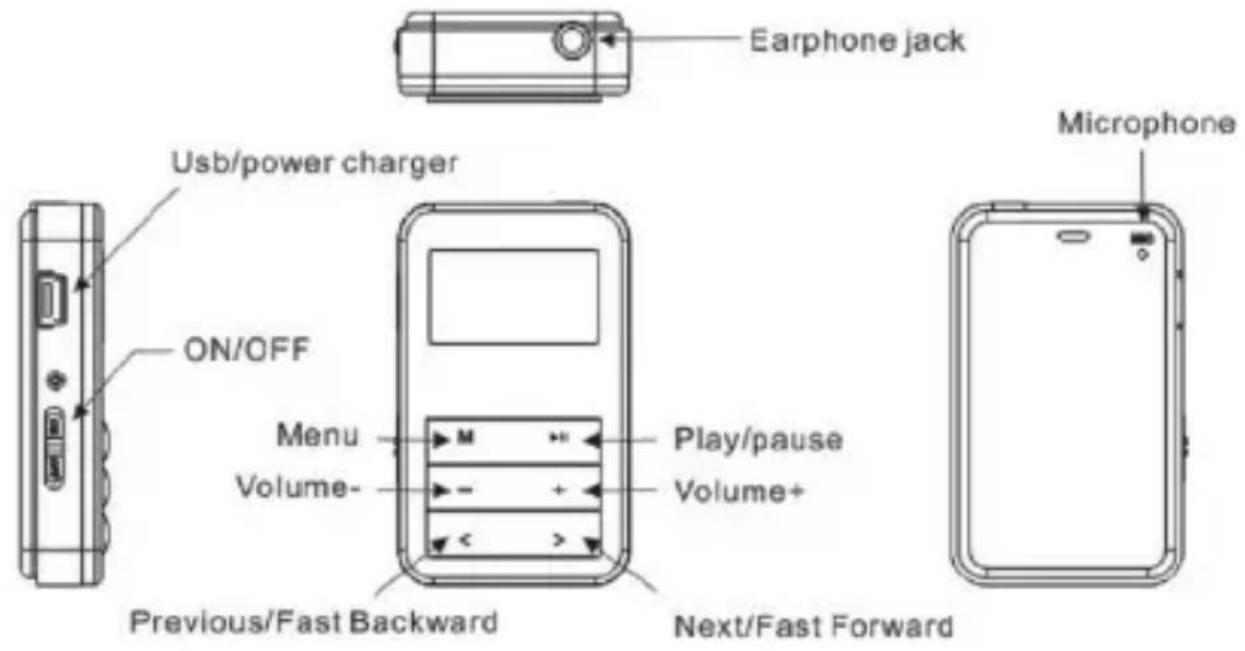
The functions of each key:
</> Press < to play the previous music file and > to play the next music file, or press and hold < to fast backward and > to fast forward play.
+/- To adjust volume when playing state
M Choose confirm, perss and hold to go back to previous menu
Make sure the ON/OFF switch is in ON position, press and hold button to boot up the player. Press and hold the button to poweroff the player. Then push the ON/OFF switch to OFF position.
Screen display
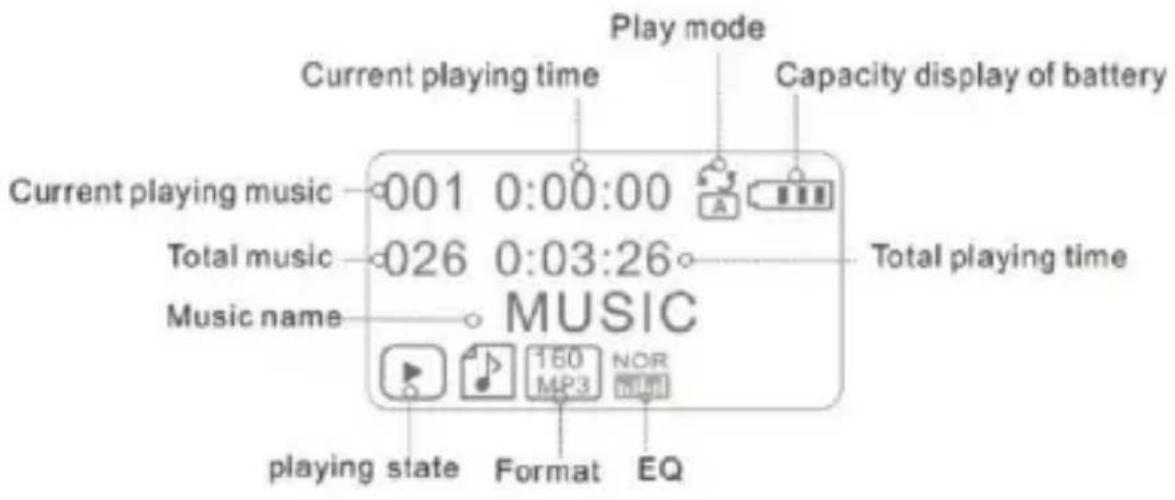
Play mode
| Normal | |
| Repeat one | |
| Repeat all | |
| Random | |
| Intro | |
| Folder | |
| Repeat folder |
EQ
| NOR | Natural |
| DBB | Dbb |
| JAZZ | Jazz |
| ROCR | Rock |
| POP | Pop |
| CLAS | Classic |
| MOP | Mop |
Music mode
The player supports MP3/WMA format and wav file.
After booting up, press <//> to select Music, press M to enter into music playback interface, press ▶button to start playing music, press button again to pause the music, press and hold ▶button to stop.
Press < to play the previous music file and > to play the next music file.
Press and hold < button to fastbackward and > to fast forward play.
Press + to increase the volume and – to decrease the volume.
In the state of music play, press M to enter to play menu, setup in play menu: repeat/equalizer/replay/exit. In the state of pause music play, press M enter to stop menu: local folder/delete file/detele all/exit. Press and hold M to enter to main menu.
A-B repeat
On the state of playing, press M enter into menu, press M to choose(repeat mode). Press> button to
set up the start point, then screen display A-, press >once again to set up the end point when displaying icon, it will repeat playing from A to B when screen is displaying A-B On the state of repeat, press M to go back to repeat state.
Record mode
Choose record mode in main menu, press M to enter to state of prepare recording
Press the ▶ button to start recording, press it again to pause, press and hold it to stop and save the recording file, press and hold M button to exit, or press and hold M button while recording or pause to save the recording file and exit to main menu.
Saved recording file can play from Voice mode.
Voice Mode
Select Voice menu and press M button to enter. Press ▶ button to start playing sound files, press ▶ button again to pause, press and hold ▶ button to stop.
Press < to play the previous file and > to play the next file.
Press + to increase the volume and – to decrease the volume.
Press M to enter to playing menu in the state of playing, it can be setup in playing menu: repeat mode/exit, short press M in the state of stop playing and enter to stop menu: root/delete file/delete all/exit, press and hold M to enter to menu mode.
System setup
Choose system setup, press M to enter to system setup interface.
you can setup parameter of the player in system setup menu
Time settings
Backlight
Language
Power off
Contrast
Start logo
Power off logo
Memory info.
Default
F/W version
Exit
Time settings: Display/Set system time.
Backlight: light on and user adjust is optional.
Language: English, German, French, Italian,
Spanish, Dutch optional.
Power off : Off time and sleep time are optional
Contrast: : Brightness can be adjusted
Start logo: There are two kinds of start logo for your choice
Power off logo: There are two kinds of start logo for your choice
Memory info: Check the capacity of player.
Default: It can be renewed to default procedure
F/W version: Check version of the player.
Exit: Return to main menu.
Tele book
Choose Tele Book, press M to enter to telebook interface.
In the telebook interface: browse tel/import tel/export tel/exit
Browse tel: check the telebook file which browsed to player, include name, e-mail, telephone, QQ, phone and fax information, etc. (it can enter to this function only has telebook file browsed in. System will note: no file, press and hold M to exit when it can not read any telefile.)
Import tel: use this function to browse telebook from computer to player. (There is “Telbook-Ch”tool in the CD, it can edit telebook.)
Export tel: use this function to export telebook from player and create to file. User can edit it on computer using tool.
Text
After choosingText menu, press M to enter to text interface.
Player supports TXT format.
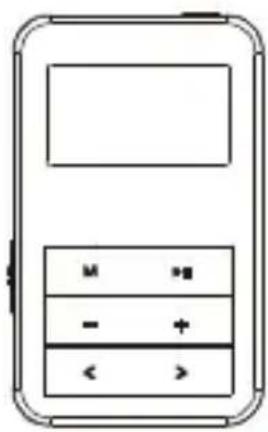
M Prees and hold M to return to menu interface/ short press M to confirm
< Previous page/upwards
Next page/downwards
Conversion
For music conversion, please use MPMANAGER software supplied in the CD ROM.
This software can be used also for UPDATE of your player
MPMANAGER manual is included in your CDROM
For more information please check our website
www.mpmaneurope.com
CE



Brand : MPMAN
Model : MPF405
Category : Mp3 player