
RVCGM-80M - Dashboard camera CRUX - Free user manual and instructions
Find the device manual for free RVCGM-80M CRUX in PDF.


| Product Type | Dashboard Camera Interface Module |
| Brand | CRUX |
| Model | RVCGM-80M |
| Compatible Vehicles | Buick LaCrosse (2012-2015), Verano (2013-2015); Chevrolet Camaro, Cruze, Equinox, Malibu, Volt (2013-2015) |
| Compatible OEM Systems | 7" MyLink Systems |
| Camera Inputs | Front and Rear (composite video) |
| Automatic Camera Switching | Rear camera activates in Reverse gear; Front camera activates when shifting from Reverse to Drive |
| Front Camera Delay OFF | Programmable from 1 to 60 seconds via OSD menu |
| Trigger Methods | CAN bus communication or manual +12V trigger wires |
| Power Supply | +12V ACC (Red wire), Ground (Black wire) |
| Included Components | RVCGM-80M Module, T-Harness, LVDS Cable, GVIF Video Cables, LVDS Video Extension Board, OSD Control Pad |
| OSD Menu | On-Screen Display for settings configuration; requires OSD Control Pad connection |
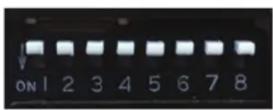
| DIP Switch Settings | All switches must be OFF (Up) for proper operation |
| Dimensions (Module) | Approximately 3.5 x 2.5 x 1 inches (89 x 64 x 25 mm) |
| Weight | Approximately 200 g (with harness) |
| Operating Temperature | -20°C to 70°C (-4°F to 158°F) |
| Maintenance | Keep connectors clean and free of moisture; periodically check wiring for damage |
| Safety | Install away from airbag deployment zones; secure all wiring to avoid interference |
Frequently Asked Questions - RVCGM-80M CRUX
User questions about RVCGM-80M CRUX
0 question about this device. Answer the ones you know or ask your own.
Ask a new question about this device
Download the instructions for your Dashboard camera in PDF format for free! Find your manual RVCGM-80M - CRUX and take your electronic device back in hand. On this page are published all the documents necessary for the use of your device. RVCGM-80M by CRUX.
USER MANUAL RVCGM-80M CRUX
- Adds front and rear camera inputs.
- Front camera automatically shows on the screen after changing the gear from reverse to drive.
- Programmable front camera delay OFF time using the OSD menu.
PARTS INCLUDED:

RVCGM-80M Module RVCGM-80M T-Harness LVDS Cable



GVIF Video Cables LVDS Video Extension Board OSD Control Pad
WIRING DIAGRAM:

*Use these wires if not using CAN Trigger.
Green wire = Connect to Reverse Light +12V
Blue wire = Connect to +12V using a toggle switch
^See Note below regarding wire color
CAN WIRE CONNECTION:
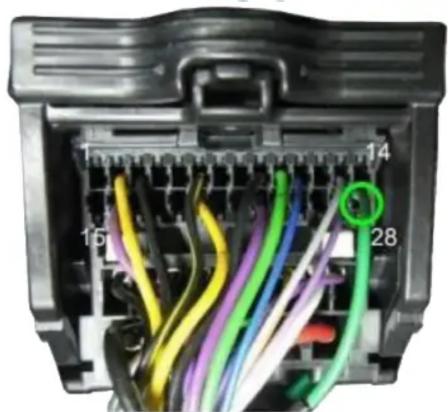
The RVCGM-80M detects the CAN communications in the vehicle. Tap the WHITE wire^ (Pin# 2) on the RVCGM-80M power harness to the GREEN wire (PIN# 28) on the 44 pin OEM connector behind the headunit. Reverse gear engagement is automatically detected and will power on the rear camera. The front camera will power on when the gear is put to Drive. The delay OFF of the front camera can be set in the OSD menu. Time delay OFF can be set from 1 to 60 seconds.
If for some reason the CAN connection cannot detect the reverse gear communication, connect the GREEN wire on the RVCGM-80M power harness (Rear Camera Manual Trigger) to the reverse light wire +12V. Do not connect the WHITE wire to the GM CAN line.
The Front camera also be also been manually triggered by connecting the BLUE wire (Front Camera Manual Trigger) to +12V.
^NOTE: Older generation RVCGM-80M may have a different colored wire on PIN #2. See diagram on the right for the wire location on the 30 pin power harness connector. (Wire view)
GREEN wire Single CAN wire PIN# 28

DIP SWITCH SETTINGS:
Set all DIP switches to OFF (Up).
ON SCREEN DISPLAY (OSD) SETTINGS:
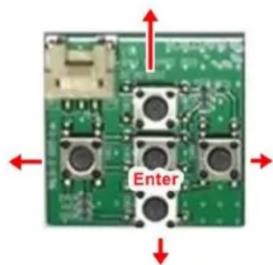
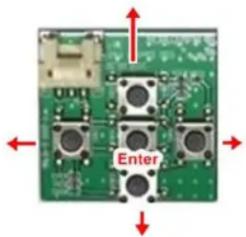
The OSD Setting Screen automatically pops up when the OSD Control Pad is connected.

OSD Control Pad
Use the OSD menu to make the necessary settings. Remember to Run Save&Reboot after the settings are made. Unplug the OSD Control Pad after setting the cameras and keep it in a secure location in case it is needed to change the settings.
REAR CAMERA SETTING
![[OSD setting ] (1/1) Rear Camera ON Front CameraOFF LVDS Input ON Input Exten OFF 12V Output Constant Advance SET > Save&Reboot Run](/content/2026/06/1151092/images/37597a8f6480cb57ee9483bbe4b21435a564a818c30d995b4e9521150535e8f7.jpg)
![< [Rear Camera ] (1/1) Rear Mode REAR →](/content/2026/06/1151092/images/2fefc609abace54c2050923fb1e23bb8381d157b6a849835dfbc2b615cb51529.jpg)
![[Rear Mode] (1/1) Rear Input OEM →](/content/2026/06/1151092/images/e5dca78cdd47900c9ec6764b1dd5eda59ec19ba8197b7e9e341e37859581b707.jpg)
![< [Rear Mode ] (1/1) Rear Input Aftermarket OEM When installing Aftermarket Rear View Camera When the car is equipped with OEM Rear View Camera](/content/2026/06/1151092/images/85ce0a18b2d425e09fb5c875336bef2bac03697445db0f907396121c52c0e053.jpg)
![[OSD setting ] (1/1) Rear Camera ON Front CameraOFF LVDS Input ON Input Exten OFF 12V Output Constant Advance SET > Save&Reboot Run To Save Changes, must press this button at the end](/content/2026/06/1151092/images/39ce5f5325ffec80780b00e12355db584dcb8cc071c8c03e11393409b51da23d.jpg)
FRONT CAMERA SETTING
![[OSD setting] (1/1) Rear Camera ON Front CameraON LVDS Input ON Input Exten OFF 12V Output Constant Advance SET > Save&Reboot Run](/content/2026/06/1151092/images/6661a2430855eaddea2834ad672465d7588cc5385513aafe681b1de1aeef7c6b.jpg)
![[Front Camera] (1/1) Front Mode FRONT SIDE CAM](/content/2026/06/1151092/images/de73960198ae0ac9df080c055b12b1fd58b0d9d034c2994639f1e26123a05b9c.jpg)
![< [Front Camera] (1/1) Front Mode FRONT](/content/2026/06/1151092/images/e5dc0f7a40d1c6088028a26d00744319d4ea69370e24bfeaf721e82055d702a2.jpg)
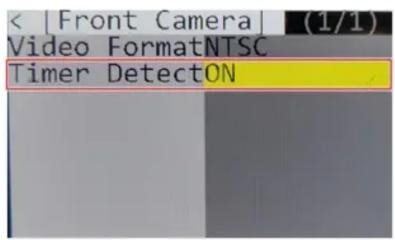
![< [Front Camera] (1/1) Video FormatNTSC Timer DetectOFF To Turn ON Automatic Front Camera Switching after Reverse Gear to P, N, D](/content/2026/06/1151092/images/66c9acf1d0acfe2c9c8a38f2dd39ac0a1b0ec7555ae43007f9d1bb71b387c87d.jpg)

![[OSD setting ] (1/1) Rear Camera ON Front Camera OFF LVDS Input ON Input Exten OFF 12V Output Constant Advance SET > Save&Reboot Run To Save Changes, must press this button at the end.](/content/2026/06/1151092/images/227171a2d3f2e84ac2f892e35cf7b5266690813bd5025cce49eed0f9efe9fe10.jpg)
The front Camera will automatically show on the screen when the gear is put to Drive from Reverse. Delay OFF time can be set from 1 to 60 seconds after a putting the car to drive from reverse. See setting image above.
VEHICLE APPLICATIONS:
Compatible with 7" MyLink Systems
BUICK
2012 - 2015
LaCrosse
2013 - 2015
Verano
CHEVROLET
2013 - 2015
Camaro
2013 - 2015
Cruze
2012 - 2015
Equinox
2013 - 2015
Malibu
2013 - 2015
Volt

2015 Camaro Radio
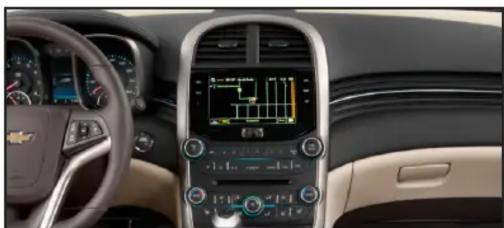
2015 Malibu Radio

rev.1221224 of 4
Brand : CRUX
Model : RVCGM-80M
Category : Dashboard camera