
FC990NW - DVD Player / VCR LG - Free user manual and instructions
Find the device manual for free FC990NW LG in PDF.


| Product Type | VCR/DVD Combo (VCR function only described) |
| Model Number | FC990NW / FC290W |
| Dimensions (W x H x D) | 360 x 94 x 230 mm |
| Weight | 3.2 kg |
| Power Supply | 110-240 V~, 50/60 Hz |
| Power Consumption | Approx. 12 W (Energy Saving mode: 3 W) |
| Video Head System | Double azimuth 4 heads, helical scanning |
| Tape Speed | 23.39 mm/sec (SP), 11.59 mm/sec (LP) |
| Tape Width | 12.7 mm (0.5 inch) |
| Max Recording Time | 4 hours (SP, E-240 tape) / 8 hours (LP, E-240 tape) |
| TV System | CCIR standard (625 lines, 50 fields) PAL/SECAM |
| Recording Format | PAL / MESECAM / NTSC 3.58 / NTSC 4.43 |
| RF Output | UHF channels 22-68, adjustable |
| Video Input/Output | RCA 1.0 Vp-p, 75 Ω |
| Audio Input/Output | RCA, -6 dBm, 47 kΩ (input) / 1 kΩ (output) |
| Hi-Fi Sound | Yes (FC990NW only) |
| Long Play (LP) | Yes, doubles recording time |
| Timer Recording | Up to 7 events, 1 month in advance |
| Special Features | CM Skip, OPR, Child Lock, ez Power Off, ez Repeat, Video Doctor |
| Language Selection | English, Russian, German, French, Polish |
| Cleaning | Video head cleaning tape required; cabinet with soft damp cloth |
| Safety | Do not remove cover; avoid moisture, heat, dust; unplug during storms |
| Operating Temperature | 5°C to 35°C |
| Operating Humidity | Less than 80% |
Frequently Asked Questions - FC990NW LG
User questions about FC990NW LG
0 question about this device. Answer the ones you know or ask your own.
Ask a new question about this device
Download the instructions for your DVD Player / VCR in PDF format for free! Find your manual FC990NW - LG and take your electronic device back in hand. On this page are published all the documents necessary for the use of your device. FC990NW by LG.
USER MANUAL FC990NW LG

LG
User guide
Video
Model: FC990NW FC290W

VHS
Before connecting, operating or adjusting your new Video, please read this user guide carefully. Thank you.
Model No. FC990NW/FC290W Part No. 3834RP0098L
Contents, safety and cleaning
Please read the following information carefully.
Contents
| Introducing your Video and remote control | 3 |
| Connecting to a television | 4 |
| Tuning | |
| TV stations | 5 |
| Adjusting TV stations manually | 6 |
| Operating your Video | 7 |
| Recording | |
| Television programs | 8 |
| Timer recording | 9 |
| Advanced functions | 10-13 |
| Troubleshooting | 14 |
| Technical specifications | 15 |
Safety
- If your Video still does not operate properly, unplug it and call your dealer. Your Video should not be repaired by anyone except qualified service personnel.
- Never remove the top cover of your Video as this can expose you to very high voltage and other hazards.
- Ensure that your Video is placed in a position to allow a free flow of air.
- Position your Video so that no bright light or sunlight falls directly onto it.
- Care should be taken not to expose your Video to any unnecessary vibration, moisture, dust or heat.
- During electrical storms it is advisable to unplug both the aerial cable and mains plug to prevent accidental damage to your Video and TV.
- Do not operate your Video if it is damaged.
- The apparatus shall not be exposed to dripping or splashing and that no objects filled with liquids, such as vases, shall be placed on the apparatus.
Cleaning
1 Unplug the Video from the mains supply.
2 Clean the cabinet with a soft damp cloth, do not apply liquid cleaners or aerosol cleaners.
Never spray cleaning liquids on or near the Video.
Video head cleaning
High quality video tapes will not normally deposit dirt onto the video heads, but old or damaged tapes may. This dirt can accumulate on the video heads after a long period of time and cause the picture to become blurred or broken up.
To clean the video heads use a video heads cleaning tape available from electrical stores.

Introducing your Video and Remote Control
Most of your Video's functions are accessed using the Remote Control. A summary of the functions of the main
buttons are shown below (right), other buttons are described elsewhere in this guide.
Before using the remote control, press the VCR or TV button to select the device to be operated.
Basic functions of your Video can also be operated using the control panel on the front of your Video.

Connecting to a television
The information given here refers to the two most common forms of connection. Make sure that all the appliances are unplugged from the mains power, before making any connections to avoid causing damage to your equipment. Using an AV cable to connect your appliances will give you the best sound and picture quality.

Note: FC290W has no AUDIO IN (R) and AUDIO OUT (R) sockets.

Connection guide
Roof aerial
Your outside aerial should be connected to the AERIAL socket of your Video.
RF cable
If you are using the RF cable, a connection needs to be made from the RF.OUT socket on your Video to the aerial socket on your television.
AV socket
If you have an AV socket connection on your television, you can connect the television's AUDIO IN/VIDEO IN sockets to the AUDIO OUT/VIDEO OUT sockets on the back of the Video.
Tune a video channel
If you are using an AV connection, the video picture will be shown on the AV channel of your television.
If you are using an RF cable, you need to select a video channel on your television and tune it to the video signal, a test picture.
Turn on the video and TV.
Select the vacant position 36 on your TV.
Press POWER ☐ on the remote control to put the video on standby, then press and hold PROG. ▲ or ▼ on the front of your video for more than 4 seconds. If the test picture appears clearly on the television screen, position 36 is your video channel.
If the test picture does not appear clearly, go to the next step.
Select a vacant position between 22 and 68 on your television.
Press PROG. ▲ or ▼ on the video until the test picture appears clearly on the television screen.
You can also set the output frequency to OFF if there is any interference when your TV is connected to the video with an AV cable.

Tuning in TV stations
The first time you use your video, you will see ACMS (Automatic Channel Memory System) displayed on the screen. This system automatically tunes and stores TV channels. If you want to return to ACMS after your initial setup, access it via the menu.
Using ACMS
1 Press the POWER ⏻ to turn on your video. 2 Select the video channel you have tuned on your television, refer to your TV user guide if necessary. The ACMS menu screen will appear.
FC290W Only: Use ◀ or ▶ to select a desired TV system according to the area you live in (I/I or B/G, D/K).
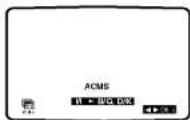
3 Press OK to start the automatic tuning process. 4 When the ACMS has finished, a screen showing all the channels that have been found and the positions they have been placed in will be displayed.
5 Check that the channels correspond to the positions in which you want them. If they are not in the order that you would like, they can be moved or deleted. See Changing the order of the television stations and Deleting the television stations. 6 Press 1 to store the settings.
Changing the order of the television stations
You will find it useful to have a current television programme guide to hand during this operation.
1 Press i to access the main menu. Use ◀ or ▶ to select PR SET then press OK. 2 Press 1 again. 3 Use either the ▲ or ▼ buttons to select the programme number that you wish to move. Then press ▶. 4 Press ▲ or ▼ until you reach the position you wish to store the channel in. 5 Press OK. The programme will move to the new position. 6 Press i to leave the menu. To move other programs, repeat the above process.
Deleting the television stations
1 Press i to access the main menu. 2 Use ◀ or ▶ to select PR SET then press OK.
3 Press i then use ▲ or ▼ to select the programme number you wish to delete. 4 Press ◀, after a short while the selected station will be deleted. The remaining stations are resorted automatically. 5 Press i to remove the menu. If you wish to delete further stations, repeat the above process.
Selecting ACMS
1 Turn on your television and your Video and select the video channel on your television. 2 Press i to access the main menu. Press ◀ or ▶ to select ACMS, and then OK. 3 Follow the instructions in Using ACMS, at the beginning of this page.

Tuning and adjusting TV stations manually
You may prefer to tune your television manually. Manual tuning can be more effective if the television signal in your area is too weak for the ACMS to work properly. You can also fine tune your channels and customise the channel names.
Manual tuning
1 Turn on your television and your Video. Select the video channel on your television and press i to access the main menu. 2 Press either ◀ or ▶ to select PR SET then press OK. 3 Press i again and the television station table will then appear. 4 Use the ▲ or ▼ buttons to select the programme number you want to tune then press OK. 5 FC290W Only: Press OK again and use ▲ or ▼ to select a desired TV system according to the area you live in (V or B/G, D/K).

6 FC290W Only: Press OK. 7 Select the CH section (if not already selected) by using the ◀ or ▶ buttons and then press AV to select C (Standard stations) or S (Cable stations).
8 Use the ▲ or ▼ buttons to move through the channel numbers to find the required station. 9 The station can be fine tuned to improve picture quality. Select MFT (Manual Fine Tuning) using the ◀ or ▶ buttons. Use the ▲ or ▼ buttons to adjust the picture. 10 Select STATION by pressing ▶ you can then name your station. 11 Press OK.

12 Use the ▲ or ▼ to select letters and numbers for the new station name up to a maximum of 5. 13 Press ◀ or ▶ to move between the characters. 14 Press OK. 15 To confirm the station placement press i. 16 Press 1 again to remove the menu.
17 The new station has now been stored into your Video. If you wish to manually tune other channels you should repeat the above procedure. To move the manually tuned channel to its correct position see Changing the order of the television stations on page 5. If it is necessary for you to tune all the television stations manually you may find it easier if you write the CH numbers down for each station as you find them. You can then select each channel from the main menu and type the CH numbers in directly. Each channel will then be in the correct position so there is no need to change them later.


Operating your Video
The main functions of your Video can be operated using either the Remote Control or front control panel on the Video. Before starting, you should ensure that your television and your Video have been plugged in and switched on and that the video channel on your television is selected.
Playing a video tape
Press PLAY ▶. The television screen will display PLAY.
Auto tracking
Your Video will automatically adjust the tracking to give you the best picture quality.
If the quality of the recording is poor, repeatedly press ▼ or ▲ on the remote control to manually adjust the tracking until any distortions have been removed.
Stopping play
Simply press STOP ■ to halt video play. The Video will revert to television mode.
Picture Search
While a video cassette is playing, you can search the tape forward and backward to look for a specific position on the tape.
Press REW (◀◀) or FF (▶▶) to make the tape play rapidly forwards or backwards. The picture will be shown at seven times normal play speed.
Fast Forward/Rewind
To fast forward or rewind at maximum speed, the tape must not be in play mode. Press STOP (■), then press either REW (◀◀) for rewind or FF (▶▶) for fast forward. While you are rewinding or fast forwarding, you can view the section you are passing. Press and hold (for a few seconds) either REW (◀◀) or FF (▶▶). Releasing the REW (◀◀) or FF (▶▶) will return the video to normal rewind or fast forward operation.
Slow Motion Playback, Shuttle (FC990NW Only)
Using the ◀ or ▶ buttons, it is possible to adjust playback speed during playback or still picture. Below is a list of what speeds are accessible and how to reach them.
◀ once = slow play, ◀ twice = still, ◀ three times = play backwards, ◀ four times = reverse play at 3x speed, ◀ five times = reverse play at 7x speed, ▶ once = 2x forward play, ▶ twice = 7x forward play
To switch off slow motion and shuttle, press the desired function. During slow motion and shuttle, noise bars may appear on the picture depending on the condition of the tape. If distortions are visible in the picture, reduce them with ▲ or ▼.
Pausing a Tape
Pressing P/STILL (II) will pause play, giving you a still picture on the screen. This picture may display some interference in the form of black and white horizontal lines. This is perfectly normal and does not mean that the video tape or video are damaged.
The tape can be paused for up to five minutes. The video will then automatically play back the tape in order to avoid damaging the tape or your video.
Frame Advance (FC990NW Only)
1. Pressing P/STILL (II) repeatedly will advance the picture frame by frame. 2. You can use the ▲ or ▼ buttons to reduce any vertical movement seen on the still picture. 3. Press PLAY (▶) to continue play from pause.
Removing the Video Tape
Press EJECT (▲) to remove the video cassette from your video.
If the end of the tape is reached, your Video will automatically stop, rewind, eject the tape and place itself into Standby mode.

Recording from television programs
There are two methods of recording, Instant Timer Recording (ITR) and Timer Recording.
For all recording methods you should ensure the television channels are tuned and stored correctly and that the clock is set to the correct time.

Recording from RCA
If you wish to record directly from the AV socket at the back of your Video, connect the device you wish to record from using an AV cable and press AV to display the picture from the device.
Long Play/Standard Play
Your Video has a Long Play (LP) feature. This means you can record twice the amount of information on each recordable video tape. For example on a three hour (E180) tape you would be able to record six hours worth of programmes.
With Long Play picture and sound playback quality are slightly reduced from that of standard play. Press the LP button if you wish to change to Long Play (LP), press it again to select Standard Play (SP). SP or LP will be displayed on your television screen to let you know which has been selected.
Instant Timer Recording
ITR begins recording immediately, either for a set period of time or until the tape runs out.
1 Turn on your Video and television. Insert a video tape into the Video. Select the Video channel on your television. 2 Use the PROG. ▲ or ▼ buttons to select which programme you wish to record. The currently selected programme will be displayed on screen. You can also select the programme number using the 3 Press REC/ITR ● to begin recording. On the first press REC SP (or LP) will appear on the television screen.

The Video will start recording. It will continue recording until the end of the tape is reached or it is manually stopped.
To set the length of time which you want to record for, press the REC/ITR ● button twice. The television screen will show 0H30. Each subsequent press of the REC/ITR ● button will increase the recording time by thirty minutes to a maximum of nine hours.

You can also interrupt recording to avoid unwanted scenes. If you press P/STILL II during ITR the Video will enter the record pause mode and the set period of time is cancelled.
1 To pause recording press P/STILL II. 2 Press P/STILL II again to continue recording.
Tapes can be paused for up to five minutes. REC PAUSE will be displayed on the television screen while a tape is paused. After five minutes your Video will automatically cancel recording to prevent damage to the video tape or your Video.
To view one channel whilst recording another, press TV/VCR to disappear VCR on the display panel. Using your TV remote, switch to the channel you want to watch.
Finishing a recording
1 Press STOP ■ 2 Press EJECT ▲. EJECT will appear on the television screen. If the end of the tape is reached your Video will automatically stop recording, rewind, stop and eject the tape and place itself into Standby.

Recording using Timer Recording
Allows you to specify a time at which the Video will start recording.
This can be done up to one month in advance with up to seven recordings being pre-programmed.
Ensure the television channels have been tuned and stored correctly and that the clock is set to the correct time.
Timer Recording
Insert a video tape.
1 Press ; for the main menu. 2 Use◀ or ▶ to select REC. 3 Press OK. Press OK again to enter the timer record menu.

4 To enter the programme number that you wish to record you can scroll through the available options using the ▲ or ▼ buttons or you can enter the numbers directly. When selecting single digit numbers remember to put 0 first. If you wish to record from the VIDEO IN/AUDIO IN sockets press AV. 5 Press ▶ and enter the date of the programme that you wish to record. Press OK before entering a date to select one of the automated features. They are DLY (daily) to record every day except Saturday and
Sunday at the set time, or individual days e.g. MO (Monday) to record at the same time every week. Press ◀ or ▶ to select, then press OK to confirm.
6 Enter the time of the start and end of the programme that you wish to record. The Video uses a 24 hour clock.
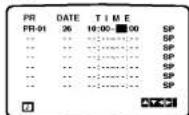
7 Press ▶ to select the recording speed.
Use the ▲ or ▼ to move among Standard Play, Intelligent Play and Long Play. IP (Intelligent Play) determines how much tape is left and switches speed from SP to LP, if necessary, to complete recording the programme. 8 Check that the timer event details are correct, if they are, press i to save your settings. If PLEASE CHECK is displayed you have entered incorrect information.
Check the details on the television screen and reenter it. If you want to enter more Timer recordings, repeat the above process from point 3. Press ; again to remove the menu.
9 Place the Video on standby by pressing the POWER ⏻ on the remote control.
TIMER will appear in the Video display to show that it is set to record. The Video is now set to record at the time you have specified.
Changing timer events
If you wish at any time to change a recording event press ▲ or ▼ to select the timer slot that you wish to change.
Press ◀ to delete or OK to edit that entry.

Use the ◀ or ▶ buttons to select the section you wish to change and the ▲ or ▼ buttons to change those sections.
Protect your recordings

To stop a recording you have made being recorded over, break off the protection tab on the rear of the video tape. To record on a tape that has had its protection strip removed, cover the hole with adhesive tape.
Recording tape to tape
You will need a second Video for tape to tape copying. Connect using a AV cable from AUDIO IN/VIDEO IN sockets of your Video. Select audio/video mode on the recording Video by pressing the AV on the Remote Control. To monitor the recording, connect the recording Video to your TV using the standard coaxial aerial cable.

Advanced functions on your Video
Your Video has some advanced operations with features you may find useful.

CM (Commercial Message) Skip
This enables you to skip past small sections of the video tape, such as commercial messages, television adverts or film trailers.
Press the CM SKIP button on the remote control, during play.
Each subsequent press of the button increases the amount of the tape which is skipped by 30 seconds, up to a total of three minutes
(180 seconds). After the chosen time has passed normal play will automatically resume.
OPR (Optimum Picture Response)
This enhances the picture from the video tape by adjusting to the condition of the video tape. If you feel that the picture needs adjusting you can manually change the OPR setting.
You can only set OPR when a tape is playing in the Video.
1 Press i to enter the main menu. 2 Use ◀ or ▶ to select OPR then press OK.

3 Use the ▲ or ▼ buttons to select OFF, SOFT or SHARP. 4 Press i to exit the menus.
Colour standards
Your Video uses dual colour standards, PAL (B/G, V/I) and SECAM D/K. During play your Video should select the Colour System automatically, however if you experience problems you may need to do it manually.
1 Press i to enter the main menu. 2 Use ◀ or ▶ to select SYSTEM then press OK. 3 Use ▲ or ▼ to select the colour system used in your recording.
PAL Signals
(Playback or recording mode)

NTSC Signals (Playback mode)
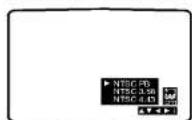
NTSC PB:
Use when playing back a tape recorded in the NTSC system on PAL TV.
NTSC 3.58:
Use when playing back a tape recorded in the NTSC system in 3.58 mode.
NTSC 4.43:
Use when playing back a tape recorded in the NTSC system in 4.43 mode.
NTSC Signals (Recording mode)
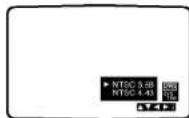
NTSC 3.58:
Use when recording NTSC 3.58 signals.
NTSC 4.43:
Use when recording NTSC 4.43 signals.
4 Press ; to exit the menus.

Advanced functions on your Video
Your Video has some advanced operations with features you may find useful.
11
Setting the clock
The Video uses a 24 hour clock, so that for example 1 pm is represented as 13:00. Single digit numbers should be entered with a 0 in front for instance, 01.
1 Press ; to enter the main menu. Use the ◀ or ▶ buttons to select TIME DATE then press OK. 2 Use the numbered buttons on the remote control to enter the HOURS, MINUTES, DAY, MONTH and YEAR.

The day of the week will appear automatically once the date has been entered. If you make a mistake use ◀ or ▶ to select the item and re-enter the details.
3 Once you are satisfied press i to store your settings.
On screen display (OSD)
This can be used to display the current time, tape counter, tape remaining, day, month and year, day of week, channel and operational mode of your Video on your television screen. If a recording is taking place, the on screen displays will not be recorded onto tape.
1 Press OK to show the OSD.

2 Press OK repeatedly to cycle through the display options. The tape counter and amount of tape left will appear if there is a tape loaded. 3 Press OK again to remove all OSD's from the television screen
To turn off the on screen displays completely.
1 Press ; to enter the main menu. 2 Select fOSD ON OFF using ◀ or ▶ then press OK. 3 Select OFF using ▲ or ▼. Press ; to save the setting.
Resetting the digital tape counter
The tape counter displays the play or recording time elapsed in hours, minutes, and seconds. Press CLEAR to reset the counter to 0:00:00. When you press STOP ■ and then press REW ←, the Video will stop at 0:00:00, the point where you reset the counter.
Child Lock
You can turn off the buttons on the Control Panel so that your Video can only be operated using the Remote Control.
1 Press the C.LOCK on the Remote Control. SAFE will appear on the television screen for a few seconds.
None of the buttons on the Control Panel will work apart from EJECT ▲.

If any other buttons on the front of the Video are pressed, SAFE will appear on the television screen for a few seconds. To unlock the Child Lock, press the C.LOCK again on the Remote Control.
Automatic power off
By pressing the POWER ☉ while rewinding a tape, the Video will turn off automatically when the tape rewind has completed.

Advanced functions on your Video
Your Video has some advanced operations with features you may find useful.

Sound settings (FC990NW Only)
Your Video can record and play back stereo sound. You can select the way sound is played back.
1 Press ; to access the main menu. 2 Select AUDIO with the ◀ or ▶ buttons. 3 Press OK. 4 Use the ▲ or ▼ buttons to choose between: STEREO LEFT (left channel only) RIGHT (right channel only) MONO 5 Use ▶ to select the RF AUDIO. 6 Use ▲ or ▼ to select the channel of audio output according to your TV type. 7 Press ; to exit the menu. Select NIC in the main menu to set your Video's NICAM function to operate automatically AUTO or to turn it off, OFF.
FC290W can also set the RF AUDIO by selecting AUDIO on screen display.
ez Operations
ez Power Off: Press ez POWER OFF during play. The Video will automatically stop the tape, rewind to the beginning, and eject the tape. It will then turn itself to standby. ez Repeat: You can select a section of the video tape to repeat twice and then resume play.
1. Press and hold the ez REPEAT for more than 4 seconds. The Video will automatically rewind for as long as the ez REPEAT is held.
2. Release the button when you want the replay to begin. 3. The Video will then play the selected section twice.

4. To resume normal play from any position, press PLAY▶ during the first repeat.
ez (easy) Operation
power of your Video is off and a tape
is inserted. The power turns on
automatically and then the
appropriate operation will work as
below.
Press Operation PLAY▶ Power On→ Play back a tape FF Power On→ Fast-forward a tape REW← Power On→ Rewind a tape EJECT ▲ Eject a tape → Power Off REC/ITR ● Power On→ Enter pause record mode. If a video tape with no safety tab is loaded, the video tape will be ejected automatically.

Advanced functions on your Video
Your Video has some advanced operations with features you may find useful.
13
Video Doctor
The Video Doctor will show the status of aspects of the Video.
1 Press | to access the main menu. 2 Select Dr. with the ◀ or ▶ buttons. 3 Press OK.

4 Use the ▲ or ▼ buttons to check the following features.
HEAD STATUS
PLEASE CLEAN: The tape heads need cleaning.
TAPE STATUS
NOT RECORDABLE: The Cassette in the Video has had its protection tabs removed, insert a tape suitable for recording.
NO. OF TIMER PROGRAMME
2
Shows the number of timer
recording programmed.
NEXT TIMER PROGRAMME
PR-01 26 10:00-11:00 SP Shows the current status of timer recording.
5 Press ■ to remove the menu from the television screen.
Language selection
It is possible to change the language that the on-screen displays are shown in. You can choose between English, Russian, Deutsch, Français and Polski.
1 Press | to display the main menu. 2 Select ABC using the ◀ or ▶ buttons. 3 Press OK to reveal the language choice screen. Select your desired language using the ▲ or ▼ buttons. 4 Press : to store the settings.
Troubleshooting
If you are having trouble with your Video, please check the following before calling your service centre.

No picture and no sound
- Check that the Video plug has been plugged in and switched on at a mains wall socket and that the television has been plugged in and switched on.
- Check the aerial lead is undamaged and securely connected to the correct sockets in both the television and the Video.
- Check that you have tuned into a
- If you are using an AV connection, check that the cable is secure and that the correct AV channel is selected on your television.
No playback or a poor picture
- Try a different video cassette. If the problem is resolved, the problem may have been the cassette itself.
- Try using the tracking buttons ▲ or ▼ to reduce the amount of visible interference.
- If the cassette contains a recording that you have recently made from the television, the television channels may not be tuned to the Video correctly.
TV programmes cannot be recorded
- Check the reception on your television set. If you cannot receive a picture through your aerial, the Video will be unable to record television broadcasts.
- Check the aerial lead is undamaged and securely connected to the correct sockets.
- Check that the Video has been tuned to the television
- Check the rear of the video cassette to see if the safety tab used to prevent recording has been removed.
- Check that the signal being received by the television is reasonable quality.
A video tape cannot be inserted
- Check that there is not a cassette in the Video already.
- Is the video cassette the right way round? The windows should be at the top and the arrow should be pointing toward the Video.
The Remote Control does not work
- Has the Video been plugged in and switched on?
- Check that the batteries have been inserted correctly into the Remote Control.
The top of the video picture is unstable
- The video cassette may be damaged. Insert another video cassette and check the picture from it.
- Try adjusting the horizontal control on your television, you should consult your television user guide on how to do this.
- Check the aerial lead is undamaged and securely supported to the current pocket.
- Ensure that the television has been correctly tuned to your Video.
NICAM sound is not being recorded (FC990NW Only)
- Check that AUTO has been selected in the NICAM menu
- Consult a TV guide to check that the broadcast was in stereo.
- Check your television user guide to see if you have a NICAM stereo feature on your television.
No Hi-Fi sound (FC990NW Only)
- In the Audio menu check that the STEREO option has been selected.
- Check your television user guide to see if you have a stereo feature on your television.
Autoplay does not work
- If the safety tab has not been removed from the video cassette this function will not work.
Technical specifications
Specifications are correct at time of printing. LG is constantly innovating and products may change at any time without warning.
Specifications
General
Power consumption
Video Head System
Tape speed
Tape Format Maximum recording time
Maximum recording time Extended time
New time Dimensions
Weight
Operating temperature
Operating humidity
Time
Television system
Recording format
RF reception
HF OUT
Input level
Output level Signal to non
Signal to noise ratio BE modulator
Audio
Input level
Output level
Track
Frequency response
Signal to noise ratio
Dynamic range
110-240V-, 50/60Hz
Approx. 12 Watts (Energy Saving mode: 3 Watts)
Double azimuth 4 heads, helical scanning (FC990NW)
Rotary 2 heads, helical scanning (FC290W)
23.39 mm/sec (SP mode) 11.59 mm/sec (LP mode)
tape width 12.7mm (0.5 inch) 4 hours (5B mode, F-310 Tere) 8 hours (4 B mode, F-310 Tere)
4 hours (5" mode, E=240 tape) 8 hours Approx. 65 (+10) secs (E=180 tape)
360 x 94 x 230mm (W x H x D)
3.2 kg
5°C - 35°C
Less than 80%
24 hours display type
CCIR standard (825 lines, 50 fields)
PAL/SECAM colour signal
PAL/MESECAM/NTSC 3.58/NTSC 4.43
PAL SECAM (B/G, D/K, I/I)
PAL K/GI
VIDEO IN (RCA) 1.0 Vp-p, 75 Ohm unbalanced
VIDEO OUT (RCA) 1.0 Vp-p, 75 Ohm unbalanced More than 43 dBm
More than 45 dBm UHF channel 22-68
Off channel 22-06 (Adjustable)
AUDIO IN (RCA)
- 6.0 dBm, more than 47 kohms
AUDIO OUT (RCA)
- 6.0 dBm, less than 1 kohms
Mono track & Hi-Fi Track
Normal: 100 Hz - 10 kHz (-6/43 dBm)
Hi-Fi: 20 Hz - 20 kHz (-3/+3 dBm)
Hi-Fi: More than 70 dB (JIS A filter)
Hi-Fi: More than 85 dB (JIS A filter)
SAFETY PRECAUTION
THIS EQUIPMENT MUST BE DISCONNECTED FROM THE MAINS POWER SUPPLY WHEN IT IS NOT IN USE. DO NOT ALLOW THIS UNIT TO BE EXPOSED TO RAIN OR MOISTURE.
CAUTION
TO PREVENT ELECTRIC SHOCK, DO NOT REMOVE THE COVER. NO USER SERVICEABLE PARTS ARE INSIDE. REFER SERVICING TO QUALIFIED PERSONNEL.
WARNING
THE RECORDING AND PLAYBACK OF CERTAIN MATERIAL MAY NOT BE DONE WITHOUT PERMISSION.
The working life of this set is 7 years since the date of delivery to consumer. Upon the expiry of the said period, it might be unsuitable for the use according to their designation.
PRECAUTIONS
Please read these precautions before you operate this unit.
- Avoid extreme heat, cold, moisture and dust
- Avoid using near a magnetic field. (This will adversely affect the unit's performance.)
- Be careful when the surface of the case is wiped with a volatile agent such as benzene, alcohol, thinner, etc. or a chemically processed cloth, the surface finish may deteriorate or its coating may peel.
- Use the unit only in a horizontal position, and do not place anything heavy on it.
- Keep the unit away from flower vases, tubs, sinks, etc. If any liquids should spill into unit, serious damage could occur. In that case, please consult qualified service personnel.
- Do not obstruct the ventilation holes: they prevent overheating. Even soft materials such as paper and cloth may prevent proper ventilation of the unit.
- There are no serviceable parts inside. For service, please contact your service centre.
Model No. FC990NW/FC290W
Part No. 3834RP0098L
JEDDAH MAIN SERVICE CENTER
P.O. BOX 704, JEDDAH 21421 KINGDOM OF SAUDI ARABIA TEL) 02-629-2929
JEDDAH QUICK SERVICE CENTER
TEL) 02-663-3888 EXT. 340,343
RIYADH BRANCH SERVICE CENTER
TEL) 01-461-5559
AL KHOBAR BRANCH SERVICE CENTER
TEL) 03-857-2629/2637
MOISTURE CONDENSATION
If you pour a cold liquid into a glass, water vapor in the air will condense on the surface of the glass. This is moisture condensation. Moisture condensation on the head drum, one of the most crucial parts of the unit, will cause damage to the tape. When this set is exposed to a rapid temperature change from cold to warm, some condensation will occur. Under this condition, connect the power cord to the AC line, press POWER button on and allow at least two hours for the unit to dry out.
VIDEO HEAD CLEANING

- It is possible that the heads may become clogged when playing an old or damaged tape. If the image on your screen resembles the picture on the left while playing back a tape, the heads may require cleaning.
- To clean the heads, obtain a head cleaning tape from your local video dealer. Follow the instructions that come with the cleaning tape, as excessive use can shorten head life.


- USER GUIDE
- VHS
- CONTENTS, SAFETY AND CLEANING
- SAFETY
- CLEANING
- VIDEO HEAD CLEANING
- INTRODUCING YOUR VIDEO AND REMOTE CONTROL
- CONNECTING TO A TELEVISION
- CONNECTION GUIDE
- TUNE A VIDEO CHANNEL
- TUNING IN TV STATIONS
- USING ACMS
- CHANGING THE ORDER OF THE TELEVISION STATIONS
- DELETING THE TELEVISION STATIONS
- SELECTING ACMS
- TUNING AND ADJUSTING TV STATIONS MANUALLY
- MANUAL TUNING
- OPERATING YOUR VIDEO
- PLAYING A VIDEO TAPE
- AUTO TRACKING
- STOPPING PLAY
- PICTURE SEARCH
- FAST FORWARD/REWIND
- SLOW MOTION PLAYBACK, SHUTTLE (FC990NW ONLY)
- PAUSING A TAPE
- FRAME ADVANCE (FC990NW ONLY)
- REMOVING THE VIDEO TAPE
- RECORDING FROM TELEVISION PROGRAMS
- RECORDING FROM RCA
- LONG PLAY/STANDARD PLAY
- INSTANT TIMER RECORDING
- FINISHING A RECORDING
- RECORDING USING TIMER RECORDING
- TIMER RECORDING
- CHANGING TIMER EVENTS
- PROTECT YOUR RECORDINGS
- RECORDING TAPE TO TAPE
- ADVANCED FUNCTIONS ON YOUR VIDEO
- CM (COMMERCIAL MESSAGE) SKIP
- OPR (OPTIMUM PICTURE RESPONSE)
- COLOUR STANDARDS
- SETTING THE CLOCK
- ON SCREEN DISPLAY (OSD)
- RESETTING THE DIGITAL TAPE COUNTER
- CHILD LOCK
- AUTOMATIC POWER OFF
- SOUND SETTINGS (FC990NW ONLY)
- EZ OPERATIONS
- VIDEO DOCTOR
- HEAD STATUS
- TAPE STATUS
- NO. OF TIMER PROGRAMME
- NEXT TIMER PROGRAMME
- LANGUAGE SELECTION
- TROUBLESHOOTING
- NO PICTURE AND NO SOUND
- NO PLAYBACK OR A POOR PICTURE
- TV PROGRAMMES CANNOT BE RECORDED
- A VIDEO TAPE CANNOT BE INSERTED
- THE REMOTE CONTROL DOES NOT WORK
- THE TOP OF THE VIDEO PICTURE IS UNSTABLE
- NICAM SOUND IS NOT BEING RECORDED (FC990NW ONLY)
- NO HI-FI SOUND (FC990NW ONLY)
- AUTOPLAY DOES NOT WORK
- TECHNICAL SPECIFICATIONS
- SPECIFICATIONS
- SAFETY PRECAUTION
- CAUTION
- WARNING
- PRECAUTIONS
- JEDDAH MAIN SERVICE CENTER
- JEDDAH QUICK SERVICE CENTER
- RIYADH BRANCH SERVICE CENTER
- AL KHOBAR BRANCH SERVICE CENTER
- MOISTURE CONDENSATION
Brand : LG
Model : FC990NW
Category : DVD Player / VCR