
Effect Series MOD Pack - DJ Equipment NATIVE INSTRUMENTS - Free user manual and instructions
Find the device manual for free Effect Series MOD Pack NATIVE INSTRUMENTS in PDF.


| Product Type | Software Effects Bundle for DJ and Production |
| Brand | Native Instruments |
| Model | Effect Series MOD Pack |
| Number of Effects | 4 (Chorus, Flanger, Phaser, and Rotary) |
| Platform Compatibility | macOS 10.13+ and Windows 10+ (64-bit) |
| Plugin Formats | VST3, AU, AAX (Native and 64-bit) |
| Standalone Operation | Not supported (requires host DAW or Traktor) |
| Sample Rate Support | Up to 96 kHz |
| Bit Depth | 64-bit internal processing |
| Minimum System Requirements | 4 GB RAM, 1 GB free disk space, internet connection for activation |
| Activation Method | Via Native Access application |
| License Type | Single-user, perpetual license |
| Maintenance | Regular updates through Native Access |
| User Interface | Resizable GUI with preset management |
| Presets | Included factory presets for each effect |
| Documentation | PDF manual (24 pages, English) |
| Support | Online knowledge base, community forum, and ticket system |
| Repair & Spare Parts | Not applicable (software product) |
| Security | Download exclusively from official Native Instruments website |
Frequently Asked Questions - Effect Series MOD Pack NATIVE INSTRUMENTS
User questions about Effect Series MOD Pack NATIVE INSTRUMENTS
0 question about this device. Answer the ones you know or ask your own.
Ask a new question about this device
Download the instructions for your DJ Equipment in PDF format for free! Find your manual Effect Series MOD Pack - NATIVE INSTRUMENTS and take your electronic device back in hand. On this page are published all the documents necessary for the use of your device. Effect Series MOD Pack by NATIVE INSTRUMENTS.
USER MANUAL Effect Series MOD Pack NATIVE INSTRUMENTS
The information in this document is subject to change without notice and does not represent a commitment on the part of Native Instruments GmbH. The software described by this document is subject to a License Agreement and may not be copied to other media. No part of this publication may be copied, reproduced or otherwise transmitted or recorded, for any purpose, without prior written permission by Native Instruments GmbH, hereinafter referred to as Native Instruments.
“Native Instruments”, “NI” and associated logos are (registered) trademarks of Native Instruments GmbH.
Mac, Mac OS, GarageBand, Logic, iTunes and iPod are registered trademarks of Apple Inc., registered in the U.S. and other countries.
Windows, Windows Vista and DirectSound are registered trademarks of Microsoft Corporation in the United States and/or other countries.
All other trademarks are the property of their respective owners and use of them does not imply any affiliation with or endorsement by them.
Document authored by: Jan Ola Korte
Software version: 1.0 (01/2018)
NATIVE INSTRUMENTS GmbH
203B & 201B, Nanshan E-Commerce Base Of Innovative Services
Shi Yun Road, Shekou, Nanshan, Shenzhen China
www.native-instruments.com

NATIVE INSTRUMENTS
© NATIVE INSTRUMENTS GmbH, 2018. All rights reserved.
Table of Contents
1 Welcome to MOD PACK 5
2 Document Conventions 6
3 CHORAL 7
3.1 About Chorus Effects 7
3.2 Overview of CHORAL 7
4 FLAIR 10
4.1 About Flanger Effects 10
4.2 Overview of FLAIR 10
5 PHASIS 14
5.1 About Phaser Effects 14
5.2 Overview of PHASIS 14
6 Header and Presets ....18
6.1 Loading Presets 19
6.2 Saving Presets 21
6.3 Comparing Parameter Settings 22
7 Troubleshooting 23
1 Welcome to MOD PACK
MOD PACK is part of Native Instruments' KOMPLETE Instruments & Effects series. It consists of three plug-ins that are designed for use in your host, offering new takes on classic modulation effects:
- CHORAL: A chorus that adds space and body to the sound. For more information, refer to ↑3, CHORAL.
- FLAIR: A flanger that adds dramatic filtering effects and resonances to the sound. For more information, refer to 4 , FLAIR.
- PHASIS: A phaser that transforms and animates the harmonic structure of the sound. For more information, refer to 5 , PHASIS.

The MOD PACK: CHORAL, FLAIR, PHASIS
2 Document Conventions
This document uses particular formatting to point out special facts and to warn you of potential issues. The icons introducing the following notes let you see what kind of information can be expected:

The speech bubble icon indicates a useful tip that may often help you to solve a task more efficiently.

The exclamation mark icon highlights important information that is essential for the given context.

The red cross icon warns you of serious issues and potential risks that require your full attention.
Furthermore, the following formatting is used:
- Text appearing in (drop-down) menus (such as Open..., Save as... etc.) in the software and paths to locations on your hard disk or other storage devices is printed in italics.
- Text appearing elsewhere (labels of buttons, controls, text next to checkboxes etc.) in the software is printed in blue. Whenever you see this formatting applied, you will find the same text appearing somewhere on the screen.
- Important names and concepts are printed in bold.
- References to keys on your computer's keyboard you'll find put in square brackets (e.g., "Press [Shift] + [Enter]").
▶ Single instructions are introduced by this play button type arrow.
→ Results of actions are introduced by this smaller arrow.
3 CHORAL
In this chapter you can learn about CHORAL. It includes a general note about chorus effects and an overview of the CHORAL plug-in.
3.1 About Chorus Effects
Choruses are used to enrich sounds by adding spatial movement and giving them an ensemble-like quality. They are based on short delays, with built-in modulation of the delay time. The delays produce copies of the original sound that vary in timing and, as a side-effect of the delay time modulation, pitch. This way a chorus adds space and body to the sound as if it was played from multiple sources at the same time. The results range from subtle shifts in timbre to extremely lively textures with a wide stereo image.
As one of the most commonly used guitar and studio effects, various implementations of the chorus have found their way into studio rack processors, guitar pedals, and synthesizers. CHORAL is inspired by synthesizers and studio rack processors from the seventies and early eighties. On these devices, the chorus parameters are hidden. CHORAL gives you enhanced control with parameters that allow you to customize the effect with minimal effort.
3.2 Overview of CHORAL
CHORAL features four distinct chorus modes, ranging from the subtle sound of classic studio rack processors to the large ensemble sound of early string synthesizers. The effect is produced by up to three pairs of delays, called Voices. All chorus voices preserve the input signal's stereo image, but can also be panned to further widen the sound (Width parameter). The internal modulation system affects each voice differently, thus preventing obvious modulation repeats. Further expanding on the original concept of a chorus, the Scatter mode allows you create re-verb-like sounds, avoiding the metallic quality that many choruses exhibit with high Feedback settings.

Overview of CHORAL
(1) Header: The Header provides global functions related to preset management and plug-in behavior. For more information, refer to ↑6, Header and Presets.
(2) Width: Pans the chorus voices opposite directions, widening the stereo image. When Width is set to 0, the input's stereo image is preserved.
(3) Rate: Adjusts the speed of modulation, from slow pitch changes to fast vibratos. This becomes more pronounced as Amount (4) is increased.
(4) Amount: Adjusts the amount of modulation applied to Delay (6), altering the delay times of the chorus voices. Due to the configuration of the delays, this also changes the pitch of the chorus voices, creating the typical chorusing effect.
(5) Voices: Fades from one to three chorus voices. Increasing the number of chorus voices adds a dense and ensemble-like quality to the sound. The modulation affects the second and third chorus voice differently from the first, resulting in a wider and livelier sound.
(6) Delay: Adjusts the delay times of the chorus voices, allowing you to change the spatial depth of the sound. This parameter strongly interacts with Feedback (7).
(7) Feedback: Adjusts the level of the feedback signals from the outputs of the chorus voices to their inputs, creating a more sustained and spacious sound.
(8) Scatter: Enables a special feedback routing for the chorus voices that introduces reverb-like behavior.
(9) Mix: Blends between the input signal and the effect signal by means of an equal-power crossfade.
(10) Invert: Changes the sound characteristic of the chorusing effect by inverting the effect signal.
(11) Mode: Switches between four chorus modes, each with its own sound characteristic and modulation behavior:
- Synth: This mode is inspired by the choruses of polyphonic synthesizers from the late seventies and early eighties. Its sound characteristic is dark and vintage. The modulation behavior is tuned for rich and dispersed sounds.
- Ensemble: This mode is inspired by the choruses of string synthesizers from the seventies. Its sound characteristic is warm and lush. The modulation behavior is tuned for animated and lively sounds.
- Dimension: This mode is inspired by the choruses of studio rack processors from the early eighties. Its sound characteristic is bright and transparent. The modulation behavior is tuned for wide and consistent sounds.
- Universal: This mode is a more generic chorus implementation. Its sound characteristic is clean and modern. The modulation behavior is tuned for a range of sounds from consistent to lively, depending on the number of Voices (5).
(12) Display: Shows the number of Voices (5) and their Delay (6) spacing, including the Amount (4) and Rate (3) of the modulation.
4 FLAIR
In this chapter you can learn about FLAIR. It includes a general note about flanger effects and an overview of the FLAIR plug-in.
4.1 About Flanger Effects
Flangers are used to enrich sounds by adding distinct harmonic effects that can completely transform a sound. They are based on comb filters, with built-in modulation of the comb filter frequency. A comb filter consists of an extremely short delay with feedback that produces harmonically related peaks and notches in the frequency spectrum. This way a flanger adds dramatic filtering effects and resonances to the sound. The results range from metallic textures to the warped sound of a starting jet engine.
As one of the most commonly used guitar and studio effects, various implementations of the flanger have found their way into studio rack processors and guitar pedals. FLAIR is a new take on the concept with additional features that have been carefully chosen to allow for more sophisticated and extreme sounds than possible with common flangers, while staying true to the ease of use and clarity associated with these devices.
4.2 Overview of FLAIR
FLAIR features three flanger modes that offer different approaches to a range of effects from flanging to harmonization. The effect is produced by up to four comb filters, called Voices. Further expanding on the original concept of a flanger, the flanger voices have a harmonic relationship based on a wide selection of preset chords (Chord parameter). In both Standard and Thru Zero mode, the flanger voices are added to form a chord, while in Scan mode, one flanger voice is blended into the next, generating a sequence similar to an arpeggiator on a keyboard. Especially with high feedback settings, this can lead to unusual results that are more akin to the sounds of a tuned resonator than a flanger.
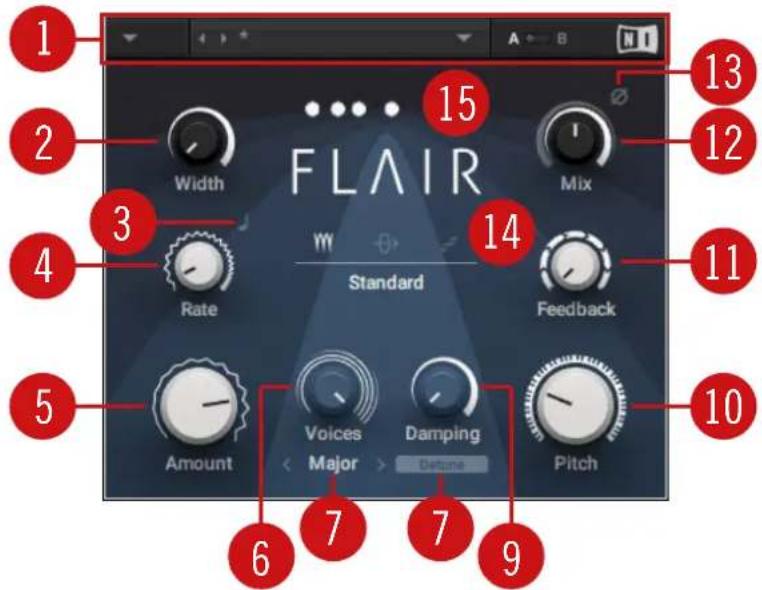
Overview of FLAIR
(1) Header: The Header provides global functions related to preset management and plug-in behavior. For more information, refer to ↑6, Header and Presets.
(2) Width: Duplicates the flanger voices internally and pans them in opposite directions. A wide and lively stereo image is created by adding a phase offset to the modulation applied to Pitch (10) between the left and right stereo channels. Additionally, a special type of cross-feedback is introduced, further animating the stereo image as Feedback (11) is increased.
(3) LFO Sync: Synchronizes the modulation to the host tempo and replaces the Rate knob (4) with the LFO Sync controls.
(4) Rate: Adjusts the frequency of the modulation applied to Pitch (10). The modulation effect becomes more pronounced as Amount (5) is increased.
When LFO Sync (3) is enabled, modulation is synchronized to the host and the Rate knob is replaced by the LFO Sync controls:

The Numerator (a) and Denominator (b) set the speed of modulation in musical notes relative to the host tempo. The Numerator sets the number of notes, while the Denominator sets the note value. The Sync Mode (c) sets the time value, or subdivision, for the chosen note value. For example, 1|4 in Sync Mode Straight means that the modulation repeats its cycle after one quarter note, and 3|2 in Sync Mode Triplet means that the modulation repeats its cycle after three half note triplets.
(5) Amount: Adjusts the amount of modulation applied to Pitch (10), adding movement to the flanging effect.
(6) Voices: When Mode (14) is set to Standard or Thru Zero, Voices fades from one to four flanger voices. The additional flanger voices are added in harmonic intervals, forming a chord as set with Chord (7). When Mode is set to Scan, Voices scans through the four flanger voices one after the other by blending between the first and the second flanger voice, then the second and the third flanger voice, and so on.
(7) Chord: Sets a chord that defines the harmonic relationship between the four Voices (6).
(8) Detune: Alters the pitch of each individual flanger voice in a range of approximately +/- 60 cent. This creates a rich and lively sound similar to the effect of detuning oscillators on a synthesizer. Detune is especially useful when Chord (7) is set to Unison.
(9) Damping: Attenuates the high frequency content of the feedback signals from the outputs of the flanger voices to their inputs, allowing for soft sounds even at high Feedback (11) settings.
(10) Pitch: Adjusts the fundamental frequency of the first flanger voice in semitones, effectively shifting the peaks and notches of all flanger voices in the frequency spectrum.
(11) Feedback: Adjusts the level of the feedback signals from the outputs of the flanger voices to their inputs, creating a more resonant and metallic sound.
(12) Mix: Blends between the input signal and the effect signal by means of an equal-power crossfade.
(13) Invert: Swaps the position of the peaks and notches in the frequency spectrum by inverting the effect signal. When enabled, the perceived pitch of the flanger voices is one octave lower. In Thru Zero mode, enabling Invert creates strong signal cancellations at the center of modulation, which can lead to interesting rhythmical effects.
(14) Mode: Switches between three flanger modes:
- Standard: In this mode, each flanger voice behaves like a basic flanger effect, creating harmonically related peaks and notches in the frequency spectrum.
- Thru Zero: In this mode, each flanger voice is duplicated. The duplicated instances of the flanger voices are excluded from the modulation and thus rest at their respective base pitch. When modulation is introduced by increasing Amount (5), the flanger voices shift against the duplicated instances in time. This creates the strong thru zero flanging effect with its characteristic signal cancellation, similar to the flanging effect originally created with two tape machines.
The Offset slider below the Mode menu allows you to shift the duplicated instances of the flanger voices in the frequency spectrum. This changes their position relative to the center of modulation, which results in rhythmical variations of the thru zero flanging effect. Offset also allows you to reduce the amount of signal cancellation when there is no modulation (Amount set to 0%).
- Scan: In this mode, instead of adding the flanger voices to form a chord, Voices (6) scans through them one after the other. This is similar to how an arpeggiator on a keyboard plays the notes contained in a chord as a sequence.
The Scan Mode selector below the Mode menu allows you to choose from three different waveforms for the modulation: Triangle, Sawtooth Up, and Sawtooth Down.
(15) Display: Shows the number of Voices (5) and their Pitch (10), including the Amount (4) and Rate (3) of the modulation.
5 PHASIS
In this chapter you can learn about PHASIS. It includes a general note about phaser effects and an overview of the PHASIS plug-in.
5.1 About Phaser Effects
Phasers are used to enrich sounds by adding spectral animation and complex filtering. They are based on a series of all-pass filters, with built-in modulation of the all-pass filter's frequencies. The all-pass filters produce peaks and notches in the frequency spectrum that can be altered over time. This way a phaser transforms and animates the harmonic structure of the sound. The results range from classic Krautrock guitars to psychedelic FX sounds.
As one of the most commonly used guitar and studio effects, various implementations of the phaser have found their way into studio rack processors and guitar pedals. PHASIS is a new take on the concept with additional features that have been carefully chosen to allow for more sophisticated and extreme sounds than possible with common phasers, while staying true to the ease of use and clarity associated with these devices.
5.2 Overview of PHASIS
PHASIS features a scalable amount of all-pass filters, producing up to twelve pairs of peaks and notches in the frequency spectrum. The input signal's stereo image is preserved, however additional processing can be applied to widen the sound (Stereo parameter). The internal modulation system can not only alter the relative center frequency of all peaks and notches at the same time (Center parameter), but also their spacing to each other (Spread parameter), allowing for vowel filtering effects. Further expanding on the original concept of a phaser, ULTRA mode extends the frequency ranges of the all-pass filters as well as the modulation to audio rates, further expanding on the filtering capabilities of PHASIS create sounds reminiscent of FM synthesis.

Overview of PHASIS
(1) Header: The Header provides global functions related to preset management and plug-in behavior. For more information, refer to ↑6, Header and Presets.
(2) Stereo: Creates a wide and lively stereo image by adding a phase offset to the modulation applied to Center (6) and Spread (9) between the left and right stereo channels. In center position, the phasing effect does not alter the stereo image. When turning the knob to the left, the phasing effect appears to move from right to left. When turning the knob to the right, the phasing effect appears to move from the left to right. Stereo does not have an effect if Amount (5) is set to 0.
(3) LFO Sync: Synchronizes the modulation to the host tempo and replaces the Rate knob (4) with the LFO Sync controls.
(4) Rate: Adjusts the frequency of the modulation applied to Center (6) and Spread (9). The modulation effect becomes more pronounced as Amount (5) is increased.
When LFO Sync (3) is enabled, modulation is synchronized to the host and the Rate knob is replaced by the LFO Sync controls:

The Numerator (a) and Denominator (b) set the speed of modulation in musical notes relative to the host tempo. The Numerator sets the number of notes, while the Denominator sets the note value. The Sync Mode (c) sets the time value, or subdivision, for the chosen note value. For example, 1|4 in Sync Mode Straight means that the modulation repeats its cycle after one quarter note, and 3|2 in Sync Mode Triplet means that the modulation repeats its cycle after three half note triplets.
(5) Amount: Adjusts the amount of modulation applied to Center (6) and Spread (9), adding movement to the phasing effect. The modulation can be distributed between the two parameters with the Mod Mix slider (7).
(6) Center: Shifts the peaks and notches in the frequency spectrum by changing the frequencies of the all-pass filters that create the phasing effect (relative to the Center frequency).
(7) Mod Mix: Distributes the modulation between Center (6) and Spread (9). Moving the slider to the left increases the amount of modulation applied to Center, moving the slider to the right increases the amount of modulation applied to Spread. In middle position, the amounts of modulation applied to both Center and Spread are the same.
(8) Spread Modulation Polarity: Inverts the polarity of the modulation applied to Spread (9), hence reversing its effect in relation to the modulation applied to Center (6).
(9) Spread: Adjusts the density of the peaks and notches in the frequency spectrum. Turning the knob to the left moves the peaks and notches closer to each other. Turning the knob to the right moves the peaks and notches further apart from each other.
(10) Notches: Sets the number of peaks and notches in the frequency spectrum.
(11) Feedback: Adjusts the amount of feedback, or resonance, applied to the all-pass filters that create the phasing effect. Turning up Feedback makes the peaks and notches in the frequency spectrum more pronounced.
(12) Mix: Blends between the input signal and the effect signal by means of an equal-power crossfade.
(13) Invert: Swaps the position of the peaks and notches in the frequency spectrum by inverting the effect signal.
(14) ULTRA mode: Extends the parameter ranges for Rate (4) and Center (6), allowing for more extreme modulation frequencies across a wider frequency range. By increasing Rate to audio frequencies, you can add new harmonic content to the input signal, similar to the sounds possible with FM synthesis.
(15) Display: Shows the number of Notches (10), their position relative to the Center (6) frequency, and their Spread (9) in the frequency spectrum (from left to right), including the Amount (5) and Rate (4) of the modulation. If Stereo (2) is used to add a phase offset to the modulation, this is indicated by a vertical split between the Notches.
6 Header and Presets
The Header can be found in CHORAL, FLAIR, and PHASIS. It provides global functions related to preset management and plug-in behavior.

The following sections show PHASIS as an example, however the functionality provided in the Header is the same in all three plug-ins.

Preset functions in the Header
(1) Main menu: Allows you to save and delete user presets, as well as copy settings of the A/B Comparison switch (see below). From here, you can also access the User Preset Folder. For more information, refer to section ↑6.2, Saving Presets. The following additional entries are also available:
- Learn more about Choral/Flair/Phasis...: Opens the Native Instruments website where you can download the MOD PACK Manual.
- Touchscreen Mode: Enables compatibility with touch screens and pen tablets.
- View Size: Allows you to choose from five different sizes for the plug-in and save the current size as default value.
- Usage Data Tracking: Here you can learn more about Usage Data Tracking and choose to enable or disable it.
(2) Preset menu: Provides access to all factory and user presets. For more information, refer to section 16.1, Loading Presets.
(3) A/B Comparison switch: Allows you to compare two sets of settings A and B. For more information, refer to section 6.3 , Comparing Parameter Settings.
(4) NI logo: Opens the About screen, which shows the version number of the software.
6.1 Loading Presets
Each MOD PACK plug-in is provided with a wide range of factory presets that make full use of its sonic capabilities. You can put them to use with your music right away, or explore their sound and settings to make yourself familiar with the plug-in.
All presets can be loaded directly from the user interface by using the Preset menu, including your own user presets.
▶ To cycle through all presets and load them one after the other, click the left and right arrows on the left side of the Preset menu.
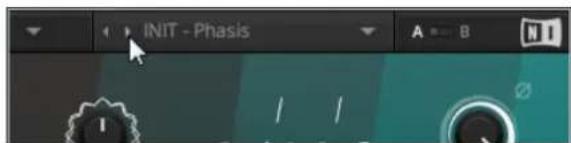
▶ Alternatively, click on the Preset menu to open a list of all available presets. Any preset can be loaded by selecting it from the list. Both various categories of factory presets and User Presets are available in separate submenus.
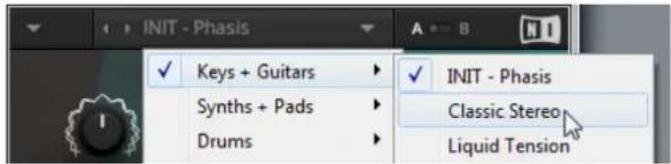

The INIT preset contains basic settings that are useful as a starting point for creating your own effect sounds.
Quick Access List
Below the Factory Presets and User Presets you'll find the Quick Access list. If you load a preset from the User Presets submenu, the next time you open the Preset menu the Quick Access list will show all user presets. If you load a preset from the Factory Presets submenu, the next time you open the Preset menu the Quick Access list will show all factory presets.

The Quick Access list in the Preset menu
6.2 Saving Presets
If you have created an effect sound you want to keep for later use, you can save it to the User Preset Folder. All presets in the User Preset Folder are available under User Presets in the Preset menu. This way you can always access your personal library of effect sounds directly from the user interface.
To save a user preset:
- Open the Main menu by clicking on the arrow symbol in the left corner of the Header and select Save as....
- Enter a new name for your preset in the Save New Preset dialog box.
- Click Ok to finish the process and close the dialog box.
→ Your user preset is saved in the user preset folder.

You can delete any of your user presets by loading the preset and then selecting Delete from the Main menu. Note that you cannot delete the factory presets.
User Preset Folder
The User Preset Folder contains all of your saved user presets. You can copy, delete or change the name of user presets directly in the folder on your hard drive.

The plug-in needs to be reloaded in order to reflect any changes made in the User Preset Folder.
▶ To show the User Preset Folder on your hard drive, open the Main menu by clicking on the arrow symbol in the left corner of the Header and select Show User Preset Folder.
→ A new system window opens showing the User Preset Folder on your hard drive.
6.3 Comparing Parameter Settings
The A/B Comparison switch can help you to fine-tune your settings. It is located to the right of the Preset menu in the Header.

The A/B Comparison switch in the Header
It provides two temporary memory slots A and B which allow you to quickly switch between different states of your parameter settings. This makes it easy to compare settings and find the ones you like.
To use the A/B Comparison switch:
- Create an effect sound you like. All parameter settings are automatically saved to slot A.
- Click on B to switch to the second slot. When you switch to slot B for the first time, it automatically takes over all the settings from slot A.
- Adjust parameters to create an alternative effect sound. All settings are automatically stored in slot B.
- Click A and B to switch between the two variations of your effect sound.
→ If you have found an effect sound you like, you can save the settings from the currently selected memory slot of the A/B Comparison switch as a preset.

If you want to overwrite the settings saved in the other slot with the settings saved in the currently selected slot, open the Main menu by clicking on the arrow symbol in the left corner of the Header and select Copy A to B or Copy B to A, respectively.
7 Troubleshooting
If you are experiencing problems related to your product that the supplied documentation does not cover, you can get further help in the Support section of the Native Instruments website:
https://support.native-instruments.com/hc
The Support section allows you to search both the Knowledge Base and the Support Community for content related to your issue. The Knowledge Base and the Support Community gather useful information about your Native Instruments product and can be of great help to solve possible issues you may encounter.
- The Knowledge Base is an ever-growing database of help articles by Native Instruments, providing solutions to common issues and answering frequently asked questions.
- The Support Community allows users to help users, and makes all the information and discussion publicly available.
Enter your query into the search field at the top of the Support section's landing page in order to find related entries from the Knowledge Base and the Support Community.

Before getting help please make sure you have downloaded the latest software for your product from Native Access.
Support
If no entry from the Knowledge Base and the Support Community matches your problem, or if the matching entry does not solve the problem, you can contact the Native Instruments Support team. You will find Contact Support buttons in the Support section of our website after looking for related content in the Knowledge Base and the Support Community.
When communicating with the Native Instruments Support team, keep in mind that the more details you can provide about your hardware, your operating system, the version of the software you are running, and the problem you are experiencing, the better they will be able to help you.
In your description, you should mention:
- How to reproduce the problem
-
What you have already tried to fix the problem
-
A description of your setup, including all hardware and the version of your software
- The brand and specifications of your computer

When installing new software or software updates, a Readme file is included that contains late breaking news and new information that was not yet included in the documentation. Please open and read this Readme file before contacting Technical Support.
User Forum
In the Native Instruments User Forum, you can discuss product features directly with other users and with experts moderating the forum. You can reach the User Forum via: http://www.native-instruments.com/forum.
- NATIVE INSTRUMENTS GmbH
- NATIVE INSTRUMENTS
- Table of Contents
- Welcome to MOD PACK
- Document Conventions
- CHORAL
- About Chorus Effects
- Overview of CHORAL
- FLAIR
- About Flanger Effects
- Overview of FLAIR
- PHASIS
- About Phaser Effects
- Overview of PHASIS
- Header and Presets
- Loading Presets
- Quick Access List
- Saving Presets
- User Preset Folder
- Comparing Parameter Settings
- Troubleshooting
- Support
- User Forum
Brand : NATIVE INSTRUMENTS
Model : Effect Series MOD Pack
Category : DJ Equipment