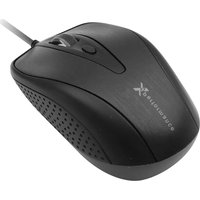
X9TURBO6D - Mouse X9 Performance - Free user manual and instructions
Find the device manual for free X9TURBO6D X9 Performance in PDF.


| Brand | X9 Performance |
| Model | X9TURBO6D |
| Product Type | Wired Gaming Mouse |
| Dimensions (L x W x H) | 125 x 75 x 40 mm |
| Weight | 95 g |
| Connection Type | USB-A Wired |
| Cable Length | 1.8 m braided cable |
| Sensor Type | Optical |
| DPI Range | 800 - 6400 DPI (adjustable) |
| Buttons | 6 programmable buttons |
| Polling Rate | 1000 Hz |
| LED Lighting | RGB, 7 presets |
| Compatibility | Windows 7/8/10/11, macOS |
| Power Source | USB bus-powered |
| Cleaning Instructions | Wipe with dry or slightly damp cloth; do not use harsh chemicals |
| Safety Precautions | Avoid liquid exposure; use only with approved USB ports; unplug during cleaning |
| Spare Parts & Repairability | Not user-serviceable; contact support for repairs |
| Warranty | 1 year limited warranty |
| Certifications | CE, FCC, RoHS |
Frequently Asked Questions - X9TURBO6D X9 Performance
User questions about X9TURBO6D X9 Performance
0 question about this device. Answer the ones you know or ask your own.
Ask a new question about this device
Download the instructions for your Mouse in PDF format for free! Find your manual X9TURBO6D - X9 Performance and take your electronic device back in hand. On this page are published all the documents necessary for the use of your device. X9TURBO6D by X9 Performance.
USER MANUAL X9TURBO6D X9 Performance
6-BUTTON OPTICAL USB MOUSE
User guide
natural_image
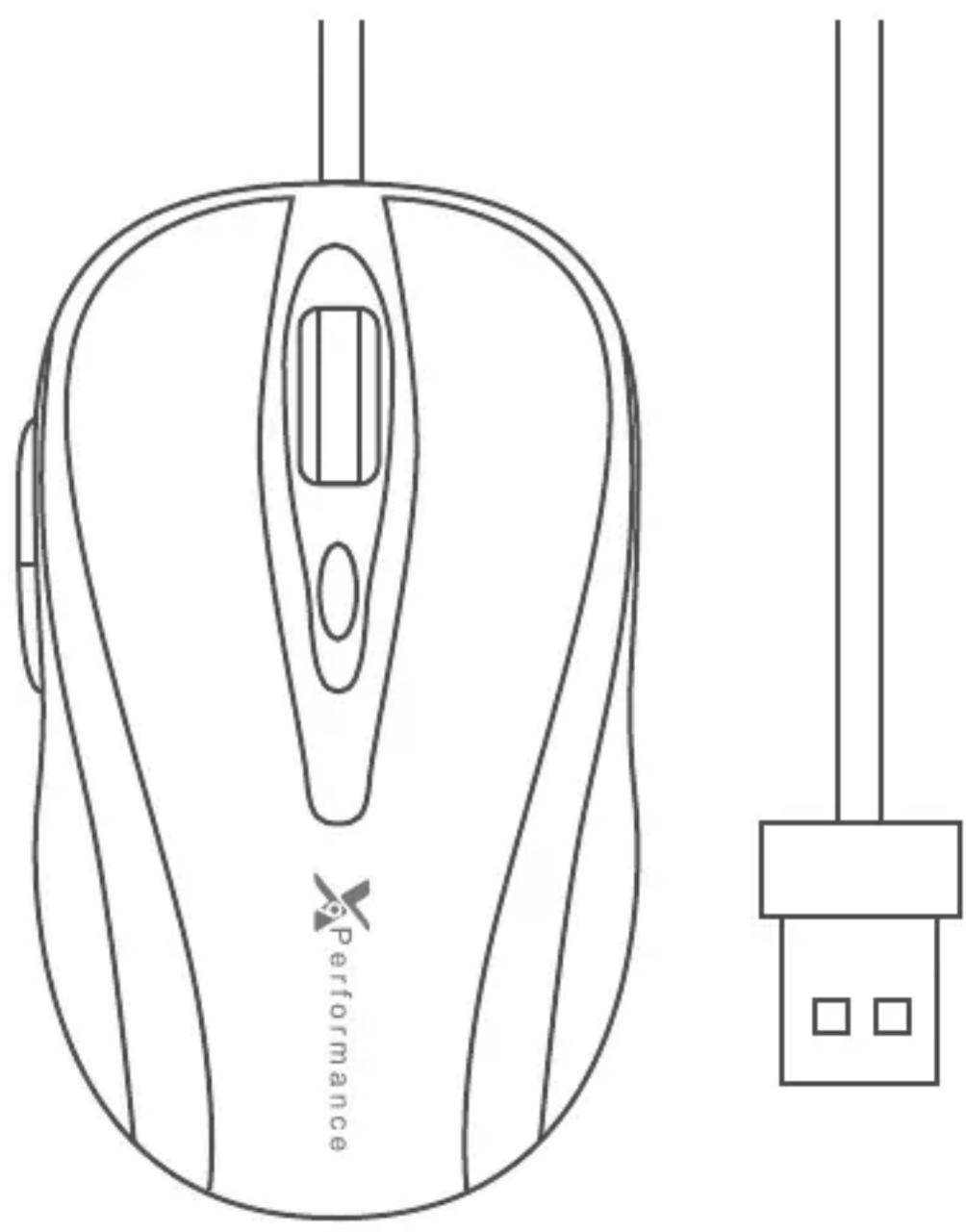
Line drawing of a computer mouse with 'Performance' branding and a separate plug symbol (no text or labels beyond the icon)The X9 Performance X9TURB06D is an optical USB wired mouse with an adjustable 1000/1600/2400/3200 dpi optical sensor. It has 6 buttons including three soft-click mouse buttons with scroll wheel, back and forward buttons and a dpi button for a precise and total control of your computer applications. The ergonomic and ambidextrous design offers maximum comfort to both left-handed and right-handed users and helps to increase your productivity. The X9TURB06D works both with Mac, PC and Chromebook and doesn't require a driver.
About this guide
Before you start using the X9TURB06D, be sure to read this guide in its entirety.
Safety intructions
Please read the following carefully before using this product. Incorrect use of this product may result in reduced performance, permanent damage and void warranty:
- Do not place this product near a heat source.
- Operating temperature of 5^ C to 50^ C. Storage temperature of -20^ C to 60^ C.
- Do not place this product near moisture nor liquids.
- Operate and store at humidity of 10% to 85% (non-condensing)
- Do not place heavy objects on this product.
- Do not drop this product.
- Do not dispose this product in the garbage. Take it to your local recycling centre.
Package contents
• X9TURB06D
- User guide
Hardware basics

How to install the X9TURB06D
The X9TURB06D is automatically recognized by the computer and does not require a driver. Simply plug the mouse to the computer and you are ready to go!
If you wish to configure the mouse settings to your personal preferences you can do this in the settings of the operating system:
Mac OS
To configure the tracking speed, scrolling speed, double click speed and primary mouse button, go to Mouse in System Preferences. Please note that Mac has limited support on two side mouse buttons. In Chrome web browser two side buttons work as page back and forward, but Safari browser doesn't support them.
Windows
To configure the mouse buttons, pointer, pointer options and wheel, go to Mouse in Hardware/Control Panel.
Technical support
In USA, please call to +1 909 230 6888, 8:30am-5:30pm (PST) Monday to Friday or email to techsupport@x9performance.com.
Warranty
X9 Performance warrants that this product will be free from defects in title, materials and manufacturing workmanship for one year from the date of the purchase. If the product is found to be defective then, as your sole remedy and as the manufacturer's only obligation, X9 Performance will repair or replace the product. This warranty is exclusive and is limited to the X9TURB06D. This warranty shall not apply to products that have been subjected to abuse, misuse, abnormal electrical or environmental conditions, or any condition other than what can be considered normal use. The liability of X9 Performance arising from this warranty and sale shall be limited to a refund of the purchase price. In no event shall X9 Performance be liable for costs of procurement of substitute products or services, or for any lost profits, or for any consequential, incidental, direct or indirect damages, however caused and on any theory of liability, arising from this warranty and sale. These limitations shall apply notwithstanding any failure of essential purpose of any limited remedy.
Brand : X9 Performance
Model : X9TURBO6D
Category : Mouse