
B3-A42-K74M - Tablet ACER - Free user manual and instructions
Find the device manual for free B3-A42-K74M ACER in PDF.


| Product type | Tablet |
| Model | Acer Iconia One 10 (B3-A42) |
| Dimensions (H x W x D) | 167.5 x 259 x 9.15 mm |
| Weight | 550 g |
| Display | 10.1" HD IPS LCD, 1280 x 800 resolution, multi-touch |
| Operating system | Android 7.0 (Nougat) |
| Processor | MTK MT8735 quad-core Cortex A53 1.3 GHz |
| System memory | 2 GB LPDDR3 SDRAM |
| Storage | 16 GB flash memory |
| Expandable storage | microSD card (SDXC) up to 128 GB |
| Cameras | Front: 2 MP; Rear: 5 MP |
| Battery | 22.4 Wh, 6100 mAh Li-ion, up to 9 hours video playback |
| Charging | DC power-in (10 W) via Micro USB |
| Connectivity | Wi-Fi 802.11a/b/g/n, Bluetooth 4.0, GPS, GLONASS, LTE (optional) |
| SIM card | 1 x nano SIM (LTE models) |
| Ports | Micro USB (OTG), 3.5 mm headphone jack |
| Audio | Two built-in stereo speakers, built-in microphone |
| Safety | Use only Acer-approved charger; battery temperature range 0–45°C for charging |
| Cleaning and maintenance | Wipe with a soft, damp cloth; do not use harsh chemicals |
| Spare parts and repairability | Contact Acer service center for repairs; battery not user-replaceable |
Frequently Asked Questions - B3-A42-K74M ACER
User questions about B3-A42-K74M ACER
0 question about this device. Answer the ones you know or ask your own.
Ask a new question about this device
Download the instructions for your Tablet in PDF format for free! Find your manual B3-A42-K74M - ACER and take your electronic device back in hand. On this page are published all the documents necessary for the use of your device. B3-A42-K74M by ACER.
USER MANUAL B3-A42-K74M ACER
Iconia One 10
USER'S MANUAL
© 2018 All Rights Reserved
Acer Iconia One 10 User's Manual
Covers: B3-A42
Regulatory Model Number (RMN): A8201
This revision: January 2018
Sign up for an Acer ID and enjoy great benefits
There are three great reasons for you to get an Acer ID:
- Create your own connected world.
- Get the latest offers and product information.
- Register your device for quick, personalized customer support.
For more information, please visit the Acer website: account.acer.com

Important
This manual contains proprietary information that is protected by copyright laws. The information contained in this manual is subject to change without notice. Images provided herein are for reference only and may contain information or features that do not apply to your computer. Acer Group shall not be liable for technical or editorial errors or omissions contained in this manual.
Acer Iconia One 10
Model number: ____
Serial number: ____
Date of purchase: ____
Place of purchase: ____
Google, Android, Google Play, YouTube and other marks are trademarks of Google LLC.
TABLE OF CONTENTS
Getting started with your tablet 4
Features and functions 4
Unpacking your tablet.... 4
Getting to know your tablet.... 5
Using the SIM card slot 6
Turning on for the first time.... 7
Charging your tablet 9
Assembling the power adapter 9
Using your tablet 11
Using the touchscreen.... 11
The Home screen 11
The virtual keyboard 22
Editing text.... 23
Setting an alarm 24
Waking your tablet.... 25
Shutting down your tablet 25
Connecting devices to your tablet 26
Connecting to AC power.... 26
Inserting a microSD card 26
Transferring files between your tablet and a PC.... 26
Connecting a Bluetooth device.... 27
Accessories 28
Going online 29
Managing Wi-Fi connections 29
Data saver (background data) 29
Browsing the internet 30
Google™ services 31
Using the camera and video recorder 36
Camera/video icons and indicators...... 36
Taking a photo 37
Recording a video.... 37
Camera and video options.... 38
Advanced settings 40
Wireless & Networks.... 40
Device.... 42
Personal.... 44
System.... 45
Updating your tablet's operating system 45
Resetting your tablet.... 45
FAQ and troubleshooting 46
Other sources of help 47
Specifications 48
Guidelines for safe battery usage 51
Battery information.... 51
Replacing the battery.... 52
End user license agreement 53
GETTING STARTED WITH YOUR TABLET
Features and functions
Your new tablet offers leading, easy-to-access multimedia and entertainment features. You can:
- Connect to the Internet via Wi-Fi or 3G.
- Access your email while on the move.
- Keep in touch with your friends with social networking apps.
- Watch movies or listen to music.
- Play games or read a book.
Unpacking your tablet
Your new tablet comes packed in a protective box. Carefully unpack the box and remove the contents. If any of the following items are missing or damaged, contact your dealer immediately:
- Acer Iconia tablet
- Product setup and safety information
- USB cable
- AC adapter
- Warranty card

Note
Before using your tablet for the first time, you need to charge it for at least four hours. After that you can recharge the battery as needed.

Note
If the battery has been depleted for a while, please charge the tablet for at least 30 minutes using the adapter.
Getting to know your tablet
Views
No. Item Description
| 1 Power button | Long press to turn the tablet on, press briefly to turn the screen on/off or enter sleep mode; press and hold to turn the tablet off. |
| No. Item Description | ||
| 2 Volume control key | Increases and decreases the tablet volume. | |
| 3 Microphone | Receives audio for video chats and Internet calls. | |
| 4 | Cover for: | |
| microSD card slot Insert a microSD card into the slot. | ||
| SIM card slot | Insert a nano SIM card into the slot.see Inserting a SIM card on page 6 | |
| 5 | 3.5 mm headphone jack | Connects to stereo headphones. |
| 6 Micro USB port | Connects to a computer via a USB cable. Also serves as the charging port for the AC adapter. For more information, see Charging your tablet on page 9. | |
| 7 Speakers Emits audio. | ||
| 8 Touchscreen 10.1" LED-backlit LCD. | ||
| 9 Front-facing camera | A 2-megapixel camera for video chats and selfies. | |
| 10 Rear-facing camera | A 5-megapixel camera for taking high-resolution images. | |
Using the SIM card slot
Your tablet has a SIM slot for internet access. To take full advantage of your tablet's Internet capabilities, you should install a SIM card with data subscription before turning on your tablet.
Inserting a SIM card

Warning
Do not force the SIM card. If it does not fit, ensure you have the SIM card properly oriented as illustrated. Trying to force the SIM into the slot when it is incorrectly oriented may damage the SIM and/or your tablet.
To insert the SIM card, turn the tablet upside down. Insert the SIM card with the gold-colored connectors facing upwards and the cut-out towards the bottom of the tablet (see illustration).

Turning on for the first time
To turn on your tablet, press and hold the power button until you see the Acer logo. Wait a moment for your tablet to boot up. You will then be asked some questions before you can use your tablet.
To start, tap to select your language then tap the arrow. Follow the rest of the instructions as they are displayed.
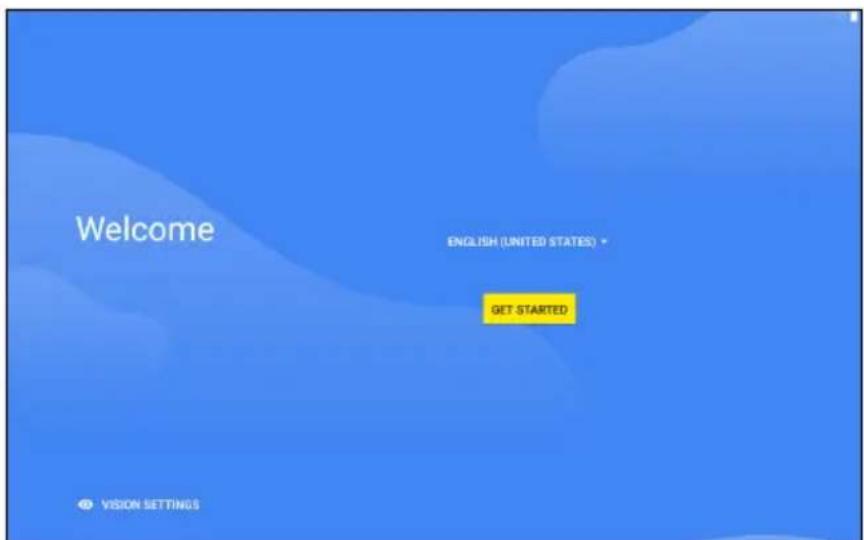
If the tablet's screen turns off, it has entered sleep mode. Briefly press the power button to wake it up. For more information see Waking your tablet on page 25.
Sign in to or create a Google account
If you have Internet access, your tablet allows you to synchronize information with a Google account.
During the start-up process, you may create or sign in to an account, which will be used to synchronize your contact list, email, calendar and other information. If you do not yet have Internet access, or do not want to use this feature, then tap Skip.

Important
You must sign in to a Google Account to use Gmail, Hangouts, Google Calendar, and other Google apps; to download apps from Google Play; to back up your settings to Google servers; and to take advantage of other Google services on your tablet.
If you have multiple Google accounts, such as separate accounts for personal and business contacts, you can access and synchronize them from the Accounts settings section. See Multiple Google accounts on page 44.

Note
If Google Play Store is updating apps in the background, opening new apps may consume memory and may affect the performance on your device.
CHARGING YOUR TABLET
Assembling the power adapter
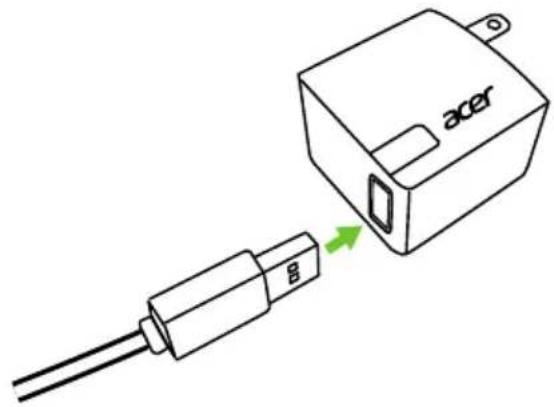
Your tablet is bundled with one of two types of USB power adapters: a fixed-prong type or a removable-prong type. Both types are described in this manual.
Fixed-prong type
The prongs and power adapter body form a complete piece, no assembly required. Simply slide the large end of the USB cable into the power adapter body (it will fit in only one direction). You cannot remove or switch the prongs with this type of adapter.
Removable-prong type
Align arrows on the power adapter head and body. Insert the head onto the power adapter body and turn the head towards "CLOSE" printed on the head until it clicks into place. Simply slide the large end of the USB cable into the power adapter body (it will fit in only one direction).

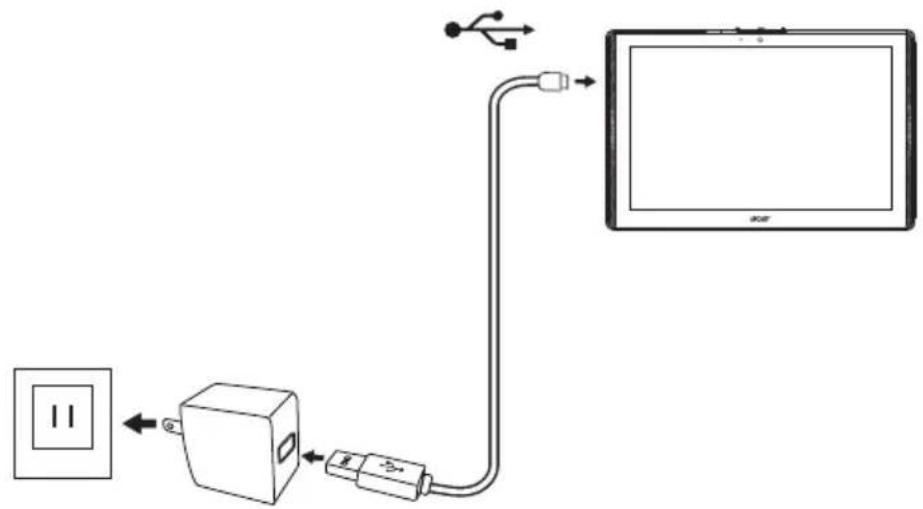
Connecting power
Connect the power connector to your tablet and plug the AC adapter into any AC outlet.

Warning
Only use an Acer-approved adapter to charge your device.

Note
It is normal for the tablet surface to become warm during charging or long periods of use.
USING YOUR TABLET
Using the touchscreen
Your tablet uses a touchscreen for selecting items and entering information. Use your finger to tap the screen.
Tap: Touch the screen once to open items and select options.
Swipe: Quickly swipe your finger across the screen to switch screens or open lists of options or information.
Drag: Hold your finger on the screen and drag across the screen to select text and images.
Tap and hold: Tap and hold an item to see a menu of actions for that item.
Scroll: To scroll up or down the screen, simply drag your finger up or down the screen in the direction that you want to scroll.
The Home screen
When you start your tablet, or wake it from power saving, it will display the Home screen. This screen gives you quick access to apps ("applications"), widgets, and folders. See Moving an app or folder on page 19.

Note
When you first see the Home screen, and your tablet is connected to the Internet, it will download a selection of recommended, optional apps. These may be deleted, as with any other downloaded app.
Folders are groups of apps that occupy one space on a Home screen. See Adding folders to a Home screen on page 20.
Widgets provide special functions, quick shortcuts to special app features, or serve as small apps that display constantly-updated information (like the time and weather). Many apps provide widgets, while some apps provide only a widget, and must be added and used from a Home screen. See Adding widgets to a Home screen on page 21.
Using the Home screens
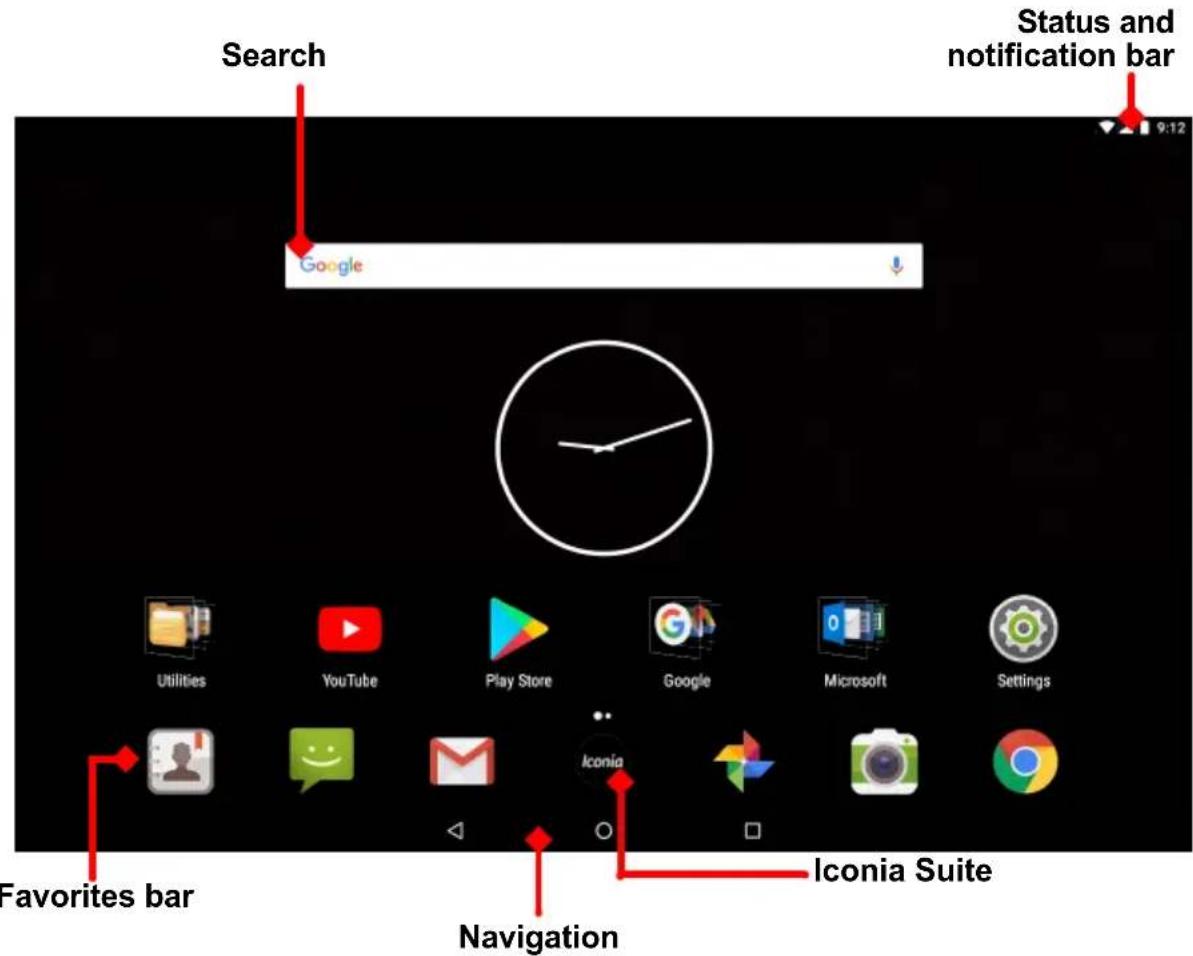
The Home screen provides controls and information.

Note
Bundled apps differ depending on region and configuration.
Swipe the Home screen left to see most apps installed on your tablet. If you need more space, you can extend the Home screen to give you more screens to add app icons or widgets. To add additional screens, tap, hold, and then drag an icon to the right edge of the screen. See Moving an app or folder on page 19 and Adding widgets to a Home screen on page 21.

Note
Removing or moving all apps and widgets from a Home screen will automatically remove that Home screen as well.
Navigation
To navigate through menus and options, three (or more) icons are shown at the bottom of the screen.
Back Home Overview
Back
Tap this icon to go to the previous page, or to go up one level in a menu. This icon may be replaced with the hide icon in certain cases (e.g. when the keyboard is displayed. In this case, tapping the icon minimizes the keyboard.
Hide
Home
Tap this icon to go directly to the Home screen. Tap and hold to open Google search.
Overview / Recent
Tap this icon to see recently opened apps in your tablet's Overview screen. Tap an app to open it. Tap anywhere on the screen to return to the Home screen.
Previous app
Double tap the Overview icon to switch directly to the previously used app.
Split-screen mode
If you are using a compatible app, tap and hold the Overview icon to enter split-screen mode. See Split-screen mode on page 18.

Favorites bar
The Favorites bar is visible on any Home screen and holds apps you frequently use. To remove an app from the bar, simply tap and hold the app and drag it away. To fill the gap with an app of your choice, see Moving an app or folder on page 19.

Iconia Suite
The Iconia Suite icon is in the middle of the Favorites bar.
Tap the Iconia icon for more information on installed apps and features.

Note
When you first open the Iconia Suite drawer, you will see a summary of the Iconia apps or features. Swipe left to see all the descriptions or tap Skip to continue. Tap the i in the top-right corner to see the descriptions again.
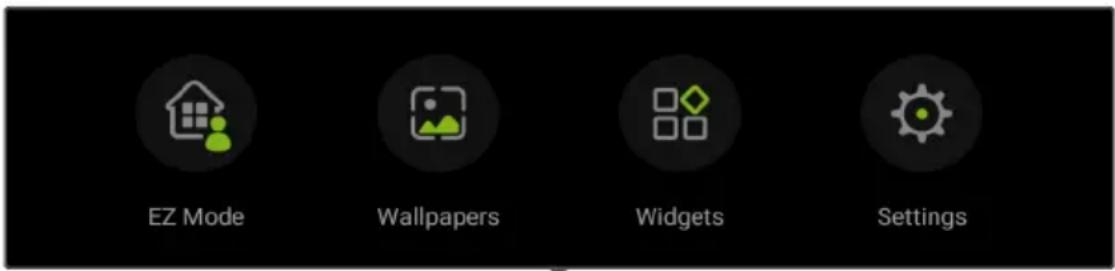
EZ Mode
Set up your tablet with multiple profiles so you can share your device with your family and friends. EZ Mode helps you to manage and schedule access to apps for each profile.
Wallpapers
Change the image for the screen background. See Changing the wallpaper on page 22.
Widgets
Add a widget to the screen. See Adding widgets to a Home screen on page 21.
Settings
Open Layout settings for your tablet.
Access requests
When you first open some apps, or use certain functions, your tablet will ask for permission to access some features or information.

To allow the app to fully function, tap Allow or OK, but if you do not want to share some information, you can choose to Cancel or Deny access; however, this may cause some apps to function incorrectly. To change permissions later, open the app information in Settings > Apps, then tap Permissions to turn permissions on or off.
To change permissions later, open the app information in Settings > Apps, then tap Permissions to turn permissions on or off.
Search
Search enables you to use a single, quick search to locate a variety of information on the internet and on your tablet. To use Search, simply tap in the search bar and type your query.

Note
In order to search or browse the internet, you must be connected to a wireless network. See Going online on page 29.
Searching on the internet
As you type, a list displays search suggestions. Based on the words you enter, these suggestions try to help you quickly access what you are looking for and may include the following:
- A previous search you performed on any device while you were logged into your Google account and performed a Google search;
- A new internet search suggesting what you might be looking for; • A specific website address.
If what you're looking for appears in the suggestions list, simply tap it. Otherwise, tap on the keyboard.
Tap a category at the top of the results screen to filter the search results to show just Images, News, or other type of result.
Searching on your tablet
Tablet search results are shown below the internet search suggestions. These suggestions are taken from sources such as the names of apps installed on your tablet, settings, media files from Google Play apps, contacts, bookmarks, and browsing history.

Note
You can choose what information is included in tablet searches. Swipe right from the Home Screen to open the Google App screen and tap the Menu icon ≡ in the top-left corner of the screen. Then tap Settings > Tablet search.
Voice search and "OK Google"
With voice actions, you can send text messages, place calls, send emails, find directions, search the internet and even send a note to yourself using your voice. Say "OK Google" or swipe left on the Home screen and tap Voice Search. For information on using voice search in the Chrome app, see Voice Search in Chrome on page 32.

Note
Voice Search is available only in selected regions.
Status and notification area
Status and notification icons are shown at the top of the screen. The top-right corner displays status information such as the time, battery status, and connectivity. The top-left corner displays event notifications, such as new message alerts.
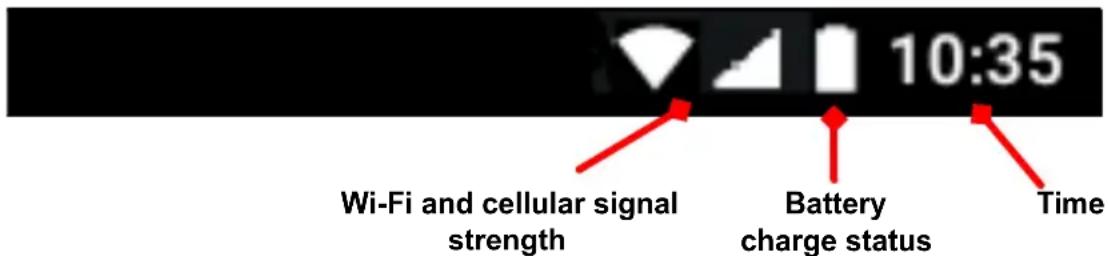
Swipe down from the top of the screen to display Quick Settings shortcuts, and notification details such as current downloads and media controls when music is playing.
Tap a shortcut to see more information, or toggle the feature if more information is not available. Tap and hold a shortcut to open appropriate Settings.

Swipe down again to display the full list of Quick Settings tiles. To see the Quick Settings tiles with one swipe, swipe down with two fingers.

Quick Settings tiles
| Icon Name Description | ||
 | Brightness Slide to adjust the screen's brightness. | |
 | Wi-Fi | Tap to toggle Wi-Fi on and display Wi-Fi settings. Small "up" and "down" arrows mean information is being transmitted. |
 | Battery usage | Tap to see battery charge levels and access Battery Saver settings. |
| [XYST] | Do not disturb Tap to silence some or all notifications or alarms. | |
 | SIM (LTE models only) | Tap to enable and disable the cellular connection. If Data connection is disabled, you will not be able to use cellular networks. |
 | Auto rotate | Tap to toggle automatic screen rotation on and off. |
 | Bluetooth | Tap to toggle Bluetooth on and open Bluetooth settings. |
 | Airplane mode | Tap to toggle Airplane mode on and off. When on, wireless connectivity is turned off unless you choose to turn a network on again. |
 | Location | Tap to toggle your device's location services on and off. |

Note
Tap and hold a tile to open related settings.
Edit
Tap Edit to see more Quick Settings tiles. Tap and hold a tile and drag to add, remove or move it. The first five tiles are visible in the Quick Settings shortcuts.
Notifications
Tap a notification to open the appropriate app; tap and hold a notification to see additional controls.
Split-screen mode
If you are using a compatible app (not from the Home screen), tap and hold the Overview icon to enter split-screen mode. The app that is open will move to the left (or top) of the

screen and the Overview of recently opened apps will open on the other side. Tap on a compatible app to view and use both at the same time.


Note
You may view two tabs from Chrome in split-screen mode. Open Chrome with more than one tab while in split-screen mode; the Menu : icon and select Move to other window.
Drag the divider to increase the size of one window to two-thirds of the screen.

Drag the divider to the edge of the screen or tap and hold the split-screen icon to exit split-screen mode.

Note
In certain apps, you may tap and hold selected text or an image and drag it to the other app.
Personalizing Home screens
You can personalize your Home screen by moving apps, adding or removing widgets, creating folders and by changing the wallpaper.
Moving an app or folder
Tap and hold an app or folder you want to move. To view information about the app, drag it to App info at the top of the screen. Otherwise, release your finger to place the app.
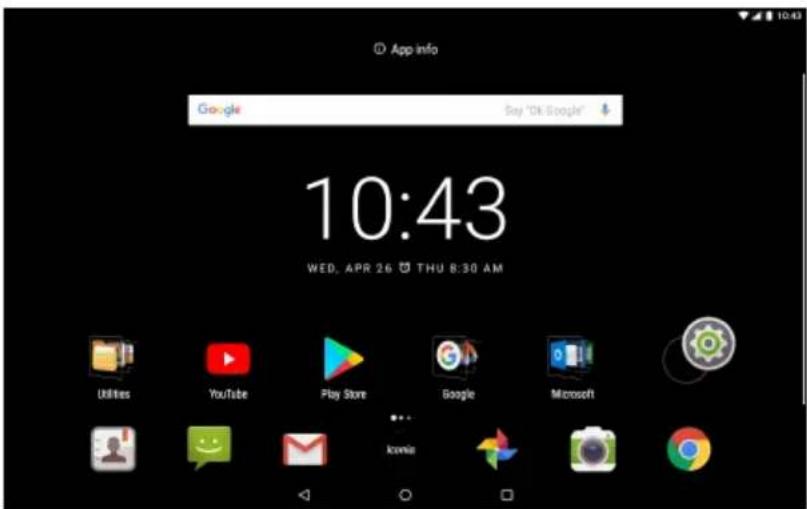
To place the app on a different Home screen, do the following:
- Slide your finger to the right or left side of the screen.

Note
You may not place icons to the left of the main Home screen.
- Hold the app there until you are on the desired Home screen.
- Release your finger to place the app.

Adding folders to a Home screen
You can also add folders to your Home screen. To create a new folder, drag and drop an app icon onto another app icon. This will create an "Unnamed Folder". Tap the folder icon and then tap the name of the folder to rename it.

To remove an app shortcut from a folder, tap on the folder icon to display the apps inside and then tap and hold the app icon that you want to remove. Drag and drop the icon to a new position. If you remove all but one shortcut, the folder will be removed.
Installing apps from a Home screen
To remove a downloaded app from the Home screen, tap and hold the item until the Uninstall option appears at the top of the screen. Simply drag the item to the Uninstall option and tap OK.

Note
You may only uninstall downloaded apps. Apps that were preinstalled on your tablet may not be removed.
Adding widgets to a Home screen
Tap and hold any open space on a Home screen, then tap Widgets. To move a widget to the Home screen, tap and hold an item until it is selected. The Home screen will open. Drag the item to any free area on the screen.

If you wish to place a widget on an extended Home screen, do the following:
- Slide your finger to the right or left side of the screen.

Note
You may not place widgets to the left of the main Home screen.
- Hold the widget there until you are on the desired Home screen.
- Release your finger to place the widget.
Removing widgets from a Home screen
To remove an item from the Home screen, tap and hold the item until the Remove option appears at the top of the screen. Simply drag the item to the Remove option.
× Remove
Changing the wallpaper
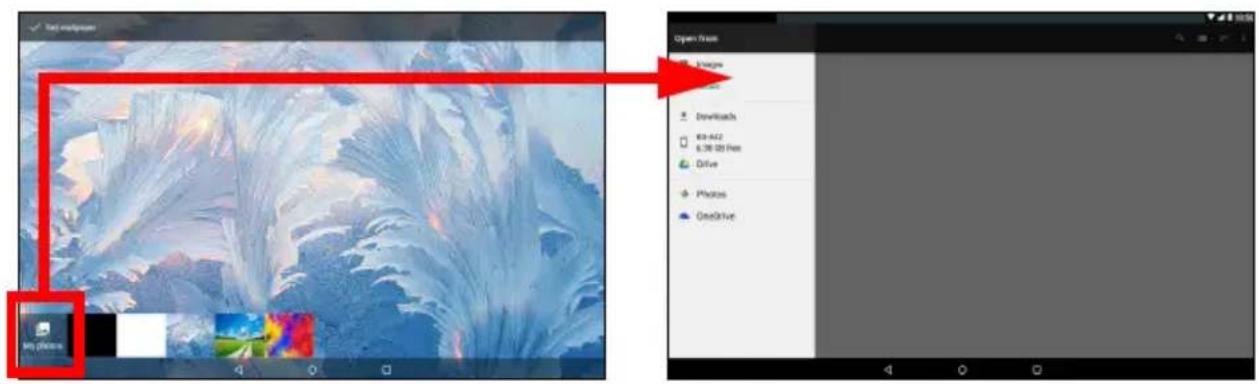
Tap and hold any open space on the Home screen and tap Wallpapers. To choose from pre-selected background images, tap an image at the bottom of the screen and tap Set wallpaper in the top-left corner of the screen.
To choose an image to use as wallpaper, tap My photos, then select a location that contains images, such as Google Drive, Gallery, and others.
If the list of locations is not visible, tap the Menu icon ≡.
The virtual keyboard
When you tap a text box to enter text, a virtual keyboard will appear. Simply tap on keys to enter text.


Note
The layout of the keyboard (and some button icons) varies slightly, depending on the app and information that is required.
Tap the ?123 button to see numbers and special characters, and then tap the =\< key to see more options. Tap and hold a key to select alternative characters (if available for that key), such as letters with accents or related symbols.
Changing Google keyboard settings
To use a different keyboard language or change settings, swipe left to the list of apps and tap Settings. Tap Languages & input and tap the option you want to modify.
Predictive text or auto correction
The Google keyboard can provide predictive text input. As you tap the letters of a word, a selection of words is displayed above the keyboard that continues the sequence of letters tapped, or is a close match allowing for errors. The word list changes after every key press. If the word you need is displayed, you can tap on it to insert it into your text.
To turn predictive text on or off with the Google keyboard, swipe left to the list of apps and tap Settings. Tap Languages & input and under Keyboard & input methods, tap Virtual keyboard > Google Keyboard > Text correction. Tap Show suggestions to toggle this feature on or off.

Note
Predictive text and auto correction not supported in all apps.
Editing text
You can select and edit text in certain apps, such as text you have entered in a text field. Selected text can be cut or copied and later pasted within the same app, or to a different app.

Note
Certain apps may not support text selection, or only support it in certain areas. Other apps may offer specialized commands to select text.
Selecting text
To select text that you want to cut, copy, delete or replace:
- Tap the text you want to select. If you can select this text, a cursor is inserted below the text.
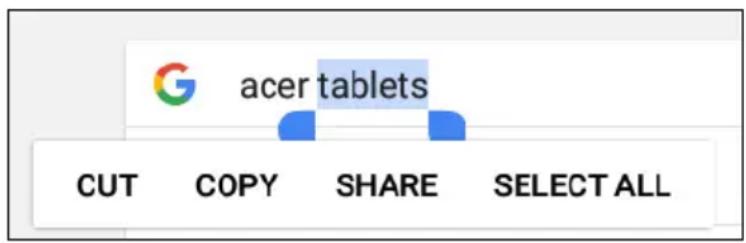
- Tap and hold the text or word you want to select. The selected text is highlighted, with a tab at each end of the selection.
- Drag either tab to expand or reduce the amount of selected text, or tap SELECT ALL.
- To cut or copy the text, tap the CUT or COPY button.
Inserting text
To type new text or add text that you have copied:
- Tap where you want to insert text. If you can select this text, a cursor is inserted below the text. To replace a word, double tap the word. In both cases, if you previously copied text, a PASTE button displays.
- If the cursor is not in the desired position, simply drag it to the correct position.
- Modify the text by typing or deleting text or tapping the PASTE button.
Setting an alarm
There are two predefined alarms on your tablet by default. To add or edit alarm settings, open Clock from the Home Screen, then tap Ⓤ.
Tap the ON/OFF switch next to a preset alarm to turn it on or off or tap to create a new alarm.
Tap a preset alarm to edit it. You can:
- Set the alarm time.
- Give it a memo/name (e.g., "Work").
- Set which days to repeat the alarm.
- Set a ringtone.
Tap to delete an alarm.
Waking your tablet
If the screen is off and the tablet does not react to any taps on the screen, then it has been locked and is in sleep mode.
To wake your tablet, press the power button. If you have set a Screen Lock, your tablet will display the Lock screen. To unlock the screen, swipe up from the bottom of the screen.
Security Options
For additional security, you may set a code or number that must be entered to access the tablet, such as an unlock pattern (a set of dots that must be swiped in the correct order) or a PIN. Swipe left to the list of apps and tap Settings > Security > Screen lock. If you forget your unlock settings, please refer to Unlock pattern, PIN, or password on page 47.
Shutting down your tablet
If you won't use your tablet for an extended period of time, turn it off to save battery power. To turn off your tablet (even when locked), press and hold the power button until a menu displays (about one second). Tap Power off and confirm the shut down. To force a shutdown, press and hold the power button until the tablet shuts down (about four seconds).

Note
If your device's battery gets too hot, you will be notified and advised to turn off the device. If you fail to turn it off, it will shut down automatically.
CONNECTING DEVICES TO YOUR TABLET
Connecting to AC power
See Charging your tablet on page 9
Inserting a microSD card
You may install a microSD card to expand your device's storage space. Ensure that the microSD card is inserted all the way into the card slot.

Note
Your tablet only supports microSD cards that use the FAT, FAT32, exFAT, and NTFS file systems.
To check card capacity, open Settings > Storage & USB. Your card's current capacity is listed under SD card.
Transferring files between your tablet and a PC
Your tablet and any connected storage devices can be accessed from a PC with a USB connection.
Connecting to a PC as a USB storage device
If you wish to transfer information between your device and your computer (either the microSD card in your device or the device's internal memory), you can connect your device to a PC using the supplied USB cable.
- Plug the USB sync cable into the micro USB connector on your device.
- Plug the USB client connector into an available USB port on your computer.
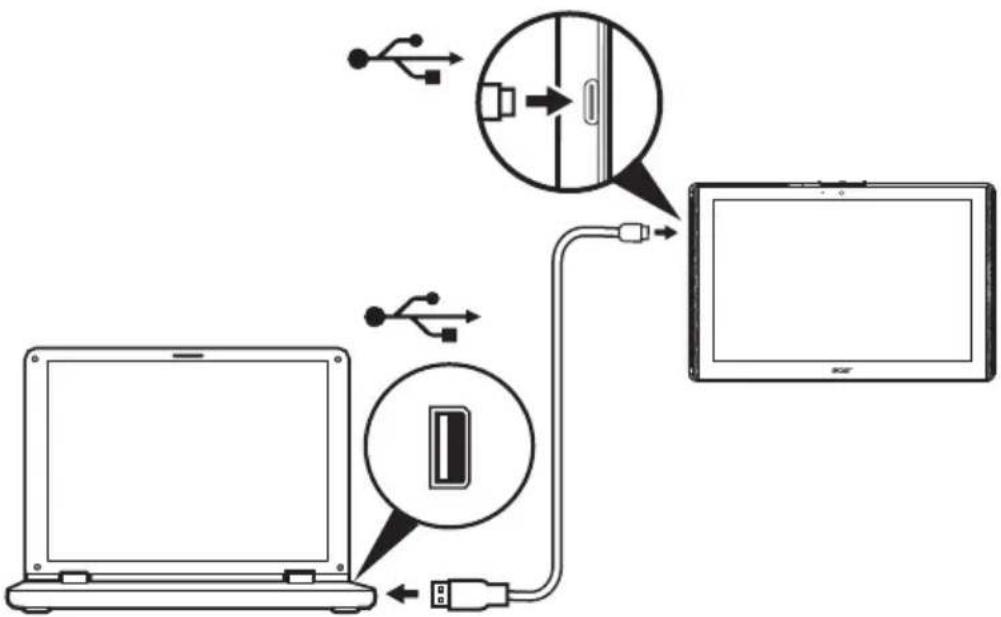
Your device will now be available as a drive in your computer's file explorer.
For USB options, swipe down from the top of the screen to display the notification area and tap USB for file transfer to choose whether to Transfer files (the recommended option) or Transfer photos (PTP).
Connecting a Bluetooth device
To connect to a Bluetooth device, you must first pair the devices. To do so, do the following:
- Open Settings, then under Wireless & networks tap Bluetooth.
- Turn Bluetooth on and the tablet instantly starts scanning for nearby Bluetooth devices.
- Tap the device you want to connect to and follow any on-screen instructions.
After the initial pairing, you only need to ensure your tablet's Bluetooth is on and the device is on to connect the two. For more information on connecting to another Bluetooth device, see the device's operating instructions.
Only A2DP stereo headsets (playback only, no microphone) are supported.

Note
Please check for updates to the tablet's software which may add support for additional Bluetooth devices (open Settings > About tablet > System updates > CHECK NOW).
Accessories
For a complete list of accessories, visit store.acer.com.
GOING ONLINE
Managing Wi-Fi connections
If you did not connect to a Wi-Fi network when you first started your tablet, or want to connect to a new network, swipe left to the list of apps and tap Settings > Wi-Fi to manage your connection settings. Alternatively, swipe down from the top of the screen and tap the Wi-Fi button to toggle on and off the Wi-Fi connection.
If Wi-Fi is not on, tap the Wi-Fi switch to On and wait for your tablet to detect nearby networks. Tap the name of your network and enter a security password, if needed.
Data saver (background data)
The Data Usage section shows how much data has been transmitted to your tablet, either in total or for each app. This information is useful if you are using a metered service.
If an app is using too much data, or you need to control how your data service is used, open Settings, then Data Usage, and turn Data Saver on. Tap to see a list of apps installed on your device, you may disable background data for individual apps. An app controlled by the Data Saver will only be able to access a data connection when you're actively using the app.

Note
Blocking background data may cause some apps to stop working correctly. For example, background data is required to make regular checks for updates, useful for email or messenger apps.
Browsing the internet
In order to browse the internet with your tablet, you must be connected to a network with a connection to the internet.
Using the browser
To start browsing, tap the Chrome icon on the Home screen. To enter a website address, tap the address box at the top of the page. Enter the address using the keyboard and tap the arrow icon.

To navigate forward and backward in your browser's history, tap the arrow icons. To adjust browser settings and perform other tasks, tap the Menu icon.
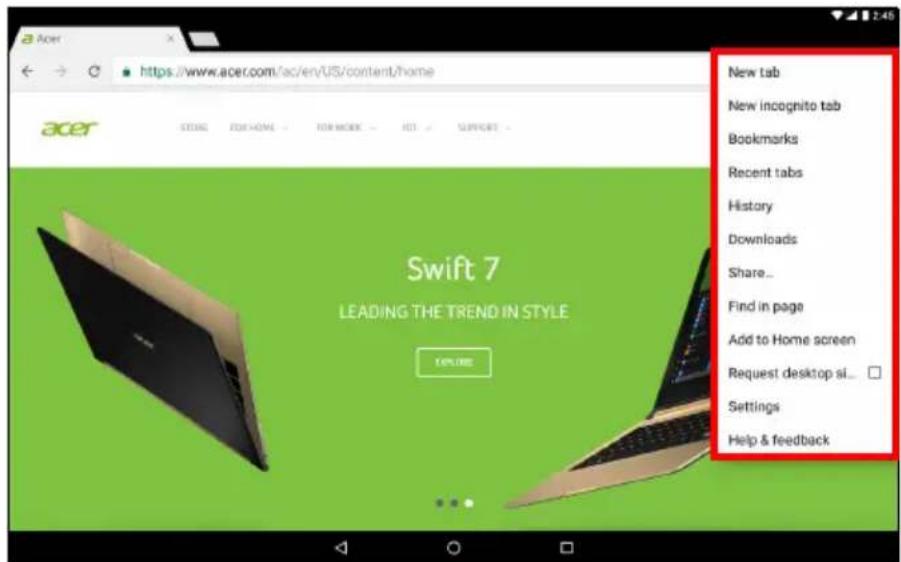
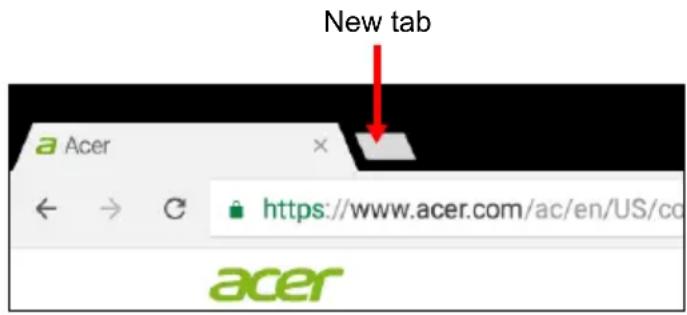
Chrome enables you to open multiple tabs. When a page is open, tap the small New tab button. Simply tap one of the open tabs across the top of the screen to switch pages.
Google services

Note
Apps may not be available in all countries and regions.
You must activate a Google account before using Google services. The first time you access Google services, read and accept the Terms of Service.
The contents and design of Google Play varies by region. For example, in some regions, you can also browse and purchase movies, books, magazines, or music. Updates may add new categories or change how to navigate Google Play at any time.
Setting up your Google email
- Make sure your tablet is connected to the internet.
- Open Gmail from the Home screen.
If you did not enter a Gmail account address and password when you first started your tablet, follow the instructions.
The combined inbox allows you to view emails from multiple accounts in a single inbox.
The Gmail app may also access email from most popular email providers. To add an account, tap Menu ≡ then Settings and select Add account. Select the type of account, then enter your email address and tap Next to automatically connect to your account. If your account requires more information, tap Manual setup instead.
Composing an email
- Make sure your tablet is connected to the internet.
- Open Gmail from the Home screen.
- Tap
- Enter the recipient's email address, the subject and message.
- When you have finished composing your message, tap

Voice Search in Chrome

Note
Voice Search is available only in selected regions.
With voice actions, you can send emails, find directions to locations, search the internet and even send a note to yourself using your own voice. In Chrome, tap the microphone icon in the address bar. If this is the first time you have used this function, tap Allow. When the Speak now prompt displays, state your command or query.

Google Play
Tap Google Play from the Home screen. Here you can obtain a variety of add-on programs and apps to enhance the functionality of your tablet.
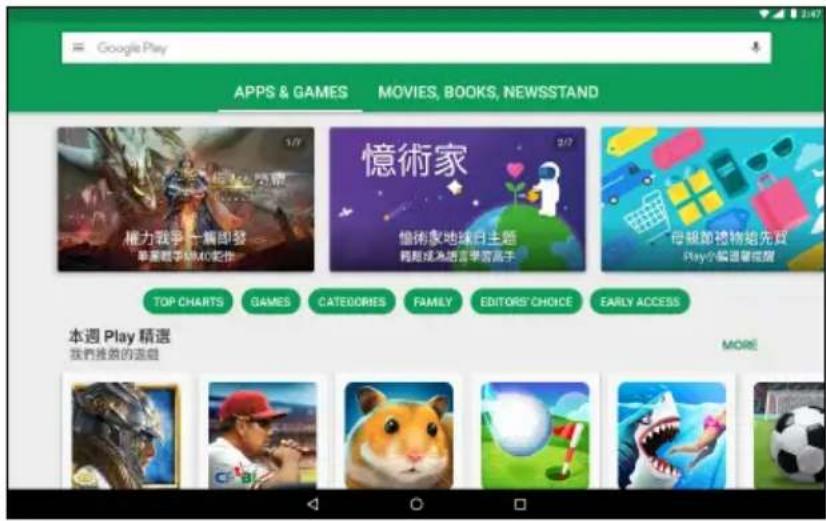
The contents and design of Google Play varies by region. For example, in some regions, you can also browse and purchase movies, books, magazines, or music. Updates may add new categories or change how to navigate Google Play at any time.
You can browse Google Play by category or tap the search icon to search for a specific app.
Once you have selected an app, tap Install to download and install the app. Tap ACCEPT to proceed with the installation.

You may keep track of the download progress from both the app's page and your device's notification area.


Important
Some apps may require payment before you can download them. Add a payment method in order to pay for these apps, such as redeeming a Google Play gift card or adding credit card details.
Using downloaded apps
Once you've downloaded and installed an app, you may find it in the Home screen. Some apps may be automatically added to an existing folder. For example, apps from Google may be added to the Google folder.
Certain apps provide both an app and widget, or only provide a widget (with no app shortcut). See Personalizing Home screens on page 19.
Uninstalling downloaded apps
If you do not find it useful, you may uninstall a downloaded app. See Uninstalling an app on page 43.
Google Hangouts
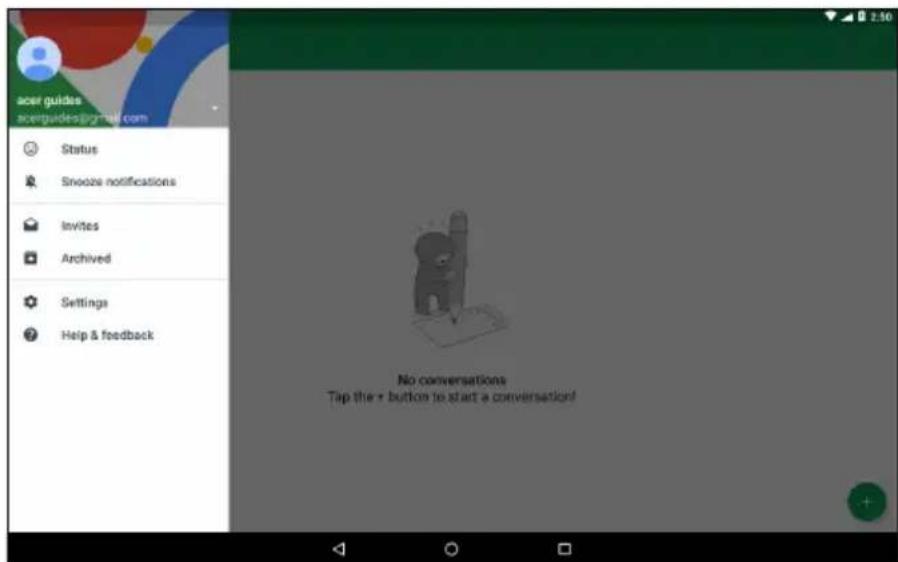
Google Hangout allows you to message a friend or hold group conversations over audio and video.
Tap Hangouts in the Google folder on the Home screen. You will see a list of your contacts connected to Hangouts services. Tap a contact to open a chat session. After you have connected, you can open a video chat session.
Your tablet features two cameras (front- and rear-facing). This section will take you through all the steps in taking photos and videos with your tablet. To activate the camera or video recorder, tap Camera on the Home screen.

Note
You can only save photos and videos to internal memory.
Camera/video icons and indicators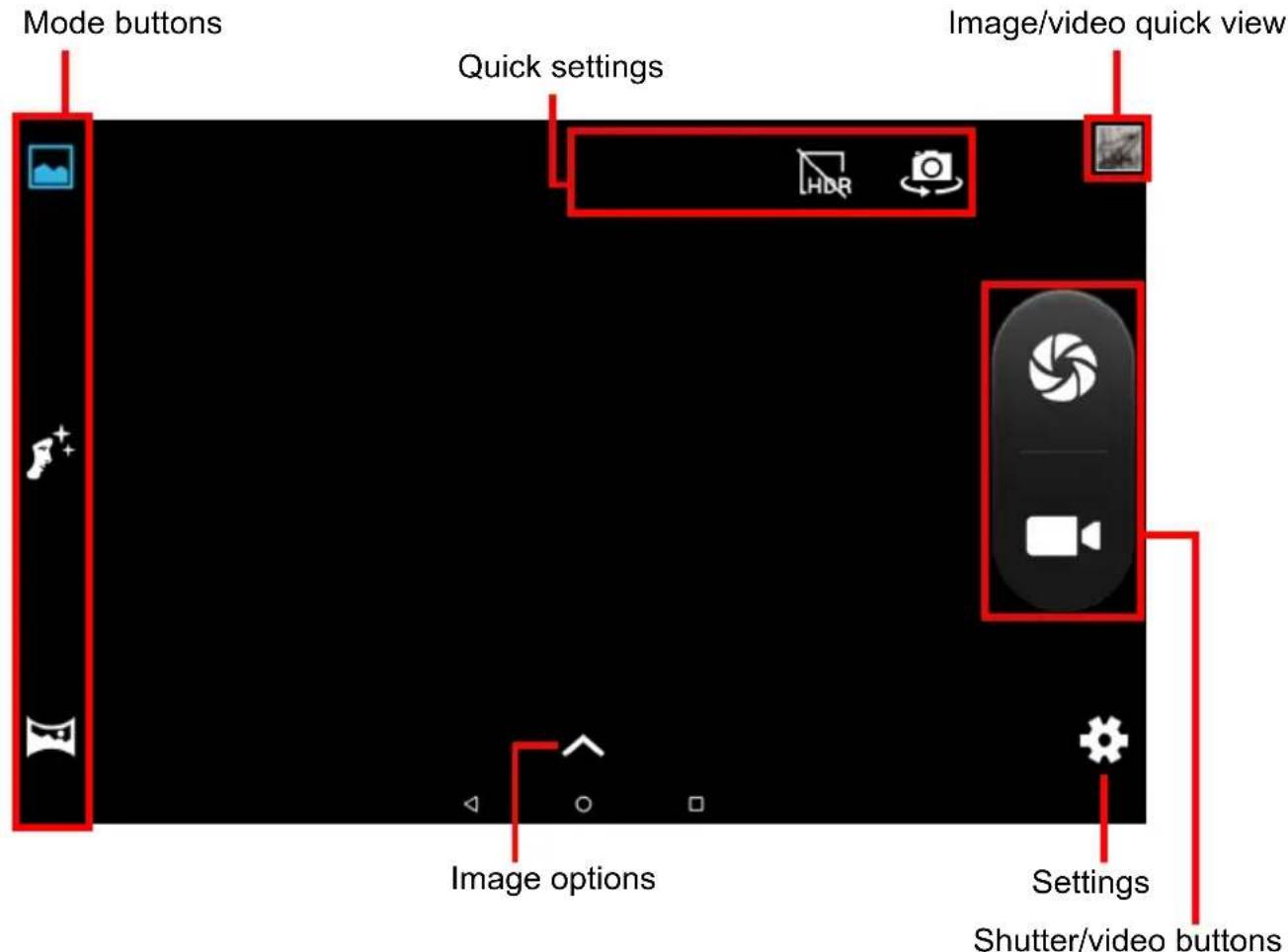
Mode buttons: Tap an icon to select one of the picture modes: Normal, Face Beauty, or Panorama.
Quick Settings: Tap an icon to turn HDR on or off, or to switch between the front and rear cameras.
Settings: Tap the Settings icon to change general, camera, and video settings.
Image Options: Tap the arrow icon to rapidly change settings for the selected mode: Exposure, Color effect, White balance, and Scene mode.
Shutter/Image buttons: Tap the shutter button to take a photo. Tap the camera button to begin recording. While recording, you are unable to access camera/video settings. Tap the camera again to stop filming.
Zoom: To zoom in, reverse pinch the screen. To zoom out, pinch the screen.
For more information about modes, settings and options, see Camera and video options on page 38.
Taking a photo
- Ensure the options are set to your preferences.
- Frame your subject and steady your tablet.
- Zoom in or out as needed.

Note
When zooming, the image on the screen does not represent the quality of the final image.
- Tap to take the photo.
Recording a video
- Ensure the options described above are set to your preferences.
- Frame your subject and steady your tablet and zoom in or out as needed.
- Tap □ begin recording.
- Tap to stop recording.
Viewing photos and videos
After you have taken your photo or video, it is automatically saved to internal memory. You can quickly view it by swiping in from the right side of the screen. Alternatively, tap Photos, then look for Camera.
Look for the photo or video you want to view (videos are marked with a small play symbol). Tap the image once to enlarge it; and tap it again to zoom into the image.
You can share photos using various services and edit the image using various options. Tap to see which sharing options are available for the file or tap to display image editing options.
Camera and video options
Mode
Change the way your camera takes pictures:
| Mode Description | |
| Normal Take a single picture. | |
| Face Beauty Add skin smoothing effects to the picture. | |
| Panorama | Take a series of images that will be combined to make a single extra-wide picture. |
Quick settings
Tap an icon to change turn HDR on or off, or to switch between the front and rear cameras.
Settings
Settings are divided into three sections: General, Camera and Video.
General
Adjust general image settings with these options:
| Setting Options | |
| GPS location info | Set if the location (from GPS) is stored in the image information. Certain apps can use this to show where the photo was taken. |
| Face beauty Multi-face mode / off | |
| Exposure 0 / +1 / +2 | |
| Scene mode Auto / Night / Sunset | |
| White balance Auto / Incandescent / Daylight | |
| Image properties | Sharpness / Hue / Saturation / Brightness / Contrast |
| Anti-flicker Auto / Disabled / 50 Hz / 60 Hz | |
| Restore defaults Restore all Settings to their original values. | |
Camera
Adjust camera image settings with these options:
| Setting Options | |
| Zero shutter delay On / off | |
| Anit-shake On / off | |
| Face detection On / off | |
| Auto scene detection | On / off |
| Self timer Off / 2 seconds / 10 seconds | |
| Capture number 40 shots / 99 shots (for Continuous shot) | |
| Picture size 1 megapixel / 5 megapixels | |
| Preview size Full screen / Standard (4:3) | |
| ISO Auto / 100 / 200 / 400 / 800 / 1600 | |
Video
Adjust video settings with these options:
| Setting Options | |
| Noise reduction On / off | |
| EIS On / off (electronic image stabilization) | |
| Microphone | On / off |
| Audio mode | Normal / Meeting |
| Video quality | Fine / Medium / High |
ADVANCED SETTINGS
To access Settings, swipe left on the Home screen and tap Settings.

To quickly navigate with a list of main categories, swipe in from the left of the screen.
Wireless & Networks
Wi-Fi
Displays all available wireless networks. Turn the Wi-Fi function on or off. Wireless networks may require a password.
Tap the Settings icon in the top-right corner for additional options.
Bluetooth
Displays all available devices with which you can use Bluetooth. You can switch Bluetooth on or off, rename the device name used by the tablet, and show received files.
To connect to a device, tap the device in the list of available devices. You may be asked to enter a PIN on one or both devices to establish the connection.
Data Usage (background data)
The Data Usage section shows how much data has been transmitted to your tablet, either in total or for each app. This information is useful if you are using a metered service.
If an app is using too much data, or you need to control how your data service is used, open the Data Usage menu, and turn Data Saver on. Tap to see a list of apps installed on your device, you may disable background data for individual apps. An app controlled by the Data Saver will only be able to access a data connection when you're actively using the app.

Note
Blocking background data may cause some apps to stop working correctly. For example, background data is required to make regular checks for updates, useful for email or messenger apps.
More...
Putting your tablet in Airplane mode
You can enter Airplane mode (also known as 'flight mode') to turn off network and Bluetooth functions and use your tablet during a flight. Check with your airline to confirm which devices are permitted on board.
Always follow instructions, such as switching your tablet off during takeoff and landing as it may interfere with aircraft electronic systems.

Note
When Airplane mode is active, the ✦ icon is displayed in the status area.
To turn Airplane mode on or off, tap Settings, then under Wireless & Networks tap More > Airplane mode.
Alternatively, swipe down from the top of the screen to use the airplane mode tile.
Virtual Private Network (VPN)
This option enables you to connect to a private network, such as a secure work or office environment.
To add a VPN, open Settings, then under Wireless & Networks tap More > VPN. In the top-right corner of the screen, tap the plus sign.
Device
Display
You can adjust your tablet screen settings. Open Settings > Display.
| Item Description | |
| MiraVision | Optimizes the picture quality with color tuning and color enhancement. |
| Brightness level | Adjusts screen brightness. |
| Bluelight Shield | Protects your eyes by reducing blue-light emissions from the screen. |
| Wallpaper | Set the Home screen and Lock screen background image. |
| Sleep | Configure how long the tablet is idle before it goes to sleep mode. |
| Screen saver | Controls what happens when the tablet is docked and/or sleeping. |
| Font size | Sets the font size so either more text is visible or the text is easier to read. |
| Display size Sets | the size of icons and text on the screen. |
| When device is rotated | Choose to automatically rotate the screen's contents when the device is rotated or to keep the current screen's orientation even when the device is rotated.You can enable or disable the screen rotation function by swiping down from the top of the screen and tapping the Auto-rotate tile. |
| Cast | Mirrors your tablets display on a compatible monitor or display.You must pair your tablet to a display or dongle before options are available. See the instructions that came with your display or dongle to pair. |
Notifications
Stop apps from creating notifications, or restrict how and when the notifications may be seen.
Sound & notification
Adjust the volume of media, alarms, and notifications on your tablet, and change or mute ringtones and other sounds.
You may also adjust the volume of media, alarms, and notifications using the volume buttons on the edge of the tablet.
Apps
Closing an application
To close an active app, open the Overview screen. Swipe up or down to find the app you wish to close. Swipe the app to the right to close it.
Forcing an app to stop
If an app is causing problems on your tablet, you can force it to stop. Open Settings, then select Apps. Tap the app you wish to stop, tap FORCE STOP and confirm.
Uninstalling an app
You can remove apps installed on your tablet to free up extra storage memory. Tap the app icon from the Home screen and drag it into the Uninstall area at the top of the screen.

Note
You cannot uninstall apps that were pre-loaded on your tablet.
Alternatively, open Settings, then select Apps. Tap the app you wish to uninstall, tap UNINSTALL and confirm.

Warning
You may also choose to Disable apps that were preinstalled on your tablet, but this is not recommended and many apps are essential for your tablet to work correctly.

Important
You should only Force Stop or Disable apps if you are familiar with the Android ™ operating system.
Personal
Accounts and synchronization
You can sync your calendar, email and contacts on your tablet, and access the latest updates on all your Android devices. Open Settings. Under Personal, tap Accounts. Then tap the appropriate account to access the synchronization settings.
To add a new account, tap Add account. Select the type of account and then follow the instructions.
Google Sync
In your Google account, you can set synchronization for Google products including Browser, Calendar, Gmail, Google Photos, and others. From the Settings menu, tap Accounts > Google and under Accounts, tap your account name (your Gmail email address).
Tap the toggle next to the item to turn auto-sync on or off.
To manually synchronize an item, make sure the item is 'on', tap the Menu icon and then tap Sync now.
Multiple Google accounts
If you have multiple Google accounts, such as separate accounts for personal and business contacts, you can access and synchronize them from the Accounts settings section. Open Settings > Accounts > Add account.
Users
To create separate user accounts or profiles on your tablet, open Settings > Users. The 'Owner' may create a User account, with their own email address, apps and content, or a Restricted profile that has access to a limited version of the Owner's account.
Users or profiles may sign in from the Lock screen or notification bar.
Changing language and text options
To set your location and language input preferences open Settings > Languages & input.
System
Setting the date and time
To set the date and time, open Settings > Date & time.

Note
If you travel frequently or live in an area that uses daylight saving time, and have mobile network access, activate Automatic time zone. Your tablet will set the date and time based on information it receives from the network.
To set an alarm see Setting an alarm on page 24.
Updating your tablet's operating system
Your tablet can download and install system updates, adding support for new devices or expanding software options.
To check for operating system, or 'firmware', updates, open Settings > About tablet > System updates > CHECK NOW.

Note
Downloading new firmware can take up to 40 minutes, depending on your network speed. Do not press the power button or access your tablet in any way during a system upgrade to prevent firmware installation failure.
Resetting your tablet
A data reset, or format, restores your tablet to factory settings.

Important
This will erase all your personal information, any contacts stored on your tablet and any programs you installed.
To perform a reset, open Settings then tap Backup & reset > Factory data reset; tap RESET TABLET and then ERASE EVERYTHING.
FAQ AND TROUBLESHOOTING
This section lists frequently asked questions that may arise during the use of your tablet, and gives easy answers and solutions to these questions.
| Aspect Question Answer | ||
| Audio | Why is there no sound coming from the device? | If the headset is plugged into the device, the speaker is automatically shut off. Disconnect the headset.Check that the device volume setting is not muted.Check that the volume control is not at its lowest setting. |
| Memory | Why do I have less storage than the specifications say? | A small amount of memory is reserved for system security. |
| Multimedia files | Why can’t I view my picture files? | You may be trying to view an image that is not supported. Try a different app. |
| Why can’t I view my video files? | You may be trying to view a video that is not supported. Try a different app. | |
| Why can’t I play my music files? | You may be trying to play a file that is not supported. Try a different app. | |
| System information and performance | How do I check the OS version of my device? | Open Settings > About tablet to check the OS version (Kernel/build number) and other hardware and software information. |
| Where can I find my serial number ID? | Open Settings > About tablet > Device Information. | |
| Power | I couldn't turn on the device. | The battery power may be depleted. Recharge the device.See Charging your tablet on page 9 for more information. |
| Storage | How do I check memory status? | To check storage status, go to Settings > Storage. |
| What do I do when my device's internal storage is full or almost full? | You may need to delete installed apps or move media files to the microSD card. | |
| Unlock pattern, PIN, or password | I forgot my unlock pattern, PIN, or password. | You must reset and restore your tablet.If this option is not available, please contact your local Acer service center. |
| Heat | The tablet heats up when charging or operating for a long period. | It is normal for the device to heat up when charging. When charging is complete, it will return to its normal temperature.It is also normal for the tablet to heat up during long periods of use, such as watching a video or playing a game.All Acer tablets are factory-tested before release. |
Other sources of help
| For information on: Refer to: | |
| Up-to-date information regarding your tablet | www.acer.com |
| Service enquiries support.acer.com | |
SPECIFICATIONS
Performance
- MTK MT8735 quad-core Cortex A53 1.3 GHz processor
- System memory:
• 2 GB of LPDDR3 SDRAM
• 16 GB of flash memory
Android 7.0 (Nougat) operating system
Display
• 10.1" HD IPS LCD integrated multi-touch screen - 1280 x 800 resolution
Multimedia
- Two built-in stereo speakers
- Built-in microphone
USB connector
- Micro USB port
- OTG support
Power
- DC power-in (10 W)
Connectivity
SIM support (1 x nano SIM)
• GSM / GPRS / EDGE: 850 / 900 / 1800 / 1900 MHz • GPRS / EDGE: Multi-slot class 12 - WCDMA: 1, 2, 5 (2100 / 1900 / 850 MHz), upload up to 11.5 Mbps / download up to 42.2 Mbps
- LTE Cat.4, Band 1, 3, 7, 8, 20 (2100 / 1800 / 2600 / 900 / 800 MHz), upload up to 50 Mbps / download up to 150 Mbps
- Bluetooth 4.0 • 802.11a/b/g/n wireless LAN
Navigation
• GPS - GLONASS support
Camera
- Front camera
- 2-megapixel • 720p HD audio/video recording
- Rear camera
- 5-megapixel • 1080p Full HD audio/video recording
Expansion
- Micro USB ports
- MicroSD card slot (SDXC, up to 128 GB)
Battery
• 22.4 Wh 6100 mAh 3.7 V 2-cell Li-ion battery pack Battery life: Up to 9 hours (based on video playback test results)

Note
Length of battery operation will depend on power consumption which is based on system resource use. For example, constantly using the backlight or using power-demanding apps will shorten battery life between charges.
Dimensions
Height 167.5 mm
Width 259 mm
Thickness 9.15 mm
Weight 550 g
Environment
Temperature
Operating: 0° C to 35° C
Non-operating: -20° C to 60° C
Humidity (non-condensing)
Operating: 20% to 80%
Non-operating: 20% to 80%
TRADEMARK INFORMATION

dts-HD®
Premium Sound
For DTS patents, see http://patents.dts.com. Manufactured under license from DTS Licensing Limited. DTS, DTS-HD, the Symbol, & DTS or DTS-HD and the Symbol together are registered trademarks, and DTS-HD Premium Sound is a trademark of DTS, Inc. © DTS, Inc. All Rights Reserved.
GUIDELINES FOR SAFE BATTERY USAGE
Battery information
Do not use this product in a humid, wet and/or corrosive environment. Do not put, store or leave your product in or near a heat source, in a high temperature location, in strong direct sunlight, in a microwave oven or in a pressurized container, and do not expose it to temperatures over 60°C (140°F). Failure to follow these guidelines may cause the battery to leak acid, become hot, explode or ignite and cause injury and/or damage. Do not pierce, open or disassemble the battery. If the battery leaks and you come into contact with the leaked fluids, rinse thoroughly with water and seek medical attention immediately. For safety reasons, and to prolong the lifetime of the battery, charging will not occur at low (below 0°C/32°F) or high (over 45°C/113°F) temperatures.
The full performance of a new battery is achieved only after two or three complete charge and discharge cycles. The battery can be charged and discharged hundreds of times, but it will eventually wear out. When the talk and standby times are noticeably shorter than normal, buy a new battery. Use only manufacturer approved batteries, and recharge your battery only with manufacturer approved chargers designated for this device.
Unplug the charger from the electrical plug and the device when not in use. Do not leave a fully charged battery connected to the AC charger, since overcharging may shorten its lifetime. If left unused, a fully charged battery will lose its charge over time. If the battery is completely discharged, it may take a few minutes before the charging indicator appears on the display or before any calls can be made.
Use the battery only for its intended purpose. Never use any charger or battery that is damaged.
Do not short-circuit the battery. Accidental shortcircuiting can occur when a metallic object such as a coin, clip, or pen causes direct connection of the positive (+) and negative (-) terminals of the battery.
These look like metal strips on the battery. This might happen, for example, when you carry a spare battery in your pocket or purse. Short-circuiting the terminals may damage the battery or the connecting object.
Leaving the battery in hot or cold places, such as in a closed car in summer or winter conditions, will reduce the capacity and lifetime of the battery. Always try to keep the battery between 15°C and 25°C (59°F and 77°F). A device with a hot or cold battery may not work temporarily, even when the battery is fully charged. Battery performance is particularly limited in temperatures well below freezing.
Do not dispose of batteries in a fire as they may explode. Batteries may also explode if damaged. Dispose of batteries according to local regulations. Please recycle when possible. Do not dispose as household waste.
Replacing the battery
Replace the battery with the same type as that which came bundled with your product. Use of another battery may present a risk of fire or explosion.

Warning
Batteries may explode if not handled properly. Do not disassemble or dispose of them in fire. Keep them away from children. Follow local regulations when disposing of used batteries.
END USER LICENSE AGREEMENT
IMPORTANT - READ CAREFULLY: THIS END USER LICENSE AGREEMENT ("AGREEMENT") IS A LEGAL AGREEMENT BETWEEN YOU (EITHER AN INDIVIDUAL OR A SINGLE ENTITY), AND ACER INC. INCLUDING ITS SUBSIDIARIES ("ACER") FOR THE SOFTWARE (WHETHER PROVIDED BY ACER OR BY ACER'S LICENSORS OR SUPPLIERS) THAT ACCOMPANIES THIS AGREEMENT, INCLUDING ANY ASSOCIATED MEDIA, PRINTED MATERIALS AND RELATED USER ELECTRONIC DOCUMENTATION WHICH MAY BE BRANDED "ACER", "GATEWAY", "PACKARD BELL", OR "EMACHINES" ("SOFTWARE"). AGREEMENTS RELATING TO ANY OTHER PRODUCT OR TOPIC ARE NEITHER INTENDED NOR SHOULD THEY BE IMPLIED. BY INSTALLING THE ACCOMPANYING SOFTWARE OR ANY PORTION THEREOF, YOU AGREE TO BE BOUND BY THE TERMS AND CONDITIONS OF THIS AGREEMENT. IF YOU DO NOT AGREE TO ALL OF THE TERMS AND CONDITIONS OF THIS AGREEMENT, DO NOT CONTINUE THE INSTALLATION PROCESS AND IMMEDIATELY DELETE ALL INSTALLED FILES, IF ANY, OF THE ACCOMPANYING SOFTWARE FROM YOUR DEVICE.
IF YOU DO NOT HAVE A VALIDLY-LICENSED COPY OF THE APPLICABLE SOFTWARE, YOU ARE NOT AUTHORIZED TO INSTALL, COPY OR OTHERWISE USE THE SOFTWARE, AND HAVE NO RIGHTS UNDER THIS AGREEMENT.
The Software is protected by U.S. and international copyright laws and conventions as well as other intellectual property laws and treaties. The Software is licensed, not sold.
GRANT OF LICENSE
Acer grants to you the following non-exclusive and non-transferable rights with respect to the Software. Under this Agreement, you may:
- Install and use the Software only on a single designated device. A separate license is required for each device on which the Software will be used;
- Make one copy of the Software solely for backup or archival purposes;
- Make one hard copy of any electronic documents included in the Software, provided that you receive the documents electronically.
RESTRICTIONS
You may NOT:
- Use or copy the Software except as provided in this Agreement;
- Rent or lease the Software to any third party;
- Modify, adapt, or translate the Software in whole or in part;
- Reverse engineer, decompile, or disassemble the Software or create derivative works based upon the Software;
- Merge the Software with any other program or modify the Software, except for your personal use; and
- Sublicense or otherwise make the Software available to third parties, except that you may, after prior written notification to Acer, transfer the Software as a whole to a third party so long as you do not retain any copies of the Software and such third party accepts the terms of this Agreement.
- Transfer your rights under this Agreement to any third parties.
- Export the Software in contravention of applicable export laws and regulations, or (i) sell, export, re-export, transfer, divert, disclose technical data, or dispose of, any Software to any
prohibited person, entity, or destination including, without limitation, Cuba, Iran, North Korea, Sudan and Syria; or (ii) use any Software for any use prohibited by the laws or regulations of the United States.
SUPPORT SERVICES
Acer is not obligated to provide technical or other support for the Software.
ACER LIVE UPDATE
Certain software contains elements that enable the use of the Acer Live Update service, which allows for updates for such software to be automatically downloaded and installed on your device. By installing the software, you hereby agree and consent that Acer (or its licensors) may automatically check the version of such software that you are using on your device and may provide upgrades to such software that may be automatically downloaded on to your device.
OWNERSHIP AND COPYRIGHT
Title, ownership rights, and intellectual property rights in and to the Software and all copies thereof shall remain with Acer or Acer's licensors or suppliers (as applicable). You do not have or shall not gain any proprietary interest in the Software (including any modifications or copies made by or for you) or any related intellectual property rights. Title and related rights in the content accessed through the Software are the property of the applicable content owner and may be protected by applicable law. This license gives you no rights to such content. You hereby agree:
- Not to remove any copyright or other proprietary notices from the Software;
- To reproduce all such notices on any authorized copies you make; and
- To use best efforts to prevent any unauthorized copying of the Software.
TRADEMARKS
This Agreement does not grant you any rights in connection with any trademarks or service marks of Acer or of Acer's licensors or suppliers.
DISCLAIMER OF WARRANTIES
TO THE MAXIMUM EXTENT PERMITTED BY APPLICABLE LAW, ACER, ITS SUPPLIERS, AND ITS LICENSORS PROVIDE THE SOFTWARE "AS IS" AND WITH ALL FAULTS, AND HEREBY DISCLAIM ALL OTHER WARRANTIES AND CONDITIONS, EITHER EXPRESS, IMPLIED, OR STATUTORY, INCLUDING, BUT NOT LIMITED TO, ANY IMPLIED WARRANTIES, DUTIES, OR CONDITIONS OF MERCHANTABILITY, FITNESS FOR A PARTICULAR PURPOSE, ACCURACY OR COMPLETENESS OF RESPONSES, RESULTS, WORKMANLIKE EFFORT, LACK OF VIRUSES, AND LACK OF NEGLIGENCE, ALL WITH REGARD TO THE SOFTWARE AND THE PROVISION OF OR FAILURE TO PROVIDE SUPPORT SERVICES. ALSO, THERE IS NO WARRANTY OR CONDITION OF TITLE, QUIET ENJOYMENT, QUIET POSSESSION, CORRESPONDENCE TO DESCRIPTION, OR NON-INFRINGEMENT WITH REGARD TO THE SOFTWARE.
EXCLUSION OF INCIDENTAL, CONSEQUENTIAL, AND CERTAIN OTHER DAMAGES
TO THE MAXIMUM EXTENT PERMITTED BY APPLICABLE LAW, IN NO EVENT SHALL ACER, ACER'S SUPPLIERS, OR ACER'S LICENSORS BE LIABLE FOR ANY SPECIAL, INCIDENTAL, INDIRECT, PUNITIVE, OR CONSEQUENTIAL DAMAGES WHATSOEVER (INCLUDING, BUT NOT LIMITED TO, DAMAGES FOR LOSS OF PROFITS OR CONFIDENTIAL OR OTHER INFORMATION, FOR BUSINESS INTERRUPTION, FOR PERSONAL INJURY, FOR LOSS OF PRIVACY, FOR FAILURE TO MEET ANY DUTY INCLUDING OF GOOD FAITH OR OF REASONABLE CARE, FOR NEGLIGENCE, AND FOR ANY OTHER PECUNIARY OR OTHER LOSS WHATSOEVER) ARISING OUT OF OR IN ANY WAY RELATED TO THE USE OF OR INABILITY TO USE THE SOFTWARE, THE PROVISION OF OR FAILURE TO PROVIDE SUPPORT SERVICES, OR OTHERWISE UNDER OR IN CONNECTION WITH ANY
PROVISION OF THIS AGREEMENT, EVEN IN THE EVENT OF THE FAULT, TORT (INCLUDING NEGLIGENCE), STRICT LIABILITY, BREACH OF CONTRACT, OR BREACH OF WARRANTY OF ACER OR ITS SUPPLIERS OR LICENSORS, AND EVEN IF ACER AND ITS SUPPLIERS AND LICENSORS HAVE BEEN ADVISED OF THE POSSIBILITY OF SUCH DAMAGES.
LIMITATION OF LIABILITY AND REMEDIES
NOTWITHSTANDING ANY DAMAGES THAT YOU MIGHT INCUR FOR ANY REASON WHATSOEVER (INCLUDING, WITHOUT LIMITATION, ALL DAMAGES REFERENCED ABOVE AND ALL DIRECT OR GENERAL DAMAGES), THE ENTIRE LIABILITY OF ACER, ITS SUPPLIERS, AND ITS LICENSORS, UNDER ANY PROVISION OF THIS AGREEMENT, AND YOUR EXCLUSIVE REMEDY FOR ALL OF THE FOREGOING, SHALL BE LIMITED TO THE AGGREGATE AMOUNT PAID BY YOU FOR THE SOFTWARE. THE FOREGOING LIMITATIONS, EXCLUSIONS AND DISCLAIMERS (INCLUDING DISCLAIMER OF WARRANTIES AND EXCLUSION OF INCIDENTAL, CONSEQUENTIAL AND CERTAIN OTHER DAMAGES ABOVE) SHALL APPLY TO THE MAXIMUM EXTENT PERMITTED BY APPLICABLE LAW, EVEN IF ANY REMEDY FAILS ITS ESSENTIAL PURPOSE; PROVIDED, HOWEVER, THAT BECAUSE SOME JURISDICTIONS DO NOT ALLOW THE EXCLUSION OR LIMITATION OR LIABILITY FOR CONSEQUENTIAL OR INCIDENTAL DAMAGES, THE ABOVE LIMITATION MAY NOT APPLY TO YOU.
TERMINATION
Without prejudice to any other rights, Acer may immediately terminate this Agreement without notice if you fail to comply with any terms and conditions of this Agreement.
In such event, you must:
- Cease all use of the Software;
- Destroy or return to Acer the original and all copies of the Software; and
- Delete the Software from all devices on which it was resident.
All disclaimers of warranties and limitation of liability set forth in this Agreement shall survive termination of this Agreement.
GENERAL
This Agreement represents the complete agreement between you and Acer relating to this license for the Software and supersedes all prior agreements, communications, proposals and representations between the parties and prevails over any conflicting or additional terms of any quote, order, acknowledgement or similar communication. This Agreement may only be modified by a written document signed by both parties. If any provision of this Agreement is held by a court of competent jurisdiction to be contrary to law that provision will be enforced to the maximum extent permissible and the remaining provisions of this Agreement will remain in full force and effect.
ADDITIONAL PROVISIONS APPLICABLE TO THIRD PARTY SOFTWARE AND SERVICES
Software provided hereunder by Acer's licensors or suppliers ("Third Party Software") is made available to you for your personal, non-commercial use only. You may not use the Third Party Software in any manner that could damage, disable, overburden, or impair the services provided by Acer's licensors or suppliers hereunder ("Third Party Services"). Furthermore, you may not use the Third Party Software in any manner that could interfere with any other party's use and enjoyment of the Third Party Services, or the services and products of Acer's licensors' or suppliers' third party licensors. Your use of the Third Party Software and Third Party Services is also subject to additional terms and conditions and policies which can be accessed through our global website.
Privacy policy
During registration you will be asked to submit some information to Acer. Please refer to Acer's privacy policy at www.acer.com/worldwide/support/swa.htm or your local Acer website.

- USER'S MANUAL
- SIGN UP FOR AN ACER ID AND ENJOY GREAT BENEFITS
- THERE ARE THREE GREAT REASONS FOR YOU TO GET AN ACER ID
- IMPORTANT
- TABLE OF CONTENTS
- GETTING STARTED WITH YOUR TABLET
- CHARGING YOUR TABLET
- USING YOUR TABLET
- CONNECTING DEVICES TO YOUR TABLET
- GOING ONLINE
- USING THE CAMERA AND VIDEO RECORDER
- ADVANCED SETTINGS
- FAQ AND TROUBLESHOOTING
- SPECIFICATIONS
- GUIDELINES FOR SAFE BATTERY USAGE
- FEATURES AND FUNCTIONS
- UNPACKING YOUR TABLET
- NOTE
- GETTING TO KNOW YOUR TABLET
- USING THE SIM CARD SLOT
- INSERTING A SIM CARD
- WARNING
- TURNING ON FOR THE FIRST TIME
- SIGN IN TO OR CREATE A GOOGLE ACCOUNT
- ASSEMBLING THE POWER ADAPTER
- FIXED-PRONG TYPE
- REMOVABLE-PRONG TYPE
- CONNECTING POWER
- USING THE TOUCHSCREEN
- THE HOME SCREEN
- USING THE HOME SCREENS
- NAVIGATION
- BACK
- HOME
- OVERVIEW / RECENT
- FAVORITES BAR
- ICONIA SUITE
- EZ MODE
- WALLPAPERS
- WIDGETS
- SETTINGS
- ACCESS REQUESTS
- SEARCH
- SEARCHING ON THE INTERNET
- SEARCHING ON YOUR TABLET
- VOICE SEARCH AND "OK GOOGLE
- STATUS AND NOTIFICATION AREA
- EDIT
- NOTIFICATIONS
- SPLIT-SCREEN MODE
- PERSONALIZING HOME SCREENS
- MOVING AN APP OR FOLDER
- ADDING FOLDERS TO A HOME SCREEN
- INSTALLING APPS FROM A HOME SCREEN
- ADDING WIDGETS TO A HOME SCREEN
- REMOVING WIDGETS FROM A HOME SCREEN
- CHANGING THE WALLPAPER
- THE VIRTUAL KEYBOARD
- CHANGING GOOGLE KEYBOARD SETTINGS
- PREDICTIVE TEXT OR AUTO CORRECTION
- EDITING TEXT
- SELECTING TEXT
- INSERTING TEXT
- SETTING AN ALARM
- WAKING YOUR TABLET
- SECURITY OPTIONS
- SHUTTING DOWN YOUR TABLET
- CONNECTING TO AC POWER
- INSERTING A MICROSD CARD
- TRANSFERRING FILES BETWEEN YOUR TABLET AND A PC
- CONNECTING TO A PC AS A USB STORAGE DEVICE
- CONNECTING A BLUETOOTH DEVICE
- ACCESSORIES
- MANAGING WI-FI CONNECTIONS
- DATA SAVER (BACKGROUND DATA)
- BROWSING THE INTERNET
- USING THE BROWSER
- GOOGLE SERVICES
- SETTING UP YOUR GOOGLE EMAIL
- COMPOSING AN EMAIL
- VOICE SEARCH IN CHROME
- GOOGLE PLAY
- USING DOWNLOADED APPS
- UNINSTALLING DOWNLOADED APPS
- GOOGLE HANGOUTS
- TAKING A PHOTO
- RECORDING A VIDEO
- VIEWING PHOTOS AND VIDEOS
- CAMERA AND VIDEO OPTIONS
- MODE
- QUICK SETTINGS
- GENERAL
- CAMERA
- VIDEO
- WIRELESS & NETWORKS
- WI-FI
- BLUETOOTH
- DATA USAGE (BACKGROUND DATA)
- MORE
- PUTTING YOUR TABLET IN AIRPLANE MODE
- VIRTUAL PRIVATE NETWORK (VPN)
- DEVICE
- DISPLAY
- SOUND & NOTIFICATION
- APPS
- CLOSING AN APPLICATION
- FORCING AN APP TO STOP
- UNINSTALLING AN APP
- PERSONAL
- ACCOUNTS AND SYNCHRONIZATION
- GOOGLE SYNC
- MULTIPLE GOOGLE ACCOUNTS
- USERS
- CHANGING LANGUAGE AND TEXT OPTIONS
- SYSTEM
- SETTING THE DATE AND TIME
- UPDATING YOUR TABLET'S OPERATING SYSTEM
- RESETTING YOUR TABLET
- OTHER SOURCES OF HELP
- PERFORMANCE
- MULTIMEDIA
- USB CONNECTOR
- POWER
- CONNECTIVITY
- EXPANSION
- BATTERY
- DIMENSIONS
- ENVIRONMENT
- BATTERY INFORMATION
- REPLACING THE BATTERY
- END USER LICENSE AGREEMENT
- GRANT OF LICENSE
- RESTRICTIONS
- SUPPORT SERVICES
- ACER LIVE UPDATE
- OWNERSHIP AND COPYRIGHT
- TRADEMARKS
- DISCLAIMER OF WARRANTIES
- TERMINATION
- ADDITIONAL PROVISIONS APPLICABLE TO THIRD PARTY SOFTWARE AND SERVICES
- PRIVACY POLICY
Brand : ACER
Model : B3-A42-K74M
Category : Tablet