
PVR300 - Audio recorder Pyle - Free user manual and instructions
Find the device manual for free PVR300 Pyle in PDF.


| Product Type | Digital Voice Recorder |
| Model | PVR300 |
| Brand | Pyle |
| Dimensions (L x W x H) | 4.5 x 1.2 x 0.6 inches |
| Weight | 2.1 oz (60 g) |
| Power Supply | 2 x AAA batteries (not included) |
| Battery Life | Up to 20 hours recording |
| Recording Format | WAV / MP3 |
| Internal Memory | 4 GB |
| Recording Time | Up to 72 hours (low quality) |
| Playback | Built-in speaker and headphone jack |
| Microphone | Built-in omnidirectional |
| Speaker | Built-in 8Ω 1W |
| Headphone Jack | 3.5 mm |
| USB Interface | USB 2.0 for data transfer |
| Audio Input | 3.5 mm external microphone |
| Audio Output | 3.5 mm headphone/line out |
| Display | OLED display with backlight |
| Controls | Play, record, menu, volume, file navigation |
| Voice Activation | Yes (VOR) |
| File Management | Folder system, delete, protect |
| Maintenance | Clean with dry cloth, avoid liquids |
| Safety | Do not expose to extreme temperatures |
| Spare Parts | Batteries, USB cable (included) |
| General Info | User manual available in PDF |
Frequently Asked Questions - PVR300 Pyle
User questions about PVR300 Pyle
0 question about this device. Answer the ones you know or ask your own.
Ask a new question about this device
Download the instructions for your Audio recorder in PDF format for free! Find your manual PVR300 - Pyle and take your electronic device back in hand. On this page are published all the documents necessary for the use of your device. PVR300 by Pyle.
USER MANUAL PVR300 Pyle
Digital Voice Recorder
Model:PVR300
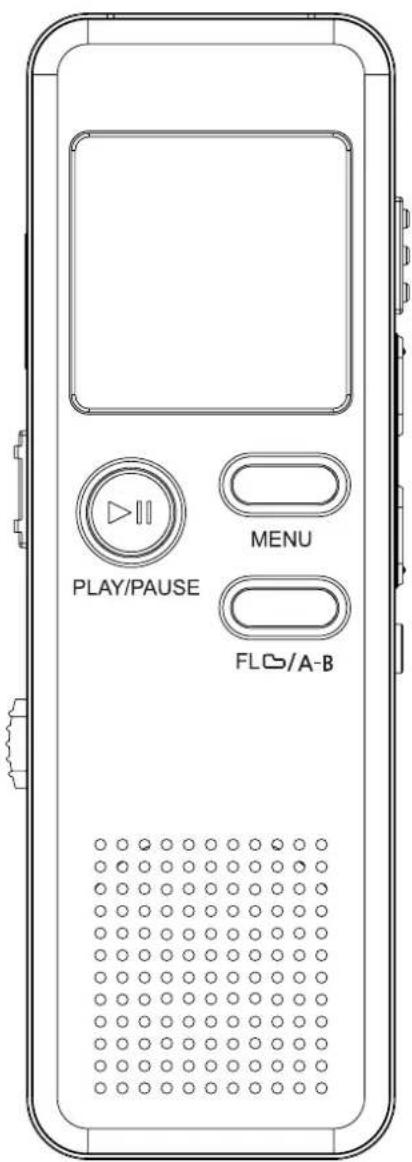
Instruction manual
IMPORTANT SAFETY INSTRUCTIONS
Read this manual before use and keep it handy for future reference.
Precautions
To maintain optimum performance:
Do not use the unit in extreme hot, cold, dusty or high humid places.
Do not use or keep the unit in following places.
• In a high humid area, such as a bathroom or hypogeum.
- In an area exposed to direct sunlight (e.g. inside car where it becomes extreme hot).
- Near sources with strong magnetism, such as television, speaker or magnet.
- In trembly places, such as on the car dashboard or shaky shelf.
For safety
- Do not attempt to disassemble this unit.
- Avoid pins or else objects getting inside the Unit.
• Take care of it, do not throw the unit.
Attention : Do not listen with the earphones as following circs .
- listen at moderate volume in case of hearing harm.
- Do not wear the earphones while driving or cycling. It may cause traffic accident.
- You should use it with extreme caution or temporary pause in latent accident situation while walking, Jogging, etc.
- If you hear soundless, do not turn the volume up too high because the music may suddenly begin at high volume in case of hurting your ears or damaging the headphone, turn the volume control to the lowest level before starting playing back and turn it up slowly to the desired level.
LOCATION OF INDICATORS
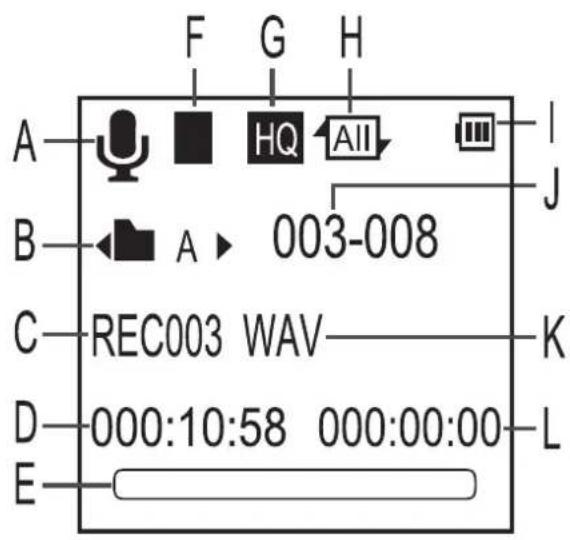
Voice mode

While recording
A. Voice mode
B. File folder
C. File name
D. Duration of file
E. Navigation bar of playing
F. Operation status
- Record Pause
■ Stop ▶ Play
G. Recording quality


H. Repeat mode(All, 1, □)
I. Battery level
J. File number
K. File format
L. Playing time
M. Recording time
N. Remaining recording time
O. Dynamic sound level
P. Volume of hearing aid
Q. VOR On indicator
LOCATION OF KEYS

① Micro SD card slot
② Power key
③ USB plug switch
④ Earphone jack
⑤ Built-in microphone
⑥ Microphone jack
⑦ Play/Pause key
⑧ Menu key
⑨ File/A-B key
10 Record key
⑪ Up key (△/Fast rewind)
⑫ Down key( ≡/Fast forward )
⑬ Vol key (volume)
⑭ USB plug
It will never affect files stored in the unit to recharge the built-in Polymer battery(4 hours), If you shut down the unit with normal operation, it will keep the date and time by last setting.
1 Press down and push the USB plug switch to open the USB plug.
2 Connect this unit to the USB interface for battery charging or computer connection. (refer to Page 10)
BATTERY INDICATORS:
* The battery are fresh.
☐ * The battery are exhausted, and need to be charging.
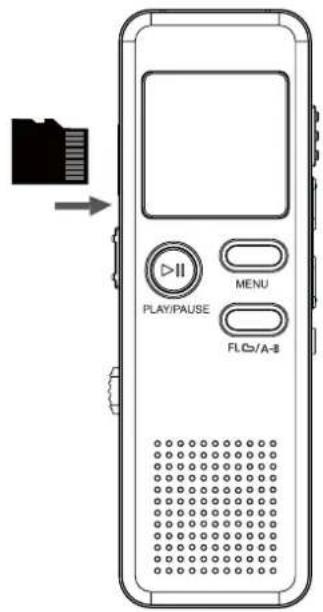
Inserting and removing the Card
1 This unit is with built-in 4GB flash memory, and you may add a Micro SD card for extending memory. (128MB\~8GB Micro SD card)
2 Insert the Micro SD card into the slot till it ticks, then you may select this Micro SD card as the storage medium of recording files. (refer to page 8)
To turn on/off the unit
1 Push the Power key up to open the unit, it will turn to Voice mode.
2 Push the Power key down to power off this unit, then the LCD goes out, and the unit is turned off.
* You may press and hold PLAY/PAUSE key more than 3secs. to turn it on/off while the Power key is at up position.
3 It'll turn to Setting mode automatically without any key pressed after 3mins, and then it'll turn off without any key pressed after 10mins..
(refer to page 9 for detailed setting of Setting mode)

Setting mode
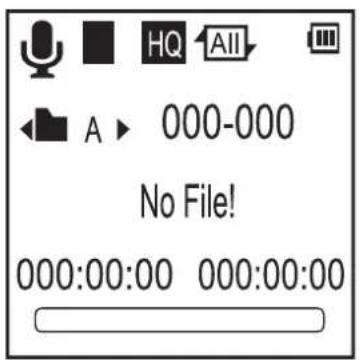
Select a file folder
There are three memory storage areas(file folder) labeled A,B,C in the unit for your choice, it can store 999 files in each file folder, so it can store 2997 in all. Absolutely, it must be subject to its memory capacity.
1 At voice mode, press the File/A-B key to switch file folder.
* The Factory setting is "A".
2 As the right photo, it shows the file folder and other detailed infos. of this recording file on LCD.
Note
If the memory is full, "FULL" will appear on the LCD, so delete or remove files, or replace a new Micro SD card as storage.

Preparing for recording
Before recording, you can set the VOR function according as your demand. If it is turned on and the detected volume doesn't reach the VOR level value(set by system), the recording will pause until it detects eligible volume, otherwise it will continue recording soundless section in this file(refer to page 8 for VOR setting).
1 At voice mode, you may select a desired file folder by File/A-B key.
2 And you may set VOR function in advance.
* For more recording settings, just refer to page 8.
* The first several minutes sound may not be recorded, it's just for activating the recorder.
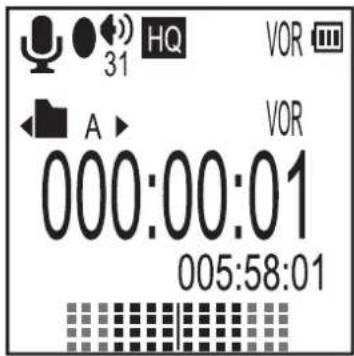
Recording file
1 After finishing preparing operation, just push the Record key up to start a recording, the elapsed recording time and the other status shows on LCD.
2 When it doesn't detect voice, the elapsed recording time will pause, and the upper "VOR" will blink until it can detect voice again.
3 If you need a pause, just press PLAY/PAUSE key, and the elapsed recording time pauses and blinks, then press it again to continue recording. At last, push the Record key down to stop and save this recording.
Note
There are two ways for recording input (Internal Mic, External Mic).
It is seemly distance to be away 50mm from the sound source.


Hearing aid function
1 Connect the earphone to this unit while recording, and you may press UP key or Down key to adjust the volume“ _31 ”(from 0 to 31 level), and then you may hear the higher or lower voice from the earphone.
Playing a file
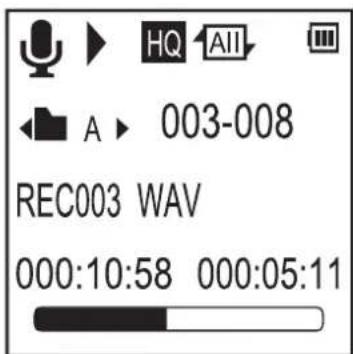
1 Select a desired file by UP/DOWN key, then press PLAY/PAUSE key to play it.
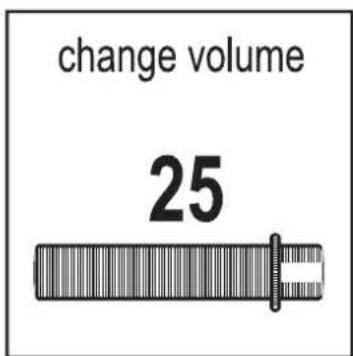
2 you may press PLAY/PAUSE key for a pause, then press it again to continue playing. While playing, you may press UP/DOWN key to goto next or previous file for playing, or press VOL key once and press UP/DOWN key to adjust volume, then press PLAY/ PAUSE key to confirm.
"0" is minimum volume, "31" is maximum volume.
* Long press ≪ or ≪ key to run Fast Rewind or Fast Forward while playing.
* For private listening, just connect an earphone to earphone jack.
Playing recording file repeatedly
1 There are three repeat modes for playing file.
The icon will show on LCD according as your setting, refer to page 8 for detailed setting.
Note
Repeat One 1 : Playing the current selected file repeatedly ;
Normal Play □: Playing all the files in current file folder orderly for one time ;
Repeat AllAll : Playing all files in current file folder repeatedly;
Playing a section of a file repeatedly
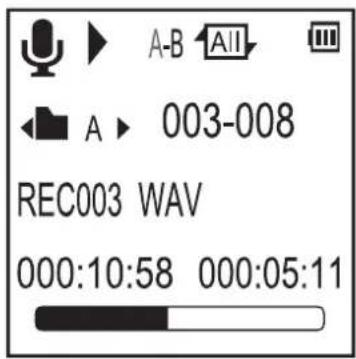
1 While playing, press File/A-B key, and the "A-B" shows on LCD, the "A" blinks, then press File/A-B key or UP key at desired start point, and the "B" blinks, and then press it agian at desired end point, so it'll play this section repeatedly.
2 In this state, you may press DOWN key to reset it, and the "A" will blinks again, then just set it as above.
3 Finally, you may press File/A-B, MENU, PLAY/PAUSE or UP key to stop this repeat and turn to normal playing.
Delete a file
1 At voice mode, press and hold File/A-B key more than 3secs. to turn to deletion menu.
2 Then you may press PLAY/PAUSE key to confirm deleting current file, or press UP/DOWN key to select deleting all files within current file folder.
3 If no need to delete files, just select "NO" or press MENU key to cancel and return to voice mode.

Recording setting
1 At voice mode, press MENU key to enter into recording setting menu.
2 Press UP/DOWN key to select desired setting item, press PLAY/PAUSE key to enter into or confirm, or press MENU key to return to upper menu.
* It'll return to upper menu or voice mode after 1 min. without any key pressed.
3 Finnaly, press MENU key or select "Exit" and press PLAY/PAUSE key to exit and return to voice mode.
* Rec Quality
| Rec Quality | Recording quality | Recording time |
| SHQ | for super high quality recording | 48h |
| HQ | for high quality recording | 72h |
| SP | for standard quality recording | 290h |
| LP | for low quality recording(save memory) | 580h |
* VOR On/Off: set it on/off, refer to page 5 for function stating.
* Store DIR: select "Flash Catalog" or TF Catalog for files' storage.
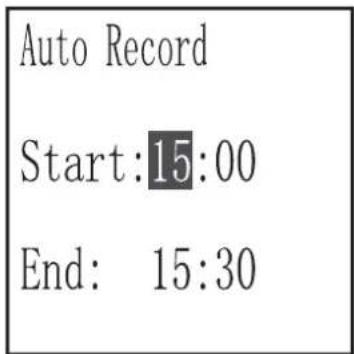
* Auto Record: Record file automatically on or off.
Press UP/DOWN key to adjust the hour and minute data, and press VOL key to skip to next item, then press PLAY/PAUSE key to confirm and turn to upper menu, or press MENU key to cancel.
It'll turn on automatically and start a recording, though it's power off.
* Repeat: Select the repeat mode for playing, and refer to page 7 for function stating.
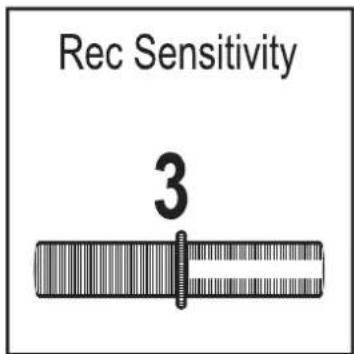
* Rec Sensitivity: there are six levels(from 0 to 5) for your choice. For recording, if the aim voice is far from this unit or not quite high, so you should adjust it higher to ensure normal recording. In contrast, you should adjust it lower.
For common surrounding circumstances, just set it "3".


Playing setting
1 While playing, press MENU key to enter into playing setting menu.
2 Press UP/DOWN key to select desired setting item, press PLAY/PAUSE key to enter into or confirm, then press MENU key to return to voice mode.
* It'll return to Voice mode after 1min. without any key pressed.
3 While setting, press MENU key or select "Exit" to exit and return to voice mode.
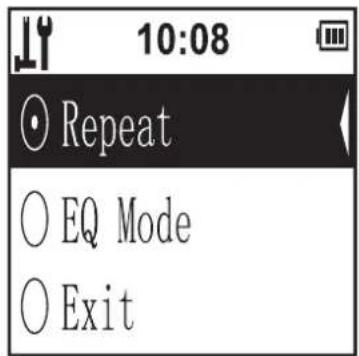
* Repeat: Select the repeat mode for playing, and refer to page 5 for function stating.
* EQ Mode: Select desired EQ mode for playing from "NOR", "ROCK", "POP", "CLAS", "SOFT", "JASS" and "DBB".
Setting Mode
1 At Voice mode, press and hold MENU key more than 3secs. to enter into Setting mode.
2 Press UP/DOWN key to select desired item, press PLAY/PAUSE key to enter into ("☐" Voice mode, "☐" Browser mode, "☐" System setting).
*Browser mode: the root directory browser of the files.

Setting Mode
1 Enter into system setting, press UP/DOWN key to select desired item, press PLAY/PAUSE key to set.
* Set Time: adjust the data by UP/DOWN key, and press VOL key to skip to next item, then press PLAY/PAUSE key to confirm and return to upper menu, or press MENU to cancel setting and return to upper menu.


* Backlight: set the LCD backlight time for always open, 10secs., or 30secs..
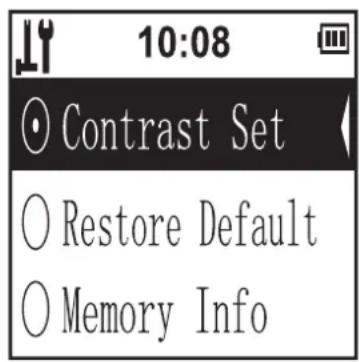
* Contrast Set: adjust the LCD contrast from 1 to 15 by UP/DOWN key, then press PLAY/PAUSE key to confirm.
* Restore Default: select to recover the factory setting or not.
* Memory Info: to show the current memroy info..
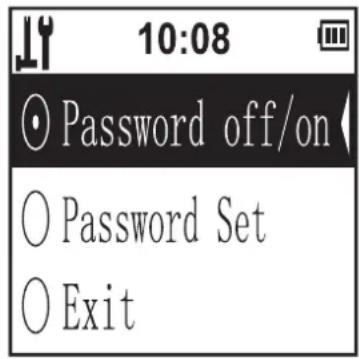
* Password off/on: Set the power-on password on or off.
* Password Set: Adjust the data by UP/DOWN key, and press VOL key to skip to next data, then press PLAY/PAUSE key to confirm ( Be valid only when you set the "Password on".). If you need to change the password, just enter into Password Set and follow the prompt "Input old Password", then press PLAY/PAUSE key to confirm, and then reset it.

Download and upload files
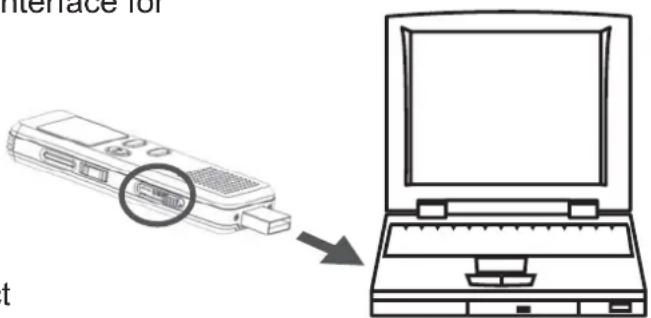
1 Press down and push the USB plug switch to open the USB plug. Connect this unit to the USB interface for computer connection.
2 Copy (recording) files to a removable disk or computer, or copy music files (.wav) to your recorder according as your demand.
3 After finishing your operation, disconnect the unit with your PC by the Safety Remove Hardware procedure.
SPECIFICATIONS
| File Number | 2997 (3 file folders x 999) | |||||||
| Recording time4GB | SHQ HQ | SP LP | ||||||
| 48h 72h 290h 580h | ||||||||
| Recording | Format | WAV | ||||||
| Sample rate | 192kbps 24KHz, 128kbps 16KHz,64kbps 8KHz, 32kbps 8KHz | |||||||
| Playing | Format | WAV | ||||||
| Bit rate | SHQ 192kbps, HQ 128kbps, SP 64kbps, LP 32kbps | |||||||
| SINR | >=90dB | |||||||
| Frequency Response 20Hz - 20KHz | ||||||||
| Memory (SD or FLASH) | Build-in memory 4GB | |||||||
| Jacks | MICROPHONE | Ext. Mic (D3.5mm ,Stereo) | ||||||
| EARPHONE | Earphone (D3.5mm, Stereo) | |||||||
| 16 ohms dynamic speakerSpeaker | ||||||||
| Output power | Speaker 1 W(8ohm) | |||||||
| Earphone | 10 mW(32ohm) | |||||||
| Power supply | Built-in Polymer battery,3.7V 402040 320mAh | |||||||
| Power life | Recording | About 12h | ||||||
| Playing | About 11h (Earphone), 4h (Loudspeaker) | |||||||
| Size | 30×92×13mm | |||||||
| Weight | 45g | |||||||
* Specifications are subject to change without notice.

- Digital Voice Recorder
- IMPORTANT SAFETY INSTRUCTIONS
- Precautions
- For safety
- LOCATION OF INDICATORS
- Inserting and removing the Card
- To turn on/off the unit
- Select a file folder
- Note
- Preparing for recording
- Recording file
- Hearing aid function
- Playing a file
- Playing recording file repeatedly
- There are three repeat modes for playing file.
- Playing a section of a file repeatedly
- Delete a file
- Recording setting
- Playing setting
- Setting Mode
- Download and upload files
Brand : Pyle
Model : PVR300
Category : Audio recorder