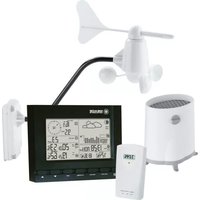
TE827W - Weather Station MEADE - Free user manual and instructions
Find the device manual for free TE827W MEADE in PDF.


| Product Type | Weather Station |
| Brand | Meade |
| Model | TE827W |
| Dimensions | 150 x 100 x 50 mm |
| Weight | 200 g |
| Power Supply | 2 x AAA batteries (not included) |
| Temperature Range | -10°C to 50°C (indoor/outdoor) |
| Humidity Range | 20% to 95% RH |
| Barometric Pressure Range | 600 to 1100 hPa |
| Wireless Range | Up to 100 meters (open area) |
| Display Type | LCD with backlight |
| Functions | Indoor/outdoor temperature & humidity, barometric pressure, weather forecast, moon phase, time/date, alarm |
| Remote Sensor | Wireless, 433 MHz, waterproof |
| Mounting | Table stand or wall mount |
| Maintenance & Cleaning | Clean with a soft, dry cloth. Do not use harsh chemicals. |
| Safety | Keep away from water and extreme heat. Use indoors only. |
| Spare Parts & Repairability | Contact Meade support for spare parts and repairs. |
| General Information | CE marked, RoHS compliant. Includes main unit and one remote sensor. |
Frequently Asked Questions - TE827W MEADE
User questions about TE827W MEADE
0 question about this device. Answer the ones you know or ask your own.
Ask a new question about this device
Download the instructions for your Weather Station in PDF format for free! Find your manual TE827W - MEADE and take your electronic device back in hand. On this page are published all the documents necessary for the use of your device. TE827W by MEADE.
USER MANUAL TE827W MEADE
Anemometer (wind sensor) 8
Main Unit 9
Battery installation 9
Buttons and Controls 10
Navigating through the modes 11
Customizing your Weather Station 13
Using Different Weather Modes 13
Pressure and Weather Forecast Mode 13
Clock and Alarm Mode 15
Manual Settings 15
Temperature and Humidity Mode 17
Rain Mode 18
Wind Mode 18
Maintenance 19
Troubleshooting 19
Precautions 20
Appendix - City Codes 21
US and Canadian Cities 21
Specifications 23
FCC Statement 24
Declaration of Conformity 24
Standard Warranty Information 25
INTRODUCTION
Thank you for selecting a Meade Instruments Semi-professional weather station! This compact and easy-to-use product features a wide variety of time and weather data, such as precise atomic time, perpetual calendar, air temperature, relative humidity, barometric pressure, wind speed and direction, rainfall, and etc.
Meade Instruments is the world's leading designer and manufacturer of telescopes for professional and amateur astronomers – famous for its innovative, high performance telescopes at affordable prices. Meade Instruments now brings that same passion for innovation and high performance to its own line of precision, feature rich weather stations. Please read this instruction manual so that you can get the most enjoyment out of your Meade Instruments weather station.
In this package you will find:
• One (1) Main Unit (receiver) (TE827NLW)
• One (1) Rain Gauge (remote rain sensor/transmitter) (TS906)
• One (1) Anemometer (remote wind sensor/transmitter) (TS805)
• One (1) Three-Channel Temperature & Humidity Sensor (transmitter) (TS33C)
• One (1) 7.5V AC/DC Adapter
• One (1) User Manual
- Mounting Hardware with wrench tool
Please keep this manual handy as it contains practical instructions, technical specifications and precautions.
STANDARD PACKAGE CONTENTS
| Picture | Components |
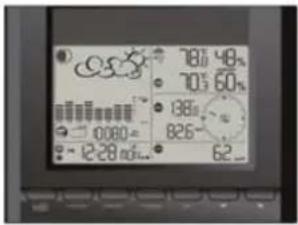 | Main Unit |
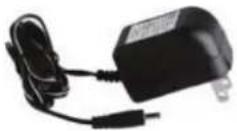 | AC/DC 7.5V power adaptor |
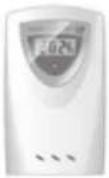 | Thermo Hygrometer Sensor |
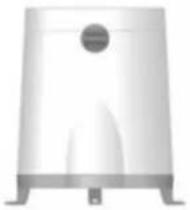 | Rain GaugeConsists of:Funnel shaped top with battery compartmentRain Gauge bucketBucket see-saw mechanismProtective screen |
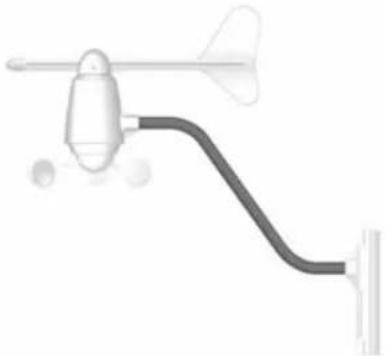 | AnemometerConsists of:Wind CupsWind VaneAnemometer armAnemometer base |
| 4 screws for securing rain gauge to the flat surface;4 screws for securing anemometer to vertical surface | Mounting hardware |
INSTALLATION
The Meade Instruments Semi-professional weather station (TE827NLW) operates at 433MHz radio frequency, so no wire installation is required between the main unit (receiver) and the remote weather sensors (transmitters).
The remote weather sensors include a thermo-hygrometer (temperature and humidity) sensor, anemometer (wind sensor) and a rain gauge (rain sensor). All data measured by these remote sensors is transmitted to the main unit wirelessly, with the operating range up to 328 feet (100 meters) in the open area.
The Anemometer and rain gauge must be placed outdoors to measure weather elements.
Remote thermo-hygrometers can be placed indoors or outdoors, depending on the location where the temperature and humidity are to be measured. If you intend measuring outdoor temperature and humidity, place the remote sensor outdoors, preferably not in direct sunlight.
Note: It is critical to assemble and power up all of the remote weather sensors BEFORE setting up the main unit.
Note: It is critical to power up and test communication between all of the weather sensors and the main unit BEFORE permanently mounting them outside.
BEFORE YOU BEGIN
- We recommend using alkaline batteries for the remote weather sensors and the main unit when temperatures are above 32°F (0°C) . We recommend using lithium batteries for the remote weather sensors when temperatures are below 32°F (0°C) .
- Avoid using rechargeable batteries. (Rechargeable batteries cannot maintain correct power requirements).
- ALWAYS install batteries in the remote weather sensors before the main unit.
- Insert batteries before first use, matching the polarity in the battery compartment
- Remove protective plastic screen from LCD display (if any).
- During an initial setup, place the main unit close to the remote weather sensors.
- After reception is established (all of the remote readings will appear on the main unit's display), position the remote sensors and the main unit within the effective transmission range of up to 328 feet (100 meters). Ideally they should be placed within the line of sight of the main unit. See placement tips in the user manual for each remote weather sensor separately.
- Transmission range may be affected by trees, metal structures and electronic appliances.
- The main unit must be placed indoors.
- The effective operating range may be influenced by the surrounding building materials and how the receiver (main unit) and transmitters (weather sensors) are positioned.
- Place the remote weather sensors so that they face the main unit (receiver), minimizing obstructions such as doors, walls, and furniture.
Note: When the temperature falls below freezing, the batteries in the outdoor remote weather sensors may have reduced voltage supply and a shorter effective range. We recommend using lithium batteries at temperatures of 32° F ( 0° C) and below.
IMPORTANT: Make sure that the remote weather sensors are easily accessible for cleaning and maintenance.
We recommend cleaning the remote weather sensors periodically, as the dirt and debris may affect sensors accuracy.
THERMO-HYGROMETER SENSOR
FEATURES
- Remote data transmission to the main unit via 433 MHz signal
- 328 feet (100 meters) transmission range without interference
• LCD display of measured temperature and humidity
• Three (3) transmission channels selection - Case can be wall mounted using built-in hanger
- Up to three T-H sensors per station are permitted
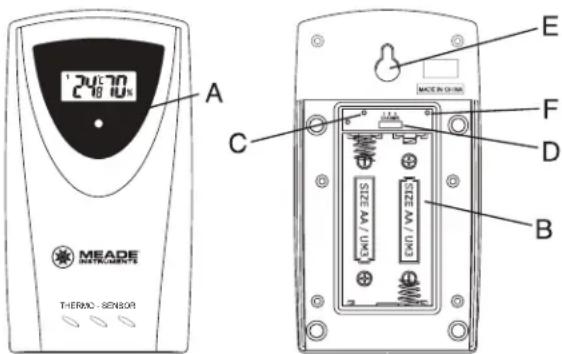
A. LED INDICATOR
- Flashes once when the remote sensor transmits a reading to the main unit.
- Flashes twice when battery power is low.
B. BATTERY COMPARTMENT
Holds two AA-size batteries
C. RESET
Resets all readings
D. CHANNEL SWITCH
Selects the desired transmission channel from 1 to 3
E. WALL-MOUNT RECESSED OPENING
Attaches the remote sensor to the wall
Note: Install the batteries and select the channel before mounting the sensor.
Battery installation
- Remove the screws from the battery compartment with a small Phillips screwdriver.
- Set the channel 1 through 3. The switch is located in the battery compartment. Channel 1 is typically selected if only one remote sensor is being used.
- Install 2 "AA" size alkaline batteries (not included) matching the polarities shown in the battery compartment.
- Replace the battery compartment door and secure the screws.
- Secure the thermo-hygrometer remote sensor in the desired location.
Mounting
- The remote thermo-hygrometer sensor can be placed on the flat surface or mounted on the wall in vertical position
- Use the wall mount hardware and screws provided when mounting the thermo-hygrometer sensor on the wall
Placement tips:
- The remote thermo-hygrometer sensor should be placed in the area with a free air circulation and sheltered from the direct sunlight and extreme weather conditions.
- Ideally, place the thermo-hygrometer sensor above the natural surfaces (such as a grassy lawn).
- Avoid placing the thermo-hygrometer sensor near sources of heat such as chimneys and heating elements.
- Avoid any areas collecting and radiating a heat from the sun, such as metal, brick or concrete structures, paving, patios and decks.
• The international standard for the valid air temperature measurements is 4 feet (1.25 meters) above the ground.
RAIN GAUGE
FEATURES
- Precipitation measurement
- Remote rainfall data transmission to the main unit via 433 MHz signal
- 100 feet (30 meters) transmission range without interference
• Built-in installation level
• Non-corrosive protective screen
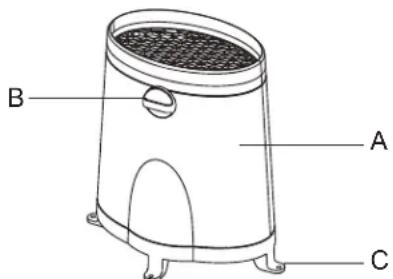
A. Rain gauge bucket
Holds all rain gauge components
B. Knob
Secures the top on the rain gauge bucket
C. Rain gauge bucket feet
Allows securing the rain gauge on its place
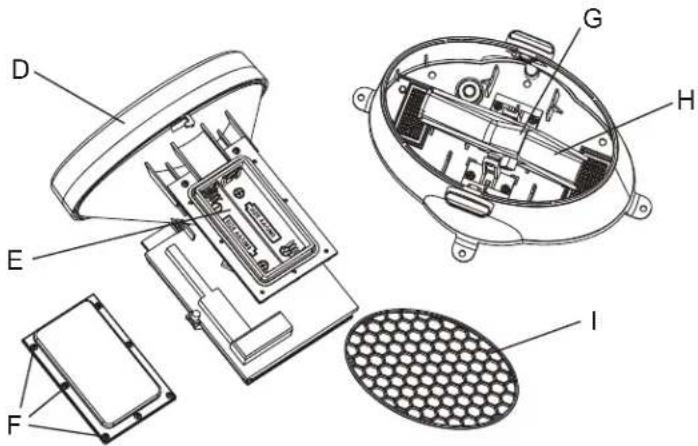
D. Funnel-shaped top with battery compartment
Contains battery compartment and rainfall counting electronics
E. Battery compartment
Holds two AA-size batteries
F. Screws
Secure battery compartment cover
G. Built-in leveler
Allows leveling rain gauge on uneven surfaces
H. Bucket see-saw mechanism
Collects the rainfall in one of its containers and self-emptics once full
I. Protective screen
Protects the rain gauge funnel from debris
Battery installation
- Unlock the funnel-shaped top on the rain gauge by turning both knobs on the sides in a Counter-clockwise direction.
- Remove the funnel-shaped top lifting it off the rain gauge bucket.
- Remove 7 small screws from the battery compartment cover using a small Phillips screwdriver
- Insert 2 “AA” size alkaline batteries (not included), matching the polarities as shown in the battery compartment.
- Replace the battery compartment door and secure the screws.
- Insert the funnel-shaped top into the rain gauge bucket and secure it into place by turning the knobs clockwise.
Mounting
- Make sure that the rain gauge bucket is level – check if the ball bearing inside the bucket is at the midpoint of the leveler.
- Place the protective screen over the top to protect the rain gauge from the debris.
- Mount the rain gauge in place using mounting hardware provided.
- Make sure that the rain gauge is in open area where precipitation falls directly into the gauge's bucket, ideally 2-3 feet above the ground.
Placement tips
- The rain gauge should be placed in an open area away from walls, fences, trees and other coverings, which may reduce the amount of rain collected in the bucket. Additionally, trees and rooftops may be sources of pollen, leaves and other debris.
• To avoid rain shadow effects, place the rain gauge two to four times the height of any nearby obstruction.
- It is important that excess rain can flow freely away from the rain gauge.
ANEMOMETER (WIND SENSOR)
FEATURES
• Wind speed and wind direction measurement
- Remote wind speed and wind direction data transmission to the main unit via 433 MHz signal
- Operating range 100 feet (30 meters)
- Wall or pole mount
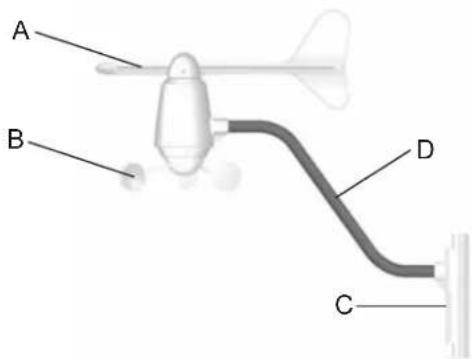
A. WIND VANE
Measures wind direction
B. WIND CUPS
Measures wind speed
C. ANEMOMETER BASE
• Holds battery compartment
- Allows mounting the anemometer vertically
D. ANEMOMETER ARM
Keeps anemometer assembly together
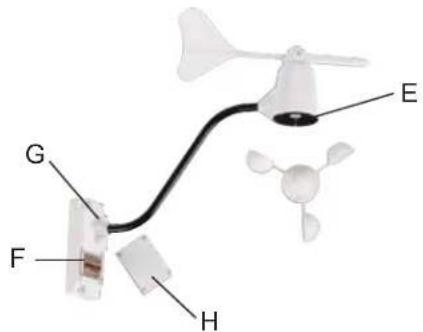
E. WIND CUPS SHAFT
Holds wind cups on the anemometer arm
F. BATTERY COMPARTMENT
Holds 2 AA-size batteries
G. WALL MOUNT SCREW OPENINGS
Allows securing the anemometer in place
H. BATTERY COVER
Allows securing 2 AA size batteries on the anemometer base
Assembly
- With a flashlight, look into the mounting hole that will receive the anemometer axle shaft, on the back of the wind cups.
Check that the set screw is backed off appropriately, not obstructing the opening. - Place the wind cups over the axle shaft protruding from the anemometer housing and gently slide into place
- Insert the Allen wrench tool provided into the wind cups opening and tighten the small set screw inside
- Test to assure the wind cups are securely mounted on the anemometer shaft and spin freely
Battery installation
- Remove four (4) screws from the battery compartment with a small Phillips screwdriver.
- Open the battery compartment and install 2 "AA" size alkaline batteries (not included) matching the polarities shown.
- Replace the battery compartment door and secure the screws.
Aligning
- Point the wind direction vane to the North (use a compass or map if necessary).
- Press “SET” opening located inside battery compartment with a paper clip or similar tool. This will “SET” the local wind direction to North. Continued pressing of “SET” alternately toggles wind direction between the factory default preset or user set direction.
Note: Repeat this procedure every time after whenever changing the batteries.
Mounting
Securely mount the anemometer base to an appropriate vertical surface, using the fittings provided.
Placement tips:
- The anemometer should be mounted in an open area with unobstructed air flow; away from the nearby trees, buildings or other structures.
- Aim for a maximum exposure of the anemometer to the most common wind directions in the area.
- The suggested mounting height for the anemometer is 33 feet (10meters) above the ground.
MAIN UNIT
The main unit should be placed indoors. It measures: pressure, indoor temperature, humidity, and receives the US Atomic Clock data and data from each of the remote weather sensors.
FEATURES
Time
- Precise time and date set via RF signals from US Atomic clock
- Selectable 12 or 24 hour time format
- Manual adjustment of time and date
• Calendar displaying date with month and day in 6 languages: English, German, French, Italian, Spanish and Dutch
• Over 100 pre-programmed world cities in accordance with the geographical information entered by the user - Moon Phase calendar and historical data for the past and future 39 days
- Dual crescendo alarms with programmable snooze
Weather
- Weather forecast for the next 12 to 24 hour in seven large icons: Sunny, Partly Cloudy, Cloudy, Light Rain, Heavy Rain, Snowy and Unstable.
• Barometric pressure in imperial or metric units
- Altitude adjustment for pressure compensation
• 24 hour barometric pressure history chart
• Multiple weather alarms
- Indoor/Outdoor Temperature & Humidity in up to 3 remote locations (additional sensors required)
- Dew point and comfort level indicators
• Wind speed and wind gust averages and memory
- Wind direction
- Rainfall amount with minimum and maximum memory
- Operating range from 100 feet (30 meters) up to 328 feet (100 meters)
Power
- 7.5 V AC/DC adapter for automatic remote control
• 4 AA batteries
Battery installation
- Open the battery compartment door on the back of the main unit.
- Insert four (4) AA size batteries according to the polarities shown and replace the battery compartment door.
- Connect 7.5 V AC/DC adapter provided to the main display unit and plug into to the wall power outlet.
Placement tips
- Make sure that the main unit is locating within the operating range of all remote weather sensors.
- Ideally the remote weather sensors should be mounted within the line-of-sight of the main unit.
• Transmission range may be affected by trees, metal structures and electronic appliances. - Test reception before permanently mounting all the remote weather sensors.
Avoid placing the main unit in the following areas:
- Direct sunlight and surfaces emitting and radiating heat, such as heating ducts or air conditioners.
- Areas with interference from the wireless devices (such as cordless phones, radio headsets, baby listening devices) and electronic appliances.
Operation
Once the main unit is powered, the display will show all available LCD segments for a moment.
IMPORTANT: All of the display functions will be locked, allowing setting your local altitude or sea level pressure parameters.
The locked display will show the pressure and weather forecast icon and abbreviation "hPa/ mBar" flashing, indoor temperature and humidity readings and default time "12:00pm".
BUTTONS AND CONTROLS
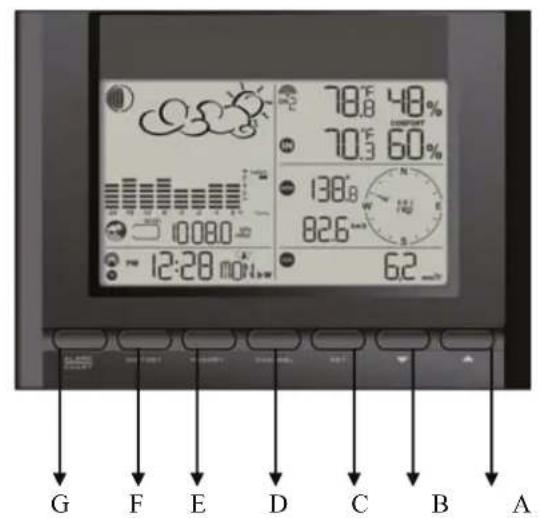
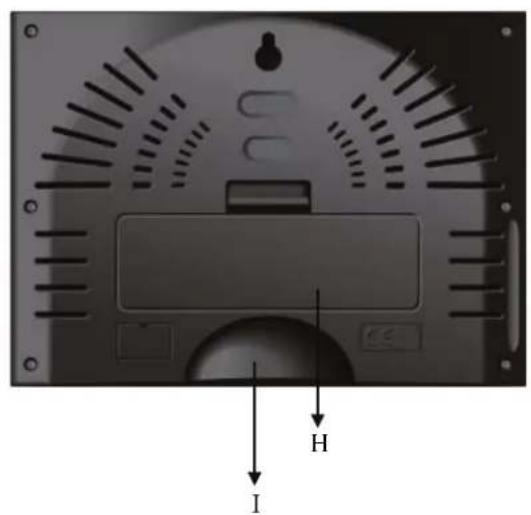
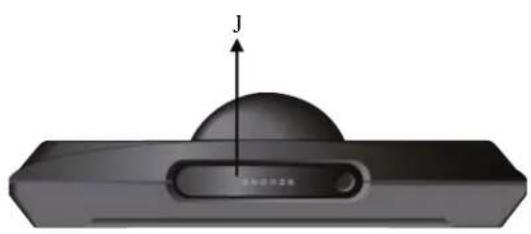
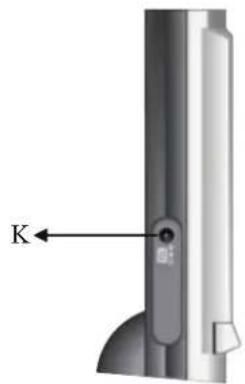
| A. UP ? | - Mode Selection: selects the next available mode counter-clockwise- When programming: increases parameters |
| B. DOWN ? | - Mode Selection: selects the next available mode clockwise- When programming: decreases parameters |
| C. SET | - Rotates display for current mode- Press and hold: to enter the programming mode- Locks in: set parameters |
| D. CHANNEL | - Manually selects the channel # for receiving temperature and humidity sensor data- Enables the temperature and humidity channel auto-scan mode |
| E. MEMORY | - Records: moon phase, temperature, humidity, rainfall and wind records. Then stores in memory- Moon phase: Determined by the day of month interval- Sets and stores pressure & altitude units in Memory |
| F. HISTORY | - Displays sea-level pressure history |
| G. ALARM/CHART | - Displays alarm times and programmed alerts for temperature, rainfall and wind.- Press and hold, to enter the alarm/alert programming mode- Press and hold in pressure and forecast mode, to view different bar charts |
| H. BATTERYCOMPARTMENT | - Requires four (4) AA size batteries |
| I. TABEL STAND | - Places the main unit on the table or other horizontal surface |
| J. SNOOZE | - Activates Snooze delay for alarms (programmable 1 to 15 minutes) |
| K. AC/DCADAPTOR INPUT | - Connects main unit to the power outlet through the AC to 7.5V DC adapter provided |
NAVIGATING THROUGH THE MODES
The main unit has five (5) different modes (windows) displaying separate data: Weather Forecast, Clock & Alarm, Temperature and Humidity, Rain, and Wind. When a specific mode is selected the corresponding icon begins flashing.
Press UP button to cycle through the modes clockwise or DOWN? button for counter-clockwise.

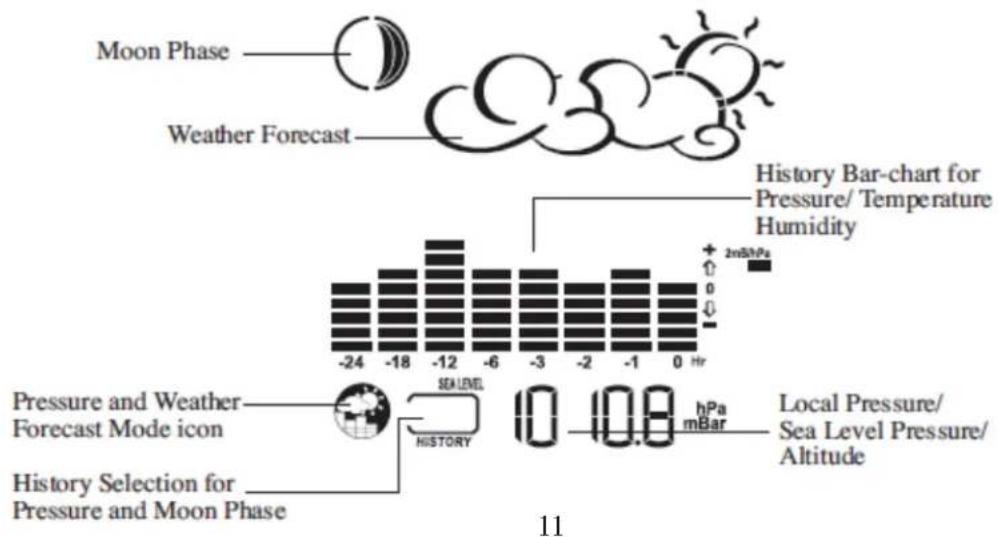
Pressure and Weather Forecast Window
Displays:
- Current pressure and history bar-chart
- Weather forecast
- Moon phase

Clock and Alarms Window
Displays:
• US Atomic Time clock with time and calendar
- Single alarm, weekday alarm and ice warning alarm (pre-alarm)
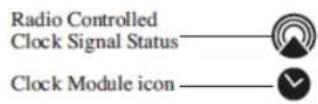
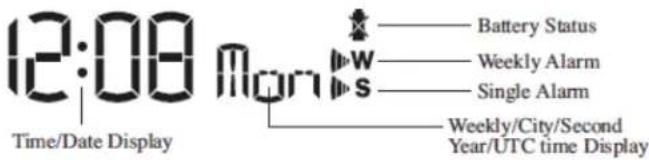

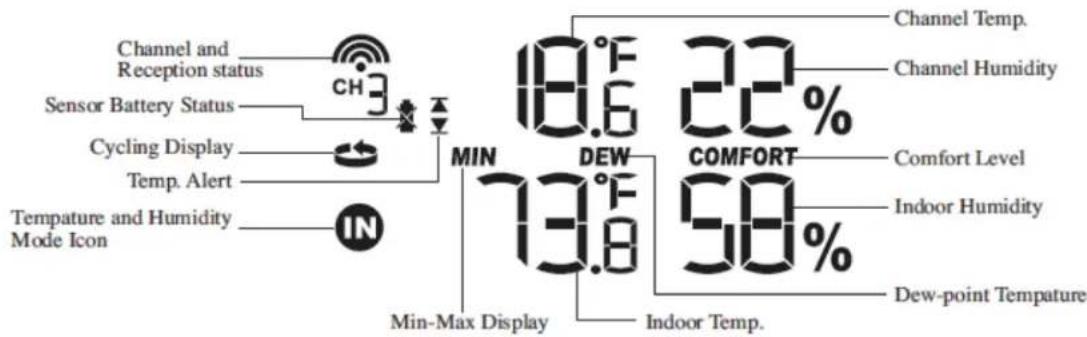
Temperature and Humidity Window
Temperature & Humidity are automatic features and requires no adjustments. IN or internal sensors reside within the main unit. Readings for CH1, Ch2 or Ch3 are provided by external sensor transmitters.
Displays:
• Temperature and humidity readings for indoor and selected external channel
• Comfort level indication (Predetermined level)
- Dew point temperature (Predetermined level)
• High and Low temperature alerts (Predetermined level)
- Remote Thermo-Hygrometer sensor battery status

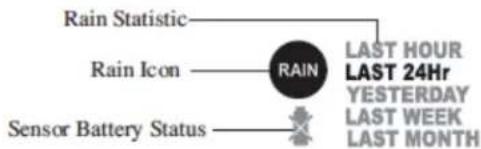
Rain Window
Displays:
- Precipitation amount for the last hour, day, yesterday, last week and last month
- Rainfall alert (User adjustable level setting)
- Remote rain gauge battery status
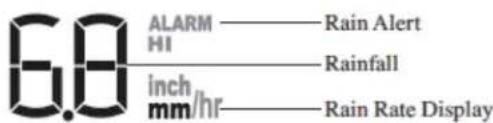

Wind Window
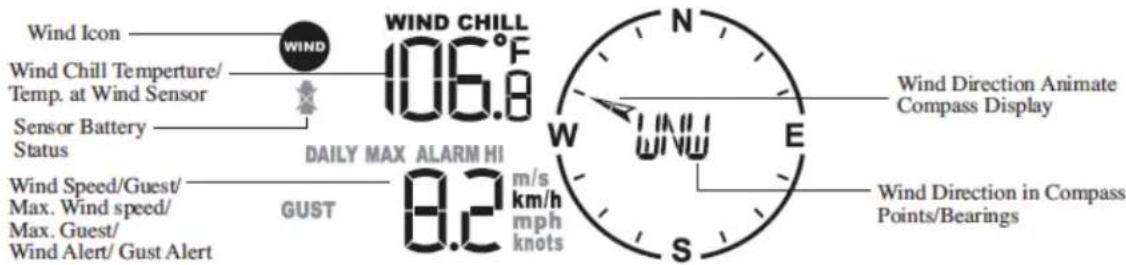
Displays:
• Wind Chill temperature
• Temperature at anemometer
- Wind direction
• Wind speed
• Wind gust speed
- Remote anemometer battery status
- Alert for wind speed and wind gust speed (User Adjustable setting)
CUSTOMIZING YOUR WEATHER STATION
It is required to program:
- The pressure parameters during Initial Setup (See Pressure and Weather Forecast Mode P.15)
• The time, the date and the weekday language (Clock and Alarm Mode: P.17)
Optional:
• The time alarms (Clock and Alarm Mode: P.17)
• The temperature alerts (Temperature and Humidity Mode P.19)
• Daily rainfall alerts (Rain Mode P.21)
• Wind alerts (Winds Mode: P.22)
USING DIFFERENT WEATHER MODES
Pressure and Weather Forecast Mode
It indicates the current barometric pressure, the sea level pressure, the weather forecast and the moon phase.
A number of historical statistics can also be viewed, including the sea-level pressure for the past 24 hours, moon phase for the past and following 39 days, as well as a pressure/ temperature/ humidity history bar-chart.
Pressure can be displayed in Hg, hPa/mBar or mmHg, and altitude can be displayed in meters or feet. (Altitude can be used to set or adjust barometric levels.)
Accessing Pressure and Weather Forecast Mode
From the main unit: Press UP? or DOWN? until the pressure and weather forecast icon starts flashing.
Setting Pressure Parameters during initial setup
IMPORTANT: During the main unit initial setup, after main unit powered up, all of the functions in Pressure and Weather Forecast mode will be locked for a short time, until the pressure settings are confirmed. The locked display will show the pressure and weather forecast icon and abbreviation "hPa/ mBar" flashing.
To correctly calibrate the sea level barometric pressure, you must program the correct local altitude.
- Store Units of Pressure: Press UP? or DOWN? button selecting the units of pressure in: inHg, hPa/mBar or mmHg
- Press SET to confirm and move to the altitude unit selection mode
- Store Altitude Units: Press UP ? or DOWN ? button selecting the altitude unit in feet or meters.
- Press SET button to confirm and move to the altitude programming mode.
- Press UP ? or DOWN ? to adjust the local altitude. Press and hold either button for the “Rapid” setting. (Local information is obtainable via GPS device or online services.)
- Press SET to confirm the programming.
Viewing the Pressure and Altitude Information
To view a pressure or altitude information, press SET button to alternate between the sea level pressure, local pressure and local altitude settings.
Sea Level Pressure Setting
- Press SET button until the sea level pressure with "SEA LEVEL" is displayed.
- Press and hold SET until the pressure digits are flashing.
- Set the sea level pressure by pressing UP? or DOWN? buttons. Press and hold either button for the quick digits advance.
- Press SET to confirm selection
Changing the Sea Level Pressure and Altitude Unit
- Press SET until the local pressure with the word "SEA LEVEL" is displayed.
- Press and hold MEMORY until the pressure unit is flashing.
- Set the sea level pressure units by pressing the UP? or DOWN? buttons to adjust the pressure value.
- Press MEMORY to confirm your selection.
- Press SET button until the local altitude value will be displayed
- Press and hold MEMORY until the altitude unit is flashing.
- Set the altitude unit in meters or feet by pressing the UP ? or DOWN ? .
- Press MEMORY to confirm your selection.
Viewing the Sea Level Pressure History
- In all modes, press HISTORY button entering the sea level pressure display.
- When the SEA LEVEL is displayed, press HISTORY repeatedly viewing the sea level pressure history for the past 24 hours in hour increments.
- If no buttons are pressed for 5 seconds, the unit will automatically return to the Pressure and Weather Forecast Mode.
Viewing the Pressure, Temperature and Humidity Bar Charts
The bar chart in Pressure and Weather forecast window can be configured to display a historical data for the sea level pressure and temperature or humidity for channel 1.
After selecting the Pressure and Weather Forecast Mode, press and hold ALARM/CHART button to toggle the bar chart between the sea level pressure with a word "PRESSURE" displayed at the right bottom corner of the chart, temperature with a thermometer icon and "CH1" and a humidity with "RH" icon and "CH1".
Viewing the Moon Phase History and Weather Forecast
- After selecting the Pressure and Weather Forecast Mode, press MEMORY, so “+ 0 days” is flashing.
- Press UP ? or DOWN ? selecting from today's date a future (+) or past (-) days and the corresponding moon phase will be displayed. Press and hold either button for a quick advance.
- To exit, press MEMORY button.
Seven Unique Weather Forecast Displays
| tsaceroF rehtaeWyalpsiD | |
 | Sunny |
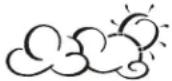 | Partly Cloudy |
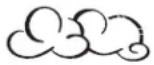 | Cloudy |
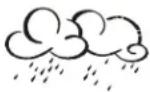 | Light Rain |
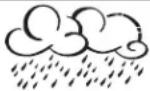 | Heavy Rain |
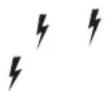 | Unstable Weather |
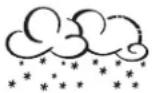 | Snow |
Note: The weather forecast accuracy is approximately 70%.
Display shows forecasted, not current conditions. The SUNNY icon indicates clear weather, even when displayed during the night-time.
Understanding the Moon Phase Diagram

FULL LAST NEW FIRST



CLOCK AND ALARM MODE
Manual Settings
The main unit can be manually set to display the time, calendar or UTC time. There are three time alarms available on the main unit: Weekday alarm (W), Single alarm (S) and Ice Warning Alarm (Pre-AI).
- If Weekday alarm is activated, it will sound at the set time and the alarm icon will flash Mondays through Fridays.
- If Single day alarm is activated, it will sound at the set time and the alarm icon will flash only for this specific day and will not activate on subsequent days.
- The Ice Warning Alarm is activated at programmed time interval (from 15 to 90 minutes) before the weekday or single alarm, if channel 1 temperature falling to freezing and below.
Note: Ice Warning Alarm can be set only if one or both - Weekday or Single alarm are programmed.
The snooze duration for listed alarms can also be programmed up to 15 minutes.
Accessing Clock and Alarm Mode
Press UP ? or DOWN ? until the clock icon next to the time/date display will flash.
Setting the time, date and language
- In the Clock and Alarm Mode, press and hold SET button until the day of week language abbreviation "ENG" will flash.
- Press the UP ? or DOWN ? selecting the day of the week in English, German, French, Italian, Spanish or Dutch
- Press SET to confirm selection.
- Select the City Code for your area by pressing UP? or DOWN? Refer to P.21 for a list of available codes.
- Press SET to confirm the selection and enter to the latitude and longitude programming mode.
If you selected the USR as a city code, you will be prompted to enter the latitude, longitude, Time Zone and select Daylight Savings Time on or off.
- Press UP ? or DOWN ? to adjust the latitude. Press and hold down either button for quick digits advance.
- Press SET to confirm the selection.
- Continue setting the longitude using the same steps.
- Set the Time Zone by pressing UP? or DOWN? to adjust the time in 30 min intervals. Press and hold down either button for quick digits advance.
- Press SET to confirm selection.
If the USR was selected as a city code or your city is located in the Daylight Savings zone you would need to set the Daylight Saving Time Option:
- Press UP ? or DOWN ? to enable of disable the DST option. Press and hold either button for quick digits advance.
- Press SET to confirm selection.
- Continue setting the year, month, day, calendar format (day/month or month/day), time format (12 or 24 hours), local hour and minutes, using the same steps.
After programming is complete the display will return to the default Clock and Alarm Mode.
Note: Press and hold SET anytime during the setup to return to normal Clock and Alarm Mode. All previous settings will be cancelled.
Different Clock and Calendar Displays
In the Clock and Alarm Mode press SET selecting either:
• Hour and Minutes with the Day of the week
• Hour and Minutes for UTC (Coordinated Universal Time)
• Hour and Minutes with the City abbreviation
• Hour and Minutes with the Seconds
- Month with the day and a year. Or day with month and a year.
Enabling or Disabling the Time Alarms
- Press the ALARM/CHART to display the Weekday Alarm. If these alarms are not set, the abbreviation OFF will be displayed.
- To enable or disable any of these alarms, press UP ? or DOWN ? .
Note: Press SET anytime during alarm selection mode to return to the default clock display.
Programming Time Alarms
- In the Clock and Alarm Mode, press the ALARM/CHART selecting the desired alarm.
- Press and hold ALARM/CHART button until the hour digit will flash
- Set the alarm hour using the UP ? or DOWN. Press and hold either button for quick digit advance.
- Press ALARM/CHART to confirm selection.
- Set the alarm minutes using UP? or DOWN. Press and hold either button for quick digit advance.
- Press ALARM/CHART to confirm selection.
- Set a Snooze interval (all three alarms share same snooze time duration) using UP ? or DOWN ? . Press and hold either button for quick digit advance.
- Press ALARM/CHART to confirm your selection.
After programming is completed, the display will return to the alarm selection screen.
Note: Pre-alarm (Ice Warning Alarm) can be set only if the weekday alarm or single alarm is enabled.
Disabling or Enabling Snooze function
To enable a snooze function press LIGHT/SNOOZE button. Snooze duration is programmable and can set: from 1 to 15 minutes.
Note: When the alarm sounds for 2 minutes the clock will automatically Snooze if no buttons are pressed. This will occur for three consecutive snooze cycles.
To disable alarm(s):
Press ALARM/CHART to disable the alarm (s).
Note: For weekday alarm, pressing ALARM/CHART will only disable the alarm for the current day. The alarm will activate again on the next day, Monday through Friday.
Atomic Time Reception
The main unit synchronizes the time and date with WWVB radio clock broadcasts maintaining the atomic time precision. WWVB RADIO CONTROLLED TIME
The NIST (National Institute of Standards and Technology) radio station (WWVB) is located in Ft. Collins, Colorado. It transmits an exact time signal continuously to most of the continental United States at 60 KHz frequency. The Atomic Time Clock in your weather station can receive this WWVB signal through the internal antenna from up to 2,000 miles away. Due to the nature of the Earth's ionosphere, reception can be limited during the daylight hours. The radio controlled clock will search for an alternate station that receives the atomic time signal from the NIST Atomic clock in Boulder, Colorado. The WWVB tower icon on the unit's display will flash indicating a radio signal reception from the WWVB station. If the tower icon is not fully lit, or if the time and date are not set automatically, please consider the following:
- During night-time hours, atmospheric disturbances are typically less severe and radio signal reception may improve. A single daily reception is sufficient enough to keep the clock accuracy within 1 second.
- Make sure the unit is positioned at 8 feet (2 meters) distance from any interference source such as a TV, computer monitor, microwave, etc.
- Within concrete wall rooms such as basements or office buildings, the received signal may be weakened. Always place the Projection Clock near the window for better reception.
Once the atomic time signal is received, the date and time will be set automatically, and the ⚙ icon will appear.
After the clock is set manually, place the main unit by the window for the better reception. The atomic clock receiver is programmed that it will continue to search for the atomic time signal daily for every hour between 1:00 am and 4:30 am. Once the time signal has been successfully received, the time and date will be updated automatically.
To enable or disable the atomic time receiver:
- Press and hold UP ? - if atomic time reception is activated, a triangular tower icon will start flashing next to the clock icon. If reception is disabled, the triangular tower icon will disappear.
| Icon RC Reception Strength | |
 (Flashing) (Flashing) | Undefined data |
| Reception failed for 24 hours | |
 | Weak signal, but can be decoded |
 - . - . | Strong signal |
TEMPERATURE AND HUMIDITY MODE
The weather station supports up to 3 remote thermo-hygrometers corresponding to a separate channel of the temperature and relative humidity display. The temperature can be displayed in Celsius (°C) or Fahrenheit (°F).
The main unit carries the temperature and humidity sensor and uses this indoors data to calculate an indoors comfort level - Wet, Comfort or Dry.
A temperature alert function is available for each channel. It can be programmed to sound if the channel temperature exceeds or falls below the pre-set upper and lower limit.
Note: The temperature alerts have a 0.5\ °C deviation to prevent them from sounding due to small temperature fluctuations that are close to the set alert value. This means that after the temperature reaches the alert temperature, it will have to fall below the alert temperature plus the deviation ( 0.5\ °C ) to activate the alert.
Accessing Temperature and Humidity Mode
From the main unit: Press UP ? or DOWN ? until the IN icon on the upper right will flash.
Viewing Temperature and Humidity for each Channel
Static Display:
In Temperature and Humidity Mode, press the CHANNEL button to recall a different channel.
Channel Auto-Scan Display:
To enable automatic scan of the different channels, press and hold CHANNEL, until the 🎨 icon is displayed. Each valid channel will be alternately displayed with a 5 seconds delay.
Recalling of Temperature and Dew Point Displays
In Temperature and Humidity Mode press the SET button to recall temperature and relative humidity or dew point and relative humidity.
Set the Temperature in Celsius or Fahrenheit. (Does not affect Wind Chill)
In Temperature and Humidity Mode, press and hold SET to toggle the temperature in Celsius (°C) or Fahrenheit (°F).
Activating/Deactivating the Temperature Alerts
In Temperature and Humidity Mode, press the ALARM/CHART to recall a current temperature for the corresponding channel, the upper temperature alert with ? icon (if disabled, displays OFF), or lower temperature alert with ? icon (if disabled, displays OFF).
Once the above alerts are displayed, press the UP ? or DOWN ? to enable or disable the corresponding alert.
Programming the Temperature Alerts
- In the Temperature and Humidity Mode, press ALARM/CHART selecting the desired alarm.
- Press and hold ALARM/CHART button until the remote temperature and ? or ? icon starts flashing.
- Adjust the temperature digits for the Temperature Alert using the UP ? or DOWN ? . Press and hold either button for fast digits advance.
- Press the ALARM/CHART to confirm selection and return to the temperature alert selection screen.
Disabling Temperature Alarm(s)
In the Temperature & Humidity Mode press the ALARM/CHART to disable the alarm(s).
Viewing the Max/Min Channel Temperature and Humidity
In the Temperature & Humidity Mode press the MEMORY button to recall a current temperature and humidity, minimum temperature and humidity or maximum temperature and humidity at the remote location.
Resetting the Remote Temperature and Humidity Memory
In the Temperature and Humidity Mode, press and hold MEMORY button to clear memory for all channels.
Remote Sensor Status
The wave icon above the current channel display shows the connection status of the corresponding remote sensor:
| Icon Status | |
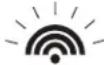 | Searching for remote sensor signals |
 | Corresponding remote sensor successfully linked |
 | No signals received for more than 15 minutes |
All Remote Sensor Signals Search Activation
The main unit can be manually activated to search for the signals from all remote sensors.
Press and hold DOWN button to enable the search.
RAIN MODE
The main unit records the total amount of the rainfall for the last hour, 24 hours, past day, past week and the past month. The rainfall can be displayed in mm or inches.
There is a daily rainfall alert that can be programmed in the unit if the daily rainfall exceeds a pre-programmed limit.
Accessing Rain Mode
From the main unit: Press UP? or DOWN? until the RAIN icon on the display starts flashing.
Viewing Rain Statistics
In the Rain Mode, press either SET or MEMORY button to recall a rain statistics for the past hour, past 24 hours, yesterday, past week or past month.
Tip: For the rain rate estimate the Last Hour rainfall value is understood as “inch/hr” or “mm/hr”.
Resetting the Rainfall Statistics Memory
In the Rain Mode, press and hold MEMORY to reset all rainfall statistics.
Setting Units for the Rain Display in inches or mm
In the Rain Mode, press and hold SET button to toggle rainfall data units between mm and inches.
Enabling or Disabling the Daily Rainfall Alert
- In the Rain Mode press the ALARM/CHART to display either the current rainfall statistics or the daily rainfall alert with “ALARM HI” displayed.
- If the alert is disabled, the "OFF" will be displayed; otherwise the rainfall alert value will be shown.
- When the rainfall alert is displayed, press the UP ? or DOWN to enable or disable it.
Setting up the Daily Rainfall Alert
- In the Rain Mode, press ALARM/CHART to display the rainfall alert.
- Press and hold ALARM/CHART until the rainfall alert "ALARM HI" will flash.
- Set the desired value for the Rainfall Alert by using the UP ? or DOWN? . Press and hold either button for fast digits advance.
- Press ALARM/CHART to confirm selection and the unit will return to the rainfall alert display.
Disabling the Daily Rainfall Alert
In the Daily Rainfall Alert Mode press the ALARM/CHART to disable the alert.
WIND MODE
The wind direction is shown by an animated compass display. Its angle can be displayed as compass points (i.e. NW) or in bearings starting from north (i.e. 22.5°).
The upper left section of the wind mode can be programmed to display either a temperature at the place of anemometer or the temperature adjusted to the wind chill factor.
The lower left section of the wind mode indicates the average wind speed for the past 10 minutes, as well as gust, wind speed alert and gust alert information. It can also show records of the maximum wind speed and wind gust collected during the day. The wind speed and gust alert functions can be programmed to alert you if the wind speed or gust exceeds a pre-configured limit. The wind speed can be displayed in km/h, mph, m/s or knots.
Note: The wind speed alert has a 5 mph deviation and the wind gust speed alert has a 7 mph deviation. It is set to prevent the alerts from sounding all the time due to small fluctuations close to the alert value. This means that after the wind speed reaches the alert value, it will have to fall below the alert value plus deviation to activate the alert.
Accessing Wind Mode
From the main unit: Press UP? or DOWN? until the WIND icon on the display starts flashing.
Configuring Wind Display
In the Wind Mode press the SET button to recall either a wind chill temperature with wind direction in bearings, a wind chill temperature with a wind direction in compass points, a temperature at anemometer and wind direction in compass points or a temperature at anemometer and wind direction in bearings.
Setting Units for the Wind Speed in km/h, mph, m/s or knots
In the Wind Mode, press and hold SET to set the wind speed units in km/h, mph, m/s or knots.
Viewing Wind Statistics
In the Wind Mode, press the MEMORY button to recall a current wind speed, a daily maximum wind speed with
“DAILY MAX” displayed, a gust speed with a “GUST” displayed and a daily maximum gust speed with a
"GUST DAILY MAX" displayed.
Resetting the Wind Statistics Memory
In the Wind Mode, press and hold MEMORY to reset all wind statistics.
Enabling or Disabling the Wind Alerts
In the Wind Mode press the ALARM/CHART to recall a current wind speed, a wind speed alert with the "ALARM HI" displayed or gust alert with the "GUST ALARM HI" displayed.
If the alert is disabled, "OFF" will be displayed; otherwise the alert value is shown.
When a wind alert is displayed, press the UP? or DOWN? to activate or deactivate it.
Wind Alerts programming
- In the Wind Mode, press ALARM/CHART to select the desired alarm.
- Press and hold ALARM/CHART button until alert and corresponding icon will flash.
- Set the alert using the UP ? or DOWN? . Press and hold either button for fast digits advance.
- Press ALARM/CHART to confirm your selection and return to the wind alert selection screen.
Disabling the Wind Alert
To disable wind alert press ALARM/CHART.
MAINTENANCE
Changing Batteries
The battery status of each weather sensor is checked every hour. If the low battery indicator lights up, replace the batteries in the corresponding unit.
Changing Batteries in the Main Unit
- First connect the AC/DC adaptor provided to the main unit to avoid losing any data.
- Remove the battery compartment door on the back and replace all batteries. Do not mix old and new batteries.
- Replace the battery compartment door.
Changing Batteries in Remote Weather Sensors
- Replace the batteries following the setup instructions for the corresponding sensor.
- When the batteries are properly installed, the remote weather sensor will resume sending signals to the main unit.
- To enforce an immediate remote signals search, press and hold DOWN? on the main unit.
Cleaning
The main unit and outer casings of the remote weather sensors can be cleaned with a damp cloth. Small parts can be cleaned with a cotton tip or pipe-cleaner. Never use any abrasive cleaning agents and solvents. Do not immerse any units with electronic parts in water or under running water.
Anemometer
Check if the wind vane and wind cups can spin freely and are free from dirt, debris and spider webs.
Rain Gauge
Checking and cleaning the rain sensor in a timely manner will maintain an accuracy of the precipitation measurements.
- Detach the protective screen and lid.
- Clean with soapy water and a damp cloth, removing dirt, leaves or debris
- Clean small holes and parts with Q-tips or pipe-cleaner.
- Watch out for spiders or insects that might have crawled into the funnel.
- Clean the swinging mechanism with a damp cloth.
TROUBLESHOOTING
Q: "The display shows dashes “- - -” for weather parameter(s)"
A: The display will show “- - -” when the wireless connection with the remote sensor is lost for the following periods:
Thermo-Hygrometer: 15 minutes
UV Sensor: 30 minutes
Anemometer (Wind Sensor):15 minutes
Rain Gauge (Rain Sensor):30 minutes
Check or replace the batteries for the corresponding sensor. Then press and hold DOWN? on the main unit or handheld remote to enforce a search for all remote signals.
If this does not work, check the wireless transmission path from the corresponding weather sensor to the main unit and change their locations if necessary.
Although wireless signals can pass through solid objects and walls, the weather sensor should ideally be within the line of sight of the main unit.
The following may be the cause of reception problems:
- The remote weather sensor and a main unit are too far from each other.
- The signal shielding materials, such as metal surfaces, concrete walls or dense vegetation, are in the path of transmission.
- There is interference from the wireless devices (such as cordless phones, radio headsets and baby listening devices) and electronic appliances.
Q: "The weather readings on my weather station are different from the TV, radio or official weather reports."
A: The weather data may vary considerably due to different environmental conditions and placement of the weather sensors.
Check the placement tips included in this manual to site your weather sensors in the best possible way.
Q: "The weather forecast is inaccurate."
A: The weather forecast predicts the weather for the next 12 to 24 hours, and does not reflect current weather conditions.
PRECAUTIONS
This product is engineered to give you years of satisfactory service if handled carefully. Here are a few precautions:
- Do not immerse the units in water.
- Do not clean the units with abrasive or corrosive materials. They may scratch the plastic parts and corrode the electronic circuits.
- Do not subject the product to excessive force, shock, dust, temperature, or humidity, which may result in malfunctions, shorter lifespan, damaged batteries, and damaged parts.
- Do not tamper with the product's internal components. Doing so will invalidate the warranty and may cause damage.
The product contains no user-serviceable parts.
- Use only fresh batteries. Do not mix new and old batteries.
- Read the user's manual thoroughly before operating the product.
Appendix - City Codes
City codes are used for presetting setting Latitude and Longitude. These codes affect time zones and DST settings.
US and Canadian Cities
| City Code Zone | DST | City Code | |
| Atlanta, Ga. | ATL | -5 | SU |
| Austin, Tex. | AUS | -6 | SU |
| Baltimore, Md. | BWI | -5 | SU |
| Birmingham, Ala. | BHM | -6 | SU |
| Boston, Mass. | BOS | -5 | SU |
| Calgary, Alba., Can. | YYC | -7 | SU |
| Chicago, IL | CGX | -6 | SU |
| Cincinnati, Ohio | CVG | -5 | SU |
| Cleveland, Ohio | CLE | -5 | SU |
| Columbus, Ohio | CMH | -5 | SU |
| Dallas, Tex. | DAL | -6 | SU |
| Denver, Colo. | DEN | -7 | SU |
| Detroit, Mich. | DTW | -5 | SU |
| El Paso, Tex. | ELP | -7 | SU |
| Houston, Tex. | HOU | -6 | SU |
| Indianapolis, Ind. | IND | -5 | NO |
| Jacksonville, Fla. | JAX | -5 | SU |
| Las Vegas, Nev. | LAS | -8 | SU |
| Los Angeles, Calif. | LAX | -8 | SU |
| Seattle, Wash. | SEA | -8 | SU |
| St. Louis, Mo. | STL | -6 | SU |
| Tampa, Fla. | TPA | -5 | SU |
| Toronto, Ont., | Can. | YTZ | |
-5
| Zone | DST | tesffO | tesffO |
| Memphis, Tenn. | MEM | -6 | SU |
| Miami, Fla. | MIA | -5 | SU |
| Milwaukee, Wis. | MKE | -6 | SU |
| Minneapolis, Minn. | MSP | -6 | SU |
| Montreal, Que., Can. | YMX | -5 | SU |
| Nashville, Tenn. | BNA | -6 | SU |
| New Orleans, La. | MSY | -6 | SU |
| New York, N.Y. | NYC | -5 | SU |
| Oklahoma City, Okla. | OKC | -6 | SU |
| Omaha, Neb. | OMA | -6 | SU |
| Ottawa, Ont., Can. | YOW | -5 | SU |
| Philadelphia, Pa. | PHL | -5 | SU |
| Phoenix, Ariz. | PHX | -7 | NO |
| Pittsburgh, Pa. | PIT | -5 | SU |
| Portland, Ore. | PDX | -8 | SU |
| San Antonio, Tex. | SAT | -6 | SU |
| San Diego, Calif. | SAN | -8 | SU |
| San Francisco, Calif. | SFO | -8 | SU |
| San Jose, Calif. | SJC | -8 | SU |
| Vancouver, B.C., Can. | YVR | -8 | SU |
| Washington, D.C. | DCA | -5 | SU |
| Vancouver, Canada | VAC | -8 | SU |
| SU |
World Cities
| City | Code | Zone | DST |
| Addis Ababa, Ethiopia | ADD | 3 | NO |
| Adelaide, Australia | ADL | 9.5 | SA |
| Algiers, Algeria | ALG | 1 | NO |
| Amsterdam, Netherlands | AMS | 1 | SE |
| Ankara, Turkey | AKR | 2 | SE |
| Asunción, Paraguay | ASU | -3 | sp |
| Athens, Greece | ATH | 2 | SE |
| Bangkok, Thailand | BKK | 7 | NO |
| Barcelona, Spain | BCN | 1 | SE |
| Beijing, China | BEJ | 8 | NO |
| Belgrade, Yugoslavia | BEG | 1 | SE |
| Berlin, Germany | BER | 1 | SE |
| Birmingham, England | BHX | 0 | SE |
| Bogotá, Colombia | BOG | -5 | NO |
| Bordeaux, France | BOD | 1 | SE |
| Bremen, Germany | BRE | 1 | SE |
| Brisbane, Australia | BNE | 10 | NO |
| Brussels, Belgium | BRU | 1 | SE |
| Bucharest, Romania | BBU | 2 | SE |
| Budapest, Hungary | BUD | 1 | SE |
| Buenos Aires, Argentina | BUA | -3 | NO |
tesffO
| City | Code | Zone tesftO | DST |
| Cairo, Egypt | CAI | 2 | sg |
| Calcutta, India | CCU | 5.5 | NO |
| (as Kolkata) | |||
| Cape Town, South Africa | CPT | 2 | NO |
| Caracas, Venezuela | CCS | -4 | NO |
| Chihuahua, Mexico | CUU | -6 | SU |
| Copenhagen, Denmark | CPH | 1 | SE |
| Córdoba, Argentina | COR | -3 | NO |
| Dakar, Senegal | DKR | 0 | NO |
| Dublin, Ireland | DUB | 0 | SE |
| Durban, South Africa | DUR | 2 | NO |
| Frankfurt, Germany | FRA | 1 | SE |
| Glasgow, Scotland | GLA | 0 | SE |
| Guatemala City, Guatemala | GUA | -6 | NO |
| Hamburg, Germany | HAM | 1 | SE |
| Havana, Cuba | HAV | -5 | SH |
| Helsinki, Finland | HEL | 2 | SE |
| Hong Kong, China | HKG | 8 | NO |
| Irkutsk, Russia | IKT | 8 | SK |
| Jakarta, Indonesia | JKT | 7 | NO |
| Johannesburg, South Africa | JNB | 2 | NO |
| Kingston, Jamaica | KIN | -5 | NO |
| City Code Zone | DST | City | Code |
| Kinshasa, Congo | FIH | 1 | NO |
| Kuala Lumpur, Malaysia | KUL | 8 | NO |
| La Paz, Bolivia | LPB | -4 | NO |
| Lima, Peru | LIM | -5 | NO |
| Lisbon, Portugal | LIS | 0 | SE |
| Liverpool, England | LPL | 0 | SE |
| London, England | LON | 0 | SE |
| Lyon, France | LYO | 1 | SE |
| Madrid, Spain | MAD | 1 | SE |
| Manila, Philippines | MNL | 8 | NO |
| Marseille, France | MRS | 1 | SE |
| Melbourne, Australia | MEL | 10 | SA |
| Mexico City, Mexico | MEX | -6 | SU |
| Milan, Italy | MIL | 1 | SE |
| Montevideo, Uruguay | MVD | -3 | SM |
| Moscow, Russia | MOW | 3 | SK |
| Munich, Germany | MUC | 1 | SE |
| Nairobi, Kenya | NBO | 3 | NO |
| Nanjing (Nanking), China | NKG | 8 | NO |
| Naples, Italy | NAP | 1 | SE |
| New Delhi, India | DEL | 5.5 | NO |
| Odessa, Ukraine | ODS | 2 | SE |
| Osaka, Japan | KIX | 9 | |
NO
| Zone | DST | tesffO | tesffO | |
| Oslo, Norway | OSL | 1 | SE | |
| Panama City, Panama | PTY | -5 | NO | |
| Paris, France | PAR | 1 | SE | |
| Perth, Australia | PER | 8 | NO | |
| Prague, Czech Republic | PRG | 1 | SE | |
| Rangoon, Myanmar | RGN | 6.5 | NO | |
| Reykjavík, Iceland | RKV | 0 | NO | |
| Rio de Janeiro, Brazil | RIO | -3 | sb | |
| Rome, Italy | ROM | 1 | SE | |
| Salvador, Brazil | SSA | -3 | NO | |
| Santiago, Chile | SCL | -4 | sc | |
| São Paulo, Brazil | SPL | -3 | sb | |
| Shanghai, China | SHA | 8 | NO | |
| Singapore, Singapore | SIN | 8 | NO | |
| Sofia, Bulgaria | SOF | 2 | SE | |
| Stockholm Arlanda, Sweden | ARN | 1 | SE | |
| Sydney, Australia | SYD | 10 | SA | |
| Tokyo, Japan | TKO | 9 | NO | |
| Tripoli, Libya | TRP | 2 | NO | |
| Vienna, Austria | VIE | 1 | SE | |
| Warsaw, Poland | WAW | 1 | SE | |
| Zürich, Switzerland | ZRH | 1 | SE |
DST (Daylight Savings Time) definitions:
SA = Australian DST.
SB = South Brazilian DST. Changes annually.
SC = Chile DST
SE = Standard European DST.
SG = Egypt DST
SH = Havana, Cuba DST
SI = Iraq and Syria DST
SK = Irkutsk & Moscow DST
SM = Montevideo, Uruguay DST
SN = Namibia DST
SP = Paraguay DST
SQ = Iran DST maybe changed annually.
ST = Tasmania DST
SU = Standard American DST.
SZ = New Zealand DST
NO DST = no = Places that do not observe DST;
ON = Always add 1 hour to the local standard time
Specifications
Radio Frequency: 433 MHz
RF Reception range: 100-328 feet (30 -100 m)
Barometric Pressure
Measuring Range: 14.75 inHg to 32.44 inHg (500 Hpa to 1100Hpa); (374.5 mmHg to 823.8 mmHg)
Resolution: 0.003 inHg (0.1 Hpa, 0.08 mmHg)
Accuracy: 0.015 inHg (5 Hpa; 0.38 mmHg)
Sampling interval: 20 minutes
Altitude Compensation Range: -657 ft to 16404 ft (-200m to +5000 m)
Temperature (Indoor)
Operating Range: 14.2°F to 140°F (-9.9°C to 60°C)
Resolution: 0.2°F (0.1°C)
Accuracy: 2°F (1°C)
Sampling Interval: 10 seconds
Temperature (remote)
Range: -40°F to +158°F (-40°C to +70°C)
Resolution: 0.2°F (0.1°C)
Accuracy: 2°F (1°C)
Transmitting Interval: around 47 seconds
Humidity (Indoor)
Operating Range: 0% to 99%
Resolution: 1%
Accuracy: 5%
Sampling Interval: 10 seconds
Humidity (Outdoor)
Operating Range: 0% to 99%
Resolution: 1%
Accuracy: 5%
Sampling Interval: 10 seconds
Transmitting Interval: around 47 seconds
Wind Direction
Range: 0° to 360°
Resolution: 22.5°
Accuracy: 11.25°
Starting Threshold: 3mph (4.8 Km/h)
Transmitting interval: 33 seconds
Wind Speed
Range: 0 to 199.9mph (199.9 Km/h, 173.7 Knots, 89.3 m/s)
Resolution: 0.1mph (0.16 Km/h)
Accuracy: (2mph + 5%)
Starting Threshold: 3mph (4.8 Km/h)
Wind/Gust Speed Display Update Interval: 33 seconds
Wind/Gust Sampling Interval: 11 seconds
Rainfall
1h/24h/yesterday range: 0 to 78.73 inch (0 to 1999.9 mm)
Last week/ last month range: 0 to 787.3 inch (0 to 19999 mm)
Resolution: 0.03 inch (0.6578 mm)
Accuracy: +/- 5% +/- 0.03 inch (+/-5%mm +/-0.6875)
Transmitting Interval: 183 seconds
Power
Main unit: 4 x UM-3 or AA 1.5V battery; 7.5V AC/DC power adaptor (200mA; center pin positive)
Remote Thermo Hygrometer: 2 x UM-3 or AA 1.5V battery
Remote Anemometer: 2 x UM-3 or AA 1.5V battery
Remote Rain Gauge: 2 x UM-3 or AA 1.5V battery
Weight (without batteries)
Main unit: 8.15oz (231g)
Remote Thermo-Hygrometer: 2.29oz (65g)
Remote Anemometer: 11.12oz (315g)
Remote Rain gauge: 10.24oz (290g)
Dimensions
Main unit: 7.31 (L) x 5.39 (H) x 1.26 (D) inches / 185.8 (L) x 136.9 (H) x 32 (D) mm
Remote Thermo - Hygrometer: 2.37 (L) x 4 (H) x 1 (D) inches / 60 (L) x 101 (H) x 25 (D) mm
Remote Anemometer: 19.16 (L) x 19.16 (H) x 15.35 (D) inches / 486.6 (L) x 486.6 (H) x 390 (D)mm
Remote Rain gauge: 6.49 (L) x 6.89 (H) x 4.72 (D) inches / 165 (L) x 175 (H) x 119 (D)mm
FCC STATEMENT
This device complies with Part 15 of the FCC Rules. Operation is subject to the following two conditions: (1) This device may not cause harmful interference, and (2) This device must accept any interference received, including interference that may cause undesired operation.
Warning: Changes or modification to this unit not expressly approved by the party responsible for compliance could void the user's authority to operate the equipment.
NOTE: This equipment had been tested and found to comply with the limits for a Class B Digital device, pursuant to Part 15 of the FCC Rules. These limits are designed to provide reasonable protection against harmful interference in a residential installation. This equipment, installed and used in accordance with the instructions, may cause harmful interference to radio communications.
There is no guarantee that interference will not occur in a particular installation. If this equipment does cause harmful interference to radio or television reception, which can be determined by turning the equipment off and on, the user is encouraged to improve or correct turning the interference by one or more of the following measures:
- Reorient or relocate the receiving antenna
- Increase the separation between the equipment and receiver.
- Connect the equipment to an outlet on a circuit different from that to which the receiver is connected.
- Consult the dealer or an experienced radio / TV technician for help.
DECLARATION OF CONFORMITY
We
Name: Meade Instruments Corp.
Address: 27 Hubble, Irvine, CA 92618 - 4209
declare that the product
Product No.: TE827NLW
Product Name: Semi-professional Weather Station
Manufacturer: Hideki Electronics Limited
Address: Unit 2304-06, 23/F Riley House, 88 Lei Muk Road, Kwai Chung, New Territories, Hong Kong is in conformity with Part 15 of the FCC Rules. Operation is subject to the following two conditions:
This device may not cause harmful interference.
This device must accept any interference received, including interference that may cause undesired operation.
Battery Safety Instructions
- Always purchase the correct size (10 x 1.5V AA, 15A/15AC/15LF ANSI, LR6/FR6 IEC) and grade of battery most suitable for the intended use.
- Replace all batteries of a set at the same time.
- Clean the battery contacts and also those of the device prior to battery installation.
- Ensure the batteries are installed correctly with regard to polarity (+ and -).
- Remove the batteries from any weather station which is not to be used for an extended period of time.
- Remove used batteries promptly.
- Do not mix old batteries with new batteries.
- Do not mix alkaline, lithium, standard (Carbon Zinc), or rechargeable (Nickel Cadmium) batteries.
Caution: - If batteries or parts are swallowed, see a doctor immediately.
STANDARD WARRANTY INFORMATION
This product is warranted by Meade Instruments Corp. (MIC) to be free of defects in materials and workmanship for a period of ONE YEAR from date of original retail purchase in the U.S.A. MIC will repair or replace the product, or part thereof, found upon inspection by MIC to be defective, provided the defective part or product is returned to MIC, freight prepaid, with proof of purchase. This warranty applies to the original purchaser only and is non-transferable. Meade products purchased outside North America are not included in this warranty.
RGA Number Required: Prior to the return of any product or part, a Return Goods Authorization (RGA) number must be obtained by writing to Meade's Customer Service Department or by calling 800-626-3233. Each returned part or product must include a written statement detailing the nature of the claimed defect, as well as the owner's name, address, phone number, and a copy of the original sales invoice.
This warranty is not valid in cases where the product has been abused or mishandled, where unauthorized repairs have been attempted or performed, or where depreciation of the product is due to normal wear-and-tear. MIC specifically disclaims special, indirect, or consequential damages or lost profits, which may result from a breach of this warranty. Any implied warranties which cannot be disclaimed are hereby limited to a term of one year from the date of purchase by the original retail purchaser.
This warranty gives you specific rights. You may have other rights which vary from state to state.
MIC reserves the right to change product specifications or to discontinue products without prior notice.
This warranty supersedes all previous Meade product warranties.
Copyright (2010) Meade Instruments Corporation. All Rights Reserved.
All user manual contents and information are subject to change.

MEADE®
INSTRUMENTS
Meade Instruments Corp.
27 Hubble
Irvine, CA 92618 U.S.A.
©2011 Meade Instruments Corp. All Rights Reserved.
All user manual contents and information are subject to change.

- INTRODUCTION
- INSTALLATION
- BEFORE YOU BEGIN
- THERMO-HYGROMETER SENSOR
- FEATURES
- LED INDICATOR
- BATTERY COMPARTMENT
- RESET
- CHANNEL SWITCH
- WALL-MOUNT RECESSED OPENING
- BATTERY INSTALLATION
- MOUNTING
- PLACEMENT TIPS
- RAIN GAUGE
- RAIN GAUGE BUCKET
- KNOB
- RAIN GAUGE BUCKET FEET
- FUNNEL-SHAPED TOP WITH BATTERY COMPARTMENT
- SCREWS
- BUILT-IN LEVELER
- BUCKET SEE-SAW MECHANISM
- PROTECTIVE SCREEN
- ANEMOMETER (WIND SENSOR)
- WIND VANE
- WIND CUPS
- ANEMOMETER BASE
- ANEMOMETER ARM
- WIND CUPS SHAFT
- WALL MOUNT SCREW OPENINGS
- BATTERY COVER
- ASSEMBLY
- ALIGNING
- MAIN UNIT
- TIME
- WEATHER
- POWER
- AVOID PLACING THE MAIN UNIT IN THE FOLLOWING AREAS
- OPERATION
- NAVIGATING THROUGH THE MODES
- PRESSURE AND WEATHER FORECAST WINDOW
- DISPLAYS
- CLOCK AND ALARMS WINDOW
- TEMPERATURE AND HUMIDITY WINDOW
- RAIN WINDOW
- WIND WINDOW
- CUSTOMIZING YOUR WEATHER STATION
- OPTIONAL
- USING DIFFERENT WEATHER MODES
- PRESSURE AND WEATHER FORECAST MODE
- ACCESSING PRESSURE AND WEATHER FORECAST MODE
- SETTING PRESSURE PARAMETERS DURING INITIAL SETUP
- VIEWING THE PRESSURE AND ALTITUDE INFORMATION
- SEA LEVEL PRESSURE SETTING
- CHANGING THE SEA LEVEL PRESSURE AND ALTITUDE UNIT
- VIEWING THE SEA LEVEL PRESSURE HISTORY
- VIEWING THE PRESSURE, TEMPERATURE AND HUMIDITY BAR CHARTS
- CLOCK AND ALARM MODE
- MANUAL SETTINGS
- ACCESSING CLOCK AND ALARM MODE
- SETTING THE TIME, DATE AND LANGUAGE
- DIFFERENT CLOCK AND CALENDAR DISPLAYS
- ENABLING OR DISABLING THE TIME ALARMS
- PROGRAMMING TIME ALARMS
- DISABLING OR ENABLING SNOOZE FUNCTION
- TO DISABLE ALARM(S)
- ATOMIC TIME RECEPTION
- TEMPERATURE AND HUMIDITY MODE
- ACCESSING TEMPERATURE AND HUMIDITY MODE
- VIEWING TEMPERATURE AND HUMIDITY FOR EACH CHANNEL
- RECALLING OF TEMPERATURE AND DEW POINT DISPLAYS
- SET THE TEMPERATURE IN CELSIUS OR FAHRENHEIT. (DOES NOT AFFECT WIND CHILL)
- ACTIVATING/DEACTIVATING THE TEMPERATURE ALERTS
- PROGRAMMING THE TEMPERATURE ALERTS
- DISABLING TEMPERATURE ALARM(S)
- VIEWING THE MAX/MIN CHANNEL TEMPERATURE AND HUMIDITY
- RESETTING THE REMOTE TEMPERATURE AND HUMIDITY MEMORY
- REMOTE SENSOR STATUS
- ALL REMOTE SENSOR SIGNALS SEARCH ACTIVATION
- RAIN MODE
- ACCESSING RAIN MODE
- VIEWING RAIN STATISTICS
- RESETTING THE RAINFALL STATISTICS MEMORY
- SETTING UNITS FOR THE RAIN DISPLAY IN INCHES OR MM
- ENABLING OR DISABLING THE DAILY RAINFALL ALERT
- SETTING UP THE DAILY RAINFALL ALERT
- DISABLING THE DAILY RAINFALL ALERT
- WIND MODE
- ACCESSING WIND MODE
- CONFIGURING WIND DISPLAY
- SETTING UNITS FOR THE WIND SPEED IN KM/H, MPH, M/S OR KNOTS
- VIEWING WIND STATISTICS
- RESETTING THE WIND STATISTICS MEMORY
- ENABLING OR DISABLING THE WIND ALERTS
- WIND ALERTS PROGRAMMING
- DISABLING THE WIND ALERT
- MAINTENANCE
- CHANGING BATTERIES
- CHANGING BATTERIES IN THE MAIN UNIT
- CHANGING BATTERIES IN REMOTE WEATHER SENSORS
- CLEANING
- ANEMOMETER
- TROUBLESHOOTING
- Q: "THE DISPLAY SHOWS DASHES “- - -” FOR WEATHER PARAMETER(S)
- Q: "THE WEATHER READINGS ON MY WEATHER STATION ARE DIFFERENT FROM THE TV, RADIO OR OFFICIAL WEATHER REPORTS
- PRECAUTIONS
- APPENDIX - CITY CODES
- DST (DAYLIGHT SAVINGS TIME) DEFINITIONS
- SPECIFICATIONS
- BAROMETRIC PRESSURE
- TEMPERATURE (INDOOR)
- TEMPERATURE (REMOTE)
- HUMIDITY (INDOOR)
- HUMIDITY (OUTDOOR)
- WIND DIRECTION
- WIND SPEED
- RAINFALL
- WEIGHT (WITHOUT BATTERIES)
- FCC STATEMENT
- DECLARATION OF CONFORMITY
- BATTERY SAFETY INSTRUCTIONS
- STANDARD WARRANTY INFORMATION
- MEADE®
- INSTRUMENTS
Brand : MEADE
Model : TE827W
Category : Weather Station