
Designjet 8000s - Paper Cutter HP - Free user manual and instructions
Find the device manual for free Designjet 8000s HP in PDF.


| Product Type | Large format solvent inkjet printer (cut-sheet and roll media) |
| Brand / Model | HP Designjet 8000s |
| Dimensions (W x D x H) | 2846 mm x 830 mm x 1255 mm (±10 mm) |
| Weight | 210 kg or less (excluding media roll and ink) |
| Power Supply | 100–240 VAC, 50/60 Hz ±1 Hz |
| Power Consumption | 1350 W or less (operating) |
| Print Technology | Piezoelectric inkjet with 6 colors (CMYKLcLm) |
| Max Media Width | 64 inches (1626 mm) |
| Printheads | 6 individual printheads |
| Ink Cartridges | HP 780 series solvent inks: Black, Cyan, Magenta, Yellow, Light Cyan, Light Magenta (500 cm³ each) |
| Heaters | Front, print, and rear heaters for ink drying and fixing |
| Media Handling | Roll feed (up to 64 in) and cut sheet; optional take-up reel |
| Interface | USB 2.0 |
| Noise Level | Standby: ≤45 dB(A); Operating: ≤60 dB(A) (continuous sound) |
| Operating Temperature | 15–30 °C |
| Operating Humidity | 30%–70% RH (non-condensing) |
| Warranty | 1 year (printer) |
| Daily Maintenance | Clean capping unit, check wiper liquid level, check waste ink bottle, print nozzle pattern |
| Consumables | Ink cartridges, waste ink bottle, cap cleaning kit, wiper cleaning liquid, wiper sponge, wiper blade, ink system storage/cleaning kits |
| Regulatory Approvals | CE (Low Voltage Directive, EMC Directive), FCC Part 15 Class A, etc. |
Frequently Asked Questions - Designjet 8000s HP
User questions about Designjet 8000s HP
0 question about this device. Answer the ones you know or ask your own.
Ask a new question about this device
Download the instructions for your Paper Cutter in PDF format for free! Find your manual Designjet 8000s - HP and take your electronic device back in hand. On this page are published all the documents necessary for the use of your device. Designjet 8000s by HP.
USER MANUAL Designjet 8000s HP
HP Designjet 8000s Printer series
User's Guide
Legal notices
The information contained in this document is subject to change without notice.
Hewlett-Packard makes no warranty of any kind with regard to this material, including, but not limited to, the implied warranties of merchantability and fitness for a particular purpose.
Hewlett-Packard shall not be liable for errors contained herein or for incidental or consequential damages in connection with the furnishing, performance, or use of this material.
No part of this document may be photocopied or translated to another language without the prior written consent of Hewlett-Packard Company.
Table of contents
1 Introduction
Using this guide 2
Introduction 2
How do I .... 2
The problem is ... 2
Tell me about .... 2
Index 2
The printer's main components 2
Front view 3
Rear view 4
The heaters .... 4
The printer's front panel 5
Safety precautions 7
General warnings 7
General cautions 8
Handling precautions 9
Power supply 9
Printer 9
Regular inspection and maintenance 9
Consumables 9
2 How do I... (basic operation topics)?
Connect to a computer 11
System configuration (connection example) 11
Connection procedure 11
Turn the power on/off 14
Turn on the printer 15
How do I turn the power off 16
16
Check the firmware version 18
3 How do I load/unload media
Install a media roll in the printer 20
Remove a media roll from the printer 33
Replace a jammed media roll 35
Load a cut sheet 35
Use the media edge guards 41
Use the media cutter 42
Use the take-up reel 45
Set the take-up reel winding direction 46
Define the take-up reel winding mode 47
Load media on to the take-up reel 48
Take-up reel horizontal alignment 54
4 How do I... (printing topics)
Perform a manual form feed/rewind 57
Use manual nesting 58
Increase/reduce pressure on media 59
5 How do I... (ink topics)
Replace an ink cartridge 61
Change the printhead height 62
6 How do I maintain the printer
Regular maintenance guide 67
Daily maintenance 69
Capping unit cleaning 70
Wiper liquid bottle replacement 76
Wiper sponge replacement 82
Wiper blade replacement 88
When returning to the printer after being switched off for an extended period (less than two weeks) 94
Clean ink system 94
Prepare for extended power down (two to four weeks) 95
Ink system storage 96
Charge the ink system 97
Clean the exterior of the printer 98
Clean the carriage base 98
Clean the front cover and media feed 100
Clean the platen 101
Waste ink bottle replacement 103
Normal printhead recovery 106
Print the nozzle print pattern 108
7 How do I get the best image quality
Test the image quality 112
Interpreting the print quality 113
Manage media types 114
Copy a media type to create a new one 114
Create a new media type 115
Modify media type settings 116
Delete a media type 117
How do I calibrate my printer 118
Calibrate media advance 118
Printhead position adjustment 121
Printhead nozzle position adjustment 124
Line sensor position adjustment 125
Back feed adjustment print 125
Adjust heater and print mode settings 127
8 The problem is... (troubleshooting topics)
The problem is... (checklist) 132
A printhead crash 134
Ink cartridge is not installed 136
Ink cartridge is not detected 136
Ink cartridge is near expiration date 136
Ink cartridge has passed its expiration date 136
An error message 137
Service errors 137
System error messages 137
Printhead error messages 137
Service error messages 138
Operator error messages 138
Ink cartridge 138
The ink LED flashes 138
Waste ink bottle is not installed 139
Waste ink bottle is full 139
Media crash 139
Media 139
Error LED is flashing 140
Other messages 140
The problem is an abnormal sound 141
9 The problem is print quality
10 Tell me about... (basic knowledge topics)
Tell me about operating conditions 146
Installation space 146
Environmental conditions 146
Operating temperature and humidity levels 146
Places where the printer must not be installed 147
Tell me about the power supply 147
Power 147
The HP Designjet High Speed Dryer 148
Exhaust attachment 148
Tell me about front panel messages and printer state 148
Messages on the front panel 148
Initialization display 148
Online state (idle mode) display 148
Online state (print mode) display 149
Online state (print pause mode) display 149
Print stop and resume 149
Print cancel (end) 149
Online state (print information mode) display 149
Offline (menu mode) display 150
Shutdown state display 151
11 Tell me about media
Storing media 153
Disposing of media 153
Using media 154
Handling prints 154
Other precautions 154
12 Tell me about the ink system
Ink Cartridges 155
Replacing an ink cartridge 157
Ink cartridge storage and disposal 157
HP 780 Waste Ink Bottle 157
Precautions for handling the waste ink bottle 158
HP Cap Cleaning Kit with Roller 158
HP 780 Wiper Cleaning Liquid 158
HP Cleaning Swabs 158
HP Ink System Storage Kit 159
HP Ink System Cleaning Kit 159
13 Tell me about waste management
Disposing of waste 161
General recommendations 163
14 Tell me about... (menus)
Menu operations 166
Menu structure 166
Making front panel selections and settings 166
To define a setting 166
To define a value 167
Character list 168
The INK menu & messages 169
Replacing an empty ink cartridge 169
The MEDIA menu 169
Initial temperature setting for the front heater (FRONT HEATER T) 175
Initial temperature setting for the print heater (PRINT HEATER T) 176
Initial temperature setting for the rear heater (REAR HEATER T) 176
Color stripe setting (COLOR STRIPE) 177
Printhead height setting (PH HEIGHT VAL) 177
Bidirectional print position adjustment (BIDIR DEF VALUE) 177
Bidirectional print position fine adjustment (BIDIR FINE VALUE) 178
Printhead cleaning mode (PH CLEANING) 178
Media back feed adjustment (BACK ADJUST VAL) 179
Media advance preference (ADVANCE PREF) 179
Print mode preference (PRINT MODE PREF) 180
Heater preference (HEATER PREF) 180
Printhead rest period (PH REST PERIOD) 180
Set remaining media (SET REMAINING MEDIA) 181
Printhead temperature rest (PH TEMP REST) 181
Delete a media type (DELETE MEDIA) 181
Copy a media type (COPY MEDIA) 181
Paste a media type (PASTE MEDIA) 181
Default values for media types 182
Media advance calibration 182
Media advance calibration print 183
Back feed adjustment print 183
Media back feed adjustment value 184
The PH. MAIN menu 184
Ink system optimization (INK SYS OPT) 184
Cap cleaning (CAP CLEANING) 184
Replace wiper blade (REPLACE WIPER BLADE) 185
Replace wiper cleaning liquid (REPLACE WIPE LIQUID) 185
Replace wiper sponge (REPLACE WIPE SPONGE) 185
Washing the printheads (WASH PRINTHEADS) 185
Printhead height (PH HEIGHT ADJ) 186
Replace Printhead (REPLACE PRINTHEAD) 186
Reseat Printhead (RESEAT PRINTHEAD) 186
The PH. REC menu 186
The FEED option 187
The REWIND option 187
The PRINTER menu 187
Configuration print (CONFIG PRINT) 187
Error log information print (ERROR LOG PRINT) 188
History print (HISTORY PRINT) 188
The ADJUST menu 188
Adjustment pattern prints (TEST PRINTS) 188
Printhead position adjustment (#PH TO PH VAL) 189
Bidirectional print position adjustment (BIDIR DEF) 189
Bidirectional print position fine adjustment (BIDIR FINE) 189
Nozzle position (NOZZLE POS VAL) 190
Line sensor top position (LS ADJ TOP VAL) 190
Line sensor side position (LS ADJ SIDE VAL) 190
The SETUP menu 190
Language for front panel (LANGUAGE) 191
Time Zone (TIME ZONE GMT+) 191
Units of measure (LENGTH UNITS) 191
Temperature units (TEMPERATURE UNITS) 191
Acoustic warning (BEEP) 191
BOOT version display (BOOT VERSION) 191
Firmware version display (PRINTER FW VER) 192
Main PCA version display (MAIN PCA VER) 192
ICB board version display (CARRIAGE PCA) 192
ASIC version display (ASIC VER) 192
USB address (USB ADDRESS) 192
USB speed (USB SPEED) 193
Factory default setting (FACTORY DEFAULT) 193
Printer firmware upgrade (PRINTER FW UPGRADE) 193
The HEATER menu 193
Heater delay time (HEATER DELAY TIME) 193
Heater standby time (HEATER STANDBY TIME) 194
15 Tell me about... (heater topics)
The heaters 195
Heater temperature settings 196
Heater preset temperature by medium 196
Flow of heater temperature setting 197
Temperature control 198
Maintaining the preset temperature 198
Maintaining the standby temperature 198
Turning off the heaters 198
Heater error messages 199
16 Tell me about... (printer specifications topics)
Specifications 202
Ecological specifications 203
17 Tell me about... (ordering supplies and accessories topics)
Ordering supplies 206
Ordering media 206
Ordering accessories 207
18 Tell me about... (getting help topics)
HP Customer Care 209
HP Designjet Online 210
19 Legal information
Worldwide Limited Warranty—HP Designjet 8000s Printer series 211
A. Extent of HP Limited Warranty 211
B. Limitations of liability 213
C. Local law 213
Regulatory notices 213
Regulatory Model Number 213
ELECTROMAGNETIC COMPATIBILITY (EMC) 214
FCC statements (U.S.A.) 214
Shielded cables 214
Korean EMI statement 215
Taiwanese EMI statement 215
Chinese EMI statement 215
Sound 215
DECLARATION OF CONFORMITY 216
declares that the product 216
conforms to the following product specifications 216
Additional information 216
Local contacts for regulatory topics only 217
Index 219
1 Introduction
• Using this guide
• The printer's main components
• The printer's front panel
Safety precautions
• Handling precautions
Using this guide
This guide is organized into the following chapters.
Introduction
This chapter provides a brief introduction to the printer and its documentation for new users.
How do I ...
These chapters help you to carry out various procedures such as loading media or changing an ink cartridge. Many of these procedures are illustrated with drawings.
The problem is ...
These chapters help you to solve problems that may occur while printing.
Tell me about ...
These chapters contain reference information, including the specifications of the printer, and the part numbers of media types, ink supplies, and other accessories.
Index
In addition to the table of contents, there is an alphabetical index to help you to find topics quickly.
The printer's main components
The following front and rear views of the printer illustrate the main components.
Front view

- Printer front panel.
- Media lever.
- Carriage height lever.
- Media cutter.
- Front cover.
- Ink service station.
- Carriage maintenance station.
- Cleaning kit drawer.
- Wheel lock.
- Waste ink bottle.
- The HP Designjet 8000s Take-Up Reel Kit (Q6681A) is an optional accessory that can be ordered separately.
Rear view

- Roll holder.
- Ink cartridge station.
- Media lever.
- Documentation holder.
- Printer power socket.
- Printer power on/off switch.
- 100 V / 200 V alternation switch.
- USB port.
- Exhaust attachments.
The heaters
The printer includes three heaters for fixing and stabilizing the printed image on the media. Each heater is controlled separately.

- Media roll.
- Pressure roller.
- Rear heater (preheats the media).
- Grid roller.
- Carriage.
- Front cover.
-
Front heater (fixes the ink on to the media).
-
Print heater (dries the ink and stabilizes the printed image).

WARNING! Do not touch heater surfaces in the media path. This may cause burns.
The printer's front panel
Your printer's front panel is located on the front of the printer, on the right-hand side. It has the following important functions:
It must be used to perform certain operations, such as loading and unloading media.
It can display up-to-date information about the status of the printer, the ink cartridges, the printheads, the media, etc.
It can provide guidance in using the printer.
It displays warning and error messages when appropriate.
It can be used to change the values of printer settings, changing the operation of the printer.
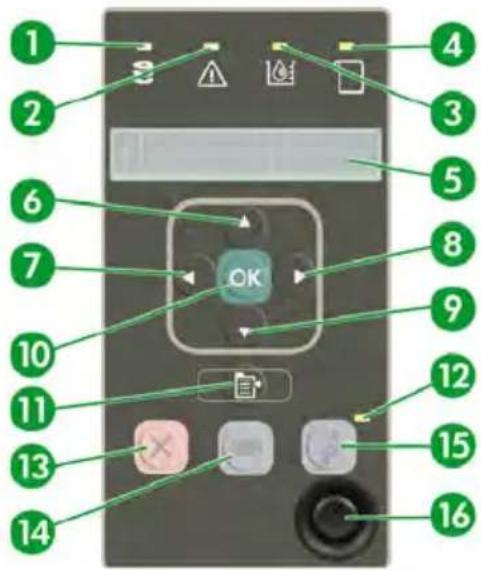
The front panel has the following components:
-
The Data light is off when the printer is not receiving data, and flashing when data is being received.
-
The Error light is off when there is no printer error, flashing to warn of an error condition that requires operator intervention, and on when there is a serious internal error.
-
The Ink Cartridge light is on when all ink cartridges are present and there is sufficient ink, flashing when an ink cartridge is low on ink, and off if an ink cartridge must be replaced.
-
The Media light indicates the status of media in the printer. When it is on, media is loaded in the printer and off indicates that the media is not loaded.
-
The display area where information and menus are displayed.
-
The Up key ▲ selects a menu group or moves to the previous item in a list, or increases a numerical value. This key can also be used to rewind the media through the media path (only when the front panel displays "Printer Ready").
-
The Back key ▶ selects a menu group or goes back to the previous menu. If you press it repeatedly, or hold it down, you will soon return to the main menu.
-
The Forward key ▶ selects a menu group or moves to the next digit when you are setting parameters.
-
The Down key ▼ selects a menu group or moves to the next item in a list, or decreases a numerical value. This key can also be used to feed the media through the media path (only when the front panel displays "Printer Ready").
-
The OK key selects an item that is currently highlighted or enters a parameter.
-
The SHIFT key is used to switch between the menu groups.
-
The Power light is off when the printer is off; green when the printer is on; flashing when the printer is in transition between off and on.
-
The CANCEL key cancels the current operation. It is often used to stop printing the current print job.
-
The HEATER key is used to set the temperature of the front, print and rear heaters.
-
The ONLINE key switches the printer online or offline, and provides access to menu groups.
- The Power key turns the printer on or off.
Safety precautions
The following symbols are used in this manual to ensure the proper use of the printer and to prevent the printer from being damaged. Follow the instructions marked with these symbols.

WARNING! Failure to follow the guidelines marked with this symbol could result in serious personal injury or death.

CAUTION Failure to follow the guidelines marked with this symbol could result in minor personal injury or damage to the product.
General warnings
- Use the power supply voltage specified on the nameplate. Avoid overloading the printer's electrical outlet with multiple devices.
- Be sure the printer is well grounded. Failure to ground the printer may result in electrical shock, fire, and susceptibility to electromagnetic interference.
- Do not disassemble or repair the printer yourself. Do not reinstall the printer in a new location. Call your local HP Service Representative for service.
- Use only the electrical cable supplied by HP with the printer. Do not damage, cut, or repair the power cable. A damaged power cable has risk of fire and electric shock. Replace a damaged power cable with an HP-approved power cable.
-
Do not allow metal or liquids (except those used in HP Cleaning Kits) to touch the internal parts of the printer. Doing so may cause fire, electric shock, or other serious hazards.
• Power OFF the printer and unplug the power cable from the power outlet in any of the following cases: -
When placing your hands inside the printer.
• If there is smoke or an unusual smell coming from the printer. - If the printer is making an unusual noise not heard during normal operation.
- A piece of metal or a liquid (not part of cleaning and maintenance routines) touches internal parts of the printer.
• During an electrical (thunder/lightning) storm.
• During a power failure.
Inks used in the printer and liquids in the HP Cleaning kits contain an organic solvent (ethylene glycol monobutyl ether acetate, CAS No. 112-07-2). Observe all local, state, and federal regulations related to the handling, use, storage, and disposal of organic solvents.
- Ink and fluids used in the Cleaning Kits are combustible. Do not use or store within 8 meters (25 feet) of open flames, sparks, or other sources of ignition.
- Do not operate printer within 8 meters (25 feet) of open flames, sparks, or other sources of ignition. Do not smoke within 8 meters (25 feet) of the printer.
• Install and operate the printer in a well-ventilated area. - The printer installation must meet all applicable regulations on the emissions of volatile organic compounds in the workplace. HP recommends that installations use an ink vapor extraction and exhaust system or an HP Air Purification System. Before installing a system exhausting ink vapors to the outside atmosphere, consult with your local air quality control authorities.
- Avoid contact between ink and skin, eyes, and clothing.
- Immediately wash skin with soapy water.
- Remove clothing soaked with ink from contact with skin.
- Use an approved eye wash station if ink is splashed into eyes and consult a doctor if necessary. If an approved eye wash station is unavailable, flush eyes with cold water and consult a doctor if necessary.
Do not swallow ink. If swallowed, do not induce vomiting and seek immediate medical attention.
- Keep ink cartridges, cleaning kits, and waste ink bottles out of the reach of children.
- Be sure all operators are trained in the use of emergency equipment such as eye wash stations and fire extinguishers and know where they are located.
General cautions
- Handle media rolls with care. They can be heavy and difficult to move in confined spaces. In some cases, two people should move and install media rolls. Dropping a media roll could cause personal injury or damage to the printer.
- Allow and maintain adequate space around printer for immediate access to safety equipment such as eye wash stations, fire extinguishers, glove and safety glass dispensers, and fireproof waste storage containers.
- Treat any media, used cleaning and maintenance supplies, and wipes soaked with ink as combustible materials. Handle and dispose of properly.
- If an Air Purifier System is installed, allow adequate space for exhaust hoses from the printer. Locate these hoses and the Air Purifier System so that they do not pose a trip hazard or interfere with the operation of the printer such as loading and unloading media, replacing Ink Cartridges, inspecting and replacing the waste ink bottle.
• Always hold the power cable by the plug when connecting and disconnecting from the power outlet. Never pull on the cable because this may damage it and create risk of fire and electric shock. - Do not touch heater surfaces in the media path. This may cause burns.
In order to ensure the safe operation of the printer, heed all of the cautions and warnings contained throughout this manual.
Handling precautions
These precautions are recommended to avoid damage to your printer and its components.
Power supply
• Use the power supply voltage specified on the nameplate.
- Check the printer electrical outlet for proper polarity and grounding before connecting printer. Failure to do so may result in fire and electric shock hazards.
- Be sure the printer is well-grounded. Failure to ground the printer may result in electrical shock, fire, and susceptibility to electromagnetic interference.
- Avoid overloading the printer's electrical outlet with multiple devices.
• Use only the electrical cable supplied by HP with the printer.
Printer
- Wipe the printer clean with a soft cloth. A cloth moistened with a neutral detergent may be used. Do not allow liquid to enter the printer. This may create risk of fire and electrical shock and cause a malfunction. Do not clean the printer with benzene or paint thinner. This may damage the paint.
- Never touch the printhead nozzles. They can be easily damaged or clogged.
Regular inspection and maintenance
• Make sure you observe the appropriate maintenance guideline. See How do I maintain the printer.
• Clean the capping unit every day.
- Never switch off the printer without following the correct procedures. Even with the storage liquid installed, never leave the printer off for more than 4 weeks. Leaving your printer off for more than 4 weeks can cause permanent damage that cannot be repaired. In all other cases make sure you observe the appropriate maintenance guidelines.
Consumables
- Ink inside the ink cartridge is combustible. Do not expose or store near open flames, sparks, or other sources of ignition.
- HP Ink Cartridges should be installed before the “Install By” date printed on the cartridge. Use of the Ink Cartridge 3 months beyond the “Install By” date may cause deterioration in print quality or a printer malfunction.
- Do not disassemble the ink cartridges. Ink cartridges are intended for single use only.
-
Avoid contact between ink and skin, eyes, and clothing.
-
Immediately wash skin with soapy water.
- Remove clothing soaked with ink from contact with skin.
• Use an approved eye wash station if ink is splashed into eyes and consult a doctor if necessary.
If an approved eye wash station is unavailable, flush eyes with cold water and consult a doctor if necessary.
- Use only an HP Waste Ink Bottle. The bottle must be installed according to instructions or waste ink may overflow.
An HP Waste Ink Bottle must always be installed before turning the printer ON. Automatic and manual service cycles produce waste ink that must be contained in an HP Waste Ink Bottle.
Do not remove the cap from its tether to the HP Waste Ink Bottle. The cap is needed to properly seal the HP Waste Ink Bottle for disposal.
Keep the HP Waste Ink Bottle upright. Do not place on tables or shelves where it could fall.
Waste ink is combustible. Keep an HP Waste Ink Bottle containing waste ink away from open flames, sparks, or other sources of ignition.
The level in the HP Waste Ink Bottle must be checked by visual inspection to prevent overflow. If the waste ink level is above the indication line, the bottle must be replaced with an empty HP Waste Ink Bottle. - Place a sheet of paper under the HP Waste Ink Bottle on the floor when removing a bottle containing waste ink. This will help clean up any ink spills. If soaked with ink, treat the paper as a combustible material and dispose of properly.
- Do not store HP Ink Cartridges in direct sunlight. Store HP Ink Cartridges in a cool, dry place. This prevents deterioration of the ink during storage.
2 How do I... (basic operation topics)?
Connect to a computer
• Turn the power on/off
• Check the firmware version
Connect to a computer
This section describes system configuration and cable connection procedures.

NOTE Before connecting or disconnecting the USB Cable, turn the printer OFF.
System configuration (connection example)
The following connection is possible.

- Printer server (RIP).
- USB interface.
- Printer.
Connection procedure

NOTE Before you connect the USB cable, you should ensure that the RIP is installed so that the printer can be detected by your operating system. Refer to the instructions that came with your RIP for installation instructions.
Connect a USB cable as follows:
-
Disconnect the USB cable from the rear of your printer if it is already connected.
-
Press the POWER ON/OFF key (1) on the front panel to turn the printer off.

NOTE Only turn off the printer while PRINTER READY is displayed on the front panel except in an emergency. Do not turn off the printer while INITIALIZING or CLEANING is displayed on the front panel to avoid liquid dripping onto other parts of the printer and damage to the printhead.

- Power off the printer using the power switch (1) at the rear.

-
Connect the USB cable to a USB connector on your computer.
-
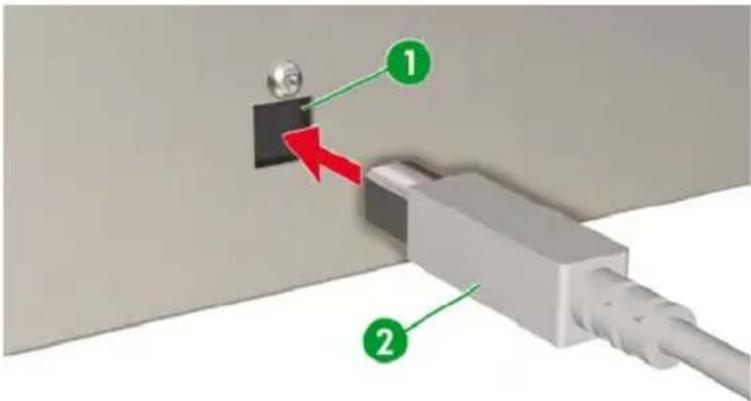
Connect the USB cable (2) to the USB connector (1) at the rear of the printer.
-
Attach the USB cable with the two cable clamps at the rear of the printer.
-
Power on the printer using the power switch (1) at the rear.

- Press the POWER ON/OFF key (1) on the front panel to turn the printer on.
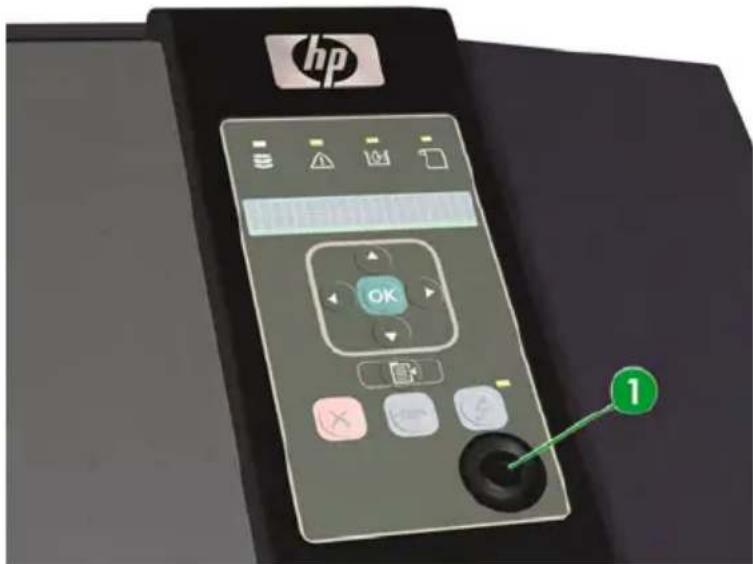
- Follow the instructions on your computer in order to select the printer.
Turn the power on/off

WARNING! Use the power supply voltage specified on the nameplate.
Be sure the printer is well-grounded. Failure to ground the printer may result in electrical shock, fire, and susceptibility to electromagnetic interference.

CAUTION Always hold the power cable by the plug when connecting and disconnecting from the power outlet. Never pull on the cable because this may damage it and create risk of fire and electric shock.
Turn on the printer
- Power off the printer using the power switch at the rear of the printer, and plug one end of the supplied power cable (1) into the socket of the printer. Insert the other end of the cable into an electrical outlet.

WARNING! Avoid overloading the printer's electrical outlet with multiple devices. Use only the electrical cable supplied by HP with the printer. Do not damage, cut, or repair the power cable. A damaged power cable has risk of fire and electric shock. Replace a damaged power cable with an HP-approved power cable.

- Power on the printer using the power switch (1) at the rear of the printer.

- Press the POWER ON/OFF key (1) on the front panel.

When you press power on, the printer performs a power-on self-diagnostic test and the following messages are displayed on the front panel.
Booking up.
INITIALIZING... PLEASE WAIT
PRINTER READY ROLL: 64/PAPER
(If a 64" media roll is loaded).

NOTE Only turn off the printer while PRINTER READY is displayed on the front panel except in an emergency. Do not turn off the printer while INITIALIZING or CLEANING is displayed on the front panel to avoid liquid dripping onto other parts of the printer and damage to the printhead.
How do I turn the power off

WARNING! Never switch off the printer without following the correct procedures. Even with the storage liquid installed, never leave the printer off for more than 4 weeks. Leaving your printer off for more than 4 weeks can cause permanent damage that cannot be repaired. In all other cases make sure you observe the appropriate maintenance guidelines.
WARNING! The printer has an internal clock which allows it to automatically wash the printheads, flushing some ink through the printheads, which keeps the printheads in good condition. The printer automatically washes the printheads regularly after the last printing process. If the printer is switched Off for a long period, this process does not happen. If the ink does not flow through the printheads from time to time, the ink will dry inside the nozzles, reaching a point where it is impossible to recover them and the printheads will fail. This will mean an expensive printhead replacement.
Automatic maintenance and cleaning will not be performed if you turn off the printer on the front panel or leave it without media loaded. The printer power switch on the rear of the printer should only be used when the printer is turned off to move it, to connect it to a computer, or to install or maintain printer parts.
WARNING! Turn the printer OFF and unplug the power cable from the power outlet in any of the following cases;
— when placing your hands inside the printer;
— if there is smoke or an unusual smell coming from the printer;
— if the printer is making an unusual noise not heard during normal operation;
— a piece of metal or a liquid (not part of cleaning and maintenance routines) touches internal parts of the printer;
— during an electrical (thunder/lightning) storm;
— during a power failure.

CAUTION Always hold the power cable by the plug when connecting and disconnecting from the power outlet. Never pull on the cable because this may damage it and create risk of fire and electric shock.
Turn off the power by pressing the power on/off key on the front panel for a couple of seconds.
SHUTTING DOWN PLEASE WAIT
The front panel displays the message above to indicate that a shutdown process is in progress. After the process ends, the power is turned off.
If you intend to turn the printer off for a short time, you can avoid the printhead wash operation by pressing the power on/off key while pressing the CANCEL key.
The printhead wash operation is recommended to keep the printheads in good condition.

CAUTION The printer power switch on the rear of the printer should only be used when the printer is turned off to move it, connect it to a computer, or to install or maintain printer parts.
The printer automatically washes the printheads regularly after the last printing process. We recommend that the printer power is left on and media is loaded.
Check the firmware version
To check the firmware version on your printer do the following:
- Press the ONLINE key to take the printer online.
- Press the SHIFT key to display the SETUP menu.

- Press the ▼ key to select the SETUP menu.
- Scroll to PRINTER FW VER and press OK.
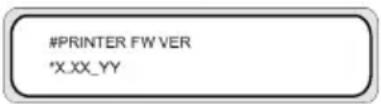

NOTE For information on firmware updates and installation instructions, see Tell me about... (getting help topics)
3 How do I load/unload media
This section describes how to load and remove media in the printer.
• Install a media roll in the printer
- Remove a media roll from the printer
- Replace a jammed media roll
- Load a cut sheet
• Use the media edge guards
• Use the media cutter
• Use the take-up reel
Install a media roll in the printer

CAUTION Do not touch heater surfaces in the media path. This may cause burns.
Handle media rolls with care. They can be heavy and difficult to move in confined spaces. In some cases, two people should move and install media rolls. Dropping a media roll could cause personal injury or damage to the printer.

NOTE You can increase or reduce the printhead height depending on the thickness of the media you are using. See How do I... Change the printhead height
NOTE The HP Designjet 8000s Take-Up Reel Kit (Q6681A) is an optional accessory. See Tell me about... Ordering accessories
Make sure the printer wheels are locked (the brake lever is pressed down) (1) to prevent the printer from moving.
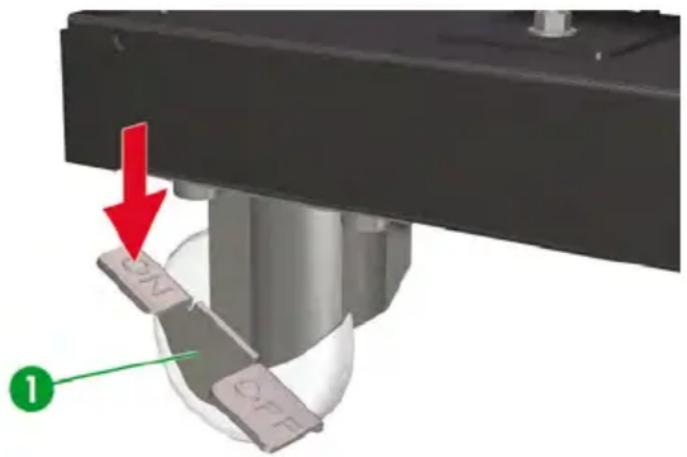
The printer's front panel messages will guide you through the process of loading media.
The printer comes with two roll stops and spacers that are inserted into each end of the roll core tube.
To install a media roll:
- Insert one spacer (2) onto each roll stop (1).
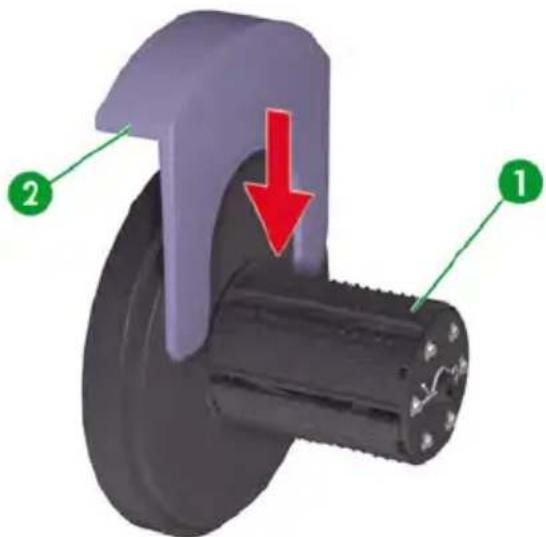
- Insert the roll stops into each end of the media core.

CAUTION The roll may be very long; rest the roll horizontally on a table and insert the two roll stops (1, 2). Two people may be required to handle and load the roll.
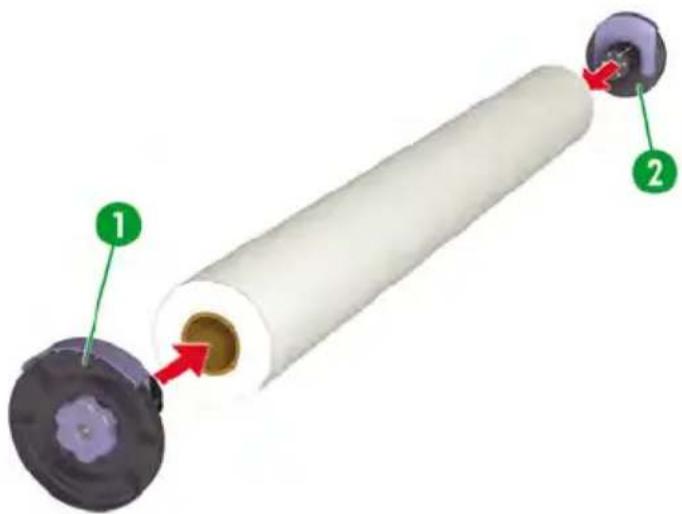
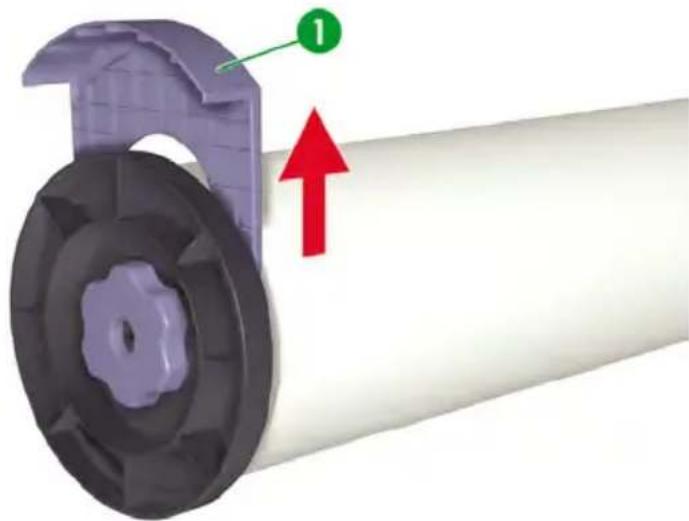
- Turn the blue knob (1) clockwise to tighten the roll stops inside the media core.

- Remove the spacer from both roll stops.
- At the rear of the printer, loosen the stop screw (1) and position the left (3) and right (2) media roll holders so that the roll stops on each end of the roll can be placed on the holders.


NOTE Before lifting the roll of media onto the media roll holders, decide if you want to print on the media face up or face down. Media can be fed through the media path from over the roll (face up) (1) or from under the roll (face down) (2).

- Lift the roll of media (1) onto the media roll holders.
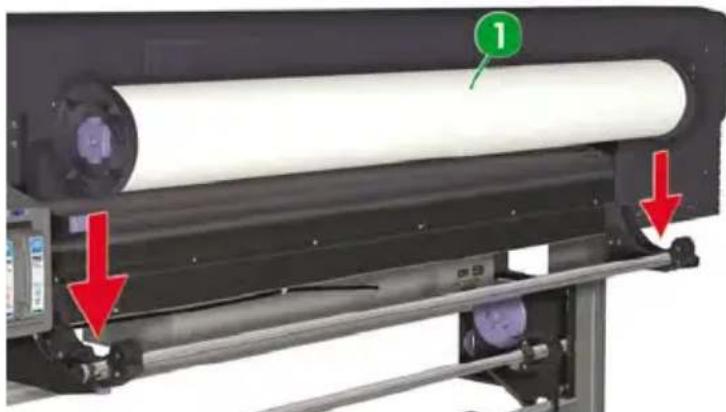
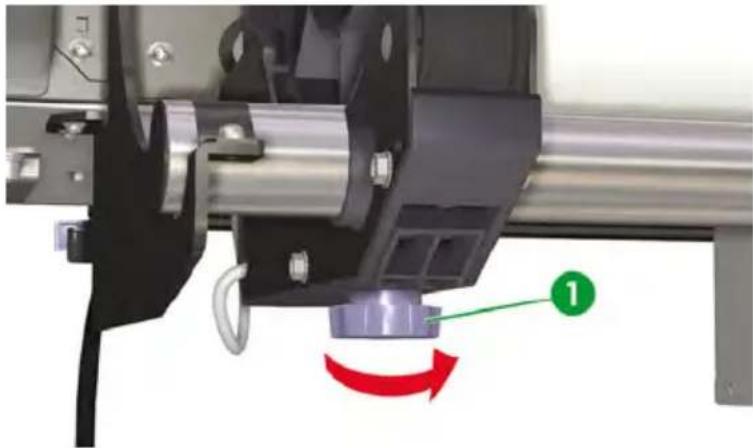
- Tighten the stop screw (1) on the left media roll holder so that the roll does not move sideways.
- Open the front cover (1).

- Slide the media edge guards to each end of the platen.

NOTE Position the media edge guards (1) after loading the media. See How do I... Use the media edge guards.

- Close the front cover (1).
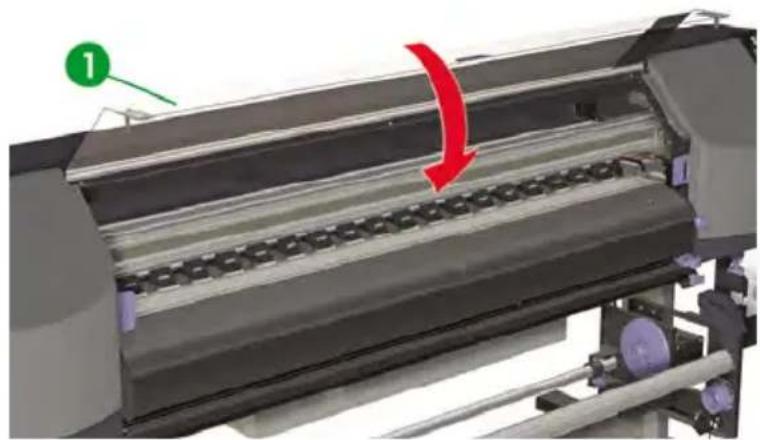
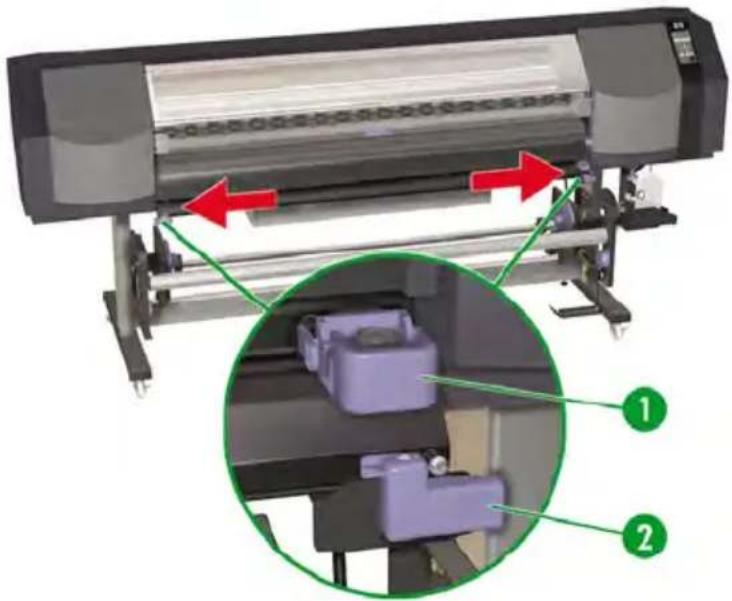
- Slide the cutter (1) and media clips (2) out of the media path so that they can be accessed to cut the printed media and to avoid damage to the leading edge of the media.
- At the rear of the printer, lift the media lever (1).

- If there is unequal pressure on the left (1) and right (2) edges of the media when feeding the media into the printer, either reposition the media so that the pressure is equal at the edges or use the pressure release lifters to equalize the pressure. . This will help avoid skew.

If the pinch wheels do not apply the same pressure on both edges, then do the following:
a. Reposition the media so that the pressure is equal at both edges of the media:
• Lower the media lever;
- Loosen the stop screws on the media holders;
- Adjust the position of the roll left or right along the support bar;
• Tighten the stop screws on the media holders;
- Raise the media lever.

NOTE Take care that the media is flat and does not catch on the pinchwheels while changing the position.
b. Use the pressure release lifters to equalize the pressure at the edges of the media;
• Pull out the pressure release lifter (1) of the required pinchwheel (2);
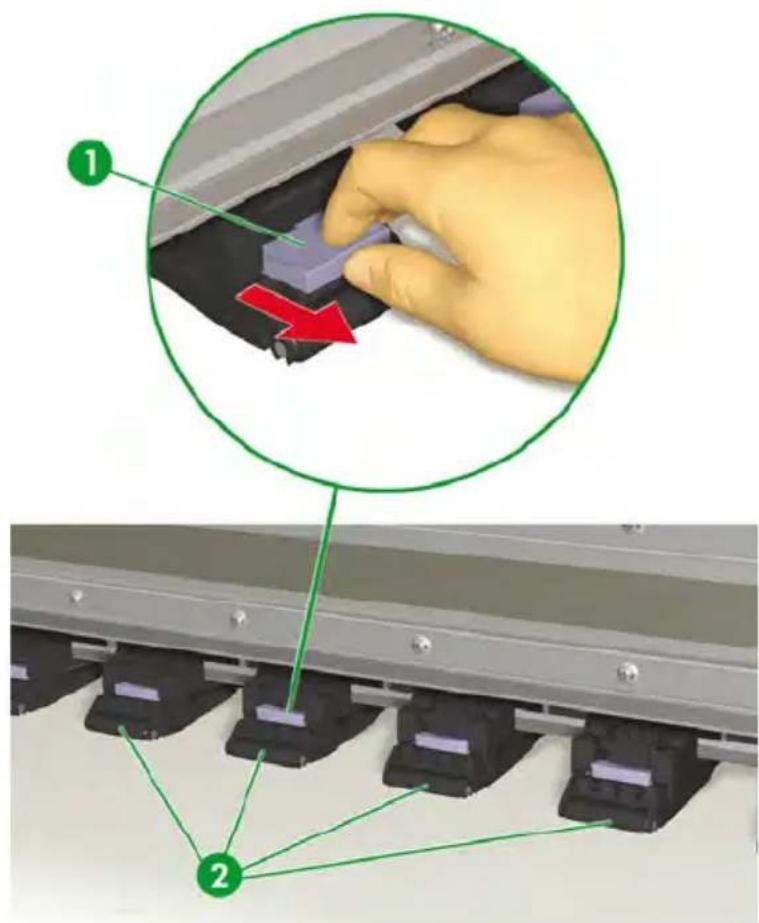
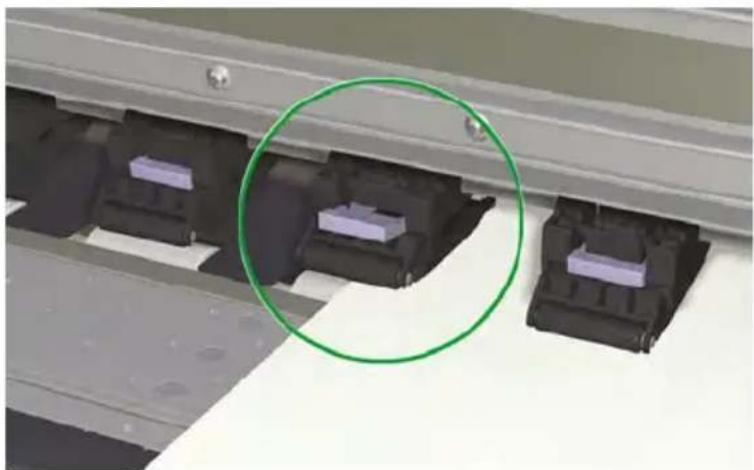
Example of when the pressure release lifter needs to be pulled out to release unequal pressure from the Pinchwheel at the edge of the media;
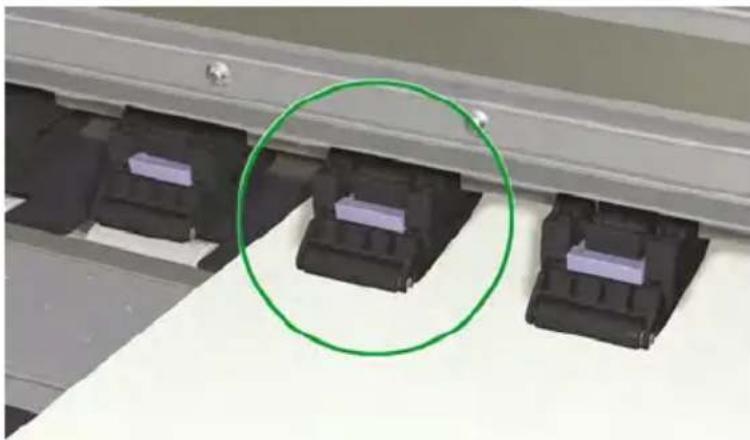
Example of when the pressure release lifter does not need to be pulled out to release unequal pressure from the Pinchwheel at the edge of the media;
- Feed the media until a beep sounds from the media feeder (about 200 mm).

NOTE It is a good practice to feed the media through the media path until it almost touches the floor because when you rewind the excess media again this will ensure an even tension across width of the media and avoid skew.


NOTE If you have problems loading media, feed the media into the printer by holding both edges of the media.
Take care that the media does not curl inside the front cover and that the media edge guards are not obstructing the media path.
- Take up any excess media by rewinding the roll stop (1) on the media roll. This will help to make sure there is even tension across the width of the media and avoid skew.

- Lower the media lever (1) to the required media pressure position, low pressure or normal pressure. For details, see How do I... Increase/reduce pressure on media.
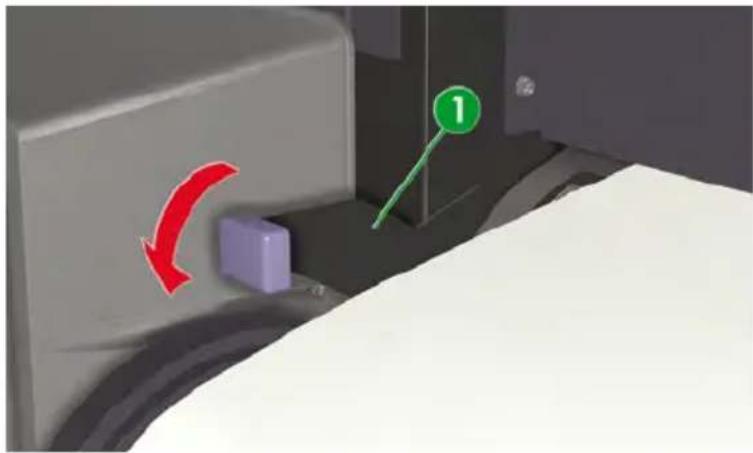
- Open the front cover (1).
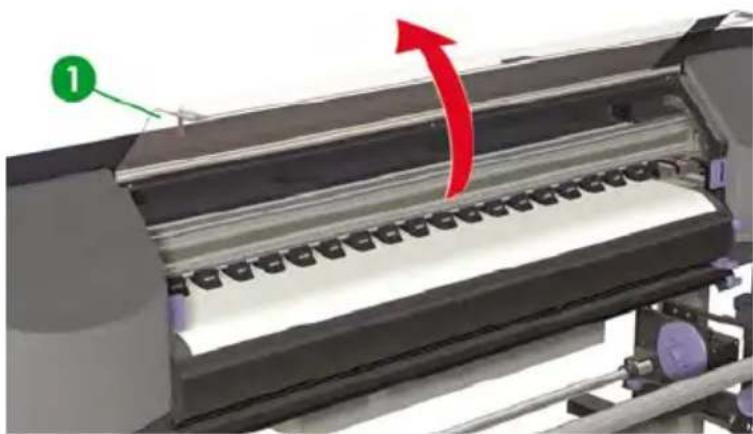
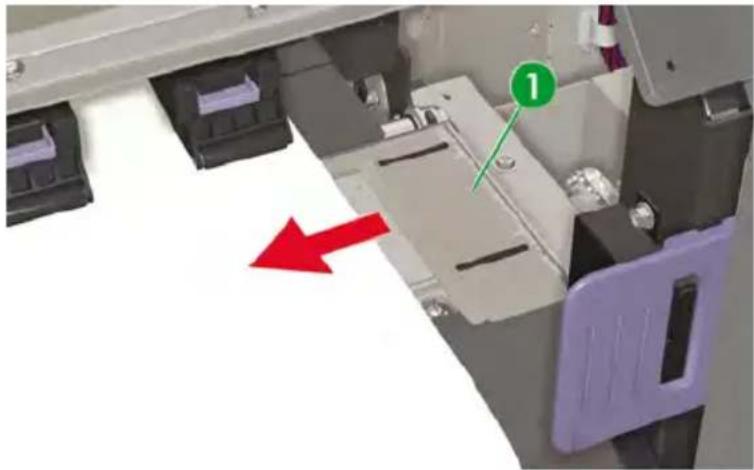
- Adjust the media edge guards right (1) and left.
- Close the front cover (1).

To complete the loading procedure, follow the front panel instructions.

-
Confirm the position of the media edge guard and press the OK key.
-
Select media roll.

a. Select ROLL using the ▲ or ▼ keys.
b. Press the OK key to confirm.
- Select a media type.
SELECT MEDIA MEDIA: TYPE02
a. Select the media type with the ▲ or ▼ key.
The following preset media types are available to choose from:
PAPER
Glossy
- Matte
Banner
BLT_B (Backlit)
b. Press the OK key to confirm.

NOTE If you wish to select a media type that is currently not available, then you will need to create a new media type.
SELECT MEDIA NEW MEDIA ENTRY
c. Select the NEW MEDIA ENTRY option using the ▲ or ▼ key and press the OK key. For details, see How do I... Manage media types.
Press the CANCEL key to return to the SELECT MEDIA menu.
- Set the length of the media that you have loaded using the ▲ or ▼key and press OK.
REMAINING MEDIA
*XXXm
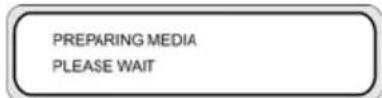
- The media will be loaded automatically.
PREPARING MEDIA PLEASE WAIT
- When you have completed the process, the following message is displayed.
PRINTER READY ROLL: 64/PAPER
The message describes the status of the printer, the media you have loaded, the media width and the media type.
Remove a media roll from the printer

CAUTION Do not leave the printer for long periods without media loaded because the automatic Printhead.washing procedure will not operate if no media is loaded and could lead to expensive Printhead replacement.
To remove a media roll from the printer:
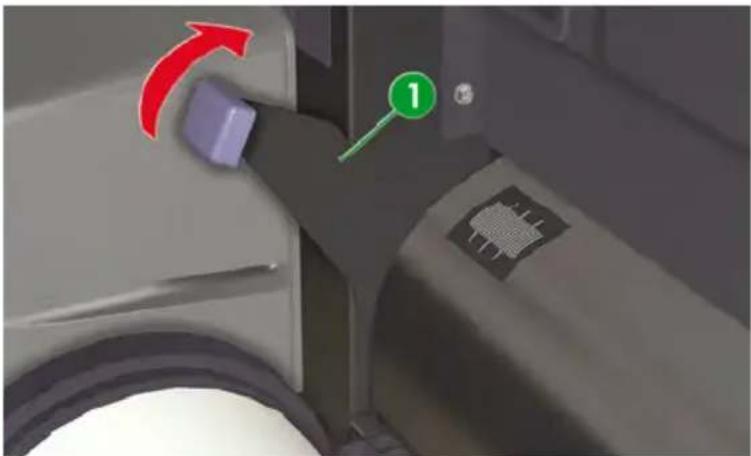
- Lift the media lever (1).
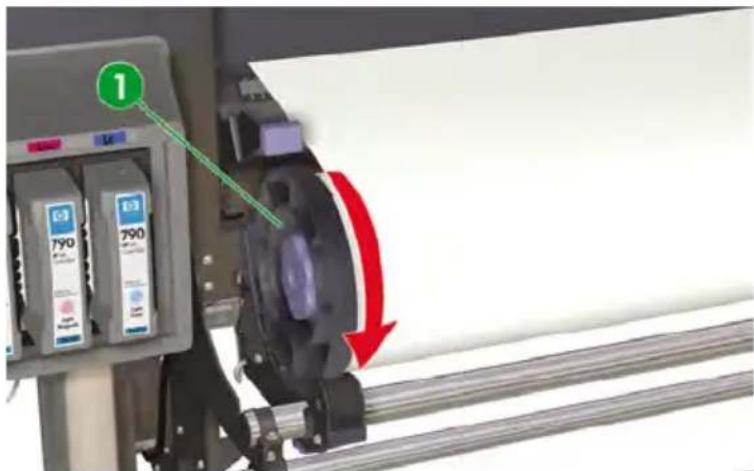
- Take up any excess media by rewinding the roll stop (1) on the media roll.
- Remove the media roll (1) from the printer.

CAUTION Handle media rolls with care. They can be heavy and difficult to move in confined spaces. In some cases, two people should move and install media rolls. Dropping a media roll could cause personal injury or damage to the printer.

- Turn the blue knob (1) anti-clockwise to loosen the roll stops inside the media core.

- Remove the roll stops left (1) and right (2) from each end of the media core.

CAUTION The roll may be very long; rest the roll horizontally on a table and remove the two roll stops. Two people may be required to handle and unload the roll.

Replace a jammed media roll
To replace a jammed media roll, see The problem is... A printhead crash.
Load a cut sheet
The printer's front panel messages will guide you through the process of loading media. To load a cut sheet:
- At the front of the printer, open the front cover (1).

- Slide the media edge guards (1) to each end of the platen.


NOTE Position the media edge guards after loading the media.
- Close the front cover (1).

-
Slide the cutter (1) and media clips (2) out of the media path so that they can be accessed to cut the printed media and to avoid damage to the leading edge of the media.
-
At the rear of the printer, lift the media lever (1).
-
When installing the cut sheet in the printer, align the edge of the cut sheet (2) to the right of the guide line (1).

- Feed the cut sheet (1) until a beep sounds from the media feeder (about 200 mm).
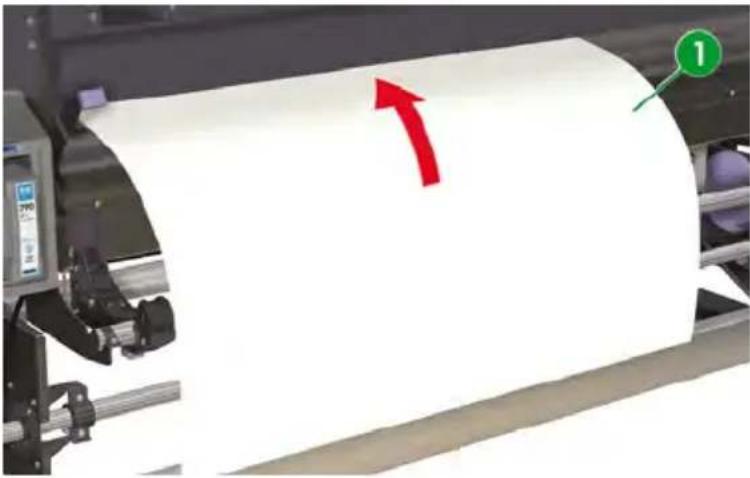

NOTE If you have problems loading media, feed the media into the printer by holding both edges of the media.
Take care that the media does not curl inside the front cover and that the media edge guards are not obstructing the media path.
- Lower the media lever (1).
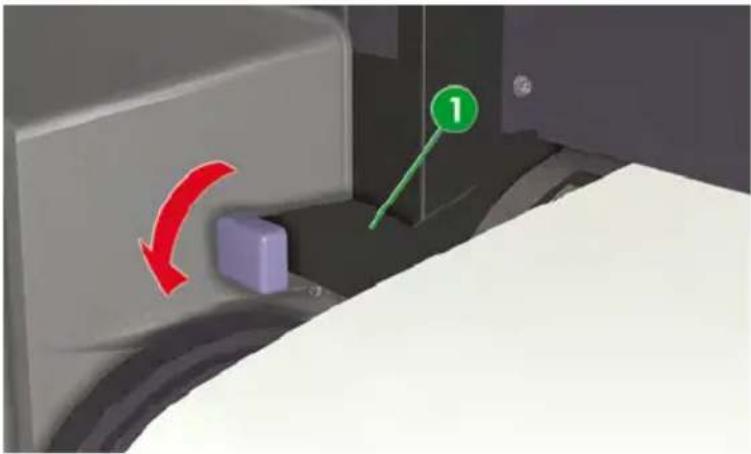
- Open the front cover (1).

- Adjust the media edge guards (1).

- Close the front cover (1).

To complete the loading procedure, follow the front panel instructions.
CHECK EDGE GUARD *OK?
-
Confirm the position of the media edge guard and press the OK key.
-
Select cut sheet.
SELECT MEDIA ROLL/SHEET: SHEET
a. Select SHEET using the ▲ or ▼ keys.
b. Press the OK key to confirm.
- Select a media type.
SELECT MEDIA MEDIA: TYPE02
a. Select the media type with the ▲ or ▼ key.
The following preset media types are available to choose from:
PAPER
Glossy
Matte
- Banner
BLT_B (Backlit)
b. Press the OK key to confirm.

NOTE If you wish to select a media type that is currently not available, then you will need to create a new media type.
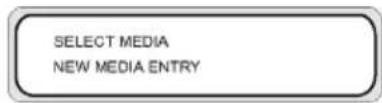
c. Select the NEW MEDIA ENTRY option using the ▲ or ▼ key and press OK. See How do I... Manage media types.
Press the CANCEL key to return to the SELECT MEDIA menu.
- Set the length of the media that you have loaded using the ▲ or ▼ key and press OK.
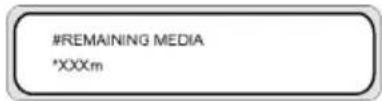
If an error message is displayed, remove the media and repeat the task.
- The media will be loaded automatically.
If an error message is displayed, remove the media and repeat the task.
Use the media edge guards
Set the media edge guards (1) on the right and left of the printing path to reduce the risk of printhead crashes.
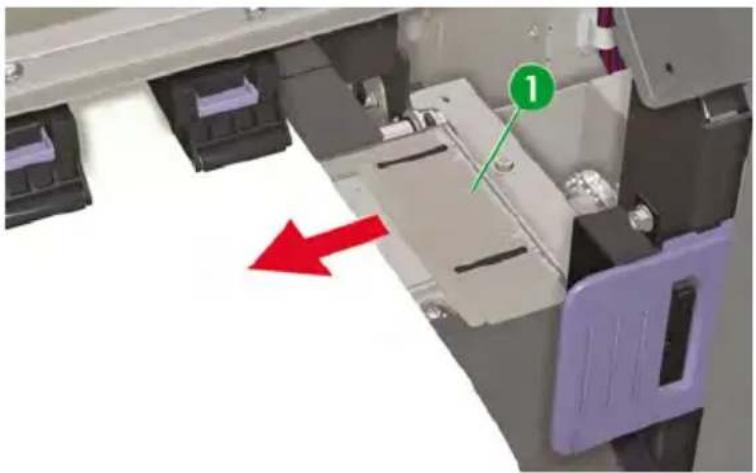

NOTE When using the media edge guards, the right and left margins increase from 5 mm to 10 mm.
You need to activate or deactivate use of the media edge guards on the front panel.
To access the MEDIA REG menu:
- Press the ONLINE key.
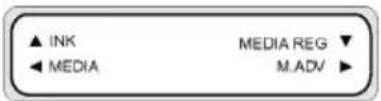
- Press the ▼ key to see MEDIA REG menu options.

-
Select the media that you want to use or not use the media edge guards with and press the OK key. This setting will only apply to the selected media.
-
Scroll to USE EDGE GUARD using the ▲ or ▼ keys and press the OK key.
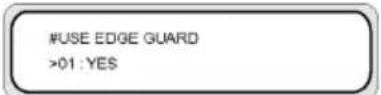
- Select YES or NO and press OK to confirm.
Use the media cutter

NOTE The cutter is a consumable that can be replaced if the blade deteriorates and does not cut your media cleanly. See Tell me about ... Ordering supplies
The printer comes with a removable cutter (1) and two media clips (2) installed in the printer.
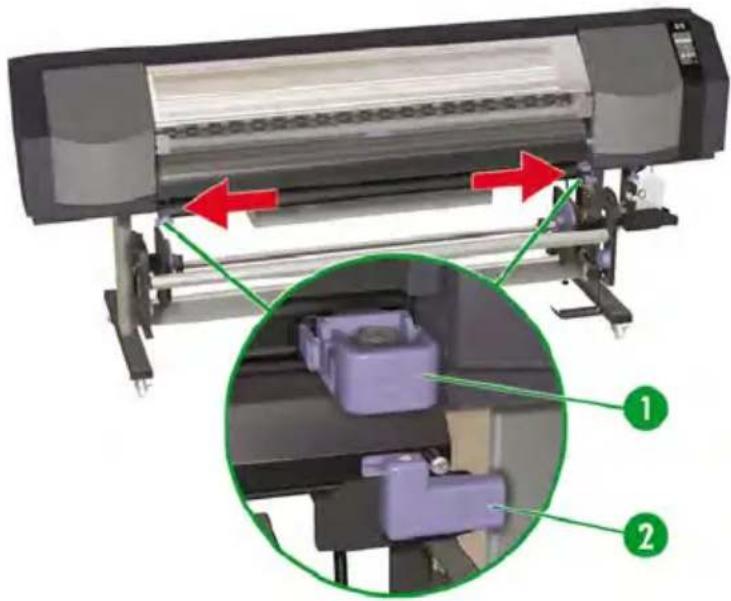

Tip If necessary, when the Front Panel displays the "Printer Ready" message, feed media through the printer using the ▼ key. You can also use the FORM FEED menu to feed media through the printer. Do not pull the media manually through the printing path. This may skew the media loaded in the printer. After cutting the media you can rewind excess media by using the ▲ key or the REWIND menu.
The media cutter should be positioned so that the cutting direction arrow is pointing towards the media. If the arrow is pointing in the opposite direction to the media, and the cutter path is obstructed by the media, you can remove the cutter from its holder. To remove the media cutter from its holder:
- Apply pressure to the sides of the cutter (1) and pull (2).

- Rotate the cutter (1) so that the arrow is pointing in the direction of the media that you want to cut.

- Insert the cutter (1) with the arrow pointing towards the media.

- Secure both edges of the media using the media clips (1) on the left and right side, making sure that the media is not hanging loosely.
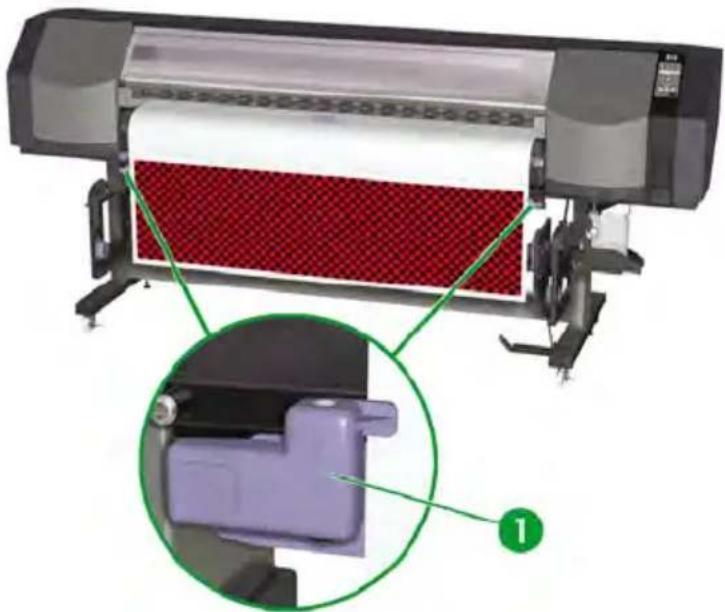
- Slide the cutter (1) across the media. The media will be held securely by the media clips (2).


Tip After cutting the media you can rewind excess media by using the REWIND option the key or the REWIND menu.
Use the take-up reel

NOTE The HP Designjet 8000s Take-Up Reel Kit (Q6681A) is an optional accessory.
There are four tasks required to complete loading of media on the take-up reel: The first part of attaching a roll to the take-up reel is attaching the end of the roll (by tape) to the core tube supplied with the take-up reel. You can also use an empty cardboard tube. Both types of core must be the same length as the roll you are using.
- Set the take-up reel for clockwise or anti-clockwise winding.
• Define the winding mode. - Load media onto the take-up reel.
• Calibrate media advance.
Set the take-up reel winding direction
Winding for printing on the outside of the roll (3) or the inside of the roll (2) can be selected. When the take-up reel is not used, set the take-up reel switch to off (1).
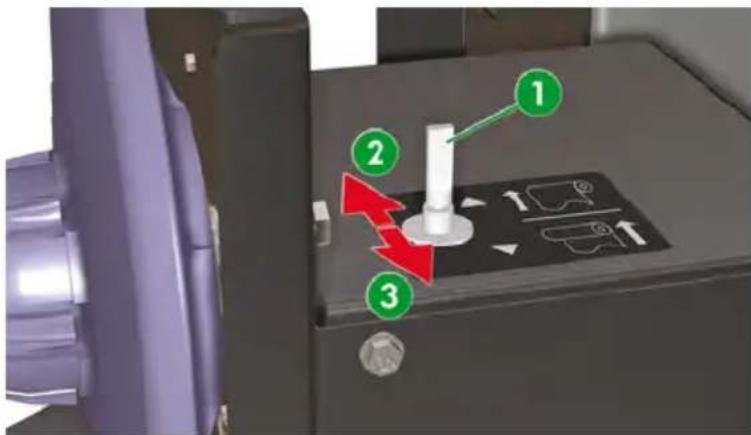

NOTE For LOOSE winding mode, make sure that the media passes inside the take-up reel sensor (1).
If the take-up reel is not used, turn the take-up reel switch off.
Make sure that you change the media roll on the take-up reel before the roll size exceeds the diameter of the take-up reel media hub. Replace the core tube with a new one to avoid winding errors.


NOTE When printing without using the take-up reel, make sure the media or printing surface is not damaged or folded by the take-up reel sensor.
Define the take-up reel winding mode
The take-up reel supports two winding modes; tension winding and loose winding.

NOTE Normally the LOOSE winding mode is recommended.
NOTE Use the TENSION winding mode when there are problems with skew.
- Press the ONLINE key to view the MEDIA REG menu.
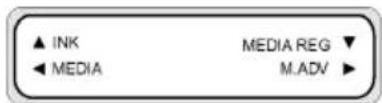
-
Press ▼ to select MEDIA REG.
-
Press ▼ to scroll to the TUR MODE option and press OK to select.

- Select LOOSE or TENSION and press OK to confirm.
Load media on to the take-up reel
If you are using a two-inch cardboard core, make sure you remove the core adaptors installed on the take-up reel hubs as follows:
- Remove the adaptor ring (1) from the take-up reel right end plate.
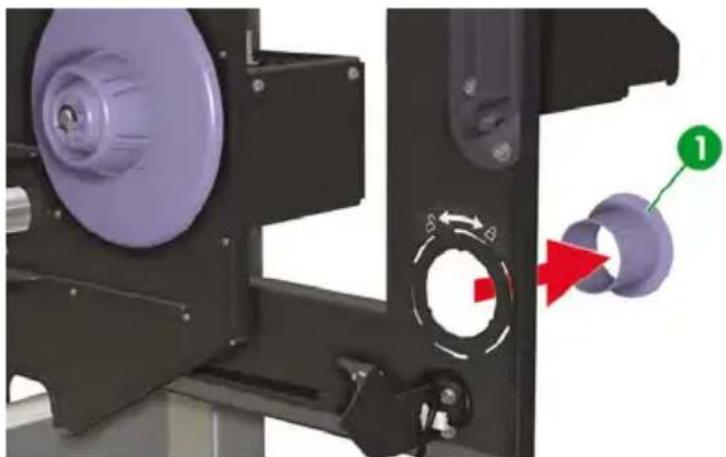
- Insert the adaptor ring into the core adaptors on each take-up reel hub and turn anti-clockwise to release.

- Pull to release the core adaptors (1).
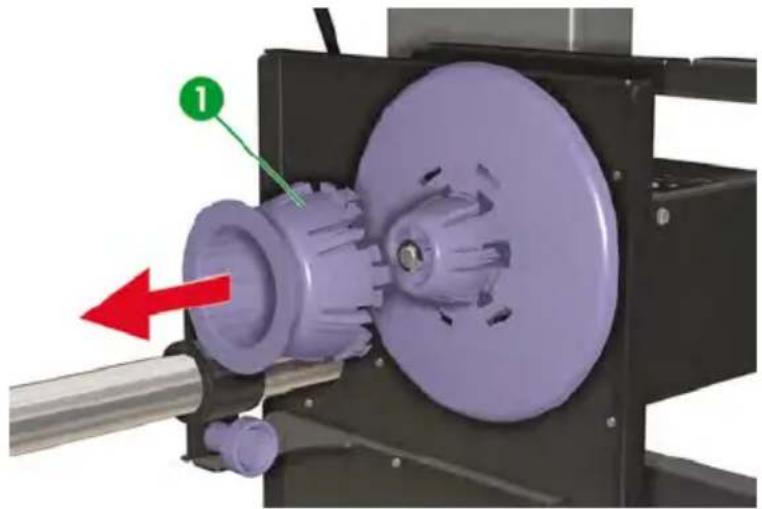
- Insert the core adaptors into the take-up reel right and left end plates and turn clockwise to secure.

When attaching printing material to the take-up reel:
- Check the leading edge of your media. If it is not evenly cut or if it is skewed, trim the printing material.
- Check that the media is straight when it is attached to the take-up reel, otherwise it will skew as it is wound onto the core.

NOTE The core tube on the take-up reel must be the same width as the printing material you are using.
• Make sure the take-up core is pushed firmly into both media hubs.
- If you need to feed more printing material from the printer, press the ONLINE key and then the SHIFT key to display the FORM FEED option. Hold down the ▼ key to feed media.
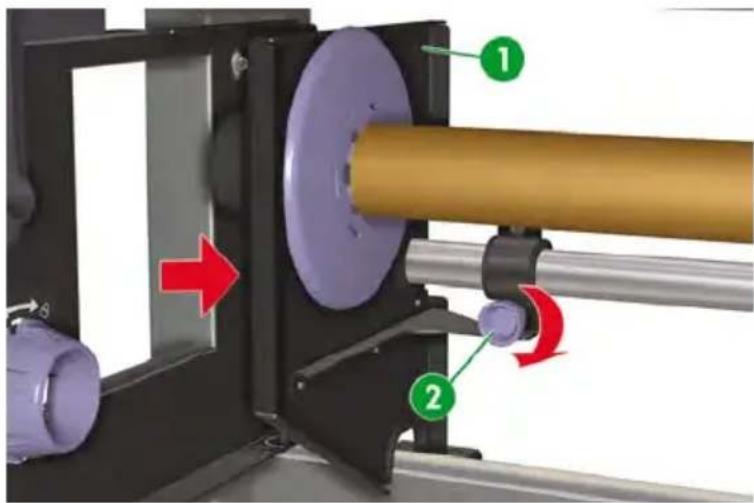
- Loosen the stop screw (1) on the left take-up reel assembly (2) and adjust the position for the width of your core tube.
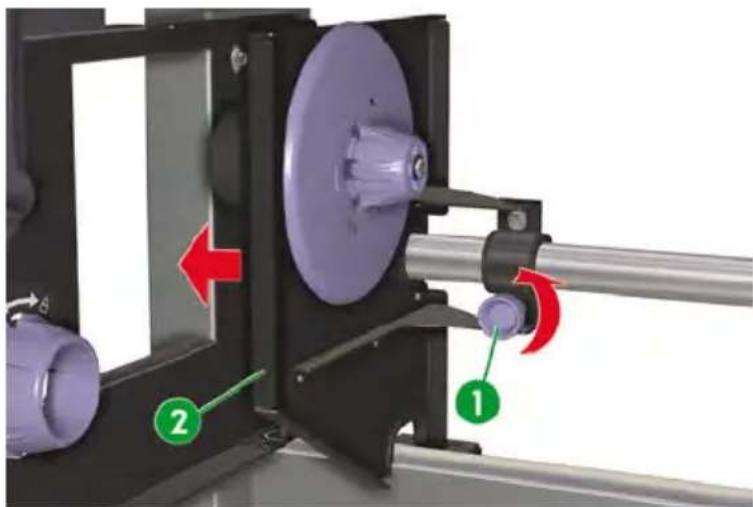
- Insert the core tube (1) against the right media hub (2).
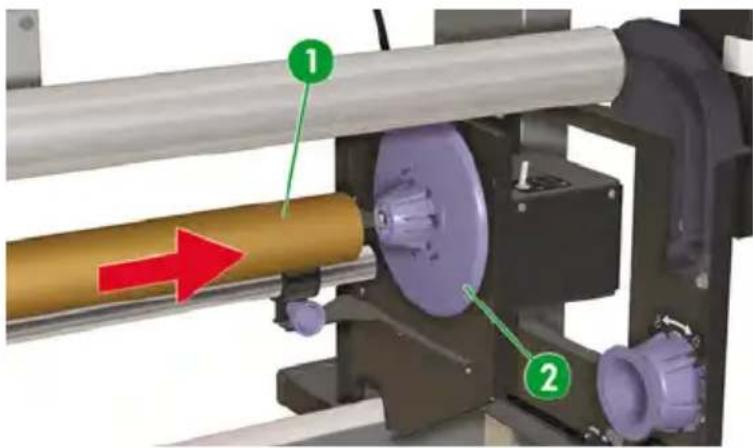
- Slide the left take-up reel assembly (1) to insert the left media hub into the core tube and tighten the stop screw (2) on the left take-up reel assembly.
-
Load roll media into the printer
-
Lift the media lever (1)
- Load the media
• Lower the media lever
-
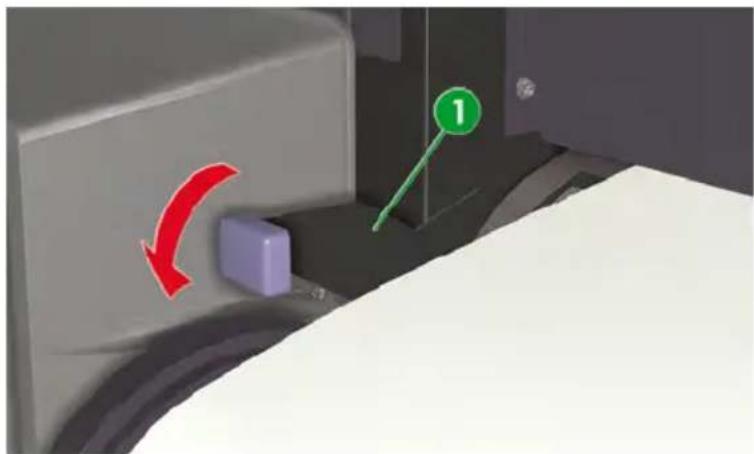
Feed the media into the printer using the FORM FEED menu on the front panel until there is sufficient media at the front of the printer to attach the media to the core tube.
-
Press the ONLINE key.
- Press the SHIFT key to display the FORM FEED option.
-
Press the ▼ key to feed media through the printer.
-
From the rear of the printer, tape (1) the edge of the media onto the core tube on the take-up reel. Tape on both edges and in the center (1).


NOTE Make sure the media is attached to the correct side of the tube. You may wind the media over the core tube for anti-clockwise winding, or under the core tube for clockwise winding.
Attach the media to the core tube in a straight line so that media winding is even.
- Manually turn the media hub (1) to wind some media onto the take-up reel. Remember to turn the media hub in the same direction as the take-up reel winding direction for printing on the inside or the outside of the roll.

- Check the position of the take-up reel switch (1).
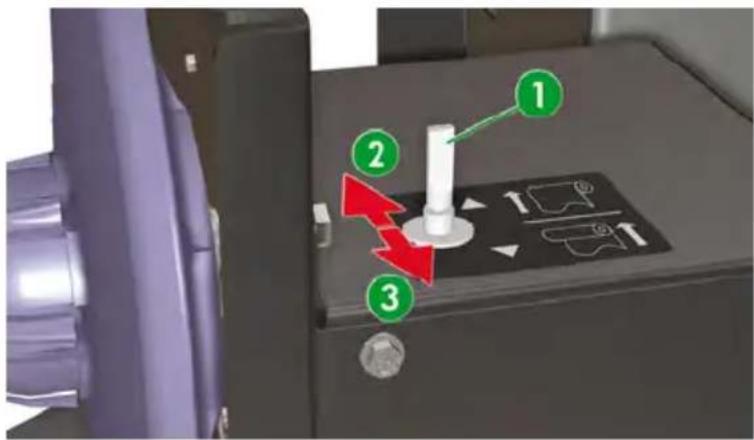
- Take-up reel off
- Winding for printing on the inside of the roll
-
Winding for printing on the outside of the roll
-
Place the tension bar in the bottom position on the take-up reel as follows:
a. At the front of the printer, lift the media lever (1).
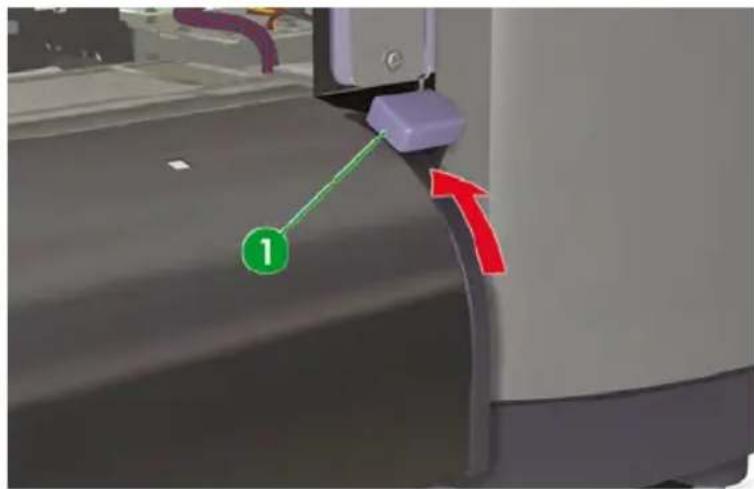
b. Lower the tension bar (1) to the bottom position.
As you lower the tension bar, it will pull the extra media needed for the bottom position through the media path.

c. At the front of the printer, lower the media lever (1).

You now need to perform media advance calibration. See How do I calibrate my printer
Take-up reel horizontal alignment
The height of the take-up reel may require adjustment as it must be horizontally aligned to the media output from the printer. If you notice that the media is not winding on to the take-up reel correctly, and there is skew, check that the media is loaded in the printer correctly and that the take-up reel is aligned. To verify alignment of the take-up reel height you need to print the take-up reel test print.
The printer will print a line across the width of the media. Use this line to check the alignment of the right side of the take-up reel with the left side. Use the take-up reel tension bar as the horizontal reference for alignment.
Print the take-up reel pattern on roll media to ensure that there is sufficient length to feed the media to the tension bar on the take-up reel.
Print the take-up reel print as follows:
- When the "Printer Ready" message appears on the Front Panel, press the ONLINE key to take the Printer offline.

- Press the SHIFT key twice and select the ADJUST menu using the
.
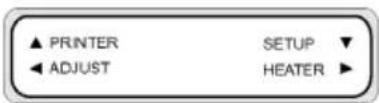
- In the ADJUST submenu, scroll to TEST PRINTS and press the ENTER key.

- In the TEST PRINTS menu scroll to the TUR ADJ PRINToption and press the ENTER key.
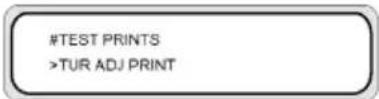
- Press the ENTER key to start printing the pattern.
The printer automatically feeds the media through the printer so that the pattern reaches the take-up reel tension bar.
If the pattern (2) at the right and left edges of the media is aligned with the groove (1) on the tension bar, no height adjustment is required.
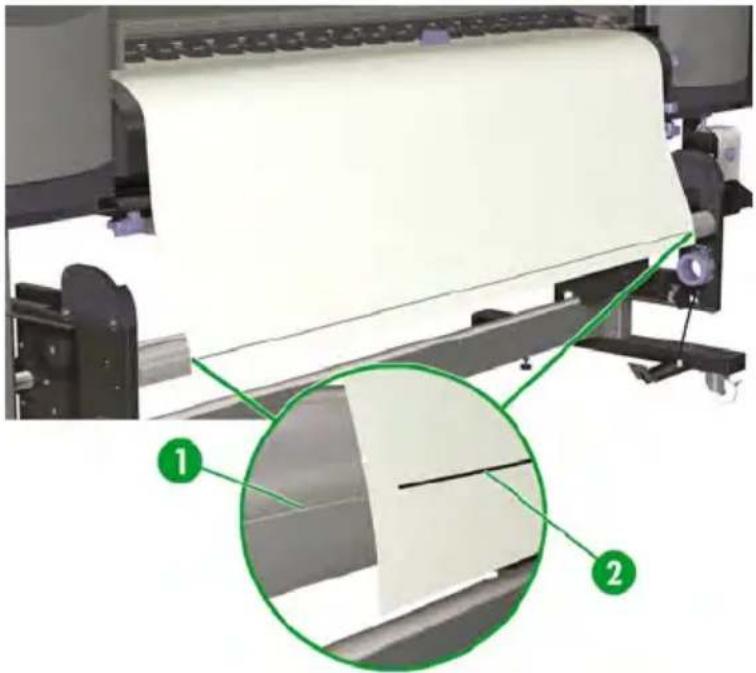
If the pattern on the left edge of the media is not aligned with the groove when the pattern on the right edge is aligned, use the take-up reel height screw (1) to adjust the take-up reel height up (2) or down (3).

Only the left side of the take-up reel can be adjusted up or down.
Adjust the height of the take-up reel as follows:
- If the take-up reel pattern on the left edge of the media is not aligned with the groove when the pattern on the right edge is aligned, do one of the following:
a. If the take-up reel pattern on the left side is higher than the groove (1), turn the take-up reel height screw clockwise to raise the left side of the take-up reel.

b. If the take-up reel pattern on the left side is lower than the groove (2), turn the take-up reel height screw anti-clockwise to lower the left side of the take-up reel.

- After adjusting the height, check that the pattern is aligned with the groove on the left edge of the media. Repeat step two until both ends of the pattern are aligned with the same groove.
4 How do I... (printing topics)
• Perform a manual form feed/rewind
• Use manual nesting
• Increase/reduce pressure on media
Perform a manual form feed/rewind
This section describes how to manually feed or rewind media through the printing path, for example before and after cutting media. By using these automatic features, you reduce the risk of skew when you perform this task manually.
- Press the ONLINE key.
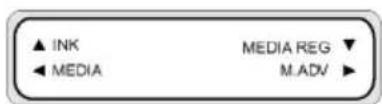
- Press the SHIFT key to display the FORM FEED and REWIND options.
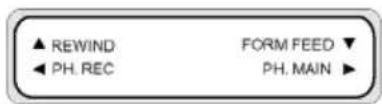
- To rewind or feed media, do one of the following:
a. Hold down the ▼ key to feed media forwards through the printing path. While the ▼ key is pressed, the roll media advances. If cut sheet is loaded, it is discharged. b. Hold down the ▲ key to rewind the media. While the ▲ key is pressed, the roll media rewinds.
- When the ▼ or ▲ key is released, media feeding or rewinding stops and the menu group is displayed.
Alternatively, when the "Printer Ready" message is shown on the Front Panel, do one of the following:
- Hold down the ▼ key to feed media forwards through the printing path.
While the ▼ key is pressed, the roll media advances. If cut sheet is loaded, it is discharged.
- Hold down the ▲ key to rewind the media.
While the ▲ key is pressed, the roll media rewinds.
Use manual nesting
When printing a small-sized image (1), such as A4, on a 64-inch width roll, a large area of media is left blank. You can rewind the roll and nest an image in the blank area.


NOTE The manual nesting feature can only be used with roll media.
To use manual nesting:
- Press the ONLINE key.
- Press the SHIFT key to display the REWIND option.

NOTE Rewind the media only when the image is dry to avoid smearing.

- Hold down the key to rewind the media.
While the ▲ key is pressed, the roll media rewinds.
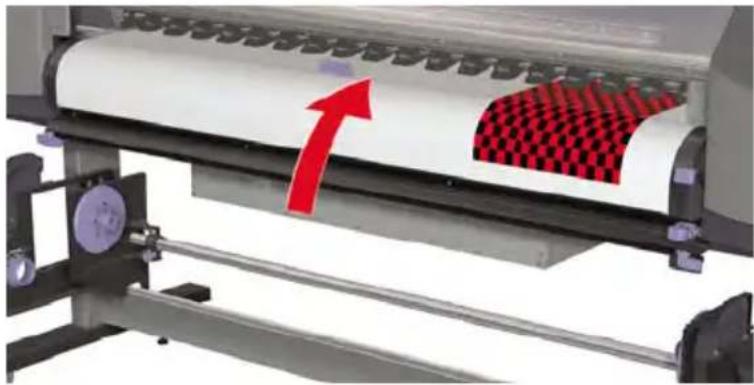
Now you need to position the printhead carriage so that printing starts in the blank area beyond the image that was printed previously.

NOTE When moving the printhead carriage, make sure that you leave a sufficient margin between the image that was previously printed and the position where you would like your next image to be printed.
To position the printhead carriage:
- Press the ◀ key for more than one second.
NESTORIGIN SETTING CARRIAGE MOVING
- Use the ◀ and ▶ keys to move the printhead carriage to the desired position.
NESTORIGIN SETTING CARRIAGE MOVING
-
Release the ◀ or ▶ key when the printhead carriage has reached the desired position.
-
If the position of the carriage is correct, confirm the position by pressing the OK key.
NEST ORIGIN SETTING *OK?
If the position of the carriage is incorrect when you release the ▶ key, repeat step 5.
Increase/reduce pressure on media
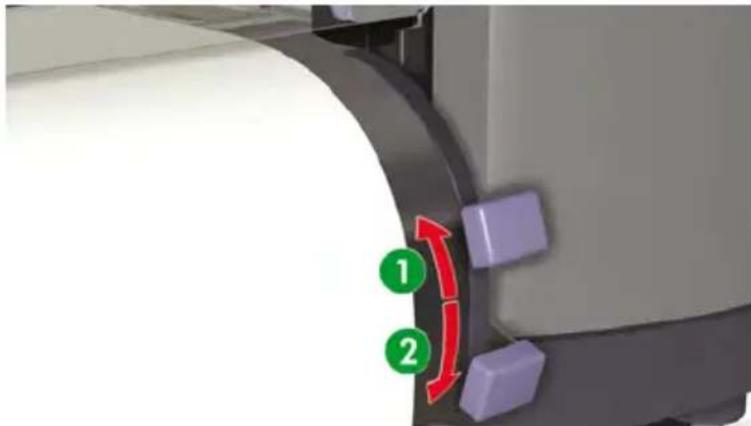
The media lever allows you to change the pressure on the media exerted by the media transmission roller. This can be used to solve skew with certain types of media.
Lower the media lever at the front or back of the printer to increase the pressure on the media.
-
Low pressure.
-
Normal pressure.
5 How do I... (ink topics)
This section describes ink cartridge topics and printhead height adjustment for the printer.
- Replace an ink cartridge
• Change the printhead height
Replace an ink cartridge

CAUTION Always use Genuine HP Ink Cartridges. These have been designed for high-quality imaging performance and reliable printer operation. Using non-HP inks may cause poor print quality, printer malfunction, printer failure, or a safety hazard. The hazard characteristics of different solvent inks can vary widely. HP has not conducted product safety testing for non-HP inks with this printer and is not responsible for any loss or damage that may result if non-HP inks are used.
HP Ink Cartridges should be installed before the "Install By" date printed on the cartridge. Use of the Ink Cartridge 3 months beyond the "Install By" date may cause deterioration in print quality or a printer malfunction.

NOTE If an ink cartridge cannot be inserted, check that the color matches the slot. A mechanical key prevents an ink cartridge from being inserted into the wrong slot.
Do not shake ink cartridges before inserting into the printer.
The front panel will advise you when you need to change an ink cartridge.

XX: Ink name (K: Black, Lm: Light magenta, Lc: Light cyan, C: Cyan M: Magenta Y: Yellow)
To replace an empty ink cartridge:
- Remove an ink cartridge (1) from the printer.

- The following message is displayed.

XX: Ink name (K: Black, Lm: Light magenta, Lc: Light cyan, C: Cyan M: Magenta Y: Yellow)
- Insert a new ink cartridge (1) into the printer.

Change the printhead height
You can increase or reduce the printhead height depending on the thickness of the media you are using. Two tasks must be performed to change the printhead height:
• Mechanical height adjustment on the printhead carriage.
• Firmware height adjustment through the front panel.
To change the printhead height:
- Press the ONLINE key.
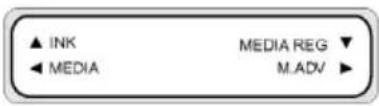
- Press the SHIFT key to display the PH. MAIN menu.
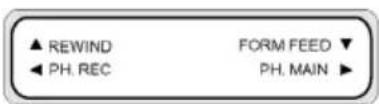
- Press the ▶ key to enter the PH. MAIN menu.
- Scroll to PH HEIGHT ADJ on the front panel and press OK to confirm.
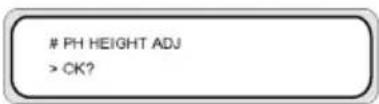
The following message is displayed.

The carriage moves to the carriage maintenance area and the following message is displayed.

- Open the front cover (1).

- Open the carriage maintenance cover (1).

- Loosen the printhead carriage fixing screws (1) at left and right.
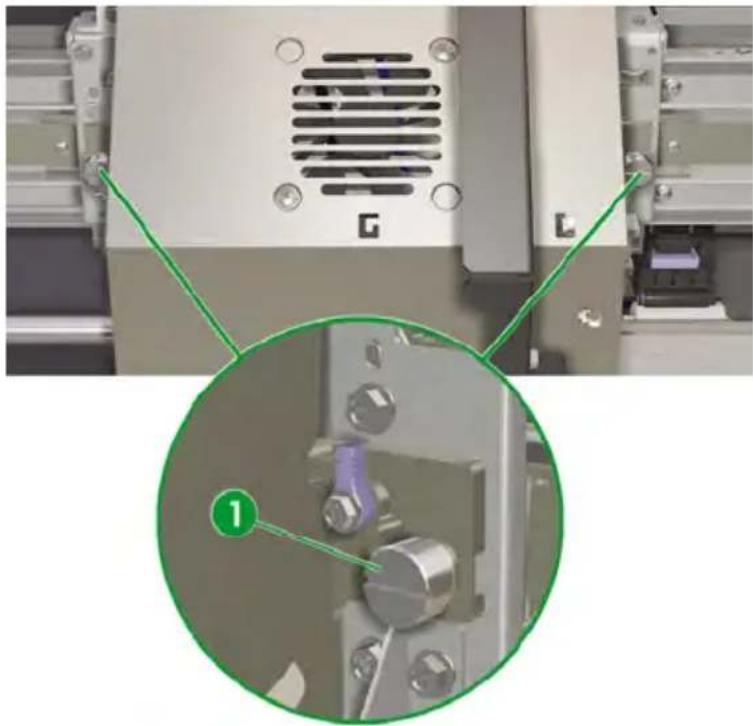
- Change the height of the printhead carriage as follows: lift the printhead carriage height levers (1) to lower the printheads, or lower the printhead carriage height levers to lift the printheads.
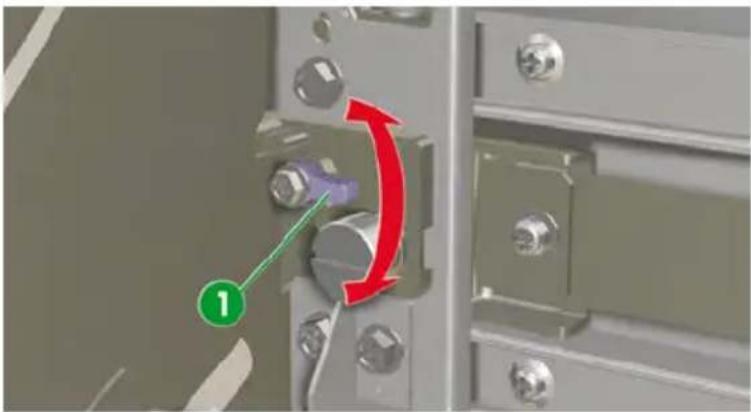
- Tighten the printhead carriage fixing screws (1).

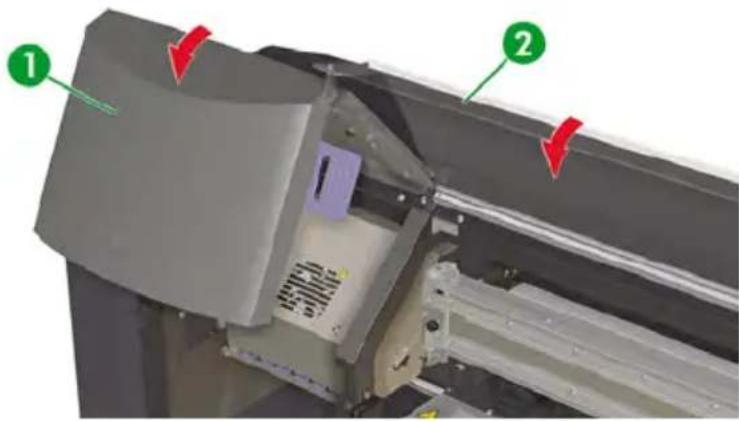
- Close the carriage maintenance cover (1) and close the front cover (2).
To change the printhead height on the front panel:
- Press the ONLINE key.

- Press the ▼ key to display the MEDIA REG menu.

- Scroll to the PH HEIGHT VAL option and press the OK key.
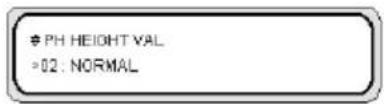
- Select NORMAL or HIGH, according to the mechanical change you have made, and press the OK key.
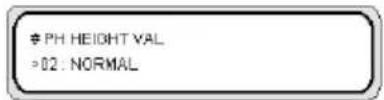
Parameters: NORMAL — default, HIGH — for thick media.

NOTE When the printhead height is changed, a gap in printing may occur in bidirectional printing. Adjust the correction value for bidirectional printing in the MEDIA REG menu.
6 How do I maintain the printer
This section describes the regular inspection and maintenance procedures to be performed by users.
• Regular maintenance guide
Daily maintenance
• Wiper liquid bottle replacement
• Wiper sponge replacement
• Wiper blade replacement
- When returning to the printer after being switched off for an extended period (less than two weeks)
• Prepare for extended power down (two to four weeks)
- Charge the ink system
• Clean the exterior of the printer
Clean the carriage base
• Clean the front cover and media feed
Clean the platen
• Waste ink bottle replacement
• Normal printhead recovery
• Print the nozzle print pattern
Regular maintenance guide
The printer requires regular inspection and maintenance. The table below lists all regular inspection and maintenance procedures. For details on each procedure, see the reference to the procedure.

WARNING! Never switch off the printer without following the correct procedures. Even with the storage liquid installed, never leave the printer off for more than 4 weeks. Leaving your printer off for more than 4 weeks can cause permanent damage that cannot be repaired. In all other cases make sure you observe the appropriate maintenance guidelines.

CAUTION The printer has an internal clock which allows it to wash the printheads automatically, flushing some ink through the printheads, which keeps the printheads in good condition. The printer automatically washes the printheads regularly after the last printing process. If the printer is switched off or media is not loaded, this process does not happen. If the ink does not flow through the printheads from time to time, the ink will dry inside the nozzles, reaching a point where it is impossible to recover them and the printheads will fail. If the printer must be switched off for a long period of time, the customer must use either the optional HP Ink System Cleaning Kit or HP 780 Ink System Storage Kit to recover or protect the printheads.
Automatic maintenance and cleaning will ONLY be performed when the printer is switched on and powered up with media loaded. If you switch it off on the front panel or with the power switch on the rear of the printer this maintenance will NOT be performed.
CAUTION The use of safety glasses and gloves is recommended when performing cleaning and maintenance operations.
Always use genuine HP cleaning kits. These have been designed for maintaining high-quality imaging performance and reliable printer operation. Using non-HP supplies may cause poor print quality, printer malfunction, printer failure, or a safety hazard.
| Category Inspection/Maintenance See | ||
| Daily Capping unit cleaning | Capping unit cleaning | |
| Checking wiper liquid level | Wiper liquid bottle replacement | |
| Checking waste ink bottle level | Waste ink bottle replacement | |
| Printhead cleaning | Normal printhead recovery | |
| Nozzle print | Print the nozzle print pattern | |
| Monthly Wiper Liquid bottle replacement | Wiper liquid bottle replacement | |
| Printhead cleaning | Normal printhead recovery | |
| Depending on printer usage, approximately every three months | Wiper Blade replacement Wiper blade replacement | |
| Every six months | Wiper sponge replacement | Wiper sponge replacement |
| To leave the printer for an extended period in the power off state (more than two weeks but less then four weeks) | Clean ink system | Clean ink system |
| Ink system storage | Ink system storage after cleaning the ink system | |
| When returning the printer from an extended period in the power off state (more than two weeks but less then four weeks) | Clean ink system | Clean ink system |
| Ink charge after cleaning | Charge the ink system after cleaning the ink system | |
| When returning to the printer after being switched off for an extended period (less than two weeks) | Clean ink system | Clean ink system |
| Ink charge after cleaning | Charge the ink system | |
Category Inspection/Maintenance See
To leave the printer in or return it from a power off state of more than four weeks
Contact HP Support.
Other A service call error message will be
displayed on the front panel. Contact HP Support.
Daily maintenance

WARNING! Failure to perform daily maintenance procedures may result in damage to your printheads and will invalidate your warranty.

CAUTION If you need to leave the printer unattended for any reason, ensure that the printer is on, the ink cartridges are full, the waste ink bottle is empty, and media is loaded so that automatic maintenance (performed regularly after the last printing process) can be completed successfully for the time you are not present. If needed, install new ink cartridges. The ink cartridges that you replace can be reused when you return to your printer, if they still contain ink. The ink cartridges must be stored properly and should not be used again if 3 months passed the install by date (on the product label).
Daily printhead maintenance will ensure optimal print quality and the life of your printheads. The ink in your HP Designjet 8000s Printer dries very quickly, so maintenance procedures ensure that the ink does not dry in the capping unit, the wiper blades, the ink tubes and printheads.
When the following message is displayed, immediately perform daily maintenance procedures:
PERFORM DAILY MAINTENANCE NOW
- Clean the capping unit.
- Check the wiper liquid level.
- Check the waste ink bottle level
• Perform Normal printhead cleaning
• Print the NOZZLE PRINT pattern

NOTE Perform the above every day before printing.
Always use the specified cleaning liquid and cleaning equipment.
Capping unit cleaning
This cleaning procedure will remove any dried ink and particles from the capping unit.
- Open the cleaning kit drawer (1).

- Remove the HP 780 Cap Cleaning Kit from the drawer.

NOTE The HP 790 Cap Cleaning Kit can also be used. The HP 790 Cap Cleaning Kit comes with swabs only (no rollers).

- Cap cleaning liquid.
- Cap cleaning handle.
- Cap cleaning roller.
- Cleaning swab.
-
Disposable latex or Nitrile(R) safety gloves.
-
Put on disposable latex or Nitrile(R) safety gloves.
- Clip a new cap cleaning roller onto the cap cleaning handle.
- Dip the cap cleaning roller (1) into the cap cleaning liquid (2).
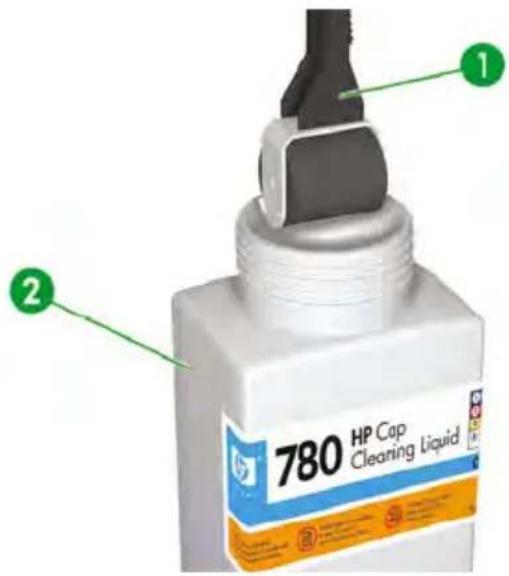

CAUTION Make sure that you use the cap cleaning liquid and not the wiper cleaning liquid to clean the capping unit, otherwise you could cause damage to the printheads.
- Press the ONLINE key to set the printer offline.
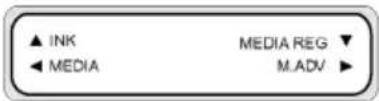
- Press the SHIFT key to display the PH. MAIN menu.

- Press the ▶key to select the PH. MAIN menu.
- Scroll to the CAP CLEANING option using the ▼ key and press OK to select.

- Press OK again to confirm your selection.
The carriage will automatically move to the left side of the printer so that the capping unit can easily be accessed. The front panel displays CARRIAGE MOVING — PLEASE WAIT .

CAUTION Some types of media are prone to cockling in the area adjacent to the heaters if left stationary for any length of time. Consequently it is good practice to feed approximately 20 cm of media through the printer before starting the cap cleaning to avoid any possible damage to the printheads that could be caused by them touching any raised areas of the media.
Once the carriage is out of the capping unit, the cleaning procedure must be done as quickly as possible so as not to permanently damage the printheads. The printer issues an audio warning beep throughout the procedure.
- When the following message is displayed, open the front cover (1).
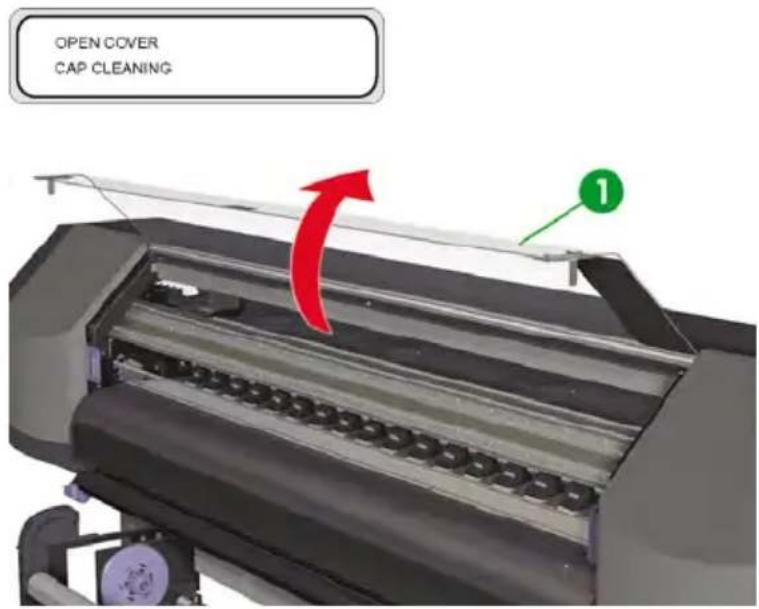
- Open the right maintenance cover (1).
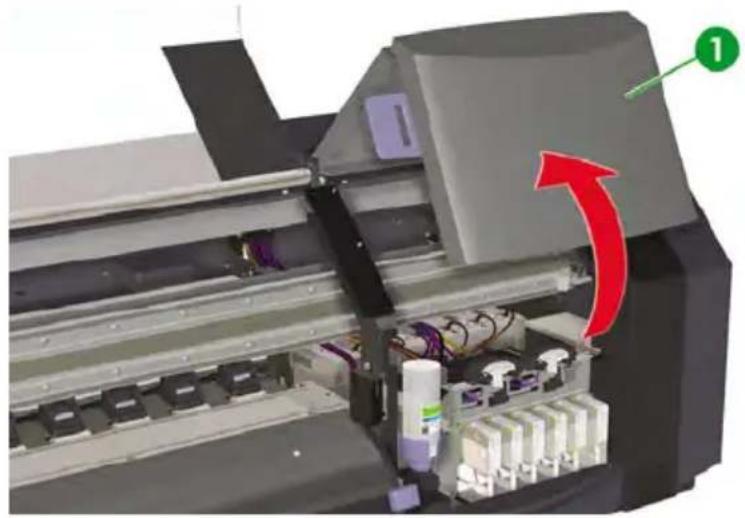
- Clean the top surfaces of all six caps as follows:
a. Moisten each cap by rolling over the cap once backwards and forwards, and then;
b. Clean each cap (1) by rolling over the cap ten times each.

- If the caps are still not clean, or there are particles around the edges, then clean as follows:
a. Dip a new cleaning swab (1) into the cap cleaning liquid (2).
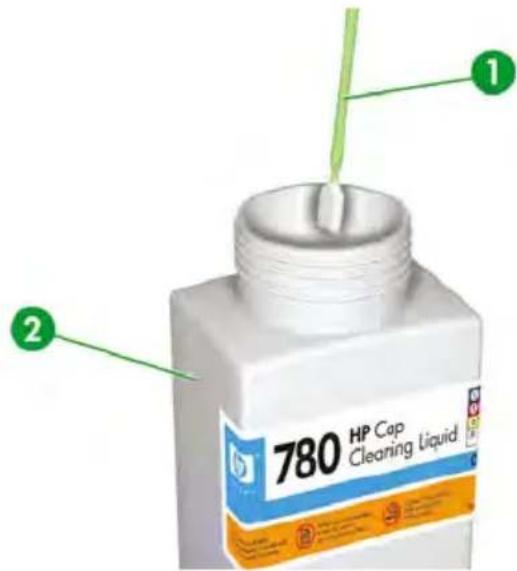

CAUTION Make sure that you use the cap cleaning liquid and not the wiper cleaning liquid to clean the capping unit, otherwise you could cause damage to the printheads.
b. Clean the top outside edges and the upper surfaces of all six caps.

- Close the right maintenance cover (1).
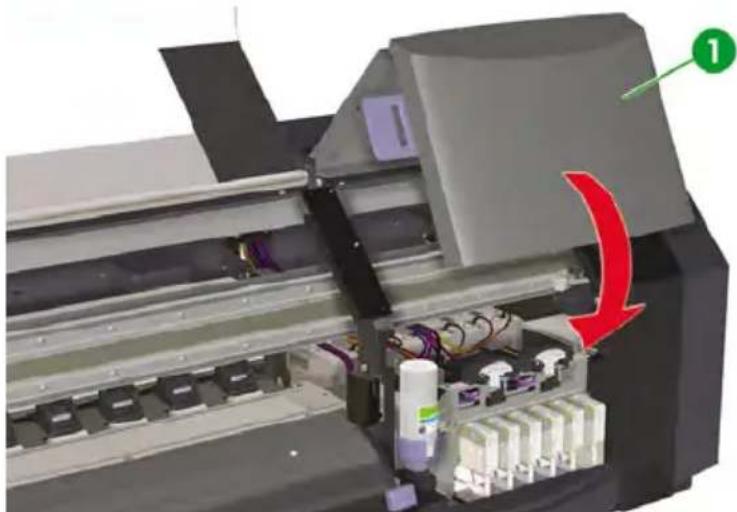
- Close the front cover (1).

The printhead carriage will return to the right maintenance area (home position) automatically.
Wiper liquid bottle replacement

NOTE When the wiper liquid has been installed for some time the liquid will no longer be clear. This is quite normal because the liquid becomes tinted as it is used to clean the wiper blade.
Wiper liquid ensures that the wiper blade can correctly clean the printheads. The wiper liquid level should be checked every month or when the following message is displayed:


WARNING! Make sure that the wiper liquid does not drip onto other parts of the printer.
- Press the ONLINE key.

- Press the SHIFT key to display the PH. MAIN menu.
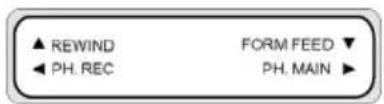
- Press the ▶ key to select the PH. MAIN menu.
- Scroll to the REPLACE WIPE LIQUID option using the ▼ key and press OK to select.
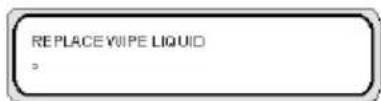
-
Press OK again to confirm your selection.
-
When the following message is displayed, open the front cover (1).

- Open the right maintenance cover (1).

- Carefully lift the empty wiper liquid bottle from the wiper liquid holder enough to make sure any remaining liquid drains into the printer.

NOTE It is recommended that you put on the gloves that came with the HP Wiper Cleaning Kit.

WARNING! Make sure that the wiper liquid does not drip onto other parts of the printer.
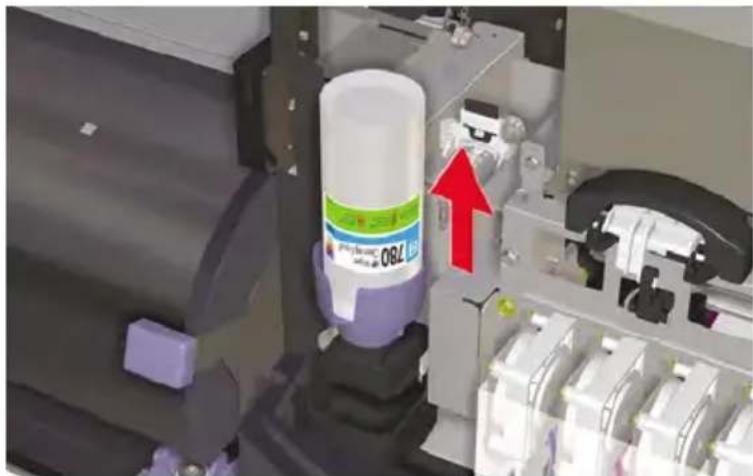
-
Remove and discard the wiper liquid bottle from the wiper liquid holder.
-
Remove the replacement wiper liquid bottle (1) from the maintenance drawer.

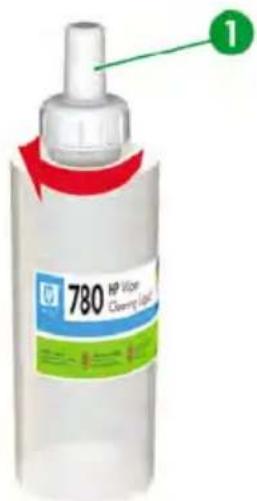
- Remove the wiper liquid bottle cap (1).

- Make sure that the plastic seal (1) is well positioned in the hole of the wiper liquid dispenser cap.

- Insert the wiper liquid dispenser cap (1).
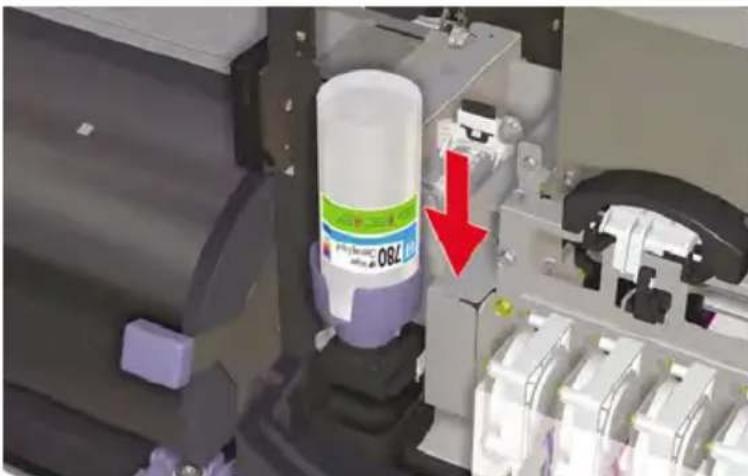
- Place the wiper liquid bottle in the wiper liquid holder and push it firmly down to ensure it is fully engaged.
- Close the right maintenance cover (1).
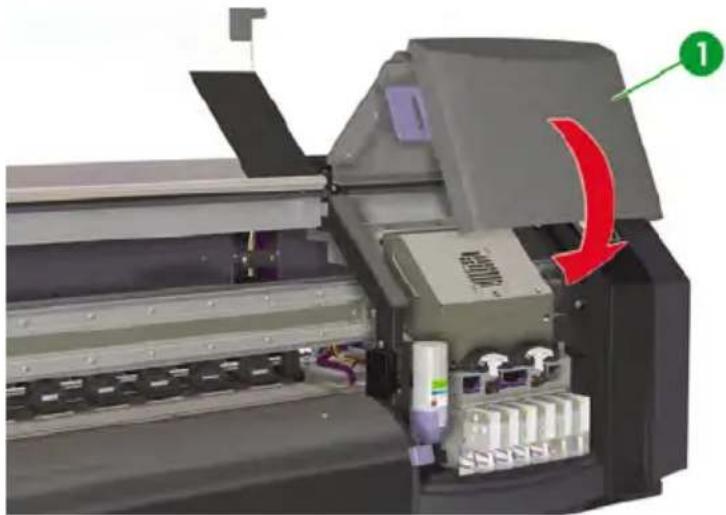
- Close the front cover (1).

The following message is displayed on the front panel:
REPLACE FINISHED *NO
- Select YES and press the OK key to confirm replacement.
Wiper sponge replacement
The wiper sponge ensures that the wiper blade can correctly clean the printheads. The wiper sponge should be replaced approximately every six months or when the following message is displayed:

NOTE Please contact HP Support to obtain the Wiper Sponge Replacement Kit containing the new wiper sponge and wiper liquid bottle.
REPLACE WIPER SPONGE

CAUTION The use of safety glasses and gloves is recommended when performing cleaning and maintenance operations.
Always use genuine HP cleaning kits. These have been designed for maintaining high-quality imaging performance and reliable printer operation. Using non-HP supplies may cause poor print quality, printer malfunction, printer failure, or a safety hazard.
- Press the ONLINE key.
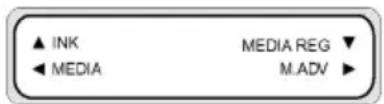
- Press the SHIFT key to display the PH. MAIN menu.

-
Press the ▶ key to select the PH. MAIN menu.
-
Scroll to the REPLACE WIPE SPONGE option using the ▼ key and press OK to select.
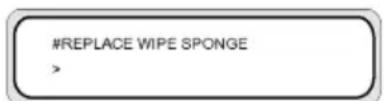
-
Press OK again to confirm your selection.
-
When the following message is displayed, open the front cover (1).
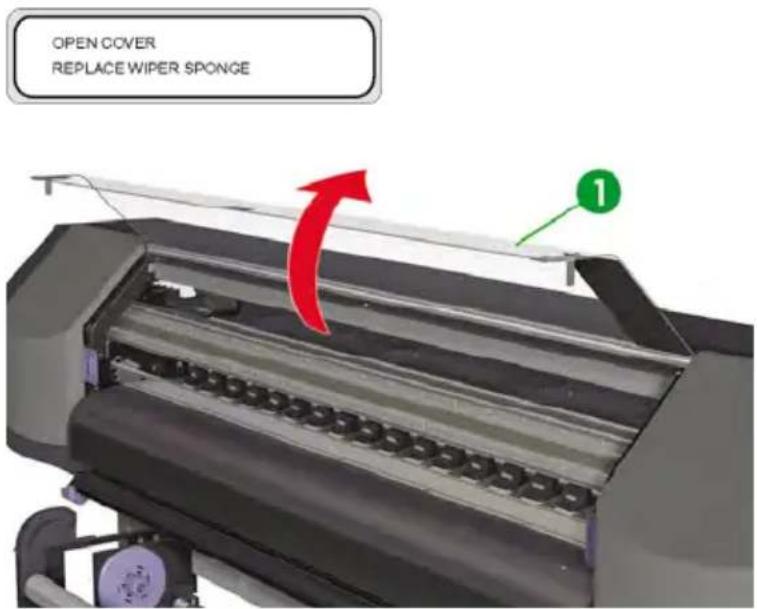
- Open the right maintenance cover (1).
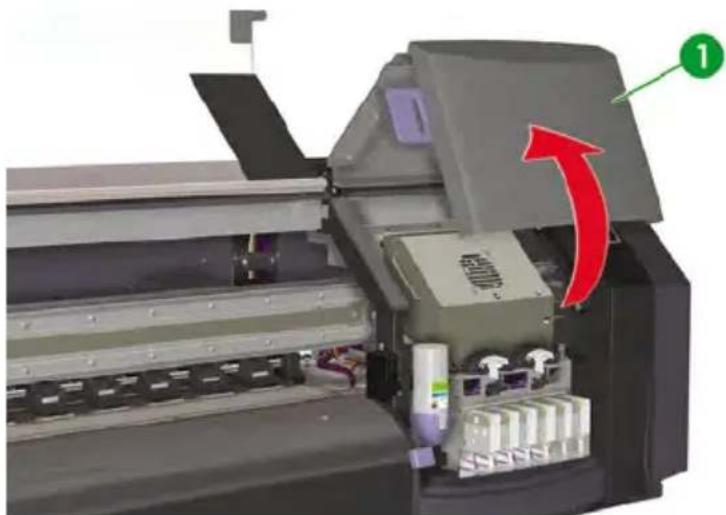
- Carefully lift the empty wiper liquid bottle from the wiper liquid holder enough to make sure any remaining liquid drains into the printer.

NOTE It is recommended that you put on the gloves that came with the HP Wiper Cleaning Kit.

WARNING! Make sure that the wiper liquid does not drip onto other parts of the printer.

-
Remove and discard the wiper liquid bottle from the wiper liquid holder.
-
Remove the wiper sponge by pulling out the tray (1). Do not remove the tray completely.

- Tilt the wiper sponge tray to empty any excess liquid into the drainage tray.
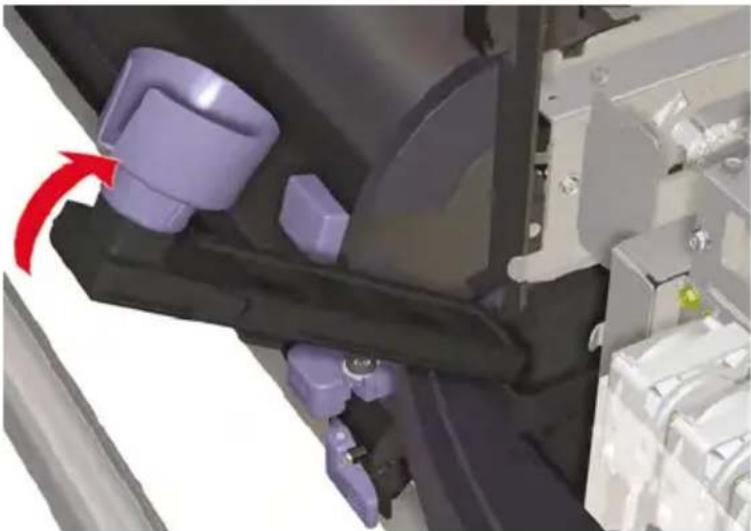
- Open the carriage maintenance cover, remove the wiper sponge (1) and close the cover.
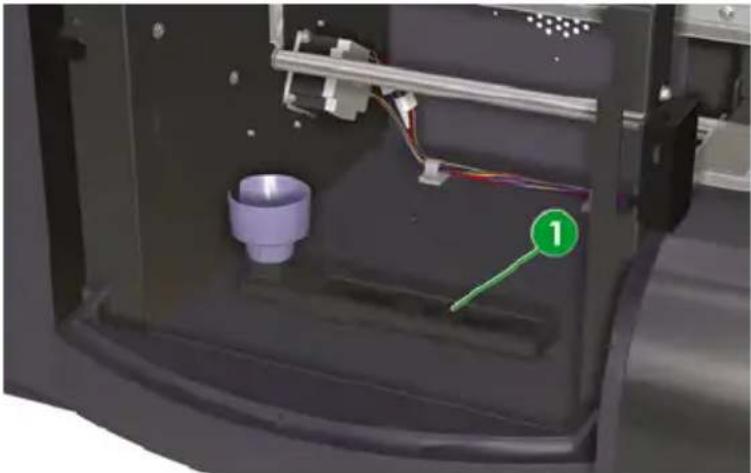
- Insert a new wiper sponge.
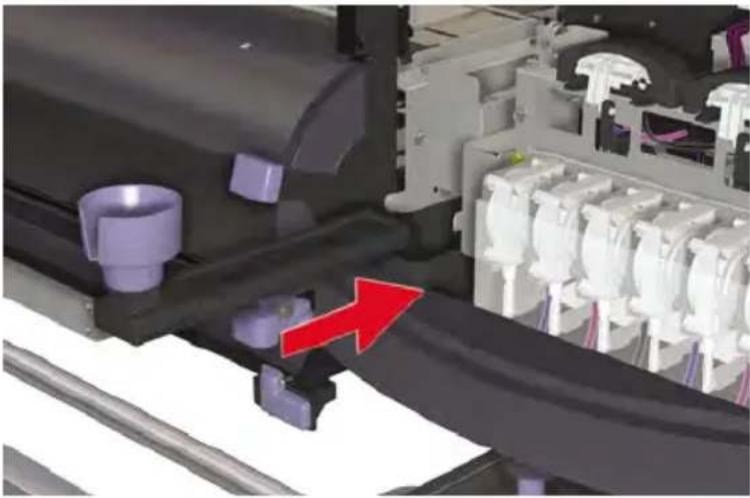
- Remove the wiper liquid bottle cap (1) from the new bottle supplied in the Wiper Sponge Replacement Kit.

- Make sure that the plastic seal (1) is well positioned in the hole of the wiper liquid dispenser cap.

- Insert the wiper liquid dispenser cap (1).

- Place the wiper liquid bottle in the wiper liquid holder and push it firmly down to ensure it is fully engaged.

- Close the right maintenance cover (1).
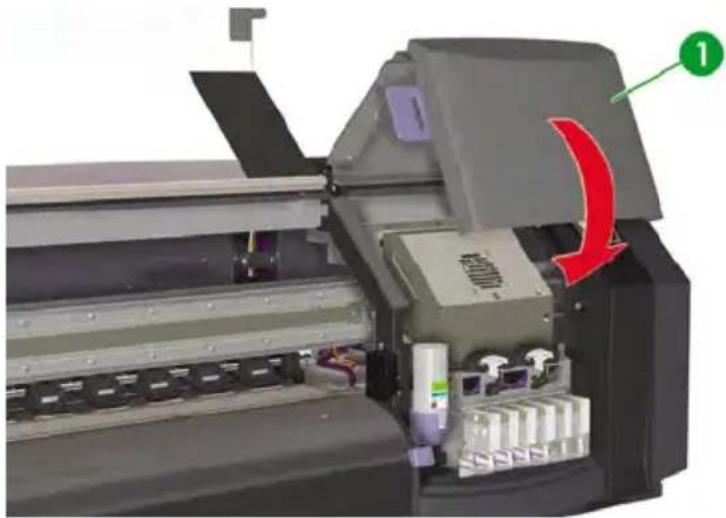
- Close the front cover (1).
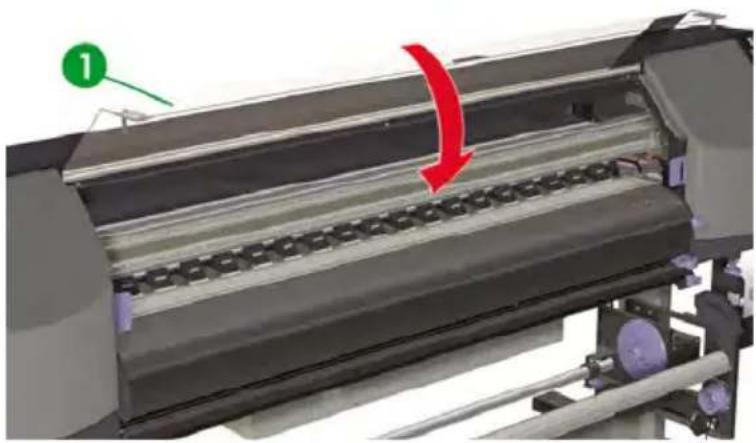
The following message is displayed on the front panel:
REPLACE FINISHED *NO
- Select YES and press the OK key to confirm replacement.
Wiper blade replacement
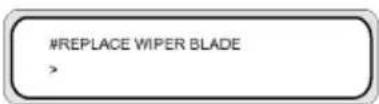
The wiper blade cleans the printheads. Replace the wiper blade every three months or when the following message is displayed:
REPLACE WIPER BLADE

CAUTION The use of safety glasses and gloves is recommended when performing cleaning and maintenance operations.
Always use Genuine HP Cleaning and Maintenance Kits. These have been designed for maintaining high-quality imaging performance and reliable printer operation. Using non-HP supplies may cause poor print quality, printer malfunction, printer failure, or a safety hazard.
When the PRINTER READY message appears on the front panel, press the ONLINE key to take the printer offline.
- Press the ONLINE key.

- Press the SHIFT key to display the PH. MAIN menu.

-
Press the ▶ key to select the PH. MAIN menu.
-
Scroll to the REPLACE WIPER BLADE option using the ▼ key and press OK to select.
-
Press OK again to confirm your selection.
-
When the following message is displayed, open the front cover (1).
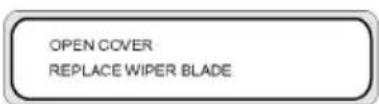
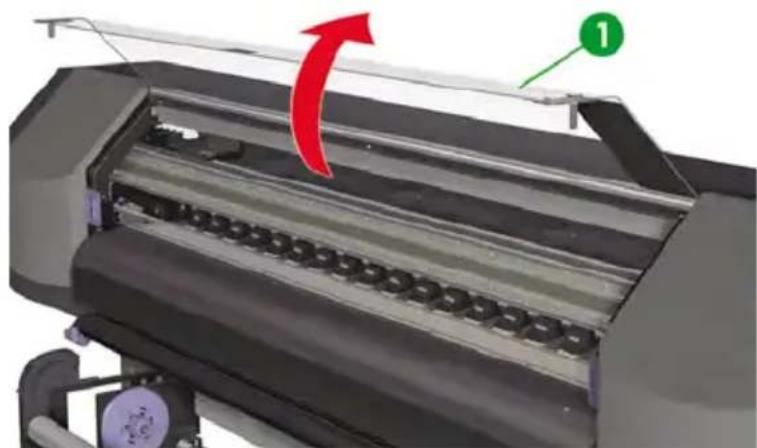
- Open the right maintenance cover (1).

- The wiper blade (1) is located on the left in the maintenance area.

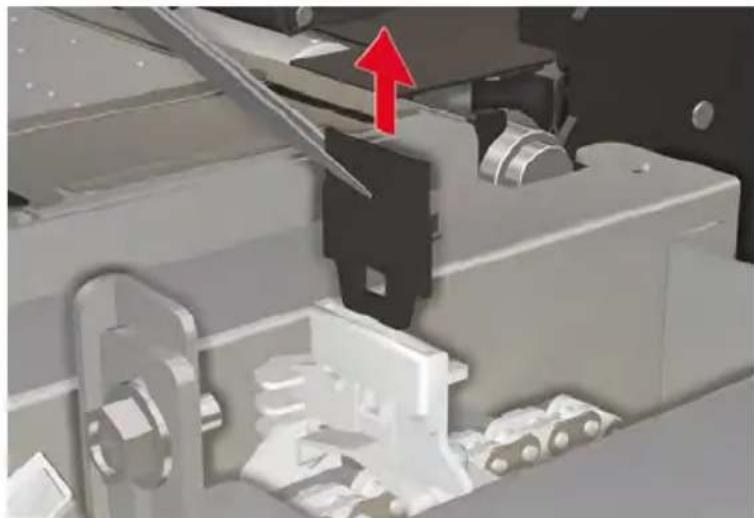
- Using the tweezers (1), remove the wiper blade as follows:
a. Pull the bottom of the wiper blade (2) to release.

b. Pull the wiper blade out from its slot from the top.
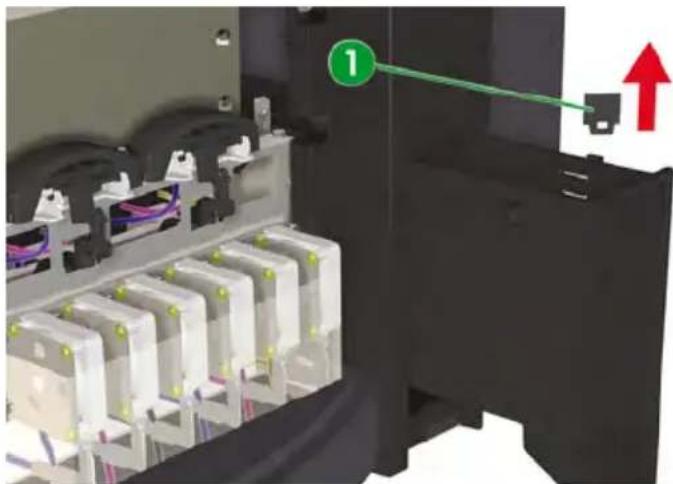
- Take a new wiper blade from the cleaning kit drawer.

CAUTION Hold the wiper blade (1) from the bottom rubber edge. Do not touch the top edge (the blade).
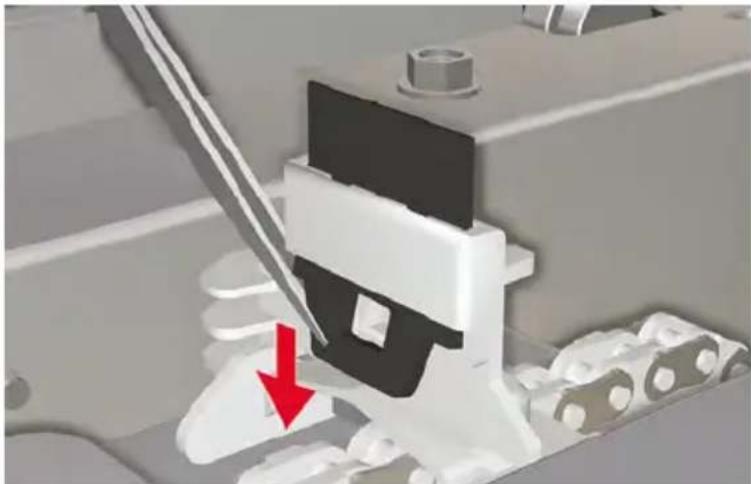
- Using the tweezers, insert the wiper blade as follows:
a. Insert the wiper blade into its slot so that the bottom edge can be taken by the tweezers from below the slot.

b. From below the slot, pull the wiper blade down so that it is fully inserted.
- Close the right maintenance cover (1).
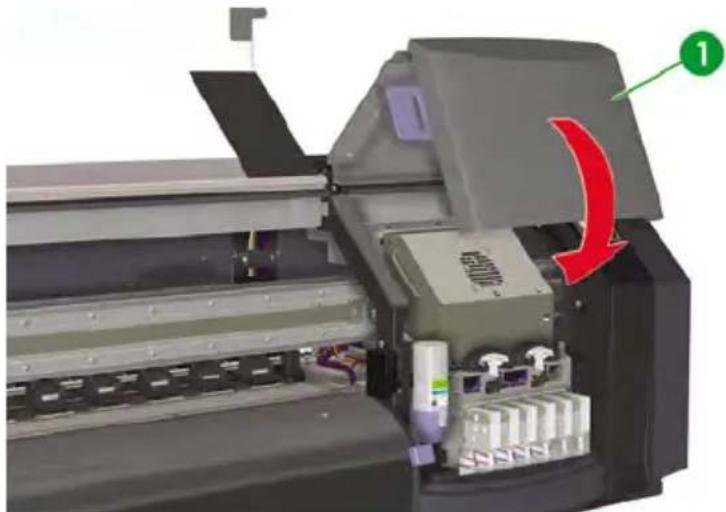
- Close the front cover (1).

The following message is displayed on the front panel:
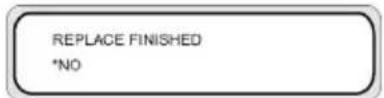
- Select YES and press the OK key to confirm replacement.
When returning to the printer after being switched off for an extended period (less than two weeks)

WARNING! Never switch off the printer without following the correct procedures. Even with the storage liquid installed, never leave the printer off for more than 4 weeks. Leaving your printer off for more than 4 weeks can cause permanent damage that cannot be repaired. In all other cases make sure you observe the appropriate maintenance guidelines.

CAUTION If you need to leave the printer unattended for any reason, ensure that the printer is on, the ink cartridges are full, media is loaded and the waste ink bottle is empty, so that automatic maintenance can be completed successfully for the time you are not present. If needed, install new ink cartridges. The ink cartridges that you replace can be reused when you return to your printer, if they still contain ink.
To clean the ink system, you will need the HP 780 Ink System Cleaning Kit (part number CB303A).
Clean ink system
This option allows you to clean dry ink from the ink system with cleaning liquid after the printer is powered on after being stored for less than two weeks.

CAUTION Do not open or close the front covers or change the position of levers while the cleaning process is being performed or the operation may have to be restarted from the beginning. This will result in the waste of the cleaning liquid. If the cleaning process has to be restarted, new cleaning liquid cartridges will be needed.
- Press the ONLINE key.
- Press the SHIFT key to display the PH. MAIN menu.

-
Press the ▶ key to select the PH. MAIN menu.
-
Scroll to the INK SYSTEM OPT option and press OK.
-
Scroll to the CLEAN INK SYS option and press OK.
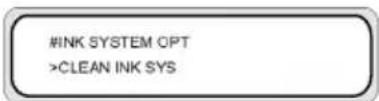
-
Press OK to confirm your selection.
-
When the front panel displays the waste ink bottle warning message, check whether the waste ink bottle is present and make sure it is empty.

CAUTION Your waste ink bottle should be empty. Have available an empty waste ink bottle.
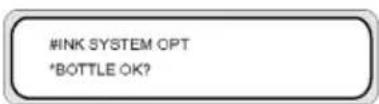
- Press the OK key once the waste ink bottle has been checked and follow the instructions on the front panel.
Install the Cleaning Liquid cartridges when prompted by the front panel.
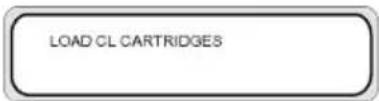
After cleaning the ink system, the ink charge process must be performed (see How do I... Charge the ink system).
Prepare for extended power down (two to four weeks)

CAUTION If you physically need to relocate the printer to a new location, please contact HP because this must only be done by a trained professional.
CAUTION Never switch off the printer without following the correct procedures. Even with the storage liquid installed, never leave the printer off for more than 4 weeks. Leaving your printer off for more than 4 weeks can cause permanent damage that cannot be repaired. In all other cases make sure you observe the appropriate maintenance guidelines.
CAUTION The printer has an internal clock which allows it to automatically wash the printheads and flush some ink through the printheads, which keeps the printheads in good condition. The printer automatically washes the printheads regularly after the last printing process. If the printer is switched off for a long period, this process does not happen. If the ink does not flow through the printheads from time to time, the ink will dry inside the nozzles reaching a point where it is impossible to recover them and the printheads will fail. If the printer must be switched off for a long period of time, the customer must use either the optional HP Ink System Storage or Cleaning Kit to recover or protect the printheads.
Automatic maintenance and cleaning will not be performed if you turn off the printer on the front panel. The printer power switch on the rear of the printer should only be used when the printer is turned off to move it, to connect it to a computer, or to install or maintain printer parts.
Before starting the ink system storage procedure, make sure you have available the HP 780 Ink System Storage Kit and an empty waste ink bottle.
Ink system storage
This procedure allows you to empty the ink system of ink and fills it with storage liquid that will preserve the ink system if you do not intend to use the printer for a period of time (between two weeks and a month).

CAUTION Do not open or close the covers or change the position of levers while the ink system storage process is being performed or the operation may have to be restarted from the beginning. This will result in the waste of the storage liquid. If ink system storage has to be restarted, new storage liquid cartridges will be needed.
- Clean the ink system (see How do I... Clean ink system).
- Press the ONLINE key.
- Press the SHIFT key to display the PH. MAIN menu.

- Press the ▶ key to select the PH. MAIN menu and press OK.
- Scroll to the INK SYSTEM OPT option and press OK.
- Scroll to the STORE INK SYS option and press OK.
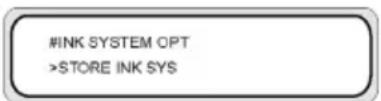
-
Press OK to confirm your selection.
-
When the front panel displays the waste ink bottle warning message, check whether the waste ink bottle is present and make sure it is empty.

CAUTION Your waste ink bottle should be empty. Have available an empty waste ink bottle.
INK SYSTEM OPT
*BOTTLE OK?
- Press the OK key once the waste ink bottle has been checked and follow the instructions on the front panel.
Install the Storage Liquid cartridges when prompted by the front panel.
LOAD SL CARTRIDGES
When you turn on the printer again, you will have to clean the ink system (see How do I... Clean ink system).
Charge the ink system
After the ink system has been cleaned, then you will need to charge the ink system with ink. You will need ink cartridges with more than 100 cc of ink available.
If any of the ink cartridges contain less than 100 cc of ink, a warning message is displayed on the front panel. Install a correct ink cartridge that contains more than 100 cc of ink in the indicated slot in order to continue.
To charge the ink system:
- Press the ONLINE key.
- Press the SHIFT key to display the PH. MAIN menu.
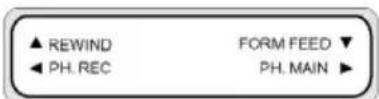
- Press the ▶ key to select the PH. MAIN menu.
- Scroll to the INK SYSTEM OPT option and press OK.
- Scroll to the CHARGE INK SYS option and press OK.

-
Press OK to confirm your selection.
-
When the front panel displays the waste ink bottle warning message, check whether the waste ink bottle is present and is not full. Check the waste ink bottle and press the OK key.
INK SYSTEM OPT
*BOTTLE OK?
- The Ink Charge process starts. Check whether the waste ink bottle is present and is not full. Check the waste ink bottle and press the OK key.
When the ink charge process is complete, the front panel displays the CHARGE INK SYS option.

NOTE Do not use the printer for at least one hour after charging with ink. Check that the wiper sponge is moist.
Clean the exterior of the printer

CAUTION Turn off the printer before starting to clean the exterior.
CAUTION Wipe the printer clean with a soft cloth. A cloth moistened with a neutral detergent may be used. Do not allow liquid to enter the printer. This may create risk of fire and electrical shock and cause a malfunction. Do not clean the printer with benzene or paint thinner. This may damage the paint.
Clean the outside of the printer and all other parts of the printer that you regularly touch as part of normal operation as required with a damp sponge or a soft cloth and a mild household cleaner such as non-abrasive liquid soap.
Clean the carriage base
If there is banding on the print caused by smeared ink on the carriage base you will need to clean the carriage base.
- Press the ONLINE key to set the printer offline.

- Press the SHIFT key to display the PH. MAIN menu.
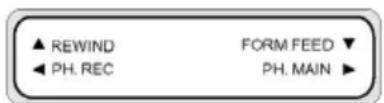
-
Press the ▶ key to select the PH. MAIN menu.
-
Scroll to the CAP CLEANING option using the ▼ key and press OK to select.

- Press OK again to confirm your selection.
The carriage will automatically move to the left side of the printer so that the capping unit can easily be accessed. The front panel displays CARRIAGE MOVING — PLEASE WAIT .

CAUTION Some types of media are prone to cockling in the area adjacent to the heaters if left stationary for any length of time. Consequently it is good practice to feed approximately 20 cm of media through the printer before starting the cap cleaning to avoid any possible damage to the printheads that could be caused by them touching any raised areas of the media.
Once the carriage is out of the capping unit, the cleaning procedure must be done as quickly as possible so as not to permanently damage the printheads. The printer issues an audio warning beep throughout the procedure.
- When the following message is displayed, open the front cover (1).

- Open the carriage maintenance cover (1).

-
Clean the carriage base with a soft cloth.
-
Close the carriage maintenance cover (1) and close the front cover (2).
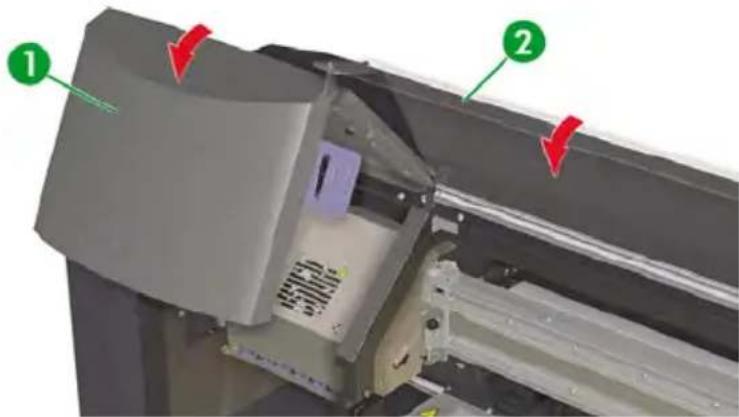
The printhead carriage will return to the right maintenance area (home position) automatically.

NOTE Use the NOZZLE PRINT to check that there are no printhead nozzles out after cleaning the carriage base.
Clean the front cover and media feed

NOTE Do not attempt to remove dust from media by blowing it off. This may affect print quality.

CAUTION Wipe the printer clean with a soft cloth. A cloth moistened with a neutral detergent may be used. Do not allow liquid to enter the printer. This may create risk of fire and electrical shock and cause a malfunction. Do not clean the printer with benzene or paint thinner. This may damage the paint.
- Unload media from the printer.
- Open the front cover.
- Using a damp cloth, clean the front cover.
- Using a damp cloth, absorb ink deposits on the media feed.
- Remove dust using a vacuum cleaner.
Clean the platen
You should plan to clean your printer's platen on a regular basis, every few months or when needed. When glue adheres to the platen or there are ink marks on the platen, clean the platen according to the following procedures:

NOTE If you print on wide media after using narrower media for some time, you may find that the left side of the platen has become dirty and will leave marks on the back of the media if not cleaned.
To clean the platen:
- Unload all media from the printer.
- Open the front cover.
- Using a soft cloth, absorb ink deposits.
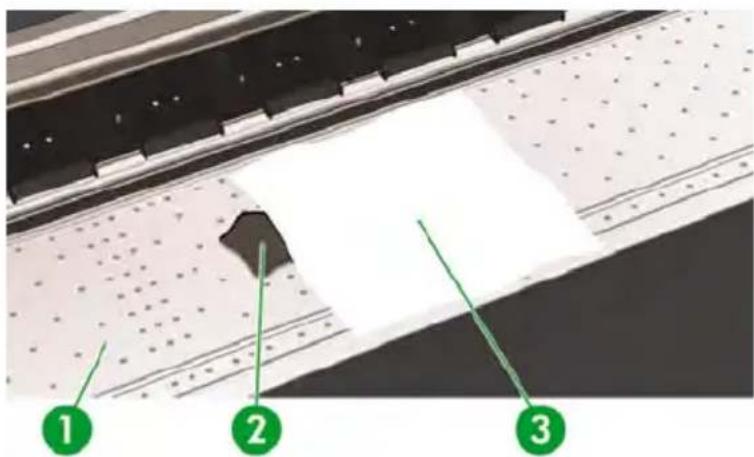
- Use a soft cloth (3) slightly dampened with alcohol to wipe off loosened ink deposits (2) from the platen (1).

CAUTION Do not use commercial cleaners or abrasive cleaners. Do not wet the platen directly because you will leave too much moisture behind.
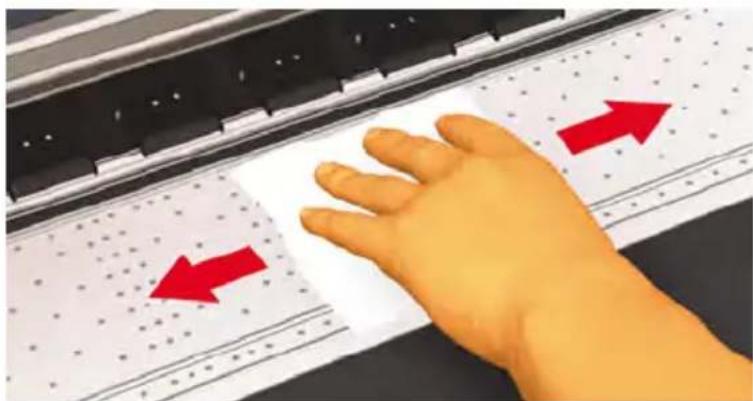
- If there are ink deposits in the vacuum holes on the platen (1), clean them using commercially-available 3 mm mini-cotton swabs (2) and then wipe off loosened ink deposits with a mini-cotton swab slightly dampened with alcohol.

Waste ink bottle replacement

WARNING! The HP Waste Ink Bottle has been specifically designed to contain waste ink from the printer. It is designed to work with the printer's waste ink quantity tracking system to alert the user when the bottle is full. It provides safe handling and disposal of waste ink when sealed with its attached cap.
Use only an HP Waste Ink Bottle. The bottle must be installed according to instructions or waste ink may overflow.
An HP Waste Ink Bottle must always be installed before turning the printer ON. Automatic and manual service cycles produce waste ink that must be contained in an HP Waste Ink Bottle.

CAUTION Do not remove the cap from its tether to the HP Waste Ink Bottle. The cap is needed to properly seal the HP Waste Ink Bottle for disposal.

WARNING! Always use both hands to remove and carry an HP Waste Ink Bottle.
Keep the HP Waste Ink Bottle upright. Do not place on tables or shelves where it could fall.
Waste ink is combustible. Keep an HP Waste Ink Bottle containing waste ink away from open flames, sparks, or other sources of ignition.
Never store waste ink in a glass container.
Never pour waste ink into a container filled with other chemicals.

CAUTION The level in the HP Waste Ink Bottle must be checked by visual inspection to prevent overflow. If the waste ink level is above the indication line, the bottle must be replaced with an empty HP Waste Ink Bottle.

NOTE Place a sheet of media under the HP Waste Ink Bottle on the floor when removing a bottle containing waste ink. This will help clean up any ink spills. If soaked with ink, treat the media as a combustible material and dispose of properly.
HP recommends that you always keep a spare empty HP Waste Ink Bottle available. Some maintenance procedures require installation of an empty HP Waste Ink Bottle to prevent ink overflow.
The HP Waste Ink Bottle contains organic solvents and must be disposed of in compliance with all local, state, and federal regulations. Always securely replace the cap on a full or partially-full HP Waste Ink Bottle after removing it from the printer to prevent ink spills.
Be sure all operators are trained in the use of emergency equipment such as eye wash stations and fire extinguishers and know where they are located.
NOTE Do not replace the waste ink bottle during printing.
The waste ink bottle must be checked on a daily basis to make sure that it is not full.
The waste ink bottle should be replaced as follows:
- Lift the splash guard (1) sufficiently to remove the waste ink bottle.
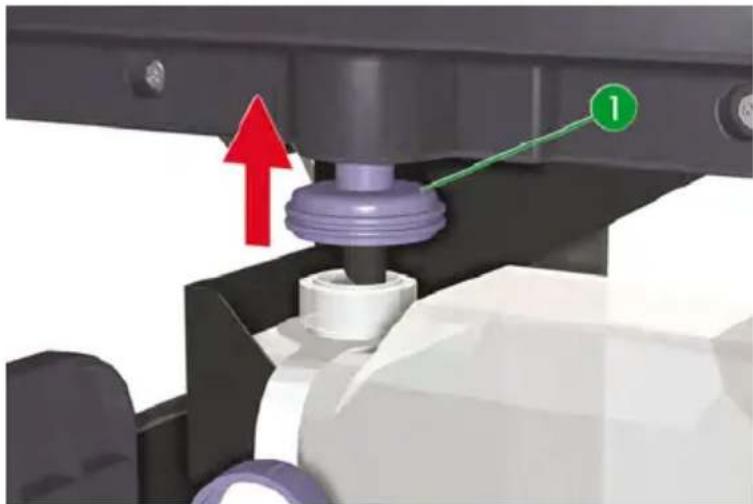
- Carefully pull out the waste ink bottle (1), taking care not to spill any on the printer or on the floor.
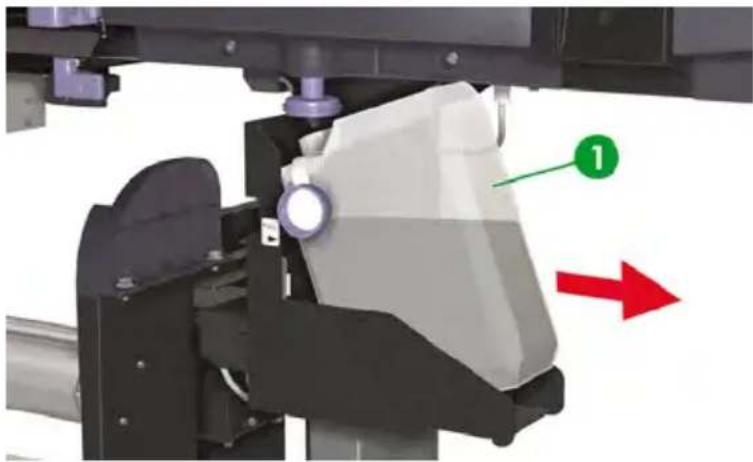
- Securely close the cap (1) on the waste ink bottle.
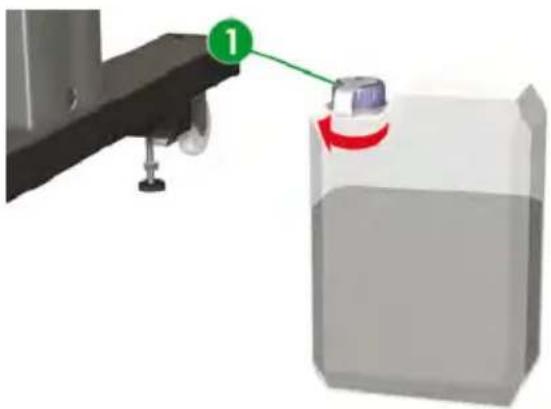
- Take an empty waste ink bottle and undo the cap (1).
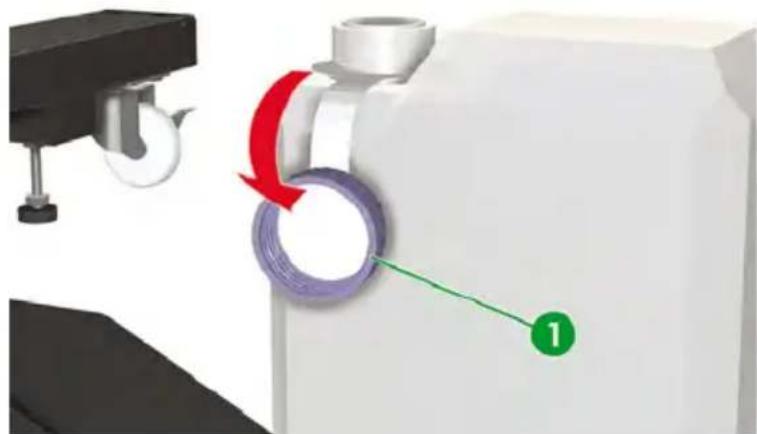
- Install the empty waste ink bottle (1) making sure that the drainage tube is fully inserted in the bottle and the splash guard lowered.
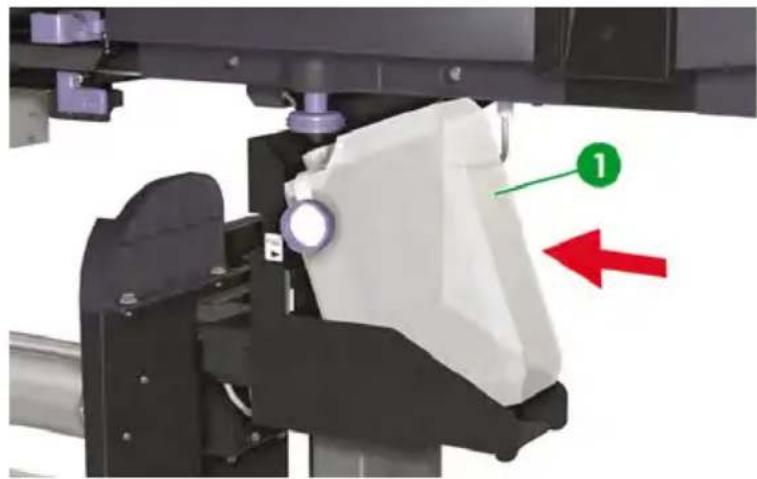
- The front panel will request you to reset the waste ink counter.

- Select YES and press the OK key to reset the Waste Counter.

Normal printhead recovery

Tip With the printer in ONLINE state, you can press the OK key to access the PH RECOVERY option.
PRINTER READY ROLL: 64/PAPER
To perform printhead recovery:
- Press the ONLINE key.
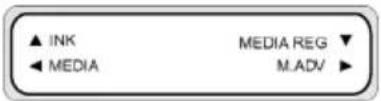
- Press the SHIFT key to display the PH. REC menu.
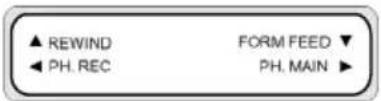
- Press the ◀ key to enter the PH. REC menu.
-
Press the OK key to select the PH RECOVERY option.
-
Press the ▲ or ▼ keys to select NORMAL ALL.

NOTE If NORMAL ALL is not sufficient to clean the nozzles, then try the STRONG ALL option.
- Press the OK key.

- Make sure that the waste ink bottle is not full, and then press the OK key again.
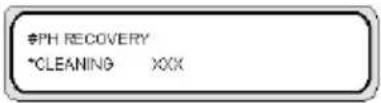

NOTE Cleaning may take several minutes.
- When cleaning is completed, the PH RECOVERY option is displayed.

- Press the key to return to the offline mode.
Print the nozzle print pattern
Use the nozzle print pattern to check that all printhead nozzles are working correctly. Perform the NOZZLE PRINT every day before using your printer.

NOTE Use the nozzle print pattern to check that all printhead nozzles are working correctly after cap cleaning or any major servicing task.
To print the nozzle print:
- Press the ONLINE key and press the SHIFT key twice.
- Select the ADJUST menu using the key.
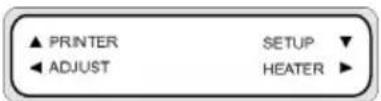
- In the ADJUST submenu, scroll to TEST PRINTS and press the OK key.

- In the TEST PRINTS menu scroll to the NOZZLE PRINToption and press the OK key.

NOTE If you have already verified that printhead nozzles are not printing correctly, then select the NOZZLE PRINT/RECOVER option. The printer will print three sets of printhead nozzle patterns, performing a printhead recovery between each pattern so that you can verify if the problem has been solved and the printhead nozzles are printing correctly.

-
Press the OK key to start printing.
-
Once the NOZZLE PRINT has finished, verify that it does not contain any missing patterns indicating printhead nozzles that are not working correctly.
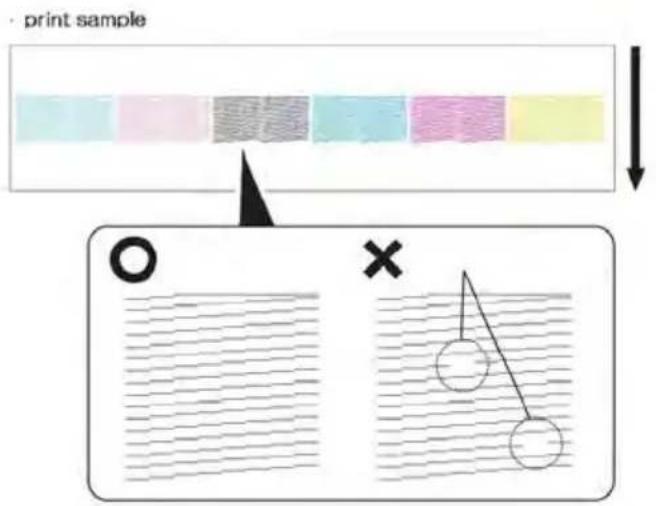
7 How do I get the best image quality
• Test the image quality
• Interpreting the print quality
- Manage media types
• How do I calibrate my printer
- Adjust heater and print mode settings
Different types of media may give better image quality based on specific mechanical and electrical settings in your printer. To optimize image quality you can perform a series of test prints for the media type that you are using. Based on the results you can then adjust the printer settings for the media type.
To adjust the printer settings for a media type, you can modify existing media types or create new ones. Before creating or modifying a media type for the media you intend to use, check the image quality using the preset values to determine the overall quality that you get with one of the existing preset media types. Some media types may require no printer setting adjustments.
- Load your new media and select a media type that is similar to the media you are loading. See How do I... Install a media roll in the printer.
- Print an image that you have already successfully printed on other media types. See How do I... Test the image quality.
If the image quality is satisfactory you can use the preset media type for printing.
If the image quality is not satisfactory, create a new media type or modify the one selected. See How do I... Manage media types.
• Calibrate the printer for the media type. See How do I calibrate my printer.
- Change the media type settings. See How do I... Manage media types.
- Print your test image again to check the overall image quality with the new settings.
If you are still not satisfied with the image quality, you may need to make more adjustments to printer settings, such as the print mode or the heater temperature. For a description of image quality problems that you may see and the recommended solution, refer to The problem is print quality.
Test the image quality
To check the overall image quality, use an image that you have printed on other occasions with satisfactory results. If the image quality is satisfactory, no calibrations are required. If the image quality is not satisfactory, then you may need to adjust the media type settings. Also use the Nozzle print to check that there are no printhead nozzles out. The image below illustrates an example print that includes all printhead colors and would determine the quality of printed output in all six colors.

NOTE Use the nozzle print pattern to check that all printhead nozzles are working correctly after cap cleaning or any major servicing task.

Interpreting the print quality
Below are examples of the print results you may see in your test print and the recommended action.

If the print quality is satisfactory, you can print on the media without changing printer or heater settings.

If you see banding in one color (in the black color in the image above), then there are printhead nozzles out. Print the NOZZLE PRINT/RECOVER pattern and then print your image again to check that the printhead is printing correctly. See How do I... Print the nozzle print pattern.
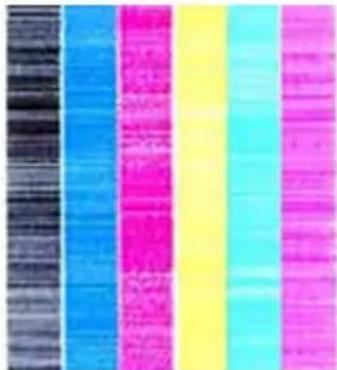
If you see banding in all colors then you need to calibrate the printer for the media you have loaded. If you have selected a preset media type, we recommend that you create a new media type before modifying the settings (See How do I...Manage media types) and then calibrate the printer. See How do I calibrate my
printer. Banding may be present in the form of white lines (as in the image above), or in the form of darker lines.
If you still see banding in all colors after performing the calibrations, then try adjusting the heater temperature and/or print mode settings. See How do I... Adjust heater and print mode settings.
Manage media types
You can create new media types, or you can modify or delete existing media types by using the MEDIA REG menu.

Tip We recommend that you do not modify the preset media types that came with your printer. You can copy a preset media type with characteristics that are similar to the new media that you want to use, and use the copy to create a new one before changing the settings. This means that you will only have to make changes to one or two parameters and you will not need to set new values for all of the parameters.
Copy a media type to create a new one
- Press the ONLINE key.
- Press the ▼ key to enter the MEDIA REG menu.
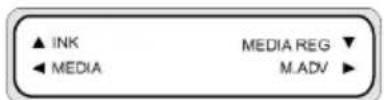
- Select the COPY MEDIA option with the ▲ and ▼ keys, and press the OK key.
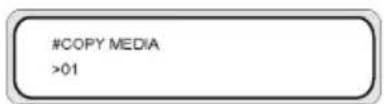
- Select a media number using the ▲ and ▼ keys, and press the OK key.
Only numbers for media types that already exist are displayed.
- To create a new media type from the copy, press the ▼ key to enter the MEDIA REG menu.
- Select the PASTE MEDIA option with the ▲ and ▼ keys, and press the OK key.
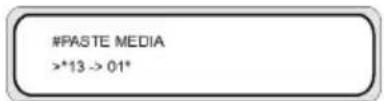
- Select a media number using the ▲ and ▼ keys.

NOTE If the number on the right is followed by an asterisk (*), the number displayed already contains media type information.

- Press the OK key to confirm.

- Press the OK key to create the new media type.
Create a new media type

Tip We recommend that you do not modify the preset media types that came with your printer. You can copy a preset media type with characteristics that are similar to the new media that you want to use, and use the copy to create a new one before changing the settings. This means that you will only have to make changes to one or two parameters and you will not need to set new values for all of the parameters.
To create a new media type:
- Press the ONLINE key.
- Press the ▼ key to enter the MEDIA REG menu.
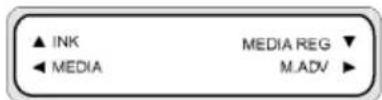
- Scroll to the SELECT MEDIA menu with the ▲ and ▼ keys.

- Press the OK key to select a media type number.

- Select a media type number using the ▲ and ▼ keys, and press the OK key.
SELECT PAPER
02 : TYPE02

NOTE If a number is not available, then a new media type with that number has already been created.
Select another number.
- Press the ▼ key and the OK key to define the name of the new media type.
RENAME MEDIA
06 -> TYPE06
-
Define the name of the new media type using the ◀ and ▶ keys to select the character to be set, and the ▲ and ▼ keys to change the character.
-
Press the OK key to confirm the media type name.
RENAME MEDIA
06 OK?
- Press the OK key to confirm the new media type.
Modify media type settings
To modify the settings of a media type:
-
Press the ONLINE key.
-
Press the ▼ key to enter the MEDIA REG menu.

- Scroll to the SELECT MEDIA menu with the ▲ and ▼ keys.
SELECT MEDIA
01 : TYPE01
- Press the OK key to select a media number.
SELECT MEDIA
01: TYPE01
- Scroll to the media type option you want to modify by using the ▲ and ▼ keys.
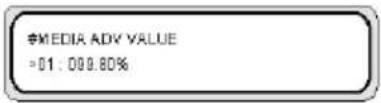
- Press the OK key to modify the value.
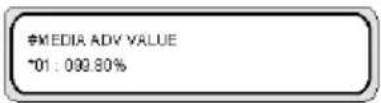
- Press the OK key to confirm. The message below will only be displayed for newly created media types.
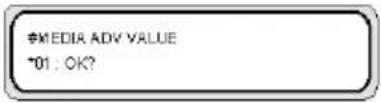
- Press the OK key to create media type 01 and the * (asterisk) indicates that the media type has already been created.
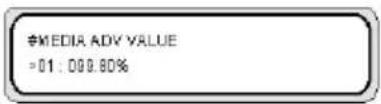
Press the CANCEL key to cancel the process. The front panel displays the top menu.
Delete a media type
Media types from 02 to 20 can be selected. Media type 01 is defined as the standard media and cannot be deleted.
To delete a media type:
- Press the ONLINE key.
- Press the ▼ key to enter the MEDIA REG menu.

- Select the DELETE MEDIA option.

- Press the OK key to select the TYPE using the ▲ and ▼ keys.

- Press the OK key to confirm.
How do I calibrate my printer
You can adjust the mechanical and electrical settings of your printer based on a series of printed patterns. These patterns allow you to calibrate your printer settings for the media you are using. Based on the results of these patterns, you can optimize the performance of your printer.
Calibrate media advance
Your printer was calibrated at the factory to ensure that it advances the media accurately when using supported media types in normal environmental conditions. However, you may find it useful to recalibrate in certain circumstances:
• Unsupported media: different media manufacturers provide media types with a wide range of properties such as media thickness or stiffness, which may benefit from calibration. You can expect the best print quality when using HP's recommended media types.
- Abnormal but stable environmental conditions: if you are printing in unusual conditions of temperature or humidity (see Tell me about... Specifications), and those conditions are expected to remain stable, recalibration may be worthwhile.
However, media advance calibration assumes that you have an image quality problem and that you have already followed the appropriate troubleshooting procedure for that problem. If you have no particular problem, there is no need to perform the calibration.

NOTE This procedure describes media advance calibration for all media loaded in the printer. If you need to calibrate media advance for a specific media only, then define advance using the MEDIA REG option.
- Load media widths larger than A1 size and longer than 1 m.

NOTE If you intend to use TENSION winding on the take-up reel, set media advance in tension winding mode.
A longer print length is required in the tension winding mode.
- Press the ONLINE key.

- Select M_ADV using the ▶ key.

Select MEDIA ADV PRINT and press OK.
Select the print mode you usually use for the media you are calibrating.
Selectable print modes are:
• NORMAL — standard and high speed print modes (720 x 720 dpi – 8 passes).
• H-QUAI — high quality print mode (720 x 720 dpi – 16 passes).
• H-DENS — high density print mode (720 x 720 dpi – 16 passes).
• DRAFT — draft print mode (360 x 720 dpi – 4 passes).
• FINE DRAFT — fine draft print mode (540 x 720 dpi – 6 passes).
• 3 TIMES — high quality, high density print mode (720 x 720 dpi – 24 passes).
- Press the ▲ or ▼ keys to select the ROUGH print mode, and press the OK key.
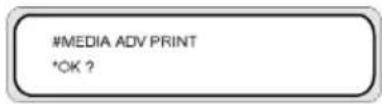
- Press the OK key to print the pattern.
In this example, the color is black.
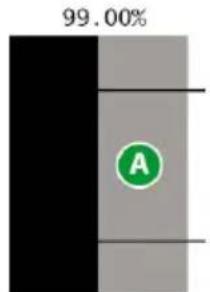
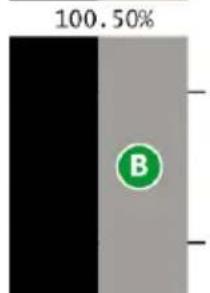
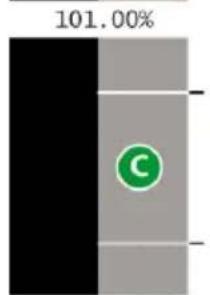
Five patterns are printed in 0.5% steps in a range of 99.00% to 101.00%.
A — Dark lines are visible; the value is too low.
B — No lines are visible; the value is correct.
• C — Light lines are visible; the value is too high.

NOTE Select a mean value if the media advance value is different in every color. If you have an image that uses one particular color, then set the value based on that color.
Different values between the left and right sides of the media may be caused by skew.
- From the printed result, select the best media advance calibration value.
- Press the ▼ key, and then the OK key to display the current media advance calibration value.
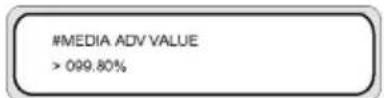
- Enter the media advance calibration value, and press the OK key.
Select the number you want to change by using the ◀ and ▶ keys and change the numeric value using the ▲ and ▼ keys.
If you need more precise media advance calibration, then you will need to print the DETAIL pattern as follows:
- Press the ▼ key, and then the OK.

- Press the ▲ and ▼ keys to select the DETAIL pattern.
Select the same print mode as for the ROUGH pattern you printed previously.
- Press the OK key twice to print the DETAIL pattern.
- From the printed result, select the best media advance calibration value.
Five patterns are printed in 0.10% steps in a range of -0.20% to +0.20%.
- Press the ▼ key, and then the OK key to display the media advance calibration value.
- Enter the media advance adjustment value, and press the OK key.
Set a numeric value with the ▲ and ▼ keys.

NOTE Select a mean value if the media advance value is different in every color. If you have an image that uses one particular color, then set the value based on that color.
Set a mean value if the media advance value differs between the left and right sides of the media.
Different values between the left and right sides of the media may be caused by skew.
- Press the OK key to confirm.
Printhead position adjustment
Use the printhead print position test patterns to calibrate the following printhead positions:
- Printhead to printhead position — adjusts the printhead position for the scan axis using the black printhead as a reference.
• Bidirectional printing position.
To print the printhead to printhead position pattern:
- In the TEST PRINTS menu scroll to the PH TO PH option and press the OK key.
- Press the OK key to start printing.
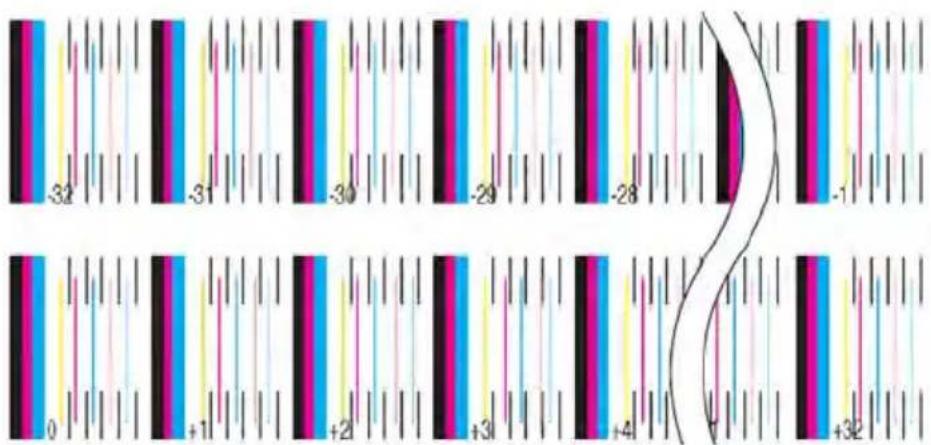
To set the printhead to printhead adjustment value:
- Select ADJUST and press the OK key.
- Select YY PH TO PH VAL and press the OK key.
- Select the printhead color to be adjusted, and press the OK key.
- In the printhead adjustment pattern, identify the value where the vertical black line and the color printhead lines are perfectly aligned. In the image below, the correct value for Lc is +2.
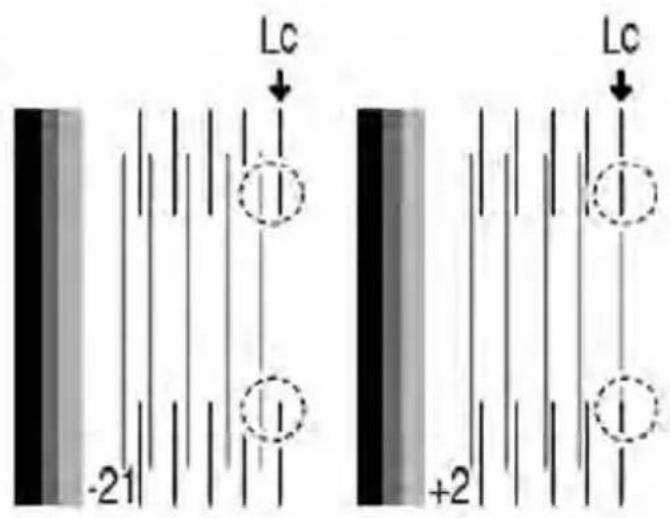
- Insert the value and press OK key.
Select the number you want to change by using the ◀ and ▶ keys and change the numeric value using the ▲ and ▼ keys.
- Use the same procedure to adjust the other colors.
To print the bidirectional printing position pattern:
- In the TEST PRINTS menu scroll to the BIDIRECTION DEF option and press the OK key.
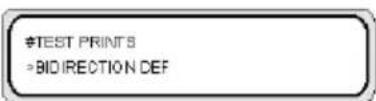
- Press the OK key to start printing.

To set the bidirectional printing adjustment:
- Select ADJUST and press the OK key.
- Select BIDIRECTION DEF and press the OK key.
- Select the printhead color to be adjusted, and press the OK key.
- In the printhead adjustment pattern, identify the value where two vertical lines for the same printhead are aligned. In the image below, the correct value for M is -8.

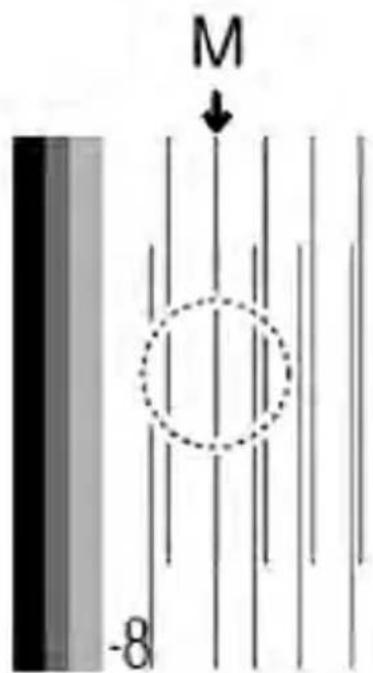
- Insert the value and press OK key.
Select the number you want to change by using the ◀ and ▶ keys and change the numeric value using the ▲ and ▼ keys.
Printhead nozzle position adjustment
Use the printhead nozzle position test patterns to calibrate the printhead nozzle positions.
To print the printhead nozzle position pattern:
- In the TEST PRINTS menu scroll to the NOZZLE POS ADJ option and press the OK key.

- Press the OK key to start printing.

-
Use section 1 to identify the printhead nozzle to be used as the reference.
-
Use section 2 to determine the correction value for the other printheads.
-
Identify the line of the printhead nozzle closest to the print platen (indicated as A in the image). In this example, the printhead nozzle (that is closest to the print Platen) to be used as the reference is indicated as B in the image.

- A. For each printhead line, identify the value where the reference printhead is aligned. In this example image, for the Magenta line the correction value is 1 (indicated as A in the image).
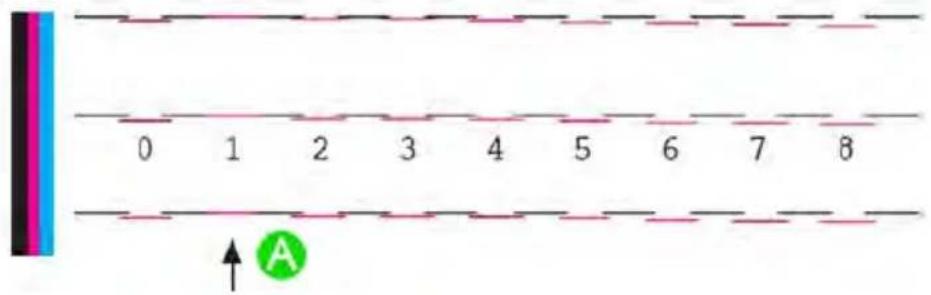
To set printhead nozzle position adjustment values:
- Select ADJUST and press the OK key.
- Select NOZZLE POS VAL and press the OK key.
- Select the printhead color to be adjusted, and press the OK key.
- Insert the value and press OK key.
Select the number you want to change by using the ◀ and ▶ keys and change the numeric value using the ▲ and ▼ keys.
Line sensor position adjustment
This test pattern is used only for HP Support purposes to calibrate the line sensor.
Back feed adjustment print
This option prints a pattern so that you can adjust how much back feed is applied to a media type that you are loading.
- Press the ONLINE key.
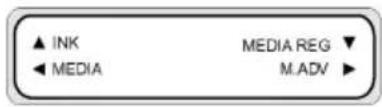
- Press the ▶ key, and select BACK ADJ PRINT and the OK key.

Select the print mode you usually use for the media that you are calibrating.
Select the NORMAL media feed adjustment print if adjusting the high speed mode.
Select a parameter based on your print mode.
Parameters:
NORMAL — standard and high speed print modes (720 x 720 dpi – 8 passes).
H-QUAL — high quality print mode (720 x 720 dpi – 16 passes).
H-DENS — high density print mode (720 x 720 dpi – 16 passes).
DRAFT — draft print mode (360 x 720 dpi – 4 passes).
• FINE DRAFT — fine draft print mode (540 x 720 dpi – 6 passes).
3 TIMES — high quality, high density print mode (720 x 720 dpi – 24 passes).
Adjust heater and print mode settings
If you see banding in all colors and you have already performed media advance calibration, then you can try adjusting the heater temperature and print mode settings.
Banding in all colors may be caused by the following factors:
- Small print dot size: heat will cause a smaller dot size. The higher you set the heater temperature, the smaller the dot size is which results in light banding.
- Ink absorption by the media: if the media you are using is not capable of absorbing the ink as it is placed, then this can result in dark banding.
To improve ink placement and absorption try the following:
- Set a lower print heater temperature for light banding or a higher temperature for dark banding.
Change the print mode to reduce the quantity of ink placed on the media for dark banding. - Change the print mode from bidirectional printing to unidirectional printing for dark banding.
After each change to a setting, try printing the nozzle print pattern to check the image quality.
To change the heater temperature and print mode settings:
- Press the ONLINE key and select the MEDIA REG menu with the ▼ key.
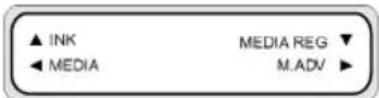
- Select PRINT HEATER T in the MEDIA REG menu with the ▲ and ▼ keys.

Parameters: 15 °C to 55 °C, or ** to turn the heater off.

NOTE This value will only be applied if the HEATER PREF option is set to HEAT PANEL.
- Select the number you want to change by using the ◀ and ▶ keys and change the numeric value using the ▲ and ▼ keys.
- Press the OK key to confirm the parameter.
Print the nozzle print pattern to check the image quality.
- To change the Print mode:
Select PRINT MODE. in the MEDIA REG menu with the ▲ and ▼keys.

- To change the option setting displayed, press the OK key.
PRINT MODE
*01: NORMAL
- Using the ▲ and ▼ keys, select a print mode that places less ink on the media and increases the number of passes.
PRINT MODE
*01: FINE
Parameters:
- NORMAL — standard and high speed print modes (720 x 720 dpi – 8 passes) — ink usage 100%.
• H-QUALITY — high quality print mode (720 x 720 dpi – 16 passes) — ink usage 100%.
H-DENSITY — high density print mode (720 x 720 dpi – 16 passes) — ink usage 200%.
• 3 TIMES — high quality, high density print mode (720 x 720 dpi – 24 passes) — ink usage 300%. - DRAFT — draft print mode (360 x 720 dpi – 4 passes) — ink usage 50%.
- FAST — fast print mode (720 x 720 dpi – 8 passes) — ink usage 100%.
• F-H-QUALITY — high quality print mode (720 x 720 dpi – 16 passes) — ink usage 100%. - F-H-DENSITY — Fast high density print mode (720 x 720 dpi – 16 passes) — ink usage 200%.
- F-3 TIMES — Normal very high density print mode (720 x 720 dpi – 24 passes) — ink usage 300%.
- FINE DRAFT — Fine draft print mode (540 x 720 dpi – 6 passes) — ink usage 67%.
• FINE — Fine print mode (720 x 720 dpi – 8 passes) — ink usage 100%. - F-FINE — Fast fine print mode (720 x 720 dpi – 8 passes) — ink usage 100%.

NOTE This value will only be applied by the printer front panel setting if the PRINT MODE PREF option is set to FRONT PANEL.
- Press the OK key to confirm the parameter.
Print the nozzle print pattern to check the image quality.
- To change the print direction mode to unidirectional, select PRINT DIRECTION with the ▲ and ▼keys in the MEDIA REG menu.
PRINT DIRECTION
01:BIDIR
-
Select UNIDIR with the ▲ and ▼ keys for unidirectional printing.
-
Press the OK key to confirm the parameter.
If the image quality still does not improve, we recommend that you change the media.
8 The problem is... (troubleshooting topics)
This section describes troubleshooting for the printer. If the problem cannot be solved, contact your dealer or our service center.
The problem is... (checklist)
A printhead crash
• Ink cartridge is not installed
• Ink cartridge is not detected
• Ink cartridge is near expiration date
• Ink cartridge has passed its expiration date
• An error message
• The problem is an abnormal sound
The problem is... (checklist)
Before deciding that there is a serious problem with the printer, check the following items.
| Symptom Items to be checked Corrective measures | ||
| No power | Power cable connection | Check that the power cable is correctly plugged into the power outlet. |
| Power supply to the outlet Supply power to the power outlet. | ||
| Power switch on/off Turn on the power switch. See How do I...Turn the power on/off. | ||
| The media guide is not heated even when the heater is turned ON. | Printer status The media guide is heated during printing. Be sure the media guide is heated by printing the nozzle print pattern. SeePrint the nozzle print pattern. | |
| Heater Turn on the heater (FRONT, PRINT, or REAR) and check that the media guide is heated by printing the nozzle print pattern. SeePrint the nozzle print pattern | ||
| The printer fails to start or operate correctly | ERROR LED and message on the front panel | See The problem is...An error message. |
| Cannot print | USB cable connection | Connect the USB cable correctly. See How do I...Connection procedure. |
| ERROR LED and message on the front panel | See The problem is...An error message. | |
| ERROR LED off Print the nozzle adjustment pattern. SeePrinthead position adjustment | ||
| The data is not processed immediately | DATA LED (flashing?) | Check the communication conditions to the computer. |
Symptom Items to be checked Corrective measures
| Poor print quality | Media type Check for improvement by changing the settings of the heater temperature, print mode, RIP, etc. If there is no improvement, check that the media is supported. Replace the media with another type. SeeHow do I get the best image quality | |
| Ink type For best results, use genuine HP inks.See Tell me about... Ink Cartridges | ||
| Printhead cleaning Clean the printhead. SeeNormalprinthead recovery. | ||
| Color stripe is not on. Set the color stripe. See Tell me about...MEDIA REG Menu —Color stripe setting (COLOR STRIPE). | ||
| Operational temperature Use the printer in a 20 to 25 °Ctemperature range. | ||
| Calibrate media Perform a Media Advance Calibration.See Calibrate media advance | ||
| Media jams occur frequently | Media type | Check whether the media type setting matches the type of media loaded. SeeHow do I load/unload media.Use our recommended media. See Tell me about... Ordering media and How do I load/unload media |
| Media loading Load the media correctly. SeeHow do I load/unload media. | ||
| Check whether there are any obstructions in the carriage path or the media path. | Remove any obstructions. See The problem is...A printhead crash. | |
| Printhead height Raise the Printhead height. SeeChange the printhead height. | ||
| Printing is slow Operational temperature Use the printer in a 20 to 25 °Ctemperature range. | ||
| USB Version Make sure the printer is not connected to a USB 1.0 port. | ||
A printhead crash
Clear printhead crashes by following the instructions on the front panel.
- A front panel instruction is displayed.
WARNING! (*)
CLEAR MEDIA JAM
X : printhead crash type 1 or 2 (See The problem is... An error message).
- Lift the media lever and front cover (1), and move the carriage (2) out of the way.
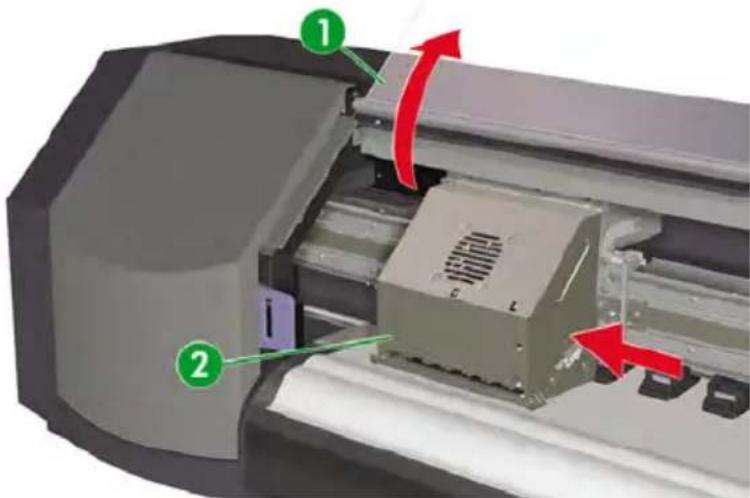
REMOVE MEDIA
- Remove the media (1).


NOTE Take care not to damage the printheads when removing any media between the printhead carriage and the printing platen.
- Check there are no obstacles in the carriage path and the media path, and close the front cover (1).

CARRIAGE MOVING PLEASE WAIT
- The carriage will move to its home position.
- Load media again (See How do I load/unload media).
Ink cartridge is not installed
- The front panel displays the following message.
INSTALL XX INK CARTRIDGE
XX: Ink name (K: Black, Lm: Light magenta, Lc: Light cyan, C: Cyan M: Magenta Y: Yellow)
- Replace the ink cartridge (see How do I... Replace an ink cartridge).
Ink cartridge is not detected
- The front panel displays the following message.
CHECK nn XX INK CARTRIDGE
XX: Ink name (K: Black, Lm: Light magenta, Lc: Light cyan, C: Cyan M: Magenta Y: Yellow)
- Replace the ink cartridge (see How do I... Replace an ink cartridge).
Ink cartridge is near expiration date
- The front panel displays the following message.
YY INK NEAR EXPIRATION DATE
YY: Ink name (K: Black, Lm: Light magenta, Lc: Light cyan; C: Cyan M: Magenta Y: Yellow)
- Have a new ink cartridge ready to replace the ink cartridge that is near its expiration date.
Ink cartridge has passed its expiration date
- The front panel displays the following message.
YY INK PAST EXP. DATE. CONTINUE?
YY: Ink name (K: Black, Lm: Light magenta, Lc: Light cyan; C: Cyan M: Magenta Y: Yellow)
- See Tell me about... Replacing an ink cartridge for instructions on how to proceed.
If you press the OKkey, the following message is displayed:

- See Tell me about... Replacing an ink cartridge before proceeding.
An error message
If the ERROR lamp lights, check the message displayed on the front panel. There are four types of error messages.
• Service errors: operator unrecoverable errors, such as hardware or software failure
Contact HP Support.
• Communication protocol errors
Take appropriate measures according to the error code or message.
- Operator errors
The operator can correct these errors. Take appropriate measures according to the message.
The error messages are as follows. Take appropriate measures according to the error message.

Tip If a communication error or a data error occurs, the ERROR lamp does not light. An error message appears on the front panel and disappears when the next operation is performed.
Service errors

Tip If any of the following service error messages appears, turn the power switch off and then on again. This may release the error.
System error messages

Problem: an unrecoverable error has occurred (hardware failure).
Solution: contact HP Support. Make a note of the error code displayed on the front panel.
Printhead error messages
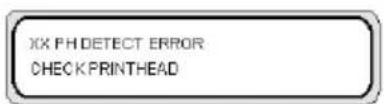
XX PHIC TEMP ERROR CHECKPRINTHEAD
XX PHINFO ERROR CHECK PRINTHEAD
Problem: an unrecoverable error has occurred in the printhead.
Solution: contact HP Support. Make a note of the error message displayed on the front panel.
Service error messages
SERVICE NEEDED SCAN AXIS BELT
SERVICE NEEDED ALL PRIME ASSYS
SERVICE NEEDED CAPPING UNIT
Problem: an error has occurred that requires printer maintenance.
Solution: contact HP Support. Make a note of the error message displayed on the front panel.
Operator error messages
The following errors can be corrected by the operator.
Ink cartridge
YY INK PAST EXP. DATE. CONTINUE?
YY: Y, M, C, K, Lm, Lc
Problem: the ink cartridge has passed its expiration date.
Solution: press OK and follow the instructions on the front panel. See How do I... Replace an ink cartridge.
The ink LED flashes
Problem: ink is running out (warning).
Solution: prepare a new ink cartridge.
Waste ink bottle is not installed
- The following front panel message is displayed. The waste ink bottle is not installed.
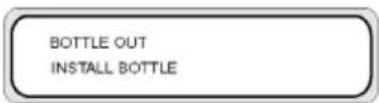
- Insert a new waste ink bottle into the printer and install the waste ink bottle cover. See How do I maintain the printer — Waste ink bottle replacement.
Waste ink bottle is full
BOTTLE FULL REPLACE BOTTLE
Problem: the waste ink bottle is full.
Solution: follow the instructions on the front panel. See How do I maintain the printer—Waste ink bottle replacement
Media crash
WARNING! (*) CLEAR MEDIA JAM
Problem: media crash (1) indicates that the carriage is blocked by obstacles in the carriage path or media feed path.
Solution: follow the instructions on the front panel. If the media jam (1) occurs frequently and there are no media jams or obstructions in the carriage path or media feed path, please contact HP Support. See also The problem is... A printhead crash.
WARNING! (*) CLEAR MEDIA JAM
Problem: media jam (2) indicates that the media is not detected correctly. You may have selected the wrong media format when loading the media or you may be using a cut sheet with an irregular size.
Solution: follow the instructions on the front panel and check your media settings. See also the Troubleshooting checklist.
Media
NO MEDIA LOADED LOAD MEDIA
Problem: there is no media loaded in the printer.
Solution: load media. See How do I load/unload media.
MEDIA SIZE ERROR LOAD MEDIA
Problem: you have set an invalid media size (less than 297 mm wide or 64 inch wide or more).
Solution: set the correct size. See How do I load/unload media.
MEDIA MISALIGNED RELOAD MEDIA
Problem: there is media skew.
Solution: reload the media (see How do I load/unload media). Skew may be caused by ink deposits on the platen. Check the platen for ink deposits and clean any ink. See How do I maintain the printer.
LOAD MEDIA LOWER LEVER
Problem: the media lever has not been lowered.
Solution: lower the media lever.
Error LED is flashing
Problem: the take-up reel is not winding the media correctly.
Solution: check that the media is correctly detected by the take-up reel sensor. Check that the media is loaded correctly. See How do I... Use the take-up reel.
Other messages
CLOSE COVER
Problem: the cover is open.
Solution: close the cover.
PH TEMP ERROR PLEASE WAIT
Problem: the temperature of the printheads exceeds the operating temperature range.
Solution: allow the printheads to cool by not using the printer until the printhead temperature returns to the operating temperature range.
ENV. TEMP. ERROR CHANGE ENV. TEMP
Problem: the environment temperature is not within the operating temperature range for the printer.
Solution: use the printer within its operating temperature range (15 °C to 30 °C).
The problem is an abnormal sound
If your printer makes an unusual sound, contact HP Support.
9 The problem is print quality
This section explains how to solve print quality problems.
| Symptom Possible cause Corrective measure | ||
| A blank sheet of media is printed or the printed image is faded. | The printer did not receive data. Check print data. | |
| The environment conditions do not meet the printer specifications. | Use the printer in the specified environmental conditions (temperature and humidity). See Tell me about... Specifications | |
| Media settings are incorrect. Check the media settings. See How do I... Manage media types | ||
| Parts of a drawing are missing or the print is unclear. | Foreign objects are attached to the printhead. | Clean the printhead using printhead recovery. See Normal printhead recovery |
| The print is blurred. The media has been loaded the wrong side up. | Check whether the media is loaded correctly. | |
| The media settings are incorrect. Check the media settings. | ||
| The media edge guard is not set correctly. | ||
| The heater temperature is too low. Increase the heater temperature. See How do I... Adjust heater and print mode settings | ||
| The print is stained. | The leading edge of the media is curled. | Check whether the leading edge of the media is curled. If it is curled, cut the leading edge. |
| The media is slightly folded or crumpled. If the media is crumpled, feed the media and cut off the crumpled part of the media. | ||
| The platen is stained. | Clean the platen. See How do I maintain the printer. | |
| The Printhead is dirty. Clean the printhead using printhead | recovery. See Normal printhead recovery. | |
| The first part of a printed image is missing. | Environment temperature. | Use the printer in the specified environmental conditions. See Tell me about... Specifications |
Symptom Possible cause Corrective measure
| Parts of a printed image are missing even after printhead cleaning is performed repeatedly. | The nozzle is clogged. Wash the printheads. See How do I...Clean ink system | |
| Poor print quality cannot be improved even when the cleaning is performed. | The cap or wiper blade is stained. Clean the cap and change the wiper blade. SeeHow do I maintain the printer | |
| There is banding on new media The printer requires calibration for the new media. | Adjust the printer settings for the new media. SeeHow do I calibrate my printer | |
| There is banding on media that has been calibrated and did not give banding before. | If one of the following is true, try the corresponding solution and if banding has not disappeared, then go to the next possible cause and solution:1. The file you are printing:a) is newb) is not new2. The print mode:a) has changedb) has not changed3. Normal printhead recovery:a) did not improve bandingb) improved banding4. Strong printhead recovery:a) did not improve bandingb) improved banding | Try one of the following solutions:1. a) Try using a file that did not give banding. If banding does not disappear, then see the next possible cause.b) Check that you are using the same print mode as before.2. a) Try using the same print mode. If banding does not improve, then try a new roll of media. If you still see banding call HP support.b) Try normal printhead recovery. If banding improves, repeat normal printhead recovery until no improvement is seen and banding is still present. Call HP support.3. a) Print the NOZZLE PRINT pattern and check if there are any printhead nozzles not working. If some printheads are not working, try strong printhead recovery for the affected printheads.4. a) Call HP supportb) Repeat normal printhead recovery until no improvement is seen and banding is still present. Call HP support. |
10 Tell me about... (basic knowledge topics)
This chapter provides necessary information to operate the printer. Familiarize yourself with the basics of the printer before reading the rest of this Guide.
• Tell me about operating conditions
• Tell me about the power supply
• Tell me about front panel messages and printer state
Tell me about operating conditions
This section describes the operating conditions for the printer.
Installation space
Make sure that there is sufficient space around the printer for the replacement of frequently used parts, for printing output and for ventilation. In addition, leave the maintenance space indicated below for service repairs.
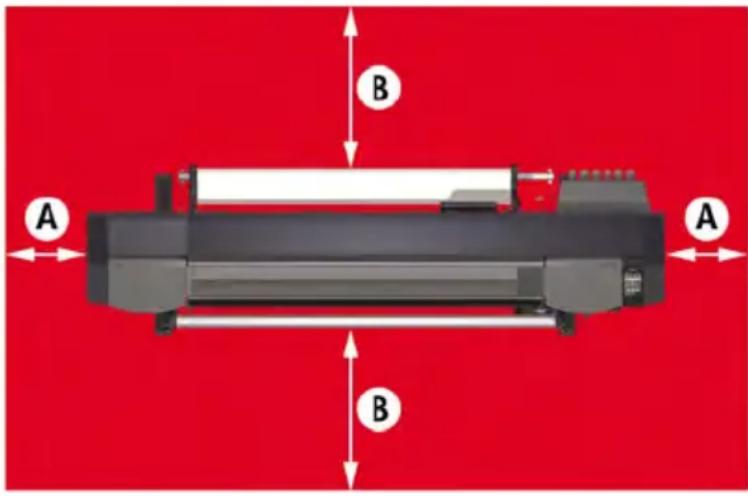
A. 1 m
B. 0.4 m
Environmental conditions
Operating temperature and humidity levels
The printer should be used within the temperature and humidity levels shown below.
Temperature: 15 °C to 30 °C
Humidity: 30% to 70%

Tip To obtain optimal print quality, operate the printer at environment temperatures between 20 – 25 °C.
When the operating temperature is below 20\ °C , print speed may be reduced by one third to maintain good print quality.
When printheads reach high temperatures, the time to print is delayed.

NOTE When the printer is not used within specified operating temperature and humidity ranges, printing may be interrupted or the print quality may deteriorate.
Places where the printer must not be installed
Do not install the printer in places that are:
In direct sunlight.
• Subject to vibration.
Excessively dusty.
- Subject to extreme changes in temperature or humidity conditions.
• Near an air conditioner or a heater.
- Places where the printer may get wet.
• Subject to direct air circulation from vents.
• Near a diazo copier that may generate ammonia gas.
• Poorly ventilated.
Tell me about the power supply
Power
The printer has a rear power switch (1) and a front panel power key. The printer is turned on by turning the rear power switch (1) on.

Afterwards, turn the printer on or off using the power key on the front panel (1).

The HP Designjet High Speed Dryer
The optional HP Designjet High Speed Dryer (Q6667A) dries images as they are printed. See Tell me about... Ordering accessories
Exhaust attachment
The exhaust attachment allows for the attachment of exhaust hoses to the printer.
Tell me about front panel messages and printer state
This section describes front panel messages and menu operations.
Messages on the front panel
Initialization display
The printer is being initialized.

When the system starts normally, both controllers go online and enter idle mode automatically.
Online state (idle mode) display
The printer can receive data from the computer.
PRINTER READY ROLL: 64/PAPER
When the OK key is pressed in the online mode, the printhead recovery menu is displayed.
Online state (print mode) display
The printer is printing.
PRINTING ROLL:64 / PAPER
Online state (print pause mode) display
The printer is paused.
Print stop and resume
PRINTING ROLL: 64 / PAPER
ONLINE
PRINTER READY ROLL: 64/PAPER
The Online LED flashes
Press the OK key in the print pause mode to start the printhead cleaning.
Print cancel (end)
PRINTER READY ROLL: 64/PAPER
The Online LED flashes
CANCEL
PRINTER READY ROLL: 64/PAPER
Online state (print information mode) display
The amount of media used and the ink cartridge levels are displayed.
PRINTER READY ROLL: 64 / COATED
SHIFT
MEDIA USED XXXXm
SHIFT
Three-second intervals or SHIFT
Three-second intervals or SHIFT
Menus can be operated in offline mode.
▲ INK ◀ MEDIA
MEDIA REG M.ADV
SHIFT
▲ REWIND ◀ PH. REC
FORM FEED PH. MAIN
SHIFT
▲ PRINTER ◄ ADJUST
SETUP HEATER
The arrow keys give access to menus.
When the OK key is pressed in the menu mode, the CLEANING menu appears.
Shutdown state display
The printer is shutting down.
SHUTTING DOWN PLEASE WAIT
11 Tell me about media
- Storing media
- Disposing of media
• Using media
Handling prints
• Other precautions
Choosing the correct media type for your needs is an essential step in ensuring good print quality. For best printing results, use only recommended media, whose reliability and performance have been developed and thoroughly tested. All printing components (printer, ink system, and media) have been designed to work together to give trouble-free performance and optimal print quality.
The HP Designjet 8000s Printer supports the following media types:
Glossy vinyl chloride
• Matte vinyl chloride
- Banner
Storing media
- Always keep unused rolls wrapped in the plastic wrap to prevent discoloration. Rewrap partially used rolls if they are not being used.
- Avoid rapid changes in temperature and humidity conditions and store media in condensation-free environments.
Do not stand a roll on its end.
Do not stack rolls.
Disposing of media
Dispose of media according to local regulations and guidelines, where applicable.
Using media
- Avoid changes to room conditions and allow media to adapt to room conditions out of the packaging for 3 hours or more before printing.
- Low humidity may cause curling of media and high humidity may cause wrinkling.
Use media in the recommended temperature and humidity conditions (about 23 °C and 50% R.H.).
• Do not use scratched, crumpled, curled, or dusty media.
Take care not to damage the edges of roll media as this may affect media feeding.
Do not drop or wet the media. - Handle media by the edges. Skin oils can be transferred to the printing material, leaving fingerprint marks.
- Keep the media tightly wound on the roll throughout the loading and unloading procedures.
Handling prints
• Do not touch the printed surface before the ink dries.
Handle media by the edges.
When handling media take special care in the first 24 hours after printing.
• Rubbing the printed surface may cause color fading or color transfer.
To prevent color transfer do not stack printed images.
- Do not stack your prints together with photocopies or laser prints. The ink or toner may cause images to stick together.
- Do not rub, scratch, or hold media as this may cause the ink to peal off.
Other precautions
- The printing characteristics of media may change over a long period of time and colors may fade or print quality may deteriorate.
Use media in good condition.
• Media particles caused by cutting of the media may harm the media coating.
- When using adhesive-backed media, adhesive may stick to the platen.
Adhesive matter on the platen may cause the media to jam.
Clean adhesive matter from the platen. See How do I... How do I maintain the printer.
12 Tell me about the ink system
Ink Cartridges
• Replacing an ink cartridge
• Ink cartridge storage and disposal
HP 780 Waste Ink Bottle
• HP Cap Cleaning Kit with Roller
HP 780 Wiper Cleaning Liquid
HP Cleaning Swabs
• HP Ink System Storage Kit
• HP Ink System Cleaning Kit
Ink Cartridges
The printer's six ink cartridges provide yellow, magenta, black, cyan, light cyan and light magenta ink to the printheads. Ink cartridges require no maintenance or cleaning. As long as each ink cartridge is inserted correctly into its slot, the ink will flow to the printheads.

NOTE Using non-HP inks may cause poor print quality, printer malfunction, printer failure, or a safety hazard.
The valid period of ink is 3 months from the install by date.
Do not shake ink cartridges before use.
All six color cartridges must be installed. If one of the cartridges is removed, a new one must be installed.
Ink cartridges must be installed in all six slots. The positions of ink cartridges are specified by color. See the figure below.
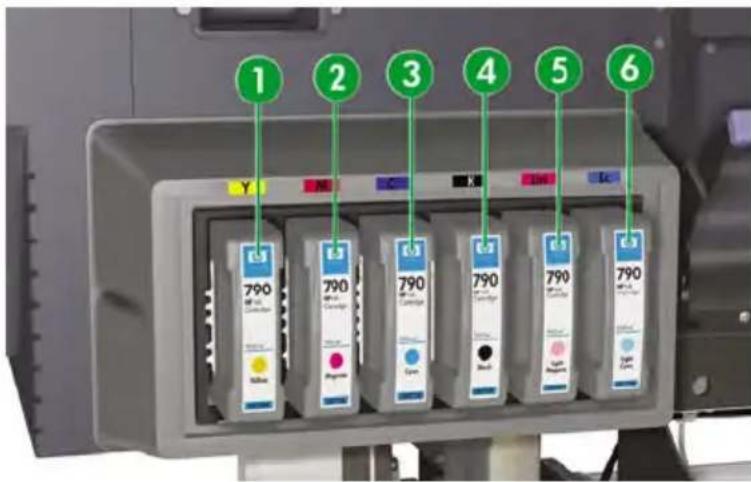
- Yellow
- Magenta
- Cyan
- Black
- Light magenta
- Light cyan

WARNING! Ink inside the ink cartridge is combustible. Do not expose or store near open flames, sparks, or other sources of ignition.
WARNING! Do not swallow ink. If swallowed, do not induce vomiting and seek immediate medical attention.
Replacing an ink cartridge
You can check the ink level at any time by accessing the INK menu and pressing the ▲ key. Information on each ink cartridge is displayed at three-second intervals.

The front panel warns you when a cartridge's ink level is low or when a cartridge is empty.
You are recommended to replace the empty cartridge with a new HP ink cartridge: see How do I ...Replace an ink cartridge.
Although it is possible to use refilled or non-HP ink cartridges, either choice has several serious disadvantages:
- There is some risk of damaging the printer. In this case the printer warranty will not be valid for any printer repairs that are related to the cartridge, nor for any problems due to ink contamination.
- You will invalidate the warranty of all printheads of the same color used in the printer subsequently, unless and until the whole ink system (including ink tubes) is replaced.
• Print quality may be impaired.
The printer will be unable to estimate the ink level in the cartridge, and will report it as empty.
Ink cartridge storage and disposal

CAUTION Securely put a used ink cartridge into a plastic bag and dispose of it as industrial waste. Observe any regulations for disposal of ink cartridges.

NOTE HP Ink Cartridges should be installed before the "Install By" date printed on the cartridge. Use of the Ink Cartridge 3 months beyond the "Install By" date may cause deterioration in print quality or a printer malfunction.
Store ink cartridges in a dry, cool and dark place.
Always use the recommended consumables (media, ink, etc.). Failure to follow this instruction may cause poor print quality, printer malfunction, printer failure, or a safety hazard.
HP 780 Waste Ink Bottle
The HP 780 Waste Ink Bottle is used for collecting waste ink that is discharged from the printer during cleaning processes. Only use the recommended HP 780 Waste Ink Bottle.

WARNING! Waste ink is combustible. Keep an HP Waste Ink Bottle containing waste ink away from open flames, sparks, or other sources of ignition.
WARNING! Avoid contact between ink and skin, eyes, and clothing.
Immediately wash skin with soapy water.
Remove clothing soaked with ink from contact with skin.
Use an approved eye wash station if ink is splashed into eyes and consult a doctor if necessary.
If an approved eye wash station is unavailable, flush eyes with cold water and consult a doctor if necessary.
Do not swallow ink. If swallowed, do not induce vomiting and seek immediate medical attention.
WARNING! Use only an HP Waste Ink Bottle. The bottle must be installed according to instructions or waste ink may overflow.
An HP Waste Ink Bottle must always be installed before turning the printer ON. Automatic and manual service cycles produce waste ink that must be contained in an HP Waste Ink Bottle.
Precautions for handling the waste ink bottle

WARNING! Always securely replace the cap on a full or partially-full HP Waste Ink Bottle after removing it from the printer to prevent ink spills.
The HP Waste Ink Bottle contains organic solvents and must be disposed of in compliance with all local, state, and federal regulations.
WARNING! Always use both hands to remove and carry an HP Waste Ink Bottle.
Keep the HP Waste Ink Bottle upright. Do not place on tables or shelves where it could fall.
HP Cap Cleaning Kit with Roller
The HP Cap Cleaning Kit is used to clean and maintain the capping unit. The HP Cap Cleaning Liquid comes packs of six bottles of cleaning liquid.
HP 780 Wiper Cleaning Liquid
The HP 780 Wiper Cleaning Liquid is used to clean and maintain the wiper blades.
HP Cleaning Swabs
HP Cleaning Swabs are used for cleaning your printer parts. They are specifically designed to avoid damage to your printer. They are designed not to leave particles or fibers on your printer when you perform cleaning procedures.
HP Ink System Storage Kit
The HP 780 Ink System Storage Kit is used to protect the ink tubes and printheads when the printer is switched off for less than 4 weeks. The HP 780 Ink System Storage Kit contains six ink system storage liquid cartridges.
HP Ink System Cleaning Kit
The HP 780 Ink System Cleaning Kit is used to try to recover the printheads and clean the ink tubes when the printer has been switched off for less than two weeks. The HP 780 Ink System Cleaning Kit contains six cleaning liquid cartridges.
13 Tell me about waste management
Disposing of waste
It is the printer owner's responsibility to ensure that waste is disposed of in accordance with all local, state and federal regulations.
There are registered waste management companies that have been authorized by local authorities to manage waste collection and disposal and that will manage waste management and disposal on your behalf.
We recommend that you contact your local authorities for a list of authorized companies, or you can search for the nearest authorized waste disposal company on the Worldwide Web.
Make sure that any waste disposal company you engage for this task is able to provide you with the necessary documentation proving their authority to legally manage and dispose of waste.
You will be legally responsible for failing to dispose of waste according to local, state and federal legislation.
When you have established an authorized waste management company, they will need to know the type of chemical that requires disposal and you will need to determine the type of agreement that best meets your requirements.
They will need to know the common name or chemical CAS number of the main solvent found in the supplies. This information can be obtained on the Material Safety Data Sheets (MSDS) available for all supplies at http://www.hp.com/hpinfo/globalcitizenship/environment/productdata/index.html
There are normally two types of waste disposal services. The most suitable service will depend on your waste volume production:
- Bottle by bottle and pick up on call: this may be the best option for low volume production to avoid the overheads related to arranging and ensuring secure temporary storage. You can order these bottles (1) as needed from your local HP reseller.

- Storage in a suitable container (2) for solvents and regular pick up: this may be the best option for high volume waste production. An authorized waste management company will be able to advise you on how this can be performed safely and in compliance with local guidelines and legislation.

General recommendations
- The HP 780 Waste Ink Bottle is specifically designed to resist chemical interaction with waste ink. Do not use any other kind of container or bottle to collect the liquid. Consult your waste management company to ensure you are following correct and safe procedures.
- Do not dispose of materials via the sanitary sewer or drains. Hazardous waste disposal is regulated by local, state and federal regulations.
- Store the full bottle in an area that has been prepared for this purpose until it is emptied or removed by a waste management company for disposal. Consult your local authorities about requirements or for advice on storing hazardous waste.
- The bottle is provided with an undetachable cap to close the bottle safely and securely to avoid spillage when it is handled or transported.
• Use disposable latex or Nitrile(R) safety gloves to handle or transport the bottle once full. - If you are emptying the HP supplied bottle into a larger container, use the container for this chemical exclusively. Never mix this chemical with other chemicals in the same container. This represents a serious safety hazard.
14 Tell me about... (menus)
This chapter outlines the user menu structure and operations.
- Menu operations
• The INK menu & messages
The MEDIA menu
• The MEDIA REG menu
• Media advance calibration
• The PH. MAIN menu
The PH. REC menu
The FEED option
• The REWIND option
The PRINTER menu
The ADJUST menu
The SETUP menu
The HEATER menu
Menu operations
When the ONLINE key is pressed in the online idle mode, the printer enters offline mode. A menu group appears on the front panel and menu operations are enabled.
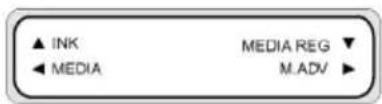
SHIFT

SHIFT
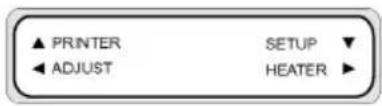
Menu structure
The front panel menu has the following structure:
- Menu group — this menu is displayed at the first level. Some menus have several submenus.
• Second-level menus — these are submenus of the top menu group. - Parameters — on selecting a menu item, you can select a value, command or enter a value.
Making front panel selections and settings
To define a setting
- Select a menu with the arrow keys.
For example, select the MEDIA REG menu with the ▼ key.
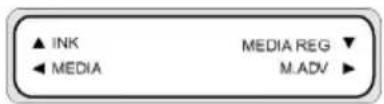
- Select an option in the MEDIA REG menu with the ▲ and ▼ keys.
For example, select PRINT MODE. You can return to step 1 by pressing the ◀ key.
- To change the option setting displayed, press the OK key.
PRINT MODE
*01: NORMAL
- Select a setting with the ▲ and ▼ keys.
Select 01 : FINE.
PRINT MODE
*01:FINE
- Press OK key to confirm the parameter and return to step 2.
PRINT MODE
01:FINE
To define a value
The following example describes the MEDIA ADV. VALUE in the ADJUST menu.
- Select a menu with the arrow keys.
Select the ADJUST menu with the ◀ key.
▲ PRINTER
SETUP

ADJUST
HEATER

- Select a menu option with the ▲ and ▼ keys.
Select the MEDIA ADV. VALUE option. You can return to step 1 by pressing the key.
PAPER FEED ADJ
099.80%
- Press the OK key.
PAPER FEED ADJ
*099.80%
- Select the digit to be modified using the ◀ and ▶ keys.
PAPER FEED ADJ
*099.80%
- Change the value using the ▲ and ▼ keys.

NOTE To see the full list of characters available, refer to the list of characters below.
#PAPER FEED ADJ
*099.70%
- Press the OK key to confirm the value and return to step 2.
#PAPER FEED ADJ
>099.70%
Character list
| Character code group | Character |
| SHIFT ▼, SHIFT ▲ | ▼, ▲ |
| Symbols space, !, ", #, $, %, &, '*, +, -, /; ;; <, =, >, ?, @, [,]^,_ {, ]} | |
| Numerals 0 to 9 | |
| Upper-case letters A to Z | |
| Lower-case letters a to z | |
| Special characters | |
The INK menu & messages
This INK menu is used to display ink information or replace the ink. When the ▲ key is pressed, information on each ink cartridge is displayed at three-second intervals.


XX: Color name — K, Lm, Lc, Y, M, and C.
YYY: Amount of ink remaining.
ZZ/ZZ/ZZ: Manufacturing date of the ink cartridge

NOTE If the following message is displayed, the ink cartridge is not a genuine HP Ink Cartridge.
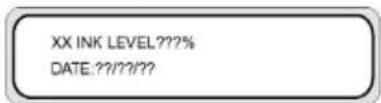
Press the SHIFT key to see information on the next color ink cartridge without waiting for three seconds.
Press the CANCEL or ◀ key to return to the previous menu.
Press the ONLINE key to end menu display and take the printer online.
Press the OK key to replace an ink cartridge. See also Tell me about... Replacing an ink cartridge.
Replacing an empty ink cartridge
- The following front panel message is displayed.
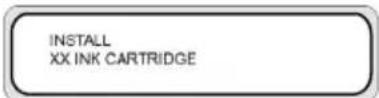
XX: Ink name (K: Black, Lm: Light magenta, Lc: Light cyan, C: Cyan M: Magenta Y: Yellow)
- Replace the ink cartridge. See How do I... Replace an ink cartridge.
The MEDIA menu
This menu is used to display media information or replace the media. When you press the <key, information on media is displayed at three-second intervals.
To access the MEDIA menu:
- Press the ONLINE key.

- Press the key to see media information.
Media roll:

Cut sheet:

Nest:

XXXXXX: media type
YYY: media width
ZZZ: media length
Press the CANCEL and < keys to display the main menu in offline state.
Press the ONLINE key to take the printer online.
Press the OK key to change media settings.
The MEDIA REG menu
Use the MEDIA REG menu to register or modify media type parameters or create new media types in the printer. See How do I.... Manage media types. For a list of the default parameters, see Default values for media types in this section.
To access the MEDIA REG menu:
- Press the ONLINE key.

- Press the ▼ key to see MEDIA REG menu options.
SELECT MEDIA
01: TYPE01
Selecting a media type number (SELECT MEDIA)
Select the media type number you intend to modify or create. You can choose from 01 to 20.
SELECT MEDIA
01: TYPE01
Parameters: media type number (01 to 20).

NOTE All changes to settings in the MEDIA REG menu will apply to the media that you select or create in the SELECT MEDIA option.
Setting a media type name (RENAME MEDIA)
Rename a media type you want to modify or create.
Name the media type using up to six characters.
RENAME MEDIA
01:TYPE01
Parameters: a six-digit name.
Media advance value (MEDIA ADV VALUE)
Use this option to set the media advance value for the selected media type. This value is obtained from the Media Advance print. See How do I... Calibrate media advance for the step by step procedure.

NOTE This value will only be applied by the printer front panel setting if the ADVANCE PREF option is set to FRONT PANEL.
MEDIA ADV VALUE
01:099.80%
MNFG VAL=099.80%
01:099.80%
Parameters: XXX.XX% (97.00 to 103.00%)
Dry time value (DRY TIME VALUE)
Use this option to define the amount of time the printhead carriage pauses between printing passes for the selected media type.
DRY TIME VALUE
01:000sec
Parameters: three-digit time in seconds.
The front panel display asks the user to wait while a countdown readout shows how much drying time remains.
Print mode setting (PRINT MODE)
Use this option to set the default print quality for the selected media type.

NOTE This value will only be applied by the printer front panel setting if the PRINT MODE PREF option is set to FRONT PANEL.
# PRINT MODE
01:NORMAL
Parameters:
• NORMAL — standard and high speed print modes (720 x 720 dpi – 8 passes).
H-QUALITY — high quality print mode (720 x 720 dpi – 16 passes).
H-DENSITY — high density print mode (720 x 720 dpi – 16 passes).
• DRAFT — draft print mode (360 x 720 dpi – 4 passes).
FAST — fast print mode (720 x 720 dpi - 8 passes).
• FINE DRAFT — fine draft print mode (540 x 720 dpi – 6 passes).
3 TIMES — high quality, high density print mode (720 x 720 dpi – 24 passes).
F-H-QUALITY — high quality print mode (720 x 720 dpi – 16 passes).
F-H-DENSITY — Fast high density print mode (720 x 720 dpi – 16 passes).
F-3 TIMES — Normal very high density print mode (720 x 720 dpi – 24 passes).
• FINE — Fine print mode (720 x 720 dpi – 8 passes).
F-FINE — Fast fine print modes (720 x 720 dpi – 8 passes).
Print direction setting (PRINT DIRECTION)
For the selected media type, use this option to set bidirectional printing so that the print carriage places ink on the media at every pass, or unidirectional printing so that the print carriage places ink on the media once every two passes.
PRINT DIRECTION
01:BIDIR
Parameters:
BIDIR — Bidirectional printing gives higher printing speeds with slightly lower image quality.
• UNIDIR — Unidirectional printing gives lower printing speeds but higher image quality.
Flatten time (FLATTEN TIME)
The printing conditions may affect the media when the printer has not printed for some time, and print quality may be affected by wrinkles or smudges on the edge of the media due to humidity and dust. For example, if you print using a higher heater temperature, this may cause wrinkling, so you can set a lower time to maintain the media in optimal condition. The FLATTEN MEDIA option automatically feeds and rewinds the media before printing starts.
If no data is received and the set time limit is reached, then the edge of the media roll is fed through the media path to the rear cover automatically. If the leading edge of the media roll is already present at the rear cover, the procedure is not performed.
The printer performs the procedure automatically when it is turned off; the edge of the media roll is fed through the media path to the rear cover. When using the take-up reel, the printer turns off without feeding the media through the media path.
# FLATTEN TIME
01:NONE
Parameters:
- NONE — Select this parameter when you use your printer continuously and the type of media does not wrinkle.
30 min — Media is passed through the media path if there is no printing for more than 30 minutes. If the printer starts printing before the 30 minute interval, the media is passed through the media path at the start of printing. Select this parameter when the printer prints in a high humidity environment frequently and the media is extremely wrinkled. - 1 hour — Media is passed through the media path if there is no printing for more than 1 hour. Select this parameter when the print interval is more than 1 hour and the media is extremely wrinkled.
- 2 hours — Media is passed through the media path if there is no printing for more than 2 hours. Select this parameter when the print interval is more than 2 hours and the media is extremely wrinkled.
4 hours — Media is passed through the media path if there is no printing for more than 4 hours. Select this parameter when the print interval is more than 4 hours and the media is extremely wrinkled.
Use media edge guard (USE EDGE GUARD)
Use this option to activate or deactivate the media edge guards for the selected media type. The right and left print margins are 10 mm when the media edge guards are used, and 5 mm when they are not used. See How do I... Use the media edge guards.
USE EDGE GUARD
01: YES
Parameters:
YES — the edge guard is used.
• NO — the edge guard is not used.
Media advance mode (MEDIA ADV MODE)
Use this option to set a media advance mode for the selected media type.
MEDIA ADV MODE
01:FWD ONLY
Parameters:
FWD ONLY — Media is fed through the printer in the standard way.
- BACK & FWD — This setting checks that the media moves freely through the media path by feeding the media backwards and forwards before starting to print. This can be useful for media with adhesive coating that, in combination with the heat, may stick to the platen.

NOTE BACK & FWD can cause image banding.
Take-up reel mode (TUR MODE)
Use this option to set the take-up reel winding mode for the selected media type. You must set the take-up reel winding switch to the same setting as this option. See How do I... Use the take-up reel.
TUR MODE
01: LOOSE
Parameters:
- LOOSE — Media hangs loosely after printing and is then gathered on to the take-up reel.
• TENSION — Media is gathered on to the take-up reel while printing is going on.

Tip TENSION is the recommended take-up reel mode particularly when printing on long roll media. This helps to reduce the risk of media skew.

NOTE If you see banding, perform the Media Advance calibration in the mode that you are using. See How do I calibrate my printer.
Leading edge mode (LEADING EDGE)
This option allows you to define how the printer detects the position of the media when it is loaded or to make media settings on the front panel.

NOTE This setting is not applied when you use the take-up reel.
LEADING EDGE
02:NORMAL
Parameters:
NORMAL — Detects the leading edge of the media when you replace or load the media, and then completes media loading after checking for skew.
REDUCED — Detects the leading edge of the media when you replace or load media, and then completes media loading after detecting the edge of the media by rewinding.

NOTE The recommended setting is NORMAL. If you select REDUCED, follow these instructions:
- Cut the edge of the media so that the edge of the media is parallel to the guide line and then load the media. If the edge of the media is not straight, the printer will deposit ink on the platen and that can cause a printhead crash.
- Load the media after checking that there are no wrinkles on the edge of the media. Wrinkled media can cause a printhead crash.
- Load the media after checking that there is no tape or glue on the edge of the media. If using media with tape or glue, it can cause a media jam.
Vacuum level setting (VACUUM LEVEL)
Use the VACUUM LEVEL option to set the suction force of the vacuum fan on the printing platen for the selected media type.
VACUUM LEVEL
01:NORMAL
Parameters:
• NORMAL — Normal fan suction level.
- LOW — Low fan suction level.
Initial temperature setting for the front heater (FRONT HEATER T)
Use this option to set the front heater temperature for the selected media type.
FRONT HEATER T
01:30C
FRONT HEATER T
01:086F
Parameters: 15 °C to 55 °C, or ** to turn the heater off.

NOTE For Celsius/Fahrenheit conversions:
F = (9 × C / 5) + 3 2
C = 5 × (F - 3 2) / 9
NOTE This value will only be applied if the HEATER PREF option is set to HEAT PANEL.
Initial temperature setting for the print heater (PRINT HEATER T)
Use this option to set the printer platen heater temperature for the selected media type.
PRINT HEATER T
01:40C
PRINT HEATER T
01:104F
Parameters: 15 °C to 55 °C, or ** to turn the heater off.

NOTE For Celsius/Fahrenheit conversions:
F = (9 × C / 5) + 3 2
C = 5 × (F - 3 2) / 9
NOTE This value will only be applied if the HEATER PREF option is set to HEAT PANEL.
Initial temperature setting for the rear heater (REAR HEATER T)
Use this option to set the rear heater temperature for the selected media type.
REAR HEATER T
01:30C
REAR HEATER T
01:086F
Parameters: 15 °C to 55 °C, or ** to turn the heater off.

NOTE For Celsius/Fahrenheit conversions:
F = (9 × C / 5) + 3 2
C = 5 × (F - 3 2) / 9
NOTE This value will only be applied if the HEATER PREF option is set to HEAT PANEL.
Color stripe setting (COLOR STRIPE)
A color stripe is printed on all plots. This ensures that all printhead nozzles are used in all prints, even if the printed image does not include certain colors. The color stripe avoids drying of nozzles even if they are not used for a long time because they are not needed within your printed images. This option activates or deactivates printing of the color stripe for the selected media type.
COLOR STRIPE
01.OFF
Parameters:
• OFF — Does not print the color stripe.
ON — Prints the color stripe.

NOTE Use of the color stripe will add 40 mm (1.57 in) to your print margin.
NOTE We recommend that you set COLOR STRIPE to ON if possible. If the color stripe is not printed, this can affect printhead nozzle performance.
The color stripe is printed on the test print even if this option is set to OFF.
Printhead height setting (PH HEIGHT VAL)
Use this option to set the printhead height for the selected media type. Change this setting when you change the printing carriage height (see How do I... Change the printhead height).

Parameters:
NORMAL — Default.
• HIGH — Set for thick media.
Bidirectional print position adjustment (BIDIR DEF VALUE)
For the selected media type, use this option to adjust the position of all the printheads when using bidirectional printing for all print modes except FINE and F-FINE.
Enter an adjustment value based on the printhead adjustment pattern print. See How do I calibrate my printer.
BOIR DEF VALUE
YY=01:+00
YY: Ink color
XXXXXX: Media type
Display order: K -> Lm -> Lc -> Y -> M -> C
Parameters: sign (+/-), value (-32 to +31)
Bidirectional print position fine adjustment (BIDIR FINE VALUE)
For the selected media type, use this option to fine adjust the position of all the printheads when using bidirectional printing in FINE print mode.
Enter an adjustment value based on the printhead fine adjustment pattern print. See How do I calibrate my printer.
BDIR FINE VALUE
YY=01:+00
YY: Ink color
XXXXXX: Media type
Display order: K -> Lm -> Lc -> Y -> M -> C
Parameters: sign (+/-), value (-32 to +31)
Printhead cleaning mode (PH CLEANING)
Use this option to select an automatic printhead cleaning mode for the selected media type.
PH CLEANING
01:START & END
Parameters:
• START & END — Performs cleaning at the start or end of the print based on the print history record.
• DURING PRINT — Performs cleaning after a certain period of time even if the printer interrupts its current print job. This option is recommended only for Glossy media.
• DURING PRINT2 — Performs cleaning after a certain period of time even if the printer interrupts its current print job.

NOTE When the TENSION winding or BACK & FWD (MEDIA ADV MODE mode) is selected, the printer will only use START & END even if you have selected DURING PRINT.
When DURING PRINT is selected, separator lines are generated on the print because cleaning is performed during printing. However, cleaning is performed after completing the image around the separator
lines. Use the BACK ADJUST VAL option to eliminate these lines. Select this mode when using media that is sensitive to the heater temperature, such as PVC. However, these lines may shift depending on the media. In such a case, use the START & END or DURING PRINT2 modes.
![graph LR A["Λ"] -->|Cleaning| B["Λ"] B --> C["Adjust with BACK ADJUST VAL."] C --> D["A"]](/content/2026/06/1146278/images/36c4cf192e4fc641801ccf756e8fd6507e14704fb3bece691d0da70ccbfafb3e.jpg)
When DURING PRINT2 is selected, separator lines are generated in the middle of printing path although cleaning is performed during printing. Select this mode when using media which is not sensitive to the heater temperature, such as tarpaulin. Separator lines are easier to adjust in this mode than in the DURING PRINT mode, however, color tone around the lines may be changed. Select the mode according to the property of the media to be used.

Media back feed adjustment (BACK ADJUST VAL)
This option sets the amount of back feed when printing of an image is interrupted by the automatic cleaning process.
Set a back feed adjustment value for the media based on the back feed adjustment pattern. See How do I calibrate my printer.
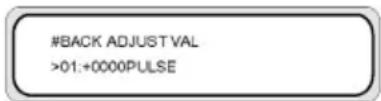
Parameters: ±2000 pulses (+5 mm), 1 pulse=2.5 μm

Tip After printing the back feed adjustment pattern, measure the start distance. Try setting the value at 0005 and reprint the back feed adjustment pattern and re-measure the distance and modify the value if necessary. Increasing the value will increase the distance.
Media advance preference (ADVANCE PREF)
Use this option to define printer front panel priority or software RIP priority for media advance settings for the selected media type. If you select software RIP priority, the printer will ignore media advance settings that are defined on the printer front panel and use the settings from the RIP.
ADVANCE PREF
01:SOFTWARE
Parameters:
SOFTWARE — Settings in the RIP take priority.
• FRONT PANEL — Settings in the printer front panel take priority.
Print mode preference (PRINT MODE PREF)
Use this option to define printer front panel priority or software RIP priority for print mode settings for the selected media type. If you select software RIP priority, the printer will ignore print mode settings that are defined on the printer front panel and use the settings from the RIP.
PRINT MODE PREF
>01: SOFTWARE
Parameters:
• SOFTWARE — Settings in the RIP take priority.
• FRONT PANEL — Settings in the printer front panel take priority.
Heater preference (HEATER PREF)
Use this option to define printer front panel priority or software RIP priority for heater settings for the selected media type. If you select software RIP priority, the printer will ignore heater settings that are defined on the printer and heater front panels and use the settings from the RIP.
#HEATER PREF
>01:SOFTWARE
Parameters:
• SOFTWARE — Settings in the RIP take priority.
• HEAT PANEL — Settings in the printer front panel take priority.
Printhead rest period (PH REST PERIOD)
Use this option to define the number of passes the printhead carriage performs before it pauses for the selected media type.
#PH REST PERIOD
>01.0000CYCLES
Parameters:
CYCLES — Number of passes.
The front panel display asks the user to wait while a countdown readout shows how much rest time remains.
Set remaining media (SET REMAINING MEDIA)
Use this option to set the amount of media left for the media type you are loading. Use this option if you are using a roll of media that is of a different length to the roll (of the same media type) that was previously loaded.
#SET REMAINING MEDIA
>01.YYYm
Parameters:
- YYY — Length in meters or feet.
Printhead temperature rest (PH TEMP REST)
Use this option if you want printing to pause if there is a ttoo great a difference between the temperature set for the media print heater and the actual printhead temperature.
#PH TEMP REST
>01:OFF
Parameters:
ON — Pauses printing.
• OFF — Printing continues.
Delete a media type (DELETE MEDIA)
Use this option to delete a registered media type. See How do I... Manage media types.
Media types from 02 to 20 can be selected. Media type 01 is defined as the standard media and cannot be deleted.
#DELETE MEDIA
>01: TYPE02
Copy a media type (COPY MEDIA)
Use this option to copy a registered media type. See How do I... Manage media types.
#COPY MEDIA
>01
Paste a media type (PASTE MEDIA)
Use this option to paste a media that you have previously copied, over a media type that already exists. See How do I... Manage media types.
#PASTE MEDIA
>13 -> 01*
Default values for media types
Your printer comes with a set of factory-installed media types. Except for media type 01, you can modify or delete all other media types. The table below lists the default values for the factory-installed media types.
| NAME | PAPER (01) | Glossy (02) & Matte (03) | Banner (04) & BLT_B(Backlit) (05) |
| MEDIA ADV. VALUE (Base) +0.00% (Base) +0.16% (Base) +0.14% | |||
| DRY TIME VALUE 0 sec. 0 sec. 0 sec. | |||
| PRINT MODE NORMAL NORMAL NORMAL | |||
| PRINT DIRECTION BIDIR BIDIR BIDIR | |||
| FLATTEN TIME None None None | |||
| USE EDGE GUARD YES YES YES | |||
| MEDIA ADV. MODE | FWD ONLY | FWD ONLY | FWD ONLY |
| TUR MODE | LOOSE | LOOSE | LOOSE |
| LEADING EDGE | NORMAL NORMAL NORMAL | ||
| VACUUM LEVEL | NORMAL NORMAL NORMAL | ||
| FRONT HEATER T | None | 45 °C | 45 °C |
| PRINT HEATER T | None | 40 °C | 40 °C |
| REAR HEATER T | None | 45 °C | 45 °C |
| COLOR STRIPE | ON | ON | ON |
| ADVANCE PREF | SOFTWARE | SOFTWARE | SOFTWARE |
| BIDIRECTION DEF | +00& | +00& | +00& |
| PH CLEANING | START&END | START&END | START&END |
| BACK ADJUST VAL | 0 | 0 | 0 |
| PRINT MODE PREF | SOFTWARE | SOFTWARE | SOFTWARE |
| HEATER PREF | SOFTWARE | SOFTWARE | SOFTWARE |
Media advance calibration
Media advance calibration is defined by using the M.ADV menu. Press the ▶ key to define and set values.

MEDIA ADV PRINT
ROUGH(NORMAL)
Media advance calibration print
Select MEDIA ADV PRINT to print a calibration pattern that will indicate optimal media advance values.
Two patterns are available: the ROUGH pattern prints a media advance pattern in 0.25% steps between 99.0 and 101.0%; the DETAIL pattern prints a media advance pattern in 0.10% steps starting from the current setting ±0.20%.
Use the ROUGH pattern to obtain your initial values and if greater accuracy is required, use the DETAIL pattern. The print mode selected will also affect media advance calibration patterns.
Press the CANCEL key to interrupt printing.
MEDIA ADV PRINT
ROUGH(NORMAL)
Parameters: ROUGH or DETAIL
NORMAL — standard and high speed print modes (720 x 720 dpi – 8 passes).
H-QUALITY — high quality print mode (720 x 720 dpi – 16 passes).
H-DENSITY — high density print mode (720 x 720 dpi – 16 passes).
• DRAFT — draft print mode (360 x 720 dpi – 4 passes).
• FINE DRAFT — fine draft print mode (540 x 720 dpi – 6 passes).
3 TIMES — high quality, high density print mode (720 x 720 dpi – 24 passes).
Back feed adjustment print
This option prints a pattern so that you can adjust how much back feed is applied to a media type that you are loading.
Select a parameter based on your print mode.
BACK ADJ PRINT
NORMAL OK?
Parameters:
NORMAL — standard and high speed print modes (720 x 720 dpi – 8 passes).
H-QUALITY — high quality print mode (720 x 720 dpi – 16 passes).
H-DENSITY — high density print mode (720 x 720 dpi – 16 passes).
DRAFT — draft print mode (360 x 720 dpi – 4 passes).
• FINE DRAFT — fine draft print mode (540 x 720 dpi – 6 passes).
3 TIMES — high quality, high density print mode (720 x 720 dpi – 24 passes).
Media back feed adjustment value
Use this option to set the value for media back feed that you obtained from the back feed adjustment pattern.

Parameters: ±2000 pulse (±5 mm)
1 pulse = 2.5 μm
The PH. MAIN menu
Use the PH. MAIN menu to maintain the cap, the wiper and to clean the ink system. For details, refer to How do I maintain the printer.
Press the ▶ key to enter the printhead maintenance menu.

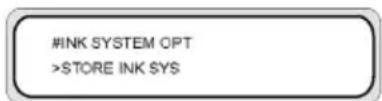
Ink system optimization (INK SYS OPT)
Use the INK SYS OPT option to select a service cleaning procedure.

Parameters:
- STORE INK SYS — use this parameter to clean the printheads and ink path for storage.
• CLEAN INK SYS — use this parameter to clean the printheads with the cleaning liquid after storage. - CHARGE INK SYS — use this parameter when priming the ink system.
- CHARGE NEW PH — use this option if a printhead has been replaced and it is not printing correctly.
Cap cleaning (CAP CLEANING)
Use this option to move the printhead carriage to the wiper position so that you can clean the capping unit manually, check and replace the wiper liquid, and replace the wiper sponge.
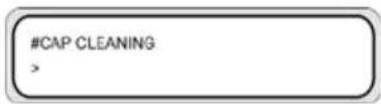
Parameters: none.
Replace wiper blade (REPLACE WIPER BLADE)
Use this option to lift the wiper blade so that you can replace it.

Parameters: none.
Replace wiper cleaning liquid (REPLACE WIPE LIQUID)
Use this option to lift the wiper blade so that you can replace it.

Parameters: none.
Replace wiper sponge (REPLACE WIPE SPONGE)
Use this option to access the wiper sponge so that you can replace it.

Parameters: none.
Washing the printheads (WASH PRINTHEADS)
Use this option to fill the cap with ink to soak the printhead (nozzle surface) in the ink for a minimum of 1 to 2 hours to remove nozzle clogging. If possible, leave the printer overnight.
Use this option when nozzles cannot be fixed by cleaning repeatedly.

Parameters: none.

NOTE Always perform Cleaning (normal) after filling the cap.
If the printhead surface is not clean even after leaving the printer overnight, then contact HP Support.
Use this menu option to adjust the printhead height. See Change the printhead height
The cap is opened after performing this operation and the carriage height can be adjusted.
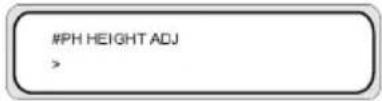
Parameters: none.
Replace Printhead (REPLACE PRINTHEAD)
This menu option is for HP Support purposes only.
Parameters: none.
Reseat Printhead (RESEAT PRINTHEAD)
This menu option is for HP Support purposes only.

Parameters: none.
The PH. REC menu
This menu is used to clean the printheads of the printer.
Press the ◀ key to select the PH. REC menu options.

Parameters:
• NORMAL ALL — performs normal cleaning of all the printheads.
• STRONG ALL — performs strong cleaning of all the printheads.
The FEED option
This option allows you to feed media through the printing path. Press and hold down the ▼ key to feed the media through the printing path. If a cut sheet is used, it is discharged.
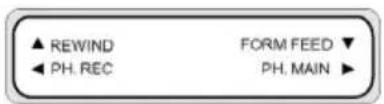
When you press the key, a media feeding message appears on the front panel.
When the ▼ key is released, media feeding stops and the top menu appears on the front panel in offline mode.
The REWIND option
This option allows you to rewind media. Press and hold down the ▲ key to feed the media back through the printing path.

When you press the key, a media rewinding message appears on the front panel.
When the ▲ key is released, media rewinding stops and the top menu appears on the front panel in offline mode.
The PRINTER menu
This menu is used to print reports on the printer status.
When the ▲ key is pressed, you can select the report that you want to print.
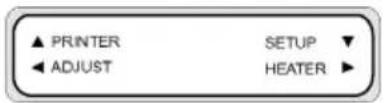
Configuration print (CONFIG PRINT)
This option prints information on the printer, panel settings and media type information.
Parameters: none.
Error log information print (ERROR LOG PRINT)
This option prints error log information saved in the printer.
Parameters: none.
History print (HISTORY PRINT)
This option prints maintenance information on the printer.
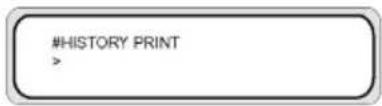
Parameters: none.
The ADJUST menu
This menu is used to set mechanical adjustment parameters. See How do I get the best image quality.
When the ◀ key is pressed, mechanical adjustment parameters can be set.

Adjustment pattern prints (TEST PRINTS)
This menu is used to print the adjustment patterns for adjusting the printer mechanically and electrically.
When the CANCEL key is pressed during printing, the print can be stopped.
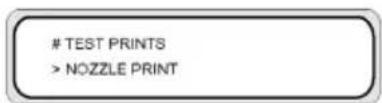
Parameters:
• NOZZLE PRINT — Prints a pattern using all the printhead nozzles.
- NOZZLE PRINT/RECOVER — Prints a pattern three times using all the printhead nozzles. A printhead recovery is performed between the printing of each pattern.

NOTE You should cancel the process as soon as all the nozzles have been recovered. You do not have to wait for the pattern to be printed three times,
PH TO PH — Prints the printhead to printhead alignment pattern.
- BIDIRECTION DEF — Prints the bidirectional printing adjustment pattern for all print modes except FINE and F-FINE.
- BIDIRECTION FINE — Prints the fine bidirectional printing adjustment pattern for FINE and F-FINE.print modes.
NOZZLE POS ADJ. — Prints the printhead nozzle adjustment pattern.
• LS ADJ PRINT — Prints the line sensor adjustment pattern. This test pattern is used by HP Support.
TUR ADJ PRINT — Prints a pattern that is used to align the take-up reel when it is installed.
Printhead position adjustment (#PH TO PH VAL)
Use this option to adjust the printhead to printhead position.
Enter an adjustment value according to the PH TO PH adjustment pattern.
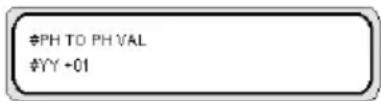
YY: Ink color
Display order: K -> Lm -> Lc -> Y -> M -> C
Parameters: sign (+/-), value (-32 to +31)
Bidirectional print position adjustment (BIDIR DEF)
Use this option to adjust the printhead bidirectional printing position for all print modes except FINE and F-FINE.
Enter an adjustment value according to the BIDIRECTION DEF adjustment pattern.

YY: Ink color
XXXXXX: Media type
Display order: K -> Lm -> Lc -> Y -> M -> C
Parameters: sign (+/-), value (-32 to +31)
Bidirectional print position fine adjustment (BIDIR FINE)
Use this option to adjust the printhead bidirectional printing position for FINE and F-FINE print modes.
Enter an adjustment value according to the BIDIRECTION FINE adjustment pattern.
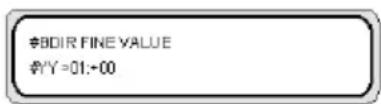
YY: Ink color
XXXXXX: Media type
Display order: K -> Lm -> Lc -> Y -> M -> C
Parameters: sign (+/-), value (-32 to +31)
Nozzle position (NOZZLE POS VAL)
Use this option to adjust the printhead nozzle position.
Enter an adjustment value according to the Nozzle position adjustment pattern.
#NOZZLE POS VAL
#YY>+00
YY: Ink color
Display order: K -> Lm -> Lc -> Y -> M -> C
Parameters: sign (+/-), value between 0 and 8.
Line sensor top position (LS ADJ TOP VAL)
This test pattern is used for HP Support purposes only.
The adjustment value is obtained from the line sensor adjustment pattern.
#LS ADJ TOP VAL
>>0.0mm
Line sensor side position (LS ADJ SIDE VAL)
This test pattern is used for HP Support purposes only.
The adjustment value is obtained from the line sensor adjustment pattern.
#LS ADJ SIDE VAL
>+0.0mm
The SETUP menu
This menu is used to set or display printer setup options. When the ▼ key is pressed, printer setup options can be set.
▲ PRINTER
◀ ADJUST
SETUP
HEATER
3
Language for front panel (LANGUAGE)
This option sets the language for messages displayed on the front panel. The initial value is English.

Parameters: ENGLISH, JAPANESE, FRENCH, ITALIAN, GERMAN, SPANISH, PORTUGUESE
Time Zone (TIME ZONE GMT+)
This option sets the year, month and day and the local time in hours and minutes.

Parameters: YY/MM/DD HH:MM +00
Units of measure (LENGTH UNITS)
This option sets the units of measure.

Parameters: MILLIMETERS, INCH
Temperature units (TEMPERATURE UNITS)
This option sets the temperature units.
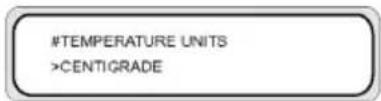
Parameters: FAHRENHEIT, CENTIGRADE
Acoustic warning (BEEP)
This option sets the acoustic warning on or off.
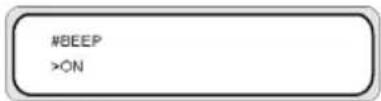
Parameters: ON, OFF
BOOT version display (BOOT VERSION)
This option displays the BOOT version.
BOOT VERSION
*X.XX
Parameters: none.
Firmware version display (PRINTER FW VER)
This option displays the printer firmware version.
PRINTER FW VER
*X.xx_YY
Parameters: none.
Main PCA version display (MAIN PCA VER)
This option displays the version number of the main PCA.
MAIN PCA VER
*X.X
Parameters: none.
ICB board version display (CARRIAGE PCA)
This option displays the version number of the printer carriage PCA.
CARRIAGE PCA
*X.X
Parameters: none.
ASIC version display (ASIC VER)
This option displays the ASIC version.
ASIC VERSION
*X.XX
Parameters: none.
USB address (USB ADDRESS)
This option displays the printer USB address.
USB ADDRESS
*XXX
Parameters:none.
USB speed (USB SPEED)
This option sets the USB port speed.
USB SPEED
*HIGH-SPEED
Parameters: HIGH, FULL
Factory default setting (FACTORY DEFAULT)
This option sets all parameter values to default factory settings.
FACTORY DEFAULT
Parameters: none.
Printer firmware upgrade (PRINTER FW UPGRADE)
This option upgrades the printer firmware.
PRINTER FW UPGRADE
Parameters: none.
The HEATER menu
This menu is used to modify heater settings. Press the ▶ key to access heater options.
▲ PRINTER
SETUP

ADJUST
HEATER

Heater delay time (HEATER DELAY TIME)
Use this option to turn the heater off after the selected amount of time.
HEATER DELAY TIME
=NONE
Parameters: NONE, 30 min, 60 min, 90 min, 120 min, ENDLESS.
Heater standby time (HEATER STANDBY TIME)
Use this option to set the heater to standby temperature after the selected amount of time
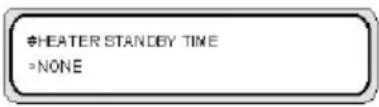
Parameters: NONE, 30 min, 60 min, 90 min, 120 min, ENDLESS.
15 Tell me about... (heater topics)
This chapter describes temperature control, the heater front panel, parameter setup mode operations, and error messages of the heater controller.
The heaters
• Heater temperature settings
• Heater error messages
The heaters
The printer includes three heaters for fixing and stabilizing the printed image on the media. Each heater is controlled separately.

- Media roll.
- Pressure roller.
- Rear heater (preheats the media).
- Grid roller.
- Carriage.
-
Front cover.
-
Print heater (fixes the ink on to the media).
- Front heater (dries the ink and stabilizes the printed image).

WARNING! Do not touch heater surfaces in the media path. This may cause burns.
Heater temperature settings

Heater temperatures are preset automatically for the media type that is selected during media loading. Under normal operating conditions you do not need to set the temperature.
Use the printer front panel only when you need to make fine adjustments to the heater temperature.
- On/off setting: use theSHIFTkey when the heater is selected.
• Heater selection: use the left key or right key to select the front (F), print (P) or Rear (R) heater.
• Temperature setting: use the up key or down key to set the temperature for the selected heater. - You can turn the heater ON while the printer is not printing by pressing and holding the
OK key for 2 seconds. - You can turn the heater OFF while the printer is not printing by pressing and holding the CANCEL key for 2 seconds.
• Front panel display (when the heater is turned on):
• Upper line: preset temperature for each heater
• Lower line: current temperature for each heater
• Front panel display (when the heater is turned off):
• Upper line: OFF for each heater
• Lower line: current temperature for each heater
A “+” sign indicates that the heater is warming up. The default temperature range is set between 15 °C and 55 °C.
Heater preset temperature by medium
The heater preset temperature for each media type is listed below. Preset the heater temperature according to the media you use.
| Medium | Media type | Front | Rear | Print mode | |
| Glossy vinyl chloride | Glossy 45°C 40°C 45°C 8 pass bi-directional | ||||
| Matte vinyl chloride | Matte 45°C 40°C 45°C 8 pass bi- | directional | |||
| Banner Banner 45°C 40°C 45°C 8 pass bi- | directional | ||||
We recommend that the front heater, the print heater and the rear heater be set to lower than 50 °C, 45 °C and 50 °C, respectively.

NOTE When the print heater temperature is set to high, fixing of the ink on the media is improved, but media wrinkle or mat print may be caused. Adjust heater temperature according to the media type and environmental temperature.
When the print heater temperature is set to high, the printer may print at low speed to ensure stable print quality.
Set the front/rear heater temperature 5 °C higher than the print heater temperature. Bad temperature balance between the front/rear heater and print heater may cause the media to wrinkle.
Flow of heater temperature setting
-
If you select the media type when loading the media, the temperature value applies as follows:
-
If the initial temperature value has been set, the heater turns on but heating does not start.
-
If the initial temperature value is set to **, the heater turns off.
-
If the printing job data are sent from the host (PC), either of the following operations is performed before the print starts:
a. If the HEATER PREF set for the media is SOFTWARE:
- The temperature set in the RIP (print data, job) overwrites the temperature set in the printer, and the heating starts. Heating does not start if the temperature value is set to OFF.
- If the temperature is not set in the RIP (print data, job), heating starts with the temperature set in the printer.
b. If the HEATER PREF set for the media is HEAT PANEL:
- The temperature set in the RIP is ignored and heating starts with the temperature set in the printer.
- Printing starts when the current temperatures of the front, print, and rear heaters all reach the value exceeding set temperature -2 °C.
If the current temperature is higher than the set temperature, printing starts without waiting for the temperature to drop. Even after printing has started, the temperature control makes sure that the heaters maintain the set temperature.
- During printing, the temperature can be adjusted by using the HEATER key, and then selecting the rear, front or print heater, and using the ▲ or ▼ keys to change the temperature.
Even after printing has finished, the changed temperature is applied as the set temperature.
5. The print job returns to step (2).
To set the initial temperature value of front, print, and rear heaters, and the HEAT PREFsetting (heater), see the MEDIA REG menu.
Temperature control
The following tables describe how heater temperature is controlled.
Maintaining the preset temperature
| Function: | To heat the media to reduce the ink drying time, improve fixing of ink to media, and to protect media from wrinkling. |
| Status: Status of maintaining each heater temperature at the preset temperature. | |
| Conditions: | 1. If the heater ON/OFF setting is set to ON and a print command is received.2. Under condition (1) above, and the time specified by the delay time after the print end command was received. |
Maintaining the standby temperature
| Function: To shorten the time needed to reach the preset temperature to start printing. | |
| Status: | Status of maintaining the heater temperature at the specified standby temperature (35 °C) for all heaters.When the preset temperature is lower than the specified standby temperature (35 °C), the printer maintains the preset temperature. |
| Conditions: If the standby time has been set, after reaching the preset temperature. | |
Turning off the heaters
| Function: | To prevent excessive current consumption, to protect the media from damage by the heat from the heaters, and to protect the user from getting burned from touching the heaters when printing is not performed. |
| Status: Status of reaching the environmental temperature slowly. | |
| Conditions: In all cases except when maintaining the preset temperature or the standby temperature. | |
| Start of heating: | The print start command is received and heating starts. Printing does not start until the heaters have reached the preset temperature. |
| Start of print: The heaters reach the preset temperature and printing starts. | |
| End of print: The print end command is received and printing finishes. | |
Heater error messages
When the following error message is displayed, contact HP Support.
- System error
16 Tell me about... (printer specifications topics)
Specifications
• Ecological specifications
Specifications
| Item Specification / Function | |
| Print technology Piezo—electric inkjet printheads | |
| Resolution — High quality 720 dpi × 720 dpi | |
| Resolution — Standard 720 x 720 dpi | |
| Resolution — Fine draft 540 x 720 dpi | |
| Resolution — Draft 720 x 360 dpi | |
| Print speed About four minutes / A0 with 4 pass printing (changes according to surrounding temperature and printhead temperature) | |
| Media feed/delivery direction Rear media supply, front media delivery | |
| Media type PVC, banner, Vinyl chloride, Tarpaulin | |
| Media width Maximum 64 inch | |
| Ink cartridge | Six colors (black, cyan, magenta, yellow, light magenta, light cyan) 500 ml capacity |
| Noise Standby: 45 dB(A) or less, operating: 60 dB(A) or less (continuous sound) | |
| Heat output 4860000J/H or less | |
| Maximum print guaranteed range | Area excluding top, bottom margins (5 mm) and right and left margins (5 mm); when using the media edge guard, right and left margins will be 10 mm |
| Power supply voltage | 100 to 240 VAC |
| Frequency | 50/60 Hz ±1 Hz |
| Power consumption | 1350 W or less (at operating) |
| External dimensions | 2846 mm (W) x 830 mm (D) x 1255 mm (H) ±10 mm |
| Weight | 210 kg or less (excluding media roll and ink) |
| Operating temperature/humidity range | 15 to 30 °C / 30% to 70% RH (no condensing) |
| Non-operating temperature/humidity range | 5 to 35 °C / 10% to 80% RH or less (no condensing) |
| Installation space | 3650 mm (W) x 2830 mm (D) x 1800 mm (H) |
| Maintenance space | 3650 mm (W) x 2830 mm (D) x 1800 mm (H) |
Ecological specifications
For the up-to-date ecological specifications of your printer, please go to http://www.hp.com/ and search for "ecological specifications".
17 Tell me about... (ordering supplies and accessories topics)
- Ordering supplies
- Ordering media
- Ordering accessories
Ordering supplies
The following ink supplies can be ordered for your printer.
Table 17-1 Ink cartridges
| Cartridge Capacity (cm3) Part number |
| HP 780 Black 500 CB285A |
| HP 780 Cyan 500 CB286A |
| HP 780 Magenta 500 CB287A |
| HP 780 Yellow 500 CB288A |
| HP 780 Light Cyan 500 CB289A |
| HP 780 Light Magenta 500 CB290A |
| HP 780 Waste Ink Bottle — CB291A |
Table 17-2 Maintenance and Cleaning Kits
| Name Item number Remarks | ||
| HP 780 Ink System Storage kit | CB308A | 6 Ink System Storage Cartridges |
| HP 780 Ink System Cleaning kit | CB303A | 6 Ink System Cleaning Cartridges |
| HP Cap Cleaning Kit with Roller | CB302A | |
| HP Wiper Cleaning Kit CB301A | ||
Table 17-3 Miscellaneous accessories
| Name | Item number | Remarks |
| HP Designjet 8000s Cutter Blade Kit | Q6682A |
Ordering media
The following media types are currently provided for use with your printer.

NOTE This list is likely to change over the course of time. For the latest information, see http://www.hp.com/go/designjet/supplies/.
Table 17-4 HP Media
| Name Part number Size |
| HP Premium Scrim Banner Q8678A 36 in x 164 ft. |
| HP Premium Scrim Banner Q8679A 54 in x 100 ft. |
| HP Universal Scrim Banner Q8680A 36 in x 164 ft. |
| HP Universal Scrim Banner Q8681A 54 in x 100 ft. |
| HP Premium Self Adhesive Vinyl Q8682A 54 in x 150 ft. |
| HP Premium Self Adhesive Vinyl Q8683A 60 in x 150 ft. |
| HP Premium Backlit Film Q8684A 36 in x 66 ft. |
| HP Premium Backlit Film Q8685A 54 in x 66 ft. |
| HP Universal Photo-Realistic Paper Q8686A 36 in x 150 ft. |
| HP Universal Photo-Realistic Paper Q8687A 54 in x 150 ft. |
Ordering accessories
The following accessories can be ordered for your printer.
| Name Product number | |
| HP Designjet 8000s Take-Up Reel Kit Q6681A | |
| HP Designjet Air Purifier System 220V | Q6668C |
| HP Designjet Air Purifier System 110V | Q6668D |
| HP Designjet APS filter Q6710A | |
| HP Designjet High Speed Dryer Q6667A | |
| ONYX PosterShop 6.5 for HP Designjet Q6669A | |
18 Tell me about... (getting help topics)
HP Customer Care
HP Designjet Online
HP Customer Care
As your strategic support partner, we make it our business to help keep your business running smoothly. HP Customer Care offers award-winning support to ensure you get the most from your HP Designjet.
HP Customer Care provides comprehensive, proven support expertise and leverages new technologies to give customers unique end-to-end support. Services include setup and installation, troubleshooting tools, warranty upgrades, repair and exchange services, phone and Web support, software updates, and self-maintenance services. To find out more about HP Customer Care, please visit us at:
http://www.hp.com/go/designjet/
or call the phone number in the Customer Service Guide provided with your printer.
What to do before you call:
- Review the “The problem is” troubleshooting suggestions in this guide.
- Review the relevant driver documentation supplied with this printer (for users sending PostScript files or those using Microsoft Windows).
• If you have installed third-party software drivers and RIPs, refer to their documentation.
• If the problem appears to be related to your software application, first contact your software vendor. - If you still have difficulty, refer to the HP Support Services booklet provided with your printer. This document contains a comprehensive list of various support services available to help solve printer problems.
-
If you call one of the Hewlett-Packard offices, please have the following information available to help us answer your questions more quickly:
-
The printer you are using (the product number and the serial number, found on the label at the back of the printer)
- If there is an error code on the front panel, note it down; see "Status codes and error messages"
• The computer you are using -
Any special equipment or software you are using (for example, spoolers, networks, switch-boxes, modems, or special software drivers)
-
The cable you are using (by part number) and where you purchased it
- The type of interface used on your printer (FireWire, USB, or network)
• The software name and version you are currently using
- If the problem is a system error it will have an error number; record the error number and have it ready
HP Designjet Online
Enjoy a world of dedicated services and resources to ensure you always get the best performance from your HP Designjet products and solutions.
Register at HP Designjet Online, your large-format printing community at http://www.hp.com/go/designjet/ for unrestricted access to:
• Downloads — the latest printer firmware, drivers, software, media profiles, etc.
• Technical support — online troubleshooting, customer care contacts, and more
- Forums for direct contact with the experts, both HP and your colleagues
• Warranty tracking online, for your peace of mind
• Technical documentation and training videos
Latest product information — printers, supplies, accessories, software, etc.
• Supplies Center for all you need to know about ink and media
By customizing your registration for the products you have purchased and your type of business, and by setting your communication preferences: you decide the information you need.
Register at HP Designjet Online for the best performance.
HP Designjet Online is available in English, German, French, Italian, Spanish, Portuguese, Japanese, Korean, Simplified Chinese, and Traditional Chinese.
19 Legal information
Worldwide Limited Warranty—HP Designjet 8000s Printer series
• Regulatory notices
• DECLARATION OF CONFORMITY
Worldwide Limited Warranty—HP Designjet 8000s Printer series
HP product Limited Warranty Period
| Printer 1 year (from the date of printer's purchase by the customer) |
Software 90 days (from the date of purchase by the customer)
| Printhead 1 year (from the date of printer's purchase by the customer) |
Ink cartridge 3 months from the "Install by" date printed on the product, or
| until the genuine HP ink is depleted as indicated by the printer, whichever occurs first |
Wiper Cleaning kit, Cap Cleaning kit, Ink System cleaning kit, Ink System Storage kit
| Until the "Use by" date printed on the product, or until the genuine HP liquids are depleted as indicated by the printer, whichever occurs first |
A. Extent of HP Limited Warranty
- This Hewlett-Packard (HP) Limited Warranty gives you, the end-customer, express limited warranty rights from HP. In addition, you may also have other legal rights under the applicable local law or special written agreement with HP.
- HP warrants to you that the HP products specified above will be free from defects in materials and workmanship during the Limited Warranty Period specified above. The Limited Warranty Period starts on the date of purchase. Your dated sales or delivery receipt, showing the date of purchase of the product, is your proof of purchase date. You may be required to provide proof of purchase as a condition of receiving warranty service. You are entitled to warranty service according to the terms and conditions of this document if a repair or replacement of your HP Products is required within the Limited Warranty Period.
-
For software products, HP's Limited Warranty applies only to a failure to execute programming instructions. HP does not warrant that the operation of any product will be uninterrupted or error free.
-
HP's limited warranty covers only those defects which arise as a result of use of the HP products as defined in the user's guide, and does not apply to any:
a. Improper, inadequate or lack of daily maintenance following the instructions defined in the Printer's User's Guide in Chapter 6;
b. Media crashes due to use of incorrect printhead height for a given media type as described in the Printer's User Guide in Chapter 5;
c. Long time power off without following the proper preparation as described in the Printer's User's Guide in Chapter 6;
d. Software, interfacing or parts not provided or supported by HP; or
e. Operation outside the product's specifications.
Routine printer maintenance operations in the HP Designjet 8000s Printer series, such as cleaning and preventive maintenance services (including parts contained in any preventive maintenance kit and HP service engineer visits), are not covered by HP's Limited Warranty, but in some countries may be covered under a separate support contract.
-
For HP printer products, the use of a refilled or non-original HP consumable product (ink, printhead, ink cartridge or media) does not affect either HP's Limited Warranty to you or any HP support contract with you. However, if printer failure or damage is attributable to the use of a non-original HP consumable or refilled ink cartridge, HP will charge its standard time and materials charges to service the printer for the particular failure or damage.
-
Your exclusive remedies for defective HP products are the following:
a. During the Limited Warranty Period, HP will replace any defective HP software, media, or consumable product which is covered by this Limited Warranty, and deliver another product to you to replace the defective one.
b. During the Limited Warranty Period, HP, at its sole discretion, shall either repair on site or replace any defective hardware product or component part. If HP elects to replace any component part, HP will provide to you (i) a replacement part, in return for the defective one, and (ii) remote part installation assistance, if needed.
c. In the unlikely event that HP is unable to repair or replace, as applicable, a defective product which is covered by this Limited Warranty, HP shall, within a reasonable time after being notified of the defect, refund the purchase price for the product.
-
HP shall have no obligation to replace or refund until you return the defective media, consumable, hardware product or component part to HP. All components, parts, consumables, media or hardware products, removed under this Limited Warranty become the property of HP. Notwithstanding the above mentioned, HP may waive the requirement for you to return the defective part.
-
Unless otherwise stated, and to the extent permitted by local law, HP products may be manufactured using new materials or new and used materials equivalent to new in performance and reliability. HP may repair or replace products (i) with equivalent products to the products being repaired or replaced but which may have been subject to prior use; or (ii) with equivalent product to an original product that has been discontinued.
-
THIS LIMITED WARRANTY IS APPLICABLE IN ALL COUNTRIES AND MAY BE ENFORCED IN ANY COUNTRY WHERE HP OR ITS AUTHORIZED SERVICE PROVIDERS OFFER WARRANTY SERVICE AND HP HAS MARKETED THIS PRODUCT, SUBJECT TO THE TERMS AND CONDITIONS SET FORTH IN THIS LIMITED WARRANTY. HOWEVER, WARRANTY SERVICE AVAILABILITY AND RESPONSE TIME MAY VARY FROM COUNTRY TO COUNTRY. HP WILL NOT
ALTER FORM, FIT OR FUNCTION OF THE PRODUCT TO MAKE IT OPERATE IN A COUNTRY FOR WHICH IT WAS NEVER INTENDED TO FUNCTION FOR LEGAL OR REGULATORY REASONS.
- Contracts for additional services may be available for any authorized HP service facility where the listed HP product is distributed by HP or an authorized importer.
- TO THE EXTENT ALLOWED BY LOCAL LAW, EXCEPT AS EXPRESSLY SET FORTH IN THIS LIMITED WARRANTY NEITHER HP NOR ITS THIRD PARTY SUPPLIERS MAKE ANY OTHER WARRANTY OR CONDITION OF ANY KIND, WHETHER EXPRESS OR IMPLIED, WITH RESPECT TO THE HP PRODUCTS, AND SPECIFICALLY DISCLAIM THE IMPLIED WARRANTIES OR CONDITIONS OF MERCHANTABILITY, SATISFACTORY QUALITY, AND FITNESS FOR A PARTICULAR PURPOSE.
B. Limitations of liability
- TO THE EXTENT ALLOWED BY LOCAL LAW, EXCEPT FOR THE OBLIGATIONS SPECIFICALLY SET FORTH IN THIS LIMITED WARRANTY, IN NO EVENT SHALL HP OR ITS THIRD PARTY SUPPLIERS BE LIABLE FOR DIRECT, INDIRECT, SPECIAL, INCIDENTAL, OR CONSEQUENTIAL DAMAGES (INCLUDING ANY LOSS OF PROFITS OR SAVINGS), WHETHER BASED ON CONTRACT, TORT, OR ANY OTHER LEGAL THEORY AND WHETHER ADVISED OF THE POSSIBILITY OF SUCH DAMAGES.
C. Local law
- This Limited Warranty gives you specific legal rights. You may also have other rights which vary from state to state in the United States, from province to province in Canada, and from country to country elsewhere in the world. You are advised to consult applicable state, province or country laws for full determination of your rights.
- To the extent that this Warranty Statement is inconsistent with local law, this Warranty Statement shall be deemed modified to be consistent with such local law. THE WARRANTY TERMS CONTAINED IN THIS LIMITED WARRANTY, EXCEPT TO THE EXTENT LAWFULLY PERMITTED, DO NOT EXCLUDE, RESTRICT OR MODIFY AND ARE IN ADDITION TO THE MANDATORY STATUTORY RIGHTS APPLICABLE TO THE SALE OF THIS PRODUCT TO YOU.
Revision: December 5th, 2005
Regulatory notices
You can obtain current Material Safety Data Sheets for the ink systems used in the printer by mailing a request to this address: Hewlett-Packard Customer Information Center, 19310 Pruneridge Avenue, Dept. MSDS, Cupertino, CA 95014, U.S.A.
There is also a Web page: http://www.hp.com/hpinfo/community/environment/productinfo/psis_inkjet.htm
Regulatory Model Number
For regulatory identification purposes, your product is assigned a Regulatory Model Number. The Regulatory Model Number for your product is BCLAA-0502.
RMN Product family
BCLAA-0502 HP Designjet 8000 Printer series
BCLAA-0602 HP Designjet 8000s Take-up Reel Kit
The Regulatory Model Number (RMN) should not be confused with the marketing name (HP Designjet 8000s Printer series or HP Designjet 8000s Take-up Reel Kit) or product number.
ELECTROMAGNETIC COMPATIBILITY (EMC)

WARNING! This is a class A product. In a domestic environment this product may cause radio interference, in which case the user may be required to take adequate measures.
FCC statements (U.S.A.)
The U.S. Federal Communications Commission (in 47 cfr15.105) has specified that the following notices be brought to the attention of users of this product.
Shielded cables
Use of shielded data cables is required to comply with the Class A limits of Part 15 of the FCC Rules.

CAUTION Pursuant to Part 15.21 of the FCC Rules, any changes or modifications to this equipment not expressly approved by the Hewlett-Packard Company may cause harmful interference and void the FCC authorization to operate this equipment.
This equipment has been tested and found to comply with the limits for a Class A digital device, pursuant to part 15 of the FCC Rules. These limits are designed to provide reasonable protection against harmful interference in a commercial environment. This equipment generates, uses, and can radiate radio frequency energy and, if not installed and used in accordance with the instructions, may cause harmful interference to radio communications. Operation of this equipment in a residential area is likely to cause harmful interference, in which case users will be required to correct the interference at their own expense.
This digital apparatus does not exceed the Class A limits for radio noise emissions from digital apparatus set out in the Radio Interference Regulations of the Canadian Department of Communications.
Korean EMI statement
사용자 안내문:А급 기기
Taiwanese EMI statement
Chinese EMI statement
DECLARATION OF CONFORMITY
according to ISO/IEC Guide 22 and EN 45014
Supplier's name: Hewlett-Packard Company
Supplier's address: Avda. Graells, 501
declares that the product
Regulatory Model (3) : BCLAA-0502 and BCLAA-0602
Product family: HP Designjet 8000s Printer series and HP Designjet 8000s Take-up Reel Kit
Product options: All
conforms to the following product specifications
Safety: IEC 60950-1:2001 / EN 60950-1:2001
EMC: CISPR 22:1997 +A1:2000 +A2:2002 / EN 55022:98 +A1:2000 +A2:2003 Class A
(1)(3)
EN 55024:1998 +A1:2001 +A2:2003
EN 61000-3-2:2000/ IEC 61000-3-2:2000
EN 61000-3-3:1995+A1:2001/IEC 61000-3-3/A1:2001
FCC Title 47 CFR, Part 15 Class A (2)(3)
Additional information
The product herewith complies with the requirements of the Low-Voltage Directive 73/23/EEC and the EMC Directive 89/336/EEC, and carries the CE marking accordingly.
- The product was tested in a typical configuration with HP Personal Computer systems and peripherals.
- This device complies with Part 15 of the FCC Rules. Operation is subject to the following two conditions:
• This device may not cause harmful interference.
- This device must accept any interference received, including interference that may cause undesired operation.
- The product is assigned a Regulatory Model Number which stays with the regulatory aspect of the design. The Regulatory Model Number is the main product identifier in the regulatory documentation and test reports; this number should not be confused with the marketing name or the product numbers.
Josep-Maria Pujol
Hardware Quality Manager
Local contacts for regulatory topics only
European contact: Hewlett-Packard GmbH, HQ-TRE, Herrenberger Strasse 140, D-71034 Böblingen, Germany.
United States contact: Hewlett-Packard Company, HPCC, 20555 S.H. 249 Houston, Texas, 77070.
Australian contact: Hewlett-Packard Australia Ltd, Product Regulations Manager, 31–41 Joseph Street, Blackburn, Victoria, 3130, Australia.
Index
A
accessories
ordering 207
ADJUST menu 188
adjustment patterns 112, 118
adjustment patterns; printhead position 121
C
cleaning and maintenance
consumables
ordering 206
cleaning kits
ordering 206
components of printer [8000s] 2
connections 11
Customer Care 209
D
Declaration of Conformity 216
Designjet Online 210
E
ecological specifications 203
error messages, operator 138
error messages, service 138
F
form feed 57
front panel, printer 5
G
guarantee 211
H
handling precautions 9
heater control 196
heater menu 193
heaters, info 195
HP Customer Care 209
HP Designjet Online 210
|
ink cartridge
ordering 206
ink cartridge expiration 136
ink cartridge replacement 61
ink cartridges 155
INK menu 169
ink system 155
install media 20
L
load sheet media 35
M
M.ADV menu 182
maintenance
ordering consumables 206
media
install 20
loading sheet 35
loading, take-up reel 48
take-up reel, core
adaptors 48
unloading 33
media advance calibration
calibration; media
advance 118
MEDIA menu 169
MEDIA REG menu 170
media types
ordering 206
weights 206
widths 206
media types, default values 182
menu
ADJUST 188
INK 169
M.ADV 182
MEDIA 169
MEDIA REG 170
PH. MAIN 184
PH. REC 186
PRINTER 187
SETUP 190
N
nozzle print 112
O
ordering
accessories 207
ink cartridges 206
maintenance and cleaning
consumables 206
media 206
P
PH. MAIN menu 184
PH. REC menu 186
power on/off 14
PRINTER Menu 187
printer's main components [8000s] 2
printhead crash 134
printhead position
adjustment 121
R
regulatory notices 213
S
safety precautions 7
service errors 137
SETUP printer menu 190
specifications
ecological 203
specifications, printer 202
support services
HP Customer Care 209
HP Designjet Online 210
T
take-up reel
core adaptors 48
loading media 48
using 45
winding direction, setting 46
winding mode, setting 47
troubleshooting checklist 132
U
unload media 33
using this guide 2
W
warranty statement 211
waste management 161
- HP DESIGNJET 8000S PRINTER SERIES
- LEGAL NOTICES
- TABLE OF CONTENTS
- 1 INTRODUCTION
- 2 HOW DO I... (BASIC OPERATION TOPICS)
- 3 HOW DO I LOAD/UNLOAD MEDIA
- 4 HOW DO I... (PRINTING TOPICS)
- 5 HOW DO I... (INK TOPICS)
- 6 HOW DO I MAINTAIN THE PRINTER
- 7 HOW DO I GET THE BEST IMAGE QUALITY
- 8 THE PROBLEM IS... (TROUBLESHOOTING TOPICS)
- 9 THE PROBLEM IS PRINT QUALITY
- 10 TELL ME ABOUT... (BASIC KNOWLEDGE TOPICS)
- 11 TELL ME ABOUT MEDIA
- 12 TELL ME ABOUT THE INK SYSTEM
- 13 TELL ME ABOUT WASTE MANAGEMENT
- 14 TELL ME ABOUT... (MENUS)
- 15 TELL ME ABOUT... (HEATER TOPICS)
- 16 TELL ME ABOUT... (PRINTER SPECIFICATIONS TOPICS)
- 17 TELL ME ABOUT... (ORDERING SUPPLIES AND ACCESSORIES TOPICS)
- 18 TELL ME ABOUT... (GETTING HELP TOPICS)
- 19 LEGAL INFORMATION
- USING THIS GUIDE
- INTRODUCTION
- HOW DO I
- THE PROBLEM IS
- TELL ME ABOUT
- INDEX
- THE PRINTER'S MAIN COMPONENTS
- REAR VIEW
- THE HEATERS
- THE PRINTER'S FRONT PANEL
- SAFETY PRECAUTIONS
- GENERAL WARNINGS
- GENERAL CAUTIONS
- HANDLING PRECAUTIONS
- POWER SUPPLY
- PRINTER
- REGULAR INSPECTION AND MAINTENANCE
- CONSUMABLES
- CONNECT TO A COMPUTER
- SYSTEM CONFIGURATION (CONNECTION EXAMPLE)
- CONNECTION PROCEDURE
- TURN THE POWER ON/OFF
- TURN ON THE PRINTER
- HOW DO I TURN THE POWER OFF
- CHECK THE FIRMWARE VERSION
- INSTALL A MEDIA ROLL IN THE PRINTER
- REMAINING MEDIA
- REMOVE A MEDIA ROLL FROM THE PRINTER
- REPLACE A JAMMED MEDIA ROLL
- LOAD A CUT SHEET
- USE THE MEDIA EDGE GUARDS
- USE THE MEDIA CUTTER
- USE THE TAKE-UP REEL
- SET THE TAKE-UP REEL WINDING DIRECTION
- DEFINE THE TAKE-UP REEL WINDING MODE
- LOAD MEDIA ON TO THE TAKE-UP REEL
- TAKE-UP REEL HORIZONTAL ALIGNMENT
- PERFORM A MANUAL FORM FEED/REWIND
- USE MANUAL NESTING
- INCREASE/REDUCE PRESSURE ON MEDIA
- REPLACE AN INK CARTRIDGE
- CHANGE THE PRINTHEAD HEIGHT
- REGULAR MAINTENANCE GUIDE
- CATEGORY INSPECTION/MAINTENANCE SEE
- DAILY MAINTENANCE
- PERFORM DAILY MAINTENANCE NOW
- CAPPING UNIT CLEANING
- WIPER LIQUID BOTTLE REPLACEMENT
- WIPER SPONGE REPLACEMENT
- WIPER BLADE REPLACEMENT
- WHEN RETURNING TO THE PRINTER AFTER BEING SWITCHED OFF FOR AN EXTENDED PERIOD (LESS THAN TWO WEEKS)
- CLEAN INK SYSTEM
- PREPARE FOR EXTENDED POWER DOWN (TWO TO FOUR WEEKS)
- INK SYSTEM STORAGE
- INK SYSTEM OPT
- CHARGE THE INK SYSTEM
- CLEAN THE EXTERIOR OF THE PRINTER
- CLEAN THE CARRIAGE BASE
- CLEAN THE FRONT COVER AND MEDIA FEED
- CLEAN THE PLATEN
- WASTE INK BOTTLE REPLACEMENT
- NORMAL PRINTHEAD RECOVERY
- PRINT THE NOZZLE PRINT PATTERN
- TEST THE IMAGE QUALITY
- INTERPRETING THE PRINT QUALITY
- MANAGE MEDIA TYPES
- COPY A MEDIA TYPE TO CREATE A NEW ONE
- CREATE A NEW MEDIA TYPE
- SELECT PAPER
- RENAME MEDIA
- MODIFY MEDIA TYPE SETTINGS
- SELECT MEDIA
- DELETE A MEDIA TYPE
- HOW DO I CALIBRATE MY PRINTER
- CALIBRATE MEDIA ADVANCE
- PRINTHEAD POSITION ADJUSTMENT
- TEST PRINTS
- PRINTHEAD NOZZLE POSITION ADJUSTMENT
- LINE SENSOR POSITION ADJUSTMENT
- BACK FEED ADJUSTMENT PRINT
- PARAMETERS
- ADJUST HEATER AND PRINT MODE SETTINGS
- PRINT MODE
- PRINT DIRECTION
- THE PROBLEM IS... (CHECKLIST)
- A PRINTHEAD CRASH
- INK CARTRIDGE IS NOT INSTALLED
- INK CARTRIDGE IS NOT DETECTED
- INK CARTRIDGE IS NEAR EXPIRATION DATE
- INK CARTRIDGE HAS PASSED ITS EXPIRATION DATE
- AN ERROR MESSAGE
- SERVICE ERRORS
- SYSTEM ERROR MESSAGES
- PRINTHEAD ERROR MESSAGES
- SERVICE ERROR MESSAGES
- OPERATOR ERROR MESSAGES
- INK CARTRIDGE
- THE INK LED FLASHES
- WASTE INK BOTTLE IS NOT INSTALLED
- WASTE INK BOTTLE IS FULL
- MEDIA CRASH
- MEDIA
- ERROR LED IS FLASHING
- OTHER MESSAGES
- THE PROBLEM IS AN ABNORMAL SOUND
- TELL ME ABOUT OPERATING CONDITIONS
- INSTALLATION SPACE
- ENVIRONMENTAL CONDITIONS
- OPERATING TEMPERATURE AND HUMIDITY LEVELS
- PLACES WHERE THE PRINTER MUST NOT BE INSTALLED
- TELL ME ABOUT THE POWER SUPPLY
- POWER
- THE HP DESIGNJET HIGH SPEED DRYER
- EXHAUST ATTACHMENT
- TELL ME ABOUT FRONT PANEL MESSAGES AND PRINTER STATE
- MESSAGES ON THE FRONT PANEL
- INITIALIZATION DISPLAY
- ONLINE STATE (IDLE MODE) DISPLAY
- ONLINE STATE (PRINT MODE) DISPLAY
- ONLINE STATE (PRINT PAUSE MODE) DISPLAY
- PRINT STOP AND RESUME
- ONLINE
- PRINT CANCEL (END)
- CANCEL
- ONLINE STATE (PRINT INFORMATION MODE) DISPLAY
- SHIFT
- THREE-SECOND INTERVALS OR SHIFT
- SHUTDOWN STATE DISPLAY
- STORING MEDIA
- DISPOSING OF MEDIA
- USING MEDIA
- HANDLING PRINTS
- OTHER PRECAUTIONS
- INK CARTRIDGES
- REPLACING AN INK CARTRIDGE
- INK CARTRIDGE STORAGE AND DISPOSAL
- HP 780 WASTE INK BOTTLE
- PRECAUTIONS FOR HANDLING THE WASTE INK BOTTLE
- HP CAP CLEANING KIT WITH ROLLER
- HP 780 WIPER CLEANING LIQUID
- HP CLEANING SWABS
- HP INK SYSTEM STORAGE KIT
- HP INK SYSTEM CLEANING KIT
- DISPOSING OF WASTE
- GENERAL RECOMMENDATIONS
- MENU OPERATIONS
- MENU STRUCTURE
- MAKING FRONT PANEL SELECTIONS AND SETTINGS
- TO DEFINE A SETTING
- TO DEFINE A VALUE
- PAPER FEED ADJ
- THE INK MENU & MESSAGES
- REPLACING AN EMPTY INK CARTRIDGE
- THE MEDIA MENU
- THE MEDIA REG MENU
- SELECTING A MEDIA TYPE NUMBER (SELECT MEDIA)
- SETTING A MEDIA TYPE NAME (RENAME MEDIA)
- MEDIA ADVANCE VALUE (MEDIA ADV VALUE)
- MEDIA ADV VALUE
- DRY TIME VALUE (DRY TIME VALUE)
- DRY TIME VALUE
- PRINT MODE SETTING (PRINT MODE)
- PRINT DIRECTION SETTING (PRINT DIRECTION)
- FLATTEN TIME (FLATTEN TIME)
- USE MEDIA EDGE GUARD (USE EDGE GUARD)
- USE EDGE GUARD
- MEDIA ADVANCE MODE (MEDIA ADV MODE)
- MEDIA ADV MODE
- TAKE-UP REEL MODE (TUR MODE)
- TUR MODE
- LEADING EDGE MODE (LEADING EDGE)
- LEADING EDGE
- VACUUM LEVEL SETTING (VACUUM LEVEL)
- VACUUM LEVEL
- INITIAL TEMPERATURE SETTING FOR THE FRONT HEATER (FRONT HEATER T)
- FRONT HEATER T
- INITIAL TEMPERATURE SETTING FOR THE PRINT HEATER (PRINT HEATER T)
- PRINT HEATER T
- INITIAL TEMPERATURE SETTING FOR THE REAR HEATER (REAR HEATER T)
- REAR HEATER T
- COLOR STRIPE SETTING (COLOR STRIPE)
- COLOR STRIPE
- PRINTHEAD HEIGHT SETTING (PH HEIGHT VAL)
- PH HEIGHT VAL
- BIDIRECTIONAL PRINT POSITION ADJUSTMENT (BIDIR DEF VALUE)
- BOIR DEF VALUE
- YY=01:+00
- BIDIRECTIONAL PRINT POSITION FINE ADJUSTMENT (BIDIR FINE VALUE)
- BDIR FINE VALUE
- PRINTHEAD CLEANING MODE (PH CLEANING)
- PH CLEANING
- MEDIA BACK FEED ADJUSTMENT (BACK ADJUST VAL)
- MEDIA ADVANCE PREFERENCE (ADVANCE PREF)
- ADVANCE PREF
- PRINT MODE PREFERENCE (PRINT MODE PREF)
- HEATER PREFERENCE (HEATER PREF)
- PRINTHEAD REST PERIOD (PH REST PERIOD)
- SET REMAINING MEDIA (SET REMAINING MEDIA)
- PRINTHEAD TEMPERATURE REST (PH TEMP REST)
- DELETE A MEDIA TYPE (DELETE MEDIA)
- COPY A MEDIA TYPE (COPY MEDIA)
- PASTE A MEDIA TYPE (PASTE MEDIA)
- DEFAULT VALUES FOR MEDIA TYPES
- MEDIA ADVANCE CALIBRATION
- MEDIA ADV PRINT
- MEDIA ADVANCE CALIBRATION PRINT
- PARAMETERS: ROUGH OR DETAIL
- BACK ADJ PRINT
- MEDIA BACK FEED ADJUSTMENT VALUE
- THE PH. MAIN MENU
- INK SYSTEM OPTIMIZATION (INK SYS OPT)
- CAP CLEANING (CAP CLEANING)
- REPLACE WIPER BLADE (REPLACE WIPER BLADE)
- REPLACE WIPER CLEANING LIQUID (REPLACE WIPE LIQUID)
- REPLACE WIPER SPONGE (REPLACE WIPE SPONGE)
- WASHING THE PRINTHEADS (WASH PRINTHEADS)
- REPLACE PRINTHEAD (REPLACE PRINTHEAD)
- RESEAT PRINTHEAD (RESEAT PRINTHEAD)
- THE PH. REC MENU
- THE FEED OPTION
- THE REWIND OPTION
- THE PRINTER MENU
- CONFIGURATION PRINT (CONFIG PRINT)
- ERROR LOG INFORMATION PRINT (ERROR LOG PRINT)
- HISTORY PRINT (HISTORY PRINT)
- THE ADJUST MENU
- ADJUSTMENT PATTERN PRINTS (TEST PRINTS)
- PRINTHEAD POSITION ADJUSTMENT (#PH TO PH VAL)
- BIDIRECTIONAL PRINT POSITION ADJUSTMENT (BIDIR DEF)
- BIDIRECTIONAL PRINT POSITION FINE ADJUSTMENT (BIDIR FINE)
- NOZZLE POSITION (NOZZLE POS VAL)
- LINE SENSOR TOP POSITION (LS ADJ TOP VAL)
- LINE SENSOR SIDE POSITION (LS ADJ SIDE VAL)
- THE SETUP MENU
- LANGUAGE FOR FRONT PANEL (LANGUAGE)
- TIME ZONE (TIME ZONE GMT+)
- UNITS OF MEASURE (LENGTH UNITS)
- TEMPERATURE UNITS (TEMPERATURE UNITS)
- ACOUSTIC WARNING (BEEP)
- BOOT VERSION DISPLAY (BOOT VERSION)
- BOOT VERSION
- FIRMWARE VERSION DISPLAY (PRINTER FW VER)
- PRINTER FW VER
- MAIN PCA VERSION DISPLAY (MAIN PCA VER)
- MAIN PCA VER
- ICB BOARD VERSION DISPLAY (CARRIAGE PCA)
- CARRIAGE PCA
- ASIC VERSION DISPLAY (ASIC VER)
- ASIC VERSION
- USB ADDRESS (USB ADDRESS)
- USB ADDRESS
- USB SPEED (USB SPEED)
- USB SPEED
- FACTORY DEFAULT SETTING (FACTORY DEFAULT)
- FACTORY DEFAULT
- PRINTER FIRMWARE UPGRADE (PRINTER FW UPGRADE)
- PRINTER FW UPGRADE
- THE HEATER MENU
- HEATER DELAY TIME (HEATER DELAY TIME)
- HEATER DELAY TIME
- HEATER STANDBY TIME (HEATER STANDBY TIME)
- HEATER TEMPERATURE SETTINGS
- HEATER PRESET TEMPERATURE BY MEDIUM
- FLOW OF HEATER TEMPERATURE SETTING
- THE PRINT JOB RETURNS TO STEP (2)
- TEMPERATURE CONTROL
- HEATER ERROR MESSAGES
- ECOLOGICAL SPECIFICATIONS
- ORDERING SUPPLIES
- ORDERING MEDIA
- ORDERING ACCESSORIES
- HP CUSTOMER CARE
- HP DESIGNJET ONLINE
- WORLDWIDE LIMITED WARRANTY—HP DESIGNJET 8000S PRINTER SERIES
- EXTENT OF HP LIMITED WARRANTY
- LIMITATIONS OF LIABILITY
- LOCAL LAW
- REGULATORY NOTICES
- REGULATORY MODEL NUMBER
- ELECTROMAGNETIC COMPATIBILITY (EMC)
- FCC STATEMENTS (U.S.A.)
- SHIELDED CABLES
- KOREAN EMI STATEMENT
- TAIWANESE EMI STATEMENT
- CHINESE EMI STATEMENT
- DECLARATION OF CONFORMITY
- DECLARES THAT THE PRODUCT
- CONFORMS TO THE FOLLOWING PRODUCT SPECIFICATIONS
- ADDITIONAL INFORMATION
- LOCAL CONTACTS FOR REGULATORY TOPICS ONLY
- A
- C
- D
- E
- F
- G
- H
- L
- M
- N
- O
- P
- R
- S
- T
- U
- W
Brand : HP
Model : Designjet 8000s
Category : Paper Cutter