VS-41USB - Computer accessory Kramer - Free user manual and instructions
Find the device manual for free VS-41USB Kramer in PDF.


| Product Type | USB 2.0 Switch |
| Brand | Kramer |
| Model | VS-41USB |
| Number of Input Ports | 4 |
| Number of Output Ports | 1 |
| Interface | USB Type A (female) |
| USB Standard | USB 2.0 (backward compatible with USB 1.1) |
| Data Transfer Rate | Up to 480 Mbps |
| Power Supply | Bus-powered via USB or optional 5V DC adapter (not included) |
| Power Consumption | ~2.5W (max) |
| Dimensions (W x D x H) | 12.0 cm x 7.5 cm x 2.5 cm |
| Weight | 0.3 kg |
| Enclosure Type | Metal |
| LED Indicators | Power and selected input (one per port) |
| Switching Method | Push-button on device |
| Operating Temperature | 0°C to 40°C |
| Storage Temperature | -20°C to 60°C |
| Maintenance | Clean with a soft, dry cloth. Do not use liquids. |
| Safety | Use only with compatible USB devices. Do not exceed rated current. |
| Spare Parts / Repairability | No user-serviceable parts inside. Contact Kramer support. |
Frequently Asked Questions - VS-41USB Kramer
User questions about VS-41USB Kramer
0 question about this device. Answer the ones you know or ask your own.
Ask a new question about this device
Download the instructions for your Computer accessory in PDF format for free! Find your manual VS-41USB - Kramer and take your electronic device back in hand. On this page are published all the documents necessary for the use of your device. VS-41USB by Kramer.
USER MANUAL VS-41USB Kramer
Kramer Electronics, Ltd.

USER MANUAL
Model:
VS-41USB
4x1 USB Switcher
Contents
1 Introduction 1
2 Getting Started 1
2.1 Quick Start 1
3 Overview 2
4 Your VS-41USB 4x1 USB Switcher 3
5 Connecting and Using the VS-41USB 4x1 USB Switcher 3
6 Technical Specifications 4
Figures
Figure 1: VS-41USB 4x1 USB Switcher 3
Figure 2: Connecting the VS-41USB 4x1 USB Switcher 4
Tables
Table 1: VS-41USB 4x1 USB Switcher Features 3
Table 2: Technical Specifications of the VS-41USB 4x1 USB Switcher 4
1 Introduction
Welcome to Kramer Electronics! Since 1981, Kramer Electronics has been providing a world of unique, creative, and affordable solutions to the vast range of problems that confront the video, audio, presentation, and broadcasting professional on a daily basis. In recent years, we have redesigned and upgraded most of our line, making the best even better! Our 1,000-plus different models now appear in 11 groups ^1 that are clearly defined by function.
Congratulations on purchasing your Kramer DigiTOOLS VS-41USB 4x1 USB Switcher, which is ideal for using several hard disks with one computer.
The package includes the following items:
• VS-41USB 4x1 USB Switcher
- This user manual ^2
2 Getting Started
We recommend that you:
- Unpack the equipment carefully and save the original box and packaging materials for possible future shipment
• Review the contents of this user manual - Use Kramer high performance high resolution cables ^3
2.1 Quick Start
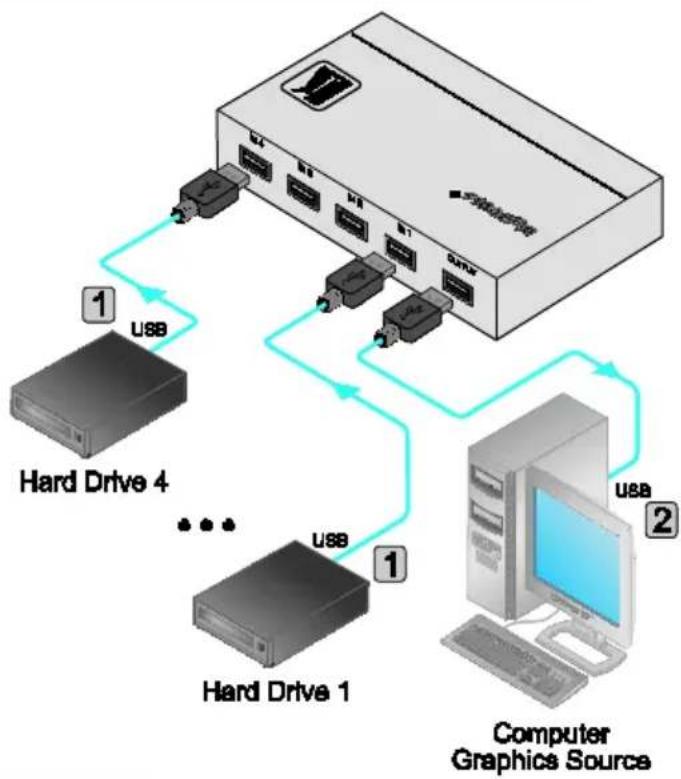
This quick start chart summarizes the basic setup and operation steps.
Step 1: Connect the Inputs and the output - see section 5
1 Connect up to four inputs (for example, hard drives)
2 Connect the output to a computer
flowchart
graph TD
    A["Computer Graphics Source"] -->|USB 1| B["Hardware Switch"]
    A -->|USB 2| C["Computer Computer"]
    B -->|USB 3| D["Hardware Switch"]
    C -->|USB 4| E["Hardware Switch"]
    D -->|USB 5| F["Computer Computer"]
    E -->|USB 6| G["Hardware Switch"]
    style A fill:#f9f,stroke:#333
    style B fill:#ccf,stroke:#333
    style C fill:#ccf,stroke:#333
    style D fill:#cfc,stroke:#333
    style E fill:#cfc,stroke:#333
    style F fill:#fcc,stroke:#333
    style G fill:#fcc,stroke:#333
Step 2: Select the Input to switch to the output
3 Overview
The Kramer VS-41USB is a high quality 4x1 USB mechanical switcher. It accepts up to four USB inputs and switches the selected input to the output. Its unpowered design is advantageous for applications in which various regulatory compliances would otherwise be required.
Achieving the best performance means:
- Connecting only good quality connection cables ^1 , thus avoiding interference, deterioration in signal quality due to poor matching, and elevated noise levels (often associated with low quality cables)
- Avoiding interference from neighboring electrical appliances and positioning your VS-41USB away from moisture, excessive sunlight and dust
4 Your VS-41USB 4x1 USB Switcher
Figure 1 and Table 1 define the VS-41USB 4x1 USB Switcher:
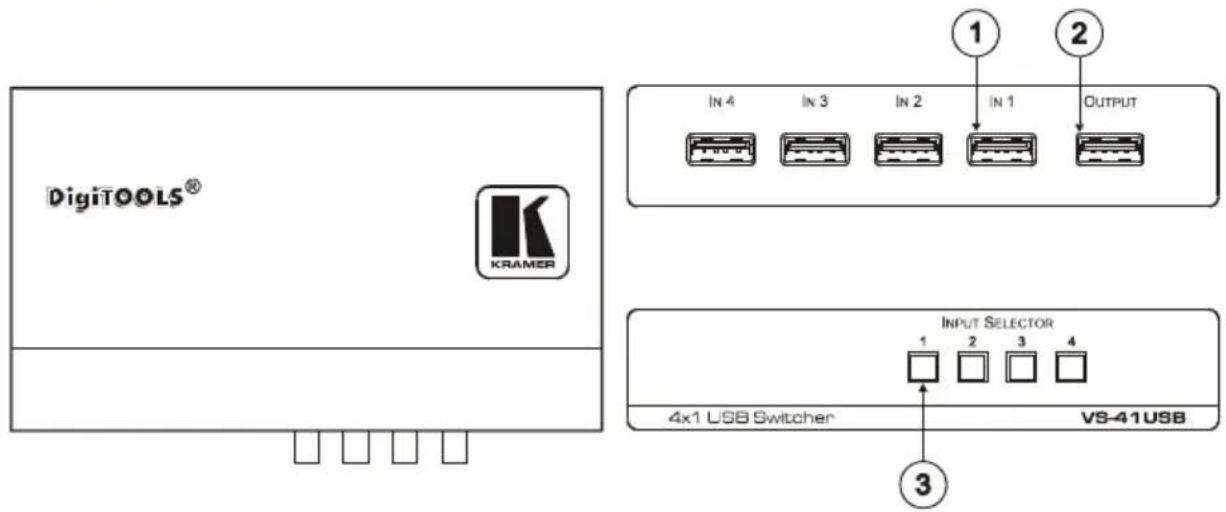
Figure 1: VS-41USB 4x1 USB Switcher
Table 1: VS-41USB 4x1 USB Switcher Features
| # | Feature | Function |
| 1 | USB IN Port | Connect to the USB source (from 1 to 4) |
| 2 | USB OUTPUT Port | Connect to the USB acceptor |
| 3 | INPUT SELECTOR Buttons | Press to select the source |
5 Connecting and Using the VS-41USB 4x1 USB Switcher
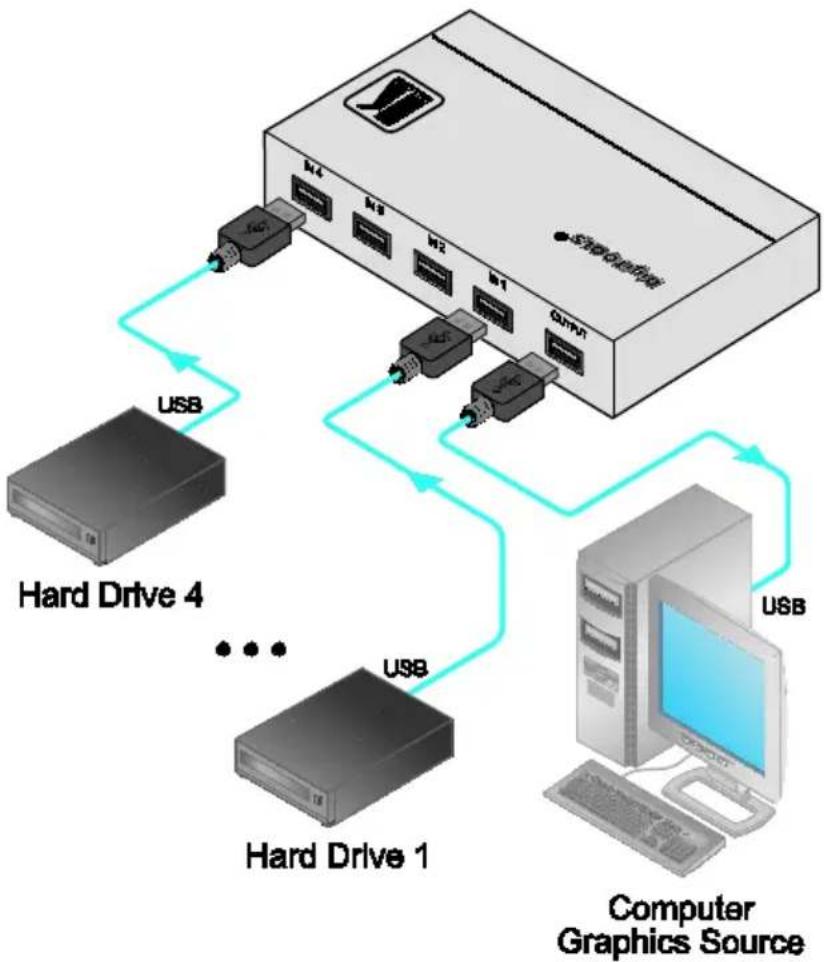
To connect ^1 your VS-41USB 4x1 USB Switcher, as the example in Figure 2 illustrates, do the following:
- Connect USB sources ^2 (for example, up to four hard drives ^3 ) to the IN USB connectors (from 1 to 4).
- Connect the OUTPUT USB connector ^3 to a PC.
- Pushing an input selector button switches that USB source to the USB acceptor.
The VS-41USB can also be used "in the reversed direction", that is to switch a single source to one of four acceptors. To do this, connect the USB source to the OUTPUT connector; and connect the acceptors to the IN USB connectors.
flowchart
graph TD
    A["Computer Graphics Source"] -->|USB| B["Hardware 1"]
    A -->|USB| C["Hardware 2"]
    A -->|USB| D["Hardware 3"]
    A -->|USB| E["Hardware 4"]
    B --> F["USB"]
    C --> G["USB"]
    D --> H["USB"]
    E --> I["USB"]
Figure 2: Connecting the VS-41USB 4x1 USB Switcher
6 Technical Specifications
Table 2 includes the technical specifications:
Table 2: Technical Specifications ^1 of the VS-41USB 4x1 USB Switcher
| INPUTS: | 4 USB ports (USB2.0 or lower) on USB-A connectors |
| OUTPUT: | 1 USB port (USB2.0 or lower) on a USB-A connector |
| DIMENSIONS: | 12.1cm x 7.18cm x 2.42cm (4.76" x 2.83" x 0.95", W, D, H) |
| WEIGHT: 0.3kg (0.67lbs) | approx. |
| ACCESSORIES: Mounting bracket | |
| OPTIONS: RK-3T rack adapter | |
LIMITED WARRANTY
Kramer Electronics (hereafter Kwarants this product free from defects in material and workmanship under the following terms.
HOW LONG IS THE WARRANTY
Labor and parts are warranted for seven years from the date of the first customer purchase.
WHO IS PROTECTED?
Only the first purchase customer may enforce this warranty.
WHAT IS COVERED AND WHAT IS NOT COVERED
Except as below, this warranty covers all defects in material or workmanship in this product. The following are not covered by the warranty:
- Any product which is not distributed by Kramer, or which is not purchased from an authorized Kramer dealer. If you are uncertain as to whether a dealer is authorized, please contact Kramer at one of the agents listed in the Web site www.kramerelectronics.com.
- Any product, on which the serial number has been defaced, modified or removed, or on which the WARRANTY VOID IF TEMREDE Sticker had otherwise interfered with.
- Damage, deterioration or malfunction resulting from:
i) Accident, misuse, abuse, neglect, fire, water, lightning or other acts of nature
ii) Product modification, or failure to follow instructions supplied with the product
iii) Repair or attempted repair by anyone not authorized by Kramer
iv) Any shipment of the product (claims must be presented to the carrier)
v) Removal or installation of the product
vi) Any other cause, which does not relate to a product defect
vii) Cartons, equipment enclosures, cables or accessories used in conjunction with the product
WHAT WE WILL PAY FOR AND WHAT WE WILL NOT PAY FOR
We will pay labor and material expenses for covered items. We will not pay for the following:
- Removal or installations charges.
- Costs of initial technical adjustments (set-up), including adjustment of user controls or programming. These costs are the responsibility of the Kramer dealer from whom the product was purchased.
- Shipping charges.
HOW YOU CAN GET WARRANTY SERVICE
- To obtain service on you product, you must take or ship it prepaid to any authorized Kramer service center.
- Whenever warranty service is required, the original dated invoice (or a copy) must be presented as proof of warranty coverage, and should be included in any shipment of the product. Please also include in any mailing a contact name, company, address, and a description of the problem(s).
- For the name of the nearest Kramer authorized service center, consult your authorized dealer.
LIMITATION OF IMPLIED WARRANTIES
All implied warranties, including warranties of merchantability and fitness for a particular purpose, are limited in duration to the length of this warranty.
EXCLUSION OF DAMAGES
The liability of Kramer for any effective products is limited to the repair or replacement of the product at our option. Kramer shall not be liable for:
- Damage to other property caused by defects in this product, damages based upon inconvenience, loss of use of the product, loss of time, commercial loss; or:
- Any other damages, whether incidental, consequential or otherwise. Some countries may not allow limitations on how long an implied warranty lasts and/or do not allow the exclusion or limitation of incidental or consequential damages, so the above limitations and exclusions may not apply to you.
This warranty gives you specific legal rights, and you may also have other rights, which vary from place to place.
NOTE: All products returned to Kramer for service must have prior approval. This may be obtained from your dealer.
This equipment has been tested to determine compliance with the requirements of:
EN-50081: "Electromagnetic compatibility (EMC); generic emission standard.
Residential, commercial and light industry"
EN-50082: "Electromagnetic compatibility (EMC) generic immunity standard.
Part 1: Residential, commercial and light industry environment".
CFR-47: FCC* Rules and Regulations:
Part 15: "Radio frequency devices
Subpart B Unintentional radiators"
CAUTION!
Servicing the machines can only be done by an authorized Kramer technician. Any user who makes changes of modifications to the unit without the expressed approval of the manufacturer will void user authority to operate the equipment.
Use the supplied DC power supply to feed power to the machine.
☒ Please use recommended interconnection cables to connect the machine to other components.
* FCC and CE approved using STP cable (for twisted pair products)
For the latest information on our products and a list of Kramer distributors, visit our Web site: www.kramerelectronics.com, where updates to this user manual may be found. We welcome your questions, comments and feedback.

Caution
Safety Warning:
Disconnect the unit from the power supply before opening/servicing.

CE
- Kramer Electronics, Ltd.
- USER MANUAL
- Contents
- Figures
- Tables
- Introduction
- Getting Started
- Quick Start
- Step 1: Connect the Inputs and the output - see section 5
- Overview
- Your VS-41USB 4x1 USB Switcher
- Connecting and Using the VS-41USB 4x1 USB Switcher
- Technical Specifications
- LIMITED WARRANTY
- HOW LONG IS THE WARRANTY
- WHO IS PROTECTED?
- WHAT IS COVERED AND WHAT IS NOT COVERED
- WHAT WE WILL PAY FOR AND WHAT WE WILL NOT PAY FOR
- HOW YOU CAN GET WARRANTY SERVICE
- LIMITATION OF IMPLIED WARRANTIES
- EXCLUSION OF DAMAGES
- CAUTION!
- Safety Warning:
Brand : Kramer
Model : VS-41USB
Category : Computer accessory