
MMP501B - Gps HITACHI - Free user manual and instructions
Find the device manual for free MMP501B HITACHI in PDF.


| Product Type | GPS Navigation Device |
| Brand | Hitachi |
| Model | MMP501B |
| Display Size | 4.3 inches (diagonal) |
| Display Resolution | 480 x 272 pixels |
| Dimensions (W x H x D) | 5.0 x 3.2 x 0.8 inches |
| Weight | Approx. 180 g (6.3 oz) |
| Power Source | Rechargeable Lithium-Ion battery (3.7V, 1000 mAh) |
| Battery Life | Up to 4 hours continuous use |
| Charging Method | USB cable (5V DC) or vehicle adapter |
| Navigation Features | Turn-by-turn voice guidance, Points of Interest (POI), route planning |
| Map Storage | Internal memory (microSD slot for expansion) |
| Connectivity | USB 2.0 for data transfer and charging |
| GPS Receiver | SiRFstar III chipset |
| Languages Supported | English, French, German, Italian, Spanish (menu and voice) |
| Operating Temperature | 0°C to 60°C (32°F to 140°F) |
| Storage Temperature | -10°C to 70°C (14°F to 158°F) |
| Maintenance & Cleaning | Wipe with a soft, dry cloth. Do not use solvents or immerse in water. |
| Safety Precautions | Do not use while driving; mount securely; avoid direct sunlight for extended periods. |
| Repairability | Battery and microSD card are user-replaceable. Contact support for other issues. |
| Spare Parts Availability | Replacement battery, charger, USB cable, and cradle available online. |
Frequently Asked Questions - MMP501B HITACHI
User questions about MMP501B HITACHI
0 question about this device. Answer the ones you know or ask your own.
Ask a new question about this device
Download the instructions for your Gps in PDF format for free! Find your manual MMP501B - HITACHI and take your electronic device back in hand. On this page are published all the documents necessary for the use of your device. MMP501B by HITACHI.
USER MANUAL MMP501B HITACHI
Multi Player with GPS
Model Name
MMP-501B
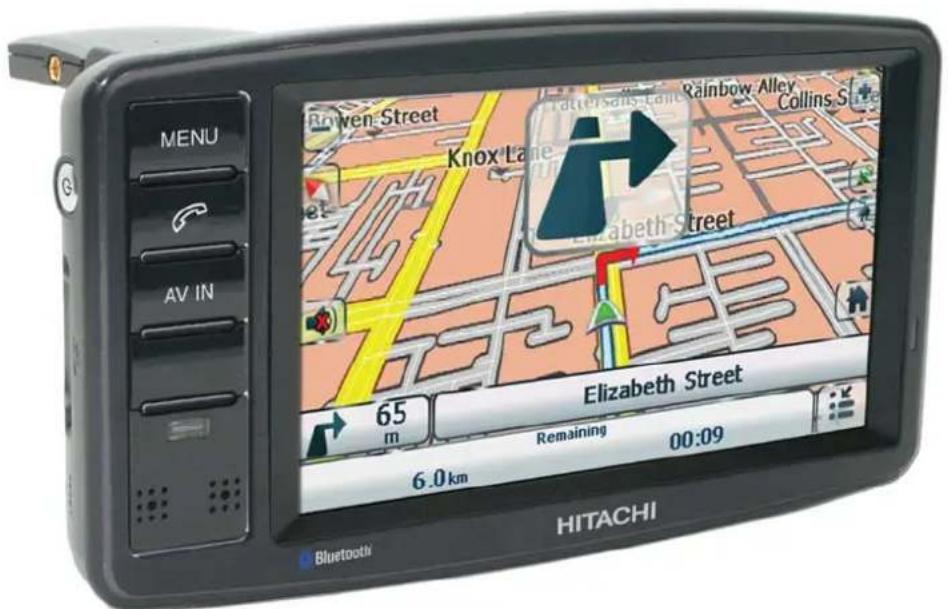
Thank you for purchasing this HITACHI product.
To obtain the best performance and safety, please read this manual carefully.
Please keep this manual for future reference.
SAFETY PRECAUTIONS
For your safety, please read the following precautions carefully before using this product. Improper use will cause serious personal injuries and/or damage to your property or this product.
The following symbols are used in this manual. Please fully understand the meaning of the symbols before reading the instructions in this section.
 ,WARNING ,WARNING | Never ignore the instruction. There are risks of serious injuries or possible death to the user. |
 ,CAUTION ,CAUTION | Do not ignore the instruction. There are possibilities of personal injuries and/or property damage. |

- It is your sole responsibility to place, secure and use the product in a manner that will not cause accidents, personal injury or property damage. Always observe safe driving practises.
- Mount the product in a position that is secure and does not obstruct the driver's view.
- Do not mount the product in a way that may interfere with the safe operation of the vehicle, the deployment of air bags or other safety equipment.
• Do not operate the product while driving. - Before using the product on the road, make yourself familiar with the product and its operation.
- Do not rely on the navigation system to search for medical emergency services, e.g. hospital. It is not guaranteed that the suggested route will take you to the nearest emergency services. In this case, use local information sources.
- Due to the constantly changing traffic routes, it is not guaranteed that the routes and maps are 100% accurate.
- The product is intended to be used as a travel aid and must not be used for any purpose requiring precise measurement of direction, distance, location or topography.
- Do not use the product for aircraft navigation.

CAUTION
- Do not handle the product while it is hot. Let the product cool, out of direct sunlight.
- Do not expose the product to direct sunlight for prolonged periods. Overheating may damage the product.
• To discourage theft, do not leave the product in an unattended vehicle.
Failure to adhere to these warnings and cautions may lead to death, serious injury or property damage. Hitachi disclaims all liability for installation or use of the product that causes to death, injury or property damage or that violates any law.
CONTENTS
SAFETY PRECAUTIONS 2
IMPORTANT SAFETY INSTRUCTIONS ..... 4
FUNCTIONAL OVERVIEW 6
Front View 6
Rear View 6
Bottom View 6
Side View 7
PREPARATION 8
Supplied Accessories 8
Using the AC Power Adaptor 8
Using the Car Power Adaptor 8
Using the Built-in Battery 8
Positioning the Player in a Vehicle 9
BASIC OPERATION 10
Getting Started 10
Navigation 10
Brightness Setting 10
Volume Setting 11
Entertainment 12
Entertainment Screen Buttons 13
Pairing the Player with Your Mobile Phone ..... 14
Handsfree Screen Buttons 17
TROUBLESHOOTING 18
SPECIFICATIONS 19
IMPORTANT SAFETY INSTRUCTIONS
-
Read Instructions - All the safety and operating instructions should be read before the product is operated.
-
Retain Instructions - The safety and operating instructions should be retained for future reference.
-
Heed Warnings - All warnings on the product and in the operating instructions should be adhered to.
-
Follow Instructions - All operating and use instructions should be followed.
-
Cleaning - Unplug the product from the wall outlet or car cigarette lighter socket before cleaning. Do not use liquid cleaners or aerosol cleaners. Use a damp cloth for cleaning.
-
Attachments - Only use attachments/accessories specified by the manufacturer.
-
Water and Moisture - Do not use the product near water, for example, near a bath tub, wash bowl, kitchen sink, or laundry tub, in a wet basement, or near a swimming pool, etc.
-
Accessories - Do not place the product on an unstable cart, stand, tripod, bracket, or table. The product may fall, causing serious injury to a child or adult, and serious damage to the product. Use only with a cart, stand, tripod, bracket, or table recommended by the manufacturer, or sold with the product. Any mounting of the product should follow the manufacturer's instructions and should use a mounting accessory recommended by the manufacturer. The product and cart combination should be moved with care. Quick stops, excessive force, and uneven surfaces may cause the product and cart combination to overturn.
-
Ventilation - Slots and openings in the cabinet are provided for ventilation and to ensure reliable operation of the product and to protect it from overheating, and these openings must not be blocked or covered. The openings should never be blocked by placing the product on a bed, sofa, rug, or other similar surface. The product should not be placed in a built-in installation such as a bookcase or rack unless proper ventilation is provided
or the manufacturer's instructions have been adhered to.
-
Power Sources - The product should be operated only from the type of power source indicated on the marking label. If you are not sure of the type of power supply to your home, consult your appliance dealer or local power company. For products intended to operate from battery power, or other sources, refer to the operating instructions.
-
Grounding or Polarization - The product may be equipped with a polarized alternating-current line plug (a plug having one blade wider than the other). This plug will fi t into the power outlet only one way. This is a safety feature. If you are unable to insert the plug fully into the outlet, try reversing the plug. If the plug should still fail to fi t, contact your electrician to replace your obsolete outlet. Do not defeat the safety purpose of the polarized plug.
-
Power Cord Protection - Power cords should be routed so that they are not likely to be walked on or pinched by items placed upon or against them, paying particular attention to cords at plugs, convenience receptacles, and the point where they exit from the appliance.
-
Lightning - For added protection for the product during a lightning storm, or when it is left unattended and unused for long periods of time, unplug it from the wall outlet or car cigarette lighting socket. This will prevent damage to the product due to lightning and power-line surges.
-
Power Lines - An outside antenna system should not be located in the vicinity of overhead power lines or other electric light or power circuits, or where it can fall into such power lines or circuits. When installing an outside antenna system, extreme care should be taken to keep from touching such power lines or circuits as contact with them might be fatal.
-
Overloading - Do not overload wall outlets and extension cords as this can result in a risk of fire or electric shock.
-
Object and Liquid Entry - Never push objects of any kind into the product through any openings as they may touch dangerous voltage points or short-out parts that could result in a fire or electric shock. Never spill liquid of any kind on the product.
- Servicing - Do not attempt to service the product yourself as opening or removing covers may expose you to dangerous voltage or other hazards. Refer all servicing to qualified service personnel.
- Damage Requiring Service - Unplug the product from the wall outlet or car cigarette lighter socket and refer servicing to qualified service personnel under the following conditions:
a. When the power cord or plug is damaged.
b. If liquid has been spilled, or objects have fallen into the product.
c. If the product has been exposed to rain or water.
d. If the product does not operate normally by following the operating instructions. Adjust only those controls that are covered by the operating instructions as an improper adjustment of other controls may result in damage and will often require extensive work by a service technician to restore the product to its normal operation.
e. If the product has been dropped or damaged in any way.
f. When the product exhibits a distinct change in performance, this indicates a need for service.
-
Replacement Parts - When replacement parts are required, be sure the service technician has used replacement parts specified by the manufacturer or have the same characteristics as the original part. Unauthorized substitutions may result in fire, electric shock or other hazards.
-
Safety Check - Upon completion of any service or repairs to the product, ask the service technician to perform safety checks to determine that the product is in proper operating condition.
- Heat - Do not install the product near any heat sources such as radiators, heat registers, stoves, or other products (including amplifiers) that produce heat.
- Installation Location - Avoid placing the product in areas of direct sunlight, heating radiators, closed automobiles, high temperature, high humidity, excessive dust, strong vibration, impact or strong magnetic fi elds, as the internal parts may be seriously damaged.
- Hazards of Electrical Shock and Fire - Do not touch the power cord with wet hands. Hold the plug when disconnecting the AC adaptor. Do not pull the power cord. Unplug the AC adaptor from the wall outlet or remove the battery pack when the product is not used for long periods of time.
- Hearing Safety - Listen at a moderate volume. Using headphones at high volume can impair your hearing.
- Traffi c Safety - Do not operate the product while driving or cycling as you may cause an accident.
NOTE
- When the product is in use for a long period of time, the surface will be heated. This is normal.
- Sometimes, the LCD screen may have some tiny red, blue, white or black spots. This is normal and does not affect the performance.
FUNCTIONAL OVERVIEW
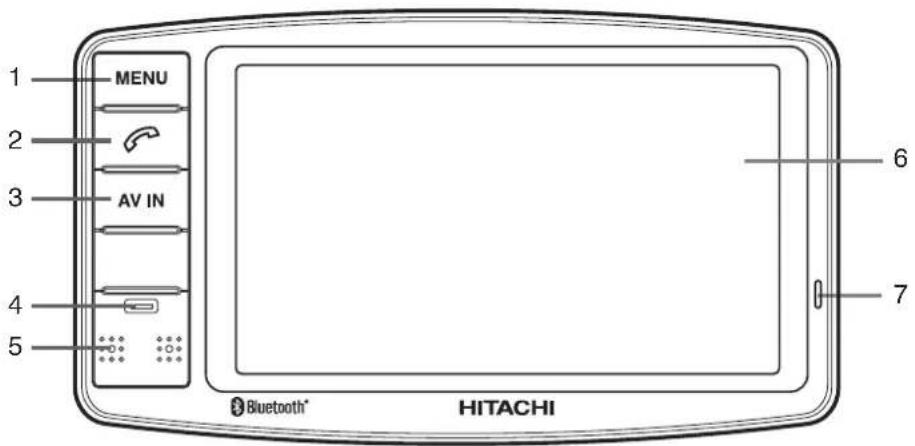
Front View
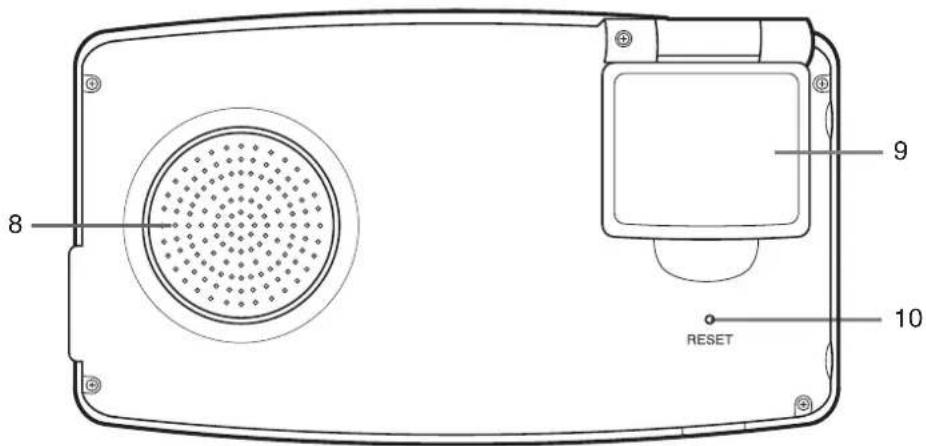
Rear View
Bottom View
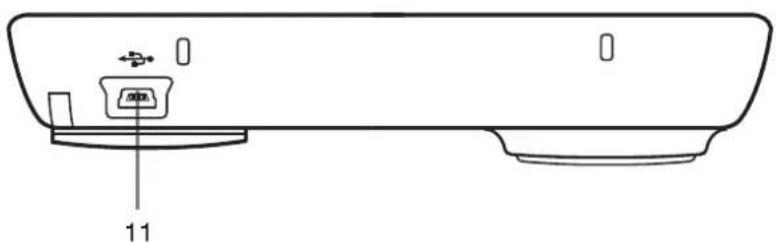
Side View
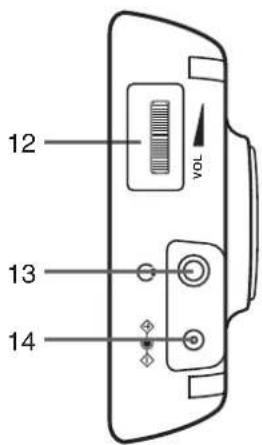

- MENU Button
Displays the Top Menu.
- Tel (Button)
Switches to the Bluetooth mode.
Answers an incoming call or ends a call made from the player in Bluetooth mode.
- AV IN Button
Switches between the AV input mode and Media Player mode.
- Light Sensor
Detects the changes in lighting condition and adjusts the touch screen brightness.
-
Microphone
-
Touch Screen
-
Charge Indicator
Indicates orange when the battery is charging.
-
Speaker
-
GPS Antenna
Receives signals from GPS satellites when lifted up to the horizontal position.
- RESET Button
Resets the player.
- USB Socket
Connection socket for USB cable to your computer.
- Volume Control Knob
Adjusts the speaker volume.
- Earphone Socket
Connection socket for earphones.
- Power Socket
Connection socket for AC power adaptor or car power adaptor.
- External Antenna Socket
Connection socket for external GPS antenna.
- Power Button
Turns the player on or off.
- Card Slot
Slot for SD or MMC memory card.
- AV IN Socket
Connection socket for AV input.
PREPARATION
Supplied Accessories
When you unpack the player, please check to ensure the following accessories are supplied before installation. In case of missing or damaged, please contact the dealer immediately.
- User manual (x2)
• AC power adaptor (x1)
• Car power adaptor (x1)
USB cable (x1)
AV cable (x1) - Earphones (x1)
• Suction cup windscreen mount (x1) - Mounting bracket (x1)
- Warranty card (x1)
- CD-ROM (x1)
- Velvet pouch (x1)
Using the AC Power Adaptor
- Connect the AC power adaptor to the power socket on the player.
- Connect the plug of the AC power adaptor to the wall outlet.
Using the Car Power Adaptor
- Connect the car power adaptor to the power socket on the player.
- Connect the other end of the car power adaptor to the car cigarette lighter socket.
Using the Built-in Battery
To Charge the Battery
When the battery is charging, the Charge Indicator is orange. When the battery is fully charged, the Charge Indicator turns off.
- To charge the player using an electrical wall outlet, connect the AC power adaptor to the player and the wall outlet.
- To charge the player in a vehicle, connect the car power adaptor to the player and the car cigarette lighter socket.
NOTE
- Do not disconnect the AC power adaptor or car power adaptor during charging.
- The charging time of a battery is about 3.5 hours and it depends on the environmental conditions.
- The fully charged battery provides about 5 hours of navigation operation.
- It is normal for the battery to become warm during charging.
● The battery can be charged when the player is turned on. The charging time will be longer.
● Regular recharging a partially charged battery does not cause harm. - Do not use the battery under high temperature or near heat sources.
- The battery should be used at environmental temperature of 5°C to 35°C.
- Do not dispose the battery in fire, water or heat it up.
- To prolong the battery life, if it is not used for a long period of time, it should be charged for about 30 minutes before turning on the player.
- To prolong the battery life, charge it under or close to indoor temperature.
Positioning the Player in a Vehicle
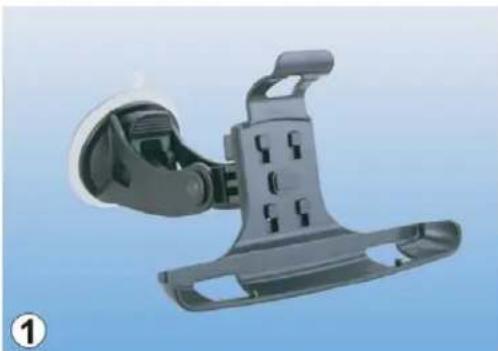
The player can be positioned on the inside of the vehicle windscreen using the supplied suction cup windscreen mount and mounting bracket.
- Attach the mounting bracket onto the suction cup windscreen mount. Ensure the mounting bracket is secured onto the suction windscreen mount.
natural_image
3D rendered image of a mechanical device with a handle and mounting bracket (no text or symbols visible)- Find a suitable position on your windscreen where the player will be visible to the driver.
- Wipe the windscreen area that the suction cup will be mounted to.

natural_image
Interior view of a car at a road with a magnified inset showing a hand holding a paper over a field (no text or symbols visible)- Press the suction cup firmly to the windscreen, then push the lever towards the windscreen.
natural_image
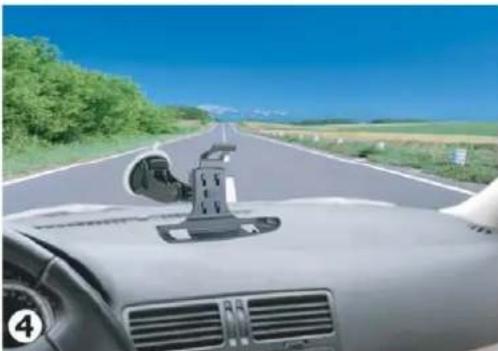
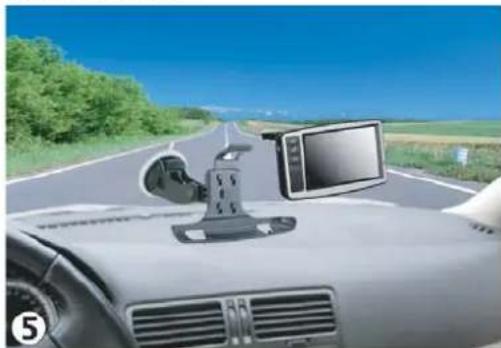
Interior view of a car with a mounted sensor on the windshield, driving on a rural road under clear blue sky (no visible text or symbols)- Place the player onto the mounting bracket. Ensure the player is secured onto the mounting bracket.
natural_image
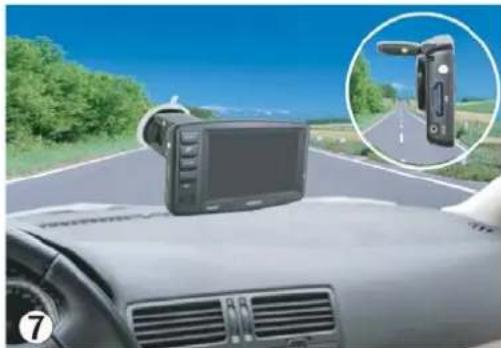
Interior view of a car with a mounted sensor on the roof, showing road ahead and green landscape (no visible text or symbols)- Adjust the vertical and horizontal adjustment knob of the suction cup windscreen mount so that the player will be visible to the driver.
- Lift up the GPS antenna to the horizontal position and the player is ready to be used.
natural_image
Interior view of a car with a mounted touchscreen device on the road, showing a close-up inset of its right-side camera (no text or symbols visible)WARNING
- Mount the player in a position that is secure and does not obstruct the driver's view.
- Do not mount the player in a way that may interfere with the safe operation of the vehicle, the deployment of air bags or other safety equipment.
BASIC OPERATION
Getting Started
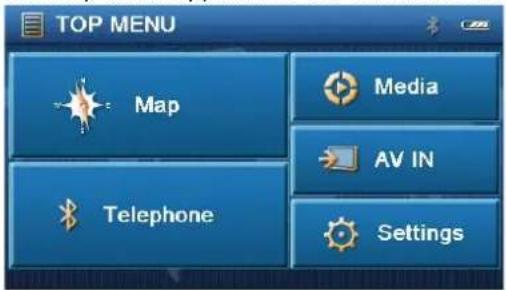
- Press the Power button for a while to turn on the player.
The Top Menu appears on the touch screen.
NOTE
- You can return to the Top Menu any time by pressing the MENU button.
Brightness Setting
The player has a light sensor that will detect the changes in lighting condition and adjust the brightness for optimum viewing level automatically. You may adjust the brightness level manually.
- Tap Settings on the Top Menu to enter Brightness Setting.

Navigation
- Tap on the Top Menu to enter navigation mode.
The Destinator Menu will be displayed.

NOTE
- Please refer to Hitachi Destinator User Manual for the navigation operation.
- Tap Quit to quit Destinator and return to the Top Menu.
To Activate the Auto Brightness
- Tap AUTO to activate the Auto Brightness. The Brightness Setting screen will be displayed.
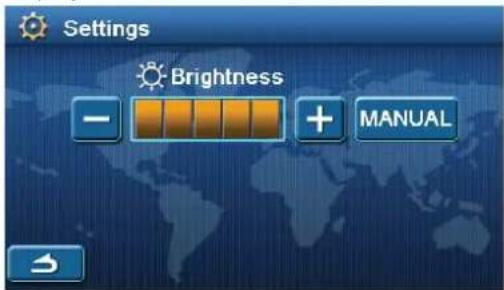
The brightness of the touch screen will be adjusted according to the lighting condition automatically.
- Tap → to return to the Top Menu.
To Adjust the Brightness Manually
-
Tap MANUAL, or to access the brightness control.
-
Tap + or to adjust the brightness of the touch screen.
-
Tap → to return to the Top Menu.
Volume Setting
- Rotate the volume control knob to adjust the volume.
The speaker icon appears on the touch screen.
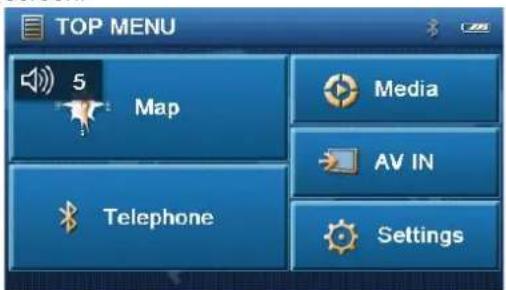
- Press the volume control knob to mute the sound.
The mute icon appears on the touch screen.

- Rotate or press the volume control knob again to restore the sound.
Entertainment
You can play the audio, video or picture fi les stored in SD or MMC memory card.
-
Insert the SD or MMC memory card to the card slot.
-
Tap 📄 on the Top Menu to enter media player mode.
The SDMMC DISK folder will be displayed.

- Tap SDMMC DISK folder to open it.
The folder list will be displayed.

- Tap a folder to open it; or tap a fi le to play it.
To Play an Audio or Video File
- Tap the Music or Film folder to open it.
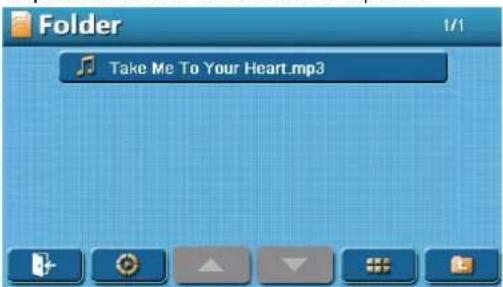
- Select and tap the fi le to play it.
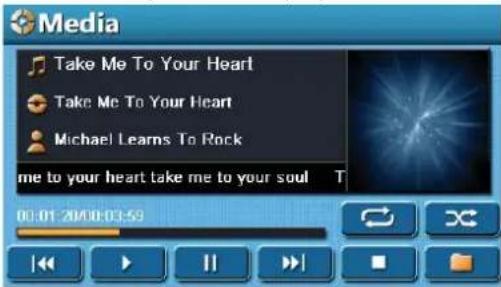
NOTE
● While a video is playing, tap the video to toggle between the two screen size display modes.
To Play a Picture File
- Tap the Picture folder to open it.
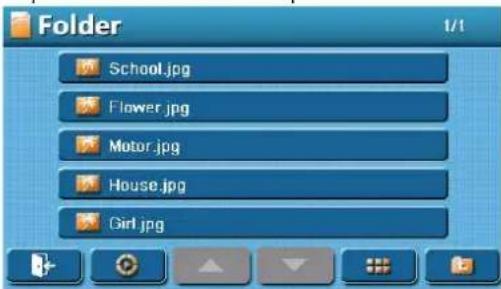
- Select and tap the file to play it.

- While displaying a picture, tap the picture to toggle between the two screen size display modes.
Entertainment Screen Buttons
The following buttons appear on the Folder screens.
| Buttons Description | |
 | Tap to return to the Top Menu. |
 | Tap to display the entertainment interfere. |
 | Tap to scroll up the folder list or fi le list. |
 | Tap to scroll down the folder list or fi le list. |
 | Tap to show the fi le list in thumbnail mode. |
 | Tap to resume the fi le list. |
 | Tap to return to the folder list. |
The following buttons appear on the Picture Media screens.
| Buttons Description | |
 | Tap to play the previous picture. |
 | Tap to play the pictures continuously. |
 | Tap to play the next picture. |
 | Tap to rotate the current picture 90° anticlockwise. |
 | Tap to rotate the current picture 90° clockwise. |
 | Tap to return to the fi le list. |
The following buttons appear on the Audio and Video Media screens.
| Buttons Description | |
 | Tap to play a fi le or all fi les repeatedly. |
 | Tap to play the fi les in random order. |
 | Tap to play the previous fi le. |
 | Tap to resume the playback. |
 | Tap to pause the playback. |
 | Tap to play the next fi le. |
 | Tap to stop the playback. |
 | Tap to return to the fi le list. |
Pairing the Player with Your Mobile Phone
The player is also a Bluetooth device. Before you can connect it to your mobile phone with Bluetooth, you need to pair them.
- Press the 📋 button on the panel or tap Telephone on the Top Menu to enter Bluetooth mode.
The Handsfree screen will display.

- Tap on the Handsfree screen to make the player discoverable.

NOTE
-
Tap the touch screen to close the hint.
● The hint will disappear if pairing exceeded 90 seconds. -
Use your mobile phone to search/pair the player.
-
Once the connection has completed, the
symbol appears. You can use the player to make or receive calls.

NOTE
- Please refer to your mobile phone User Manual for the pairing instructions.
- During the pairing, you would be prompted for a passcode on your mobile phone. Enter 1234 as the passcode.
- If you have established a connection between your mobile phone and the player, once your mobile phone Bluetooth is turned on, it will connect with the player directly.
To Make a Call
- Tap the numbers (0\~9) on the Handsfree screen to enter the phone number.

-
Tap to make the call.
-
Tap to end the call.
To Accept or Reject a Call
- When there is an incoming call in Bluetooth mode, the screen will display.

- When there is an incoming call in navigation mode, the screen will display.

- Tap to accept the call or tap to reject the call.
NOTE
- Sometimes, the dialled number from your mobile phone or caller number will not be displayed.
To Display Call Record
- Tap on the Handsfree screen to display the call record.

- Tap a record number to make a call.
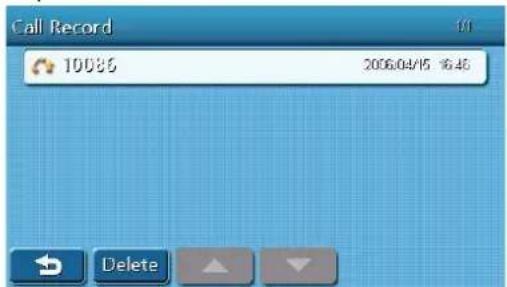
- Tap to delete the telephone number in the call record.

Call Waiting Call
Call waiting lets you know someone else is trying to call you, by displaying "Call Waiting..." while you are on a call.
- When there is a call waiting call in Bluetooth mode, the screen will display.

- When there is a call waiting call in navigation mode, the screen will display.

Bluetooth Link Loss
- When the mobile phone is far away from the player, the Bluetooth signal will be weak and the connection will be lost. The player will reconnect your mobile phone.

- If the reconnection failed 6 times, the screen will display.
Handsfree Screen Buttons
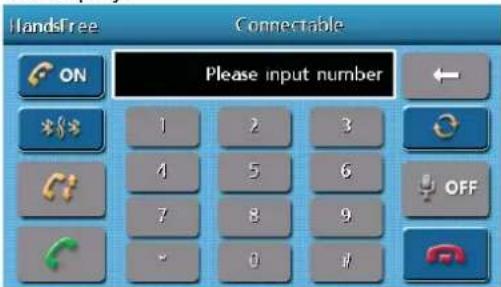
The following buttons appear on the Handsfree screen.
| Buttons Description | |
 | Tap to turn the Bluetooth on or off. |
 | Tap to make the player discoverable. |
 | Tap to display the call record. |
 | Tap to scroll up the call list. |
 | Tap to scroll down the call list. |
 | Tap to clear the telephone numbers in the call list. |
 | Tap to make or answer a call.NOTEIf you have not entered any telephone number on the Handsfree screen, tap this button will dial the last call number in your mobile phone call record. |
 | Tap to end or reject a call.NOTEWhen there is no call, tap this button will return to the previous interface. |
 | Tap to delete the entered number. |
 | Tap to turn on/off the microphone and switch between the player and your mobile phone during a call. NOTEWhen calling is switched to the player, this button will changed toON. |
 | Tap to pair with the last connected mobile phone quickly. NOTEIf your mobile phone connected with the player, tap this button will disconnect them. |
NOTE
- The buttons will be greyed out if they are not available.
TROUBLESHOOTING
If you experience any of the following difficulties while using the player, use this troubleshooting guide to help you remedy the problem. Should any problem persist, consult your nearest service center.
| Symptom Possible Cause Remedy | ||
| The player does not start. The battery may be exhausted. Recharge the battery. | ||
| The power plug or the car power adaptor may be loose or not plugged in. | Ensure the AC power plug is secured into the wall outlet or the car power adaptor is secured into the car cigarette lighter socket. | |
| The player does not have sound. | The volume is set to minimum. Increase the volume level. | |
| The touch screen is too dark. The touch screen is not bright enough. | Increase the brightness level. | |
| The player does not receive GPS signals. | The GPS antenna is unable to receive signal. | Check the position of the player in the vehicle. The GPS antenna requires a clear view of sky to receive information from the GPS satellites.Ensure the GPS antenna is in the horizontal position. If the player is used in a vehicle with heated or heat-refl ecting windscreen, connect it with an external antenna in order to receive the GPS signals. |
| The player has lost GPS reception. | The player is experiencing poor GPS coverage. | The GPS signal is interrupted due to tunnels, tall buildings, snowing, etc. When the obstruction is cleared, the player should re-acquire satellite signals in a few seconds. |
SPECIFICATIONS
GPS Section
| Received Center Frequency | 1575.42 MHz |
| GPS Satellites | 20 |
| Refresh Frequency | 1/sec |
TFT LCD Monitor
| Size | 5 inch |
| Resolution (H x V) | 480 x 272 (RGB) |
Main Unit
| Dimensions | 148 x 85 x 34 mm |
| Weight | 335g |
Specification are subject to change without notice for improvement.



HITACHI
Inspire the Next


- Multi Player with GPS
- Model Name
- MMP-501B
- SAFETY PRECAUTIONS
- CAUTION
- CONTENTS
- IMPORTANT SAFETY INSTRUCTIONS
- NOTE
- FUNCTIONAL OVERVIEW
- Side View
- PREPARATION
- Supplied Accessories
- Using the AC Power Adaptor
- Using the Car Power Adaptor
- Using the Built-in Battery
- To Charge the Battery
- Positioning the Player in a Vehicle
- WARNING
- BASIC OPERATION
- Getting Started
- Brightness Setting
- Navigation
- To Activate the Auto Brightness
- To Adjust the Brightness Manually
- Volume Setting
- Entertainment
- To Play an Audio or Video File
- To Play a Picture File
- Entertainment Screen Buttons
- Pairing the Player with Your Mobile Phone
- To Make a Call
- To Accept or Reject a Call
- To Display Call Record
- Call Waiting Call
- Bluetooth Link Loss
- Handsfree Screen Buttons
- TROUBLESHOOTING
- SPECIFICATIONS
- HITACHI
- Inspire the Next
Brand : HITACHI
Model : MMP501B
Category : Gps