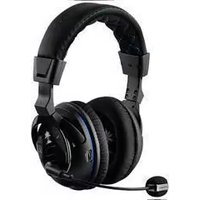
ZBX0HW69300 - Headphones TURTLE BEACH - Free user manual and instructions
Find the device manual for free ZBX0HW69300 TURTLE BEACH in PDF.


| Product Type | Wireless Gaming Headset |
| Brand | Turtle Beach |
| Model | Ear Force PX4 (ZBX0HW69300) |
| Connectivity | Dual-Band Wi-Fi (2.4GHz/5GHz) RF + Bluetooth 2.1+EDR |
| Driver Size | 50mm with neodymium magnets |
| Frequency Response (Game Audio) | 20Hz - 20kHz |
| Frequency Response (Microphone) | 50Hz - 15kHz |
| Battery Type | Rechargeable Lithium-Polymer (1000mAh) |
| Battery Life | Up to 15 hours |
| Charging Method | Mini USB (included cable) |
| Wireless Range | Up to 30 feet (10 meters) |
| Audio Processing | Dolby Digital 5.1 Surround Sound |
| Bluetooth Features | Dual Pairing (connect to 2 devices simultaneously) |
| Microphone | Detachable boom mic with adjustable boom |
| Special Features | Chat Boost, Variable Mic Monitor, 4 EQ Presets, Blast Limiter (3 levels) |
| Compatibility | PS3, PS4, Xbox 360 (all models), Xbox 360 E (with HD Audio Converter), mobile devices |
| Included Accessories | Headset, Wireless Transmitter, Detachable Boom Mic, Xbox 360 Talkback Cable, Digital Optical Cable, 2.5mm-3.5mm Charging Cable, Mobile Adapter Cable/PS4 Chat Cable, Turtle Beach Sticker |
| Transmitter Power | USB powered (5V DC, 350mA max) |
| Warranty | 1 year limited |
| Regulatory | FCC Class B, CE, ICES-003 |
Frequently Asked Questions - ZBX0HW69300 TURTLE BEACH
User questions about ZBX0HW69300 TURTLE BEACH
0 question about this device. Answer the ones you know or ask your own.
Ask a new question about this device
Download the instructions for your Headphones in PDF format for free! Find your manual ZBX0HW69300 - TURTLE BEACH and take your electronic device back in hand. On this page are published all the documents necessary for the use of your device. ZBX0HW69300 by TURTLE BEACH.
USER MANUAL ZBX0HW69300 TURTLE BEACH
Congratulations on your purchase of the Ear Force PX4 headset from Turtle Beach. The PX4 works with your Xbox360, PS3, PS4 and all of your favorite mobile devices. Welcome to the Turtle Beach Audio Advantage!
For our Knowledgebase and Technical Support Contact info please visit: http://www.turtlebeach.com/support
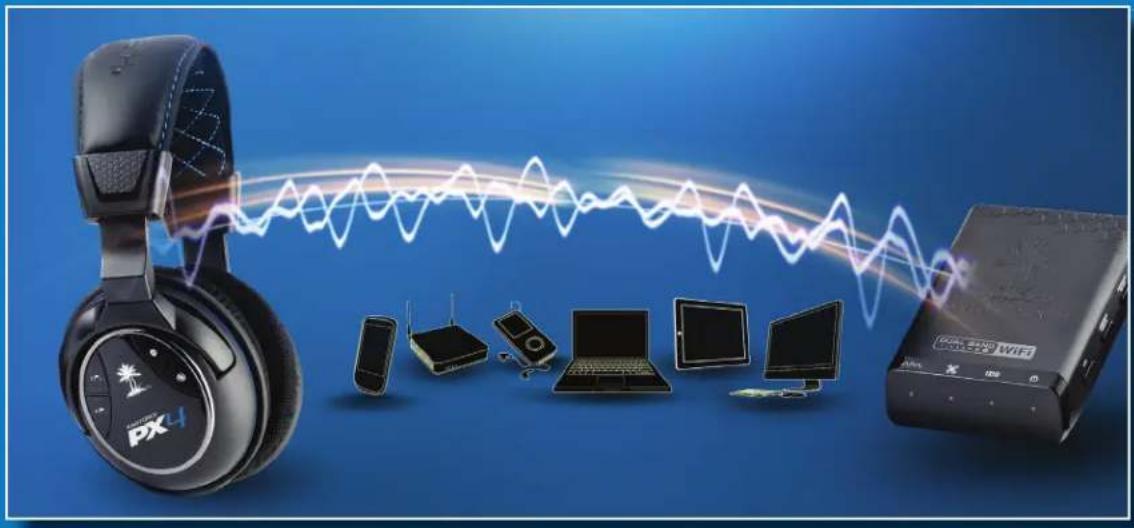
Table of Contents
Package Contents P4
Features P5
PX4 Headset - Left View P6
PX4 Headset - Right View P7
PX4 Transmitter P8
PS3™ Setup/System Settings Configuration P9
Xbox 360® Setup/System Settings Configuration P12
Xbox 360® E Setup/System Settings Configuration P15
PS4™ Setup/System Settings Conf i guration P17
Home Theater Setup P21
Connecting a Digital Music Player P22
Dolby® Digital Processing P23
Surround Sound P24
Bluetooth Setup P25
Charging the Headset P27
Adjusting Sound P28
Pairing Instructions P30
Specifications P31
Compliance / Conformity P32
Warranty P35
Package Contents
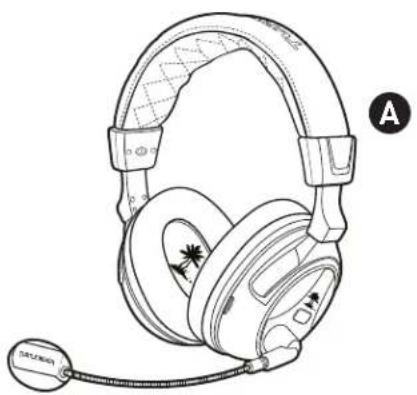
PX4 Headset
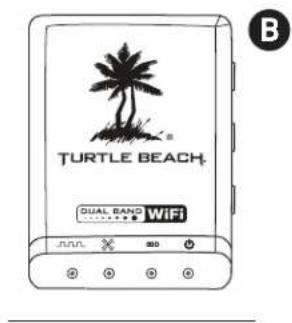
PX4 Wireless Transmitter
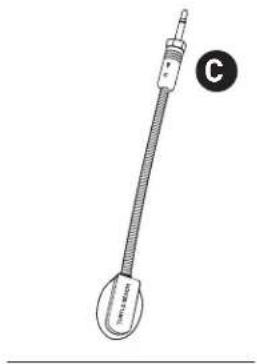
Detachable Boom Mic
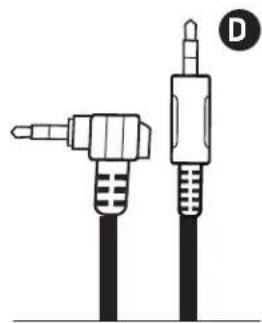
Xbox 360 Talkback Cable
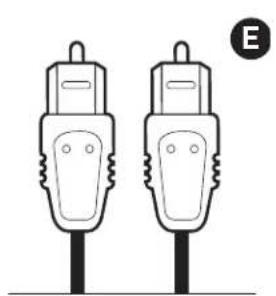
Digital Optical Cable 2.5mm to 3.5mm Headset Charging Cable
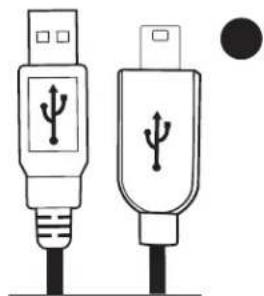
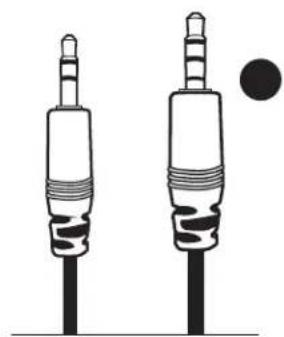
Mobile Adapter Cable/PS4 Chat Cable

Turtle Beach Sticker
H
Features
The Ear Force™ PX4 is a premium, Dolby surround sound headset designed for PS3™, PS4™ and Xbox360® gaming. To get the most from your PX4, please take a few minutes to review this introduction.
Dolby® Surround Sound
The PX4 transmitter processes Dolby Digital surround sound from your PS3™, PS4™ or Xbox360® and sends it to the headset via digital RF. The result is an immersive sound environment that makes you feel as if you're right in the middle of the action. It also helps you react quicker by hearing exactly where the sound cues in the game are coming from.

DOLBY® DIGITAL
Dual-Band Wi-Fi
The Ear Force PX4 headset provides wireless CD-quality game sound via dual-band digital RF (radio frequency) that communicates with the PX4 transmitter. This advanced dual-band Wi-Fi technology uses either 5GHz or 2.4GHz signals to transmit high fidelity digital audio and finds the optimum frequency to help eliminate interference with other wireless devices and Wi-Fi networks. Unlike the RF technology used in most other wireless headsets, the dual-band Wi-Fi technology found in the PX4 coexists with wireless networks for optimum performance.
DUAL BAND WIFI
Dual Pairing Bluetooth®
The PX4 incorporates Bluetooth technology which can be used to simultaneously pair to two Bluetooth-enabled devices at once. For example, you can pair the PX4 to your PS3 and your mobile phone at the same time. This allows you to use your PX4 to accept phone calls all while totally immersed in the action of the game.

Bluetooth®
Rechargeable Battery
The PX4 also features a rechargeable lithium polymer battery that provides up to 15 hours of continuous game play on a single charge. The battery can also be recharged while gaming with the included charging cable so you'll never miss out on the action.
Engineered for High-Quality Sound
The PX4 headset is engineered to deliver high-quality audio that makes it ideal for gaming, movies and digital music playback. The high-fi delity, 50mm speakers are encased in acoustically-tuned ear cups with soft fabric cushions and deliver extended bass with extraordinary dynamic range for optimum audio performance.
PX4 Headset - Left View
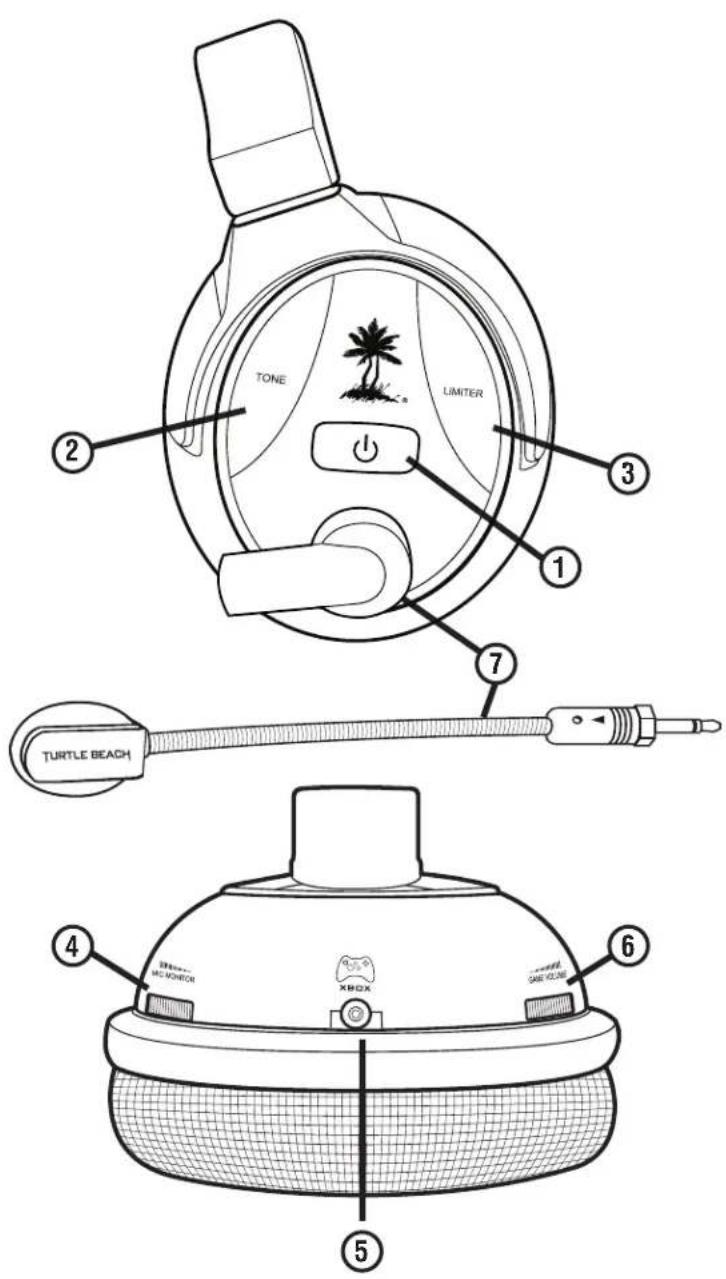
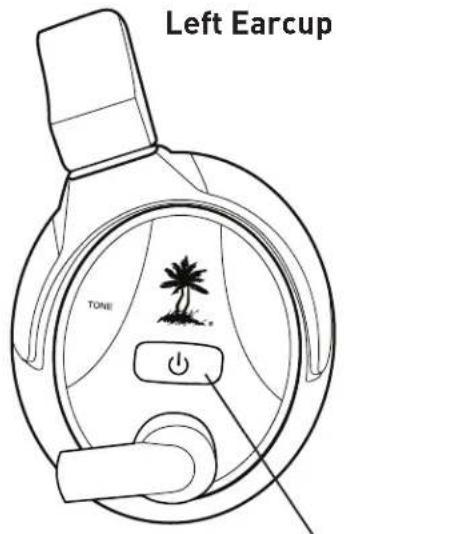
① To turn on/off the headset: Press and hold the power button until you hear two rapid tones. To enter pairing mode(Headset off): Press and hold the power button until the LED begins to blink rapidly and evenly (about 6 seconds).
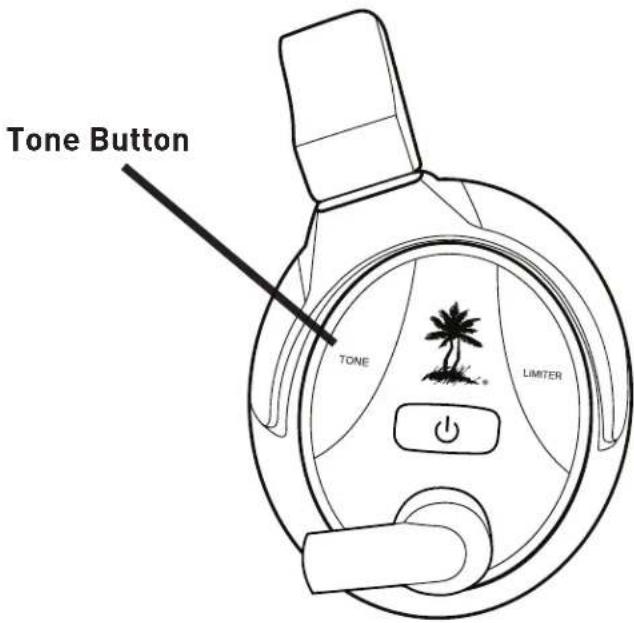
② Tone Button: Press this button to activate the different EQ presets. A beep will indicate which preset is selected. (see pg. 28)
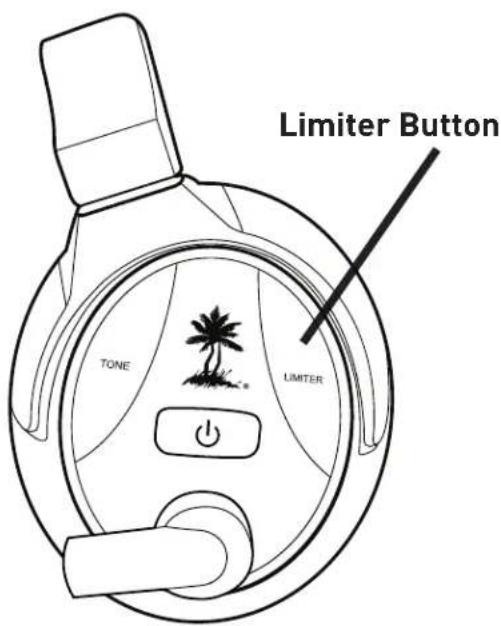
③ Blast Limiter Button: Press this button to activate the different Blast Limiter presets. A beep will indicate which preset is selected. (see pg. 28)
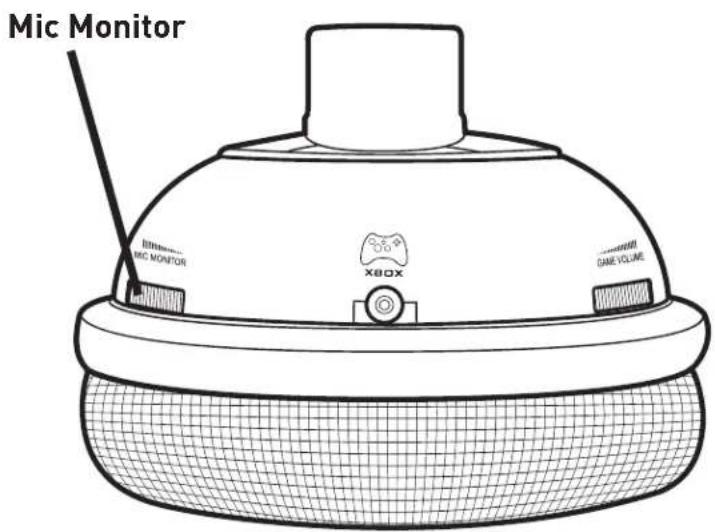
④ Variable Mic Monitor: Adjusts the level of your voice heard in the headset. (see pg. 29)
NOTE: Turning up the mic monitor may cause the mic to pick up room sounds which will make the silence detector not automatically shut off the headset when it's not being used. If the power is not automatically shutting down, turn down this mic monitor control.
⑤ Wired Chat Jack: Used for chat on the Xbox360/PS4 (see pg 12 & pg 17)
⑥ Game Volume: Turn to adjust the game sound level.
⑦ Removable Microphone with Adjustable Boom: The microphone can be removed from the headset when chat is not required by detaching it from the boom. To properly position the mic: Make sure that the triangle indicator on the Mic Boom Plug is facing the headset. (The Metal Clip on the Microphone Foam Cover should be facing away from your mouth)
PX4 Headset - Right View
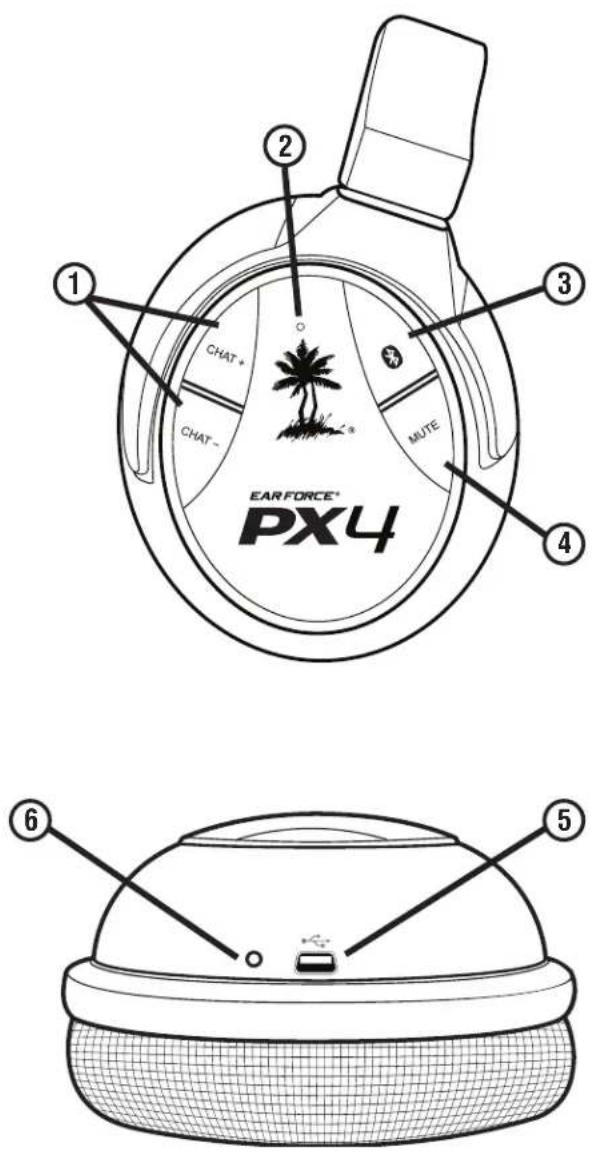
① Bluetooth® Volume: Press Chat (+) or Chat (−) to adjust Bluetooth volume level. A tone will sound each time the volume level changes.
② Bluetooth Status LED:
Paired: Flashing Blue once per second
Unpaired: Flashing blue twice per second
Pairing Mode: Flashing blue and red alternating
③ Bluetooth Multi-Function Button (BT MFB):
Powers on the Bluetooth and performs several other functions described in the "Bluetooth" section. (see pg. 25)
NOTE: The Bluetooth feature is normally powered on. If it is not paired to another device, it will automatically turn off after 5 minutes to conserve battery power.
④ Mic Mute Button: Press to turn on/off your microphone. When the microphone is turned on you will hear a high tone. When it has been muted you will hear a low tone.
⑤ Headset Charging Port: The headset may be charged by connecting this Mini USB input to a free USB port on your gaming console using the included Headset Charging Cable. (see pg. 27)
NOTE: The Headset Charging Cable included with the PX4 can only be used to charge the headset and cannot be used as a standard USB data cable.
⑥ Charging LED: Turns red when charging and turns off when charged.
PX4 Transmitter
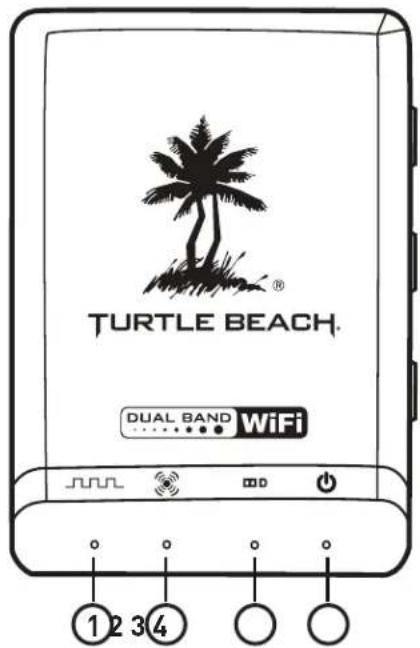
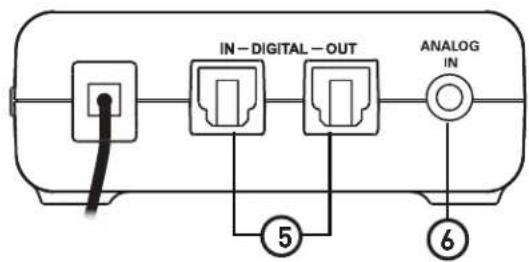
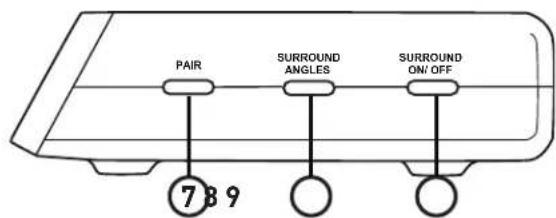
Optimum range: within 30 ft.
① Digital Input LED: This LED turns on when a digital input signal is detected. When this LED is ON, the analog input is turned off.
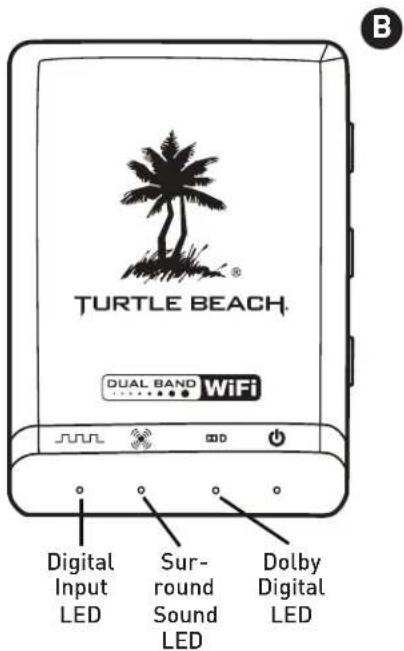
② Surround Sound LED: The LED will light whenever the digital input is being processed by the surround sound decoder. When this LED is off, the audio signal will be heard in stereo.
③ Dolby® Digital LED: The LED will light whenever a Dolby Digital encoded signal is detected on the digital input.
4 Power/Link LED: When the transmitter is powered on and communicating with the headset, this LED will be on solid. If the LED is slowly pulsing/off it indicates the transmitter can't communicate with the headset. This could happen when the headset is out of range, turned off or not paired with the transmitter.[see pg 30]
⑤ Digital Input and Output: The Digital In is used to connect your PX4 to a Xbox360/PS3/PS4 for audio. The Digital Out can be used to pass through audio to a home theater system.
⑥ Analog Input Jack: Provides a 3.5mm input for digital music players or additional audio sources. (3.5mm cable sold separately) NOTE: The analog input is deactivated whenever a digital input is active, so both the digital and analog inputs cannot be used at the same time.
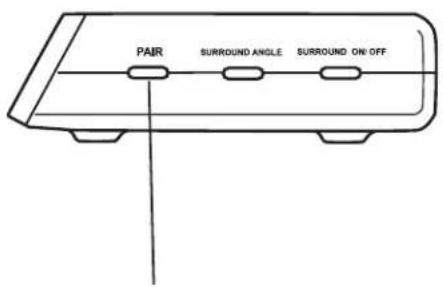
⑦ Pair Button: Press and hold to activate pairing mode. (See pg. 30)
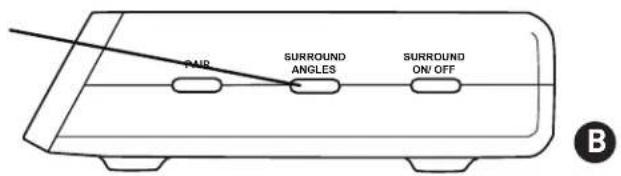
⑧ Surround Sound Angles Button: Press to select different HRTF surround angles. (see pg. 24)
⑨ Surround Sound On/Off Button: Pressing this button toggles between surround sound and stereo sound. When surround sound is active, the Surround Sound LED will be lit.
Transmitter Range
The transmitter sends game audio from your Xbox 360® console to the headset via digital radio frequency (RF) signal, so a direct line of sight is not required. When you're out of range, you may hear popping or clicking sounds if the headset loses the RF signal. For best performance, place the transmitter in an open area that is unobstructed by objects that might absorb RF signals from the internal antenna. Avoid placing it on a metal surface, such as the top of a home theater A/V receiver.
PS3™ Setup/System Settings Configuration
PS3 Hardware Setup
![graph TD A["IN-DIGITAL"] --> B["IN DIGITAL-OUT"] B --> C["ANALOG IN"] C --> D["DIGITAL OUT (OPTICAL)"] D --> E["USB"]](/content/2026/05/1142307/images/cf4b84da62406c2b83ba54ea3bcf6c18cb06d55b1f9fe064d89f7999274c21d0.jpg)
Note: Remove the clear plastic covers from both ends of your Digital Optical Cable before setting up your transmitter.
PS3™ Setup/System Settings Configuration
PS3 Bluetooth Configuration
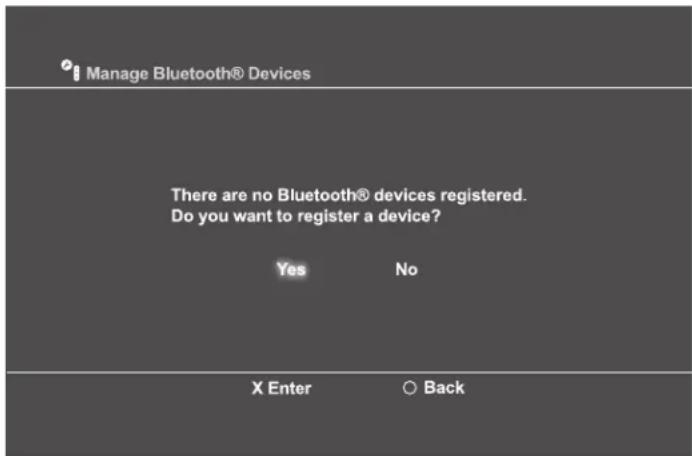
- In the PS3 menu Navigate to Settings > Accessory Settings > Manage Bluetooth Devices.
- Power off PX4 Bluetooth. Hold BT MFB for 5 seconds until Bluetooth LED switches off.
- On the PS3, scan for Bluetooth devices.
- With PX4 powered ON, but Bluetooth OFF, hold BT MFB until Bluetooth LED flashes blue and red, then release.
- On the PS3 select "Turtle Beach Bluetooth Chat", then enter "0000" as the Pass Key. The Bluetooth LED on the headset will flash blue once per second, indicating that the PX4's Bluetooth has paired to your PS3.
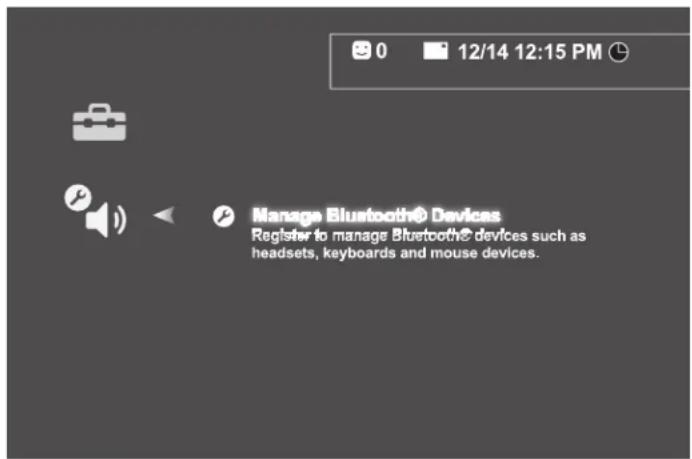
PS3™ Setup/System Settings Configuration
PS3 Chat Configuration
Note: Make sure you have followed the PS3 Bluetooth Configuration steps above before continuing to this section.
- In the PS3 Menu go to Settings > Accessory Settings > Audio Device Settings and set the "Input Device" and "Output Device" fields to "Turtle Beach Bluetooth Chat".
Audio Device Settings

Microphone Level 3
Input Device TURTLE BEACH BLUETOOTH CHAT
Output Device TURTLE BEACH BLUETOOTH CHAT
OK
X Enter
Back
PS3 Audio Output Configuration
- In the PS3 Menu go to Settings > Audio Output Settings > Optical Digital > Dolby Digital 5.1 Ch
Note: Make sure DTS 5.1 Ch is NOT checked.
Audio Output Settings
Select the connector on the TV or AV amplifier (receiver).
HDMI
Optical Digital
Audio Input Connector / SCART / AV MULTI

Turn on the power of the connected device.
Cancel
- In the PS3 Menu go to Settings > Audio Multi-Output and set to "On"
0
•
12/14 12:15 PM


Audio Output Settings

Audio Multi-Output
On
Sets to output audio through multiple connectors simultaneously. Audio output to connectors that are not selected in [Audio Output Settings] is downscaled to 2 Ch.
Xbox 360® Setup/System Settings Configuration
Xbox 360 Setup - All models
![graph TD A["Game Controller"] --> B["Headset Head"] B --> C["Controller"] C --> D["Game Controller"] style A fill:#f9f,stroke:#333 style D fill:#bbf,stroke:#333](/content/2026/05/1142307/images/83eed4d3859e88daf5423da4d1e47a6e891ed711b990f6d896f4b9c0252ff893.jpg)
Note: Make sure the Talkback Cable is connected securely on both ends.
Xbox 360® Setup/System Settings Configuration
Xbox 360 Slim Setup
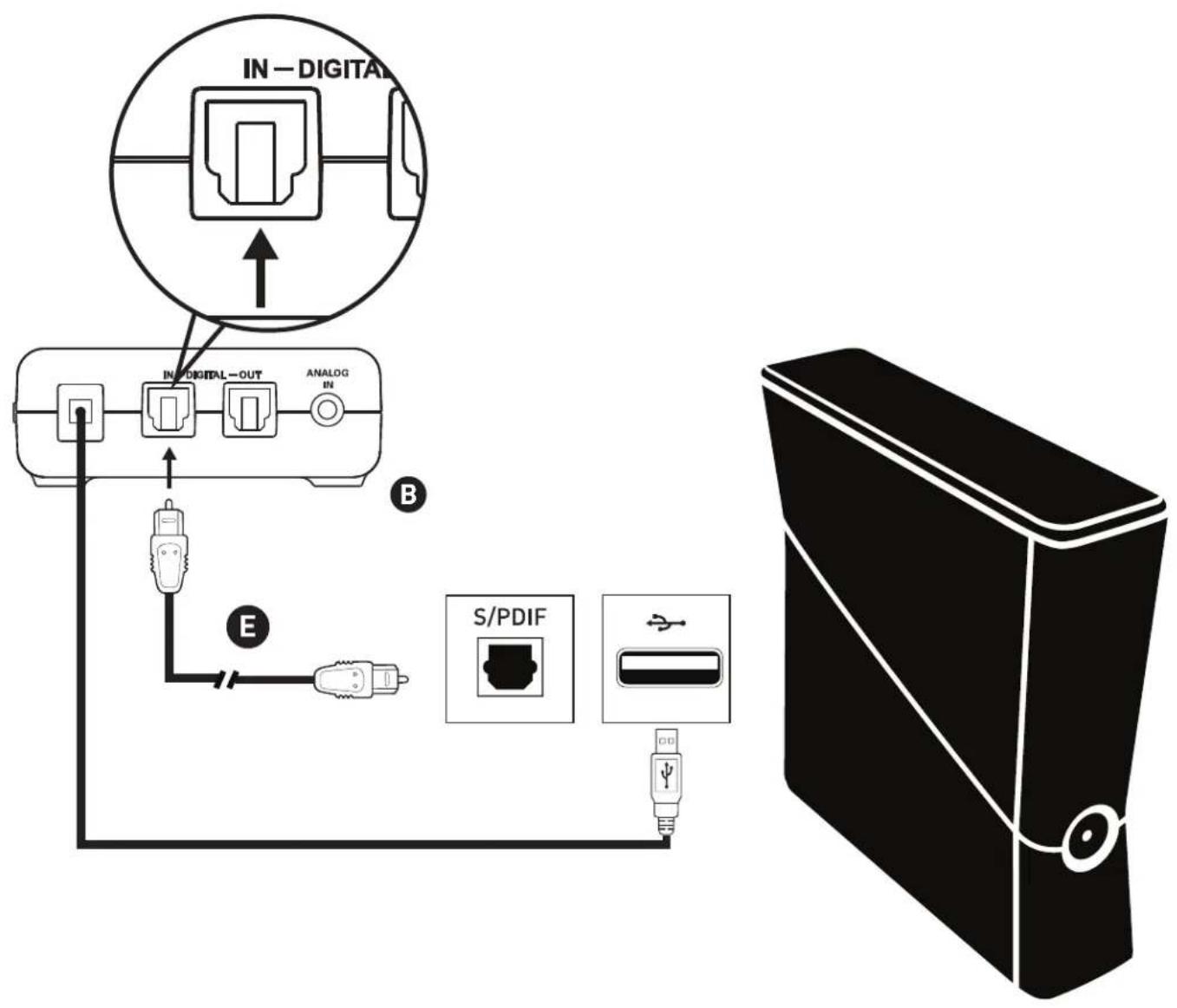
Note: Remove the clear plastic covers from both ends of your Digital Optical Cable before setting up your transmitter.
Xbox 360® Setup/System Settings Configuration
Xbox 360 Setup - older models
![graph TD A["IN-DIGITAL"] --> B["IN-DIGITAL-OUT"] B --> C["ANALOG IN"] C --> D["USB"] D --> E["USB"] E --> F["USB"] F --> G["Computer"]](/content/2026/05/1142307/images/a4051bcfbb41668093d4bea5995419f7b3d07e458f9e972982d64539a6c3b156.jpg)
*This setup should only be used on versions of the Xbox360 that do not have a Digital Optical Port. When using this configuration you will need a Xbox 360 HD Audio Adapter Cable. Available from Turtle Beach here: http://www.turtlebeach.com/product-detail/cables-parts/ear-force-xaa/349
Note: Remove the clear plastic covers from both ends of your Digital Optical Cable before setting up your transmitter.
Xbox 360® E Setup
![graph TD A["FRONT"] -->|to HDMI IN port| B["HDMI"] C["*Ear Force HD Audio Converter"] -->|to HDMI OUT port to Optical| D["HDMI Cable"] E["Wall Plug"] --> F["to DIGITAL IN jack"] G["Wall Outlet"] --> H["IN-DIGITAL-OUT"] I["Xbox 360 E Console"] --> J["USB"] K["TOX"] --> L["HDMI"] M["TV"] --> N["HDMI"]…](/content/2026/05/1142307/images/3291c2f427fac85cc228e0380f98b60bb6bd3ed15ab04a8180ee232be71949eb.jpg)
*Ear Force HD Audio Converter is available for purchase at Turtlebeach.com/HDAC
Note: The Xbox360 E does not have an Digital Optical Output. It is necessary to use the Ear Force HD Audio Converter for this particular console configuration.
Xbox 360® Setup/System Settings Configuration
Xbox 360 System Settings
- Settings > Preferences > Voice.
- Set Voice Volume to "10".
- Set Game Volume to "10".
- Set Voice Output to "Play Through Headset".
Voice
| Voice Volume | 10 |
| Game Volume | 10 |
| □ Mute Kinect | |
| Voice Output | |
| ● Play Through Headset | |
| ○ Play Through Speakers | |
| ○ Play Through Both | |
- Settings > System Settings > Console Settings > Audio > Digital Output.
- Set Digital Output to "Dolby Digital 5.1".
Digital Output
| Digital Stereo | Current SettingDolby Digital |
| Dolby Digital 5.1 | Choose the digital output type for your system. |
| Dolby Digital 5.1 with WMA Pro | This setting only applies to optical digital and HDMI audio outputs. |
PS4™ Setup/System Settings Configuration
![graph TD A["IN-DIGITAL"] --> B["IN-DIGITAL-OUT"] B --> C["ANALOG IN"] C --> D["E"] D --> E["S/PDIF"] E --> F["FRONTBACK"] F --> G["G"] style A fill:#f9f,stroke:#333 style B fill:#ccf,stroke:#333 style C fill:#cfc,stroke:#333 style D fill:#fcc,stroke:#333 style E fill:#cff,stroke:#333 style F fill:#f…](/content/2026/05/1142307/images/4c57dcb3435d7b85f0b2b62b86488ab25eef8eb2d95810007b00f6e2c8893069.jpg)
PS4™ Setup/System Settings Configuration
1. Go to Settings >Sound and Screen >Audio Output Settings >Primary Output Port
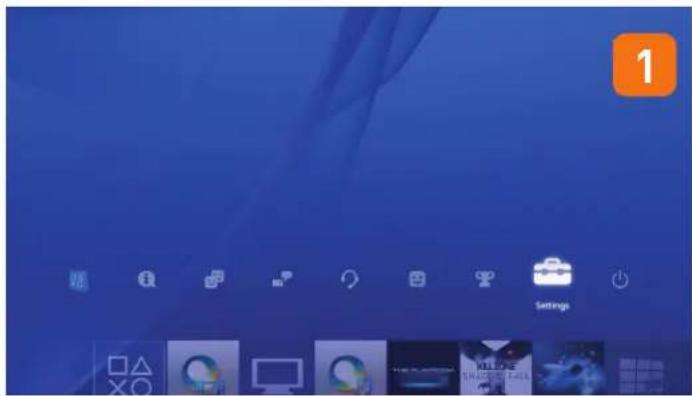
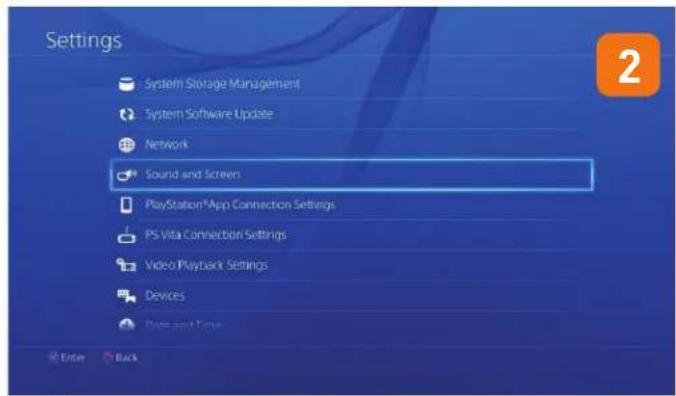
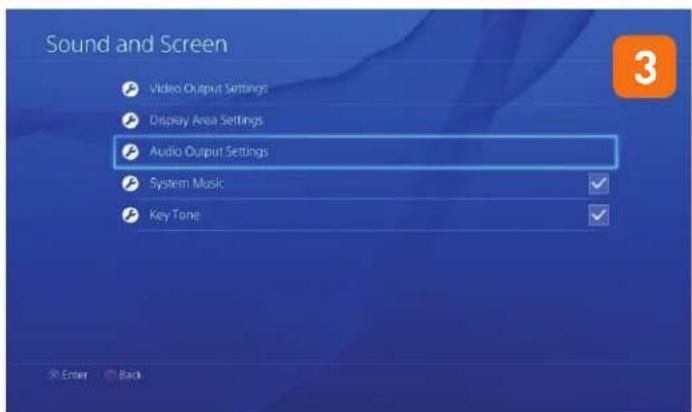
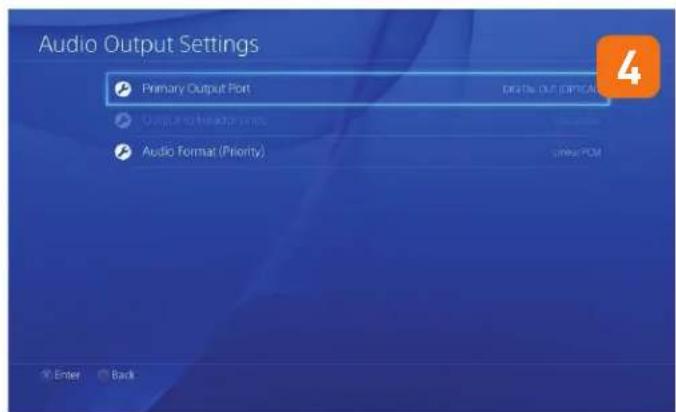
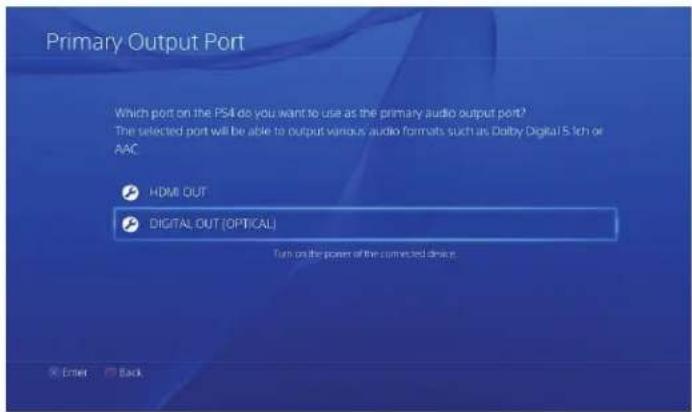
2. Select "Digital Out" (OPTICAL)
PS4™ Setup/System Settings Configuration
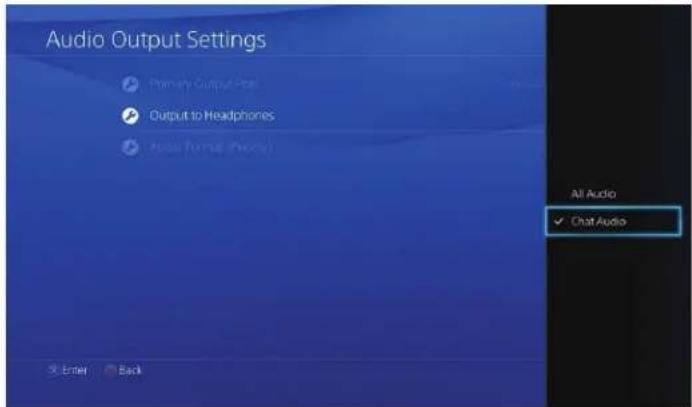
4. Go to Settings > Sound and Screen > Audio Output Settings > Output to Headphones
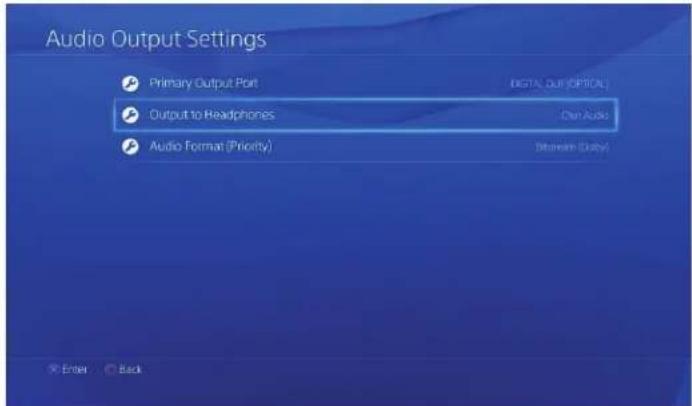
5. Select "Chat Audio"
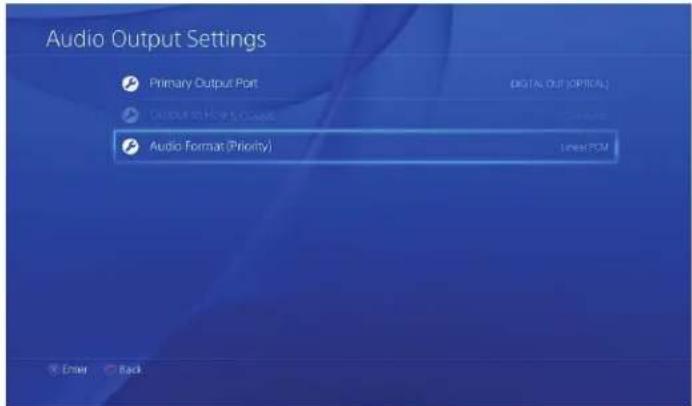
6. Go to Settings > Sound and Screen > Audio Output Settings > Audio Format (Priority)
PS4™ Setup/System Settings Configuration
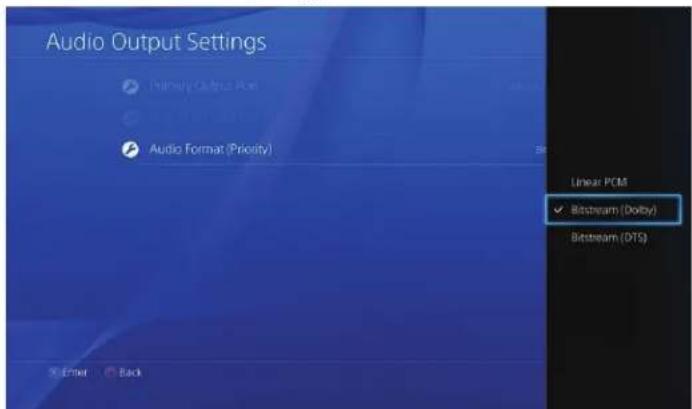
7. Select "Bitstream (Dolby)
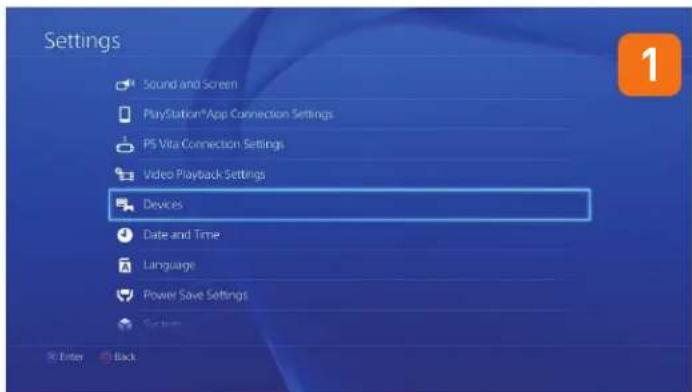
If your chat volume is either too loud or too soft:
- Go to Settings > Devices > Audio Devices > Headsets and Headphones > Volume Control (Headphones) and change the audio level to your liking.
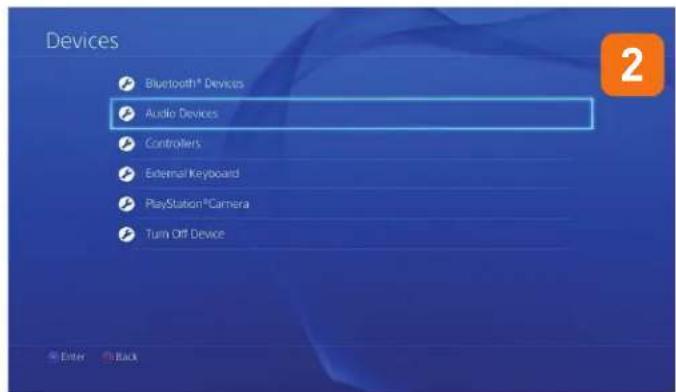
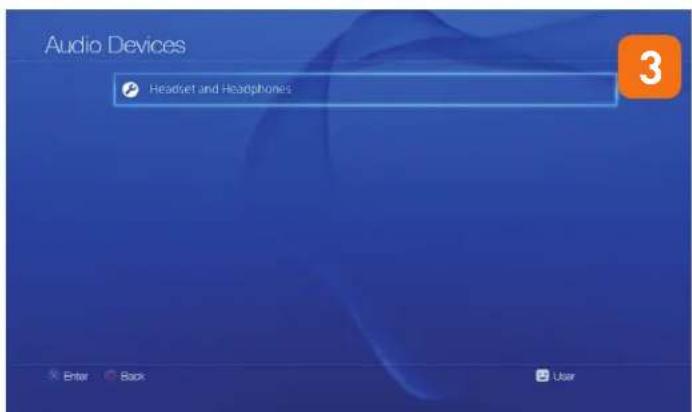
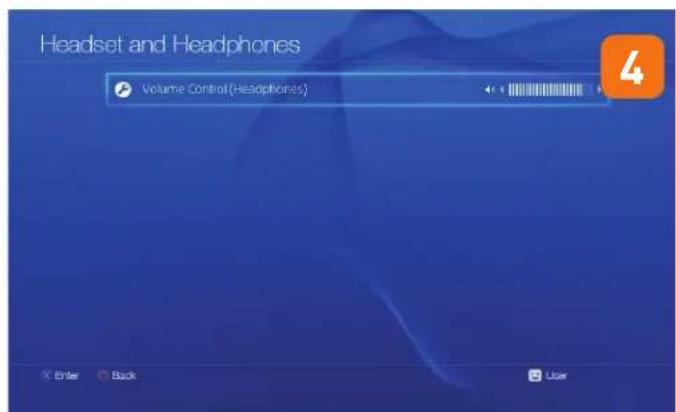
Home Theater Setup
Setting up the transmitter as illustrated below lets you listen to your console or TV with the PX4 headset. You can also hear your console on your home theater speakers without disconnecting the optical cable from the transmitter.
Connecting the PX4 transmitter digital output to your home theater system will pass your console's game audio from the transmitter's digital input to the home theater A/V receiver digital input, so you can hear the game audio on your PX4 headset and your surround sound speakers at the same time. To hear the game audio only on the PX4 headset, turn down or mute your speakers.
![graph TD A["Device"] -->|IN-DIGITAL-OUT| B["Analog IN"] A -->|IN-DIGITAL-OUT| C["Digital OUT USB"] A -->|IN-DIGITAL-OUT| D["Digital OUT"] A -->|IN-DIGITAL-OUT| E["Digital OUT"] A -->|IN-DIGITAL-OUT| F["Digital OUT"] A -->|IN-DIGITAL-OUT| G["Digital OUT"] A -->|IN-DIGITAL-OUT| H["Digital OUT"] A -->|…](/content/2026/05/1142307/images/a1ebc85be7844583497351edeee84de160a30b4b9c199687554de9952ac186a2.jpg)
Note: Remove the clear plastic covers from both ends of your Digital Optical Cable before setting up your transmitter.
* Whenever a DIGITAL INPUT is detected, the ANALOG INPUT is turned OFF. So if you have your TV plugged into the ANALOG IN jack, you won't hear it if your game console is transmitting digital audio to the transmitter.
Connecting a Digital Music Player
The PX4 features an analog input for connecting digital music players or other analog sources. The Analog Input volume can be adjusted directly from the digital music player or analog source.
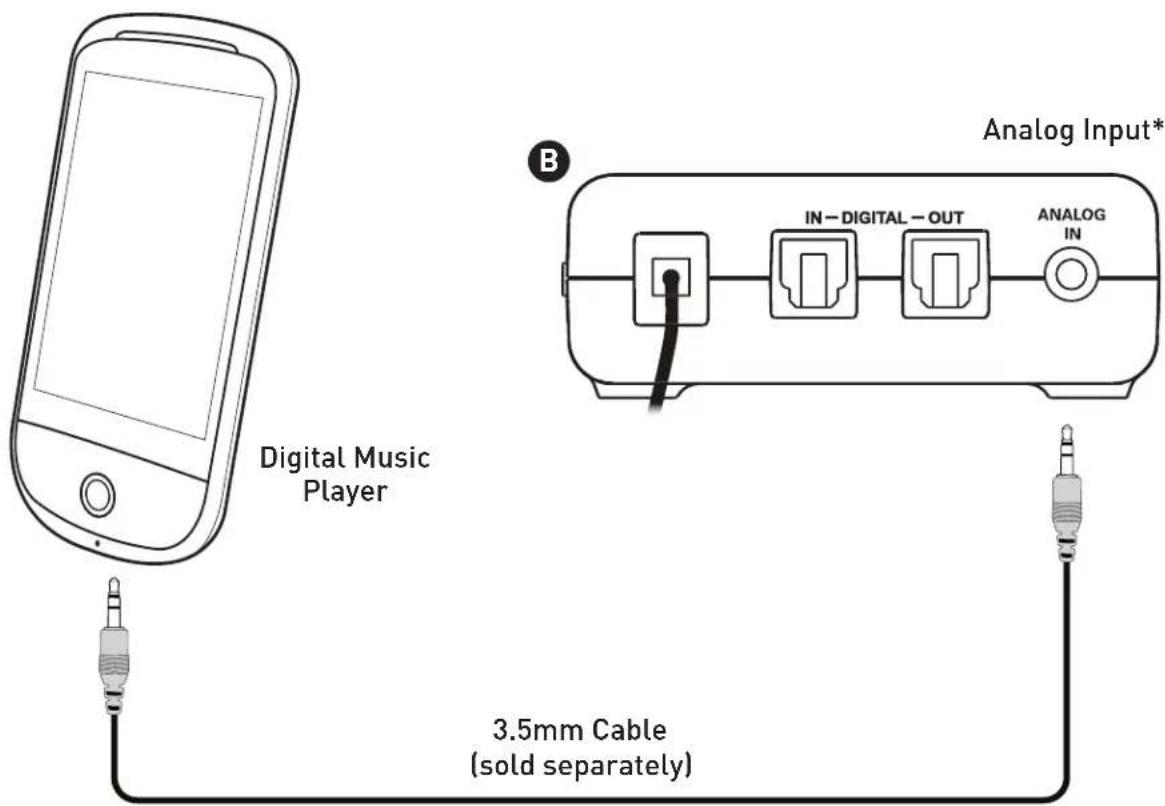
* Whenever a DIGITAL INPUT is detected, the ANALOG INPUT is turned OFF. So if you have your TV plugged into the ANALOG IN jack, you won't hear it if your game console is transmitting digital audio to the transmitter.
Dolby® Digital Processing
The PX4 uses Dolby Digital 5.1 surround processing technology – the industry-standard format for encoding multi-channel game audio. Dolby Digital processing recreates 5.1 channel surround sound using the PX4 headset so you can hear the sound all around you, as if you were listening to a 5.1 speaker system.
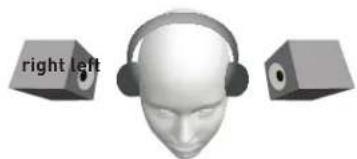
Stereo Sound Field
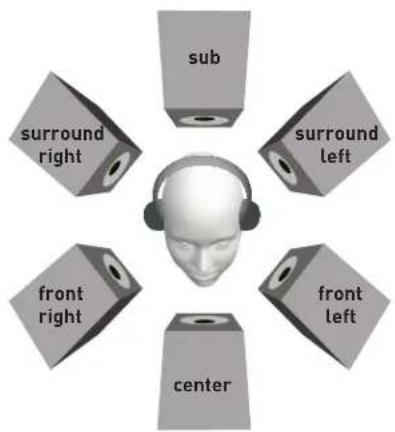
Sound field with Dolby® Digital 5.1 Surround Sound Processing
Here's how the Dolby Digital mode operates:
- When the digital input signal is active, the Digital Input LED turns on and the analog inputs are turned off.
- If the Surround LED is ON, surround sound processing is activated. If the LED is OFF, surround sound processing is deactivated and the signal will be heard as stereo.
- If a Dolby Digital encoded signal is detected by the digital input, the front ▶D LED turns on and Dolby Digital processes the channels to create surround sound in the headset. The surround sound must be turned on to enable the Dolby Digital processing.
Surround Sound
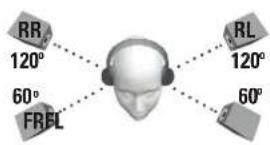
The PX4 allows you to alter the virtual positioning of the Front and Surround speakers for the best surround sound experience. Press the Surround Angles Button on the transmitter to cycle through 6 different presets, as illustrated below:
Press to cycle through 6 different surround sound angles
Surround Sound Angle Presets:
![graph TD A["User Head"] --> B["RR 105°"] A --> C["RL 105°"] A --> D["FR 30°"] A --> E["FL 30°"]](/content/2026/05/1142307/images/64b26773cdbae2988f21e35a900a0a0e566736beef3d001dc62e5f6c195038f2.jpg)
![graph TD A["Head"] --> B["RR 120°"] A --> C["RL 120°"] A --> D["FR 45°"] A --> E["FL 45°"]](/content/2026/05/1142307/images/0e6f0a727bb6a367c2305a31b8bcad3053bcf4d280eabc7e825b4b86652c40c6.jpg)
![graph TD A["User Head"] --> B["RR"] A --> C["RL"] A --> D["FR"] A --> E["FL"] style A fill:#f9f,stroke:#333 style B stroke-dasharray: 5 5 style C stroke-dasharray: 5 5 style D stroke-dasharray: 5 5 style E stroke-dasharray: 5 5](/content/2026/05/1142307/images/535abbc5f28b3f34a9929a2bf14fb70491bd60984342ab300e63a89e0d03fdd8.jpg)
② Front Angle; 45 degrees Rear Angle; 120 degrees
③ Front Angle; 45 degrees
Rear Angle; 135 degrees
① Front Angle; 30 degrees
Rear Angle; 105 degrees
![graph TD A["Central Head"] --> B["RR"] A --> C["RL"] A --> D["FRRL"] A --> E["60°"] style A fill:#f9f,stroke:#333 style B fill:#ccf,stroke:#333 style C fill:#ccf,stroke:#333 style D fill:#ccf,stroke:#333 style E fill:#ccf,stroke:#333](/content/2026/05/1142307/images/95323660985cf6c8ec841f895d21ca29c3374af3771817b3981fa8dd9671021d.jpg)
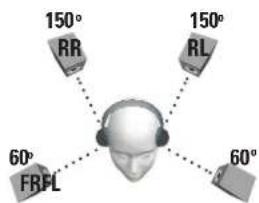
④ Front Angle; 60 degrees Rear Angle; 120 degrees
⑤ Front Angle; 60 degrees Rear Angle; 135 degrees
6 Front Angle; 60 degrees Rear Angle; 150 degrees
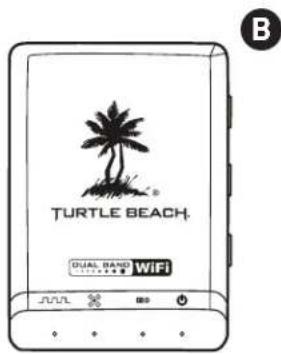
The LEDs will blink in sequence, indicating the number of the preset selected.
Bluetooth Setup
The PX4 incorporates Dual Pairing Bluetooth technology that can be paired to 2 Bluetooth enabled devices at once. This lets you communicate over PSN™ chat and answer calls on your mobile phone. If you're not using either of these Bluetooth features, you should turn off the Bluetooth to conserve battery power. The PX4 will automatically remember the last 2 paired devices upon powering on.
Pairing the Bluetooth on Xbox LIVE or PSN Chat
See "Bluetooth Configuration" on page 10.
Pairing a Mobile Phone
The PX4 Bluetooth must be powered off before you start:
1 On the PX4, press and hold the Bluetooth Button (BT MFB) for 5 seconds until the flashing LED begins to alternate blue and red—then release the button.
2 On your phone, make sure Bluetooth is powered on and search for Bluetooth devices as described in its user manual.
3 When your device is finished scanning, select "TURTLE BEACH Bluetooth Chat" from the list and follow the prompts to connect.
4 Enter "0000" as the Pass Key and select "OK". The Bluetooth LED on the headset will start flashing blue about once per second, indicating that the headset and phone are paired.
*NOTE: Only one Bluetooth device can be active on the headset at a time. For example, if you are making a call with the headset while on PSN chat, the chat will be deactivated until the call is over.
Bluetooth Functions
Making Calls with iPhone
Once the headset is successfully paired with your mobile phone, you can use it to make and receive calls. It can be used with voice dialing if your phone supports this function.
| If you want to... Then... | |
| Activate voice recognition* Press | and hold the BT MFB for 3 seconds, or until you hear a tone—then release. |
| Use your Phone to dial Call normally, once the call has been placed the sound will automatically be transferred to the headset | |
| Redial Last Number Double-Click the BT MFB | |
| Turn off the Microphone Press | the Mic Mute Button. Press again to turn the microphone back on |
| Adjust the Volume Press the Bluetooth Volume up and down buttons | |
| End a call Press the BT MFB once | |
* Some mobile phones may not have a redial or voice recognition function. If a phone does not have a redial function, then a double-click of the MFB will initiate the voice recognition state instead. If a phone does not have either function, then a double-click or 3-second press of the MFB will have no effect.
Receiving Calls
When the PX4 Bluetooth is powered on and there is an incoming call you will hear a phone ring chime in the headset.
| If you want to... Then... | |
| Accept a call. Press the BT MFB | once. |
| Reject a call. Press and hold the | BT MFB until you hear a beep. The call will be sent directly to your voice mail. |
| End a call. Press the BT MFB once. |
Charging the Headset
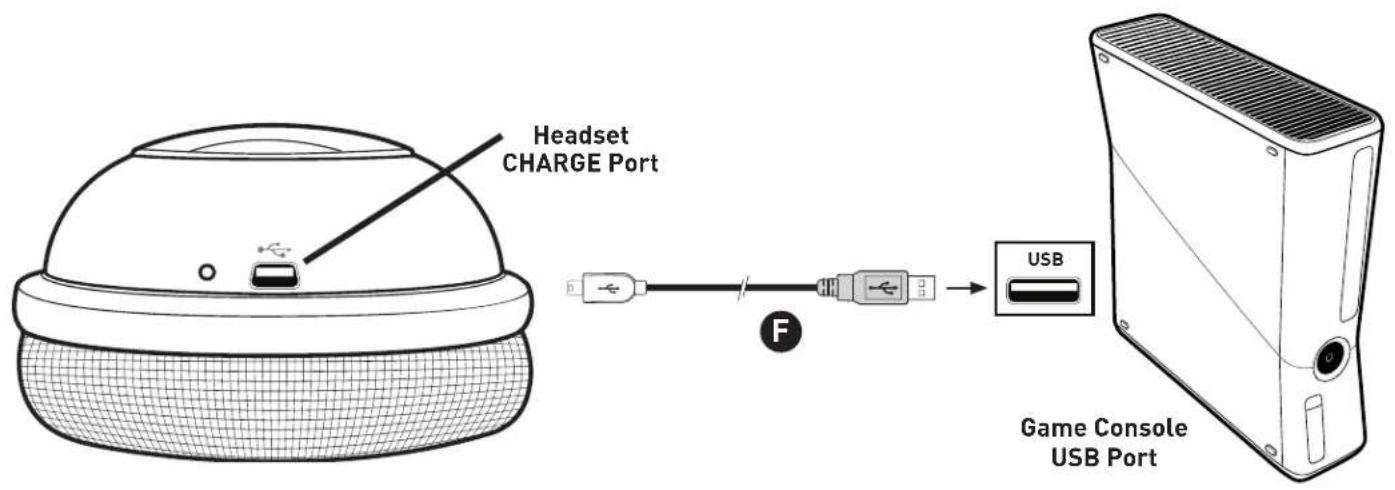
The PX4 features a rechargeable lithium polymer battery that provides more than 10 hours of continuous game play. When your headset battery power is low, a tone will begin to sound every 10 seconds until the headset powers off. You can recharge your headset while still gaming with the included Headset Charging Cable. Simply plug the mini USB end into your headset CHARGE port and plug the other end into a free USB port on your game console. If your headset is charging while it's powered off, the LED on the headset will remain solid RED until the headset is charged, at which time the headset LED will turn off.
Adjusting Sound
The PX4 features multiple Equalizer presets to enhance your gaming audio experience. Press the TONE button on the PX4 headset to cycle through the EQ presets as illustrated:
- Flat equalization, for the most accurate sound
- Bass boost, for the extreme low frequencies
- Treble boost, for the extreme high frequencies
- Bass and Treble Boost
Blast Limiter Presets
The Blast Limiter presets help protect your ears from deafening sounds such as explosions and gunfire by limiting the maximum level of the game sound. You won't hear the effect unless a loud sound occurs in the game. For example, if you're in a quiet section of the game, you might want to turn up the volume to hear softer sounds like footsteps. If an explosion or gunshot suddenly occurs, it could be uncomfortably loud because you turned up the volume for the footsteps. Turning on the Blast Limiter will reduce these louder sounds so you can boost the quieter/softer sounds. Press the LIMITER button to cycle through the three settings as illustrated:
Blast Limiter Presets:
- Limiter Off
- Mild Limiter
- Medium Limiter
- Max Limiter
Adjusting Sound
Chat Boost™
Chat Boost is a dynamic talkback expander built into the PX4 headset that automatically increases chat volume during loud moments in your game, so you can always hear your teammates or other players, regardless of the game volume.
Typically, if you turn up a headset's game volume, the incoming chat level from other players could become difficult to hear over the game sound. However, with Chat Boost, as the game audio increases, the chat volume also increases. When the game volume quiets down again, Chat Boost automatically returns the chat level to your original volume setting.
To properly set the Chat Boost function:
- Turn down the volume control on the headset so there's no game audio.
- Adjust the chat volume control on the headset so you can hear the chat voices at a comfortable level.
- Turn up the headset game volume and the chat volume will increase whenever the game gets louder, just as if the chat volume control is being automatically turned up along with the game level.
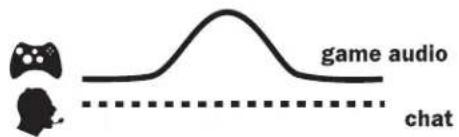
WITHOUT Chat Boost, chat volume is overwhelmed by loud game audio
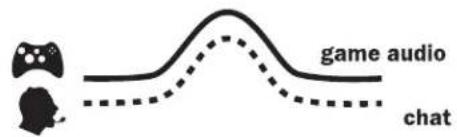
WITH Chat Boost,
chat volume increases along with game volume
NOTE: If the chat volume on the headset is set too loud, Chat Boost might increase the volume so much that the voices will distort. If that happens, turn down the chat volume on the headset.
Variable Mic Monitor
The PX4 headset includes a unique variable microphone monitor feature that allows you to adjust the level of your voice heard in the headset so you won't have to shout. This can be adjusted by turning the MIC MONITOR wheel on the left ear cup.
NOTE: Turning up the mic monitor may cause the mic to pick up room sounds which will make the silence detector not automatically shut off the headset when it's not being used. If the power is not automatically shutting down, turn down this mic monitor control.
Pairing Instructions
Headset and Transmitter
In order to play audio, the PX4 headset must be "paired" (linked) to its transmitter. The headset and transmitter are paired out of the box. The instructions below are only necessary if pairing appears to have been lost.
- Headset should be powered OFF. (Hold Power button for 3 seconds.)
- Press and hold the Pair button on the transmitter for 5 seconds until the transmitter's Power/Link LED flashes rapidly. Release.
- Press and hold the headset's Power button for 6 seconds until you hear the second double-beep, then release. The headset LED will flash rapidly (twice per second).
Note: You will hear a double-beep [headset on], followed by an ascending chime [Bluetooth on], then the second double-beep (pairing headset). - Within 30 seconds, the transmitter Power/Link LED will remain on solid, and the headset Power LED will blink steadily once per second, indicating that pairing was successful.
Power Button / Headset LED
* If pairing is unsuccessful on first attempt, please try again. It may take as many as five attempts to pair successfully.
Specifications
Headset
- 50mm diameter speakers with neodymium magnets
• Game audio frequency response: 20Hz - 20kHz, < 120dB SPL @ 1kHz - Condenser microphone frequency response: 50Hz - 15kHz
• Game audio Dual Band WiFi Digital 2.4-2.495GHz/5.0-5.8GHz RF wireless reception - Bluetooth® radio with dual-pairing mode
- Headphone amplifier: Stereo 27mW/ch, THD <1%
- Rechargeable Li-Po Battery (1000 mAh)
• Automatic shut down after approx 5 minutes of carrier loss or audio silence to conserve battery power - Battery booster circuit extends battery life for up to 15 hours
Transmitter
- Dual Band Digital 2.4-2.495GHz/5.0-5.8GHz RF wireless transmission with up to 30 foot range
• Frequency response: 20Hz - 20kHz
• Optical digital audio input compatible with 48kHz digital audio stream - Optical digital audio output pass-through of digital input stream
- Stereo 3.5mm analog input jack
- Maximum analog input level: 2Vpp (700mV rms)
- USB Power - (5V DC @ 350mA max)
![num analog input level: 2Vpp [700mV rms] Power - (5V DC @ 350mA max) TURTLE BEACH. DUAL BAND WiFi TURTLE BEACH](/content/2026/05/1142307/images/f1a87b250665365fe7fcc19b047cb2345ffd7805e90f4cfce05b440891bfbae9.jpg)
Regulatory Compliance Statements for the PX4 Models
Federal Communications Commission (FCC) Compliance Notices
Class B Interference Statement
This equipment has been tested and found to comply with the limits for a Class B digital device, pursuant to Part 15, Subpart B of the FCC Rules. These limits are designed to provide reasonable protection against harmful interference in a residential installation. This equipment generates, uses, and can radiate radio frequency energy and, if not installed and used in accordance with the instructions, may cause harmful interference to radio communications. However, there is no guarantee that interference will not occur in a particular installation. If this equipment does cause harmful interference to radio or television reception, which can be determined by turning the equipment off and on, the user is encouraged to try to correct the interference by one or more of the following measures:
- Reorient or relocate the receiving antenna.
- Increase the separation between the equipment and receiver.
- Connect the equipment into an outlet on a circuit different from that to which the receiver is connected.
- Consult the dealer or an experienced radio/TV technician for help.
FCC Caution:
This device complies with Part 15 of the FCC Rules. Operation is subject to the following two conditions: (1) This device may not cause harmful interference, and (2) this device must accept any interference received, including interference that may cause undesired operation.
Canadian ICES Statements
Canadian Department of Communications Radio Interference Regulations
This digital apparatus does not exceed the Class B limits for radio-noise emissions from a digital apparatus as set out in the Radio Interference Regulations of the Canadian Department of Communications. This Class B digital apparatus complies with Canadian ICES-003.
European Union and European Fair Trade Association (EFTA) Regulatory Compliance
This equipment may be operated in the countries that comprise the member countries of the European Union and the European Fair Trade Association. These countries, listed below, are referred to as The European Community throughout this document:
AUSTRIA, BELGIUM, BULGARIA, CYPRUS, CZECH REPUBLIC, DENMARK, ESTONIA, FINLAND, FRANCE, GERMANY, GREECE, HUNGARY, ICELAND, IRELAND, ITALY, LATVIA, LICHTENSTEIN, LITHUANIA, LUXEMBOURG, MALTA, NETHERLANDS, NORWAY, POLAND, PORTUGAL, ROMANIA, SLOVAKIA, SLOVENIA, SPAIN, SWEDEN, SWITZERLAND, UNITED KINGDOM
Declaration of Conformity
Marking by this symbol: C ∈ ①
indicates compliance with the Essential Requirements of the EMC Directive of the European Union (2004/108/EC). This equipment meets the following conformance standards:
Safety: EN 60950-1: 2006 + A11 + A1 + A12 (T-Mark License)
Also Licensed for Standards:
EC 60950-1: 2005 + A1: 2009, (CB Scheme Report/Certificate),
UL60950-1 (NRTL License), CSA22.2, 60950-1 (SCC License)
Additional licenses issued for specific countries available on request
Emissions: EN 55022: 2010, EN 50332-1: 2000, EN50332-2: 2003
EN61000-3-2: 2006 +A1: 2009 +A2: 2009, EN61000-3-3: 2008
CISPR 22: 2010
Immunity: EN 55024: 2010, EN61000-4-2: 2008, EN61000-4-3: 2010,
EN61000-4-4: 2011, EN 61000-4-5: 2005, EN 610004-6: 2008,
EN61000-4-11:2004
The products are licensed, as required, for additional country specific standards for the International Marketplace. Additional issued licenses available upon request.
Environmental: Low Voltage Directive 2006/95/EC,
RoHS 2002/95/EC
REACH 1907/2006/EC
WEEE 2002/96/EC
Warning!
This is a Class B product. In a domestic environment, this product may cause radio interference, in which case, the user may be required to take appropriate measures.
Achtung!
Voyetra Turtle Beach, Inc. ("VTB") warrants to the original end-user purchaser ("Purchaser") that the retail Turtle Beach hardware product herein ("Product") will be free of defects in materials and workmanship for a period of one year from the date of purchase by the Purchaser ("Warranty Period"). Any Extended Warranty or Service Plans purchased through a Retail store are not honored by VTB. The Warranty refers to the repair/replacement of a defective product during this period and not a refund.
This limited warranty is extended only to the original Purchaser of a new product, which was not sold "AS IS". It is not transferable or assignable to any subsequent purchaser. This limited warranty is applicable only in the country or territory where the Product was purchased from an authorized VTB retailer and does not apply to a Product that has been purchased as used or refurbished or was included as part of a non-VTB product.
WARRANTY SERVICE:
In the USA and CANADA Warranty Service is provided by our Turtle Beach USA offices and in all other Countries it is provided by our local International Distributors when available. Refurbished/Recertified products are sold on an AS IS basis with a 90-day Warranty or less in accordance with each vendor's policy.
VTB does not warrant uninterrupted or error-free operation of the Product and is under no obligation to support the Product for all computer operating systems or future versions of such operating systems.
If a defect should occur during the Warranty Period, Purchaser must contact VTB to obtain a Return Merchandise Authorization ("RMA") number on the basis of the dated purchase receipt. Purchaser will be responsible for shipping costs incurred in returning the defective Product to an authorized VTB service center, or to the repair facility located at VTB's corporate headquarters. VTB will not be responsible for other products or accessories included with the defective Product sent to VTB. The RMA number must be clearly indicated on the outside of the package. Packages without an RMA number will be refused by VTB or its representatives and returned to sender at the sender's expense.
In the event of a defect, Purchaser's sole and exclusive remedy, and VTB's sole liability, is expressly limited to the correction of the defect by adjustment, repair, or replacement of the Product at VTB's sole option and expense. VTB owns all Products it has replaced and all parts removed from repaired Products. VTB uses new and reconditioned parts made by various manufacturers in performing warranty repairs and building replacement products. If VTB repairs or replaces a product, the original Warranty Period is not extended, however, VTB warrants that repaired or replacement parts will be free from defects in material and workmanship for a period of thirty (30) days from the date of repair or replacement, or for the remainder of the Warranty Period, whichever is greater.
This warranty does not apply to any Product that has had its serial number altered, removed or defaced, or any Product damage caused by shipping, improper storage, accident, problems with electrical power, abuse, misuse, neglect, ordinary wear, acts of God (e.g. flood), failure to follow directions, improper maintenance, use not in accordance with product instructions, unauthorized modification or service of the Product or damage resulting from the use of the Product with hardware, software or other products not provided by or specifically recommended by VTB.
NOTES:
- Replacement Parts and accessories that are subject to “wear and tear” such as earpads, mic foam covers, talkback cables, etc. have a three (3) month Warranty.
- Replacement Parts for Discontinued Products are sold on an AS IS basis, they are not supported and come with a 30 day Warranty.
THIS LIMITED WARRANTY IS PURCHASER'S SOLE AND EXCLUSIVE REMEDY AND IS IN LIEU OF ALL OTHER WARRANTIES, EXPRESS OR IMPLIED. TO THE EXTENT PERMITTED BY APPLICABLE LAW, VTB HEREBY DISCLAIMS THE APPLICABILITY OF ANY IMPLIED WARRANTY OF MERCHANTABILITY, FITNESS FOR A PARTICULAR PURPOSE OR USE FOR THE PRODUCT. IF SUCH A DISCLAIMER IS PROHIBITED BY APPLICABLE LAW, THE IMPLIED WARRANTY IS LIMITED TO THE DURATION OF THE FOREGOING LIMITED WRITTEN WARRANTY.
IN NO EVENT SHALL VTB BE LIABLE FOR ANY INDIRECT, INCIDENTAL, SPECIAL, PUNITIVE OR CONSEQUENTIAL DAMAGES, OR DAMAGES, INCLUDING BUT NOT LIMITED TO ANY LOST PROFITS, DATA, OR LOSS OF USE, ANY THIRD PARTY CLAIMS, AND ANY INJURY TO PROPERTY OR BODILY INJURY (INCLUDING DEATH) TO ANY PERSON, ARISING FROM OR RELATING TO THE USE OF THIS PRODUCT OR ARISING FROM BREACH OF THE WARRANTY, BREACH OF CONTRACT, NEGLIGENCE, TORT, OR STRICT LIABILITY, EVEN IF VTB HAS BEEN ADVISED OF THE POSSIBILITY OF SUCH DAMAGES.
This warranty supersedes all prior agreements or understandings, oral or written, relating to the Product, and no representation, promise or condition not contained herein will modify these terms. Some states do not allow the exclusion or limitation of incidental or consequential damages, so the above exclusion or limitation may not apply to you. This warranty gives you specific legal rights. You may also have other rights, which vary from state to state. Any action or lawsuit for breach of warranty must be commenced within eighteen (18) months following the purchase of the Product.
EXCLUSIONS FROM LIMITED WARRANTY:
This Limited Warranty shall not apply and VTB has no liability under this Limited Warranty if the Turtle Beach Product:
- is used for commercial purposes such as "LAN, Call Centers" (including rental or lease);
- is modified or tampered with;
- is damaged by Acts of God, power surge, misuse, abuse, negligence, accident, wear and tear, mishandling, misapplication, or other causes unrelated to defective materials or workmanship;
- serial number is defaced, altered or removed;
- is not used in accordance with the documentation and use instructions; or
- is repaired, modified or altered by other than authorized repair centers.
- is no longer available because it was discarded.

Watch Turtle Beach product training videos at: youtube.com/TurtleBeachVideos

Product support and warranty information: TurtleBeach.com/support
- TABLE OF CONTENTS
- PACKAGE CONTENTS
- FEATURES
- DOLBY® SURROUND SOUND
- DOLBY® DIGITAL
- DUAL-BAND WI-FI
- DUAL PAIRING BLUETOOTH®
- BLUETOOTH®
- RECHARGEABLE BATTERY
- ENGINEERED FOR HIGH-QUALITY SOUND
- PX4 HEADSET - LEFT VIEW
- PX4 HEADSET - RIGHT VIEW
- PX4 TRANSMITTER
- TRANSMITTER RANGE
- PS3™ SETUP/SYSTEM SETTINGS CONFIGURATION
- PS3 BLUETOOTH CONFIGURATION
- PS3 CHAT CONFIGURATION
- PS3 AUDIO OUTPUT CONFIGURATION
- XBOX 360® SETUP/SYSTEM SETTINGS CONFIGURATION
- XBOX 360® E SETUP
- XBOX 360 SYSTEM SETTINGS
- PS4™ SETUP/SYSTEM SETTINGS CONFIGURATION
- GO TO SETTINGS >SOUND AND SCREEN >AUDIO OUTPUT SETTINGS >PRIMARY OUTPUT PORT
- SELECT "DIGITAL OUT" (OPTICAL)
- GO TO SETTINGS > SOUND AND SCREEN > AUDIO OUTPUT SETTINGS > OUTPUT TO HEADPHONES
- SELECT "CHAT AUDIO
- GO TO SETTINGS > SOUND AND SCREEN > AUDIO OUTPUT SETTINGS > AUDIO FORMAT (PRIORITY)
- SELECT "BITSTREAM (DOLBY)
- HOME THEATER SETUP
- CONNECTING A DIGITAL MUSIC PLAYER
- DOLBY® DIGITAL PROCESSING
- SURROUND SOUND
- BLUETOOTH SETUP
- PAIRING THE BLUETOOTH ON XBOX LIVE OR PSN CHAT
- PAIRING A MOBILE PHONE
- BLUETOOTH FUNCTIONS
- MAKING CALLS WITH IPHONE
- RECEIVING CALLS
- CHARGING THE HEADSET
- ADJUSTING SOUND
- BLAST LIMITER PRESETS
- CHAT BOOST™
- VARIABLE MIC MONITOR
- PAIRING INSTRUCTIONS
- HEADSET AND TRANSMITTER
- SPECIFICATIONS
- HEADSET
- TRANSMITTER
- REGULATORY COMPLIANCE STATEMENTS FOR THE PX4 MODELS
- FEDERAL COMMUNICATIONS COMMISSION (FCC) COMPLIANCE NOTICES
- CLASS B INTERFERENCE STATEMENT
- FCC CAUTION
- CANADIAN ICES STATEMENTS
- DECLARATION OF CONFORMITY
- WARNING
- ACHTUNG
- WARRANTY SERVICE
- NOTES
- EXCLUSIONS FROM LIMITED WARRANTY
Brand : TURTLE BEACH
Model : ZBX0HW69300
Category : Headphones