
IPS32-2T - Radio TOSHIBA - Free user manual and instructions
Find the device manual for free IPS32-2T TOSHIBA in PDF.


| Product Type | Network Video Recorder (DVR) |
| Brand | Toshiba |
| Model | IPS32-2T |
| CPU | Intel® CPU |
| Operating System | Microsoft® Windows® XP Embedded |
| Internal Storage | 500 GB standard, up to 2 TB |
| Max Storage Drives | Up to 4 HDD plus DVD±RW |
| Recording Rate | Up to 30 PPS per camera (dependent on network camera encoding) |
| Video Outputs | SVGA x1, DVI-D x1 |
| Video Inputs | Up to 32 network-based video inputs |
| Audio Recording | Up to 1 channel |
| Motion Detection | Up to 15 regions per channel, adjustable sensitivity |
| Remote Operation | Full remote control via PSTN, ISDN, ADSL, LAN, TCP/IP |
| PTZ Control | Via IP protocols |
| Recording Modes | Continuous, motion detection, sensor, scheduled, pre-alarm |
| Backup | USB, Digital Signature support |
| Emergency Agent | Transmitted through TCP/IP – SCS |
| Dimensions (approx.) | 19 x 24 x 5.25 inches (482 x 610 x 133 mm) |
| Weight (approx.) | 28 lbs (12.7 kg) |
| Power | AC 100-240V, 50/60 Hz |
| Included Accessories | Mouse, keyboard, power cable, audio adapter, rack mount kit, manual |
| Cleaning | Use a soft dry cloth; do not use liquid or aerosol cleaners |
| Safety | Do not expose to rain/moisture; refer servicing to qualified personnel |
Frequently Asked Questions - IPS32-2T TOSHIBA
User questions about IPS32-2T TOSHIBA
0 question about this device. Answer the ones you know or ask your own.
Ask a new question about this device
Download the instructions for your Radio in PDF format for free! Find your manual IPS32-2T - TOSHIBA and take your electronic device back in hand. On this page are published all the documents necessary for the use of your device. IPS32-2T by TOSHIBA.
USER MANUAL IPS32-2T TOSHIBA
Surveillix™ IPS
Hardware Manual
Manual Edition 29098AA - APRIL 2009
Printed in USA
No part of this documentation may be reproduced in any means, electronic or mechanical, for any purpose, except as expressed in the Software License Agreement. Toshiba shall not be liable for technical or editorial errors or omissions contained herein. The information in this document is subject to change without notice.
THE INFORMATION IN THIS PUBLICATION IS PROVIDED "AS IS" WITHOUT WARRANTY OF ANY KIND. THE ENTIRE RISK ARISING OUT OF THE USE OF THIS INFORMATION REMAINS WITH RECIPIENT. IN NO EVENT SHALL TOSHIBA BE LIABLE FOR ANY DIRECT, CONSEQUENTIAL, INCIDENTAL, SPECIAL, PUNITIVE, OR OTHER DAMAGES WHATSOEVER (INCLUDING WITHOUT LIMITATION, DAMAGES FOR LOSS OF BUSINESS PROFITS, BUSINESS INTERRUPTION OR LOSS OF BUSINESS INFORMATION), EVEN IF TOSHIBA HAS BEEN ADVISED OF THE POSSIBILITY OF SUCH DAMAGES AND WHETHER IN AN ACTION OR CONTRACT OR TORT, INCLUDING NEGLIGENCE.
This software and documentation are copyrighted. All other rights, including ownership of the software, are reserved to DVR Support Center. TOSHIBA, and Surveillix are registered trademarks of TOSHIBA CORPORATION in the United States and elsewhere; Windows, and Windows 2000 are registered trademarks of Microsoft Corporation. All other brand and product names are trademarks or registered trademarks of the respective owners.
The following words and symbols mark special messages throughout this guide:

WARNING: Text set off in this manner indicates that failure to follow directions could result in bodily harm or loss of life.

CAUTION: Text set off in this manner indicates that failure to follow directions could result in damage to equipment or loss of information.
The Imaging Systems Division of Toshiba America Information Systems, Inc. ("ISD") makes the following limited warranties. These limited warranties extend to the Original End-User ("You[r]").
Limited Two (2) Year Warranty of Labor and Parts
The Imaging Systems Division of Toshiba America Information Systems warrants this product and parts against defects in material or workmanship for a period of two years from the date of original retail purchase by the end-user. During this period, ISD will repair or replace a defective product or part with a new or refurbished item. The user must deliver the entire product to the Surveillix DVR Repair Facility. The user is responsible for all transportation and insurance charges for the product to the DVR Repair Facility. ISD reserves the right to substitute Factory Refurbished Parts and / or Factory Refurbished Product in place of those in need of repair.
Step-by-step Procedures - How to Obtain Warranty Service
[1] Verify operation of the unit by checking the instruction manual and web site for the latest updates at
www.toshiba.com/taisisd
[2] If there is a defect in material or workmanship, contact the Surveillix DVR Support Center at (877) 855-1349 [877-1-FIX] to speak to a technical support representative and schedule service.
[3] Arrange for delivery of the product to the Surveillix DVR Repair Facility. Products must be insured and securely packed, preferably in the original shipping carton. A letter explaining the defect and a copy of the bill of sale or other proof of purchase must be enclosed with a complete return street address and daytime telephone number. The Tracking Number should also be indicated on your documents. Charges for transportation and insurance must be prepaid by the end-user.
Critical Use Disclaimer
The product is not designed for any “critical applications.” “Critical applications” means life support systems, exhaust or smoke extraction applications, medical applications, commercial aviation, mass transit applications, military applications, homeland security applications, nuclear facilities or systems or any other applications where product failure could lead to injury to persons or loss of life or catastrophic property damage. Accordingly, Toshiba disclaims any and all liability arising out of the use of the product in any critical applications.
Your Responsibilities
The above warranty is subject to the following conditions:
[1] You must retain the bill of sale or provide other proof of purchase.
[2] You must schedule service within thirty days after you discover a defective product or part.
[3] All warranty servicing of this product must be made by the Surveillix DVR Repair Facility.
[4] The warranty extends to defects in material or workmanship as limited above, and not to any products or parts that have been lost or discarded by user. The warranty does not cover damage caused by misuse, accident, improper installation, improper maintenance, or use in violation of instructions furnished by ISD. The warranty does not extend to units which have been altered or modified without authorization of ISD, or to damage to products or parts thereof which have had the serial number removed, altered defaced or rendered illegible.
ALL WARRANTIES IMPLIED BY STATE LAW, INCLUDING THE IMPLIED WARRANTIES OF MERCHANTABILITY AND FITNESS FOR A PARTICULAR PURPOSE, ARE EXPRESSLY LIMITED TO THE DURATION OF THE LIMITED WARRANTIES SET FORTH ABOVE. Some states do not allow limitations on how long an implied warranty lasts, so the above limitation may not apply. WITH THE EXCEPTION OF ANY WARRANTIES IMPLIED BY STATE LAW AS HEREBY LIMITED, THE FOREGOING EXPRESS WARRANTY IS EXCLUSIVE AND IN LIEU OF ALL OTHER WITH RESPECT TO THE REPAIR OR REPLACEMENT OF ANY PRODUCTS OR PARTS. IN NO EVENT SHALL ISD BE LIABLE FOR CONSEQUENTIAL OR INCIDENTAL DAMAGES. Some states do not allow the exclusion or limitation of incidental or consequential damages so the above limitation may not apply.
No person, agent, distributor, dealer, service station or company is authorized to change, modify or extend the terms of these warranties in any manner whatsoever. The time within which an action must be commenced to enforce any obligation of ISD arising under this warranty or under any statute, or law of the United States or any state thereof, is hereby limited to one year from the date you discover or should have discovered, the defect. This limitation does not apply to implied warranties arising under state law. Some states do not permit limitation of the time within which you may bring an action beyond the limits provided by state law so the above provision may not apply to user. This warranty gives the user specific legal rights, and user may also have other rights, which may vary from state to state.
Imaging Systems Division
Copyright © 2007 Toshiba America Information Systems, Inc. All rights reserved.
TOSHIBA
IMPORTANT SAFEGUARDS
- Read Owner's Manual – After unpacking this product, read the owner's manual carefully, and follow all the operating and other instruction
- Power Sources – This product should be operated only from the type of power source indicated on the label. If not sure of the type of power supply to your home or business, consult product dealer or local power company
- Ventilation – Slots and openings in the cabinet are provided for ventilation and to ensure reliable operation of the product and to protect it from overheating, and these openings must not be blocked or covered. The product should not be placed in a built-in installation such as a bookcase or rack unless proper ventilation is provided or the manufacturer's instructions have been adhered to.
- Heat – The product should be situated away from heat sources such as radiators, heat registers, stoves, or other products that produce heat.
- Water and Moisture – Do not use this product near water. Do not exceed the humidity specifications for the product as detailed in the Appendix section in this manual
- Cleaning – Unplug this product from the wall outlet before cleaning. Do not use liquid cleaners or aerosol cleaners. Use a damp cloth for cleaning.
- Power Cord Protection – Power-supply cords should be routed so that they are not likely to be walked on or pinched by items placed against them, paying particular attention to cords at plugs, convenience receptacles, and the point where they exit from the product.
- Overloading – Do not overload wall outlets, extension cords, or integral convenience receptacles as this can result in a risk of fire or electrical shock.
- Lightning – For added protection for this product during storm, or when it is left unattended and unused for long periods, unplug it from the wall outlet. This will prevent damage to the product due to lightning and power line surges.
- Object and Liquid Entry Points – Never insert foreign objects into the DVR, other than the media types approved by Toshiba, as they may touch dangerous voltage points or short-out parts that could result in a fire or electrical shock. Never spill liquid of any kind on the product.
- Accessories – Do not place this product on an unstable cart, stand, tripod, bracket, or table. The product may fall, causing serious personal injury and serious damage to the product.
- Disc Tray – Keep fingers well clear of the disc tray as it is closing. Neglecting to do so may cause serious personal injury.
- Burden – Do not place a heavy object on or step on the product. The object may fall, causing serious personal injury and serious damage to the product.
- Disc – Do not use a cracked, deformed, or repaired disc. These discs are easily broken and may cause serious personal injury and product malfunction.
IMPORTANT SAFEGUARDS, continued
- Damage Requiring Service – Unplug the unit from the outlet and refer servicing to qualified service personnel under the following conditions:
When the power-supply cord or plug is damaged.
If liquid has been spilled, or objects have fallen into the unit.
If the unit has been exposed to rain or water.
If the unit does not operate normally by following the operating instructions. Adjust only those controls that are covered by the operating instructions as an improper adjustment of other controls may result in damage and will often require extensive work by a qualified technician to restore the unit to its normal operation.
If the unit has been dropped or the enclosure has been damaged.
When the unit exhibits a distinct change in performance – this indicates a need for service. - Servicing – Do not attempt to service this product as opening or removing covers may expose the user to dangerous voltage or other hazards. Refer all servicing to qualified personnel.
- Replacement Parts – When replacement parts are required, be sure the service technician has used replacement parts specified by the manufacturer or have the same characteristics as the original part. Unauthorized substitutions may result in fire, electric shock or other hazards.
- Safety Check – Upon completion of any service or repairs to this unit, ask the service technician to perform safety checks to determine that the unit is in proper operating condition.
NOTES ON HANDLING
Please retain the original shipping carton and/or packing materials supplied with this product. To ensure the integrity of this product when shipping or moving, repackage the unit as it was originally received from the manufacturer.
Do not use volatile liquids, such as aerosol spray, near this product. Do not leave rubber or plastic objects in contact with this product for extended periods of time. Rubber or plastic objects left in contact with this product for extended periods of time will leave marks on the finish.
The top and rear panels of the unit may become warm after long periods of use. This is not a malfunction.
NOTES ON LOCATING
Place this unit on a level surface. Do not use it on a shaky or unstable surface such as a wobbling table or inclined stand.
If this unit is placed next to a TV, radio, or VCR, the playback picture may become poor and the sound may be distorted. If this happens, place the DVR away from the TV, radio, or VCR.
NOTES ON CLEANING
Use a soft dry cloth for cleaning.
For stubborn dirt, soak the cloth in a weak detergent solution, wring well and wipe. Use a dry cloth to wipe it dry. Do not use any type of solvent, such as thinner and benzene, as they may damage the surface of the DVR.
If using a chemical saturated cloth to clean the unit, follow that product's instructions.
NOTES ON MAINTENANCE
This DVR is designed to last for long periods of time. To keep the DVR operational we recommend regular inspection maintenance (cleaning parts or replacement). For details, contact the nearest dealer.
NOTES ON MOISTURE CONDENSATION
Moisture condensation damages the DVR. Read the following information carefully.
Moisture condensation occurs during the following cases:
When this product is brought directly from a cool location to a warm location.
When this product is moved to a hot and humid location from a cool location.
When this product is moved to a cool and humid location from a warm location.
When this product is used in a room where the temperature fluctuates.
When this product is used near an air-conditioning unit vent
When this product is used in a humid location.
Do not use the DVR when moisture condensation may occur.
If the DVR is used in such a situation, it may damage discs and internal parts. Remove any DVD discs, connect the power cord of the DVR to the wall outlet, turn on the DVR, and leave it for two to three hours. After two to three hours, the DVR will warm up and evaporate any moisture. Keep the DVR connected to the wall and moisture will seldom occur.
WARNING
TO REDUCE THE RISK OF ELECTRICAL SHOCK, DO NOT EXPOSE THIS APPLIANCE TO RAIN OR MOISTURE.
DANGEROUS HIGH VOLTAGES ARE PRESENT INSIDE THE ENCLOSURE.
DO NOT OPEN THE CABINET.
REFER SERVICING TO QUALIFIED PERSONNEL ONLY.
CAUTION

CAUTION
RISK OF ELECTRIC SHOCK DO NOT OPEN

CAUTION: TO REDUCE THE RISK OF ELECTRIC SHOCK, DO NOT REMOVE COVER (OR BACK).
NO USER-SERVICEABLE PARTS INSIDE.
REFER SERVICING TO QUALIFIED SERVICE PERSONNEL.
EXPLANATION OF GRAPHICAL SYMBOLS

The lightning flash with arrowhead symbol, within an equilateral triangle, is intended to alert the user to the presence of un-insulated “dangerous voltage” within the product’s enclosure that may be of sufficient magnitude to constitute a risk of electric shock to persons.

The exclamation point within an equilateral triangle is intended to alert the user to the presence of important operating and maintenance (servicing) instruction in the literature accompanying the product.
RACK MOUNT INSTRUCTIONS
Elevated Operating Ambient – If installed in a closed or multi-unit rack assembly, the operating ambient temperature of the rack environment may be greater than room ambient. Therefore, consideration should be given to installing the equipment in an environment compatible with the maximum ambient temperature (Tma) specified by the manufacturer.
Reduced Air Flow – Installation of the equipment in a rack should be such that the amount of airflow required for safe operation of the equipment is not compromised.
Mechanical Loading – Mounting of the equipment in the rack should be such that a hazardous condition is not achieved due to uneven mechanical loading.
Circuit Overloading – Consideration should be given to the connection of the equipment to the supply circuit and the effect that overloading of the circuits might have on over current protection and supply wiring. Appropriate consideration of equipment nameplate ratings should be used when addressing this concern.
Grounding – Grounding of rack-mounted equipment should be maintained. Particular attention should be given to supply connections other than direct connections to the branch circuit (e.g. use of power strips).
FCC STATEMENT
This equipment has been tested and found to comply with the limits for a Class A digital device, pursuant to Part 15 of the FCC Rules. These limits are designed to provide reasonable protection against harmful interference when the equipment is operated in a commercial environment. This equipment generates, uses, and can radiate radio frequency energy and, if not installed and used in accordance with the instruction manual, may cause harmful interference to radio communications. Operation of this equipment in a residential area is likely to cause harmful interference in which case the user will be required to correct the interference at his own expense.
UL NOTICE
Underwriters Laboratories Inc. has not tested the performance or reliability of the security or signaling aspects of this product. UL has only tested for fire, shock and casualty hazards as outlined in UL's Standard for Safety UL 60950-1. UL Certification does not cover the performance or reliability of the security or signaling aspects if this product. UL MAKES NO REPRESENTATIONS, WARRANTIES OR CERTIFICATIONS WHATSOEVER REGARDING THE PERFORMANCE OR RELIABILITY OF ANY SECURITY OR SIGNALING RELATED FUNCTIONS OF THIS PRODUCT.
Table of Contents
PREFACE....11
About this Guide 11
Technician Notes 11
INTRODUCTION 13
Product Description....13
Features....14
CONTROLS AND CONNECTIONS 15
System Specifications....16
Front Panel Controls and LEDs 16
Rear Panel Connectors....17
GETTING STARTED....19
Identifying Included Components....20
Keyboard Setup 21
Mouse Setup....21
Monitor Setup....22
Power Setup 22
Turning On the IPS 23
Turning Off the IPS 23
IPS Specifications 25
PREFACE
ABOUT THIS GUIDE
This manual is a setup and maintenance guide that can be used for reference when setting up the DVR and for troubleshooting when a problem occurs. Only authorized personnel should attempt to repair this unit.
Toshiba reserves the right to make changes to the DVRs represented by this manual without notice.
The following text and symbols mark special messages throughout this guide:
NOTE: Text set off in this manner indicates topics of interests that can help the user understand the product better.
TIP: Text set off in this manner indicates topics and points of interests that can be helpful when using or settings up the DVR.
TECHNICIAN NOTES
| WARNING: Only authorized technicians trained by Toshiba should attempt to repair this DVR. All troubleshooting and repair procedures that may be shown are for reference and minor repair only. Because of the complexity of the individual components and subassemblies, no one should attempt to make repairs at the component level or to make modifications to any printed wiring board. Improper repairs can create a safety hazard. And any indications of component replacement or printed wiring board modifications may void any warranty. | |
| WARNING: To reduce the risk of electrical shock or damage to the equipment:Do not disable the power grounding plug. The grounding plug is an important safety feature.Plug the power cord into a grounded (earthed) electrical outlet that is easily accessible at all times.Disconnect the power from the computer by unplugging the power cord either from the electrical outlet or the computer. | |
| CAUTION: To properly ventilate your system, you must provide at least 3 inches (7.6 cm) of clearance at the front and back of the DVR. |
INTRODUCTION
PRODUCT DESCRIPTION
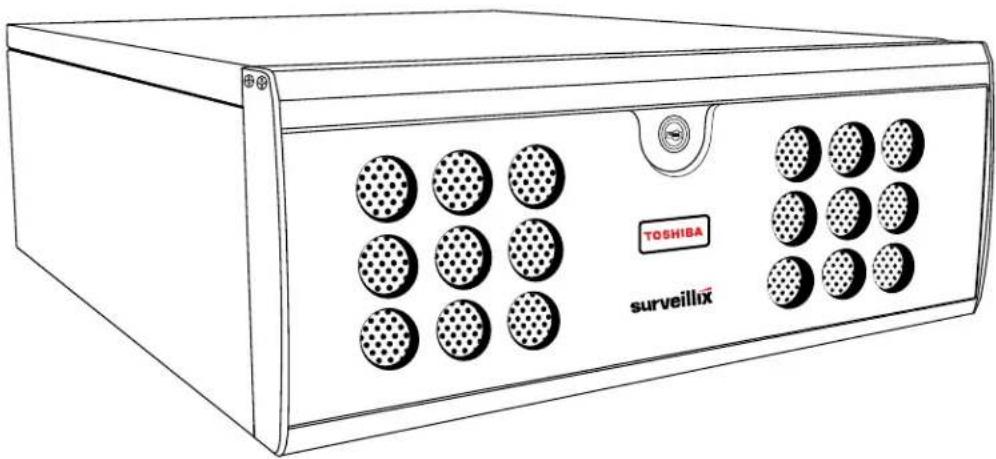
A Surveillix IPS is simply a server that performs as a High Definition Digital Recorder. By utilizing the many features of a computer, including processing power, storage capacity, graphics compression, and security features, the DVR is more powerful than the analog recorders of the past.
The Surveillix IPS server software comes pre-configured for fast and seamless integration within your existing IT infrastructure. Designed around Microsoft® Windows® XP Embedded, the server software offers unparalleled stability, security, and ease of use. Accordingly, your security investment has never been easier to maintain. Multiple users may simultaneously connect through any network connection for instantaneous live viewing, digital search, and off site video storage. Users can also connect remotely through DSL, Cable Modems, ISDN, or 56K dial-up. This powerful software enables users to establish recording schedules, create motion detection zones, use PTZ controls, and configure alarm inputs and outputs for each of the system's cameras. With the latest advancements in the IPS Server Software, searching and indexing your video archive has never been easier. Video can now be found, viewed, and exported in a number of file formats with just a few clicks.
The Surveillix IPS is high performance security product ready to meet today's security demands.
Toshiba's Surveillix IPS includes the following new features:
- Optimized and Designed for Microsoft® Windows XP Embedded®
- Up to 32 Network Based Video Inputs
- Remote System Operation & Configuration
• Supports Multiple Simultaneous Remote Connections
• PAN / TILT / ZOOM Controls via IP Protocols - Simultaneous Video Search, Playback and Backup
• Video Indexes for Easy Searching
• Multiple Levels of Security Access - Up to 1 Channel of Audio Recording
- Up to 2 Terabytes Internal Storage
• High Performance, Durable, Rack mount Case
• Output the Video to a NTSC/PAL Display
• Digital Signature Support
• Continuous, Motion Detection, Alarm, Pre-Alarm, and Scheduled Recording Modes
• Records at the encoding resolution of the network camera
• Multi-Site Management Software Support (optional upgrade)
CONTROLS AND CONNECTIONS
This chapter includes the following information:
- Input / Output Connector Locations
• Front Panel Controls and LEDs - Rear Panel Connectors
SYSTEM SPECIFICATIONS
Surveillix™ state-of-the-art Network Video Recorders are housed in a high performance and versatile 3U Rack-Mount case allowing easy storage of multiple IPSs for enterprise applications. Every Surveillix IPS comes equipped with the latest technology:
Intel® CPU
100/1000
Gigabit
Ethernet
2 GB (8/16 CH) or 3GB (32 CH) of System Memory
DVD±RW
Recorder
500 GB Video Storage Drive (minimum)
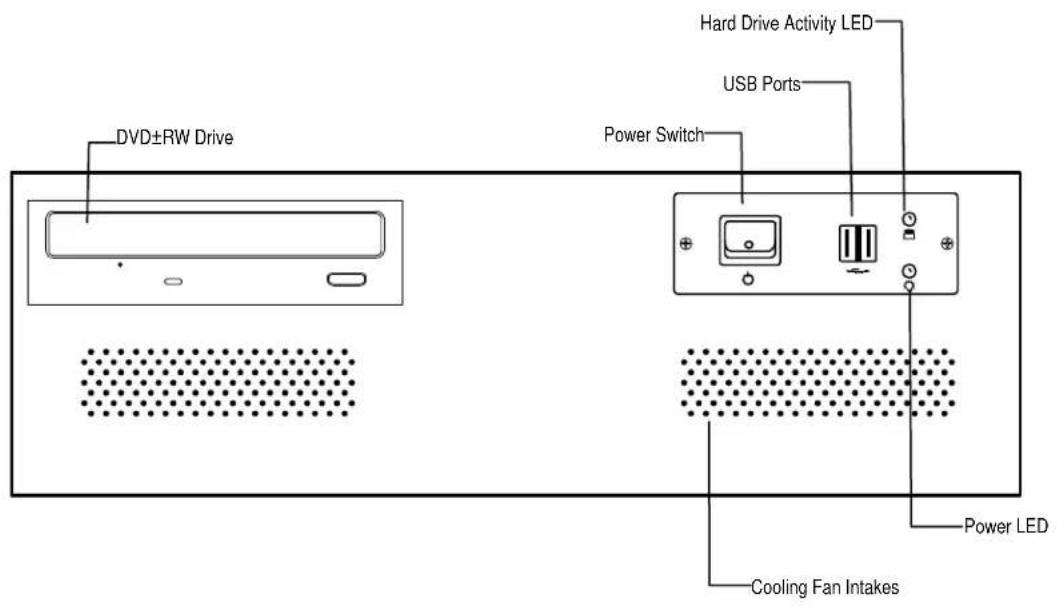
FRONT PANEL CONTROLS AND LEDS
The front panel of the IPS contains the devices that will be commonly used for data removal, retrieval, and backup replacement. The most common components and buttons are shown below:
REAR PANEL CONNECTORS
The rear panel of the IPS contains the connectors used to attach cameras, sensors, and relays to the IPS. Below are diagrams that outline the location and description of each connector:

[Non-Text]
[Non-Text]
[Non-Text]
[Non-Text]
[Non-Text]
[Non-Text]
[Non-Text]
[Non-Text]
[Non-Text]
[Non-Text]
[Non-Text]
[Non-Text]
[Non-Text]
[Non-Text]
[Non-Text]
[Non-Text]
[Non-Text]
[Non-Text]
[Non-Text]
[Non-Text]
[Non-Text]
[Non-Text]
[Non-Text]
[Non-Text]
12
18
[Non-Text]
[Non-Text]
[Non-Text]
[Non-Text]
[Non-Text]
18
18
18
18
18
18
18
18
18
GETTING STARTED
This chapter includes the following information:
- Included Components
- Setting Up the IPS Hardware
- Optional Components
IDENTIFYING INCLUDED COMPONENTS
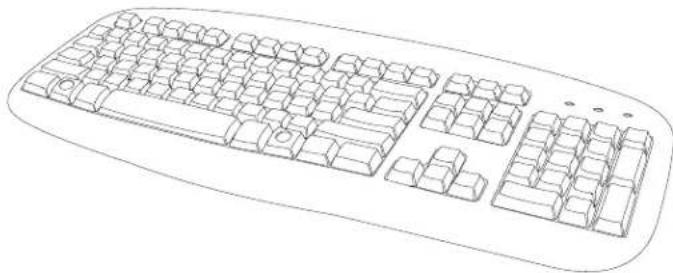
Surveillix™ IPSs come with a mouse, keyboard and selected software and cables. Identify the following components to make sure everything has been properly included with the new DVR. If any of the following items are missing, contact the dealer to arrange a replacement.
 IPS IPS |  Mouse Mouse |  Keyboard Keyboard |
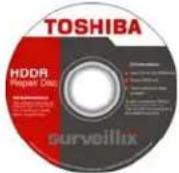 Repair Disc Software Disc Power Cable Repair Disc Software Disc Power Cable | 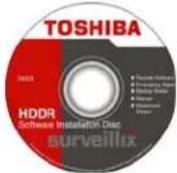 | 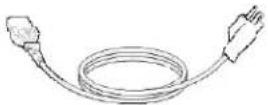 |
 Audio Adapter Audio Adapter |  Rack Mount Attachments with Screws Rack Mount Attachments with Screws |  IPS Manual IPS Manual |
To attach the keyboard to the DVR, plug the end of the Keyboard into the keyboard PS/2 Port located on the back of the machine.
The keyboard PS/2 Port can be identified by the purple color.
Refer to the Rear Panel Connectors diagram for more information.
MOUSE SETUP
To attach the mouse to the DVR, plug the end of the mouse into the mouse PS/2 Port located on the back of the machine. The mouse PS/2 Port can be identified by the green color.
The mouse uses a cursor called a pointer. Pointers come in many different shapes but are most commonly shaped like an arrow.
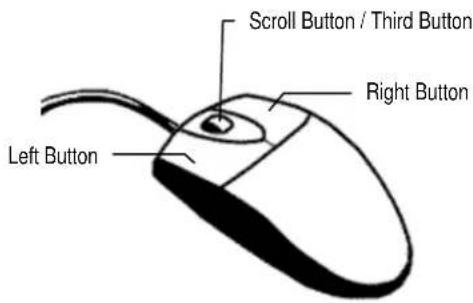
The mouse has two buttons: a left button and a right button. Quickly pressing and releasing one of these buttons is called clicking. Sometimes you will need to double-click – or click the same button twice quickly.
In this manual:
Click means to position the mouse cursor over an item and to single click the left button.
Right click means to position the mouse cursor over an item and to single click the right button.
Double-click means to position the mouse cursor over an item and to click the left button twice.
Select means to position the mouse cursor over a radio button, checkbox, or list item and click on it.
The scroll wheel in between the two buttons is used for added navigation functionality. By moving the wheel with index finger (scrolling), quickly move through multiple pages, lines, or windows. The wheel may also function as a third button allowing the user to quickly click or double-click an icon or a selected item.
The IPS may have one or both of the following connections available for monitors which can be used individually or in tandem.
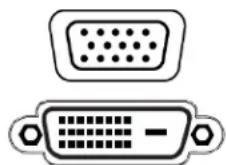
SVGA Output* To VGA Monitor
DVI-D Output To TV / Digital Monitor
Attach the monitor or monitors to the rear of the DVR using the cable supplied by the monitor manufacturer. Refer to the monitor manual for detailed information on how to setup and use it.
NOTE: The monitor must be capable of having a screen resolution of 1024 x 768 and display colors of at least 32 Bit.
POWER SETUP

WARNING:
To reduce the risk of electrical shock or damage to the equipment:
Do not disable the power grounding plug.
The grounding plug is an important safety feature.
If the electrical plug you are using does not have a ground plug receptacle contact a licensed electrician to have it replaced with a grounded electrical outlet.
Plug the power cord into a grounded (earthed) electrical outlet that is easily accessible at all times.
Disconnect the power from the computer by unplugging the power cord either from the electrical outlet or the computer.
TURNING ON THE IPS
- Turn on the monitor and any external peripherals (ex. Printers, External Storage Devices, etc.) connected to the DVR.
- Turn on the Power Switch located on the front of the DVR.
- The IPS will run a series of self-tests. After two or three minutes, a series of messages may be displayed as the various hardware and software subsystems are activated. Under normal circumstances, users should not be asked to respond to these messages. If asked to respond to the messages (adding a Printer, Monitor, etc for the first time) follow the instructions carefully.
- Startup is complete when the Surveillix IPS software is finished loading and displays the main menu screen.
TURNING OFF THE IPS
- Click the Exit Button on the main menu screen of the IPS software.
- Select Power Off from the drop down menu, which appears in the Power Off prompt, and click OK.
The DVR may take several minutes to shut down completely.
CAUTION: Always be sure to follow the proper procedures when turning off the power to the DVR. NEVER disconnect the power to the DVR while it is still running or in the process of shutting down. Doing so can cause data loss, file corruption, system instability and hardware failure.
IPS SPECIFICATIONS
| 8 / 16 | / 32 CH |
| CPU Intel® CPU | |
| Storage (Hard Drive) 500 | GB Standard / up to 2 TB |
| Storage MAX Up to 4 | HDD with DVD ± RW |
| Operating System Microsoft® Windows® XP Embedded | |
| Recording Rate | Up to 30 PPS per camera / Dependent on Network Video Device Encoding Rate |
| Resolution Recording resolutions dependent upon the resolutions the Network Camera supports | |
| Video Inputs None | |
| Video Outputs SVG | A x 1, DVI-D x 1 |
| Motion Detection Up to 15 Regions Per Channel / Adjustable Sensitivity | |
| Remote Operation Full Remote Control Through PSTN, ISDN, ADSL, LAN, and TCP/IP | |
| Remote Software Compatible with Microsoft Windows 2000,XP, Vista | |
| PAN / TILT / ZOOM Via IP Protocols | |
| Recording Mode Continuous, Motion Detection, Sensor, Scheduled Recording | |
| Backup | USB, |
| Digital Signature | Supports Digital Signature Verification |
| Emergency Agent | Transmitted through TCP/IP – SCS |


- Limited two (2) year warranty of labor and parts
- Step-by-step procedures - how to obtain warranty service
- Critical use disclaimer
- Your responsibilities
- The above warranty is subject to the following conditions
- Important safeguards
- Important safeguards, continued
- Notes on handling
- Notes on locating
- Notes on cleaning
- Notes on maintenance
- Notes on moisture condensation
- Warning
- Caution
- Explanation of graphical symbols
- Rack mount instructions
- Fcc statement
- Ul notice
- Table of contents
- PREFACE....11
- Introduction 13
- Controls and connections 15
- Getting STARTED....19
- Preface
- About this guide
- Technician notes
- Introduction
- Product description
- Controls and connections
- System specifications
- Front panel controls and leds
- Rear panel connectors
- Getting started
- Identifying included components
- Mouse setup
- Power setup
- Warning
- Turning on the ips
- Turning off the ips
Brand : TOSHIBA
Model : IPS32-2T
Category : Radio