
ITB-3001 - Digital decoder Planet - Free user manual and instructions
Find the device manual for free ITB-3001 Planet in PDF.


| Product Type | Digital TV Decoder |
| Brand | Planet |
| Model | ITB-3001 |
| Dimensions (W x D x H) | 150 mm x 100 mm x 30 mm |
| Weight | Approx. 300 g |
| Power Supply | DC 12V / 1A |
| Power Consumption | < 10 W (operating) |
| Video Output | HDMI, Composite (RCA) |
| Audio Output | HDMI, Stereo RCA, Optical |
| Video Decoding | MPEG-2, MPEG-4 (H.264), HEVC (H.265) |
| Resolution | Up to 1080p Full HD |
| USB Ports | 1x USB 2.0 (front) |
| Card Slot | 1x Common Interface (CI+) slot |
| Network Connection | Ethernet 10/100 Mbps |
| Antenna Input | F-type female (for satellite/cable/terrestrial) |
| Remote Control | Infrared (IR), batteries included |
| Supported TV Standards | DVB-S2, DVB-T2, DVB-C; MPEG-4 AVC |
| Display | LED front panel (standby indicator) |
| Operating System | Embedded Linux (proprietary) |
| Care and Cleaning | Wipe with dry soft cloth; avoid liquids and abrasives |
| Safety Precautions | Keep away from moisture, heat sources, and direct sunlight. Do not block ventilation slots. |
| Spare Parts / Repairability | Remote control and power adapter available separately; refer to manual for service |
| Operating Temperature | 0°C to 40°C |
| Storage Humidity | 5% to 90% non-condensing |
Frequently Asked Questions - ITB-3001 Planet
User questions about ITB-3001 Planet
0 question about this device. Answer the ones you know or ask your own.
Ask a new question about this device
Download the instructions for your Digital decoder in PDF format for free! Find your manual ITB-3001 - Planet and take your electronic device back in hand. On this page are published all the documents necessary for the use of your device. ITB-3001 by Planet.
USER MANUAL ITB-3001 Planet
High Definition IP Set-Top Box
ITB-3001
User's manual
Version 1.0.1
Copyright
Copyright© 2010 by PLANET Technology Corp. All rights reserved. No part of this publication may be reproduced, transmitted, transcribed, stored in a retrieval system, or translated into any language or computer language, in any form or by any means, electronic, mechanical, magnetic, optical, chemical, manual or otherwise, without the prior written permission of PLANET.
PLANET makes no representations or warranties, either expressed or implied, with respect to the contents hereof and specifically disclaims any warranties, merchantability or fitness for any particular purpose. Any software described in this manual is sold or licensed "as is". Should the programs prove defective following their purchase, the buyer (and not this company, its distributor, or its dealer) assumes the entire cost of all necessary servicing, repair, and any incidental or consequential damages resulting from any defect in the software. Further, this company reserves the right to revise this publication and to make changes from time to time in the contents hereof without obligation to notify any person of such revision or changes.
All brand and product names mentioned in this manual are trademarks and/or registered trademarks of their respective holders.
Federal Communication Commission Interference Statement
This equipment has been tested and found to comply with the limits for a Class B digital device, pursuant to Part 15 of FCC Rules. These limits are designed to provide reasonable protection against harmful interference in a residential installation. This equipment generates, uses, and can radiate radio frequency energy and, if not installed and used in accordance with the instructions, may cause harmful interference to radio communications. However, there is no guarantee that interference will not occur in a particular installation. If this equipment does cause harmful interference to radio or television reception, which can be determined by turning the equipment off and on, the user is encouraged to try to correct the interference by one or more of the following measures:
- Reorient or relocate the receiving antenna.
- Increase the separation between the equipment and receiver.
- Connect the equipment into an outlet on a circuit different from that to which the receiver is connected.
- Consult the dealer or an experienced radio technician for help.
FCC Caution
To assure continued compliance (example-use only shielded interface cables when connecting to computer or peripheral devices). Any changes or modifications not expressly approved by the party responsible for compliance could void the user's authority to operate the equipment.
This device complies with Part 15 of the FCC Rules. Operation is subject to the Following two conditions: (1) This device may not cause harmful interference, and (2) this Device must accept any interference received, including interference that may cause undesired operation.
Federal Communication Commission (FCC) Radiation Exposure
Statement
This equipment complies with FCC radiation exposure set forth for an uncontrolled environment. In order to avoid the possibility of exceeding the FCC radio frequency exposure limits, human proximity to the antenna shall not be less than 20 cm (8 inches) during normal operation.
R&TTE Compliance Statement
This equipment complies with all the requirements of DIRECTIVE 1999/5/EC OF THE EUROPEAN PARLIAMENT AND THE COUNCIL OF 9 March 1999 on radio equipment and telecommunication terminal Equipment and the mutual recognition of their conformity (R&TTE)
The R&TTE Directive repeals and replaces in the directive 98/13/EEC (Telecommunications Terminal Equipment and Satellite Earth Station Equipment) As of April 8, 2000.
WEEE Regulation

To avoid the potential effects on the environment and human health as a result of the presence of hazardous substances in electrical and electronic equipment, end users of electrical and electronic equipment should understand the meaning of the crossed-out wheeled bin symbol. Do not dispose of WEEE as unsorted municipal waste and have to collect such WEEE separately.
Safety
This equipment is designed with the utmost care for the safety of those who install and use it. However, special attention must be paid to the dangers of electric shock and static electricity when working with electrical equipment. All guidelines of this and of the computer manufacture must therefore be allowed at all times to ensure the safe use of the equipment.
Revision
User's Manual for High Definition IP Set-Top Box
Model: ITB-3001
Rev: 1.1 (June. 2010)
Part No. EM-ITB3001v1.1.doc
Table of Contents
CHAPTER 1 INTRODUCTION ......6
1.1 Feature ......6
1.2 Package Contents ....7
1.3 Physical Details ....7
CHAPTER 2 INSTALLATION ....13
2.1 Getting Start.... 13
CHAPTER 3 CONFIGURAITON ....19
3.1 Wired Network Setup .... 19
3.1.1 DHCP....20
3.1.2 Static IP....21
3.2 File Sharing Configuration....22
CHAPTER 4 PLAY MEDIA ...... 27
4.1 USB Media 27
4.2 PC Media 28
4.3 UPnP....28
4.4 Playlist....28
4.5 File Search ...... 29
4.6 Video Playback....30
4.6.1 Full Screen Mode....31
4.7 Music Playback....32
4.8 Photo Playback....33
CHAPTER 5 BONUS FEATURES.... 35
5.1 BT Download....35
5.2 Flicker....37
5.3 VLC Station 37
CHAPTER 6 SETUP MENU ....40
6.1 Audio....40
6.2 Video 42
6.3 System 42
6.4 Other....43
APPENDIX A: Trouble Shooting....44
APPENDIX B: Product Specificaiton....45
CHAPTER 1 INTRODUCTION
High Definition IP Set Top Box ITB-3001is PLANET's latest IP STB that supports videos up to High Definition (HD) 1080P formats. With the next generation multimedia streaming technology, home users can enjoy high quality videos entertainment without having to go to video rental stores or even use Pay-Per-View.
The ITB-3001offers DLNA / UPnP AV services, based on MPEG-4/H.264/DTS compression technology to reach wider audience or achieve higher density of service that thus increases bandwidth efficiency. The IP STB allows the users to enjoy IP multicast video and home networking service.
IP Set-top Box is advanced customer premises equipment (CPE) device for delivering streaming video, audio, and IPTV directly from Internet to Teclos subscribers. The ITB-3001is designed to meet service provider's deployment requirements for IP-based multimedia service delivery and it is easy to be installed even by subscribers. Once the UPnP connection is set up, you can huddle on the sofa using supplied remote control to search and enjoy your favorite IPTV, Video, and Music in your home networking.
The PLANET IP Set-Top Box guarantees the best multimedia experience for its users with the advanced features such as real RMVB and DivX. In addition to its super analog video and audio outputs, the ITB-3001 also provides HDMI component outputs and Dolby digital to enable the users to enjoy high definition video.
1.1 Feature
• Dolby Digital, DTS Compliant
• UPnP AV, DLNA AV Compliant
• Multicast IPTV & Video-on-Demand (VoD)
- Broadcast TV & Time-Shift TV
• Integrated HDMI & Full HD (1080P) TV
• Electronic Program Guide and Digital rights management
• User-friendly Graphical On-Screen Menu
• Supports Multiple file formats
- Built-In BitTorrent download engine and Internet Media such as RM/RMVB, DivX, etc
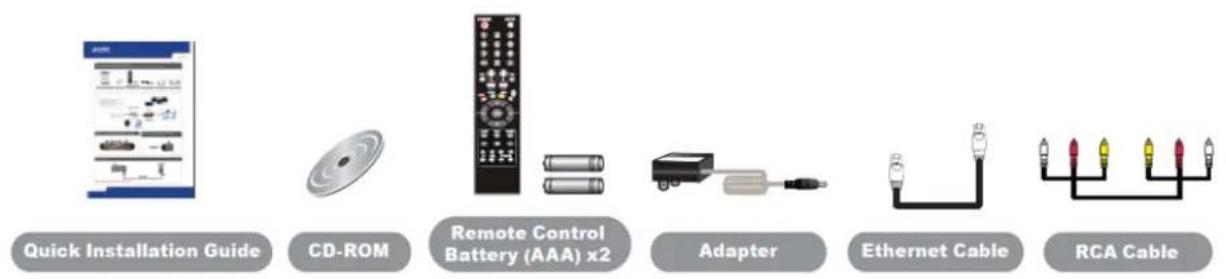
1.2 Package Contents
- ITB-3001 Unit x 1
- Quick Installation Guide x 1
- CD-ROM x 1 (Include Quick Guide and User Manual)
- Remote Controller x 1
- Battery (AAA) × 2
- Power Adapter x 1
- RJ-45 Cable x 1
- AV Cable (RCA) × 1
1.3 Physical Details
Top Panel
Front Panel

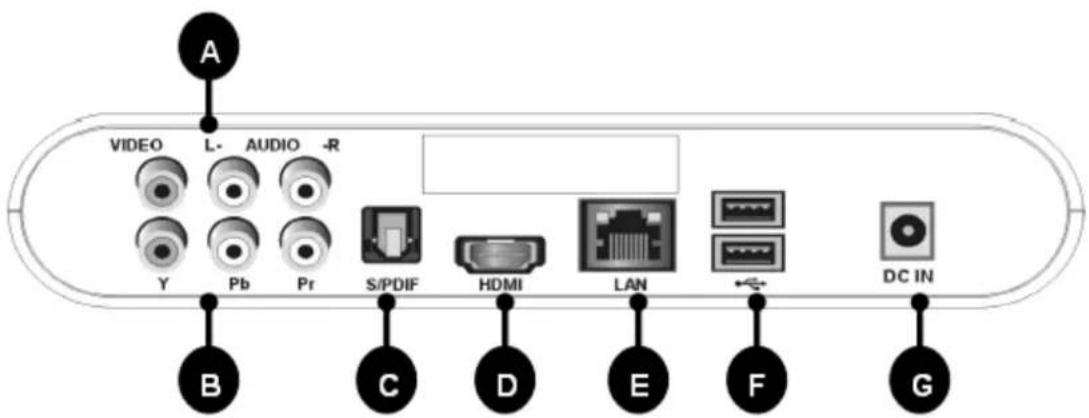
Rear Panel
Front Panel and LED Definition
| Connector | Description | |
| Power | ON/OFF | The LED light will turn “Blue” color when turn on the STB |
| Standby | The LED light will turn “Red” color | |
| LAN Access | LAN with “Blue” color | |
Rear Panel Port and Button Definition
| No. | Connector | Description |
| A | AudioL-/R-VIDEO | Use AV cable to connect to the VIDO IN/ AUDIO L/R IN jacks on the TV sets or Home Entertainment systems in your home in your home by using VIDEO (Yellow)/AUDIO L (White)/R (Red) cables. |
| B | Y/Pb/Pr | Connect to a Y/Pb/Pr-compatible display using three video (Y/Pb/Pr) and two audio jacks (AUDIOL/R), through a component video cable with green, blue, and red connectors. |
| C | S-PDIF | Using an optical digital audio (also called S/PDIF) cable to connect to S-PDIF port of the TV sets or Home Entertainment systems in your home. |
| D | HDMI | Connects to the HDMI in the display, a single cable transmits both audio and video data. |
| E | LAN | Connects to the Ethernet cable with RJ-45 Ethernet connector. |
| F | USB | Rig the supported USB devices into USB ports, such as USB hard drives, cameras and camcorders. |
| G | DC IN | Connects to the DC power adapter. |
Remote Controller
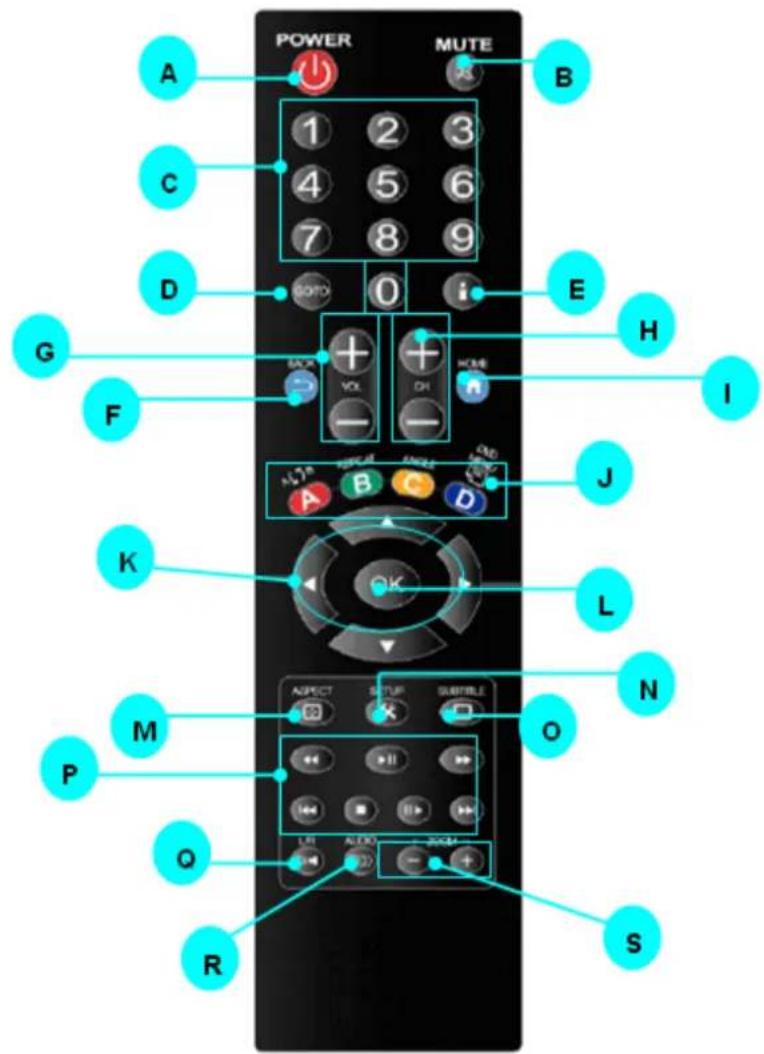
Keypad Definition
| No. | Connector | Description | |
| A |  | POWER Turn on/ off system | |
| B |  | MUTE Mute/ Resume audio | |
| C |  | NUMERS | 0-9 number keys for selecting desired options. |
| D |  | GOTO Video/movie chapter selection. | |
| E |  | INFO | Display the information of media files while in play mode. |
| F |  | BACK Return to the previous display. | |
| G |  | VOL | Volume up (0-28), default is 16; Volume down (0-28), default is 16. |
| H | CANNEL Channel up/Channel down. | ||
| I |  | HOME Hot key to the main OSD menu. | |
| J |  | REPEAT A-B | Press once to mark desired repeat point A, press again to mark desired repeat point B, and press yet again to turn this feature off. |
 | REPEAT | Enable/disable repeat of file playback. | |
 | ANGLE Switch DVD display angles. | ||
 | DVD MENU Show DVD Menu. | ||
| K |  | Navigate Nav gate through m enu screen or media libraries. | |
 | |||
| L |  | OK Confirm or select. | |
| M |  | ASPECT | Pan Scan 4:3 /Letter Box 4:3 / Wide Screen16:9/ Full Screen. |
| N |  | SETUP Enter | setup menu. |
| O |  | SUBTITLE Switch | subtitle files. |
| P |  | PREV / NEXT | Media Scan Backward/Forward during audio/video playback.Supports the following speeds: 1x, 1.5x, 2x, 4x, 8x, 16x, 32x. |
 | PLAY/PAUSE Play media / Pause media. | ||
 | PREV | Media Skip Previous. | |
 | NEXT | Media Skip Next. | |
 | STOP | Stop playback and return to the previous Screen. | |
 | SLOW MOTION | Slow motion through video playback.Supports the following speeds: 1x, 3/4x, 1/2x, 1/4x, 1/8x, 1/16x. | |
| Q |  | L/R Switch | Left/Right speaker. |
| R |  | AUDIO Switch audio outputs. | |
| S |  | ZOOM | Enlarge image on video mode (, 2x, 3x, 4x, 8x). Reduce image on video mode(4/5x, 3/4x, 2/3x, 1/2x).Enlarge image on photo mode(Fit, 2x, 4x, 8x, 16x) |
CHAPTER 2 INSTALLATION
This chapter offers information about installing your IP Set-Top Box. If you are not familiar with the hardware or software parameters presented here, please consult your service provider for the values needed.
2.1 Getting Start
This chapter shows you how to configure these steps to connect ITB-3001, and the following figure is the Rear Panel of IP Set-Top Box.
Connection Diagram
Following is a connection example with network and UPnP devices.
![graph LR A["Internet"] --> B["ADSL"] B --> C["ADSL Router"] C --> D["ITB-3001"] D --> E["USB"] D --> F["Digital Camera"] D --> G["MP3"] D --> H["HDD"] I["100Base-TX UTP"] --> J["ADSL 2/2+"] K["Audio Line / Video Line"] --> L["AV"] M["USB Line"] --> N["USB"] O["Flicker"] --> P["UPnP"] Q["BT"] --> R["…](/content/2026/05/1136761/images/f940b792576355e02d3e477af983fc2f92250d3f489a9f4dc80e0a9aa23e29e0.jpg)
Match the cables to the connections on your TV or display. Your choices of connection include:
| Cable Description | |
| HDMI For both audio and video output | |
| Composite (AV) | For composite video (yellow) and stereo audio (white and red) |
| Y/Pb/Pr (RGB) | For component video output |
| S/PDIF For audio | output |
Make sure you have the appropriate cables for connecting. Take care to watch the colors of the plugs on the cable.
Step1: REAR PANEL-IDENTIFY CONNECTOR LOCATION

Step2: TO SELECT VIDEO OUTPUT BY HDMI, OR AV CABLE

2-1. Connect via HDMI
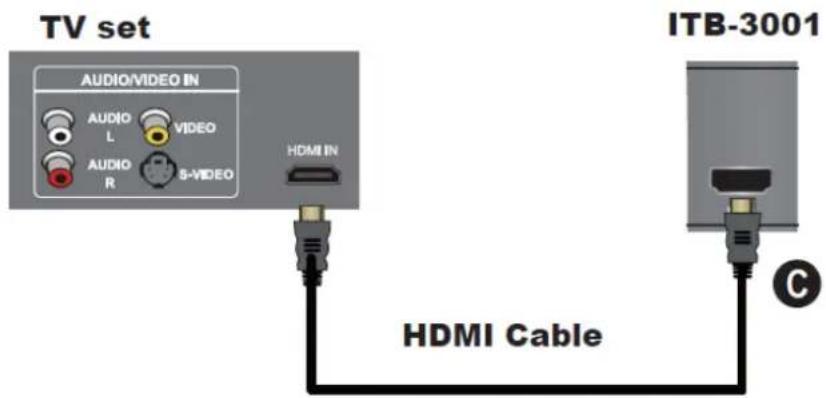
Note
HDMI cable is not bundle in the package
2-2. Connect via Y/Pb/Pr or Composite Video cable (with Audio cable)
2-2-1. Connect via Y/Pb/Pr cable
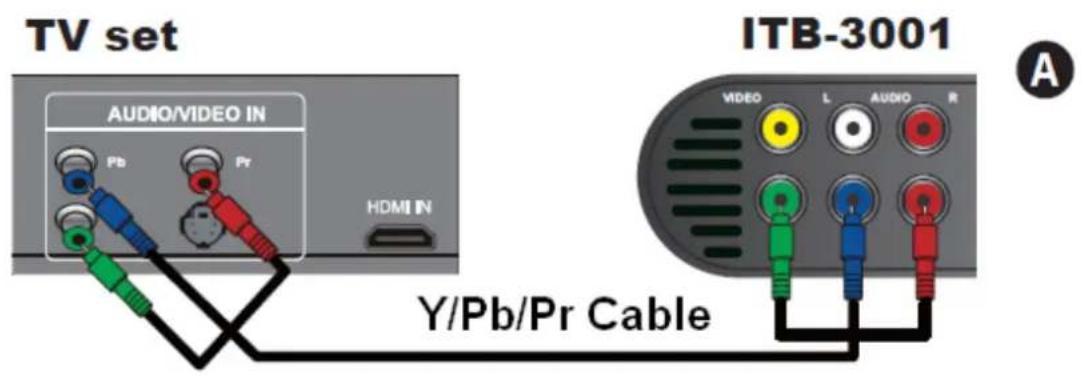

Y/Pb/Pr cable is not bundle in the package
2-2-2. Connect via AV cable
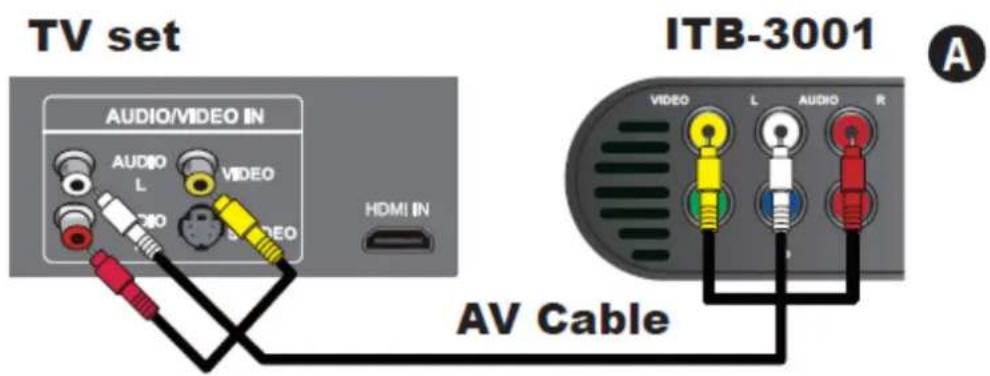

RCA Audio is also available for audio output
2-2-3. Connect via S/PDIF cable
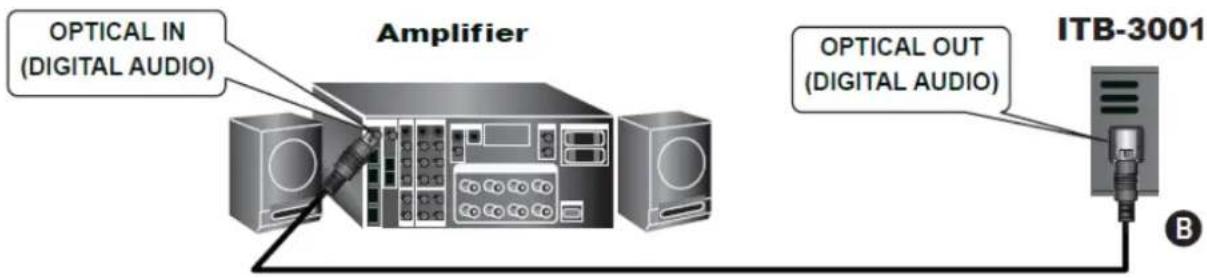
Note
S/PDIF (Sony/Philips Digital Interconnect Format and it is not bundle in the package
Step3: CONNECT ETHERNET CONNECTOR
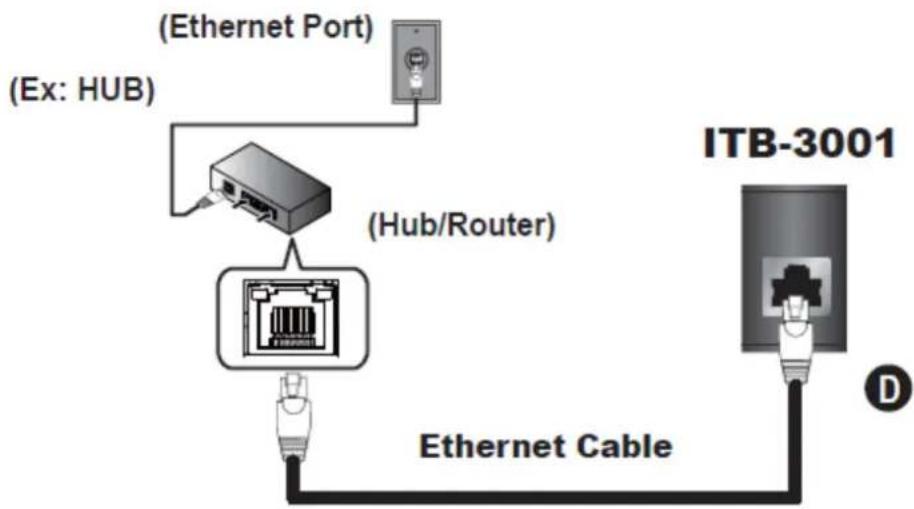
Step4: CONNECT USB DEVICES IF AVAILABLE

Note
The USB cable is not bundle in the package
Step5: CONNECT POWER ADAPTER

Step6: INSTALL BATTERIES IN REMOTE CONTROL
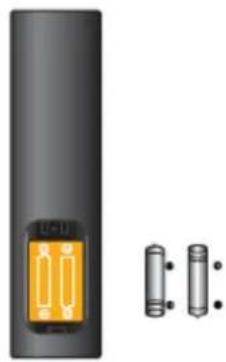
Step7: TURN ON THE ITB-3001
- When DC power applied, the red LED light indicates standby mode.
- To turn on the device, press Power button.
- The blue LED light indicates Power on.
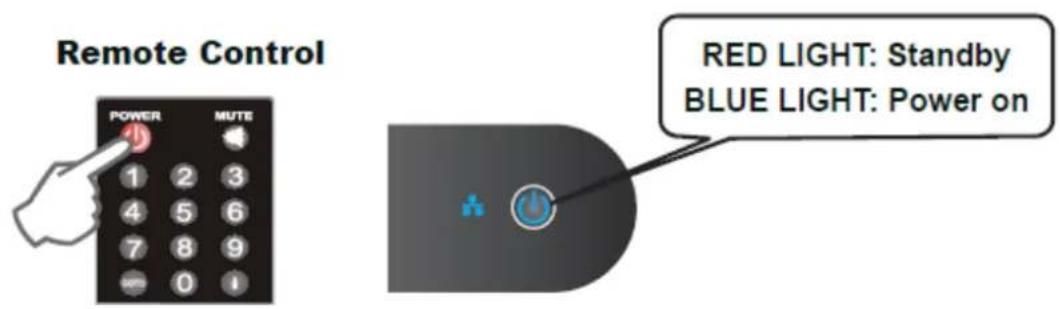
CHAPTER 3 CONFIGURAITON
3.1 Wired Network Setup
Network Connections: needed only when using "PC Media", and "Torrent Download" features.

If your wired network equipment such as the IP Sharing router or AP (Access Point), uses DHCP to assign IP address, by default the ITB-3001 will automatically request the IP and other related information to set up the ITB-3001 over the network in DHCP mode (under Setup> Network >Wired).
If your network does not have DHCP server, switch to the Static IP mode (under Setup> Network >Wired) and set up various parameters manually.
3.1.1 DHCP

| Button Description | |
 | Step1:To access "Setup" on the main menu.Select "Network". |
| Step 2:Select "Wired" on the Network menu.Select "DHCP". | |
 | Step 3:To implement DHCP network setting. The ITB-3001 will automatically receive its IP address from a DHCP sever that is built into the access point or IP sharing router. |
3.1.2 Static IP
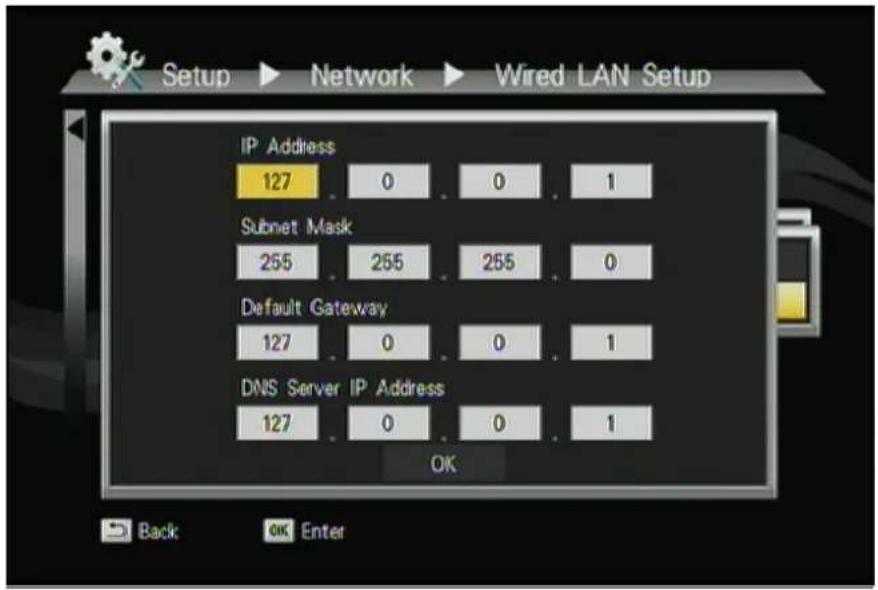
| Button Description | |
| Step1:Select "Wired" on the Network menu.Select "Static IP". | |
| Step 2:Input the value IP Address, Subnet mask,Gateway, and DNS text box respectively. | |
Note
Please acquire information of these setting values from your ISP (Internet Service Provider) first.
3.2 File Sharing Configuration
This function allows the ITB-3001 as a simple NAS device, you can access folders located on the ITB-3001 for viewing, renaming, moving and deleting by networking from your remote computer.
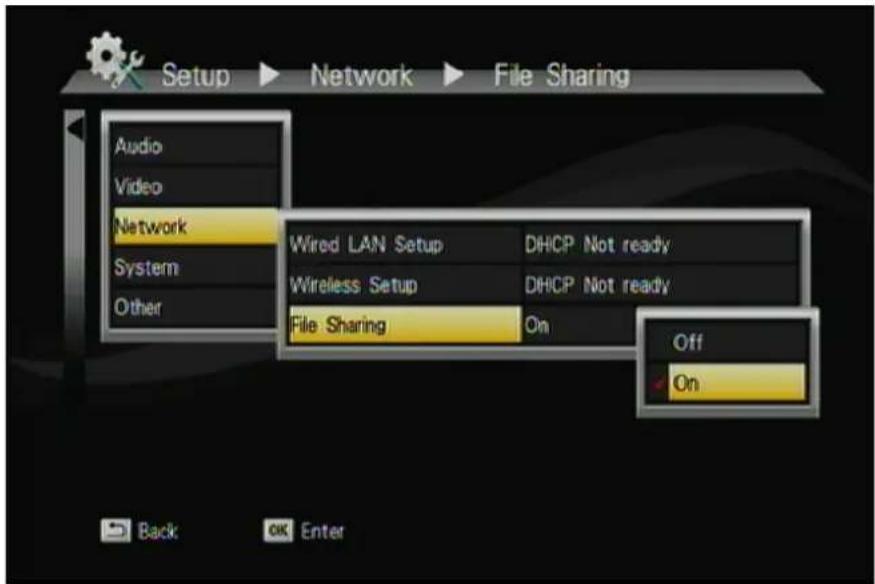
To activate this feature, please make sure:
• The ITB-3001 is connected to the network;
- The network is properly set up. For more information on this part, please refer to "Step 2" in "Setting up ITB-3001" section, and "Network" under "Setup Menu".
To allow the ITB-3001 to access folders on your computer, you need:
1) ITB-3001 already connected to the network
2) To designate the folders/files on your PC as shared resources.
Please refer to Microsoft's official website:
http://www.microsoft.com/windowsxp/using/networking/setup/homenet.m spx to see the initial and detailed process of Home Network Setup in Windows XP. Please refer to the following instructions to allow the ITB-3001 to access the shared folders on the remote PC.
Step1: Right click on the folder to be shared and select Sharing and Security.
Step2: If this is the first time you intend to share a folder, Windows XP will prompt a warning message, urging you to use the Network Setup Wizard for safety purpose. Choose to either run the Wizard or do it yourself. XP display another warning. If you want the firewall enabled, select Use the wizard to enable file sharing. Otherwise, select enable file sharing.
Note
File sharing may lead to security problems since, by definition, it gives other users access to the content of a part of the hard drive. As a result, it is essential that you share only folders for which it would not be extremely important if their contents are revealed.
Step 3: You may now specify a "Share Name", which will be used for users on the network to access the shared folder. The icon of the shared folder will be changed to showing a hand holding the folder.
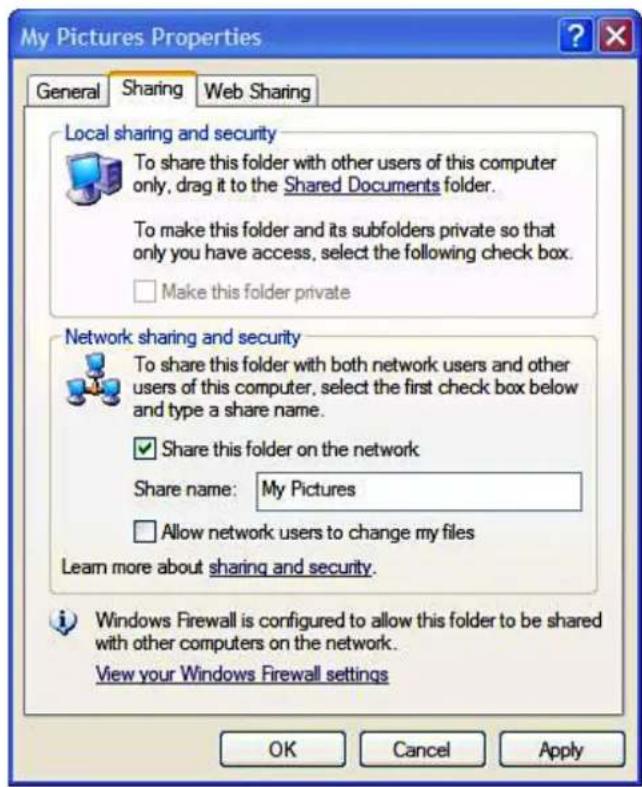
If your operating system is Windows Vista, please refer to the following instructions:
-
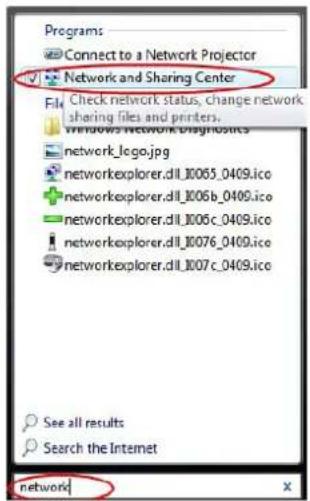
Open the Control Panel and then open Network and Sharing Center.
-
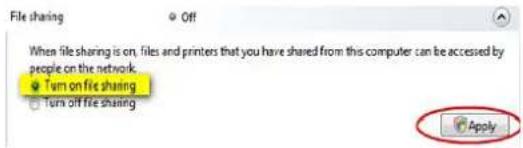
Click the down arrow to the right of File Sharing to expand it.
- Click Turn on file sharing and then click Apply.
You may also refer to Setup menu on the OSD screen of ITB-3001 to select wired connection.
You may also refer to Setup menu on the OSD screen of THE PRODUCT to select wired connection.
File Sharing Configurations (With Windows Vista)
File sharing involves making the media content of one or more files / folders (on your PC) available through the network. By “enabling” this file sharing, you can view these files / folders (on your PC) to be accessed / viewed on your THE PRODUCT (on the same network).
Note
File sharing may lead to security problems since, by definition, it gives other users access to the content of a part of the hard drive. As a result, it is essential that you share only folders for which it would not be extremely important if their content were revealed (or destroyed); Furthermore, you are strongly advised against sharing a whole partition of your hard drive. This operation is specifically discouraged if you do not trust the other network users!
Enable "File Sharing" under Windows Vista
- On your PC, Click Start, right-click Network, and then click Properties.
- A new Window titled "Network and Sharing Center" pops up.
- In the "Sharing and Discovery" section of the Network and Sharing Center window, click the down arrow next to File sharing.
- Within the File sharing settings, click Turn on file sharing, and then click Apply.
• To enable public folder sharing, do the following:
I. In the Sharing and Discovery section of the Network and Sharing Center window, click the down arrow next to Public folder sharing.
II. Within the Public folder sharing settings, click "Turn on sharing so anyone with network access can open, change, and create files".
III. Click Apply.
Once the "File Sharing" is enabled in Windows-Vista,
Click Start, and then click Computer.
- In the Computer window, navigate to the folder containing the folder that you want to share.
- Right-click the folder that you want to share, and then click Share. The File Sharing window is displayed.
- Use the File Sharing window to select the Guest or Everyone account. This is equivalent to simple file sharing in Windows XP.
- When complete, click Share, and then click Done.
How to share file folder in Windows 7
- Run "local security policy" applet under administrative tools.
If you don't see administrative tools, enable it under the properties of the start menu - Under local policies>user rights assignment "deny access to the computer from the network" REMOVE user "guest"
- Under local policies>user rights assignment "Access this computer from the network"->add 'EVERYONE' and 'ANONYMOUS LOGON'
- Under local policies>security options> Accounts: Limit local account use of blank passwords. Change to "disabled"
- Under local policies>security options> Network Access: Shares that can be accessed anonymously- put in the name of your share
- Enable the guest account set the guest password to blank
- Check the share permissions on your share and make sure it has EVERYONE "read"
- Check the file permissions on the files in your share and make sure it has EVERYONE "read"
CHAPTER 4 PLAY MEDIA
4.1 USB Media
ITB-3001 searches and plays all available images, music and video files on the external device with USB interface automatically.
Note
Depends on the specification of USB that each USB port provide 0.5A to USB device, please use with extra power-provided USB device if the USB device needs more electricity.
| Button | Description |
  | Enter OSD Menu > Play Media |
 [KDSC] [KDSC] | Under Play Media, select the media source from USB Device/ PCs/ UPnP/ Playlist. |
  | Open your selected folders. There will a folder/file list on the left. |
| Play the selected video/music/photo file. |
4.2 PC Media
Connect ITB-3001 to your PC using a USB 2.0 cable. By connecting your PC in the Local Area Network, you can play the media files from the remote PCs. Please confirm the network settings and sharing files setup have been finished successfully. (See Chapter 3 for more information.)
Note
The limitation on the HD video content playback over the network: The HD video quality may suffer when the video is streamed over the network. This is caused by intranet environment limitations. As a result, users might sometimes experience unsmooth video playback.
4.3 UPnP
UPnP (Universal Plug and Play) allows you to connect UPnP-enabled devices (available on the network) and share their content with the media player. When you enter UPnP application, the ITB-3001 will automatically detect the PCs inside LAN. Please make sure that your PC supports Windows Media Player Version 11 and higher. Due to compatibility issue, some PCs may not be able to support UPnP.
4.4 Playlist
Playlist allows you select a sequence of music, photo and video files stored on the HDD. You can configure any sequence of music, photos, and video files to create a playlist.
Note
Playlist cannot be save except on USB media and do not allow for playback of networked media.
| Button Description | |
| Add to Playlist | Select/cancel the files which will be added. |
| Edit Rename/delete file. | |
Note
For the files added to the playlist, ITB-3001 will separate the media files by video/music/photo tags.
4.5 File Search
File search allows you to find the file you want by typing related key word on the screen keyboard.
| Button Description | |
| To access Video, Audio, Photo on the main menu. Type the related keywords on the screen keyboard for file search. | |
Note
The function is only available for HDD Media.

![1 2 3 4 5 OK 6 7 8 9 0 q w e r t Caps y u i o p a s d f g Del h j k l - z x c v b Space n m / \ _ ' = [ ] ? Shift : , .](/content/2026/05/1136761/images/d2cb8a28e18e03c038e4bb194e21d5e7d154133fbc7d5d41d06041833b841fce.jpg)
4.6 Video Playback
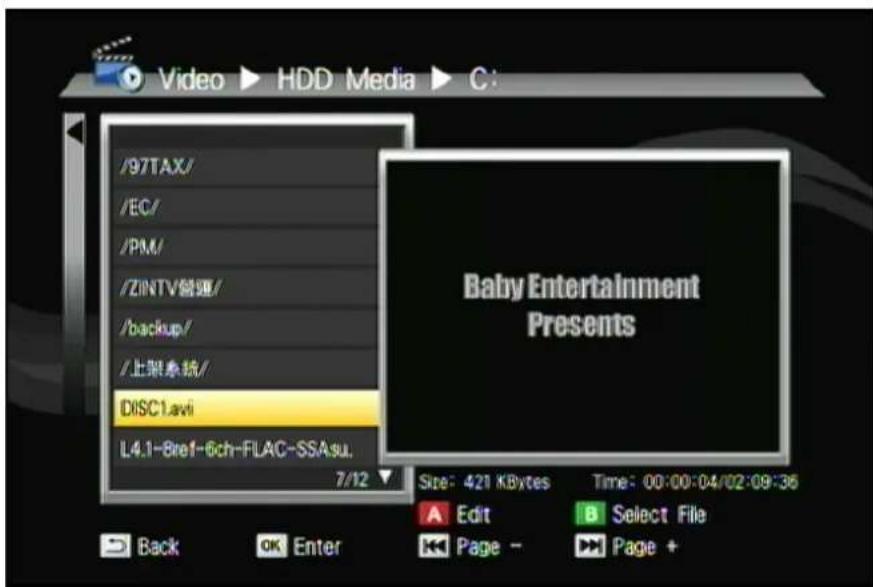
| Button Description | |
  | Enter Play Media > Video Playback. |
  [Y8T] [Y8T] | Navigate the media file you want to play. The preview window will show the highlighted video. |
 Edit Rename /Delete file. Edit Rename /Delete file. | |
| Add to Playlist | Add selected file to Playlist | |
 | Back | Return to previous display. |
| [THWB] | Full screen mode. | |
4.6.1 Full Screen Mode
| Button Description | |
 | Play/pause selected file. |
 | Rewind/Forward |
 | Slow motion. |
 | Return to previous file. |
| [KYZ2] | Go to next file. |
 | To adjust the size of the subtitle. |
  | To move the position of the subtitle |
  Zoom Zoom in/out on photos or movies. Zoom Zoom in/out on photos or movies. | |
  Volume Increase/decrease the volume. Volume Increase/decrease the volume. | |
 Mute Mute the sound. Mute Mute the sound. | |
 GOTO Video/movie chapter selection. GOTO Video/movie chapter selection. | |
 Subtitles Switch subtitle files. Subtitles Switch subtitle files. | |
 Info Info | Display the info of media files in play mode. |
 Audio Switch audio outputs. Audio Switch audio outputs. | |
 L/R Enable/disable Left/Right speaker. L/R Enable/disable Left/Right speaker. | |
 | Stop playback and leave full screen mode. |
4.7 Music Playback

| Button Description | |
   | To access Music on the main menu. |
  [KZBX] [KZBX] | Navigate the media file you want to play. The preview window will show the file details of highlighted file. |
 Edit Rename /D Edit Rename /D | delete file. |
| [+ OK Add to Playlist Add selected file to Playlist. | |
 Back Back | Return to previous display. |
 | Play selected file. |
 | Play/pause selected file. |
 | Fast forward. |
 | Rewind. |
 | Previous file. |
 | Next file. |
  Volume Increase/decrease the volume. Volume Increase/decrease the volume. | Mute Mute the sound. |
| Info Display the info of media files in play mode. | |
| Stop playback and return to the previous display | |
Note
Music will continue playing as background music when you leave MUSIC PLAYBACK menu. Press to stop playing.
4.8 Photo Playback

| Button Description | |
  | Enter Play Media > Photo Playback |
  [KKB3] [KKB3] | Navigate the media file you want to play. The preview window will show the file details of highlighted file. |
 Edit Rename /Delete file. Edit Rename /Delete file. | |
  Add to Playlist Add selected file to Playlist. Add to Playlist Add selected file to Playlist. | |
 | |
  | Thumbnail mode. |
 | Back to previous display. |
| Full screen mode. | |
Full Screen Mode
| Button Description | |
 | Previous picture. / Next picture. |
 | Rotate the viewing picture counterclockwise |
 | Rotate the viewing picture clockwise. |
 | Leave full screen mode. |
You can choose the preferred slide show effects in Setup menu. If you'd like to turn off the function, please enter Setup > Other> Transition Effect.
Note
To add background music to the slide show, simply add the music file(s) to the same photo folder. Otherwise, there will be no background music when viewing the slideshow.
CHAPTER 5 BONUS FEATURES
5.1 BT Download
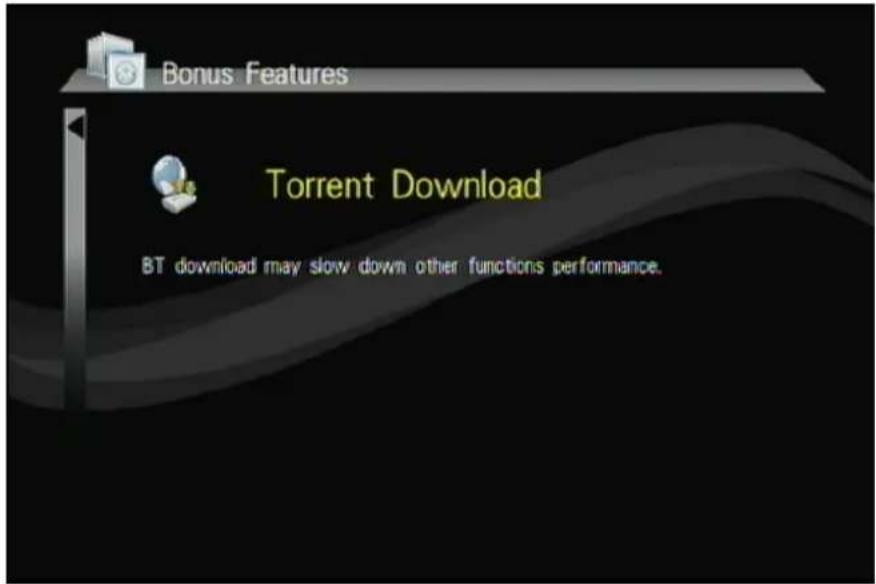
BitTorrent is the leading and the most common peer-to-peer file-sharing communications protocol. The ITB-3001 built-in BitTorrent client/engine allows this product to download media files to the external USB device or to the remote PC. This BT download process is computer-free. First, you need to prepare at least one USB hard drive with at least 20GB of free capacity, in the format of NTFS or EXT-3, and connect it to the USB port on the rear panel of the ITB-3001.
Note
Please do not download illegal files or contents.
Note
Strongly suggests to use another HDD for Torrent Download, DO NOT use the HDD that mixed important information.
To activate this feature, please make sure:
• The ITB-3001 is connected to the network;
- The network is properly set up. For more information on this part, please refer to "Step 2" in "Setting up ITB-3001" section, and "Network" under "Setup Menu".

Note
In order to keep the system efficiency, the torrent download would be suspended while playing media or turning on other services.
Step 1: Connect external hard drive device into THE PRODUCT USB port.
Step 2: Choose either from the external hard drive or the remote PC that you can search and implant the .torrent seeds.
Note
Please make sure torrent seeds are already imported to the external hard drive or on the network PC before downloading media files associated with the .torrent seeds to your PC or USB devices. Files cannot be downloaded if there is less than 10% of the capacity left on the USB drive.
Step 3: Select .torrent files to download, and then you can see the download process page. To ensure the system's efficiency, only 3 download tasks will take place simultaneously, and each .torrent file will be downloaded in sequence.
| Button Description | |
| Start / Pause torrent files in scheduling. | |
| Delete torrent files in scheduling. | |
| Adjust the priority of torrent files in scheduling. | |
| Previous page. / Next page. | |
Note
In order to keep the system efficiency, the torrent download would be suspended while playing media or turning on other services
5.2 Flicker
The ITB-3001 supports Flicker viewing; you also can search photos you want to see on this function.
5.3 VLC Station
This chapter shows you how to setup a computer to work with the STB in a demonstration scenario. This demonstration used example files contained on the CD that came with your STB
![graph LR PC["PC\n192.168.0.200"] --> IPSTB["IP STB\nIP Soft-Top Box\n192.168.0.100"] IPSTB --> TV["TV\n192.168.0.100"] style PC fill:#cce5ff,stroke:#333 style IP STB fill:#e6f7ff,stroke:#333 style TV fill:#ffe6e6,stroke:#333](/content/2026/05/1136761/images/2cd632d8dc0e05a457ec2921f01fb90493624d792ea1705634e6aaeced89e4a8.jpg)
You can setup your computer act as a "Media Server". The video data from the Media Server can be supplied to the STB. The Media Server and STB must in the same subnet.
For example, the media server's IP address is 192.168.0.200 and the STB is 192.168.0.100. You have assigned static IP address (rather than using DHCP) because the media server must have a fix IP address that does not change.
Step 1: Select the [B] Add New RTP Station
The URL would be:
Channel 1: rtp://239.0.0.2:1234
Channel 2: rtp://239.0.0.3:1234
Step 2: Setup the Media Server, and install the software from the supplied CD-ROM. Please click on the "StartServer".
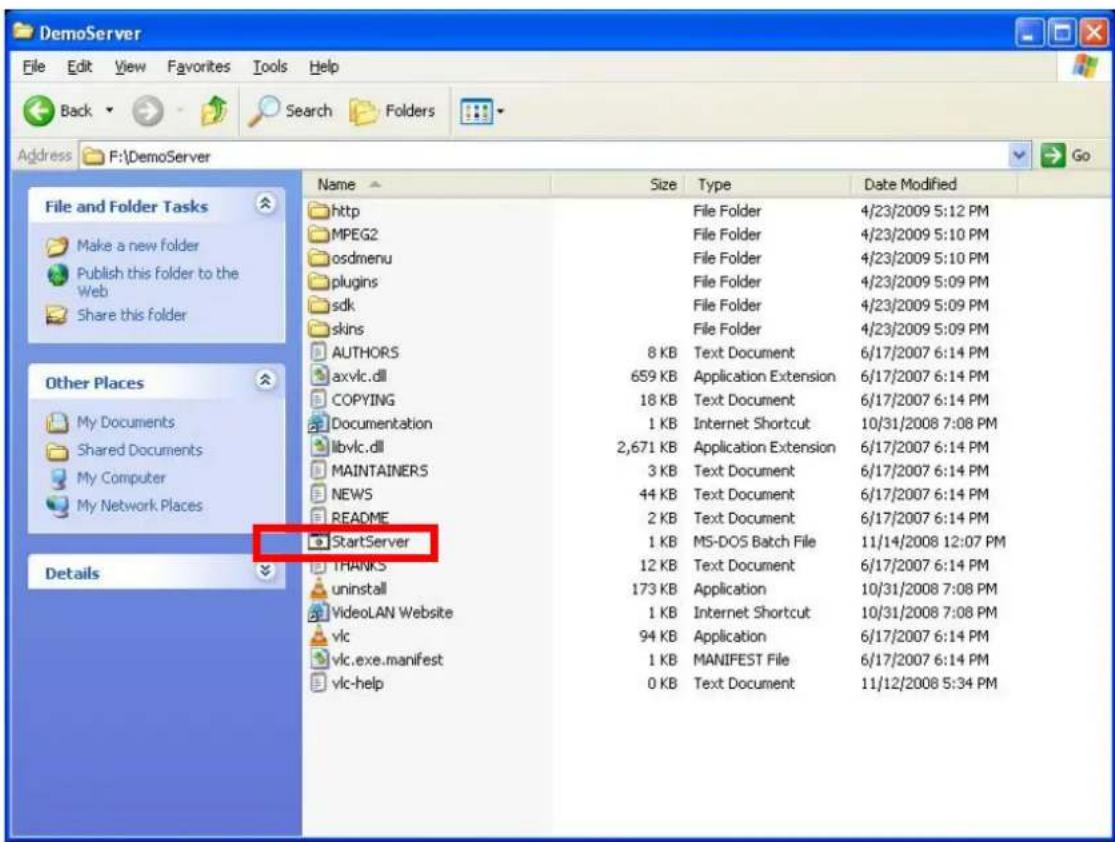
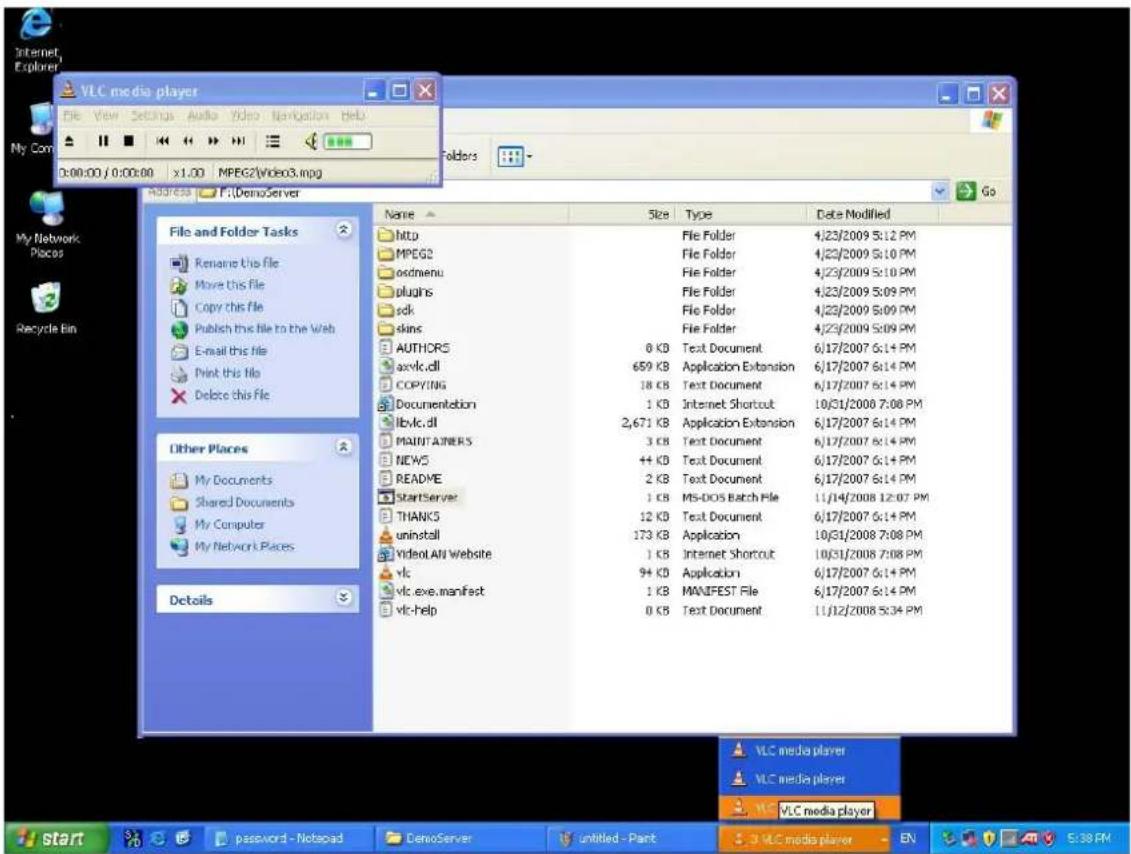
The stream will start, and on the TV screen will also show the steam.
CHAPTER 6 SETUP MENU
| Button Description | |
| Cancel Back to main OSD display. | |
| Rename Rename the selected file. | |
| Delete Delete the selected file. | |
| Add to Playlist Add selected file to Playlist. |
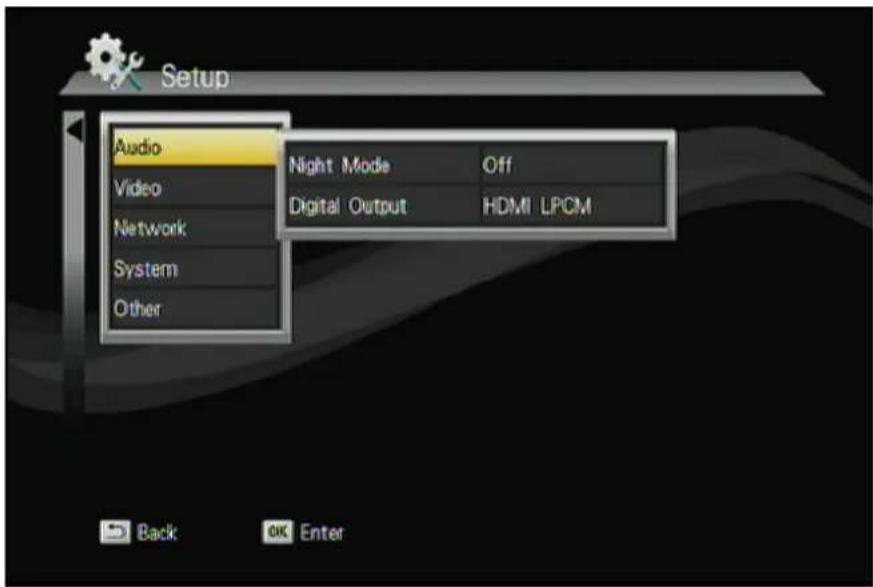
6.1 Audio
| Button | Description | ||
  | Enter "Audio" setup menu. Select the item for adjustment. | ||
   | Select the item for adjustment. | ||
 | Confirm the change. | ||
| [82W7] | Return to previous display. | ||
| Item Options | |||
| Night Mode | On/Off | ||
| Digital Output | HDMI LPCMHDMI RAWSPDIF LPCMSPDIF RAW | ||
| Change Audio L/R | L/RL/LR/R | ||
LPCM / RAW Mode
LPCM mode means decode audio then down-mix to 2 CH output.
RAW mode means no audio decoding, just by pass through to amplifier for audio decoding.
AUDIO SETUP-"Night Mode" (aka Dynamic Range Control)
When the Night Mode is enabled the sound level of compatible audio soundtracks will be dynamically compressed. Dynamic range control (DRC) increases low-level audio content (such as the dialog in the movies),
making it easier to be heard at low volume levels while reducing the intensity of higher-level audio content at the same time.
"When you're listening to movie dialogue late at night and have to turn down the volume during loud scenes, the dynamic range suffers and you may miss some dialogue and other sounds. With the Night Mode on, you can reduce the volume but still enjoy proper tonal balance and dynamic range."
6.2 Video
| Button | Description |
 | Enter "Audio" setup menu. |
 | Select the item for adjustment. |
 | Confirm the change. |
 | Return to previous display. |
| Item Options | |
| Aspect Ratio | Pan Scan 4:3Letter Box 4:3Wide Screen 16:9Full Screen |
| Resolution | HDMI Auto / 480i / 576i / 480P / 576P720P 50HZ /720P 60HZ1080i 50HZ / 1080i 60HZ1080P 50HZ / 1080P 60HZ |
6.3 System
| Button Description | |
 | Enter "Audio" setup menu. |
 | Select the item for adjustment. |
 | Confirm the change. |
 | Return to previous display. |
| Item Options | |
| Menu Language | English/ Traditional Chinese/ Japanese/ Spanish/ French / German/ Italian/ Russian/ Simplified Chinese / Swedish / Polish/ Romanian/ Greek/ Thai |
| Subtitle Encoding | Unicode (UTF8)/ Simplified Chinese (GBK)/ Traditional Chinese (BIG5)/ Japanese(S-JIS)/ Western/ Turkish/ Central European/ Greek/ Cyrillic/ Hebrew/ SE European. |
| System info | Version/BOX ID/ Customer ID/ MAC / IP Address/ Subnet Mask/ Gateway/ DNS |
| Software Update | Online UpdateUSB Update |
| Default Setting | Cancel/OK |
6.4 Other
| Button Description | |
 | Enter "Audio" setup menu. |
 | Select the item for adjustment. |
 | Confirm the change. |
 | Return to previous display. |
| Item Options | |
| Resume Play Off/On | |
| Slide Show Timer Off/2,5,10 | 30 Seconds/1,2 Minutes. |
| Transition Effect | Off/Cross Fade/Left to Right/Top to Bottom/Waterfall/Snake/Dissolve/Strip Left Down/All Effect Shuffle. |
| Background Music Off/On | |
| Screen Saver Off/On | |
| Movie Preview Off/On | |
APPENDIX A: Trouble Shooting
The following reference list represents situations that you may encounter, and methods for remedy. Please refer to this checklist prior to contacting qualified service personnel.
| Symptom Remedy | |
| No picture is displayed. | Check the power cord connection. Or connect the power cord to another power outlet.Are the VIDEO/ AUDIO cables or HDMI Cable loose or disconnected? Make sure one of connections is correct.Try the “SOURCE” button on the remote control of the external display/ TV, to select the correct input source. |
| When entering “PC Media” menu, the available PC list is not displayed. | Check your wired connection to make sure that it’s working properly. Use an Ethernet LAN cable to connect from the Network jack of the ITB-3001 to the network router or Access Point.Check your Network Setting of the Setup menu.Check the setting on the shared folder/file on your computer. |
| On “USB Media” menu under the main menu, no USB device is searched. | Check USB device is already firmly connected.Check the format of your USB drive: is it in NTFS/EXT-3 format? |
| The BT multimedia files can’t be downloaded. | For BitTorrent, users need to set up port forwarding on the TCP range 6881-6890 of Access Point or IP sharing.Your Internet bandwidth will limit BT download speedBT is a peer- to-peer download technology. It requires more people or torrents to share the files at the same time. |
You can also visit the FAQ page on www.planet.com.tw
APPENDIX B: Product Specificaiton
| Product | High Definition IP Set-Top Box | |
| Model | ITB-3001 | |
| Hardware Specification | ||
| Port | Video Output | HDMI Auto(480p,720p,1080i,1080p), YPbPr and Component Video |
| Audio Output | Audio L/R | |
| Ethernet | 1Ethernet:10/100Mbps, Half or Full Duplex, Auto-negotiation, Auto MID/MID-X | |
| USB 2 USB | 2.0 (Host External Storage support) | |
| LED Indicators | 1 Power LED light on front panel1 Network LED light on front panel | |
| Power Switch 1 Power | On / Off Switch on front panel | |
| Decoding Up to 1080p (RMVB up to 720p) | ||
| Software Specification | ||
| Media Format | Video | MPEG1 (AVI/MKV/TS/DAT/MPG/MPEG/VOB)MPEG2 (MKV/DAT/MPG/MPEG/VOB/ISO/IFO/TS/TP) / M2TSMPEG4 (AVI/MP4/MKV/MOV/WMV/ASF)DivX 3/4/5/6, Xvid (AVI/MKV/MP4/MOV)H.264 / AVC (TS/AVI/MP4/MKV/MOV/FLV) / M2TSVC-1 (TS/AVI/ASF/WMV)/M2TSWMV9 (ASF/WMV)Real Video 8/9/10 (RM/RMVB), up to 720p |
| Audio | MPEG I Layer 1,2,3(2-CH) and MPEG II Layer 1,2 (Multi-Channel)LPCM,ADPCM,FLAC,AAC,WAV and OGG VorbisDolby® Digital Plus / AC3Supports 7.1 / 5.1 down mix to 2 channel outputs DTS 2.0 + Digital Out®Supports 7.1 down mix to 2 channel outputs RA1/RA-cook/RA-losslessWMA | |
| Photo | HD JPEG with unlimited resolution GIFPNGBMPTIFTIFF | |
| Subtitle | SRT, SMI, SUB, SSA, and IDX+SUB | |
| Reading Storage File System | EXT3NTFSFAT16/32HFS+ | |
| Writing Storage File System | EXT3NTFS | |
| Environmental | ||
| Dimension(W x D x H) | 204× 145× 40 mm | |
| Weight 420 g | ||
| Cables | AV Cable (RCA) x 1RJ-45 Cable x 1 | |
| Power 12V DC, 2A | ||
| Operating Temp. 0 ~ | 45 Degree C | |
| Storage Temp. -25 ~ | 55 Degree C | |
| Operating Humidity | 80 % RH Non-condensing | |
| Storage Humidity 80 | % RH Non-condensing | |
| Emission FCC, CE | ||
EC Declaration of Conformity
For the following equipment:
*Type of Product : High Definition IP Set-Top Box
*Model Number : ITB-3001
* Produced by:
Manufacturer's Name : Planet Technology Corp.
Manufacturer's Address : 11F, No. 96, Min Chuan Road, Hsin Tien
Taipei, Taiwan, R.O.C.
is herewith confirmed to comply with the requirements set out in the Council Directive on the Approximation of the Laws of the Member States relating to Electromagnetic Compatibility (2004/108/EC).
For the evaluation regarding the Electromagnetic Compatibility, the following standards were applied:
EN 55022 (2006, Class B)
EN 61000-3-2 (2006, Class A)
EN 61000-3-3 (1995 + A1: 2001 + A2: 2005)
EN 55024 (1998 + A1: 2001 + A2: 2003)
IEC 61000-4-2 Edition 1.2 (2001-04)
IEC 61000-4-3 Edition 3.0 (2006)
IEC 61000-4-4 (2004)
IEC 61000-4-5 Edition 2.0 (2005)
IEC 61000-4-6 Edition 2.2 (2006)
IEC 61000-4-8 Edition 1.1 (2001-03)
IEC 61000-4-11 Second Edition (2004-03)
Responsible for marking this declaration if the:
☒ Manufacturer ☐ Authorized representative established within the EU
Authorized representative established within the EU (if applicable):
Company Name: Planet Technology Corp.
Company Address: 11F, No.96, Min Chuan Road, Hsin Tien, Taipei, Taiwan, R.O.C
Person responsible for making this declaration
Name, Surname Jonas Yang
Position / Title : Product Manager
Taiwan
Place
26 th Jan., 2010
Date

Legal Signature
PLANET TECHNOLOGY CORPORATION
- HIGH DEFINITION IP SET-TOP BOX
- ITB-3001
- USER'S MANUAL
- COPYRIGHT
- FEDERAL COMMUNICATION COMMISSION INTERFERENCE STATEMENT
- FCC CAUTION
- FEDERAL COMMUNICATION COMMISSION (FCC) RADIATION EXPOSURE
- STATEMENT
- R&TTE COMPLIANCE STATEMENT
- WEEE REGULATION
- SAFETY
- REVISION
- TABLE OF CONTENTS
- CHAPTER 1 INTRODUCTION ......6
- CHAPTER 2 INSTALLATION ....13
- CHAPTER 3 CONFIGURAITON ....19
- CHAPTER 4 PLAY MEDIA ...... 27
- CHAPTER 5 BONUS FEATURES.... 35
- CHAPTER 6 SETUP MENU ....40
- APPENDIX A: TROUBLE SHOOTING....44
- APPENDIX B: PRODUCT SPECIFICAITON....45
- CHAPTER 1 INTRODUCTION
- 1.1 FEATURE
- 1.2 PACKAGE CONTENTS
- 1.3 PHYSICAL DETAILS
- CHAPTER 2 INSTALLATION
- 2.1 GETTING START
- CONNECTION DIAGRAM
- 2-2. CONNECT VIA Y/PB/PR OR COMPOSITE VIDEO CABLE (WITH AUDIO CABLE)
- STEP7: TURN ON THE ITB-3001
- CHAPTER 3 CONFIGURAITON
- 3.1 WIRED NETWORK SETUP
- 3.1.1 DHCP
- 3.1.2 STATIC IP
- NOTE
- 3.2 FILE SHARING CONFIGURATION
- FILE SHARING CONFIGURATIONS (WITH WINDOWS VISTA)
- HOW TO SHARE FILE FOLDER IN WINDOWS 7
- CHAPTER 4 PLAY MEDIA
- 4.1 USB MEDIA
- 4.2 PC MEDIA
- 4.3 UPNP
- 4.4 PLAYLIST
- 4.5 FILE SEARCH
- 4.6 VIDEO PLAYBACK
- 4.6.1 FULL SCREEN MODE
- 4.7 MUSIC PLAYBACK
- 4.8 PHOTO PLAYBACK
- CHAPTER 5 BONUS FEATURES
- 5.1 BT DOWNLOAD
- 5.2 FLICKER
- 5.3 VLC STATION
- STEP 1: SELECT THE [B] ADD NEW RTP STATION
- CHAPTER 6 SETUP MENU
- 6.1 AUDIO
- LPCM / RAW MODE
- AUDIO SETUP-"NIGHT MODE" (AKA DYNAMIC RANGE CONTROL)
- 6.2 VIDEO
- 6.3 SYSTEM
- 6.4 OTHER
- APPENDIX A: TROUBLE SHOOTING
- APPENDIX B: PRODUCT SPECIFICAITON
- EC DECLARATION OF CONFORMITY
- PLANET TECHNOLOGY CORPORATION
Brand : Planet
Model : ITB-3001
Category : Digital decoder