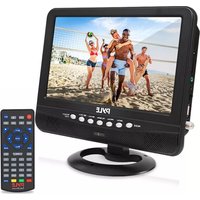
PLTV9553 - Television Pyle - Free user manual and instructions
Find the device manual for free PLTV9553 Pyle in PDF.


| Product Type | Portable TV Tuner Monitor Display Screen |
| Model | PLTV9553 / PLTV1053 |
| Display Size | 9-inch (PLTV9553) / 10-inch (PLTV1053) |
| Display Type | LCD-TFT |
| Screen Resolution | 800 x 480 pixels (PLTV9553) / 1024 x 600 pixels (PLTV1053) |
| Aspect Ratio | 16:9 |
| TV Tuner Support | ATSC-1, Analog/Digital Television (DTV) Receiver |
| Analog TV Band Range | 55.25-861.25 MHz (TV Channels) |
| Built-in Battery | 3.7V Lithium, 2500mAh |
| Power Supply | 12V DC (100-240V AC adapter) |
| USB/Micro SD Support | Up to 32GB |
| Digital Image File Support | JPEG, BMP, PNG |
| Digital Audio File Support | MP3, WMA |
| Digital Video File Support | MKV, AVI, DIVX, XVID, MOV, VOB, FLV, 3GP, DAT, MPEG, MPG, MP4, TS, TRP |
| Connectivity | USB, Micro SD, AV Input, Headphone Jack, External Antenna |
| Speakers | Dual Stereo Speakers |
| Remote Control | Yes (within 5 meters, angle below 60°) |
| Accessories Included | Remote Control, Headphones, TV Antenna, RCA Cable, Cigarette Lighter Plug, Wall Power Plug, Mounting Bracket |
| Dimensions (PLTV9553) | 9.1 x 7.0 x 1.3 inches |
| Operating Temperature | 23°F - 104°F |
| Storage Temperature | -4°F - 140°F |
| Safety | Keep away from heat, moisture; do not block ventilation; use specified power; unplug before cleaning. |
| Maintenance | Clean with soft cloth and mild detergent; do not use alcohol or gasoline. |
Frequently Asked Questions - PLTV9553 Pyle
User questions about PLTV9553 Pyle
0 question about this device. Answer the ones you know or ask your own.
Ask a new question about this device
Download the instructions for your Television in PDF format for free! Find your manual PLTV9553 - Pyle and take your electronic device back in hand. On this page are published all the documents necessary for the use of your device. PLTV9553 by Pyle.
USER MANUAL PLTV9553 Pyle
natural_image
Black-and-white photo of a vintage TV displaying three women in colorful outfits, surrounded by balloons and a stand (no visible text or symbols)PLTV9553
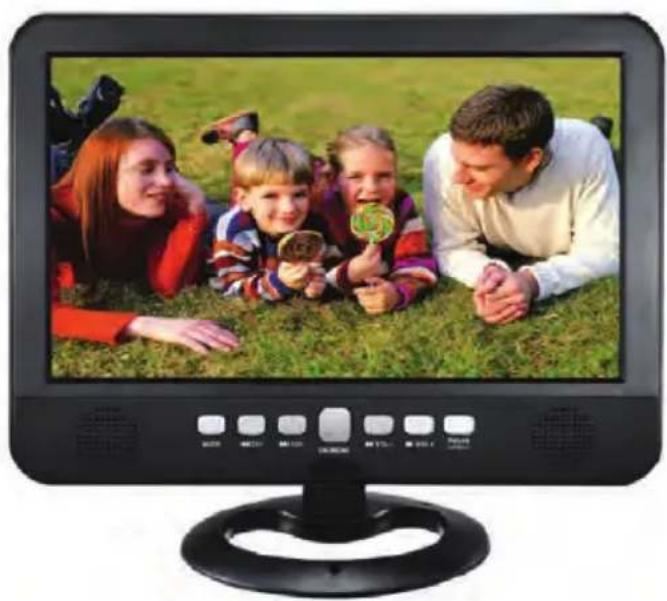
natural_image
Black-and-white photo of a flat-screen TV displaying a family photo on grass, no visible text or symbols.PLTV1053


natural_image
Row of red geometric symbols including stars, flowers, and squares (no text or labels)
natural_image
Row of red geometric symbols including clover, triangle, square, flower, asterisk, and rectangle (no text or labels)with Built-in Rechargeable Battery, USB/Micro SD Readers (Analog ATSC/DTV Support)
CONTENT
- Safety Precautions .... 1
- Accessories 2
- Instruction for Keys and Interfaces 2
- Function Keys on Remote Control .... 3
- Connection with External Devices 4
- Description of the Operating Menu .... 5
(6.1) Select the Input Signal Source 5
(6.2) System Menu Setup 5
(6.2.1) PICTURE .... 5
(6.2.2) SOUND MENU 5
(6.2.3) TIMEMENU .... 5
(6.2.4) OPTION MENU 6
(6.2.5) LOCK MENU 6
(6.2.6) CHANNEL 6
- USB Function Operating Instruction 7
(7.1) PHOTO PLAY 7
(7.2) MUSIC PLAY 7
(7.3) MOVIE PLAY 7
- Common Troubleshooting 8
- Technical Specifications 9
1. Safety Precautions
1.1 Storage
- This product shall be kept far away from too high or two low temperatures. This product shall be stored at -4 °F-140 °F and its working temperature shall be 23 °F -104 °F.
- Do not use this product in wet environment, such as in a bathtub, wash basin, kitchen, sink or basement, swimming pool, etc.
- Do not place TV in an environment with high humidity, dust or full of mist.
- Do not drop or throw this product.
- Avoid strong vibration of the machine to avoid the strong collision with other objects.
- Do not squeeze or scratch the product with sharp objects.
- The rear recess of the product and the opening in the shell are used for ventilation, at the same time, they are used to ensure the reliability of components and components and avoid overheating. Do not place the TV and power adapter in bed, on sofa, carpet or other similar surface to avoid blocking the radiator opening. Do not place the television and the power adapter near or on heater or heat sources unless it is equipped with a complete ventilation device; The television and power adapter are prohibited from being placed in an insert-type installation device.
- When in use, make sure the TV is at least 3 inches (76 mm) away from walls or other objects.
- Please use the specified type of power on the TV label. If you have questions about the type of power source that shall be used, please consult your dealer or local power supply department.
• Make sure that the power plug and wire you are using can withstand the sum of the rated current of all the powered products.
- Do not place the TV in a place where users can easily touch it.
- All the notes and instructions in the guide shall be observed.
- Do not overload the power plug or extend the power cord, otherwise it may cause fire or electric shock.
- Do not fix the TV without authorization, because the cabinet is subject to high voltage or other hazards. Qualified service personnel shall be required to repair the TV.
- Please unplug the power adapter from the socket and ask qualified service personnel for repair if:
1.2 Maintenance
- Before cleaning, first, disconnect all the cables of this device.
- Wipe the case, screen and keys with a soft cloth soaked with a small amount of mild detergent.
- When cleaning the TV, do not use polishing cloths, disinfectants or any kind of fuel or chemical cleaners such as alcohol and gasoline, etc.
Attention!
- To ensure your own safety and the safety of the people around you, do not watch TV or turn on the TV receiver. It's dangerous to watch a TV program or use a TV receiver when driving a car.
Special Instruction
Bright spots and dark spots may appear on the screen. This is normal and related to active matrix screens and is not a symptom of failure. Do not try to conduct technology maintenance yourself. If anything goes wrong, turn the TV receiver off and contact us or your dealer. The device contains a large number of small electronic components. Disassembly or modification may cause damage or breakdown to the device.
2. Accessories
Open the package and check if all the accessories are complete.
-
User Guide
-
Audio and Video Combination Cable
-
DC / AC Power Adapter
-
Antenna
3.12V Automotive Adapter
-
Mounting Bracket
-
Remote Control
-
Battery
3. Instruction for Keys and Interfaces
3.1 Side Panel
- 12V DC Power Input Port
- Micro SD Memory Card Slot
- Audio-video Input Port
- Headphone Port
- Power Switch
- USB Port
- External Antenna Port
3.2 Control Keys on the Control Panel
- LCD
- Sound System
- MODE Key: Mode selector switch.
- ◀◀/CH-Key: Previous / next period / Channel.
- ▶▶/CH+Key: Previous /period / channel
- OK/MENU Key: Confirm/ Menu
- Remote receiving window
- ◀◀/VOL - Key: Fast backward / volume decrease button.
- ▶▶/VOL +: Fast forward / volume increase key.
- Return/LCD/ Ⓞ Key: Turn off the screen/exit menu
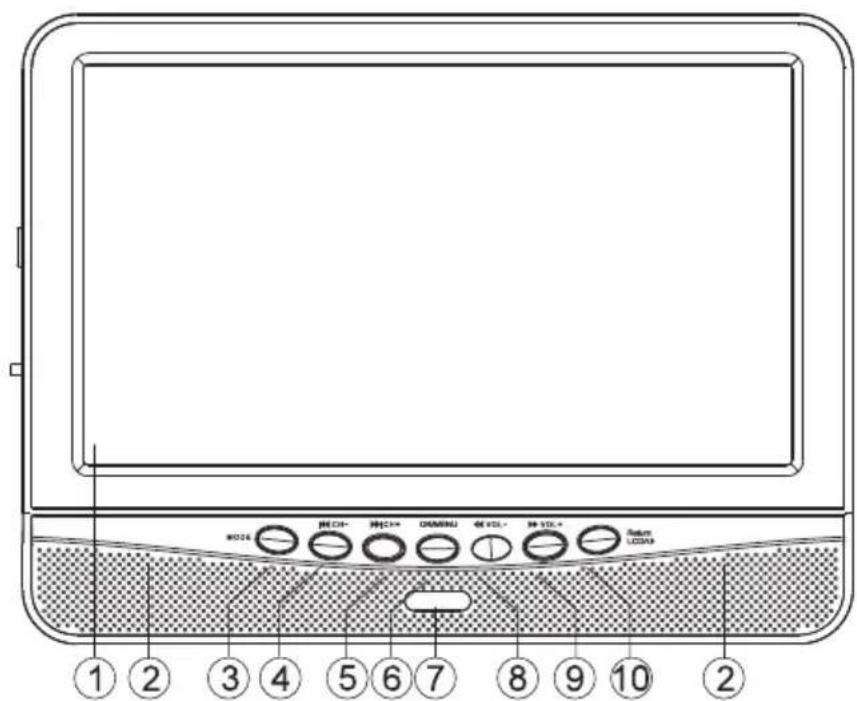
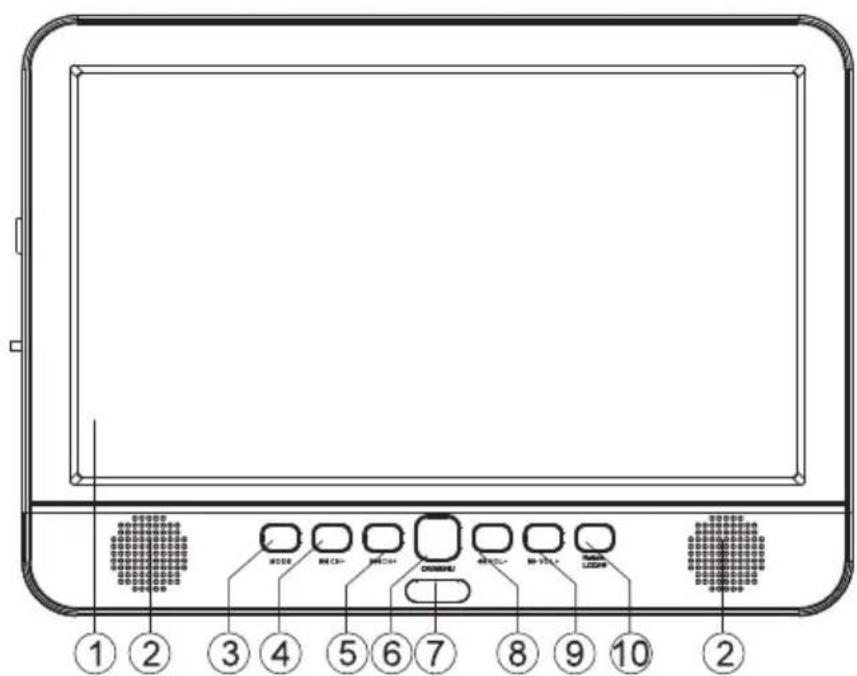
4. Instruction for Function Keys on Remote Control (Some machines are different, prevail in kind)
The remote control has the best performance within 5 meters and with angel below 60°

- LIST Key: Displays all the channel programs; able to choose favorite
- ⏻ Key: Turn ON working mode/standby mode
- MUTE Key: Turn ON/OFF the sound output
- INPUT Key: System working mode selector key : press the key each time, the system operating mode is cycled in the following order: DTV/ATV/AV/USB/CARD
- ▶▶ Key: Fast forward Key
- Key: Fast backward Key
- Key: Previous
- ▶▶ Key: Next
- CH+ ▲/CH- ▼ Key:
CH+ ▲: Choose up channel
CH- ▼: Choose down channel Switch Channel
-
▶Key: Play/pause Key
-
STOP/EXIT Key: Stop watching / recording TVprograms from Menu
- OK Key: Confirm the selected function in the "Settings" menu.
- ◀ / ▶ Direction Key:
◀ : Left Key, ▶ : Right Key
- MENU Key: Turn ON/OFF the menu
- RETURN Key: Under TV mode, press this key to return to the recent channel you have watched.
- EPG Key: enter interactive program menu
- VOL+/-Key: Volume up/down key
- Digital Key 0\~9: Digital Key0-9 is used for inputting channel number and editing all parameters
-
DASH Key: Postfix of program frequency
-
CC Key: Turn ON/OFF subtitles
-
INFO Key: Look through the information about the current channel
-
FAV Key: Turn ON/set the favorite channel
-
AUDIO Key: Switch to audio mode or available sound track
-
B: MTS Key: NICAM function
25-28:
Operation key under TV TEXT MODE; Control Key under Editing Mode
RED Key: Operating according to the information on screen
B: PIC Key: Image pattern
B: SLEEP Key: Sleep function settling
B: ZOOM Key: Narrowing or amplifying images
5. Connection with External Devices
• Audio - Video input signal
Audio-Video Cable Access: Plug the audio-video plug into the audio-video input port and press the INPUT Key. At this point, the input of audio-video signal is complete and the AV symbol is displayed on the screen.
- Connecting Headphones
To use headphones to listen to music, first volume down, and then insert the headset, adjust to the right volume. When using headphones, the volume shall not be too loud, so as not to hurt the hearing.
- Connecting the Signal Cable under HDMI Mode
Please set the TV to HDMI Mode, then connect the HDMI Cable
- Connecting to AC Power Supply
Plug the AC adapter's AC plug into the power supply (100-240 V, 50-60 Hz AC) socket and the AC adapter's DC plug into the 12 VDC input port. (12 Volt Car Charger can be used for this device).
- USB/SD CARD Play
Insert a USB / SD card into the device and select USB / SD format as the format of the image / audio / video card included in the card (memory capacity shall be 32G or less).
6. Description of the Operating Menu
6.1 Select the Input Signal Source
A. Press "INPUT" key, the input signal source details appear
B. Press "▲/▼" key, select the signal source, press ENTER Key to confirm.
C. TV would switch to the mode that you chosen.
6.2 System Menu Setup
A. Press the Menu Key, to enter system setting menu for system setup.
B. Press direction Key, to choose sections
C. Press ▶ / ENTER Key to enter the submenu and choose the option in the menu
D. Choose the option and press the Enter Key to confirm and finish the system setup
E. Press MENU, return to the main menu
F. Press STOP/ EXIT Key, to exit the system setup mode.
Attention: If the option is gray, it means the item cannot be set in this mode, please select the options available.
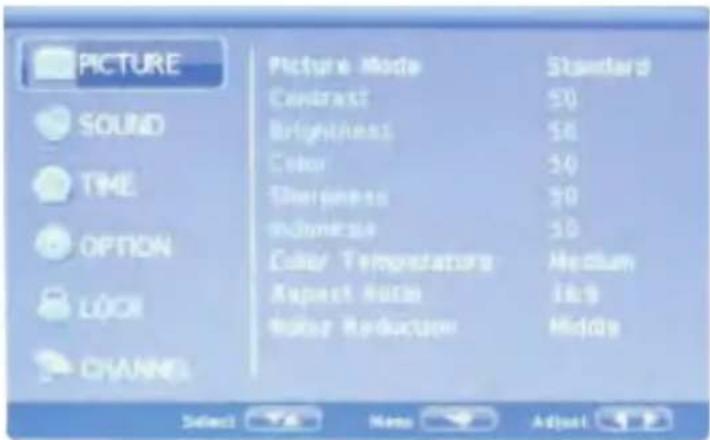
6.2.1 PICTURE
- Press MENU Key, the main menu appears, then press key to choose Picture Menu
• Picture Menu: Personalized / Dynamic/Standard/Mild.
• Color Temperature: Personal/cold/Normal/Warm. - Aspect Ratio:Auto/16:9/4:3
- Noise Reduction: Low/ Middle / High/Off.
• Screen: Adjust PC picture position
6.2.2 SOUND MENU
- Press MENU Key, the main menu appears, then press key to choose Sound Menu
• Sound Mode: Standard/Music/Movie/Sports/Personal.
• Balance: Adjust the volume of the left and right loudspeaker
• Auto Volume: under this mode, the fast adjustment
would switch to smooth adjustment
- Surround Sound : SURROUND /OFF.

6.2.3 TIME MENU
- Press MENU Key, the main menu appears, then press Key to choose Time Menu
- Clock: Adjust the time part : Day Month / Year/ Hour / Minute.
- Off Time: Setting 60s before off
- On Time: Setting to turn off after some minutes (enter the sleeping mode)
- Sleep timer: 240/180/120/90/60/30/20/10
- Choose Time zone
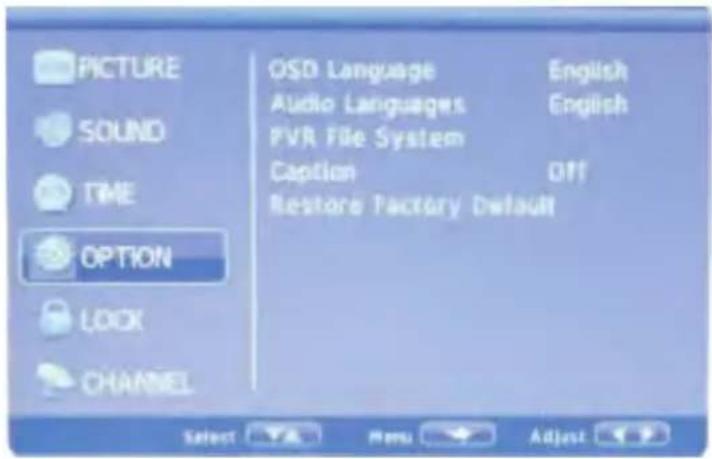
6.2.4 OPTION MENU
- Press MENU Key, the main menu appears, then press Key to choose Option Menu.
- OSD Language: select display
OSD Language
• Audio Language: setting the audio language - Subtitle Language: setting up the subtitle language
- Restore Default : restore all default settings
6.2.5 LOCK MENU
- Press MENU Key, the main menu appears, and then press ▲ / ▼ Key to select Lock Menu.
- Before entering settings, please enter the default password (0000) to enter the set value.
- Lock System: Enter the password to lock up the critical system settings, such as program searches. Before restoring defaults, you shall


enter the password and then make the system settings.
- Cancel LOCK: Unlock.
- Set Password.
- Block Channel: Indicates the channel you want to lock.
- Parental Guidance: Set the age level of the television program (Age 4-18).
6.2.6 CHANNEL
Search for TV Programs:
- Select DTV / ATV mode.
-
Press MENU Key, select Auto search / ATV Manual Search mode to find the TV program.
-
Select Auto Search and select Search Type: DTV + ATV / DTV / ATV. Then select your country, press Enter to start auto search.

- Press CH + / CH- Key after Auto Scan is completed to select the desired program.
• Channel Edit: Set DTV / ATV and channel information.
• Signal Information: Check information about the television signal.
- USB Function Operating Instruction: USB Mode (Multimedia).
- Press "INPUT or USB" Key to display the input source list, then press Key to select the source, press ENTER Key to confirm and display the multimedia mode. The color of the icon indicates if there is a TV USB DRIVER.
Yellow: Yes; Gray: No
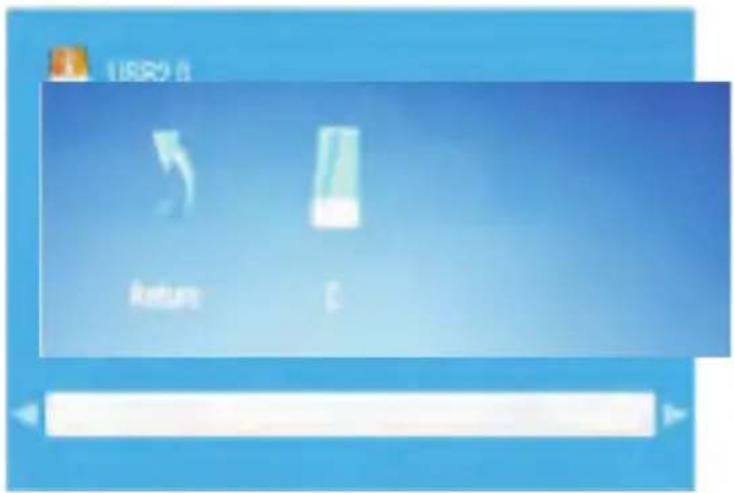
- Press ◀▶ Key to select the type of media (Photo/Music/Movie/ Text) you want to play. Press ENTER to confirm, and press Key to move to the directory and select what you want to play.
- Select C and press "ENTER" Key to enter the submenu.
7.1 PHOTO PLAY
- Insert the USB DRIVER into the USB slot.
- Press "◀ /▶" Key, select the picture and press "ENTER" Key to enter the submenu.
- Select C and press "ENTER" Key to enter the submenu.
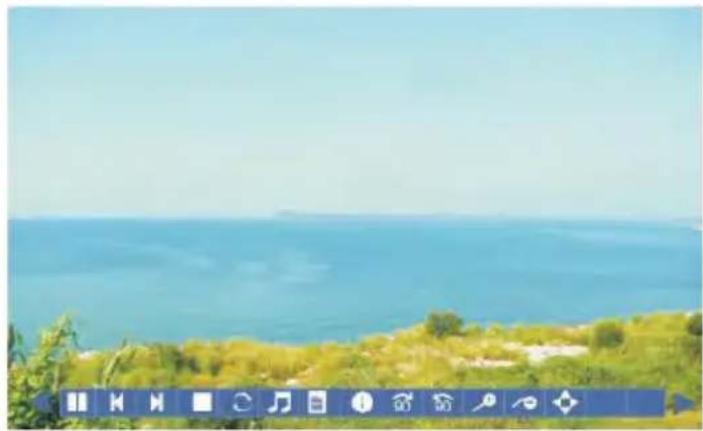
- Select a picture, press Key to display the picture, press Key to display the last image played, and press Key to display the next image to be played.
- Press "STOP / EXIT" Key to exit.
7.2 MUSIC PLAY
- Insert the USB DRIVER into the USB slot.
- Press "◀ /▶" Key, select MUSIC and press "ENTER" Key to enter the submenu.
- Select C and press "ENTER" Key to enter the submenu.
- Select music, press Key to display, press Key to display the last song played, and press Key to show the next song to be played.
- Press "STOP / EXIT" Key to exit.
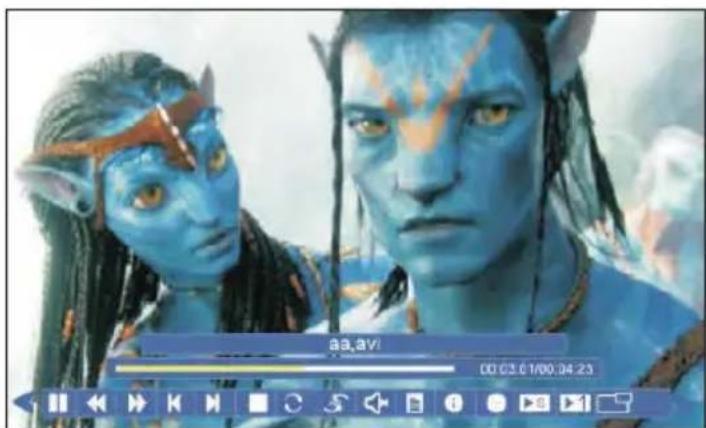
7.3 MOVIE PLAY
- Insert the USB DRIVER into the USB slot.
- Press " / " Key, select Movie and press "ENTER" Key to enter the submenu.
- Select C and press "ENTER" Key to enter the submenu.
- Select movie, press Key to display, press Key to display the last section played, and press Key to show the next section to be played.
- Press "STOP / EXIT" Key to exit.
natural_image
Coastal landscape with blue sea and green hills, no visible text or symbols on the main scene
8. Common Troubleshooting
The following phenomenon does not mean that the display has problem. Please check the following items before asking for help from the maintenance department.
| Phenomenon Troubleshooting | |
| No image or sound | 1. Unauthorized power supply is in use.2. The power switch, monitor or remote control is off. |
| No image on TV | 1. Check if the right channel has been chosen.2. Still under the multimedia mode, please change to TV mode. |
| No sound | 1. Sound is off or the sound system is not properly set. |
| Blurry or unstable image | 1. Check if the antenna is correctly connected;2. Ground signal is too weak |
| Ghosting | 1. Nearby buildings or top places reflects signals. |
| Snowflake | 1. Car or train electromagnetic radiation;2. High-voltage lines or neon lighting radiation. |
| No color | 1. Check if the color setting is correct.2. Check if the color system setting is correct3. Weak signal.4. Check whether the color suppression mode is ON or OFF. |
| Unable to play USB Memorizer | 1. Make sure the USB has been correctly open2. Check USB DRIVER format |
| No sound when connected to other devices | 1. Check if the connection with other devices is correct2. Check the input status of the corresponding devices |
| Remote control does not work | 1. Check if there is battery inserted2. Check the battery status3. To make the remote control align with the receive window |
Notice:
• This manual is for reference only.
The information in this manual is subject to change without notice.
The right to clarify any unknown conditions, errors or omissions is reserved by our company.
- No part in this device can be repaired by user.
It is forbidden to attempt to open the device housing to remodel the television receiver.
Internal components at high voltage can be hazardous to health.
Equipment maintenance and adjustment shall be carried out by specialists.
• To avoid personal injury, the product shall be securely fastened to the floor / wall according to the installation instructions.
- Do not drip or splash water on this device.
Do not place any objects containing liquids such as vases on this device.
- Do not place sources of ignition such as lighted candles on the device.
- Do not expose this device to extreme heat, such as direct sunlight, flames, etc.
PLTV9553 - PLTV1053
Portable TV Tuner Monitor Display Screen with Built-in Rechargeable Battery, USB/Micro SD Readers (Analog ATSC/DTV Support)
| MODEL | PLTV9553 PLTV10539'' -inch Hi-ResWidescreen Display | 10'' -inch Hi-ResWidescreen Display |
| Display Type: LCD-TFT, 9.0'' -inch LCD-TFT, 10.1'' -inch | ||
| Screen Resolution: 800 x 480 Pixels 1024 x 600 Pixels | ||
| Display Monitor Dimensions(L x W x H): | 9.1'' x 7.0'' x 1.3'' -inches 1 | 0.2'' x 7.4'' x 1.2'' -inches |
Features:
• Digital TV Tuner Television Monitor
• Wireless & Portable TV-Tuning Ability
• Built-in Rechargeable Battery
- User-Friendly Control Interface
• Versatile Digital Media File Playback
• Digital Picture, Video & Audio Support
• Dual Stereo Speakers
- Front Panel Button Controls
• Image & Audio Configuration Settings
• Headphone Jack, 3.5mm
- Connection Interface: Audio/Video (AV), USB + Micro SD Readers
• Used for Car, Truck & Mobile Vehicle Applications
What's in the Box:
- Display Monitor
- Remote Control
- Headphones
• TV Antenna - RCA Connection Cable
• Cigarette Lighter Plug - Wall Power Plug
Technical Specs:
• TV Tuner Support: ATSC-1, Analog / Digital Television (DTV) Receiver
• Analog TV Band Range: 55.25-861.25 MHz (TV Channels)
- Aspect Ratio: 16:9
• Digital Image File Support: JPEG, BMP, PMG
• Digital Audio File Support: MP3, WMA
• Digital Video File Support: MKV, AVI, DIVX, XVID, MOV, VOB, VOB, FLV, 3GP, DAT, MPEG, MPG, MP4, TS, TRP
• USB/Micro SD Support: Up to 32GB
- Rechargeable Battery: 3.7V Lithium, 2500mAh
• Power Supply: 12V DC (100-240V AC)
- Sold as: 1
PYLE
PyleUSA.com

natural_image
Illustration of a laptop with a red checkmark on screen (no text or symbols)VISIT US ONLINE:
Have a question?
Need service or repair?
Want to leave a comment?
PyleUSA.com/ContactUs

- CONTENT
- Safety Precautions
- Storage
- Maintenance
- Attention!
- Special Instruction
- Accessories
- Instruction for Keys and Interfaces
- Side Panel
- Control Keys on the Control Panel
- Instruction for Function Keys on Remote Control (Some machines are different, prevail in kind)
- Connection with External Devices
- Description of the Operating Menu
- Select the Input Signal Source
- System Menu Setup
- PICTURE
- SOUND MENU
- TIME MENU
- OPTION MENU
- LOCK MENU
- CHANNEL
- PHOTO PLAY
- MUSIC PLAY
- MOVIE PLAY
- Common Troubleshooting
- Notice:
- PLTV9553 - PLTV1053
- Portable TV Tuner Monitor Display Screen with Built-in Rechargeable Battery, USB/Micro SD Readers (Analog ATSC/DTV Support)
- Features:
- What's in the Box:
- Technical Specs:
- PYLE
- PyleUSA.com
Brand : Pyle
Model : PLTV9553
Category : Television