
SDHN-2S-P - Switch iPGARD - Free user manual and instructions
Find the device manual for free SDHN-2S-P iPGARD in PDF.


| Product Type | Secure KVM Switch |
| Model | SDHN-2S-P |
| Number of Ports | 2 |
| Supported Interfaces | USB 2.0, DVI-D, Audio |
| Maximum Resolution | 1920 x 1200 @ 60 Hz |
| Power Supply | External 5V DC, 2A |
| Dimensions (W x D x H) | 200 x 80 x 25 mm |
| Weight | 350 g |
| Security Features | Tamper-evident seals, isolation circuitry |
| Compliance | CE, FCC, RoHS |
| Operating Temperature | 0°C to 50°C |
| Storage Temperature | -20°C to 60°C |
| Humidity | 10% to 90% non-condensing |
| Mounting | Desktop or rackmount (bracket optional) |
| Connection Cables | Included: 2x USB, 2x DVI, 2x Audio |
| Indicators | LED per port for active selection |
| Control | Push button on front panel |
| Maintenance | Clean with soft dry cloth; avoid liquids |
| Repairability | No user-serviceable parts; contact support |
| Warranty | 2 years limited |
Frequently Asked Questions - SDHN-2S-P iPGARD
User questions about SDHN-2S-P iPGARD
0 question about this device. Answer the ones you know or ask your own.
Ask a new question about this device
Download the instructions for your Switch in PDF format for free! Find your manual SDHN-2S-P - iPGARD and take your electronic device back in hand. On this page are published all the documents necessary for the use of your device. SDHN-2S-P by iPGARD.
USER MANUAL SDHN-2S-P iPGARD
| SDHN-2S-P 2 | Port Secure Single-Head DisplayPort to HDMI KVM with Audio and CAC Support |
| SDHN-2D-P 2 | Port Secure Dual-Head DisplayPort to HDMI KVM with Audio and CAC Support |
| SDHN-4S-P 4 | Port Secure Single-Head DisplayPort to HDMI KVM with Audio and CAC Support |
| SDHN-4D-P 4 | Port Secure Dual-Head DisplayPort to HDMI KVM with Audio and CAC Support |
| SDHN-4Q-P 4 | Port Secure Quad-Head DisplayPort to HDMI KVM with Audio and CAC Support |
TABLE OF CONTENTS
TECHNICAL SPECIFICATIONS 3
WHAT'S IN THE BOX? 4
SECURITY FEATURES 4
SDHN FRONT AND REAR 4
INSTALLATION 5
CAC INSTALLATION COMMON ACCESS CARD, SMART CARD READER 11
CAC PORT CONFIGURATION 11
AUDITING: Dumping the Event Log via User Menu Options 12
RESET: Restore Factory Default 12
LED's BEHAVIOR 13
SYSTEM OPERATION 14
TROUBLESHOOTING 14
TECHNICAL SUPPORT 14
LIMITED WARRANTY STATEMENT 15
TECHNICAL SPECIFICATIONS
| VIDEO | |||
| Format DisplayPort/HDMI | |||
| Host Interface | SDHN-2S-P (2) DisplayPort | 20-pin (female) | |
| SDHN-2D-P/SDHN-4S-P (4) | DisplayPort 20-pin (female) | ||
| SDHN-4D-P (8) DisplayPort | 20-pin (female) | ||
| SDHN-4Q-P (16) DisplayPort | 20-pin (female) | ||
| User Console Interface | SDHN-2S-P/SDHN-4S-P (1) | HDMI 19-pin (female) | |
| SDHN-2D-P/SDHN-4D-P (2) | HDMI 19-pin (female) | ||
| SDHN-4Q-P (4) HDMI 19-pin | (female) | ||
| Max Resolution 3840x2 | 160 @ 30Hz | ||
| DDC 5 volts p-p (TTL) | |||
| Input Equalization Automatic | |||
| Input Cable Length Up to | 20 ft. | ||
| Output Cable Length Up to | 20 ft. | ||
| USB | |||
| Signal Type USB 1.1 and | 1.0 Keyboard and Mouse only. USB 2.0 for CAC connection. | ||
| Type A to B | SDHN-2S-P/SDHN-2D-P | (4) | |
| SDHN-4S-P/SDHN-4D-P/SDHN-4Q-P | (8) | ||
| User Console Interface | (2) USB Type-A for keyboard and mouse connection only | ||
| (1) USB Type-A for CAC connection (P models only) | |||
| AUDIO | |||
| Input | (2)/(4) Connector Stereo 3.5mm Female | ||
| Output | (1) Connector Stereo 3.5mm Female | ||
| POWER | |||
| Power Requirements | 12V DC, 2A (minimum) power adapter with center-pin positive polarity. Quad head models require a 12V DC 3A (minimum) power adapter with center-pin positive polarity. | ||
| ENVIRONMENT | |||
| Operating Temp | 32° to 104° F (0° to 40° C) | ||
| Storage Temp | -4° to 140° F (-20° to 60° C) | ||
| Humidity | 0-80% RH, non-condensing | ||
| CERTIFICATIONS | |||
| Security Accreditation | Common Criteria Validated To NIAP, Protection Profile PSS Ver. 3.0 | ||
| OTHER | |||
| Emulation | USB 1.1 and USB 2.0 Compatible | ||
| Control Front Panel Buttons | |||
WHAT'S IN THE BOX?
| SDHN Unit 2/4 | port Secure DisplayPort to HDMI KVM Switch |
| PS12VDC2A or PS12VDC3A | 12V DC, 2A (minimum) power adapter with center-pin positive polarity. Quad head models require a 12V DC 3A (minimum) power adapter with center-pin positive polarity. |
| User Manual |
SECURITY FEATURES
Anti-Tamper Switches
Each model is equipped with internal Anti-Tamper switches, which sense attempts to open the device enclosure. Once the system identifies such an attempt, all the front panel LED's will flash rapidly and the unit will become useless by shutting off connection with all attached PCs and peripherals disabling any functionality.
Tamper-Evident Seal
The enclosure of the unit is protected with a tamper-evident seal to provide a visual evidence if the unit has been opened.
Protected Firmware
The controller of the unit has a special protection feature that prevents reprogramming or reading the firmware.
High Isolation on USB Channels
Opto-isolators are used in the unit to keep USB data paths electrically isolated from each other, providing high isolation and preventing data leakage between ports.
Secure EDID Emulation
The unit prevents unwanted and unsecure data to be transmitted through the DDC lines by means of secure EDID learning and emulation.
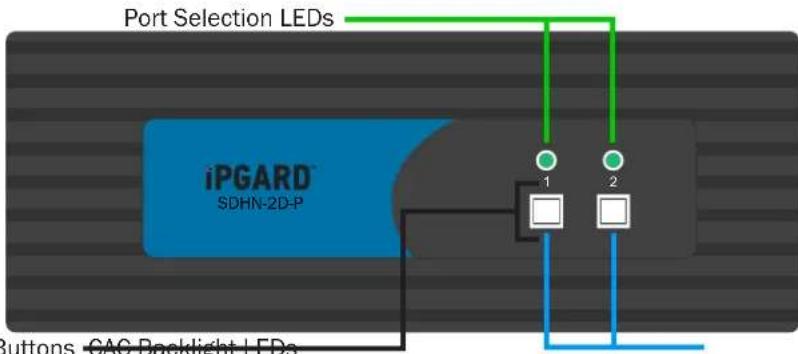
Figure 4-1: SDHN-2D-P Front panel
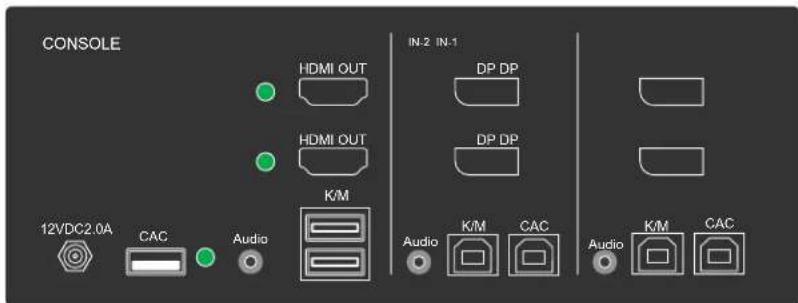
Figure 4-2: SDHN-2D-P Rear panel
INSTALLATION
SYSTEM REQUIREMENTS
- iPGARD Secure PSS is compatible with standard personal/portable computers, servers or thin clients, running operating systems such as Windows or Linux.
- The peripheral devices that are supported by the KVM are listed in the following table:
| Console Port Authorized Devices | |
| Keyboard | Wired keyboard and keypad without internal USB hub or composite device functions, unless the connected device has at least one endpoint which is a keyboard or mouse HID class, KVM/KM extender; |
| Audio out Analog amplified speakers, Analog headphones, Digital audio appliance. | |
| Mouse/Pointing Device | Any wired mouse or trackball without internal USB hub or composite device functions, Touch-screen, Multi-touch or digitizer, KVM/KM extender. |
| User Authentication Device | Smart-card reader, PIV/CAC reader, Token or Biometric reader* |
*TOE -P and -X models only Table 5-1
INSTALLATION
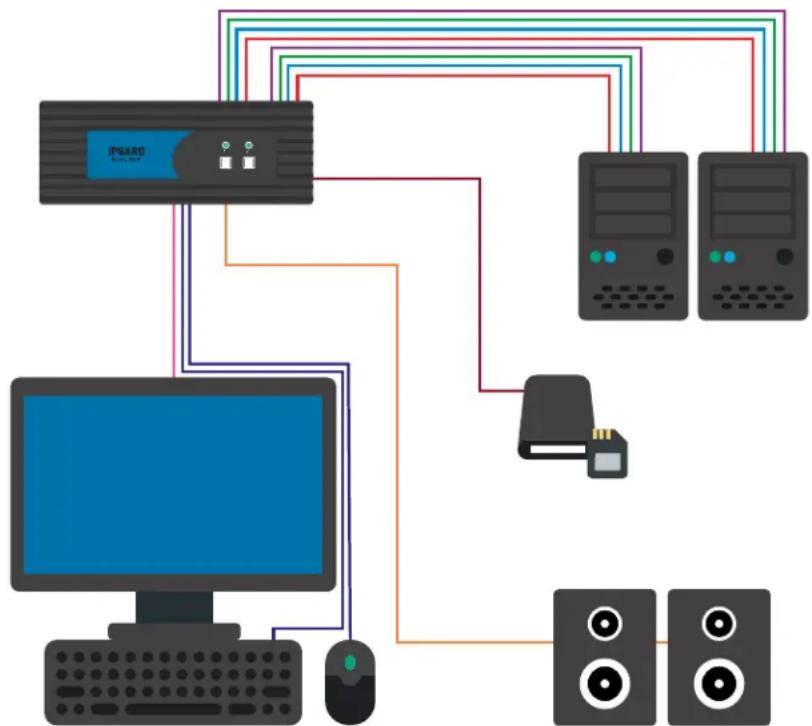
Single-Head Units:
- Ensure that power is turned off or disconnected from the unit and the computers.
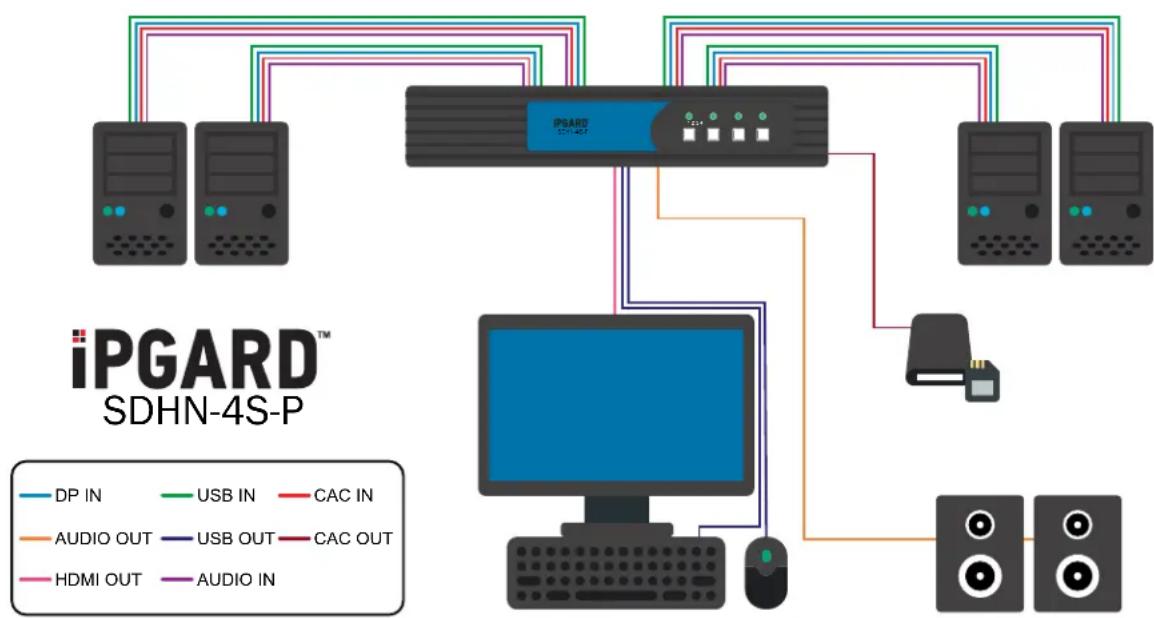
- Use a DisplayPort cable to connect the DisplayPort output port from each computer to the corresponding DisplayPort IN ports of the unit.
- Use a USB cable (Type-A to Type-B) to connect a USB port on each computer to the respective USB ports of the unit.
- Optionally connect a stereo audio cable (3.5mm to 3.5mm) to connect the audio output of the computers to the AUDIO IN ports of the unit.
- Connect a monitor to the HDMI OUT console port of the unit using an HDMI cable.
- Connect a USB keyboard and mouse to the two USB console ports.
- Optionally connect stereo speakers to the AUDIO OUT port of the unit.
- Optionally connect CAC (COMMON ACCESS CARD, SMART CARD READER) to the CAC port in the user console interface. For -P Models.
- Power on the KVM by connecting a 12VDC power supply to the power connector, and then turn on all the computers.
Note: The computer connected to port 1 will always be selected by default after power up.
Note: You can connect up to 2 computers to the 2 port KVM and up to 4 computers to the 4 port KVM.
flowchart
graph TD
    A["Device 1"] -->|DP IN| B["Central Server"]
    C["Device 2"] -->|USB IN| B
    D["Device 3"] -->|CAC IN| B
    B --> E["User"]
    B --> F["Audio OUT"]
    B --> G["USB OUT"]
    B --> H["CAC OUT"]
    B --> I["HDMI OUT"]
    B --> J["AUDIO IN"]
    B --> K["Computer"]
Figure 6-1: SDHN-4S-P
IMPORTANT WARNINGS - For security reasons:
- This product does not support wireless devices. Do not attempt to use a wireless keyboard or a wireless mouse with this product.
- This product does not support keyboards with integrated USB hubs or USB ports. Only use standard (HID) USB keyboards with this device.
- This product does not support microphone audio input or line input. Do not connect any microphones or headsets with microphones to this device.
- Connection of authentication devices (CAC) with external power sources is prohibited.
INSTALLATION (Continued)
Multi-Head Units:
- Ensure that power is turned off or disconnected from the unit and the computers.
- Use DisplayPort cables to connect the DisplayPort output ports of each computer to the corresponding DisplayPort IN ports of the unit. For example, if using SDHN-4Q, the four DisplayPort ports of one computer must all be connected to one channel.
PC Workstation

Figure 7-1: SDHN-4Q-P
The DisplayPort IN connectors that belong to the same channel are arranged vertically.
- Use a USB cable (Type-A to Type-B) to connect a USB port on each computer to the respective USB ports of the unit.
- Optionally connect a stereo audio cable (3.5mm on both ends) to connect the audio output of the computer to the AUDIO IN ports of the unit.
- Connect the monitors to the HDMI OUT console ports of the unit using HDMI cables.
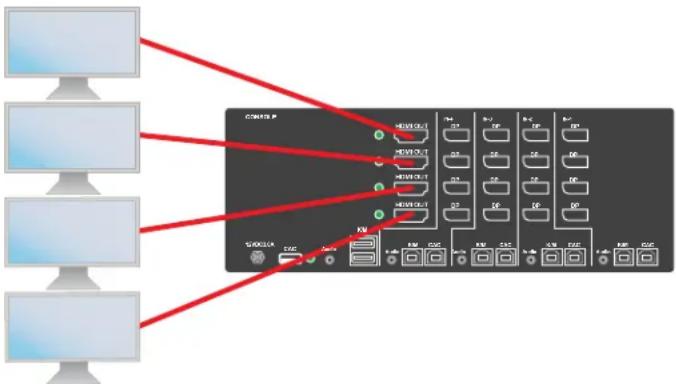
Figure 7-2: SDHN-4Q-P
The DisplayPort IN ports on one row will be switched to the HDMI OUT of the same row.
- Connect a USB keyboard and mouse in the two USB console ports.
- Optionally connect stereo speakers to the AUDIO OUT port of the unit.
- Optionally connect CAC (smart card reader) to the CAC port in the user console interface.
- Power on the KVM by connecting a 12VDC power supply to the power connector, and then turn on all the computers.
Note: The computer connected to port 1 will always be selected by default after power up.
INSTALLATION (Continued)

flowchart
graph TD
    A["Server"] --> B["Central Server"]
    C["Client"] --> B
    D["Desktop Computer"] --> B
    E["Monitor"] --> B
    B --> F["Server"]
    G["Audio Out"] --> B
    H["USB OUT"] --> B
    I["HDMI OUT"] --> B
    J["AUDIO IN"] --> B
    K["DP IN"] --> B
    L["USB IN"] --> B
    M["CAC IN"] --> B
    N["AUDIO OUT"] --> B
    O["USB OUT"] --> B
    P["CAC OUT"] --> B
    Q["HDMI OUT"] --> B
Figure 8-1: SDHN-4Q-P

flowchart
graph TD
    A["IPGAR"] --> B["Computer"]
    A --> C["Server 1"]
    A --> D["Server 2"]
    A --> E["Server 3"]
    A --> F["Server 4"]
    B --> G["User"]
    C --> H["Speaker"]
    D --> I["Speaker"]
    E --> J["Speaker"]
    F --> K["Speaker"]
Figure 8-2: SDHN-2S-P
INSTALLATION (Continued)
EDID Learn:
The KVM is designed to learn the connected monitor's EDID upon power up. In the event of connecting a new monitor to the KVM, a power recycle is required.
The KVM will indicate to the user the EDID learn process by flashing the front panel's LEDs. Port one green and push button blue LEDs will both begin to flash for about 10 seconds. When the LEDs stop flashing, the EDID learn process is done.
If the KVM has more than one video board (such as dual-head and quad-head models), then the unit will continue to learn the EDIDs of the connected monitors and indicate the progress of the process by flashing the next port selection green and push button blue LEDs respectively.
The monitor must be connected to the video output connector located in the console space at the back of the KVM during the EDID learn process.
If the read EDID from the connected monitor is identical to the current stored EDID in the KVM then the EDID learn function will be skipped.
SINGLE-HEAD MODE KM SWITCHING
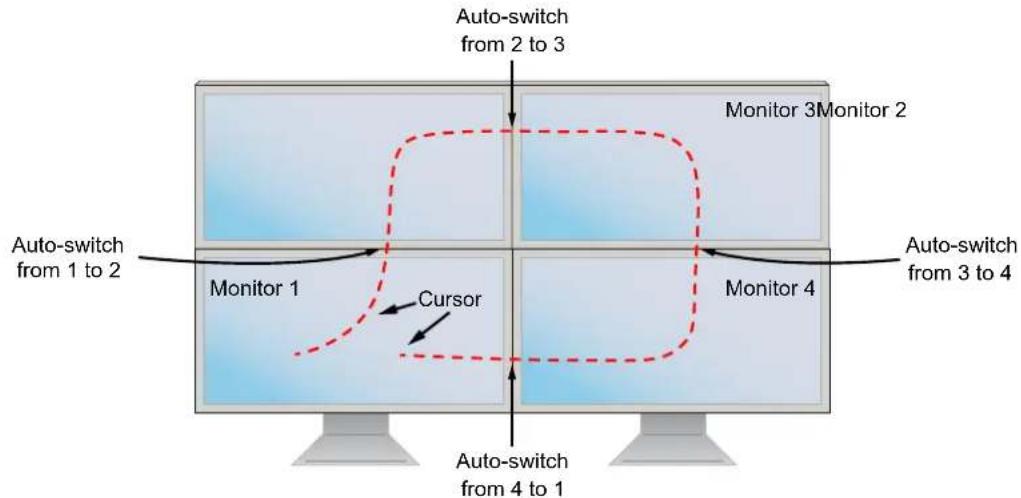
In addition to traditional channel switching by buttons located on the front panel, KM also supports cursor control of selected channels. This technology allows seamless switching between computers by moving the mouse cursor from one display to another. Users can effortlessly switch computers for faster productivity.
- KM functionality for KVM devices is only available once the device has been put into KM mode, refer to admin tool guide for detail.
- When the device is placed into KM mode, it will behave identically to the KM models of the product.
-
The major difference when the device is placed into KM mode is that cursor control of selected channels is available as an additional method to switch the connected computer.
-
Figure 10-1 below shows how this functionality works.
-
For more information about how to configure this functionality, refer to the KM guide.
flowchart
graph TD
    A["Monitor 1"] --> B["Monitor 2"]
    B --> C["Monitor 3"]
    C --> D["Monitor 4"]
    D --> E["Monitor 1 to 2"]
    F["Cursor"] --> G["Monitor 1 to 2"]
    H["Auto-switch from 2 to 3"] --> I["Monitor 3 Monitor 2"]
    J["Auto-switch from 3 to 4"] --> K["Monitor 4"]
    L["Auto-switch from 4 to 1"] --> M["Monitor 4"]
Figure 10-1
MULTI-HEAD MODE KM SWITCHING
When using computers with multiple displays, cursor control of selected channels allows switching between computers through the use of simple mouse clicks and gestures. No device driver is required. Simply press the scroll wheel twice and then move the mouse in the direction of the channel you desire to switch to.
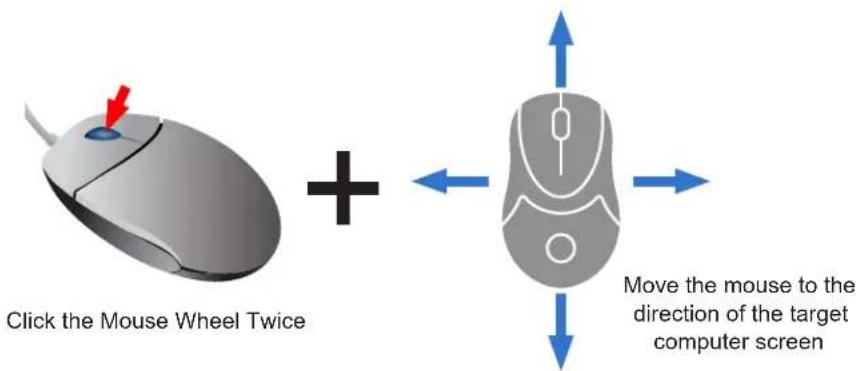
Figure 10-2
Note: This feature only works in Multi-Head display mode.
CAC (COMMON ACCESS CARD, SMART CARD READER) INSTALLATION
The following steps are intended for the system administrator or IT manager only.
If you have the optional CAC ports there will be 2 ports on a 2 host ports KVM and 4 ports on a 4 host ports KVM.
CAC connection to the computer requires a USB cable connection separate from the keyboard and mouse. This allows the CAC to be connected independently from the keyboard and mouse.
It also allows the user to select whether CAC for a certain computer is supported or not.
- Ensure that power is turned off or disconnected from the unit and the computer.
- Use a USB cable (Type-A to Type-B) to connect a USB port on a computer to its respective CAC USB ports on the KVM. Do not connect the USB cable if CAC functionality is not needed for that computer.
- Connect a CAC (smart card reader) to the CAC port in the user console interface.
- Power on the KVM by connecting a 12VDC power supply to the power connector, and then turn on all the computers.
- To disable CAC for any channel (all CAC ports are enabled as default), use the front panel buttons to switch the KVM to the channel whose CAC mode you wish to change. Once the channel is selected, the button LED for this specific channel should be on (CAC port enabled). Press and hold the button for 3 seconds until the button LED turns off. The CAC port is now disabled for this channel.
- To enable CAC for any channel, use the front panel buttons to switch the KVM to the channel whose CAC mode you wish to change. Once the channel is selected, the button LED for this specific channel should be off (CAC port disabled). Press and hold the button for 3 seconds until the button LED turns on. The CAC port is now enabled for this channel.
CAC PORT CONFIGURATION
The following steps are intended for the system administrator and operators (users).
Note: Only one computer connected to port 1 is required for this operation
CAC port Configuration is an optional feature, allowing registration of any USB peripheral to operate with the KVM. Only one peripheral can be registered and only the registered peripheral will operate with the KVM. By default, when no peripheral is registered, the KVM will operate with any Smart Card Reader.
Configure the CAC Port via User Menu Options
- Open the Administration and Security Management Program.
- Using the keyboard, press the Alt key twice and type "cnfg".
- At this stage the mouse connected to the KVM/KM will stop functioning.
- Enter the default username "user" and press Enter.
- Enter the default password "12345" and press Enter.
- Select option 2 from the menu on your screen and press Enter.
- Connect the peripheral device to be registered to the CAC USB port in the console side of the KVM/KM and wait until the KVM /KM is reading the new peripheral information.
- The KVM/KM will list the information of the connected peripheral on the screen and buzz 3 times when registration is completed.
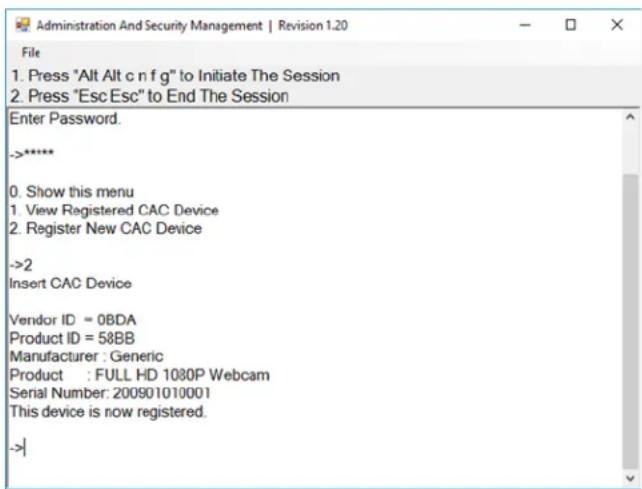
Figure 11-1: User Menu
AUDITING: Dumping the Event Log via User Menu Options
The following steps are intended for the system administrator.
Note: Only one computer connected to port 1 is required for this operation
The Event Log is a detailed report of critical activities stored in the KVM or KVM memory. A comprehensive feature list and guidance for Administration and Security Management Tools can be found in the Administrator's Guide available for download from: http://ipgard.com/documentation/
To view or dump the Event Log:
- Open the Administration and Security Management Program
- Using the keyboard, press the Alt key twice and type "cnfg"
- Enter the default admin name "admin" and press Enter.
- Enter the default password "12345" and press Enter.
- Request a Log Dump by selecting option 5 in the menu. (Shown in Figure 12-1)
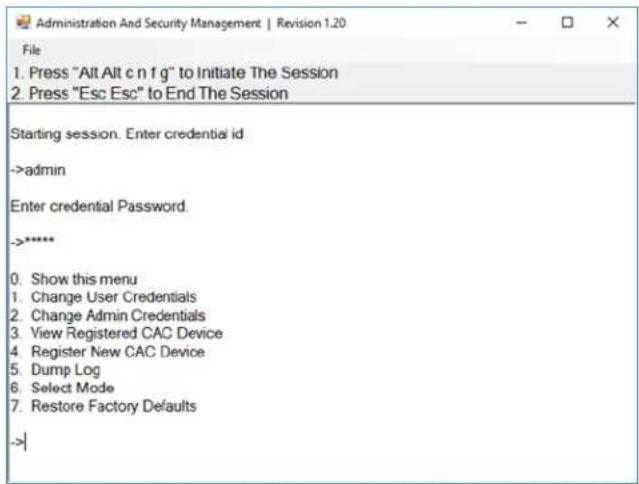
Figure 12-1
* See Administration and Security Management Tool Guidance for detailed information.
RESET: Restore Factory Defaults
The following steps are intended for the system administrator.
Note: Only one computer connected to port 1 is required for this operation
Restore Factory Defaults will reset all settings on the KVM to their original state
KVM mode
CAC port registration will be removed
KVM settings will be reset to factory defaults
To Restore Factory Defaults via User Menu Options:
- Open the Administration and Security Management Program
- Using the keyboard, press the Alt key twice and type "cnfg"
- Enter the default admin name "admin" and press Enter.
- Enter the default password "12345" and press Enter.
- Select option 7 from the menu on your screen and press enter. (Menu shown in Figure 12-1)
* See Administration and Security Management Tool Guidance for detailed information.
LED's BEHAVIOR
User Console Interface – Display LED:
| # Status Description | |
| 1 Off Monitor is | not connected |
| 2 On Monitor is | connected |
| 3 Flashing EDID | problem - Learn EDID to fix the problem |
User Console Interface - CAC LED:
| # Status Description | |
| 1 Off CAC is not connected | |
| 2 On Authorized and functional CAC is connected | |
| 3 Flashing Non-CAC peripheral is connected |
Front Panel – Port Selection LED's:
| # Status Description | |
| 1 Off Non-selected port | |
| 2 On Selected port | |
| 3 Flashing EDID learn in process |
Front Panel – CAC Selection LED's:
| # Status Description | |
| 1 Off CAC port is disabled or non-selected port | |
| 2 On CAC port is enabled | |
| 3 Flashing EDID learn in process |
Front Panel - Port and CAC Selection LED's:
| # Status Descript | on | |
| 1 All Flashing | Connected peripheral to keyboard or mouse console ports is rejected | |
IMPORTANT!
If all the Front Panel LED's are flashing and the buzzer is beeping, the KVM has been
TAMPERED with and all functions are permanently disabled. Please contact iPGARD technical support at support@iPGARD.com.
If all Front Panel LED's are on and not flashing, the POWER UP SELF TEST has failed and all functions are disabled. Check if any of the front panel port selection buttons are jammed. In this case, release the jammed button and recycle the power. If power up self test is still failing, please contact iPGARD technical support at support@iPGARD.com.
EDID Learn - Front Panel LED's:
All LED's are turned on for 1 second. Then:
- Port 1 LED's will flash until the end of the process.
- Port 2 LED's will flash until the end of the process if a second video board exists (Dual-head KVM)
- Port 3 LED's will flash until the end of the process if a third video board exists (Quad-head KVM)
- Port 4 LED's will flash until the end of the process if a fourth video board exists (Quad-head KVM)
SYSTEM OPERATION
Front Panel Control
To switch to an input port, simply push the desired input button on the front-panel of the KVM. If an input port is selected, the LED of that port will turn on.
TROUBLESHOOTING
No Power
- Make sure that the power adapter is securely connected to the power connector of the unit.
- Check the output voltage of the power supply and make sure that the voltage value is around 12VDC.
- Replace the power supply.
No Video
- Check if all the video cables are connected properly.
- Connect the computer directly to the monitor to verify that your monitor and computer are functioning properly.
- Restart the computers
Keyboard is not working
- Check if the keyboard is properly connected to the unit.
- Check if the USB cables connecting the unit and the computers are properly connected.
- Try connecting the USB on the computer to a different port.
- Make sure that the keyboard works when directly connected to the computer.
- Replace the keyboard.
Note: The NUM, CAPS, and SCROLL Lock LED indicators on the keyboard are not supposed to light up if connected to the KVM.
Mouse is not working
- Check if the mouse is properly connected to the unit.
- Try connecting the USB on the computer to a different port.
- Make sure that the mouse works when directly connected to the computer.
- Replace the mouse.
No Audio
- Check if all the audio cables are connected properly.
- Connect the speakers directly to the computer to verify that the speakers and the computer audio are functioning properly.
- Check the audio settings of the computer and verify that the audio output is through the speakers.
No CAC (COMMON ACCESS CARD, SMART CARD READER)
- Check if the USB cables connecting the unit and the computers are properly connected.
• Make sure the CAC port is enabled.
TECHNICAL SUPPORT
For product inquiries, warranty questions, or technical questions, please contact info@iPGARD.com.
LIMITED WARRANTY STATEMENT
A. Extent of limited warranty
iPGARD, Inc. warrants to the end-user customers that the iPGARD product specified above will be free from defects in materials and workmanship for the duration of 1 year, which duration begins on the date of purchase by the customer. Customer is responsible for maintaining proof of date of purchase.
iPGARD limited warranty covers only those defects which arise as a result of normal use of the product, and do not apply to any:
a. Improper or inadequate maintenance or modifications
b. Operations outside product specifications
c. Mechanical abuse and exposure to severe conditions
If iPGARD receives, during applicable warranty period, a notice of defect, iPGARD will at its discretion replace or repair defective product. If iPGARD is unable to replace or repair defective product covered by the iPGARD warranty within reasonable period of time, iPGARD shall refund the cost of the product.
iPGARD shall have no obligation to repair, replace or refund unit until customer returns defective product to iPGARD.
Any replacement product could be new or like new, provided that it has functionality at least equal to that of the product being replaced.
iPGARD limited warranty is valid in any country where the covered product is distributed by iPGARD.
B. Limitations of warranty
To the extent allowed by local law, neither iPGARD nor its third party suppliers make any other warranty or condition of any kind whether expressed or implied with respect to the iPGARD product, and specifically disclaim implied warranties or conditions of merchantability, satisfactory quality, and fitness for a particular purpose.
C. Limitations of liability
To the extent allowed by local law the remedies provided in this warranty statement are the customers sole and exclusive remedies.
To the extent allowed by local law, except for the obligations specifically set forth in this warranty statement, in no event will iPGARD or its third party suppliers be liable for direct, indirect, special, incidental, or consequential damages whether based on contract, tort or any other legal theory and whether advised of the possibility of such damages.
D. Local law
To the extent that this warranty statement is inconsistent with local law, this warranty statement shall be considered modified to be consistent with such law.
iPGARD™
NOTICE
The information contained in this document is subject to change without notice. iPGARD makes no warranty of any kind with regard to this material, including but not limited to, implied warranties of merchantability and fitness for particular purpose. iPGARD will not be liable for errors contained herein or for incidental or consequential damages in connection with the furnishing, performance or use of this material. No part of this document may be photocopied, reproduced, or translated into another language without prior written consent from iPGARD, Inc.
20180109

DESIGNED
AND MADE
IN THE USA
Toll Free: (888) 994-7427
Phone: (702) 800-0005
Fax: (702) 441-5590
2455 W Cheyenne Ave, Suite 112
North Las Vegas, NV 89032
iPGARD.COM


- TABLE OF CONTENTS
- WHAT'S IN THE BOX?
- SECURITY FEATURES
- Anti-Tamper Switches
- Tamper-Evident Seal
- Protected Firmware
- High Isolation on USB Channels
- Secure EDID Emulation
- INSTALLATION
- SYSTEM REQUIREMENTS
- Single-Head Units:
- IMPORTANT WARNINGS - For security reasons:
- INSTALLATION (Continued)
- Multi-Head Units:
- EDID Learn:
- SINGLE-HEAD MODE KM SWITCHING
- MULTI-HEAD MODE KM SWITCHING
- CAC (COMMON ACCESS CARD, SMART CARD READER) INSTALLATION
- CAC PORT CONFIGURATION
- Configure the CAC Port via User Menu Options
- AUDITING: Dumping the Event Log via User Menu Options
- To view or dump the Event Log:
- RESET: Restore Factory Defaults
- LED's BEHAVIOR
- IMPORTANT!
- EDID Learn - Front Panel LED's:
- SYSTEM OPERATION
- Front Panel Control
- TROUBLESHOOTING
- No Power
- No Video
- Keyboard is not working
- Mouse is not working
- No Audio
- No CAC (COMMON ACCESS CARD, SMART CARD READER)
- TECHNICAL SUPPORT
- LIMITED WARRANTY STATEMENT
- Extent of limited warranty
- Limitations of warranty
- Limitations of liability
- Local law
- iPGARD™
- NOTICE
Brand : iPGARD
Model : SDHN-2S-P
Category : Switch