TP-LINK

KP125MP4 - Home Automation TP-LINK - Free user manual and instructions

Find the device manual for free KP125MP4 TP-LINK in PDF.

📄 55 pages English EN Download 💬 AI Question 10 questions ⚙️ Specs
Notice TP-LINK KP125MP4 - page 2
Pick your language and provide your email: we'll send you a specifically translated version.
Product Type Smart Plug
Dimensions 4.1 x 2.4 x 1.6 inches
Weight 3.5 oz (99 g)
Power Supply 120 V AC, 60 Hz
Maximum Load 15 A / 1800 W resistive
Wireless Standard Wi-Fi 2.4 GHz (802.11 b/g/n)
Functions Remote on/off, scheduling, timer, energy monitoring
Voice Control Amazon Alexa, Google Assistant, Microsoft Cortana
App Compatibility Kasa Smart app (iOS 10+ / Android 5+)
Maintenance Wipe with dry cloth; do not use liquid or abrasive cleaners
Safety Features Overload protection (shuts off above 15 A), fire-resistant housing
Spare Parts / Repairability Not user-serviceable; no spare parts available
Operating Temperature 0°C to 40°C (32°F to 104°F)
Regulatory Certifications FCC, UL, ETL

Frequently Asked Questions - KP125MP4 TP-LINK

How do I set up the KP125MP4 smart plug?
Download the Kasa Smart app from the App Store or Google Play. Plug in the device, open the app, tap the '+' icon, and follow the in-app instructions to connect to your 2.4 GHz Wi-Fi network.
Does the KP125MP4 require a hub?
No, the KP125MP4 connects directly to your existing Wi-Fi network via the Kasa Smart app. No additional hub is required.
Can I control the plug remotely when away from home?
Yes, as long as your phone has internet access and the plug remains connected to your home Wi-Fi, you can turn devices on/off remotely via the Kasa Smart app.
What voice assistants are compatible?
The KP125MP4 works with Amazon Alexa, Google Assistant, and Microsoft Cortana. Enable the Kasa skill in your assistant's app to start voice control.
How can I monitor energy usage?
In the Kasa Smart app, select the plug and tap on the energy usage section. It shows real-time power consumption in watts and historical daily/monthly usage.
What do I do if the plug disconnects from Wi-Fi?
First, ensure your router is working and the plug is within range (preferably within 100 ft). If still disconnected, press and hold the side button for 5 seconds until the LED blinks amber, then re-add it in the app.
Is the KP125MP4 safe to use with high-power appliances?
The plug supports up to 15 A (1800 W) resistive load. It includes overload protection that shuts off automatically if current exceeds 15 A. Avoid using with inductive loads like motors without proper derating.
How do I reset the smart plug to factory defaults?
Press and hold the button on the side for about 10 seconds until the LED blinks amber quickly, then release. The plug will reboot and enter setup mode.
Can I schedule the plug to turn on/off at specific times?
Yes, in the Kasa Smart app, navigate to the plug's settings and tap 'Schedule' or 'Timer'. You can set multiple schedules based on sunrise/sunset or specific times.
Does this plug work with a 5 GHz Wi-Fi network?
No, the KP125MP4 only supports 2.4 GHz Wi-Fi networks. Ensure your router broadcasts a 2.4 GHz SSID or temporarily enable it during setup.

User questions about KP125MP4 TP-LINK

0 question about this device. Answer the ones you know or ask your own.

Ask a new question about this device

The email remains private: it is only used to notify you if someone responds to your question.

No questions yet. Be the first to ask one.

Download the instructions for your Home Automation in PDF format for free! Find your manual KP125MP4 - TP-LINK and take your electronic device back in hand. On this page are published all the documents necessary for the use of your device. KP125MP4 by TP-LINK.

USER MANUAL KP125MP4 TP-LINK

Main Device Controls 2

Favorite Devices 3

Set Schedules 4

Set Timer 6

Set Away Mode 7

Check Runtime 8

Manage Device Settings 9

Reset Your Smart Plug 10

Grouping 14

Scenes 19

Smart Actions 24

Me Page 33

Manage Your Account 33

Kasa Care 34

Third Party Services 35

Firmware Update 39

Notifications 40

Widgets 41

Settings 50

Manage Rooms and Homes 51

About This Guide

This guide provides a brief introduction to Kasa Smart Wi-Fi Plugs and the Kasa Smart app, as well as regulatory information.

Please note that features of Kasa Smart Wi-Fi Plugs may vary slightly depending on the model and software version you have, and on your location and language. All images, steps, and descriptions in this guide are only examples and may not reflect your actual experience.

Conventions

In this guide, the following convention is used:

ConventionDescription
TealKey information appears in teal, including management page text such as menus, items, buttons and so on.
UnderlineHyperlinks are in teal and underlined. You can click to redirect to a website.

More Info

  • Operating temperature, storage temperature, and other specifications can be found on the product page at https://www.tp-link.com.
    • Our Technical Support and troubleshooting information can be found at https://www.tp-link.com/support/.
    • A TP-Link Community is provided for you to discuss our products at https://community.tp-link.com.

Main Device Controls

After you successfully set up your smart plug, you will see the home page of the Kasa Smart app. Here you can view and manage all devices that you've added to Kasa. Tap your smart plug to control and manage it.

Home Page

All your Kasa smart devices are listed in the Home page.
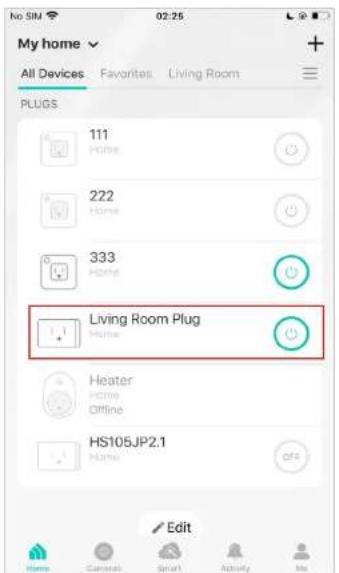
My home All Devices Favorites Living Room PLUGS 111 Home 222 Home 333 Home Living Room Plug Home Heater Home Offline HS105JP2.1 Home Edit

Device Status

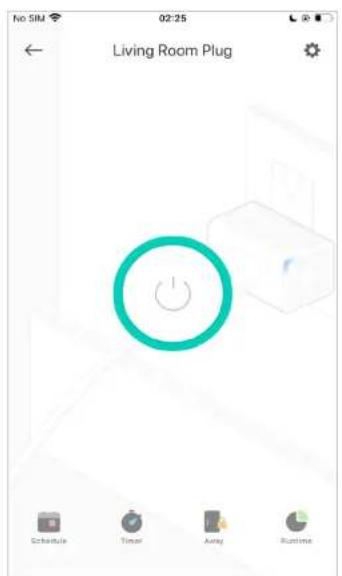
Check your device status, or turn on/off your device in the Status page.
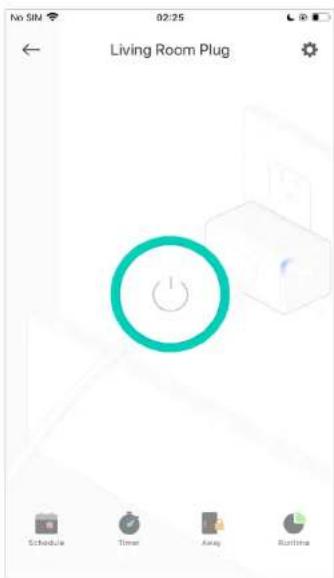
No SIN 02:25 Living Room Plug Schedule Timer Away Runtime

Favorite Devices

Gather the devices you use most often to Favorites so you can easily find them.

Home Page

Go to the Home page and long press your device. Then tap Favorite.
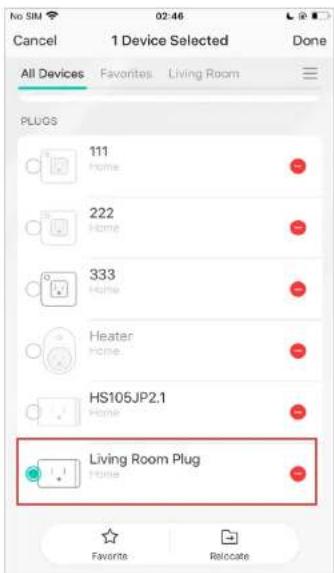
No SIM 02:46 Cancel 1 Device Selected Done All Devices Favorites Living Room PLUGS 111 Home 222 Home 333 Home Heater Home HS105JP2.1 Home Living Room Plug Home Favorites Relocate

Set Schedules

Schedule: Set schedules to automatically turn on/off the plug at set times according to your daily routine.

  1. Tap your smart plug in the Home page,

and then tap

TP-LINK KP125MP4 - Set Schedules - 1

Schedule

  1. Tap + on the top right corner. 3. Set a schedule to turn the light plugged in

your smart plug on or off at set times.

e.g. I want to turn off the light at 11:00 PM every day.
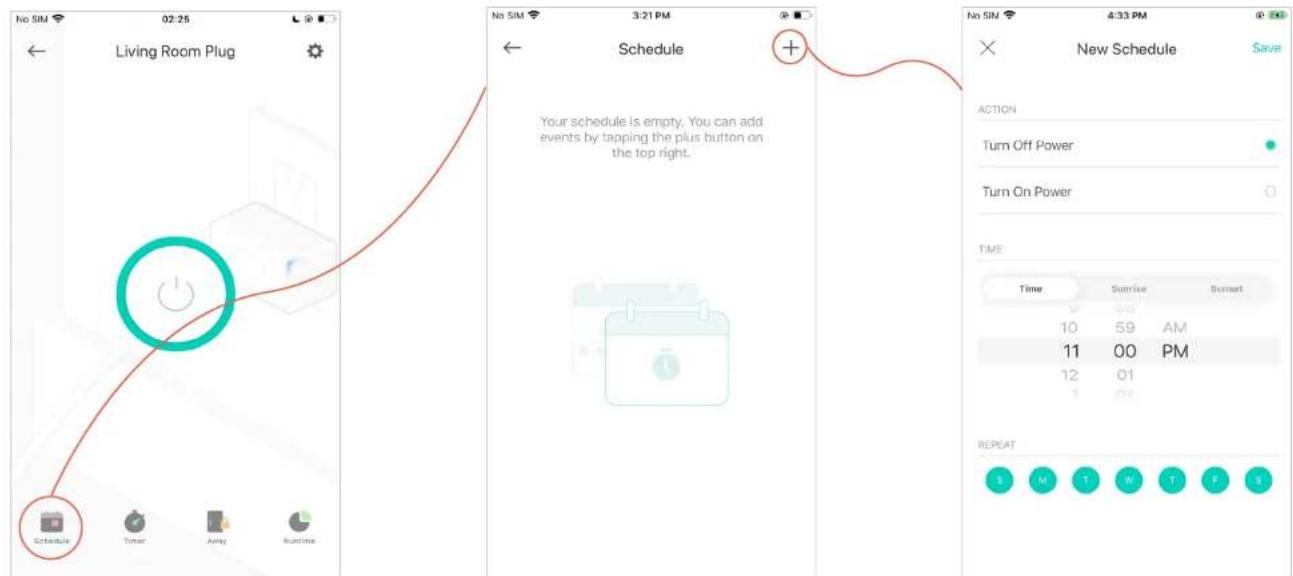
No SIM 02:25 Living Room Plug Schedule Timer Away Runtime 3:21 PM Schedule + Your schedule is empty. You can add events by tapping the plus button on the top right. Time Sunrise Sunset 10 59 AM 11 00 PM 12 01 1 02 4:33 PM No SIM New Schedule Save ACTION Turn Off Power Turn On Power TIME Time Sunrise Sunset 3 M T W T F 3

  1. You can also choose to turn on/off the light at Sunrise or Sunset. Please note that the Sunrise and Sunset times are based on your location.
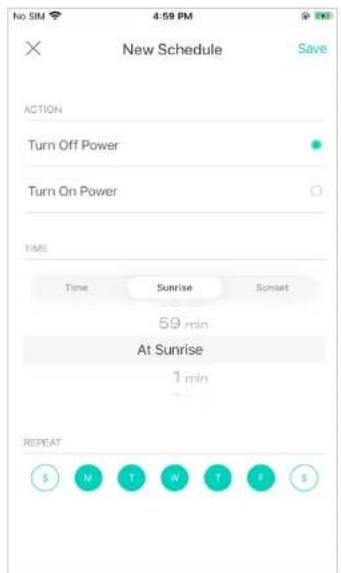
No SIM 4:59 PM × New Schedule Save ACTION Turn Off Power Turn On Power TIME Time Sunrise Sunset 59 min At Sunrise 1 min REPEAT M T W T P

  1. Tap Save and you'll see your schedule listed in the Schedule Page. You can add more schedules following the same steps.
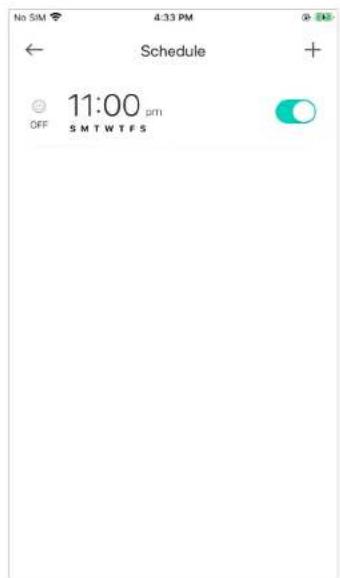
No SIM 4:33 PM ← Schedule + 11:00 OFF SMTWTF5

  1. You can turn off your schedule any time at the Schedule page.
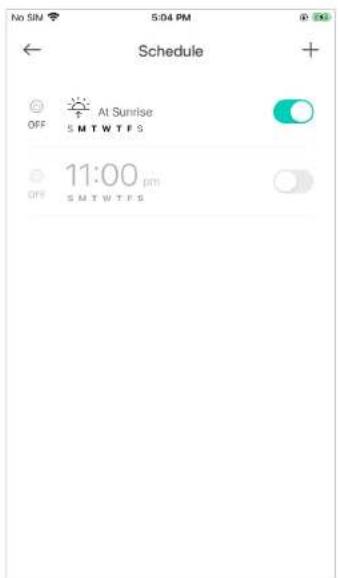
No SIN 5:04 PM Schedule + OFF At Sunrise SMTWTF S 11:00 pm OFF SMTWTF S

Set Timer

Timer: Set the countdown timer and your smart plug will be automatically turned on/off after the time ends.

  1. Tap on the Device Status page.

  2. Set the time period after which your smart plug will turn on or off automatically. Then tap START.
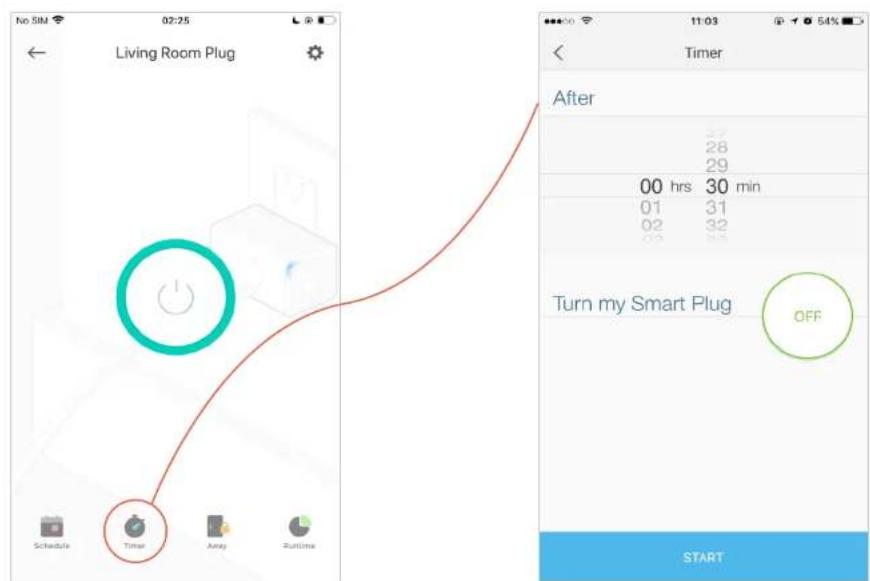
No SIM 02:25 Living Room Plug Schedule Time Away Runtime After 37 28 29 00 hrs 30 min 01 31 02 32 Turn my Smart Plug OFF START

Set Away Mode

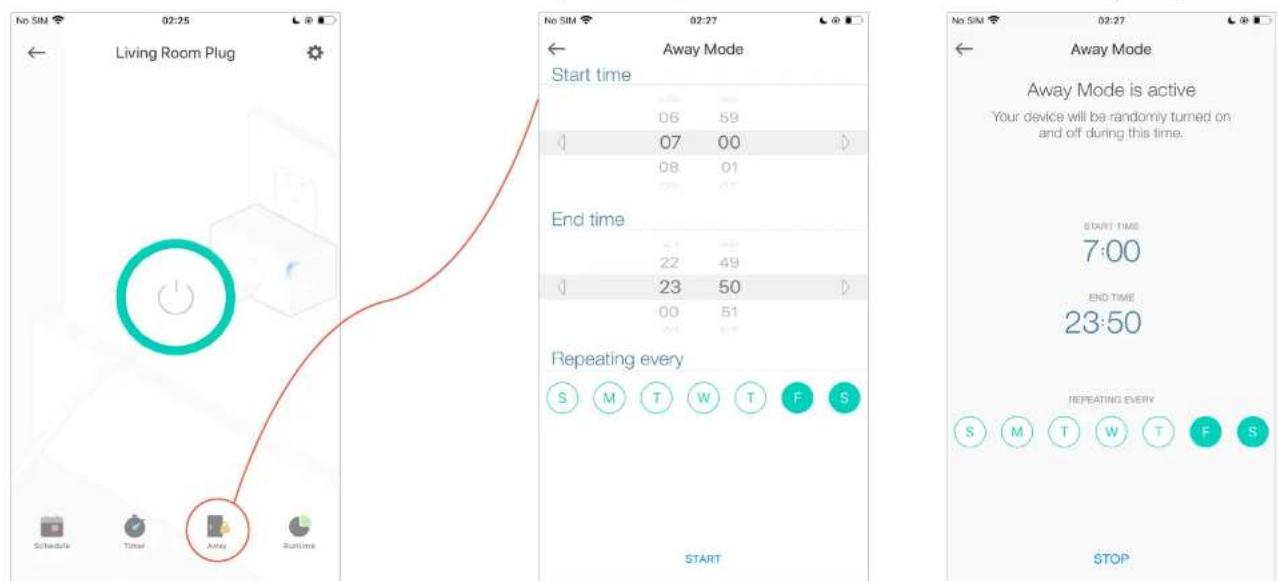
Away Mode: You can set Away Mode for your smart plug to turn on/off automatically at random intervals while you are away to make the appearance that someone is at home.

  1. Tap on the Device Status page.
    TP-LINK KP125MP4 - Set Away Mode - 1
  1. Set the start and end time during which the light will be automatically turned on and off at random intervals, and the repeating frequency.

e.g. I want the light to turn on and off between 07:00 to 23:50 every Friday and Saturday.

Check Runtime

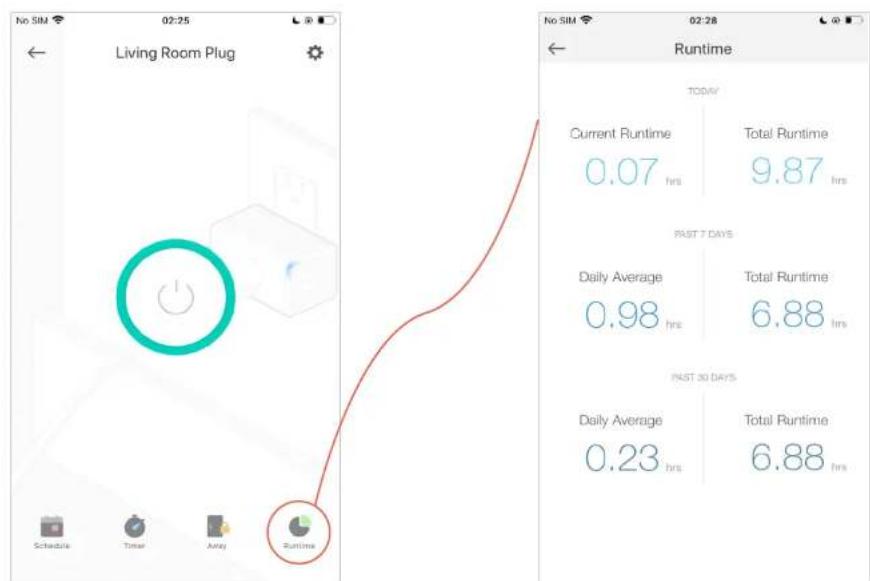
Runtime: You can view and track the runtime of your smart plug.

  1. Tap on the Device Status page.
    TP-LINK KP125MP4 - Check Runtime - 1
  1. Check the runtime of your smart plug.

Manage Device Settings

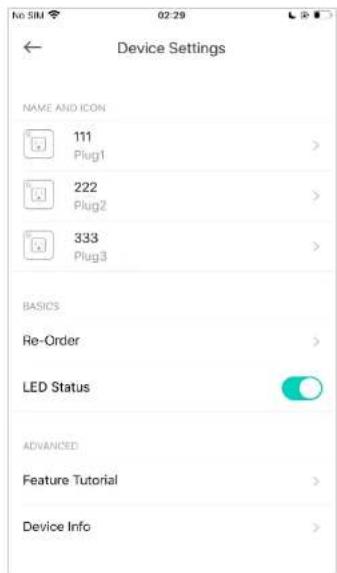
You can change the device settings.

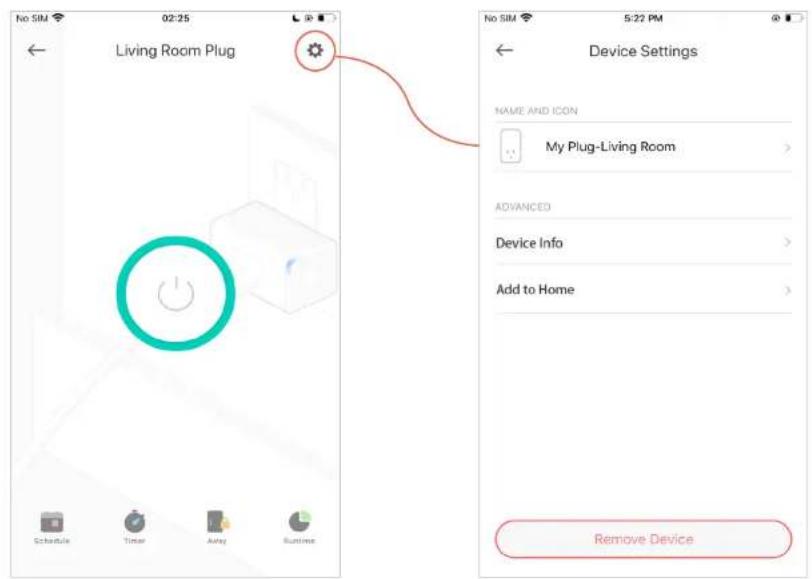
  1. Tap in the Device Status page.

No SIM 02:25 Living Room Plug Schedule Timer Away Runtime

  1. You can view Device Info and change the name and icon of your smart plug.

If your plug supports HomeKit, you can see Add to Home and add your plug to the Home app.

If your plug has multiple outlets, you can also re-order them.
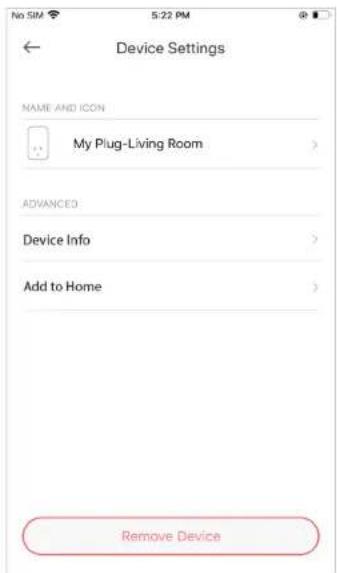
Device Settings NAME AND ICON My Plug-Living Room ADVANCED Device Info Add to Home Remove Device

Device Settings NAME AND ICON 111 Plug1 222 Plug2 333 Plug3 BASICS Re-Order LED Status ADVANCED Feature Tutorial Device Info

Reset Your Smart Plug

There are three ways to reset your smart plug.

Method 1

Go to the Home page. Long press your smart plug and then tap
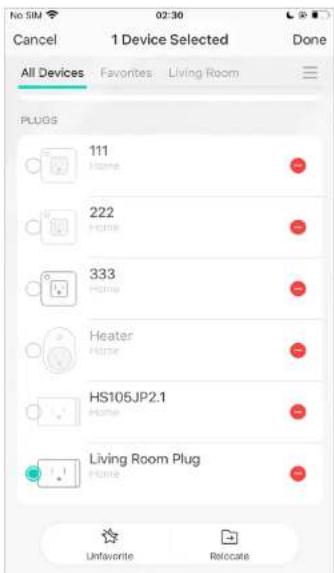
No SIM 02:30 Cancel 1 Device Selected Done All Devices Favorites Living Room PLUGS 111 Home 222 Home 333 Home Heater Home HS105JP2.1 Home Living Room Plug Home Unfavorite Relocate

Method 2

  1. Tap in the Status page.

  2. Tap Remove Device in the bottom.

Living Room Plug Name AND ICON My Plug-Living Room ADVANCED Device Info Add to Home Remove Device

Method 3

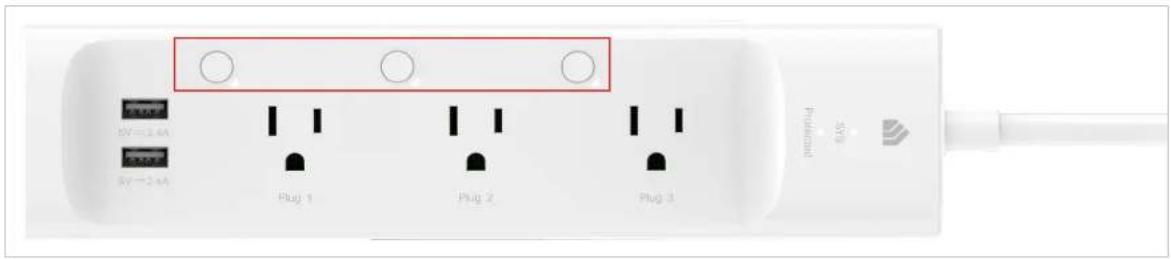
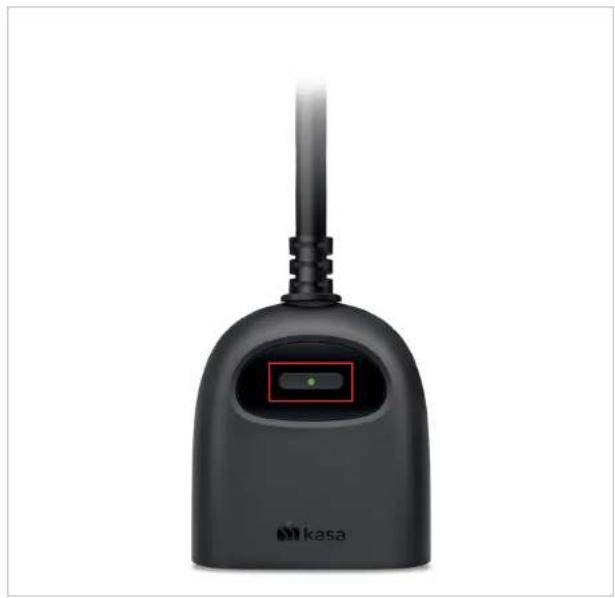
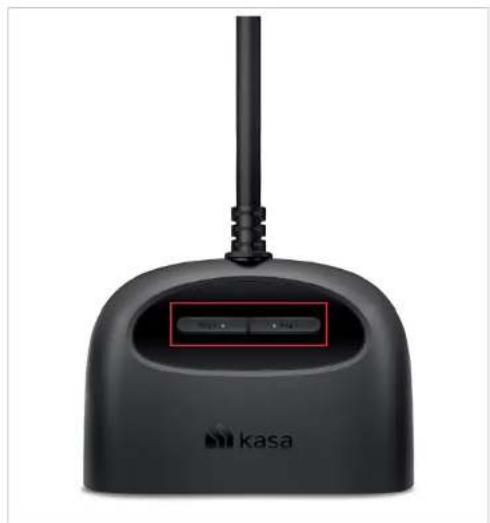
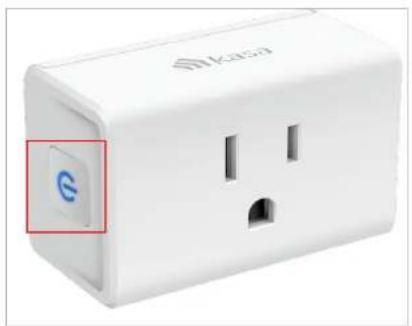
Press and hold the power button for about 10 seconds to factory reset the plug.

Press and hold the power button for about 5 seconds to reset Wi-Fi while keeping previous settings.
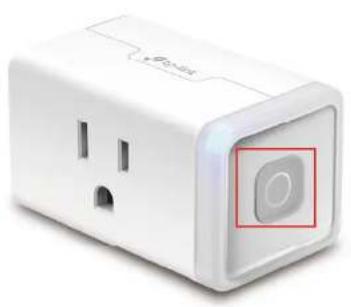
TP-LINK KP125MP4 - Method 3 - 1

natural_image White electrical socket with a square button and red circular highlight (no text or symbols)

TP-LINK KP125MP4 - Method 3 - 2

natural_image White electrical socket with a blue 'e' button and 'Shikasa' branding, no additional text or symbols visible.

Plag 1 Plag 2 Plag 3 Plag 4 Plag 5 Plag 6

SV=1.4A SV=2.4A Plug 1 Plug 2 Plug 3 Plug 3 Pulukonant SPB

TP-LINK KP125MP4 - Method 3 - 5

natural_image Black Kasa medical device with a green indicator light and red control panel (no visible text or symbols on body)

TP-LINK KP125MP4 - Method 3 - 6

natural_image Black Kasa wireless device with antenna and control buttons (no visible text or symbols on body)

Grouping

A group is a collection of devices that you can tap a single action to control all devices belonging in that group. It is accessible in the home screen just like any other devices.

You can group together smart plugs, smart switches and smart bulbs.

1. Create Groups

Step 1. Tap the button in the Home page of the Kasa Smart app, and select Group.
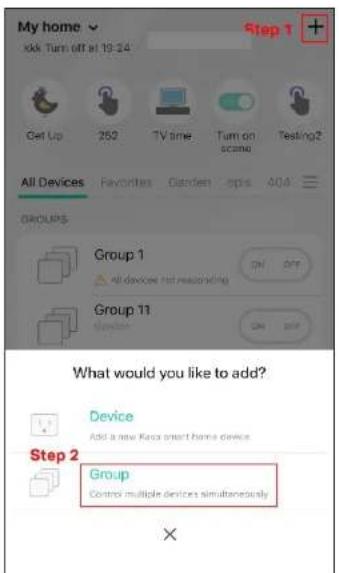
My home kok Turn off at 19:24 Step 1 + Get Up 252 TV time. Turn on scene Testing? All Devices Favorites Garden ops ADD GROUPS Group 1 All devices not responding ON OFF Group 11. Device ON OFF What would you like to add? Device Add a new Kasa smart home device Step 2 Group Control multiple devices simultaneously ×

Step2. Name your group and set location for it. Select smart devices you want to add to the group and tap SAVE.
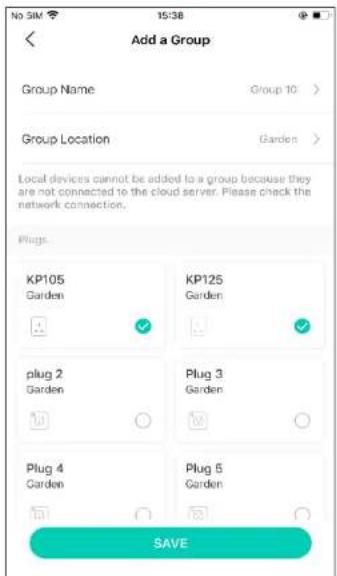
No SIM 15:38 Add a Group Group Name Group 10 > Group Location Garden > Local devices cannot be added to a group because they are not connected to the cloud server. Please check the network connection. Plugs KP105 Garden KP125 Garden plug 2 Garden Plug 3 Garden Plug 4 Garden Plug 5 Garden SAVE

Step3. The created group is listed in the Home page. You can tap ON or OFF to turn on/off the smart devices together in the group.
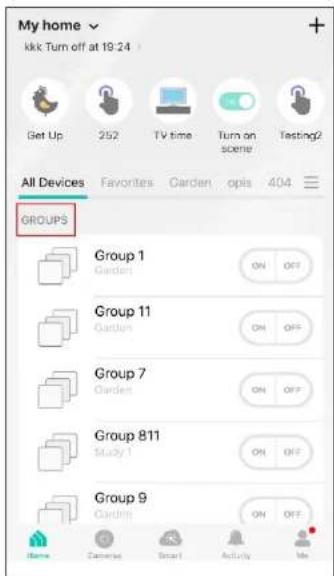
My home kkk Turn off at 19:24 Get Up 252 TV time Turn on scene Testing? All Devices Favorites Garden opis 404 GROUPS Group 1 Garden ON OFF Group 11 Garden ON OFF Group 7 Garden ON OFF Group 811 Study 1 ON OFF Group 9 Garden ON OFF Name Camera Smart Actively Me

2. Manage the group

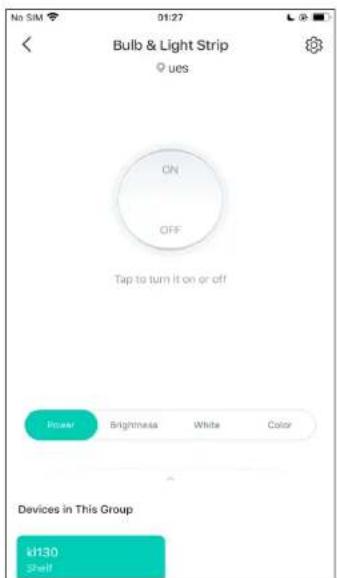
  1. Tap the group you want to manage. 2. Turn on or off the group in the status page.
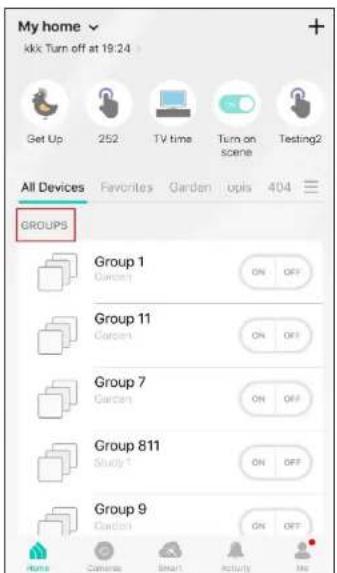
My home kkk Turn off at 19:24 Get Up 252 TV time Turn on scene Testing2 All Devices Favorites Garden ups 404 GROUPS Group 1 Garden ON OFF Group 11 Garden ON OFF Group 7 Garden ON OFF Group 811 Study T ON OFF Group 9 Garden ON OFF Home Camera Smart Activity Me

No SIM 01:27 Bulb & Light Strip ues ON OFF Tap to turn it on or off Power Brightness White Color Devices in This Group k130 Shelf

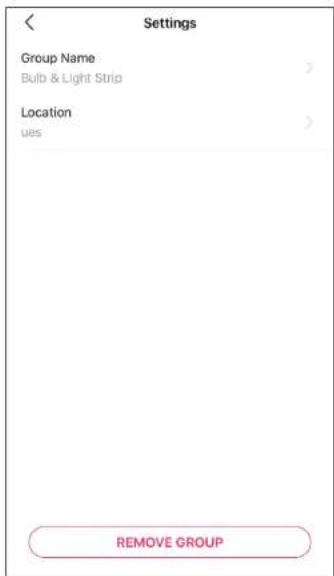
  1. Tap the top right corner to enter the settings page. Tap Group Name to rename the group and Location for relocate it.

Settings Group Name Bulb & Light Strip Location ues REMOVE GROUP

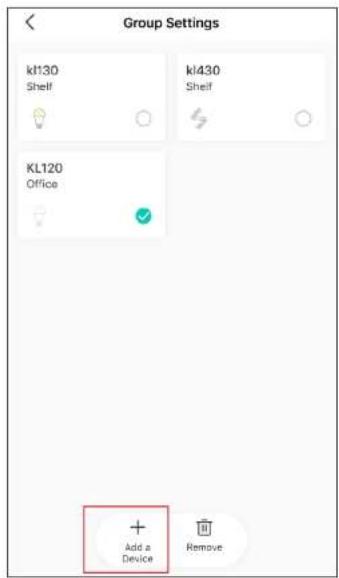
  1. Swipe down the status page and tap Group Settings to add/delete device in the group. Tap Add Device and you can choose the available devices and tap ADD to add devices to your group.
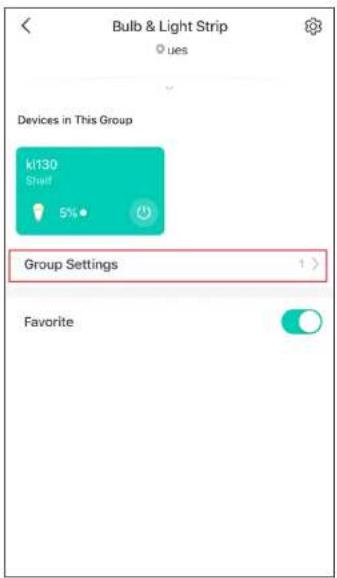
Bulb & Light Strip Devices in This Group k130 Shelf 5% Group Settings Favorite

Group Settings kt130 Shelf kl430 Shelf KL120 Office Add a Device Remove

  1. Back to the Group Settings page, you can choose the device you want to delete and tap Delete to remove devices from the group.
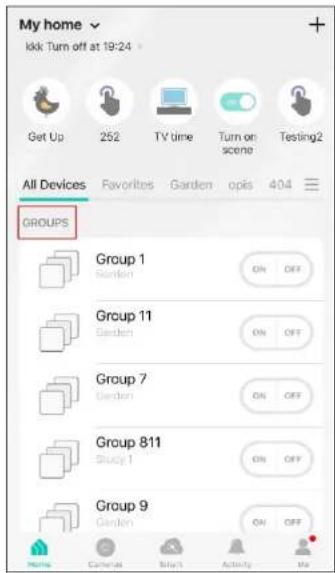
My home kkk Turn off at 19:24 Get Up 252 TV time Turn on scene Testing2 All Devices Favorites Garden opis 404 GROUPS Group 1 Garden ON OFF Group 11 Garden ON OFF Group 7 Garden ON OFF Group 811 Shiny 1 ON OFF Group 9 Garden ON OFF Home Cafeteria Start Activity Me

3. Delete a Group

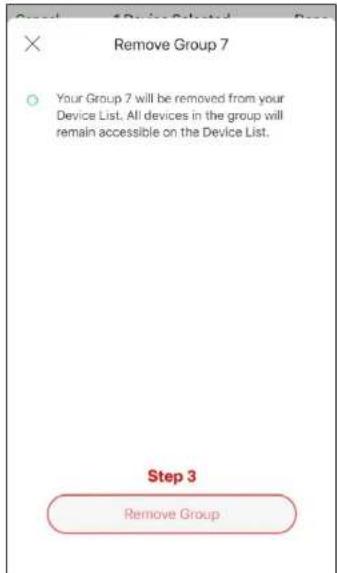
Option 1. From device list, long press an individual group until the delete symbol appears on the right. Tap the delete symbol.
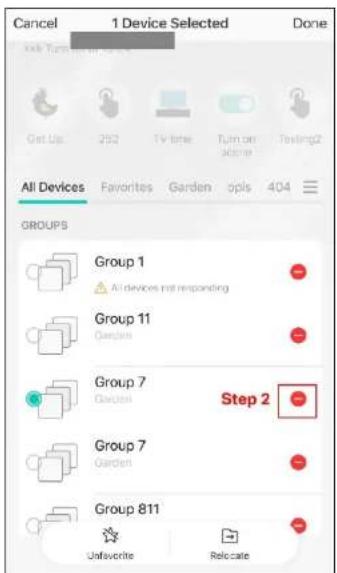
Cancel 1 Device Selected Done Get Up 252 TV time Turn on 30:00 Testing2 All Devices Favorites Garden opis 404 GROUPS Group 1 All devices not responding Group 11 Garden Group 7 Garden Step 2 Group 7 Garden Group 811 Unfavorite Relocate

Remove Group 7 Your Group 7 will be removed from your Device List. All devices in the group will remain accessible on the Device List. Step 3 Remove Group

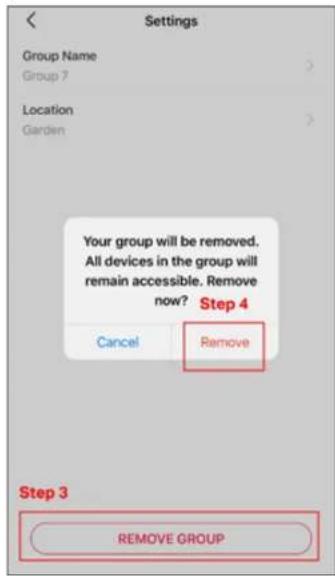
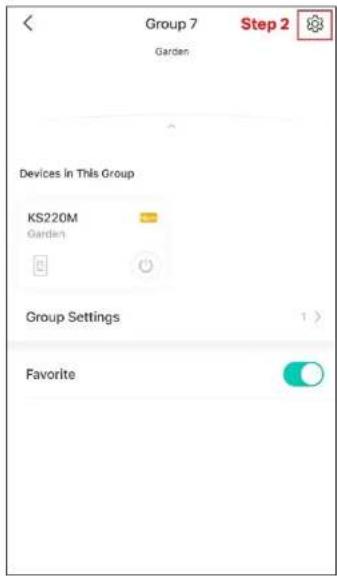
Option 2. Tap the gear icon on the Status Page to enter the Group Settings page. Then tap REMOVE GROUP and Remove to remove the device from your group.
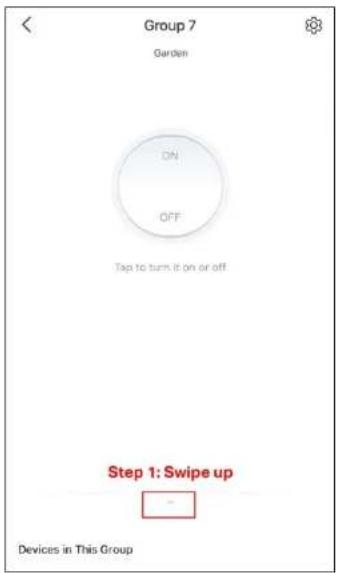
Group 7 Garden ON OFF Tap to turn it on or off Step 1: Swipe up Devices in This Group

Group 7 Garden Step 2 Devices in This Group KS220M Garden Group Settings Favorite

Settings Group Name Group 7 Location Garden Your group will be removed. All devices in the group will remain accessible. Remove now? Step 4 Cancel Remove Step 3 REMOVE GROUP

Scenes

A scene is a preset group of smart devices that can be programmed, customized and activated simultaneously at the touch of a button from your smartphone or tablet, allowing you to easily set your mood, activity or fit any special occasion. For example, when you are ready for bed, you can turn off your Tapo devices and dim the lights with one tap.

1. Create a Smart Action with Preset

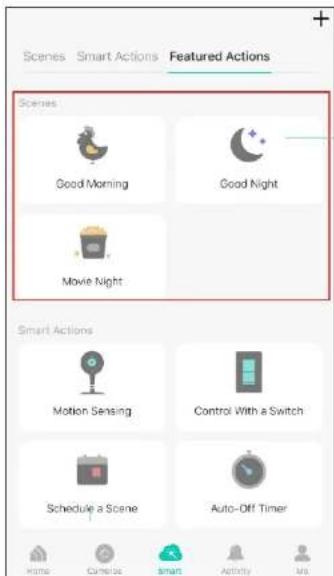
Step 1. Tap at the bottom, then tap Featured Actions and you can see three preset scenes.

Step 2. Select a preset scene as you need.
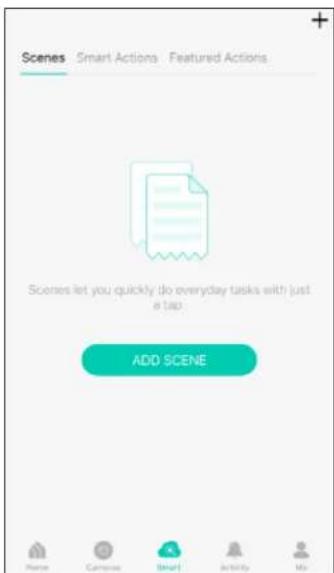
Scenes Smart Actions Featured Actions Scenes let you quickly do everyday tasks with just a tap. ADD SCENE Name Campus Smart Activity My

Scenes Smart Actions Featured Actions Scenes Good Morning Good Night Movie Night Smart Actions Motion Sensing Control With a Switch Schedule a Scene Auto-Off Timer Home Cancel Smart Activity Ms

Good Morning: Turn on all your smart devices.

Good Night: Turn off all your smart devices.

Movie Night: Dim your lights for movie time.

2. Create Your Own Scene

Step 1. Tap at the bottom, tap Scenes and then tap ADD SCENE. Alternatively, you can tap + and choose Scenes.

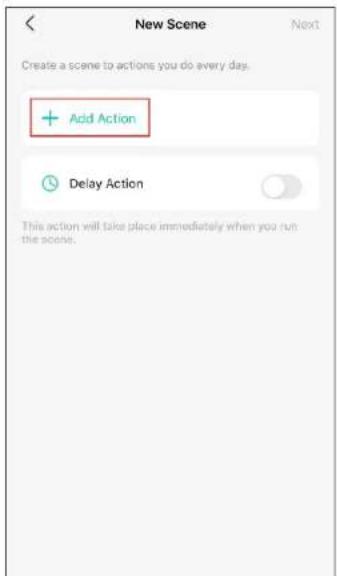
Step 2. Tap Add Action to create a new scene.

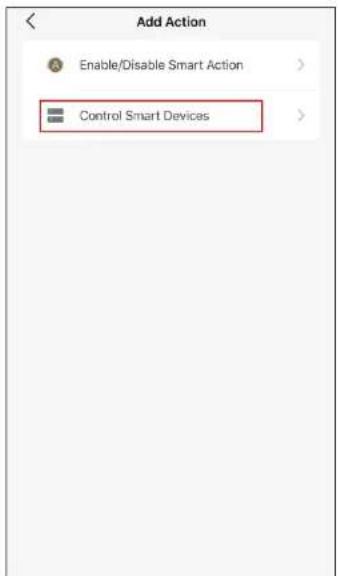
Step 3. Tap Control Smart Devices to select the smart devices you want to run in the scene.
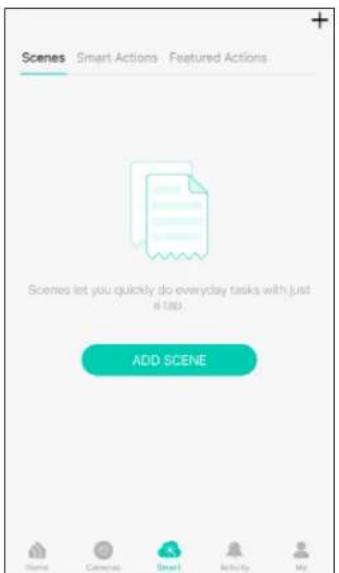
Scenes Smart Actions Featured Actions Scenes let you quickly do everyday tasks with just 418p. ADD SCENE Home Camera Smart Activity My

New Scene Create a scene to actions you do every day. + Add Action Delay Action This action will take place immediately when you run the scene.

Add Action Enable/Disable Smart Action > Control Smart Devices >

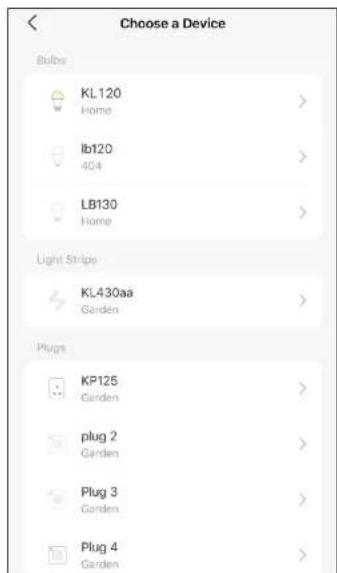
Step 4. Then choose the device you want to run in the scene
Choose a Device Bulbs KL120 Home > lb120 404 > LB130 Home > Light Strips KL430aa Garden > Plugs KP125 Garden > plug 2 Garden > Plug 3 Garden > Plug 4 Garden >

Step 5. Customize the status of the smart device, such as turn on the smart light. Then tap Done.
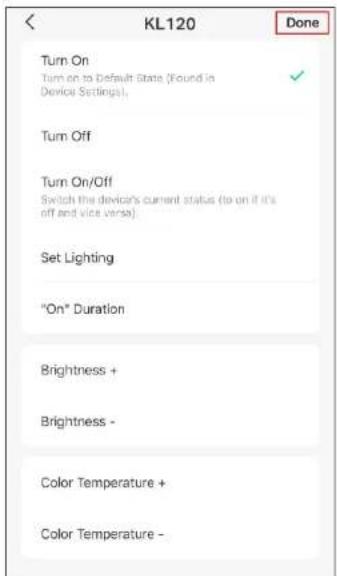
KL120 Done Turn On Turn on to Default State (Found in Device Settings). ✓ Turn Off Turn On/Off Switch the device's current status (to on if it's off and vice versa). Set Lighting "On" Duration Brightness + Brightness - Color Temperature + Color Temperature -

Step 6. You can repeat Step 2 to 5 to add more devices/ smart action in the scene. If you hope your scene to run after some time after you tap it, set Delay Action.
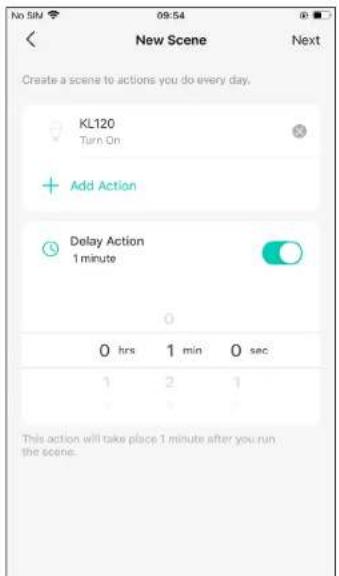
New Scene Create a scene to actions you do every day. KL120 Turn On Add Action Delay Action 1 minute 0 hrs 1 min 0 sec 1 2 1 This action will take place 1 minute after you run the scene.

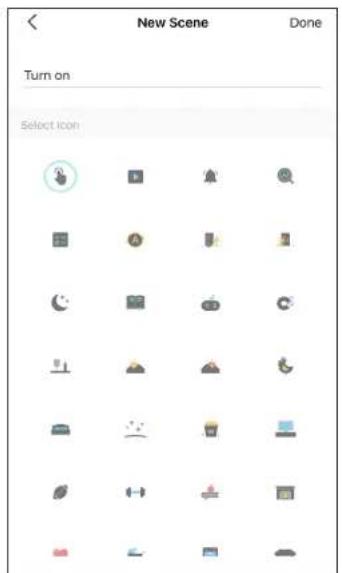
Step 7. Give the scene a Name and choose an icon to distinguish your new scene with other existing ones.
New Scene Done Turn on Select icon

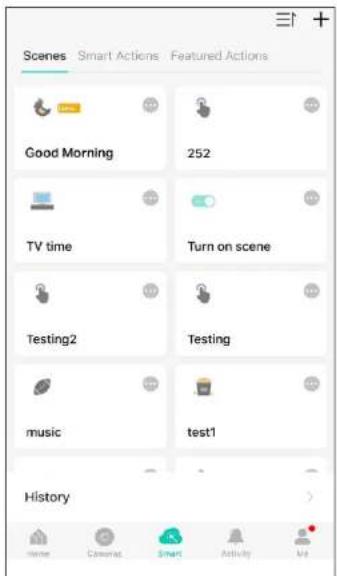
Step 8. Finally, tap Done. You can check your set scene on the top of the home page.
Scenes Smart Actions Featured Actions Good Morning 252 TV time Turn on scene Testing2 Testing music test1 History

3. Manage Your Scene

1. Edit scene

Edit your scenes via Smart > Scenes and tap ⋯.
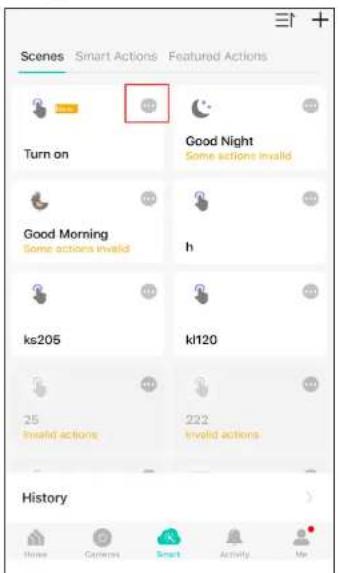
Scenes Smart Actions Featured Actions Turn on Good Night Some actions invalid Good Morning Some actions invalid h ks205 kl120 25 invalid actions 222 invalid actions History

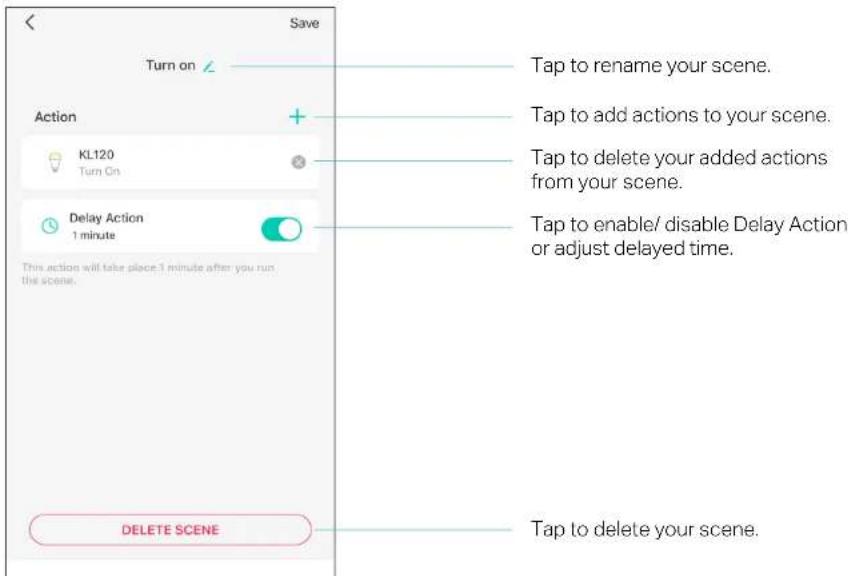
You can rename and delete the scene, add more action and adjust delay action of the scene.

Save Turn on Action KL120 Turn On Delay Action 1 minute This action will take place 1 minute after you run the scene. Tap to rename your scene. Tap to add actions to your scene. Tap to delete your added actions from your scene. Tap to enable/ disable Delay Action or adjust delayed time. Delete SCENE Tap to delete your scene.

Smart Actions

Smart Actions is a function provided that enables device interconnections and home automations. With Smart Actions, your Kasa devices can work together to create a smarter smart home.

Note: At most three smart actions can be enabled simultaneously.

To use the Smart Action feature, you need to configure

1) Add Trigger: Trigger Time or Trigger Device (Set A Specific Time)
2) Add Action: Run a Sceneor Enable/Disable Smart Action/ Control Smart Devices
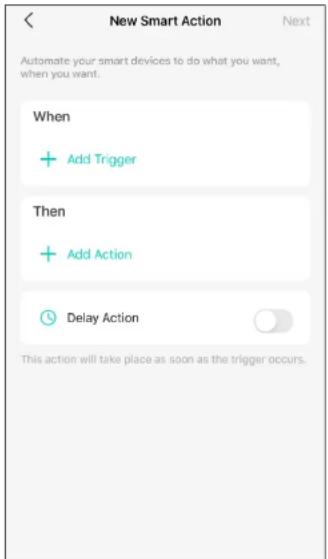
New Smart Action Automate your smart devices to do what you want, when you want. When + Add Trigger Then + Add Action Delay Action This action will take place as soon as the trigger occurs.

1. Create a Smart Action with Preset

Step 1. Tap at the bottom, then tap Featured Actions and you can see three preset scenes.
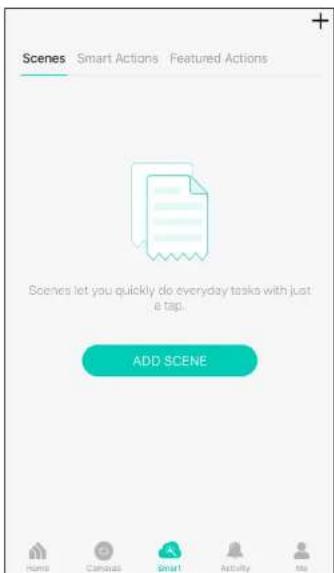
Scenes Smart Actions Featured Actions Scenes let you quickly do everyday tasks with just e tap. ADD SCENE Name Canoals Smart Activity No

Step 2. Select a preset smart action as you need.
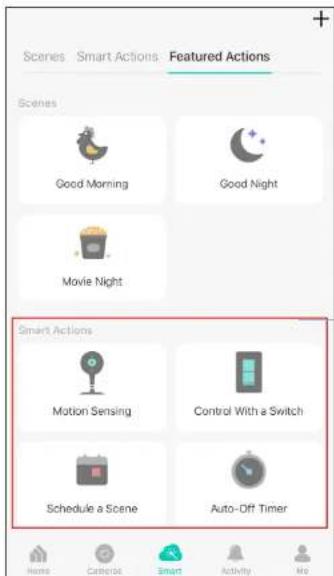
Scenes Smart Actions Featured Actions Scenes Good Morning Good Night Movie Night Smart Actions Motion Sensing Control With a Switch Schedule a Scene Auto-Off Timer Home Camera Smart Activity No

Motion Sensing: Whenever a Smart camera detects motions, add an action you would like to trigger.

Control With a Switch: Whenever a Smart switch turns on/off, add an action you would like to trigger.

Schedule a Scene: Schedule an action to be turned on automatically at the time specified.

Auto-off Timer: Whenever a Smart device is turned on, turn it off after the designated amount of time.

2. Create Your Own Smart Action

Step 1. Tap at the bottom, tap + and then choose Smart Actions.

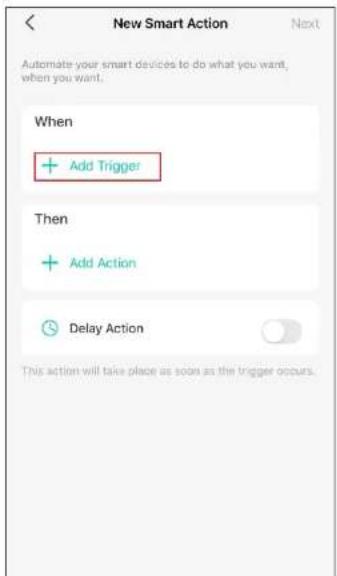
Step 2. Tap Add Trigger.
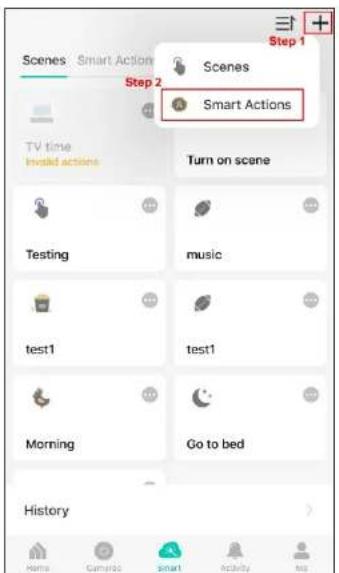
Step 1 Scenes Smart Actions Step 2 Smart Actions TV time Invalid actions Turn on scene Testing music test1 test1 Morning Go to bed History

New Smart Action Next Automate your smart devices to do what you want, when you want. When + Add Trigger Then + Add Action Delay Action This action will take place as soon as the trigger occurs.

Step 3. Choose a trigger for your smart action.

Note: If there are 2 or more triggers added, any trigger will activate the smart action.
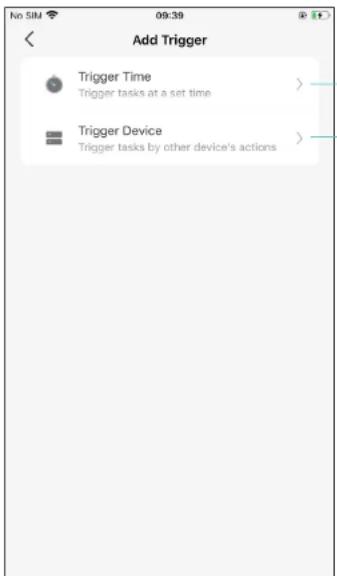
Add Trigger Trigger Time Trigger tasks at a set time Trigger Device Trigger tasks by other device's actions

Set a specific time.

Choose the action of the other device as a trigger.

  • Camera: Motion Detected
    · Bulb: Turn on
  • Plug: Turn on
    · Switch: Turn on/off

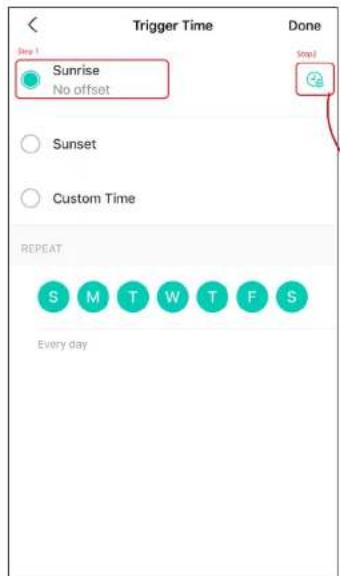
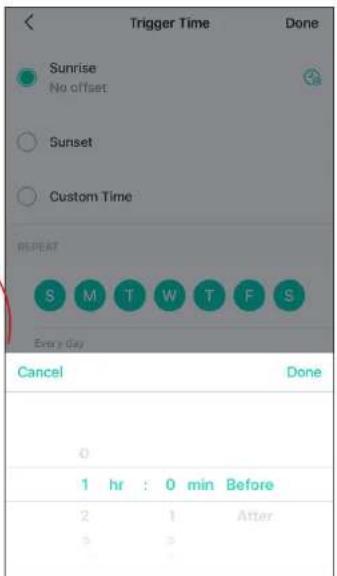
Step 4. Choose from Sunrise, Sunset and Custom Time to set the time for your desired timing for the smart action. For Sunrise and Sunset, you can also set offset time.

Note: The time of Sunrise and Sunset will be synchronized according to regional realities.
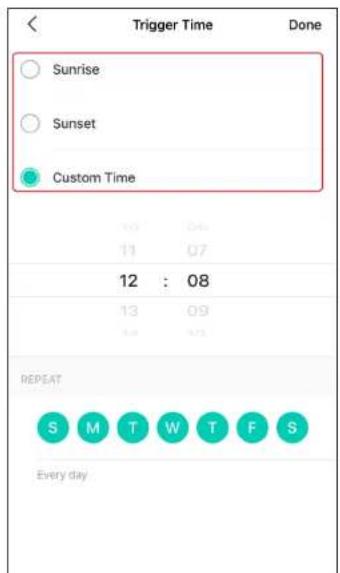
Trigger Time Done Sunrise Sunset Custom Time 10 : 04 11 : 07 12 : 08 13 : 09 14 : 10 REPEAT S M T W T F S Every day

Trigger Time Done Step 1 Sunrise No offset Sunset Custom Time REPEAT S M T W T F S Every day

Trigger Time Done Sunrise No offset Sunset Custom Time REPEAT S M T W T F S Every Day Cancel Done 0 1 hr : 0 min Before 2 1 After 3 2

Step 5. Set the repeat times and then tap Done.
Step 6. Tap Add Action.
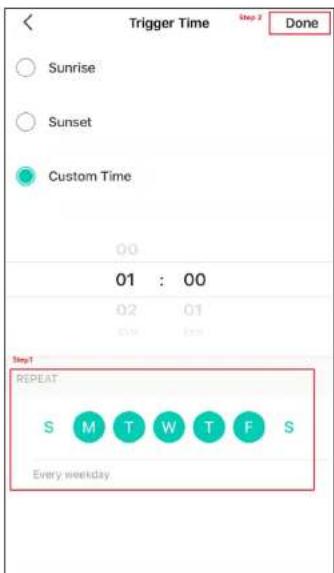
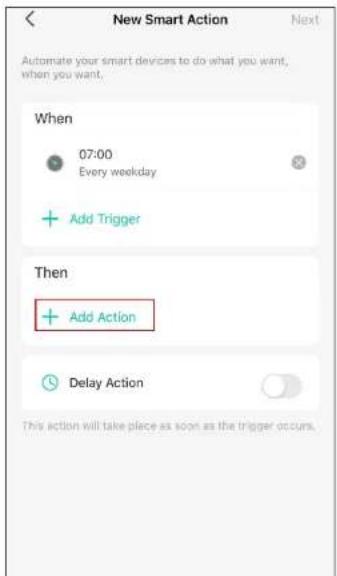
Trigger Time Sunrise Sunset Custom Time 01 : 00 02 01 Step1 REPEAT S M T W T F S Every weekday

New Smart Action Next Automate your smart devices to do what you want, when you want. When 07:00 Every weekday Add Trigger Then Add Action Delay Action This action will take place as soon as the trigger occurs.

Step 7. Choose the action you want to add.
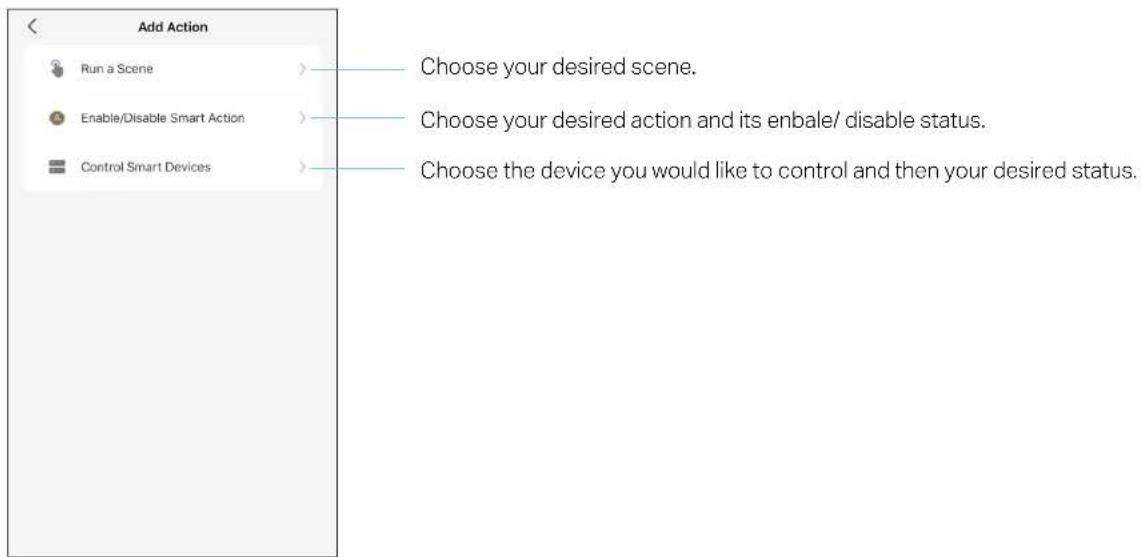
Add Action Run a Scene Enable/Disable Smart Action Control Smart Devices Choose your desired scene. Choose your desired action and its enbale/ disable status. Choose the device you would like to control and then your desired status.

Step 8. If you hope your action to run after some time when it is triggered, set Delay Action.

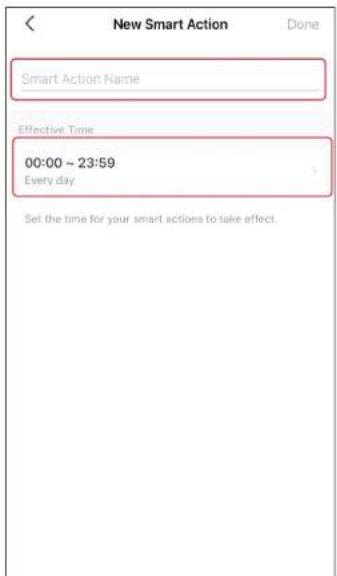
Step 9. Name your smart action and set the effective time for it. Tap Done to complete. You can find your newly set Smart Actions via Smart> Smart Actions.
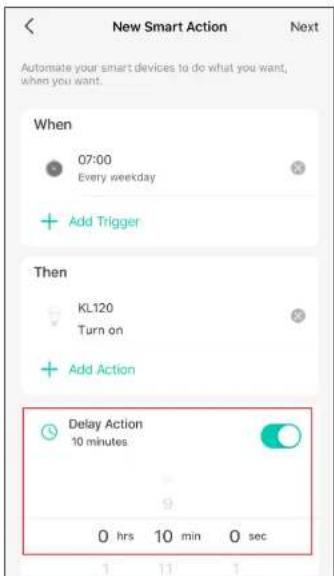
New Smart Action Next Automate your smart devices to do what you want, when you want. When 07:00 Every weekday Add Trigger Then KL120 Turn on Add Action Delay Action 10 minutes 0 hrs 10 min 0 sec

New Smart Action Done Smart Action Name Effective Time 00:00 ~ 23:59 Every day Set the time for your smart actions to take effect.

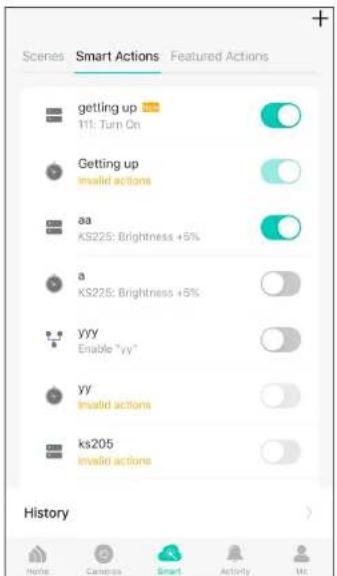
Scenes Smart Actions Featured Actions getting up 11: Turn On Getting up invalid actions aa KS225: Brightness +5% a KS225: Brightness +5% yyy Enable "yy" yy invalid actions ks205 invalid actions History

3. Manage Your Smart Action

Step 1. Find your Smart Actions list via Smart>SmartActions.
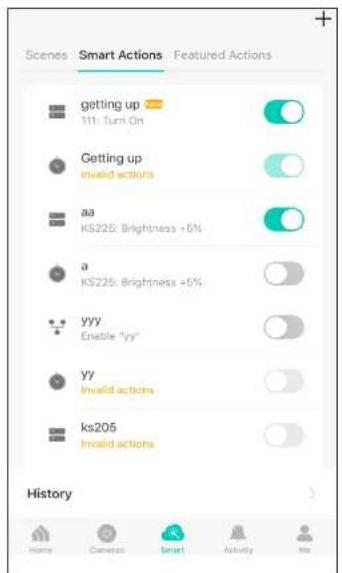
Scenes Smart Actions Featured Actions getting up 111: Turn On Getting up Invalid actions aa KS225: Brightness +6% a KS225: Brightness +6% yyy Enable "yy" YY Invalid actions ks205 Invalid actions History Hamp Cameras Smart Activity No

Step 2. You can rename and delete the smart action, and change its effective time, triggers, actions, and delay time.
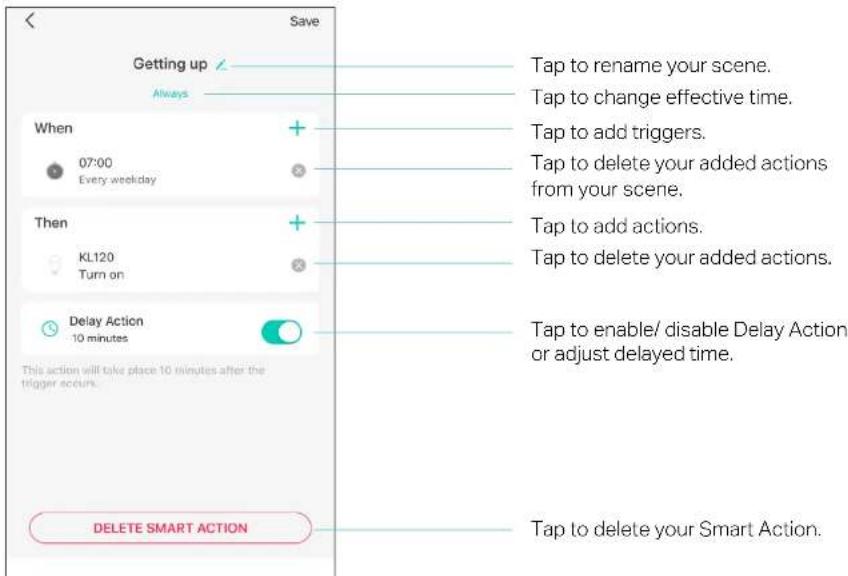
Saving Getting up Always When 07:00 Every weekday Then KL120 Turn on Delay Action 10 minutes This action will take place 10 minutes after the trigger occurs. DELETE SMART ACTION Tap to rename your scene. Tap to change effective time. Tap to add triggers. Tap to delete your added actions from your scene. Tap to add actions. Tap to delete your added actions. Tap to enable/ disable Delay Action or adjust delayed time. Tap to delete your Smart Action.

Me Page

The Kasa app offers a list of advanced features to fulfill diverse smart home needs.

Manage Your Account

Launch the Kasa Smart app. Tap Go to the Me page and tap your account or profile. Here you can change your profile picture, password, and login security settings.
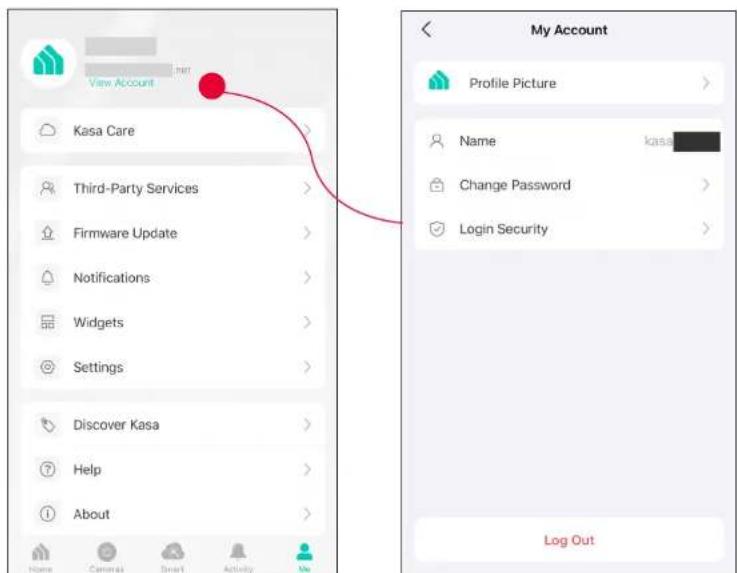
View Account Kasa Care Third-Party Services Firmware Update Notifications Widgets Settings Discover Kasa Help About My Account Profile Picture Name kasa Change Password Login Security Log Out

Kasa Care

Kasa Care is a cloud-based service that allows users to view and download activity recordings from a Kasa Cam. When you purchase a Kasa Cam, you can subscribe to our advanced plan to enjoy our Kasa Care cloud service.

To view the Kasa Care plan, from the Kasa Smart App > Tap Me on the bottom> Select Kasa Care.

Note: With the Kasa Care service, every Kasa account is eligible to sign up for a free trial for the new Kasa Care plan once.
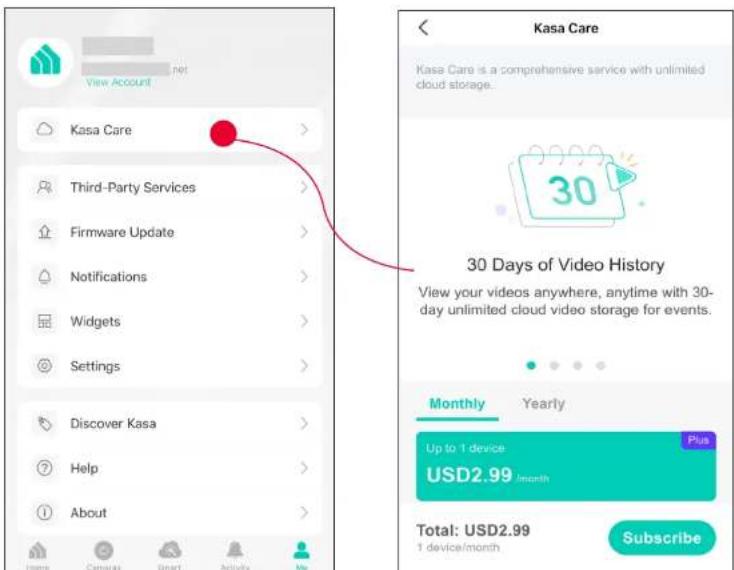
View Account Kasa Care Third-Party Services Firmware Update Notifications Widgets Settings Discover Kasa Help About Kasa Care Kasa Care is a comprehensive service with unlimited cloud storage. 30 Days of Video History View your videos anywhere, anytime with 30-day unlimited cloud video storage for events. Monthly Yearly Up to 1 device Plus USD2.99/month Total: USD2.99 1 device/month Subscribe

Third Party Services

Use the Kasa Smart app to pair your Smart devices with Amazon Alexa or Google Home Assistant, and enjoy a full hands-free experience. Kasa helps manage the rest of your smart home too, working with Samsung Smart Things to trigger changes when you arrive home or leave for the day.

Launch the Kasa Smart app. Go to the Me page and tap Third Party Services. You can choose Amazon Alexa / Google Assistant / IFTTT / Samsung SmartThings for detailed instructions.
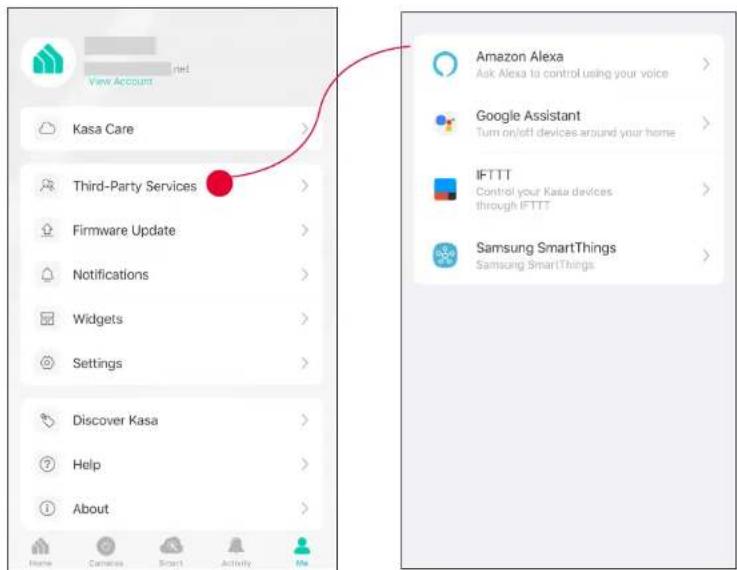
View Account Kasa Care Third-Party Services Firmware Update Notifications Widgets Settings Discover Kasa Help About Amazon Alexa Ask Alexa to control using your voice Google Assistant Turn on/off devices around your home IFTTTT Control your Kasa devices through IFTTTT Samsung SmartThings Samsung SmartThings

1. Set up Amazon Alexa

  1. Tap Amazon Alexa.

  2. Tap Connect.

  3. Sign in with your amazon account.

TP-LINK KP125MP4 - Set up Amazon Alexa - 1

flowchart
graph TD
    A["Third-Party Services"] --> B["Google Assistant"]
    B --> C["IFTTT"]
    C --> D["Samsung SmartThings"]
    D --> E["Amazon Alexa Integration"]
    E --> F["Connect to control devices with both Kasa app and Amazon Alexa."]
    F --> G["Connect"]
  1. After sign-in, tap LINK.

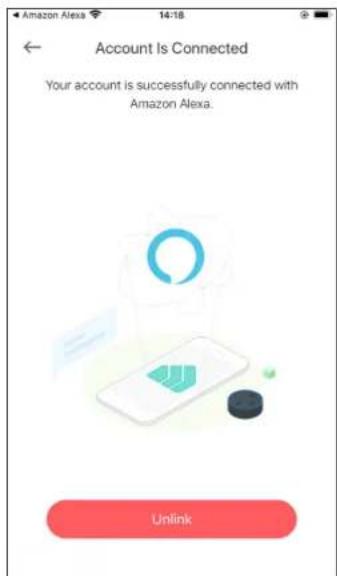
  2. Your TP-Link ID has been successfully linked with your amazon account. You can use Alexa voice commands to control your Smart Wi-Fi Power Strip.
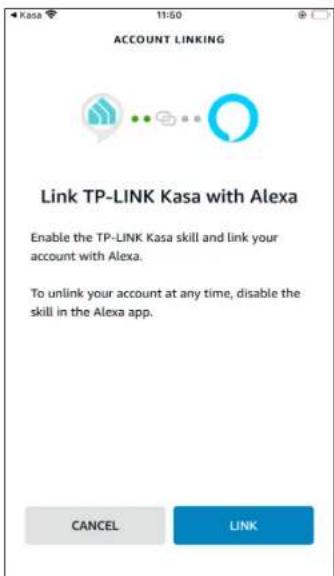
Kasa 11:50 ACCOUNT LINKING Link TP-LINK Kasa with Alexa Enable the TP-LINK Kasa skill and link your account with Alexa. To unlink your account at any time, disable the skill in the Alexa app. CANCEL LINK

Account Is Connected Your account is successfully connected with Amazon Alexa. Unlink

2. Set up Google Assistant

  1. Tap Google Assistant.

  2. Follow instructions to connect your device to your Google Home.

Or find the FAQ at https://www.tp-link.com/en/support/faq/1534/.
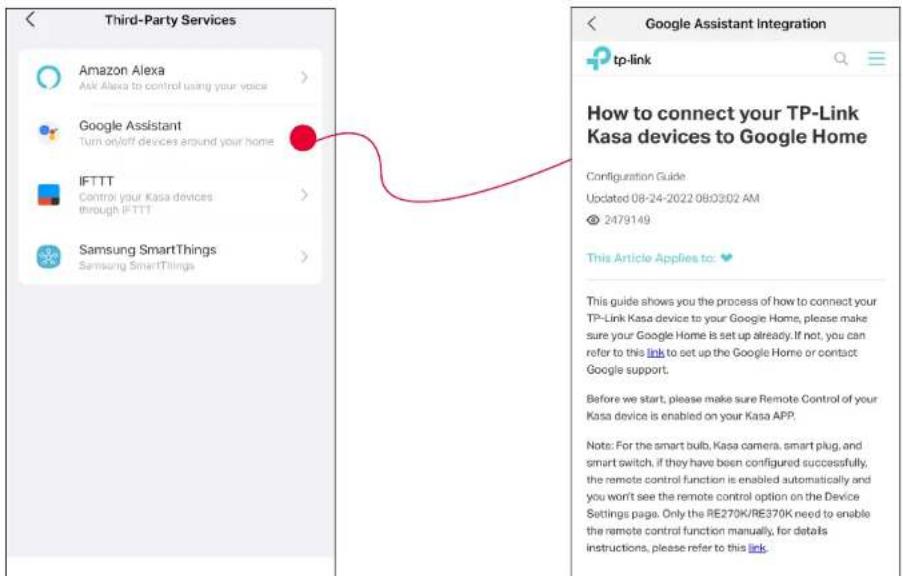
Third-Party Services Amazon Alexa Ask Alexa to control using your voice Google Assistant Turn on/off devices around your home IFTTT Control your Kasa devices through IFTTT Samsung SmartThings Samsung SmartTilings Google Assistant Integration tp-link How to connect your TP-Link Kasa devices to Google Home Configuration Guide Updated 08-24-2022 08:03:02 AM © 2479149 This Article Applies to: This guide shows you the process of how to connect your TP-Link Kasa device to your Google Home, please make sure your Google Home is set up already. If not, you can refer to this link to set up the Google Home or contact Google support. Before we start, please make sure Remote Control of your Kasa device is enabled on your Kasa APP. Note: For the smart bulb, Kasa camera, smart plug, and smart switch, if they have been configured successfully, the remote control function is enabled automatically and you won't see the remote control option on the Device Settings page. Only the RE270K/RE370K need to enable the remote control function manually, for details instructions, please refer to this link.

Firmware Update

The firmware on TP-Link Kasa smart devices can only be updated by using the TP-Link Kasa App.

To view the updated firmwares, from the Kasa APP > Tap Me on the bottom> Select Firmware Update. If any firmware updates are available, they will be displayed on this page.
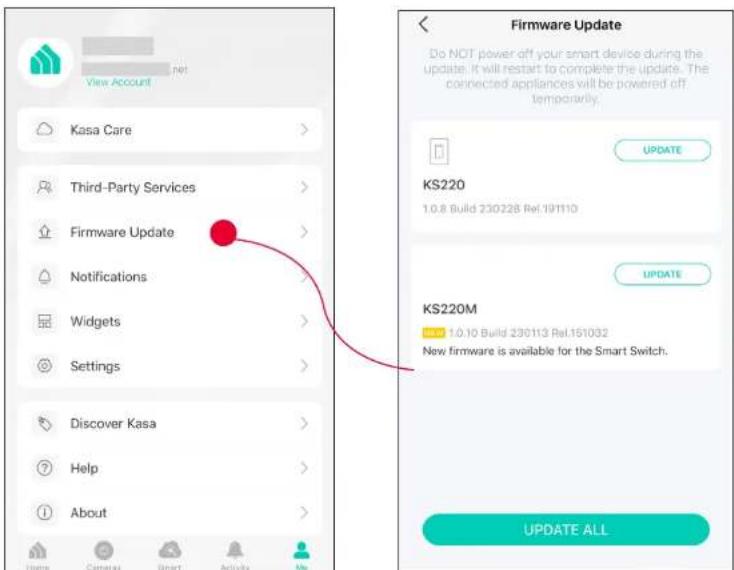
View Account Kasa Care Third-Party Services Firmware Update Notifications Widgets Settings Discover Kasa Help About Firmware Update Do NOT power off your smart device during the update. It will restart to complete the update. The connected appliances will be powered off temporarily. KS220 1.0.8 Build 230228 Rel.191110 UPDATE KS220M 1.0.10 Build 230113 Rel.151032 New firmware is available for the Smart Switch. UPDATE ALL

Notifications

Kasa Cam utilizes the push notification of your smart phone to inform you of detected activities by the camera.

To configure notification settings, from the Kasa APP > Tap Me on the bottom > Select Notification.
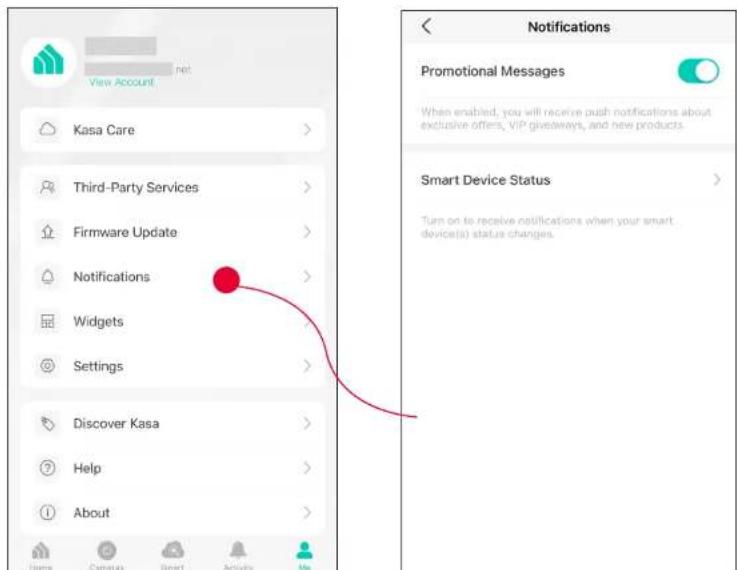
View Account Kasa Care Third-Party Services Firmware Update Notifications Widgets Settings Discover Kasa Help About Notifications Promotional Messages When enabled, you will receive push notifications about exclusive offers, VIP giveaways, and new products. Smart Device Status Turn on to receive notifications when your smart device(s) status changes.

Widgets

With widgets, you can tap and send commands to your Kasa devices, such as executing scenes, turning off lights, viewing your Kasa camera clips, and more.

The Kasa app provides three widgets: namely, KASA CAM WIDGET, KASA DEVICES, and KASA SCENES. These three gadgets cover some of the most frequently-used functions, including:

  • KASA DEVICES: Display the status of your selected devices and simple commands like turning on/off.
    • KASA SCENES: Enable/disable the selected scenes.
  • KASA CAM WIDGET: Preview and check your video clips.

Widgets come along with your smart home app and can be activated with some simple steps.

For iOS user, the whole process is divided into two procedures:

  • Firstly, select the Kasa Devices, Kasa Scenes, and Kasa Cam that you want to set as a widget on the Kasa app
    • Secondly, add the Kasa Widgets on your home screen.

For Android user, you can directly add the Kasa Widgets on your home screen.

Note: Setting steps differ in adding the Kasa Widgets on your home screen in the iOS and Android systems.

1. Select Your Desired Widgets (for iOS)

Step 1 To add widgets, from the Kasa APP > Tap Me on the bottom > Tap Widgets.
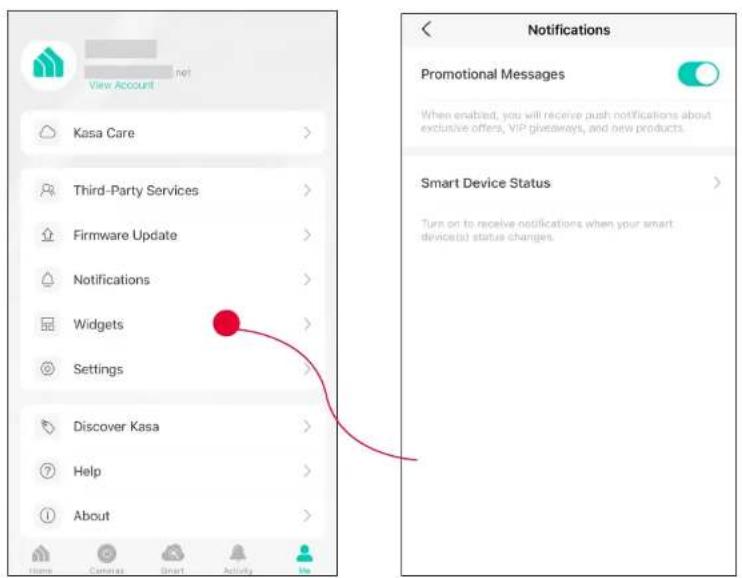
View Account Kasa Care Third-Party Services Firmware Update Notifications Widgets Settings Discover Kasa Help About Messages Cancel Smart Activity Me Notifications Promotional Messages When enabled, you will receive push notifications about exclusive offers, VIP giveaways, and new products. Smart Device Status Turn on to receive notifications when your smart device(s) status changes.

Step 2. Choose the Devices, Scenes and Cameras you want to add in the widgets.
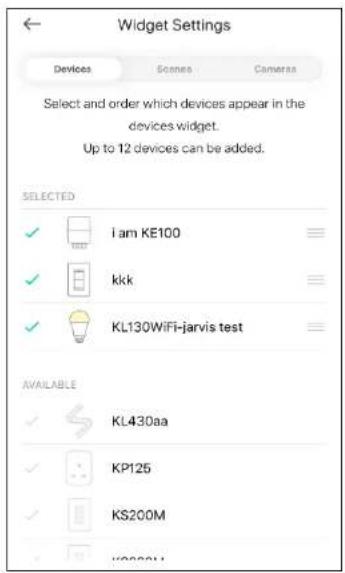
Widget Settings Devices Scenes Cameraa Select and order which devices appear in the devices widget. Up to 12 devices can be added. SELECTED ✓ i am KE100 ✓ kkk ✓ KL130WiFi-jarvis test AVAILABLE ✓ KL430aa ✓ KP125 ✓ KS200M ✓ Y00001

Step 3. If you want to reorder your devices or scenes, touch and hold the = next to them and drag them in the order that you want.
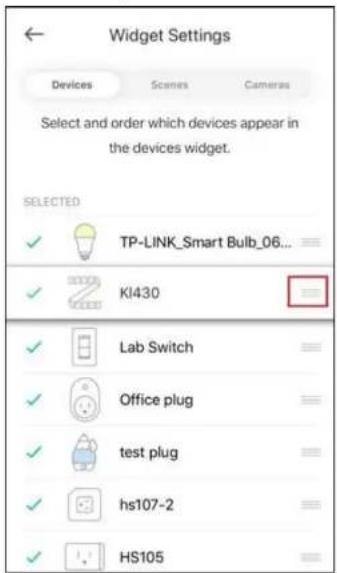
Widget Settings Devices Scenes Cameras Select and order which devices appear in the devices widget. SELECTED ✓ TP-LINK_Smart Bulb_06... ✓ KI430 ✓ Lab Switch ✓ Office plug ✓ elevated ✓ funds plug ✓ hs107-2 ✓ HS105

2. Add to Your Home Screen (for iOS)

Step 1. Swipe right over the Home screen or Lock screen of iPhone, iPad, or iPod touch to see your widgets in the Today View. Scroll to the bottom and tap Edit. If your device is iOS 14 system or above, slide the interface down to the bottom and tap Customize.
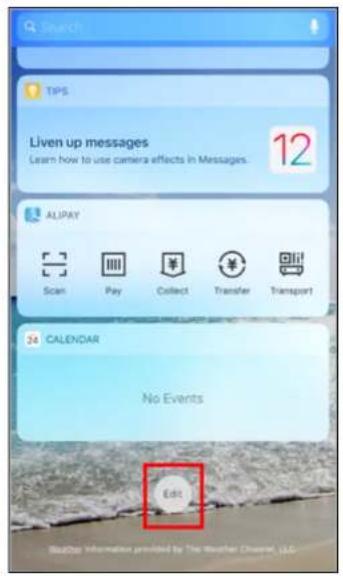
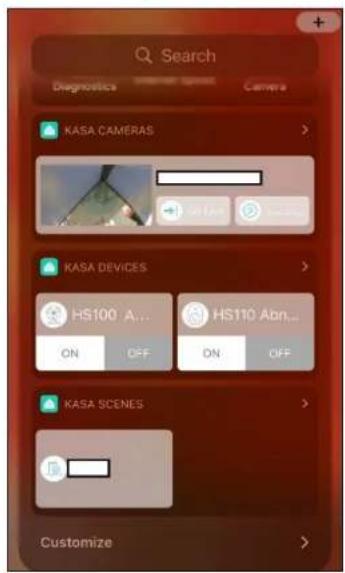
Search TIPS Liven up messages Learn how to use camera effects in Messages. 12 ALIPAY Scan Pay Collect Transfer Transport 34 CALENDAR No Events Edit Weather Channel, LLC

Search Diagnostics Camera KASA CAMERAS KASA DEVICES HS100 A... HS110 Abn... ON OFF ON OFF KASA SCENES Customize

Step 2 Add Kasa Devices, Kasa Scenes, and the Kasa Cam Widget.
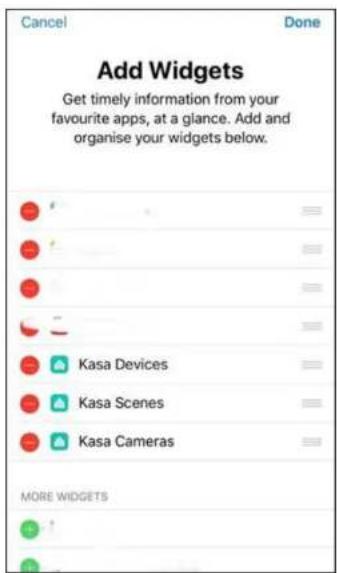
Cancel Done Add Widgets Get timely information from your favourite apps, at a glance. Add and organise your widgets below. Kasa Devices Kasa Scenes Kasa Cameras MORE WIDGETS

Step 3. Drag them to your desired spot by tapping and holding the = next to the apps.
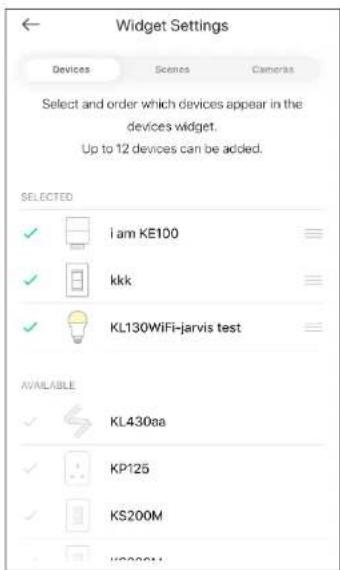
Widget Settings Devices Scenes Cameras Select and order which devices appear in the devices widget. Up to 12 devices can be added. SELECTED ✓ i am KE100 ✓ kkk ✓ KL130WiFi-jarvis test AVAILABLE ✓ KL430aa ✓ KP125 ✓ KS200M ✓ KP2001

Step 4. Now you can control your Kasa Devices, Kasa Cam, and Kasa Scenes widgets from the Today View. Tap > and you can see all of your selected Kasa Devices, Scenes, and Cameras.
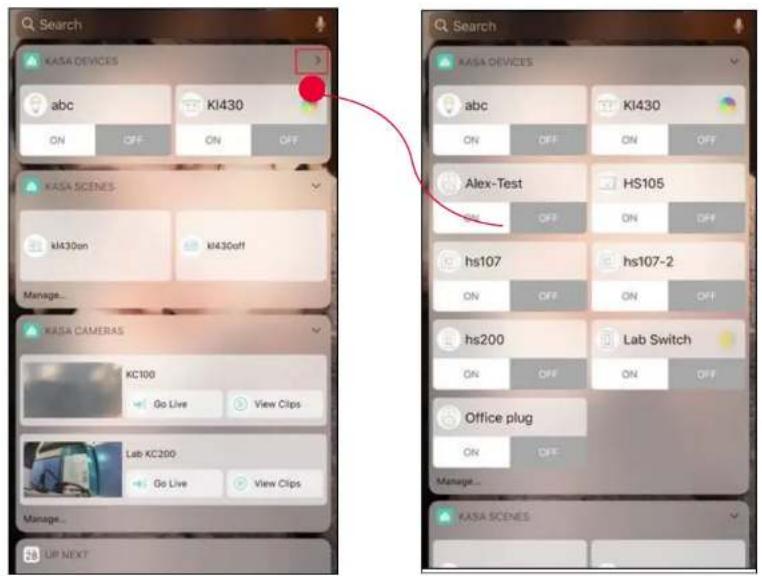
Search KASA DEVICES abc KI430 ON OFF ON OFF KASA SCENES KI430on KI430off Manage... KASA CAMERAS KC100 Go Live View Clips Lab KC200 Go Live View Clips Manage... UP NEXT Search KASA DEVICES abc KI430 ON OFF ON OFF Alex-Test HS105 ON OFF ON OFF hs107 hs107-2 ON OFF ON OFF hs200 Lab Switch ON OFF ON OFF Office plug ON OFF Manage... KASA SCENES

For all Kasa devices, you can switch on/off them. For Kasa devices with adjustable brightness and color, you can also adjust the brightness and color. Tap the round icon next to the devices and then you can see the corresponding options.

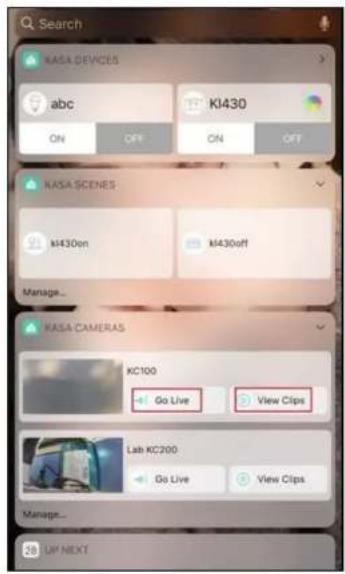
With the Kasa Cam widget, you can tap Go Live and easily go to the Live Page. Meanwhile, you can View Clips of activity detection.
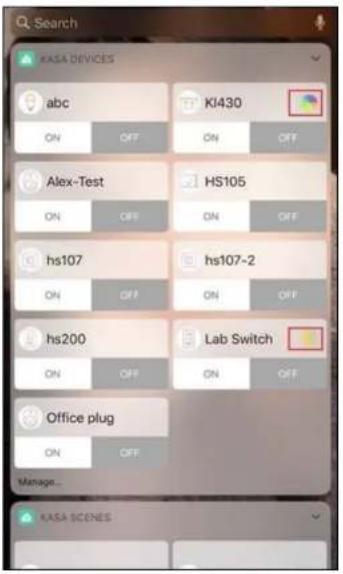
Search KASA DEVICES abc KI430 ON OFF ON OFF Alex-Test HS105 ON OFF ON OFF hs107 hs107-2 ON OFF ON OFF hs200 Lab Switch ON OFF ON OFF Office plug ON OFF Manage... KASA SCENES

CL Search NASA DEVICES abc KI430 ON OFF ON OFF NASA SCENES MI430on MI430off Manage... NASA CAMERAS KC100 Go Live View Clips Lab KC200 Go Live View Clips Manage... UP NEXT

Add to Your Home Screen (for Android)

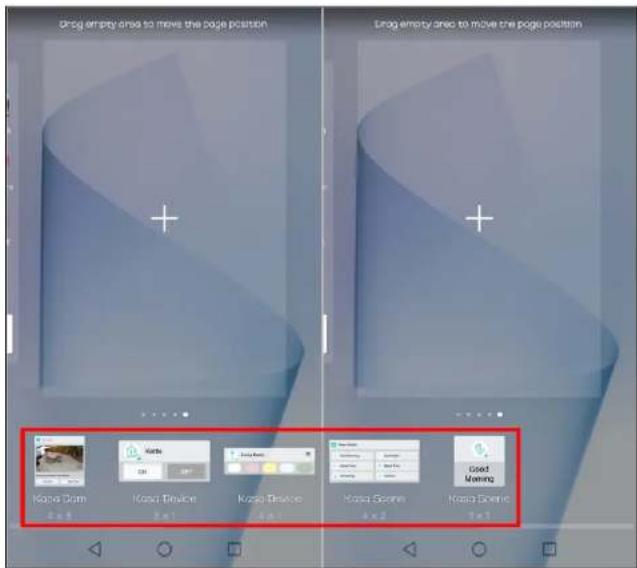
Step 1. Touch and hold an empty area on the home screen to enter home screen editing mode. Tap the Widgets and you can see all of your widgets.
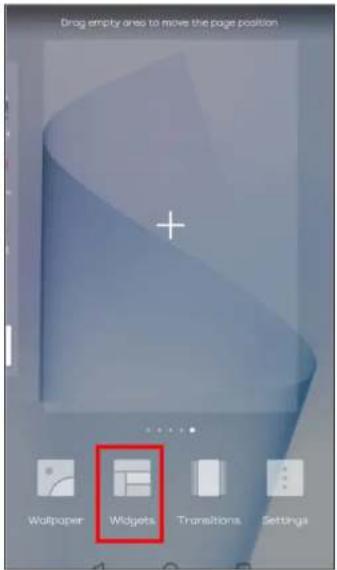
Drag empty area to move the page position + Woltpower Widgets Transitions Settings

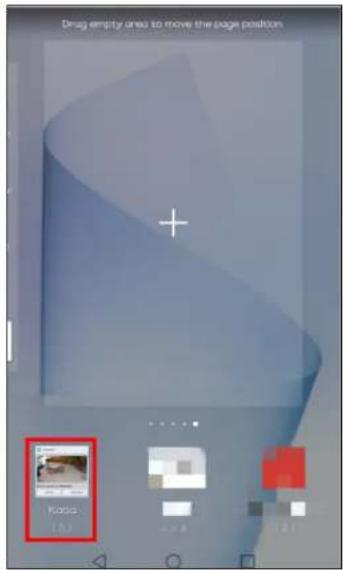
Step 2. Find Kasa widget and tap it.

Drag empty area to move the page position Kappa (5.3)

Step 3. There are several Kasa widgets including Kasa Cam, Kasa Device and Kasa scene. Touch and hold a widget and drag it to an empty area on the home screen. You can add widgets you want.

Check that there are enough empty spaces on the home screen for the widget. If there is not enough space, add an empty screen page or free up some space on the current home screen page

Drag empty area to move the page position Drag empty area to move the page position Kasa Dam Kasa Device Kasa Device Kasa Scene Kasa Scene Good Morning

Settings

Kasa Cam utilizes the push notification of your smart phone to inform you of detected activities by the camera.

To view the Kasa Care plan, from the Kasa APP > Tap Me on the bottom > Select Notification.
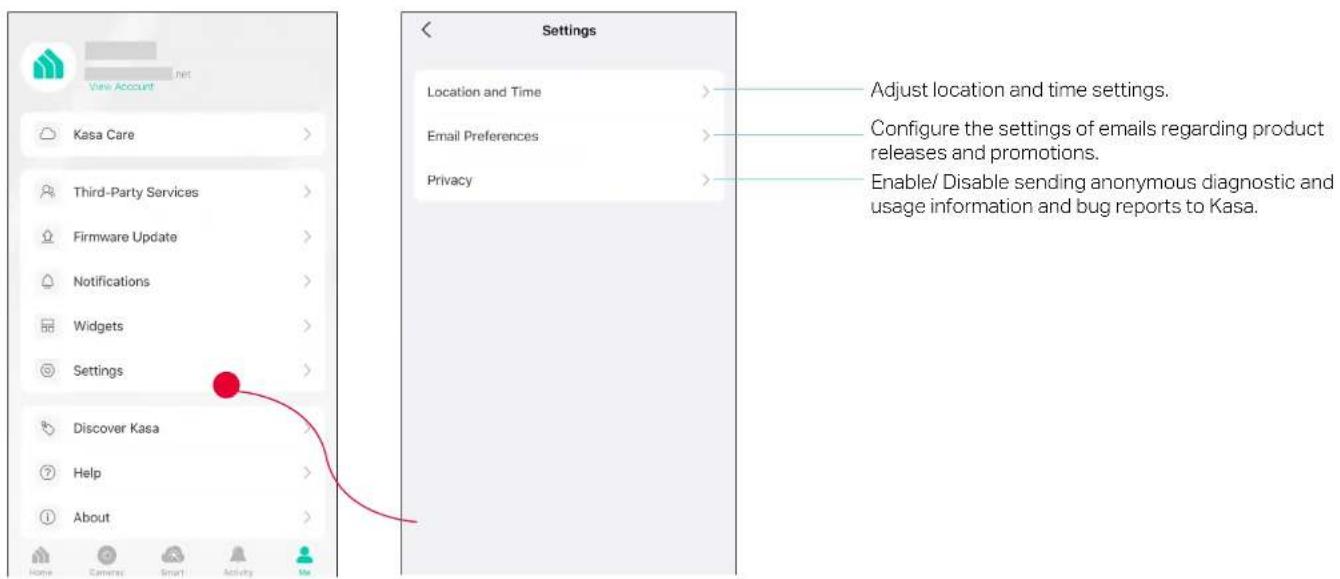
View Account Kasa Care Third-Party Services Firmware Update Notifications Widgets Settings Discover Kasa Help About Home Camera Smart Activity Me Settings Location and Time Email Preferences Privacy Adjust location and time settings. Configure the settings of emails regarding product releases and promotions. Enable/ Disable sending anonymous diagnostic and usage information and bug reports to Kasa.

Manage Rooms and Homes

Manage your Kasa smart devices room by room, home by home. It's easier for you to identify your multiple smart devices and control them centrally.

Manage rooms

  1. Tap and choose Home Settings. The default home is my home.
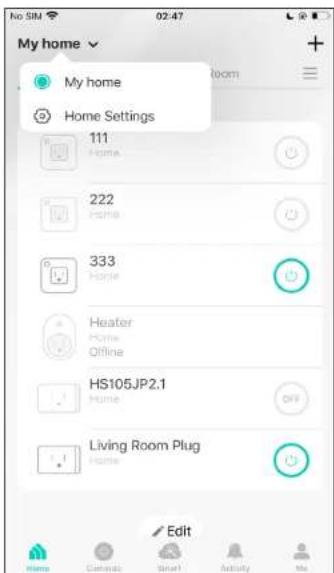
My home Home Settings 111 Home 222 Home 333 Home Heater Home Offline HS105JP2.1 Home Living Room Plug Home Edit

  1. Choose a home and add room for it. After adding a room, you can move your devices to the room.
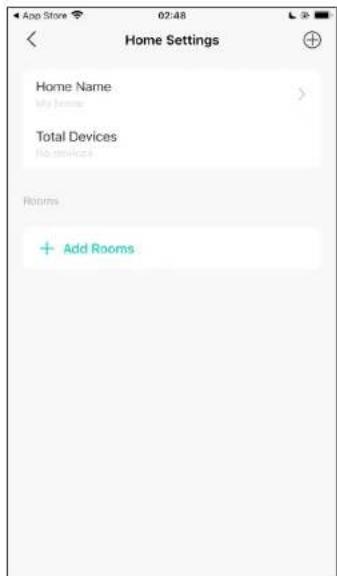
Home Settings Home Name My home Total Devices No devices Rotims + Add Rooms

Manage Homes

  1. Tap and choose Home Settings. The default home is my home.
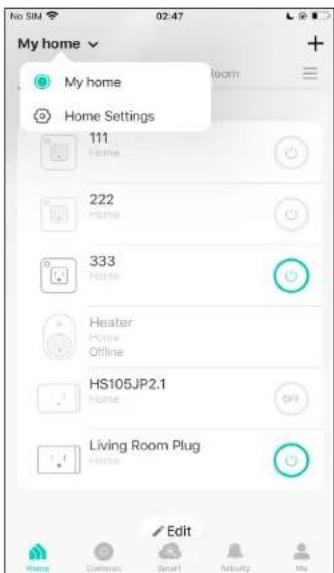
My home Home Settings 111 Home 222 Home 333 Home Heater Home Offline HS105JP2.1 Home Living Room Plug Home Edit

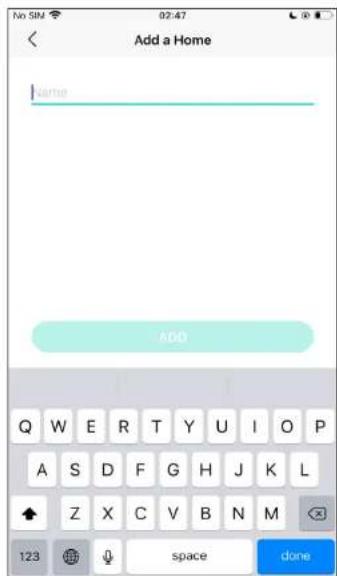
  1. Tap at the top right corner to add a new home. Then you can add rooms to this home.
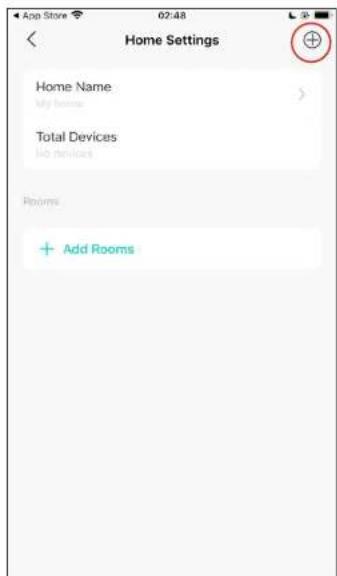
Home Settings Home Name My home Total Devices No devices Rooms + Add Rooms

Add a Home Name ADD Q W E R T Y U I O P A S D F G H J K L Z X C V B N M 123 space done

  1. Name the scene and choose an icon for it. Tap Done to save all the settings.
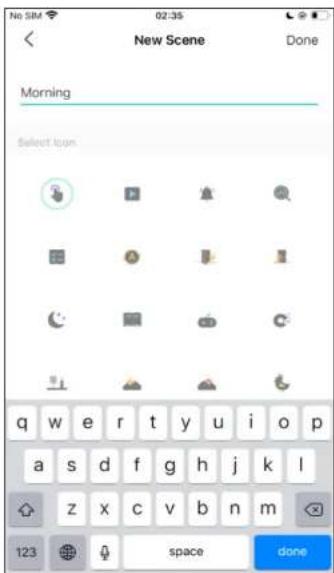
New Scene Done Morning Select item q w e r t y u i o p a s d f g h j k l z x c v b n m 123 space done

  1. You can see your scene under the Scenes tab. You can run the scene with a tap.
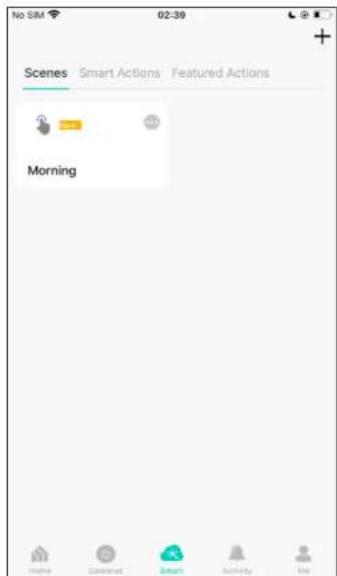
No SM 02:39 Scenes Smart Actions Featured Actions Morning Home Create Smart Activity Inv

Manual assistant
Powered by Anthropic
Waiting for your message
Product information

Brand : TP-LINK

Model : KP125MP4

Category : Home Automation