3G Dongle for EasyPad 700 - Uncategorized EASYPIX - Free user manual and instructions
Find the device manual for free 3G Dongle for EasyPad 700 EASYPIX in PDF.


| Brand | Easypix |
| Model | 3G Dongle for EasyPad 700 |
| Product Type | 3G USB Modem/Dongle |
| Compatible Devices | Easypix EasyPad 700 |
| Connectivity | 3G (UMTS/HSPA), 2G (GSM/GPRS) |
| Data Speeds | Download up to 7.2 Mbps, Upload up to 5.76 Mbps (HSDPA) |
| Interface | USB 2.0 |
| Dimensions | Approx. 85 x 25 x 10 mm |
| Weight | Approx. 20 g |
| Power Supply | USB powered (5V, 500 mA) |
| Antenna | Internal |
| SIM Card Slot | Standard SIM (not included) |
| Operating Temperature | 0°C to 40°C |
| Storage Temperature | -20°C to 65°C |
| Operating Humidity | 10% to 90% (non-condensing) |
| Color | White or black (varies) |
| System Requirements | Easypix EasyPad 700 with USB port, Android OS |
| Plug and Play | Yes (no driver installation required) |
| Maintenance | Wipe with a soft, dry cloth; avoid liquids |
| Safety Notes | Do not expose to water, heat, or sharp objects |
| Repair/Spare Parts | No user-serviceable parts; contact Easypix for support |
| Package Contents | 3G Dongle, User Manual |
Frequently Asked Questions - 3G Dongle for EasyPad 700 EASYPIX
User questions about 3G Dongle for EasyPad 700 EASYPIX
0 question about this device. Answer the ones you know or ask your own.
Ask a new question about this device
Download the instructions for your Uncategorized in PDF format for free! Find your manual 3G Dongle for EasyPad 700 - EASYPIX and take your electronic device back in hand. On this page are published all the documents necessary for the use of your device. 3G Dongle for EasyPad 700 by EASYPIX.
USER MANUAL 3G Dongle for EasyPad 700 EASYPIX
Before you can contact the Easypad to the Internet via 3G stick, it is necessary to turn off the PIN code on the SIM card.
Please do this with a mobile phone and follow the instructions.
EASYPAD®
Turn on your EasyPad:

EASYPAD®
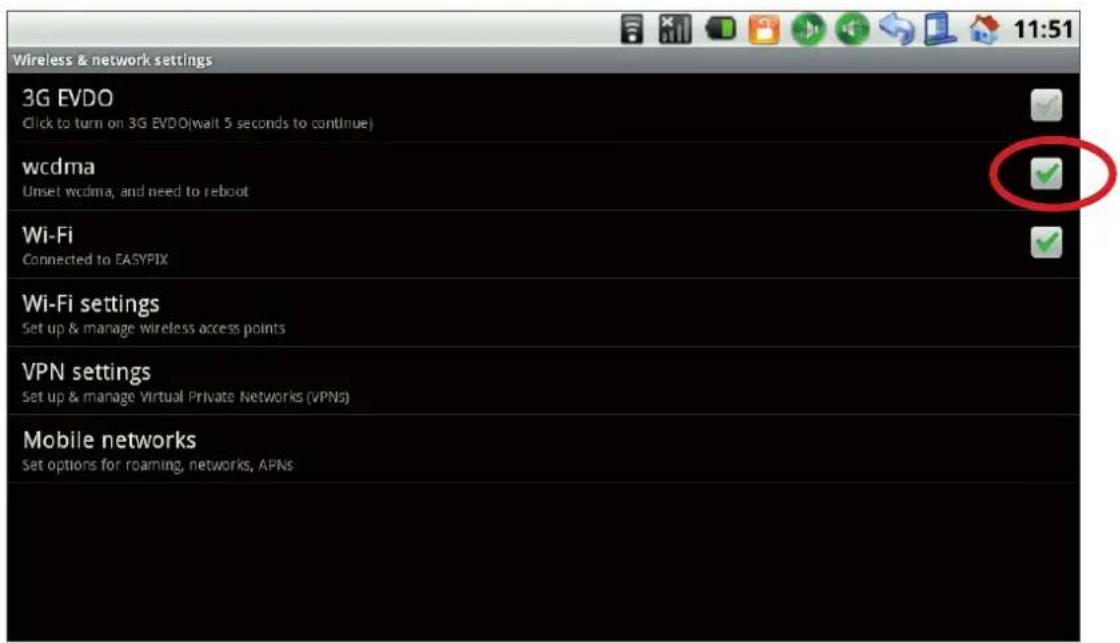
Turn on the "Settings" - "Wireless & Networks" function "wcdma":
EASYPAD®
Turn your Easypad off.
Connect your 3G stick to the USB port on the Easypad. Remember that you are doing this with the PIN disabled.
Turn your Easypad on.
EASYPAD®
Wait until you see the status bar:

EASYPAD®
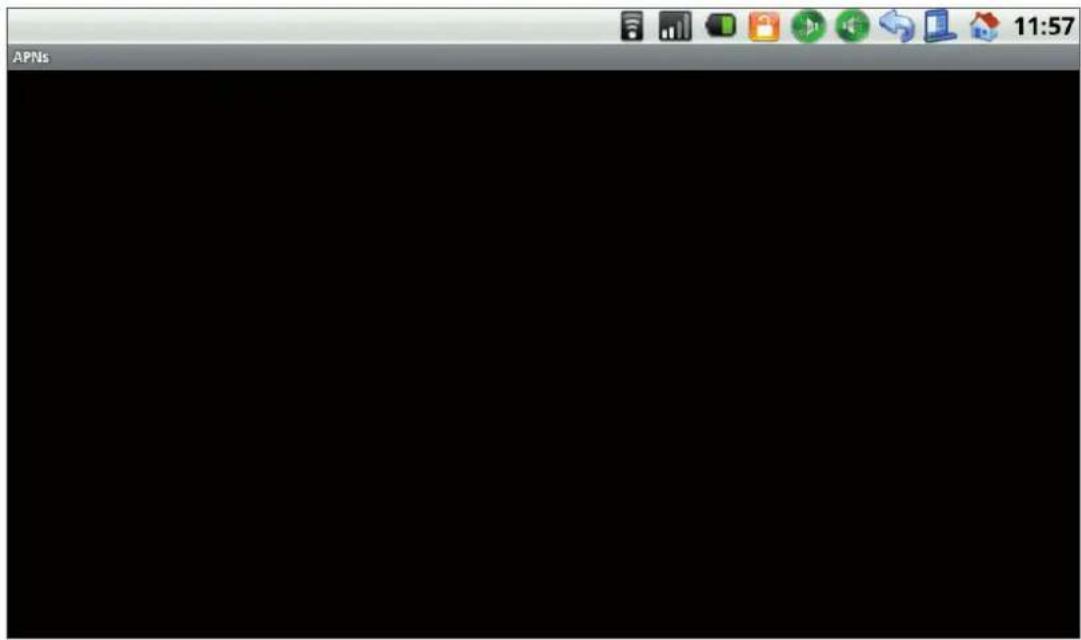
Navigate to "Settings" - "Wireless & Networks" - "Mobile networks" to the menu item "Access Point Names". It opens this window:
EASYPAD®
Tap the program menu key (status line above next to the little house) and select below this "New APN":

EASYPAD®
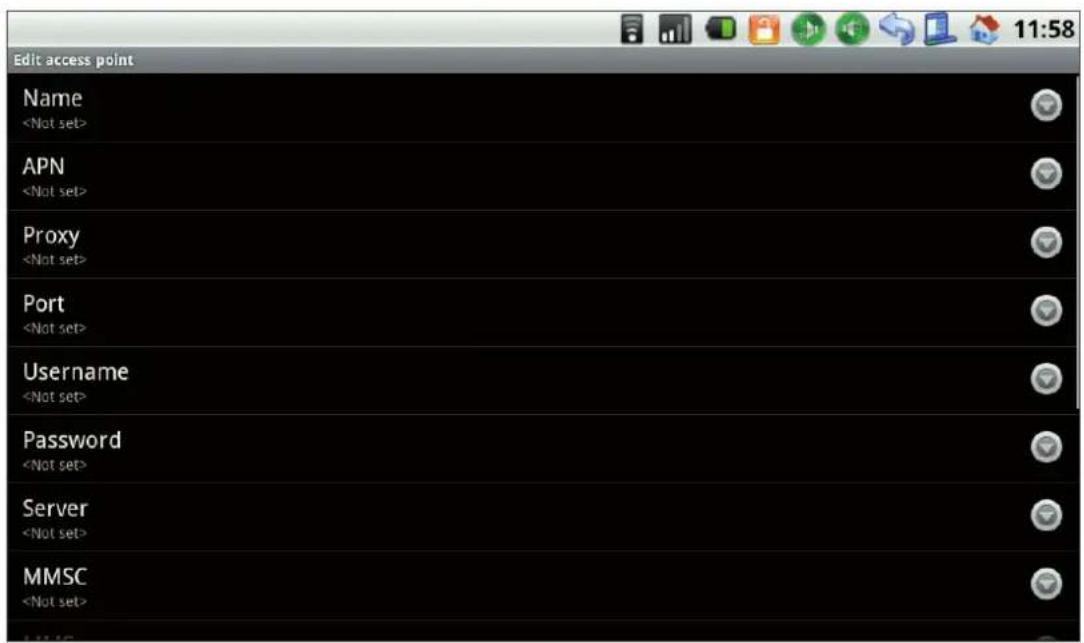
Enter the information provided by your network operator data.
EASYPAD®
After you have entered the data, now press the large menu button beside the display.

EASYPAD®
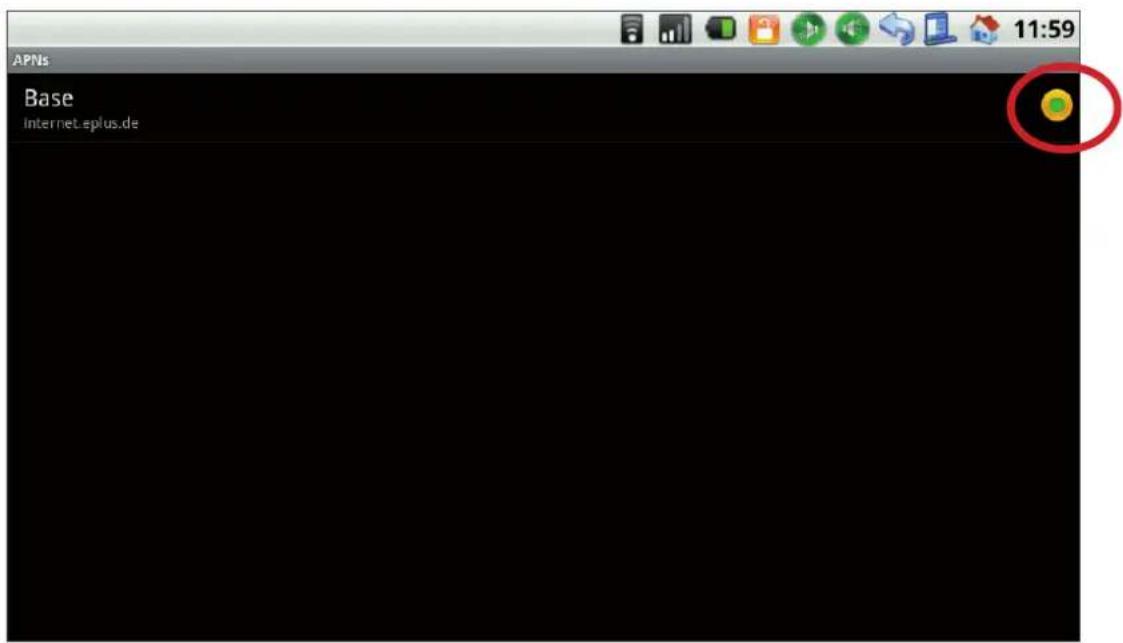
You can then click on the point on the right side – the inner part turns green:
EASYPAD®
Now switch off your Easypad and then on again - 3G is now active.
If in future you turn on your Easypad with the 3G stick inserted, it will automatically be activated.
Please do NOT REMOVE THE 3G-Stick from your Easy Pad during this operation!


Brand : EASYPIX
Model : 3G Dongle for EasyPad 700
Category : Uncategorized