
MD 99732 - Mobile Phone MEDION - Free user manual and instructions
Find the device manual for free MD 99732 MEDION in PDF.


| Product Type | Smartphone |
| Dimensions | Approx. 152 x 78 x 10.3 mm |
| Weight | Approx. 160 g |
| Display | 13.9 cm (5.5") touch screen, 1280 x 720 pixels |
| Operating System | Android (Google services supported) |
| Processor | Not specified |
| RAM | Not specified |
| Internal Storage | Not specified (expandable via microSD up to 64 GB) |
| Battery | Li-ion 2500 mAh, 3.8 V (model LP 38250U) |
| Rear Camera | 8 megapixels (CMOS fixed focus) |
| Front Camera | 2 megapixels |
| Network | GSM 900/1800/1900 MHz, UMTS 900/2100 MHz, LTE Cat-4 800/1800/2600 MHz |
| Wireless | Wi-Fi 802.11 b/g/n (2.4 GHz), Bluetooth 4.0 |
| SIM Card | Dual micro-SIM |
| Memory Card Slot | microSD, max. 64 GB |
| Charging / Data | Micro USB 2.0, USB OTG supported |
| Headphone Jack | 3.5 mm CTIA standard |
| Charger | AC 100-240V, 50/60 Hz; DC 5V 1A or 5V 2A (depending on variant) |
| Operating Temperature | +5°C to +35°C |
| Safety Features | Pacemaker safety distance 15 cm, emergency call function, ICE contact support |
Frequently Asked Questions - MD 99732 MEDION
User questions about MD 99732 MEDION
0 question about this device. Answer the ones you know or ask your own.
Ask a new question about this device
Download the instructions for your Mobile Phone in PDF format for free! Find your manual MD 99732 - MEDION and take your electronic device back in hand. On this page are published all the documents necessary for the use of your device. MD 99732 by MEDION.
USER MANUAL MD 99732 MEDION
1. Notes on how to use these instructions ....4
1.1. Symbols and key words used in these instructions .... 5
1.2. Proper use 7
1.3. Usage limitations 8
1.4. Additional costs for Internet and roaming usage....9
2. Safety instructions ....1
2.1. Making calls while driving ....10
2.2. General 14
2.3. Cleaning and care ....18
2.4. Data backup 19
2.5. Information about the display .....19
2.6. Notes on batteries and rechargeable batteries ....20
2.7. Environmental requirements 22
2.8. In the event of faults ....23
2.9. People with pacemakers ....24
2.10. People with hearing aids....24
2.11. Emergency calls....24
2.12. Saving a number for use in emergencies.25
3. Contents of package ......27
3.1. Overview of the device....28
4. Preparations for using the telephone .....29
4.1. SIM card....29
4.2. Inserting SIM cards and a microSD card...30
4.3. Inserting the battery ....31
4.4. Charging the battery ....31
5. Operation 32
5.1. Switching on the telephone ....32
5.2. Operating the telephone ....32
5.3. After switching on the telephone ....33
6. First use....33
6.1. Switching off the phone ....34
6.2. Switching to sleep mode ....35
6.3. Waking up the phone from sleep mode ..35
6.4. Main screen 36
6.5. Status and notification symbols ......38
6.6. Using the notification field ....40
6.7. Making/checking settings 41
6.7.1. Wireless & networks ....41
6.7.2. Device 42
6.7.3. Personal 43
6.7.4. System......45
6.8. Favourites list 46
6.9. Telephone calls 47
6.9.1. Accepting calls....47
6.9.2. Rejecting calls 47
6.9.3. Rejecting a call with an SMS 47
6.9.4. Contacts 48
6.10. SMS/MMS....48
6.10.1. Writing a new message ....49
7. Connecting to the Internet ....50
7.1. Adding a new data network connection .51
7.2. Activating the data connection .....52
7.3. Additional costs for Internet and roaming usage....53
7.4. Internet 54
7.5. Limiting data usage ....54
7.6. Changing the data volume .....55
7.7. Activating Wi-Fi 56
7.8. Activating Wi-Fi 57
8. Addendum to instructions for use of smartphone....58
8.1. Exposure to radio frequency energy .....58
9. Disposal 59
10. Conformity information as per R&TTE ......60
11. Technical data 61
12. Licence information ......63
13. Legal notice 70
14. Index 71
1. Notes on how to use these instructions

natural_image
Icon of an open book with an information symbol inside a circle (no text or numbers)Please read this section and the entire user manual carefully and follow all instructions given. The instructions will help you to operate the device reliably and help lengthen its service life. Store these instructions ready to hand near the device.
Keep the operating instructions so that you can pass them on with the device if you sell it.
1.1. Symbols and key words used in these instructions

DANGER!
Warning: immediate mortal danger!
WARNING!
Warning of possible risk of fatal injury and/or serious irreversible injuries!
WARNING!
Danger of possible minor or moderate injuries!

natural_image
Black circular warning symbol with an exclamation mark (no text or numbers)CAUTION!
Please follow the guidelines to avoid property damage!

natural_image
Black circular icon with a white lowercase 'i' in the center, commonly used to denote information (no additional text or symbols)NOTE!
Additional information on using the device!

natural_image
Icon of an open book with an information symbol inside, enclosed in a circular border (no text or numbers)NOTE!
Please follow the guidelines in the operating instructions!
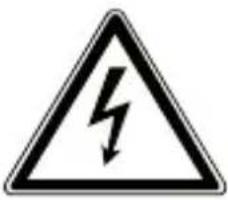
WARNING!
Warning of risk of electric shock!
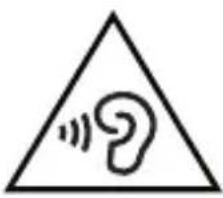
natural_image
Warning symbol with a triangle containing a stylized ear and sound waves (no text or numbers)WARNING!
Warning: danger due to loud volume!
- Bullet point/information on operating steps and results
▶ Tasks to be performed
1.2. Proper use
Your appliance offers a number of options for usage:
- The device is intended for private use only and not for industrial/commercial use.
Please note that we shall not be liable in cases of improper use:
- Do not modify the device without our consent and do not use any auxiliary equipment which we have not approved or supplied.
- Use only spare parts and accessories which we have supplied or approved.
- Heed all the information in these operating instructions, especially the safety information. Any other use is deemed improper and can cause personal injury or damage to the device.
- Do not use the device in extreme environmental conditions.
1.3. Usage limitations
It is essential to turn off the telephone in the following situations:
- Before boarding an aircraft or before packing it in your luggage. The use of radio devices in aircraft can have dangerous effects on the flight controls and interrupt radio contact and is thus prohibited.
• In hospitals, clinics or other health centres and in any locations in the direct vicinity of medical devices. - In all locations where there is a risk of explosion (e.g. petrol stations; in dust-filled environments, e.g. where there is metal dust).
- In locations where the use of radio-controlled devices is prohibited, e.g. on construction sites or locations where people are working with explosives.
- While driving a motor vehicle (if no hands-free car kit is available).
1.4. Additional costs for Internet and roaming usage
Significant volume-based data costs may apply when using the mobile Internet. In order to limit these costs, we recommend that you purchase a contract with an Internet flat rate.

natural_image
Black circular icon with a white lowercase 'i' in the center, commonly used to denote information (no additional text or symbols)NOTE!
When the phone is used for the first time, roaming is deactivated. Check your mobile service tariff before using the device and, if required, switch off mobile data services until you have activated a suitable Internet flat rate.
2.Safetyinstructions
2.1. Making calls while driving
As making calls can reduce concentration levels (while driving a car or riding a bicycle), this may contribute to accidents occurring. The following instructions should be followed exactly.
It is an offence to hold a telephone in your hand (or between your head and your shoulder) to make a call while driving. It is also illegal to write SMS, e-mail or use other programs while driving. Failure to comply will result in fines and in your name being entered in the central traffic offenders register.
The use of hands-free sets is allowed.

natural_image
Black circular warning symbol with a white exclamation mark (no text or numbers)CAUTION!
A wired headset is not a hands-free set and may not be used while driving.

natural_image
Warning symbol with a triangle containing a stylized ear and sound waves (no text or numbers)WARNING!
Excessive volume when using headphones or earphones can damage your hearing. Before pressing play, set the volume to the lowest setting. Start playback and increase the volume to a comfortable level. Changing the basic settings of the equaliser can also increase the volume and thus cause permanent damage to your hearing.
Changing the drivers, software, equaliser, operating system, etc., can also lead to an increase in the volume and thus cause permanent damage to your hearing. Listening to a device at high volumes for an extended period via headphones/earphones can damage your hearing.
- Hands-free systems should only be installed by suitably qualified professionals. Incorrect installation or maintenance can have hazardous consequences and may also void your guarantees – also that of the car. Irradiation of the car's on-board electronics can cause serious defects and result in danger to life and limb for you and others.
- Do not use the mailbox while driving. Do not listen to your messages until you have parked the car and switched the motor off.
- If you accept a call via the hands-free set while driving, keep the call as short as possible. Concentrate on your driving. Try to to find a parking area before making a call.
- Please comply with all national regulations if you use your mobile while driving abroad.
- If you need to call often while driving, you should have a hands-free system installed in your car. These systems have been specially developed for this purpose.
- Ensure that neither your telephone nor the hands-free system can interfere with the functionality of the safety equipment in your car.
- For cars with airbags: Bear in mind that the activation of the airbag involves the release of a large amount of force.
Therefore, never install permanent telephone equipment in the area above the airbag or in the space occupied by the deployed airbag.
- If telephone or accessories are incorrectly installed this can lead to serious injury when the airbag is activated.

natural_image
Black circular warning symbol with an exclamation mark (no text or numbers)CAUTION!
Ignoring this advice can lead to serious injuries and/or property damage. Non-compliance can lead to severe penalties!
2.2. General
- Do not let children play with electrical appliances without supervision. Children are not always aware of potential hazards.
- Keep packaging material such as plastic film away from children. There is a risk of suffocation if used improperly.

DANGER!
Never open the housing of the device or the mains charging device. There is a risk of electric shock when the housing is open.
- Do not insert anything into the device through the slots and openings. This could result in an electrical short-circuit, an electric shock or even ignite a fire which will damage the product.
- Avoid exposing the device to water droplets or spray and do not place vases or anything containing water on the device. Liquids penetrating the device may impair the electrical safety of the product.
- Operate the mains charging device only on earthed power outlets with AC 100–240 V\~, 60 Hz. If you are not sure about the power supply at the set-up location, please ask your power supplier.
- The socket must be close to the device and easy to access.
- Use only the supplied mains charger with the supplied USB cable.
- For extra safety, we recommend using an overvoltage protection device to prevent the product from sustaining damage as a result of power surges or lightning strikes.
- If you want to disconnect the device from the mains, first pull the mains charger out of the wall socket and then the plug on the product. The mains charger or the device may be damaged if this process is carried out in the reverse order. Always take hold of the plug when disconnecting the cable from the socket. Never pull on the cable.
- Position the cable so that it cannot be stepped on or tripped over.
- Do not place any objects on the cables to avoid damaging them.
-
Do not allow plug-in connections to come under impact, e.g. from lateral forces. This could cause internal and external damage to the product.
-
Do not apply force when connecting cables and plugs and make sure that connectors are the right way round.
- Do not crush or bend the cable too far in order to prevent short-circuit and cable break.
- Maintain a distance of at least one metre from sources of high-frequency and magnetic interference (TV sets, loudspeakers, mobile phones, DECT telephones, etc.) in order to avoid malfunctions and data loss.
- Do not connect any devices to the product which do not meet the requirements set out in the EN60950 standard “Information Technology Equipment – Safety” or the EN60065 standard “Audio, video and similar electronic apparatus - Safety requirements”.
2.3. Cleaning and care
Follow the instructions below to increase the service life of the product:
• Always unplug the device and disconnect all cables before cleaning.
- Do not use solvents, corrosive agents or aerosol-based detergents to clean the device.
- Use appropriate cleaners to wipe the display, e.g. glass cleaners or monitor cleaners (available from specialist retailers).
- Clean the screen with a soft, lint-free cloth.
- Do not place the screen in strong sunlight or near ultraviolet light.
- Make sure that no water droplets remain on the device. Water can cause permanent discolouration.
- Store the packaging material in a safe place; always use this to transport the device.

natural_image
Black circular warning symbol with a white exclamation mark (no text or numbers)CAUTION!
None of the parts inside the device require cleaning or maintenance.
2.4. Data backup

natural_image
Black circular icon with a white lowercase 'i' in the center, commonly used to denote information (no additional text or symbols)PLEASE NOTE!
Back up your data on external storage media after each update. We do not accept any liability for claims for compensation arising from a loss of data or for any consequential damages.
2.5. Information about the display
- Do not place any objects on top of the device and do not exert pressure on the screen. This could break the screen.
• To avoid damaging the screen, do not touch it with sharp objects. - If the screen breaks, there is a danger of injury. If this happens, pick up the shattered pieces wearing protective gloves and send them to your service
centre for professional disposal. Finally, wash your hands with soap, as the pieces may have been contaminated with chemicals.
- Keep the device away from moisture and from water in droplet or spray form. Avoid knocks, dust, heat and direct sunlight in order to prevent malfunction.
2.6. Notes on batteries and rechargeable batteries
This device contains a lithium-ion battery. Please note the following when using lithium-ion rechargeable batteries and other batteries:
- Charge the battery regularly and as fully as possible. Do not leave the battery discharged for long periods
-
Keep batteries away from heat sources such as radiators or open flames, e.g. candles. There is a risk of explosion!
-
If the device cannot be switched on although it is connected to a power source, please contact your service centre.
- Do not use chargers or batteries that are damaged in any way.
- Do not dismantle or deform batteries. You could injure your hands or fingers, or battery fluid could come into contact with your eyes or skin. If this happens, rinse the affected areas with plenty of clean water and contact your doctor immediately.
- Keep the batteries away from children. If batteries are accidentally swallowed, consult your doctor immediately.
- f the battery is integrated into the device, it cannot be readily replaced by the user themselves.
2.7. Environmental requirements
- Keep your telephone dry.
- Do not expose it to extremes of temperature (hot or cold).
- Do not place your phone next to burning cigarettes, open flames or other heat sources.
- Do not drop or bang the telephone and do not shake it. Rough handling can damage the internal circuitry.
- Do not paint your telephone as the paint could block the microphone, the ear piece or hinder moving parts and thus prevent normal use.
- Treat your telephone carefully and store it in a clean and dust-free location.
-
Under no circumstances attempt to open the telephone or battery. Any modification to the device is prohibited and will invalidate the guarantee.
-
The ring tone is played back via the ear piece. To avoid damage to hearing, accept the call before putting the telephone to your ear.
- Please only use the optional stereo earphones together with this smartphone.

natural_image
Black circular icon with a white lowercase 'i' in the center, commonly used to denote information (no additional text or symbols)NOTE!
When using wired headsets, ensure the correct plug connection (see technical details).
2.8. In the event of faults
- If the charger, connection cable or device is damaged, immediately disconnect the charger from the power supply.
- Never try to open and/or repair the device or the charger yourself. In the event of a fault, contact our Service Centre or another suitable professional repair workshop.
2.9. People with pacemakers
When using your telephone, be sure to maintain a safety distance of at least 15 cm from your implanted pacemaker to avoid any possibility of interference.
Do not carry the telephone in a breast pocket when it is switched on. Hold the telephone to the ear on the opposite side to your pacemaker to avoid any possible adverse effects.
Switch off the telephone immediately if you suspect any adverse effects.
2.10. People with hearing aids
If you use a hearing aid, ask your doctor or the manufacturer of the hearing aid about any possible adverse effects caused by radio waves.
2.11. Emergency calls
This telephone uses radio signals, wireless and land-based networks, as well as functions programmed by the user. Because
of this, a connection cannot be guaranteed under all possible circumstances.
Therefore, you should not rely exclusively on telephones for essential communication (e.g. in medical emergency situations).
Emergency calls may not be possible on some mobile networks or while certain network services and/or telephone functions are being used. Contact your local network operator.
2.12. Saving a number for use in emergencies
If you are involved in an accident or injured and have your mobile phone with you, it is important for the emergency services to be able to inform a close friend or family member. Often, it is not immediately apparent to rescue workers which contact in the mobile phone directory should be called.
Therefore an international abbreviation has been developed to allow emergency services to quickly inform one or more people of an event.
Save a contact under the name ICE (“in case of emergency”) for this purpose. If more than one person is to be notified, you can use ICE1, ICE2, and so on.
3. Contentsofpackage
Please check your purchase to ensure all items are included and contact us within 14 days of purchase if the delivery is incomplete.
The product you have purchased includes the following items:
- Smartphone
- Mains charging device
• USB data and charger cable - Stereo headset (optional)
- Manual with safety information
• Guarantee documents
3.1. Overview of the device

| Ref. Description | |
| 1 Receiver | |
| 2 Camera | |
| 3 Touch display | |
| 4 Volume button | |
| 5 On/off switch | |
| 6 Tap |  Button: shows the options available for the current display (option button) Button: shows the options available for the current display (option button) |
 Tap button: return to the home screen (startbutton) Tap button: return to the home screen (startbutton) | |
 Tap the button: return to the previous screen ( back button) Tap the button: return to the previous screen ( back button) | |
| 7 3.5 | mm jack for headset |
| 8 Micro USB connection | |
4. Preparations for using the telephone
You must insert a SIM card and charge the battery before you can use the telephone.

natural_image
Black circular icon with a white lowercase 'i' in the center, commonly used to denote information (no additional text or symbols)PLEASE NOTE!
Your smartphone is equipped with two SIM card slots. Both can be used for making phone calls or data transfer. The configuration of the card slots is carried out via the software.
4.1. SIM card
You choose the network provider, telephone network and tariff when purchasing a SIM card.
Therefore, check out which tariff from which network provider is best suited to your telephone usage before purchasing the SIM card.
You will also receive your telephone number with the SIM card. Furthermore, SIM cards can also feature additional memory functions (e.g. for the telephone book or SMS messages)
- Store all SIM cards out of the reach of small children.
- Handle your SIM card carefully because the card and its contact points can be easily damaged through scratching or bending.
4.2. Inserting SIM cards and a microSD card

natural_image
Black circular warning symbol with a white exclamation mark (no text or numbers)CAUTION!
Always ensure that the telephone is switched off when carrying out this process to avoid any damage to the device or the card.
1) Open the battery compartment cover and remove the battery if necessary.
2) Slide the SIM cards and the microSD card into the corresponding slots as illustrated.

4.3. Inserting the battery
Remove the battery compartment cover if you have not already completed this step.
Before installing the battery, firstly insert the SIM cards and, if desired, a microSD card as described in the previous sections.
Insert the battery into the battery compartment. The contacts on the battery must touch the corresponding contacts on the telephone.
4.4. Charging the battery

natural_image
Black circular icon with a white lowercase 'i' in the center, commonly used to denote information (no additional text or symbols)PLEASE NOTE!
The battery can be charged regardless of whether the SIM card is inserted.
Before you charge the battery, make sure that the battery cover has been securely fitted again.
Insert the micro USB plug in the corresponding connector on the phone. Ensure that the plug is inserted in the connector the right way round. Do not force it.
Insert the other end of the cable into the USB connection on your computer or use the supplied mains charger.
- Connect the charger to an easily accessible mains socket.
5. Operation
5.1. Switching on the telephone
▶ Hold the on/off button down until the display switches on.
▶ Enter the 4 to 8-digit PIN code for each inserted SIM card and confirm them with √
If you have entered a wrong digit, tap on.
5.2. Operating the telephone
You operate the phone with your fingertips. Do not use any pointed or sharp-edged objects.
Tap on the display to select apps or to open applications.
▶ If you hold down your finger on an input field, all of the available options will be displayed.
Drag your finger over the display to move it up, down, right or left.
If you press and hold an app, you can drag it across the display and place it in another position or delete it.
Drag two fingers apart on the screen at the same time or tap twice on the display in order to increase/reduce the size of a website.
5.3. After switching on the telephone
You can use various applications from the Google ^TM portfolio on your phone. To do this, you will generally require a Google ^TM account. This account will allow you to access a larger number of services such as Google Mail ^TM .
6. First use
When you first switch on your phone, make the following settings:
▶ Select the language and tap on.
▶ Follow the on-screen instructions to conclude the initial setup for your smartphone.

natural_image
Circular icon with a white lowercase 'i' in the center, commonly used to denote information (no additional text or symbols)PLEASE NOTE!
You can view the display in portrait or landscape format. Simply hold the telephone upright or on its side to change the orientation of the display.
An Internet connection is required in order to create a Google™ account or to sign in. You can connect to the Internet either via your SIM card or a Wi-Fi connection. Please bear in mind that costs may be incurred for the Internet connection especially when the connection is via your mobile phone service provider if you do not have a flat rate contract.
6.1. Switching off the phone
▶ Press and hold the on/off button until the selection menu appears with the following options:
 | Powerj off(switches the phone completely off) |
 | Reboot(restarts the phone). |
 | Airplane mode(switches the phone to airplane mode) |
| [OKY] | Silent(switches the phone to silent mode) |
 | Vibration(switches the phone to vibration mode) |
 | Sounds(activates all acoustic signals on the telephone) |
6.2. Switching to sleep mode
In sleep mode, your device will be placed into a low-energy standby mode with the display turned off in order to save battery power. Your device also switches automatically into sleep mode if the display is switched off after a certain time.
You can set this time under Settings → Display → Sleep.
▶ Press the ON/OFF button to switch to sleep mode.
6.3. Waking up the phone from sleep mode
This is the standard setting and can be changed in the menu.
▶ Press the on/off button to reactivate the display.
Drag the 🔒 symbol upwards to unlock the smartphone.
▶ Swipe your finger to the right to open the telephone function.
▶ Swipe your finger to the left to open the camera function.
6.4. Main screen
You decide what is displayed on your start screen. Set your own background, add shortcuts for the widgets or apps you require or remove them if desired.

(image similar)
| 1 Status and notifications |
| 2 Google input window |
| 3 Installed apps |
| 4 Telephone function |
| 5 Contact list |
| 6 Main menu |
| 7 SMS/MMS menu |
| 8 Web browser |
| 9 Voice entry |
| 10 Network/battery/date display |
6.5. Status and notification symbols
Your phone uses simple icons to provide you with status updates. The meanings of the individual icons are as follows:
| G GPRS in use No signa |  | |
| E EDGE in use Signal strength, | ||
| 3G 3G in use GPS active |  | |
| H HSDPA in use |  | Call is being recorded |
 | USB connection Alarm has been set | |
 | Battery very weak Connection to Wi-Fi network | |
 | Battery almost empty | Bluetooth on |
 | Battery is weak Loudspeaker on | |
 | Battery fully charged |  | Problem with the delivery of an SMS/MMS |
 — — | Batteries charging |  | New instant message |
 | Synchronisation Outstanding event | ||
 | Vibration mode All  | ustic signals have been activated | |
 | Airplane mode Song [2YKS] | ayback | |
| [7HBX] | Silent Playback via t  | connected/paired headset | |
 | New SMS/MMS/voice mail | [2767] | Downloading data |
 | New Google Mail message | [KX2D] | USB tethering is enabled |
 | Missed call Mobile v  | i hotspot is enabled | |
 | Establishing connection |  | Call is being held |
 | Call is active Microp [27ZZ] | ne off | |
6.6. Using the notification field
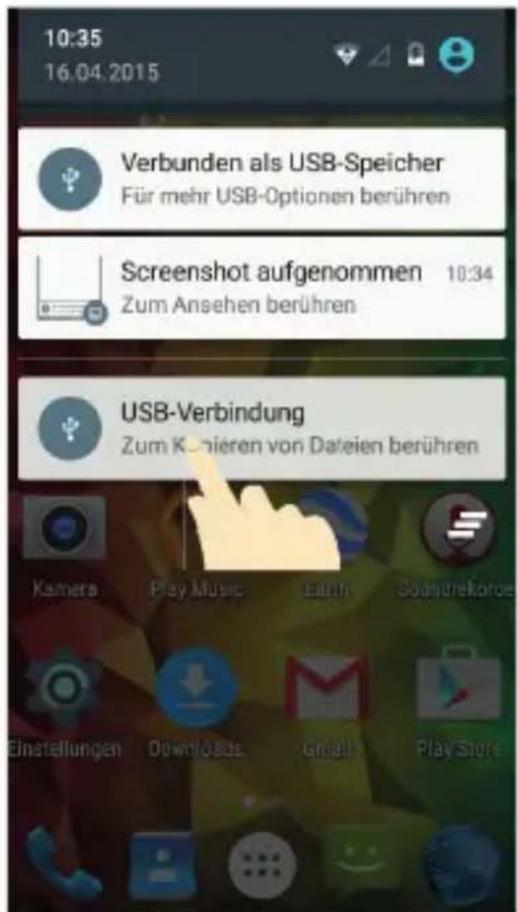
Swipe your finger from the top downwards over the status bar to open the notification field that displays your calendar events, new messages and current settings such as call forwarding or call status. In addition, you can open messages, reminders etc. from here. Press to open the quick settings menu.
6.7. Making/checking settings
In order to change or display your telephone settings, press 📄 and tap on Settings.
6.7.1. Wireless & networks
| Symbol | Menu name | Description |
 | Data connection | Activating/deactivating data connections. |
 | Call settings | Configuration and management of the call settings. |
 | Wi-Fi Configuration | Management of your Wi-Fi connection. |
 | SIM cards Set with | which SIM is used for voice calls, video calls, SMS and Internet connection as well as roaming. |
 | Bluetooth Configuration and management of your Bluetooth® connection. Authorise mobile data connections and virtual private networks. | |
 | Data usage | Configure the data usage settings, e.g. the limit for mobile data usage and the data usage cycle. |
 | More Settings for airplane mode, VPN, tethering & mobile hotspot, Internet via USB and the mobile phone network. | |
6.7.2. Device
| Symbol Menu name | Description | |
 | Buttons | Configuring the button functions. |
 | Status bar | Setting the status bar. |
 | Display | Select display settings, e.g. brightness. |
 | Sound& notification | Select the sound settings, e.g. ring tones and notifications |
 | Storage | Check the available capacity on the memory card and the internal telephone memory. |
 | Battery | Information about consumption and charging status of the battery. |
 | Apps | Manage your applications (apps) and install new applications. |
 | Users | Management of all user accounts created on this device. |
6.7.3. Personal
| Symbol Menu name Description | ||
 | System profiles | Setting the system profiles. |
 | Location Select the sources that are to be used for location finding. | |
 | Security Create your unlock pattern, define the SIM lock or memory management of the credentials for your mobile phone. | |
 | Accounts Here you can link a new or existing account with the current user account (e.g. a Google account) | |
 | Language & input | Set the operating system language and region, as well as the text input options. Set the voice recognition and text-to-speech options. |
 | Backup & reset | Configure the data protection settings, e.g. backup, restoration and personal data. |
6.7.4. System
| Symbol Menu name Description | ||
 | Date & time Set the date, time, time zone and date/time format. | |
 | Scheduled power on/off | Set the time and the day of the automatic shut-off/ switch-on. |
 | Accessibility After installing the applications for input support, you can set various options here. | |
 | Printing It is possible to search for and configure printers here (this may require additional software from the manufacturer of the printer available from the Play Store). | |
 | About phone | Display of phone details, status and legal information. |
6.8. Favourites list

(image similar)
| 1 Start call | |
| 2 ContactsAccess to all contacts on your mobile phone | |
| 3 Open main menu | |
| 4 SMS/MMS messages | |
| 5 Open Internet browser |
6.9. Telephone calls
When you accept or make a call with a new SIM card for the first time, you must first select the standard SIM card. Set the standard SIM or activate the Always ask function to be asked each time you open the phone's notification centre.
Tap on the telephone icon on the home screen.

natural_image
Illustration of a finger pointing at a colorful app interface with icons (no text or symbols)(image similar)
Now tap on 📋 and enter a telephone number.
▶ Tap on to start dialling.
It is also possible to make a call from the contact list, call list or a text message.
6.9.1. Accepting calls
Drag the telephone receiver symbol onto the green telephone receiver symbol.
6.9.2. Rejecting calls
Drag the telephone receiver symbol onto the red telephone receiver symbol.
6.9.3. Rejecting a call with an SMS
Drag the telephone receiver symbol onto the SMS/MMS symbol.
6.9.4. Contacts
You can save contacts on your telephone memory or your SIM card. More information about a contact can be saved on the telephone memory than on the SIM card. For example, addresses, photos, nicknames, websites and much more
When you open the contacts for the first time with a new SIM card, you must first select the standard SIM card.
Set the standard SIM or activate the Always ask function to be asked each time you open the contacts.
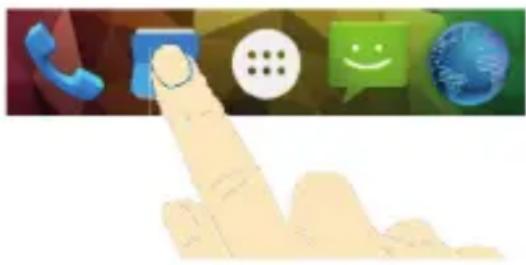
▶ You can call up your contacts by tapping on (Contacts).
natural_image
Illustration of a finger pointing at a list of app icons including a telephone, speech bubble, and globe (no text or symbols)(image similar)
The contacts screen contains the following tabs: Contacts, Favourites and Groups.
6.10. SMS/MMS
Under SMS/MMS, you have access to your short messages (SMS) or multimedia messages (MMS). You can send or receive SMS or MMS messages.
If you receive a new message, you can open it via the notification field or the message screen. Simply tap on the new message to read it.
When you write or read an SMS/MMS with a new SIM card for the first time, you must first select the standard SIM card.
Set the standard SIM or activate the Always ask function to be asked each time you open the SMS/MMS notification centre.
6.10.1. Writing a new message
Tap on (SMS/MMS).

natural_image
Illustration of a hand pointing at a finger interacting with three app icons (no text or symbols)(image similar)
Tap on
▶ Enter the number or name of the recipient.
Corresponding contacts will be suggested during input. Tap on the suggested contact to add it as a recipient.
Tap on Type message and then enter your message.
Tap on to send your text message.
If you want to add an attachment to a text message, tap on 📄d select the relevant attachment. The SMS will then be automatically converted into an MMS message.
7. Connecting to the Internet
You can use the standard connection settings to access the Internet via your mobile phone network or use your Wi-Fi connection.
In order to access the Internet via the mobile data network, this service must be active in your contract.

natural_image
Black circular icon with a white lowercase 'i' in the center, commonly used to denote information (no additional text or symbols)NOTE!
Read the chapter "Internet" carefully to avoid unnecessarily high mobile phone bills.
Also contact your mobile phone service provider if the settings for accessing the mobile data network provided by your service provider are not preconfigured on your telephone. If you change the settings without consulting your mobile phone service provider then it may be possible that your telephone will then no longer function correctly.
7.1. Adding a new data network connection
Your telephone is preconfigured for accessing the Internet via most European mobile phone service providers.
If it is nevertheless necessary for you to add a new data network connection, first ask your mobile phone service provider for the following information.
• Name of the access point (APN)
- If necessary, the user name and password.
- Server IP and port number, if the network uses a proxy server.
Tap on on the main screen.
Tap on Settings → More... → Mobile networks → Access point Names.
▶ Press the menu key and tap on New APN.
Tap on Name to enter the name of your access point (freely selectable).
Tap on APN to enter the APN that you want to add.
Tap on Proxy and Port to enter the server IP and port if the network uses a proxy server.
Tap on Username and Password and enter the required information in each case. (If there are no user names and passwords, leave these fields blank.)
▶ If required, tap on APN type.
▶ Press the menu key and tap on Save to conclude the process.

natural_image
Black circular icon with a white lowercase 'i' in the center, commonly used to denote information (no additional text or symbols)PLEASE NOTE!
In order to set the APN to the default settings, press the Menu key and tap on Reset to default.
7.2. Activating the data connection
Tap on the main screen.
Tap Settings → Data Connection.
The data connection is now activated.
Tap Settings → Data Connection to deactivate the data connection.
7.3. Additional costs for Internet and roaming usage
Significant volume-based data costs may apply when using the mobile Internet. In order to limit these costs, we recommend that you purchase a contract with an Internet flat rate.
Find out about the various options available from your mobile phone service provider. Also ask about the tariffs for using your telephone abroad (roaming) because this can also result in high charges.

natural_image
Black circular icon with a white lowercase 'i' in the center, commonly used to denote information (no additional text or symbols)NOTE!
When you use the telephone for the first time, data roaming (use of data services in a different data network than your own home network provided by your mobile phone service provider e.g. abroad) is deactivated.
Check your mobile service tariff before using the device and, if required, switch off mobile data services until you have activated a suitable Internet flat rate. Proceed as follows:
7.4.Internet
Volume-based data costs may apply when using the mobile Internet. Check your mobile service tariff before using the device and, if required, switch off mobile data services until you have activated a suitable Internet flat rate. Proceed as follows:
Tap o.
Now tap on Settings → More...
Now tap on Mobil networks Data roaming in sequence.
7.5. Limiting data usage
The telephone has an automatic function for limiting mobile data usage. If the value you have set is exceeded then the data connection is deactivated.
Tap on
Now tap on Settings → Data usage.
Now select whether you want to set data usage via the Mobile network or Wi-Fi.

natural_image
Black circular icon with a white lowercase 'i' in the center, commonly used to denote information (no additional text or symbols)NOTE!
The time period for displaying the monthly data usage can be defined under the option Data usage cycle.
▶ Select the date for resetting the data usage cycle.
Tap on Set to save the date.
7.6. Changing the data volume
As current mobile phone contracts offer Internet flat rates with different data usage limits, it is advisable to define the data usage limit for your mobile phone contract in the data usage limit function on your telephone.
For example, if your monthly internet flat rate has a max. limit of 1 GB, set the red line (limit) to 1 GB.
Set the yellow line (warning) to a lower value.
Tap on the table and drag the red line (limit) to 1 GB.
Now drag the yellow line (warning) to a lower value.
Tap on Set limit to activate data usage monitoring.
7.7. Activating Wi-Fi
Wi-Fi provides you with access to the Internet over a distance of several metres.
Tap on the main screen.
Tap on Settings → Wi-Fi.
▶ Activate the Wi-Fi checkbox to switch on this function.
The name of all of the Wi-Fi networks available for your telephone and their security settings (open or secure) will now be displayed.
Tap on a network to which you want to connect.
▶ Press the menu button and tap on scan to update the list of available networks in your local area.

natural_image
Black circular icon with a white lowercase 'i' in the center, commonly used to denote information (no additional text or symbols)PLEASE NOTE!
If you attempt to make a connection to a secure network, you will be required to enter a password to gain access.
7.8. Activating Wi-Fi
Wi-Fi provides you with access to the Internet over a distance of several metres.
Tap on the main screen.
Tap on Settings → Wi-Fi.
▶ Activate the Wi-Fi checkbox to switch on this function.
The name of all of the Wi-Fi networks available for your telephone and their security settings (open or secure) will now be displayed.
Tap on a network to which you want to connect.
▶ Press the menu button and tap on scan to update the list of available networks in your local area.

natural_image
Black circular icon with a white lowercase 'i' in the center, commonly used to denote information (no additional text or symbols)PLEASE NOTE!
If you attempt to make a connection to a secure network, you will be required to enter a password to gain access.
8. Addendum to instructions for use of smartphone
8.1. Exposure to radio frequency energy
Your smartphone has been tested and complies with the RF exposure limits prescribed by the European Union in connection with cellular networks, Wi-Fi and Bluetooth.
The expression “Specific Absorption Rate”, or SAR for short, refers to the amount of RF energy absorbed by the human body.
The maximum SAR limit (Specific Absorption Rate) for mobile telephones approved by the Council of the European Union is 2.0 W / kg.
Maximum levels applicable to this model:
SAR (body): 1,537 W / kg / 1 cm
SAR (head): 0,568 W / kg / 1 cm
The telephone has been tested and conforms to the directives on SAR exposure in terms of operation of cellular networks, Wi-Fi and Bluetooth.
Your telephone is fitted with radio transmitters and receivers. When it is lit up, your smartphone is sending and receiving radio frequency (RF) energy via its antenna.
9. Disposal

natural_image
Symbol of a waste bin with no text or labels, crossed by two diagonal lines and a solid black rectangle below (no text or symbols present)Device
The device is fitted with an integrated battery. At the end of its operating life, do not dispose of the device with your ordinary household rubbish. Consult your local authority to find out about collection centres for environmentally sound disposal of electrical and electronic scrap.

Batteries
Used batteries do not belong in the household rubbish. They should be taken to a collection point for used batteries.

Packaging
Your device has been packaged to protect it against transportation damage. The packaging is made of environmentally friendly material which can be recycled.
10. Conformity information as per R&TTE
This device is supplied with the following wireless features:
- Wireless LAN
- Bluetooth
Medion AG hereby declares that the product conforms to the following European requirements:
• R&TTE Directive 1999/5/EC
• Ecodesign Directive 2009/125/EC
• RoHS Directive 2011/65/EU.
Full declarations of conformity are available at http://www.medion.com/conformity.
C€0700
11. Technical data
Dimensions: approx. 152 x 78 x 10,3 mm
Weight: approx. 160 g
Band GSM 900/1800/1900 MHz
UMTS 900/2100 Mhz
LTE Cat-4 800/1800/2600 Mhz
WLAN IEEE 802.11 b/g/n (2.4 Ghz)
Bluetooth V4.0
Display size 13.9 cm/5.5" touch screen
Resolution 1280 x 720
Camera Sensor type CMOS fixed
image
Resolution front camera 2 million pixels
Resolution rear camera 8 million pixels
Storage capacity microSD slot, max. 64 GB
USB connection USB 2.0, Micro USB
Mains charger KSAS0050500100VEU
Manufacturer: Ktek Co., Ltd., China
AC Input 100–240V\~ (50/60 Hz)
0.18 A
DC output: 5.0 V 1 A
Mains charger ASSA1e-050200 (EU)
Manufacturer: Aquilstar, China
AC Input 100–240V\~ (50/60 Hz)
0.45 A
DC output: 5.0 V 2 A
Battery: Li-ion, Type
2500 mAh, 3,8V
Model: LP 38250U
Manufacturer: Zhengzhou BAK Battery
Co., Ltd.
Headphones/headset: 3.5 mm, CTIA standard
SIM: 2 x micro-SIM
Temperatures
In operation +5°C to +35°C
Not in operation 0^ C to +60^ C
Relative humidity (non-condensing) 10–90%
12. Licence information
This product is based in part on open source software the use of which is subject to the GNU General Public License (GPL) Version 2. This goes hand in hand with a commitment on the part of the manufacturer to make the corresponding source code that may have been modified also available under this licence. You can acquire the source code for this product in the following manner:
1) Visit MEDION Service at http://www.medion.com/de/service/start and enter the name, the MD number or the MSN number of your device in the search field. You will find these details on the rear of your device. In the window that appears next, select the category "Software".
2) Alternatively, we can send you the source code for free on a data medium. Please send an e-mail to this effect to opensource@medion.com.
Please note that the source code is only of interest to software developers. As a pure user of the product, you would normally have no use for the source code.
You will find the complete text of the GPL below as well as on the device under Settings/About the phone/Legal information. Further information about the GPL as well as official translations in various languages can be found at http://www.fsf.org/licensing.
GNU General Public Licence
Version 2, June 1991
Copyright (C) 1989,
1991 Free Software Foundation, Inc.
51 Franklin Street, Fifth Floor, Boston,
MA 02110-1301, USA
Everyone is permitted to copy and distribute verbatim copies of this license document, but changing it is not allowed.
Preamble
The licenses for most software are designed to take away your freedom to share and change it. By contrast, the GNU General Public License is intended to guarantee your freedom to share and change free software-to make sure the software is free for all its users. This General Public License applies to most of the Free Software Foundation's software and to any other program whose authors commit to using it. (Some other Free Software Foundation software is covered by the GNU Lesser General Public License instead.) You can apply it to your programs, too. When we speak of free software, we are referring to freedom, not price. Our General Public Licenses are designed to make sure that you have the freedom to distribute copies of free software (and charge for this service if you wish), that you receive source code or can get it if you want it, that you can change the software or use pieces of it in new free programs; and that you know you can do these things.
To protect your rights, we need to make restrictions that forbid anyone to deny you these rights or to ask you to surrender the rights. These restrictions translate to certain responsibilities for you if you distribute copies of the software, or if you modify it.
For example, if you distribute copies of such a program, whether gratis or for a fee, you must give the recipients all the rights that you have. You must make sure that they, too, receive or can get the source code. And you must show them these terms so they know their rights.
We protect your rights with two steps: (1) copyright the software, and (2) offer you this license which gives you legal permission to copy, distribute and/or modify the software.
Also, for each author's protection and ours, we want to make certain that everyone understands that there is no warranty for this free software.
If the software is modified by someone else and passed on, we want its recipients to know that what they have is not the original, so that any problems introduced by others will not reflect on the original authors' reputations.
Finally, any free program is threatened constantly by software patents. We wish to avoid the danger that redistributors of a free program will individually obtain patent licenses, in effect making the program proprietary. To prevent this, we have made it clear that any patent must be licensed for everyone's free use or not licensed at all.
The precise terms and conditions for copying, distribution and modification follow.
TERMS AND CONDITIONS FOR COPYING, DISTRIBUTION AND MODIFICATION
- This License applies to any program or other work which contains a notice placed by the copyright holder saying it may be distributed under the terms of this General Public License. The “Program”, below, refers to any such program or work, and a “work based on the Program” means either the Program or any derivative work under copyright law: that is to say, a work containing the Program or a portion of it, either verbatim or with modifications and/or translated into another language. (Hereinafter, translation is included without limitation in the term „modification“.) Each licensee is addressed as “you”.
Activities other than copying, distribution and modification are not covered by this License; they are outside its scope. The act of running the Program is not restricted, and the output from the Program is covered only if its contents constitute a work based on the Program (independent of having been made by running the Program). Whether that is true depends on what the Program does.
-
You may copy and distribute verbatim copies of the Program's source code as you receive it, in any medium, provided that you conspicuously and appropriately publish on each copy an appropriate copyright notice and disclaimer of warranty; keep intact all the notices that refer to this License and to the absence of any warranty; and give any other recipients of the Program a copy of this License along with the Program. You may charge a fee for the physical act of transferring a copy, and you may at your option offer warranty protection in exchange for a fee.
-
You may modify your copy or copies of the Program or any portion of
it, thus forming a work based on the Program, and copy and distribute such modifications or work under the terms of Section 1 above, provided that you also meet all of these conditions:
a) You must cause the modified files to carry prominent notices stating that you changed the files and the date of any change.
b) You must cause any work that you distribute or publish, that in whole or in part contains or is derived from the Program or any part thereof, to be licensed as a whole at no charge to all third parties under the terms of this License.
c) If the modified program normally reads commands interactively when run, you must cause it, when started running for such interactive use in the most ordinary way, to print or display an announcement including an appropriate copyright notice and a notice that there is no warranty (or else, saying that you provide a warranty) and that users may redistribute the program under these conditions, and telling the user how to view a copy of this License. (Exception: if the Program itself is interactive but does not normally print such an announcement, your work based on the Program is not required to print an announcement.)
These requirements apply to the modified work as a whole. If identifiable sections of that work are not derived from the Program, and can be reasonably considered independent and separate works in themselves, then this License, and its terms, do not apply to those sections when you distribute them as separate works. But when you distribute the same sections as part of a whole which is a work based on the Program, the distribution of the whole must be on the terms of this License, whose permissions for other licensees extend to the entire whole, and thus to each and every part regardless of who wrote it.
Thus, it is not the intent of this section to claim rights or contest your rights to work written entirely by you; rather, the intent is to exercise the right to control the distribution of derivative or collective works based on the Program.
In addition, mere aggregation of another work not based on the Program with the Program (or with a work based on the Program) on a volume of a storage or distribution medium does not bring the other work under the scope of this License.
- You may copy and distribute the Program (or a work based on it, under Section 2) in object code or executable form under the terms of
Sections 1 and 2 above provided that you also do one of the following: a) Accompany it with the complete corresponding machine-readable source code, which must be distributed under the terms of Sections 1 and 2 above on a medium customarily used for software interchange; or, b) Accompany it with a written offer, valid for at least three years, to give any third party, for a charge no more than your cost of physically performing source distribution, a complete machine-readable copy of the corresponding source code, to be distributed under the terms of Sections 1 and 2 above on a medium customarily used for software interchange; or,
c) Accompany it with the information you received as to the offer to distribute corresponding source code. (This alternative is allowed only for noncommercial distribution and only if you received the program in object code or executable form with such an offer, in accord with Subsection b above.)
The source code for a work means the preferred form of the work for making modifications to it. For an executable work, complete source code means all the source code for all modules it contains, plus any associated interface definition files, plus the scripts used to control compilation and installation of the executable. However, as a special exception, the source code distributed need not include anything that is normally distributed (in either source or binary form) with the major components (compiler, kernel, and so on) of the operating system on which the executable runs, unless that component itself accompanies the executable.
If distribution of executable or object code is made by offering access to copy from a designated place, then offering equivalent access to copy the source code from the same place counts as distribution of the source code, even though third parties are not compelled to copy the source along with the object code.
-
You may not copy, modify, sublicense, or distribute the Program except as expressly provided under this License. Any attempt otherwise to copy, modify, sublicense or distribute the Program is void, and will automatically terminate your rights under this License. However, parties who have received copies, or rights, from you under this License will not have their licenses terminated so long as such parties remain in full compliance.
-
You are not required to accept this License, since you have not signed it. However, nothing else grants you permission to modify or distribute the Program or its derivative works. These actions are prohibited by law if you do not accept this License. Therefore, by modifying or distributing the Program (or any work based on the Program), you indicate your acceptance of this License to do so, and all its terms and conditions for copying, distributing or modifying the Program or works based on it.
-
Each time you redistribute the Program (or any work based on the Program), the recipient automatically receives a license from the original licensor to copy, distribute or modify the Program subject to these terms and conditions. You may not impose any further restrictions on the recipients' exercise of the rights granted herein. You are not responsible for enforcing compliance by third parties to this License.
-
If, as a consequence of a court judgement or allegation of patent infringement or for any other reason (not limited to patent issues), conditions are imposed on you (whether by court order, agreement or otherwise) that contradict the conditions of this License, they do not excuse you from the conditions of this License.
If you cannot distribute so as to satisfy simultaneously your obligations under this License and any other pertinent obligations, then as a consequence you may not distribute the Program at all. For example, if a patent license would not permit royalty-free redistribution of the Program by all those who receive copies directly or indirectly through you, then the only way you could satisfy both it and this License would be to refrain entirely from distribution of the Program.
If any portion of this section is held invalid or unenforceable under any particular circumstance, the balance of the section is intended to apply and the section as a whole is intended to apply in other circumstances. It is not the purpose of this section to induce you to infringe any patents or other property right claims or to contest validity of any such claims; this section has the sole purpose of protecting the integrity of the free software distribution system, which is implemented by public license practices. Many people have made generous contributions to the wide range of software distributed through that system in reliance on consistent application of that system; it is up to the author/donor to decide if he or she is willing to distribute software through any other system and a licensee cannot impose that choice.
This section is intended to make thoroughly clear what is believed to be a consequence of the rest of this License.
-
If the distribution and/or use of the Program is restricted in certain countries either by patents or by copyrighted interfaces, the original copyright holder who places the Program under this License may add an explicit geographical distribution limitation excluding those countries, so that distribution is permitted only in or among countries not thus excluded. In such case, this License incorporates the limitation as if written in the body of this License.
-
The Free Software Foundation may publish revised and/or new versions of the General Public License from time to time. Such new versions will be similar in spirit to the present version, but may differ in detail to address new problems or concerns.
Each version is given a distinguishing version number. If the Program specifies a version number of this License which applies to it and “any later version”, you have the option of following the terms and conditions either of that version or of any later version published by the Free Software Foundation. If the Program does not specify a version number of this License, you may choose any version ever published by the Free Software Foundation.
-
If you wish to incorporate parts of the Program into other free programs whose distribution conditions are different, write to the author to ask for permission. For software which is copyrighted by the Free Software Foundation, write to the Free Software Foundation; we sometimes make exceptions for this. Our decision will be guided by the two goals of preserving the free status of all derivatives of our free software and of promoting the sharing and reuse of software generally. NO WARRANTY
-
BECAUSE THE PROGRAM IS LICENSED FREE OF CHARGE, THERE IS NO WARRANTY FOR THE PROGRAM, TO THE EXTENT PERMITTED BY APPLICABLE LAW. EXCEPT WHEN OTHERWISE STATED IN WRITING THE COPYRIGHT HOLDERS AND/OR OTHER PARTIES PROVIDE THE PROGRAM "AS IS" WITHOUT WARRANTY OF ANY KIND, EITHER EXPRESSED OR IMPLIED, INCLUDING, BUT NOT LIMITED TO, THE IMPLIED WARRANTIES OF MERCHANTABILITY AND FITNESS FOR A PARTICULAR PURPOSE. THE ENTIRE RISK AS TO THE QUALITY AND PERFORMANCE OF THE PROGRAM IS WITH YOU. SHOULD THE PROGRAM PROVE DEFECTIVE, YOU ASSUME
THE COST OF ALL NECESSARY SERVICING, REPAIR OR CORRECTION. 12. IN NO EVENT UNLESS REQUIRED BY APPLICABLE LAW OR AGREED TO IN WRITING WILL ANY COPYRIGHT HOLDER, OR ANY OTHER PARTY WHO MAY MODIFY AND/OR REDISTRIBUTE THE PROGRAM AS PERMITTED ABOVE, BE LIABLE TO YOU FOR DAMAGES, INCLUDING ANY GENERAL, SPECIAL, INCIDENTAL OR CONSEQUENTIAL DAMAGES ARISING OUT OF THE USE OR INABILITY TO USE THE PROGRAM (INCLUDING BUT NOT LIMITED TO LOSS OF DATA OR DATA BEING RENDERED INACCURATE OR LOSSES SUSTAINED BY YOU OR THIRD PARTIES OR A FAILURE OF THE PROGRAM TO OPERATE WITH ANY OTHER PROGRAMS), EVEN IF SUCH HOLDER OR OTHER PARTY HAS BEEN ADVISED OF THE POSSIBILITY OF SUCH DAMAGES.
END OF TERMS AND CONDITIONS
LGPL VERSION 2.1
13. Legal notice
Copyright © 2015
All rights reserved.
This operating manual is protected by copyright.
Mechanical, electronic and any other form of reproduction is prohibited without the written permission of the manufacturer
Copyright is owned by the company:
Medion AG
Am Zehnthof 77
45307 Essen
Germany
The operating manual can be reordered via the service hotline and is available for download via the service portal at www.medion.com/gb/service/start/.
14. Index
A
Addendum to instructions for use of smartphone 58
B
Back button 28
C
Cleaning and care ...... 18
Conformity information as per R&TTE 60
Connecting to the Internet....50
Contents ...... 1
Contents of package ..... 27
D
Data backup 19
Data volumes 55
E
Emergency calls 24
Environmental requirements....22
F
Faults....23
H
Hearing aids 24
|
Information about the display 19
Internet 54
L
Licence information...... 63
N
Notes on how to use these instructions.... 4
Notes on lithium-ion batteries.... 20
0
Operation 32
P
Package contents ...... 27
People with pacemakers 24
Preparations for using the telephone....29
R
Roaming 9
S
Safety instructions ..... 4, 10
Sale 4
SIM card 29
SMS/MMS 48
Start button 28
W
Wi-Fi 56,57
- Notes on how to use these instructions ....4
- Safety instructions ....1
- Contents of package ......27
- Preparations for using the telephone .....29
- Operation 32
- First use....33
- Connecting to the Internet ....50
- Addendum to instructions for use of smartphone....58
- Notes on how to use these instructions
- Symbols and key words used in these instructions
- Proper use
- Usage limitations
- Additional costs for Internet and roaming usage
- NOTE!
- 2.Safetyinstructions
- Making calls while driving
- CAUTION!
- WARNING!
- General
- DANGER!
- Cleaning and care
- Data backup
- PLEASE NOTE!
- Information about the display
- Notes on batteries and rechargeable batteries
- Environmental requirements
- In the event of faults
- People with pacemakers
- People with hearing aids
- Emergency calls
- Saving a number for use in emergencies
- Contentsofpackage
- Overview of the device
- Preparations for using the telephone
- SIM card
- Inserting SIM cards and a microSD card
- Inserting the battery
- Charging the battery
- Operation
- Switching on the telephone
- Operating the telephone
- After switching on the telephone
- First use
- Switching off the phone
- Switching to sleep mode
- Waking up the phone from sleep mode
- Main screen
- Status and notification symbols
- Using the notification field
- Making/checking settings
- Wireless & networks
- Device
- Personal
- System
- Favourites list
- Telephone calls
- Accepting calls
- Rejecting calls
- Rejecting a call with an SMS
- Contacts
- SMS/MMS
- Writing a new message
- Connecting to the Internet
- Adding a new data network connection
- Activating the data connection
- Additional costs for Internet and roaming usage
- 7.4.Internet
- Limiting data usage
- Changing the data volume
- Activating Wi-Fi
- Activating Wi-Fi
- Addendum to instructions for use of smartphone
- Exposure to radio frequency energy
- Disposal
- Device
- Batteries
- Packaging
- Conformity information as per R&TTE
- Technical data
- Licence information
- GNU General Public Licence
- Legal notice
- Index
- A
- B
- C
- D
- E
- F
- H
- |
- L
- N
- 0
- P
- R
- S
- W
Brand : MEDION
Model : MD 99732
Category : Mobile Phone