
UH3238 - Docking Station ATEN - Free user manual and instructions
Find the device manual for free UH3238 ATEN in PDF.


| Product Type | USB-C Docking Station |
| Brand | ATEN |
| Model | UH3238 |
| Dimensions (L x W x H) | 20.0 x 8.0 x 2.5 cm |
| Weight | 0.5 kg |
| Input Power | USB-C, 20V/5A (100W PD) |
| Output Power (to laptop) | Up to 85W |
| Video Ports | 1x HDMI (4K@30Hz), 1x DisplayPort (4K@30Hz), 1x VGA (1080p@60Hz) |
| USB Ports | 3x USB-A 3.2 Gen1 (5 Gbps), 1x USB-C 3.2 Gen1 (data only) |
| Ethernet | 1x Gigabit RJ45 |
| Audio | 1x 3.5mm combo audio jack |
| Supported Monitors | Up to 3 (via HDMI, DP, VGA) |
| Operating System Compatibility | Windows, macOS, Chrome OS, Linux |
| Driver Requirement | Plug-and-play for most systems; optional driver for advanced features |
| Cable Length | Integrated USB-C cable, 30 cm |
| Enclosure Material | Aluminum alloy with plastic end caps |
| Operating Temperature | 0°C to 40°C |
| Storage Temperature | -20°C to 70°C |
| Safety Certification | CE, FCC, RoHS |
| Maintenance | Wipe with dry cloth; avoid liquids |
| Spare Parts & Repairability | Integrated cable not replaceable; unit not user-serviceable |
| General Information | Designed for laptops with USB-C port supporting DP Alt Mode and PD |
Frequently Asked Questions - UH3238 ATEN
User questions about UH3238 ATEN
0 question about this device. Answer the ones you know or ask your own.
Ask a new question about this device
Download the instructions for your Docking Station in PDF format for free! Find your manual UH3238 - ATEN and take your electronic device back in hand. On this page are published all the documents necessary for the use of your device. UH3238 by ATEN.
USER MANUAL UH3238 ATEN
USB-C Travel Dock with Power Pass-Through User Manual
Compliance Statements
FEDERAL COMMUNICATIONS COMMISSION INTERFERENCE STATEMENT
This equipment has been tested and found to comply with the limits for a Class B digital service, pursuant to Part 15 of the FCC rules. These limits are designed to provide reasonable protection against harmful interference in a residential installation. Any changes or modifications made to this equipment may void the user's authority to operate this equipment. This equipment generates, uses, and can radiate radio frequency energy. If not installed and used in accordance with the instructions, may cause harmful interference to radio communications. However, there is no guarantee that interference will not occur in a particular installation. If this equipment does cause harmful interference to radio or television reception, which can be determined by turning the equipment off and on, the user is encouraged to try to correct the interference by one or more of the following measures:
◆ Reorient or relocate the receiving antenna.
- Increase the separation between the equipment and receiver.
- Connect the equipment into an outlet on a circuit different from that to which the receiver is connected.
- Consult the dealer or an experienced radio/TV technician for help.
The device complies with Part 15 of the FCC Rules. Operation is subject to the following two conditions: (1) this device may not cause harmful interference, and (2) this device must accept any interference received, including interference that may cause undesired operation.
FCC Caution: Any changes or modifications not expressly approved by the party responsible for compliance could void the user's authority to operate this equipment.

KCC Statement
The terms HDMI, HDMI High-Definition Multimedia Interface, and the HDMI Logo are trademarks or registered trademarks of HDMI Licensing Administrator, Inc.

RoHS
This product is RoHS compliant.
User Information
Online Registration
Be sure to register your product at our online support center:
International http://eservice.aten.com
Telephone Support
For telephone support, call this number:
| International 886-2 | 8692-6959 |
| China 86-400-810-0 | 810 |
| Japan 81-3-5615-5811 | |
| Korea 82-2-467-6789 | |
| North America 1-88 | 8-999-ATEN ext 4988 |
| 1-949-428-1111 | |
User Notice
All information, documentation, and specifications contained in this manual are subject to change without prior notification by the manufacturer. The manufacturer makes no representations or warranties, either expressed or implied, with respect to the contents hereof and specifically disclaims any warranties as to merchantability or fitness for any particular purpose. Any of the manufacturer's software described in this manual is sold or licensed as is. Should the programs prove defective following their purchase, the buyer (and not the manufacturer, its distributor, or its dealer), assumes the entire cost of all necessary servicing, repair and any incidental or consequential damages resulting from any defect in the software.
Product Information
For information about all ATEN products and how they can help you connect without limits, visit ATEN on the Web or contact an ATEN Authorized Reseller. Visit ATEN on the Web for a list of locations and telephone numbers:
| International http://www.aten.com |
| North America http://www.aten-usa.com |
Table of Contents
Compliance Statements ...... ii
User Information .....iv
Online Registration....iv
Telephone Support .....iv
User Notice ....iv
Product Information v
Table of Contents ......vi
About this Manual vii
Conventions ......viii
Terminology ......viii
1. Introduction
Overview....1
Features 1
Getting Started Tasks 2
Recommended Procedure 2
Supported Host Devices and Requirements 3
Windows-based USB-C enabled computer....3
Kaby Lake Graphics 3
Mac-based USB-C enabled computer....4
iPadOS USB-C enabled Tablet 4
Components 5
2. Hardware Setup / Configuration
Connecting the Unit 7
Maximum HDMI Resolution 9
Maximum USB Type-A Ports Power Pass-Through 9
Appendix
Safety Instructions 11
General 11
Cables....12
Technical Support 13
International 13
North America 13
Troubleshooting 14
Power Supply Consideration....14
iPadOS Limitation 14
Identifying Computer's System Architecture Version ..... 15
Identifying Computer's System Architecture Version ..... 16
Specifications 17
Limited Warranty 19
About this Manual
This user manual is provided to help you get the most from the UH3238 unit. It covers all aspects of installation, configuration, and operation. An overview of the information found in the manual is provided below.
Chapter 1, Introduction introduces you to the USB-C Travel Dock with Power Pass-Through. Its purpose, features, and panel components are presented and described.
Chapter 2, Hardware Setup / Configuration describes the steps to quickly and safely set up your installation and presents the suggested video resolutions.
Appendix provides a list of safety instructions and precautions, contact information for ATEN technical support, product specifications, and other technical information.
Note:
- Read this manual thoroughly and follow the installation and operation procedures carefully to prevent any damage to the unit or any connected devices.
- ATEN regularly updates its product documentation for new features and fixes. For an up-to-date UH3238 documentation, visit
http://www.aten.com/global/en/
Conventions
This manual uses the following conventions:
MonospacedIndicates text that you should key in.
[ ] Indicates keys you should press. For example, [Enter] means to press the Enter key. If keys need to be chorded, they appear together in the same bracket with a plus sign between them: [Ctrl+Alt].
- Numbered lists represent procedures with sequential steps.
◆ Bullet lists provide information, but do not involve sequential steps.
Indicates selecting the option (on a menu or dialog box, for example), that comes next. For example, Start > Run means to open the Start menu, and then select Run.
Indicates critical information.

Terminology
| Terminology Description | |
| host device A host device is the device that you wish to access and control through the travel dock. | |
| PD PD is short for USB Power Delivery, a charging standard for handling higher power and allows a range of devices to charge quickly over a USB connection. Through a USB-C PD port, a device charges faster from a PD-compatible power bank/adapter. | |
| pass-through charging | Pass-through charging is the ability of a power bank or adapter to charge itself and other connected devices at the same time. The device is equipped with an extra USB-C Power Delivery (PD) port so the user can connect a separated USB-C PD power adapter for charging. |
Overview
The UH3238 USB-C Travel Dock is a portable device that helps you expand your USB-C workstation without having to connect USB mouse, USB keyboard, monitor, external hard drive, and a headphone set. Connecting the USB-C and other peripheral devices to the UH3238 USB-C Travel Dock allows you to access all peripherals, while providing power delivery to the connected USB devices.
Features
- 5-in-1 travel dock – includes 1 x HDMI, 1 x Audio Jack, 1 x USB-C port, and 2 x USB Type-A ports
- Supports USB Power Delivery 3.0 for charging up to 92W via USB-C PD power adapter - power profiles include 5V, 9V, 15V, 20V
- Supports DP 1.4 Alt mode with up to 4K (3840 x 2160) @ 60Hz for superior video output
♦ Plug and Play – no drivers needed - Works with all major operating systems: Windows, macOS X and iPad Pro (USB-C), and Android
♦ Compatible with Thunderbolt™ 3 (USB-C)
◆ Compact, lightweight design for mobile workstation
Getting Started Tasks
The UH3238 USB-C Travel Dock is a portable device that helps you expand your USB-C workstation without having to connect USB mouse, USB keyboard, monitor, external hard drive, and a headphone set. Connecting the USB-C and other peripheral devices to the UH3238 USB-C Travel Dock allows you to access all peripherals, while providing power delivery to the connected USB devices.
Recommended Procedure
Follow the steps below to get started with your UH3238 USB-C Travel Dock.
| Step | Task Detailed Information | |
| 1 | Unpack the package and check if you have the following items:◆ 1 x UH3238 USB-C Travel Dock with Power Pass-Through◆ 1 x user instructions | |
| 2 | Check if your mobile device or computer is supported by the UH3238 USB-C Travel Dock. | See Supported Host Devices and Requirements, page 3. |
| 3 | Prepare the following equipment:◆ 1 x UH3238 USB-C Travel Dock◆ 1 x USB-C PD power adapter of at least 65W (not included in the package)Note: Please use the original power adapter from the iPad Pro package. For laptop charging, a pure USB-C PD (LPS-certified) of at least 65 W power adapter is recommended.◆ 1 x USB-C enabled host device◆ 1 x HDMI enabled monitor◆ 1 x USB keyboard◆ 1 x USB mouse◆ 1 x headphone set | |
| 4 | Connect your prepared devices. | See Connecting the Unit, page 7.See Troubleshooting, page 14. |
Supported Host Devices and Requirements
Windows-based USB-C enabled computer
| Component Minimum Requirements | |
| Operating System | Windows® 10 (32-bit / 64-bit) or above |
| Processor | Intel 7th-Generation Core Processor (Kaby Lake with HD 6XX series integrated graphics) or above.Note: For a procedure on how to check the processor and system architecture version, see Identifying Computer's System Architecture Version, page 16 and Identifying Computer's System Architecture Version, page 15. |
| USB-C port At least one USB-C port for connecting the UH3238 USB-C Travel Dock. | |
| DP Alt Mode To transmit video through a USB-C port, make sure your USB-C host device supports DP Alt Mode over the USB-C port, and that it has been enabled. | |
Kaby Lake Graphics
Make sure your Windows-based USB-C computer is compatible with the system requirements below.
| Intel 6th-Generation processor micro architecture Sky Lake | Intel 7th-Generation processor micro architecture Kaby Lake | ||
| Processor Branding | GPU | Processor Branding | GPU |
| Core i7 | HD 530 | Core i7 | HD 620 |
| Core i5 | HD 530 | Core i7 | HD 615 |
| Core i5 | HD 510 | Core i5 | HD 620 |
| Core i3 | HD 530 | Core i5 | HD 615 |
| Core i3 | HD 510 | Core i3 | HD 620 |
| Core m3 | HD 615 | ||
Mac-based USB-C enabled computer
| Component Minimum Requirements | |
| Operating System | ♦ MacBook 2015 or above♦ MacBook Pro 2016 or above♦ Mac OS X 10.12 or later |
| USB-C port At least one USB-C port for connecting the UH3238 USB-C Travel Dock. | |
iPadOS USB-C enabled Tablet
| Component Minimum Requirements | |
| Operating System | ♦ iPadOS 13.1 or later♦ iPad Pro 3rd Generation or above |
| USB-C port At least one USB-C port for connecting the UH3238 USB-C Travel Dock. | |
Components
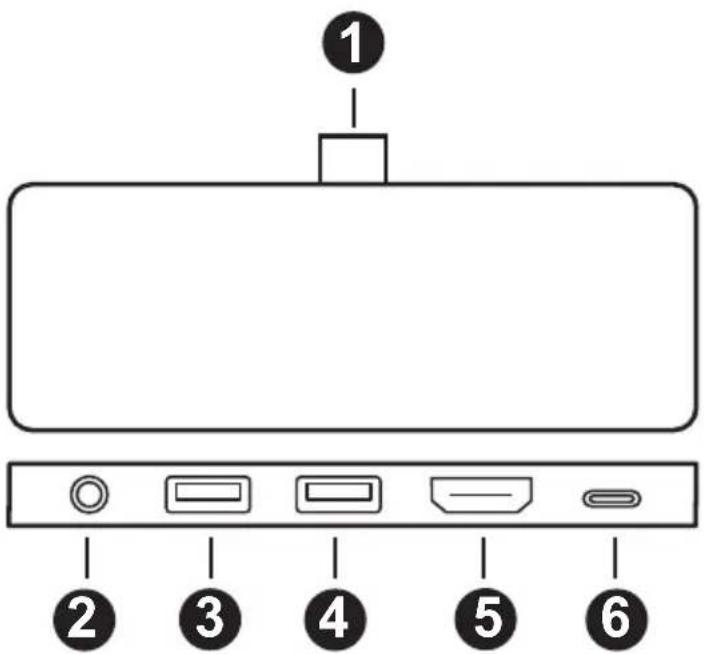
| No. | Component | Description |
| 1 | USB-C host connector | Connects to the host's USB-C port. |
| 2 | audio jack with microphone | Connects to a headphone set. |
| 3 | USB 3.2 Gen 1 Type-A port with 1.5A | Connects to a USB peripheral device. The total output of 2 USB 3.2 Gen 1 Type-A ports is at max. 5V, 9W.Note:It is recommended to connect a USB-C PD power adapter to the unit for additional power supply if this port is used for phone charging or heavy loading on the USB peripheral devices (total over 1A).We do not recommend to connect this port to Bluetooth mouse or keyboard as it may cause interference to the USB transmission. |
| 4 | USB 3.2 Gen 1 Type-A port | Connects to a USB peripheral device.Note: We do not recommend to connect this port to Bluetooth mouse or keyboard as it may cause interference to the USB transmission. |
| 5 | HDMI output port | Connects to an HDMI monitor for video display. |
| 6 USB-C DC-in port | Connect a USB-C PD power adapter or a USB-C peripheral device to the unit's USB-C DC-in port, respectively for power redundancy or peripheral device operation.Note:This USB-C DC-in port also supports USB 3.2 Gen 1 Type-C data transfer.Please use Limited Power Source (LPS-certified) USB-C PD power adapter.For data transferring, the total output of 2 USB Type-A ports and 1 USB-C port is at 5v, 7.5W max. | |
Note: Please use the original power adapter from the iPad Pro package. For laptop charging, a pure USB-C PD (LPS-certified) of at least 65 W power adapter is recommended.
Chapter 2
Hardware Setup / Configuration

Please review the safety information regarding the placement of this device in Safety Instructions, page 11.
Connecting the Unit
Follow the steps below to connect the UH3238 unit.

flowchart
graph TD
    A["1"] --> B["USB-C"]
    B --> C["2"]
    C --> D["Audio"]
    C --> E["USB"]
    C --> F["HDMI"]
    C --> G["USB-C or"]
    style A fill:#f9f,stroke:#333
    style B fill:#ccf,stroke:#333
    style C fill:#cfc,stroke:#333
    style D fill:#fcc,stroke:#333
    style E fill:#cff,stroke:#333
    style F fill:#ffc,stroke:#333
    style G fill:#fcc,stroke:#333
    note right of A: 5V9V15V20V
    note right of C: Check USB-C charge rate of your laptop*
    note right of C: The total charging time may vary depending on the devices connected to the UH3238.
    note right of G: *USB-C PD power adapter is not included in the package.
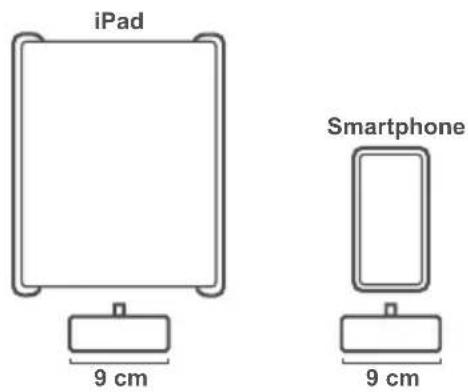
- Connect a USB-C enabled host device to the unit's USB-C host connector. When connecting your USB-C host device to the UH3238, please reserve a space of at least 9 cm around the host's USB-C port for the UH3238 travel dock to connect firmly.
- Connect an audio device such as earphones or earphones with microphone to the unit's 3.5mm stereo 4-pole audio jack with microphone.
- Connect USB peripheral devices to the unit's USB 3.2 Gen 1 Type-A port with 1.5A and USB 3.2 Gen 1 Type-A port.
Note:
- The total output of 2 USB Type-A ports is at 5V, 9 W max.
-
It is recommended to connect a USB-C PD power adapter to the unit for additional power supply if this port is used for phone charging or heavy loading on the USB peripheral devices (total over 1A).
-
For video display, connect an HDMI monitor to the units' HDMI output port.
Note: The recommended lengths of the cables used to connect to the displays shall not exceed 5 m.
- Connect a USB-C PD power adapter or a USB-C peripheral device to the unit's USB-C DC-in port, respectively for power redundancy or peripheral device operation.
Note: Please connect the USB-C PD power adapter to the USB-C DC-in port before using the dock. Plugging or unplugging of the USB-C DC-in port may cause a momentary disconnection on USB devices connected to the dock.
Maximum HDMI Resolution
The maximum HDMI resolution varies depending on the supported DP Alt mode specification from connected USB-C host device.
| Host Device Maximum HDMI Resolution | |
| DP 1.2 Alt mode supported up to 4K | @ 30Hz |
| DP 1.4 Alt mode supported up to 4K | @ 60Hz |
Maximum USB Type-A Ports Power Pass-Through
The UH3238 supports power pass-through from the USB 3.2 Gen 1 Type-A ports to the connected USB peripheral devices. Please see the table below for each port's power pass-through information.
| USB 3.2 Gen 1 Type-APorts with 1.5A | USB 3.2 Gen 1 Type-APorts | |
| When the USB Type-A port is used alone | Max. 5V, 7.5 W Max. | 5V, 4.5 W |
| When the USB Type-A ports are used together | Max 5V, 9 W | |
This Page Intentionally Left Blank
Safety Instructions
General
- This product is for indoor use only.
- Read all of these instructions. Save them for future reference.
◆ Follow all warnings and instructions marked on the device. - Do not place the device on any unstable surface (cart, stand, table, etc.). If the device falls, serious damage will result.
- Do not use the device near water.
- Do not place the device near, or over, radiators or heat registers.
- The device cabinet is provided with slots and openings to allow for adequate ventilation. To ensure reliable operation, and to protect against overheating, these openings must never be blocked or covered.
- The device should never be placed on a soft surface (bed, sofa, rug, etc.) as this will block its ventilation openings. Likewise, the device should not be placed in a built-in enclosure unless adequate ventilation has been provided.
- Never spill liquid of any kind on the device.
- Unplug the device from the wall outlet before cleaning. Do not use liquid or aerosol cleaners. Use a damp cloth for cleaning.
- The device should be operated from the type of power source indicated on the marking label. If you are not sure of the type of power available, consult your dealer or local power company.
- To prevent damage to your installation it is important that all devices are properly grounded.
- Do not allow anything to rest on the power cord or cables. Route the power cord and cables so that they cannot be stepped on or tripped over.
- Position system cables and power cables carefully; Be sure that nothing rests on any cables.
- Never push objects of any kind into or through cabinet slots. They may touch dangerous voltage points or short out parts resulting in a risk of fire or electrical shock.
- Do not attempt to service the device yourself. Refer all servicing to qualified service personnel.
- If the following conditions occur, unplug the device from the wall outlet and bring it to qualified service personnel for repair.
- The power cord or plug has become damaged or frayed.
♦ Liquid has been spilled into the device. - The device has been exposed to rain or water.
- The device has been dropped, or the cabinet has been damaged.
- The device exhibits a distinct change in performance, indicating a need for service.
- The device does not operate normally when the operating instructions are followed.
- Only adjust those controls that are covered in the operating instructions. Improper adjustment of other controls may result in damage that will require extensive work by a qualified technician to repair.
Cables
- Cables and connectors that connect cables are designed and manufactured for the purpose of combining electrical and electrical signals. Therefore, we do not design or manufacture on the premise that external force is applied.
- Do not energize the cable and connector with force applied. Do not apply excessive external force as it may cause damage and cause a malfunction or accident.
- Do not use the cable or connector as a structure such as the housing of KVM or other equipment to be connected (KVM body is not fixed, and the connector is used to prevent movement or replace the fixing bracket) or as a part of it. Please give me.
- When wiring, make sure that you have enough room to bend it so that it can be handled. Extreme bending or pulling the cable in two directions can damage the connector.
- Do not install cables or connected connectors in a corrosive substance, corrosive gas (ammonia, sulfur, etc.), hot and humid environment, or in direct sunlight. It may cause malfunctions such as performance deterioration due to damage or corrosion.
Technical Support
International
- For online technical support – including troubleshooting, documentation, and software updates: http://support.aten.com
◆ For telephone support, see Telephone Support, page iv:
North America
| Email Support support@aten-usa.com | ||
| Online Technical Support | Troubleshooting Documentation Software Updates | http://www.aten-usa.com/support |
| Telephone Support 1-888-999-ATEN ext 4988 | 1-949-428-1111 | |
When you contact us, please have the following information ready beforehand:
◆ Product model number, serial number, and date of purchase
- Your computer configuration, including operating system, revision level, expansion cards, and software
◆ Any error messages displayed at the time the error occurred
◆ The sequence of operations that led up to the error
◆ Any other information you feel may be of help
Troubleshooting
Power Supply Consideration
The UH3238 USB-C Travel Dock requires a total of 8 W power consumption from a dedicated power adapter, and then provides balanced power supply to the connected USB-C host device with the rest of the power supply.
When the total of power consumption of the UH3238 exceeds 8 W, a self-protection mechanism is activated, and some of the connected devices (excludes USB-C host device) may not be found.
| Component Power Consumption | |
| USB-C host device 7 W | ~ 45 W depending on your USB-C host device's power specification.Note: We recommend to use a USB-C PD (LPS-certified) power adapter of at least 65 W. |
| USB Type-A peripheral device | The power consumption varies depending on your USB Type-A peripheral device's power specification.Note: We recommend to use a USB-C PD (LPS-certified) power adapter of at least 65 W. |
iPadOS Limitation
For iPad USB-C enable tablets power delivery, make sure to upgrade its iPadOS version to iPadOS 13.2 or later to meet the power delivery standards for iPads.
Identifying Computer's System Processor Version
To identify the system processor version from your Windows-based USB-C computer, follow the steps below:
- From your Windows-based USB-C computer, go to Control Panel > System.
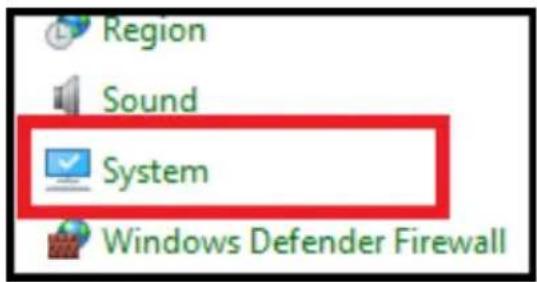
- This page appears. You should find the processor information there.
| System | |
| Manufacturer: | Acer |
| Model: | Veriton M2640G |
| Processor: | Intel(R) Core(TM) i5-7500 CPU @ 3.40GHz 3.41 GHz |
| Installed memory (RAM): | 16.0 GB |
| System type: | 64-bit Operating System, x64-based processor |
| Pen and Touch: | No Pen or Touch Input is available for this Display |
Identifying Computer's System Architecture Version
To identify the system architecture version from your Windows-based USB-C computer, follow the steps below:
- From your Windows-based USB-C computer, go to Control Panel > Device Manager.

- This page appears and click Display adapters to show the architecture version.

Specifications
| Function UH3238 | |
| Computer Connections 1 | |
| Connectors | |
| Computer 1 x USB 3.2 Gen | 1 Type-C Male |
| Device 2 x USB 3.2 Gen 1 | Type-A Female (Blue)1 x USB 3.2 Gen 1 Type-C Female (Black)Note:1. 1 x USB 3.2 Gen 1 Type-A supports BC 1.2 (5V, 7.5 W).2. 1 x USB 3.2 Gen 1 Type-A supports 5V, 4.5 W.3. The total output of 2 x USB Type-A ports is at max. 5V, 9W.4. 1 x USB 3.2 Gen 1 Type-C supports 5V, 7.5 W.5. The total output of 3 x USB (2A+1C) ports is at max 5V, 7.5 W. |
| Video Output 1 x HDMI Female (Black) | |
| Audio 1 x 3.5 mm Stereo 4-Pole Microphone and Headphone Jack | |
| Power 1 x USB Type-C Female(supports USB 3.2 Gen1 Type-CPort data transfer)Supports Power Delivery 3.0 for laptop charging up to 92 W**Supported power profiles include: 5V, 9V, 15V, 20V(additional USB-C power adapter needed). | |
| Video Resolution HDMI - 3840*2160@60HzNote:To get max bandwidth, upstream should support standard DP 1.4 Alt mode with DSC3:1 and HBR3. When connecting to a DC 1.2 Alt mode supported upstream, the maximum HDMI resolution is at 4K @ 30Hz due to bandwidth limitation. | |
| Power Consumption DC 5V, 8 W | |
| System Requirements 1. | Windows USB-C enabled computer:◆ Windows® 10 (32-bit / 64-bit) or above◆ With Intel 7th-Generation Core Processor (Kaby - Lake with HD 6xx series integrated graphics) or above◆ For video output to work through a USB-C port, it must support DP Alt Mode2. Mac USB-C enabled computer:◆ MacBook 2015 or above◆ MacBook pro 2016 or above◆ Mac OS X 10.12 or later3. USB-C enabled iPadOS Tablet:◆ iPadOS 13.1 or later◆ iPad Pro 3rd generation (USB-C) or above4. Android USB-C enabled Smartphone:◆ Android 8.0 or later◆ For video output to work through a USB-C port, it must support DP Alt Mode |
| Environmental | |
| Operating Temperature 0 - 40 °C | |
| Storage Temperature -20 - 60 °C | |
| Humidity 0 - 80% RH, Non-Condensing | |
| Physical Porperties | |
| Housing Aluminum | |
| Weight 0.044 kg (0.097 lb) | |
| Dimensions (L x W x H) 9.00 x 3.20 x 0.82 cm(3.54 x 1.26 x 0.32 in.) | |
Limited Warranty
ATEN warrants its hardware in the country of purchase against flaws in materials and workmanship for a Warranty Period of two [2] years (warranty period may vary in certain regions/countries) commencing on the date of original purchase. This warranty period includes the LCD panel of ATEN LCD KVM switches. Select products are warranted for an additional year (see A+ Warranty for further details). Cables and accessories are not covered by the Standard Warranty.
What is covered by the Limited Hardware Warranty
ATEN will provide a repair service, without charge, during the Warranty Period. If a product is detective, ATEN will, at its discretion, have the option to (1) repair said product with new or repaired components, or (2) replace the entire product with an identical product or with a similar product which fulfills the same function as the defective product. Replaced products assume the warranty of the original product for the remaining period or a period of 90 days, whichever is longer. When the products or components are replaced, the replacing articles shall become customer property and the replaced articles shall become the property of ATEN.
To learn more about our warranty policies, please visit our website: http://www.aten.com/global/en/legal/policies/warranty-policy/
© Copyright 2022 ATEN® International Co., Ltd.
Released: 2022-05-31
ATEN and the ATEN logo are registered trademarks of ATEN International Co., Ltd. All rights reserved. All other brand names and trademarks are the registered property of their respective owners.
- Compliance Statements
- FEDERAL COMMUNICATIONS COMMISSION INTERFERENCE STATEMENT
- KCC Statement
- RoHS
- User Information
- Online Registration
- Telephone Support
- User Notice
- Product Information
- Table of Contents
- Introduction
- Hardware Setup / Configuration
- Appendix
- About this Manual
- Note:
- Conventions
- Overview
- Features
- Getting Started Tasks
- Recommended Procedure
- Supported Host Devices and Requirements
- Kaby Lake Graphics
- Components
- Chapter 2
- Hardware Setup / Configuration
- Connecting the Unit
- Maximum HDMI Resolution
- Maximum USB Type-A Ports Power Pass-Through
- Safety Instructions
- General
- Cables
- Technical Support
- International
- Troubleshooting
- Power Supply Consideration
- iPadOS Limitation
- Identifying Computer's System Processor Version
- Identifying Computer's System Architecture Version
- Specifications
- Limited Warranty
- What is covered by the Limited Hardware Warranty
Brand : ATEN
Model : UH3238
Category : Docking Station