
DP1310 - Charging stand BENQ - Free user manual and instructions
Find the device manual for free DP1310 BENQ in PDF.


| Product Type | USB-C Hybrid Docking Station |
| Model | DP1310 |
| Dimensions (W x D x H) | 156 x 103 x 40 mm |
| Weight | 550 g |
| Power Adapter Input | 110-240 V AC, 47-63 Hz |
| Power Adapter Output | 20 V DC, 9 A (180 W) |
| Host Connection | USB-C 3.2 Gen2 (10 Gbps, PD 100W charging) |
| Video Outputs | HDMI 2.1 (OUT 1), HDMI 2.0 (OUT 2), DisplayPort 1.2 (OUT 3) |
| Video Input | HDMI 2.1 (IN) |
| Max Single Display Resolution | 8K @ 60 Hz (via HDMI 2.1 OUT 1) |
| Max Triple Display Resolution | 4K @ 60 Hz each |
| USB Ports (Front) | 1x USB-C 3.2 Gen2 (10 Gbps, PD 36W), 2x USB-A 3.2 Gen2 (10 Gbps, BC1.2 7.5W) |
| USB Ports (Rear) | 1x USB-A 3.2 Gen2 (10 Gbps, BC1.2 7.5W), 2x USB-A 2.0 (480 Mbps) |
| Ethernet | Gigabit RJ-45 (10/100/1000 Mbps) |
| Audio | 3.5 mm combo audio jack (IN/OUT, OMTP & CTIA compatible) |
| LED Indicator | White (standby), Blue (USB-C connected), Green (HDMI 2.1 IN connected) |
| Operating System Support | Windows 10+, macOS 11.5+, Linux Ubuntu 14.04+, Android 5.0+, ChromeOS R55+ |
| Operating Temperature | 0°C to 40°C (32°F to 104°F) |
| Storage Temperature | -20°C to 60°C (-4°F to 140°F) |
| Included Accessories | DP1310 dock, USB-C cable (1m), HDMI 2.1 cable, 180W power adapter & power cord, quick start guide |
| Maintenance | Clean with a soft, dry cloth; avoid liquids and abrasives |
| Safety Precautions | Use only the provided power adapter; do not expose to moisture or high temperatures; unplug before cleaning |
| Spare Parts & Repairability | No user-serviceable parts; contact BenQ support for assistance |
Frequently Asked Questions - DP1310 BENQ
User questions about DP1310 BENQ
0 question about this device. Answer the ones you know or ask your own.
Ask a new question about this device
Download the instructions for your Charging stand in PDF format for free! Find your manual DP1310 - BENQ and take your electronic device back in hand. On this page are published all the documents necessary for the use of your device. DP1310 by BENQ.
USER MANUAL DP1310 BENQ
Copyright and disclaimer
Copyright
Copyright 2023 BenQ Corporation. All rights reserved. No part of this publication may be reproduced, transmitted, transcribed, stored in a retrieval system or translated into any language or computer language, in any form or by any means, electronic, mechanical, magnetic, optical, chemical, manual or otherwise, without the prior written permission of BenQ Corporation.
Disclaimer
BenQ Corporation makes no representations or warranties, either expressed or implied, with respect to the contents of this document. BenQ Corporation reserves the right to revise this publication and to make changes from time to time in the contents thereof without obligation to notify any person of such revision or changes.
This document aims to provide the most updated and accurate information to customers, and thus all contents may be modified from time to time without prior notice. Please visit the website for the latest version of this document.
HDMI trademark disclaimer
The terms HDMI and HDMI High-Definition Multimedia Interface, and the HDMI Logo are trademarks or registered trademarks of HDMI Licensing Administrator, Inc. in the United States and other countries.
HDMI®
HIGH-DEFINITION MULTIMEDIA INTERFACE
Product support
This document aims to provide the most updated and accurate information to customers, and thus all contents may be modified from time to time without prior notice. Please visit the website for the latest version of this document and other product information. Available files vary by model.
- Make sure your computer is connected to the Internet.
- Visit the local website from Support.BenQ.com. The website layout and content may vary by region/country.
Search for your model's user manual and related document.
Servicing
- If misuse or other accident occurs, contact qualified service personnel for servicing.
- Contact your place of purchase or visit the local website from Support.BenQ.com for more support.
Table of contents
Copyright and disclaimer ....i
Product support......ii
Overview ....1
Package contents....1
Compatibility....1
Port overview....2
Setting up your docking station 3
-
Installing DisplayLink® driver....3
-
Connecting displays....3
Supported max resolution ....4
-
Connecting dual inputs....4
-
Powering on/off....5
LED indicator 5
- Switching input source....5
Other ports....6
USB-C 3.2....6
USB-A 3.2....6
USB-A 2.0....6
Ethernet....7
Audio in & out....7
Product information......8
Specifications 8
Troubleshooting 10
Charging & power issue....10
Internet issue....10
Cable issue....11
DisplayLink issue....11
Audio issue....11
Video issue....12
Overview
Package contents

DP1310 USB-C Hybrid Dock (with rubber feet)


BenQ HDMI 2.1 cable BenQ USB-C cable


Power adapter Power cord


Quick start guide Marketing card Safety statements Warranty card
Compatibility
Operating system requirements:
- Windows: 10+
- macOS: 11.5+
• Linux: Ubuntu 14.04+ - Android: 5.0+
- ChromeOS: R55 Build+
Port overview
Front view
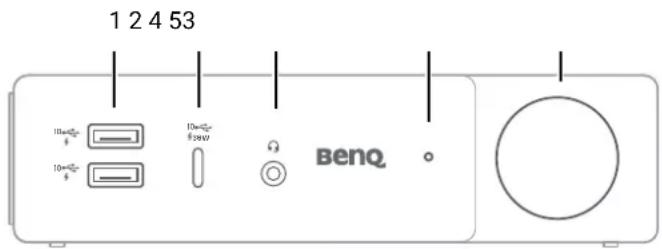
- USB-A 3.2 Gen2
10Gbps with BC1.2 7.5W charging
- USB-C 3.2 Gen2
10Gbps with PD 36W charging
-
3.5 mm audio jack (IN & OUT)
-
Status indicator
See LED indicator on page 5 for details.
- Power & source switch button
See Powering on/off on page 5 and Switching input source on page 5 for details.
Rear view

flowchart
graph LR
    A["LAN"] --> B["DP OUT 3"]
    B --> C["HDMI 2.1 IN"]
    C --> D["USB-C IN"]
    D --> E["DC IN"]
    style A fill:#f9f,stroke:#333
    style B fill:#bbf,stroke:#333
    style C fill:#bfb,stroke:#333
    style D fill:#ffb,stroke:#333
    style E fill:#cfc,stroke:#333
- USB-A 2.0
480Mbps (for keyboard & mouse)
- USB-C 3.2 Gen2 (IN)
10Gbps with PD 100W charging
-
Gigabit Ethernet 11. HDMI 2.0 (OUT 2)
-
DisplayPort 1.2 (OUT 3) 12. HDMI 2.1 (OUT 1)
-
HDMI 2.1 (IN) 13. DC-IN
Setting up your docking station
Follow the steps below to finish the initial set up or learn how to set up the dock through video guide.
1. Installing DisplayLink® driver
Go to benqurl.biz/dock-driver to download the latest DisplayLink driver. Follow the website guide to complete your installation.
Note
You must download the driver in order to display up to three displays.
2. Connecting displays
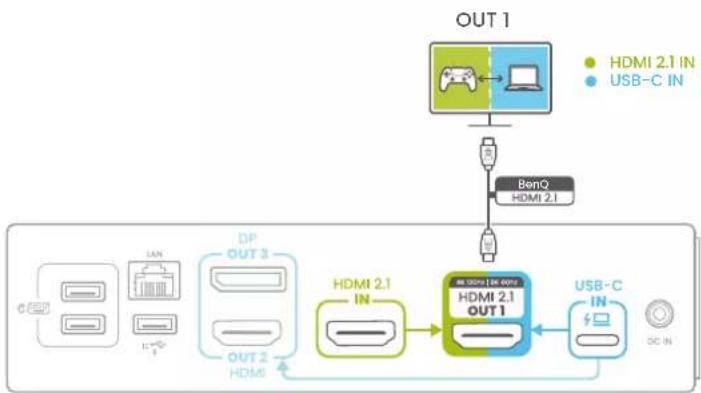
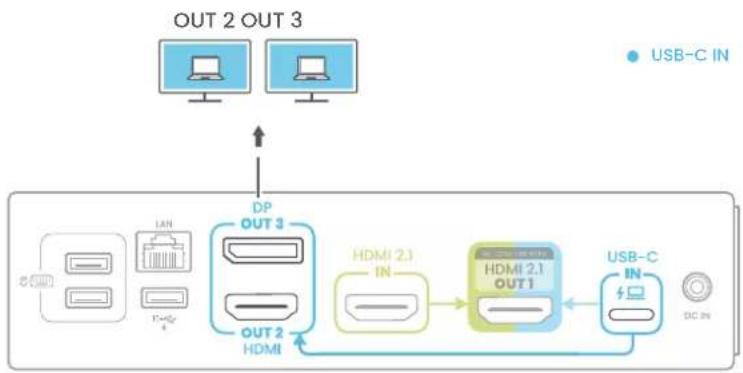
You can add up to three external displays to this docking station, which features two HDMI out ports and one DP out port. Among the three out ports, only HDMI 2.1 (OUT 1) port can receive two input sources and toggle between sources with one button click.

flowchart
graph LR
    A["LAN"] --> B["DP OUT 3"]
    B --> C["OUT 2 HDMI"]
    C --> D["HDMI 2.1 IN"]
    D --> E["OUT 1 HDMI 2.1 OUT 1"]
    E --> F["USB-C IN"]
    F --> G["DC IN"]
    style A fill:#f9f,stroke:#333
    style B fill:#ccf,stroke:#333
    style C fill:#cfc,stroke:#333
    style D fill:#fcc,stroke:#333
    style E fill:#cff,stroke:#333
    style F fill:#ffc,stroke:#333
    style G fill:#cfc,stroke:#333
Step 1 Connect your primary display to the HDMI 2.1 (OUT 1) port with the provided BenQ HDMI cable.
flowchart
graph TD
    A["Out 1"] --> B["Device"]
    B --> C["USB-C IN"]
    C --> D["Output"]
    D --> E["USB-C IN"]
    E --> F["Output"]
    subgraph Out 1
        G["HDMI 2.1 IN"] --> H["Device"]
        I["USB-C IN"] --> J["Device"]
    end
    subgraph Out 2
        K["HDMI 2.1 IN"] --> L["Device"]
        M["USB-C IN"] --> N["Device"]
    end
    G --> O["USB-C IN"]
    I --> P["USB-C IN"]
    J --> Q["USB-C IN"]
    style G fill:#90EE90,stroke:#333
    style I fill:#90EE90,stroke:#333
    style J fill:#90EE90,stroke:#333
    style K fill:#90EE90,stroke:#333
    style L fill:#90EE90,stroke:#333
    style M fill:#90EE90,stroke:#333
    style N fill:#90EE90,stroke:#333
Step 2 Connect your secondary displays to the HDMI (OUT 2) and DP (OUT 3) ports.
flowchart
graph TD
    A["Computer 1"] -->|OUT 2 OUT 3| B["Server"]
    C["Computer 2"] -->|OUT 2 OUT 3| B
    B --> D["DP OUT 3"]
    B --> E["HDMI"]
    D --> F["LAN"]
    D --> G["F-4"]
    E --> H["HDMI 2.1 IN"]
    E --> I["HDMI 2.1 OUT 1"]
    I --> J["USB-C IN"]
    J --> K["DC IN"]
    L["USB-C IN"] --> I
Supported max resolution
| Output | HDMI 2.1(OUT 1) | HDMI 2.0(OUT 2) | DP 1.2(OUT 3) |
| Input HDMI 2.1 | USB-C USB-C USB-C | ||
| Single display | 8K 60Hz 4K 60Hz -- | ||
| -- 4K 60Hz - | |||
| --- 4K 60Hz | |||
| Dual displays | 8K 60Hz 4K 60Hz 4K 60Hz - | ||
| 8K 60Hz 4K 60Hz - 4K 60Hz | |||
| -- 4K 60Hz 4K 60Hz | |||
| Triple displays | 8K 60Hz 4K 60Hz 4K 60Hz 4K 60Hz | ||
3. Connecting dual inputs

flowchart
graph TD
    A["User"] --> B["Device 1"]
    B --> C["LAN"]
    C --> D["DP OUT 2 HDM"]
    D --> E["Output"]
    F["User"] --> G["Device 2"]
    G --> H["USB-C IN"]
    H --> I["Device 3"]
    I --> J["USB-C IN"]
    J --> K["Device 4"]
    K --> L["Device 5"]
    L --> M["Device 6"]
    M --> N["Device 7"]
    N --> O["Device 8"]
    O --> P["Device 9"]
    P --> Q["Device 10"]
    Q --> R["Device 11"]
    R --> S["Device 12"]
    S --> T["Device 13"]
    T --> U["Device 14"]
    U --> V["Device 15"]
    V --> W["Device 16"]
    W --> X["Device 17"]
    X --> Y["Device 18"]
    Y --> Z["Device 19"]
    Z --> AA["Device 20"]
    AA --> AB["Device 21"]
    AB --> AC["Device 22"]
    AC --> AD["Device 23"]
    AD --> AE["Device 24"]
    AE --> AF["Device 25"]
    AF --> AG["Device 26"]
    AG --> AH["Device 27"]
    AH --> AI["Device 28"]
    AI --> AJ["Device 29"]
    AJ --> AK["Device 30"]
    AK --> AL["Device 31"]
    AL --> AM["Device 32"]
    AM --> AN["Device 33"]
    AN --> AO["Device 34"]
    AO --> AP["Device 35"]
    AP --> AQ["Device 36"]
    AQ --> AR["Device 37"]
    AR --> AS["Device 38"]
    AS --> AT["Device 39"]
    AT --> AU["Device 40"]
    AU --> AV["Device 41"]
    AV --> AW["Device 42"]
    AW --> AX["Device 43"]
    AX --> AY["Device 44"]
    AY --> AZ["Device 45"]
    AZ --> BA["Device 46"]
    BA --> BB["Device 47"]
    BB --> BC["Device 48"]
    BC --> BD["Device 49"]
    BD --> BE["Device 50"]
    BE --> BF["Device 51"]
    BF --> BG["Device 52"]
    BG --> BH["Device 53"]
    BH --> BI["Device 54"]
    BI --> BJ["Device 55"]
    BJ --> BK["Device 56"]
    BK --> BL["Device 57"]
    BL --> BM["Device 58"]
    BM --> BN["Device 59"]
    BN --> BO["Device 60"]
    BO --> BP["Device 61"]
    BP --> BQ["Device 62"]
    BQ --> BR["Device 63"]
    BR --> BS["Device 64"]
    BS --> BT["Device 65"]
    BT --> BU["Device 66"]
    BU --> BV["Device 67"]
    BV --> BW["Device 68"]
    BW --> BX["Device 69"]
    BX --> BY["Device 70"]
    BY --> BZ["DC IN"]
Step 1 Connect your gaming console or PC to the HDMI 2.1 IN port with a HDMI cable.
Step 2 Connect your laptop to the USB-C IN port with the provided BenQ USB-C cable. The USB-C port provides charging up to 100W for your laptop.
4. Powering on/off
Step 1 Plug one end of the provided adapter into the DC-IN port and the other into a power outlet.

flowchart
graph LR
    A["USB 4.11"] --> B["OUT 2 HDMI"]
    B --> C["USB 31 In"]
    C --> D["USB 21 In"]
    D --> E["USB-C In"]
    E --> F["DC In"]
    G["LAN"] --> H["Out 3"]
    H --> I["HDMI"]
    I --> J["USB 31 In"]
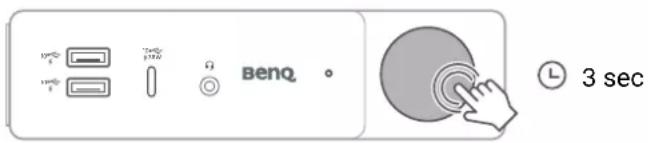
Step 2 Press the power button at the front for three seconds to power on.
LED indicator
| LED behavior Status description | |
| Off Powered off | |
| Flashing white Powering on/off | |
| Solid white Standby | |
| Flashing blue Searching for USB-C IN source (e.g. laptop) | |
| Solid blue Connected to USB-C IN source (e.g. laptop) | |
| Flashing green Searching for HDMI 2.1 IN source (e.g. gaming console/PC) | |
| Solid green Connected to HDMI 2.1 IN source (e.g. gaming console/PC) | |
5. Switching input source
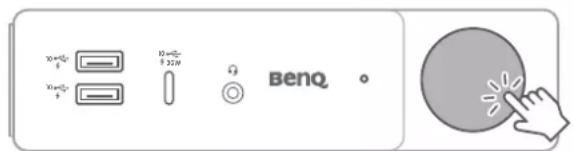
Press the round button to switch the input source of your main display (OUT1). Once the source is switched to USB-C, the LED turns blue. When switching to HDMI 2.1, the LED turns green.
Other ports
USB-C 3.2
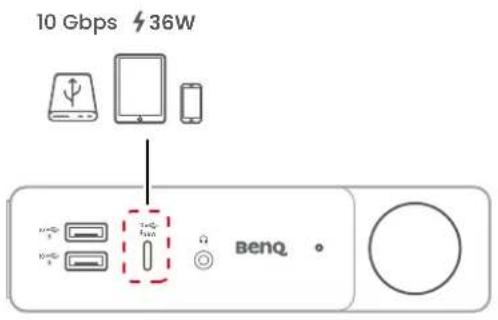
Connect any USB-C compatible devices to the USB-C 3.2 port. The port provides 36W charging and data transfer speeds of 10 Gbps.
USB-A 3.2
The product features a total of three USB-A 3.2 ports, supporting 7.5W charging and data transfer speeds of 10 Gbps.

USB-A 2.0
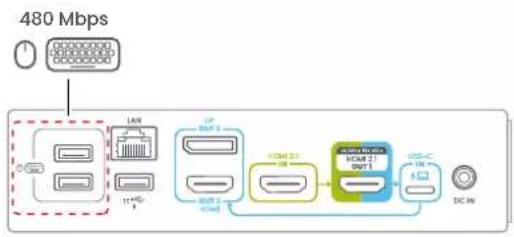
Connect your keyboard & mouse to the USB-A 2.0 port. The port supports data transfer speeds of 480 Mbps.
flowchart
graph LR
    A["480 Mbps"] --> B["LAN"]
    B --> C["USB 1"]
    B --> D["USB 2"]
    B --> E["USB-C"]
    C --> F["USB 3"]
    D --> G["USB 4"]
    E --> H["USB-C"]
    F --> I["DC IN"]
Ethernet
Connect a router to the LAN port, which supports speeds of 10/100/1000 Mbps.

flowchart
graph LR
    A["Router"] --> B["LAN"]
    B --> C["USB 1"]
    C --> D["USB 2"]
    D --> E["USB 3"]
    E --> F["USB 4"]
    F --> G["USB 5"]
    G --> H["USB 6"]
    H --> I["USB 7"]
    I --> J["USB 8"]
    J --> K["USB 9"]
    K --> L["USB 10"]
    L --> M["USB 11"]
    M --> N["USB 12"]
    N --> O["USB 13"]
    O --> P["USB 14"]
    P --> Q["USB 15"]
    Q --> R["USB 16"]
    R --> S["USB 17"]
    S --> T["USB 18"]
    T --> U["USB 19"]
    U --> V["USB 20"]
Audio in & out
Connect a headset, microphone or other audio devices to the audio port.

Product information
Specifications
| Model name DP1310 | |
| Dimension & Weight | |
| Dimension (mm) | 156 x 103 x 40 (mm) |
| Weight | 550 g |
| Power | |
| AC input | 110V-240V ~ 47Hz-63Hz |
| DC output | 20V/9A, 180W |
| Connect to Host | |
| USB-C Connector (10Gbps, PD 100W charging) | Rear | 1 |
| HDMI Connector (HDMI 2.1, backward compatible with HDMI 2.0 and earlier ver.) | Rear | 1 |
| Video output | |
| HDMI 2.1 (OUT 1) | Rear | 1 |
| HDMI 2.0 (OUT 2) | Rear | 1 |
| DisplayPort 1.2 (OUT 3) | Rear | 1 |
| Audio | |
| 3.5mm Audio Jack (IN/OUT) compatible with OMTP & CTIA | Front | 1 |
| Networking | |
| Gigabit Ethernet RJ-45 (10/100/1000M) | Rear | 1 |
| USB to Devices | |
| USB-C Connector (10Gbps, PD36W charging) | Front | 1 |
| USB-A Connector (10Gbps, BC1.2 7.5W charging) | Front | 2 |
| USB-A Connector (10Gbps, BC1.2 7.5W charging) | Rear | 1 |
| USB-A Connector (480Mbps for Keyboard & Mouse) | Rear | 2 |
| Requirement | |
| System Windows: 10+ | macOS: 11.5+Linux: Ubuntu 14.04+Android: 5.0+ChromeOS: R55 Build+ |
| Operation Temperature | 0°C to 40°C (32°F to 104°F) |
| Storage Temperature | -20°C to 60°C (-4°F to 140°F) |
Model name DP1310
In the Box
| beCreatus DP1310 USB-C Hybrid Dock | 1 |
| USB-C Cable | 1 (1m, 3.28 ft.) |
| HDMI 2.1 Cable | 1 |
| 180W Power Adapter & Power Cable | 1 |
Notes
Specifications and functions are subject to change without notice
Troubleshooting
If your problems remain after checking this manual, please visit the local website from Support. BenQ.com for more support and local customer service.
Charging & power issue
| Problem Solution | |
| DP1310 can't be turned on. | If the product cannot be turned on, try the following:Use the attached power adapter & power cordDP1310 is equipped with 180W power adapter. In order to optimize the performance of the product, use the power adapter and power cord in the box and plug the power cord to a power outlet.Power on the productLong press the round power button at the front of the product for three seconds to power on. |
| Why isn't DP1310 charging my laptop? Why is it charging so slowly? | If your docking station is not charging your laptop or is charging in slow speed, try the following:Use the provided power adapter & power cordDP1310 is equipped with 180W power adapter. Adapters of other brands may not support charging DP1310 at its maximum capacity. In order to optimize the performance of the product, use the power adapter and power cord in the box and plug the power cord to a power outlet.Power on the productTo use DP1310 to charge your laptop, long press the round power button at the front of DP1310 for three seconds to power on. The LED at the front of the product will light up.Check the spec of the USB-C port on your laptopNot every laptop supports charging through USB-C port. Check if your connected laptop supports Power Delivery via USB-C port and verify which USB-C port (if more than one) supports Power Delivery. |
Internet issue
| Problem Solution | |
| What should I do if the dock's Ethernet port is not working? | If your laptop cannot be connected to the Internet through the Ethernet port of BenQ DP1310, try the following:Update your DisplayLink DriverGo tohttps://benqurl.biz/dock-driverto download the latest DisplayLink Driver for your docking station.Checking the Ethernet port and the connected LAN cableEnsure that the LAN cable is connected firmly to the Ethernet port. The two LEDs from the port should light up solid green and blinking yellow. If not, try with a different LAN cable to see if the issue persists. |
Cable issue
Problem Solution
Is there any difference between the provided HDMI & USB-C cable and the ordinary ones? Why should I use them?
- HDMI cable
The provided BenQ HDMI cable is certified by the HDMI Licensing Administrator, Inc. to comply with HDMI 2.1, supporting up to 48 Gbps transmission speed. To enjoy the best display performance, make sure to use the provided HDMI 2.1 cable if your input source such as PS5, Xbox Series X/S supports HDMI 2.1. - USB-C cable
The provided BenQ USB-C cable is the USB 3.2 series cable that supports up to 20 Gbps transfer speed, 100W power delivery and 4K 60Hz display performance. Make sure to use the provided cable for the best product experience.
DisplayLink issue
Problem Solution
How can I download/update/delete DisplayLink Driver for the dock?
See below to learn how to download, update or delete DisplayLink Driver:
- Download DisplayLink Driver
Go to the following URL to download the driver: https://benqurl.biz/dock-driver. - Update DisplayLink Driver
DisplayLink Driver supports auto update through Microsoft Store for Windows 11 or later. If your auto update fails, check whether it's blocked by your firewall. Auto update is not available for Windows 10 and earlier version or macOS. - Delete DisplayLink Driver
Learn how to delete the driver.
Audio issue
Problem Solution
3.5 mm audio port is not working.
The audio port of DP1310 only receives audio from the USB-C IN port, which is normally connected to your laptop. If no sound is heard from your 3.5 mm audio device (e.g. headphone or headset) connected to the product's audio port, try the following:
• Audio for USB-C IN port
Ensure that the audio output source on your laptop is set to BenQ DP1310 Audio.
A. Windows: Click the sound icon in the toolbar and choose BenQ DP1310 Audio in the drop-down menu.
B. macOS: Click the Control Center icon in the menu bar and select Sound. Choose BenQ DP1310 Audio as the audio output.
• Audio for HDMI 2.1 IN port
To play audio of a gaming console or PC connected to the HDMI 2.1 IN source, use the display's built-in speakers or connect your audio device to the display.
Video issue
Problem Solution
| Why is my display showing black screen when connecting through DP1310? | If you experience one or more black screen when connecting your laptop with DP1310, try the following:• ConnectionMake sure you've connected the product and your devices correctly, see Connecting displays on page 3 & Connecting dual inputs on page 4.• LaptopEnsure that the USB-C port of your laptop supports DisplayPort Alt Mode (DP Alt Mode) or try to connect using another laptop that supports DP Alt Mode.• DriverMake sure you've download the latest driver from DisplayLink.• CableThe quality of cable is highly related to the display quality. Make sure to use the provided HDMI 2.1 & USB-C cable or try replacing your current HDMI & DP cable to solve the black screen issue. |
| Signals from HDMI IN cannot be displayed on the external display. | If you experience a black screen when connecting your HDMI input source to DP1310, try the following:• ConnectionMake sure you've connected the product and your devices correctly, see Connecting displays on page 3 & Connecting dual inputs on page 4.• Use the provided cableMake sure to use the provided certified HDMI 2.1 cable or try replacing your current HDMI cable to solve the display issue.• Use the source switch button to switch input sourceCheck your currently displaying input source through the color of LED at the front of the product. See Switching input source on page 5. |
- Copyright and disclaimer
- Copyright
- Disclaimer
- HDMI trademark disclaimer
- Product support
- Servicing
- Table of contents
- Copyright and disclaimer ....i
- Product support......ii
- Overview ....1
- Setting up your docking station 3
- Other ports....6
- Product information......8
- Troubleshooting 10
- Overview
- Package contents
- Compatibility
- Port overview
- Setting up your docking station
- Installing DisplayLink® driver
- Connecting displays
- Connecting dual inputs
- Powering on/off
- LED indicator
- Switching input source
- Other ports
- USB-C 3.2
- USB-A 3.2
- USB-A 2.0
- Ethernet
- Audio in & out
- Product information
- Specifications
- Model name DP1310
- Notes
- Troubleshooting
- Cable issue
- Problem Solution
- DisplayLink issue
- Audio issue
- Video issue
Brand : BENQ
Model : DP1310
Category : Charging stand