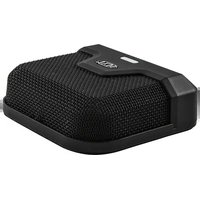
AC-83 - Microphone MXL - Free user manual and instructions
Find the device manual for free AC-83 MXL in PDF.


| Product Type | Large Diaphragm Condenser Microphone |
| Dimensions (with mount) | 50 mm x 180 mm |
| Weight | 0.5 kg |
| Power Requirement | +48V Phantom Power (IEC 61938) |
| Frequency Response | 20 Hz - 20 kHz |
| Polar Pattern | Cardioid |
| Output Impedance | 200 Ω |
| Sensitivity | -40 dBV/Pa (at 1 kHz) |
| Maximum SPL | 130 dB (at 1 kHz, 0.5% THD) |
| Self-Noise | 18 dB (A-weighted) |
| Signal-to-Noise Ratio | 76 dB (A-weighted) |
| Connector | XLR-3M (balanced) |
| Included Accessories | Shock mount, carrying case, foam windscreen |
| Diaphragm Size | 1.0 inch (25.4 mm), gold-sputtered Mylar |
| Housing Material | Brass body with black nickel finish |
| Recommended Applications | Studio vocals, acoustic instruments, voice-over |
| Maintenance | Wipe with a soft dry cloth; avoid moisture and dust |
| Safety Information | Use only with phantom power supply; keep away from magnetic fields |
| Spare Parts & Repairability | Contact MXL authorized service; no user-serviceable parts |
| General Notes | Professional-grade condenser microphone for critical recording |
Frequently Asked Questions - AC-83 MXL
User questions about AC-83 MXL
0 question about this device. Answer the ones you know or ask your own.
Ask a new question about this device
Download the instructions for your Microphone in PDF format for free! Find your manual AC-83 - MXL and take your electronic device back in hand. On this page are published all the documents necessary for the use of your device. AC-83 by MXL.
USER MANUAL AC-83 MXL
natural_image
Close-up of a black audio recording device with a blue indicator light and a logo on the cover (no visible text or symbols on the device itself)Bluetooth LE 5.0 Enable Boundary Microphone
User Manual
Windows PC Pairing Procedure
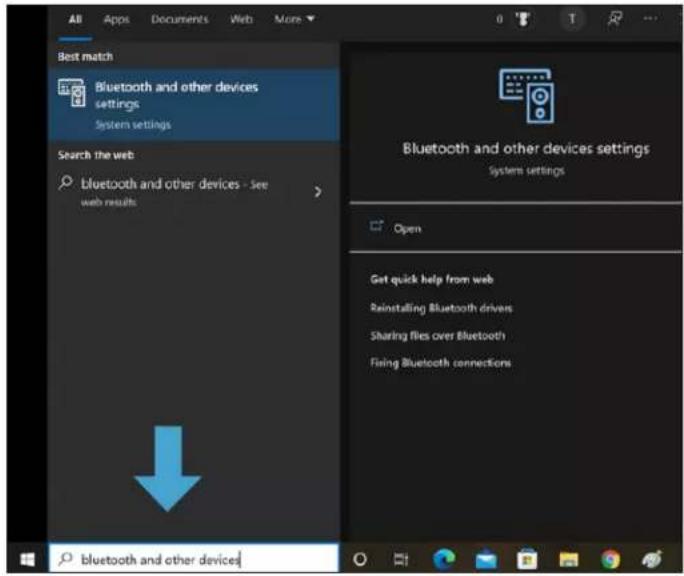
Open the Bluetooth and other devices system settings on your Windows PC. These settings can be found by typing "Bluetooth and other devices" in the search box at the bottom of the screen and pressing Enter.
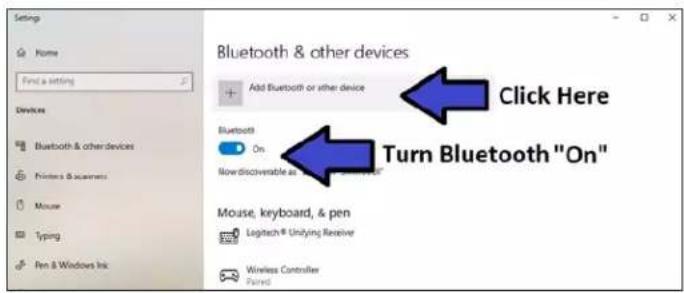
Use the Bluetooth toggle slider to turn Bluetooth ON, then click the Add Bluetooth or other device button. The Bluetooth Add a device window will then appear on screen.
Next you will want to initiate pairing mode on the MXL AC83. Press and hold the Bluetooth Power Button for 6-8 seconds to enable pairing mode.

natural_image
Close-up of a black square electronic device with a logo and a finger pointing to its side (no visible text or symbols on the device body)The blue and yellow LEDs will begin flashing to indicate that the unit is in pairing mode.
Next click on the Bluetooth option in the Add a device window.

Bluetooth devices within range will begin appearing in the window. Select MXL AC83 once it appears on screen.
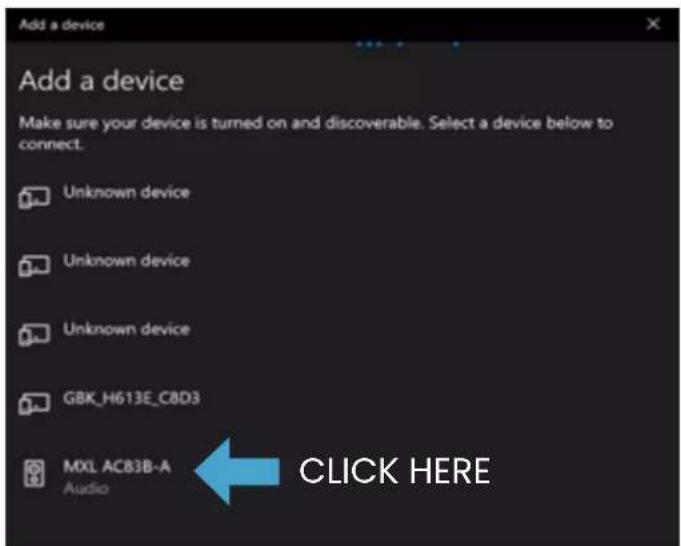
The PC and microphone will now attempt to establish a Bluetooth connection. Once the device has been successfully paired, the flashing on the MXL AC83 will stop and the yellow LED will remain illuminated. A message will pop up on screen indicating that the pairing was successful.

Now that a microphone has been successfully paired with the computer, you will need to select the correct settings in the Sound settings control panel. Type "sound settings" in the search box at the bottom of the screen and press enter to open the Sound settings control panel window.

The Sound settings control panel window will appear showing your currently active sound devices. You will need to select the correct devices for both Input and Output.
For the Input device, select Headset Microphone (MXL AC83 Hands-Free AG Audio).
For the Output device, you can enable the AC83 headphone output by selecting Speakers (MXL AC83 Stereo). You can alternatively select your current speakers or your computer's headphone output.

Your MXL AC83 microphone is now ready to use with your Windows PC.
Important note if you are having problems with the AC83 headphone output:
There are two different Bluetooth profiles that Windows will automatically switch between: Mono output and Stereo output. Mono output is chosen when you are simultaneously using the microphone input. When there is no microphone input present, the higher quality Stereo profile is used instead. Unfortunately, some Windows applications may not switch Bluetooth profiles correctly, requiring you to manually select the appropriate output.
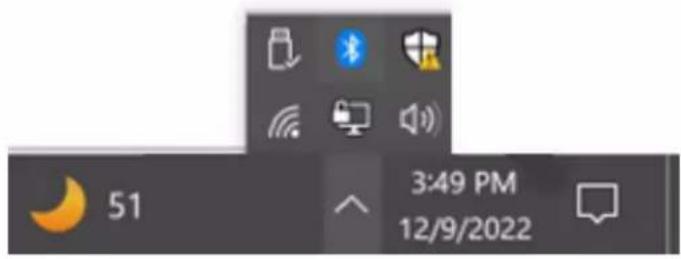
To select the correct audio output, find your desktop icons on the bottom right corner of the screen and left click the audio icon.
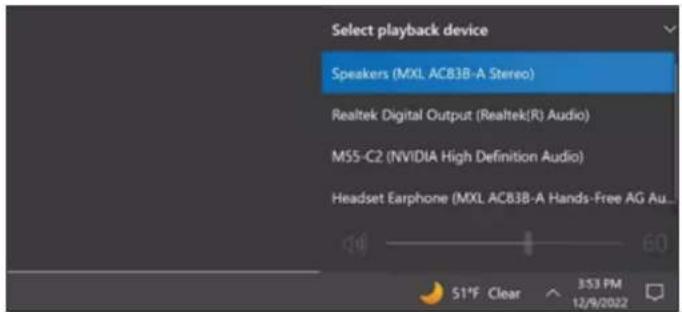
Left click the text showing your current output device.

For high quality stereo output with no microphone input, select Speakers (MXL AC83 Stereo)
For mono output with simultaneous microphone input, select Headset Earphone (MXL AC83-A Hands-Free AG Audio).
Mac Pairing Procedure
Open the Apple menu the at the top-left corner of the screen and select System Preferences.

Select the Bluetooth icon in the System Preferences panel.

Confirm that Bluetooth is set to On. If Bluetooth is Off, click the Turn Bluetooth On button.

Next you will want to initiate pairing mode on the MXL AC83. Press and hold the Bluetooth Power Button for 6-8 seconds to enable pairing mode.

natural_image
Close-up of a black Xiaomi-branded electronic device with a finger pointing to its side (no visible text or symbols)The blue and yellow LEDs will begin flashing to indicate that the unit is in pairing mode.
MXL AC83-A should now appear in the Bluetooth menu. Click the Connect button to initiate a Bluetooth connection.

The computer and microphone will now attempt to establish a Bluetooth connection. Once the device has been successfully paired, the flashing on the MXL AC83 will stop and the yellow LED will remain illuminated.
Now that a microphone has been successfully paired with the computer, you will need to select the correct sound settings. Return to the System Preferences panel and select the Sound icon.

For the Input device, select MXL AC83.

For the Output device, you can enable the AC83 headphone output by selecting MXL AC83. You can alternatively select your current speakers or any other output device.

Your MXL AC83 microphone is now ready to use with your Mac computer.

Turning Bluetooth ON/OFF
Briefly press the Bluetooth Power Button to turn Bluetooth ON or OFF. When turning Bluetooth ON, LED 1 will begin flashing to indicate the microphone is attempting to link back
with the most recently paired device. Once the unit has re-connected with the most recently paired device, LED 1 will illuminate solid yellow and LED 3 will turn on.
USB-C Audio
To enable USB audio, simply connect the microphone to a computer using a standard USB-C cable.
Headphone Output
3.5mm headphone connector for audio output
Mute Button
The capacitive mute button can be used to mute both Bluetooth audio as well as USB audio. To mute the device, briefly press the MXL logo. The LED will change from Blue to Red indicating the device has been muted.
LED 1 - Bluetooth Status
The Bluetooth Power Button has a built-in yellow LED to indicate that Bluetooth is enabled or if the device is pairing.
Solid Yellow - Bluetooth is enabled
Flashing Yellow – Bluetooth pairing
OFF - Bluetooth is disabled
LED 1 will also very briefly flash after pressing the Bluetooth Power Button.
LED 2 - Battery Status
LED 2 is used to indicate the current status of the battery.
Solid Blue – Battery is charging. Once the battery is fully charged LED 2 will turn off.
Flashing Blue – Bluetooth pairing (only when unit is not being charged)
Red - Low battery
Purple – The battery is low and is currently being charged LED 2 will also very briefly flash after pressing the Bluetooth Power Button.
LED 3 - Mute Status
LED 3 indicates the mute status of the microphone. This LED will only turn on if USB audio is connected or if Bluetooth has successfully paired with another device.
Red - The Mic is muted
Blue - The Mic is ON
OFF – There is no Bluetooth connection or USB audio present

A Division of Marshall Electronics
Phone: 310-333-0606 800-800-6608 Fax: 310-333-0688
www.mxlmics.com sales@mxlmics.com
Brand : MXL
Model : AC-83
Category : Microphone