
V-SG4K-3G - Générateur de signal vidéo Marshall Electronics - Free user manual and instructions
Find the device manual for free V-SG4K-3G Marshall Electronics in PDF.


| Product Type | 4K Multi-Format Test Pattern Generator |
| Brand | Marshall Electronics |
| Model | V-SG4K-3G |
| Video Outputs | 3G-SDI, HDMI 2.0 |
| Maximum Resolution | 4096 x 2160 (4K DCI) at 60p |
| Supported Formats | NTSC, PAL, 720p, 1080i, 1080p, 2160p |
| Built-in Patterns | Color bars, black burst, multi-burst, crosshatch, ramp, and more |
| Power Supply | 12V DC, 1.5A (external adapter) |
| Dimensions (W x D x H) | 190 x 130 x 45 mm |
| Weight | 0.9 kg (2 lbs) |
| Control Interface | Front panel buttons, rotary encoder |
| Software Update | Via USB or SD card |
| Mounting | Desktop or optional rackmount kit |
| Operating Temperature | 0°C to 40°C (32°F to 104°F) |
| Maintenance | Clean with dry cloth; avoid liquids and abrasives |
| Safety | Use only supplied power adapter; keep away from moisture |
| Spare Parts & Repairability | Contact Marshall Electronics support for service |
| General Information | Professional test signal generator for broadcast and production |
Frequently Asked Questions - V-SG4K-3G Marshall Electronics
User questions about V-SG4K-3G Marshall Electronics
0 question about this device. Answer the ones you know or ask your own.
Ask a new question about this device
Download the instructions for your Générateur de signal vidéo in PDF format for free! Find your manual V-SG4K-3G - Marshall Electronics and take your electronic device back in hand. On this page are published all the documents necessary for the use of your device. V-SG4K-3G by Marshall Electronics.
USER MANUAL V-SG4K-3G Marshall Electronics
flowchart
graph TD
    A["Start"] --> B["Device Array"]
    B --> C{HDMI/SDI Out}
    C --> D["Device 1"]
    C --> E["Device 2"]
    C --> F["Device 3"]
    C --> G["Device 4"]
    C --> H["Device 5"]
    C --> I["Device 6"]
    C --> J["Device 7"]
    C --> K["Device 8"]
    C --> L["Device 9"]
    C --> M["Device 10"]
    C --> N["Device 11"]
    C --> O["Device 12"]
    C --> P["Device 13"]
    C --> Q["Device 14"]
    C --> R["Device 15"]
    C --> S["Device 16"]
    C --> T["Device 17"]
    C --> U["Device 18"]
    C --> V["Device 19"]
    C --> W["Device 20"]
    C --> X["Device 21"]
    C --> Y["Device 22"]
    C --> Z["Device 23"]
    C --> AA["Device 24"]
    C --> AB["Device 25"]
    C --> AC["Device 26"]
    C --> AD["Device 27"]
    C --> AE["Device 28"]
    C --> AF["Device 29"]
    C --> AG["Device 30"]
    C --> AH["Device 31"]
    C --> AI["Device 32"]
    C --> AJ["Device 33"]
    C --> AK["Device 34"]
    C --> AL["Device 35"]
    C --> AM["Device 36"]
    C --> AN["Device 37"]
    C --> AO["Device 38"]
    C --> AP["Device 39"]
    C --> AQ["Device 40"]
    C --> AR["Device 41"]
    C --> AS["Device 42"]
    C --> AT["Device 43"]
    C --> AU["Device 44"]
    C --> AV["Device 45"]
    C --> AW["Device 46"]
    C --> AX["Device 47"]
    C --> AY["Device 48"]
    C --> AZ["Device 49"]
    C --> BA["Device 50"]
    C --> BB["Device 51"]
    C --> BC["Device 52"]
    C --> BD["Device 53"]
    C --> BE["Device 54"]
    C --> BF["Device 55"]
    C --> BG["Device 56"]
    C --> BH["Device 57"]
    C --> BI["Device 58"]
    C --> BJ["Device 59"]
    C --> BK["Device 60"]
    C --> BL["Device 61"]
    C --> BM["Device 62"]
    C --> BN["Device 63"]
    C --> BO["Device 64"]
    C --> BP["Device 65"]
    C --> BQ["Device 66"]
    C --> BR["Device 67"]
    C --> BS["Device 68"]
    C --> BT["Device 69"]
    C --> BU["Device 70"]
    C --> BV["Device 71"]
    C --> BW["Device 72"]
    C --> BX["Device 73"]
    C --> BY["Device 74"]
    C --> BZ["Device 75"]
    C --> CA["Device 76"]
    C --> CB["Device 77"]
    C --> CC["Device 78"]
    C --> CD["Device 79"]
    C --> CE["Device 80"]
V-SG4K-3G
HDMI / SDI Portable Signal Generator
Operation Guide
Table of Contents
Table of Contents 01
-
Introduction 02
-
Features 03
-
Controls and Connections 04
-
Specifications 06
-
Package Contents 06
-
Quick Start and System Check 07
-
Menu Operations 07
-
Software - PC Control App 09
-
Software - Test Pattern Uploader App 18
-
Troubleshooting 20
-
Warranty & Contact Information 21
1. Introduction
The V-SG4K-3G is a programmable SD/HD/3G-SDI and HDMI HD/UHD Test Pattern Generator, packed with features for video and audio testing of SDI and HDMI monitors, processors, and recorders. The compact and portable V-SG4K-3G generates a full range of resolutions with a maximum of 4K (UHD) at 60Hz, with 4:2:0 signal, making it a "must have" tool for AV Systems Integrators and installers. An internal audio tone generator as well as an external stereo input allows embedding of test audio into the SDI or HDMI signals.
The V-SG4K-3G can be easily operated from the front panel, with the 3-inch LCD display for additional menu settings, and to indicate the pattern being generated. In addition, remote control is available via USB or RS-232 serial interface. Control and pattern uploader applications are available to download from our website, www.marshall-usa.com.
Marshall
V-SG4K-3G Manual
2. Features
- Useful for quick checks on both HDMI and SDI devices.
- Wide range of video formats up to 4Kx2K (UHD) and frame rates up to 60fps as well as special patterns for 3D/VR checks.
• Supports multiple HDMI sampling structures including RGB4:4:4, YUV4:4:4, YUV4:2:2, and YUV4:2:0.
• SDI Output supports SD/HD/3G SDI up to 1080p at 60 fps. - Includes 39 preset patterns plus 4 user-uploadable patterns.
- Generates 61 pre-defined resolutions, 10 user-defined resolutions, and 1 auto-sensing HDMI mode.
- LCD panel provides Pattern preview and Menu settings display.
- Supports 7 audio sample rates and 1 auto mode based on the HDMI EDID data from the device under test.
- The HDMI Output features multiple setting options including: HDMI/DVI mode, DeepColor mode, HDCP On/Off for compliance checking, "Color Space" selections (sampling structure) and other video parameters.
- HDMI EDID may be captured from a sink device (monitor, etc.) and stored in the generator. Up to 6 sets of EDID may be stored.
- Software for control and User Pattern upload is available on the Marshall Electronics website.
Marshall
3. Controls and Connections
Front Panel Description

1.3 - Inch LCD Panel. Displays current pattern and menus.
2. HDMI/SDI mode LED's. These indicate which output is currently active.
3. HDMI/SDI mode switching button. Selects between HDMI output and SDI output.
4. Status LED. Provides a quick check of the HDMI link status. (Does not light in SDI mode). The Status LED will be off when the HDMI link is lost or HPD (Hot Plug Detect) signal is not present from sink device. The Status LED blinks if an HDMI EDID error occurs.
5. Arrow cluster. The arrow buttons allow quick change of video format (Left or Right arrow) and pattern (Up or Down arrow). These buttons are also used to navigate in the Menu system.
6. Menu and Exit buttons. Pressing the Menu button brings the setup menu to appear on the 3-inch display. Pressing Exit cancels the current Menu operation. Use the Left and Right arrows to change menu categories. Use the Up and Down arrows to select desired Items. Press Menu to confirm the selection.
7. Mini-USB connector. Allows connection to a PC for external control. (Note: This is not a power port.)
www.marshall-usa.com3 4
Rear Panel Description 4. Specifications

flowchart
graph TD
    A["Input to Control"] --> B["RDSD(PD)"]
    A --> C["SCB Out"]
    A --> D["Avaling In"]
    A --> E["HDAC Out"]
    A --> F["DC W/TV"]
    G["1"] --> H["Blue Box"]
    I["5"] --> J["Blue Box"]
    K["Blue Box"] --> L["Blue Box"]
- RS-232 connector for PC control. Provides an alternative to the USB connection for control from a PC.
- SDI Output BNC connector.
- Stereo Audio Input connector (3.5 mm mini-phone). Allows embedding of custom audio into the HDMI or SDI video output.
- HDMI Output / EDID capture connector.
- 5-Volt DC Power connector. Note: Please use only 5-volt power sources, center pin positive. Similar-looking 12-volt power supplies are common and may damage the unit if connected.
Product Name V-SG4K-3G Test Pattern Generator
HDMI Version HDMI2.0/DVI
HDCP Version HDCP1.4
HDCP On / Off Test
Video Bandwith
Color Depth
HDMI Timing / Formats
Up to 9.0GHz (3.0GHz per HDMI channel)
Selectable 24, 30, 36, 48-bits
61 presets including special choices for HDMI 2.0 4K 50, 60,
720P, 1080P - 3D and HDMI auto timing / format
HDMI User Defined Timing
SDI Output
10 sets storable
SD-SDI / HD-SDI / 3G - SDI
Number of Test Patterns
44 (39 standard patterns, one 3D pattern and 4 user patterns)
Color Space / Sampling - HDMI
RGB 444, YUV 444, YUV 422, YUV 420
Color Space / Sampling - SDI
YUV 4:2:2
Audio Bit Depth
Selectable 16, 20 or 24-bit
Audio Sample Rate
Selectable 32, 44.1, 48, 88, 96, 176, 192KHz
Vertical Frequency Range
Up to 120 Hz depending on format
Power Consumption (max.)
4 Watts
Housing
Metal
Dimension (mm)
108mm × 98mm × 24mm
Weight (g)
500g
5. Package Contents
- Main Unit: V-SG4K-3G
• 5-Volt 2 Amp Power Supply
6. Quick Start and System Check
- Connect 5-volt power to the V-SG4K-3G. A pattern should appear on the 3-inch display and at least one LED should light.
- Connect an HDMI cable from the V-SG4K-3G to a UHD monitor or other HDMI "sink" device.
- Press the HDMI/SDI Output button to light the HDMI LED. The current test pattern should appear on the attached monitor or other connected device unless the current signal format is not supported by that device.
- Press Left or Right arrow buttons to change Video Format. Press Up or Down arrow buttons to change Test Pattern.
- Suggestion: At this point, you may wish to take a moment to scroll through some of the patterns and video formats to explore what is available with the V-SG4K-3G test generator.
7. Menu Operations
More adjustments and settings are available by pressing the MENU button. Depending on the current output mode (HDMI or SDI), menu categories may change. For example: here are two versions of the Timing Resolution menu.
SDI Mode
HDMI Mode
| TIMING RES. |
| 01-480i 59.94 |
| 02-720p 60Hz |
| 03-720p 59.94 |
| 04-1080i 60Hz |
| 05-1080i 59.94 |
| 06-1080p 60Hz |
| TIMING RES. |
| 01-640x480 60Hz |
| 02-800x600 60Hz |
| 03-1024x768 60Hz |
| 04-1280x768 60Hz |
| 05-1360x768 60Hz |
| 06-1280x960 60Hz |
To change settings in the Menus, use the Left or Right arrow buttons to select categories. Use the Up or Down arrow buttons to select an item within a category. Press the Menu button to confirm an Item or press the Exit button to leave the menu without making a change.
Marshall
Menu Categories (HDMI Mode):
- Timing Resolution. Select from 44 picture formats and frame rates such as 1080p at 59.94 fps, 720p at 50 fps, 1080l at 50 fps, 17 3-D formats, 10 User-Defined formats, as well as AUTO mode. Video and Computer Graphic formats are supported.
- Color Space. Select color components and sampling structure such as RGB444, YUV422. AUTO mode polls the EDID information from the connected device and sets the generator to match.
- Deep Color Depth. Selects the bit depth of the generated signal from 8-bits up to 16-bit video. AUTO mode polls the EDID information from the connected device and sets the generator to match.
- HDCP Setting. Turn the HDCP flag ON or OFF. When HDCP is ON, the test signal will only appear on displays or projectors and only those that are HDCP compliant. This provides a quick way to confirm HDCP compliance.
- HDMI / DVI Setting. In DVI mode, the HDMI output is limited to the feature set that is supported by the DVI standard. Useful for testing when an HDMI-to-DVI adapter cable is being used. AUTO mode tests the interface and selects the matching mode.
- Audio Sampling Rate. Selects the sampling rate for the embedded audio. Choices are available from 32kHz to 192kHz. AUTO mode selects the best rate based on HDMI EDID data.
- Audio Sampling size. Selects the audio bit depth from 16- to 24-bits. AUTO mode selects the maximum bit depth based on the HDMI EDID data.
- Audio Source. Selects the audio that will be embedded in the video output. Internal tones of 1, 2, or 4kHz are available or external stereo audio from a line-level analog source can be selected.
- Audio Channels. Various audio embedding arrangements can be selected from simple 2-channel stereo to 7.1-channel surround. (8 embedded channels). When external audio is used, only channels 1 and 2 will be embedded.
- Audio Volume. Adjust the volume of the embedded audio here. The default setting is 10 (maximum) which produces 0dBm output. Each volume step is 6dB so, for example, 3 steps down to 07 equates to -18dB output. (EBU reference level).
• Signal Output. Tum the Video output ON or OFF. - Save EDID. Reads EDID information from an attached HDMI device and saves it in the generator. Up to 6 sets of EDID data may be saved.
- Sink EDID Info. Displays basic information about the attached HDMI device such as the Manufacturer name, Preferred Timing (preferred resolution and frame rate), Audio capabilities and more.
www.marshall-usa.com7 8
Marshall
V-SG4K-3G Manual
Menu Categories (SDI Mode):
- Timing Resolution. Select from 16 preset picture formats and frame rates such as 1080p at 59.94 fps, 720p at 50 fps, 1080l at 50 fps. Only SDI compliant formats are provided.
- Audio Source. Selects the audio that will be embedded in the video output. Internal tones of 1, 2, or 4kHz are available or external stereo audio from a line-level analog source can be selected.
- Audio Channels. Various audio embedding arrangements can be selected from simple 2-channel stereo to 8 channels. When external audio is used, only channels 1 and 2 will be embedded.
- Audio Volume. Adjusts the volume of the embedded audio. The default setting is 10 (maximum) which produces 0dBm output. Each volume step is 6dB so, for example, 3 steps down to 07 equates to -18dB output. (EBU reference level).
• Signal Output. Turn the video output ON or OFF.
8. Software - PC Control App
Controlling the V-SG4K-3G from a computer:
A Windows® application is available for free download from the Marshall Electronics website here: http://www.lcdracks.com/racks/TestMeasurement/V-SG4K-3G.php
This application provides detailed control of all menu functions plus adjustment of many parameters not in the Menus. The V-SG4K-3G may be operated via USB or RS-232 serial link.
• USB Connection: Use only type A to mini-USB cable
• RS-232 Connection assuming standard 9-pin connector:
• Pin 2 Rx to Signal Generator Tx
• Pin 3 Tx to Signal Generator Rx
• Pin 5 Ground to Signal Generator
(If "null modem" cable or adapter is in use, connection of Pin 2 and 3 should be reversed)
Marshall
Quick Start and Operational Check
- Copy app file to a convenient place such as the Desktop. Double click to open the app. It should run immediately without any installation needed.
- Connect a mini-USB cable between the generator and the PC. (The PC will establish a "Comm Port" connection at this time. Normally, this takes a few seconds but should not take longer than 1 or 2 minutes the first time.)
- Click the "Search Device" button (see figure below). The Activity Icon will light Red if step 2 was successful.
- Try selecting SDI then HDMI. The HDMI & SDI LED's on the unit should follow these selections. (If you experience problems making a USB connection, please see Troubleshooting section.)
Main Screen Showing Current Status
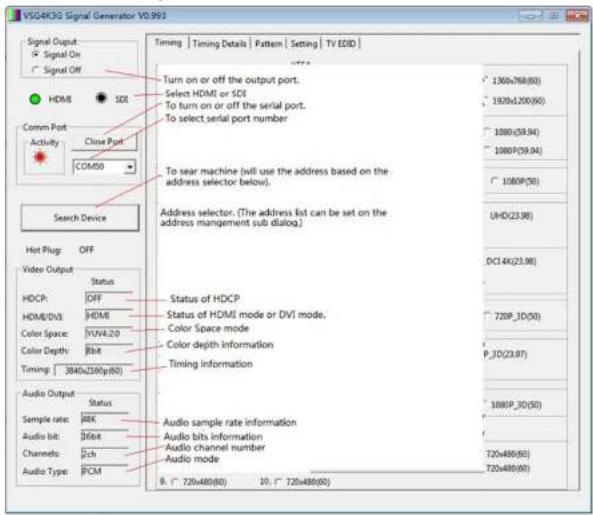
Areas on the left of this screen show key information such as status of the link between the generator and PC as well as generator operating modes.
www.marshall-usa.com9 10
Timing Tab
The Timing Tab allows quick access to all available video formats and frame rates. The figure below shows the HDMI choices. Simply click on any of the choices to change the video output.
HDMI Timing Options

SDI Timing Options
In SDI mode, the choices available are those labeled "Video Standards."

Marshall
V-SG4K-3G Manual
Timing Details Tab
This page is useful for product development and QC. Non-standard timings may be entered here and stored for later retrieval with the "Save to Userdefine Timing" button. The "Update Status" button sends the new timing settings to the V-SG4K-3G.

Marshall
Pattern Selection Tab
This page allows quick selection of any available test pattern including four User-Defined patterns. (User-Defined patterns do not have icons). User-Defined patterns are uploaded to the V-SG4K-3G using the Pattern Uploader application.

Note that the "Pathological" pattern is available only in SDI mode as it is specifically designed for testing SDI interfaces.
www.marshall-usa.com13 14
Setting Tab
This page contains a collection of settings for video and audio.

Note that the choice for YUV 4:2:0 is available only when the generator is in HDMI mode and a UHD 50, 59.94 or 60 fps pattern is selected. In this mode, the signal generated is compatible with HDMI 2.0.
TV EDID Tab
This page allows testing HDMI EDID (Extended Display Identification Data). It has no application for SDI interfaces.
EDID is a set of information stored in a display device (monitor or projector) by the display manufacturer. In normal operation, this information is retrieved by a source device such as a set top box, media player, etc. when it is connected or powered on. EDID is intended to allow a source device to change its settings to match the display device. This process is invisible to the user.
The V-SG4K-3G Test Pattern generator allows inspection of this EDID information to help with trouble shooting, product development, equipment test and QC.
Using the EDID function
Click on the READ EDID button to capture EDID data directly from a connected display device when the window below the button says "TV EDID". Also, EDID data that has been previously captured and saved in the V-SG4K-3G may be accessed by selecting "Saved 1 - 6" in the pulldown window below the button.
The EDID information is organized in three zones on the page:
General Info – Details about the manufacturer and specifications.
Video Information – A list of all video formats, frame rates, and standards that will be compatible with the device.
Audio Information – A list of all audio formats and standards that will be compatible with the device. There is generally a lot of information in these windows. It may be necessary to scroll through the information to see all the possible options.
Information from the READ EDID function may be stored on the local PC by clicking on the SAVE EDID button. Each time SAVE EDID is clicked, a pair of files is saved to the PC. The files are saved to the same location as the Control Application. EDID saved files are automatically named and numbered sequentially and appear like this:
SigGen_EDID02.bin
SigGen_EDID02.txt
Marshall
V-SG4K-3G Manual
There is no limit to the number of EDID files that can be saved on a PC. Files may be renamed for convenience as long as the ".bin" and ".txt" extensions are not changed. For example, the two files above may be renamed something like:
BigMonitor1.bin
BigMonitor1.txt
Files saved on a PC may be opened later for more analysis by clicking on the OPEN EDID button and browsing to the file.
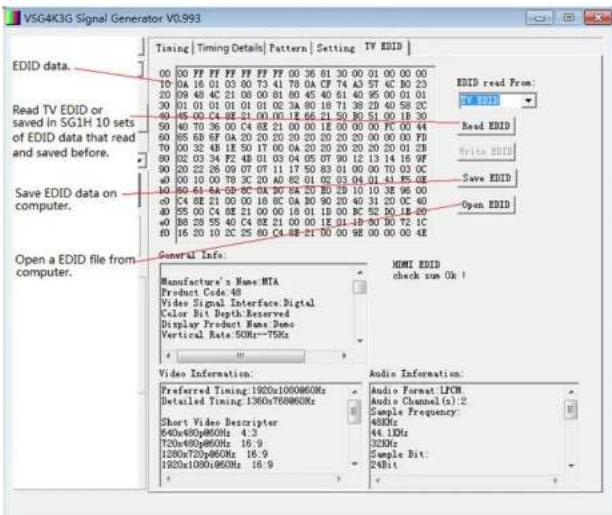
Note: The WRITE EDID button does not apply to the V-SG4K-3G signal generator and remains "grayed out."
Marshall
9. Software - Pattern Uploader App
Uploading Test Patterns to the V-SG4K-3G from a computer
A Windows® application is available for free download from the Marshall Electronics website here: http://www.lcracks.com/racks/TestMeasurement/V-SG4K-3G.php
The Pattern Uploader application allows the user to install up to 4 custom test patterns into the V-SG4K-3G non-volatile memory.
Note: User patterns must be .BMP files with 1920 x 1080 resolution.
Pattern Uploader Quick Start and Operational Check
- Copy the app file to a convenient place such as the Desktop. Close the Control Application If It is open and double-click to open the Uploader app. It should run immediately without any installation step needed. The screen below will appear (pattern window will be black).
- Connect the PC to the V-SG4K-3G Test Pattern Generator using a mini-USB cable as described for the Control App.

www.marshall-usa.com17 18
Marshall
V-SG4K-3G Manual
- Click on the "Search for Signal Generator" button. The icon in the upper left corner will change to Red. Pattern uploading is a three-step process:
Step 1 – Click on the "Load Image" button. Browse to the desired pattern and click on the file name. An image of the pattern should immediately appear in the pattern window. In the "Use Pattern Number" window, enter a number from 1 – 4.
Step 2 - Click on the "SD NAND FLASH" button. The word "Erasing" may appear on the screen if there was a pattern previously stored. When erasing is complete, the uploading progress will appear in the "%" window. Take a break. Depending on the amount of detail in the image, this process can take up to 15 minutes to complete!
Step 3 - Click "Search for Signal Generator" then click on the 3-inch LCD Panel Data Flash button. This will immediately load a smaller version of the test pattern which will appear in the 3-inch LCD on the V-SG4K-3G Test Pattern Generator. This process runs very quickly and should complete in under 15 seconds.
TIP! You may prefer to do Step 3 before Step 2 to save time.
Please Note: An uploaded User Pattern will be available after the V-SG4K-3G has been turned off and back on again.
10. Troubleshooting
If you experience difficulties, try these tips:
No video out.
- Check the HDMI/SDI button.
• n the MENU, turn Signal Output ON.
• In the MENU, turn HDCP Setting OFF.
- Try a different video format / frame rate to find one that is compatible with the device being tested.
"EDID Invalid" Message
- Try a different HDMI cable. Some cables are not properly configured to test all functions.
- Try a different input on the attached device.
- Try powering the device Off and On.
USB connection not recognized by host PC
- Be sure to use a mini-USB cable, not a USB "Micro" cable.
- Try reconnecting the cable. This should "wake up" the USB port on the PC. Allow several minutes for the PC to recognize the device and find the correct driver. This is particularly true for Windows 10 which may reach out to the Web to locate a driver.
- If the USB interface is not recognized by the PC and you wish to install a driver manually, you may download the latest FTDI driver here:
http://www.ftdichip.com/Drivers/VCP.htm
Marshall
11. Warranty and Contact Information
The Marshall V-SG4K-3G Test Pattern Generator will, under normal use, be free from defects in workmanship and materials, when received in its original container, for a period of one year from the purchase date. This warranty is extended to the first consumer only, and proof of purchase is necessary to honor the warranty. If there is no proof of purchase provided with a warranty claim, Manufacturer reserves the right not to honor the warranty set forth above. Therefore, labor and parts may be charged to the consumer. This warranty does not apply to the product exterior or cosmetics. Misuse, abnormal handling, alterations or modifications in design or construction void this warranty. No sales personnel of the seller or any other person is authorized to make any warranties other than those described above, or to extend the duration of any warranties on behalf of Marshall Electronics, beyond the time period described above.
Due to constant effort to improve products and product features, specifications may change without notice.
Marshall
20608 Madrona Avenue, Torrance, CA 90503
Tel: (800) 800-6608 / (310) 333-0606 • Fax: 310-333-0688
www.marshall-usa.com
support@marshall-usa.com
- Table of Contents
- Introduction
- Marshall
- Features
- Controls and Connections
- Rear Panel Description 4. Specifications
- Package Contents
- Quick Start and System Check
- Menu Operations
- Menu Categories (HDMI Mode):
- Menu Categories (SDI Mode):
- Software - PC Control App
- Controlling the V-SG4K-3G from a computer:
- Quick Start and Operational Check
- Timing Tab
- HDMI Timing Options
- SDI Timing Options
- Timing Details Tab
- Pattern Selection Tab
- Setting Tab
- TV EDID Tab
- Using the EDID function
- BigMonitor1.bin
- BigMonitor1.txt
- Software - Pattern Uploader App
- Uploading Test Patterns to the V-SG4K-3G from a computer
- Pattern Uploader Quick Start and Operational Check
- Troubleshooting
- No video out.
- "EDID Invalid" Message
- USB connection not recognized by host PC
- Warranty and Contact Information
Brand : Marshall Electronics
Model : V-SG4K-3G
Category : Générateur de signal vidéo