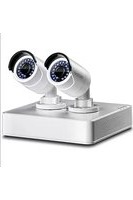
TV-NVR104K - Surveillance Camera TRENDNET - Free user manual and instructions
Find the device manual for free TV-NVR104K TRENDNET in PDF.


| Product Type | Network Video Recorder (NVR) |
| Brand | TRENDnet |
| Model | TV-NVR104K |
| Video Inputs | 4 Channels (PoE) |
| Compression Format | H.265 / H.264 |
| Recording Resolution | Up to 4MP @ 30fps |
| Storage | 1x SATA HDD (up to 6TB, not included) |
| Network Interface | 1x RJ-45 10/100/1000 Mbps |
| PoE Budget | Total 48V, 30W per port max |
| Dimensions (W x D x H) | 230 x 210 x 44 mm |
| Weight | 1.5 kg (without HDD) |
| Power Supply | 48V DC 2.5A adapter or PoE input |
| Power Consumption | 30W (without cameras) |
| Operating Temperature | 0 to 40°C |
| Humidity | 10% to 90% non-condensing |
| Mounting | Desktop or rackmount (brackets included) |
| Remote Access | Via TRENDnetViewPro app or web browser |
| Motion Detection | Yes, with email/SMS alerts |
| Audio Support | 1x audio in / 1x audio out (RCA) |
| Alarm I/O | 1x alarm input / 1x alarm output |
| USB Ports | 2x USB 2.0 (front and back) |
| Supported Camera Brands | ONVIF compatible cameras |
| Warranty | 3 years |
Frequently Asked Questions - TV-NVR104K TRENDNET
User questions about TV-NVR104K TRENDNET
0 question about this device. Answer the ones you know or ask your own.
Ask a new question about this device
Download the instructions for your Surveillance Camera in PDF format for free! Find your manual TV-NVR104K - TRENDNET and take your electronic device back in hand. On this page are published all the documents necessary for the use of your device. TV-NVR104K by TRENDNET.
USER MANUAL TV-NVR104K TRENDNET
• 4-Channel HD PoE NVR Kit Quick Installation Guide
TV-NVR104K
- Quick Installation Guide (1)
1. Before You Start
Package Contents
• TV-NVR104 Network Video Recorder with pre-installed 1TB HDD
• 2 x TV-IP320PI 720p outdoor camera
• 2 x 100 ft. Ethernet cable
• 1 x 6 ft. Ethernet cable
• 1 x 6 ft. HDMI cable
- Optical mouse
• CD-ROM (User's Guide)
• Multi-Language Quick Installation Guide
• Power adapter (48V DC, 1A)
Minimum System Requirements
• Display with VGA or HDMI connection
Back Panel

2. Hardware Installation
![graph TD A["Power Supply"] --> B["Residential Monitor"] B --> C["Optional Network connection*"] C --> D["Switch"] D --> E["(Included TV-IP320PI)"] D --> F["(Included network cable)"] D --> G["(Included TV-IP320PI)"] D --> H["(Included network cable)"] D --> I["(Not included)"] I --> J["(Sold separat…](/content/2026/05/1092408/images/d41bf33dcb1fc127e4da21883994e3a5100bbcb9f881298c9dba261d5f8a6cbe.jpg)
Note: The following installation steps support a stand along setup WITHOUT a wired connection to a network. If it is desired to setup the NVR with a wired network connection (for remote access to NVR), proceed to the User's Guide for the appropriate setup steps (do not continue with this quick setup).
2.1 Camera Installation
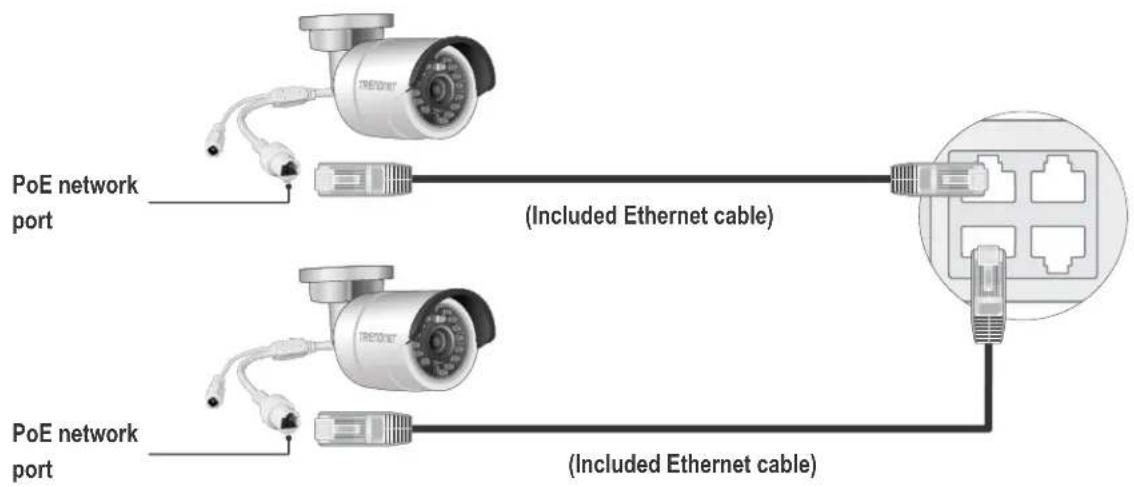
- Using one of the included network cables, connect the TV-IP320PI cameras to any of the PoE network ports on the TV-NVR104. The TV-NVR104 provides power to the TV-IP320PI cameras.
2.2 Connect the Power
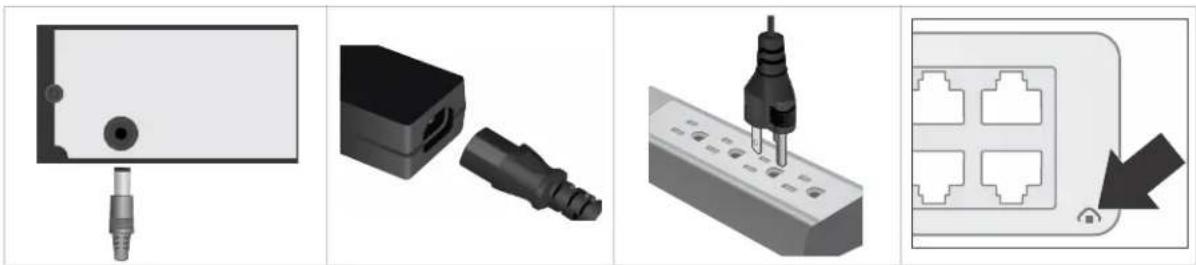
- Connect the 48V DC power adapter to the TV-NVR104 power port.
- Connect the power cable to the power adapter.
- Plug the power cable into a power source.
- (Optional) Connect the grounding point to a ground wire.
2.3 Connect the Monitor
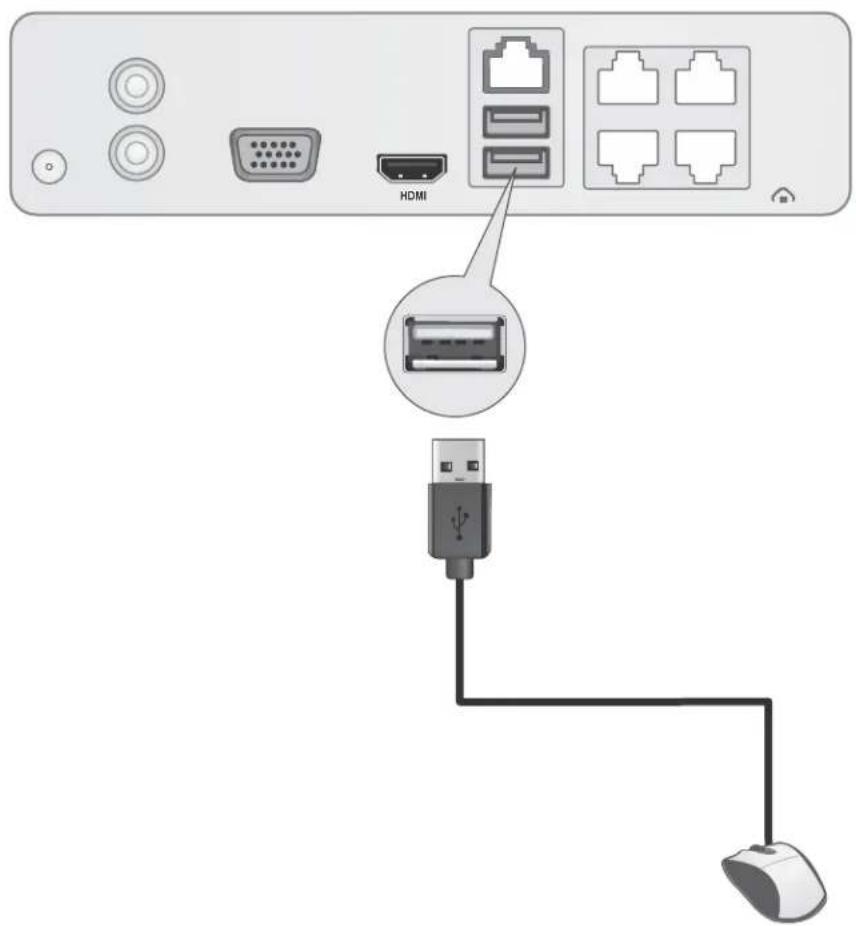
Connect a monitor to either the HDMI or VGA port.

2.4 Connect the Mouse
Connect the included mouse to one of the USB ports.
The hardware setup is complete.
3. Soft Keyboard Instructions
- Click En to change the keyboard style.

List of keyboard styles:
| En | Lower case text |
| A | Upper case text |
| 123 | Numeric keyboard |
| .. | Special characters |
- Click · to enter special characters.
- Click ◀ or ▶ to choose different symbols.
![[ En ] 1, 2. 3: 4- 5/](/content/2026/05/1092408/images/c06c0933e51bc289aae4486a1cc322f9d0c2a828ff1cb03bb1b9141c08756665.jpg)
- Click a or A to convert between upper and lowercase.
4. System Setup
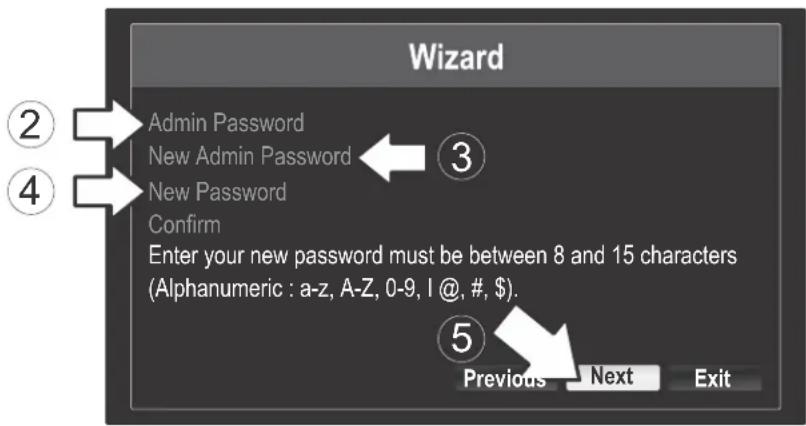
- Setup wizard will start after the TV-NVR104 is powered up. Click Next.

- Enter the default admin password of admin.
- Enter a new admin password.
- Enter the new password again in the Confirm field.
- Click Next.
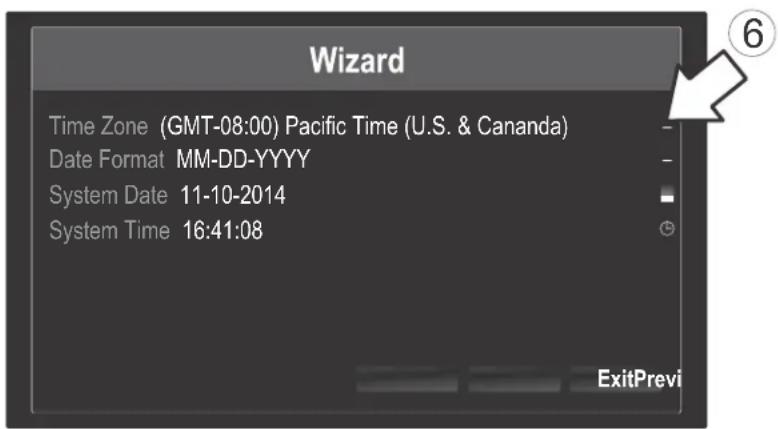
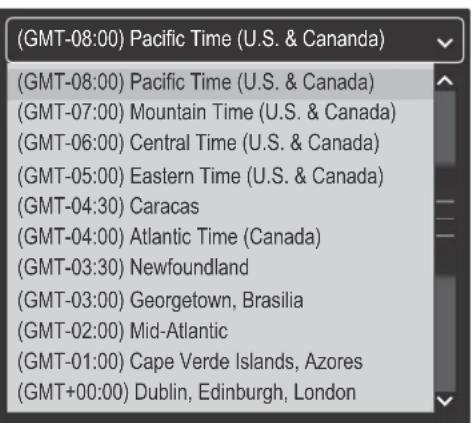
- Click the selection list to the right of Time Zone and select your time zone.
- Click the selection list to the right of Date Format to choose a format.
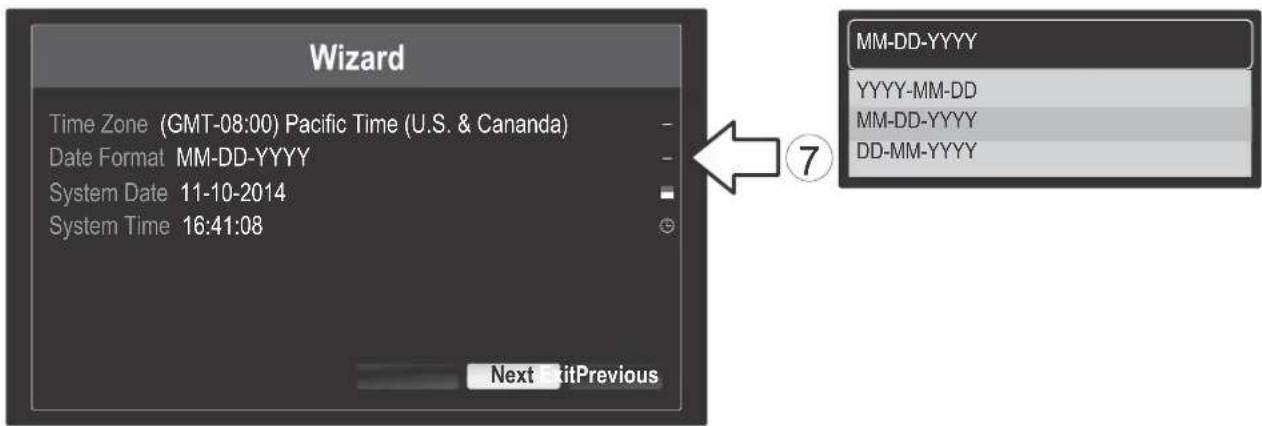
- Click the selection list to the right of System Date.
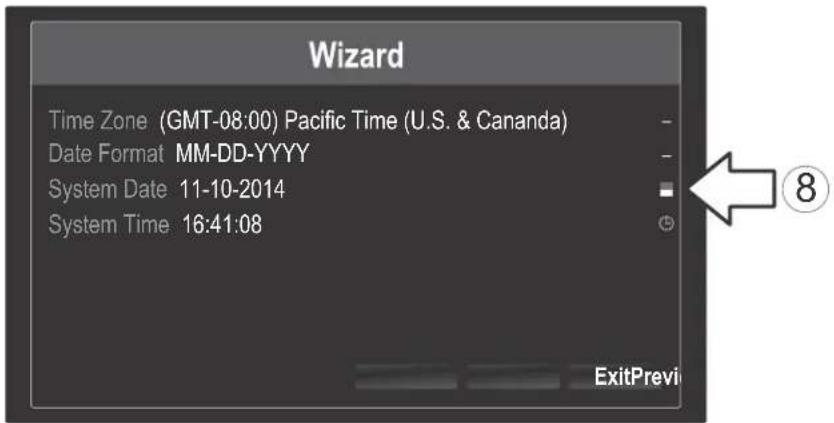
- Select the year by clicking on left or right arrow.
- Select the month by clicking on left or right arrow.
- Select the day by clicking on the date.

- Click the selection list to the right of System Time and then enter the time using a 24-hour format.
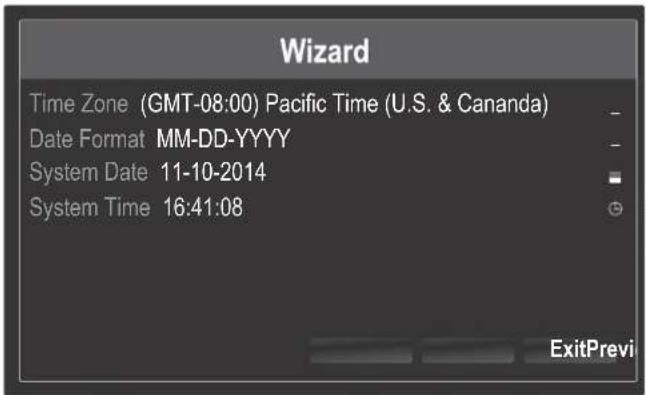


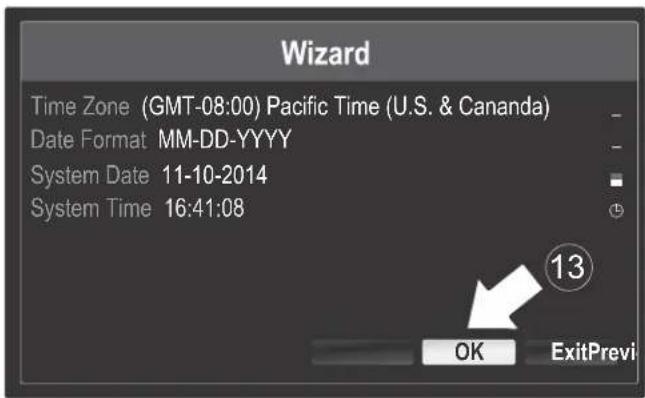
- Click OK.
5. Start Recording
- In Live View, right click anywhere on the screen. A short menu will show up. Choose Start Recording and then Continuous Record.
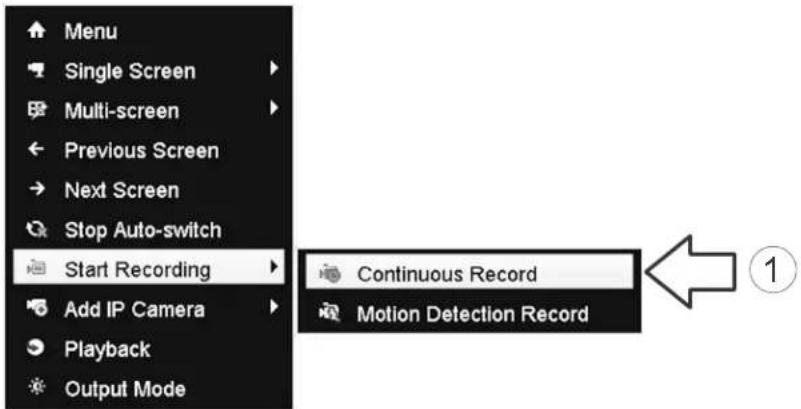
- Click Yes to confirm continuous recording. (For more advanced video recording features, please see the User's Guide for details.)

6. Instant Playback
- In Live View, click on the display you want to playback.

- Click or playback the last 5 minutes of recording.

Please see the User's Guide for more advanced video playback features.
Manufacturer's Name and Address
TRENDnet, Inc.
20675 Manhattan Place
Torrance, CA 90501 USA

Product Information:
Model Number: TV-NVR104K
Product Name: 4-Channel HD PoE NVR Kit
Trade Name: TRENDnet
TRENDnet hereby declare that the product is in compliance with the essential requirements and other relevant provisions under our sole responsibility.
Safety
EN 60950-1: 2006 + A11: 2009: +A1: 2010 + A12: 2011 + A2: 2013
EMC
EN 55022: 2010 + AC: 2011 Class A
EN 50130-4 : 2011
EN 61000-3-2: 2006 + A2: 2009
EN 61000-3-3: 2008
This product is herewith confirmed to comply with the Directives.
Directives:
Low Voltage Directive 2006/95/EC
EMC Directive 2004/108/EC
RoHS Directive 2011/65/EU
REACH Regulation (EC) No. 1907/2006
Person responsible for this declaration.
Place of Issue: Torrance, California, USA
Date: November 26, 2014
Name: Sonny Su
Title: Director of Technology
Signature:

GPL/LGPL General Information
This TRENDnet product includes free software written by third party developers. These codes are subject to the GNU General Public License ("GPL") or GNU Lesser General Public License ("LGPL"). These codes are distributed WITHOUT WARRANTY and are subject to the copyrights of the developers. TRENDnet does not provide technical support for these codes. The details of the GNU GPL and LGPL are included in the product CD-ROM.
Please also go to (http://www.gnu.org/licenses/gpl.txt) or (http://www.gnu.org/licenses/lgpl.txt) for specific terms of each license.
The source codes are available for download from TRENDnet's web site (http://trendnet.com/downloads/list_gpl.asp) for at least three years from the product shipping date.
You could also request the source codes by contacting TRENDnet.
20675 Manhattan Place, Torrance, CA 90501, USA. Tel: +1-310-961-5500 Fax: +1-310-961-5511
Russian Technical Support: 7 (495) 276-22-90
TRENDnet warrants its products against defects in material and workmanship, under normal use and service, for the following length of time from the date of purchase. Warranty: 2 year limited warranty (When Applicable: 1 year warranty for power adapter, power supply, and cooling fan components.) Visit TRENDnet.com to review the full warranty policy, rights, and restrictions for this product.
Garantie Limitée
This device can be expected to comply with Part 15 of the FCC Rules provided it is assembled in exact accordance with the instructions provided with this kit.
Operation is subject to the following conditions:
(1) this device may not cause harmful interference
(2) this device must accept any interference received including interference that may cause undesired operation.


Waste electrical an electronic products must not be disposed of with household waste. Please recycle where facilities exist. Check with your Local Authority or Retailer for recycling advice.
Note:
The Manufacturer is not responsible for any radio or TV interference caused by unauthorized modifications to this equipment. Such modifications could void the user's authority to operate the equipment.
Advertencia:
If you have any questions regarding the product installation, please contact our Technical Support.
Toll free US/Canada: 1-866-845-3673
Regional phone numbers available
at www.trendnet.com/support
Product Warranty Registration
Please take a moment to register your
product online. Go to TRENDnet's website at:
http://www.trendnet.com/register
Russian Technical Support: 7 (495) 276-22-90
Copyright © 2015. All Rights Reserved. TRENDnet.

- TV-NVR104K
- BEFORE YOU START
- PACKAGE CONTENTS
- MINIMUM SYSTEM REQUIREMENTS
- HARDWARE INSTALLATION
- 2.1 CAMERA INSTALLATION
- 2.2 CONNECT THE POWER
- 2.3 CONNECT THE MONITOR
- 2.4 CONNECT THE MOUSE
- SOFT KEYBOARD INSTRUCTIONS
- SYSTEM SETUP
- START RECORDING
- INSTANT PLAYBACK
- MANUFACTURER'S NAME AND ADDRESS
- PRODUCT INFORMATION
- SAFETY
- EMC
- DIRECTIVES
- GPL/LGPL GENERAL INFORMATION
- GARANTIE LIMITÉE
- NOTE
- ADVERTENCIA
- PRODUCT WARRANTY REGISTRATION
Brand : TRENDNET
Model : TV-NVR104K
Category : Surveillance Camera