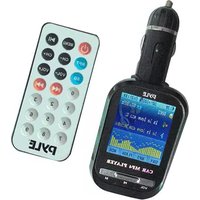
PLMP4C4 - Hi-Fi System Pyle - Free user manual and instructions
Find the device manual for free PLMP4C4 Pyle in PDF.


| Product Type | Car FM Transmitter with MP4 Player |
| Brand | Pyle |
| Model | PLMP4C4 |
| Display | 2-inch TFT LCD |
| Audio Formats | MP3, WMA |
| Video Formats | AMV |
| Image Formats | JPEG |
| Built-in Memory | 2GB |
| Expandable Memory | SD/MMC card slot |
| FM Transmitter | 87.5-108 MHz, 206 channels |
| Equalizer Presets | 7 (Natural, Rock, Pop, Classic, Soft, Jazz, DBB, SRS WOW) |
| Languages | 21 languages |
| Remote Control | Wireless full-function remote |
| Power Supply | DC 12-24V (cigarette lighter) |
| Dimensions (Approx.) | 4.5 x 2.5 x 1 inches |
| Weight (Approx.) | 2 oz |
| PC Requirements | Pentium 100 MHz, Windows 98/2000/ME/XP/VISTA, USB port |
| Maintenance | Clean with a soft, dry cloth; do not use liquids |
| Safety | Avoid moisture; disconnect when not in use |
| Spare Parts | Remote control, USB cable |
| Repairability | Not user-serviceable; contact Pyle support |
Frequently Asked Questions - PLMP4C4 Pyle
User questions about PLMP4C4 Pyle
0 question about this device. Answer the ones you know or ask your own.
Ask a new question about this device
Download the instructions for your Hi-Fi System in PDF format for free! Find your manual PLMP4C4 - Pyle and take your electronic device back in hand. On this page are published all the documents necessary for the use of your device. PLMP4C4 by Pyle.
USER MANUAL PLMP4C4 Pyle
w/ FM Transmitter & 2" TFT Screen
USER MANUAL
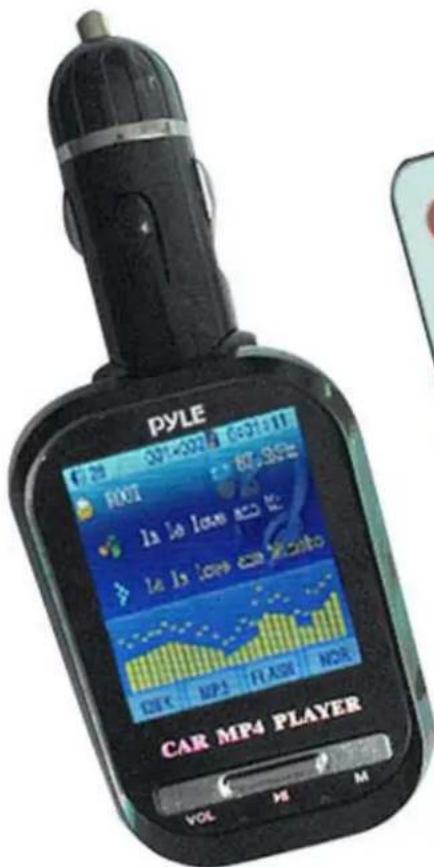
1.1 The player characteristics
• 2" High Definition TFT Video Monitor
• Supports MP3/WMA Format Audio Files
• Supports AMV Format Video Files
• JPG Picture Shuttle Browser
• 2GB Built-in Flash Memory
• SD/MMC Compatible
• Built-in Wireless FM Transmitter 206 Channel Freq Optional (87.5\~108Mhz)
• Built-in Preset EQ 7 Music Choices
• 21 Languages Compatible
• Fully Adjustable Arm for Multi Angle Viewing
- Wireless Full Function Remote Control
• Cigarette Lighter DC 12\~24 Volt Compatible
PC requirements
(1) Pentium 100 MHz or faster
(2) Windows 98/2000/ ME/XP/VISTA
(3) USB port
(4) CD-ROM driver
(5) 15MB of free space on hard disk
(6) 32 MB RAM
1.2 The player appearance and interface
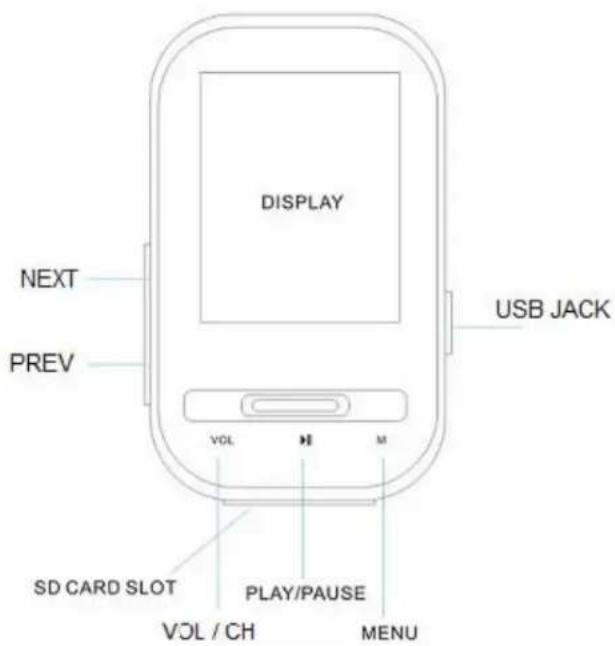
1.3 Figure & Keys
1) 2" TFT display screen
2) Play/pause/stop button
3) Vol / CH button
4) Previous button
5) Next button
6) MENU button
7) USB jack
8) SD card slot
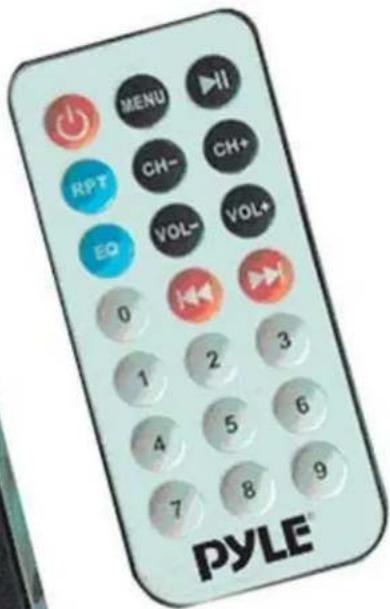
1.4 IR Remoter
The Player can be operated simply through IR remoter
There are 21 Keys on the remoter and all functions are defined as the right picture

Remoter
2 Operating instructions
- Stored your favorite music in this product and then plug it into any 12V/24V power socket or cigarette lighter. It will start to appear two images of cars and enter to the music playing mode automatically;
- Tune your radio to a desired FM frequency, then match that same frequency to this product by using the buttons on the unit or on the remote
HINT: Tune to a frequency without station for best sound quality results.
- Begin listening to your music through your car stereo. Enjoy!
2.1 Turning on/off the MP3 player
When Power On the machine. The display will start to appear welcome picture and enter to the music playing mode automatically.
When Press Play Key for a longer time than 5 Seconds. The MP4 player will shut off.
2.2 Main menu
Press the "MENU" button for several seconds, from any point in the menu, the player returns automatically back to the main menu.
Four options:
You can switch among options by press the "NEXT" or "PREV" button
Then press shortly on the "MENU" button to enter the submenu or to confirm a function.
2.3 MUSIC

natural_image
Illustration of a pair of headphones with musical notes on top, set against a blue background (no text or symbols)Please select "Music" in main menu.
Short press MENU button: enter into music playing mode
Long press MENU button: exit back to main menu
Long press PLAY button: stop playing and switch off the device
Short press "Vol" button: enter in volume interface and adjust volume by pressing "NEXT" or "PREV" button; If short press "Vol" again, it will enter into frequency interface. PIs adjust the best frequency by pressing "NEXT" or "PREV" button.
Press short "NEXT" or "PREV" button: select next or prev music file
2.3.1 Stop submenu
Press "MENU" button under pause mode
Four options:
- Local Folder
- Delete file
- Delete all
- Exit
2.3.1.1 Local folder
Files can be stored in different folders.
Create new folders in Windows explorer when MP3 is connected.
Open "external drive".
Create new folder
- Press "Menu" button to open Local folder
- Press "NEXT" or "PREV" button to select the catalog
- Press "MENU" button to confirm
2.3.1.2 Delete file
Select a song and press MENU button.
Select "Yes" or "No" and then press MENU button once more to delete or cancel.
2.3.1.3 Delete all
Select "Delete all" and press MENU button, then select "Yes" or "no" to delete all or cancel.
2.3.1.4 Exit
2.3.2 Play submenu
During playback, press "MENU" button of this player or press "EQ" or "RPT" button of Remoter to enter "Play submenu":
- Equalizer
- Repeat
Select by press "NEXT" or "PREV" button and confirm by pressing "Menu" button.
2.3.2.1 Equalizer
Eight options:
- Natural
- Rock
- Pop
- Classic
- Soft
- Jazz
-DBB
-SRS WOW
Select by pressing "NEXT" or "PREV" button and confirm by pressing "Menu" button.
2.3.2.2 Repeat mode
Three options:
Repeat One
Repeat All
Random
Select by pressing "NEXT" or "PREV" button and confirm by pressing "Menu" button.
2.3.3 Lyrics
This MP3 player supports "*. lrc "Lyric files
Lyrics can be downloaded from the internet.
Make sure that lrc-file has the same name as the corresponding song.
For example:
If the song name is "Yesterday.mp3", the lyric file should be named "Yesterday.lrc"
MP3 and LRC file must be stored in the same folder
Attention: A lyric cannot be larger then 500 words.
2.4 MOVIE

natural_image
Illustration of a film reel with a golden strip, set against a green background (no text or symbols)Please select "Movie" in main menu.
Short press MENU button: enter MOVIE mode then press play button to play the movie, it only support AMV format files.
Long press MENU button: exit back to main menu
Long press PLAY button: stop playing and switch off the device
Short press "Vol" button: enter in volume interface and adjust volume by pressing "NEXT" or "PREV" button; If short press "Vol" again, it will enter into frequency interface. PIs adjust the best frequency by pressing "NEXT" or "PREV" button.
Press short "NEXT" or "PREV" button: select next or prev movie file
2.5 JPG View

natural_image
Illustration of two overlapping cards with a sun and floral design (no text or symbols)In this mode you can view JPEG pictures. Simply copy the pictures to the unit Select in the main menu "JPG view" and then press menu button to confirm Press Play button for picture playback
2.5.1 JPG VIEW submenu
Press MENU button to enter submenu under pause status.
- Local folder:
- Play set: select manual or auto play
If you choose auto play, you can adjust the speed from 2 to 10 seconds.
- Delete file
- Delete all
- Exit
2.6 Setting

natural_image
Illustration of a golden gear with a wrench inserted, set against a green background (no text or symbols)Press menu button to enter into setting submenu.
Five options:
- Language
21 Languages Compatible: select your desired language and press menu button to confirm.
- Memory Info.
- Firmware version
- Transmit Power
- Exit
3 Other Functions
3.1 Operation of Connection with computer
3.1.1 Connection with computer
① Requirements of computer
Operation system: Win98 above
CPU: Intel Pentium 200MHZ above or corresponding capability CPU
Memory: 32M above
USB Port: USB 1.1 above
② Connection with device
Connected with PC, device will automatically enter in condition of removable disk
③ Transmitting files
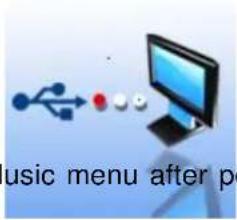
During transmitting files between device and computer, please don't split connection, or will cause lost of data. Icon as below:
④ Pop-up device
Device will enter in Music menu after pop-up from computer by short press MENU button.
3.1.2 USB- Function of Supply Power
If connected with computer by USB cable, it still can play music, movie and browse JPEG pictures
- USER MANUAL
- The player characteristics
- PC requirements
- The player appearance and interface
- Figure & Keys
- IR Remoter
- Operating instructions
- Turning on/off the MP3 player
- Main menu
- Four options:
- MUSIC
- Stop submenu
- Local folder
- Delete file
- Delete all
- Exit
- Play submenu
- Equalizer
- Repeat mode
- Lyrics
- MOVIE
- JPG View
- JPG VIEW submenu
- Setting
- Other Functions
- Operation of Connection with computer
- Connection with computer
- USB- Function of Supply Power
Brand : Pyle
Model : PLMP4C4
Category : Hi-Fi System