
BP 7.1A - Dashboard camera BLAUPUNKT - Free user manual and instructions
Find the device manual for free BP 7.1A BLAUPUNKT in PDF.


| Product Type | Dashboard Camera |
| Brand | Blaupunkt |
| Model | BP 7.1A |
| Resolution (Front) | 5MP FHD 1920 x 1080 @ 30fps |
| Resolution (Rear) | 5MP HD 1280 x 720 @ 15fps |
| Viewing Angle (Front) | 120° |
| Viewing Angle (Rear) | 110° |
| Display | 3.5" Touch Screen LCD |
| Recording Modes | Continuous, Park (Motion/Time-lapse), Event, SOS |
| Storage | Micro SD up to 64GB, Class 10 & above |
| Power Supply | 12-24V DC |
| Operating Temperature | -20°C to 80°C |
| G-Sensor | Built-in, adjustable sensitivity |
| Loop Recording | Yes, with overwrite protection |
| Park Mode | Smart Motion (12fps) or Time-lapse (2fps) |
| Low Voltage Cut-off | Adjustable, prevents battery drain |
| High Temperature Cut-off | Automatic when vehicle off |
| Offline ADAS | LDWS and FVSA (with optional GPS) |
| Super Capacitor | Ensures file saving on sudden power loss |
| Built-in Microphone & Speaker | Yes |
| Languages | English, Chinese Simplified/Traditional, Japanese, Korean |
| PC Viewer | Windows compatible, download from Blaupunkt website |
| Mounting | Windscreen bracket, ensure firm installation |
| Maintenance | Clean lens and windscreen regularly; avoid dust and moisture |
| Safety Warning | Do not obstruct driver's view; install per local laws |
Frequently Asked Questions - BP 7.1A BLAUPUNKT
User questions about BP 7.1A BLAUPUNKT
0 question about this device. Answer the ones you know or ask your own.
Ask a new question about this device
Download the instructions for your Dashboard camera in PDF format for free! Find your manual BP 7.1A - BLAUPUNKT and take your electronic device back in hand. On this page are published all the documents necessary for the use of your device. BP 7.1A by BLAUPUNKT.
USER MANUAL BP 7.1A BLAUPUNKT

natural_image
Black cylindrical object with a circular lens, possibly a camera or sensor device (no visible text or symbols)
Enjoy it.
- Please insert the micro SD card in the right direction to avoid damage to the card or the device. If device shows error message, please format the micro SD card from device menu. Please reset device or change micro SD card if similar error continues.
Note : All files will be deleted when formatting micro SD card or firmware update, please backup the important files prior to that.
When reset function is selected, the device will return to default setting.
- Blaupunkt does not warrant the performance of device if used with other Micro SD card other than Blaupunkt Micro SD card
- New Micro SD card must be formatted for first use. Micro SD must be formatted once every 6-month.
- Ensure bracket is installed correctly & firmly on windscreen to avoid damage to device and for better recording angle.
- Please do not use product under wet environment as device is not waterproofed/water resistant.
- Please do not record or take picture facing sunlight.
- To obtain clear image, please clean windscreen and device lens regularly. Avoid using device in dusty environment.
- Handle device with care and avoid direct impact on the device. Avoid using device in high electromagnetic environment.
- Please operate the product within the temperature of -20^ 80^ . Continuous exposure to sunlight, especially when locked in cabin where temperature exceeds 80^ may result to device malfunction, colour change, housing and image distortion.
Disclaimer :
- Blaupunkt is not liable for any loss or damage caused or resulting from unauthorized disassembly or modification to the product.
- In no event shall Blaupunkt be liable for any direct, indirect, punitive, incidental, special consequential damages, to property or life, improper storage, whatsoever arising out of or connected with the use or misuse of our products.
- USA & CANADA: Products not intended for sales in the United States and Canada. If purchased in the U.S. or Canada, this product is purchased as-is. No warranty, expressed or implied is provided in the U.S. and Canada.
- This device is NOT intended to be used for illegal purpose, surveillance and shall not be used in any form as evidence for claim purposes.
- Some countries prohibit drivers from mounting anything on the windshield, or restrict mounting to specific areas of the windshield. It is the owner's responsibility to mount the device in compliance with local laws.
- Error may occur depending on the surrounding environment and the voltage of the car.
- Blaupunkt is not liable/responsible for non-recorded event, missing files, etc.
- If the car battery voltage is lesser than the setting value of cut-off voltage, device will stop recording even at park recording mode.
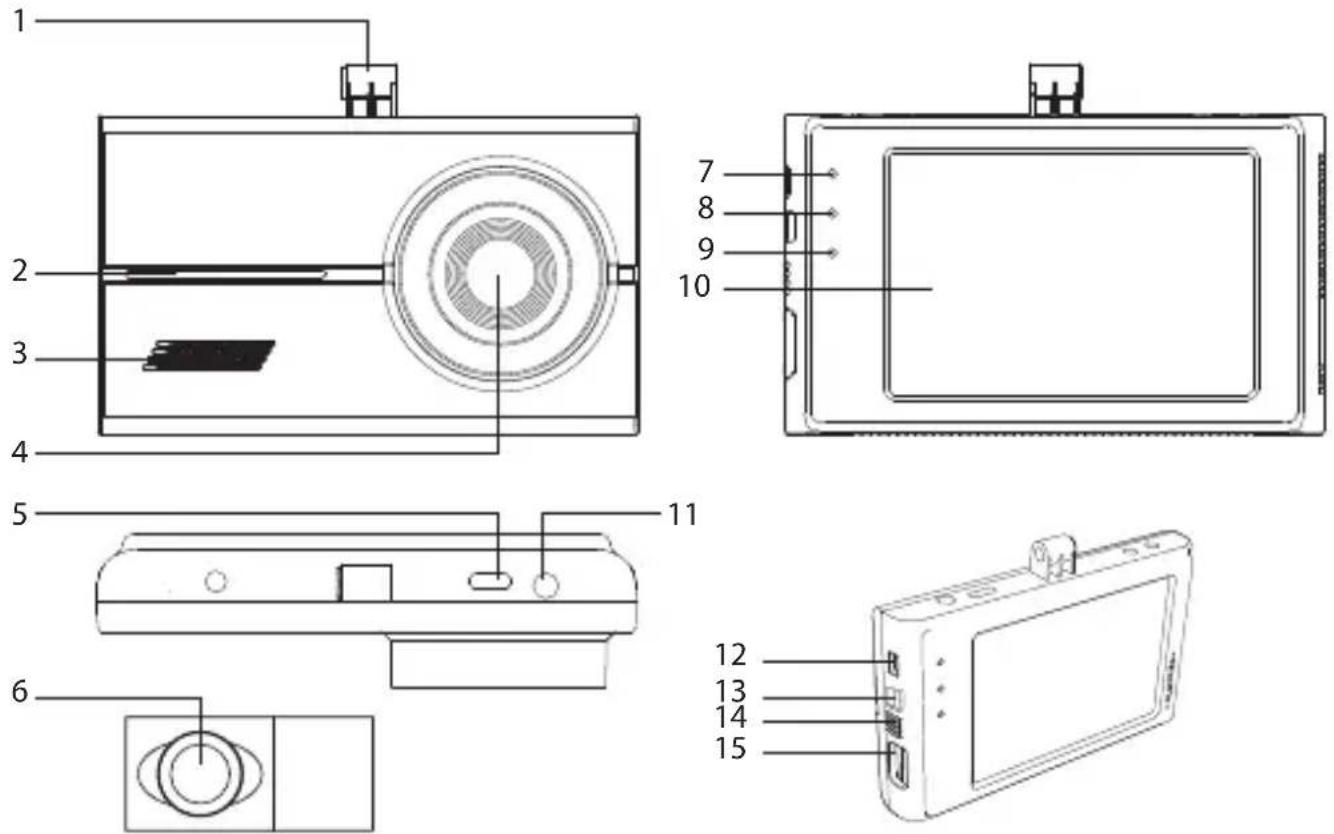
- Bracket slot
-
Operation indicator light
-
Flashes during normal / park mode
- Off during shock / SOS mode
-
Blink during motion / shock detection in park mode
-
Speaker
- Lens
- Rear DVR cable input
- Rear DVR lens
- GPS indicator light
- Lights up in blue when GPS is connected
- Light off in parking mode
-
PWR (Power) indicator light
-
Lights up in green during normal recording mode
-
Light off during park mode
-
Event indicator light
-
Lights up in red during shock / SOS mode
- Flashes when SD card reading fail
-
Light off during park mode
-
Front DVR 3.5" LCD touch screen
- 12-24V D power supply
- SOS : Record shock video manually
- Power On/Off
- Microphone
- Micro SD card slot
Features
- Resolution: Front 5MP FHD 1920 x 1080 30 fps, Rear 5MP HD 1280 x 720 (15fps)
- Wide viewing angle: Front - 120°, Rear - 110°
- Screen display: Front, Rear, PIP (picture in picture)
• 3.5" touch screen LCD display
• Automatic park recording with smart motion / time-lapse (24-hour park monitoring) - Format-free, G-sensor, loop recording
• Built-in microphone & speaker
• Language : English, Chinese Simplified, Chinese Traditional, Japanese, Korean
• High temperature & low car battery voltage cut-off
• Support up to 64GB Micro SD, class 10 & above - Offline ADAS
- Format-free
Engineered with TAT technology, the device is capable to arrange or overwrite saved data according to folders.
- Low Voltage Cut-off
Function only after vehicle ignition is turned off. This function prevents vehicle battery drainage. Adjust at Environment Settings > Recording Settings > Voltage.
• Automatic High Temperature Cut-off
Function only after vehicle ignition is turned off. The device will automatically turn off when high temperature is detected.
- Offline ADAS (Advanced driver-assistance system)
It supports LDWS (Lane Departure Warning System) and FVSA (Front Vehicle Start Alert). Optional GPS is available to improve accuracy and driving speed for PC viewer. Adjust at Environment Settings > ADAS Settings.
- Super Capacitor
This technology ensure video files are saved even if sudden power cut-off
• Park Mode (Park Monitoring)
Switch between Motion or Time-lapse at Environment Setting > Recording Settings > Parking Mode.
• Smart Motion (12fps)
This mode will begin operating 30-sec after the vehicle ignition is turned off. Recording begin when impact or motion is detected. Adjust sensitivity at Environment Settings > Recording Settings > Motion Intensity.
- Time-lapse (2fps)
This mode selects 2 frames per second (fps) instead of recording 12fps (Front & Rear DVR). Adjust sensitivity at Environment Settings > Recording Settings > Motion Intensity.
- Event Mode
The device begins saving recording when the assigned sensitivity intensity is detected. Video file of 10-sec before and after detection will be saved under Event file. Adjust sensitivity in Environment Settings > Recording Settings > Event Intensity.
• SOS (Manual Mode)
When SOS button is pressed, video file of 10-sec before and after the press will be saved under Event file.
- PC Viewer
View video playback using BP7.1 PC Viewer. Download PC viewer (Windows only) from www.blaupunkt.com/ase
| Mode | Category | Function |
| Live View Real-time Image | ||
| Video recording View Continuous Recording 1-min / Park Recording 1-min | 62MB | |
| Event Recording | 20-sec / 20MB | |
| in / 62MB or time-lapse | ||
| Manual Recording (SOS) 20-sec / 20MB | ||
| Environment Settings Recording Settings Event Intensity | ||
| System Vol. | ||
| Voice | ||
| Effect | ||
| Voice Rec. | ||
| ADAS Alarm | ||
| System Settings Language | English | |
| Chinese Simplified | ||
| Chinese Traditional | ||
| Japanese | ||
| YYYY/MM/DD | ||
| HH/MM/SS | ||
| ON | ||
| 1m | ||
| 3m | ||
| 5m | ||
| ON | ||
| OFF | ||
| Touch Calibration | ||
| Memory Card Format Memory Card Format | All data will be deleted. | |
| (Ensure important files before formatting) | ||
| Information | BP7.1 Version | |
| Initialize Settings Reset device to default setting. | ||
Blaupunkt DVR BP 7.1 PC Viewer

PC Viewer will automatically detect micro SD card when its inserted into the computer.
Note : Older files will be overwritten when memory card is full and requires new storage space. Files will be overwritten according to file arrangement Continuous / Event / Park / Manual (SOS). Backup recordings regularly to prevent important files from being overwritten.
SAFETY NOTE
- Assign mounting location that will not obstruct driver in any circumstances. Or cause injuries to drivers and passengers in case of emergency brake or accident.
- Ensure all wires are connected properly, and that the device is functioning well before installing on the windscreen.
- Any unauthorized installation and modification may cause malfunction to the device and void warranty of product. Always use the parts included with the device only.
- Contact Blaupunkt dealer or vehicle's manufacturer if information provided here does not fit your specific requirement.
POWER CABLE HARDWIRING

flowchart
graph LR
    A["Power Supply"] --> B["FUSE"]
    A --> C["FUSE"]
    B --> D["B+"]
    C --> E["ACC"]
    C --> F["GND"]
1. Use the hardwire power cable
2. BATT (+)
- Connect the wire cable to the permanent power fuse box. (Eg : Hazard light, dome light, tail light etc)
3. Acc (+)
- Connect the wire cable to the fuse that receive power through ignition (Eg : Cig lighter, audio system etc)
4. GND
- Connect the cable to the vehicle chassis or vehicle bolts.
ACCESSORIES

- Disclaimer :
- Features
- - Format-free
- - Low Voltage Cut-off
- • Automatic High Temperature Cut-off
- - Offline ADAS (Advanced driver-assistance system)
- - Super Capacitor
- • Park Mode (Park Monitoring)
- - Event Mode
- • SOS (Manual Mode)
- - PC Viewer
- SAFETY NOTE
- Use the hardwire power cable
- BATT (+)
- Acc (+)
- GND
Brand : BLAUPUNKT
Model : BP 7.1A
Category : Dashboard camera