
E76 - Smartphone HISENSE - Free user manual and instructions
Find the device manual for free E76 HISENSE in PDF.


| Product Type | Smartphone |
| Brand | Hisense |
| Model | E76 |
| Display Size | 6.5 inches (estimated) |
| Resolution | HD+ (1600 x 720 pixels, estimated) |
| Processor | Octa-core (estimated) |
| RAM | 4 GB (estimated) |
| Storage | 64 GB (estimated) |
| Battery Capacity | 4000 mAh (estimated) |
| Operating System | Android (likely Android 11 or later) |
| Rear Camera | Triple camera: 13 MP + 2 MP + 2 MP (estimated) |
| Front Camera | 8 MP (estimated) |
| Dimensions | Approx. 164 x 76 x 9 mm (estimated) |
| Weight | Approx. 190 g (estimated) |
| Connectivity | 4G LTE, Wi-Fi, Bluetooth 5.0, GPS |
| SIM Card | Dual Nano-SIM |
| Battery Type | Li-ion, non-removable |
| Charging | Micro USB, 10W charger (estimated) |
| Security | Fingerprint sensor (rear-mounted), Face unlock |
| Spare Parts & Repairability | Battery and screen replacement possible by authorized service centers |
| Care & Cleaning | Wipe with soft dry cloth; avoid liquids and abrasives |
| General Information | User manual available for free download in PDF format |
Frequently Asked Questions - E76 HISENSE
User questions about E76 HISENSE
0 question about this device. Answer the ones you know or ask your own.
Ask a new question about this device
Download the instructions for your Smartphone in PDF format for free! Find your manual E76 - HISENSE and take your electronic device back in hand. On this page are published all the documents necessary for the use of your device. E76 by HISENSE.
USER MANUAL E76 HISENSE
Hisense E76 User Manual
Manufactured by Hisense Communications Co., Ltd.
4G LTE Ready
* Please check with your network operator if 4G LTE is available on your SIM.
• Metal unibody, Fingerprint recognition.
- Screen displays and illustrations may differ from those you see on actual phone. Some of the contents of this guide may not apply to your phone, depending on the software and your service provider. All information in this document is subject to change without notice.

natural_image
Front view line drawing of a smartphone with blank screen and control buttons (no text or symbols)Content
Safety Precautions 2
Medical Device 3
Road Safety 4
Power Supply & Charging 4
Specific Absorption Rate (SAR) 5
Hearing Protection....6
Protecting the Environment 6
Cleaning and Maintenance 6
Emergency Call 7
Compliance....7
Copyright 7
Getting to Know Your Phone 8
Phone Overview 8
Insert the SIM card/ Micro SD card 10
Charging the Battery....11
Basic Operations 12
Turning Your Device On/Off 12
Configuring Your Phone on Start up.... 13
Unlocking the screen 14
Home screen 14
Notifications Panel.... 15
Customizing Your Screen 17
Main Function.... 18
Making and Receiving a Call.... 18
Adding Contacts 18
Sending Messages 19
Music 20
Camera....20
Assistive Gestures.... 22
Chrome 22
Getting Connected (connection to Wi-Fi) 22
Important Information 23
Disclaimer....23
Troubleshooting....24
Please read the safety precautions carefully to ensure the correct use of your mobile phone.
-
Do not crash, throw, or puncture your mobile phone. Avoid the falling, squeezing, and bending of your mobile phone.
-
Do not use your mobile phone in a moist environment, such as the bathroom. Prevent your mobile phone from being soaked or washed in liquid.
-
Do not power on your mobile phone when it is prohibited to use or when the phone may cause interference or danger.
-
Some parts of your mobile device are made of glass. This glass could break if your mobile device is dropped on a hard surface or receives a substantial impact. If the glass breaks, do not touch or attempt to remove it. Stop using your mobile device until the glass is replaced by an authorized service provider.
-
Turn off your mobile phone in aircraft. The phone may cause interference to control equipment of the aircraft.
-
Turn off your mobile phone near high-precision electronic devices. The phone may affect the performance of these devices.
-
Do not attempt to disassemble your mobile phone or its accessories. Only qualified personnel are allowed to service or repair the phone.
-
The socket-outlet shall be installed near the equipment and shall be easily accessible.
-
Do not place your mobile phone or its accessories in containers with a strong electromagnetic field.
-
Do not place magnetic storage media near your mobile phone. Radiation from the phone may erase the information stored on them.
-
Keep the product away from direct sunlight. Do not put your mobile phone in a high-temperature place or use it in a place with flammable gas such as a gas station.
-
Use only approved batteries and chargers to avoid the risk of explosion.
-
Observe any laws or regulations on the use of wireless devices. Respect others' privacy and legal rights when using your wireless device.
- Strictly follow the relevant instructions of this manual while using the USB cable. Otherwise your mobile phone or PC may be damaged.
- Use a dry soft cloth to clean the product; do not use water, alcohol, detergent or any chemicals.
- Please backup any important data, repair or other causes may result in data loss.
- Do not disconnect the product during memory formatting or file transfer operations. Otherwise, it may cause program failure or files damage
- Keep the phone, battery and charger out of the reach of children. Do not let children use the phone or charger without supervision.
- Keep children away from small phone accessories to prevent suffocation or blocking of the oesophagus as a result of swallowing.
- Do not allow children to use your mobile phone without guidance.
- Do not modify or remanufacture the product, immerse or expose the product to water or other liquids, or expose the product to fire, explosion or other hazards.
- The product shall only be connected to a USB interface of version USB2.0.
- The operating temperature shall be-10°C\~+40°C.
Medical Device
-
Follow any rules or regulations in hospitals and health care facilities.
-
Implanted medical device such as pacemaker may be affected by the product.
-
Avoid potential interference emitted from the product to the implanted medical device, keeping the product at least 20 cm away from the medical device.
-
Do not carry the product in the chest pocket.
-
Turn off the product immediately if you suspect any interference.
Road Safety
Check the laws and regulations on the use of mobile phones in the area when you drive.
- Do not use a hand-held phone while driving.
- For driving safety, only a passenger should operate the device when the car is in motion and not the driver.
Laws governing the use of electronic devices by the driver may be applicable in your country and/or jurisdiction. - Give full attention to driving.
- Pull off the road and park before making or answering a call if driving conditions so require.
- RF energy may affect some electronic systems in your vehicle such as car stereos and safety equipment.
- When your vehicle is equipped with an air bag, do not obstruct with installed or portable wireless equipment. It can cause the air bag to fail or cause serious injury due to improper performance.
- If you are listening to music whilst out and about, please ensure that the volume is at a reasonable level so that you are aware of your surroundings. This is of particular importance when near roads.
Power Supply & Charging
- Adapter shall be installed near the equipment and shall be easily accessible.
-
The Charger message:
Model name :CYSK10-050200-UK,Input: AC 100-240V 50/60Hz 0.5A,Output: DC5.0V,2.0A.
Model name:A88-502000
Input: AC 100-240V 50/60Hz 0.35A,
Output: DC5.0V,2.0A. -
The plug considered as disconnect device of adapter.
-
Only use the accessories supplied with the phone. The use of incompatible accessories may have serious consequences and permanently damage your phone.
-
Only use the adapter supplied with the product.
-
This adapter is intended for indoor use only.
-
The mains cable is used as a connecting device. The wall outlet should remain readily accessible and
access to the outlet should not be blocked during use.
- To fully disconnect the phone from the mains, unplug the AC/DC cable from the wall outlet.
- The ventilation should not be impeded by covering the ventilation openings with items, such as newspapers, tablecloths, curtains, etc. to avoid overheating and malfunction.
- Maintain a clearance of at least 10cm around the phone.
- The phone should be used in a moderate climate.
- The phone is built with an internal rechargeable battery: do not expose the product to excessive heat such as sunshine, fire or the like.
- The battery must be removed from the phone before it is scrapped.
- The phone must be disconnected from the supply mains when removing the battery.
- Battery contains materials which are hazardous and harmful for the environment.
- Do not plug or unplug USB port with wet hands – risk of electric shock.
Specific Absorption Rate (SAR)
The device complies with RF specifications when the device used at 10 mm form your body.
This product is tested to comply with applicable requirements and regulations of European Union of human exposure to radio wave.
Specific Absorption Rate (SAR) is used to measure radio waves absorbed by a body. This mobile device allows to be used within 20cm of the user body. The SAR limit is 2.0 W/kg averaged over 10 gram of tissue in European Union.
This product was tested and recorded the maximum SAR value was 1.43W/kg.
The actual SAR level will be much lower than above value since the product has been designed to use the minimum energy for necessary communication with the base station.
For the device which tests accordance to EN60950-1:2006+A11:2009+A1:2010+A12:2011, it is mandatory to perform audio tests for EN50332.
Hearing Protection
- This phone respects the current regulations for limiting the maximum output volume. Prolonged headset listening at high volume could lead to hearing damage!

-
Stop using the product or lower the volume if you feel your ears ringing.
-
Do not turn up the volume too high, doctors warn against prolonged exposure to high volume.
-
Excessive sound pressure from headsets and headphones can cause hearing loss.
-
To prevent possible hearing damage, do not listen at high volume levels for long periods.
-
Please only use specified headphones with your phone.
Protecting the Environment
Please observe the local regulations on phone packaging, battery and used phone disposal and bring them to the collection point for proper recycling. Do not dispose of used phones or batteries in a household rubbish bin.
Please take your used, unwanted
lithium batteries to a designated place. Do not dispose of them in a rubbish bin.
CAUTION: RISK OF EXPLOSION IF BATTERY IS REPLACED BY AN INCORRECT TYPE. DISPOSE OF USED BATTERIES ACCORDING TO THE INSTRUCTIONS.
Cleaning and Maintenance
-
Turn off the phone before cleaning and maintenance. The charger should be unplugged from the socket and the phone and charger disconnected to prevent any electric shock or short circuiting of the battery or charger.
-
Do not wipe the phone or charger using chemical substance (alcohol benzene), chemical agents or abrasive cleaning agents to avoid damaging its parts or causing a malfunction. You may clean with a slightly damp anti-static soft cloth.
-
Do not scrape or alter the phone case as paint substances may cause an allergic reaction. If such a reaction occurs, cease using the phone immediately and seek medical help.
-
Wipe dust off the power plug and keep it dry to avoid risk of fire.
-
If the phone or accessories do not work properly, contact your local vendor.
-
Do not dismantle the phone or its accessories yourself.
Emergency Call
In an emergency situation, if the phone is on and you are within the network range, it can be used to make an emergency call. However, emergency call numbers may not be reachable on all networks; you should never rely on your mobile phone for emergency calls.
Compliance
This equipment is in compliance with the essential requirements and other relevant provisions of Directive 1999/5/EC.
C€ 0700
Copyright
This product is for private use only. Copying CDs or downloading music, video or picture files for sale or other business purposes may be a violation of copyright law. Copyrighted materials, works of art and/or presentations may require authorization to be fully or partially copied or recorded. Please be aware of all such applicable laws concerning the recording and use of such contents for your country and jurisdiction.
Phone Overview
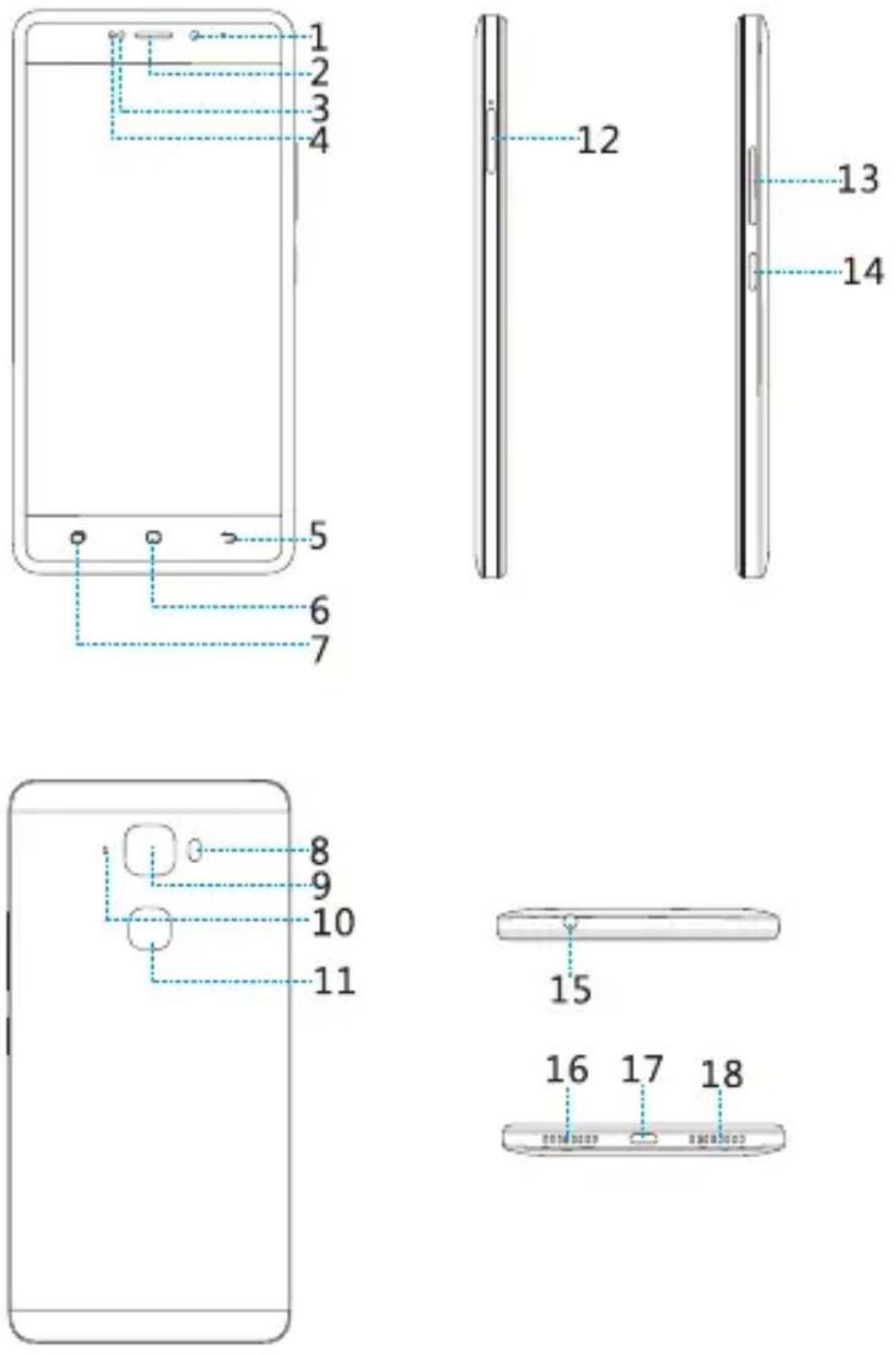
| 1. | Front camera | 10. | De-noising mike |
| 2. | Receiver | 11. | Fingerprint recognition sensor. |
| 3. | Proximity sensor | 12. | Card tray |
| 4. | Light sensor | 13. | Volume keys |
| 5. | Back key | 14. | Power key |
| 6. | Home key | 15. | Headset connector |
| 7. | Recent key | 16. | Microphone |
| 8. | Flashlight | 17. | Micro-USB connector |
| 9. | Camera | 18. | Speaker |
key's function
- Power key: Press to light up or close the screen, press and hold to show the pop-up menu to select from Power off/Reboot/Airplane mode/Ring. Long press Power Key 10s to shutdown phone, and keep pressing to reboot phone. Press the Power key and Down volume key to capture a screenshot.
- Home key: From any application or screen, touch to return to the Home screen.
- Recent key: Touch to open a list of thumbnail images of applications you've worked with recently.
- Back key: Touch to go back to the previous screen, or to close a dialog box, options menu, the notification panel, etc.
- Volume Keys: In call mode, adjusts the earpiece or headset volume; In Music/Video/Streaming mode, adjusts the media volume; In general mode, adjusts the ringtone volume; Mutes the ringtone of an incoming call.
This device supplies OTG function, please use standard OTG data cable.
NOTE: Proximity sensor
When receiving and making calls, the proximity sensor automatically turns the backlight off the touch screen by sensing when the phone is near your ear. This extends battery life and prevents you from unintentionally activating the touch screen during calls.
WARNING:
Placing a heavy object on the phone or sitting on it can damage the LCD and touch screen functions. Do not cover the LCD proximity sensor with protective film. This could cause the sensor to malfunction.
Insert the SIM card/ Micro SD card
Before you can start exploring your new phone, you'll need to set it up.
This product is designed with non-removable battery and back cover, you should first remove the card tray from the phone with the tool supplied to install the SIM and SD card. Then push the SIM/SD card into the corresponding slot. The contacts should be facing downwards.
At last push the card and card tray to the phone.

Notes:
- Your phone only supports Nano-SIM cards. Do not attempt to insert other SIM type, otherwise this may cause phone damage.
- Please do not remove the SIM/SD card while the card is in use; otherwise, data loss or damage may occur. Hisense shall not be liable to any loss, including data loss, due to misuse of a SIM/SD card.
- Please turn off your mobile phone before replacing or removing its SIM/SD card.
- Micro-SD card is not included, you need to buy it separately.
Charging the Battery
Charging Battery
- Insert the large end of the USB cable into the mobile phone charger and insert the small end into the mobile phone USB slot, while paying attention to the direction.
- Insert the charger into a 100\~240V 50/60Hz outlet to start charging.
- After the battery is fully charged, remove the USB from
your mobile phone and then unplug the charger from the power outlet.
Charging time
- If the AC power supply is of a lower voltage, then a longer charging time may be needed;
- The charging time will depend upon the current status of the battery capacity;
- If non-standard chargers such as computers are used for charging, then a longer charge time may be needed;
- Using the mobile phone while it's charging will extend its charging time.
Notes:
- This product is built-in battery, the purchase is already installed battery, do not disassemble!
- Please fully charge the battery before first using the phone and disconnect the charger immediately after the first charge is completed.
- Please remove the charger from the AC power socket when not charging the phone.
- The phone may not boot immediately if charging with low battery. After a period of charging, the phone will boot normally.
- The mobile phone can be safely charged within the environment temperature of 0^ C to 40^ C. Charging at temperatures below 0^ C or higher than 40^ C, will harm the battery performance and shorten its life. Long-term charging in extreme temperatures will mean the battery is permanently undercharged or damaged.
- The charger is important for safety, so please use the special charger for this product and pay attention to safety instructions during operation.
Basic Operations
Turning Your Device On/Off
Turn on the phone: Press the Power key located on the right side of phone and wait for a few seconds until the screen lights up.
Note: If the battery is empty, make sure you charge it for at least 30 minutes.
Turn off the phone: Press and hold Power key to pop up option menu, select "Power off".
Configuring Your Phone on Start up
The first time you turn on the phone, you'll see a Welcome screen.
• To choose a different language, touch the menu.
- To set up your phone, and follow the instruction.
- You might need to connect to an active network or Wi-Fi to proceed.
- Choose one screenlock type as you like.

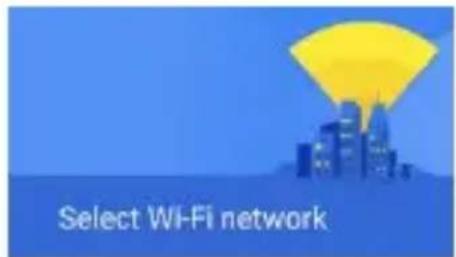
Select Wi-Fi network
B3F1-01
0816/WFA2


Hisense
502.1x


Hisense-guest
znsytest
MPA2


Add another network


SKIP
The configuration of a Google account is essential to use all the features and services of your Android phone, such as access to Google Play™, synchronization of contacts or your calendar. If you don't have Gmail or any other Google Account, go ahead and create one.
Unlocking the screen
Press the phone screen and slide to unlock the screen.
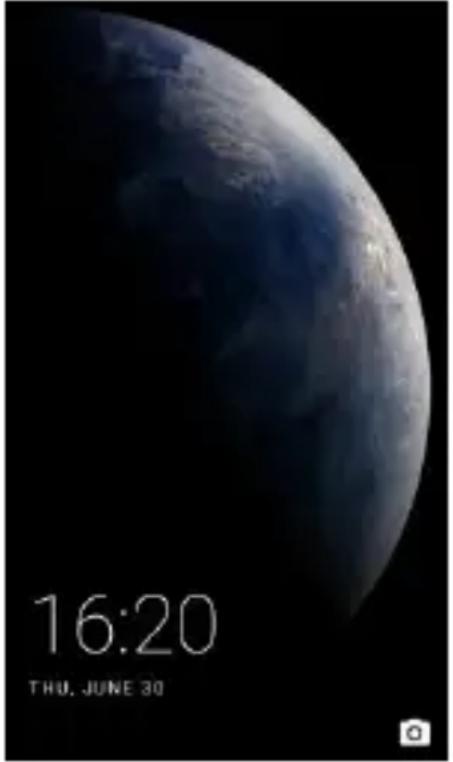
Home screen
The Home screen is the starting point for many applications and functions, and it allows you to add items like application shortcuts to give you instant access to information and applications.

Status Bar: Shows phone's status information including the time, signal strength, battery status, and notification icons.
Widget: Widgets are self-contained applications that can be accessed on the Home screen or an extended home screen. Unlike a shortcut, the Widget appears as an on-screen application.
Application Icons: Tap an icon (application, folder, etc.) to open and use it.
Location Indicator: Indicates which screen canvas you are viewing.
Quick Key Area: Provides one-touch access to the function in any home screen canvas.
Extended screen
The operating system provides multiple screen canvases to provide more space for adding icons, widgets, and more.
Slide your finger left or right across the Home screen
Notifications Panel
Notifications alert you the arrival of new messages, calendar events, and alarms, as well as ongoing events, such as when you are on a call.
When a notification arrives, its icon appears at the top of the screen. Icons for pending notifications appear on the left side, while system icons such as Wi-Fi or battery strength show on the right.

Opening the notifications panel
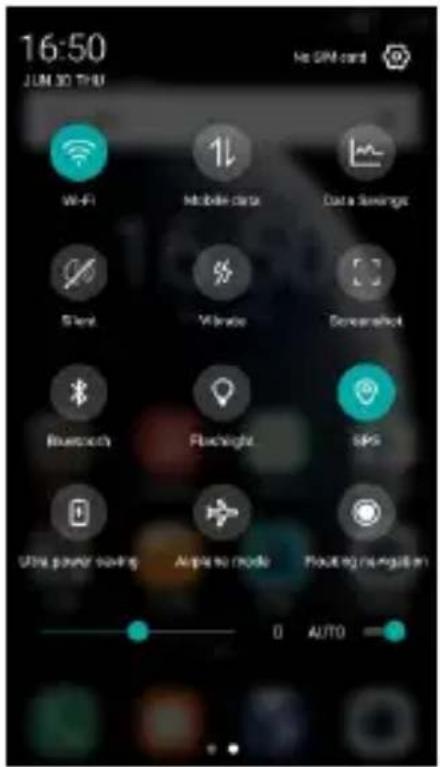
Hold the status bars with your finger, and drag it downwards to open the notifications page.

Swipe right to open the shortcut menu. From the shortcut menu, you can quickly access to Bluetooth, Wi-Fi, Mobile data, etc.
Customizing Your Screen
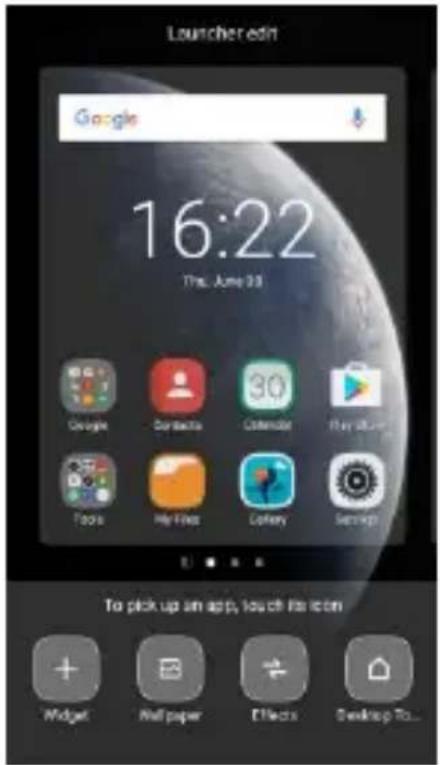
Long press the blank space of the standby interface, then select "Wallpaper" and "Widget".
You can customize your screen by setting the widget and wallpaper.
Making and Receiving a Call
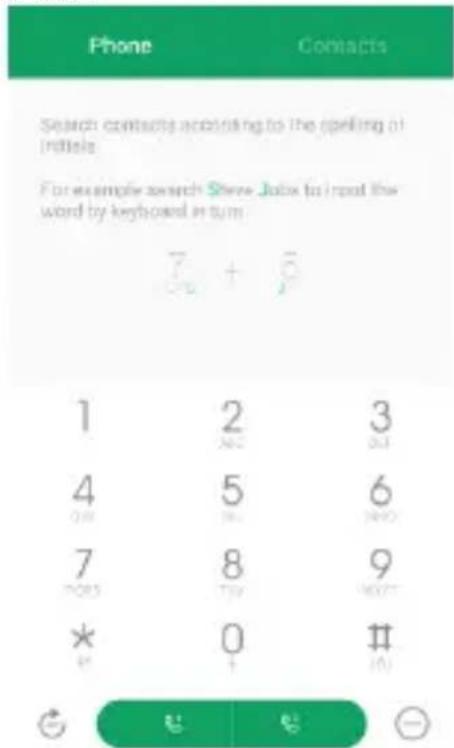
Touch to enter dialer interface on idle screen. Inputting the part of phone number can search the saved phone number automatically. Then select the right
number, and click call button or to make a call.
If there is an incoming call, press and drag the button
to to answer the call.
Adding Contacts
Tap the contact icon

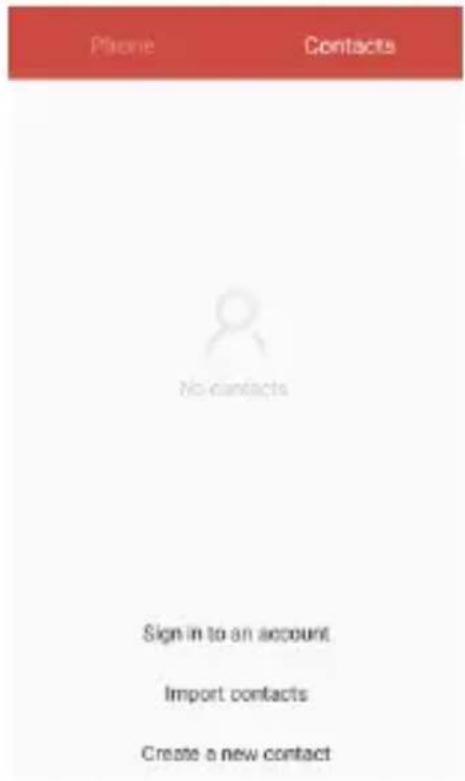
Click "Create a new contact", you can add a new contact to the phone or card.
Click at the bottom of the screen, then input the part of the phone number or name, all the contacts with the information appear.
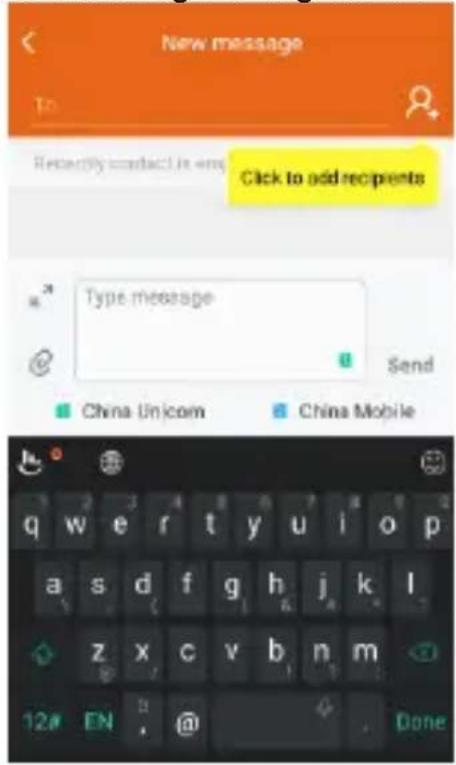
Sending Messages

Tap the message icon
Click “New message” to create a message. Input recipient's phone number or name to search in contacts.
Click "Type message" to edit the message.
When you are ready to send the message, click Send.
You can send the message using card 1 or card 2.
Music

Touch the music application icon to enter music player.

Camera
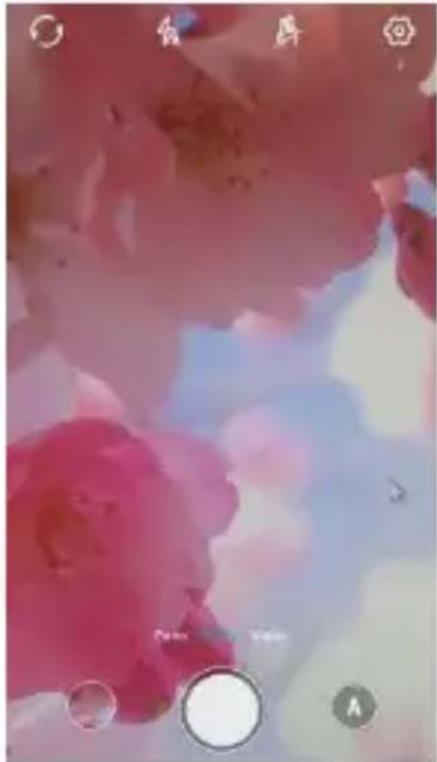
The camera app is a combination of camera and camcorder. It consists of two cameras: the front camera (facing you) and the main camera in behind of the phone.
natural_image
Close-up of pink and blue floral petals with circular UI elements (no readable text or symbols)Take photos

Tap the photo icon .
-
Frame your subject on the screen.
-
A green square around the subject indicates that the camera has focused.
-
Tap to take a photo, your picture will be automatically saved to the Gallery.
Record videos
-
Slide the screen to the left, frame your subject on the screen.
-
Tap to start recording the video.
-
The length of the recording is displayed on the top of the screen.
-
Click to stop recording, when recording video,
click to take pictures, and click to pause recording video.
Make gesture capture
Touch “Settings-> Motions and gestures->Turnoff screen gestures” and click the button to turn on screen gestures. When screen is black, draw “s” on the screen to take a photograph.
Assistive Gestures
- From your Home screen tap "Settings->Motions and gestures".
- Select Light screen, you can keep your phone light as long as you are facing to it, and double tap the same place of your phone can light screen.
- Select "other" you can control your device with natural movements as the device's guide.
Chrome
Connect the web page with the mobile network.
Click the icon, then you can open the web browser. Through the chrome address bar/search bar, you can access web pages; moreover, bookmarks, multiple window switching and other functions are supported. When you get access to the network, you may incur additional costs. Consult your local operators for detailed charges.
Getting Connected (connection to Wi-Fi)
- Tap the settings icon.
- Tap "Wi-Fi" and select on.
- Touch the desired network you wish to connect.
- If the network is secured, enter the password.
Important Information
For an optimal experience, the phone regularly connects to mail and internet servers.
This automatically and inevitably generates data exchanges that may be charged in addition to your existing package, or may be deducted from prepaid credit or a prepaid system.
To avoid billing problems related to services that use the Internet, it is strongly recommended to have a suitable option which includes unlimited Internet and emails and to avoid changing the settings preconfigured by default. If you wish, connect to Wi-Fi for a faster and more stream lined experience. It is particularly recommended to use Wi-Fi for streaming, or downloading games, videos or bulky films.
Disclaimer
- The usage of non-original accessories such as headsets, chargers etc., will cause incompatibility between the mobile phone and the accessories that may cause a reduction in performance and malfunction, and we are not responsible for any damage that might occur.
- Specifications and functions of your mobile phone can be different to those contained in this user manual due the user manual is only contain general overview.
- Specifications and functions of your mobile phone have been confirmed to work properly since produced from the factory. If there is damage or defect due to the manufacturing and not by usage, it would follow terms and condition in the warranty card.
- If the functions of your mobile phone related to features and services by carrier then those functions will follow the terms & conditions applicable by the carrier.
- Please note that your mobile phone still has its limitations referring to the specifications and functions. These limitations cannot consider as damage or defect and cannot be regarded as manufacturer damage. Please use your mobile phone in accordance with the purposes and functions.
Troubleshooting
This chapter lists some problems you might encounter when using your phone. Some problems require you to call your service provider, but most are easy to fix yourself.
| Message | Possible causes | Possible corrective measures |
| SIM card error | There is no SIM card in the phone or it is inserted incorrectly. | Make sure that the SIM card is correctly inserted. |
| No network connection/ Dropped network | Signal is weak or you are outside the carrier network. | Move toward a window or into an open area. Check the network operator coverage map. |
| Operator applied new services. | Check whether the SIM card is too old. If so, change your SIM card at your network provider's nearest branch. Contact your service provider. | |
| Codes do not match | To change a security code, you will need to confirm the new code by re-entering it. | If you forget the code, contact your service provider. |
| The two codes you have entered do not match. | ||
| Calls not available | Dialling error. | New network not authorized. |
| New SIM card | Check for new | |
| inserted. | restrictions. | |
| Pre-paid charge limit reached. | Contact service provider. | |
| Phone cannot be switched on | Power key pressed too briefly. | Press the Power key for at least two seconds. |
| Battery is not charged. | Charge battery. Check the charging indicator on the display. | |
| Charge error | Outside temperature is too hot or cold. | Charge battery. |
| Outside temperature is too hot or cold. | Make sure phone is charging at a normal temperature. | |
| Contact problem | Check the charger and its connection to the phone. | |
| No voltage. | Plug the charger into a different socket. | |
| Charger defective. | Replace the charger. | |
| Wrong charger. | Use only original accessories. | |
| Impossible to receive / send SMS & photos | Memory full. | Delete some messages from your phone. |
| Files do not open | Unsupported file format. | Check the supported file formats. |
| The screen does not turn on when I receive a call. | Proximity sensor problem. | If you use a protection tape or case, make sure it has not covered the area around the proximity sensor. Makesure that the area around the proximity sensor is clean. |
| No sound | Vibration mode or silent mode. | Check the settings status in the sound menu to make sure you are not in vibration or silent mode. |
| Hangs up or freezes | Intermittent software problem. | Try to perform a software update via the website. |
| Contacts display doubly | Contacts are saved in both phone and SIM card. | Check contacts saved. |
| App not installed | Not supported by service provider or registration required. | Contact your service provider. |
| Your mobile phone has insufficient memory. | Delete some messages from your phone. | |
| Unable to connect to computer | Data cable defective. | Change data cable. |
| Defective computer port. | Change computer port. | |
| Call logs are not saved | Time is wrongly set. | Check the time setting. |
- Hisense E76 User Manual
- 4G LTE Ready
- Content
- Medical Device
- Road Safety
- Power Supply & Charging
- Specific Absorption Rate (SAR)
- Hearing Protection
- Protecting the Environment
- Cleaning and Maintenance
- Emergency Call
- Compliance
- Copyright
- key's function
- NOTE: Proximity sensor
- WARNING:
- Insert the SIM card/ Micro SD card
- Notes:
- Charging the Battery
- Charging Battery
- Charging time
- Basic Operations
- Turning Your Device On/Off
- Configuring Your Phone on Start up
- Unlocking the screen
- Home screen
- Extended screen
- Notifications Panel
- Opening the notifications panel
- Customizing Your Screen
- Making and Receiving a Call
- Adding Contacts
- Sending Messages
- Music
- Camera
- Take photos
- Record videos
- Make gesture capture
- Assistive Gestures
- Chrome
- Getting Connected (connection to Wi-Fi)
- Important Information
- Disclaimer
- Troubleshooting
Brand : HISENSE
Model : E76
Category : Smartphone