MotoNAV TN700 - Gps MOTOROLA - Free user manual and instructions
Find the device manual for free MotoNAV TN700 MOTOROLA in PDF.


| Product Type | Portable GPS Navigator |
| Brand | Motorola |
| Model | MotoNAV TN700 |
| Display | 4.3-inch TFT color touchscreen |
| Display Resolution | 480 x 272 pixels |
| GPS Chipset | SiRFstar III |
| Internal Memory | 2 GB (expandable via microSD) |
| Maps | Preloaded with street maps of North America |
| Battery | Rechargeable lithium-ion; up to 4 hours usage |
| Power Input | 12-24V DC via vehicle cigarette lighter adapter |
| Dimensions | 4.8 x 3.0 x 0.7 inches (122 x 76 x 18 mm) |
| Weight | 5.6 oz (160 g) |
| Connectivity | USB 2.0, microSD card slot |
| Audio | Built-in speaker, 3.5mm headphone jack |
| Voice Guidance | Text-to-speech with street name announcement |
| Additional Features | Lane guidance, speed limit alerts, points of interest |
| Cleaning Instructions | Wipe with soft dry cloth; do not use liquids or abrasives |
| Safety Precautions | Use only approved accessories; do not disassemble |
| Spare Parts / Repairability | Battery and charger available; service by authorized center only |
Frequently Asked Questions - MotoNAV TN700 MOTOROLA
User questions about MotoNAV TN700 MOTOROLA
0 question about this device. Answer the ones you know or ask your own.
Ask a new question about this device
Download the instructions for your Gps in PDF format for free! Find your manual MotoNAV TN700 - MOTOROLA and take your electronic device back in hand. On this page are published all the documents necessary for the use of your device. MotoNAV TN700 by MOTOROLA.
USER MANUAL MotoNAV TN700 MOTOROLA
Vantage.QSG.UK_final.fm Page -1 Tuesday, November 24. 2009 12:06 PM
NAVTEQ ON BOARD




Vantage.QSG.UK_final.fm Page 1 Tuesday, November 24, 2009 12:06 PM
HELLOMOTO
welcome
Your MOTONAV™ TN700 Series Personal Navigator helps you find the best route with Satellite Navigation accuracy and streaming traffic information.
• Get clear directions, 3D landmarks in major citiesl. and
• Make hands-free calls and send text messages while paired with your Bluetooth® enabled phone.
- Locate your favourite restaurant, nearest bank, fuel station, or see businesses and other locations along your route.
• Save time and fuel, and leave getting lost in the past.
- Use MotoExtras to check the weather, fuel prices (with purchased option), flight status, and to use Google® local search.
We've crammed all the main features of your device into this handy guide, and in a matter of minutes you'll see just how easy it is to use. So go on, check it out.
Caution: Before using your personal navigator for the first time, please read the important legal and safety information in the back of this guide.
more information
Download the user's guide: www.motorola.com/motonav
Check for software updates, and more:
www.motorola.com/motoextras
this guide
symbols in this guide

This means a feature is network/subscription dependent, or that it depends on the handsfree profile support supported by your Bluetooth-enabled mobile phone.
Refer to your mobile phone manual for more information.

This means a feature needs an optional accessory.
HELLOMOTO
1


Vantage.QSG.UK_final.fm Page 2 Tuesday, November 24, 2009 12:06 PM
contents
welcome....1
more information .... 1
this guide .... 1
your navigation device .... 3
mount it — dashboard.... 4
mount it — windscreen (both
top and bottom of the screen) .. 5
charge up 6
going on foot? 7
set it up 8
sync your contacts .... 10
change the volume ..... 10
explore the map & Multiview .. 11
Speak & Go 14
let's go 15
find an address with
Easy Search....15
set your home address ..... 16
set favourite addresses....16
Traffic....16
MotoExtras 17
safety cameras 18
calls 20
receive calls....20
make calls 21
make calls using contacts ..... 21
while on a call 21
messages 22
send text messages ..... 22
receiving text messages ..... 22
trusted contacts....23
tips & tricks 24
power & charging tips ..... 25
car charger....25
travel charger....25
troubleshooting....26
Support 26
Bluetooth Support 26
check for new maps ..... 26
reset your MOTONAV ..... 26
new views, panels, & maps ... 26
Legal & Safety 27




Vantage.QSG.UK_final.fm Page 4 Tuesday, November 24, 2009 12:06 PM
mount it — dashboard
put your device in your vehicle...or you can carry it when you leave your wheels behind


Tip: Align the posts on the crade with the grooves on the back of the device. Listen for a small click when it attaches.
Note: Before you mount the device on the dashboard, clean the surface first. Put your device in a secure place. Do not cover an airbag. DO NOT MOUNT IN A LOCATION THAT OBSTRUCTS DRIVER'S VISION OR INTERFERES WITH OPERATION OF THE VEHICLE. To mount your device on the windscreen, see page "going on fool?" on page 7.
4
mount it — dashboard




Vantage.QSG.UK_final.fm Page 5 Tuesday, November 24, 2009 12:06 PM


mount it — windscreen (both top and bottom of the screen)
Before installing or using, check state and local laws regarding windscreen mounting or use of equipment. DO NOT MOUNT IN A LOCATION THAT OBSTRUCTS DRIVER'S VISION OR INTERFERES WITH OPERATION OF THE VEHICLE.


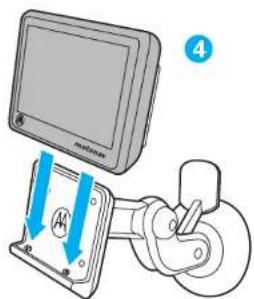
Tip: Align the costs of the circle with the grooves on the back of the device. Listen for a small click when it attaches.


mount it — windscreen (both top and bottom of the screen)

5


Vantage.QSG.UK_final.fm Page 7 Tuesday, November 24, 2009 12:06 PM
going on foot?
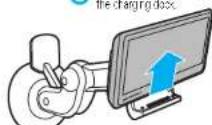
To take your MOTONAV device with you, press the Release Button to remove it from the charging dock.
1 Press the Release Button (on bottom) to remove device from charging dock
2 While holding the Resease Button, lean the devices forward.


3 Lift the device up from the charging dock.
Note: When you take your MOTONAV device out of the charging dock, tap Enter Pedestrian Mode to keep your device turned on while you walk. (You have the option of continuing on battery power, switching to pedestrian mode, or turning the device off.) If you don't select an option, your device turns off after 30 seconds.
going on foot?
7




Vantage.QSG.UK_final.fm Page 8 Tuesday, November 24, 2009 12:06 PM
set it up
let's get you up and moving
turn it on & off
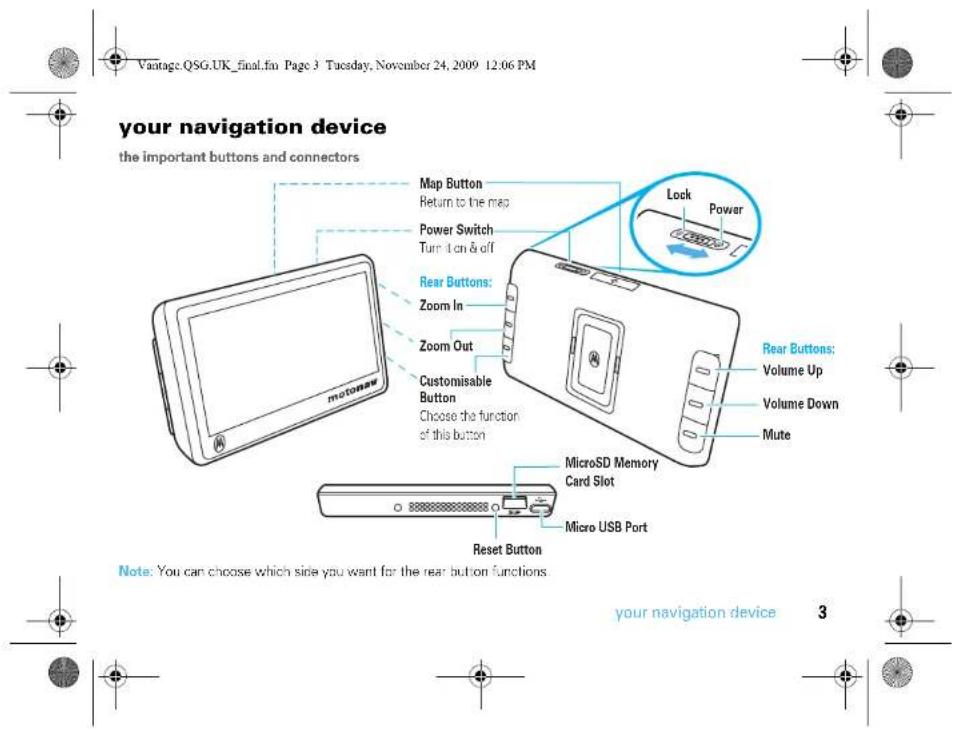
The Power Switch is located on the top of the device.

| turn on/off | slide and release left itoward ⏻ |
| lock | slide right itoward 🔒(lock screen and rear buttons, but device stays on) |
Acquiring Satellites
To receive a strong signal, make sure your device has an unobstructed view of the sky. It may take a few minutes for your device to locate satellites the first time you turn the power on.
8
set it up


set it up
When you first turn on your device, you'll need to do a couple things to set it up. You know, answer a few questions. Get to know each other.
1 Review or change the Language
2 Review or change the Time Zone, Distance Units, and Temperature Units.
3 Optionally customise the buttons on the rear of the device.
4 Reed and accept the Safety Warning
5 Read and accept the End User License Agreement.
6 Connect your Bluetooth® enabled mobile phone. (On see "connect it" on page 9 to connect later.)
7 Read the Traffic feature notice, if it appears.
8 Use your connected mobile phone to try MotoExtras
9 Tap Yes for a tutorial or tap No to continue.
10 Tap Done to start using your device.
Note: To change these settings later, see your User's Guide.


Vantage.QSG.UK_final.fm Page 9 Tuesday, November 24, 2009 12:06 PM
connect it
Connect your MOTONAV device with your phone using Bluetooth® wireless technology to use your device to make hands-free calls, send text messages lif supported by your mobile phone, or use MotoExtras or voice prompted search features.
1 Turn on your MOTONAV device.
2 On your device, tap the map, then tap Main Menu > Settings > Bluetooth.


3 Tap On to turn Bluetooth on and to put your device in discoverable mode.
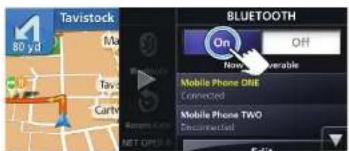
4 On your mobile phone, turn on the Bluetooth feature.
5 On your mobile phone, search for nearby devices.
6 Select the name of your MOTONAV device from the list of nearby devices found.
Tip: To change the Bluetooth name of your MOTONAV device, go to Main Menu > Settings > Bluetooth, then scroll to My Device, tap the name to edit it.
7 Follow the directions on your mobile phone to connect. If prompted for a passcode, enter 0000.
Note: For more help connecting, visit www.motorola.com/Bluetoothconnect
set it up
9


Vantage.QSG.UK_final.fm Page 10 Tuesday, November 24, 2009 12.06 PM
sync your contacts
After you connect with your mobile phone, you can set your device to automatically download your contacts, text messages, and recent calls to your MOTONAV device.
Note: Downloading your phonebook and text messages depends on your phone's capabilities. To determine whether your phone supports these features, go to www.motorola.com/Bluetoothconnect.
1 Your MOTONAV device downloads all of your contacts from the phone. There is no limit to the number of contacts you can download, however only the first 300 contacts are displayed in the Contact list.

1 Tap the map, then tap Phone > Sync, then tap On to turn AutoSync on.
2 Tap Phonebook, Messages, or Recent Calls.
3 Tap Sync Now.

change the volume
Adjust the volume during a call by pressing Volume Up or Volume Down on the back of the device (see page 3).
To mute, press Mute (see page 3).
To customise these buttons, tap the map, then tap Main Menu > Settings > System > Customisable buttons.
10
set it up




Vantage.QSG.UK_final.fm Page 11 Tuesday, November 24, 2009 12.06 PM


explore the map & Multiview
Your MOTONAV display has expandable left and right views. You can use these panels without ever leaving the map.
map buttons
Tap the map to see these main features.
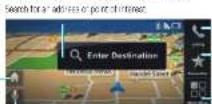
Pair a phone or place a cell Access your fare to patients
Co to out home address
Enable voice Recognition
View the
right panel—main menu
Tap the map, then tap Main Menu to expand the right panel.

The main menu opens:


set it up
11


Vantage.QSG.UK_final.fm Page 12 Tuesday. November 24, 2009 12.06 PM


left panel—not in a route
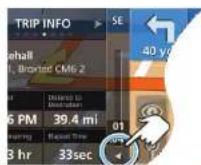
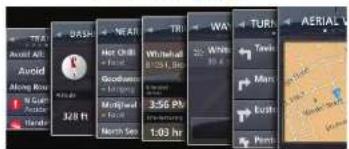
Tap on the bar on the left side of the display to open the left panel and see information about your route. Tap the trip progress bar to close the left panel.
left panel—in a route
Tap the left panel to see information about your route. To close the left panel, tap it.



12
set it up
• Aerial View — overview of your area
• Turn by Turn —steps of your route from end to end
• W a y-stpps along b planned route


Vantage.QSG.UK_final.fm Page 13 Tuesday, November 24, 2009 12.06 PM

• T r i-destination, estimated time of arrival, distance remaining, time remaining, elapsed time
• Nearby POIs —points of interest in your area
- Dashboard —trip information (current location, GPS signal, heading, speed, altitude)
• T r—current traffic situation & detour suggestions




set it up
13


13
13
13
13
13
13
13
13
13
13
13
13
13
13
13
13
13
13


•
•
•
•
•
•
•
•
•
•
•
•
•
13
13
13
13


[Non-Text]
[Non-Text]
[Non-Text]
[Non-Text]
[Non-Text]
[Non-Text]
[Non-Text]
[Non-Text]
[Non-Text]
[Non-Text]
[Non-Text]
[Non-Text]
[Non-Text]
[Non-Text]
[Non-Text]
[Non-Text]
[Non-Text]
[Non-Text]
[Non-Text]
[Non-Text]
[Non-Text]
[Non-Text]
[Non-Text]
[Non-Text]
[Non-Text]
[Non-Text]
[Non-Text]
[Non-Text]
[Non-Text]
[Non-Text]
[Non-Text]
[Non-Text]
[Non-Text]
[Non-Text]
[Non-Text]
[Non-Text]
[Non-Text]
[Non-Text]
[Non-Text]
[Non-Text]
[Non-Text]
[Non-Text]
[Non-Text]
[Non-Text]
[Non-Text]
[Non-Text]
[Non-Text]
[Non-Text]
[Non-Text]
[Non-Text]
[Non-Text]
[Non-Text]
[Non-Text]
[Non-Text]
[Non-Text]
[Non-Text]
[Non-Text]
[Non-Text]
[Non-Text]
[Non-Text]
[Non-Text]
[Non-Text]
[Non-Text]
[Non-Text]
[Non-Text]
[Non-Text]
[Non-Text]
[Non-Text]
[Non-Text]
[Non-Text]
[Non-Text]
[Non-Text]
[Non-Text]
[Non-Text]
[Non-Text]
[Non-Text]
[Non-Text]


Vantage.QSG.UK_final.fm Page 14 Tuesday, November 24, 2009 12.06 PM
Speak & Go
use your voice & keep your hands on the wheel
Tap when say these voice commands:
| voice commandsI say these when looking at the map screen! | "Dial Number""Call Contact""Call Information""Cancel Trip""Enter Address""Favourites""Find Place""Go Home""Help""Main Menu" | "Messages""Mute""Unmute""Recent Calls""Recent Trips""Send Location""Voicemail""Volume Up""Volume Down""Where am I?" |
| control commandsI say these for moving through screens! | "Back""Cancel""Page Up""Page Down" |
| global commands Isay these at any timel | "Read Out" "Repeat" "Exit" |
| Speak & Go Plus | While using Search, tap to use your voice to enter an address. |
Note: If the Display Language setting on your device is set to a language different than the language of the country in which you are using the device, voice commands for Address Entry and Search will not be recognised. Please use the touchscreen to enter an address or perform a search.


Vantage.QSG.UK_final.fm Page 15 Tuesday, November 24, 2009 12.06 PM
let's go
hit the road, on wheels or on foot
find an address with Easy Search
Before you start driving, say or use the keyboard to enter an address or part of one to create a route.
1 Tap the map.
2 Tap Enter Destination

3 To optimise your search results, specify the city or town you want to search within by tapping the box in the upper right and entering the city or town name. Alternatively you can enter your desired postcode in the same box.
If you don't enter a city or town, the search will return results for your current location.
4 Tap the display to enter a keyword or the street
number and street name
A list of matching addresses and points of interest appears on the right side of the screen.

Tip: To go to an intersection, enter the two street names separated by +.
5 Tap anywhere on the list to expand it.
6 Tap the address in the list.
An overview map appears along with options for the address your selected.
An overview map appears along with options for the address your selected.
7 Tap Go!
let's go
15




Vantage.QSG.UK_final.fm Page 16 Tuesday, November 24, 2009 12.06 PM
set your home address
1 Tap the map.
2. Jan Main Menu
3 Tao Favourites > Set Home
4 Tap Current Location if you are at home, or tap Enter Location to enter your home address.
Tip: The next time you want to go home, tap the map, then tap the home icon, and you're as good as there.
set favourite addresses
After you select an address or point of interest, tap the name, then tap Make Favourite (at the bottom of the overview map).
To see your saved addresses and points of interest, tap the map, then Main More > Favourites.

16
let's go
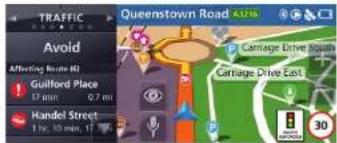
Traffic
The Traffic service provides streaming traffic updates. When using the traffic service, your device calculates routes that minimise or avoid traffic delays. If traffic is detected on your route, your device offers you alternate routes to save you time. You can preview detours before accepting them.
Routes are updated automatically or you can preview detours before accepting them. (TapSettings > Traffic > Automatic Avoid! An icon appears next to progress bar showing the new route time. Tap the icon to learn more about the alternate route.
Traffic information is included with MOTONAV device models numbers that end in t or with the purchase of a charging dock with built-in traffic receiver. Visit www.motorola.com/motoextras for more information or to purchase a charging dock with built-in traffic receiver for your device
Note: You receive traffic information only if your device supports this feature. Your device must be in the charging cradle and plugged in to the car charger to receive traffic information.


Vantage.QSG.UK_final.fm Page 17 Tuesday, November 24, 2009 12.06 PM
The traffic feature is only available for England, Wales, Scotland and Northern Ireland. The service is not available for the Republic of Ireland or outside the UK at this stage.
MotoExtras
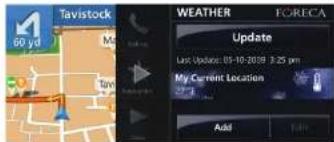
Stay up on weather, flight status, and fuel prices. Your device includes 3 months free of MotoExtras, which you can renew online after your 3 months are up. Visit www.motorola.com/motoextras to purchase MotoExtras for your device.
Note: These MotoExtra features are available only for the UK.
MotoExtras gives you these updates and features:
- weather
- fuel prices
- flight status
• Google® local search
Note: Your device must be connected to a Bluetooth® enabled mobile phone to receive information.
1 Tap the map.
2 Tap Main Menu
3 Select Weather, Right Status, or Fuel Prices.

let's go
17


Vantage.QSG.UK_final.fm Page 18 Tuesday. November 24, 2009 12.06 PM


Google® local search
You can use Google to search for an address or point of interest. Your device must be connected to your mobile phone via Bluetooth to use this feature.
1 Tap Search or Enter Destination
2 Enter what you want to search for.
3 Tap Google > Search
send addresses from the Web
MotoExtras also lets you send addresses from the internet to your device so you can navigate to them easily without entering the address. To use this feature, make sure your mobile phone is connected to your device via Bluetooth.
1 On your PC or mobile phone browser, navigate to www.google.co.uk/maps.
2 Search for an address or business.
3 After you find what you're looking for, clickSend.
4 Click GPS, then click Motorola.
5 Enter your mobile phone number, then click Send. A text message is sent to your phone. The text message will include the options to Call or Go to this location.
18
let's go
safety cameras
Your MOTONAV can warn you when approaching a speed camera, red light camera, or hazard area. Cameras appear as icons on the map.
You can:
- Set your MOTONAV to give you either audio or visual warnings, or both.
- Set the audio warning to be either a tone or a voice.
- Select warnings for speed cameras, red light cameras, or hazard areas.
Your device includes 3 months of free Safety Camera alerts, which you can renew online after your 3 months are up. Visit www.motorola.com/motoextras to purchase the safety camera feature or to get software updates for your device


Vantage.QSG.UK_final.fm Page 19 Tuesday, November 24, 2009 12.06 PM

Note: The Safety camera feature is only available for England, Wales, Scotland and Northern Ireland. The service is not available for the Republic of Ireland or outside the UK at this stage.


let's go
19


Vantage.QSG.UK_final.fm Page 20 Tuesday, November 24, 2009 12.06 PM
calls
Drive Safe, Call Smart
First, connect your MOTONAV with your mobile phone (see page 9).
Note: Using a mobile device while driving may cause distraction. End a call if you can't concentrate on driving. Also, using a mobile device or accessory may be prohibited or restricted in certain areas. Always obey the laws and regulations on the use of these products.
receive calls
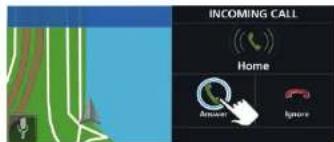
When you receive a call, your device plays a ringtone and says, "Incoming call. Answer or ignore?"
To answer, say "Answer" or tap Answer on the display.
20
calls


To ignore the call, say or tapignore.
To hang up, say or tap End.




Vantage.QSG.UK_final.fm Page 21 Tuesday, November 24, 2009 12.06 PM
make calls
To make a call using Speak & Go, tap , then say "Dial Number," and follow the prompts.
Or, you can touch the screen to make a call
1 Tap the map,
2 Tap Calling > Dial Pad
3 Enter the number and tapCall

make calls using contacts
1 Tap the map.
2 Tap Main Menu > Contacts
3 Select a contact and tap the phone number to call.

while on a call
While on a call, you can tap the menu to minimise the phone controls.
Tip: Good at multitasking? You can use any feature other than Bluetooth® features while on a call.
To return to the phone controls, tap the phone bar.
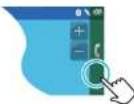
Here's what else you can do while you're on a call. But remember to keep your eyes on the road.
- Mute — Mute.
- Talk on Phone — Switch the conversation to your mobile phone so you can talk in private.
- Talk on MOTONAV — Switch your call to your navigation device.
• Dial Pad — Dial another number.
• Recents — View your call history. - Contacts — Look up a contact.
- End — Hang up.
calls
21


Vantage.QSG.UK_final.fm Page 22 Tuesday, November 24, 2009 12.06 PM
messages
Drive Safe, Text Smart
If your mobile phone supports Bluetooth® messaging, you can use your MOTONAV device to send and receive messages. For more information about texting, see your phone User's Guide.
Note: Downloading your phonebook and text messages depends on your phone's capabilities. To determine whether your phone supports these features, go to
www.motorola.com/Bluetoothconnect
send text messages

1 Tap the map, then tap Main Menu > Messaging > Create Message.
2 Select Custom Message to type a message, My Location to send your current location, or any of the pre-written text messages.
3 Tap Send To
4 Select a contact.
5 Tap Send.
receiving text messages
When you receive a new text message, your device shows a new message notification. Tap Open to read the message or say "open" to hear the message read out loud. You can reply to or call the sender.
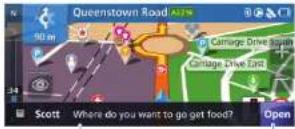
Tap anywhere on this bar to hear the text message aloud.
Tap to read the text message.
Tip: No time right now? To read your messages later, tap Main Menu > Messaging
22
messages


Vantage.QSG.UK_final.fm Page 23 Tuesday. November 24, 2009 12.06 PM

trusted contacts
There are some people who always want to know where you are. With trusted contacts, you can let them know automatically.
1 Tap the map, then tapMain Menu > Trusted Contacts
2 Tap Location Share.
3 Select a contact.
4 Tap Always Ask if you want the contact to know your location just this one time or Always Allow if it's OK to share your location with the contact always.
If your MOTONAV is connected with your mobile phone, you can automatically share your current location with a trusted contact when they text: "motonav" to you. When you're not in a route, your current location is shared with your trusted contact. When in a route, you share your location, destination, and your estimated time of arrival (ETA).


If your MOTONAV is connected with your mobile phone, you can automatically share your current location with a trusted contact when they text: "motonav" to you. When you're not in a route, your current location is shared with your trusted contact. When in a route, you share your location, destination, and your estimated time of arrival (ETA).

messages
23


Vantage.QSG.UK_final.fm Page 24 Tuesday, November 24, 2009 12.06 PM
tips & tricks
a few things to make you a pro
| To.. | |
| pick a destination from the map | Press and hold the location on the map. |
| repeat the last instruction | Tap the arrow in the top left. |
| find out what a map icon means | Press and hold the icon. |
| access Multiview panels | Tap the left & right panels. |
| zoom in or out | Press the Zoom rear buttons (see page 3) or tap or on the map. |
| access ads | Tap the right panel, then tap Main Menu > Offer Inbox. |
| To.. | |
| start voice recognition | Tap ☐ . |
| switch between 2D & 3D view | Tap ☐ . |
| reset your device | Press and hold the Reset button (see page 3). |
24
tips & tricks


Vantage.QSG.UK_final.fm Page 25 Tuesday, November 24, 2009 12.06 PM
power & charging tips
stay powered up
Note: You can find the battery level indicator by expanding the left panel and looking on the dashboard.

car charger
Power your device by using the included car charger.
- When you insert your device into the charging dock, it turns on automatically if the charger is plugged in, has power, and the power switch is not in the locked position.
-
When you remove your device from the charging dock or disconnect the power, it gives you the option of continuing on battery power, switching to pedestran mode, or turning the device off. If you don't select an option, your device turns off after 15 seconds.
-
If you leave the device off for more than four days, it enters a power saving mode and will take a few moments longer to start up next time.
- When operating on battery power, the power light flashes red when the battery is low.
• The included car charger will not power Motorola mobile phones.
travel charger
A micro USB wall charger is available as an optional accessory which you can use it to charge your device.
- Turn off your navigation device before using the travel charger. (Your navigation device consumes more power when turned on than the wall charger can provide.)
- You can also connect your navigation device to a computer using a micro USB cable to charge it. Turn your device off before charging it via a USB connection.
- You can use the travel charger to charge any mobile phone that has a micro USB port.
power & charging tips
25


Vantage.QSG.UK_final.fm Page 26 Tuesday, November 24, 2009 12.06 PM


troubleshooting
we're here to help
Support
To download new software, update your maps, purchase
additional accessories, or get help, visit
www.motorola.com/motoextras
To register your device, visit www.motorola.com/motonav.
Bluetooth Support
If you need more help, visit www.motorola.com/Bluetoothconnect.
check for new maps
Within the first 60 days of use, get a free map update by
visiting www.motorola.com/motoextras. Terms and conditions
apply. Subject to availability. Visit the web site for details.
reset your MOTONAV
If your MOTONAV stops working, you can reset it by
pressing and holding the power button for 10 seconds.
Or, press and hold the Reset button. See page 3 for
Durchlocations
new views, panels, & maps
Because we're always working to make things better.
some of your MOTONAV displays may be changed
Updated: Visit WWW.motorola.com/motorava for the latest
information.


26
troubleshooting


Vantage.QSG.UK_final.fm Page 27 Tuesday, November 24, 2009 12.06 PM
European Union Directives Conformance Statement
Hereby, Motorola declares that this product is in compliance with the essential requirements and other relevant provisions of
- All other relevant EU Directives
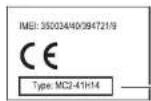
Product
Approval
Number
The above gives an example of a typical Product Approval Number.
You can view your product's Declaration of Conformity (DoC) to Directive 1995/xyLC (to FAITE Directive at www.motorola.com/rite. To find your DoC, enter the Product Approval Number from your product's label in the "Search" ber on the Web site. The MOTORAV 7A70YTN50 Series is also listed as the 80550/62450.
Caring for the Environment by Recycling

When you see this symbol on a Motorola product, do not disose of the product with 'houseful waste
Recycling Mobile Phones and Accessories
Do not disperse of mobile phones or electrical accessories, such as chargers or headsets, with your household waste. In some countries or regions collection systems are set up to handle electrical and electronic waste items. Contact your regional authorities for more details. If collection systems aren't available, return uncarated mobile phones or electrical accessories in any Motors' Approved Service Centre in your region.
FCC Notice to Users
ICC Values The following statement applies to all products that have received ICC approval. Applicable products bear the ICC tape, and/or an ICC II in the formal ICC-II/XXXX on the product face. Motors has not approved any charges or modifications to this device by the user. Any changes or modifications could void the user's a dirty or complete the equipment. See 470 CP5 Sec. 15:21. This device comprises as part of the ICC Rules. Operation is subject to the following two conditions: (1) This device may not cause harmful interference; and (2) this device must accept any interference measured. Including interference that may cause undissuistic operation. See 470 CP5 Sec. 15:23. This equipment has been tested to found to comply with the limits for a Class B digital device, constant to part of the ICC Plus. These limits are designed to provide reasonable protection against harmful interference in a residential installation. The equipment generates, uses and can reduce radio & radio energy, if not installed and uses in accordance with the instructions, may cause harmful interference to radio communications. However, the is no guarantee that interference will not occur in a particular installation. If
Legal & Safety
27


Vantage.QSG.UK_final.fm Page 28 Tuesday, November 24, 2009 12.06 PM


this equipment does cause harmful interference to ratio or television reception, which can be determined by turning the equipment off and on, the user is encouraged to try to contact the interference by one or more of the following measures:
- Payment or relocate the receiving antenna.
- Increase the connection between the equipment and the power
- Increase the separation between the equipment and the receiver.
- Connect the equipment to an outlet on a circuit different from that to which the receiver is connected.
- Consult the dealer or an expertised radio/12 technician for help.
Approved Accessories
Use of accessories not approved by Motorola, including but not limited to batteries, antennas, and convertible covers, may cause your mobile device to exceed FT energy ensures guidelines and may find your mobile device's warranty.
Motorola recommends that you always use 'Victoria-branded chargers
Motorola devices are designed to work with Motorola chargers. For approved Motorola accessories, visit our Web site at www.motorola.com
Use & safety for battery-powered
accessories Your battery is designed to last the life of the product. It should only be removed by a recycling facility. ANY ATTEMPT TO REMOVE OR REPLACE YOUR BATTERY WILL DAMAGE THE PRODUCT.
- Battery life may temporarily be shorter in low temperature conditions ( 10° C for storage/use below 10° C for rechart or permanently reduce in high temperature conditions above 60° C for storage/use or above 45° C for rechart)
• Do not let your mobile device get wet.
• Do not store your accessory in a parked car or direct sunlight. WARNING: MAY EXPLODE IF DISPOSED OF IN FIRE
WARNING: MAY EXPLODE IF DISPOSED OF IN FIRE.

28
Legal & Safety


Driving Precautions
Check and obey the laws and regulations on the use of mobile devices in the area where you drive. The use of wireless devices and their accessories in your area may be prohibited or restricted. The use of wireless phones while driving may cause direct or. Discontinue a call if you can't concentrate on driving. When using your mobile device while driving please
- Give full attention to driving and to the road.
• Use your hands-free solution to perform hands-free rails. - Pull off the road and park before making or answering a call if driving conditions so require.


Vantage.QSG.UK_final.fm Page 29 Tuesday, November 24, 2009 12.06 PM
Software Copyright Notice
The Motorola products described in this manual may include copyrighted Motorola and third-party software stored in semiconductor memories or other media. Laws in the United States and other countries preserve for Motorola and third-party software providers certain exclusive rights for copyrighted software, such as the exclusive rights to distribute or reproduce the copyrightised software. Accordingly, any copyrighted software contained in the Motorola products may act be modified, reverse-engineered, distributed, or reproduced in any manner to the extent allowed by law. Furthermore, the purchase of the Motorola products shall not be deemed to grant either directly or by indication or, osteopold, or otherwise, any license and/or the copyright, patents, or patent applications of Motorola or any third-party software provider, except for the normal, non-exclusive, royalty-free license to use that asses by operation of law in the sale of a product.
Manual Number: 58014301025


Legal & Safety
29


Vantage.QSG.UK_final.fm Page 32 Tuesday, November 24, 2009 12.06 PM




MOTOROLA
MOTOROLA and the Stylized M Logo are registered in the US Patent & Trademark Office. All other product or service names are the property of their respective owners. The Bluetooth trademarks and logos are owned by the Bluetooth SIG, Inc. and any use of such marks by Motorola, Inc. is under license. © 2009 Motorola, Inc. All rights reserved.
68014301025


- HELLOMOTO
- WELCOME
- MORE INFORMATION
- THIS GUIDE
- SYMBOLS IN THIS GUIDE
- CONTENTS
- MOUNT IT — DASHBOARD
- MOUNT IT — WINDSCREEN (BOTH TOP AND BOTTOM OF THE SCREEN)
- GOING ON FOOT
- SET IT UP
- ACQUIRING SATELLITES
- CONNECT IT
- SYNC YOUR CONTACTS
- CHANGE THE VOLUME
- EXPLORE THE MAP & MULTIVIEW
- SPEAK & GO
- LET'S GO
- SET YOUR HOME ADDRESS
- SET FAVOURITE ADDRESSES
- TRAFFIC
- MOTOEXTRAS
- GOOGLE® LOCAL SEARCH
- SAFETY CAMERAS
- CALLS
- MAKE CALLS
- MAKE CALLS USING CONTACTS
- WHILE ON A CALL
- MESSAGES
- RECEIVING TEXT MESSAGES
- TRUSTED CONTACTS
- POWER & CHARGING TIPS
- CAR CHARGER
- TRAVEL CHARGER
- TROUBLESHOOTING
- EUROPEAN UNION DIRECTIVES CONFORMANCE STATEMENT
- CARING FOR THE ENVIRONMENT BY RECYCLING
- RECYCLING MOBILE PHONES AND ACCESSORIES
- FCC NOTICE TO USERS
- APPROVED ACCESSORIES
- USE & SAFETY FOR BATTERY-POWERED
- DRIVING PRECAUTIONS
- SOFTWARE COPYRIGHT NOTICE
- MOTOROLA
Brand : MOTOROLA
Model : MotoNAV TN700
Category : Gps