
ZR800D - Remote control Elite Screens - Free user manual and instructions
Find the device manual for free ZR800D Elite Screens in PDF.


| Product Type | Remote Control |
| Brand | Elite Screens |
| Model | ZR800D |
| Power Source | 2 x AAA batteries (not included) |
| Dimensions (L x W x H) | Approx. 15 x 5 x 2 cm |
| Weight | Approx. 80 g |
| Transmission Type | Infrared (IR) |
| Operating Range | Up to 10 meters |
| Compatible Devices | Elite Screens motorized projector screens |
| Primary Functions | Power, Up, Down, Stop, Memory, Program |
| Number of Buttons | 10 |
| Material | ABS Plastic |
| Color | Black |
| Battery Life | Approx. 6 months under normal use |
| Cleaning Instructions | Wipe with a soft, dry cloth. Do not use liquids or solvents. |
| Safety Warnings | Keep away from water and heat sources. Remove batteries if not used for extended period. |
| Replaceable Parts | Batteries only |
| Repairability | Non-repairable; replace if faulty. |
| Warranty | 1 year limited warranty |
Frequently Asked Questions - ZR800D Elite Screens
User questions about ZR800D Elite Screens
0 question about this device. Answer the ones you know or ask your own.
Ask a new question about this device
Download the instructions for your Remote control in PDF format for free! Find your manual ZR800D - Elite Screens and take your electronic device back in hand. On this page are published all the documents necessary for the use of your device. ZR800D by Elite Screens.
USER MANUAL ZR800D Elite Screens
UNIVERSAL LEARNING REMOTE CONTROL
MODEL: ZR800D
USER GUIDE

Thank you for your purchasing the ZR800D universal remote control. It features the largest infrared code library for the American market. Based on our creative design, it has the easiest and fastest way to set up directly by the brand name and code number.
The ZR800D universal remote control can learn almost all brands of Televisions (TV), DVD-players and DVR-players (DVD), DVB receivers and (digital) Satellite receivers and Cable box (SAT), Video Recorders (VCR), Audio amplifiers and LD-players and other Audio (AUX), Projector (PRO), Elite Projection Screens (only for brand ELITE)(SCR).
You can use Auto Search to scan the code library in case you cannot find your device brand in the list.
In addition, the ZR800D can learn new codes from an original remote control in case that code is not listed for that model and brand.
Show View function scans all channels for you to have a program quick view.
All off function can switch off all your devices with one button.
Macro function makes several sequent operations with one button for your home theater.
Volume lock can fix VOL+/VOL- button to control Amplifier only for your home theater.
Device lock can fix the device against changing by a new set up until you unlock it.
ZR800D has backlight for LCD screen and separate device backlight to show you the current working device.
Low battery indication to remind you when need to replace batteries.
Light keys all the keys light up to help you to see all the keys clearly in dark environments.
The ZR800D also has real time clock to show the time and AM or PM.
All the set up data will be stored in back up memory permanently; you don't need to be worry about data loss when you replace the battery.
Please read this user manual carefully prior to using your new LCD remote control.
Device Code Assignment
| Bank | for Device | Initial code | Total of codes |
| TV | TV | 048 | 488 |
| VCR | VCR | 075 | 182 |
| SAT | Satellite, Cable, DVB | 075 | 403 |
| DVD | DVD,DVR | 026 | 190 |
| SCR | Elite Screen | 001 | 14 |
| PRO | Projector | 002 | 3 (extend the codes by learning function) |
| AUX1 | AMP, LD,VCD | 032 | 204 |
| AUX2 | AMP, LD,VCD | 006 | 204 |
- Realizing the keys
SET Start to set up (program) the remote control.
LEARN Setting up learning functions.
MACRO Sequence operation of your home theater.
TV, DVD, SCR (SCREEN), VCR, PRO(PROJECTOR), SAT,
AUX 1, AUX 2, Select the device you want to control

Turns the device on and off
0-9 The number keys operate the same as your original remote control, and can also bused for entering device codes when setting up.
Works like the enter key on your original remote.
AV Works like the TV/Video key on your original TV remote, and
TV/SAT key on your original satellite remote A.B in cable and CD modes.
MENU Works like the Menu or OSD (on-screen display) or Memory key on your original remote control.
CH+,CH- Works like the Channel Up and Down keys on your original remote control.
VOL+, VOL- Controls the volume like the Volume Up and Down on your original remote control.
Mute Mutes the sound
REW (fast reverse)
PLAY (operates your DVD, LD etc)
FFWD (fast forward)
REC (Record)
■ STOP (terminate your operation)
II PAUSE
▲▼◀▶, OK, EXIT Works like the UP, DOWN, LEFT,
RIGHT, OK, EXIT keys on your original remote control for menu function.
DISPLAY displays the info on the selected channel.
ALL OFF turns off or turns on all devices with one button.
SHOW VIEW Scans all channels for your program quick view.
A,B,C,D,E,F,G,H Spare keys to store your learning command keys.
- Battery installation
This remote control requires 2 batteries to work with, please refer to the direction marks inside the battery compartment and put 2 fresh AAA batteries.
Alkaline batteries are recommended.
To install the batteries:
- Turn the remote over, pull up the tap and lift the cover off.
- Insert the batteries matching the batteries to the (+) and (-) marks inside the battery case.
- Slide the battery cover back into the place.

- Set Up(by Brand and Code) for ELITE SCREEN
- Be sure already Fixing the Elite Screen OK, be sure the POWER is ON.
- Press and hold the SET key on your remote control. Then press (simultaneously) the device key SCR..
- Then release them, the Elite Screen detailed type will be displayed on the screen.
- You can press the ▲ or ▼ key to select the type of your device (e.g. your detailed type: ELITE 7U 01).
-
Press the OK key to save it. LCD shows SUCCESS and then finishes the set up.
-
Point ZR800D to the receiver window of screen control box and Press the ▲ or ▼ or OK (STOP) key to Check the function.
![graph LR A["TV 048<br>10:45 AM"] -->|SET + SCR| B["ELITE 7E01<br>001"] B -->|or▼| C["ELITE 7U01<br>002"] C -->|OK| D["SCREEN 002<br>10:45 AM"]](/content/2026/05/1087447/images/983c523c273b30c9fe424cf3f346eb8c9926be7a731ae2c965cef34f70e7da14.jpg)
- Set Up(by Enter Code) for ELITE SCREEN
- Be sure already Fixing the Elite Screen OK, be sure have Switched on the Screen.
- In the back section of this manual, find the elite screen detailed type and code number(e.g. ELITE 7E02).
- Press the SET key on ZR800D for more than 3 seconds, then release it.
- Press the ▲ or ▼ keys to select to CODE SETUP in the LCD menu, and press the OK key.
- The screen shows the DEV SEARCH in the LCD menu, press the ▲ or ▼ keys to select to DEV SETUP in the LCD menu, and press the OK key.
- Then you press device key SCR on ZR800D and then press the OK key, you must now enter the 3-digit device code (e.g. 006 for ELITE 7E02)
- Press the OK key to save it and LCD shows SUCCESS, and press the device key SCR to exit the SETUP mode.
- Please check the function of the keys UP, DOWN, OK(STOP) on ZR800D.
![graph LR A["TV 048<br>10:45 AM"] -->|SET 3S| B["CODE SETUP"] B -->|OK| C["DEV SEARCH"] C -->|▲ or ▼| D["SCREEN 001"] D -->|SCR| E["TV 048"] E -->|OK| F["DEV SETUP"]](/content/2026/05/1087447/images/513604d2320db3629e654573504449e1ee6334cbf6cec08af9a7aee62c57ddd2.jpg)
![graph LR A["SCREEN 001"] -->|006| B["SCREEN 006"] B -->|OK| C["SUCCESS"] C -->|1S| D["DEV SETUP"] D -->|SCR| E["SCREEN 006 10:45 AM"]](/content/2026/05/1087447/images/1ca9c103c3ba3f4c172fabba63efc7e0e3c19bd34c038281c486b36fa83c3f13.jpg)
Remark:
-
To return to beginning status, press the EXIT key or the device key (e.g. TV, or VCR...)
-
You must point your remote control to the device that you want to control during when you test the keys.
-
The keys of ▲▼ ◀▶ OK, EXIT only used to set-up your new remote control during set up. You can't control your device as normal menu function at this moment until you quit from set up.
-
If the device is locked, you must first unlock the device then setting up.
Elite Screen Brand
| Brand | Code |
| ELITE 7E01 | 001 |
| ELITE 7U01 | 002 |
| ELITE 7E00 | 003 |
| ELITE 7E04 | 004 |
| ELITE 7E05 | 005 |
| ELITE 7E02 | 006 |
| ELITE 7E07 | 007 |
| ELITE 7E03 | 008 |
| ELITE 7E08 | 009 |
| ELITE 7E06 | 010 |
| ELITE 7X01 | 011 |
| ELITE 7X02 | 012 |
| ELITE 7Y01 | 013 |
| ELITE 7E09 | 014 |
● How to Replace your TV, DVD, VCR, AUX, SAT, PROJECTOR ORIGINAL Remote Control
You can replace your TV,DVD,VCR,AUX,SAT, PROJECTOR original remote controls with ZR800D by learning function easily. That means you do not need to control your home appliance with many remote controls as before, but only one remote control the ZR800D.
The LEARN feature is also used to supplement the preprogrammed code list. The standard code list may provide most of the functions needed, but you can add additional special functions of your original remote control for your new
LCD remote control.
Or you can learn all functions of your original remote control to the keys on the LCD remote control you want, and replace your original remote control.
In learn mode, you must need to prepare a another original remote control that you will take the codes into your ZR800D.
You can select LEARN KEY to learn commands, or DELETE KEY to delete learnt commands, or choose DELETE DEV to delete all commands under a device, or DELETE ALL for all learnt commands under all device in learn category.
You can enter into the learning mode to press and hold LEARN key for more than 3 seconds.
Learn a Command
-
Press a device key (e.g. TV) where you want to learn to.
-
Press and hold the SET key for more than 3 seconds, then release it.
-
Scroll ▲ or ▼ key to LEARNING in the LCD menu, then press the OK key.
-
Scroll ▲ or ▼ key to LEARN KEY in the LCD menu and then press the OK key. The LCD displays SELECT KEY.
-
Select the (target) key on your ZR800D you want to learn (e.g. Power).
-
Point the transmitter of the original remote control remotes face to the receiver window of ZR800D by approximately 20mm(please notice the distance) apart.

-
Press the POWER key on the ZR800D, the LCD displays WAITING; Press and hold the original remote key (e.g. Power) until the LCD displays SUCCESS for 1 second. If LCD displays FAILED, please Repeat Steps 4-6. Do not shake your original remote control and ZR800D when in learning process.
-
Repeat Steps 4-6 to learn more other keys.
-
Press a device key (e.g. TV) to quit the learn operation when all desired remote commands are learnt.
![graph TD A["SET 3S TV 048 10:45 AM"] --> B["OK"] C["CODE SETUP"] --> D["Power"] E["LEARNING"] --> F["OK"] G["LEARN KEY"] --> H["OK"] I["SUCCESS"] --> J["1S"] K["SELECT KEY"] --> L["IF NO TV"] M["WAITING"] --> N["IF NO TV"] O["TV 048 10:45 AM"] --> P["OK"] Q["Press a source key from original remote"]…](/content/2026/05/1087447/images/26fa51c67162463c5737e8bde290ef9e070d76f710e9798cefe6ff851d1ee2eb.jpg)
Remark:
-
A selected target key can be multi learnt from different sources key, ZR800D will store the final learnt signal only.
-
All usual function keys can be learnt except SHOW VIEW, ALL OFF, MACRO, DEVICE KEYS, LEARN etc..
-
Some code form may not be learn by this remote control (due to the material cost limit.)
-
You can learn about 100 key totally for 8 devices key.
Delete the Learn Key
If you like to delete a learnt command, you can follow the steps as below:
- Press the device key (e.g. TV) where you like to delete commands from.
- Press and hold the SET key for more than 3 seconds, then release it.
- Scroll ▲ or ▼ key to LEARNING in the LCD menu, then press the OK key and the LCD display LEARN KEY.
- Scroll ▲ or ▼ key to DELETE KEY in the LCD menu and then press the OK key.
- Press the key on R800D that you want to delete, the LCD shows SURE DELET and then press the OK key to confirm, the LCD will show SUCCESS.
- Repeat Step 4 to delete next key you want.
- Press a device key (e.g. TV) to quit the delete operation when all desired remote commands are deleted.
![graph TD A["TV 026<br>10:45 AM"] --> B["TV"] B --> C["TV 048<br>10:45 AM"] C --> D["SET 3S"] D --> E["CODE SETUP"] E --> F["▲ or ▼"] G["LEARNING"] --> H["OK"] H --> I["LEARN KEY"] I --> J["▲ or ▼"] K["SELECT KEY"] --> L["Select a key<br>you want to delete"] L --> M["SURE DELET"] M --> N["OK"] N -->…](/content/2026/05/1087447/images/103e153afa3c3402be68958daf4045d7345093163408662f16022c4b3fc18f50.jpg)
Delete All Learnt Command For a Device
If you like to delete all learnt commands in a device with one order instead of deleting every key one by one, please follow the below steps:
- Press and hold the SET key for more than 3 seconds, then release it.
- Scroll ▲ or ▼ key to LEARNING in the LCD menu, and then press the OK key and the LCD display LEARN KEY.
- Scroll ▲ or ▼ key to DELETE DEV in the LCD menu and then press the OK key.
- You select device want to delete(e.g. DVD), press the device key DVD.
- The LCD shows SURE DELET and then press the OK key, the LCD shows SUCCESS.
- Repeat step 4-5 to delete commands in other device key.
- Press EXIT key to quit deletes operation.
![graph TD A["SET 3S"] --> B["CODE SETUP"] B --> C["LEARNING"] C --> D["OK"] E["LEARN KEY"] --> F["DELETE KEY"] F --> G["DELET DEV"] G --> H["OK"] I["SELECT DEV"] --> J["SURE DELET"] J --> K["SUCCESS"] K --> L["1S"] M["SELECT DEV"] --> N["DVD"] N --> O["IF NO EXIT"]](/content/2026/05/1087447/images/4b94be046ea38b83ccad2a0711280dae4e74906cb6a6dbd7f8677ba433ab3170.jpg)
Remark: sometimes it can take about 3 minutes for delete all commands in one device. If the commands are not many, we suggest you delete commands one by one.
Delete All Learned Keys
If you like to delete all learnt commands in the unit, please follow the below steps:
- Press and hold the SET key for more than 3 seconds, then release it.
- Scroll ▲ or ▼ key to LEARNING in the LCD menu, then press the OK key, LCD shows LEARN KEY.
- Scroll ▲ or ▼ key to DELETE ALL in the LCD menu and then press the OK key.
- The LCD shows SURE DELET, then press the OK, LCD shows SUCCESS to finish the deletion.
![graph TD A["SET 3S"] --> B["CODE SETUP"] B --> C["LEARNING"] C --> D["OR"] E["LEARN KEY"] --> F["DELETE KEY"] F --> G["DELETE ALL"] G --> H["OK"] I["SURE DELET"] --> J["SUCCESS"] J --> K["1S"] L["TV 048 10:45 AM"] --> M["OK"]](/content/2026/05/1087447/images/d0d7f02359f3417e7d5d4c04383df7d385eaeb06591478ccb87fc593fadb1c90.jpg)
● Other Set Up
☆1: Direct Set Up (by Brand and Code) (suitable for TV, DVD, VCR, AUX1. AUX2, SAT)
- Turn on the device (e.g. TV) you would like to operate. If it is a VCR, Please insert a tape.
- Press and hold the SET key on your remote control. Then press (simultaneously) one of the device keys (e.g. TV)
- Then release them, the Brand will be displayed on the screen.
- You can press the ▲ or ▼ key to select the brand of your device (e.g. your TV brand: Philips)
-
Check the function of the keys(such as POWER,MUTE,VOL+,VOL-,CH+,CH-,DIGITAL KAYO,1,2,...9,etc). If none of the keys of your new remote control can work, or most of the keys work improperly, please try another code by the ◀ or ▶ key, then Check the function of the keys(such as POWER,MUTE,VOL+,VOL-,CH+,CH-,DIGITAL KAYO,1,2,...9,etc). until all basic functions operate properly.
-
If you are satisfied with the code, just press the OK key to save it. LCD shows SUCCESS and then finishes the set up.

![graph LR A["PHILIPS 004"] -->|OK| B["SUCCESS"] B -->|1S| C["TV 004 10:45 AM"]](/content/2026/05/1087447/images/0e5fdbadb64a97d19f8e48218dc3c0b054d807405e1f3a8aee5798ede6c4db18.jpg)
Remark:
- To return to beginning status, press the EXIT key or the device key (e.g. TV, or VCR...)
- You must point your remote control to the device that you want to control during when you test the keys.
- The keys of ▲▼ ◀▶ OK, EXIT only used to set-up your new remote control during set up. You can't control your device as normal menu function at this moment until you quit from set up.
- If the device is locked, you must first unlock the device then setting up.
☆2: Set-up by Auto Search (suitable for TV, DVD, VCR, AUX1, AUX2, SAT)
If the set-up by brand and code failed or you cannot find the brand name in your remote control screen, you may use the Auto Search to find the correct code to operate your device.
- Turn on the device (e.g. television) you would like to operate. If it is a VCR, Please insert a tape.
- Press the SET key on your new remote control for more than 3 seconds, then release it.
- The CODE SETUP will show in the LCD menu, then press the OK key.
- The screen shows the DEV SEARCH in the LCD menu, and press the OK key, then you press device key to select your desired operation device (e.g. DVD) and point the remote control to the device you chose already, then press the OK key to start the Auto Search.(you must point your remote control to your device at the moment)
- See if the device reacts or not, once the device reacts, press any key to stop the search.
- Test if most of keys work good or not. If most keys work not good enough, please step 4\~5.
- If you find one satisfied code please press the OK key to save it and LCD shows SUCCESS then show DEV SEARCH. You can press device key (e.g. DVD) again to finish SET UP or use ▲ or ▼ to select other set up.
![graph LR A["TV 048<br>10:45 AM"] -->|SET 3S| B["CODE SETUP"] B -->|OK| C["DEV SEARCH"] C -->|OK| D["End"]](/content/2026/05/1087447/images/d4f3730f54770b4a83b9f7c5d6ae12f9fae4a2c791529063f8e4ced4f61740cc.jpg)
![graph LR A["TV 048"] -->|DVD| B["DVD 026"] B -->|OK| C["DVD 048"] C -->|OK| D["+"] E["SUCCESS"] -->|1s| F["DEV SEARCH"] F -->|DVD| G["DVD 048"]](/content/2026/05/1087447/images/8ae58dde575fcac529fa614d2d41d8f0dcf8d3b1aa8bead08ce939d503047c0c.jpg)
Remark:
-
In case of you did not stop the search on time when device reacted, you may press the 🔒 key to search back to find the passed code.(for example, your DVD reacts when the digital is 048 on the LCD, but you do not press any key to stop the searching process synchronously, so the searching process goes on automatically. when you press any key to stop the searching process, now the digital number is already 050. Of course, when you press the POWER or CH+...etc to control your DVD, your DVD will not react. But you can press the ◀ key one time, you will see the digital number changes to 049,and press the POWER or CH+...etc to control your DVD, of course your DVD will not react again; and press the ◀ key one time again, you will see the digital number on the LCD changes to 048,and press the POWER or CH+...etc to control your DVD, this time your DVD will react, then just press the key OK to store it)
-
The keys of ▲▼ OK, EXIT are only used to set-up your new remote control during the Auto Search, you can't control your device for menu function at the moment until you quit from the set up.
-
When remote control searches through all codes, the remote control will stop at the beginning code of the search.
-
If the device is locked, you must first unlock the device then set up.
-
Please remember this digital number for your DVD control, because you can enter this digital number when you use "SET-UP by inter code" quickly next time.
☆3: Set-up by Enter Code (suitable for TV,DVD,VCR,AUX1,AUX2,SAT)
-
Switch on the device, which you would like to control (e.g. TV set).
-
In the process by "SET-UP by auto search", you have found the digital number for your matched device, find the brand code number of your device brand (e.g. Philips 001).
-
Press the SET key on your new remote control for more than 3 seconds, then release it.
-
Press the ▲ or ▼ keys to select to CODE SETUP in the LCD menu, and press the OK key.
-
The screen shows the DEV SEARCH in the LCD menu, press the ▲ or ▼ keys to select to DEV SETUP in the LCD menu, and press the OK key.
-
Then you press device key to select your desired operation device(e.g. TV) and then press the OK key, you must now enter the 3-digit device code (e.g. 001 for Philips TV)
-
Press the OK key to save it and LCD shows SUCCESS, and press EXIT key two times to exit the SETUP mode.
-
You check the function of the keys on remote control(such as the POWER or CH+...etc). If most keys on your new remote control do not function correctly, try another 3-digit device code (e.g. 004...) from the list under the same brand. Repeat steps 3 to 7 until all the basic functions operate correctly.
![graph TD A["SET 3S"] --> B["CODE SETUP"] B --> C["DEV SEARCH"] C --> D["DEV SETUP"] D --> E["TV 048"] E --> F["TV 001"] F --> G["SUCCEED"] G --> H["TV 001"] H --> I["DEV SETUP"] I --> J["DEV SETUP"] style A fill:#f9f,stroke:#333 style B fill:#ccf,stroke:#333 style C fill:#cfc,stroke:#333 style D fil…](/content/2026/05/1087447/images/96afe1ba3d93ae307ab5be43d009e2e34556dd971843fe1e79de681068591d43.jpg)
☆4: Set up Clock
You can set up the clock on your R800D LCD remote control and the clock will be displayed on the screen.
- Press and hold the SET key for more than 3 seconds, then release it.
- Press the ▲ or ▼ key to select the CONFIGURE in the LCD menu, and then press the OK key.
- Press the ▲ or ▼ key to select the TIME SETUP in the LCD menu, and then press the OK key.
-
Press the ◀ or ▶ key to move the cursor to select hour or minute or AM/PM, then press the number key to set hour and minute, and press the ▲ or ▼ key to select AM or PM.
-
Press the OK key to save the setting and LCD display SUCCESS for 1 second then exit to current setup state, if you enter errors the LCD screen shows ERROR for 1 second. You can press any device key to finish set up or press EXIT key return to the last state.
![graph TD A["TV 048<br>10:45 AM"] -->|SET 3S| B["CODE SETUP"] B -->|▲ or ▼| C["CONFIGURE"] C -->|OK| D["TIME SETUP"] D -->|OK| E["TIME<br>10:45 AM"] E -->|▲ or ▼| F["TIME<br>00:45 AM"] F -->|← or ▶| G["SUCCESS"] G -->|1S| H["TIME SETUP"] H -->|TV| I["TV 048<br>00:45 AM"]](/content/2026/05/1087447/images/f9e7f6b9f88412b08b0d8856e44fd62137be1d8a98ab94b28cd4a43b679e2fbf.jpg)
☆5: Volume Lock
This function makes you very convenient when you only use one device to adjust volume. For example, you may use your amplifier as your main volume control, then you can use this function to fix the volume and mute key of AUX, no matter which device you will use (even you will use TV, DVD, VCR etc), the volume and mute key on remote control still control the volume and mute of your amplifier.
- Press and hold the SET key for more than 3 seconds, then release it.
- Press the ▲ or ▼ key to select the CONFIGURE in the LCD menu, then press the OK key.
-
Press the ▲ or ▼ key to select the VOL LOCK in the LCD menu, then press the OK key.
-
Press the device key to select the device you want to fix, such as AUX.
-
Press the or key to change to the ON or OFF mode.
-
Press the OK key to save the setting and LCD display SUCCESS then to current setup state, You can press any device key to finish set up or press the EXIT key to last state, or you can use ▲ or ▼ to select other set up.
![graph TD A["TV 048 10:45 AM"] -->|SET 3S| B["CODE SETUP"] B -->|▲ or ▼| C["CONFIGURE"] C -->|OK| D["AUX1"] E["TIME SETUP"] -->|▲ or ▼| F["VOL LOCK"] F -->|OK| G["TV OFF"] H["AUX1 OFF"] -->|← or ▶| I["AUX1 ON"] I -->|OK| J["SUCCESS"] K["VOL LOCK"] -->|TV| L["TV 048 10:45 AM"]](/content/2026/05/1087447/images/412490e9f6022e7ad94166b1afa05abdd611ec20e01718605d65fe7c1960dd29.jpg)
Remark: You can only lock one device for volume and mute of your new remote control. The locked device will be unlocked when you lock on the other device automatically.
☆6:Device Lock
You can use Device lock function to fix current device code and this device code cannot be changed by brand and code set up or auto search. You can set it to the "OFF" to quit from this function.
- Press and hold the SET key for more than 3 seconds, then release it.
- Press the ▲ or ▼ key to select the CONFIGURE in the LCD menu, then press the OK key.
- Press the ▲ or ▼ key to select the DEV LOCK in the LCD menu, then press the OK key.
-
Press the device key to select the device that you want to fix, such as TV (or DVD, or SAT...)
-
Press the ◀ or ▶ key to change to the ON or OFF mode.
-
Press the OK key to save the setting and LCD display SUCCESS then exit to current setup state. You can press any device key to finish set up or press the EXIT key to last state or you can use ▲ or ▼ to select other set up.
![graph TD A["SET 3S"] --> B["CODE SETUP"] B --> C["CONFIGURE"] C --> D["OK"] E["TIME SETUP"] --> F["DEV LOCK"] F --> G["OK"] H["TV OFF"] --> I["TV ON"] I --> J["OK"] K["DEV LOCK"] --> L["TV 048 00:45 AM"] L --> M["SUCCESS"]](/content/2026/05/1087447/images/5339ebd1eb60401454fc548ae936b032d76cbe035f615007459444c2c100ec81.jpg)
Remark:
You can fix all device codes and these device codes cannot be changed by neither Auto Search nor Brand Code Set up.
☆7: Background Light
If the background light is on, the background light will be lighted up when you press any key.
- Press and hold the SET key for more than 3 seconds, then release it.
- Press the ▲ or ▼ key to select the CONFIGURE in the LCD menu, and then press the OK key.
- Press the ▲ or ▼ key to select the LIGHT in the LCD menu, then press the OK key.
-
Press the ◀ or Key to change to the ON or OFF mode.
-
Press the OK key to save setting and LCD shows SUCCESS then exit to current setup state, You can press any device key to finish set up or press the EXIT key to last state, or you can use ▲ or ▼ to select other set up.

☆8: Contrast Adjust
If you are not satisfied the screen contrast of your remote control, you can use below steps to change it.
-
Press and hold the SET key for more than 3 seconds, then release it.
-
Press the ▲ or ▼ key to select the CONFIGURE in the LCD menu, then press the OK key.
-
Press the ▲ or ▼ key to select the CONTRAST in the LCD menu, then press the OK key.
-
Press the ◀ or ▶ key to adjust contrast level, and then press the OK key when you satisfied.
-
Press the OK key to save the setting and the LCD shows SUCCESS then exit to current setup state, You can press any device key to finish set up or press the EXIT key to last state, or you can use ▲ or ▼ to select another set up.
![graph TD A["SET 3S"] --> B["CODE SETUP"] B --> C["CONFIGURE"] C --> D["TIME SETUP"] D --> E["CONTRAST"] E --> F["CONTRAST 08"] F --> G["SUCCESS"] G --> H["1S"] H --> I["CONTRAST"] I --> J["TV"]](/content/2026/05/1087447/images/2d771c7869ea5e336bba8d2b9ead8ab0fa7aaf72ad40ab92e362d54dd8d32cc3.jpg)
★9:Show View Function
The ZR800D has a Show view function to scan all TV or SAT channels for your quick view.
- Press the device key to select the device (such as TV) that you want to operate.
- Press and hold the Show View key about 1 second. When the device's LED flashes and it goes into Show View mode. The remote control automatically scans all channels for a brief quick view.
Remark:
- The remote control must be pointed at the device until Show View mode finished.
- If you want to exit the show view mode, please press any key.
☆10: ALL OFF
You can turn off (on) all devices by one button only.
Press and hold the ALL OFF key about 2\~3 seconds and then release them. The remote control will send out all current power signal to turn on (or turn off) for every device one by one. Meanwhile the device key flashes to tell you
which power signal is been sending.
Remark: The remote control must be pointed to device that you like to control until the operation finished.
☆11:Macro Function
Macro function let you make sequent operation for you home theater. Press and hold the MACRO key and digital number 1 key (or 2,3 key), and then release them. The device LED will flash and the remote control will send out a sequent IR commands that you programmed before.
You can set up a Macro by following below steps:
- Press and hold the SET key for more than 3 seconds, then release it.
- Press the ▲ or ▼ key to select MACRO in the LCD menu, and then press the OK key.
- Press the ▲ or ▼ key to select the MACRO1 in the LCD menu (or Macro2 or Macro3), then press the OK key.
-
The screen shows SETUP, and then press the OK key.
-
You can select the device and function key for a sequent operation that you like. (e.g.: TV+POWER+MUTE+AV, DVD+PLAY, VCR+RECORD, etc. That means you want turn on the TV and shut off it's sound, switch TV input to AV port, at the same time DVD start to play disc, VCR begins to record)
-
Press the OK key to save the setting, LCD shows SUCCESS then exit to current setup state,
-
You can press any device key to finish set up or press the EXIT key to last state and use ▲ or ▼ to select other set up.
![graph TD A["TV 048<br>10:45 AM"] --> B["SET 3S"] B --> C["CODE SETUP"] C --> D["▲ or ▼"] D --> E["MACRO"] E --> F["OK"] G["MACRO 1"] --> H["▲ or ▼"] H --> I["MACRO 2"] I --> J["OK"] J --> K["SET UP"] K --> L["OK"] M["SELECT KEY"] --> N["OK"] N --> O["SUCCESS"] O --> P["1S"] Q["MACRO 1"] --> R["TV"]…](/content/2026/05/1087447/images/f8d3b3acf8728e6551dbb9658bcc26480dce2b74eddb7604a78ed38b41e9e857.jpg)
Remark:
-
You can set up to maximum 10 commands in a MACRO.
-
Be sure all the keys can send out signals, otherwise even if you programmed these keys inside the MACRO, if you still cannot work properly when you operate the MACRO function. You can check those keys by pressing them to see the relative Device buttons flash or not before you set up MACRO.
-
Be sure the device must have relative conditions when you operate MACRO function. For example the disc must be put in the DVD player and a video tape must be put in the VCR when you like to play the DVD or make a record by your VCR.
☆12:Delete Macro
-
Press and hold the SET key for more than 3 seconds, then release it.
-
Press the ▲ or ▼ key to select the MACRO in the LCD menu, and then press the OK key.
-
Press the ▲ or ▼ key to select the MACRO2 in the LCD menu, then press the OK key. LCD shows SET UP.
-
Press the ▲ or ▼ key to select the DELETE in the LCD menu, then press the OK key.
-
LCD shows SURE DELETE, Press the OK key to confirm the delete and LCD display SUCCESS then back to last state.
-
You can press any device key to finish the delete operation or press the EXIT key to last state and use ▲ or ▼ to select other set up.
![graph TD A["SET 3S"] --> B["CODE SETUP"] B --> C{or} C --> D["MACRO"] D --> E["OK"] F["MACRO 1"] --> G{or} G --> H["MACRO 2"] H --> I{OK} I --> J["SET UP"] J --> K{or} K --> L["DELETE"] L --> M{OK} M --> N["SURE DELET"] N --> O{OK} O --> P["SUCCESS"] P --> Q["1S"] R["TV 048 00:45 AM"] --> S["SET"] S…](/content/2026/05/1087447/images/ebbae506334095303df02ed522762550b18364b03315a8681f1c982d89a046ea.jpg)
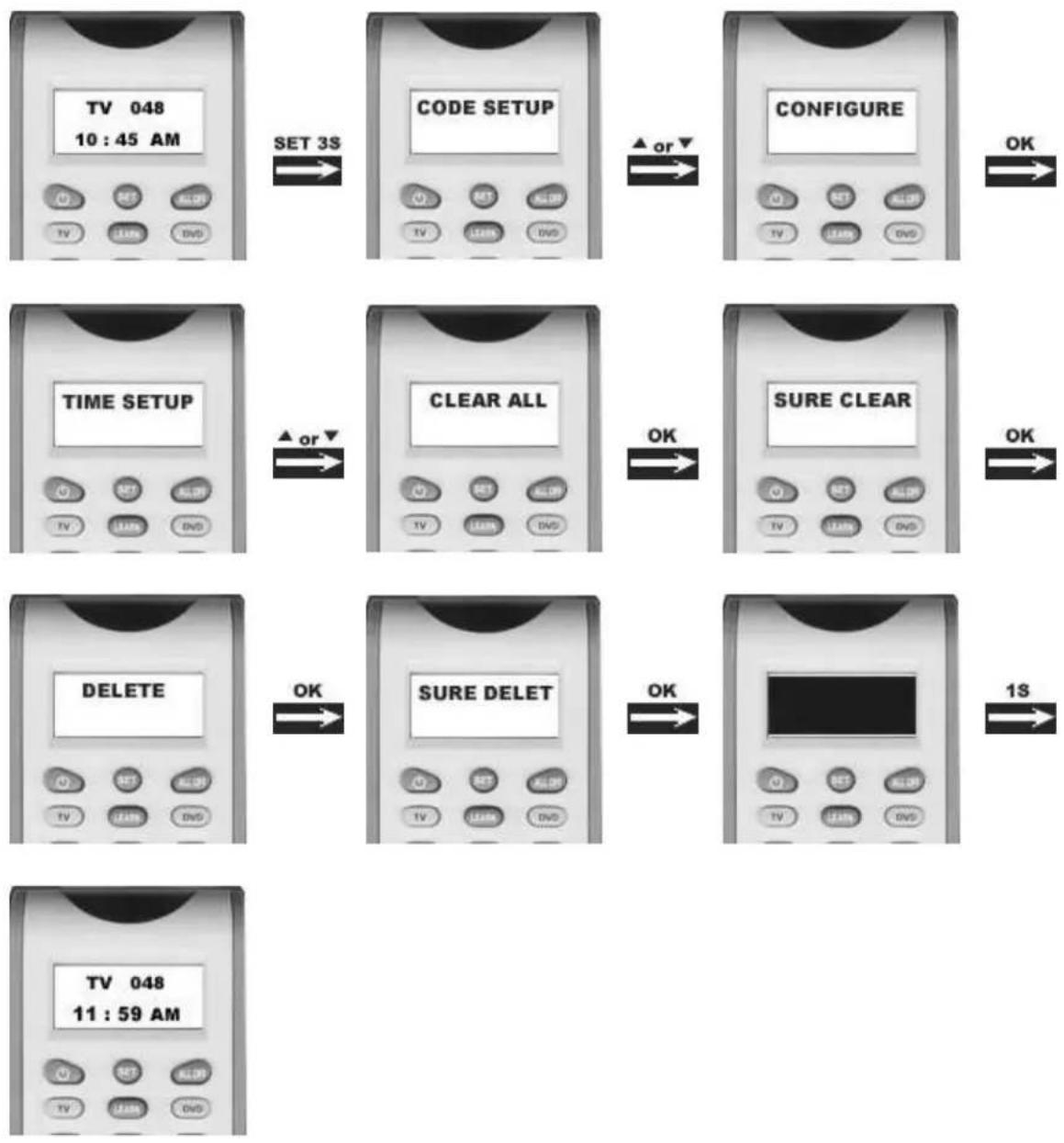
☆13:Clear All
Erase all the setting up data, and go back to the factory default settings.
- Press and hold the SET key for more than 3 seconds, then release it.
- Press the ▲ or ▼ key to select the CONFIGURE in the LCD menu, then press the OK key.
- Press the ▲ or ▼ key to select the CLEAR ALL in the LCD menu, then press the OK key and LCD shows
SURE CLEAR.
- Then press the OK key to clear all settings and go back to original default settings.
END
- UNIVERSAL LEARNING REMOTE CONTROL
- MODEL: ZR800D
- USER GUIDE
- REALIZING THE KEYS
- SET UP(BY BRAND AND CODE) FOR ELITE SCREEN
- ● HOW TO REPLACE YOUR TV, DVD, VCR, AUX, SAT, PROJECTOR ORIGINAL REMOTE CONTROL
- LEARN A COMMAND
- DELETE THE LEARN KEY
- DELETE ALL LEARNED KEYS
- ● OTHER SET UP
- REMARK
- ☆2: SET-UP BY AUTO SEARCH (SUITABLE FOR TV, DVD, VCR, AUX1, AUX2, SAT)
- ☆3: SET-UP BY ENTER CODE (SUITABLE FOR TV,DVD,VCR,AUX1,AUX2,SAT)
- ☆4: SET UP CLOCK
- ☆5: VOLUME LOCK
- ☆6:DEVICE LOCK
- ☆7: BACKGROUND LIGHT
- ☆8: CONTRAST ADJUST
- ★9:SHOW VIEW FUNCTION
- ☆10: ALL OFF
- ☆11:MACRO FUNCTION
- ☆12:DELETE MACRO
- ☆13:CLEAR ALL
- SURE CLEAR
Brand : Elite Screens
Model : ZR800D
Category : Remote control