
KASPUSBAC2A - Wall socket Kogan - Free user manual and instructions
Find the device manual for free KASPUSBAC2A Kogan in PDF.


| Product Type | Smart Wall Socket with USB Ports |
| Model | KASPUSBAC2A |
| Brand | Kogan |
| Dimensions | 100 x 43.5 x 28.8 mm |
| Power Supply | 240 VAC, 50-60 Hz |
| Max Load | 10 A, 2400 W |
| USB Output | 5 V, 2.0 A (shared USB-A and USB-C) |
| Wi-Fi Standard | 802.11 b/g/n (2.4 GHz only) |
| Security Protocols | WEP, WAPI, TKIP, AES |
| Operating Temperature | -20°C to 70°C |
| Indoor Use Only | Yes |
| Energy Monitoring | Yes |
| Smart Home Compatibility | Kogan SmarterHome, Google Home, Amazon Alexa |
| Control Methods | App, Voice Commands, Manual Button |
| Timer Functions | Countdown, Schedule, Random, Inching, Astronomical |
| Safety Features | Overload protection (10A max), Indoor use only |
| Maintenance | Wipe with dry cloth |
| Color | White |
| Installation | Plug into wall socket |
Frequently Asked Questions - KASPUSBAC2A Kogan
User questions about KASPUSBAC2A Kogan
0 question about this device. Answer the ones you know or ask your own.
Ask a new question about this device
Download the instructions for your Wall socket in PDF format for free! Find your manual KASPUSBAC2A - Kogan and take your electronic device back in hand. On this page are published all the documents necessary for the use of your device. KASPUSBAC2A by Kogan.
USER MANUAL KASPUSBAC2A Kogan
natural_image
Close-up of a white electronic component with three vertical pins (no visible text or symbols)KOGAN SMARTERHOME™ SMART PLUG WITH ENERGY METER
USB-A AND USB-C PORTS
KASPUSBAC1A, KASPUSBAC2A, KASPUSBAC4A
Safety & Warnings 3
Overview 3
Before First Use 4
Connect to SmarterHome™ App 4
Google Home Control 10
Amazon Alexa Control 13
Operation 16
FAQ 18
Specifications 18
Notes 19
SAFETY & WARNINGS
Ensure to read all warnings and instructions in this user guide prior to first use. Retain this user guide for future reference.
- Ensure this smart plug is connected via a wall socket when in use.
- This smart plug is intended to be used as a power supply.
- This smart plug is intended for indoor use only.
- Do not use this smart plug in areas of high moisture (for example, bathroom, kitchen).
- This smart plug operates at a maximum of 10A, 2400W. Do not overload the smart plug with devices needing higher power requirements.
- The maximum rated ambient temperature of this smart plug is 50^ .
- The maximum height this smart plug can be used is 2000m above sea level.
OVERVIEW

BEFORE FIRST USE
Insert the smart plug into a wall socket and turn the socket on. Press the power button.
CONNECT TO SMARTERHOME™ APP
Install App
Download the "Kogan SmarterHome" app from the Play Store (Android) or App Store (iOS).
Register
If you do not have a Kogan SmarterHome™ account, register or sign in with a verification code sent by SMS.
To register:
- Tap to enter registration page.
- The system automatically recognises your country/area. You can also select your country code manually. Enter your email address and tap 'Next.'
- Alternatively, you can select 'Register by mobile number' and enter the verification code sent to you by SMS.
- Create a profile on the next page to define your location and room.


Set device in pairing mode
When the device is first turned on, it may automatically enter pairing mode (the power indicator will be rapidly flashing).
If not automatically in pairing mode when powered on, you can manually set the device in pairing mode by press and holding the power button for 5 seconds until the power indicator starts rapidly flashing.
Add device through network
- Once registered, tap "+" in the upper right corner of the app's home page to add a new device through the network.
- Select the product type from the list of options in the app (Electrical > Plug with Energy Meter).
- Ensure that the device is in pairing mode, with the power indicator rapidly flashing, and tap "Confirm light is rapidly flashing".


-
Upon successfully confirming pairing mode, enter your Wi-Fi details. It is important that your SmarterHome™ device and the app are connected to the same Wi-Fi network during setup.
-
The device will commence the pairing process and connect to the app. Ensure your Wi-Fi router, mobile phone, and the SmarterHome™ device are kept close until connection is complete.
-
After successfully being added, you will have the option to rename the device and assign it to a location. It will now be listed on the app's home page. Tap the device listing to enter its control page.


Notes:
• The device and the app have to use the same Wi-Fi network.
• The device is only compatible with 2.4Ghz networks.
If the smart plug cannot be connected to the SmarterHome™ app after several attempts, try using the AP mode connection steps outlined in the next page.
AP mode connection steps
Set device in pairing mode
When the device is first turned on, it may automatically enter pairing mode (power indicator will be slowly flashing).
If not automatically in pairing mode when powered on, you can manually set the device in pairing mode by pressing and the power button for 5 seconds until the power indicator starts flashing slowly.
Using AP Mode to add device
- Once registered, tap “+” in the upper right corner of the app’s home page to add a new device through the network.
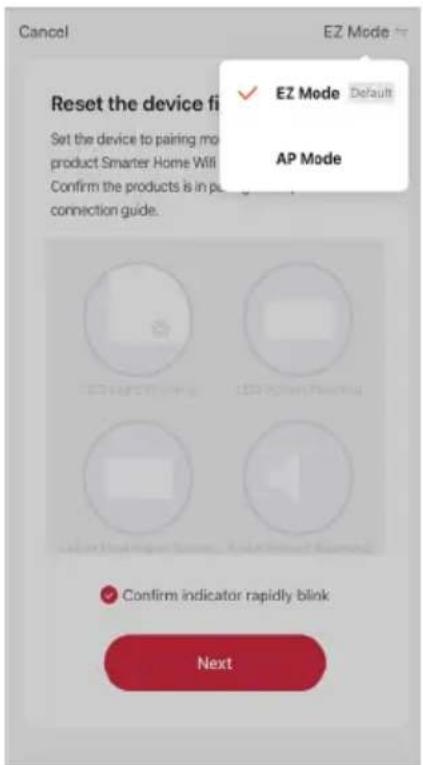
- Select the product type from the list of options in the app (Electrical > Plug with Energy Meter), and then select "EZ Mode" from the top-right corner when asked to reset the device.


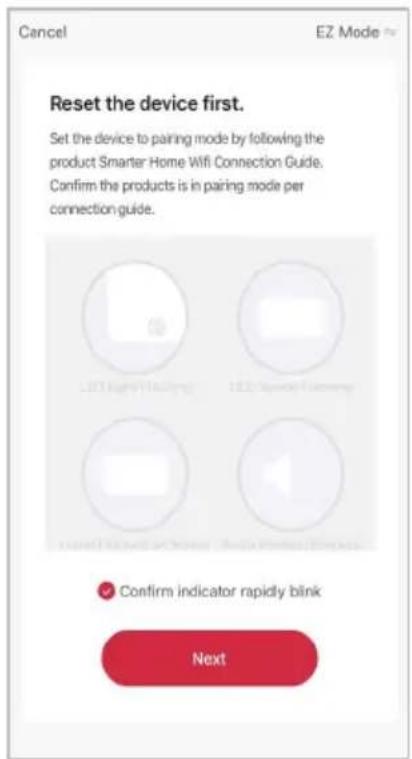
- Select "AP Mode" for the set-up type.
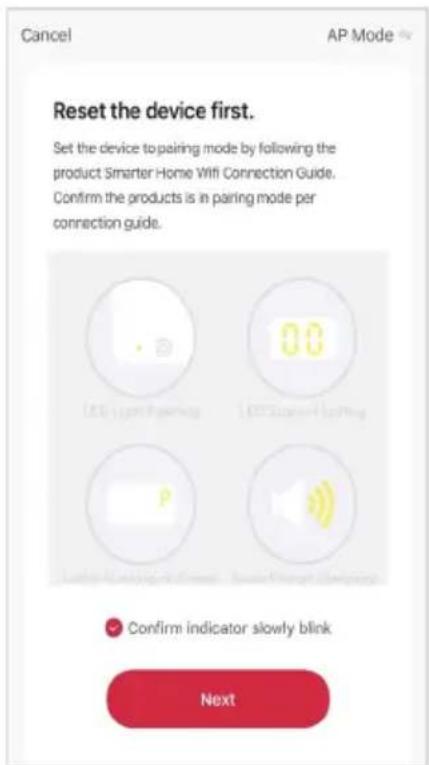
- Ensure that the device is in pairing mode, with the power indicator flashing slowly, and tap "Confirm light is slowly flashing".
- Enter your Wi-Fi details. It is important that your SmarterHome™ device and the app are connected to the same Wi-Fi network during setup.

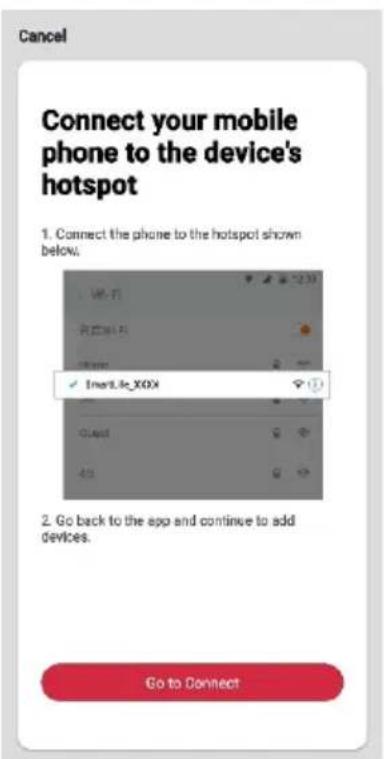
- Follow the in-app prompts to continue AP Mode connection, which will pair your mobile phone to the device's Wi-Fi hotspot to ensure a connection.
Note:
If the Wi-Fi hotspot does not appear on your phone in the list of available networks, your device may not be set in AP Pairing Mode correctly. Try repeating the steps outlined above to ensure your device is ready for connection.
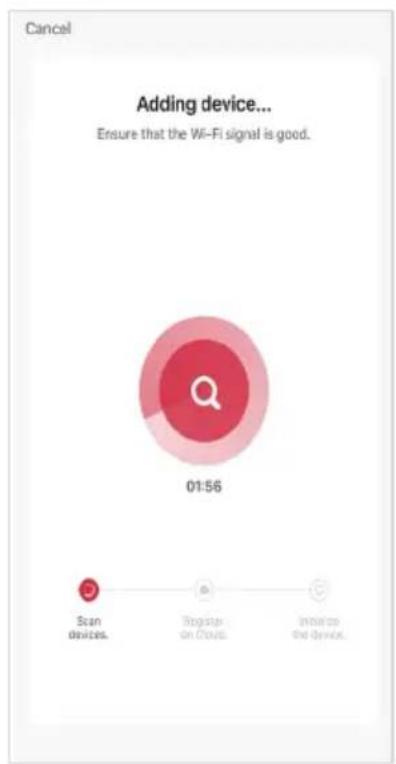
- The device will commence the pairing process and connect to the app. Ensure your Wi-Fi router, mobile phone, and the SmarterHome™ device are kept close until connection is complete.
- After successfully being added, you will have the option to rename the device and assign it to a location. It will now be listed on the app's home page. Tap the device listing to enter its control page.

Notes:
• The device and the app have to use the same Wi-Fi network.
• The device is only compatible with 2.4Ghz networks.
Note:
You will need to have set up a Google Home account prior to linking your Kogan SmarterHome™ device.
Adding "SmarterHome" to the Google Home app
- From the home page of the Google Home app, select the “+” icon to access the ‘Add and manage’ page.
- Select 'Set up device', then under the Works with Google banner, select 'Have something already set up?'
-
Select the search bar and type 'Smarter Home' to locate the Kogan SmarterHome™ service.
-
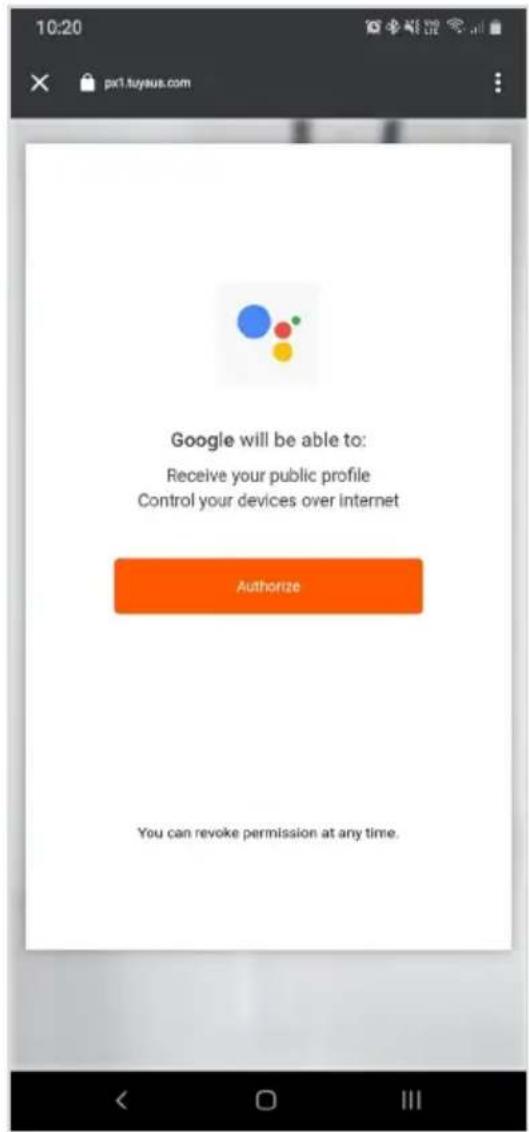
Tap 'Authorise' to grant Google permission to access the SmarterHome™ app and your devices.
-
From here, you will be prompted to sign into your SmarterHome™ account using either your email or mobile phone number, depending on which method you used to register your account.

- Once connected, the app will display any compatible devices linked to your SmarterHome™ account. From here you can assign them to rooms and set up any routines.
- Tap on any of the devices to view a list of available commands.


AMAZON ALEXA CONTROL
Note:
You will need to have set up an Alexa account prior to linking your Kogan SmarterHome™ device.
Adding "SmarterHome" to the Alexa app
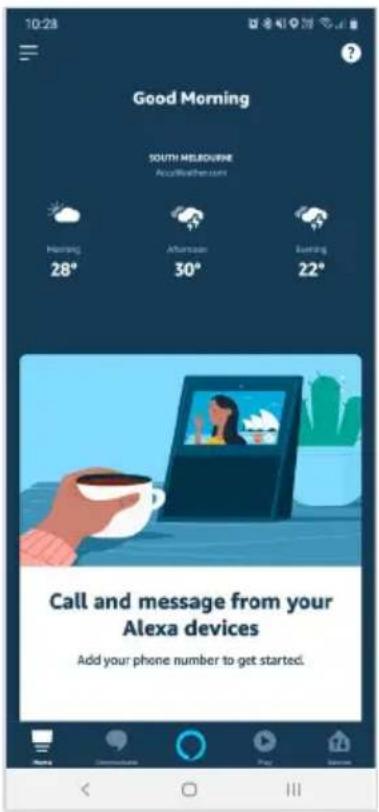
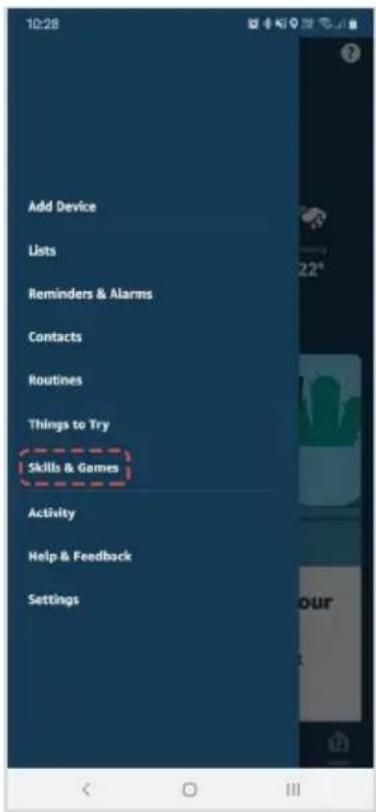
- From the home page of the Alexa app, select the “=” icon in the top-right and select Skills & Games from the sidebar.
- Select the search bar and type 'Smarter Home' to locate the Kogan SmarterHome™ skill.
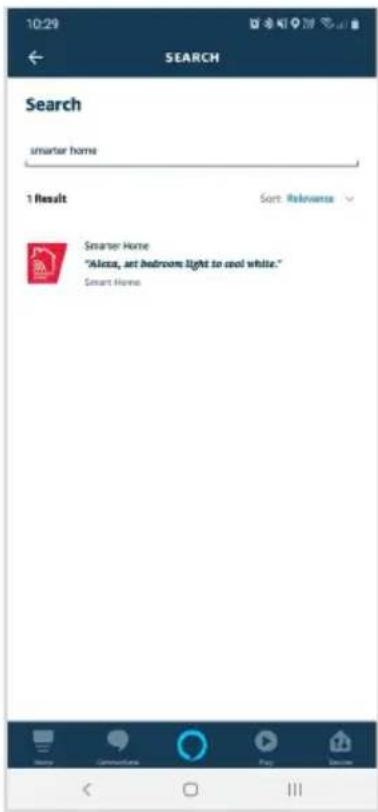
- Tap 'Enable to Use' to add the Kogan SmarterHome™ skill to Alexa.
- From here, you will be prompted to sign into your SmarterHome™ account using either your email or mobile phone number, depending on which method you used to register your account.
- Tap 'Authorise' to grant Alexa permission to access the SmarterHome™ app and your devices.


-
Once connected, the app will perform a search and display the devices linked to your SmarterHome™ account.
-
When your devices have successfully connected to the Alexa app, you will be able to control your Kogan SmarterHome™ devices via Alexa's voice commands.


Note:
Please note that Alexa can only control the base/core functions of any compatible SmarterHome™ devices. To make full use of this product's smart functionality, please use the Kogan SmarterHome™ app.
OPERATION
Interface

| Name Description | |
| Power | Pressing will turn the smart plug on.Pressing again will return the smart plug to standby. |
| Timer | Contains various timing and scheduling modes (Countdown, Schedule, Circulate, Random, Inching). |
| Electric | Contains information about the current and total energy consumption used by the smart plug in KWh. |
| Setting | Contains information about miscellaneous settings that can be adjusted. |
Timer menu
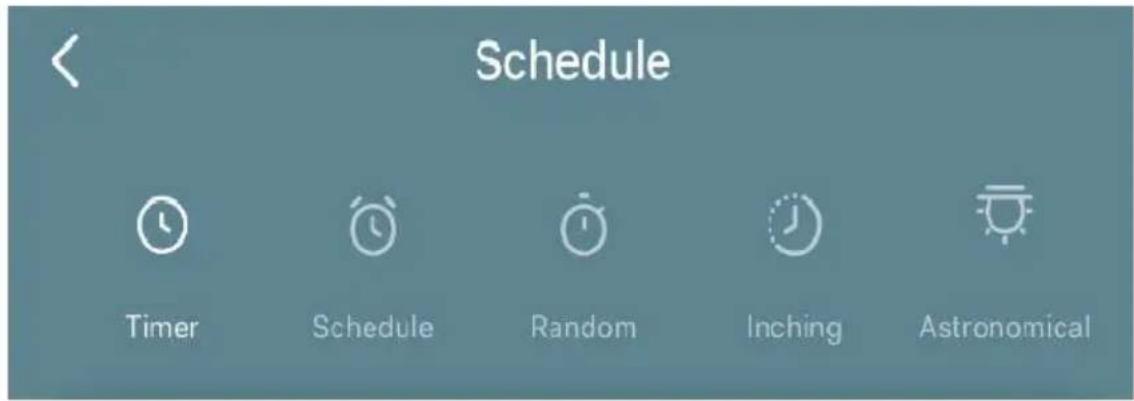
| Name Description | |
| Timer | Schedule a timer for when the smart plug will turn off. |
| Schedule | Allows users to set a regular schedule for the smart plug to turn on/off. |
| Random | Sets the smart plug to turn on/off at random intervals within a certain time period.This may be useful if you will be away and would like to simulate there is someone home to ward off potential thieves. |
| Inching | Triggering this setting allows users to set a duration the smart plug will automatically turn off after being turned on every time (for example, turning off automatically after 1 minute when turned on).Users will not need to frequently set a countdown and hence this may be useful for common tasks such as turning the lights off. |
| Astronomical | Allows the smart plug to operate based sunrise and sunset times.Note that devices intending to use this mode must support local time. |
FAQ
What devices can I control with the smart plug?
You can control lights, fans, humidifiers, portable heaters, and any other small home appliances.
What do I do if the smart plug is not connecting to the Kogan SmarterHome™ app?
- Unplug the smart plug from the power supply.
- Insert the smart plug back into the power supply, switch on the socket and hold the power button for 5–10 seconds until the power indicator starts flashing rapidly.
What do I do if the smart plug is not able to share or connect to Amazon Alexa?
- Tap the menu button on the interface of the smart plug, then tap 'Reset to factory setting' to reset the smart plug.
- Reconnect the smart plug to the Kogan SmarterHome™ app then connect with Amazon Alexa.
How do I remove the smart plug from the Kogan SmarterHome™ app?
- Tap the smart plug on the device list in the Kogan SmarterHome™ app then tap the menu button in top right corner of the screen and remove the smart plug.
- Alternatively, press and hold the smart plug on the device list in the Kogan SmarterHome™ app to remove.
SPECIFICATIONS
Dimensions 100 x 43.5 x 28.8mm
For socket-outlets 240VAC, 50–60Hz, 10A
Energy monitoring Yes
USB x1 USB-A, x1 USB-C, 5V==2.0A (total)
Wi-Fi standard 802.11b/g/n
Radio frequency ISM BAND, 2.412–2.484GHz
Security WEP, WAPI, TKIP, AES
Operation temperature -20 °C-70°C
NOTES
Need more information?
We hope that this user guide has given you the assistance needed for a simple set-up.
For the most up-to-date guide for your product, as well as any additional assistance you may require, head online to help.kogan.com
kogan.com
- KOGAN SMARTERHOME™ SMART PLUG WITH ENERGY METER
- SAFETY & WARNINGS
- OVERVIEW
- BEFORE FIRST USE
- CONNECT TO SMARTERHOME™ APP
- Install App
- Register
- To register:
- Set device in pairing mode
- Add device through network
- Notes:
- AP mode connection steps
- Using AP Mode to add device
- Note:
- Adding "SmarterHome" to the Google Home app
- AMAZON ALEXA CONTROL
- Adding "SmarterHome" to the Alexa app
- OPERATION
- Timer menu
- FAQ
- What devices can I control with the smart plug?
- What do I do if the smart plug is not connecting to the Kogan SmarterHome™ app?
- What do I do if the smart plug is not able to share or connect to Amazon Alexa?
- How do I remove the smart plug from the Kogan SmarterHome™ app?
- SPECIFICATIONS
- NOTES
- Need more information?
Brand : Kogan
Model : KASPUSBAC2A
Category : Wall socket