
IMIC040 - Microphone iLive - Free user manual and instructions
Find the device manual for free IMIC040 iLive in PDF.


| Product Type | Microphone |
| Brand | iLive |
| Model | IMIC040 |
| Connection Type | 3.5mm audio plug |
| Compatibility | Windows, Mac OS |
| Mounting | Detachable lapel clip |
| Driver Requirement | Plug-and-play, no drivers needed |
| Included Accessories | Lapel clip, detachable base |
| Primary Use | Voice recording, online chat, voice capture |
| Operating System Settings | Accessible via Sound settings in Windows and System Preferences on Mac |
| Warnings | Do not expose to rain or moisture; follow FCC guidelines |
| Customer Support | Phone: 1-888-999-4215; Email: prodinfo@dpiinc.com |
| Warranty Information | Available at www.iLiveElectronics.com |
| Manual Languages | English, Spanish, French (downloadable) |
| Safety Compliance | FCC Part 15 Class B, California Prop 65 |
Frequently Asked Questions - IMIC040 iLive
User questions about IMIC040 iLive
0 question about this device. Answer the ones you know or ask your own.
Ask a new question about this device
Download the instructions for your Microphone in PDF format for free! Find your manual IMIC040 - iLive and take your electronic device back in hand. On this page are published all the documents necessary for the use of your device. IMIC040 by iLive.
USER MANUAL IMIC040 iLive
Using the Microphone
This microphone does not require any drivers, it is ready to use when plugged in. You can use this microphone with any recording or chat software. To use the microphone connect the 3.5mm audio plug into the 3.5mm audio input/microphone port on your PC/laptop or any recording device. Note: Make sure that the correct microphone is selected in your software's settings.

Microphone Settings (Windows OS)
When plugged in, the microphone should automatically be ready to capture audio. Follow the steps below to view and edit microphone settings Windows OS.
- Connect the 3.5mm audio plug to the microphone input of a powered on computer or laptop.
- On your laptop or PC go to: Start > Settings > System > Sound.
- From this menu you can view microphone settings and test the microphone.
- Gently tap or speak into the microphone to test that the microphone is capturing audio.
Microphone Settings (Mac OS)
When plugged in, the microphone should automatically be ready to capture audio. Follow the steps below to view and edit microphone settings Mac OS.
- Connect the 3.5mm audio plug to the microphone input of a powered on computer or laptop.
- On your laptop or PC go to: System preferences > Sound > Input >
- From this menu you can view and test the microphone status.
- Gently tap the microphone to test that the microphone is capturing audio.
Detachable Lapel Clip.
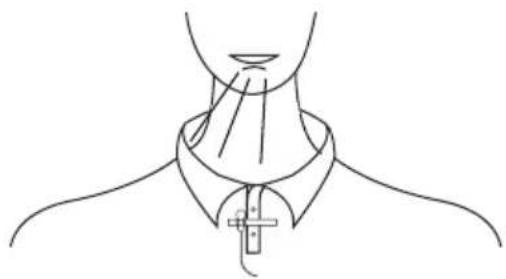
You can use this unit as a lavalier microphone by using the included lapel clip.
- Remove the base from the microphone.
- Use the clip to fasten the microphone to your collar, lapel, or tie, as seen in the figure below.
natural_image
Line drawing of a person's neck and collar with a zipper, no text or symbols presentCustomer Support
Customer Service: 1-888-999-4215 | Email Support: prodinfo@dpiinc.com | Email Parts: partsinfo@dpiinc.com
For Warranty Information and the most up-to-date version of this User's Guide, go to www.iLiveElectronics.com
To download this User's Guide in English, Spanish, or French, or to get answers to frequently asked questions, visit the support section at: www.iLiveElectronics.com
Copyright © 2020 Digital Products International (DPI, Inc.) All other trademarks appearing herein are the property of their respective owners. Specifications are subject to change without notice.

WARNING: This product can expose you to chemicals including lead, which is known to the State of California to cause cancer and birth defects or other reproductive harm. For more information go to www.P65Warnings.ca.gov.
This product meets and complies with required Federal product guidelines.
FCC Warnings
WARNING: Changes or modifications to this unit not expressly approved by the party responsible for compliance could void the user's authority to operate the equipment.
NOTE: This equipment has been tested and found to comply with the limits for a Class B digital device, pursuant to Part 15 of the FCC Rules. These limits are designed to provide reasonable protection against harmful interference in a residential installation. This equipment generates, uses, and can radiate radio frequency energy and, if not installed and used in accordance with the instructions, may cause harmful interference to radio communications. However, there is no guarantee that interference will not occur in a particular installation. If this equipment does cause harmful interference to radio or television reception, which can be determined by turning the equipment off and on, the user is encouraged to try to correct the interference by one or more of the following measures:
- Reorient or relocate the receiving antenna.
- Increase the separation between the equipment and receiver.
- Connect the equipment into an outlet on a circuit different from that to which the receiver is connected.
- Consult the dealer or an experienced radio/TV technician for help.
Additional Warnings
- WARNING: To prevent fire or shock hazards, do not expose this unit to rain or moisture.
- WARNING: Where the mains plug or appliance coupler is used as the disconnect device, such disconnect device shall remain readily operable.
- Lithium batteries, like all rechargeable batteries, are recyclable and should be recycled or disposed of according to state and local guidelines. They should never be disposed of in normal household waste, and they should never be incinerated, as they might explode. Contact your local government for disposal or recycling practices in your area.
• This product meets and complies with all Federal regulations. - To avoid hearing damage, make sure that the volume on your music player is turned down before connecting your headphones. After placing headphones in/on your ears, gradually turn up the volume until you reach a comfortable listening level.
Brand : iLive
Model : IMIC040
Category : Microphone