
FireCuda 530 - SSD SEAGATE - Free user manual and instructions
Find the device manual for free FireCuda 530 SEAGATE in PDF.


| Product Type | Internal Solid State Drive (SSD) |
| Brand | Seagate |
| Model | FireCuda 530 |
| Interface | NVMe PCIe Gen4 x4 |
| Form Factor | M.2 2280 |
| Capacity | 500 GB / 1 TB / 2 TB / 4 TB |
| Max Sequential Read Speed | 7300 MB/s |
| Max Sequential Write Speed | 6900 MB/s |
| Controller | Phison E18 |
| NAND Type | 3D TLC NAND |
| Endurance (TBW) | Up to 5100 TBW (4 TB model) |
| MTBF | 1.8 million hours |
| Power Consumption (Active) | 8 W |
| Power Consumption (Idle) | 0.04 W |
| Operating Temperature | 0°C to 70°C |
| Dimensions (W x L x H) | 22 x 80 x 2.23 mm (M.2 2280 single-sided) |
| Weight | 10 g |
| Warranty | 5 years limited |
| Key Features | NVMe 1.4, PCIe Gen4, Seagate Smart ECC, Adaptive Thermal Management |
| Maintenance & Care | Regular firmware updates, enable TRIM via OS, avoid physical shock |
| Security | No hardware encryption; rely on software encryption (e.g., BitLocker) |
| Repairability | Not repairable; no user-serviceable parts. Replacement required if faulty. |
| General Information | High-performance SSD for gaming, content creation, and professional workloads |
Frequently Asked Questions - FireCuda 530 SEAGATE
User questions about FireCuda 530 SEAGATE
0 question about this device. Answer the ones you know or ask your own.
Ask a new question about this device
Download the instructions for your SSD in PDF format for free! Find your manual FireCuda 530 - SEAGATE and take your electronic device back in hand. On this page are published all the documents necessary for the use of your device. FireCuda 530 by SEAGATE.
USER MANUAL FireCuda 530 SEAGATE
FireCuda 530 SSD User Manual

- Before installation 3
Precautions 3
Parts 4
System Requirements....4
2 Installation 5
Install FireCuda 530 SSD....5
3 Support & Services 7
SeaTools....7
DiscWizard....7
Firmware download and tools download for secure erase 7
Internal SSD support 7
Online support and services 7
Warranty support 7
Data recovery services....7
Seagate Partner Program....8
Introduction
Recommendations
• Intended for desktop PCs.
- FireCuda 530 SSD's heatsink is pre-installed and should not be removed as it can damage the SSD.
- With the heatsink, the product exceeds standard M.2 dimensions. Dimensions of the FireCuda 530 SSD are 80.15mm (L) x 22.9mm (W) x 18.25mm (H). Verify that your system provides enough space for installation.
• M.2 connectors H3.2 and above are recommended for an SSD with a heatsink.
- For optimal performance, provide sufficient airflow and cooling.
Before installation
IMPORTANT Make certain your computer's BIOS is up to date before installing FireCuda 530 SSD. See your computer or motherboard documentation for information on how to access the BIOS.
- Most motherboards have more than one M.2 slot available for SSD drives. Before installing FireCuda 530 SSD:
- Determine the appropriate M.2 slot on your motherboard for FireCuda 530 SSD. If another SSD drive is already installed in the slot, you'll need to remove it during the installation.
- Decide whether you want to install your computer operating system on FireCuda 530 SSD and use it as your primary drive. See your computer or motherboard documentation for details on how to boot from an M.2 SSD.
- If you need to transfer files from another drive to FireCuda 530 SSD, consider how you will move your data or clone your drive before starting the installation.
Precautions
- Unpack the SSD.
- Inspect the SSD for any damages.
- For the safety of your SSD, please take the necessary precautions to avoid electrostatic discharge. Power down and power drain your computer according to the instructions provided in the computer product documentation.
- Back up the data from the existing storage device.
! CAUTION Electrostatic discharge (ESD) can damage the SSD. Make sure that you install the SSD at an ESD-safe workstation. Ground yourself to protect the device from any static electricity present in your body.
Parts
- FireCuda 530 SSD
System Requirements
- M.2 (M key) slot, PCIe® G4 ×4 interface (backwards compatible with PCIe G3 interface)
- Windows® 10
Installation
Install FireCuda 530 SSD
- Before installing FireCuda 530 SSD, power down your computer and unplug any cables attached to it.
- Open the case or cabinet.
- If an existing SSD drive is installed in the M.2 PCIe slot you intend to use for FireCuda 530 SSD, you'll need to remove it.
- Power on your computer.
- Access the BIOS setup while the computer is booting. Ensure that a PCIe device is set in the BIOS boot sequence or boot priority list.
- Power down the computer and locate the M.2 PCIe slot on your motherboard.

Note—Some motherboards have a pad installed in the M.2_PAD space by default. This pad can be removed to ensure a better fit for FireCuda SSD.
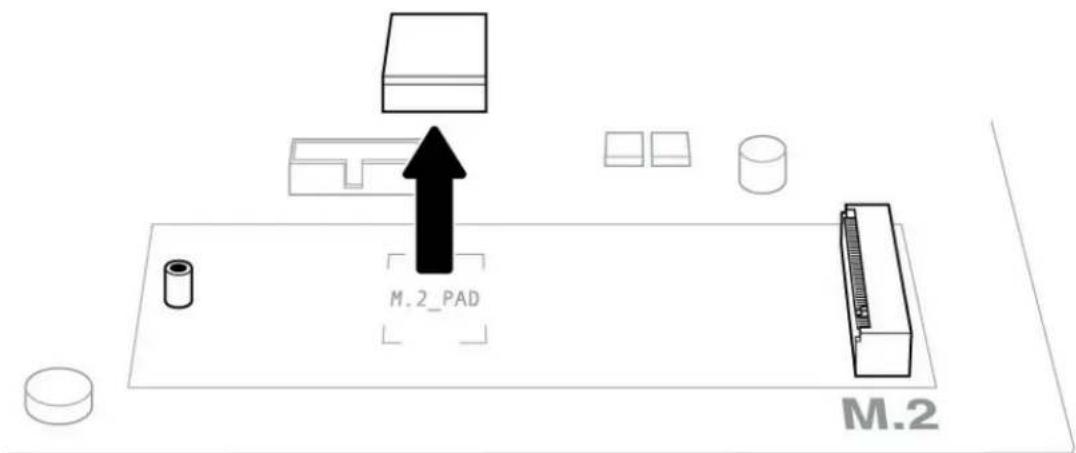
- Check to make sure that the notch on FireCuda SSD is correctly aligned with the divider in the slot. Gently push FireCuda SSD into the slot until it's firmly seated.

- Hold down FireCuda SSD while you fasten the mounting screw. Make sure the SSD is secured in place.

- Close the case or cabinet and reassemble your computer.
- Power on your computer.
- Install the computer operating system on FireCuda SSD if you want to use it as the primary drive.
Support & Services
SeaTools
SeaTools™ SSD GUI is a free utility that lets you monitor and maintain your drive's health, status, and tests. Go to www.seagate.com/support/downloads/seatools.
DiscWizard
Seagate DiscWizard is an integrated software suite that lets you back up your operating system, applications, settings, and files, while also securely destroying confidential data you no longer need. Go to www.seagate.com/support/downloads/discwizard.
Firmware download and tools download for secure erase
Go to www.seagate.com/support/downloads.
Internal SSD support
Go to www.seagate.com/support/products.
Online support and services
Go to www.seagate.com/contacts.
Warranty support
Go to www.seagate.com/support/warranty-and-replacements.
Data recovery services
Go to www.seagate.com/services-software/seagate-recovery-services/recover.
Seagate Partner Program
Go to www.seagate.com/partners.
- FIRECUDA 530 SSD USER MANUAL
- 2 INSTALLATION 5
- 3 SUPPORT & SERVICES 7
- INTRODUCTION
- RECOMMENDATIONS
- BEFORE INSTALLATION
- PRECAUTIONS
- PARTS
- SYSTEM REQUIREMENTS
- INSTALLATION
- INSTALL FIRECUDA 530 SSD
- SUPPORT & SERVICES
- SEATOOLS
- DISCWIZARD
- FIRMWARE DOWNLOAD AND TOOLS DOWNLOAD FOR SECURE ERASE
- INTERNAL SSD SUPPORT
- ONLINE SUPPORT AND SERVICES
- WARRANTY SUPPORT
- DATA RECOVERY SERVICES
- SEAGATE PARTNER PROGRAM
Brand : SEAGATE
Model : FireCuda 530
Category : SSD