
X089 - Smartphone Micromax - Free user manual and instructions
Find the device manual for free X089 Micromax in PDF.


| Product Type | Basic Mobile Phone |
| Brand | Micromax |
| Model | X089 |
| SIM Card Type | Dual SIM (Standard SIM) |
| Memory Card Slot | Yes, microSD (dedicated slot) |
| Battery Type | Removable Li-ion |
| Battery Charging | Via charger or USB cable; first charge recommended 4 hours |
| Camera | Yes, basic rear camera |
| FM Radio | Yes, requires earphone as antenna |
| Music Player | Yes, plays MP3 files from memory card |
| Bluetooth | Yes, file transfer and device pairing |
| Torch Light | Yes, activated by long press OK key |
| Auto Call Recorder | Yes, automatic recording of all calls |
| Conference Call | Yes, supports up to 3 participants |
| Phone Language | Hindi and English |
| Security | Phone lock password (default: 0000) |
| IMEI Number Access | Press *#06# |
| Dimensions | Approximately 110 x 50 x 15 mm (estimated) |
| Weight | Approximately 80 g (estimated) |
| Display | 1.8-inch TFT (typical for feature phone) |
Frequently Asked Questions - X089 Micromax
User questions about X089 Micromax
0 question about this device. Answer the ones you know or ask your own.
Ask a new question about this device
Download the instructions for your Smartphone in PDF format for free! Find your manual X089 - Micromax and take your electronic device back in hand. On this page are published all the documents necessary for the use of your device. X089 by Micromax.
USER MANUAL X089 Micromax
Charging the Battery 6
HOW TO USE YOUR PHONE....7
Switch On/OFF 7
Lock/Unlock the phone 7
Make a Call 8
Answer/Reject a call 9
Make a Conference Call 9
Make an International call ....10
Send Messages 10
Add Contacts to Phonebook 11
Use Multimedia Features....11
FM Radio 11
Music Player 12
NOTABLE FEATURES....13
Torch Light....13
BT....13
Auto Redial 13
Call Time Reminder....13
Phone Language 14
Phone Security....14
Auto Call Recorder....14
Camera....14
File Manager....15
Answer Mode 15
USEFUL TIPS 15
SAFETY PRECAUTIONS....16
TAKING CARE OF YOUR DEVICE 17
DISCLAIMER 18
COPYRIGHT 19
Phone Layout

Getting Started
Insert SIM
To insert SIM card:
- Switch off the mobile phone and remove the rear cover and battery, as illustrated below:

natural_image
Two views of a smartphone showing internal components and battery casing (no text or symbols)- Insert the SIM card(s) correctly in the card slot(s), as shown in the following image:

natural_image
Technical line drawing of a mobile phone casing with internal compartments and orange arrows indicating flow or movement (no text or symbols)- Finally, insert the battery and place the rear cover of the mobile phone.
Insert Memory Card
To insert memory card:
- Switch off the phone and remove the rear cover and the battery.
- Insert the memory card in the card slot, as shown in the following image.

natural_image
Technical line drawing of a mobile phone casing with internal components (no text or symbols)- Place back the battery and the rear cover of the mobile phone.
 | The Memory Card gives you extra storage capacity for content such as pictures, music, and video clips. |
 | Do not remove the memory card while reading or writing to the card. Doing so may cause data corruption on the card or on the phone. |
 | Use only compatible memory cards approved by Micromax. Incompatible cards may damage the slot or corrupt the data stored in the card. |
Charging the Battery
You can charge your phone battery via charger or the USB cable supplied with this phone.
To charge your phone:
- Connect the charger to the charger jack (USB) of the phone.

- Connect the charger to a power socket or connect the USB jack of the cable with your PC or laptop.
A charging icon is displayed in an animated state while the phone is charging. When the charging icon becomes static, it indicates that the battery is full.
Disconnect the charger from the power socket and the phone after charging.
X089 6

Please charge the battery before you use the newly purchased phone. We suggest you to charge the battery for at least 4 hours continuously for the first time.
How to Use Your Phone
Switch On/ OFF
Long press the End/Power key to switch on and off your phone.

natural_image
Hand holding a black mobile phone with a keypad (no visible text or symbols)Lock/ Unlock the phone
From the home screen press Left key and then immediately press * to lock/unlock the phone, as shown in the following image:
X089 7

natural_image
Illustration of two hands holding up a black flip phone, no text or symbols visibleMake a Call
■ Dial a number and press the upper left key to make a call from SIM 2 or press the lower left key to make call from SIM 1.
- You can also call a number from the phonebook or call log in the same way.
■ To change the in call volume, press the navigation key up or down as illustrated in the following image:

natural_image
Illustration of two hands holding up a black mobile phone with keypad (no text or symbols visible)X089 8
Answer/ Reject a call
To answer, press any of the two call key, as shown below:

natural_image
Hand holding a black mobile phone with keypad (no visible text or symbols)To reject a call, press End/Power key, as shown below:

natural_image
Hand holding a black mobile phone with a keypad (no visible text or symbols)Make a Conference Call
To make a conference call:
- While on a call, make another call by pressing the left key to view
X089 9
options and then select the Phonebook or New call option. The first call is put on hold.
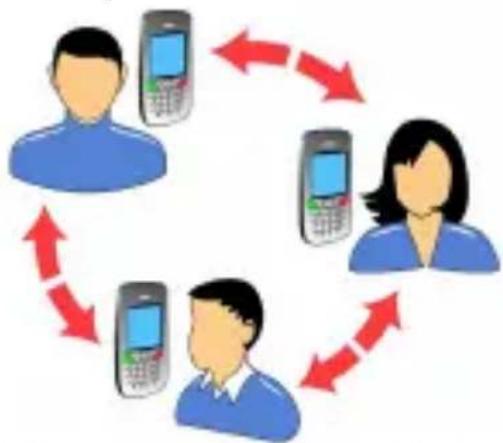
flowchart
graph TD
    A["User 1"] --> B["Mobile Phone 1"]
    B --> C["Mobile Phone 2"]
    C --> D["Mobile Phone 3"]
    D --> A
    style A fill:#blue,stroke:#333
    style B fill:#blue,stroke:#333
    style C fill:#blue,stroke:#333
    style D fill:#blue,stroke:#333
- When on the other call, press Options → Conference.
Please contact your service provider in case Call Conference feature is not activated in your SIM.
Make an International call
From the home screen, long press the * key till + displays on screen. Enter the desired international code and the phone number and then press the call key to make the call.
Send Messages
Menu → Messages
You can compose a new message or reply to existing messages in the list.
X089 10
Add Contacts to Phonebook
Menu → Phonebook → Add new contact
You can add contacts in your phonebook at anytime. You can also save contacts through call logs, messages, and dial pad.
Use Multimedia Features
Menu → Multimedia
You can use Camera, Image viewer, Video recorder, Video player, Sound recorder, FM Radio, and Music player.
FM Radio
Menu → Multimedia → FM radio
You can listen to your favorite FM channels using the inbuilt FM receiver of your phone.
You need to insert the earphone to listen to the radio. You can insert the earphone as shown in the following image:

natural_image
Black mobile phone connected to earphones with a cord, showing the phone's screen and cable (no text or symbols visible)Use the navigation keys and OK key to use various features in the FM radio interface.
Music Player
Menu → Multimedia → Music Player
The phone comes with an inbuilt music player that plays all your favorite songs stored in the memory card. Now store and listen to your favorite songs any time with your X089. X089 comes with an easy-to-use interface.
You can operate the music player with the player keys, as required.
■ Press the Left key to view the list of songs.
■ Play/Stop: Press OK Key.
Shift Music: Press left and right navigation keys.
■ Adjust Volume: Press * and # keys.
Notable Features
Torch Light
Long press the OK key to turn the torch on/off or you can go to Menu → Organizer → Torch to turn the torch on/off.
BT
Menu → BT
Turn on BT to exchange data with other BT enabled devices. You can search for BT active devices from My device, change your device name from My name, and activate/deactivate your device visibility on other BT devices from Visibility.
Auto Redial
Menu → Settings → Call settings → Advanced settings → Auto redial Switching this feature on will automatically redial a number if a dialed call goes unanswered in the first attempt.
Call Time Reminder
Menu → Settings → Call settings → Advanced settings → Call time reminder
You can activate or deactivate call time reminder. This can be on a single or
X089 13
periodic basis. If activated, the phone beeps at the time interval you have set, during a call.
Phone Language
Menu → Settings → Phone Settings → Language
You can change the phone language according to your preference. Your X089 supports Hindi and English language.
Phone Security
Menu → Settings → Security settings → Phone security
You can set the password to unlock the phone. Default password is 0000.
Auto Call Recorder
Menu → Settings → Call settings → Advanced settings → Auto call record
You can use this feature to automatically record all your calls.
Camera
Menu → Multimedia → Camera
Press the left key in camera mode to choose various settings. Press the OK key to take photos.
File Manager
Menu → File manager
Allows you to view and manage files available in your memory card.
Warning: All existing files in the memory card will be deleted after you format the memory card.
Answer Mode
Menu → Settings → Call settings → Advanced settings → Answer mode This feature lets you automatically answer call when any key is pressed or when headset is inserted.
Useful Tips
Tips Description
IMEI Number You can find the IMEI Number of your phone by pressing * #06#.
Safety Precautions
Please read these simple guidelines. Not following them may be dangerous or illegal.

Safe Driving
- Do not use the phone while driving. When you have to use the phone, please use the personal hands-free kit.
- Please put the phone safely in the phone stand. Do not put it onto any passenger seat or any place from which it may fall down in case of vehicular collision or emergency braking.

During flight
- Flight is influenced by interference caused by the phone. It is illegal to use a phone on the airplane. Please turn off your phone during a flight.

In Hospitals
- Your Phone's radio waves may interfere with the function of inadequately shielded medical devices. Consult a physician or the manufacturer of the medical device to determine whether they are adequately shielded from external RF energy. Switch off your device when regulations posted instruct you to do so.
- To avoid potential interference with implanted medical devices such as a pacemaker or cardioverter defibrillator:
• Always keep your phone at least 15.3 centimeters (6 inches) from the medical device. - Do not carry the wireless device in a breast pocket.
• Turn off the phone if there is any reason to suspect that interference is taking place.
• Follow the manufacturer directions for the implanted medical device. - If you have any questions about using your wireless device with an implanted medical device, consult your health care provider.

UnsafeAreas
- Please turn off your phone when you are close to a gas station or in the vicinity of any place where fuel and chemical preparations, or any other dangerous goods are stored.
Taking Care of Your Device
- Your device is a product of superior design and craftsmanship and should be handled with care: The following suggestions will help you protect your phone:
- Keep the device dry. Precipitation, humidity, and all types of liquids or moisture can contain minerals that will rust electronic circuits. If your device does get wet, remove the battery without turning on the device, wipe it with a dry cloth and take it the service center.
- Do not store the device in high or cold temperature. High temperatures can shorten the life of electronic devices and damage batteries.
- Do not use or store the device in dusty, dirty areas. Its moving parts and electronic components can be damaged.
- Do not attempt to open the device other than as instructed in this guide. Repairing this phone by yourself other than our authorized service agents/centers goes against the warranty rules.
- Do not drop, knock, or shake the device. Rough handling can break internal circuit boards and fine mechanics.
- Do not use harsh chemicals, cleaning solvents, or strong detergents to clean the device. Only use a soft, clean, dry cloth to clean the surface of the device.
- Do not store your device near magnetic fields or allow your device to come in contact with magnetic fields for extended period of time.
- Location: The socket-outlet shall be installed near the equipment and shall be easily accessible.

BatteryRecommendations
- Please put the battery in a cool and well-ventilated place out of direct sunlight. We recommend you to charge the battery at room temperature range.
- Batteries have life cycles. If the time that the battery powers equipment becomes much shorter than usual, the battery life is at an end. Replace the battery with a new battery of the same make and specification.
- Use manufacturer approved batteries, chargers, accessories and supplies. Micromax will not be held responsible for user's safety when using unapproved accessories or supplies.
- Do not discard the battery with household trash. Please dispose of used battery according to your local environmental laws and guidelines.
- Warnings on Battery:
- Please use appointed battery in case of explosion risk.
- Please dispose of lifeless battery under guidance.
Recycle Your Phone

The WEEE logo (shown at the left) appears on the product (battery, handset, and charger) to indicate that this product must not be disposed off or dumped with your other household wastes. You are liable to dispose of all your electronic or electrical waste equipment by relocating over to the specified collection point for recycling of such hazardous waste.
Collection and proper recovery of your electronic waste equipments at the time of disposal will allow us to help preserve the environment. Recycling of the electronic waste equipment will ensure safety of human health and environment. For more information on best practices for disposal of electronic and electrical waste, please visit to our web site: www.micromaxinfo.com/weee.php.
Disclaimer
- The colors and specifications shown/mentioned in the user manual may differ from the actual product. Images shown are for representation purpose only. Other product logos and company names mentioned herein may be trademarks or trade names of their respective owners.
- Specifications are subject to change without prior notice.
- The functions explained or listed in this manual may differ from the actual functions appearing in the mobile phone. In such a case, the latter shall govern. We do not guarantee the absolute accuracy of the User Guide Vis-a vis the actual handset. Micromax keeps the right to make modifications to the content in this user guide
without any prior notice.
- Upon first use of your device, your device will send information related to your mobile number, IMEI numbers, location details and other software details through SMS automatically*. This information may be used as further specified in Micromax privacy policy**.
- Talk and standby times are affected by network preferences, type of SIM cards, connected accessories and individual usage patterns. Services and some features may be dependent on the network, service/content providers, SIM cards, compatibility of the devices used and the content formats supported.
* Operator tariff shall be applicable for SMS.
**Micromax privacy policy is available at www.micromaxinfo.com.
Copyright
All rights reserved. Reproduction, transfer, distribution or storage of part or all of the contents in this document in any form without the prior written permission of Micromax is strictly prohibited.
- Getting Started
- Insert SIM
- Insert Memory Card
- Charging the Battery
- To charge your phone:
- How to Use Your Phone
- Switch On/ OFF
- Lock/ Unlock the phone
- Make a Call
- Answer/ Reject a call
- Make a Conference Call
- Make an International call
- Send Messages
- Menu → Messages
- Add Contacts to Phonebook
- Use Multimedia Features
- FM Radio
- Music Player
- Menu → Multimedia → Music Player
- Notable Features
- Torch Light
- BT
- Menu → BT
- Auto Redial
- Call Time Reminder
- Phone Language
- Phone Security
- Auto Call Recorder
- Camera
- File Manager
- Menu → File manager
- Answer Mode
- Useful Tips
- Safety Precautions
- Safe Driving
- During flight
- In Hospitals
- UnsafeAreas
- Taking Care of Your Device
- BatteryRecommendations
- Recycle Your Phone
- Disclaimer
- Copyright
Brand : Micromax
Model : X089
Category : Smartphone