PGPHONE80 - Headphones Pyle - Free user manual and instructions
Find the device manual for free PGPHONE80 Pyle in PDF.


| Product Type | Over-Ear Headphones |
| Brand | Pyle |
| Model | PGPHONE80 |
| Dimensions (W x H x D) | 7.5 x 8.5 x 3.5 inches |
| Weight | 10.2 oz (approx. 290 g) |
| Power Source | Wired 3.5mm audio jack |
| Driver Size | 40 mm |
| Impedance | 32 ohms |
| Frequency Response | 20 Hz - 20 kHz |
| Sensitivity | 105 dB |
| Cable Length | 6.5 ft (approx. 2 m) |
| Connector Type | 3.5 mm gold-plated stereo plug |
| Headband Material | Adjustable, padded |
| Earpad Material | Leatherette, cushioned |
| Main Functions | Stereo sound, noise isolation, foldable design, inline microphone |
| Cleaning and Maintenance | Wipe with a soft dry cloth; avoid liquids. Do not use abrasive cleaners. |
| Safety Precautions | Do not listen at high volume for extended periods to prevent hearing damage. Keep away from water. |
| Spare Parts / Repairability | Earpads and cables replaceable; contact Pyle support for parts. |
| General Information | Compatible with most devices with 3.5mm jack, including smartphones, tablets, laptops, and MP3 players. |
Frequently Asked Questions - PGPHONE80 Pyle
User questions about PGPHONE80 Pyle
0 question about this device. Answer the ones you know or ask your own.
Ask a new question about this device
Download the instructions for your Headphones in PDF format for free! Find your manual PGPHONE80 - Pyle and take your electronic device back in hand. On this page are published all the documents necessary for the use of your device. PGPHONE80 by Pyle.
USER MANUAL PGPHONE80 Pyle
7.1 GAMING HEADPHONES

natural_image
Close-up of a black and white headboard with blue logo, resting on a white background (no text or symbols visible)User Guide
Don't forget to register your headphones for a free 1 year warranty from Pyle!
www.pyleaudio.com/ProductRegistration.aspx
Get Help and Support! Email askpyle@gmail.com
FEATURES
• USB plug and play gaming headset with microphone
• Supported OS: WinXP, Win7, Win8, Win10, OS Mac OS9/OS X
- Adjustable Microphone: Rotate up to 135 degrees
- Bass Boost: Toggle switch to activate power bass
• On ear volume control knob
• LED lights on ear and on mic
• 2 meters of wrapped fabric cable
• Windows software: enables 3D sound technology and virtual 7.1 channel
HARDWARE
- Bass Boost Toggle Switch
- Volume Output Adjustment

SETUP
The headphones do no require any special driver installation or software for full support of speakers and mic in Windows or Mac.
Just plug in to the USB port and adjust the setting using your computer's system audio settings.
Your game or application may have its own internal audio settings. Please refer to the product manual of the game for additional adjustment parameters.
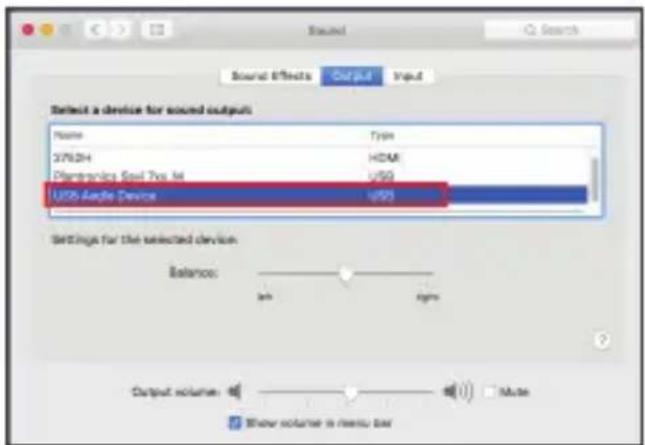
"Control Panel" > "Sound"

Under Playback and Recording select "USB Audio Device"

You can adjust input and output levels here
1. Select the sound preferences

2. Set output to "USB Audio Device"
3. Ser input to "USB Audio Device"
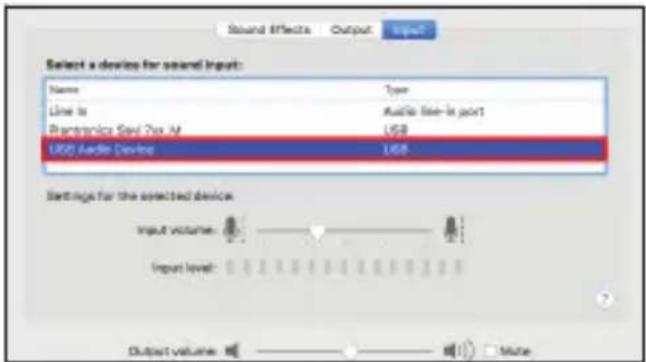
4. Adjust the mic input volume

For advanced settings you can install the windows software.
- Download link here:
www.pyleaudio.com/manuals/drivers/pgphone80.zip - Unzip the compressed zip file
- Click and run the "Setup.exe" file

- Double click the desktop shortcut icon to run the software

Right click either the "speakers" or "mic" icon to display the available settings


Volume Control
- Adjust Master - Left and Right Volume Levels
Sample Rate
- Change between 44.1 and 48 KHz
Equalizer
- Choose preset EQ settings or set custom values
- You can save your own presets by clicking the "disk" icon in the bottom right corner

bar
Equalizer | Frequency (Hz) | Power Level (dB) | | :--- | :--- | | 30 | -10 | | 60 | -8 | | 120 | -7 | | 250 | -12 | | 500 | -9 | | 1K | -6 | | 2K | -4 | | 4K | -2 | | 6K | 0 | | 16K | 0 |Environment Effects
- Adjust Environment Effects for changes in reverb
- Select the room size to modulate audio
7.1 Virtual Speaker Shifter
- Enable 7.1 Virtual Speaker Shifter and adjust the relative volumes for the different audio channels for an emulated 7.1 experience

Xear SingFX
- Change pitch and enable vocal fading
Xear Surround Max
- Enable emulated surround sound effect
Right click the Mic Icon and set:
Mic input volume level
Sample rate of mic
Microphone FX
- Echo
- Magic voice
- Microphone Boost
SAVE A CUSTOM PROFILE
You can save presets for custom profiles containing different settings for both mic and speakers
- Click the window change button

- Click the "plus" icon to add a new custom profile

Don't forget to register your headphones for a free 1 year warranty from Pyle!
http://www.pyleaudio.com/ProductRegistration.aspx
Get Help and Support! Email askpyle@gmail.com
- GAMING HEADPHONES
- Don't forget to register your headphones for a free 1 year warranty from Pyle!
- FEATURES
- HARDWARE
- SETUP
- Select the sound preferences
- Set output to "USB Audio Device"
- Ser input to "USB Audio Device"
- Adjust the mic input volume
- Volume Control
- Sample Rate
- Equalizer
- Environment Effects
- Virtual Speaker Shifter
- Xear SingFX
- Xear Surround Max
- SAVE A CUSTOM PROFILE
Brand : Pyle
Model : PGPHONE80
Category : Headphones