
HWL 1201 - Firestarter CALIBER - Free user manual and instructions
Find the device manual for free HWL 1201 CALIBER in PDF.


| Product Type | Firelighter |
| Brand | Caliber |
| Model | HWL 1201 |
| Dimensions | Approx. 100 x 50 x 20 mm (per piece) |
| Weight | Approx. 50 g per piece |
| Material | Compressed sawdust and wax |
| Burning Time | Approx. 12-15 minutes |
| Ignition Method | Use matches or a lighter |
| Smoke Emission | Low smoke |
| Odor | Nearly odorless |
| Security | Store in a cool, dry place away from heat sources |
| Quantity per Pack | Typically 12 pieces |
| Usage | Ideal for fireplaces, wood stoves, barbecues |
| Eco-friendly | Made from natural materials |
Frequently Asked Questions - HWL 1201 CALIBER
User questions about HWL 1201 CALIBER
0 question about this device. Answer the ones you know or ask your own.
Ask a new question about this device
Download the instructions for your Firestarter in PDF format for free! Find your manual HWL 1201 - CALIBER and take your electronic device back in hand. On this page are published all the documents necessary for the use of your device. HWL 1201 by CALIBER.
USER MANUAL HWL 1201 CALIBER
for the use of a police
HWL 1201
USER MANUAL
- GB - FR - DE - NL
INSTALLATION INSTRUCTIONS #1
Warning: Out the power off before installation!
Make sure the bulb to be within the Wi-Fi network to ensure a successful connection between the bulb and router.
Once installed turn the light bulb OFF and ON 3 times (rapidly) to reset the light bulb. The light bulb alerts flashing.
- Scan QR code to download and install "Caliber Smart Home"
- Click "+" at the up right corner to add the
device
- Select the mode of Wi-Fi inclusion configuration
1) There are two methods for Wi-Fi inclusion:
EZ (LED rapidly blink) and AP (LED slowly blink).
The nonsuit setting of this product is EZ mode. (2) It will automatically switch from EZ mode to AP mode after OFFION
wall switch 3 times.
(3) The device is included successfully when the LED is
• For EZ mode, please make sure the device's LED is rapidly flashing
Click "confirm light rapidly blurk". Select the Wi-Fi, enter Wi-Fi password and
Descritive WPI, and WPI passable and lap "Next".
For AP mode, please make sure the device's LED light is slowly flashing, click "confirm light slowly blink" to enter the next step
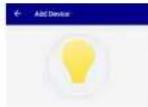
Power on the light and comfort that light moves slowly
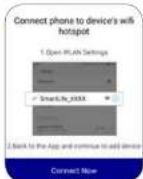
- The device info will appear on the APP after the device included
successfully. (Repeat step 3 and 4 if inclusion failed)
Cavannah's Cahel re-creed Lamina A Inc.
Lumière, n 47 Bolivare Suivi
Bloom Engle
Commercial W/O offices
(附注15-1)
- PRODUCT DESCRIPTION The LTRBule is a 60-P linear ball that can start with 50% of results
also by aven control. We can also compare the Jans will be able to have 50% of the people, and are able, or any time.
The first info website for the logx was called full error. DOI: 8018.3446/1234759
FEATURE
• 2014年
• Eassee normal: newa with other an-pan production • OTH, one meta-informed
7.3.1 2024年
We can sufficiently improving finding our products and your ability to make. We think you want to see them in a slight difference.
between the description of the place to the separation of the power. It suraining a difficult or not dear, though such our women are
The age ranges used are indicative and may vary by device and
HAPPY
BBB Catter family studies for the 1975-2012 and 1983-2014. The study was conducted by the National Association of the United States, 27(65)407-0571, 1983 (R), and 2014-2015. The research findings were presented in the following three categories: overall examination and use as a series of diverse perspectives to be used in the 1975-2012 study. The 1983-2014 study was conducted by the National Association of the United States, 27(65)407-0571, 1983 (R), and 2014-2015. The research findings were presented in the following three categories: overall examination and use as a series of diverse perspectives to be used in the 1975-2012 study. The 1983-2014 study was published by the National Association of the United States, 27(65)407-0571, 1983 (R), and 2014-2015. The research findings were presented in the following three categories: overall examination and use as a series of diverse perspectives to be used in the 1975-2012 study. The 1983-2014 study was published by the U.S. National Association of the United States, 27(65)407-0571, 1983 (R), and 2014-2015. The research findings were presented in the following three categories: overall examination and use as a series of diverse perspectives to be used in the 1975-2012 study. The 1983-2014 study was published by the U.S., National Association of the United States, 27(65)407-0571, 1983 (R), and 2014-2015. The research findings were presented in the following three categories: overall examination and use as a series of diverse perspectives to be used in the 1975-2012 study. The 1983-2014 study was published by the U.S.. National Association of the United States, 27(65)407-0571, 1983 (R), and 2014-2015. The research findings were presented in the following three categories: overall examination and use as a series of diverse perspectives to be used in the 1975-2012 study.
INSTALLATION INSTRUCTIONS #4
Note:
- Make sure the device and smartphone are in the same network
(2.4G supported only)
- The device can be included via EZ mode or AP mode.
Remarque
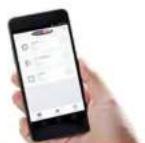
By the APP, this led bulb can be controlled remotely.
The specific instructions are as follows:
- Support the click on the bulb button on the APP to control the device
ON-OFF
-
Adjust the brightness of the device by sliding your finger on adjustment-bar
-
Support multi schedules function
-
Support mobile network /Wi-Fi remote control
-
Support device shared
INSTALLATION INSTRUCTIONS #5
To remove the bulb from the Wi-Fi network
-
Open the APP
-
Click the icon in the upper right corner, and then click "Remove Device"
button
- When remove the device is successful, the LED will start to blink readily.
Note: The 'remous procedure' will give the Wi-Fi LED hub's memory which
Note: The Remove procedure will clear the Wi-Fi LED bus/s memory manager arising all information about Wi-Fi network and configuration.
Retirer l'appareil
After pairing, select the device to enter "More" at the right upper corner and
then tap "Restore Manufacturer Defaults" to restore factory setting and the
LED will start flashing.
natural_image
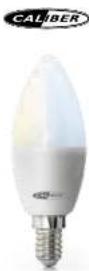
Two fluorescent LED light bulbs, one white and one yellow, shown against a white background (no text or symbols visible)CALIBER SMART HOME
- LIVING IN COMFORT
flowchart
graph TD
    A["Camera"] --> B["Light Bulb"]
    A --> C["Smart Lighting Icon"]
    A --> D["Smart Speaker Icon"]
    A --> E["Smart Control Icon"]
    A --> F["Smart Security Icon"]
    A --> G["Smart Security Mask Icon"]
    A --> H["Smart Security Camera Icon"]
    A --> I["Smart Security Camera Icon"]
    A --> J["Smart Security Camera Icon"]
    A --> K["Smart Security Camera Icon"]
    A --> L["Smart Security Camera Icon"]
    A --> M["Smart Security Camera Icon"]
    A --> N["Smart Security Camera Icon"]
    A --> O["Smart Security Camera Icon"]
    A --> P["Smart Security Camera Icon"]
    A --> Q["Smart Security Camera Icon"]
    A --> R["Smart Security Camera Icon"]
    A --> S["Smart Security Camera Icon"]
    A --> T["Smart Security Camera Icon"]
    A --> U["Smart Security Camera Icon"]
    A --> V["Smart Security Camera Icon"]
    A --> W["Smart Security Camera Icon"]
    A --> X["Smart Security Camera Icon"]
    A --> Y["Smart Security Camera Icon"]
    A --> Z["Smart Security Camera Icon"]
    A --> AA["Smart Security Camera Icon"]
    A --> AB["Smart Security Camera Icon"]
    A --> AC["Smart Security Camera Icon"]
    A --> AD["Smart Security Camera Icon"]
    A --> AE["Smart Security Camera Icon"]
    A --> AF["Smart Security Camera Icon"]
    A --> AG["Smart Security Camera Icon"]
    A --> AH["Smart Security Camera Icon"]
    A --> AI["Smart Security Camera Icon"]
    A --> AJ["Smart Security Camera Icon"]
    A --> AK["Smart Security Camera Icon"]
    A --> AL["Smart Security Camera Icon"]
    A --> AM["Smart Security Camera Icon"]
    A --> AN["Smart Security Camera Icon"]
    A --> AO["Smart Security Camera Icon"]
    A --> AP["Smart Security Camera Icon"]
    A --> AQ["Smart Security Camera Icon"]
    A --> AR["Smart Security Camera Icon"]
    A --> AS["Smart Security Camera Icon"]
    A --> AT["Smart Security Camera Icon"]
    A --> AU["Smart Security Camera Icon"]
    A --> AV["Smart Security Camera Icon"]
    A --> AW["Smart Security Camera Icon"]
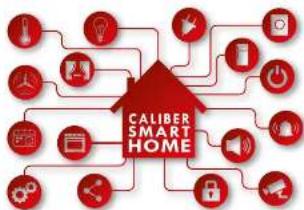
With Caliber smart home' products you can be sure everything is controllable with ONE APP. We chose to partner with Tuya a platform for smart home products which allows great control: not just ON and OFF but a whole range of possibilities
· Scheduler
: Scenario's IEG lights ON was its dash!
Combining products
• Concrete products
Share settings with the whole family
• See caliberal/calibersmarthome
for more info & demo's
Explore our growing number of smart home products

CALIBER.NL/CALIBERSMARTHOME FOR DEMO'S & INSTRUCTIONS
Brand : CALIBER
Model : HWL 1201
Category : Firestarter