
PhonePad Duo X530U - Smartphone Mediacom - Free user manual and instructions
Find the device manual for free PhonePad Duo X530U Mediacom in PDF.


| Product Type | Smartphone |
| Brand | Mediacom |
| Model | PhonePad Duo X530U |
| Networks | 3G (WCDMA) – 4G (LTE) |
| SIM Type | Dual SIM: Micro SIM + Nano SIM |
| Memory Expansion | Micro-SD card slot |
| Battery | Built-in rechargeable lithium battery |
| Charging | Via USB port with included AC/DC adapter |
| Connectivity | Wi-Fi, Bluetooth 4.0, USB, headset jack |
| Camera | Rear camera and front camera |
| Display | Touchscreen |
| Operating System | Android (unspecified version) |
| Buttons | Power button, Volume button |
| Ports | Micro-USB, 3.5mm headset jack |
| Sensors | Accelerometer, proximity sensor (assumed) |
| Audio | Speaker, microphone |
| Flash | LED flash light |
| Dimensions | Not specified |
| Weight | Not specified |
Frequently Asked Questions - PhonePad Duo X530U Mediacom
User questions about PhonePad Duo X530U Mediacom
0 question about this device. Answer the ones you know or ask your own.
Ask a new question about this device
Download the instructions for your Smartphone in PDF format for free! Find your manual PhonePad Duo X530U - Mediacom and take your electronic device back in hand. On this page are published all the documents necessary for the use of your device. PhonePad Duo X530U by Mediacom.
USER MANUAL PhonePad Duo X530U Mediacom
For safe and efficient operation of your device please observe the following rules:
- Keep the phone away from extreme heat, cold, moisture and dust.
- Do not spill any liquids on the device as it may damage the device or cause a fire.
- Do not use liquids and chemical cleaners for cleaning the device.
- Do not insert any objects in the phone air vents or other slots.
- Do not keep the device near magnetic sources, heaters, microwave ovens, heating up kitchen appliances, or in high pressure containers, as it may cause the battery leaking, the device overheating and inflammation.
- Do not disassemble the device, only a certified service technician should perform repairs on your computer.
- Use only the AC adapters, power cords and batteries that are approved for use with this device. Use of another type of battery or AC adapter may cause fire or explosion.
Note: The device pictures, as well as data on the device appearance, color and design features are given in the manual for reference only. Mediacom reserves the right to change the appearance and technical parameters of its products without prior notice.
About your device (Picture 1)
- Power button
- Speaker
- Volume button
- Headset port
- USB port/charging
- "Reset" (if available)
- SIM 1 slot
- Rear camera
- SIM 2 slot
- Front camera
- Micro-SD card slot
- Microphone
- Flash light
Switching on/off
To switch on the device, press and hold the Power button. When startup window appears, release the button. The system initialization may take several minutes. Please wait patiently.
To switch off the device, press and hold the Power button. When "Power off" message appears, release the button. Touch the message, then press OK.
Recommendation: To save the battery charge, the device is set to sleep mode: the screen is locked and sensor functions become inactive (in accordance with the settings of screen lock time). To "wake up" the device, short press the power button.
Unlocking the screen (Picture 2)
If you do not use the screen during certain period of time, the screen will be locked. To unlock the screen, press the power button once and drag "Lock" image right.
Main screen (Picture 3)
- Voice search
- Application menu
- Battery indicator
- Time
- SIM 1 - SIM 2
- Submenu
- Home/Recent used applications
- Back
- Google search
Restarting the device
If the screen does not response to key press or tap, restart your device by keeping power button depressed for long time.
Factory reset
To delete all data and restore your device to factory defaults, touch Settings > > Recovery and reset; touch menu item Reset > Reset to factory defaults.
Contents
Phone, USB Cable, Power adapter AC / DC, Quick Guide, Headset
Charging the battery
Device is provided with built in rechargeable battery.
Important: The battery must be charged before using it for the first time. When related icon or warning message alerts you please charge the battery using porper adapter (do not use diefferent adapter from original one).
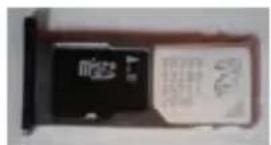
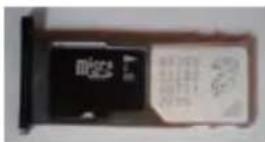
To insert the micro / nano SIM and micro SD
Insert a paper clip to pull the cart insert a nano SIM and a Micro SIM to benefit from the DUAL SIM or a micro SIM and a Micro SD to expand the phone's memory.


Networks: 3G (WCDMA) - 4G (LTE)
Note that your device will only have signal if you are in an area covered by your 3G provider (or 4G if available).
Before inserting a SIM card, you must turn off the device.
A Pin number may be requested. Enter the SIM card pin number.
Your device will attempt to connect to the 3G network of your provider.
This screen will appear when turning on device with new SIM.
Please confirm selection or make your change if required.

NOTE: If your device does not connect to your 3G provider's network
- Contact your 3G provider to obtain the connection parameters.
- On your device, tap the Menu icon, then settings.
- Select Wireless & networks > Mobile networks > Select your operator.
In Access Point Names, select the correct access point name and enter the exact connection parameters.
Wireless networks
Prior to starting an Internet-application, activate Wi-Fi connection and set up Wi-Fi network.
- Touch the icon "Applications" > "Settings" > "Wireless connections". Select Wi-Fi item and set the switch to On position.
- The device will automatically start searching for available networks and will display them on the right panel.
- Select any network from the list and press "Connect". If the network you selected is protected by WEP-protocol, type the security key, then press "Connect" button.
When the connection is successfully created, "Connected to" (Network name) message will appear on the screen.
Bluetooth
Tap "Settings" > Select "Wireless connections/Bluetooth" > Tap "On" to switch on the Bluetooth function. The device will automatically search for available Bluetooth device.
Select the Bluetooth device and start data transmission.
Phone PAD DUO


Redes 3G (WCDMA) - 4G (LTE)

3Γ(ВЦДМА)-4Γ(ЛТЕ)

Reti 3G (WCDMA) - 4G (LTE)
Tel. 0962/905175 - Fax 0962/905175
Imported and distributed by Datamatic S.p.A.
Via Agordat, 34 - 20127 - Milano - Italy
www.mediacomeurope.it
- ABOUT YOUR DEVICE (PICTURE 1)
- SWITCHING ON/OFF
- UNLOCKING THE SCREEN (PICTURE 2)
- MAIN SCREEN (PICTURE 3)
- RESTARTING THE DEVICE
- FACTORY RESET
- CONTENTS
- CHARGING THE BATTERY
- TO INSERT THE MICRO / NANO SIM AND MICRO SD
- NETWORKS: 3G (WCDMA) - 4G (LTE)
- WIRELESS NETWORKS
- BLUETOOTH
- PHONE PAD DUO
- REDES 3G (WCDMA) - 4G (LTE)
- 3Γ(ВЦДМА)-4Γ(ЛТЕ)
- RETI 3G (WCDMA) - 4G (LTE)
Brand : Mediacom
Model : PhonePad Duo X530U
Category : Smartphone