Fobos - Mouse Gaming Quasar - Free user manual and instructions
Find the device manual for free Fobos Gaming Quasar in PDF.


| Product Type | Wireless Gaming Mouse |
| Model | Fobos |
| Brand | Gaming Quasar |
| Sensor Type | Optical |
| DPI Range | Adjustable up to 16,000 DPI |
| Number of Buttons | 6 programmable buttons |
| Connection | USB 2.4 GHz wireless receiver |
| Battery Type | Rechargeable lithium-ion, 500 mAh |
| Battery Life | Up to 50 hours (RGB off) |
| Charging Port | USB-C |
| Dimensions (L x W x H) | 126 x 70 x 42 mm |
| Weight | 92 g |
| Material | ABS plastic with rubberized grips |
| Color | Black with RGB lighting |
| Software | Customizable via Gaming Quasar software |
| Compatibility | Windows, macOS, Linux |
| Maintenance | Clean with a dry cloth. Avoid liquids. |
| Safety Warnings | Keep away from water. Do not disassemble. |
| Spare Parts | Replacement mouse feet available. |
| Warranty | 2 years |
Frequently Asked Questions - Fobos Gaming Quasar
User questions about Fobos Gaming Quasar
0 question about this device. Answer the ones you know or ask your own.
Ask a new question about this device
Download the instructions for your Mouse in PDF format for free! Find your manual Fobos - Gaming Quasar and take your electronic device back in hand. On this page are published all the documents necessary for the use of your device. Fobos by Gaming Quasar.
USER MANUAL Fobos Gaming Quasar
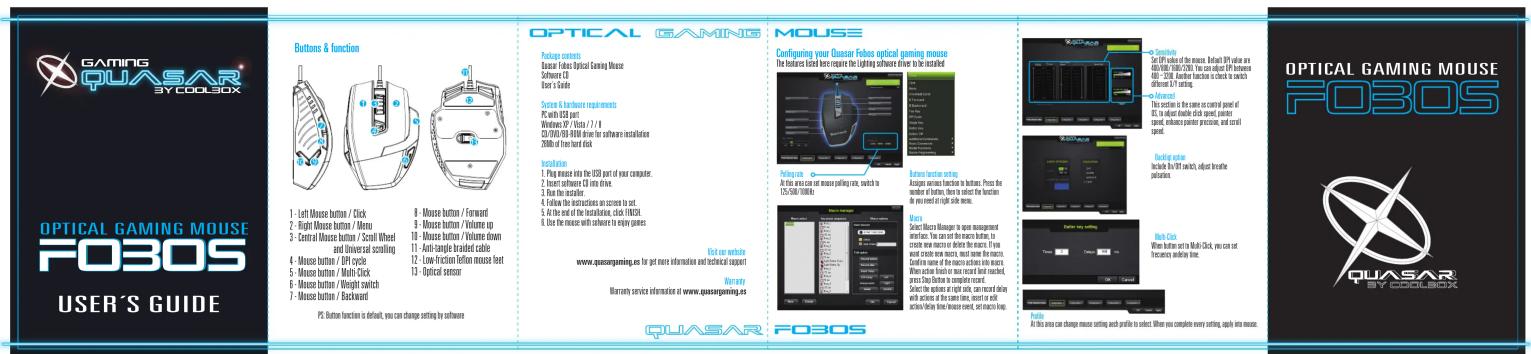
1 - Left Mouse button / Click
2 - Right Mouse button / Menu
3 - Central Mouse button / Scmll Wheel
and Universal scrolling
4 - Mouse button / DPI cycle
5 - Mouse button / Multi Click
5 - Mouse button / Multi-Click
6 - Mouse button / Weight switch
7 - Mouse button / Backward
PS: Button function is default, you can change setting by software
Package contents
Ludair Focus Optical Gaming Mouse Software CD
User's Guide
System & bar
PC with USB port
Windows XP / Vista / 7 / II
20/040/91 BIM drive for software installation
250lb of free hard disk
http://a
1. Plus mouse int
2. Insert software CD into drive.
3. Run the installer.
4. Follow the instru
5. At the end of the installation, click FINISH
6. Use the mouse with software to enjoy game
[Non-Text]
Visit our website www.comprmation.co for not more information and technical support
regaining.co for got more information and financial support
Warranty service information at www.quasargaming.es
QUASAR
Configuring your Quasar Fobos optical gaming mouse The footage listed here requires the Lighting software driver to be installed
Polling rate
At this year, we can move polling rate, switch in
At time 8th low set mouse pulling rate, switches to 125/500/1000 Hz
FO305
At this area can change mouse setting each profile to select. When you complete every setting, apply into mouse.

OPTICAL GAMING MOUSE
FO305
QUASAR

Brand : Gaming Quasar
Model : Fobos
Category : Mouse