
Clié PEGA-KB11 - Keyboard SONY - Free user manual and instructions
Find the device manual for free Clié PEGA-KB11 SONY in PDF.


| Product Type | Foldaway Compact Keyboard |
| Brand | Sony |
| Model | Clié PEGA-KB11 |
| Dimensions (W x H x D) | 93 x 22 x 130 mm (3 5/8 x 7/8 x 5 1/8 inches) |
| Weight | Approx. 241 g (8.6 oz) |
| Power Consumption | 7.5 mW in normal operation |
| Operating Temperature | 5°C to 35°C (41°F to 95°F) |
| Compatibility | Only with Sony CLIÉ handhelds |
| Key Features | Easy text input, application launch keys, foldaway design, Jog Dial navigation support |
| Included Accessories | Installation CD-ROM, Carrying pouch, Warranty cards, End-User License Agreement, Operating Instructions |
| Interface | Docking connector for CLIÉ handheld |
| Keyboard Layout | Customizable via software settings (General, Layout, CmdKeys, Pointer) |
| Key Repeat Rate & Delay | Adjustable via Keyboard settings screen |
| Pointer Function | Enable/disable screen pointer with customizable acceleration and speed |
| Special Characters & Accents | Input via Fn key combinations (e.g., accented letters, symbols, copyright, degree) |
| Backlight Control | Fn + minus (-) key toggles backlight on/off |
| Safety Precautions | Do not expose to rain/moisture; avoid extreme temperatures, dust, shock; use only with supplied cable |
| Cleaning Instructions | Clean with soft dry cloth; mild detergent if needed; avoid solvents |
| Regulatory Compliance | FCC Part 15 Class B, Canadian ICES-003 |
| Repair Information | Refer servicing to qualified personnel; no user-serviceable parts inside |
Frequently Asked Questions - Clié PEGA-KB11 SONY
User questions about Clié PEGA-KB11 SONY
0 question about this device. Answer the ones you know or ask your own.
Ask a new question about this device
Download the instructions for your Keyboard in PDF format for free! Find your manual Clié PEGA-KB11 - SONY and take your electronic device back in hand. On this page are published all the documents necessary for the use of your device. Clié PEGA-KB11 by SONY.
USER MANUAL Clié PEGA-KB11 SONY
Operating Instructions

PEGA-KB11
Sony Corporation © 2002 Printed in Japan
WARNING
To prevent fire or shock hazard, do not expose the unit to rain or moisture.
To avoid electrical shock, do not open the cabinet. Refer servicing to qualified personnel only.
Owner's Record
The model and lot numbers are located on the bottom of your compact keyboard. Record the lot number in the space provided below. Refer to the model and lot numbers when you call your Sony dealer regarding this product.
Model No. PFGA-KB11
Lot No.
This device complies with Part 15 of the FCC rules. Operation is subject to the following two conditions: (1) This device may not cause harmful interference, and (2) this device must accept any interference received, including any interference that may cause undesired operation.
This equipment has been tested and found to comply with the limits for a Class II digital device, pursuant to Part 15 of the FCC Rules. These limits are designed to provide reasonable protection against harmful interference in a residential installation. This equipment generates, uses, and can radiate radio frequency energy and, if not installed and used in accordance with the instructions, may cause harmful interference to radio communications. However, there is no guarantee that interference will not occur in a particular installation. If this equipment does cause harmful interference to radio or television reception, which can be determined by funding the equipment off and on, the user is encouraged to try to correct the interference by one or more of the following measures:
- Reorient or relocate the receiving antenna.
- Increase the separation between the equipment and the receiver.
- Connect the equipment into an outlet on a circuit different from that to which the receiver is connected.
- Consult the dealer or an experienced radio/TV technician for help.
If you have a question about this product, call the Sony Customer Information Center at keep on next line 1-877-760-7669; or write to the Sony Customer Information Center at 12451 Gateway Boulevard, Fort Myers, FL 33913. The number below is for FCC-related matters only.
Declaration of Conformity
Trade Name: SONY
Model No.: PECA-KB11
Responsible Party: Sony Electronics Inc.
Address: 680 Kinderkarnack Road, Oradell,
NJ07649 USA
Telephone No.: 201-930-6972
This device complies with part 15 of the FCC Rules.
Operation is subject to the following two conditions:
(1) This device may not cause harmful interference, and
(2) This device must accept any interference received.
including interference that may cause undesired operation.
The supplied interface cable must be used with the equipment in order to comply with the limits for a digital device pursuant to Subpart B of Part 15 of ICC Rules.
You are cautioned that any changes or modifications not expressly approved in this manual could void your authority to operate this equipment.
This Class B digital apparatus complies with Canadian ICES-003.
- CLIF and Jog Dial are trademarks of Sony Corporation. - All other trademarks are trademarks of their respective owners.
©2002 Sony Electronics Inc. All rights reserved. Reproduction in whole or in part without written permission is prohibited.
For the latest support information, check our official Sony CLIÉ Web site http://www.ita.sel.sony.com/support/clie/access/
http://www.sony.net/

Printed on 100% recycled paper using VOC (Volatile Organic Compound)-free vegetable oil based ink.
Before use
This Compact Keyboard is designed only for use with a CLI/IE handheld, and has the following features:
- Easy input of text and special characters
- Easy launch of applications by simple key operation
- Foldaway, pocket-size keyboard, providing good portability
Location of controls
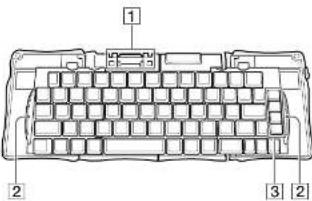
1 PDA foot
2 End grip
3 Application keys
Installing the software
Before using the Keyboard, install a Keyboard driver from the supplied installation CD-ROM on your CLI ^E handheld.
Before Installation
Please check the following
- You need a Windows compatible computer on which the Palm Desktop application that is suitable for your CLIF handheld has been installed. Connect the computer to your CLIF handheld, and make sure that a HotSync operation is correctly performed on both your computer and CLIF handheld.
- If any other keyboard application has been installed already, disable it, or turn it off.
- Make sure that your CLI ^E handheld has a minimum of 160K free memory. For details on how to check the amount of free memory, see the manual of your CLI ^E handheld.
1 Insert the supplied installation CD-ROM into the CD-ROM drive of your Windows compatible computer.
The initial installation screen appears.
2 Click [Install Compact Keyboard Software]. The installer submenu appears.
3 Proceed with the installation, following the installer's instructions.
If you have registered more than one user, select a user name from the user list.
4 Click [Done].
5 Press the HotSync button on the cradle. A HotSync operation begins and the application is transmitted from your Windows compatible computer to your CI If handheld.
Getting started / Using the Keyboard
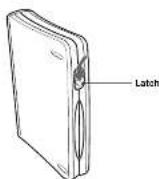
1 Push the latch down to unlock the keyboard.
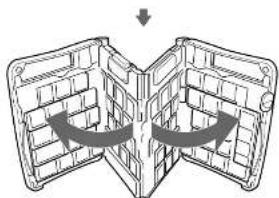
natural_image
Diagram of a butterfly-shaped structure with curved arrows indicating rotation or movement (no text or symbols)Unfold the keyboard and set it on a firm, flat surface
2 Slide the end grips inward, bringing the keyboard sections together.
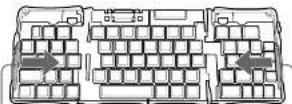
End grip End grip
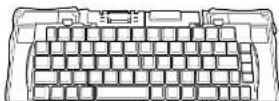
The Keyboard is set.
3 Pull the docking connector upward at the top of the keyboard (1), and slide the PDA foot out of the keyboard (2).
① Pull the docking connector upward
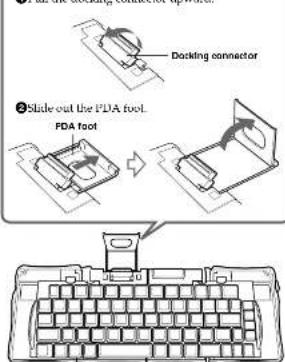
Slide the docking mechanism all the way out of the keyboard until the PDI foot flips up as shown.
4 Push down the interface connector of your CLIÉ handheld gently into the docking connector of the keyboard to make a connection.
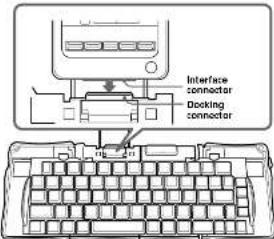
Your CI.IF, handheld automatically turns on. You can now begin typing.
Notes
- When you connect the interface connector of your CLIE handheld to the docking connector of the keyboard, make sure that the PDA foot is fully extended. If you make the connection without extending it fully, it may cause a malfunction.
- Be sure to put your CLI handheld on the PDA foot while using the keyboard. If you pull your CLI handheld toward you with too much force, it may cause an incorrect operation or a maltraction.
- Be sure to use the keyboard on a flat surface. If you are typing with the keyboard or an uneven surface, such as your hip, the keyboard may how slightly in the center, causing an incorrect operation or a malfunction.
- Use your stylus for selecting list items, for making menu selections, and for giving commands in applications that are not compatible with the keyboard.
- The Caps Lock key on the Campact Keyboard does not interlock with the Caps Lock of the orscreen keyboard of the CLIé handheld. Caps Lock must be set individually on either keyboard.
After use
1 Disconnect your CLIÉ handheld from the docking connector.
2 Retract the PDA foot into the keyboard and push the docking connector downward.
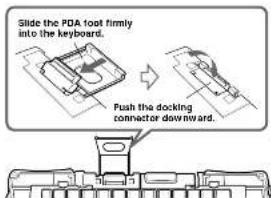
3 Slide the end grips toward the ends of the case.
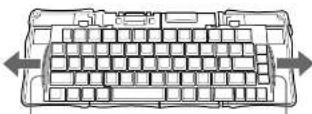
End gripEnd grip
You can now fold up the keyboard.
4 Fold the keyboard as shown.
Press the four corners of the case together until they click into place to close the keyboard.
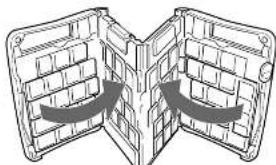
natural_image
Diagram of a folded notebook or notebook with two curved arrows indicating directional movement (no text or symbols)Note
When you disclose your CLIÉ handheld, make sure to pull it straight upward. If you pull your CLIÉ handheld toward you with too much force, the PDA foot may be broken and cause a malfunction.
Customizing The Keyboard
Setting the Key repeat rate/Delay until repeat
You can change the following settings.
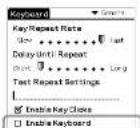
Key Repeat Rate:
The speed at which a letter, number or other character
repeats when you keep a key pressed.
Delay Until Repeat:
The length of time before a letter, number or other character begins to repeat when you keep a key pressed.
Enable Key Clicks:
Turning on/off the key clicking sound when you press keys. Enable Keyboard.
Enabling the keyboard functions/disabling the keyboard functions while you are not using this unit.
1 Turn on your CLIÉ handheld, and tap the [Keyboard] icon on the home screen. The most recent settings screen appears.
2 Tap ▼ in the upper right corner, and select [General].
The Keyboard General settings screen appears.
3 Change the [Key Repeat Rate] and [Delay Until Repeat] settings by dragging the marker arrows with your stylus.
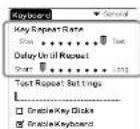
Key Repeat Rate:
Drag the marker arrow toward [Fast] to increase or [Slow] to decrease the repeat rate.
Delay Until Repeat
Drag the marker arrow toward [Long] to increase or [Short] to decrease the length of the delay.
4 After changing the settings, tap the icon to return to the home screen.
To confirm the settings
You can confirm the Key Repeat Rate and Delay Until Repeat you have set in Step 2 on the General settings screen. After dragging the marker arrows of Key Repeat Rate and Delay Until Repeat in Step 2, input a letter or a number in the space under [1est Repeat Settings] by keeping any key pressed.
Hearing the Key Clicks
You can hear the key clicking sound when you press keys
1 Turn on your CLIÉ handheld, and tap the [Keyboard] icon on the home screen. The most recent settings screen appears.
2 Tap ▼ in the upper right corner, and select [General].
The Keyboard General settings screen appears.
3 Tap the check box of [Enable Key Clicks] to tick the item on the General settings screen. You hear the clicking sound when you press keys.
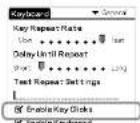
4 After setting the key clicks, tap the icon to return to the home screen.
Turning off the key clicks
Tap the check box of [Enable Key Clicks] to remove the tick on the General settings screen.
Disabling The Keyboard Functions
You can suspend the keyboard functions when you do not use this keyboard temporarily.
1 Turn on your CLIÉ handheld, and tap the [Keyboard] icon on the home screen. The most recent settings screen appears.
2 Tap ▼ in the upper right corner, and select [General].
The Keyboard General settings screen appears.
3 Tap the check box of [Enable Keyboard] to remove the tick on the General settings screen.
The keyboard functions are suspended, and you cannot use the keyboard even if you connect it to your CI IF handheld.
4 After setting, tap the icon to return to the home screen.
Using the keyboard again
Tap the check box of [Enable Keyboard] to tick the item on the General settings screen.
Attaching the Keyboard to your CLIÉ handheld
Before attaching the keyboard to your CI IE handheld, make sure to tap the check box of [Enable Keyboard] to tick the item on the General settings screen.
Attaching the keyboard without the tick on the item, CLIÊ handheld may start a HotSync operation. This is not a malfunction.
Assigning Application Shortcut Keys
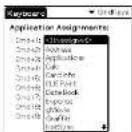
You can assign application shortcuts to the 1 - 9 keys at the top of the keyboard.
1 Turn on your CLIÉ handheld, and tap the [Keyboard] icon on the home screen. The most recent settings screen appears.
2 Tap ▼ in the upper right corner of the General settings screen, and select [CmdKeys]. The CmdKeys settings screen appears.
3 Tap ▼ to the right of any Cmd+number key ([Cmd+1] through [Cmd+9]), and select the application you want to assign to the Cmd+number key.
4 After setting application shortcuts, tap the icon to return to the home screen.
Testing the application shortcut you have set Press the numerical key (1.9) to which you have assigned an application shortcut in Step 3 while pressing the Ctrl key on the keyboard to make sure that the assigned application starts correctly. If the application does not start, assign the application shortcut again.
Setting the Pointer
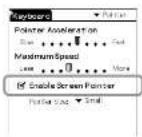
The pointer can be displayed on your CLIÉ handheld. The pointer function is set to off at the factory default setting. To activate the function, follow the procedures below.
1 Turn on your CLIÉ handheld, and tap the [Keyboard] icon on the home screen. The most recent settings screen appears.
2 Tap ▼ in the upper right corner, and select [Pointer].
The Pointer settings screen appears.
3 Tap the check box of [Enable Screen Pointer] to tick the item.
4 After setting, tap the icon to return to the home screen.
Use the pointer on the display of your CLIÉ handheld
1 Hold Alt key on the home screen or other application screen. The pointer appears on the screen.
2 Move the pointer using the arrow keys (Alt + ←, →, ↑, and ↓).
3 Move the pointer on the item you want to select, and press Alt + Enter. The item that the pointer is located is selected.
Change the pointer rate
Change the [Pointer Acceleration] and [Maximum Speed] by dragging the marker arrows with your stylus in the pointer settings screen.
Changing the pointer size
Tap ▼ to the right of [Pointer Size] in the Pointer settings screen to change the pointer size.
Changing Other Settings
Changing the key layout setting
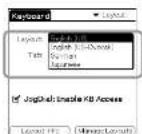
You can change the key layout of the keyboard.
1 Turn on your CLIÉ handheld, and tap the [Keyboard] icon on the home screen.
The most recent settings screen appears.
2 Tap ▼ in the upper right corner of the General settings screen, and select [Layout]. The Layout settings screen appears.
3 After setting the key layout, tap ▼ to the right of [Layout], and select a key layout.
4 After setting the layout, tap the icon to return to the home screen.
Changing the tab key movement
You can set the tab key to either move within fields or move to a tab stop when the tab key is set in the application you use.
1 Turn on your CLIÉ handheld, and tap the [Keyboard] icon on the home screen. The most recent settings screen appears.
2 Tap ▼ in the upper right corner of the General settings screen, and select [Layout]. The Layout settings screen appears.
3 Tap ▼ to the right of [Tab], and select either setting.
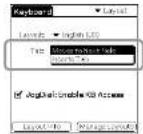
4 After setting the tab movement, tap the icon to return to the home screen.
Using the Jog Dial function with the keyboard
You can select the list item or the menu with the keys on the keyboard just like you use Jog Dial.
1 Press the ^* or arrow key while pressing the Cmd key on the home screen or other application screen. The selected icon or item appears inverted.
2 Press the Enter key while pressing the Cmd key on the item to be selected. The item that appears inverted is selected.
Disabling the Jog Dial functions
You can suspend the Jog Dial functions temporarily. The Jog Dial functions are enabled at the factory default setting.
1 Turn on your CLIÉ handheld, and tap the [Keyboard] icon on the home screen. The most recent settings screen appears.
2 Tap ▼ In the upper right corner of the General settings screen, and select [Layout]. The Layout settings screen appears.
3 Tap the check box of [Enable Jog-Dial] to remove the tick on the General settings screen.
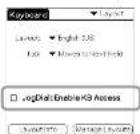
The log-Dial functions are suspended, and you cannot use the log-Dial navigator from your keyboard.
4 After setting, tap the icon to return to the home screen.
To use the Jog-Dial navigator again, tap the check box of [Enable Jog-Dial] to tick the item on the Layout settings screen.
Viewing Layout information
Tap [Layout Info] at the lower left corner of the Layout settings screen. The current key layout setting and copyright are displayed.
Tap [Manage Layouts] in the lower right corner of the Layout setting screen to view the information when the function is extended.
Viewing The Help
You can view the explanation for main terms and functions, and keyboard shortcuts.
1 Turn on your CLIÉ handheld, and tap the [Keyboard] icon on the home screen. The most recent settings screen appears.
2 Tap ▼ in the upper right corner of the General settings screen, and select [Help].
The Help screen appears. For a complete list of these shortcuts, refer to the shortcut lists below.
After viewing the shortcuts
Tap the icon to return to the home screen.
Shortcut list of cursor movements
The following list shows the keyboard shortcuts for moving the cursor and selecting text.
Keys to press Function
| Ctrl +←Moves the cursor one word to the left. |
| Ctrl +→Moves the cursor one word to the right. |
| Ctrl + Shift -← Highlights the word to the left of the cursor. |
| Ctrl + Shift -→Highlights the word to the right of the cursor. |
Stuff + ← Highlights the character to the left of the cursor.
Shift + → Highlights the character to the right of the cursor.
Shift + Highlights one line of text above the cursor.
Shift + Highlights one line of text below the cursor.
Cmd + ← Moves the cursor to the top of the line ^**
Cnd + → Moves the cursor to the end of the line.
Fn + ↑ or Cmd + ↑ Scrolls upward.
Fn ↓ or Cmd ↓ Scrolls downward.
Shift + Tab Tabs forward through fields.
Tab Tabs backward through fields. ^2
- It may not function depending on the types of applications.
If you type the sentence of more than one line, the cursor may not move as the table shows above, depending on the types of applications.
To use the keys on which the blue characters
are printed
Press each key while holding the Pu key to access the commands that are printed in blue
To use on-screen button shortcuts,
perform one of the following procedures:
Enter the button name while pressing the Fn key
Enter the first letter of the button name that is not used in the button name, other one letter while pressing the Ctrl and Curs keys at the same time.
| Keys to press Function | |
| Fn + Details | Selects Details. |
| Ctrl + Cmd + n | Selects Done. |
| Ctrl + Cmd + 1 | Selects Details. |
List of the menu commands
The following list shows the keyboard shortcuts for the editing menu commands.
| Keys to press Function | |
| Ctrl + x | Cuts selected text. |
| Ctrl + v | Copies selected text. |
| Ctrl + v | Pastes cut or copied text. |
| =The cut, copy, and paste menu commands may vary depending on the applications. | |
List of other special keystrokes
The following list shows other key combinations available on this keyboard.
| Keys to press Function | |
| Fn + Cmd | Enters shortcut mode. |
| Fn + - (○) | Turns the backlight on/off. |
List of Accented characters
The following list shows the example for inputting accented letter "a". To input other accented letter, type the desired letter instead of letter "a" in the list.
| Keys to press Function | |
| a = Fn + | Acute accent (δ) |
| a = Fn + (Fa-Shift-6) | Circumflex accent (a) |
| a = Fn + ; | Dierosis accent (a) |
| a = Fn + | Grave accent (a) |
| a = Fn + - (Fa-Shift-) | Tide accent (δ) |
| a = Fn + o | Dot accent (a) |
List of other extended characters
| Keys to press Function | |
| Fn + O (Fn-Shift-o) | Capital naught (O) |
| Fn + o | Lowercase naught (o) |
| Fn + ? (Fn Shift /) | Upside down ? (.) |
| Fn + ! (Fn-Shift-1) | Upside down ! (.) |
| Fn + A (Fn-Shift-a) | A |
| Fn + a | a |
| Fn + b | B |
| Fn + w | Bullet (*) |
| Fn + c | Cedilla (c) |
List of Creating symbols
| Keys to press Function | |
| Fn + g | Copyright symbol (8) |
| Fn + d | Degree symbol (*) |
| Fu + | Divide symbol (+) |
| Fn + u | Micro symbol (u) |
| Fn + \ | Paragraph symbol (¶) |
| Fu + p | British Pound symbol (5) |
| Fn + e | Registered trademark (3) |
| Fn + s | Section symbol (§) |
| Fu + l | Trademark symbol (12) |
| Fu + y | Yen symbol (#) |
| Fn + (Fn-Shift-) | Plus/minus symbol (+) |
| Fn + 2 | 1/2 |
| Fu + 2 | 3/4 |
| Fn + 4 | 1/4 |
| Fn + § (Fn-Shift-l) | Cents (6) |
| Fu + t | Script f (f) |
| Fn + [ | Left single curly quote (*) |
| Fn + ] | Right single curly quote (*) |
| Fn + (Fn-Shift-!) | Left double curly quote (*) |
| Fn + (Fn-Shift-l) | Right double curly quote (*) |
Note
Make sure to set the Caps lock to off when you input the characters other than letters using the on-screen button shortcuts.
Using the International Keyboard Settings
The Palm OS International keyboard settings are supported by the keyboard software which is preinstalled from the supplied CL-ROM. To input characters using the settings, press the Alt key and the desired character.
List of calculator functions
The following list shows the key combinations for calculator functions.
| Keys to press Function | |
| 1_i,j^ ,j_i = Adds,Subtracts,Multiplics, Divides,and Equals | |
| c | Clears all |
| e | Clears last entry |
| m | Clears memory |
| p | Puts a currently displayed number into memory. |
| r | Recalls a value in memory. |
Troubleshooting
Nothing happens when you type on the keyboard. - Check that your CLIE handheld is charged. - Make sure that your CLIE handheld is connected to the keyboard correctly. - Confirm that the application for this keyboard is installed properly.
- Confirm that the application for this keyboard is enabled. A HotSync operation cannot be performed when you connect this keyboard to your CLIÉ handheld.
- You cannot use this keyboard as a cradle for your CLI handheld. To perform a HotSync operation, remove the keyboard, and attach a cradle to your CLI handheld.
HotSync screen appears when you connect this keyboard to your CLIÉ handheld.
- The driver may not be installed correctly. Delete the current driver, and install the driver again.
If the installed driver is not deleted, operational malfunction may occur. In this case, perform a soft reset following the operation manual of CLIÉ handheld.
The keyboard operations suddenly stops.
- The keyboard may not function if you perform a soft reset when the keyboard is connected to your CLIJE handheld. Disconnect the keyboard before performing a soft reset on your CLIJE handheld. Do not connect the keyboard to your CLIJE handheld while it is starting again.
Specifications
| Power consumption | 7.5 mW (in normal operation) |
| Operating temperature | 41 T to 95 T (5°C to 35°C) |
| Dimensions 3 | 1⁄2 - 3" /s" /inches(93 - 130 - 22 mm) (w/h/d)(Excluding the largest projecting part) |
| Mass. | Approx. 8.6 oz (241 g) |
| Accessories | Operating InstructionsInstallation CD ROMCarrying pouchWarranty cardsEnd-User's License Agreement |
Design and specifications are subject to change without notice.
Notes on use
- Do not subject the unit to:
Extreme heat or cold - Dust, dirt, or sand
- High humidity
Vibration - Strong magnetic fields
- Mechanical shock
- Direct sunlight (for extended periods of time)
- Do not drop the unit.
- Be sure that nothing metallic comes into contact with the metal parts of this unit. If this happens, a short circuit may occur and the unit may be damaged.
- Do not operate the unit if it has a damaged cord or if it
has been cropped or damaged.
• Always keep the metal contacts clean.
• Do not disassemble or convert the unit. - While the unit is in use, it gets warm. This is normal.
Cleaning
Clean the unit with a soft, dry cloth or a soft cloth lightly moistened with a mild detergent solution. Do not use any type of solvent, such as alcohol or benzine, which may damage the finish.
- WARNING
- Owner's Record
- Declaration of Conformity
- Before use
- Installing the software
- Before Installation
- Click [Done].
- Getting started / Using the Keyboard
- Notes
- After use
- Fold the keyboard as shown.
- Note
- Customizing The Keyboard
- Setting the Key repeat rate/Delay until repeat
- To confirm the settings
- Hearing the Key Clicks
- Turning off the key clicks
- Disabling The Keyboard Functions
- Using the keyboard again
- Attaching the Keyboard to your CLIÉ handheld
- Assigning Application Shortcut Keys
- Setting the Pointer
- Use the pointer on the display of your CLIÉ handheld
- Change the pointer rate
- Changing the pointer size
- Changing Other Settings
- Changing the key layout setting
- Changing the tab key movement
- Using the Jog Dial function with the keyboard
- Disabling the Jog Dial functions
- Viewing Layout information
- Viewing The Help
- After viewing the shortcuts
- Shortcut list of cursor movements
- To use the keys on which the blue characters
- are printed
- To use on-screen button shortcuts,
- perform one of the following procedures:
- List of the menu commands
- List of other special keystrokes
- List of Accented characters
- List of other extended characters
- List of Creating symbols
- Using the International Keyboard Settings
- List of calculator functions
- Troubleshooting
- Specifications
- Notes on use
- Cleaning
Brand : SONY
Model : Clié PEGA-KB11
Category : Keyboard