
CELT20 - Smartphone Sunstech - Free user manual and instructions
Find the device manual for free CELT20 Sunstech in PDF.


| Brand | Sunstech |
| Model | CELT20 |
| Product Type | Smartphone (Feature Phone) |
| Dimensions (estimated) | Approx. 125 x 55 x 12 mm |
| Weight (estimated) | Approx. 110 g (including battery) |
| Display | 2.4-inch TFT LCD, 320x240 pixels |
| Battery | Lithium-ion, 1000 mAh (removable) |
| Charger Input | 5V DC, 500 mA |
| SIM Card | Dual SIM (Mini-SIM), dual standby |
| Memory Card | MicroSD (T-Flash), up to 16 GB (not included) |
| Phonebook Capacity | Up to 200 contacts (phone) + SIM capacity |
| Camera | 0.3 MP (VGA) rear camera, no flash |
| Connectivity | Bluetooth 2.1, FM radio, 2.5mm headset jack, Micro-USB (charging/data) |
| Audio | MP3 player, speaker, 3.5mm headset jack (via adapter) |
| Networks | 2G GSM 850/900/1800/1900 MHz |
| Features | SMS, call logs, alarm, calculator, calendar, torch, SOS key, speed dial |
| SOS Emergency | One-key SOS with 5 preset numbers and message |
| Profiles | General, Silent, Meeting, Outdoor + headset mode |
| Languages | Multilingual (including English, Spanish, French) |
| SAR (Head) | 0.285 W/kg |
| SAR (Body) | 0.0399 W/kg (at 1.5 cm distance) |
| Operating Temperature | 5°C to 35°C (recommended) |
| Maintenance | Clean with soft dry cloth; avoid liquids and chemicals |
| Warranty | 2 years (EU legal warranty) subject to conditions |
Frequently Asked Questions - CELT20 Sunstech
User questions about CELT20 Sunstech
0 question about this device. Answer the ones you know or ask your own.
Ask a new question about this device
Download the instructions for your Smartphone in PDF format for free! Find your manual CELT20 - Sunstech and take your electronic device back in hand. On this page are published all the documents necessary for the use of your device. CELT20 by Sunstech.
USER MANUAL CELT20 Sunstech
natural_image
Two black wireless devices with a red control knob, one displaying the brand name 'westech' (no visible text or symbols on device body beyond branding)User Manual
SAFETY AND PRECAUTION WARNINGS
 www.sar-tick.com www.sar-tick.com | This product can be adjusted to the SAR national limits of 2 W/Kg. The specific SAR maximum values are in the information section of this guide.When you hold the product or use it on your body, maintain a distance of 1.5 cm from your body to ensure the radiofrequency exposure standards. |
This device offers communication and entertainment services that follow SUNSTECH's high standards and technological experience.
- The content may differ from the final product of the software provided by the suppliers of services or transmitters and it is subject to alteration without prior notice.
- The elements that come with the device and any available accessory may vary according to the region or supplier of the services.
- The elements provided are designed uniquely for this device and may not be compatible with other devices.
- You may purchase additional accessories at your local SUNSTECH distributor. Ensure that they are compatible with the device before you purchase them.
• Other accessories may not be compatible with the device. - SUNSTECH is not held responsible for problems of insufficient return or any change to the operating system's software. Any attempt to personalize the operating system may cause the device or the applications to function incorrectly.
Instruction icons
| Warning: Situations that can cause injuries to yourself or third parties. | |
| Precaution: Situations that can cause damages to the device or other equipment. |

Note: Notes, recommendations of use or additional information.
Copyright
Copyright © 2013 Afex suns, S. A.
This guide is protected by international copyright laws.
Reproduction, distribution, translation or transmission of any part of this guide is not allowed under any circumstances or through any means, be it electronic or mechanic. This includes photocopies, records or storage in any information retrieval and storage systems, without previous written authorization from Afex Suns, S. A.
Safety information
This section contains safety information for mobile devices. Some of the content may not apply to your device. In order to avoid injury to yourself or third parties or damage to the device, read the device's safety information before you use it.

Warning
If you do not comply with these safety regulations and warnings, you may suffer serious injury or even death.
Do not use damaged power cords or connectors or loose sockets.
Unsafe connections may cause an electric discharge or a fire.
Do not touch the power cord if your hands are wet and do not pull the cord to disconnect the charger.
If you do so, you may be electrocuted.
Do not bend or damage the power cord.
If you so do, this may cause an electric discharge.
Do not cause a short-circuit in the charger or the device.
If you do so, this may cause an electric discharge or the device may not function correctly.
Use batteries, chargers, accessories and supplies that have been approved by the manufacturer.
- The use of generic batteries or chargers may shorten the useful life of the device or cause incorrect functioning. It may also cause a fire or the battery may explode.
- Only use batteries or chargers that have been approved by SUNSTECH, specifically designed for the device. Any non compatible batteries and chargers may cause serious physical injuries or damage the device.
- SUNSTECH will not be held responsible for the safety of the user whenever accessories or supplies that have not been approved by the brand are used.
Do not cut or drop the charger or the device.
When handling or disposing of the device and charger do so with caution.
- Never throw the battery or the device into the fire. Never place the battery or the device on any sources of heat, such as, ovens, microwaves, glasshouses or radiators, etc. If it overheats, the device may explode. Follow all local regulations with regards to disposing of the used battery or device.
- Do not squash the device or make holes in it. - Avoid exposing the device to high pressure because this may cause an internal short-circuit and overheating.
Protect the device, battery and charger in order to stop them from getting damaged.
- Avoid exposing the device and battery to very high or very low temperatures.
- Extreme temperatures may damage the device and reduce the charging capacity and the duration of the device and battery.
- Avoid the battery entering into contact with metal objects because this may cause a connection between the positive and negative terminals of the battery and damage it temporarily or permanently.
- Never use damaged chargers or batteries.
Do not store the device in or near heaters, microwaves, heated kitchen equipment or high pressure containers.
• The battery may have leakages.
• The device may overheat and cause a fire.
Do not use or store the device in places with a lot of dust or material transported by air.
Dust or foreign materials may cause the device to malfunction and may result in a fire or an electric discharge.
Safety information
Do not bite or suck the device or the battery.
• This may damage the device or cause an explosion or a fire.
• Children and animals may choke on small pieces.
- When children use the device, ensure that they do so correctly.
Do not insert the device or the accessories provided into your eyes, ears or mouth.
If you do so, you make choke or suffer serious injuries.
Do not handle damaged lithium-ion batteries or batteries that show evidence of leakage.
To dispose of lithium-ion batteries safely, contact your closest authorized service centre.
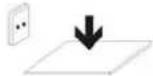
PLUGGABLE EQUIPMENT: the socket-outlet shall be installed near the equipment and shall be easily accessible.

Precaution
If you do not comply with these regulations and warnings, you may suffer injuries or cause material damage.
Do not use the device near other electronic devices.
- Most electronic devices use radiofrequency signals. The device may interfere with other electronic devices.
- If you use a LTE data connection, this may cause an interference with other devices, such as audio equipment and telephones.
Do not use the device in a hospital, plane or car that may be affected by interference caused by radiofrequency.
- If possible, avoid using the device at any distance lower than 15 cm from a pacemaker, because the device may cause interferences with it.
- To minimize any possible interference with a pacemaker, use the device only on the opposite side of the body in relation to the position of the pacemaker.
- If you use medical equipment, contact the manufacturer of the equipment before using the device in order to ascertain whether the equipment will be affected by the radiofrequency emitted by the device.
- If electronic devices are used on a plane, these may interfere with the electronic navigation instruments. Ensure that the device is turned off during take-off and landing. After take-off you may use the device on "airplane mode" as long as this is allowed by the cabin crew.
- The electronic devices in your car may malfunction due to the radio interference of the device. Contact the manufacturer for further information.
Do not expose the device to smoke or strong emanations.
If you do so, you may damage the outside part of the device or cause its malfunctioning.
If you use hearing devices, contact the manufacturer for further information about radio interference.
The radiofrequency that the device emits may interfere with some hearing devices. Before using the device, contact the manufacturer in order to ascertain whether the hearing device will be affected by the
radiofrequency emitted by the device.
Do not use the device near other devices or apparatuses that emit
radiofrequency, such as sound systems or radio towers
Radiofrequency may cause the malfunctioning of the device.
Turn off the device in potentially explosive atmospheres.
- Turn off the device instead of removing the battery in potentially explosive atmospheres.
• Always respect the standards, instructions and warning signs in potentially explosive atmospheres. - Do not use the device in petrol stations or near fuel or chemicals or in demolition areas.
- Do not store or transport flammable liquids, gases or explosive material in the same compartment in which the device, its parts or accessories are.
If you become aware of the device or the battery letting off strange odours or sounds or if you see smoke or liquid coming out of the device or battery, stop using the device immediately and take it to an authorized service Centre.
If you do not do so, this may cause a fire or an explosion.
Comply with all the safety regulations and warnings related to the use of mobile devices when driving a vehicle.
When driving, your main responsibility is to control the vehicle safely. If the law does not allow mobile phone use when driving, do not use the mobile device. For your and others' safety use your common sense and remember the following advice:
- Get to know the device and its operating functions, like speed dialling and recall system. These functions allow the time necessary to make and receive calls to be reduced.
- Put the device in a place where it is easy to reach. Make sure that you can access the wireless device without taking your eyes off the road. If you receive a telephone call at an inconvenient time, let voice-mail answer it.
- Stop phone calls when there is heavy traffic or when there are adverse climate conditions. Rain, sleet, snow, ice and heavy traffic can be very dangerous.
- Do not jot down or look for telephone numbers. Jotting down a task or looking at your calendar may distract you from your main responsibility, which is to drive safely.
- Dial carefully and assess the state of the traffic. Make phone calls when you are not moving or before hitting traffic. Try to schedule phone calls when the car is parked.
- Do not have very stressful or emotional phone calls that may distract you. Tell the person that you are speaking to that you are driving and end any conversations that may take away your attention from the road.
Correct use and maintenance of the mobile device. Keep the device dry.
- Humidity and liquids may damage the parts or the electronic circuits of the device.
- Do not turn on the device if it is wet. If it is already turned on, turn it off and take the battery out immediately (if you cannot turn it off or take the battery out, just leave it as it is). After this, dry the device with a towel and take it to the service centre.
- Liquids will change the colour of the label which indicates the damage caused by the water inside the device. The damage caused by the water in the device may cancel the manufacturer's warranty.
Place the device only on flat surfaces.
If it drops, the device may get damaged.
Do not store the device in very hot or cold places. It is recommended that you use the device at temperatures between 5° and 35°.
- Do not store the device in places with very high temperatures, such as inside a car in the summer. If you do so, you may cause the screen to malfunction, the device may get damaged or the battery may explode.
- Do not expose the device to direct sunlight for long periods of time (for example, on the dashboard of a car).
• Store the battery at temperatures between 0° and 45°.
Do not store the device with metal objects, such as coins, keys and necklaces.
• The device may get scratches or stop working properly.
- If the battery terminals come into contact with metal objects, a fire may occur.
Do not store the device near magnetic fields.
- It is possible for the device to start malfunctioning and for the battery to lose power due to being exposed to these fields.
- Cards with magnetic stripe, such as credit cards, telephone cards, travel passes may get damaged due to the magnetic fields.
If the device overheats, stop using it and its applications for a while.
Prolonged skin exposure to a hot device may cause symptoms of burning with low temperature, such as red spots and pigmentation.
Do not use the device if the back cover is not in place.
The battery may come out of the device, which can cause damage or malfunctioning.
If the device has a lamp or a camera flash, do not use it near people's or animal's eyes.
This may cause a temporary loss of vision or damage the eyes.
Be careful when exposing yourself to intermittent light.
- When you use the device, leave some lights turned on in the bedroom and do not have the screen too close to your eyes.
- Convulsions or fainting may occur due to exposure to intermittent light when looking at videos or playing games with intermittent lights for prolonged periods of time. If you feel unwell, stop using the device immediately.
- If anyone close to you suffered from convulsions or fainting when using a similar device, visit a doctor before using the device.
- If you feel discomfort, such as muscle cramps or you feel disoriented, stop using the device immediately and visit a doctor.
• To avoid eye fatigue, have frequents breaks when using the device.
Reduce the risk of injury caused by repetitive movements.
When you carry out repeated actions, such as pressing keys, drawing characters on the touch screen or playing a game, you may feel discomfort in your hands, neck, shoulders or other parts of the body. When you use the device during prolonged periods of time, hold it with relaxed hands, touch the keys lightly and rest frequently. If you continue feeling discomfort during or after taking these steps, stop using the device and visit a doctor.
When you use earphones, protect your hearing and your ears.
| Excessive exposure to loud sounds can cause damage to hearing.Exposure to loud sounds while you are walking may distract you and cause an accident. |
• Always lower the sound before connecting the earphones to an audio source and use the minimum amount of volume necessary to listen to music or have a conversation.
- In dry environments, static electricity may accumulate in the earphones. Avoid using earphones in dry environments or touch metal objects to discharge the static electricity before connecting the earphones to the device.
- Do not use an earphone while you are driving or riding a vehicle. If you do so you may get distracted and cause an accident or you may be subject to legal action, depending on the area where you are driving.
Use the device with caution while you are walking or moving.
• Always pay attention to what is happening around you to avoid physical injury to yourself and others.
• Make sure the earphone cord does not get entangled round your arms or nearby objects.
Do not take devices in your front pockets or round your waist.
You may get injured or damage the device if it falls.
Do not paint your device or put any stickers on it.
- Paint and stickers can obstruct the mobile parts and stop the device from working properly.
- If you are allergic to paint or to the metal parts of the device, you may get a stingy feeling, eczema or swelling. If this happens, stop using the device and visit a doctor.
Do not use the device if the screen is cracked or broken.
The broken glass can cause hand and face injuries. Take the device to an authorized service centre to get it repaired.
Install the mobile devices and the equipment with caution.
• Make sure that the whole mobile device or related equipment that is installed in your vehicle is assembled safely.
- Avoid placing the device and the accessories where the airbag is or next to it. Any wireless equipment installed incorrectly can cause serious injuries when the airbags inflate quickly.
Do not allow the product to fall or to be subject to strong impacts.
• The device may get damaged or malfunction.
- If you bend or deform it the device may get damaged and its parts may malfunction.
Guarantee of the maximum duration of the battery and charger.
- Avoid charging the device for over a week, because overcharging can reduce the battery's service life.
- With time, the device will run out of battery (even when it is not being used) and you will need to recharge it to use it again.
- Disconnect the charger from the power sources when it is not being used.
• Use the battery only for the purpose for which it was designed.
- If you do not use the battery for a long time, you may reduce its service life and performance. You may also cause the malfunctioning or explosion of the battery or a fire.
- Follow all the instructions in this manual to guarantee the longest service life possible for your device and battery. Any damage or operating problems caused by not complying with the warnings and instructions may cancel the manufacturer's warranty.
- With time, the device may wear out. Some parts and repairs are covered under the warranty during the validity period; however, the damages or deterioration caused by the use of accessories not approved by the brand are not covered.
Take the following information into account when using the device.
• Use it in a vertical position, as you would a traditional telephone.
• Speak directly into the microphone.
- Do not cover the antenna area with your hands or other objects. This may cause connection problems or cause the battery to run down.
Do not unassembled, change or repair the device.
- Any alteration or change to the device may cancel the manufacturer's warranty. If you need to repair the device, take it to an authorized service centre.
- Do not disassemble or make holes in the battery, this may cause an explosion or a fire. - Turn off the device before removing the battery. If you remove the battery while the device is still turned on, this may cause malfunctioning.
Take the following information into account when cleaning the device.
• Use a towel or a rubber cloth to clean the device and the charger.
- Clean the battery terminals with cotton or with a towel.
- Do not use chemical substances or detergents. If you do so, you may cause discoloration or corrosion of the outside part of the device or you may cause an electric discharge or a fire.
Do not use it for any other purpose other than the one it was designed for.
The device may malfunction.
When you use the device in public, try not to disturb others.
Only allow qualified professionals to carry out the maintenance of your device.
It is possible for damages to occur and the manufacturer's warranty is cancelled if you allow non qualified personnel to carry out the maintenance of the device.
Be careful when handling SIM cards, memory cards or cables.
- When inserting a card or connecting a cable to the device, make sure the card is inserted correctly or that the cable is connected on the right side.
-
Do not take the card out when the device is transferring information or it has access to it, because you may lose data and damage the card or the device.
-
Protect the cards from strong discharges, static electricity and noise generated from other electronic devices.
- Do not touch the contacts or the gold terminals with your fingers or with metal objects. If the card is dirty clean it with a soft cloth.
- If you insert a card or connect a cable forcefully or incorrectly you may cause damage to the multifunctional socket or other parts of the device.
Make sure you have access to emergency services.
It is possible that in some areas or circumstances you may not be able to make emergency phone calls. Before travelling to remote areas or developing countries, plan an alternative form of communicating with the emergency services.
Protect your personal data and avoid confidential information from being spread or used incorrectly.
- When you use the device, make sure you make back-up copies of important data. SUNSTECH will not be held responsible for any loss of data.
- When you dispose of the device, make a back-up copy of all the data and after re-establish the device to avoid personal information from being used inappropriately.
- Read the licenses screen carefully when you download applications. Be especially careful with applications that have access to various functions or a significant amount of your personal information.
- Control your accounts frequently to avoid any suspicious or non-authorized use. If you find any indication of your personal information not being used appropriately, contact your services supplier to delete or change the information in your account.
- If you lose the device or it is stolen, change the passwords of your accounts to protect your personal information.
- Avoid using applications from unknown sources and block the device with a pattern, a password or a PIN.
Do not distribute material protected with copyright.
Do not distribute material protected with copyright without the authorization of the content owners. If you do so, you may violate copyright laws. The manufacturer will not be held responsible for any legal problem caused by illegal use of material protected by the user.
Malware and virus
Follow these suggestions to protect the device against malware and virus. If you do not do so, you may cause damages or loss of data that may not be covered under the warranty.
• Do not download unknown applications.
• Do not use unreliable websites.
- Delete any suspicious text messages or emails from unknown senders.
• Create a password and change it regularly.
- Deactivate the wireless functions, such as Bluetooth, when you are not using them.
- If the device behaves strangely, execute an antivirus program to detect a possible infection.
- Execute an antivirus program on the device before starting applications and files that you just downloaded.
• Install anti-virus programs on your computer and execute them regularly to detect any possible infections.
- Do not edit the registration adjustments or change the device's operating system.
Information about the certification of the Specific Absorption Rate (SAR).
THIS DEVICE FOLLOWS INTERNATIONAL STANDARDS OF EXPOSURE TO RADIO WAVES.
Your mobile device is a radio transmitter and receiver. It was designed to not exceed the limits of exposure to radio waves (electromagnetic fields of radiofrequency) recommended by international standards. The standards were developed by an independent scientific organization (ICNIRP) and include a substantial safety margin designed to ensure the safety of all
people, regardless of their age or state of health.
The exposure to radio wave standards use a measurement unit known as the Specific Absorption Rate, SAR. The SAR limit for mobile devices is 2 W/Kg. The SAR tests are carried out using standard operation positions with the device transmitting at its maximum certified energy level in all frequency bands. The highest SAR amounts under the ICNIRP standards for this device model are:
| Maximum SAR for this model and conditions under which it registered | |
| SAR for positions near the head. | 0.285 W/Kg |
| SAR for positions near the body. | 0.0399 W/Kg |
During the use, the real SAR values for this device are usually a lot lower from the values indicated previously. This is due to maximizing the system's efficiency and to minimize the interference with the network, the operation capacity of your mobile device reduces automatically when the maximum power is not needed for the call. The lower the amount of energy leaving the device, the lower the SAR amount will be.
A SAR test was carried out with the device on the body with a distance of 1.5 cm. To comply with the radiofrequency exposure requirements, while using the device on the body, the device shall have to be at least 1.5 cm away from the body.
Some organizations, like the World Health Organization or the Food and Drug Administration of the United States suggest that if users want to reduce exposure, they can use a hands free accessory to main the wireless device far away from the head and body when in use, or reduce the amount of time spent using the device.
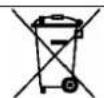
Correct disposal of this product.

(Electronic device waste)
(This applies in countries where recollection systems happen separately).
The presence of this symbol on the product, accessories or information material indicates that neither the product nor its electronic accessories (such as, the charger, helmets, USB cable) should be disposed of with other household waste.
To avoid any possible damage to the environment or human health caused by uncontrolled disposal of waste, separate these products from other waste and recycle them. This way, you are promoting the sustainable reuse of material resources.
Individual users can contact the establishment where they purchased the product or the relevant local authorities to get information about where and when they can take it in order to submit it to ecological and safe recycling.
Business users can contact their supplier and check the purchase contract conditions. This product and its electronic accessories should not be disposed of with other commercial waste.
Correct disposal of this product's batteries
(This applies in countries where recollection systems happen separately).
The presence of this mark on the batteries, manual or product packaging indicates that when the service life of the batteries has ended they should not be disposed of with other household waste. The chemical symbols Hg, Cd and Pb indicate that the battery has mercury, cadmium or lead at levels a lot higher than the reference values admitted by the 2006/6 Directive of the European Union.
If the batteries are not disposed of correctly, these substances may cause personal injury or damage the environment.
To protect natural resources and promote recycling, separate the batteries from other waste and recycle them through the free collection service in your area.
Exemption from responsibility clause
Part of the content and services to which you obtain access through this device belong to third parties and are protected under copyright, patent, registered trademark and/or other intellectual property laws. This content and services are only for personal use and not commercial use. It is possible that the content or the services cannot be used if not authorized by the content owner or the supplier of the services. Without prejudice to the aforementioned information, except when expressly authorized by the content owner or service supplier, you cannot change, copy, reedit, charge, publish, transmit, translate, sell, create derivative works, explore or distribute in any way or by any means the content or the services shown through this device.
THE CONTENT AND THE SERVICES OF THIRD PARTIES ARE PROVIDED "AS IS". SUNSTECH DOES NOT GUARANTEE THE CONTENT OR THE SERVICES PROVIDED, EITHER EXPRESSLY OR IMPLICITLY, FOR NO PURPOSE. SUNSTECH EXPRESSLY RENOUNCES ANY IMPLICIT GUARANTEES, INCLUDING BUT NOT LIMITED TO, MERCHANTABILITY OR SUITABILITY GUARANTEES FOR A PURPOSE IN PARTICULAR. SUNSTECH DOES NOT GUARANTEE THE VERACITY, VALIDITY, REPRODUCTION, LEGALITY OR INTEGRITY OF ANY TYPE OF CONTENT OR SERVICE PROVIDED THROUGH THIS DEVICE AND UNDER NO CIRCUMSTANCES, INCLUDING NEGLIGENCE, WILL SUNSTECH BE HELD RESPONSIBLE. BOTH IN TERMS OF CONTRACT OR PREJUDICE TO ANY DIRECT OR INDIRECT, ACCIDENTAL, SPECIAL OR CONSEQUENTIAL DAMAGES, LAWYERS' FEES, EXPENSES OR ANY OTHER TYPE OF DAMAGE FROM OR IN RELATION TO ANY TYPE OF INFORMATION INCLUDED IN OR AS A RESULT OF THE USE OF ANY TYPE OF CONTENT OR SERVICE BY YOURSELF OR A THIRD PARTY, THE POSSIBILITY OF THE REFERRED DAMAGES IS KNOWN."
The services of third parties may cease or be interrupted at any time and SUNSTECH does not carry out representations or guarantees in relation to the availability of content or service for any period of time. The content
and services are transmitted by third parties through networks and transmission locations over which SUNSTECH has no control. Without limiting the generality of this clause, SUNSTECH expressly renounces any responsibility for any interruption or suspension of content or service provided through this device.
SUNSTECH is not responsible for customer service regarding content and services. Any question or request for service regarding content or services should be sent directly to the services and content suppliers.

1 Getting started
1.1 Installing the SIM Cards and the Battery
An SIM card carries useful information, including your mobile phone number, PIN (Personal Identification Number), PIN2, PUK (PIN Unlocking Key), PUK2 (PIN2 Unlocking Key), IMSI (International Mobile Subscriber Identity), network information, contacts data, and short messages data. Note: After powering off your mobile phone, wait for a few seconds before removing or inserting an SIM card.
Exercise caution when operating an SIM card, as friction or bending will damage the SIM card.
Properly keep the mobile phone and its fittings such as the SIM cards beyond children's reach.
Installation
Hold the End key for a while to power off the mobile phone
◆ Push the back cover above the battery and remove it.
◆ Pull the left battery buckle outward and then lift the battery away.
Insert the SIM card into the SIM card slot lightly with the corner cutting of the card aligning to the notch of the slot and the gold plate of the card facing download, till the SIM card cannot be further
pushed in.
With the metallic contacts of the battery facing the metallic contacts in the battery slot, press the battery down until it locks into place.
Using code
The mobile phone and the SIM cards support sorts of passwords, in order to prevent the phone and the SIM cards from being misused. When you are prompted to input any of the codes mentioned below, just input the correct code and then press the ok key. If you input a wrong code, press the Right soft key to clear it and then input the correct code.
PIN
The PIN (Personal identification number, 4 to 8 digits) code prevents your SIM card from being used by unauthorized people. In general, the PIN is supplied with SIM card by the network operator. If PIN check is enabled, you need to input the PIN each time when you power on your mobile phone. The SIM card will be locked if you input wrong PIN code for three times.
Unlocking methods as follows:
-Input the correct PUK according to the screen tips to unlock the SIM card. -Then input the new PIN and press the ok key. -Input the new PIN again and then press the ok key.
-If the input PUK is correct, the SIM card will be unlocked and the PIN will be reset.
Note: The SIM card will be locked if you input wrong PIN code for three times. To unlock the SIM card, you need to input the PUK. In general, the PUK can be obtained from the network operator.
◆ PUK
The PUK code (Personal Unlocking Key) is required to change a blocked PIN. It is supplied with SIM card. If not, contact your network operator. If you input wrong PUK code for 10 times, SIM card will be invalid. Please contact the network operator to replace the SIM card.
Barring code
A barring code is required for setting the call barring function. You can obtain this code from the network operator to set the call barring function.
1.2 Installing T-Flash Card
The T-Flash card is a pluggable mobile storage card inside the mobile phone.
To install the T-Flash card, insert the card into the card slot.
To remove the T-flash card, take the card out.
Note:
-
The mobile phone cannot automatically identify the T-flash card being inserted when the mobile phone is powered on. You must power off the mobile phone and then power it on, so that the phone can identify the T-Flash card.
-
The T-Flash card is a miniature object. Keep it out of the reach of children for fear that children swallow it!
1.3 Charging the Battery
The lithium battery delivered with the mobile phone can be put into use immediately after being unpacked.
Battery level indication:
Your mobile phone can monitor and display the battery state.
- Normally the remaining energy of the battery is indicated by the battery level icon at the upper right corner of the display screen.
When the battery energy is insufficient, the mobile phone prompts "Battery low". If you have set an alert tone, an alert tone will be given off when the battery level is too low.
A charging animation appears when the battery is being charged. When the charging is complete, the animation disappears.
◆ Using a travel adapter:
- Install the battery into the mobile phone before charging the battery.
- Connect the adapter of the travel charger with the charging slot in the mobile phone. Ensure that the adapter is fully inserted.
Insert the plug of the travel charger to an appropriate power outlet.
During the charging, the battery level grids in the battery icon keep flickering till the battery is fully charged.
It is normal when the battery is become hot during the charging period.
- The battery icon does no longer flicker when the charging process ends.
Note
Ensure that the plug of the charger, the plug of the earphone, and the plug of the USB cable are inserted in the right direction. Inserting them in a wrong direction may cause charging failure or other problems.
Before the charging, ensure that the standard voltage and frequency of the local mains supply match the rated voltage and power of the travel charger.
Using the Battery
The performance of a battery is subject to multiple factors: radio network configuration, signal strength, ambient temperature, chosen functions or settings, phone fittings, and the voice, data or other application mode you choose to use.
To guarantee the optimal performance of your battery, please stick to the following rules:
Use only the battery provided by the vendor. Otherwise, damages or even injuries could be caused during the charging.
Power off the mobile phone before removing the battery.
The charging process lasts a longer time for a new battery or a battery not in use for long. If the battery voltage is too low to enable the mobile phone to be powered on, charge the battery for a longer time. In this case, the battery icon does not flicker until a long time after the battery enters the charge status.
During the charging, ensure the battery is placed in a room temperature environment or in an environment close to room temperature.
- Immediately stop using the battery if the battery produces odor, overheats, cracks, distorts or has other damage, or if the electrolyte leaks.
The battery wears out with use. A longer charging time is required as the battery is put into use for a long time. If the total conversation duration decreases but the charging time increases even though the battery is properly charged, purchase a standard battery from the OEM or use a battery approved by our company. Using any poor-quality fittings will cause harm to your mobile phone or even incur danger!
Note: To guarantee your personal safety and protect the environment, do not litter the battery! Return the old battery to the mobile phone manufacturer or place it in specified battery reclamation areas. Do not litter any battery with other rubbish.
Warning: Short-circuits of the battery may cause explosion, fire, personal injury or other severe consequences!
1.4 Dialing Calls
In the standby interface, press number keys to input the telephone number, and then press the Dial key to dial a call. To end the call, press the End key.
❖ Dialing an international call
Press the * key twice can input "+". Then input the country code, the area code and the telephone number. Finally, press the Dial key.
❖ Dialing a call to a number in the phonebook
Enter the phonebook and use the up or down direction keys to find the telephone number you want to call.
Press the Dial key. The mobile phone automatically dials the chosen telephone number.
◆ Redialing the last number
In the standby interface, press the dial key to show the dialed calls.
Press the up or down direction keys to select a number you want to dial and then press the Dial key.
❖ Answering incoming calls
Press the Dial key or the Ok key to answer an incoming call.
Press the End key to end the current conversation.
To reject an incoming call, press the End key or the Right soft key.
Note: If the caller can be identified, the mobile phone will present the calling number. If the calling number exists in the phonebook, the mobile phone will present both the name and the phone number of the caller. If the caller cannot be identified, the mobile phone will present the calling number only. You can answer an incoming call when using a function list or browsing the phonebook.
❖ Using options during a conversation
Select Options during a conversation to pause, end the ongoing call, originate a new call, browse the phonebook, view information, set the mute, set the DTMF, or perform other operations. For details, refer to the menu guide.
1.5 Using the Headset
It would enter headset mode automatically when you insert headset to the slot. Make sure of inserting it at the bottom of the slot, or you can't use it normally.
PS: the headset is not included in accessory.
1.6 Safety warning and Attentions
Safety warning
Road safety comes first
Do not use a hand-held phone while driving. Use hands-free fittings when calls are unavoidable while driving. In some countries, dialing or receiving calls while driving is illegal!
Switch off in aircraft
Wireless devices can cause interference in aircraft. Using a mobile phone in flight is illegal and risky.
Please make sure that your mobile phone is powered off in flight.
Switch off before entering risky areas
Strictly observe the relevant laws, codes, and regulations on the use of mobile phones in risky areas. Turn off your mobile phone before entering a place susceptible to explosion, such as an oil station, oil tank, chemical plant or a place where a blasting process is under way.
Observe all special regulations
Follow any special regulations in force in any area such as hospitals and always switch off your phone whenever it is forbidden to use it or, when it may cause interference or danger. Properly use your mobile phone near medical apparatuses, such as pacemakers, hearing aids and some other electronic medical devices, as it may cause interference to such apparatuses.
Accessories and batteries
Use only approved accessories and batteries.
Use sensibly
Use only in a normal and proper manner.
Precautions
This mobile phone is well designed with fine art. Please exercise special care when using it. The following suggestions will help your mobile phone survive the warranty period and extend its service life:
Keep the mobile phone and all its fittings beyond children's reach.
Keep the mobile phone dry. Keep away from rain, moisture, liquid or other substances that may corrode electronic circuits.
Do not use or store the mobile phone in dusty places, lest that active parts of the mobile phone be damaged.
Do not store the mobile phone in a high-temperature place. High temperature will shorten the life of electronic circuits and damage the
battery and some plastic parts.
Do not store the mobile phone in a chilly place. Otherwise, moistures will be formed inside the mobile phone to damage electronic circuits when the mobile phone is moved to a constant temperature place.
Do not throw, knock or shock the mobile phone, as that will destroy the internal circuits and high-precision components of the mobile phone.
1.7 Powering On/Off the Mobile Phone
Hold the End key for a while to power on the mobile phone. A power-on animation appears on the display screen.
Input the phone lock code and press the ok key if the mobile phone prompts you to input the phone lock code. The original code is 0000. Input the PIN and press the ok key if the mobile phone prompts you to input the PIN. The PIN is provided by the network operator for new opening SIM card.
Enter the standby interface.
To power off the mobile phone, hold the End key for a while.
Using the menu
1.1 Phonebook
The mobile phone can store up to 200 telephone numbers. The number of telephone numbers that an SIM card can store depends on the storage capacity of the SIM card. The telephone numbers stored in the mobile phone and in the SIM cards form a phonebook.
After selecting a telephone number in the phonebook, select Options to perform the following operations:
View: View the content of the telephone number.
- Sent text message: sent text message to the selected number.
- Edit: Edit the selected number and name.
Delete: Delete the telephone number from the phonebook.
❖ Copy: Duplicate the telephone number from the mobile phone to the SIM card or from the SIM card to the mobile phone.
Add to blacklist: Add the selected number to blacklist.
◆ Phonebook settings: Extra numbers, Human Voice and Memory Status
1.2 Call Logs
Call history
Missed Calls
You can view a list of the latest missed calls.
Note: When the mobile phone indicates that some calls are missed, you can select Read to enter the missed calls list. Navigate to a missed call and then press the Dial key to dial the number that originated that call.
Dialed Calls
You can view the latest dialed calls. Choose dialed calls and then select a dialed call to delete, save, dial, or edit (or send a short message to it).
Received Calls
You can view the latest received calls. Choose received calls and then select a received call to delete, save, dial, or edit (or send a short message to it).
Delete call logs
You can delete the latest call records. Choose Delete call logs and then select to delete all the numbers in the call history, or delete only the numbers in the missed calls list, the dialed calls list or the received calls list.
Call settings
Master/ Slave SIM call settings
Call waiting: Open or close this function; choose query to check the current state of it.
Call divert: It includes five different situations, including Divert all voice calls, Divert if unreachable, Divert if no answer, Divert if busy and Divert all data calls; select Cancel all diverts can let all of them deactivated.
➢ Call barring: Restrict the numbers which you will dial or receive.
Line switching: Choose line1 or line2
Advanced settings
Blacklist: Open or close this function: add numbers to blacklist
Auto redial: After open this function, the phone will dial the number
again automatically every time when the out call fails or be rejected.
Call time reminder: You can set the call time reminder mode as Single or periodic; select Off to cancel this function.
Answer mode: Set the answer mode, Any key or Auto answer when headset mode, as On or Off.
Attention: Parts of the functions need network operator's support.
1.3 Messages
The phone supports Short Messaging Service (SMS). You can send text messages and manage the messages that you sent and received.
In the message, select the option to see operate the other new menu.
Write message
New SMS: In this menu, you can edit and send new messages. The characters for every message can be up to 160. The operations for editing messages are as follows:
Inbox
In the inbox, you can store all the received text messages, and it will display the names of the senders. In the case that the sender is not included in the phonebook, it will display the telephone number of the sender.
The options for a single message include: reply, delete, Call, etc.
✿ Reply: Reply the short message
◆ Delete: Delete the short message.
- Call sender: Call the number in the short message.
Mark: Mark the current message or mark all.
You cannot receive new messages if the memory for messages is full. Delete unnecessary messages.
Drafts
Choose the completed Messages, press the up key and the down key to select and press the left softkey to enter the Options.
Send: send this message
- Edit: edit the current selected message.
◆ Delete: delete this message
◆ Delete: delete all message
Outbox
Send in sending messages and failed message will be saved in the Outbox.
Sent messages
Check all messages has sent.
SMS settings
Message settings
Master SIM
SMSC address:
Delivery report: You can set whether to send delivery report.
Reply path: on or off
Voicemail server: Dial the voice mail number to access your voice mail. The number is provided by your network operator. With the voice mailbox menu, you can carry out the following operations.
◆ Slave SIM
SMSC address:
Delivery report: You can set whether to send delivery report.
Reply path: on or off
Voicemail server: Dial the voice mail number to access your voice mail. The number is provided by your network operator. With the voice mailbox menu, you can carry out the following operations.
◆ Memory status: Show phone or SIM card memory capacity.
- Save sent message: on or off
- Preferred storage: Set to save short messages to the SIM card or to the phone.
Please refer to Inbox for other operations.
1.4 Multimedia
Camera
The phone is provided with a camera, which supports the photographing functions. Roll the phone to align the camera to the picture and then press OK key to capture photos. Pictures will be saved in the file system of the phone or the memory card. In the capture interface, you can press up or down direction key to zoom in and zoom out; left or right direction key to make EV(-2.0 to +2.0).
Image Viewer
You can view the pictures or images through this function.
Video recorder
This function enables you to record dynamic pictures. In the capture interface, press the left key to switch to video recorder, OK key to capture videos clip.
Video player
Use this function to play video files. By pressing the direction key you can control the playing process of video player: play/pause(OK key), fast forward (press and hold right direction key) and rewind (press and hold left direction key). In video player interface, you can press *# key or side button to adjust volume.
Audio player
Use this function to play audio files. By pressing the direction key can you control the playing process of audio player: play/stop (OK key), switch to last song/next song (press left or right direction key). In audio player interface, you can press *# key or side button to adjust volume; press up key to change playing sequence.
Sound recorder
After accessing the sound recorder, you can press left soft key to perform the following operations:
◆ New record: select this function to record a new file.
◆ List: recorded files are listed in this menu.
- Settings: Through this function, you can set storage position and format for record files.
FM radio
You can use the application as a traditional FM radio with automatic tuning and saved channels. In FM radio interface, you can press OK key to play or stop; press left or right key to auto search; press *# key or side button to adjust volume; press up or down key to search channels.
1.5 Settings
Boost Setting
Switch the boost on or off by the menu. Also, BOOST KEY is the same.
Profiles
The mobile phone provides multiple user profiles, so that you can customize some settings to adapt to the specific events and environments.
Customize the user profiles according to your preference and then activate the user profiles. The user profiles fall into four scenarios: General, Silent, Meeting and Outdoor.
When you insert an earpiece to the mobile phone, the mobile phone automatically enters the Headset mode.
Multi SIM switch
Choose Manually selected or Automatical decided by SIM cards
Multi SIM settings
Choose Multi SIM open, Only master open or Only Slave open
Phone Settings
Time and date: set home city, Set time/date, Set time and date format.
Note: If you remove the battery from the mobile phone or if the battery energy was exhausted a long time ago, you may need to reset the date and time when re-inserting the battery or powering on the mobile phone after recharging.
Auto power on/off: Set the time when the mobile phone will be automatically powered on or off.
Language: Select the display language for the mobile phone.
Pref. input method: Select input method as needed.
Display setting
Users can access this item to set wallpaper, screen saver, power on/off display, etc.
Setting Sub-lcd clock change to Analog or White Digit Clock.
Show time and date: on or off to show time on the display
Dedicated keys: Customize the shortcut functions of the Up, Down, Left, and Right direction keys. In the standby interface, you can press a direction key to directly enter the function menu corresponding to that direction key.
Greeting text: You can choose to boot on / off greeting.
Flight mode: when this function is engaged, it will suspend many of the device's signal transmitting functions – thereby disabling the device's capacity to place or receive calls or text messages – while still permitting use of other functions that do not require signal transmission (e.g. games, built-in camera, MP3 player.)
Misc.settings: Can set LCD backlight and time
Network settings
For Master and Slave SIM: network selection by Automatic or Manual
Security Settings
This function provides you with related settings about safety use PIN lock: To activate PIN lock, you need to input the correct PIN code. If you set PIN lock to On, you need to input the PIN each time you power on the mobile phone. In the case you input a wrong PIN for three consecutive times, you need to input the PIN Unblocking Key (PUK). The PUK is used to
unlock and change the locked PIN. To obtain the PUK, contact the network operator.
Change PIN: To change PIN code of SIM card.
Change PIN2: To change PIN2 code of PIN code.
Screen auto lock: choose off, 15secs, 30secs, 1 min and 5mins to make screen auto lock.
Phone security:
1) Phone lock: The function enables you to lock/unlock the phone. Entering password to switch on or off the phone. Password is required when the phone is locked. The password is 4 to 8 digits.
2) Change password: to change phone password.
Connectivity
1) Bluetooth: With Bluetooth, you can make a wireless connection to other compatible devices, such as mobile phones, computers, headsets and car kits. You can use the Bluetooth to send images, video clips, music, sound clips and notes, and transfer files from your compatible pc.
Restore factory settings
Use this function to restore factory settings, the preset password is1122.
Sound effects
Choose to make it Equalizer or off.
1.6 File manager
The phone provides a certain space for users to manage files and supports the Memory card. The capacity of the Memory card is selectable. You can use the file manager to conveniently manage various directories and files on the phone and the Memory card.
Open: Choose File manager to enter the root directory of the memory. The root directory will list the default folders, new folders and user files. When the mobile phone is powered on for the first time or when you have not changed the directory, the root directory contains the default folders only.
Format: You can use this function to format all the data in the memory. The system will re-create a default folder. The formatted data cannot be recovered. Therefore, think twice before using the formatting function.
1.7 Organizer
Speed dial
Choose to open or close this function, you can re-set 8 mobile phone numbers from button 2 to 8, when long time press the button, it will call
the number pre-set.
Calendar
Once you enter this menu, there is a monthly-view calendar for you to keep track of important appointments, etc. Days with events entered will be marked.
Calculator
The calculator can add, subtract, multiply and divide.
Alarm
Five alarm clocks are set but deactivated by default. You can activate one, multiple or all of them as needed. For each alarm clock, the ringing date and the ringing time can be set.
Electric Torch
You can make the torch on or off here.
Bluetooth
Power: Open or close the function of Bluetooth _c
Visibility: Open or close the function of visibility.
My device : Following this, you can search new Bluetooth devices. The difference between My device and Inquiry audio device is: the hands-free of Bluetooth devices can only receive data, such as Bluetooth earphone; My device can receive and send data, such as Bluetooth cell phone.
Search audio device: when it is on, it will search audio device.
My name: View the name of the Bluetooth in this phone
1.8 One Key SOS
✿ SOS number: you can set up to 5 numbers for SOS calls. The telephone will automatically call these 5 numbers when SOS function activated.
Familiarity Number: From this menu, you are encouraged to select three numbers from your phone book. After this, you can make call to these numbers simply by long press M1 or M2 and M3 keys in the idle screen.
✿ SOS Message: You can edit the massage by default for SOS to sent to someone.
✿ SOS Wait Time: "Call Now", "Call Wait 5S" Call Wait 10S
sunstech
CELT20
Insert the MicroSD card

Steps required to insert a MicroSD card into your phone Remove the back cover where the battery is located On the left side of the SIM2 card slot, you will see the picture of a MicroSD and a slot. Follow the instructions in the picture to insert the MicroSD properly.
1.- Locate the MicroSD picture:

natural_image
Interior view of a vehicle showing a red button and a blue vehicle (no visible text or symbols)AFEX SUNS, S.A. - c/Metall, 6-8, P.I. La Ferreria, Montcada i Reixac, 08110, Spain
sunstech
CELT20
Insert the MicroSD card
2.-Locate the MicroSD slot:

- Insert the MicroSD card into the slot with the design side up and contacts downwards, as the signal shows:


4.-To remove the MicroSD card, repeat the process in reverse.
If you have any doubt, please contact our Customer Service Department and we will answer any questions you may have: sat@sunstech.es
Made in China
AFEX SUNS, S.A. – c/Metall, 6–8, P.I. La Ferreria, Montcada i Reixac, 08110, Spain
WARRANTY CARD
EUROPEAN WARRANTY
1. General
This warranty is granted without prejudice and in addition to the recognized rights for the consumer vis-à-vis the seller provided in the Royal Legislative Decree of 16 November, approving the restated text of the General Law for the Protection of Consumers and Users and other complementary legislation. Therefore, the recognized legal rights for the consumer are not limited or excluded according to the relevant Regional, National or European legislation.
This warranty shall be valid in all the European Union Member States with the limitations that legally correspond in the country in which they are intended to be implemented in accordance with their implementing legislation.
Notwithstanding the foregoing, SUNSTECH shall respect the rights and limitations related to the product warranty that legally correspond in each of the States listed in the Attachment in accordance with their implementing legislation for any product provided that it is intended for the EU market and has been purchased or used by the consumer or user within the EEA.
2. Legal Warranty
This SUSTECH product has a two (2) year warranty counting from the date of delivery and/or purchase. During the above timeframe, SUNSTECH shall be held responsible for any lack of conformity of the product in relation to the contract in accordance with the provisions of the Law for the Protection of Consumers and Users, that shall entitle the consumer to request the repair or replacement of the product, unless one of these options is objectively impossible or disproportionate.
Accordingly, the remedy (i.e. the repair or replacement) shall be deemed to be disproportionate if it imposes unreasonable costs on the seller. In order to determine this, the following shall be considered: (i) the value of the product if there were no lack of conformity; (ii) the relevance of the lack of conformity; and (iii) if the other form of remedy could be carried out without major inconvenience to the consumer and user.
To determine whether the costs are unreasonable, the costs incurred by one form of remedy must be significantly higher than the costs corresponding to the other form of remedy.
In addition, the consumer may choose between requesting a reduction in the price or terminating the contract, if he is not entitled to demand the repair or replacement of the product and whenever these actions would not be completed within a reasonable timeframe and would cause more inconvenience to the consumer and user. However, the termination shall not take place where the lack of conformity is minor.
Both the repair and the replacement of the product as result of the product's lack of conformity shall be free of charge for the consumer and user, including labour and materials.
In any case, repairs under warranty shall be carried out by SUNSTECH's Official Technical Assistance Service or its authorized distributors.
3. Conditions for the warranty to be exercised
To exercise the legal and commercial warranty, it is necessary to submit documentary evidence showing the delivery and/or purchase date of the product, whether the invoice, receipt, delivery slip or sealed and dated warranty card. Documents which have been tampered with or falsified will not be accepted.
The consumer shall contact SUNSTECH's Customer Service Team using the website (under the support section) and will be informed about what action to take. At that time, the consumer shall have to provide a clear description of the malfunction or the lack of conformity of the product with the contract.
In any case, repairs under the warranty shall be carried out by SUNSTECH's Official Technical Assistance Services or its authorized distributors so that SUNSTECH can be held responsible under the legal and/or commercial warranty.
4. Exceptions
The warranty does not foresee or include periodic maintenance or product installation revisions.
In addition, the product will not be considered as lacking conformity in relation to the contract and therefore, it will not be covered by the legal or commercial warranty when:
- The lack of conformity corresponds to a discrepancy with the safety standards or the local or national techniques of a different country to the one it was originally designed and produced in;
- This product or any of its identification features (number of series, etc.) have been partially or completely opened, assembled, unassembled, handled and/or repaired by a person not part of SUNSTECH's Official Technical Assistance Services team or its authorized distributors
- The lack of conformity is a result of an incorrect installation (except if the installation has been carried out by one of SUNSTECH's authorized sellers or under its responsibility, or by the consumer following SUNSTECH's installation instructions) or an abusive or inadequate use of the product, including but not limited to, a usage that is not in accordance to the normal purpose of the product or the directions for use and maintenance, as defined by SUNSTECH:
- The lack of conformity has been caused by a computer virus, an action or a manipulation of passwords, software installation, manipulation or reinstallation, etc.;
- The lack of conformity is due to the use of accessories, chargers or consumables that are not SUNSTECH originals and therefore are not designed for that product;
- The lack of conformity is due to the use of any third party software or application that modifies, changes or adapts the software that was approved and/or included by SUNSTECH in the product;
- The lack of conformity is a result of downloading or using third party multimedia services and/or contents available or accessible through the product;
- Damages in or through the battery, which are due to it being overcharged, are produced;
- Any of the box seals or battery cells have been damaged, or there is clear evidence that shows these were handled; and/or
- The product damages are caused by any unforeseeable or force majeur circumstances, especially, lightning, water, fire, applying incorrect voltage or any other cause that is not due to the product manufacturing or design.
Under no circumstances will SUNSTECH be held responsible for the loss of any data stored in the product. The consumer will be held responsible for any back-up copies and the protection of any data from loss, damage or destruction.
None of the warranties included here cover the replacement of parts, due to ware or rupture of mechanisms, rubber, boxes and/or plastic, as well as any aesthetic damage resulting from the normal use of the product, for example, if the screen loses its shine with the use of the product. In the same way, the warranties do not cover any type of damage produced during the transportation of the product (including but not limited to aesthetic damage, blows, lines, scratches, stains, dents, etc.) in which case the applicable provisions under SUNSTECH's general contract conditions will apply.
For further information go to www.sunstech.es
You can also contact:
AFEX SUNS, S.A.
Metall, 6-8
DECLARATIONOFCONFORMITY
Council Directive(s) to which conformity is declared:
Directive(1999/5/EC)-R&TTE
Directive(2004/108/EC)-EMC
Directive(2006/95/EC)-LVD
Directive(2011/65/EU)-RoHS
Application of the Standards:
EN60950-1:2006+A11:2009+A1:2010+A12:2011
EN62209-1:2006EN62209-2:2010
EN50360:2001+A1:2012EN62479:2010
EN301489-IV1.9.2EN301489-VV1.3.1
EN301489-17V2.2.TEN30131109.0.2
EN300328V1.8.TIEC02321.2013
Manufacturer's name:
AFEXSUNS,S.A.
Manufacturer's address:
c/Metall6-8,08110,MontcadaiReixac
Type of equipment:
Mobilephone
Trade:
SUNSTECH
Model no.:
CELT2@
We, the undersigned, hereby declare under our sole responsibility that the
specified equipment is in conformity with the above Directive(s) and
Standard(s)
Place: Barcelona

(Signatured)
Victor Planas Bas
(Full name)
General Manager
(Position)
CELT20
Manual del Usuario

natural_image
Two black flip-flops with 'SUN' branding and a red button, displayed side by side (no visible text or symbols on the devices themselves)-39
Copyright © 2013 Afex suns, S. A.
natural_image
Interior view of a vehicle showing a red-lit panel with a highlighted section (no visible text or symbols)AFEX SUNS, S.A. – c/Metall, 6–8, P.I. La Ferreria, Montcada i Reixac, 08110, Spain
sunstech
CELT20
Directiva(1999/5/EC)-R&TTE
Directiva(2004/108/EC)-EMC
Directiva(2006/95/EC)-LVD
Directiva(2011/65/EU)-RoHS
natural_image
Two black SunTech mobile phones with red buttons, one displaying a screen (no visible text or symbols on device body)-79-
AVERTISSEMENTS DE SÉCURITÉ ET DE PRÉCAUTIONS
SAR
www.sar-tick.com
Copyright © 2013 Afex suns, S. A.
natural_image
Close-up of a vehicle's front panel with red indicator lights and a highlighted section (no visible text or symbols)AFEX SUNS, S.A. - €/Metall, 6-8, P.I. La Ferreria, Montcada i Reixac, 08110, Spain
sunstech
CELT20
DÉCLARATIONDECONFORMITÉ
Directive(2004/108/EC)-EMC
Directive(2006/95/EC)-LVD
Directive(2011/65/EU)-RoHS
natural_image
Two black mobile phones with a red button, one displaying a screen (no visible text or symbols on the device body)-121-
Copyright © 2013 Afex suns. S. A.
natural_image
Interior view of a vehicle showing a red rectangular object and adjacent vehicle compartments (no visible text or symbols)AFEX SUNS, S.A. – €/Metall, 6–8, P.I. La Ferreria, Montcada i Reixac, 08110, Spain
sunstech
CELT20
- SAFETY AND PRECAUTION WARNINGS
- Copyright
- Safety information
- Warning
- Precaution
- Turn off the device in potentially explosive atmospheres.
- Correct use and maintenance of the mobile device. Keep the device dry.
- Place the device only on flat surfaces.
- Do not store the device with metal objects, such as coins, keys and necklaces.
- Do not store the device near magnetic fields.
- If the device overheats, stop using it and its applications for a while.
- Do not use the device if the back cover is not in place.
- If the device has a lamp or a camera flash, do not use it near people's or animal's eyes.
- Be careful when exposing yourself to intermittent light.
- Reduce the risk of injury caused by repetitive movements.
- When you use earphones, protect your hearing and your ears.
- Use the device with caution while you are walking or moving.
- Do not take devices in your front pockets or round your waist.
- Do not paint your device or put any stickers on it.
- Do not use the device if the screen is cracked or broken.
- Install the mobile devices and the equipment with caution.
- Do not allow the product to fall or to be subject to strong impacts.
- Guarantee of the maximum duration of the battery and charger.
- Do not unassembled, change or repair the device.
- Take the following information into account when cleaning the device.
- Do not use it for any other purpose other than the one it was designed for.
- When you use the device in public, try not to disturb others.
- Only allow qualified professionals to carry out the maintenance of your device.
- Be careful when handling SIM cards, memory cards or cables.
- Make sure you have access to emergency services.
- Protect your personal data and avoid confidential information from being spread or used incorrectly.
- Malware and virus
- Follow these suggestions to protect the device against malware and virus. If you do not do so, you may cause damages or loss of data that may not be covered under the warranty.
- Information about the certification of the Specific Absorption Rate (SAR).
- THIS DEVICE FOLLOWS INTERNATIONAL STANDARDS OF EXPOSURE TO RADIO WAVES.
- Correct disposal of this product's batteries
- Exemption from responsibility clause
- Getting started
- Installing the SIM Cards and the Battery
- Using code
- PIN
- ◆ PUK
- Barring code
- Installing T-Flash Card
- Charging the Battery
- Using the Battery
- Dialing Calls
- Road safety comes first
- Switch off in aircraft
- Switch off before entering risky areas
- Observe all special regulations
- Accessories and batteries
- Use sensibly
- Precautions
- Powering On/Off the Mobile Phone
- Using the menu
- Phonebook
- Call Logs
- Call history
- Received Calls
- Delete call logs
- Call settings
- Advanced settings
- Messages
- Write message
- Inbox
- Drafts
- Outbox
- Sent messages
- SMS settings
- Message settings
- Master SIM
- SMSC address:
- ◆ Slave SIM
- Multimedia
- Camera
- Image Viewer
- Video recorder
- Video player
- Audio player
- Sound recorder
- FM radio
- Settings
- Boost Setting
- Profiles
- Multi SIM switch
- Multi SIM settings
- Phone Settings
- Display setting
- Network settings
- Security Settings
- Phone security:
- Connectivity
- File manager
- Organizer
- Speed dial
- Calendar
- Calculator
- Alarm
- Electric Torch
- Bluetooth
- One Key SOS
- sunstech
- CELT20
- Insert the MicroSD card
- WARRANTY CARD
- EUROPEAN WARRANTY
- General
- Legal Warranty
- Conditions for the warranty to be exercised
- Exceptions
- DECLARATIONOFCONFORMITY
- Manual del Usuario
- Directiva(1999/5/EC)-R&TTE
- Directiva(2004/108/EC)-EMC
- Directiva(2006/95/EC)-LVD
- Directiva(2011/65/EU)-RoHS
- AVERTISSEMENTS DE SÉCURITÉ ET DE PRÉCAUTIONS
- SAR
- DÉCLARATIONDECONFORMITÉ
- Directive(2004/108/EC)-EMC
- Directive(2006/95/EC)-LVD
- Directive(2011/65/EU)-RoHS
Brand : Sunstech
Model : CELT20
Category : Smartphone