
PHFR211CWT - Digital photo frame NEDIS - Free user manual and instructions
Find the device manual for free PHFR211CWT NEDIS in PDF.


| Product Type | Digital Photo Frame |
| Model | PHFR211CWT |
| Brand | Nedis |
| Display Size | 21.5 inches |
| Display Resolution | 1920 x 1080 pixels (Full HD) |
| Aspect Ratio | 16:9 |
| Supported Photo Formats | JPEG, BMP, PNG |
| Supported Video Formats | AVI, MP4, MOV |
| Supported Audio Formats | MP3, WMA, WAV |
| Internal Memory | 8 GB (expandable via SD card) |
| Card Slot | SD/SDHC/MMC |
| USB Ports | 1 x USB 2.0 (host) |
| Connectivity | Wi-Fi (for remote upload) |
| Power Supply | AC 100-240V, 50/60Hz via included adapter |
| Power Consumption | 15W (typical) |
| Dimensions (W x H x D) | 530 x 330 x 35 mm (without stand) |
| Weight | 2.5 kg |
| Mounting Options | Wall-mountable (VESA 75x75 mm) |
| Remote Control | Included |
| Main Functions | Slideshow, clock, calendar, motion sensor |
| Cleaning Instructions | Wipe with a soft, dry cloth. Do not use abrasive cleaners. |
| Safety Precautions | Keep away from water, heat sources, and direct sunlight. |
| Spare Parts Availability | Contact Nedis support for accessories like remote or adapter. |
Frequently Asked Questions - PHFR211CWT NEDIS
User questions about PHFR211CWT NEDIS
0 question about this device. Answer the ones you know or ask your own.
Ask a new question about this device
Download the instructions for your Digital photo frame in PDF format for free! Find your manual PHFR211CWT - NEDIS and take your electronic device back in hand. On this page are published all the documents necessary for the use of your device. PHFR211CWT by NEDIS.
USER MANUAL PHFR211CWT NEDIS
INTERNET PHOTO FRAME
QUICK START GUIDE

natural_image
Line drawing of a rectangular frame with a curved handle at the bottom right corner (no text or symbols)Language Contents
English......Page 2-5
Deutsch......Page 6-9
Dansk......Page 10-13
Česky Page 14-17
Application Download & Connect Frame
• Power the internet photo frame with the included power adapter

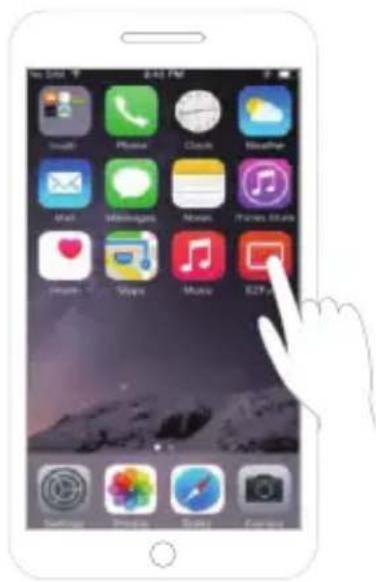
- Scan the QR code with your mobile device and install the app



Connect the internet photo frame to WIFI
- Select the correct WIFI network and enter the password


Connect the mobile device to the frame
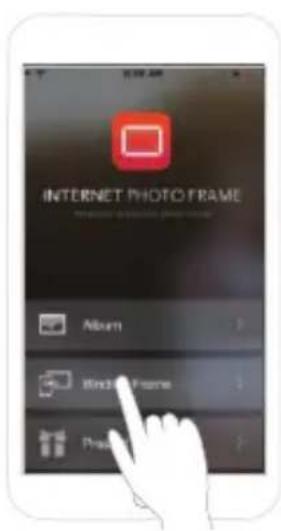
- Open the installed application on your mobile device
- Select "Bind Frame"
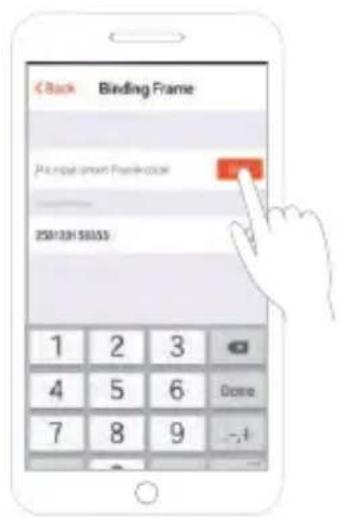
- Type in the unique frame code and password
• A mobile device can connect with multiple frames and vice versa


Internet Photo Frame is ready to receive pictures
• In the application on your mobile device select "Album"
- Press "+" to select pictures from the gallery on your mobile device (max. 9 per session)
- Depending on the internet connection of the mobile device more or less pictures can sent in one session


Slide
- Select how you want the slide show to run, by looking at the examples

Clock
- Press the clock to open the menu
- Select the hours during which the frame should be switched off


Specifications
• Image resolution: 1280x800
- Touch panel: yes
• Display: HD LCD
• Dimensions: 282 x 195 x 35 mm
• Picture protected: SHA256 encryption
• Automatic rotate function: yes
• Built-in Wi-Fi module: supports IEEE 802,11 b/g/n)
- Processor: dual core cortex-A5
- Internal memory: 512M DDR3, 4 GB Nand flash
• JPG, BMP, GIF, PNG pictures
• Supported mobile devices: Android™ and iOS
• External memory: SD/MMC card
• External memory: USB 2.0 port
- Screen size: 10 inch
• Radio frequency: 2.4GHz
• Maximum broadcast power in mW: 20mW
- dbi&dbm: 13dBm

USP's
- Connected to the internet via Wi-Fi wireless technology to upload pictures from anywhere in the world
• Bright HD LCD display for consistently sharp pictures - Intuitive touch screen for easy navigating through the menu
- 4 GB memory to store up to thousands of pictures (depending on size)
- Detachable kickstand and hanging hole; display automatically adjusts to landscape/portrait
• Protected against hacking - Set-up in 3 simple steps; download the app via the on-screen QR code


Slide-Show
• Image resolution: 1280x800
- Touch panel: yes
• Display: HD LCD
• Dimensions: 282 x 195 x 35 mm
• Picture protected: SHA256 encryption
• Automatic rotate function: yes
• Built-in Wi-Fi module: supports IEEE 802,11 b/g/n)
- Processor: dual core cortex-A5
- Internal memory: 512M DDR3, 4 GB Nand flash
• JPG, BMP, GIF, PNG pictures
• Supported mobile devices: Android™ and iOS
• External memory: SD/MMC card
• External memory: USB 2.0 port
- Screen size: 10 inch
• Radio frequency: 2.4GHz
• Maximum broadcast power in mW: 20mW
- dbi&dbm: 13dBm

USP's
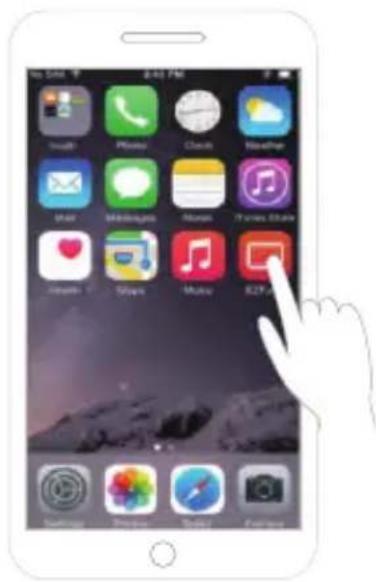
- Scan QR-koden med din mobile enhed, og installér appen



• Image resolution: 1280x800
- Touch panel: yes
• Display: HD LCD
• Dimensions: 282 x 195 x 35 mm
• Picture protected: SHA256 encryption
• Automatic rotate function: yes
• Built-in Wi-Fi module: supports IEEE 802,11 b/g/n)
- Processor: dual core cortex-A5
- Internal memory: 512M DDR3, 4 GB Nand flash
• JPG, BMP, GIF, PNG pictures
• Supported mobile devices: Android™ and iOS
• External memory: SD/MMC card
• External memory: USB 2.0 port
- Screen size: 10 inch
• Radio frequency: 2.4GHz
• Maximum broadcast power in mW: 20mW
- dbi&dbm: 13dBm

USP's
• Image resolution: 1280x800
- Touch panel: yes
• Display: HD LCD
• Dimensions: 282 x 195 x 35 mm
• Picture protected: SHA256 encryption
• Automatic rotate function: yes
• Built-in Wi-Fi module: supports IEEE 802,11 b/g/n)
- Processor: dual core cortex-A5
- Internal memory: 512M DDR3, 4 GB Nand flash
• JPG, BMP, GIF, PNG pictures
• Supported mobile devices: Android™ and iOS
• External memory: SD/MMC card
• External memory: USB 2.0 port
- Screen size: 10 inch
• Radio frequency: 2.4GHz
• Maximum broadcast power in mW: 20mW
- dbi&dbm: 13dBm

USP's
• Image resolution: 1280x800
- Touch panel: yes
• Display: HD LCD
• Dimensions: 282 x 195 x 35 mm
• Picture protected: SHA256 encryption
• Automatic rotate function: yes
• Built-in Wi-Fi module: supports IEEE 802,11 b/g/n)
- Processor: dual core cortex-A5
- Internal memory: 512M DDR3, 4 GB Nand flash
• JPG, BMP, GIF, PNG pictures
• Supported mobile devices: Android™ and iOS
• External memory: SD/MMC card
• External memory: USB 2.0 port
- Screen size: 10 inch
• Radio frequency: 2.4GHz
• Maximum broadcast power in mW: 20mW
- dbi&dbm: 13dBm

USP's

• Image resolution: 1280x800
- Touch panel: yes
• Display: HD LCD
• Dimensions: 282 x 195 x 35 mm
• Picture protected: SHA256 encryption
• Automatic rotate function: yes
• Built-in Wi-Fi module: supports IEEE 802,11 b/g/n)
- Processor: dual core cortex-A5
- Internal memory: 512M DDR3, 4 GB Nand flash
• JPG, BMP, GIF, PNG pictures
• Supported mobile devices: Android™ and iOS
• External memory: SD/MMC card
• External memory: USB 2.0 port
- Screen size: 10 inch
• Radio frequency: 2.4GHz
• Maximum broadcast power in mW: 20mW
- dbi&dbm: 13dBm

USP's
• Image resolution: 1280x800
- Touch panel: yes
• Display: HD LCD
• Dimensions: 282 x 195 x 35 mm
• Picture protected: SHA256 encryption
• Automatic rotate function: yes
• Built-in Wi-Fi module: supports IEEE 802,11 b/g/n)
- Processor: dual core cortex-A5
- Internal memory: 512M DDR3, 4 GB Nand flash
• JPG, BMP, GIF, PNG pictures
• Supported mobile devices: Android™ and iOS
• External memory: SD/MMC card
• External memory: USB 2.0 port
- Screen size: 10 inch
• Radio frequency: 2.4GHz
• Maximum broadcast power in mW: 20mW
- dbi&dbm: 13dBm

USP's
- Connected to the internet via Wi-Fi wireless technology to upload pictures from anywhere in the world
• Bright HD LCD display for consistently sharp pictures - Intuitive touch screen for easy navigating through the menu
- 4 GB memory to store up to thousands of pictures (depending on size)
- Detachable kickstand and hanging hole; display automatically adjusts to landscape/portrait
• Protected against hacking - Set-up in 3 simple steps; download the app via the on-screen QR code


• Image resolution: 1280x800
- Touch panel: yes
• Display: HD LCD
• Dimensions: 282 x 195 x 35 mm
• Picture protected: SHA256 encryption
• Automatic rotate function: yes
• Built-in Wi-Fi module: supports IEEE 802,11 b/g/n)
- Processor: dual core cortex-A5
- Internal memory: 512M DDR3, 4 GB Nand flash
• JPG, BMP, GIF, PNG pictures
• Supported mobile devices: Android™ and iOS
• External memory: SD/MMC card
• External memory: USB 2.0 port
- Screen size: 10 inch
• Radio frequency: 2.4GHz
• Maximum broadcast power in mW: 20mW
- dbi&dbm: 13dBm

USP's

• Image resolution: 1280x800
- Touch panel: yes
• Display: HD LCD
• Dimensions: 282 x 195 x 35 mm
• Picture protected: SHA256 encryption
• Automatic rotate function: yes
• Built-in Wi-Fi module: supports IEEE 802,11 b/g/n)
- Processor: dual core cortex-A5
- Internal memory: 512M DDR3, 4 GB Nand flash
• JPG, BMP, GIF, PNG pictures
• Supported mobile devices: Android™ and iOS
• External memory: SD/MMC card
• External memory: USB 2.0 port
- Screen size: 10 inch
• Radio frequency: 2.4GHz
• Maximum broadcast power in mW: 20mW
- dbi&dbm: 13dBm

USP's
• Image resolution: 1280x800
- Touch panel: yes
• Display: HD LCD
• Dimensions: 282 x 195 x 35 mm
• Picture protected: SHA256 encryption
• Automatic rotate function: yes
• Built-in Wi-Fi module: supports IEEE 802,11 b/g/n)
- Processor: dual core cortex-A5
- Internal memory: 512M DDR3, 4 GB Nand flash
• JPG, BMP, GIF, PNG pictures
• Supported mobile devices: Android™ and iOS
• External memory: SD/MMC card
• External memory: USB 2.0 port
- Screen size: 10 inch
• Radio frequency: 2.4GHz
• Maximum broadcast power in mW: 20mW
- dbi&dbm: 13dBm

USP's
- Skann QR-koden med den mobile enheten din, og installer appen


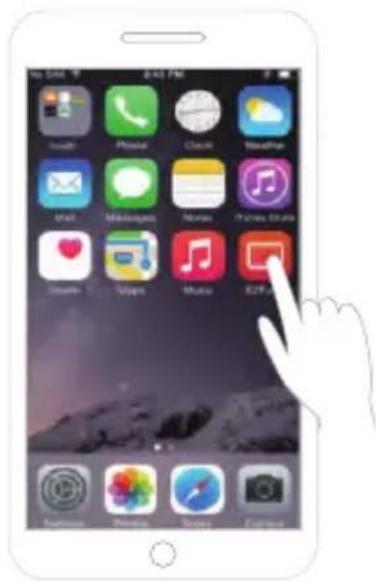

Koble Internett-fotorammen til Wi-Fi

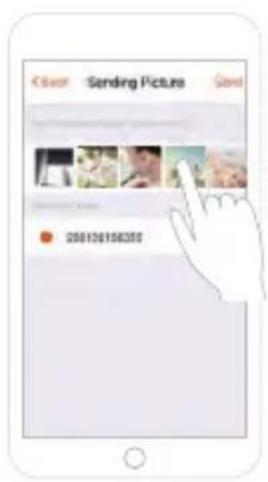

Lysbilde
• Image resolution: 1280x800
- Touch panel: yes
• Display: HD LCD
• Dimensions: 282 x 195 x 35 mm
• Picture protected: SHA256 encryption
• Automatic rotate function: yes
• Built-in Wi-Fi module: supports IEEE 802,11 b/g/n)
- Processor: dual core cortex-A5
- Internal memory: 512M DDR3, 4 GB Nand flash
• JPG, BMP, GIF, PNG pictures
• Supported mobile devices: Android™ and iOS
• External memory: SD/MMC card
• External memory: USB 2.0 port
- Screen size: 10 inch
• Radio frequency: 2.4GHz
• Maximum broadcast power in mW: 20mW
- dbi&dbm: 13dBm

USP's


• Image resolution: 1280x800
- Touch panel: yes
• Display: HD LCD
• Dimensions: 282 x 195 x 35 mm
• Picture protected: SHA256 encryption
• Automatic rotate function: yes
• Built-in Wi-Fi module: supports IEEE 802,11 b/g/n)
- Processor: dual core cortex-A5
- Internal memory: 512M DDR3, 4 GB Nand flash
• JPG, BMP, GIF, PNG pictures
• Supported mobile devices: Android™ and iOS
• External memory: SD/MMC card
• External memory: USB 2.0 port
- Screen size: 10 inch
• Radio frequency: 2.4GHz
• Maximum broadcast power in mW: 20mW
- dbi&dbm: 13dBm

USP's
• Image resolution: 1280x800
- Touch panel: yes
• Display: HD LCD
• Dimensions: 282 x 195 x 35 mm
• Picture protected: SHA256 encryption
• Automatic rotate function: yes
• Built-in Wi-Fi module: supports IEEE 802,11 b/g/n)
- Processor: dual core cortex-A5
- Internal memory: 512M DDR3, 4 GB Nand flash
• JPG, BMP, GIF, PNG pictures
• Supported mobile devices: Android™ and iOS
• External memory: SD/MMC card
• External memory: USB 2.0 port
- Screen size: 10 inch
• Radio frequency: 2.4GHz
• Maximum broadcast power in mW: 20mW
- dbi&dbm: 13dBm

USP's
- Connected to the internet via Wi-Fi wireless technology to upload pictures from anywhere in the world
• Bright HD LCD display for consistently sharp pictures - Intuitive touch screen for easy navigating through the menu
- 4 GB memory to store up to thousands of pictures (depending on size)
- Detachable kickstand and hanging hole; display automatically adjusts to landscape/portrait
• Protected against hacking - Set-up in 3 simple steps; download the app via the on-screen QR code


• Image resolution: 1280x800
- Touch panel: yes
• Display: HD LCD
• Dimensions: 282 x 195 x 35 mm
• Picture protected: SHA256 encryption
• Automatic rotate function: yes
• Built-in Wi-Fi module: supports IEEE 802,11 b/g/n)
- Processor: dual core cortex-A5
- Internal memory: 512M DDR3, 4 GB Nand flash
• JPG, BMP, GIF, PNG pictures
• Supported mobile devices: Android™ and iOS
• External memory: SD/MMC card
• External memory: USB 2.0 port
- Screen size: 10 inch
• Radio frequency: 2.4GHz
• Maximum broadcast power in mW: 20mW
- dbi&dbm: 13dBm

USP's
- Connected to the internet via Wi-Fi wireless technology to upload pictures from anywhere in the world
• Bright HD LCD display for consistently sharp pictures - Intuitive touch screen for easy navigating through the menu
- 4 GB memory to store up to thousands of pictures (depending on size)
- Detachable kickstand and hanging hole; display automatically adjusts to landscape/portrait
• Protected against hacking - Set-up in 3 simple steps; download the app via the on-screen QR code


• Image resolution: 1280x800
- Touch panel: yes
• Display: HD LCD
• Dimensions: 282 x 195 x 35 mm
• Picture protected: SHA256 encryption
• Automatic rotate function: yes
• Built-in Wi-Fi module: supports IEEE 802,11 b/g/n)
- Processor: dual core cortex-A5
- Internal memory: 512M DDR3, 4 GB Nand flash
• JPG, BMP, GIF, PNG pictures
• Supported mobile devices: Android™ and iOS
• External memory: SD/MMC card
• External memory: USB 2.0 port
- Screen size: 10 inch
• Radio frequency: 2.4GHz
• Maximum broadcast power in mW: 20mW
- dbi&dbm: 13dBm

USP's
- Connected to the internet via Wi-Fi wireless technology to upload pictures from anywhere in the world
• Bright HD LCD display for consistently sharp pictures - Intuitive touch screen for easy navigating through the menu
- 4 GB memory to store up to thousands of pictures (depending on size)
- Detachable kickstand and hanging hole; display automatically adjusts to landscape/portrait
• Protected against hacking - Set-up in 3 simple steps; download the app via the on-screen QR code

• Image resolution: 1280x800
- Touch panel: yes
• Display: HD LCD
• Dimensions: 282 x 195 x 35 mm
• Picture protected: SHA256 encryption
• Automatic rotate function: yes
• Built-in Wi-Fi module: supports IEEE 802,11 b/g/n)
- Processor: dual core cortex-A5
- Internal memory: 512M DDR3, 4 GB Nand flash
• JPG, BMP, GIF, PNG pictures
• Supported mobile devices: Android™ and iOS
• External memory: SD/MMC card
- External memory: USB 2.0 port
- Screen size: 10 inch
• Radio frequency: 2.4GHz
• Maximum broadcast power in mW: 20mW
- dbi&dbm: 13dBm

USP's


• Image resolution: 1280x800
- Touch panel: yes
• Display: HD LCD
• Dimensions: 282 x 195 x 35 mm
• Picture protected: SHA256 encryption
• Automatic rotate function: yes
• Built-in Wi-Fi module: supports IEEE 802,11 b/g/n)
- Processor: dual core cortex-A5
- Internal memory: 512M DDR3, 4 GB Nand flash
• JPG, BMP, GIF, PNG pictures
• Supported mobile devices: Android™ and iOS
• External memory: SD/MMC card
• External memory: USB 2.0 port
- Screen size: 10 inch
• Radio frequency: 2.4GHz
• Maximum broadcast power in mW: 20mW
- dbi&dbm: 13dBm

USP's
- Connected to the internet via Wi-Fi wireless technology to upload pictures from anywhere in the world
• Bright HD LCD display for consistently sharp pictures - Intuitive touch screen for easy navigating through the menu
- 4 GB memory to store up to thousands of pictures (depending on size)
- Detachable kickstand and hanging hole; display automatically adjusts to landscape/portrait
• Protected against hacking - Set-up in 3 simple steps; download the app via the on-screen QR code
- INTERNET PHOTO FRAME
- QUICK START GUIDE
- Language Contents
- Application Download & Connect Frame
- Connect the internet photo frame to WIFI
- Connect the mobile device to the frame
- Internet Photo Frame is ready to receive pictures
- Slide
- Clock
- Specifications
- USP's
- Slide-Show
- Koble Internett-fotorammen til Wi-Fi
- Lysbilde
Brand : NEDIS
Model : PHFR211CWT
Category : Digital photo frame