
BT 200 - Walkie-talkie COBRA - Free user manual and instructions
Find the device manual for free BT 200 COBRA in PDF.


| Product Type | Bluetooth Handset |
| Brand | Cobra |
| Model | BT 200 |
| Compatibility | Most Bluetooth-enabled cell phones |
| Water/Dust Resistance | Submersible and dust resistant (JIS7 standard) |
| Microphone Type | Noise cancelling microphone |
| Display | Backlit LCD with adjustable brightness and contrast |
| Key Lock | Yes |
| Phonebook Capacity | Stores names and numbers (exact capacity not specified) |
| Call Log | Stores recent sent, received, missed calls |
| Voice Dialing | Yes (requires cell phone with voice dialing enabled) |
| VOX Function | Hands-free operation (on/off) |
| Weight | Approximately 200 g (estimate) |
| Dimensions | Approximately 180 x 60 x 30 mm (estimate) |
| Power Source | Rechargeable battery (typical Li-Ion 3.7V) |
| Operating Temperature Range | -4°F to 131°F (-20°C to 55°C) |
| Storage Temperature Range | -4°F to 158°F (-20°C to 70°C) |
| Package Contents | Handset, DC adapter, hanger bracket, peel-and-stick adhesive, screws |
| Warranty | Limited 1-year warranty (US) |
| Maintenance | Wipe with soft cloth and mild detergent; rinse after saltwater exposure |
Frequently Asked Questions - BT 200 COBRA
User questions about BT 200 COBRA
0 question about this device. Answer the ones you know or ask your own.
Ask a new question about this device
Download the instructions for your Walkie-talkie in PDF format for free! Find your manual BT 200 - COBRA and take your electronic device back in hand. On this page are published all the documents necessary for the use of your device. BT 200 by COBRA.
USER MANUAL BT 200 COBRA
Printed in China Part No. 490-528-P Version 8 Patent Pending
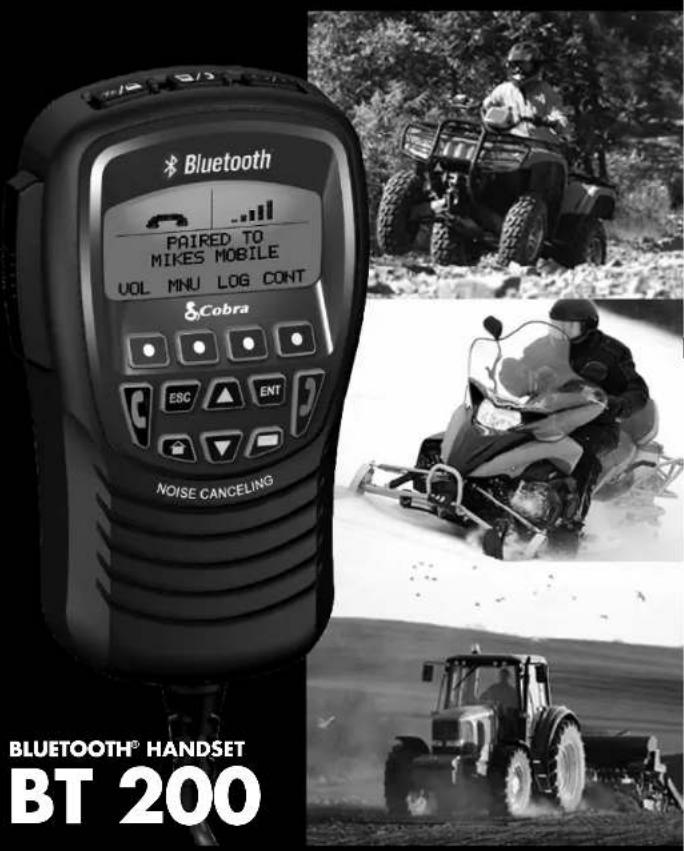
BLUETOOTH® HANDSET BT 200
Nothing Comes Close to a Cobra
English

Our Thanks to You and Customer Assistance
Introduction
Our Thanks to You
Thank you for purchasing a Cobra BluetoothHandset. Properly used, this Cobra product will give you many years of reliable service.
How Your Cobra BluetoothHandset Works
This handset allows use of mobile telephones (cell phones) while protecting them from potential damage in the outdoor environment.
Bluetooth wireless technology allows voice and data transmission over short distances by means of a radio link. Using that technology, the Bluetooth handset allows your cell phone to be turned on and stowed in a waterproof and protected location on the vehicle. Calls are then made and received using the Bluetooth handset.

Customer Assistant
Customer Assistance
Should you encounter any problems with this product, or not understand its many features, please refer to this owner's manual. If you require further assistance after reading this manual, Cobra Electronics offers the following customer assistance services:
For Assistance in the U.S.A.
Automated Help Desk English only.
24 hours a day, 7 days a week 773-889-3087 (phone).
Customer Assistance Operators English and Spanish.
8:00 a.m. to 5:30 p.m. Central Time Mon. through Fri. (except holidays) 773-889-3087 (phone).
Questions English and Spanish.
Faxes can be received at 773-622-2269 (fax).
Technical Assistance English only.
www.cobra.com (on-line: Frequently Asked Questions). English and Spanish. productinfo@cobra.com (e-mail).
For Assistance Outside the U.S.A.
Contact Your Local Dealer or Visit www.cobra.com.
©2008 Cobra Electronics Corporation
6500 West Cortland Street
www.cobra.com

English
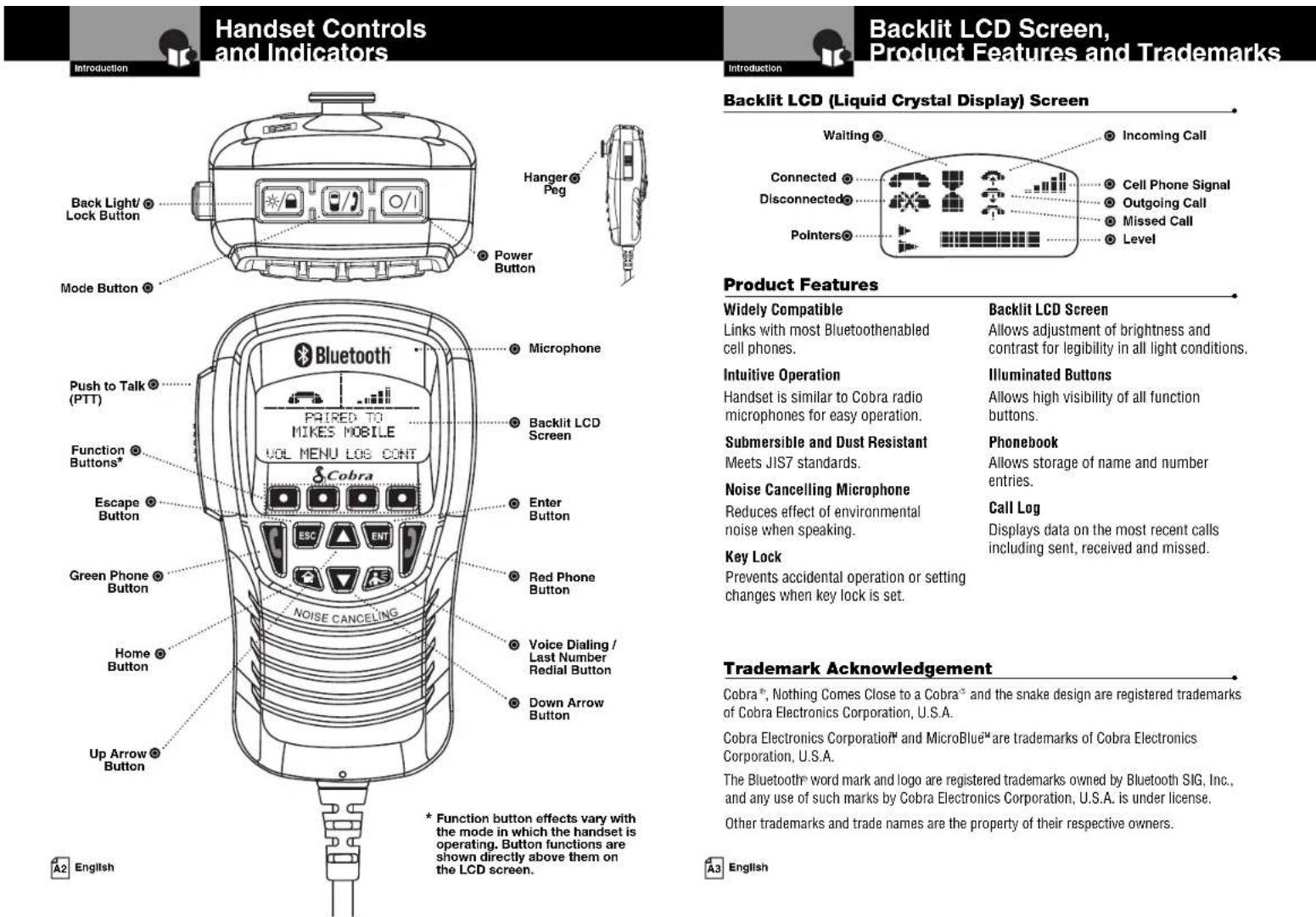
Product Features
Widely Compatible
Links with most Bluetoothenabled cell phones.
Intuitive Operation
Handset is similar to Cobra radio microphones for easy operation.
Submersible and Dust Resistant
Meets JIS7 standards.
Noise Cancelling Microphone
Reduces effect of environmental noise when speaking.
Key Lock
Prevents accidental operation or setting changes when key lock is set.
Backlit LCD Screen
Allows adjustment of brightness and contrast for legibility in all light conditions.
Illuminated Buttons
Allows high visibility of all function buttons.
Phonebook
Allows storage of name and number entries.
Call Log
Displays data on the most recent calls including sent, received and missed.
Trademark Acknowledgement
Cobra ® , Nothing Comes Close to a Cobra ® and the snake design are registered trademarks of Cobra Electronics Corporation, U.S.A.
Cobra Electronics Corporation and MicroBlue are trademarks of Cobra Electronics Corporation, U.S.A.
The Bluetooth® word mark and logo are registered trademarks owned by Bluetooth SIG, Inc., and any use of such marks by Cobra Electronics Corporation, U.S.A. is under license.
Other trademarks and trade names are the property of their respective owners.

Introduction
Our Thanks to You . . . . . . . . . . . . . . . . . . . . . . . . . . . . . . . .
Customer Assistance A1
Handset Controls and Indicators
Backlit LCD (Liquid Crystal Display) Screen . . . . . . . . . . . . . . . . . . . . .
Product Features . . . . . . . . . . . . . . . . . . . . . . . . . . . . . . . . . . . . . . . . .
Trademark Acknowledgement ....
Important Safety Information . . . . . . . . . . . . . . . . . . . . . . . . . . . . . .
FCC Notice
Installation
Included in this Package 3
Installation

Operating Your Handset
Getting Started . . . . . . . . . . . . . . . . . . . . . . . . . . . . . . . . . . . . . . .
Common BT 200 Functions .....
Operation ....
Customizing the BT 200 . . . . . . . . . . . . . . . . . . . . . . . . . . . . .

Warranty
Warranty

Product Service
Maintenance
Product Service
Introduction

Important Safety Information

Included in this Package
Important Safety Information
Before installing and using your Bluetoothhandset, please read these general precautions and warnings.
Warning and Notice Statements
To make the most of this Bluetooth handset, it must be installed and used properly. Please read the installation and operating instructions carefully before installing and using the handset. Special attention must be paid to the WARNING and NOTICE statements in this manual.

WARNING
Statements identify conditions that could result in personal injury or loss of life.

NOTICE
Statements identify conditions that could cause damage to the handset, other equipment or stored data.
General Precautions
The following NOTICES information is important to your operation of the handset.

FCC NOTICES
This device complies with part 15 of the FCC Rules. Operation is subject to the following two (2) conditions:
- This device may not cause harmful interference, and
- This device must accept any interference received, including interference that may cause undesired operation.

NOTICES
AVOID using your Bluetooth handset at temperatures below -4°F (-20°C) or above 131°F (55°C).
AVOID storing your Bluetooth handset at temperatures below -4°F (-20°C) or above 158°F (70°C).
DO NOT attempt to service any internal parts yourself. Have any necessary service performed by a qualified technician.
The manufacturer is not responsible for any radio or TV interference caused by unauthorized modifications to this equipment. Such modifications could void the user's authority to operate the equipment.

English
Included in this Package
You should find all of the following items in the package with your Cobra Bluetoothhandset.


natural_image
Line drawing of a DC adapter with cable (no text or symbols)
installation

Installation
Installation
Installing the
Hanger Bracket

- Install the hanger bracket on a vertical surface near the bulkhead connector using the supplied peel and stick adhesive*. The optional stainless steel screws can also be used.
*Be sure to clean the mounting surface with isopropyl alcohol prior to mounting unit with peel and stick adhesive.

Getting Started
Installation
Getting Started
Refer to the foldout at the front of this manual to identify the various controls and indicators on your Bluetoothhandset.
Most button functions are activated by a momentary press, then release. In those cases that call for "press and hold," hold the button down for at least two seconds after it is pressed. The PTT button is held down as long as you are speaking into the microphone.
When using the handset, tones will sound to:
■ Indicate an error – three beeps.
■ Confirm an action – two beeps.
- Confirm a single button press (except the PTT button) – one beep.
You can turn the Key Tones Off if you want (see page 21).
Try It Out
Using the Bluetoothhandset is the most effective way to learn about it. Don't hesitate to explore functions and add entries to see how they work. Do not be concerned if you make mistakes. They can all be undone in Edit mode. Or you can reset the unit to the original factory default condition. Push and hold the Green Phone and Home function keys, then push the Power key until the unit turns On.

NOTICE
Resetting the unit will clear ALL Bluetoothdevice pairings as well as the Call Log, Phonebook and Bluetoothdevice list.

English

Operating Your Handset Op
Common BT 200 Functions Common BT 200 Functions
Common BT 200 Functions
The following procedures define common operating functions of the handset.
Power On/Off
Press the Power button at the top of the handset for two seconds to turn it On or Off.
The first time you turn On the Cobra Bluetoothhandset you will see a message that the unit is ready for pairing with a cell phone. The message also provides a password. If you do not want to pair a device right away, press the Escape button to go to Standby mode.
When the unit is subsequently turned On, it will search for the currently selected Bluetooth device and go to Standby mode.
Mode
This button serves two functions:
■ To change the mode of operation between the Bluetoothhandset and your cell phone itself.
■ To switch voice activation of the microphone between On and Off. Turn VOX On if you want to operate in a hands-free mode similar to a Bluetooth speakerphone.
Mode
Normal operation of the Cobra Bluetoothhandset uses its internal microphone and speaker to conduct conversations during a call. However, there may be times you want to suspend the Bluetoothpairing and continue part or all of the call on your cell phone itself.
To Change Between Handset and Cell Phone Modes:
- Press the Mode button to switch the call to your cell phone.
- Talk and listen to your cell phone in the usual way. The handset will be inactive.
- Press the Mode button to restore operation to the handset.
- Talk and listen to the call on the Bluetoothhandset.
VOX
The VOX function converts the handset microphone's pickup of your voice from being controlled by the PTT button to being activated by your voice. When VOX
is On, the PTT button does not need to be pushed to transmit your voice and you can just speak into the microphone.
When VOX is Off, you need to push the PTT button while speaking.
To Change Between VOX On and Off:
- Press and hold the Mode button for two seconds while a call is in progress.

NOTE
When the VOX function is On in noisy environments, the caller connected to the BT 200 might hear some of your background noise.
Back Light/Lock
This button serves two functions:
■ To turn the display back light On and Off.
■ To lock and unlock most of the buttons on the handset.
Back Light
A light is provided behind the LCD screen to improve visibility of the information provided there. However, you can turn the light On or Off at will.
To Turn the Back Light On or Off:
- Press the Back Light/Lock button.
Lock
The Lock function disables the operation of all buttons except PTT, Back Light/Lock and Power buttons. When Lock is On, accidental presses of any of the other buttons are ignored by the unit. A call can be continued if it was started before Lock was turned On, but new calls cannot be made or answered when Lock is On.
To Turn Lock On or Off:
- Press and hold the Back Light/Lock button for two seconds.
Operating Your Handset
Common BT 200 Functions

Operating Your Handset
Common BT 200 Functions
Push to Talk (PTT)
This button serves two functions:
■ To activate the handset microphone during a call when VOX is Off. This is similar to the action of such a button on a Cobra VHF or a CB radio.
■ To activate the handset microphone for a PA announcement, the unit must be in Standby and be connected to the stereo's AUX input with the stereo in AUX mode.
To Activate the Handset Microphone During a Call:
- After placing or accepting a call, press the PTT button and talk into the handset microphone.
To Make a PA Announcement:
- When the unit is in Standby mode, press the PTT button and talk into the microphone.

NOTE
Before a PA announcement can be made:
■ The PA function must be turned ON from the settings menu.
■ The BT 200 must be connected to the stereo system AUX input.
■ The stereo must be in AUX mode with the stereo's volume adjusted.
■ An optional installation cable is necessary to use the PA feature.
Green Phone Button
This button acts just like the green phone button on a cell phone. Pressing the button answers an incoming call and initiates dialing an outbound call after the number has been entered or selected.
In Standby mode, this button is a shortcut to the Call Log where a number can be selected to call.
Red Phone Button
This button acts just like the red phone button on a cell phone. Pressing the button ends an active call.
In modes other than an active call, it backs up to the Standby mode.
Home Button
Pressing this button enables you to return the handset to Standby mode from any other mode.
Voice Dialing / Last Number Redial
This button serves two functions:
■ To enable voice dialing.
■ To redial the last number dialed from the handset.
Voice Dialing
You can activate your cell phone's voice dialing feature from Standby mode.
To Voice Dial A Number:
- Press and release the Voice Dialing / Last Number Redial button.
- Say the name or phone number command following the audio prompt.
The display screen will show the progress of dialing and connecting the call.

NOTE
Your cell phone must have voice dialing enabled and voice commands recorded to use this feature with the BT 200.
To Redial The Last Number Dialed:
- Press and hold the Voice Dialing / Last Number Redial button for two seconds. The display screen will show the progress of dialing and connecting the call.
Function Buttons
The Function buttons provide different utilities to different modes of handset operation. In any mode, the active functions are shown directly above the buttons on the display screen as shown in this Standby display.

In this example, pressing the second button from the left will display the Menu.
Function Names
Function Buttons

English

Operating Your Handset
Operation
Operation
Once the Cobra Bluetoothhandset has been paired with a cell phone, incoming calls can be answered and outgoing calls can be made.
Standby
While waiting to receive or make a call, the handset will be in Standby mode.
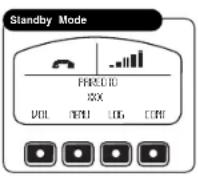
The upper part of the screen shows the Waiting For A Call icon and the cell phone signal strength.
The Function buttons (from left to right) will activate display of the Volume screen, the Menu screen, the Call Log screen and the Phonebook screen.
The Up and Down Arrow buttons will also adjust handset speaker volume directly while in Standby or during a call.
Incoming Call
When the active paired cell phone receives a call, the ring tone will sound and it will be announced on the handset screen.

Ringing
The call can be answered by pressing either the Answer Function button or the Green Phone button.
If the Ignore Function button is pressed, the call will not be accepted, but will be recorded in the Call Log.
Answered Call
The Mute Function button will disable the microphone, but allow you to continue to hear the calling person.
To end the call and return to Standby mode, press either the End Function button or the Red Phone button. Caller information like name and number of the incoming caller will only be shown if it is available on your network and/or device.
Operating Your Handset
Operation
Call Waiting
When a second call rings during an active call, it will be announced on the handset screen.
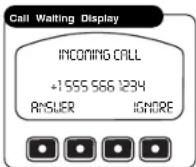
To Answer the Waiting Call:
- Press the Answer Function button. The waiting call will become active, the first call will be put on hold.
Outgoing Call
Outgoing calls can be initiated in three ways:
■ By selecting a Phonebook entry.
■ By selecting a Call Log entry.
■ By dialing the number using handset Function buttons.
Phonebook
After adding a number to your Phonebook, you can go to the Phonebook and select it from the available numbers to be dialed.
To access a number in the Phonebook, press the Menu Function button in Standby mode, then select the Phonebook mode to arrive at the screen shown.

To Select and Dial a Number:
- Use the Page Up and Page Down buttons to shift up and down the list of entries.
- Use the Up and Down Arrow buttons to scroll the pointer at the left of the screen to the desired entry.
- Press the Green Phone button to call the number.

English
Operating Your Handset
Operation
Call Log
The most recent incoming and outgoing calls are recorded in the handset Call Log. These can be used to select and dial a number.
To access a number in the Call Log, press the Menu Function button in Standby mode, then select the Call Log mode to arrive at the screen shown.
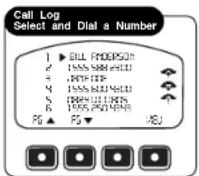
To Select and Dial a Number:
-
Use the Page Up and Page Down buttons to shift up and down the list of entries.
-
Use the Up and Down Arrow buttons to scroll the pointer at the left of the screen to the desired entry.
-
Press the Green Phone button to call the number.

NOTE While in Call Log mode, you can see details of the selected entry by pressing the View Function button or Enter button.
Dial Number
To enter a number you want to dial, press the Menu Function button in Standby mode, then select the Dial By Number mode to arrive at the screen shown.

To Enter a Number to be Dialed:
-
Press and release the Function button under the first digit of the phone number until the correct number appears above the flashing cursor.
-
Wait for the cursor to shift to the right or press the Enter button to shift the cursor.
-
Enter the second digit of the phone number as in step 1.
-
Repeat steps 1 and 2 until the complete number has been entered.
-
Press the Green Phone button to call the number.

NOTE The number will appear on the screen without dashes or other separators.

English
Operating Your Handset

Operation
BluetoothPhone Setup and Switching
The Cobra Bluetoothhandset can be paired with only one device at a time. However, it can store pairing information on up to eight different devices.

To Begin Phone Setup or To Switch To Pair With a Different Device:
-
Press the Menu button in Standby mode, then select the Bluetooth Phone Setup mode to arrive at the screen shown.
-
At this screen, use the Up and Down Arrow buttons to move the pointer to the desired function. Then press the Enter button to select the function and advance to its screen.
New
New can be used to add a device to those already paired or to pair a device if you did not do so at the initial Power On of the BT 200.

To Add a New Cell Phone:
-
Select New on the Phone Setup screen to advance to the screen shown.
-
Follow the cell phone's instructions to search for available pairing with another Bluetooth device. This can often be found in the Tools or Settings menu of your mobile phone
-
Wait for the pairing process to complete. You will then see a confirmation of successful pairing or a notice to try again if pairing did not occur. The newly paired cell phone will become the active one that is used for calls until you Switch to another.
Delete
Delete is used to remove the pairing information for a device from the handset memory.
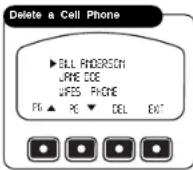
To Delete a Cell Phone:
-
Select Delete on the Phone Setup screen to advance to the screen shown.
-
Use the Page Up and Page Down buttons to shift up and down the list of entries three items at a time.
-
Use the Up and Down Arrow buttons to scroll the pointer at the left to the screen to the desired entry.
-
Press the Delete Function button to remove the device from the list.
Nothing ComesClosetoaCobra

Operating Your Handset
Operation
Disable
Disable prevents pairing with a device, but does not remove it from the list or its pairing data from the handset memory.
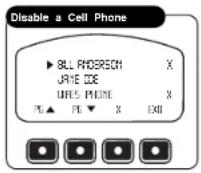
To Disable a Cell Phone:
- Select Disable on the Phone Setup screen to advance to the screen shown.
- Use the Page Up and Page Down buttons to shift up and down the list of entries three items at a time.
- Use the Up and Down Arrow buttons to scroll the pointer at the left to the screen to the desired entry.
- Press the X Function button to disable an available device or to enable a disabled device.
An X at the right of an entry indicates that it is in disabled status.
Switch
The Switch function allows you to select which device will be used for calls from the list of those available.
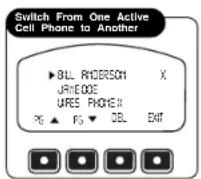
To Switch From One Active Cell Phone to Another:
- Select Switch on the Phone Setup screen to advance to the screen shown.
- Use the Page Up and Page Down buttons to shift up and down the list of entries three items at a time.
- Use the Up and Down Arrow buttons to scroll the pointer at the left of the screen to the cell phone which you want to make active.
- Press the Enter button to begin the process of re-pairing to the selected device.
Operating Your Handset

Customizing the BT 200
Customizing the BT 200
Your Cobra Bluetoothhandset allows you to customize its operation to match your preferences. Features you can adjust have the following defaults when the unit is new or after a reset:
■ VOX: Off
■ PA Output: Off
■ Display Brightness: high
■ Ring Tone: #1
■ Call Log: cleared
■ BT Device List: cleared
■ Display Contrast: 8
■ Button Tones: On
■ Phonebook: cleared
■ Volume: 75%
■ Auto Dim: Off
■ BT Region: USA and EUROPE
Menu
The customizable features on your handset are reached from the Menu mode.

To begin customizing your handset, press the Menu Function button in Standby mode to arrive at the screen shown.
The Menu options list appears on the screen.
The complete list is:
■ Phonebook
■ Dial By Number
■ BluetoothPhone Setup
■ Call Log
■ PA Output
■ Settings
■ Exit
You can scroll through the list one entry at a time by use of the Up and Down Arrow buttons.
Once the pointer at the left of the screen is positioned at the option you want, press the Enter button to select it and advance to its screen.

English

Operating Your Handset
Customizing the BT 200
Phonebook Entries
The Operation section described using a Phonebook entry to dial an outgoing call. Both names and numbers can be stored in the Phonebook.


To Enter a New Name and Phone Number
- Select Phonebook from the Menu function and scroll the pointer down to Add New at the bottom of the list to arrive at the screen shown.
- Press the Enter or New Function button to advance to the Phonebook Edit mode.
- Press the Up or Down Arrow button to scroll the alphanumeric list to the first character of the Name.

NOTE
The list consists of the letters A to Z followed by the numbers 0 to 9 followed by +, "space," *, and # and it will wrap around from # to A.

NOTE
If only a number (without a name) is to be entered, at step 3, press the Right Arrow Function button until the cursor moves to the first character of the number and jump to step 7.
- When the first character appears above the cursor, press the Enter or PTT button to save the character and move the blinking cursor to the right.
- Repeat step 4 until the entire name has been entered.
- Continually press or press and hold the Right Arrow Function button until the cursor moves to the first character of the Number.
- Enter the phone number in the same fashion as the name.
- Press the Save Function button to save the entry and go back to the Phonebook function.

English

Operating Your Handset
Customizing the BT 200

NOTE
If corrections are needed before saving the entry, press the Left or Right Arrow Function button to move the cursor to the character that is to be changed and press the Delete Function button to remove that character. Then scroll the list to select the correct character.

NOTE
A "double click" on the Delete Function button will remove the entire entry and return the cursor to the initial position after Name.

To Edit an Existing Name or Phone Number:
- Select Phonebook from the Menu function, scroll down to name or number to be edited and press the Edit Function button to arrive at the screen shown.
- Use the Right and Left Arrow Function buttons to move the cursor to the character(s) to be changed and proceed as described for making corrections when entering a new name or number.
- Press the Save Function button to save the changes or deletion and go back to the Phonebook function.
PA Output
If, during installation, you have connected the Cobra Bluetoothhandset connection cable to your vessel's stereo AUX input, you can allow the handset to be used as a public address microphone.

To Enable Use of Auxiliary Speakers:
- Select PA Output from the Menu function to arrive at the screen shown.
- Press the On or Off Function button to toggle between On and Off condition.

NOTE
An optional installation cable is necessary to use the PA feature.
Operating Your Handset
Customizing the BT 200

Operating Your Handset
Customizing the BT 200
Settings
The Settings option on the Menu provides access to the remaining functions needed to customize your handset.

To access these functions, select the Settings option from the Menu to arrive at the screen shown.
The Settings options list appears on the screen. The complete list is:
Volume
■ Display
■ VOX
■ Ring Tones
■ Key Tones
■ BT Region
■ Exit
Once the pointer at the left of the screen is positioned at the option you want, press the Enter button to select it and advance to its screen.
Volume
This volume adjustment can be performed on the internal speaker in the handset either from Standby mode or during a call.
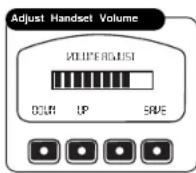
To Adjust the Handset Volume:
- Select Volume from the Settings function to arrive at the screen shown.
- Press the Up or Down Arrow buttons or the Up or Down Function buttons to adjust the speaker volume. The bar graph will show the level you have set.
- Press the Enter or Save Function button to save the volume setting and return to Settings function.
Display
The Display function adjusts the lighting of the LCD screen and includes three separate adjustments: Brightness, Contrast and Auto Dim.

To access these functions, select the Display option from Settings mode to arrive at the screen shown.
You can scroll the list using the Up and Down Arrow buttons.
Once the pointer at the left of the screen is positioned at the option you want, press the Enter button to select it and advance to its screen.

To Adjust the Screen Brightness:
- Select Brightness from the Display mode to advance to the screen shown.
- Press the Up or Down Arrow or Up or Down Function button to step through the available settings of High, Medium, Low and Off.
- At the desired setting, press the Enter or Save Function button to save the setting and return to Display function.
To Adjust the Screen Contrast:
- Select Contrast from the Display mode to advance to the screen shown.
- Press the Up or Down Arrow or Up or Down Function button to step through the available settings. The range is from a minimum at 0 to a maximum at 16.
- At the desired setting, press the Enter or Save Function button to save the setting and return to Display function.

English

Operating Your Handset
Customizing the BT 200

To Set Auto Dim On or Off:
- Select Auto Dim from the Display mode to advance to the screen shown.
- Press the Off or On Function button to select the desired condition.
- Press the Enter button to save the setting and return to Display mode.
NOTE When
When Auto Dim is set to On, the LCD screen backlight will be turned Off after 15 seconds if no button is pressed. It will be turned On for 15 seconds following any button press except PTT.
VOX
The VOX function can be turned On or Off directly with the Mode button as described on page 7 or from the Menu.
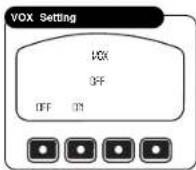
To Set VOX On or Off from the Menu:
- Select VOX from Settings mode to advance to the screen shown.
- Press the Off or On Function button to select the desired condition.
- Press the Enter button to save the setting and return to Settings mode.
NOTE
The VOX On or Off setting will be retained when the unit is turned Off.

English

Operating Your Handset
Customizing the BT 200
Ring Tones
Ten different ring tones are available from which to choose.

To Select a Ring Tone:
- Select Ring Tones from Settings mode to advance to the screen shown.
- Press the Up Arrow or Down Arrow button to scroll through the tones from 01 to 10.
- Press the Play Function button to hear the selected tone.
- Press the Enter or Save Function button to save the tone and return to Settings mode.
Key Tones
Key tones confirm button presses for all but the PTT button.

To Set Key Tones On or Off:
- Select Key Tones from Settings mode to advance to the screen shown.
- Press the Off or On Function button to select the desired condition.
- Press the Enter or PTT button to save the setting and return to Settings mode.
BluetoothRegion
Different parts of the world use different sets of radio frequencies for Bluetooth pairing. You can select from four regions for handset operation: (1) USA - Europe, (2) France, (3) Spain and (4) Japan. Most users will not need to change these settings.

To Select A BluetoothRegion:
- Select BT Region from the Settings function to arrive at the screen shown.
- Press the Up or Down Arrow buttons or the Up or Down Function buttons to scroll through the list.
- Once the pointer at the left of the screen is positioned at the region you want, press the Enter, PTT or Save Function button to save the setting.

Warranty

Warranty

Maintenance and Product Service
Limited 1-Year Warranty
For Products Purchased In The U.S.A.
Cobra Electronics Corporation warrants that its Cobra Bluetooth handset, and the component parts thereof, will be free of defects in workmanship and materials for a period of one year from the date of first consumer purchase. This warranty may be enforced by the first consumer purchaser, provided that the product is used within the U.S.A.
Cobra will, without charge, repair or replace, at its option, defective handsets, products or component parts upon delivery to the Cobra Factory Service department, accompanied by proof of the date of first consumer purchase, such as a duplicated copy of a sales receipt.
You must pay any initial shipping charges required to ship the product for warranty service, but the return charges will be at Cobra's expense, if the product is repaired or replaced under warranty. This warranty gives you specific legal rights, and you may also have other rights which may vary from state to state.
Exclusions. This limited warranty does not apply:
- To any product damaged by accident.
- In the event of misuse or abuse of the product, or as a result of unauthorized alterations or repairs.
- If the serial number has been altered, defaced or removed.
- If the owner of the product resides outside the U.S.A.
All implied warranties, including warranties of merchantability and fitness for a particular purpose are limited in duration to the length of this warranty. Cobra shall not be liable for any incidental, consequential or other damages; including, without limitation, damages resulting from loss of use or cost of installation.
Some states do not allow limitations on how long an implied warranty lasts and/or do not allow the exclusion or limitation of incidental or consequential damages, so the above limitations may not apply to you.
For Products Purchased Outside The U.S.A.
Please contact your local dealer for warranty information or visit www.cobra.com.
Product Service
Maintenance
Very little maintenance is required to keep your Cobra Bluetoothhandset in good operating condition:
- Keep the handset clean by wiping with a soft cloth and mild detergent. Do not use solv or harsh or abrasive cleaners, which could damage the case or scratch the LCD screen.
■ If the handset is exposed to salt water, wipe with a soft, moist cloth at least once a d prevent buildup of salt deposits, which could interfere with button operation.
■ To determine the software version in your handset, press and hold the PTT button while turning On the power. The version number will show on the LCD screen for five seconds, then proceed to normal startup.
Product Service
For any questions about operating or installing this new Cobra product, or if parts are missing...PLEASE CALL COBRA FIRST...do not return this product to the store.
If this product should require factory service, please call Cobra first before sending the pro This will ensure the fastest turnaround time on any repair. If Cobra asks that the product to its factory, the following must be furnished to have the product serviced and returned:
- For Warranty Repair include some form of proof-of-purchase, such as a mechanical reproduction or carbon of a sales receipt. Make sure the date of purchase and product model number are clearly readable. If the originals are sent, they cannot be returned.
- Send the entire product.
- Enclose a description of what is happening with the product. Include a typed or clearly printed name and address of where the product is to be returned, with phone number (required for shipment).
- Pack the product securely to prevent damage in transit. If possible, use the original packing material.
- Ship prepaid and insured by way of a traceable carrier such as United Parcel Service (UPS) or Priority Mail to avoid loss in transit to: Cobra Factory Service, Cobra Electronics Corporation 6500 West Cortland Street, Chicago, Illinois 60707 U.S.A.
- If the product is in warranty, upon receipt of the product, it will either be repaired or exchanged depending on the model. Please allow approximately 3 - 4 weeks before contacting Cobra for status. If the product is out of warranty, a letter will automatically be sent with information as to the repair charge or replacement charge.
For any questions, please call 773-889-3087 for assistance.

English

The Cobra line of quality products includes:
CB Radios
microTALK® Radios
Radar/Laser Detectors
Safety Alert Traffic Warning Systems
HighGear® Accessories
CobraMarine® VHF Radios
Power Inverters
Accessories
For more information or to
order any of our products,
please visit our website:
www.cobra.com


- BLUETOOTH® HANDSET BT 200
- Our Thanks to You and Customer Assistance
- Our Thanks to You
- How Your Cobra BluetoothHandset Works
- Customer Assistance
- For Assistance in the U.S.A.
- For Assistance Outside the U.S.A.
- Product Features
- Widely Compatible
- Intuitive Operation
- Submersible and Dust Resistant
- Noise Cancelling Microphone
- Key Lock
- Backlit LCD Screen
- Illuminated Buttons
- Phonebook
- Call Log
- Trademark Acknowledgement
- Introduction
- Installation
- Operating Your Handset
- Warranty
- Product Service
- Important Safety Information
- Included in this Package
- Warning and Notice Statements
- WARNING
- NOTICE
- General Precautions
- FCC NOTICES
- NOTICES
- Installing the
- Hanger Bracket
- Getting Started
- Try It Out
- Common BT 200 Functions Common BT 200 Functions
- Common BT 200 Functions
- Power On/Off
- Mode
- To Change Between Handset and Cell Phone Modes:
- VOX
- To Change Between VOX On and Off:
- NOTE
- Back Light/Lock
- Back Light
- To Turn the Back Light On or Off:
- Lock
- To Turn Lock On or Off:
- Push to Talk (PTT)
- To Activate the Handset Microphone During a Call:
- To Make a PA Announcement:
- Green Phone Button
- Red Phone Button
- Home Button
- Voice Dialing / Last Number Redial
- Voice Dialing
- To Voice Dial A Number:
- To Redial The Last Number Dialed:
- Function Buttons
- Operation
- Standby
- Incoming Call
- Ringing
- Answered Call
- Call Waiting
- To Answer the Waiting Call:
- Outgoing Call
- To Select and Dial a Number:
- Dial Number
- To Enter a Number to be Dialed:
- BluetoothPhone Setup and Switching
- To Begin Phone Setup or To Switch To Pair With a Different Device:
- New
- To Add a New Cell Phone:
- Delete
- To Delete a Cell Phone:
- Disable
- To Disable a Cell Phone:
- Switch
- To Switch From One Active Cell Phone to Another:
- Customizing the BT 200
- Menu
- Phonebook Entries
- To Enter a New Name and Phone Number
- To Edit an Existing Name or Phone Number:
- PA Output
- To Enable Use of Auxiliary Speakers:
- Settings
- Volume
- To Adjust the Handset Volume:
- Display
- To Adjust the Screen Brightness:
- To Adjust the Screen Contrast:
- Ring Tones
- Key Tones
- BluetoothRegion
- Maintenance and Product Service
- Limited 1-Year Warranty
- For Products Purchased In The U.S.A.
- Exclusions. This limited warranty does not apply:
- For Products Purchased Outside The U.S.A.
- Maintenance
- The Cobra line of quality products includes:
Brand : COBRA
Model : BT 200
Category : Walkie-talkie