SC262FS - Television Seiki - Free user manual and instructions
Find the device manual for free SC262FS Seiki in PDF.


| Product Type | LED Television |
| Screen Size (Diagonal) | 26 inches (66 cm) |
| Dimensions (with stand) | 24.1 x 16.9 x 7.5 inches (612 x 429 x 190 mm) |
| Weight (with stand) | 12.3 lbs (5.6 kg) |
| Resolution | 1366 x 768 (HD Ready) |
| Refresh Rate | 60 Hz |
| Power Consumption (Typical) | 40 W |
| Power Supply | AC 100-240V, 50/60Hz |
| Standby Power | < 0.5 W |
| Key Features | HDMI, USB, VGA, Composite, Coaxial, Built-in speakers, Wall mountable (VESA 100x100) |
| Audio Output | 2 x 3W speakers, Headphone jack |
| Connections | 1 x HDMI, 1 x USB, 1 x VGA, 1 x Composite, 1 x Coaxial, 1 x Antenna, 1 x RJ45 (LAN) |
| Remote Control | IR remote included (batteries not included) |
| Care and Cleaning | Unplug before cleaning. Use soft dry cloth. Avoid liquids or abrasives. |
| Safety | Do not expose to rain or moisture. Place on stable surface. Ensure ventilation. |
| Spare Parts Availability | Remote, stand, screws, power cord available from Seiki support |
| Reparability | Repairable by authorized service centers. Not user-serviceable. |
| General Information | Model: SC262FS, Brand: Seiki, Year: 2014, Menu languages: EN/ES/FR, Scan format: 1080i/720p, Input lag: ~10ms |
Frequently Asked Questions - SC262FS Seiki
User questions about SC262FS Seiki
0 question about this device. Answer the ones you know or ask your own.
Ask a new question about this device
Download the instructions for your Television in PDF format for free! Find your manual SC262FS - Seiki and take your electronic device back in hand. On this page are published all the documents necessary for the use of your device. SC262FS by Seiki.
USER MANUAL SC262FS Seiki
© 2012 Seiki Digital Inc. A rights reserved.
Printed in China
Read all of these instructions carefully before using this television. Keep these instructions in a safe place for future reference.
Important Safety Instructions
- Read these instructions – All the safety and operating instructions should be read before this product is operated.
- Keep these instructions – The safety and operating instructions should be retained for future reference.
- Heed all warnings – All warnings on the appliance and in the operating instructions should be adhered to.
- Follow all instructions – All operating and use instructions should be followed.
- Do not use this apparatus near water – The appliance should not be used near water or moisture –for example, in a wet basement or near a swimming pool, and the like.
- Clean only with dry cloth.
- Do not block any ventilation openings. Install in accordance with the manufacture's instructions.
- Do not install near any heat sources such as radiators, heat registers, stoves, or other apparatus (including amplifiers) that produce heat.
- Do not defeat the safety purpose of the polarized or grounding plug. A polarized plug has two blades with one wider than the other. A grounding plug has two blades and a third grounding prong. The wide blade or the third prong is provided for your safety. If the provided plug does not fit into your outlet, consult an electrician for replacement of the obsolete outlet.
- Protect the power cord from being walked on or pinched particularly at the plugs, convenience receptacles, and at the point where they exit from the apparatus.
- Only use attachments/accessories specified by the manufacturer.
- Use only with the cart, stand, tripod, bracket, or table specified by the manufacturer, or sold with the apparatus. When a cart or rack is used, use caution when moving the cart/apparatus combination to avoid injury from tip-over.
- Unplug the apparatus during lightning storms or when unused for long periods of time.
- Refer all servicing to qualified personnel. Servicing is required when the apparatus has been damaged in any way, such as power supply cord or plug is damaged, liquid has been spilled or objects have fallen into the apparatus has been exposed to rain or moisture, does not operate normally, or has been dropped.
- Please keep the unit in a well-ventilated environment.
- WARNING: To reduce the risk of fire or electric shock, do not expose this apparatus to rain or moisture. The apparatus shall not be exposed to dripping or splashing and that objects filled with liquids, such as vases, shall not be placed on apparatus.
- WARNING: The wall socket plug is used as disconnect device, the disconnect device shall remain readily operable.
- WARNING: The batteries shall not be exposed to excessive heat such as sunshine, fire or the like.

•

- This lightning flash with arrowhead symbol within an equilateral triangle is intended to alert the user to the presence of non-insulated “dangerous voltage” within the product’s enclosure that may be of sufficient magnitude to constitute a risk of electric shock.
- Warning: To reduce the risk of electric shock, do not remove cover (or back) as there are no user -serviceable parts inside. Refer servicing to qualified personnel.
- The exclamation point within an equilateral triangle is intended to alert the user to the presence of important operating and maintenance instructions in the literature accompanying the appliance.
- This equipment is a Class II or double insulated electrical appliance. It has been designed in such a way that it does not require a safety connection to electrical earth.
Important Safety Instructions.... 2
Caution. 4
Safety Information 5
What's Included 6
Getting Started....7-8
Front / Rear View....7-8
Wall Mounting....8
Connecting to External Devices....9
Remote Control Key Functions 10-11
Operating Your Television....12-21
Setup Wizard 12-13
Navigating the Onscreen Display....14
Choosing a TV Channel 14
Selecting Input Source 15
Picture Menu Options 15
Audio Menu Options 16
Time Menu Options 16
Setup Menu Options 17-18
Lock Menu Options 19
Channel Menu Options 20-21
Parental Menu Options 22
Troubleshooting 23-25
FCC....26
Specifications 26

The exclamation point within an equilateral triangle is intended to alert the user to the presence of important operating and maintenance (servicing) instructions in the literature accompanying the appliance.

The lightning flash with arrowhead symbol, within an equilateral triangle is intended to alert the user to the presence of uninsulated “dangerous voltage” within the products enclosure that may be of sufficient magnitude to constitute a risk of electric shock to the persons.

This product contains electrical or electronic materials. The presence of these materials may, if not disposed of properly, have potential adverse effects on the environment and human health.
Presence of this label on the product means it should not be disposed of as unsorted waste and must be collected separately. As a consumer, you are responsible for ensuring that this product is disposed of properly.
HDMI ^TM
This TV incorporates High-Definition Multimedia Interface (HDMI™) technology. HDMI, the HDMI logo and High-Definition Multimedia Interface are trademarks or registered trademarks of HDMI Licensing LLC.
To ensure reliable and safe operation of this equipment, please read carefully all the instructions in this user guide, especially the safety information below.
Electrical safety
- The TV set should only be connected to a main power supply with voltage that matches the label at the rear of the product.
- To prevent overload, do not share the same power supply socket with too many other electronic components.
- Do not place any connecting wires where they may be stepped on or tripped over.
- Do not place heavy items on them, which may damage the leads.
- Hold the main plug, not the wires, when removing from a socket.
- Do not allow water or moisture to enter the TV or power adapter. Do NOT use in wet, moist areas, such as bathrooms, steamy kitchens or near swimming pools.
- Pull the plug out immediately, and seek professional help if the main plug or cable is damaged, liquid is spilt onto the set, if accidentally exposed to water or moisture, if anything accidentally penetrates the ventilation slots or if the set does not work normally.
- Do not remove the safety covers. There are no user serviceable parts inside. Trying to service the unit yourself is dangerous and may invalidate the product's warranty. Qualified personnel must only service this apparatus.
- To avoid battery leakage, remove exhausted batteries from the remote control, or when not using for a long period.
- Do not break open or throw exhausted batteries on a fire.
Physical safety
- Do not block ventilation slots in the back cover. You may place the TV in a cabinet, but ensure at least 5cm (2") clearance all around.
- Do not tap or shake the TV screen, or you may damage the internal circuits. Take good care of the remote control.
• To clean the TV use a soft dry cloth. Do not use solvents or petroleum based fluids. - Do not install near any heat sources such as radiators, heat registers, stoves or other apparatus (including amplifiers) that produce heat.
- Protect the power cord from being walked on or pinched particularly at plugs.
• Unplug the apparatus during lightning storms or when unused for long periods. - Refer all servicing to a qualified service personnel. Servicing is required when the apparatus has been damaged in any way, such as power-supply cord or plug is damaged, liquid has been spilled, or objects have fallen into the apparatus, has been exposed to rain or moisture, does not operate normally, or has been dropped.
Unit and Accessories
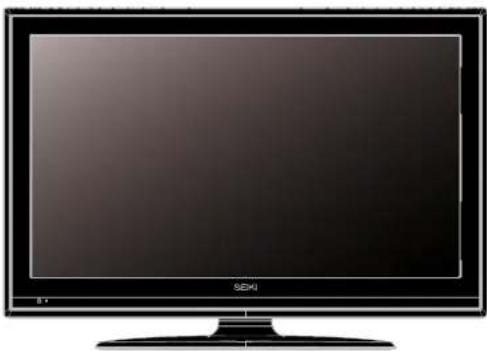
natural_image
Front view of a black SEXi TV monitor with a blank screen (no visible text or symbols on the screen body)TV
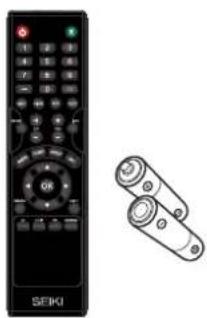
natural_image
Side view of a black SEIKI remote control with a separate black remote device (no text or symbols visible)Remote control with batteries


Warranty cardUser's manual

Initial assembly
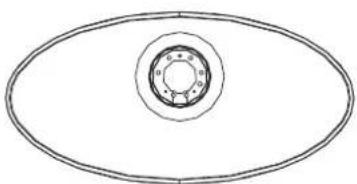
natural_image
Simple line drawing of an oval with a central circular hole and concentric rings (no text or symbols)The base stand
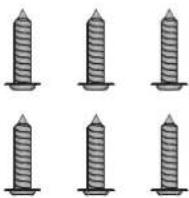
Screw(TP4X16A-HO, 6PCS)
Front View

The function of the buttons are described below:
: Turn on/standby the TV set.
SOURCE: Press to display the input source menu.
MENU: Press to display the OSD menu, press again to exit the menu.
CH^/v: Press to scan through channels.
VOL +/-: Press to adjust the volume.
Rear View

- SERVICE port.
- HDMI1 / HDMI2 / HDMI3 input.
- PC AUDIO input.
- VGA input.
- Antenna input (75 Ohm VHF/ UHF).
- Coaxial audio signal out plug.
- AV input.
- Component input terminal.
- Audio out
Wall Mounting
The TV is provided with mounting holes for a VESA approved wall mounting bracket (NOT SUPPLIED). Remove the screws holding the base to the base bracket and lift the base away (do not remove the base mounting brackets). Mount the VESA bracket using 4 x M4x20 isometric threaded screws (not supplied). Do not use screws longer than 20mm; damage will occur to the internal parts.
Caution: Your new TV is heavy; please consult with a professional wallmount installer to perform this installation.

flowchart
graph TD
    A["Connecting external devices to your LCD TV"] --> B["The side of TV"]
    B --> C["Coaxial"]
    C --> D["HDMI"]
    C --> E["Y/PB/PR"]
    C --> F["Left/right"]
    C --> G["DVD"]
    C --> H["Camera"]
    C --> I["Video recorder"]
    B --> J["COMPONENT"]
    J --> K["VIDEO"]
    J --> L["AV"]
    J --> M["L"]
    J --> N["R"]
    J --> O["Audio OUT"]
    B --> P["Service"]
    P --> Q["HDMI3"]
    P --> R["HDMI2"]
    P --> S["HDMI1"]
    P --> T["PC AUDIO"]
    P --> U["VGA"]
    P --> V["RF (75Ω)"]
    P --> W["COAXIAL"]
    P --> X["Coaxial Cable"]
    X --> Y["Digital Audio System"]
    Y --> Z["Power Amplifier"]
    Y --> AA["Digital Audio Input"]
    Y --> AB["COAXIAL"]
    Y --> AC["AV"]
    Y --> AD["AUDIO OUT"]
    X --> AE["PC"]
    X --> AF["AUDIO"]
    X --> AG["HDMI"]

If there is light around the TV, the remote control may fail or work abnormally. If not using the remote for a long period of time, please remove the batteries. Remote control function keys to practice prevail.
Remote Control Key Functions
POWER: Power on/off button, press once to turn the TV on and press again to turn the TV off.
MUTE: Mute button, press once to disable the audio and press again to enable the audio.
0\~9: TV channel selection button.
— : Press this button to enter a program number for multiple program channel such as 2-1, etc.
: Previous channel button, return to the previous channel watched.
P.MODE: Setting the picture mode.
S.MODE: Setting the sound mode.
MTS: Press to select the audio channels.
- Make sure the TV has searched the channel and that there is a Analog Stereo / Dual Sound Signal shown on the program.
- Then press the MTS (Multichannel Television Sound) button to select STEREO, MONO and SAP.
SLEEP: Sleep button, setting TV power off time.
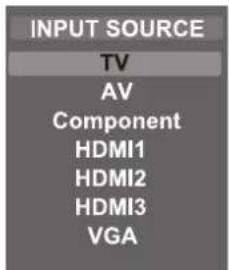
SOURCE: Signal source selection button (TV/AV/Component/HDMI1/HDMI2/HDMI3/VGA)
INFO: Press info button to view the current channel. Press again to remove channel information.
CH+/-: Channel selection button, to increase or decrease channel.
VOL+/-: Volume adjusting button, to increase or decrease the volume.
FREEZE: Freeze picture for TV.
CH.LIST: Display program list.
ASPECT: Select display mode: Wide/Wide Zoom/Zoom/Standard.
EPG: Electronic Program Guide function.
▲/▼(Up/Down): Up and down button of OSD menu. To change the OSD menu items.
◀/▶ (Left/Right): Left and right button of the OSD menu. To select the OSD menu items.
OK: To confirm the choice with the highlighted menu item.
MENU: OSD menu button, to enter the TV setup menu.
EXIT: Press the EXIT to exit operation.
CC: Closed Caption select button ON, OFF or CC ON Mute.
V-CHIP: Setting up parental control.
FAV: Display favorite of program list.
ADD/ERASE: Add or deleted Favorite channel.
Basic Operations
Turning Your TV On and Off
TURN ON LCD TV
- Connect to power with the main power cable, at this time the TV will enter STANDBY mode and the LED will be red.
- From the STANDBY mode, use the POWER button either on the main unit or on the remote to turn your television on.
TURN OFF LCD TV
From ON mode, use the POWER button either on the main unit or on the remote to turn your television to STANDBY mode.
SETUP WIZARD

1

2
3

4
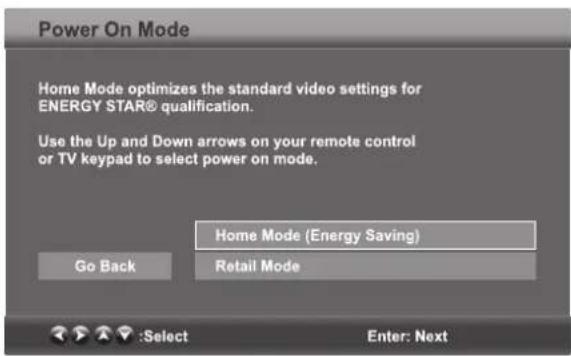
Home Mode (Energy Saving): Select Home Mode to maximize energy efficiency. Please note if you select Home Mode the picture will be darker. This mode meets the requirements of Energy Star® qualification.
Retail Mode: Select Standard Mode if you would like your picture to be brighter. At times this mode may use more energy to operate the Volume/Sound Mode and the Picture Mode. In this setting, the power consumption may possibly exceed the limited requirement of the Energy Star® qualification.
The ON-MODE Power under Home mode should be less than 42.3W.
The sleep mode power should be less than 1W.
Operating Your Television

5
6
7

8
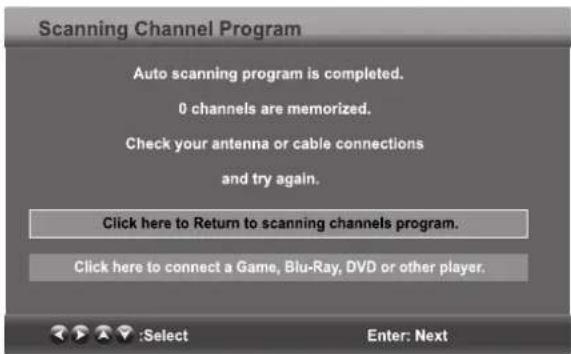
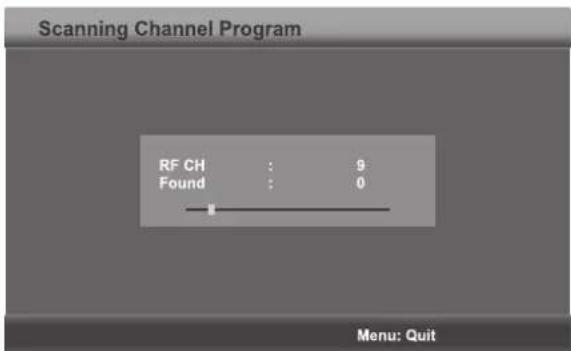
If channels can not be found, this frame will be displayed automatically.
9
Navigating the Onscreen Display
- Press the MENU button to display the main menu.
- Use ◀/▶ buttons to navigate and select the available menus.

Choosing a TV Channel
-
Use the CH+/CH- at the side of panel or on the remote control.
-
Press CH+ to increase the channel.
-
Press CH- to decrease the channel.
-
Using 0-9 remote keys.
Enter the channel number with the 0-9 remote keys, then press "OK" to select the channel.
For example:
- Press 4, then press "OK" to select channel 4.
- Press 4, then press 5, then press "OK" to select channel 45.
- Press 1, then press 2, then press 1, finally press "OK" to select channel 121.
Operating Your Television
Selecting Input Source
You can display the input screen menu by pressing SOURCE on the remote control or SOURCE at the side of panel, press ▲/▼ button to select, press "OK" to confirm.
Picture Menu Options
Press the MENU at the side of panel or MENU on the remote control and then use ◀/▶ to move the PICTURE menu, press ▼ or OK to enter (see picture below).
Picture Mode
Select the type of picture which best corresponds to your viewing preferences by selecting Picture Mode in the PICTURE menu. You may select the picture mode directly by pressing the P.MODE button in the remote control.
Contrast
Press ▲/▼ and then use ◀/▶ to adjust the contrast of the picture.
Brightness
Press ▲/▼ and then use ◀/▶ to adjust the brightness of the picture.
Color
Press ▲/▼ and then use ◀/▶ to adjust the color of the picture.
Tint
Press ▲/▼ and then use ◀/▶ to adjust the tint of the picture.
Sharpness
Press ▲/▼ and then use ◀/▶ to adjust the sharpness of the picture.
Color Temp.
Press ◀/▶ to select mode: Cool, Warm, Normal.
Blue Screen
Press ▲/▼ and then use ◀/▶ to select On or Off.

Operating Your Television
Audio Menu Options
Press the MENU at the side of panel or MENU on the remote control and then use ◀/▶ to select the AUDIO menu, press ▼ or OK to enter it (see picture).
Sound mode
Press ▲/▼ and then use ◀/▶ to select User, Standard, Music and Movie.

Bass
Press ▲/▼ and then use ◀/▶ increase or decrease the level of the lower-pitched sounds.
Treble
Press ▲/▼ and then use ◀/▶ to increase or decrease the level of higher-pitched sounds.
Balance
Press ▲/▼ and then use ◀/▶ to adjust the audio output between left and right speakers.
Surround Sound
Press ◀/▶ to switch Surround Sound On or Off.
Auto Volume
Press ◀/▶ to switch auto volume control On or Off. This function allows volume to be controlled automatically.
SPDIF Type
Press ◀/▶ to select between PCM or RAW.
Audio Language
Press ◀/▶ to select the audio language from: English, French and Spanish.
Time Menu Options
Press the MENU at the side of panel or MENU on the remote control and then use ◀/▶ to select the TIME menu, press ▼ or OK to enter (see picture).
Sleep Timer
Press ▲/▼ and then use ◀/▶ to set up the sleep timer from among: Off, 5 Min, 10 Min, 15 Min, 30 Min, 45 Min, 60 Min, 90 Min, 120 Min, 180 Min or 240 Min.

Time Zone
Press ▲/▼ and then use ◀/▶ to set up the time zone from: Pacific, Alaska, Hawaii, Eastern, Central or Mountain.
Daylight Saving Time
Press ▲/▼ and then use ◀/▶ to set up the daylight saving time On or Off.
Operating Your Television
Setup Menu Options
Press the MENU at the side of panel or MENU on the remote control and then use ◀/▶ to select the SETUP menu, press ▼ or OK to enter (see picture).
Menu Language
Press ▲/▼ and then use ◀/▶ to select menu language for either English, French or Spanish.
Transparency
Press ▲/▼ and then use ◀/▶ to turn on or off the transparency function.
Zoom Mode
Press ▲/▼ and then use ◀/▶ to select the zoom for either Wide, Wide Zoom, Zoom or Standard.
Noise Reduction
Press ▲/▼ and then use ◀/▶ to adjust the noise reduction mode for either Weak, Middle, Strong or Off.
Advanced
Press ▲/▼ and then use ◀/▶ to select the advanced options between H-POS, V-POS, Clock, Phase, Auto (only used in VGA source mode).
H-POS
Press ▲/▼ and then use ◀/▶ to adjust the H-POS of the picture.
V-POS
Press ▲/▼ and then use ◀/▶ to adjust the V-POS of the picture.
Clock
Press ▲/▼ and then use ◀/▶ to adjust the Clock of the picture.
Phase
Press ▲/▼ and then use ◀/▶ to adjust the Phase of the picture.
Auto
Press ▲/▼ and then use ▶ to adjust the picture.
Closed Caption
Press ▲/▼ and then use ◀/▶ to use the down button to highlight the close caption item, then press the RIGHT button to enter into the following menu.
CC Mode
Allows you to select the CC Mode among: On, Off or CC on Mute.
Basic Selection
Allows you to select the basic selection among: CC1, CC2, CC3, CC4, Text1, Text2, Text3 and Text4.
Advanced Selection
Press ▲/▼ and then use ◀/▶ to select the advanced selection among: Service1, Service2, Service3, Service4, Service5, or Service6.


Operating Your Television
Setup Menu Options
OPTION
Press ▲/▼ and then use ▶ to enter into the following menu.
Press ▲/▼ and then use ◀/▶ to select.

DLC
Press ▲/▼ and then use ◀/▶ to turn dynamic luminance control On or Off.
Restore Default
Select "Restore Default", press OK and it will display "Are you sure?" Select "Yes" to select the factory default settings.

Lock Menu Options
Press the MENU at the side of panel or MENU on the remote control and then use the ◀/▶ to select the LOCK menu, press ▼ button or OK to enter it.
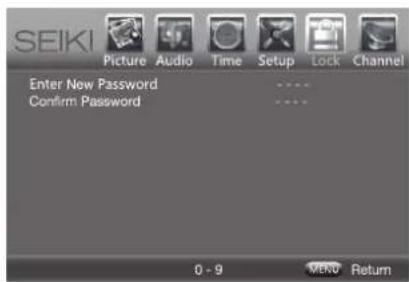
Use the ▼ button to enter the "Enter Password" selection and use the numeric keys to input a 4-digit password. The screen will display the sub-menu. After setting, press the Menu button to exit.
NOTE: The factory password is 0000.

Change Password
Press ▼ button to select the "Change Password" selection and then press the ▶ button to enter into the following menu. Input the 4-digit password once and again to confirm.
System Lock
Allows you to turn On or Off the system lock. If you turn off the system lock, then the following options (US, Canada, RRT Setting and Reset RRT) are unavailable for use.
US Rating
Use the ▼ button to highlight the "US" selection, then press the ▶ button to enter into the following menu.
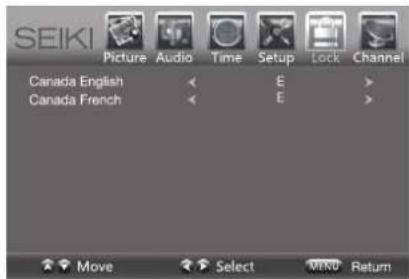
Canada Rating
Use the ▼ button to highlight the "Canada" selection, then press the ▶ button to enter into the following menu.
Canada English
Use ◀/▶ buttons to select among: E, C, C8+, G, PG, 14+ and 18+
Canada French
Use ◀/▶ buttons to select among: E, G, 8ans+, 13ans+, 16ans+ and 18ans+.
RRT Setting
Rating Region Table setting.
Reset RRT
Allows you to reset the RRT setting.
Clear Lock
Clear lock of RRT.
Operating Your Television
Channel Menu Options
Press the MENU at the side of panel or MENU on the remote control and then use ◀/▶ to select the CHANNEL menu, Press ▼ or OK to enter (see picture).
Air/Cable
Allows you to select the input signal between Air and Cable.
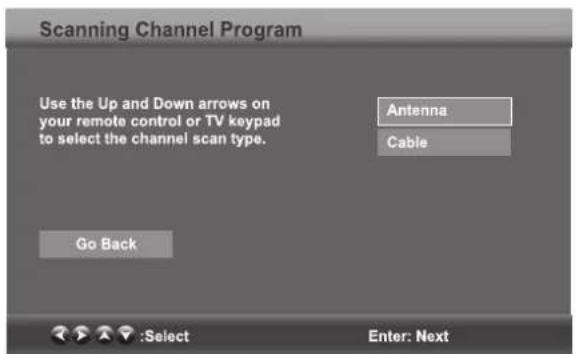
If you select "Air" as the input signal in the "Antenna" item, you can press the ▶ button to search the channels automatically.
The receiver channels will be stored automatically. When searching channels, press MENU to stop.
If you select "Cable" as the input signal in the "Antenna" item, this allows you to select Cable System between: AUTO, STD, IRC and HRC. Use the ▼ button to highlight "Start to Scan", then press the ▶ button to search the channels automatically. The receivable channels will be stored automatically. When searching channels, press MENU to stop.

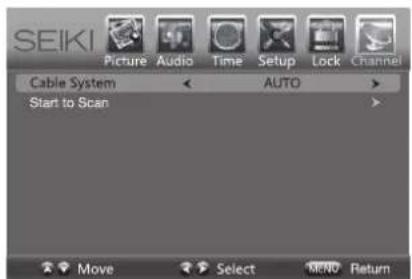

Auto Scan
Use the ▼ button to highlight "Auto Scan", then press the ▶ button to enter into the menu.
Favorite
Allows you to add any channels that you flag to your favorite channel list.
Use the ▲/▼ button to highlight the "Favorite" channel, then press the ▶ button to enter into the menu.
Use the ▲/▼ button to highlight the desired channel, then press the OK button to add or remove the highlighted channel as a favorite.

Operating Your Television
Show/Hide
Allows you to show or hide the channels.
Use the ▲/▼ button to highlight the "Show/Hide" item, then press the ▶ button to enter the menu.
Use the ▲/▼ button to highlight the desired item, then press the OK button to show or hide the highlighted channel.
Channel No.
Display the number of current channel.
Channel Label
Display the label of current channel.
DTV Signal
Display the quality of current DTV signal.

Parental Control
Press Enter to enter the sub-menu and then use the 0-9 to enter the correct password: 0,0,0,0. If used, this option feature can "block" undesirable programming from appearing on the TV. Parental Control offers the user a wide variety of options and settings that restrict or "block" the programming that can appear on the TV. Parental Control allows the user the capability of defining which program rating they consider acceptable, to the younger more sensitive viewer. It can be preset and turned either on or off by the user who specifies the secret 4-number code, the password. The number of hours blocked are specified. General audiences and children blocks should be both programmed into the TV's memory. Viewer ratings are specified for both TV and the motion picture industry; both rating systems should be used, for complete coverage. The ratings are based on the ages of children.
Overview
To ensure complete coverage for all TV programs, (movies and regular TV shows) choose a rating for MPAA, from the selections below, as well as ratings from the TV Parental Guidelines Rating Systems below, using the Age Block option for General Audiences, and for children. In addition to those, you may wish to add additional restrictions from the content block menu, and submenus examples below.
Things to Consider before Setting up Parental Control
Determine which rating you consider acceptable to the viewer. (For example, if you choose TV-PG, more restrictive ratings will be automatically blocked; the viewer will not be able to see: TV-PG, TV-14, or TV-MA rated programming.) Do you want to block the auxiliary video source entirely? (Blocks the signal sent by the equipment, such as VCR, connected to the TV Audio/Video input jacks) Or leave unblocked, then choose allowable ratings. Block program "Content" based on individual parameters such as: Strong Dialog, Bad Language, Sex Scenes, Violence Scenes, or Fantasy. Violent Scenes; in Content Blk option. Select a secret password, in the Set Password option, using the numbers keys on the remote. Do not forget the password, it is the only way you can access the Parental Control menu and change rating selections, or turn Parental Control off. Do you want the Parental Control to be active at all times? If not, you can turn it on or off with the Lock On/Off option.
• You can set different Parental Control viewing restrictions for general audiences and for children, both can be active at the same time.
- Simply specifying one content block such as Sex Scenes, will not automatically restrict the programming that appears from the video sources.
- Even if you choose to leave the AUX inputs unblocked, the ratings you specify will automatically restrict the programming that appears from the video sources.
- You can not disable Parental Control by disconnecting the TV from power. Block hours will be automatically reset to the original block time setting specified if power is disconnected.
Information
Motion Picture Association of America (MPAA) Rating System
| Grade | Meaning | |
| G | General Audiences | Content not offensive to most viewers |
| PG | Parental Guidance Suggested | Content is such that parents may not want their children to view the program |
| PG-13 | Parental Guidance Cautioned | Program is inappropriate for preteens, with a greater degree of offensive material suggested than a PG rated program |
| R | Restricted viewing | Not for children under 17, Strong element of sex and/or violence |
| NC-17 | No Children Under age 17 | Not for children under 17 under any circumstances. Strong sexual content |
| X | Hard Core Films | Same as NC-17 rating |
| No Rating | No Rating | MPAA Not Rated |
TV Parental Guideline Rating System
| Grade | Meaning | |
| TV-Y | Young Children | Content not offensive to most viewers |
| TV-Y7 | Children 7 and over | Considered suitable for children over 7, may contain Fantasy Violence Scenes |
| TV-G | Parental Audience | Considered suitable for all audiences; children may watch unattended |
| TV-PG | Parental Guidance | Suggested Unsuitable for younger children, may contain; Suggestive Dialogue, Bad Language, Sex, and Violence Scenes |
| TV-14 | Parents Strongly Cautioned | Unsuitable for children under 14, may contain: Strong Dialogue, Bad Language, Sex, and Violence Scenes |
| TV-MA | Mature Audience Only | Adults only, may contain Strong Dialogue, Bad Language, Sex, and Violent Scenes |
Canadian Rating: Canadian English is used throughout all English-speaking Canada (C, C8+, G, PG, 14+, 18+). Canadian French is used in Quebec (G, 8 ans+, 13 ans+, 16 ans+, 18 ans+)
Note: The V-Chip will automatically block certain categories that are "more restrictive". If you block TV-Y category, then TV-Y7 will be automatically blocked. Similarly, if you block TV-G category, then all the categories in the "young adult" will be blocked (TV-G, TV-PG, TV-14, and TV-MA).
If your television does not operate normally or does not turn on, please check the following troubleshooting questions. Remember to also check the other connected electronic devices, such as DVDs or Blu-ray players to pinpoint any problem. If the television still fails to operate normally, please contact technical support (refer to Warranty page).
| SYMPTOM | POSSIBLE CAUSE | REMEDY |
| Dead. No LED lit | No power to the TV. | Check all connections to the TV's AC socket. |
| Dead. No LED lit red | Set in standby mode. | Press either the Power button or the Standby button on the remote control. |
| Blue screen | No signal. | Press SOURCE button to select the correct source |
| Incorrect source selected. | ||
| Noisy, snowy, ghosting picture (TV) | Poor antenna signal. | If using an indoor antenna, try adjusting the antenna position. Check antenna connections |
| No sound | Sound “Mute”. | Turn sound “Mute” OFF. |
| Volume set too low. | Check volume settings. | |
| External leads not connected “if used”. | Check that all external leads are connected properly. |
Before contacting the service technician, perform the following simple checks. If any problem still persists, unplug the LCD TV and call for assistance.
| PROBLEM | POSSIBLE SOLUTION |
| No sound and picture | - Check that the main plug has been connected to a wall outlet- Check that you have pressed the POWER button on the front of the TV set- Check the picture contrast and the brightness setting |
| Red LED indicator light | Set in standby mode. Press either the POWER button or the Standby button on the remote control |
| Normal picture but no sound | - Check the volume- Sound muted? Press the MUTE button- Try another channel, the problem may be with the broadcast- Are the audio cables installed properly? |
| The remote control does not work | - Check to see if there are any objects between the TV and remote control causing obstruction- Are batteries installed with correct polarity (+ / -)- Correct remote operating mode set: TV, VCR, etc?- Install new batteries |
| Power suddenly turns off | - Is the sleep timer set?- Check the power control settings. Power may be interrupted- No broadcast on the station tuned |
| Picture appears slowly after switching on | - This is normal, the image is muted during the product start up process. Please contact a service provider if the picture has not appeared after 5 minutes |
| Poor Color or picture | - Adjust the color in Menu option- Keep a sufficient distance between the product and the VCR- Try another channel, the problem may be with the broadcast- Are the VIDEO cables installed properly?- Activate any function to restore the brightness of the picture |
| Horizontal/vertical bars or picture shaking | - Check for local interference, such as an electrical appliance or power tool |
| Blue Screen | - Press SOURCE button to select correct source |
| Poor reception on some channels | - Station or cable experiencing problems. Tune to another station- Station signal is weak, reorient antenna to receive better reception- Check for sources of possible interference |
| Lines or streaks in pictures | - Check the antenna (change the direction of the antenna) |
| No output from one of the speakers | - Adjust balance in the Menu option |
NOTE: When there is a problem in VGA mode (only when VGA mode is applied)
| PROBLEM | POSSIBLE SOLUTION |
| The signal is out of range | - Adjust resolution, horizontal frequency, or vertical frequency- Check whether the signal cable is connected or loose- Check the input source |
| Vertical bar or stripe on background, horizontal noise and incorrect position | Set the auto configure or adjust clock, phase or H/V position |
| Screen Color is unstable or is a single Color | - Check the signal cable- Re-install the PC video card |
Maintenance
Early malfunctions can be prevented. Careful and regular cleaning can extend the amount of time you will have with your new TV. Be sure to turn the power off and unplug the power cord before you begin any cleaning.
Cleaning the screen
-
A great tip to dust off your screen. Wet a soft cloth in a mixture of lukewarm water and a little fabric softener or dish washing detergent. Wring the cloth until it's almost dry, and then use to wipe the screen.
-
Make sure the excess water is off the screen, then let air-dry before you turn on the TV.
Cleaning the Cabinet
To remove dirt or dust, wipe the cabinet with a soft, dry, lint-free cloth. Please be sure not to use a wet cloth.
Extended Absence

If you expect to leave your TV dormant for a long time (such as a vacation), it is a good idea to unplug the power cord to protect against possible damages from lightning or power surges.

This equipment has been tested and found to comply with the limits for a Class B digital device, pursuant to Part 15 of the FCC Rules. These limits are designed to provide reasonable protection against harmful interference in a residential installation.
This equipment generates, uses, and can radiate radio frequency energy and, if not installed or used in accordance with the instructions, may cause harmful interference to radio communications. However, there is no guarantee that interference will not occur in a particular installation.
If this equipment does cause harmful interference to radio or television reception, which can be determined by turning the equipment off and on, the user is encouraged to try to correct the interference by one or more of the following measures: 1) reorient or relocate the receiving antenna; 2) increase the separation between the equipment and the receiver; 3) connect the equipment to an outlet on a circuit different from that to which the receiver is connected; 4) consult the dealer or an experienced radio/TV technician for additional suggestions.
Any changes or modifications not expressly approved by the party responsible for compliance could void the user's authority to operate the equipment. Where shielded interface cables have been provided with the product or specified additional components or accessories elsewhere defined to be used with the installation of the product, they must be used in order to ensure compliance with FCC regulation.
Canadian DOC statement
Standard Television Receiving Apparatus Canada BETS-7
This Class B digital apparatus complies with Canadian ICES-003.
Specifications
| Panel Size | 26 inches diagonally |
| Display Type | LCD |
| Panel Technology | TFT |
| Panel 60 Hz vs 120 Hz | 60 Hz |
| Display Resolution | 1080i |
| HD Compatible | up to 1080i |
| Panel Resolution | 1366 x 768 |
| Aspect Ratio | 16:9 |
| Contrast Ratio - panel | 800:1 |
| Brightness (Centre Typ.) cd/m2 | 400 |
| Response Time (G to G) | 5 ms |
| Lamp Life (Typ. Hours) | 50,000 hours |
| Horizontal Viewing Angle (At CR>10) | 160 |
| Vertical Viewing Angle (At CR>10) | 150 |
- Important Safety Instructions
- HDMI TM
- Electrical safety
- Physical safety
- Unit and Accessories
- Front View
- The function of the buttons are described below:
- Rear View
- Wall Mounting
- Remote Control Key Functions
- Basic Operations
- Turning Your TV On and Off
- TURN ON LCD TV
- TURN OFF LCD TV
- Operating Your Television
- Navigating the Onscreen Display
- Choosing a TV Channel
- Selecting Input Source
- Picture Menu Options
- Picture Mode
- Contrast
- Brightness
- Color
- Tint
- Sharpness
- Color Temp.
- Blue Screen
- Audio Menu Options
- Sound mode
- Bass
- Treble
- Balance
- Surround Sound
- Auto Volume
- SPDIF Type
- Audio Language
- Time Menu Options
- Sleep Timer
- Time Zone
- Daylight Saving Time
- Setup Menu Options
- Menu Language
- Transparency
- Zoom Mode
- Noise Reduction
- Advanced
- H-POS
- V-POS
- Clock
- Phase
- Auto
- Closed Caption
- CC Mode
- Basic Selection
- Advanced Selection
- Restore Default
- Lock Menu Options
- Change Password
- System Lock
- US Rating
- Canada Rating
- RRT Setting
- Reset RRT
- Clear Lock
- Channel Menu Options
- Air/Cable
- Auto Scan
- Favorite
- Show/Hide
- Channel No.
- Channel Label
- DTV Signal
- Parental Control
- Overview
- Things to Consider before Setting up Parental Control
- Information
- Maintenance
- Cleaning the screen
- Cleaning the Cabinet
- Extended Absence
Brand : Seiki
Model : SC262FS
Category : Television