Jitterbug 5 - Smartphone GreatCall - Free user manual and instructions
Find the device manual for free Jitterbug 5 GreatCall in PDF.


| Product Type | Smartphone (Flip Phone) |
| Brand | GreatCall |
| Model | Jitterbug 5 (SCH-R220) |
| Display | Inside Display (main) and Outside Display (caller ID) |
| Keypad | 12-key numeric keypad with dedicated Yes/No buttons and navigation Up/Down |
| Special Button | Red 5Star button for emergency service |
| Power Connector | Side-mounted for wall charger |
| Charger | Wall charger (110/220 VAC) included |
| Battery | Pre-installed rechargeable battery |
| Audio | Earpiece speaker and microphone |
| Lanyard Connector | Provided on device |
| Volume Adjustment | Volume button on side; earpiece volume during call, ringer volume when idle |
| Ringer Options | Max, High, Medium, Low, Vibrate |
| Call Answering | Open phone or press Yes button |
| Call Ending | Press No button or close phone |
| Service Indicator | Dial tone when phone is open indicates service available |
| Phone Book | Store contacts; access via Phone Book menu from main screen |
| Operator Services | 24/7 Live Operator available for directory assistance, call connections, and phone book management |
| Emergency Service | 5Star button connects to 5Star Agent for assistance; GPS location shared |
| Activation Methods | Online at greatcall.com/activate or call 1-866-482-1424 |
| Package Contents | Phone, pre-installed battery, wall charger, Quick-Start Guide |
Frequently Asked Questions - Jitterbug 5 GreatCall
User questions about Jitterbug 5 GreatCall
0 question about this device. Answer the ones you know or ask your own.
Ask a new question about this device
Download the instructions for your Smartphone in PDF format for free! Find your manual Jitterbug 5 - GreatCall and take your electronic device back in hand. On this page are published all the documents necessary for the use of your device. Jitterbug 5 by GreatCall.
USER MANUAL Jitterbug 5 GreatCall
Welcome to GreatCall!
Thank you for purchasing the Jitterbug® cell phone. This Quick-Start Guide will help you activate and set up your Jitterbug so you can enjoy the best cell phone experience around. Once you're set up and calling, you can learn more about the benefits of being a GreatCall customer in your User Guide, contained in this package.
IMPORTANT!
Please do not turn your phone on until you are instructed to do so in the activation process.
Quick-Start Guide 1
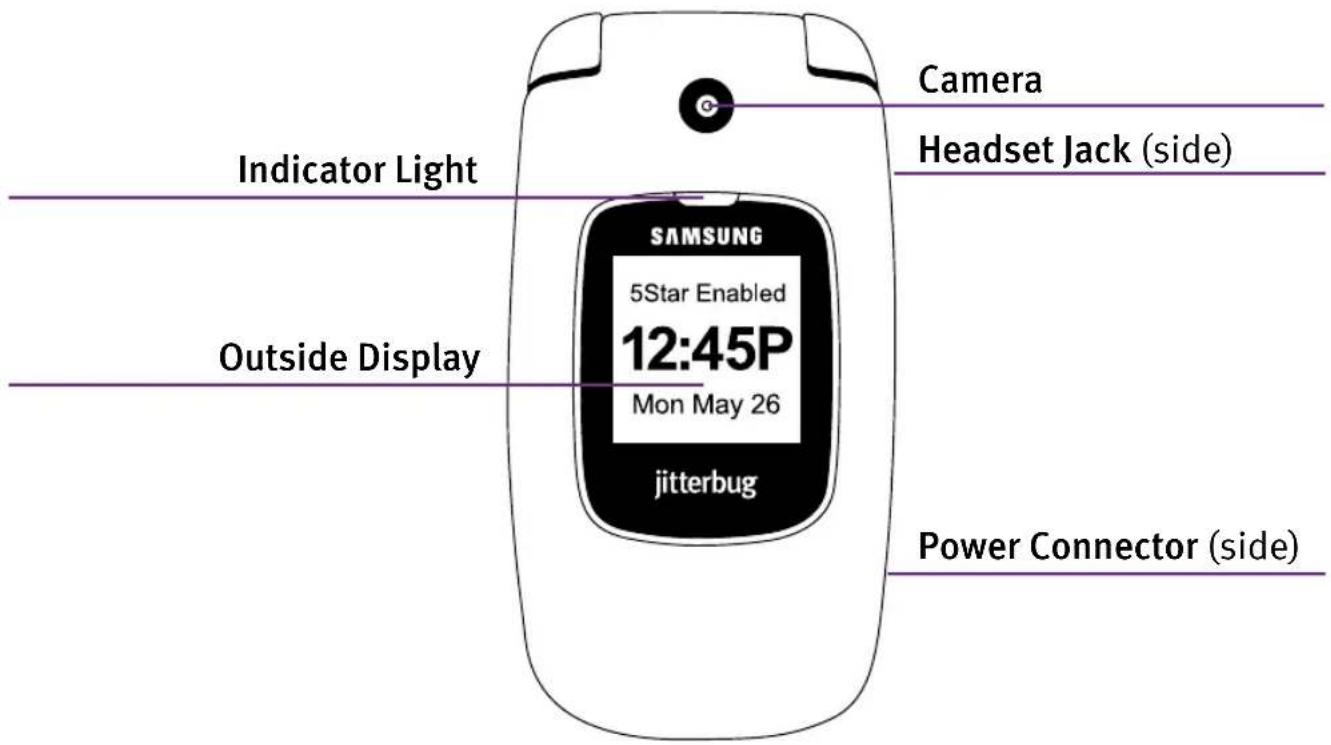
The Front Of Your Jitterbug
2 Quick-Start Guide
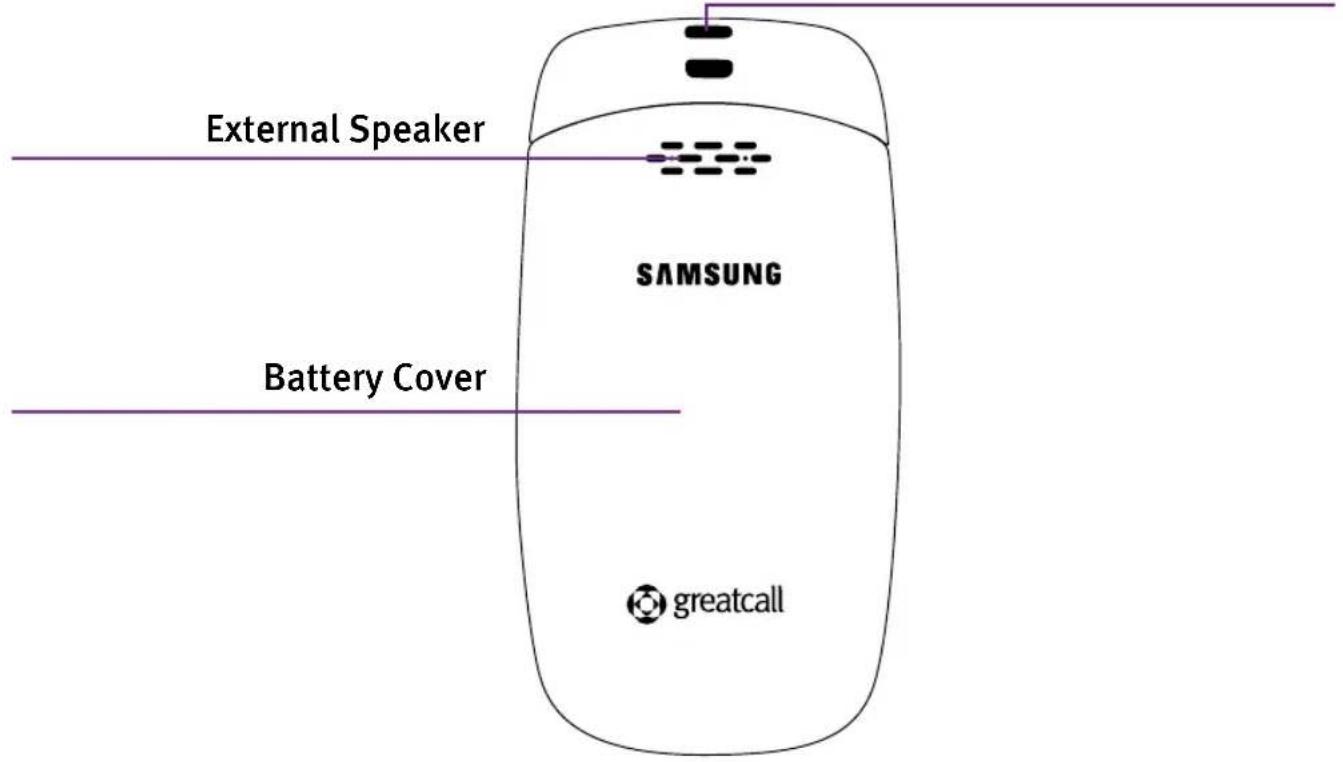
The Back Of Your Jitterbug
Lanyard Connector
Quick-Start Guide 3
The Inside Of Your Jitterbug
Earpiece Speaker
Up/Down Button
5Star Button
"YES" Button
Volume Button
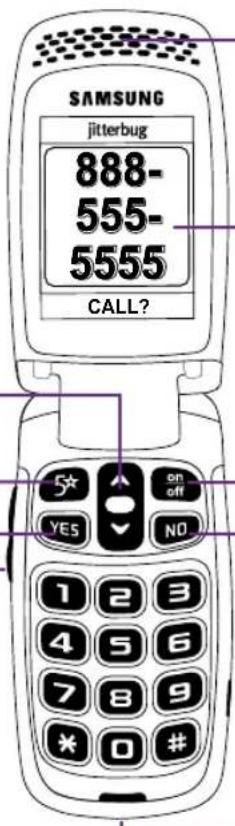
Inside Display
On/Off Button
"NO" Button
Microphone
4 Quick-Start Guide
Activating Your Jitterbug
IMPORTANT!
Please do not turn on your phone until instructed to do so. If you turn it on prior to setting up your account, the device may fail to activate. If the device fails to activate, power off and start with step 1.
For your convenience, the battery has been pre-installed in your Jitterbug phone.
Plug the large end of the Wall Charger into a standard wall outlet (110/220 VAC), and plug the smaller end into the Power Connector on the side of your Jitterbug phone. The Outside Display will indicate that the battery is charging.
To ensure that your Jitterbug phone is activated successfully, it is important that you follow these simple steps when activating.
- If you purchased your Jitterbug phone directly from GreatCall by phone or on greatcall.com, please skip to step ③. Otherwise, proceed to step ①
Quick-Start Guide 5
1 Gather The Required Information.

Home and billing address

Phone number

Email address

Credit or debit card information

Emergency contact details
The 18-digit Serial Number found on the side of your Jitterbug box, or on the Activation Card you received inside the Jitterbug box.
MEID-DEC: 123456789012345678
2 Go Online Or Call To Set Up Your Account.

If you do not have a GreatCall account, visit us online at www.greatcall.com/activate. There you can enter your Jitterbug Serial Number and follow the instructions to set up your account. If you do not have Internet access, please call 1-866-482-1424.
- OR -

If you are an existing GreatCall customer and would like to replace, upgrade, or add a Jitterbug phone to your account, or need to activate more than one device, call us at 1-866-482-1424.
Quick-Start Guide 7
3 Turn On Your Jitterbug To Activate.
You can now open your Jitterbug and press the on-off button and the activation process will automatically begin.
This process may take a few minutes and you may notice the phone reboot several times. Once complete you will see a screen “Phone was set up successfully!”
Congratulations! Your Jiiterbug is now activated.
8 Quick-Start Guide
Making Your First Call:
- When you open your Jitterbug, you will hear a dial tone to indicate that service is available. If service is not available, there will be no dial tone and you will see “No Service” on the Inside Display.
- Dial the full ten-digit number using your keypad. You may be required to dial the number "1" first before placing a call in some areas.
- Press the YES button to place the call when you are finished dialing.
NOTE:
If you accidentally press a wrong button, press the NO button to back up and delete the last number.
Quick-Start Guide 9
Using The Phone Book To Make A Call
- Starting from the Main Screen, use the “Up/Down” button and press the YES button when “Phone Book” is highlighted in gray in the middle of the Inside Display.
- Press the "Up/Down" button to scroll through the contacts in your Phone Book.
- When you find the desired name and number, press the YES button to place the call. You will see "Calling..." on the Inside Display followed by "Connected."
10 Quick-Start Guide
Answering A Call
Your Jitterbug will ring or vibrate, depending on your Volume Setting, when you have an incoming call. To answer an incoming call when your Jitterbug is closed, simply open the phone to accept the call. To answer an incoming call when your Jitterbug is already open, press the YES button to accept the call.
Quick-Start Guide 11
Ending A Call
To end any active call, press the No Button or close your Jitterbug. You will see "Call Ended" on the Inside Display and Outside Display.
Adjusting The Earpiece Speaker Volume
While on an active call, press up or down on the Volume Button until the sound from the Earpiece Speaker reaches a comfortable level.
Adjusting The Ringer Volume
When the phone is open and not on an active call, press up or down on the Volume button to select the desired ringer volume. There are five options to choose from: Max, High, Medium, Low, and Vibrate.
12 Quick-Start Guide
The 5Star Button
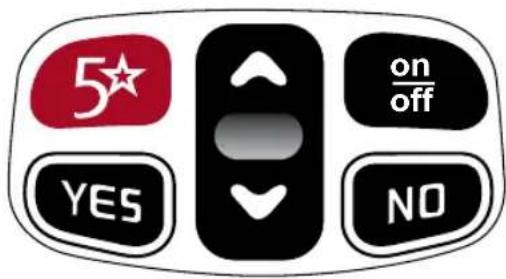
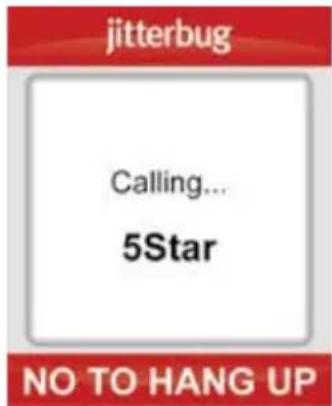
Customers with a GreatCall GoPlan have access to the 5Star Service. Simply press the red 5Star button to be connected to a 5Star Agent in an unsafe or uncertain situation. The 5Star Agent will assess the situation, confirm your location using GPS and connect you to emergency services if you need it. See the User Guide for more information on GoPlans, 5Star Service and GreatCall's suite of health and wellness services.
Quick-Start Guide 13
Calling Operator Assistance ^1
Live Operators are available 24/7 and can help you:
- Update and manage your Phone Book.
- Look up a residential, business or government phone number.
- Connect you to any number in the U.S. or Canada.
- Place calls to anyone in your Phone Book.
It's easy to call an Operator, just follow these three steps:
- Open your Jitterbug.
- Press the 📄 button on the keypad.
- Press the YES button to place the call.
14 Quick-Start Guide
Coverage and service are not available everywhere. Other charges and restrictions may apply. There are no additional fees to call GreatCall's 24-hour U.S. Based Customer Service. However, for calls to an Operator in which a service is completed, minutes will be deducted from your monthly balance equal to the length of the call and any call connected by the Operator, plus an additional 5 minutes, except on the GoPlan Unlimited rate plan. Copyright ©2014 GreatCall, Inc. GreatCall,® People You Can Count On,® 5Star,™ GreatCall GoPlan™ and GreatCall Link™ are trademarks of GreatCall, Inc. registered and/or pending in the United States and other countries. Copyright ©2014 Samsung Telecommunications America, LLC. Samsung is a registered trademark of Samsung Electronics Co., Ltd. Screen images simulated. Appearance of device may vary. Other marks are property of their respective owners and may be trademarks.
Model SCH-R220
www.greatcall.com
GH68-40856A
- Welcome to GreatCall!
- IMPORTANT!
- The Front Of Your Jitterbug
- The Inside Of Your Jitterbug
- Activating Your Jitterbug
- Gather The Required Information.
- Go Online Or Call To Set Up Your Account.
- Turn On Your Jitterbug To Activate.
- Making Your First Call:
- NOTE:
- Using The Phone Book To Make A Call
- Answering A Call
- Ending A Call
- Adjusting The Earpiece Speaker Volume
- Adjusting The Ringer Volume
- The 5Star Button
- Calling Operator Assistance 1
- Live Operators are available 24/7 and can help you:
- It's easy to call an Operator, just follow these three steps:
- Quick-Start Guide
Brand : GreatCall
Model : Jitterbug 5
Category : Smartphone