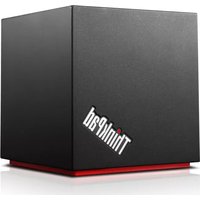
40A60045EU - Computer accessory LENOVO - Free user manual and instructions
Find the device manual for free 40A60045EU LENOVO in PDF.


| Product Type | Docking Station |
| Model | 40A60045EU |
| Brand | Lenovo |
| Dimensions (W x D x H) | 150 x 75 x 30 mm |
| Weight | 200 g |
| Power Supply | USB-C bus-powered |
| Input Interface | USB-C |
| Output Ports | 1x HDMI, 2x USB 3.0, 1x USB-C, 1x Ethernet (RJ-45), 1x 3.5mm audio combo |
| Maximum Display Resolution | 3840 x 2160 @ 30Hz |
| Charging Support | Up to 60W Power Delivery to laptop |
| Operating System Compatibility | Windows, Mac OS, Chrome OS |
| Maintenance & Cleaning | Wipe with a soft, dry cloth. Do not use liquid cleaners. |
| Safety Precautions | Keep away from liquids. Do not disassemble. Avoid extreme temperatures. |
| Spare Parts & Repairability | No user-serviceable parts. Contact Lenovo support for repairs. |
| General Information | Designed for Lenovo ThinkPad and select Lenovo laptops with USB-C. |
Frequently Asked Questions - 40A60045EU LENOVO
User questions about 40A60045EU LENOVO
0 question about this device. Answer the ones you know or ask your own.
Ask a new question about this device
Download the instructions for your Computer accessory in PDF format for free! Find your manual 40A60045EU - LENOVO and take your electronic device back in hand. On this page are published all the documents necessary for the use of your device. 40A60045EU by LENOVO.
USER MANUAL 40A60045EU LENOVO
FirstEdition(January2016)
©CopyrightLenovo2016.
LIMITEDANDRESTRICTEDRIGHTSNOTICE: If dataorsoftware is delivered pursuant to General Services Administration "GSA" contract, use, reproduction, or disclosure is subject to restrictions set forth in Contract No. GS-35F-05925.
Contents
Chapter1.Aboutthedock......1
Productdescription......1
Locatingconnectorsandcontrolsonthedock...2
Systemrequirements......3
Chapter2.Installingthedock.....5
Settingupthedock......5
Installingtherequiredsoftware......6
InstallingupdatepackagesthroughSystem
Update......6
Chapter3.UsingtheDock......9
Chapter4.Workingwiththedock..11
Importanttipsonworkingwiththedoc1..
Enteringavideooutputmode...1.1...
Settingtheresolutionoftheexternalmonit02..
Chapter5.Frequentlyasked questions....13
AppendixA.ServiceandSupport..17
Onlinetechnicalsupport.....17.
Telephonetechnicalsupport...17...
Accessibilityinformation.....17...
AppendixB.LenovoLimited
Warranty......19
Part1-GeneralTerms.19..
Part2-Country-specificTerms21..
Part3-WarrantyServiceInformation24..
FederalCommunicationsCommissionDeclaration of Conformity.....27...
AppendixD.Notices......37
Recyclinginformation.....37...
RecyclinginformationforChina37...
RecyclinginformationforBrazil..38..
ExportClassificationNotice38..
ImportantWEEEinformation.38..
Trademarks......38..
AppendixE.RestrictionofHazardous SubstancesDirective(RoHS).....41
EuropeanUnionRoHS.....41...
ChinaRoHS......41..
TurkishRoHS.....41...
UkraineRoHS......41...
IndiaRoHS.....42...
Chapter1.Aboutthedock
Thischaptercontainsproductdescription,connectorandcontrollocations,andsystemrequirementsfor theThinkPad ^® WiGigDock(hereaftercalleddock).
Productdescription
ThedockisbasedontheWirelessGigabit(WiGig)technology.Itisaportableexpansionmodulethat enablesyoutoeasilyconnectyournotebookcomputertotheEthernetandmultipledevices,suchasa DisplayPort® (DP)orHigh-DefinitionMultimedialInterface(HDMI ^® )monitor;aheadsetormicrophone;and UniversalSerialBus(USB)devices.ThedockprovidesthreeUSB3.0connectorsforhigherbandwidthand betterperformance,andtwoUSB2.0connectorsforcommonUSBdevices.ThedockalsosupportsGigabit Ethernetspeedwhenyouconnectittonetworks.
Youcansetupyourworkareabyconnectingyournotebookcomputertothedock,connectingmultiple deviceslothedock,andsettingthedockonyournotebookcomputer;then,youarereadytousethe multipledeviceseachtimeyouconnectyournotebookcomputertothedock.
Youroptionpackageincludesthefollowing:
- ThinkPadWiGigDock
- Poweradapter
•Powercord - Warrantyposter
Contact your place of purchase if any item is missing or damaged. Besuretoretain your proof of purchase and packing material. They might berequired to receive warranty service.
Locatingconnectorsandcontrolsonthedock
The following illustrations help you locate the connectors and control on the dock.
Frontview

StatusindicatorTheindicatointheThinkPadogshowsthestatusofhedock.
| IndicatoractivityDockstatus | |
| Breathingflash | Poweredon,butnotconnectedtothenotebookcomputer |
| QuickflashConnectingtothenotebookcomputer | |
| Redon | Connectedtothenotebookcomputer |
Sideview

1 SE2.0 connectorConnect devices that are compatible with USB2.0 such as USBmouse.
? SE2.0connectorConnectdevices that are compatible with USB2.0 such as USBkeyboard.
3 Audioconnector: Connectaheadset, amicrophone, oraspeaker.
Power/ConnectionbuttonTurnorturnoffedockTheindicatorthebuttonisgreeronwherthe dockispoweredon.Youcanalsopressthebuttonontoconfirmconnection.
5SB3.0connectorConnectUSBcompatibledevices that are compatible with USB3.0 such as aUSBstoragedevice. For faster and optimal datatransfer, ensure that you connect aUSB3.0 device to the USB3.0 connector.
MyIsOrUSB. connectorConnectUSB compatible devices charges some mobile digital devices and smartphones when the dock is not connected to then notebook computer or the dock is off with the power adapter connected.
Security-lockslot protect your dock from the ty you can use security cable locks such as Kensington-style cable lock, that fit this security-lockslottolock your dock to a desk, table, or other non-permanent fixture.
9acpowerconnector:Connecttheacpoweradapter.
10 HDMIconnector: Connectahigh-definitiontelevision.
11 PconnectorConnecthigh-performancemonitordirect-drivenmonitorothedevicesthatuse aDPconnector.
12 Ethernetconnector: ConnectthedocktoanEthernetLAN.
Bottomview

natural_image
Red rectangular object with black border and 'Timed Pad' label, marked with number 1 (no other text or symbols)i eseholet your dock stops responding after firmware updates on the operations hold down the power button form more than four second stoturnoff the dock. Insert a straightened paper clip into the reset hole and power on the dock to reset the dock.
Systemrequirements
Beforeusingthedock,ensurethatyournotebookcomputermeetsthefollowingrequirements.
Operatingsystem:
- Microsoft ^ Windows ^ 7
- MicrosoftWindows8.1
- MicrosoftWindows10
Hardware:Intel ^® WiGigcard
Software:IntelWirelessDockManagerprogram,IntelWirelessGigabitdriver,ThinkPadWiGigDockaudio driver,andThinkPadWiGigDockEthernetdriver
Chapter2.Installingthedock
Thischapterprovidesinstructionsonhowtosetupthedock, manuallyinstalltherequiredsoftware, and installupdatepackagesthroughtheSystemUpdateprogram.
Settingupthedock
Tosetupthedock,dothefollowing:
- Connect the power cord to the ac power adapter.
- Connect the ac power adapter to the power connector of the dock.
- Connect the power cord to an electrical outlet.

-
Turnonthedockbypassingthepowerbutton.
-
If an external display is available, connect the external monitor to the appropriate connector (HDMI or DPconnector) on the dock. The external monitor shows some wireless pairing instructions when you connect your notebook computer to the dock.
-
Position your notebook computer closetothedock, within 1.8m(6ft). The dockals must be with a 120-degree sector region relatively to the rear of the notebook computer display.
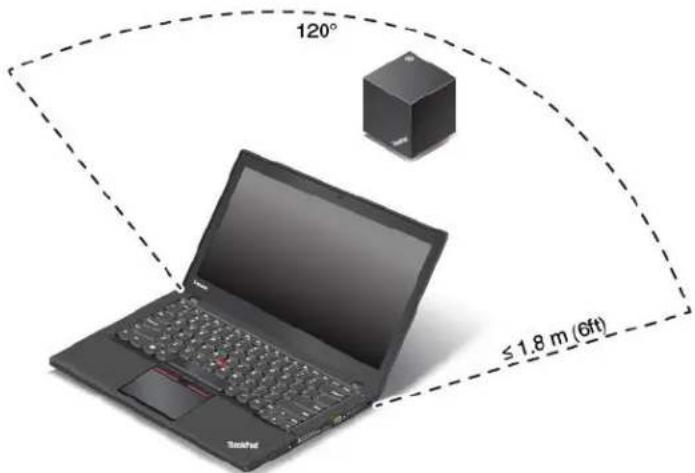
Note: Ensure that no objects are between the dock and then notebook computer.
Installingtherequiredsoftware
Beforeusingthedock,ensurethatyournotebookcomputerisinstalledwiththeIntelWirelessDockManager program,IntelWirelessGigabitdriver,andtheaudioandEthernetdriverforthedock.
For LenovonotebookcomputermodelspreinstalledwiththeIntelWirelessDockManagerprogram,the requireddriversalsoarepreinstalled.Inthissituation,thedockisreadyforuseafteryousuccessfully connectittoanacpowersourceandyournotebookcomputer.Fordetailedcomputermodelinformation, gotohttp://support.lenovo.com/docs/wigigdock.
ForthenotebookcomputermodelswithouttheIntelWirelessDockManagerprogram,youcandownload theprogrampackage(onepackageforboththeprogramandtheIntelWirelessGigabitdriver)at http://support.lenovo.comTypeyoucomputemodelintheEnteproductnamefieldcdgtheWeb pageforyourcomputer.FollowtheinstructionsontheWebpagetolocate,download,andinstallthe program.
Note: If your notebook computer is not installed with the Intel WiGigcard, the system might prompt that WiGig device is not installed when you install the Intel Wireless Dock Manager program.
ThelatestaudioandEthernetdriverforthedockalsoisavailablefordownloadfromtheLenovoWebsite. Gotohttp://support.lenovo.com/docs/wigigdock,anddownloadthedriverinstallationfile.Thenfollowthe instructionsonthescreentoinstallthedevicedriver.
InstallingupdatepackagesthroughSystemUpdate
TheSystemUpdateprogram(preinstalledonsomenotebookcomputers)enablesyoutokeepthesoftware onyourcomputerup-to-date.Youcaneasilydownloadandinstallvarioussystemupdatepackagesthrough SystemUpdate,includingupdatesforthedockdriverandfirmware.
ToinstallupdatepackagesforthedockthroughSystemUpdate,dothefollowing:
FortheWindows7operatingsystem:
1ClickStartandsearchSystemUpdaterthesearchbox.
- LaunchSystemUpdateonthescreen.
3.ClickGetnewupdates.
4SelectnteWirelessGigabitDriverDriversfThinkPadWiGiglocksThinkPadWiGiglocksSynapticFirmwarepThinkPadWiGiglocksVIAfirmware.
5. Follow the instructions on the screent o complet the installation.
FortheWindows8.1operatingsystem:
1ClickStart and click the arrow width bottom-left corner of the screen to the Appscreen.
- LaunchSystemUpdateontheAppsscreen.
3.ClickGetnewupdates.
4SelectnteWirelessGigabitdriverDriversfThinkPadWiGiglocksThinkPadWiGiglocksSynapticFirmwareoThinkPadWiGiglocksVIAfirmware. - Follow the instructions on the screent o complet the installation.
FortheWindows10operatingsystem:
- From the desktop, search Lenovo Companion in these search box on the task bar.
- Launch Lenovo Companion on the screen.
3ClickSYSTEMUPDATEandclickCheckfonewupdates.
4SelectnteWirelessGigabitDriverDriversfThinkPadWiGiglocksThinkPadWiGiglocksSynapticFirmwareoThinkPadWiGiglocksVIAfirmware. - Follow the instructions on the screent to complete the installation.
If the SystemUpdateprogram is not preinstalled on your computer, goto http://support.lenovo.com. Type you compute model the Ente producham field to the Web page for your computer Follow the instructions on the Web page to locate, download, and install the SystemUpdate program.
Chapter3. UsingtheDock
Thissectionintroduceshowtouseandmanagethedock.
ConnectingtotheDock
Toconnectyourcomputertothedock,dothefollowing:
-
After the setup and preparation, turn on your computer and the dock. Thendo the following:
FoWindows60Windows8.1ClickStarbtheaskbarsearchandherclickstarthe IntelWirelessDockManagerprogram.Followinstructionsonscreentoconnectthedocktoyour notebookcomputer.
FoWindows10ClicktheactioncentertaskbarClickConnect. -
Select your dock from the list of available devices.
Note: The default dock name is the combination of "ThinkPadWiGigDock" and the last four digital numbers of the WiGigMAContheproductlabel.
- When prompted, press the power/connection button on the dock to confirm the pairing for the first connection.

natural_image
Hand placing a small circular mark onto a black cube labeled 'ThinkPad' (no other text or symbols)- Follow the instructions on the screent to complete the connection.
Afterestablishingtheinitialconnection,youcanselecttoconnecttothedockautomaticallysothat whenever the computer comes within there required range, it will automatically get connected to the dock.
Note: If the dock has not been connected before, updatethedock driver when prompted.
DisconnectingfromtheDock
Todisconnectyourcomputerfromthedock,dothefollowing:
1.Dothefollowing:
FoWindows?ClickStarbrtheaskbarsearchandherclickstarthenteWirelessDock Managerprogram.Followinstructionsonscreentoconnectthedocktoyournotebookcomputer.
For Windows Click action center, the taskbarClickConnectopen the devicelist.
- LocatetheThinkPadWiGigDockandclickDisconnect.
- Holddown the power button on the dock for several seconds until the dock is turned off.
Managingthedock
The Intel Wireless Dock Manager program enables you to manage the dock. You can change the name of the dock, can get a radio channel to optimize the signal strength, and set up password to manage the dock settings.
Tomanagethedock, dothefollowing:
1ClickStarbrtheaskbarsearchandhenclickstarthenteWirelessDocManageprogram preinstalledinyourcomputer.
2.ClickDockManagement.
3. Follow the instructions on the screento configure these settings as desired.
Chapter4.Workingwiththedock
Thischapterprovidesinformationaboutthevideooutputfunctionofthedockandinstructionsonhowtoconfigurethedocktoyourneeds.
Videooutputmodes
Thedockworksinthefollowingtwovideooutputmodes:
- Extendmode
Thismodeextendsyourdesktopfromyournotebookcomputertotheexternalmonitor.Inextendmode, youcandraganddropwindowsfromonedisplaytotheother.
- Clonemode
Thismodeclonesyournotebookcomputerscreentotheexternalmonitor.
Importanttipsonworkingwiththedock
Beforeworkingwiththedock,observethefollowingtips:
- Toenteravideooutputmodeandadjusttheexternal-displayresolution,right-clickanywhereonthe desktopandselectGraphicsoptionsFordetailedinformationgdo"Enteringvideoutputmode"onpage11and"Settingtheresolutionoftheexternalmonitor"onpage12.
- Themaximumresolutionthedocksupportsis2560x1600pixels(60Hz)whenconnectedtoonemonitor, and1920x1200pixels(60Hz)whenconnectedtotwomonitors.
- When your notebook computer is connected to two external monitors at the same time:
SituationOnemonitorsconnectedtheHDMconnectorofthenotebookcomputerandotherisconnectedtotheHDMIconnectorofthedock.
Result: Yournotebookcomputerdesktoppisdisplayedonthemonitorconnectedtothenotebook computer.
SituationOnemonitorsconnectedtheconnectofwiredlock(suchasThinkPadOneLink+Dock),andtheotherisconnectedtotheconnectorofthewirelessThinkPadWiGigDock.
Result: Yournotebookcomputerdesktopisdisplayonthemonitorconnectedtoawireddock.
- Thenotebookcomputercansupportatmosttwoexternalmonitors,includingthemonitorconnectedto thenotebookcomputer,thewireddock,andthewirelessThinkPadWiGigDock.
Enteringavideooutputmode
Thissectionprovidesinstructionsonhowtoenteryourpreferredvideooutputmode.
Toenterextendorclonemode,dothefollowing:
- Right-clickanywhereonthedesktop.
2SelecGraphicsoptionsOutputTo.
SelectExtendedDesktopextendounotebookcomputedisplayarexternamonitor.
SelectExtendedDesktop&extendounotebookcomputerdisplaydwexternamonitors.
SelectCloneDisplaycloneounotebookcomputerdisplayarexternamonitor.
SelectCloneDisplays3cloneyounotebookcomputerdisplaydwoexternahonitors.
Settingtheresolutionoftheexternalmonitor
Thedockenablesyoutosettheresolutionoftheexternalmonitor.
Tosettheresolutionoftheexternalmonitor,dothefollowing:
- Right-clickanywhereonthedesktop.
2SelectGraphicsOptions-Resolution-DigitalDisplay-DigitalDisplay2selectmonitor resolutionyouwanttoadjust. - Follow the instructions on the screent o completethesetting.
Chapter5.Frequentlyaskedquestions
The following area a few tip that will help you optimize the use of the dock.
Whatisthefunctionofthepower/connectionbuttonthedock?
•Pressthebuttontopoweronthedock.
- Pressthebuttonontoconfirmthefirstconnectiontothenotebookcomputer.
- Pressthebuttontowakeuptheextendedmonitorwhenthedockisnotconnectedtothenotebook computerformorethanthreeminutes.
- Pressthebuttontomakethesystementersleepmodewhenthedockisconnectedandthenotebook computerisworking.
- Pressthebuttontowakeupthesystemfromsleepmodeorhibernationmodewhenthedockis connected. Youalsocanmovethemouseorpressanykeyonthekeyboardtowakeupthesystem.
- Pressandholdthebuttonformorethanfoursecondstopoweroffthedock.
- Pressandholdthebuttonfortwotofoursecondstodisplaythediagnosticinformationabouttheexternal monitorwhenthedockisnotconnectedtothenotebookcomputer.
Note: You also can movethemouse or press any key on the keyboard to wake up then notebook computer from sleep mode or hibernation mode.
Wherecanlpositionthedock?
Themaximumdistancebetweenthenotebookcomputerandthedockisasfollows:
•Tabletmode:within0.9m(3ft)
- Computerdisplayclosedandexternalkeyboardandmonitorconnected:within0.9m(3ft)
•Othersituations:within1.8m(6ft)
Positionyourdockwithina120-degreesectorregionrelativelytotherearofthenotebookcomputerdisplay.
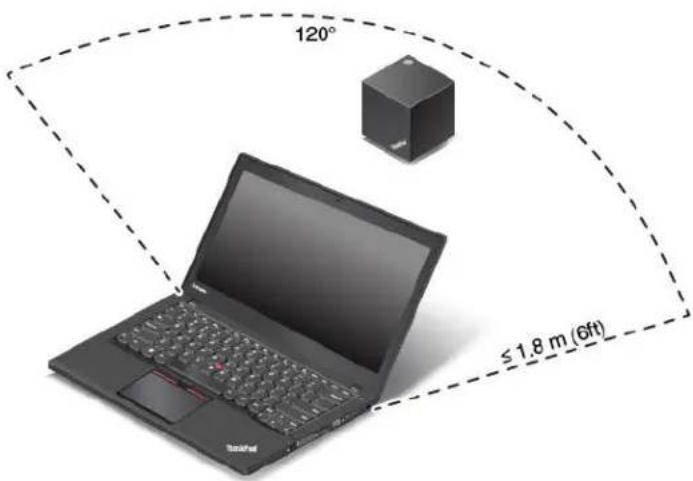
It is recommended that you position the dock in the 130-degree sector region as shown for better performance.

CanImovemynotebookcomputerwhenitisconnectedtothedock?
Yes! recommended that you move your notebook computer within 90-degree sector region. Ensure that your notebook computer display is placed toward the front view (with the ThinkPadLogo) of the dock. When you move your notebook computer to region the wireless, can be comes weak and might result in unstable connection. When you move your notebook computer to region 3 your notebook computer might not connect to the dock.
Note: The degrees are relative to the central axis line of your notebook computer.

CanImovethedockwhenitisconnectedtomynotebookcomputer?
Yes! recommended that you move you dock within 20-degree setoregio Ensure that hafront view (with the ThinkPad logo) of the dock is placed towards your notebook computer display. When you movethedocktoregion 2 the wireless signal becomes weak and might result in unstable connection. When you move you dock to region you not yet o lcomputer might be connected the dock.

flowchart
graph TD
    A["Device 1"] -->|90°| B["Device 2"]
    C["Device 3"] -->|90°| D["Laptop"]
    style A fill:#f9f,stroke:#333
    style B fill:#ccf,stroke:#333
    style C fill:#cfc,stroke:#333
    style D fill:#fcc,stroke:#333
CanIplaceanyobjectsbetweenhedockandthenotebookcomputer?
No, donotplace any object between the dock and then notebook computer to ensure better performance. The WiGig technology is based on 60 GHz wireless signal that is easily affected by the blocking objects.
WhenltransferdatawithaflashdrivethroughtheUSB3.0connectoronthedock,Ifinditisslower thanthatonthenotebookcomputer.HowcanIdealwithit?
ThebandwidthofthedockislessthanthatoftheUSB3.0technology.Theusageofthevideoconnector, audioconnector,USBconnector,andEthernetconnectoroccupiesthebandwidthofthedock.Forfaster datatransfer,itisrecommendedtousetheUSB3.0connectororyournotebookcomputer.
Whycan'tladjusttheexternalmonitorresolutionfromtheWindowsscreenresolutionoption?
When you adjust the monitor resolution from the Window screen resolution option, it might not take effect immediately. It is recommended that your right-click any where on the desktop and select Graphics options → Resolution to adjust the resolution.
Whydoestheexternalmonitorbecomeblankscreenwhenthedockisnotconnectedtothenotebook computerforseveralminutes?
Itisapower-savingfunctionofthedock.Pressthepower/connectionbuttononthedocktowakeupthe externalmonitor.
IftheEthernetcableisconnectedtotheEthernetconnectoronthedock,mynotebookcomputer cannotberemotecontrolledorwakenup.HowcanIdealwithit?
ConnecttheEthernetcabletotheEthernetconnectoronthenotebookcomputer.
Whycanavideobeplayedonmynotebookcomputerbutcan'tbeplayedontheexternalmonitor?
If your video has High-bandwidth Digital Content Protection (HDCP), the dock cannot support the playing of the HDCP video. You can play the video on your notebook computer. You also can extend to an external monitor through the video output connector (including HDMI, Mini DP, or DP connector) on your notebook computer. The external monitor should support HDCP as well.
Whycan'tmyultra-high-definitiontelevision(4Ktelevision)connectedtothedockreachitsmaximumresolutionof3840x2160pixels?
Themaximumresolutionthedocksupportsis2560x1600pixels.
Whycan'tmy4Ktelevisionconnectedtothedockreachtheresolutionof2560x1600pixels?
Your4Ktelevisionmightnotsupporttheresolutionof2560x1600pixels.Forinformationaboutthe supportedresolutionsofthe4Ktelevision,refertothetelevisionusermanualorcontactthetelevision servicetechnicians.
Mynotebookcomputerisdisconnectedfromthedockwhensomeonepassesthroughthespace betweenmynotebookcomputeranddock.Howdoldealwithit?
Ensure that no objects are between the notebook computer and the dock. Otherwise, it will result in the disconnection from the dock.
AppendixA.ServiceandSupport
The following information describes the technical support that is available for your product, during the warranty period throughout the life of your product. Referto the Lenovo Limited Warranty for a full explanation of Lenovowarranty terms.
Onlinetechnicalsupport
Onlinetechnicalsupportisavailableduringthelifetimeofaproductat: http://www.lenovo.com/support
Productreplacementassistanceorexchangeofdefectivecomponentsalsoisavailableduringthewarranty period.Inaddition,ifyuroptionisinstalledinaLenovocomputer,youmightbeentitledtoserviceatyour location.ALenovotechnicalsupportrepresentativecanhelpyoudeterminethebestalternative.
Telephonetechnicalsupport
InstallationandconfigurationsupportthroughtheCustomerSupportCenterwillbeavailableuntil90days aftertheoptionhasbeenwithdrawnfrommarketing.Afterthattime,thesupportiscanceled,ormade availableforafee,atLenovo'sdiscretion.Additionalsupportisalsoavailableforanominalfee.
BeforecontactingaLenovotechnicalsupportrepresentative,pleasehavethefollowinginformationavailable: optionnameandnumber,proofofpurchase,computermanufacturer,model,serialnumberandmanual, theexactwordingofanyerrormessage,descriptionoftheproblem,andthehardwareandsoftware configurationinformationforyoursystem.
Your technical support represents a very might walk by a way through the problem while you are at your computer during the call.
Telephonenumbersaresubjecttochangewithoutnotice. Themostup-to-datetelephonelistforLenovo Supportisalwaysavailableathttp://www.lenovo.com/support/phone.Ifthetelephonenumberforyour countryorregionisnotlisted,contactyourLenovoresellerorLenovomarketingrepresentative.
Accessibilityinformation
Documentationinaccessibleformats
Lenovoprovideselectronicdocumentationinaccessibleformats,suchasproperlytaggedPDFfilesor HyperTextMarkupLanguage(HTML)files.Lenovoelectronicdocumentationisdevelopedtoensure thatvisuallyimpaireduserscanreadthedocumentationthroughascreenreader.Eachimageinthe documentationalsoincludesadequatealternativetexttoexplaintheimagesothatvisuallyimpairedusers canunderstandtheimagewhentheyuseascreenreader.
ToopenandviewPDFfiles,yourcomputermusthavetheAdobeReaderprograminstalled.TheAdobe Readerprogramalsoisavailablefordownloadat: http://www.adobe.com
AppendixB.LenovoLimitedWarranty
L505-0010-0208/2011
ThisLenovoLimitedWarrantyconsistsofthefollowingparts:
Part1-GeneralTerms
Part2-Country-specificTerms
Part3-WarrantyServiceInformation
The terms: Part2 replace modify terms: Part1 as specified for particular country.
Part1-GeneralTerms
ThisLenovoLimitedWarrantyappliesonlytoLenovohardwareproductsyoupurchasedforyouwnuseand notforresale. ThisLenovoLimitedWarrantyisavailableinotherlanguagesatwww.lenovo.com/warranty.
WhatthisWarrantyCovers
LenovowarrantsthateachLenovohardwareproductthatyoupurchaseisfreefromdefectsinmaterialsand workmanshipundernormaluseduringthewarrantyperiod. Thewarrantyperiodfortheproductstartson theoriginaldateofpurchaseasshownonyoursalesreceptorinvoiceorasmaybeotherwisespecified by Lenovo. Thewarrantyperiodandtypeofwarrantyservicethatapplytoyourproductareasspecified in'Par&WarrantyServicdInformationbelowThiswarrantyonlyappliesproductsirthecountry orregionofpurchase.
THISWARRANTYISYOUREXCLUSIVEWARRANTYANDREPLACESALLOTHERWARRANTIES ORCONDITIONS, EXPRESSORIMPLIED, INCLUDING, BUTNOTLIMITEDTO, ANYIMPLIED WARRANTIESORCONDITIONSOFMERCHANTABILITYORFITNESSFORAPARTICULARPURPOSE. ASSOMESTATESORJURISDICTIONSDONOTALLOWTHEEXCLUSIONOFEXPRESSOR IMPLIED WARRANTIES, THEABOVEEXCLUSIONMAYNOTAPPL YTOYOU.INTHATEVENT ,SUCH WARRANTIESAPPL YONL YTOTHEEXTENTANDFORSUCHDURATIONASREQUIREDBYLAWAND ARELIMITEDINDURATIONTOTHEWARRANTYPERIOD.ASSOMESTATESORJURISDICTIONSDO NOTALLOWLIMITATIONSONTHEDURATIONOFANIMPLIEDWARRANTY, THEABOVELIMITATION ONDURATIONMAYNOTAPPL YTOYOU.
HowtoObtainWarrantyService
If the product does not function as warranted during the warranty period, you may obtain warranty service by contacting Lenovoora Lenovo-approved Service Provider. A list of approved Service Providers and their telephonenumber is available at: www.lenovo.com/support/phone.
Warrantyservicemaynotbeavailableinalllocationsandmaydifferfromlocationtolocation.Chargesmay applyoutsideaServiceProvider'snormalservicearea.ContactalocalServiceProviderforinformation specifictoyourlocation.
CustomerResponsibilitiesforWarrantyService
Beforewarrantyserviceisprovided,youmusttakethefollowingsteps:
- followtheservicerequestproceduresspecifiedbytheServiceProvider;
- backuporsecureallprogramsanddatacontainedintheproduct;
- providetheServiceProviderwithallsystemkeysorpasswords;
•providetheServiceProviderwithsufficient,free,andsafeaccesstoyourfacilitiestoperformservice; - removealldata,includingconfidentialinformation,proprietaryinformationandpersonalinformation,from theproductor,ifyouareunabletoremoveanysuchinformation,modifytheinformationtopreventits accessbyanotherpartyorsothatitisnotpersonaldataunderapplicablelaw.TheServiceProvidershall notberesponsibleforthelossordisclosureofanydata,includingconfidentialinformation,proprietary information,orpersonalinformation,onaproductreturnedoraccessedforwarrantyservice;
- removeallfeatures,parts,options,alterations,andattachmentsnotcoveredbythewarranty;
- ensure that the product or part is free of any legal restriction that prevents replacement;
- ifyouarenottheownerofaproductorpart,obtainauthorizationfromtheownerfortheServiceProvider toprovidewarrantyservice.
WhatYourServiceProviderWillDotoCorrectProblems
When you contact a Service Provider, you must follow the specified problem determination and resolution procedures.
TheServiceProviderwillattempttodiagnoseandresolveyourproblembytelephone,e-mailorremote assistance.TheServiceProvidermaydirectyoutodownloadandinstalldesignatedsoftwareupdates.
Someproblemsmayberesolvedwithareplacementpartthatyouinstallyourselfcalleda"Customer ReplaceableUnit"or"CRU."Ifso,theServiceProviderwillshiptheCRUtoyouforyoutoinstall.
If your problem cannot be resolved over the telephone; through the application of software updates or the installation of a CRU, the Service Provider will arrange for service under the type of warranty service designated for the product under "Part3-Warranty Service Information" below.
If the Service Provider determines that it is unable to repair your product, the Service Provider will replace it with one that is at least functionally equivalent.
If the Service Provider determines that it is unable to either repair or replace your product, your sole remedy under this Limited Warranty is to return the product to your place of purchase to Lenovo for refund of your purchase price.
ReplacementProductsandParts
When warranty service involves thereplacement of a product part, thereplaced product part becomes Lenovo's property and thereplacement product part becomes your property. Only unaltered Lenovo products and parts are eligible for replacement. Thereplacement product part provided by Lenovo may not be new, but it will being good working order and least functionally equivalent to the original product part. Thereplacement product part shall be warranted for the balance of the period remaining on the original product.
UseofPersonalContactInformation
If you obtain service under this warranty, you authorize Lenovotostore, use and process information about your warranty service and your contact information, including name, phonenumbers, address, and e-mail address. Lenovomayusethisinformation to perform service under this warranty. Wemaycontact youto inquire about your satisfaction with our warranty service on to notify you about any product recalls safety issues. In accomplishing these purposes, you authorize Lenovototransferyourinformation to any country where wedobusiness and to provide it to entities acting on our behalf. Wemayalsodiscloseitwhere required by law. Lenovo's privacy policy is available at www.lenovo.com/.
WhatthisWarrantyDoesnotCover
Thiswarrantydoesnotcoverthefollowing:
- uninterruptederror-freeoperationofaproduct;
- lossof, ordamageto, yourdatabyaproduct;
- anysoftwareprograms,whetherprovidedwiththeproductorinstalledsubsequently;
- failureordamageresultingfrommisuse,abuse,accident,modification,unsuitablephysicaloroperating environment,naturaldisasters,powersurges,impropermaintenance,orusenotinaccordancewith productinformationmaterials;
- damagecausedbyanon-authorizedserviceprovider;
- failureof,ordamagecausedby,anythirdpartyproducts,includingthosethatLenovomayproviderintegrateintotheLenovoproductatyourrequest;
- anytechnicalorthersupport,suchasassistancewith“how-to”questionsandthoseregardingproduct set-upandinstallation;
- productsorpartswithanalteredidentificationlabelorfromwhichtheidentificationlabelhasbeen removed.
LimitationofLiability
LenovoisresponsibleforlossordamagetoyourproductonlywhileitisintheServiceProvider'spossession orintransit,iftheServiceProviderisresponsibleforthetransportation.
Neither LenovonortheServiceProvider is responsible for loss or disclosure of any data, including confidential information, proprietary information, or personal information, contained in a product.
UNDERNOCIRCUMSTANCES,ANDNOTWITHSTANDINGTHEFAILUREOFESSENTIALPURPOSE OFANYREMEDYSETFORTHHEREIN,SHALLLENOVO,ITSAFFILIATES,SUPPLIERS,RESELLERS, ORSERVICEPROVIDERSBELIABLEFORANYOFTHEFOLLOWINGEVENIFINFORMEDOFTHEIR POSSIBILITYANDREGARDLESSOFWHETHERTHECLAIMISBASEDINCONTRACT,WARRANTY, NEGLIGENCE,STRICTLIABILITYOROTHERTHEORYOFLIABILITY:1)THIRDPARTYCLAIMS AGAINSTYOUFORDAMAGES;2)LOSS,DAMAGEORDISCLOSUREOFYOURDATA;3)SPECIAL, INCIDENTAL,PUNITIVE,INDIRECTORCONSEQUENTIALDAMAGES,INCLUDINGBUTNOTLIMITED TOLOSTPROFITS,BUSINESSREVENUE,GOODWILLORANTICIPATEDSAVINGS.INNOCASE SHALLTHETOTALLIABILITYOFLENOVO,ITSAFFILIATESS,SUPPLIERS,RESELLERSORSERVICE PROVIDERSFORDAMAGESFROMANYCAUSEEXCEEDTHEAMOUNTOFACTUALDIRECT DAMAGES,NOTTOEXCEEDTHEAMOUNTPAIDFORTHEPRODUCT.
THEFOREGOINGLIMITATIONSDONOTAPPL YTODAMAGESFORBODIL YINJURY(INCLUDING DEATH), DAMAGETOREALPROPERTYORDAMAGETOTANGIBLEPERSONALPROPERTYFOR WHICHLENOVOISLIABLEUNDERLAW.ASSOMESTATESORJURISDICTIONSDONOTALLOW THEEXCLUSIONORLIMITATIONOFINCIDENTALORCONSEQUENTIALDAMAGES, THEABOVE LIMITATIONOREXCLUSIONMAYNOTAPPL YTOYOU.
YourOtherRights
THISWARRANTYGIVESYOUSPECIFICLEGALRIGHTS.YOUMAYHAVEOTHERRIGHTS ACCORDINGTOTHEAPPLICABLELAWSOFYOURSTATEORJURISDICTION.YOUMAYALSO HAVEOTHERRIGHTSUNDERAWRITTENAGREEMENTWITHLENOVO.NOTHINGINTHIS WARRANTYAFFECTSSTATUTORYRIGHTS,INCLUDINGRIGHTSOFCONSUMERSUNDERLAWS ORREGULATIONSGOVERNINGTHESALEOFCONSUMERGOODSTHATCANNOTBEWAIVED ORLIMITEDBYCONTRACT.
Part2-Country-specificTerms
Australia
"Lenovo" means Lenovo (Australia & New Zealand) Pty Limited ABN70112394411. Address: Level 10, North Tower, 1-5 Railway Street, Chatswood, NSW, 2067. Telephone: +61280038200. Email: lensyd_au@lenovo.com
The followingreplacesthesamesectioninPart1:
WhatthisWarrantyCovers:
Lenovowarrantsthateachhardwareproductthatyoupurchaseisfreefromdefectsinmaterialsand workmanshipundernormaluseandconditionsduringthewarrantyperiod.Iftheproductfailsduetoa covereddefectduringthewarrantyperiod,LenovowillprovideyouaremedyunderthisLimitedWarranty. Thewarrantyperiodfortheproductstartsontheoriginaldateofpurchasesspecifiedonyoursalesreceptor invoiceunlessLenovoinformsyouotherwiseinwriting. Thewarrantyperiodandtypeofwarrantyservice thatapplyyouproductarseforthbelowPar&WarrantyServiceInformation.
THEBENEFITSGIVENBYTHISWARRANTYAREINADDITIONTOYOURRIGHTSANDREMEDIESAT LAW, INCLUDINGTHOSEUNDERTHEAUSTRALIANCONSUMERLAW.
The followingreplacesthesamesectioninPart1:
ReplacementProductsandParts:
Whenwarrantyserviceinvolvesthereplacementofaproductorpart,thereplacedproductpartbecomes Lenovo'spropertyandthereplacementproductorpartbecomesyourproperty.OnlyunalteredLenovo productsandpartsareeligibleforreplacement.ThereplacementproductorpartprovidedbyLenovomay notbenew,butwillbeingoodworkingorderandatleastfunctionallyequivalenttotheoriginalproduct part.Thereplacementproductorpartshallbewarrantedforthebalanceoftheperiodremainingonthe originalproduct.Productsandpartspresentedforrepairmaybereplacedbyrefurbishedproductsorparts ofthesametyperatherthanbeingrepaired.Refurbishedpartsmaybeusedtorepairtheproduct;andrepair oftheproductmayresultinlossofdata,iftheproductiscapableofretaininguser-generateddata.
The following is added to the same section in Part 1:
UseofPersonalContactInformation:
Lenovowillnotbeabletoperformourserviceunderthiswarrantyifyourefusetoprovideyourinformation ordonotwishustotransferyourinformationtoouragentorcontractor.Youhavetherighttoaccess yourpersonalcontactinformationandrequestcorrectionofanyerrorsinitpursuanttothePrivacyAct 1988bycontactingLenovo.
The followingreplacesthesamesectioninPart1:
LimitationofLiability:
LenovoisresponsibleforlossordamagetoyourproductonlywhileitisintheServiceProvider'spossession orintransit,iftheServiceProviderisresponsibleforthetransportation.
Neither Lenovon or the Service Provider is responsible for loss or disclosure of any data, including confidential information, proprietary information, or personal information, contained in a product.
TOTHEEXTENTPERMITTEDBYLAW,UNDERNOCIRCUMSTANCESANDNOTWITHSTANDING THEFAILUREOFESSENTIALPURPOSEOFANYREMEDYSETFORTHHEREIN,SHALLLENOVO, ITSAFFILIATES,SUPPLIERS,RESELLERS,ORSERVICEPROVIDERSBELIABLEFORANYOFTHE FOLLOWINGEVENIFINFORMEDOFTHEIRPOSSIBILITYANDREGARDLESSOFWHETHERTHE CLAIMISBASEDINCONTRACT ,WARRANTY,NEGLIGENCE,STRICTLIABILITYOROTHERTHEORY
OFLIABILITY:1)THIRDPARTYCLAIMSAGAINSTYOUFORDAMAGES;2)LOSS,DAMAGEOR DISCLOSUREOFYOURDATA;3)SPECIAL,INCIDENTAL,PUNITIVE,INDIRECTORCONSEQUENTIAL DAMAGES,INCLUDINGBUTNOTLIMITEDTOLOSTPROFITS,BUSINESSREVENUE,GOODWILLOR ANTICIPATEDSAVINGS.INNOCASESHALLTHETOTALLIABILITYOFLENOVO,ITSAFFILIATESS, SUPPLIERS,RESELLERSORSERVICEPROVIDERSFORDAMAGESFROMANYCAUSEEXCEEDTHE AMOUNTOFACTUALDIRECTDAMAGES,NOTTOEXCEEDTHEAMOUNTPAIDFORTHEPRODUCT.
THEFOREGOINGLIMITATIONSDONOTAPPL YTODAMAGESFORBODIL YINJURY(INCLUDING DEATH), DAMAGETOREALPROPERTYORDAMAGETOTANGIBLEPERSONALPROPERTYFOR WHICHLENOVOISLIABLEUNDERLAW.
The following replaces the same section in Part 1:
YourOtherRights:
THISWARRANTYGIVESYOUSPECIFICLEGALRIGHTS.YOUALSOHAVEOTHERRIGHTSATLAW, INCLUDING UNDERTHEAUSTRALIANCONSUMERLAW.NOTHINGINTHISWARRANTYAFFECTS STATUTORYRIGHTSORRIGHTSATLAW, INCLUDINGRIGHTSTHATCANNOTBEWAIVEDOR LIMITEDBYCONTRACT.
Forexample, our products comewith guarantee esthat cannot be excluded under the Australian Consumer Law. You are entitled to a replacement or refund for a major failure and compensation for any other reasonably foreseeable loss or damage. You are also entitled to have the products repaired or replaced if the products fail to be of acceptable quality and the failure does not amount to a major failure.
NewZealand
The following is added to the same section in Part 1:
UseofPersonalInformation:
Lenovowillnotbeabletoperformourserviceunderthiswarrantyifyourefusetoprovideyourinformationor donotwishustotransferyourinformationtoouragentorcontractor.Youhavetherighttoaccessyour personalinformationandrequestcorrectionofanyerrorsinitpursuanttothePrivacyAct1993bycontacting Lenovo(Australia&NewZealand)PtyLimitedABN70112394411.Address:Level10,NorthTower,1-5 RailwayStreet,Chatswood,NSW,2067.Telephone:61280038200.Email:lensyd_au@lenovo.com
Bangladesh, Cambodia, India, Indonesia, Nepal, Philippines, Vietnam and Sri Lanka
The following is added to Part 1:
DisputeResolution
Disputesarisingoutoforinconnectionwiththiswarrantyshallbefinallysettledbyarbitrationheldin Singapore.Thiswarrantyshallbegoverned,construedandenforcedinaccordancewiththelawsof SingaporewithoutegardconflicbfawslyouacquiredheproductIndiadisputesarisingpubfor inconnectionwiththiswarrantyshallbefinallysettledbyarbitrationheldinBangalore,India.Arbitration inSingaporeshallbeheldinaccordancewiththeArbitrationRulesofSingaporeInternationalArbitration Center("SIACRules")thenineffect.ArbitrationinIndiashallbeheldinaccordancewiththelawsofIndia thenineffect.Thearbitrationawardshallbefinalandbindingonthepartieswithoutappeal.Anyaward shallbeinwritingandsetforththefindingsoffactandtheconclusionsoflaw.Allarbitrationproceedings, includingalldocumentspresentedinsuchproceedingsshallbeconductedintheEnglishlanguage.The Englishlanguageversionofthiswarrantyprevailsoveranyotherlanguageversioninsuchproceedings.
EuropeanEconomicArea(EEA)
The following is added to Part 1:
CustomersintheEEAmaycontactLenovoatthefollowingaddress:EMEAServiceOrganisation, Lenovo (International)B.V.,Floor2,Einsteinova21,85101,Bratislava,Slovakia.Serviceunderthiswarrantyfor LenovohardwareproductspurchasedinEEAcountriesmaybeobtainedinanyEEAcountryinwhichthe producthasbeenannouncedandmadeavailablebyLenovo.
Russia
The following is added to Part 1:
ProductServiceLife
Theproductservicelifeisfour(4)yearsfromtheoriginaldateofpurchase.
Part3-WarrantyServiceInformation
| ProductTypeCountry | yorRegionofPurchaseWarranty | PeriodTypeofWarrantyService | |
| ThinkPadWiGigDock | Worldwide3years1,4 |
If required, yourServiceProvider will provide repair exchanges services depending on the type of warranty services specified for your product and the available service. Scheduling of service will depend upon the time of your call, parts availability, and other factors.
TypesofWarrantyService
1. CustomerReplaceableUnit("CRU") Service
UnderCRUService,theServiceProviderwillshipCRUstoyouatitscostforinstallationbyyou.CRU informationandreplacementinstructionsareshippedwithyourproductandareavailablefromLenovoatany timeuponrequest.CRUsthatareaseasilyinstalledbyyouarecalled“Self-serviceCRUs”. “Optional-service CRUs”areCRUsthatmayrequiresometechnicalskillandtools.InstallationofSelf-serviceCRUsisyour responsibility.YoumayrequestthataServiceProviderinstallOptional-serviceCRUsunderoneoftheother typesofwarrantyservicedesignatedforyourproduct.Anoptionalserviceofferingmaybeavailablefor purchasefromaServiceProviderorLenovounderwhichSelf-serviceCRUswouldbeinstalledforyou. YoumayfindalistofCRUsandtheirdesignationinthepublicationthatwasshippedwithyourproduct oratwww.lenovo.com/CRUs.ThererequirementtoreturnadefectiveCRU,ifany,willbespecifiedinthe instructionsshippedwithareplacementCRU.Whenreturnisrequired:1)returninstructions,aprepaid returnshippinglabel,andacontainerwillbeincludedwiththereplacementCRU;and2)youmaybecharged forthereplacementCRUiftheServiceProviderdoesnotreceivethedefectiveCRUfromyouwithinthirty (30)daysofyourreceiptofthereplacementCRU.
2.On-siteService
UnderOn-SiteService,aServiceProviderwilleitherrepairorexchangetheproductatyourlocation.You mustprovideasuitableworkingareatoallowdisassemblyandreassemblyoftheproduct.Somerepairs mayneedtobecompletedataservicecenter.Ifso,theServiceProviderwillsendtheproducttothe servicecenteratitsexpense.
3. CourierorDepotService
UnderCourierorDepotService,yourproductwillberepairedorexchangedatadesignatedservicecenter, withshippingattheexpenseoftheServiceProvider.Youareresponsibledfordisconnectingtheproductand packingitinashippingcontainerprovidedtoyoutotreturnyourproducttoadesignatedservicecenter.
Acourierwillpickupyourproductanddeliverittothedesignatedservicecenter. Theservicecenterwill return the product to you at its expense.
4.CustomerCarry-InService
UnderCustomerCarry-InService,yourproductwillberepairedorexchangedafteryoudeliverittoa designatedservicecenteratyourriskandexpense.Aftertheproducthasbeenrepairedorexchanged,itwill bemadeavailabletoyouforcollection.Ifyoufailtocollecttheproduct,theServiceProvidermaydisposeof theproductasitseesfit,withnoliabilitytoyou.
5.Mail-InService
UnderMail-InService,yourproductwillberepairedorexchangedatadesignatedservicecenterafteryou deliveritayourriskandexpense.Aftertheproducthasbeenrepairedorexchanged,itwillbereturnedto youatLenovo'sriskandexpense,unlesstheServiceProviderspecifiesotherwise.
6.CustomerTwo-WayMail-InService
UnderCustomerTwo-WayMail-InService, your product will berepairedorexchanged after you deliver it to a designated service center at your risk and expense. After the product has been repaired over exchanged, it will be made available to you for return shipping at your risk and expense. If you fail to arranger return shipment, the Service Provider may dispose of the product as it sees fit, with no liability to you.
7.ProductExchangeService
UnderProductExchangeService, Lenovowillshipareplacementproducttoyourlocation. You are responsible for its installation and verification of its operation. Thereplacementproduct becomes your property in exchange for the failed product, which becomes the property of Lenovo. You must pack the failed product in the shipping carton in which you receive thereplacement product and return it to Lenovo. Transportation charges, both ways, shall beat Lenovo's expense. If you fail to set the carton in which the replacement product was received, you maybe responsible for any damage to the failed product occurring during shipment. You maybe charged for the replacement product if Lenovo does not receive the failed product within thirty (30) days of your receipt of the replacement product.
The following information refer to the ThinkPadWiGigDock.
FederalCommunicationsCommissionDeclarationofConformity
ThinkPadWiGigDock-W123
This equipment has been tested and found to comply with the limits for a Class B digital device, pursuant to Part 15 of the FCC Rules. These limits are designed to provide reasonable protection against harmful interference in a residential installation. This equipment generates, uses, and can radiate radio frequency energy and, if not installed and used in accordance with the instructions, may cause harmful interference or radiocommunication. However, there is no guarantee that interference will not occur in particular installation. If this equipment does cause harmful interference or radioortelevision reception, which can be determined by turning the equipment off and on, the user is encouraged to try to correct the interference by one or more of the following measures:
•Reorientorrelocatethereceivingantenna.
- Increase these separation between the equipment and receiver.
- Connecttheequipmentintoanoutletonacircuitdifferentfromthattowhichthereceiverisconnected.
- Consultanaauthorizeddealerorservicerepresentativeforhelp.
Lenovoisnotresponsibleforanyradioortelevisioninterferencecausedbyusingotherthanspecifiedor recommendedcablesandconnectorsorbyunauthorizedchangesormodificationstothisequipment. Unauthorizedchangesormodificationscouldvoidtheuser'sauthoritytooperatetheequipment.
This device complies with Part 15 of the FCC Rules. Operation is subject to the following two conditions: (1) this device may not cause harmful interference, and (2) this device must accept any interference received, including interference that may cause undesired operation.
ResponsibleParty:
Lenovo(UnitedStates)Incorporated
1009ThinkPlace-BuildingOne
Morrisville, NC27560
PhoneNumber:919-294-5900

USA—FederalCommunicationsCommission(FCC)
IntegratedWLANfunction-Model:13100NGW
FCCID:PD913100NG
RFExposureComplianceStatement
The radiated output power of the ThinkPadWiGigDock is below the FCCRF exposure limits to comply with FCCRF exposure compliancerequirements, a separation distance of at least 20cm must be maintained between the antenna of this device and all persons.
FCCIDLocation
TheFCCIDfortheIntegratedWLANfunctionisindicatedonthelabelaffixedontheThinkPadWiGigDock.
RadioFrequencyinterferencerequirements
ThisproducthasbeentestedandfoundtocomplywiththelimitsforaClassBdigitaldevicepursuantto FCCPart15SubpartBandC.
Canada—IndustryCanada(IC)
Operationissubjecttothefollowingtwoconditions:
-
This device may not cause interference.
-
This device must accept any interference, including interference that may cause undesired operation of the device.
ExposureofhumanstoRFfields(RSS-102)
The device employs slow gain integral antennast that donotemit RF field in excess of Health Canada limits for the general population; consult Safety Code 6, obtainable from Health Canada's Website at http://www.hc-sc.gc.ca. Theradiated energy from the antennas connected to the wireless adapters conform to the limit of the RF exposure requirement regarding ICRSS-102, Issue 5.
TocomplywithICRFexposurecompliancerequirements,aseparationdistanceofatleast20cm(8 inches)mustbemaintainedbetweentheantennasofthisdeviceandallpersons.
Europe—EUDeclarationofConformity
ProductsintendedforsalewithintheEuropeanUnionaremarkedwiththeConformitéEuropéenne(CE) Marking,whichindicatescompliancewiththeapplicableDirectivesandEuropeanNorms,andamendments, identifiedbelow.
ForThinkPadWiGigDockanditsintegratedWLANmodule:13100NGW
English
Hereby, Lenovo(Singapore)Pte.Ltd.,declaresthatthewirelessequipmentlistedinthissectionarein compliancewiththeessentialrequirementsandotherrelevantprovisionsofDirective1999/5/EC.
Bulgarian
Declaration of Conformity (1999/5/EC)
We, INTEL MOBILE COMMUNICATIONS SAS
Address: Le Navigator Bat B, 505 route des Lucioles 06905 – Sophia Antipolis, France
declare under our sole responsibility that the product:
- Name: Intel® Wireless Gigabit Sink W13100
- Model: 13100NGW
to which this declaration relates, is in compliance with all the applicable essential requirements, and other provisions of the European Council Directive:
| 1999/5/EC | Radio and Telecommunications Terminal Equipment Directive (R&TTE) |
The conformity assessment procedure used for this declaration is Annex IV of this Directive. This product will bear the CE Mark label CE 1856!
Product compliance has been demonstrated on the basis of:
| - EN 60950-1:2006+A11:2009+A12:2011+A1:2010+AC:2011- COUNCIL RECOMMANDATION 1999/519/EC(Exposure compliance on 60GHz) | For article 3.1(a): Health and Safety of the User |
| - EN 301 489-1 v1.9.2- EN 301 489-17 v2.1.1- EN 55022: 2010 | For article 3.1(b): Electromagnetic Compatibility |
| - EN 302 567 v1.2.1 | For article 3.2 : Effective use of the spectrum allocated |
The technical construction file is kept available at: INTEL MOBILE COMMUNICATIONS SAS
Branch Office: 505 route des Lucioles,
06905 - Sophia-Antipolis, France
Authorized Signature by
Date: 15 ^th December 2014
Gilles Catala,
Regulatory Manager
Intel Mobile Communications Group

Intel Mobile Communications SAS
Le Navigator 8
ThisproductisinconformitywiththeprotectionrequirementsofEUCouncilDirective2004/108/EConthe approximationofthelawsoftheMemberStatesrelatingtoelectromagneticcompatibility.Lenovocannot acceptresponsibilityforanyfailuretosatisfytheprotectionrequirementsresultingfromanon-recommended modificationoftheproduct,includingtheinstallationofoptioncardsfromothermanufacturers.
ThisproducthasbeentestedandfoundtocomplywiththelimitsforClassBInformationTechnology EquipmentaccordingtoEuropeanStandardEN55022.ThelimitsforClassBequipmentwerederived fortypicalresidentialenvironmentstoprovidereasonableprotectionagainstinterferencewithlicensed communicationdevices.
Lenovo, Einsteinova21, 85101 Bratislava, Slovakia

GermanClassBcompliancestatement
Lenovomaynotoffertheproducts,services,orfeaturesdiscussedinthisdocumentinallcountries.Consult yourlocalLenovorepresentativeforinformationontheproductsandservicescurrentlyavailableinyour area.AnyreferencetoaLenovoproduct,program,orserviceisnotintendedtostateorimplythatonlythat Lenovoproduct,program,orservicemaybeused.Anyfunctionallyequivalentproduct,program,orservice thatdoesnotinfringeanyLenovointellectualpropertyrightmaybeusedinstead.However,itistheuser's responsibilitytoevaluateandverifytheoperationofanyotherproduct,program,orservice.
Lenovomayhavepatentsorpendingpatentapplicationscoveringsubjectmatterdescribedinthis document. Thefurnishingofthisdocumentdoesnotgiveyouanylicensetothesepatents.Youcansend licenseinquiries,inwriting,to:
Lenovo(UnitedStates), Inc.
1009ThinkPlace-BuildingOne
Morrisville, NC27560
U.S.A.
Attention: LenovoDirectorofLicensing
LENOVOPROVIDESTHISPUBLICATION“ASIS”WITHOUTWARRANTYOFANYKIND,EITHEREXPRESS ORIMPLIED,INCLUDING,BUTNOTLIMITEDTO,THEIMPLIEDWARRANTIESOFNON-INFRINGEMENT, MERCHANTABILITYORFITNESSFORAPARTICULARPURPOSE.Somejurisdictionsdonotallow disclaimerofexpressorimpliedwarrantiesincertaintransactions,therefore,thisstatementmaynotapply toyou.
This information could include technical inaccuracies in typographical errors. Changes are periodically made to the information herein; these changes will be incorporated in new editions of the publication. Lenovomay make improvements and/or changes in the product(s) and/or the program(s) described in this publication at any time without notice.
Recyclinginformation
Lenovoencouragesownersofinformationtechnology(IT)equipmenttoresponsiblyrecycletheirequipment whenitisnolongerneeded.Lenovooffersavietyofprogramsandservicestoassistequipmentownersin recyclingtheirITproducts.ForinformationonrecyclingLenovoproducts,goto: http://www.lenovo.com/recycling
RecyclinganddisposalinformationforJapanisavailableat: http://www.lenovo.com/recycling/japan
RecyclinginformationforChina
natural_image
Symbol of a trash bin crossed with a diagonal line, no text or labels presentTheWEEEmarkingonLenovoproductsappliestocountrieswithWEEEande-wasteregulations(for example,theEuropeanWEEEDirective,IndiaE-WasteManagement&HandlingRules,2011).Appliancesare labeledinaccordancewithlocalregulationsconcerningwasteelectricalandelectronicequipment(WEEE). Theseregulationsdeterminetheframeworkforthereturnandrecyclingofusedappliancesasapplicable withineachgeography. Thislabelisappliedtovariousproductstoindicatethattheproductisnottobe thrownaway,butratherputintheestablishedcollectionsystemsforreclaimingtheseendoflifeproducts.
Usersofelectricalandelectronicequipment(EEE)withtheWEEEmarkingmustnotdisposeofendoflifeEEEasunsortedmunicipalwaste,butusethecollectionframeworkavailabletothemforthereturn, recycle,andrecoveryofWEEEandtominimizeanypotentialeffectsofEEEontheenvironmentand humanhealthduetothepresenceofhazardoussubstances.ForadditionalWEEEinformationgoto: http://www.lenovo.com/recycling
Trademarks
The following terms are trademark of Lenovoin the United States, other countries, or both:
Lenovo
ThinkPad
The terms HDMI and HDMI High-Definition Multimedial Interface are trademarks or registered trademark of HDMI Licensing LLC in the United States and other countries.
MicrosoftandWindowsaretrademarksoftheMicrosoftgroupofcompanies.
DisplayPortisthetrademarkoftheVideoElectronicsStandardsAssociation.
IntelisattrademarkofIntelCorporationintheUnitedStatesand/orothercountries.
Othercompany, product, or servicenames may be trademarks or servicemark so to others.
AppendixE.RestrictionofHazardousSubstancesDirective (RoHS)
EuropeanUnionRoHS
LenovoproductssoldintheEuropeanUnion,onorafter3January2013meettherequirementsofDirective 2011/65/EUontherestrictionoftheuseofcertainhazardoussubstancesinelectricalandelectronic equipment("RoHSrecast"or"RoHS2").
FormoreinformationaboutLenovoprogressonRoHS, goto: http://www.lenovo.com/social_responsibility/us/en/RoHS_Communication.pdf
ChinaRoHS
The Lenovoproductmeetstherequirements of the Republic of Turkey Directive on the Restriction of the Use of Certain Hazardous Substances in Waste Electrical and Electronic Equipment (WEEE).


- Contents
- Chapter1.Aboutthedock......1
- Chapter2.Installingthedock.....5
- Chapter3.UsingtheDock......9
- Chapter4.Workingwiththedock..11
- Chapter5.Frequentlyasked questions....13
- AppendixA.ServiceandSupport..17
- AppendixB.LenovoLimited
- Warranty......19
- AppendixD.Notices......37
- AppendixE.RestrictionofHazardous SubstancesDirective(RoHS).....41
- Chapter1.Aboutthedock
- Productdescription
- Locatingconnectorsandcontrolsonthedock
- Bottomview
- Systemrequirements
- Operatingsystem:
- Chapter2.Installingthedock
- Settingupthedock
- Installingtherequiredsoftware
- InstallingupdatepackagesthroughSystemUpdate
- FortheWindows7operatingsystem:
- FortheWindows8.1operatingsystem:
- FortheWindows10operatingsystem:
- Chapter3. UsingtheDock
- ConnectingtotheDock
- DisconnectingfromtheDock
- Managingthedock
- Chapter4.Workingwiththedock
- Videooutputmodes
- - Extendmode
- - Clonemode
- Importanttipsonworkingwiththedock
- Enteringavideooutputmode
- Settingtheresolutionoftheexternalmonitor
- Chapter5.Frequentlyaskedquestions
- Whatisthefunctionofthepower/connectionbuttonthedock?
- Wherecanlpositionthedock?
- CanImovemynotebookcomputerwhenitisconnectedtothedock?
- CanImovethedockwhenitisconnectedtomynotebookcomputer?
- CanIplaceanyobjectsbetweenhedockandthenotebookcomputer?
- WhenltransferdatawithaflashdrivethroughtheUSB3.0connectoronthedock,Ifinditisslower thanthatonthenotebookcomputer.HowcanIdealwithit?
- Whycan'tladjusttheexternalmonitorresolutionfromtheWindowsscreenresolutionoption?
- Whydoestheexternalmonitorbecomeblankscreenwhenthedockisnotconnectedtothenotebook computerforseveralminutes?
- IftheEthernetcableisconnectedtotheEthernetconnectoronthedock,mynotebookcomputer cannotberemotecontrolledorwakenup.HowcanIdealwithit?
- Whycanavideobeplayedonmynotebookcomputerbutcan'tbeplayedontheexternalmonitor?
- AppendixA.ServiceandSupport
- Onlinetechnicalsupport
- Telephonetechnicalsupport
- Accessibilityinformation
- Documentationinaccessibleformats
- AppendixB.LenovoLimitedWarranty
- Part1-GeneralTerms
- WhatthisWarrantyCovers
- HowtoObtainWarrantyService
- CustomerResponsibilitiesforWarrantyService
- WhatYourServiceProviderWillDotoCorrectProblems
- ReplacementProductsandParts
- UseofPersonalContactInformation
- WhatthisWarrantyDoesnotCover
- LimitationofLiability
- YourOtherRights
- Part2-Country-specificTerms
- WhatthisWarrantyCovers:
- THEBENEFITSGIVENBYTHISWARRANTYAREINADDITIONTOYOURRIGHTSANDREMEDIESAT LAW, INCLUDINGTHOSEUNDERTHEAUSTRALIANCONSUMERLAW.
- ReplacementProductsandParts:
- UseofPersonalContactInformation:
- LimitationofLiability:
- YourOtherRights:
- NewZealand
- UseofPersonalInformation:
- DisputeResolution
- EuropeanEconomicArea(EEA)
- Russia
- ProductServiceLife
- TypesofWarrantyService
- CustomerReplaceableUnit("CRU") Service
- 2.On-siteService
- CourierorDepotService
- 4.CustomerCarry-InService
- 5.Mail-InService
- 6.CustomerTwo-WayMail-InService
- 7.ProductExchangeService
- FederalCommunicationsCommissionDeclarationofConformity
- ThinkPadWiGigDock-W123
- RadioFrequencyinterferencerequirements
- Canada—IndustryCanada(IC)
- ExposureofhumanstoRFfields(RSS-102)
- TocomplywithICRFexposurecompliancerequirements,aseparationdistanceofatleast20cm(8 inches)mustbemaintainedbetweentheantennasofthisdeviceandallpersons.
- Europe—EUDeclarationofConformity
- ForThinkPadWiGigDockanditsintegratedWLANmodule:13100NGW
- English
- Bulgarian
- Declaration of Conformity (1999/5/EC)
- We, INTEL MOBILE COMMUNICATIONS SAS
- GermanClassBcompliancestatement
- Recyclinginformation
- RecyclinginformationforChina
- Trademarks
- AppendixE.RestrictionofHazardousSubstancesDirective (RoHS)
- EuropeanUnionRoHS
- ChinaRoHS
Brand : LENOVO
Model : 40A60045EU
Category : Computer accessory