Fifa 13 (Playstation Vita) - Video game EA - Free user manual and instructions
Find the device manual for free Fifa 13 (Playstation Vita) EA in PDF.


| Product Type | Video Game |
| Platform | PlayStation Vita |
| Genre | Sports (Football/Soccer) |
| Publisher | EA Sports |
| Developer | EA Canada |
| Release Year | 2012 |
| Number of Players | 1-4 (Ad Hoc Multiplayer) |
| Online Features | Yes (Online Multiplayer via Wi-Fi) |
| Storage Required | Approximately 1 GB |
| Language Support | English, French, Spanish, German, Italian, etc. |
| ESRB Rating | E for Everyone |
| PEGI Rating | 3 |
| Touch Screen Support | Yes (Front and Rear Touch) |
| Motion Controls | Yes (Gyroscope) |
| Game Modes | Kick-Off, Career, Ultimate Team, Skill Games, etc. |
| Manual Format | PDF (52 pages) |
| Maintenance | Keep cartridge clean and dry; avoid exposure to extreme temperatures |
| Safety Precautions | Follow PS Vita safety guidelines; take breaks to prevent eye strain |
| Repairability | Game cartridge is not user-serviceable; contact EA support for disc issues |
Frequently Asked Questions - Fifa 13 (Playstation Vita) EA
User questions about Fifa 13 (Playstation Vita) EA
0 question about this device. Answer the ones you know or ask your own.
Ask a new question about this device
Download the instructions for your Video game in PDF format for free! Find your manual Fifa 13 (Playstation Vita) - EA and take your electronic device back in hand. On this page are published all the documents necessary for the use of your device. Fifa 13 (Playstation Vita) by EA.
USER MANUAL Fifa 13 (Playstation Vita) EA
NOTE: The control instructions in this manual refer to the Classic configuration. Once you've created your profi le, select CUSTOMISE > SETTINGS > CONTROL SETTINGS to adjust your control preferences.
Attacking
| Dribbling | |
| Move player/Jog | left stick |
| Sprint | R (hold) |
| Stop ball/Shield | left stick (release) + R |
| Stop ball and face goal | left stick (release) + L |
| Dummy (when receiving ball) | L (hold) |
COMPLETE CONTROLS
| Dribbling (Cont.) | |
| Send teammate on a run | L (double tap) |
| Skilled dribbling | L (hold) + R (hold) |
| Pace control (when in possession of ball) | L (hold) |
| Knock on | right stick |
| Skill move modifi er | right stick + L (hold) |
COACHING TIP: Shielding
To protect the ball from your player's marker, release the left stick and hold R. Your player will get between his marker and the ball, and try to hold him off.
COMPLETE CONTROLS
| Shooting | |
| Shoot/Volley/Header | ◎ |
| Finesse/Placed shot | 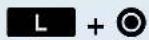 |
| Chip shot |  |
| Fake shot (in opposition’s half) |  |
COMPLETE CONTROLS
| Passing | |
| Choose direction of pass/cross | left stick |
| Short pass/Header (hold to pass to further player) | |
| Lobbed pass (hold to determine distance) | |
| Through pass (hold to pass to further player) | |
| Bouncing lob pass | |
| Lobbed through ball (hold to pass to further player) | |
| Give and go | |
| Trigger run from pass | |
| Fake lob | |
COMPLETE CONTROLS
COACHING TIP: Give and Go
To initiate a one-two pass, press ✗ while holding L to make your player pass to a nearby teammate, then release L and move the left stick to continue his run. Press ✗ (ground pass), △ (through ball), □ (lobbed pass), or L + △ (lobbed through ball) to immediately return the ball to him, and time the pass perfectly to avoid conceding possession.
| Ball Control | |
| First touch (while receiving the ball) right stick | (hold for more distance) |
| Cancel pass/shot | L + R |
| Free Move | L (hold) + R (hold) |
COMPLETE CONTROLS
| Crossing | |
| Cross (hold to determine distance) | |
| Low cross (within cross zone) | (double tap) |
| Ground cross (within cross zone) | (triple tap) |
| Early cross (outside cross zone) |  |
| Early low cross (outside cross zone) |  |
| Early ground cross (outside cross zone) |  |
COMPLETE CONTROLS
Skill Moves
Hold L and move the left stick or right stick (depending on the footwork) to perform the following skill moves.
NOTE: The controls listed below assume that the controlled player is moving vertically and should be amended depending on your player's direction.
| Skill Moves | |
| Body Feint | right stick ← (fl ick)/right stick → (fl ick) |
| Step-over | right stick ↑, ←/right stick ↑, → |
| Reverse Step-over | right stick ←, ↑/right stick →, ↑ |
| Ball Roll | right stick ← (hold)/right stick → (hold) |
| Drag Back (standing only) | left stick ↓ (fl ick) |
COMPLETE CONTROLS
| Skill Moves (Cont.) | |
| Heel Flick | right stick ↑ (fl ick), ↓ |
| Flick Up | right stick ↑ (flick), ↑, ↑ (flick) |
| Roulette | right stick ↓, ←, ↑, →/ right stick ↓, →, ↑, ← |
| Fake Left & Go Right | right stick ←, ↓, → |
| Fake Right & Go Left | right stick →, ↓, ← |
| Heel to Heel Flick | right stick ↑ (fl ick), ↓ |
| Simple Rainbow | right stick ↓ (fl ick), ↑, ↑ |
| Advanced Rainbow | right stick ↓ (flick), ↑ (hold), ↑ (flick) |
COMPLETE CONTROLS
| Skill Moves (Cont.) | |
| Feint Left and Exit Right | right stick ←, ↓, → |
| Feint Right and Exit Left | right stick →, ↓, ← |
| Elastico (requires high skill level) | right stick →, ↓, ← |
| Drag Back Fake and Exit Left (standing only) | left stick ↓, →, ↓, ← |
| Drag Back Fake and Exit Right (standing only) | left stick ↓, ←, ↓, → |
| Heel Chop (running only) | right stick ↙, ↙/right stick ↘, ↘ |
| Scoop Turn (standing only) | right stick ↙, ↙/right stick ↘, ↘ |
| Hocus Pocus | right stick ↓, ←, ↓, → |
COMPLETE CONTROLS
| Skill Moves (Cont.) | |
| Triple Elastico | right stick ↓, →, ↓, ← |
| Ball Roll & Flick (running only) | right stick → (hold), ↑ (fl ick)/ right stick ← (hold), ↑ (fl ick) |
| Sombrero Flick (standing only) | right stick ↑ (fl ick), ↑, ↓ |
| Turn & Spin | right stick ↑ (fl ick), ← (fl ick)/ right stick ↑ (fl ick), → (fl ick) |
| Ball Roll Fake (standing only) | right stick ← (hold), → (fl ick)/ right stick → (hold), ← (fl ick) |
| Rabona Fake (sprinting only) | ☐/☐, then ✘ + left stick ↓ |
COMPLETE CONTROLS
| Skill Moves (Cont.) | |
| Ball Juggle (standing only) | R (tap) |
| Sombrero Flick Backwards | left stick ↓ (hold) |
| Sombrero Flick | left stick ← (hold)/left stick → (hold) |
| Around the World | right stick clockwise/counter clockwise |
| In Air Elastico | right stick → (fl ick), ← (fl ick) |
| Flick Up For Volley | left stick ↑ (hold) |
| T. Around the World | right stick counter clockwise, ↑ (fl ick) |
NOTE: In FIFA 13, players are capable of many more fl icks, tricks, and skill moves than are listed here! Get out on the pitch and start experimenting, and then put those skills to use!
COMPLETE CONTROLS
Defending
| Defending | |
| Move player | left stick |
| Switch player | L (tap on release) |
| Directional player switch | right stick |
| Sprint | R (hold) |
| Press | ✕ (hold) |
| 2nd defender press | ◎ (hold) |
COMPLETE CONTROLS
| Defending (Cont.) | |
| Sliding tackle | ☐ |
| Jockey | L (hold) |
| Running jockey | L (hold) + R (hold) |
| Jockey press | L (hold) + ✗ (hold) |
COACHING TIP: Running Jockey and Jockey Press
If an opponent is moving quickly, hold L and press R to control your defender's speed and allow position him for a tackle. If you don't want him to dive in using the Press control, hold L and press ✗ to Jockey Press. Your player keeps his opponent in front of him and doesn't commit to a tackle. Then, at the first sign of a bad touch, release L to make him move in for the ball.
COMPLETE CONTROLS
| Goalkeeping | |
| Charge | △ (hold) |
| Move/Aim kick or throw | left stick |
| Throw (while holding the ball) | ✕ (hold to pass to the further of two players) |
| Drop kick (while holding ball) | ◎/◎ |
| Drop the ball (while holding ball) | △ |
COMPLETE CONTROLS
Set Pieces
| Direct Free Kick | |
| Aim | left stick |
| Shot (hold for increased power) | |
| Lob pass (hold for increased power) | |
| Add spin to ball (while powering kick) left stick | |
| Change kick taker | |
| Call lay-off man | |
COMPLETE CONTROLS
| Direct Free Kick (Cont.) | |
| Lay-off man shot | 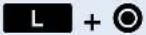 |
| Lay-off man pass | 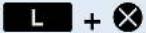 |
| Jump wall (defense only) | [TTB6] |
| Move wall (defense only) | [WXYG] |
| Charge kick (defense only) | [HWBS] |
COMPLETE CONTROLS
COACHING TIP: Adding elevation and spin
To add elevation to your shot, power it up for longer (but beware of overpowering) and move the left stick to add sidespin, topspin, or backspin. Topspin can be employed to bring a ball down quickly (e.g., after it has cleared the wall).
| Goal Kick | |
| Aim | left stick |
| Lob pass (hold for increased power) | |
| Ground pass | |
COMPLETE CONTROLS
| Throw-In | |
| Aim throw | left stick |
| Short throw (to nearest player) | |
| Manual short throw(in direction you’re facing) | |
| Long throw | |
| Switch receiver | |
COMPLETE CONTROLS
| Corner | |
| Lob cross (hold for increased power) | |
| Add spin to lob cross (while powering kick) left stick | |
| Low cross | ( double tap) |
| Ground cross | (triple tap) |
| Call for a short corner |  |
COMPLETE CONTROLS
| Penalty Kick | |
| Aim shot | left stick (hold to aim further in any direction) |
| Driven shot | ◎ |
| Finesse/Placed shot | L + ◎ |
| Chip shot | L + R + ◎ |
| Dive (goalkeeper only) right stick | |
| Move on goal line (goalkeeper only) left stick | |
COMPLETE CONTROLS
COACHING TIP: Penalties
Aiming: By default, your player starts aiming at the middle of the goal. From the moment you start powering up for a shot, you can hold the left stick to move the aim anywhere inside the goal. The longer you hold the left stick in any particular direction, the farther your player's shot goes in that direction. Be careful with how long you hold the left stick, as letting go too soon results in a shot closer to the middle of the goal, and holding it for too long causes your player to miss the goal.
Saving: Committing to a save direction early allows your goalkeeper to reach farther and save shots close to the corner of the goals. However, diving farther to the side makes it more diffi cult to save shots aimed toward the middle of the goal.
If you think the kick taker is going for placement rather than power, you can try to react to the shot by holding the right stick in any direction after the ball has been kicked.
COMPLETE CONTROLS
Be A Pro: Goalkeeper
| Attacking off the ball | |
| Call for/Suggest pass | ✕ |
| Suggest through pass | ✕ |
| Suggest cross | ✕ |
| Suggest shot | ✕ |
| Toggle camera target SELECT | |
COMPLETE CONTROLS
| Defending own box | |
| Dive | right stick/left stick/✕ (hold) |
| Auto-position | L (hold) |
| Slow movement facing the ball | left stick + L |
| Charge/Punch | ✕ (hold) |
| Dive at feet | ✕ |
| Anticipation save | L + R |
| 2nd defender press | ✕ (hold) |
| Toggle camera target | SELECT |
| Sprint | R |
COMPLETE CONTROLS
COACHING TIP: Be a Goalkeeper
Experiment with different levels of Save Assistance (Assisted, Semi-Assisted, and Manual) to find what is right for your play-style and skill level.
Touch Controls
Use the touch controls to take shots, free kicks, throw-ins, penalty kicks, and corner kicks. You can also use touch controls to make passes and switch defenders.
COMPLETE CONTROLS
Shooting
To take a quick shot on goal, simply touch the goal on the touchscreen. The longer you hold the touch, the more powerful your shot is.
You can also use the rear touch pad to take shots. Think of the entire rear touch pad as the goal, and touch where you want to aim. Your aim indicator is a solid dot that changes color according to your shot meter. After you have taken a shot, the results indicator, displayed as a crosshair, shows where the ball ended up.
Keep in mind that the defensive pressure combines with the direction and speed of your dribble to determine the accuracy of your shot.
NOTE: When using touch controls, the white icon in the top center of the touchscreen indicates that your fingers may be resting on the rear touch pad. You can only trigger the rear touch pad shooting controls in the offensive third of the pitch when your fingers are not resting on the rear touch pad.
COMPLETE CONTROLS
Free Kicks
To take a free kick, align the camera to face the direction you want to kick, and then swiftly drag your finger across the touchscreen. As soon as you touch the touchscreen, your player begins powering up for the shot. You can track his power with the colored line. The type of curve you draw on the touchscreen determines the bend and topspin. Keep in mind that a right-footed player can bend the ball better to the left than to the right. The opposite goes for a left-footed player.
To take a free kick with the rear touch pad, simply touch where you want to aim your kick. The rear touch pad allows you to aim directly at the goal, but if there is a wall in the way, consider using the touchscreen to curve the ball around the defenders.
Throw-Ins
Touch where you want to throw the ball to perform a throw-in. If your player has the Long Throw-in or the Giant Throw-in trait, then he can throw the ball farther than others.
COMPLETE CONTROLS
Penalty Kicks
Use the touchscreen to make perfectly composed penalty kicks. Time your shot according to the Composure Meter and touch it when it's in the green for maximum control. Then, touch where you want to aim. The duration of the touch determines your power, which is indicated by the Shot Power Meter.
Corner Kicks
During corner kicks, touch a teammate to pass the ball. To lob your pass, hold your touch.
Passes
Touch a player to pass the ball, or touch an open space to pass to a specific point on the pitch. To lob a pass, hold your touch. Hold your touch even longer to clear the ball.
Switch Defenders
When on defense, there are times when you need to switch defenders quickly. To do so, touch the defender you want to control.
SETTING UP THE GAME
Before heading out onto the pitch, create an Origin Account (EA) to enjoy the online features in FIFA 13.
NOTE: You are required to save your progress in various game modes to your memory card. You cannot save data if you do not have a memory card inserted while playing.
FIFA 13 Profile
- Select your skill level, preferred controls setup, and favorite team.
Origin Account (EA)
- To create an Origin Account (EA), enter a valid email address and password when prompted at the title screen. The name and password are used to access online features in EA games and game-specific content on www.easports.com.
PLAYING THE GAME
Game Screen
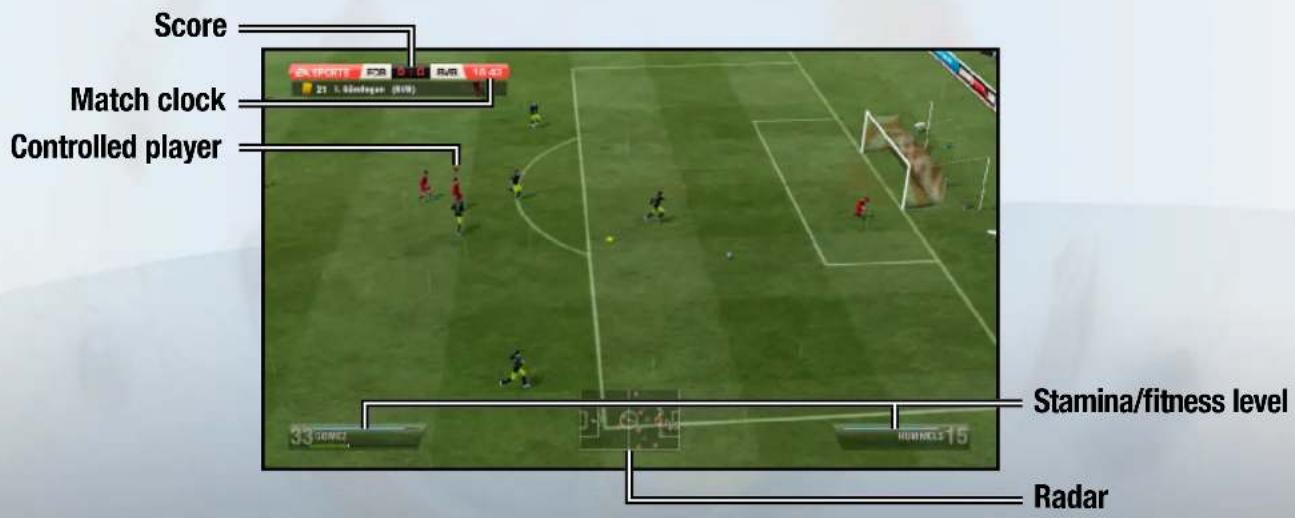
PLAYING THE GAME
Saving and Loading
Before exiting a game mode or a menu where changes have been made, make sure you save your progress (or unsaved information will be lost). You can access the Load screen from most game mode menus to load fi les manually.
NOTE: FIFA 13 features an autosave feature.
Kick-Off
Select EXHIBITION MATCH to head onto the pitch with your default settings (which can be changed in CUSTOMISE > SETTINGS > GAME SETTINGS) or select BE A PRO: GOALKEEPER or BE A PRO: PLAYER to take on the role of a single player.
Be a Pro: Goalkeeper
Play as the goalkeeper and feel the tension of acting as your team's last line of defense against the opposition's hungry strikers. Make calls to the rest of the team when the ball is off the pitch and stick to the Indicator when the opposition gets close.
GAME MODES
Career Mode
Every player, no matter how talented, eventually has to leave the action of the pitch. In Career Mode you can expand your player's football career through three roles: Player, Player Manager, and Manager. Start as a player and progress through all three roles, or begin as either a Player Manager or Manager. Your player's success in each role determines his value in the eyes of the football world!
Player Career
Take control of a career-minded professional footballer as you play in multiple league, cup, and continental competitions. You may play as a real player, a created player, or your Virtual Pro. Make every action on the pitch count and work your way up from prospect player to club legend!
GAME MODES
Player Manager Career
Player Managers have an impact on and off the pitch, and must strike a perfect balance between action and team management. Play as a created player or your Virtual Pro. Your player's focus rests on managing the line-up, including formation, playing style, training, and starting players, as well as taking to the pitch during key games.
Manager Career
The role of a Manager is to pick the best possible squad for each match and make sure that, based on the opponent, the right tactic is in place. Play as a created player or your Virtual Pro. Your Manager is in control of the team's finances and must manage the budget, including transfers, negotiations, and player contracts. Win prestigious cup matches and your league to rise to prominence and keep the board pleased.
GAME MODES
Management Tips!
- Review your line-up before simming a game! Every player can make a difference to the outcome.
- Use all the search options to find the right player to complete your squad, and keep in mind how much the player wants for a successful signing.
Take notice of your assistant coach's player assessment. His analysis of every player's talent lets your Manager know which young players deserve more time on the pitch. - Keep an eye on your Player Level/Manager Reputation as your Manager progresses through a season. This determines his standing within the club as well as potential job offers at the end of the season.
GAME MODES
Tournaments
The crowning glory of reaching the top of a tournament reigns in the anticipation and excitement of both players and football fans alike. FIFA 13 gives players over 50 tournaments to choose from. Choose the country and the specific tournament you'd like to compete in, and then decide which team(s) you'd like to control in the fight for supremacy.
Create Tournament
Create your very own tournament! Choose from LEAGUE, KNOCKOUT, or GROUP & KNOCKOUT, and then set the number of teams and whether or not you'd like to choose each competing team yourself or have them filled in automatically. Once you're happy with all of the settings, save your tournament and then see if you can come out a winner.
NOTE: For even more control over your tournament settings, toggle Advanced Settings ON. You are then taken to the Advanced Settings screen after accepting the basic setup. Here, you can fi ne tune tournament rules and set parameters for the Auto Fill function.
SONY ENTERTAINMENT NETWORK
ORIGIN ACCOUNT (EA) REGISTRATION REQUIRED TO ACCESS ONLINE FEATURES. YOU MUST BE 13+ TO REGISTER. EA ONLINE PRIVACY POLICY AND TERMS OF SERVICE CAN BE FOUND AT www.ea.com. EA MAY PROVIDE CERTAIN INCREMENTAL CONTENT AND/OR UPDATES FOR NO ADDITIONAL CHARGE, IF AND WHEN AVAILABLE. EA MAY RETIRE ONLINE FEATURES AFTER 30 DAYS NOTICE POSTED ON www.ea.com/2/service-updates.
NOTE: In order to play online, you must read and accept the EA Privacy Policy and Terms of Service. You are asked to read and accept these documents when playing for the first time. You may choose not to accept, but this will bar use of FIFA 13's online features.
Friends Leagues
Create an online league for you and up to 31 other online players. Play by your rules against players across the globe.
VIRTUAL PRO
Take to the pitch as an all-new player in FIFA 13's Virtual Pro mode. Begin your career and build your reputation from the ground up! Decide the stats of your Virtual Pro then take to the fi eld and attempt to become a superstar.
You can use your Virtual Pro in any of the off line game modes, including Career Mode and Kick-Off. Use your Virtual Pro effi ciently to earn rewards, upgrade his stats, and create a true superstar.
CUSTOMISE
Arena Options
Feel like practicing in the United Kingdom as Rooney against the formidable Howard? Visit Arena options to select which Player, Goalkeeper, and Stadium you would like to use when practicing within the Arena.
TEAM MANAGEMENT
Custom Tactics
Select CUSTOM TACTICS on the Team Management screen of any club to customise defensive and attacking play. Check out their default tactics and then press ✗ to view other preset tactics (Counter Attack, High Pressure, Possession, and Long Ball) as well as your own customised tactics (see below). To choose one of these as your default tactic, select it and press ✗.
To create a new tactic, select one as a template and use the sliders to tweak its individual components. Then, press Ⓑ or □ to save your new tactic to a selected slot and press ✗ to confirm.
TEAM MANAGEMENT
Quick Tactics
To use your tactics on-the-fl y in games you must assign them to the directional buttons. To do this, select QUICK TACTICS on the Team Management screen, choose a direction, and press ✗. Then, select your new tactic and press ✗ again to assign it to your chosen direction.
NOTE: You can share your customised tactics with friends—or the entire FIFA community—by entering the Player Hub, pressing L, scrolling to Shared Tactics, and following the on-screen instructions.
NOTE: If your default configuration uses the directional buttons for player movement, then the left stick must be used to select Quick Tactics.
TEAM MANAGEMENT
Formations
Get out the tactics board and start fi ne-tuning team formations and player roles by selecting FORMATIONS in the Team Management screen.
First, choose a formation and press ☐ to edit it. Then, choose a player from the selected formation and press ✗. Finally, decide which aspect of his game you want to alter (Player Base Position, Player Work Rate, or Player Positioning) and follow the on-screen instructions.
NOTE: Press the directional buttons to change your team's mentality on-the-fly. Press the ← button to make your players more defensive or press the → button to encourage them to attack.
PRACTICE ARENA
FIFA 13's Practice Arena is the place to hone your skills before getting into a game. Here you can fi ne-tune striking, keeping, and set pieces.
The Practice Arena defaults to one-on-one action, so you can dribble around and shoot whenever you please. You can use it to practice skill moves, fi nd the perfect angle of attack, or even fi gure out your own weaknesses. This is an excellent location to practice the touchscreen commands, as well.
In addition, you can decide how many attackers and defenders are on the pitch during your practice session. Choose SET PIECES to practice free kicks, penalties, throw-ins, and corner kicks. To practice your skills without the pressure of playing in a real match, you can choose PRACTICE MATCH from the Practice Arena menu. There is no score and no game clock, so you can play for as long as you like.
NOTE: Press SELECT while in the Arena to bring up the Practice Arena menu.

WARNING: PHOTOSENSITIVITY / EPILEPSY / SEIZURES
A very small percentage of individuals may experience epileptic seizures or blackouts when exposed to certain light patterns or flashing lights. Exposure to certain patterns or backgrounds on a television screen or when playing video games may trigger epileptic seizures or blackouts in these individuals. These conditions may trigger previously undetected epileptic symptoms or seizures in persons who have no history of prior seizures or epilepsy. If you, or anyone in your family, has an epileptic condition or has had seizures of any kind, consult your doctor before playing.
IMMEDIATELY DISCONTINUE use and consult your doctor before resuming gameplay if you or your child experience any of the following health problems or symptoms:
- dizziness • eye or muscle twitches • disorientation • any involuntary movement
- altered vision • loss of awareness • seizures or convulsion.
RESUME GAMEPLAY ONLY ON APPROVAL OF YOUR DOCTOR.
Use and handling of video games to reduce the likelihood of a seizure
- Use in a well-lit area and keep as far a way as possible from the screen.
- Avoid prolonged use of the PS Vita system. Take a 15-minute break during each hour of play.
- Avoid playing when you are tired or need sleep.
Stop using the system immediately if you experience any of the following symptoms: lightheadedness, nausea, or a sensation similar to motion sickness; discomfort or pain in the eyes, ears, hands, arms, or any other part of the body. If the condition persists, consult a doctor.
PRECAUTIONS FOR USE
- Keep the PS Vita game card out of the reach of small children to help prevent accidental swallowing.
- This game card is for use only with the PlayStation®Vita system. Use of this game card with other devices may damage the device or the game card.
- Do not touch the game card terminals with your hands or with metal objects.
- Do not allow the game card to come into contact with liquids. Do not bend or drop the game card or otherwise expose it to strong physical impact.
- Never disassemble or modify the game card.

PRECAUTIONS FOR USE
Do not use or store the game card in the following locations or under the following conditions:
- In a car with the windows closed (particularly in summer)/in direct sunlight/near heat sources
• In high humidity or corrosive environments. - Be sure to insert the game card in the proper orientation.
The data on the game card may be lost or corrupted in the following situations:
- If the game card is removed from the system or if the system power is turned off while data is being read from or written to the game card.
- If the game card is used where it can be affected by static electricity or electrical noise.
If, for any reason, data loss or corruption occurs, it is not possible to recover the data. Backing up data regularly is recommended. Sony Computer Entertainment Inc. and its subsidiaries and affiliates will not be held liable for any damages or injury in the case of data loss or corruption.

FCC AND IC NOTICE - PART 1
This device complies with Part 15 of the FCC Rules.
Operation is subject to the following two conditions:
(1) this device may not cause harmful interference, and
(2) this device must accept any interference received, including interference that may cause undesired operation
- This equipment has been tested and found to comply with the limits for a Class B digital device, pursuant to Part 15 of the FCC Rules. These limits are designed to provide reasonable protection against harmful interference in a residential installation. This equipment generates, uses, and can radiate radio frequency energy and, if not installed and used in accordance with the instructions, may cause harmful interference to radio communications.
continued >
FCC AND IC NOTICE - PART 2
- However, there is no guarantee that interference will not occur in a particular installation. If this equipment does cause harmful interference to radio or television reception, which can be determined by turning the equipment off and on, the user is encouraged to try to correct the interference by one or more of the following measures:
- Reorient or relocate the receiving antenna.
- Increase the separation between the equipment and receiver.
- Connect the equipment into an outlet on a circuit different from that to which the receiver is connected.
- Consult the dealer or an experienced radio/TV technician for help.
You are cautioned that any changes or modifications not expressly approved in this manual could void your authority to operate this equipment.
This Class B digital apparatus complies with Canadian ICES-003.
Software licensed for play on PlayStation®Vita systems in the Americas.
Use of the PlayStation®Network is subject to applicable user agreements and privacy policies found at:
www.us.playstation.com/support/useragreements
FIFA 13
The Sony Computer Entertainment logo is a trademark of Sony Corporation. “PlayStation”, the “PS” family logos and the PS Vita logo are trademarks of Sony Computer Entertainment Inc.
AGI:896675_MGA Pool ID:19358914 PA:HN
EA PSV In-Game Manual TEMPLATE US
04.25.12
| Revision Count | File Name: FFAS13penMAW04JLS HD611dd | Fonts Placed Art Color Specs Special Instructions | ||||
| Creative Dev 1 Marketing 0 | Pat/Kanlan: 1976035 Time Time: 07/16/20 3:35P File Version: 61 Optical Version: C25.5 | Prod Mgr: F. Vella Designer: ACI Prod Mgr: L. Sterling Printer: None Planner: T8D | Palvelica Value 55, 57, 67, 75, 76, 77 SCT T31 Regular Palvelica Value LT STD 65 | FFA13pen70C06SLrctn0.pdf FF413pen70C06SLrctn0.pdf FF413pen70CNTNtE6Lcctn0.pdf FF413pen70AM50REBRLRcstn0.pdf | R E B | Special instructions here |
| Total Billable 0 | ELECTRONIC ARTS CREATIVE SERVICES • 200 Rowward Shares Parsway • Roothwood City, CA • 94065-1175 • 650-628-1500 | |||||
- COMPLETE CONTROLS
- COACHING TIP: Shielding
- COACHING TIP: Give and Go
- Skill Moves
- COACHING TIP: Running Jockey and Jockey Press
- COACHING TIP: Adding elevation and spin
- COACHING TIP: Penalties
- COACHING TIP: Be a Goalkeeper
- Touch Controls
- Shooting
- Free Kicks
- Throw-Ins
- Penalty Kicks
- Corner Kicks
- Passes
- Switch Defenders
- SETTING UP THE GAME
- FIFA 13 Profile
- Origin Account (EA)
- PLAYING THE GAME
- Game Screen
- Saving and Loading
- Kick-Off
- Be a Pro: Goalkeeper
- GAME MODES
- Career Mode
- Player Career
- Player Manager Career
- Manager Career
- Management Tips!
- Tournaments
- Create Tournament
- SONY ENTERTAINMENT NETWORK
- Friends Leagues
- VIRTUAL PRO
- CUSTOMISE
- Arena Options
- TEAM MANAGEMENT
- Custom Tactics
- Quick Tactics
- Formations
- PRACTICE ARENA
- WARNING: PHOTOSENSITIVITY / EPILEPSY / SEIZURES
- Use and handling of video games to reduce the likelihood of a seizure
- PRECAUTIONS FOR USE
- FCC AND IC NOTICE - PART 1
- FCC AND IC NOTICE - PART 2
Brand : EA
Model : Fifa 13 (Playstation Vita)
Category : Video game