EXT-CAT5-1500HD - Extendeur AV Gefen - Free user manual and instructions
Find the device manual for free EXT-CAT5-1500HD Gefen in PDF.


| Product Type | HDMI Extender over CAT5/6 (up to 1500 ft) |
| Brand | Gefen |
| Model | EXT-CAT5-1500HD |
| Dimensions (Transmitter) | 4.3 x 2.5 x 1.0 inches (110 x 65 x 25 mm) |
| Dimensions (Receiver) | 4.3 x 2.5 x 1.0 inches (110 x 65 x 25 mm) |
| Weight (each unit) | Approx. 0.5 lb (220 g) |
| Power Supply | 5V DC, 2A (included for both units) |
| Power Consumption | 2.5W (max) per unit |
| Video Resolution Support | Up to 1920x1200 @60Hz (1080p) |
| Audio Support | Multi-channel digital audio (PCM, Dolby, DTS) |
| Transmission Distance | Up to 1500 feet (457 m) via Cat5e/6 |
| Connectors (Transmitter) | HDMI input, RJ45 output, power jack |
| Connectors (Receiver) | RJ45 input, HDMI output, power jack |
| Main Functions | Extends HDMI signal over long distances using standard network cabling |
| Installation | Plug-and-play, no software required |
| Maintenance & Cleaning | Wipe with dry cloth; avoid liquids and abrasives |
| Safety | Use only included power adapters; ensure proper ventilation |
| Spare Parts & Repairability | Contact Gefen for replacement power adapters or units |
| General Information | Supports EDID pass-through; compatible with HDMI 1.3 |
Frequently Asked Questions - EXT-CAT5-1500HD Gefen
User questions about EXT-CAT5-1500HD Gefen
0 question about this device. Answer the ones you know or ask your own.
Ask a new question about this device
Download the instructions for your Extendeur AV in PDF format for free! Find your manual EXT-CAT5-1500HD - Gefen and take your electronic device back in hand. On this page are published all the documents necessary for the use of your device. EXT-CAT5-1500HD by Gefen.
USER MANUAL EXT-CAT5-1500HD Gefen
Technical Support Hours:
8:00 AM to 5:00 PM Monday thru Friday.
Write To:
Gefen Inc. c/o Customer Service 20600 Nordhoff St. Chatsworth, CA 91311
support@gefen.com www.gefen.com
Notice
Gefen Inc. reserves the right to make changes in the hard ware, packaging and any accompanying doc u men ta tion without prior written notice.
CAT5·1500HD is a trademark of Gefen Inc. Macintosh is a trademark of Apple Computer Inc.
1 Introduction
2 How It Works
3 CAT5·1500HDS Back Panel Layout
4 CAT5·1500HDS Back Panel Function Descriptions
5 CAT5·1500HDR Back Panel Layout
6 CAT5•1500HDR Back Panel Functions Descriptions
7 Link Cable Wiring Diagrams
8 CAT5·1500HD - Wiring Diagram
9 Service Switch Usage Guide
10 Frequently Asked Questions
11 Features
12 System Specifications
13 Terminology
14 Warranty
READ THESE NOTES BEFORE IN STALL ING OR OPERATING THE CAT5·1500HD SYSTEM
* The CAT5•1500HD units are housed in a metal box for better RF shielding.
* In order to extend the full 50 meters you need a high quality CAT5e cable.
* CAT6 cable is suitable for high resolutions at 50 meters.
* If using a ADC-DVI Adapter, the "5V to cable" jumper by the input connector on the sender unit needs to be enabled.
Thank you for purchasing the new CAT5•1500HD series by Gefen, Inc.
The CAT5•1500HD by Gefen allows users the benefits of extending a DVI display and USB beyond the desktop. In a growing number of applications, broadcast stations and production facilities need to locate a computer remotely from the keyboard, mouse, and video monitor. A CPU may need to be shared between several users, for example, or moved to another room because of annoying fan noise.
The CAT5•1500HD series can be used to extend computers with noisy fans, printers, hard drives, scanners, cameras, keyboards, mouse, and other USB devices. With the potential to cover the distance of 150 feet, industry standard Category 5 (CAT-5) cables are used for the extension of all the devices.
CONTENTS
The CAT5•1500HD system consists of:
--- (1) CAT5•1500HDS sender unit
--- (1) CAT5•1500HDR receiver unit
--- (2) 5 VDC power supplies
--- (1) DVI cable M-M (6FT)
--- (1) USB cable (06FT)
--- (1) User Manual
HOW IT WORKS
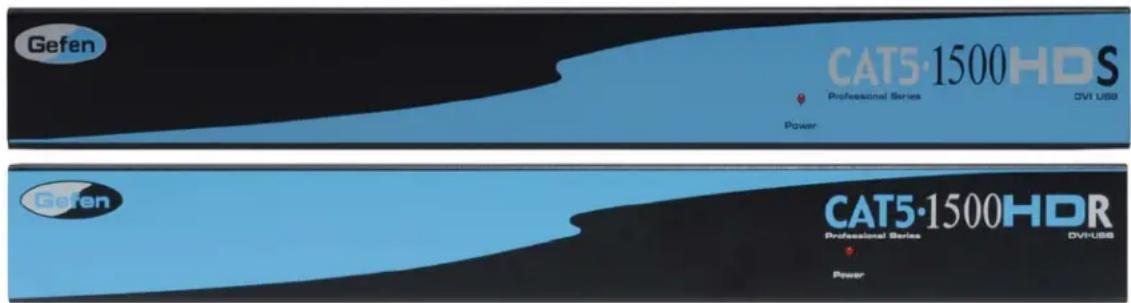
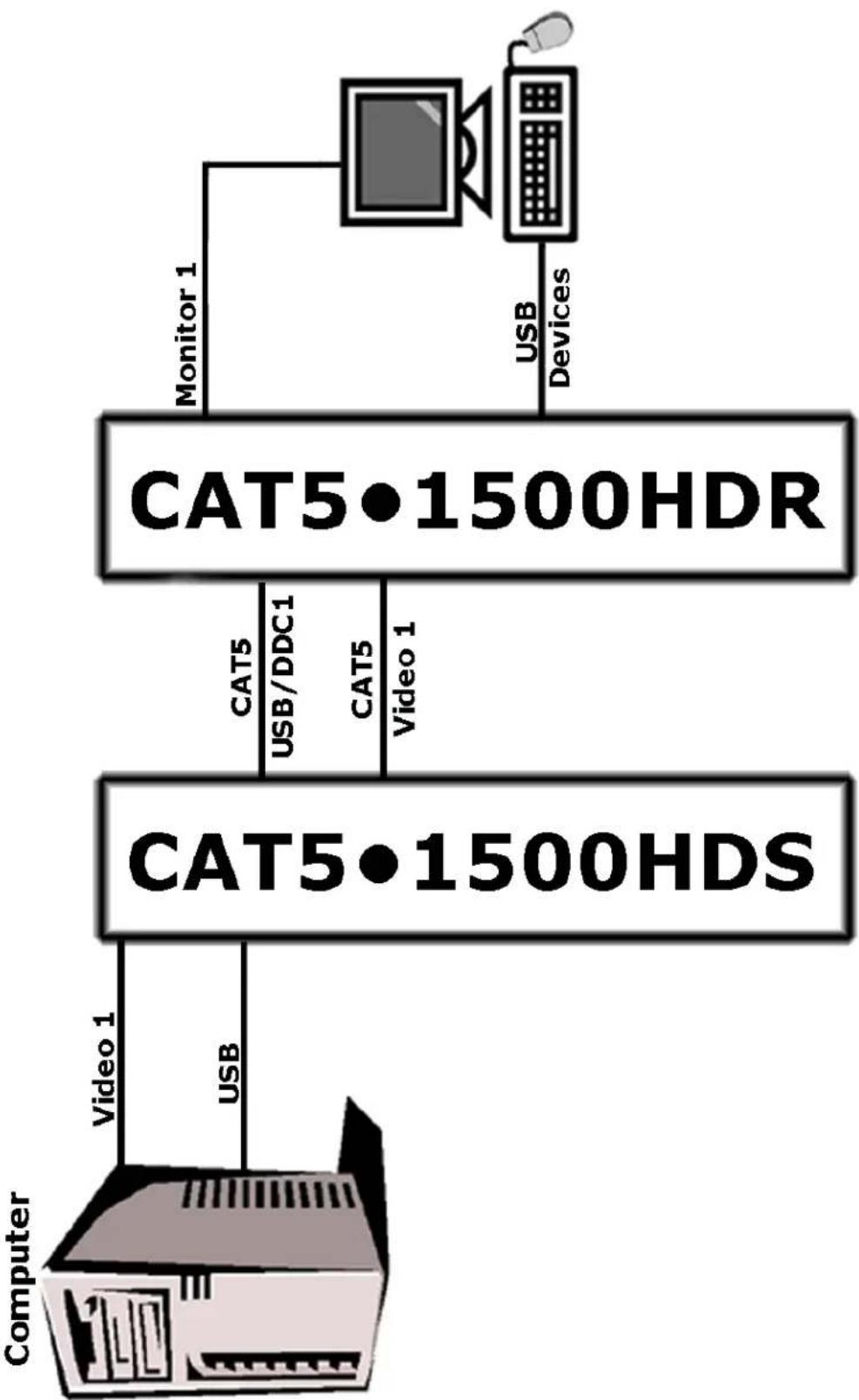
The CAT5•1500HD sender unit sits next to your computer. The cables supplied with the CAT5•1500HD connects your DVI source and USB to the send unit. The CAT5•1500HD receiver unit sits next to your DVI display up to 150 feet away. The display and USB plug into the back of the CAT5•1500HD receiver unit. Two CAT-5 cables connect the CAT5•1500HD-S and the CAT5•1500HD-R units to each other.

1 POWER - 5 VDC external power supply
2 CAT5 Video - RJ-45 input extends DVI input with CAT-5 cable
3 CAT5 USB/DDC - RJ-45 input extends USB and DDC signals with CAT-5 cable
4 DVI INPUT - DVI Input connects to your computer with the supplied DVI cable
5 USB IN - USB Input from computer

1 POWER - 5 VDC external power supply
2 CAT5 USB/DDC - RJ-45 input extends USB and DDC signals with CAT-5 cable
3 CAT5 Video - RJ-45 input extends video input with CAT-5 cable
4 DVI OUTPUT - DVI output connects to the monitor for local video
5 USB Out - USB Output to computer
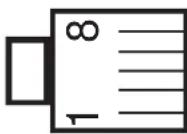
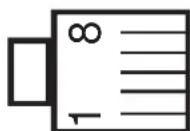
RJ-45 Jack RJ-45 Jack
| 1 | White/Orange | 1 |
| 2 | Orange | 2 |
| 3 | White/Green | 3 |
| 4 | Blue | 4 |
| 5 | White/Blue | 5 |
| 6 | Green | 6 |
| 7 | White/Brown | 7 |
| 8 | Brown | 8 |
flowchart
graph LR
    A["Computer"] -->|Video 1| B["CAT5·1500HDS"]
    A -->|USB| B
    B -->|CAT5 USB/DDC1| C["CAT5·1500HDR"]
    B -->|CAT5 Video 1| C
    C -->|Monitor 1| D["Computer"]
    C -->|USB Devices| E["User"]
Gefen CAT5 HD products (sender and receiver) both contain a pair of service switches (also called dip switches) located underneath the unit. These service switches are used to select from sets of configurations that will equalize the signal to best match the conditions in your setup. For the CAT5•1500HD, there is 1 set of switches for the monitor under both the sender and receiver units. The switches are hidden beneath black stickers. Each bank of dip switches have 4 switches. Switches 3 and 4 are not used. (*Note: Adjustments should be done with sources and display on.)
| Sender Dip Switch Settings | ||
| Setting Switch 1 Switch 2 | ||
| No Boost OFF ON | ||
| Normal Boost (Default) OFF | OFF | |
| Strong Boost ON OFF | ||
| Undefined ON ON | ||
| Receiver Dip Switch Settings | ||
| Setting Switch 1 Switch 2 | ||
| No EQ (Default) OFF OFF | ||
| EQ Setting 2 ON OFF | ||
| EQ Setting 3 OFF ON | ||
| Maximum EQ ON ON | ||
Adjustment Guidelines:
1) Strong boost should not be used on stranded cables. Strong boosting will cause pixels or no picture on these cables.
2) Using the wrong settings will not damage the units; it will either produce no image or a noisy image.
3) To eliminate the possibility of cross talk and interference, cables must be terminated with 568B scheduling. (See page 7 for details)
Frequently Asked Questions
What kind of CAT-5e cable should I be using?
Solid core CAT-5e cable rated at 350 Mhz and terminated in 568a or 568b is the minimum requirement. For resolutions greater than 1280x1024 or 1080i, Gefen recommends solid CAT-6 cables.
Why does the CAT5 sender unit have a HDMI connector on the input?
A HDMI connector was used on the input to optimize space on the board by using the smaller connector. HDMI is electrically equivalent to DVI-D.
I'm getting no video on the screens, what can I check?
First thing to check is make sure that the video CAT5 is linked to the other video CAT5 port and the same with the DDC ports. Test to make sure the units are working with short CAT-5e cables 15-20 feet. You can also make sure you have the correct boost setting configured (refer to page 9).
I'm getting no video on the screens using ADC to DVI adapters, what is wrong?
ADC to DVI adapters remove the necessary 5V line that the extenders require on the input to operate. To enable the 5V you will need to open up the sender unit. Next to each DVI/HDMI input connector will be a jumper that needs to be shorted to enable 5V to the input. This should only be enabled when using a ADC to DVI Adapter otherwise damage to your video card may result.
How can I fix the flickering picture?
Flickering or a blinking image is the result of a loss of sync between the display and the source. Try lowering the resolution to see if that helps, if it does, the CAT-5 cables you are using are unable to handle the bandwidth of the higher resolution and thus you are losing sync. Try a shielded CAT-6 cable on the video line to reduce interference. You can also try adjusting the service switches. Usually this is caused by EMI and a shielded CAT-6 with metal RJ-45 connectors with the drain wire soldered to the connectors will resolve the issue. Please refer to the service switch guide on page 9 for the different combinations.
Can I run the CAT-5 cable through a patch bay?
No, the signal will not transmit reliably
- Extends any DVI compliant device up to 150 feet (45 meters) from the computer at 1920x1200
- Extends any DVI compliant device up to 200 feet (60 meters) from the computer at 1280x1024
-Extends USB 1.1 compliant devices up to 200 feet - Uses CAT-5e cable for DDC and control signals
- Video is transmitted digitally for zero signal loss
- Supports resolutions up to 1080p, 2K, and 1920 x 1200
- Supports DDWG standard for DVI compliant monitors
- Includes rack ears
- HDCP compliant
Video Amplifier Bandwidth 1.65 Gbps
Single Link Range 1080p / 1920 x 1200
Input Video Signal 1.2 volts p-p
Input DDC Signal 5 volts p-p (TTL)
Video Connector Type ...... DVI-I 29 pin female (digital only)
USB Input ...... USB type "B" connector
USB Output ...... USB type "A" connectors
Link Connector .... RJ-45 Shielded
Power Supply 5V DC
Power Consumption 20 watts (max)
Dimensions 17" W x 1.75" H x 4.375" D
Shipping Weight 10 lbs.
CAT-5
Category 5 cable, commonly known as Cat 5, is an unshielded twisted pair type cable designed for high signal integrity. The actual standard defines specific electrical properties of the wire, but it is most commonly known as being rated for its Ethernet capability of 100 Mbit/s. Its specific standard designation is EIA/TIA-568. Cat 5 cable typically has three twists per inch of each twisted pair of 24 gauge copper wires within the cable.
CAT-5e
Similar to Cat 5 cable, but is enhanced to support speeds of up to 1500 megabits per second
DDC
Short form for Display Data Channel. It is a VESA standard for communication between a monitor and a video adapter. Using DDC, a monitor can inform the video card about its properties, such as maximum resolution and color depth. The video card can then use this information to ensure that the user is presented with valid options for configuring the display
DDWG
Digital Display Working Group DDWG are the creators of the DVI specification.
DVI
Digital Visual Interface. Connection standard developed by Intel for connecting computers to digital monitors such as flat panels and DLP projectors. A consumer electronics version, not necessarily compatible with the PC version, is used as a connection standard for HDTV tuners and displays. Transmits an uncompressed digital signal to the display. The latter version uses HDCP copy protection to prevent unauthorized copying
USB
Universal Serial Bus. An external peripheral interface standard for communication between a computer and external peripherals over a cable using bi-serial transmission.
VESA
Video Electronic Standards Association, a consortium of manufacturers formed to establish and maintain industry wide standards for video cards and monitors. VESA was instrumental in the introduction of the Super VGA and Extended VGA video graphics standards with a refresh rate of 70 Hz, minimizing flicker and helping to reduce user eyestrain and fatigue.
PS/2
A port type developed by IBM for the purpose of connecting a keyboard or mouse to a PC. The PS/2 port has a mini DIN plug containing 6 pins. PS/2 ports are used so that the serial port can be used by another device. The PS/2 port is often called the mouse port.
Gefen Inc. warrants the equipment it manufactures to be free from defects in material and workmanship.
If equipment fails because of such defects and Gefen Inc. is notified within two (2) year from the date of shipment, Gefen Inc. will, at its option repair or replace the equipment, provided that the equipment has not been subjected to mechanical, electrical, or other abuse or modifications.
Equipment that fails under conditions other than those covered will be repaired at the current price of parts and labor in effect at the time of repair. Such repairs are warranted for ninety (90) days from the day of reshipment to the Buyer.
This warranty is in lieu of all other warranties expressed or implied, including without limitation, any implied warranty or merchantability or fitness for any particular purpose, all of which are expressly disclaimed.
- Proof of sale may be required in order to claim warranty.
- Customers outside the US are responsible for shipping charges to and from Gefen.
- Copper cables are limited to a 30 day warranty and cable must be free from any scratches, markings, and neatly coiled.
The information in this manual has been carefully checked and is believed to be accurate. However, Gefen Inc. assumes no responsibility for any inaccuracies that may be contained in this manual. In no event will Gefen Inc., be liable for direct, indirect, special, incidental, or consequential damages resulting from any defect or omission in this manual, even if advised of the possibility of such damages. The technical information contained herein regarding CAT5·1500HD features and specifications is subject to change without notice.
- Technical Support Hours:
- Write To:
- Notice
- READ THESE NOTES BEFORE IN STALL ING OR OPERATING THE CAT5·1500HD SYSTEM
- CONTENTS
- HOW IT WORKS
- Adjustment Guidelines:
- Frequently Asked Questions
- What kind of CAT-5e cable should I be using?
- Why does the CAT5 sender unit have a HDMI connector on the input?
- I'm getting no video on the screens, what can I check?
- I'm getting no video on the screens using ADC to DVI adapters, what is wrong?
- How can I fix the flickering picture?
- Can I run the CAT-5 cable through a patch bay?
- CAT-5
- CAT-5e
- DDC
- DDWG
- DVI
- USB
- VESA
- PS/2
Brand : Gefen
Model : EXT-CAT5-1500HD
Category : Extendeur AV